
User Manual
1.3m Selfie Stick Tripod with
Bluetooth Remote
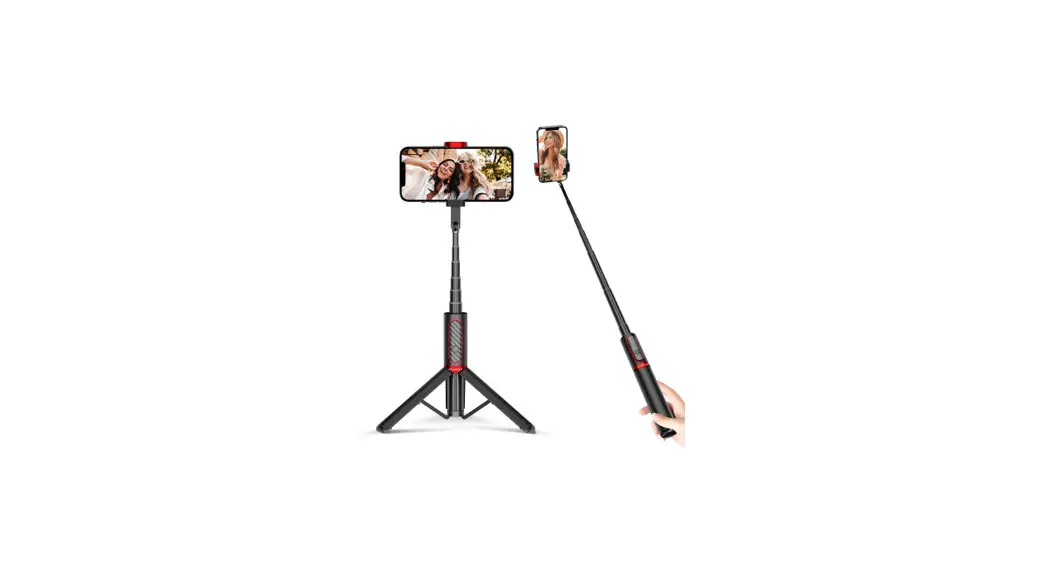
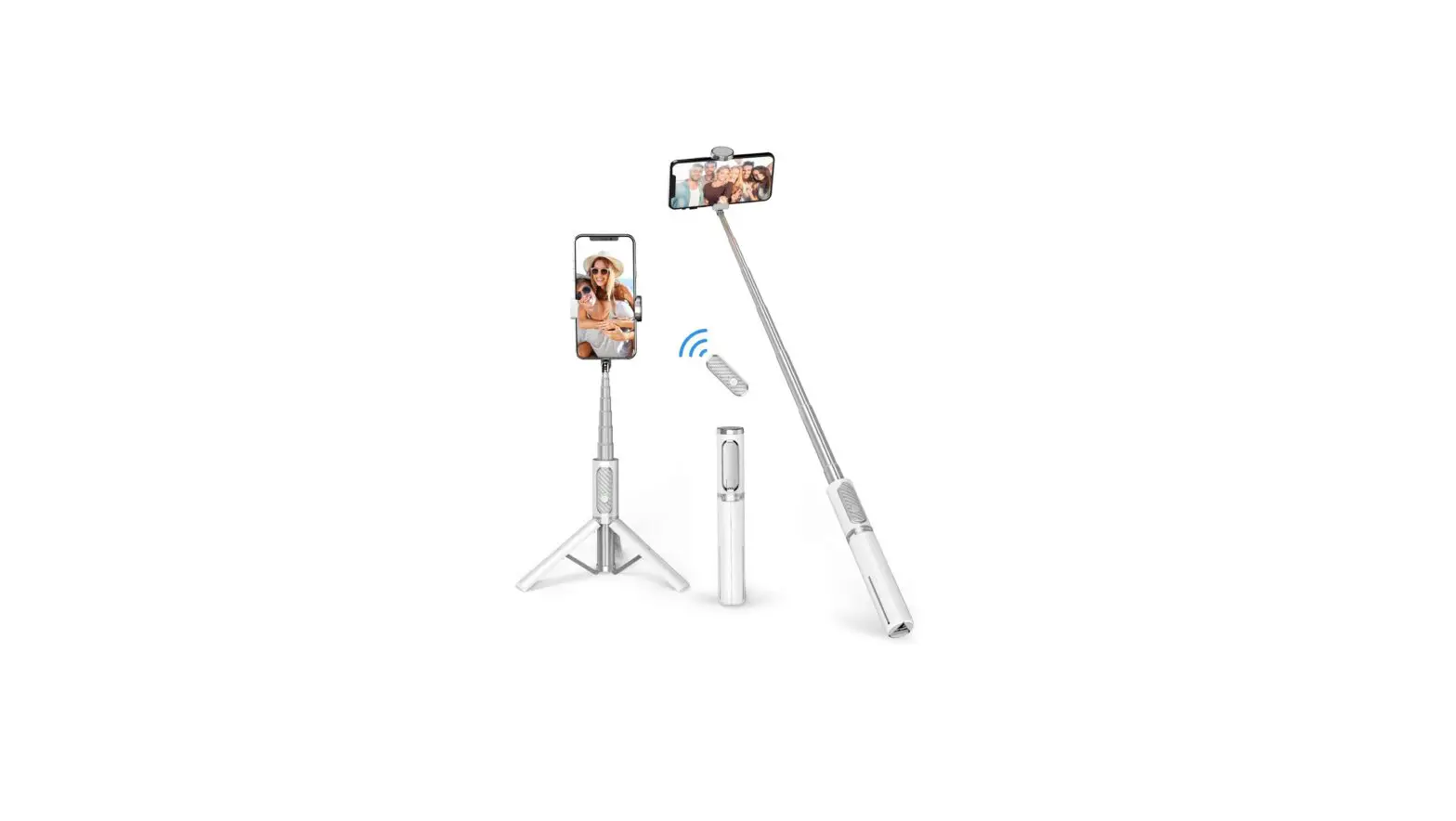
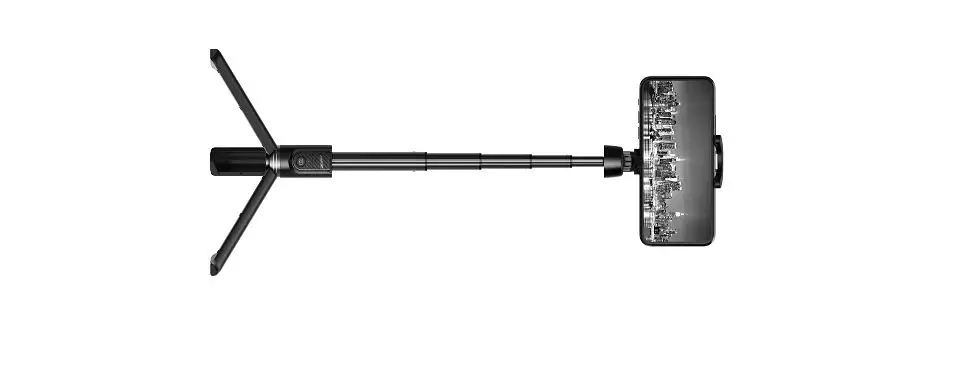
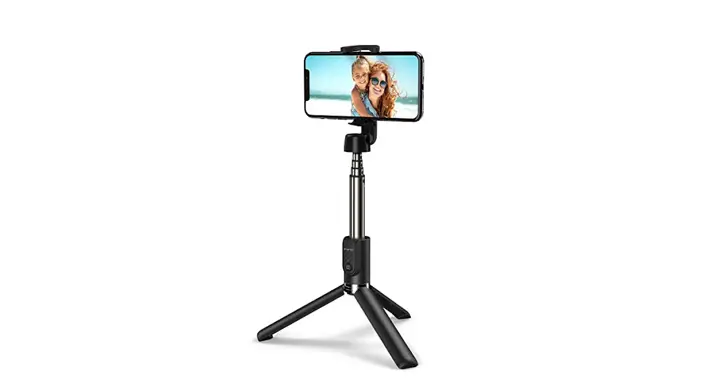
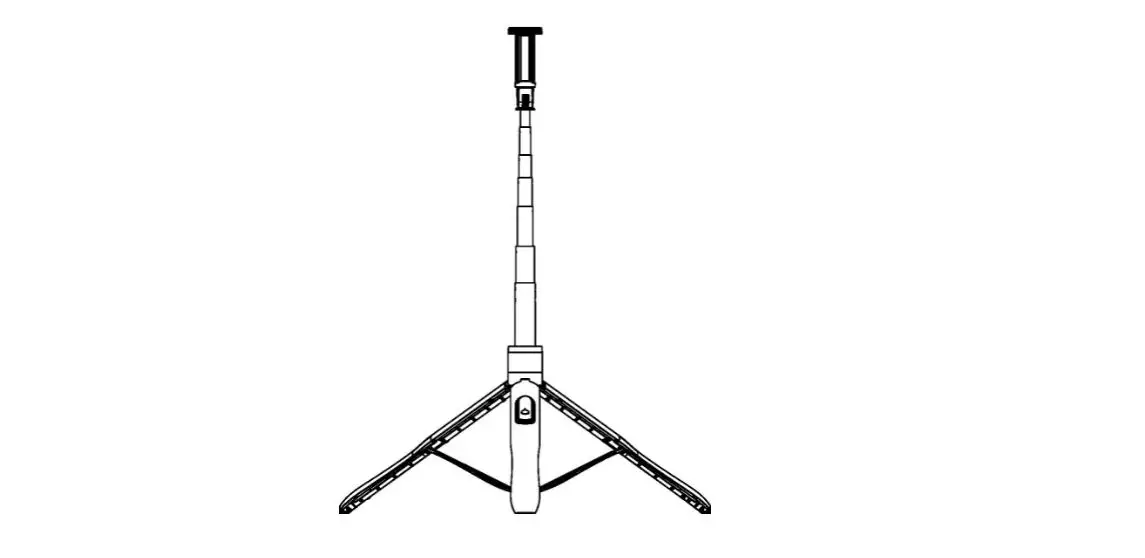
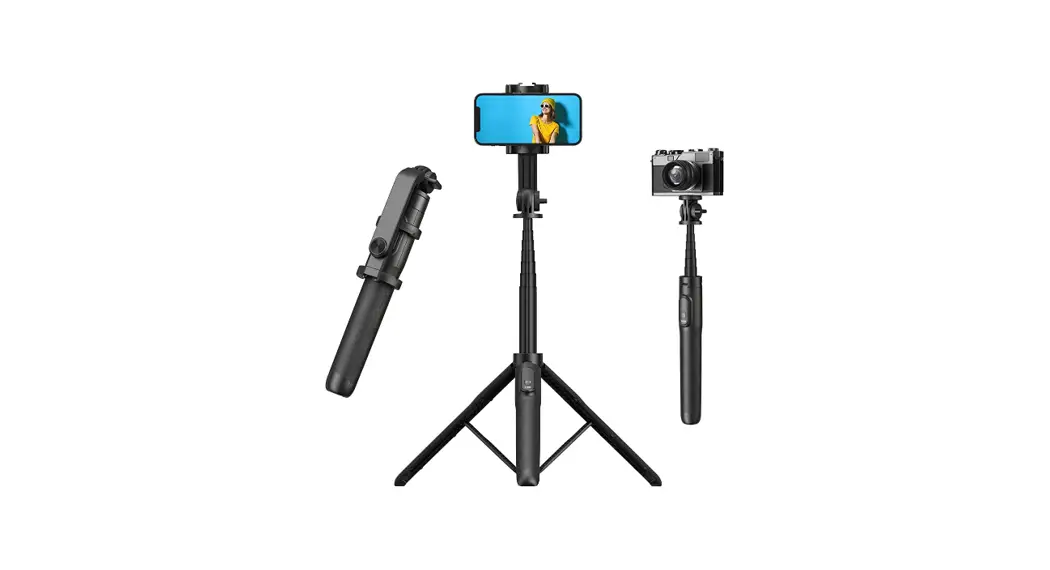
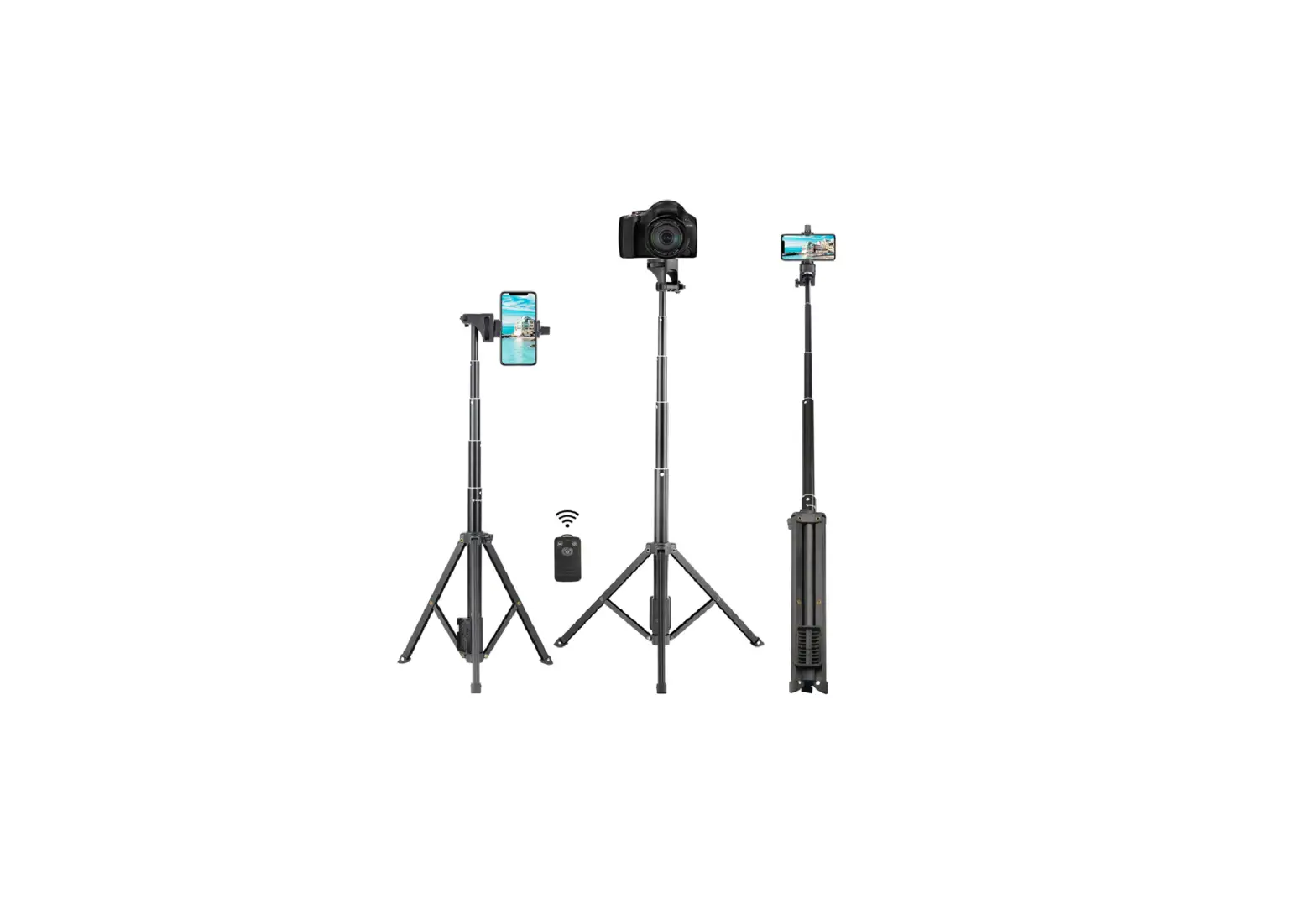
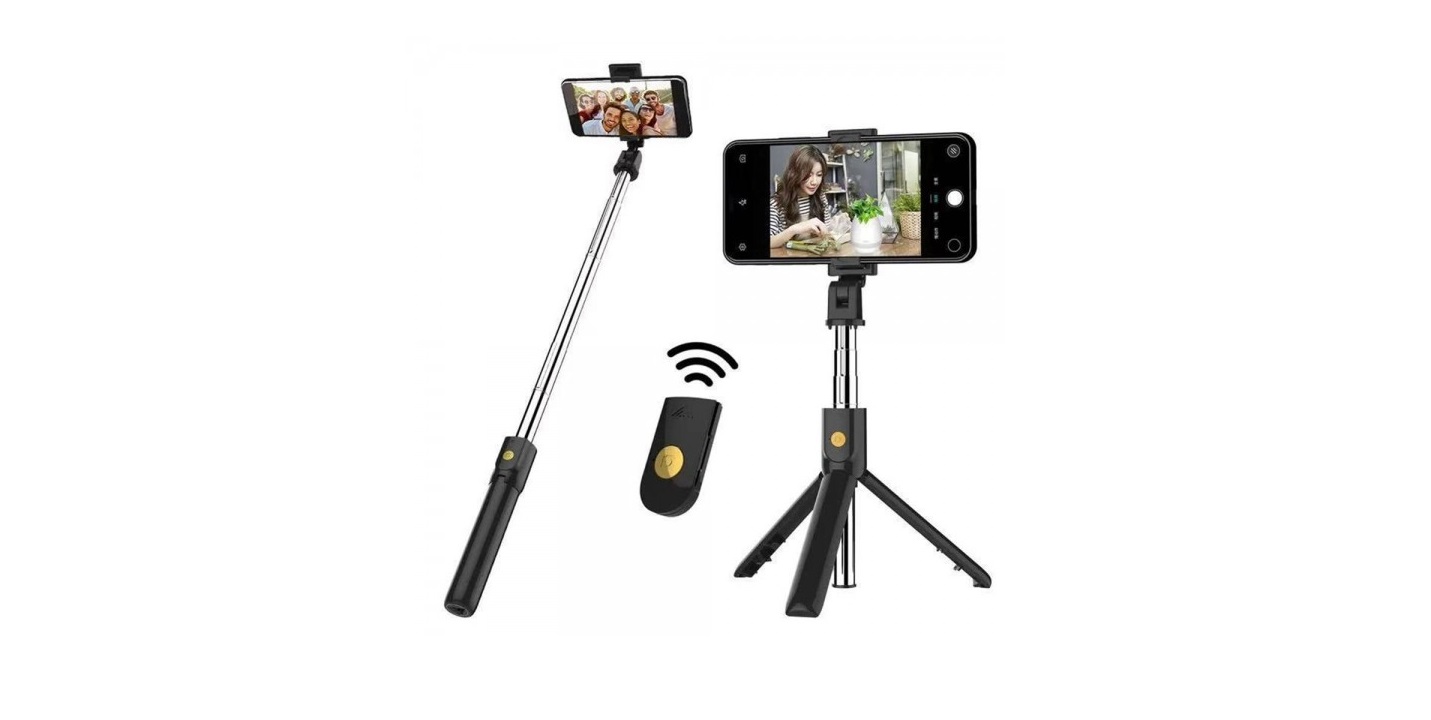
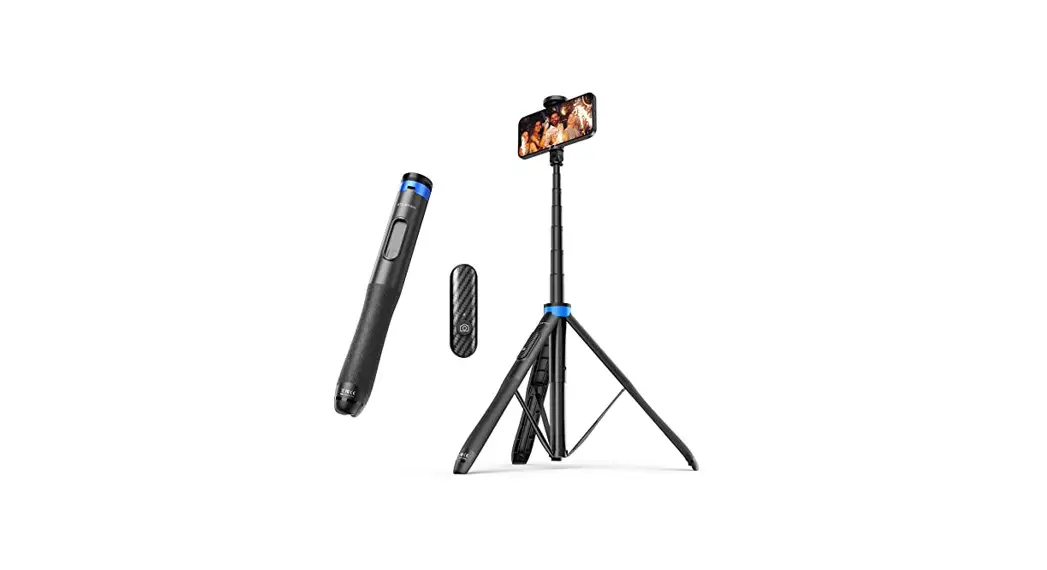
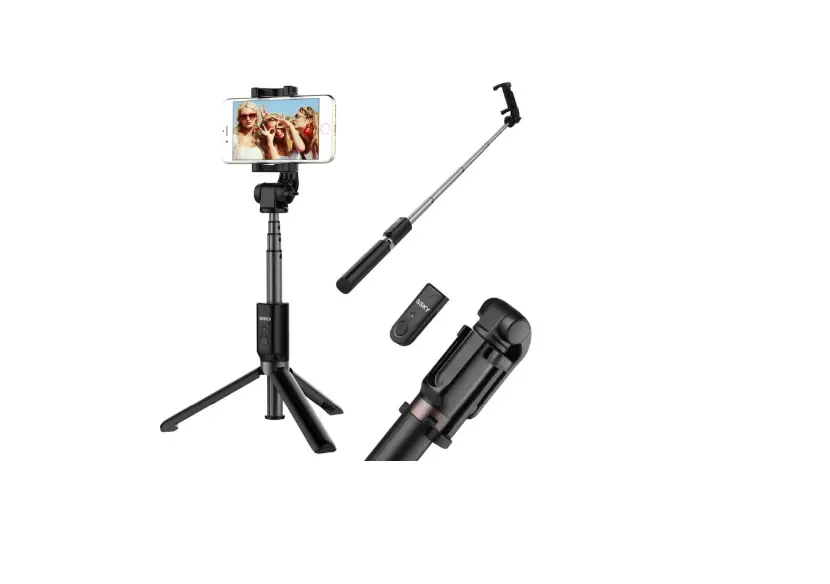
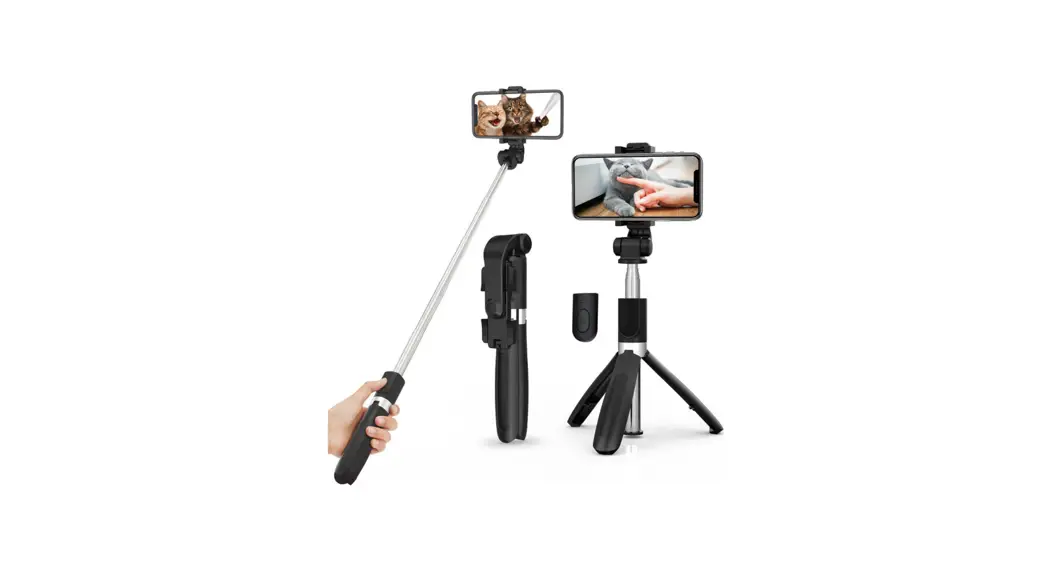
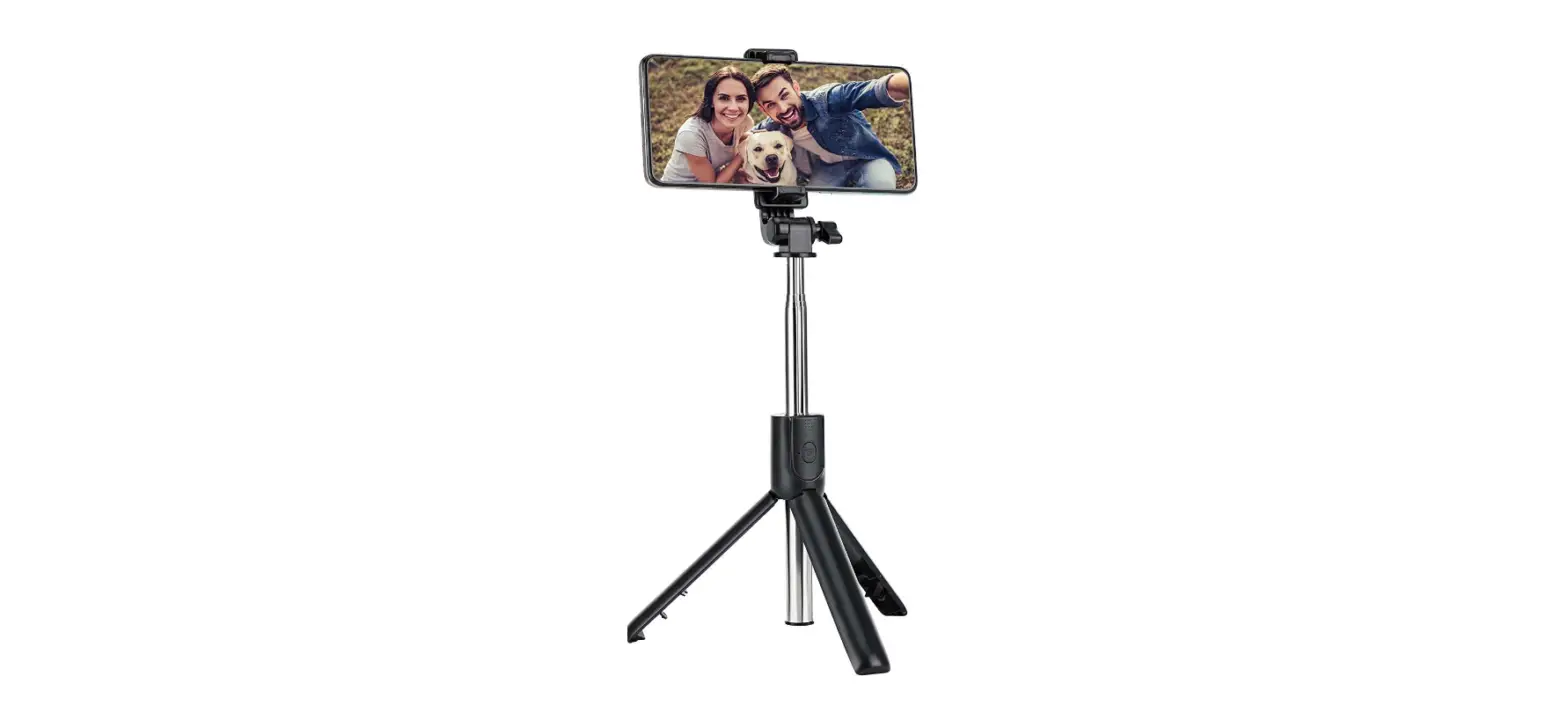
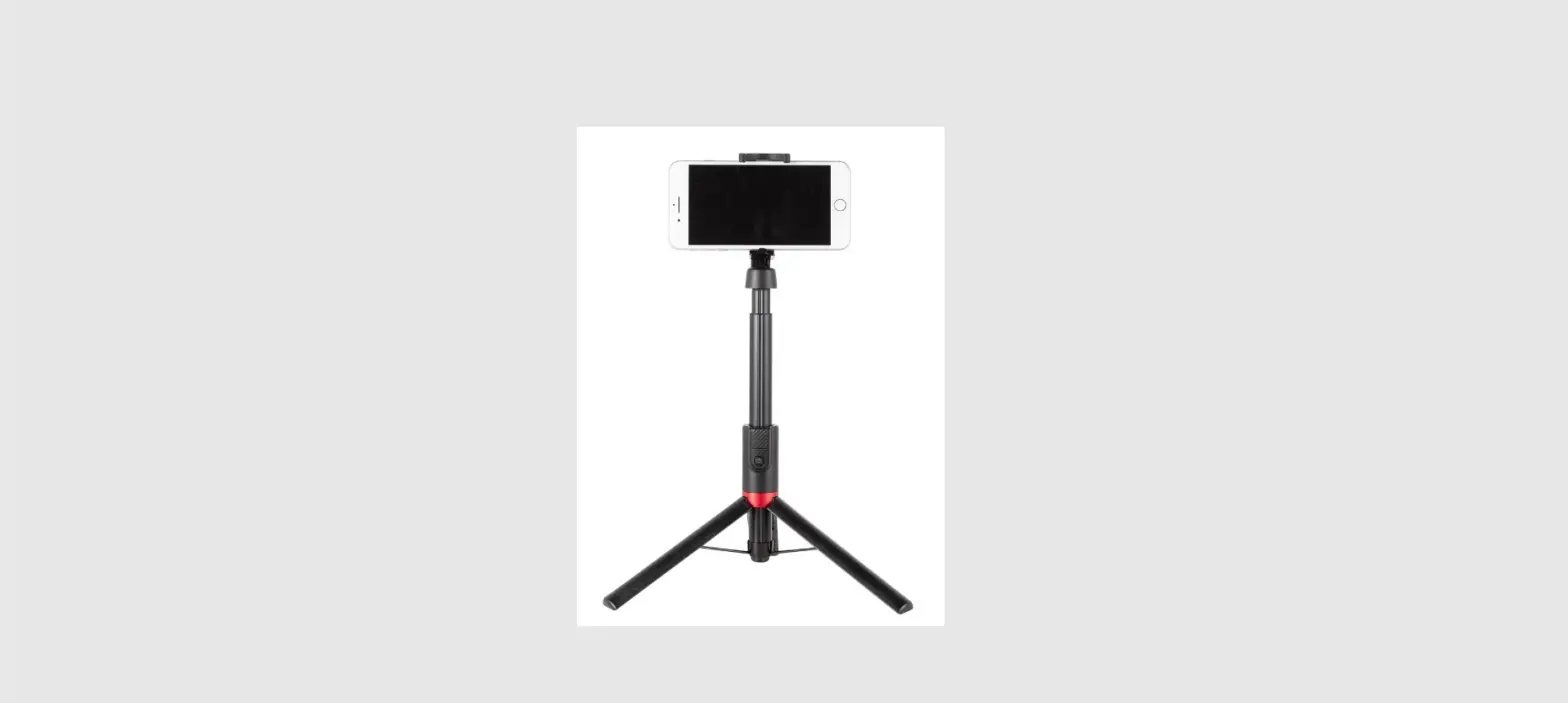
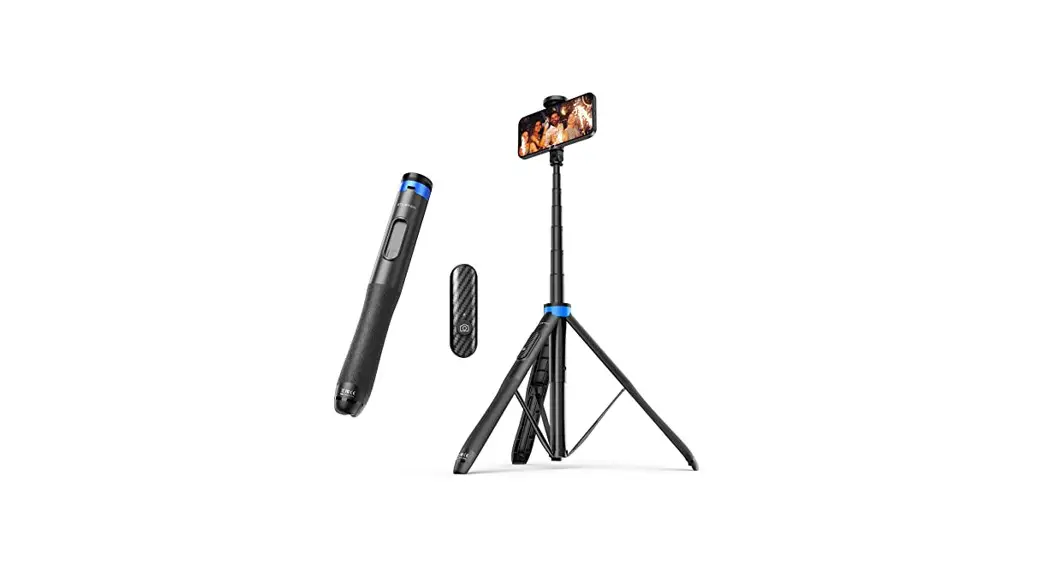
PRODUCT LINE GRAPH
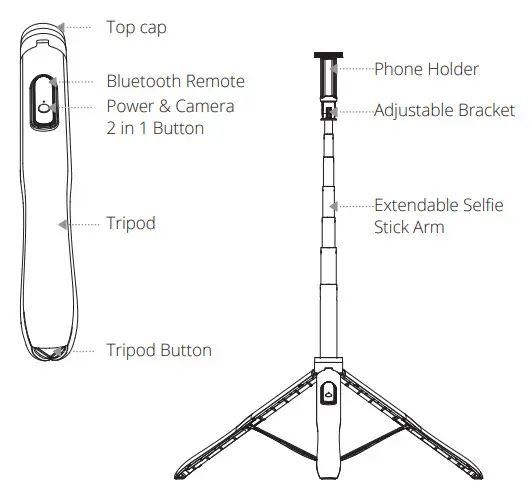
Product Parameters
| Weight | Approx. 330g |
| Remote distance | <10m(33ft) |
| Ambient temperature | -10 C–50 C |
| Remote battery capacity | 50 mAh |
| Input | 5V/110 mAh |
| Compatible devices | IOS 7.0 and later/ Android 5.0 and later |
| Device width | Approx. 2.36″ – 3.74″ |
| Extended length w/o tripod activated | Approx. 12.40″ – 54.15″ |
| Extended length with tripod activated | Approx. 12.21″- 53.54″ |
| Folded size | Approx. 12.01″ * Φ1.57″ |
| Remote button lifespan | >15,000 times |
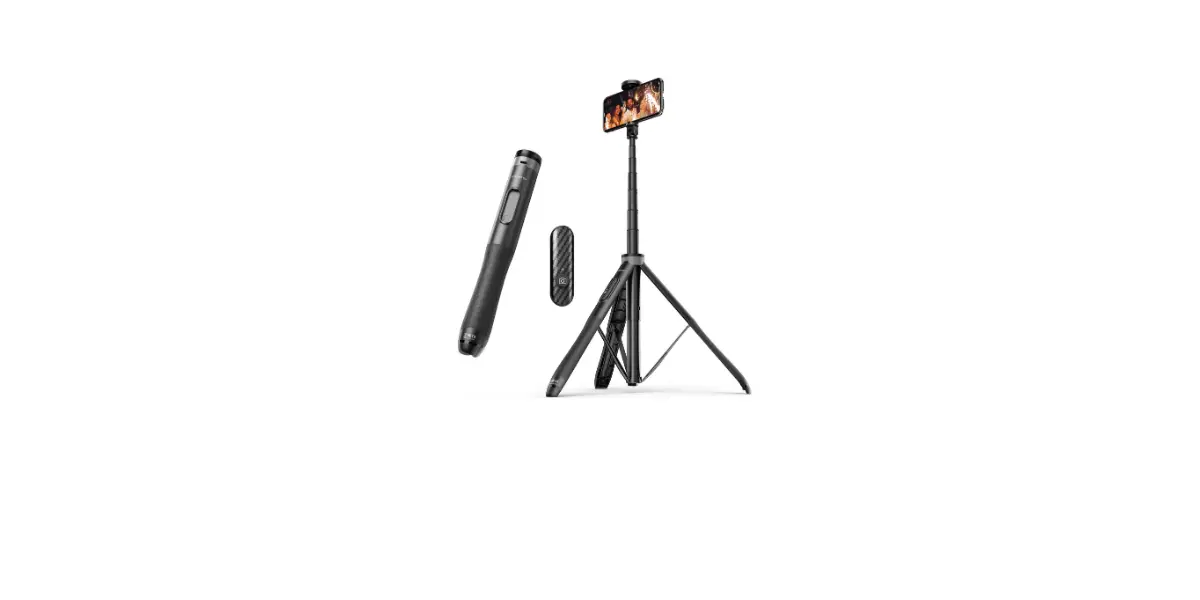
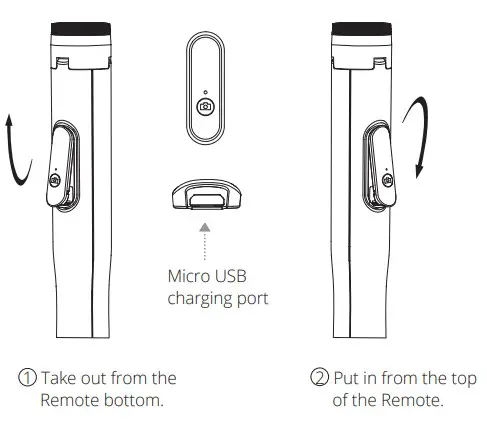
How to take out / put in wireless Bluetooth remote
How to use
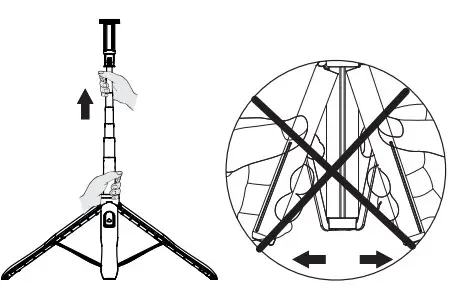
Step 1: First pull out the phone holder, then press the tripod button on the bottom to unlock the 3 legs slightly.
ATTENTION:
When you press the bottom button, please avoid holding the top of a tripod.
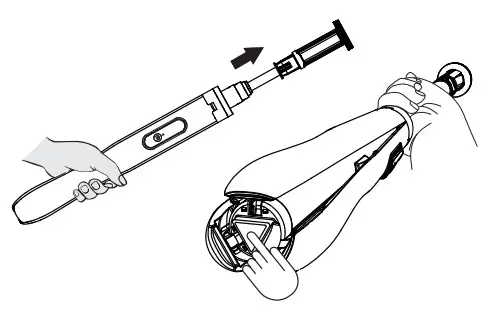
Step 2: Now pull the whole stick arm out, and the tripod will open automatically.
ATTENTION:
- Please fully pull out the stick arm so that the tripod can be fully opened. Otherwise, a tripod is not fully opened and will not be stable.

Step3: Put the tripod on the flat surface, then adjust the extendable stick arm for suitable height. If you do not need to use a tripod, just pull out the stick arm and adjust the height to use it.
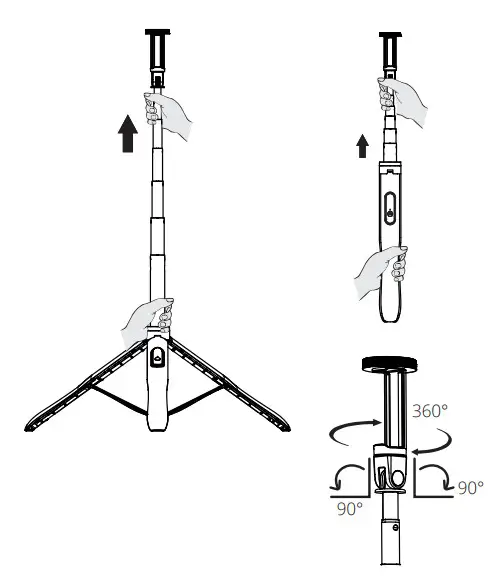
360° horizontal rotation of phone holder; 180° vertically rotation of adjustable bracket.
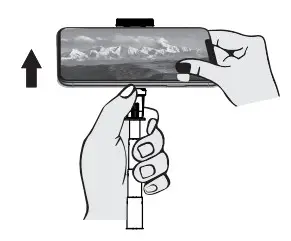
Step 4: Widthwise set your phone inside the smartphone holder by releasing the top cap.
Note: please avoid sticking the button on your phone.
How to Close
Step 1: Remove your mobile phone by releasing the top cap.
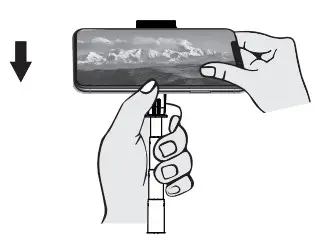
Step 2: Hold the bottom part of the stick, then pull back the extendable stick one by one; finally push the phone holder back.
Note: If you open the tripod, the tripod will close automatically when pushing back the aluminum alloy telescopic arm. Manual operation is prohibited.
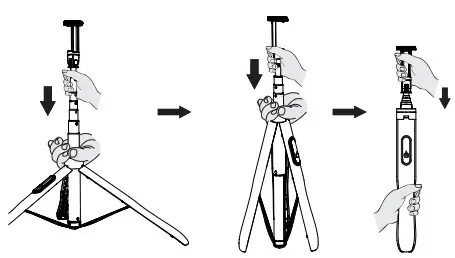
WARNING:
Do not push the 3 legs to close!!! It will break legs!!!
NOTE:
- Open your built-in camera in your phone and press the power & camera 2 in 1 button once for taking a photo.
- The wireless Bluetooth remote will connect directly after switching on if it is already connected with the phone Bluetooth last time.
- The Bluetooth will automatically disconnect when the distance is greater than or equal to 10 meters.
- Turn the Bluetooth off in your phone and the wireless Bluetooth remote will standby.
- How to disconnect with your phone: Go to your phone’s Bluetooth setting and disconnect “ATUMTEK” in paired devices.
- Unavailable to use to control the built-in camera app in your phone when the wireless Bluetooth remote is charging.
Bluetooth Connect Instruction
| No. | Status | LED Light Indicator |
| 1 | Switch On | Green Light Flashing |
| Long press the camera button for 2 seconds, to open the remote. | ||
| 2 | Switch Off | LED Light OFF |
| Long press camera button for 3 seconds, remote light is OFF. | ||
| 3 | Standby | LED Light OFF |
| Remote will standby after 10 minutes without operation; Press the button for once to active, then the green light will flash, please reconnect with the phone again. | ||
| 4 | Low Power | Red Light Flashing |
| 5 | Charging | Red Light ON |
| 6 | Fully Charged | LED Light OFF |
| 7 | Connected | Green Light ON |
| 8 | Connectionless | Green Light Flashing |
*6 It takes about 2 hours to fully charge the remote.
First long-press the camera button for 2 seconds, then connect with “ATUMTEK” when the green light is flashing, finally press once to take a picture or record video.
If the phone could not connect, clean the phone’s Bluetooth connection first, then try again; some Android phones use the volume button to control the camera, so if you still could not use remote, please choose “take a picture” or “take a video” on camera setting part. Or please contact with the seller directly to get support.
FCC Statement
Changes or modifications not expressly approved by the party responsible for compliance could void the user’s authority to operate the equipment.
This device complies with part 15 of the FCC Rules. Operation is subject to the following two conditions: (1) This device may not cause harmful interference, and (2) this device must accept any interference received, including interference that may cause undesired operation.
Note: This equipment has been tested and found to comply with the limits for a Class B digital device, pursuant to Part 15 of the FCC Rules. These limits are designed to provide reasonable protection against harmful interference in a residential installation. This equipment generates, uses, and can radiate radio frequency energy, and if not installed and used in accordance with the instructions, may cause harmful interference to radio communications. However, there is no guarantee that interference will not occur in a particular installation. If this equipment does cause harmful interference to radio or television reception, which can be determined by turning the equipment off and on, the user is encouraged to try to correct the interference by one or more of the following measures:
- Reorient or relocate the receiving antenna.
- Increase the separation between the equipment and receiver.
- Connect the equipment into an outlet on a circuit different from that to which the receiver is connected.
- Consult the dealer or an experienced radio/TV technician for help.
Contact us via Facebook Messenger (Recommended):
m.me/atumtekproducts
OR
www.atumtek.com
OR
[email protected]
If you find our product satisfactory, please encourage us by sharing
your user experience online.
If you need help with this purchase, please do not hesitate to contact us.
| EC | REP | Prolinx GmbH Brehmstr.56, 40239 Duesseldorf Germany |
| UK | REP | Syncwire UK Ltd C/O Lai and Co.109 Portland Street, Manchester, M1 6N |
 ATUMTEK