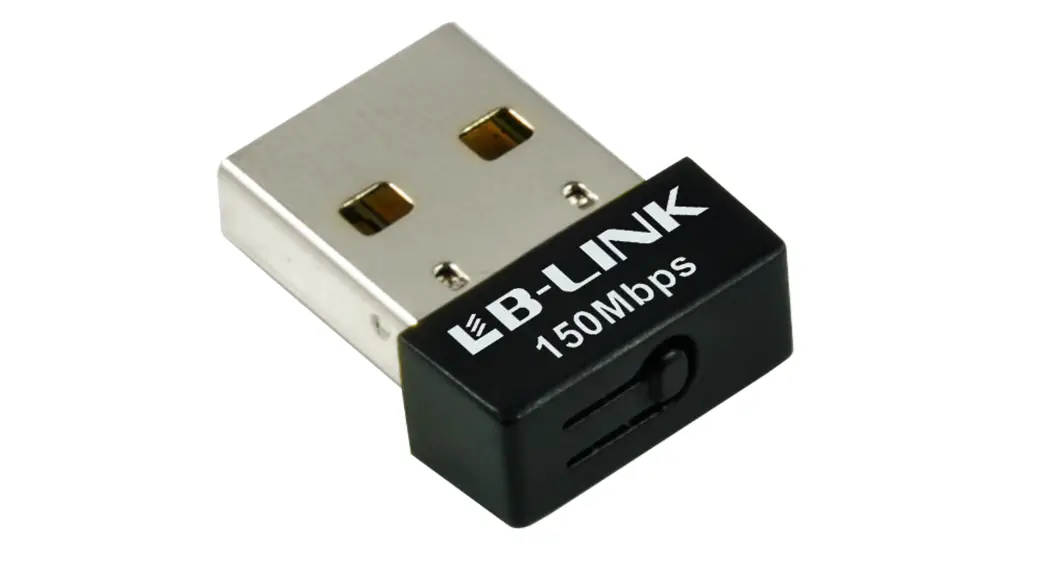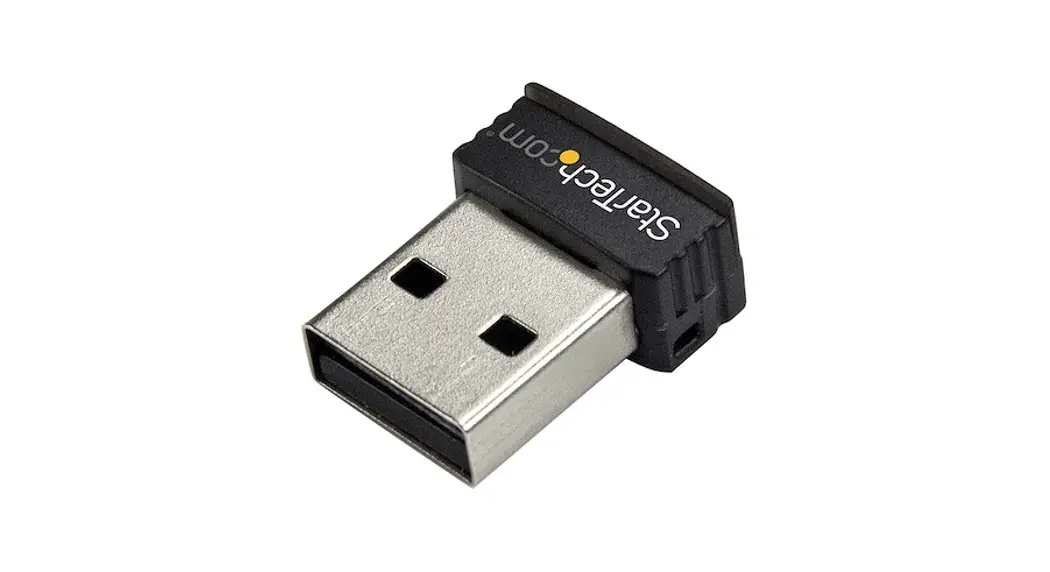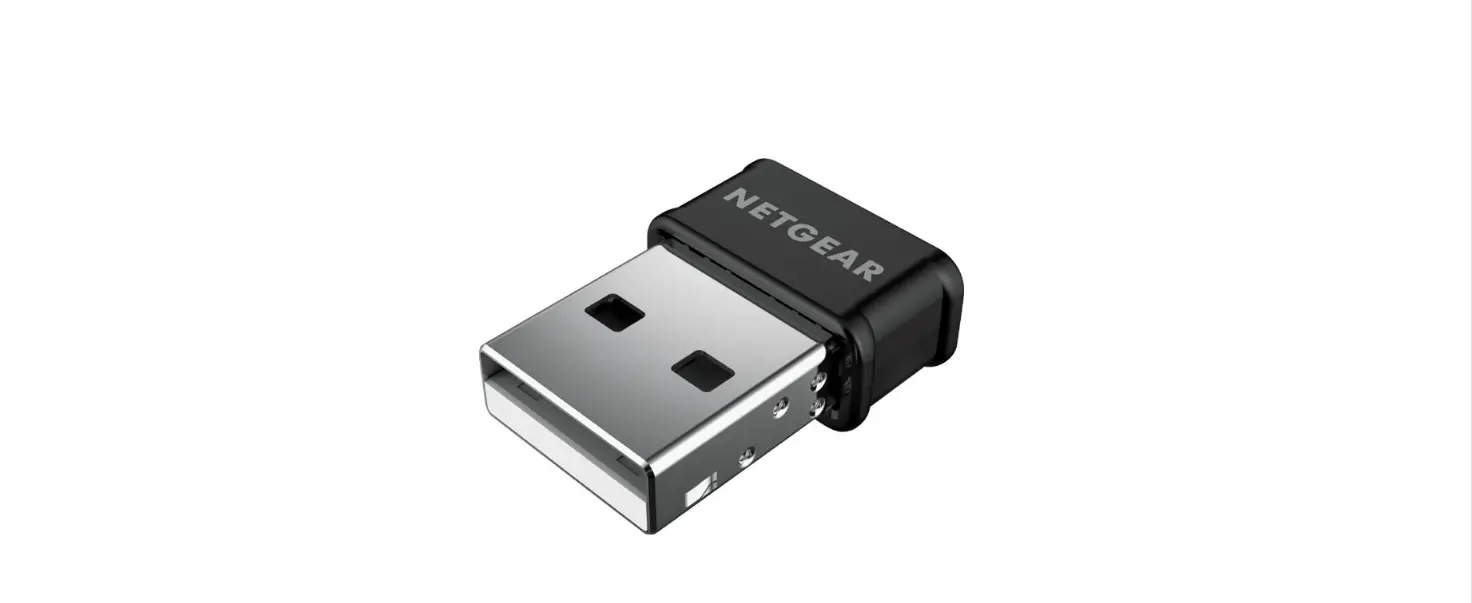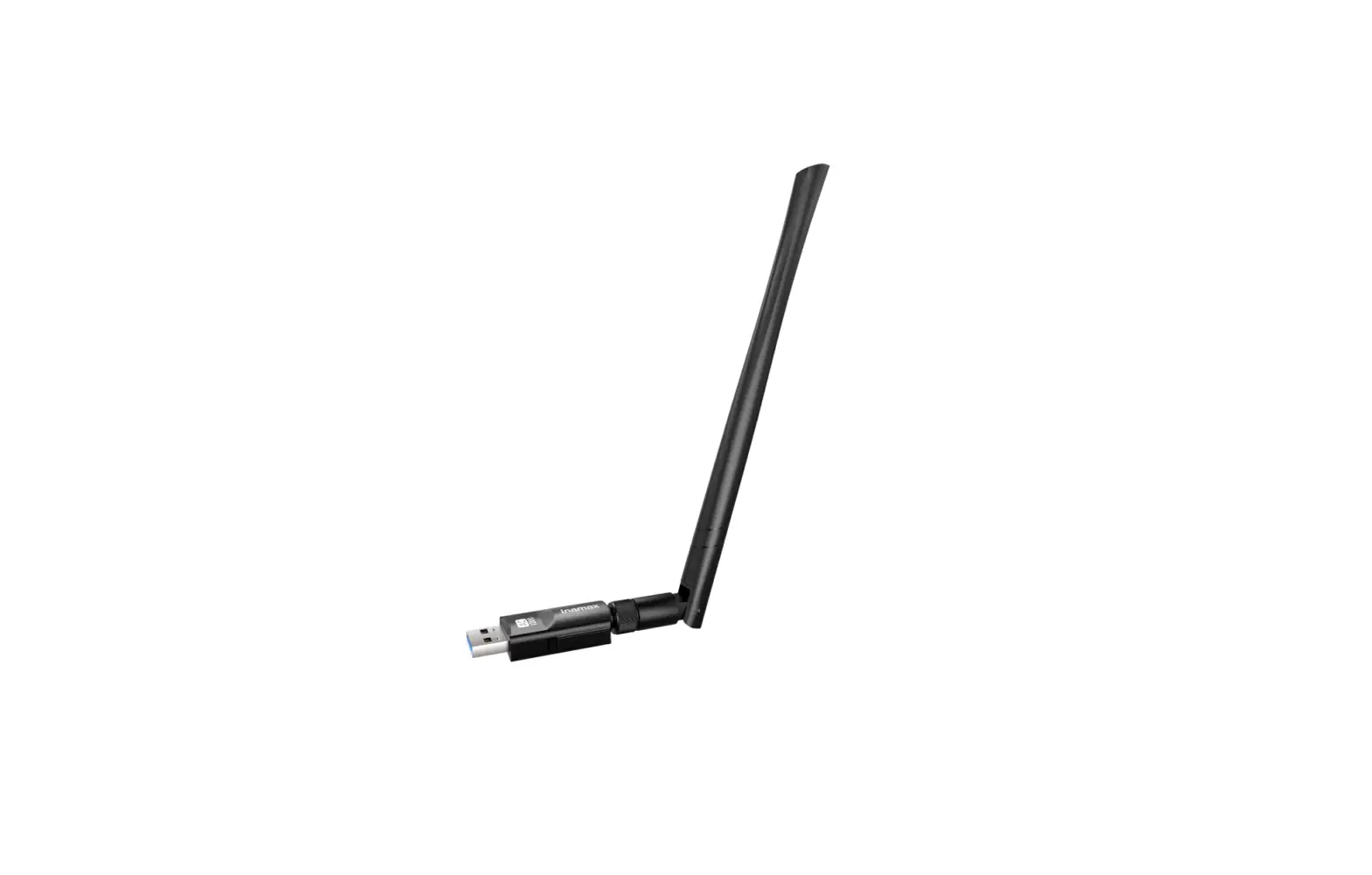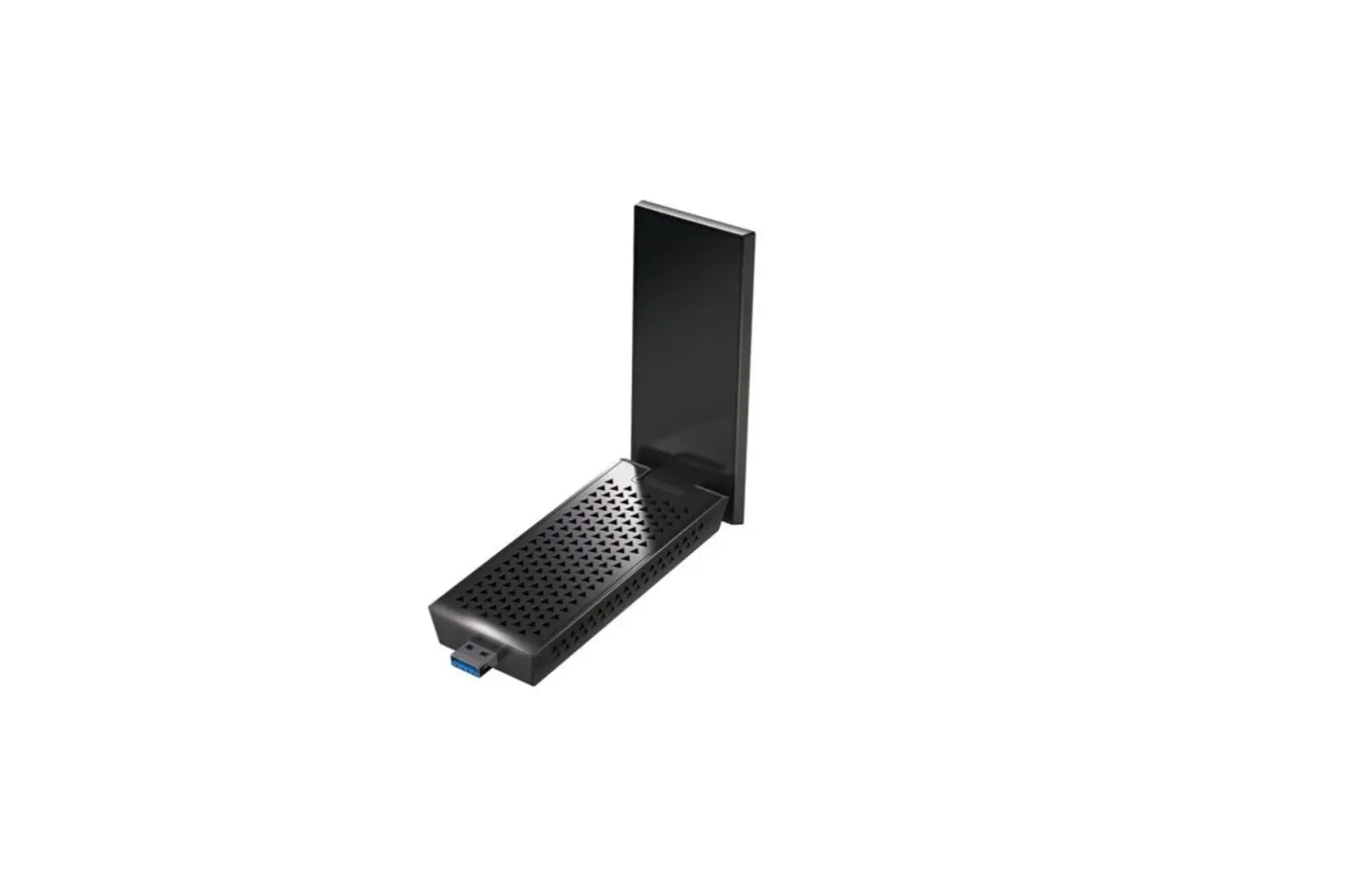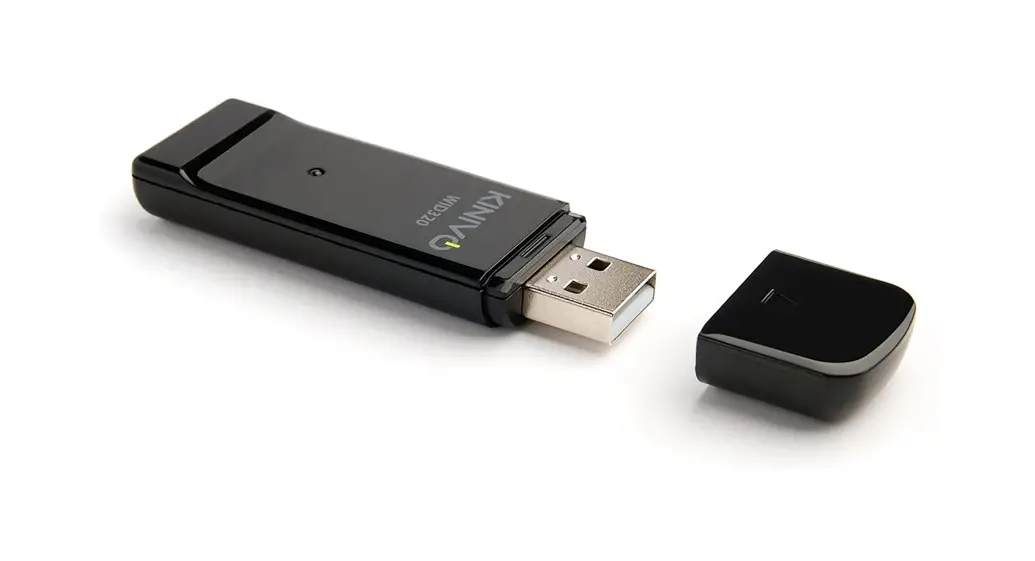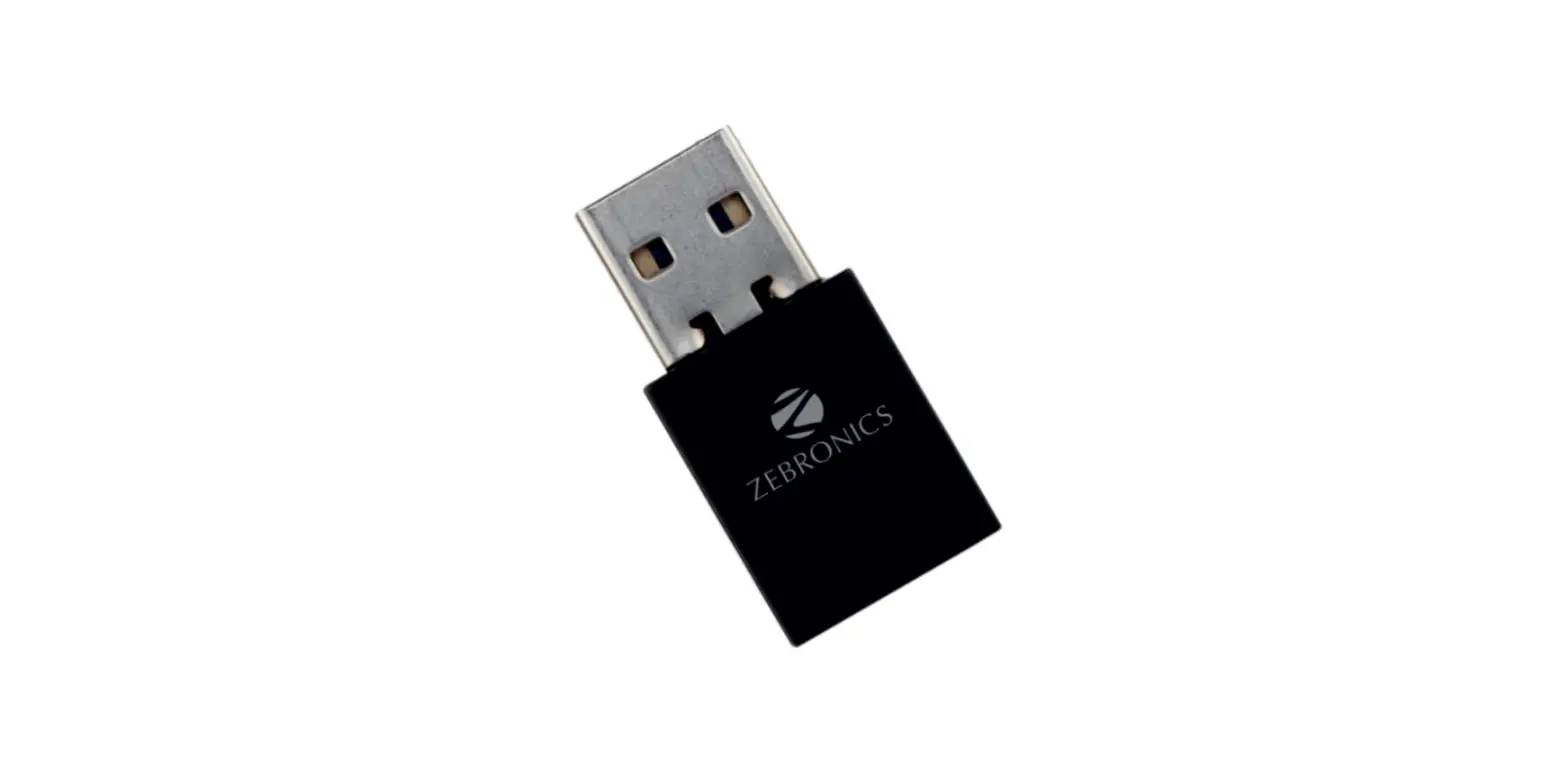

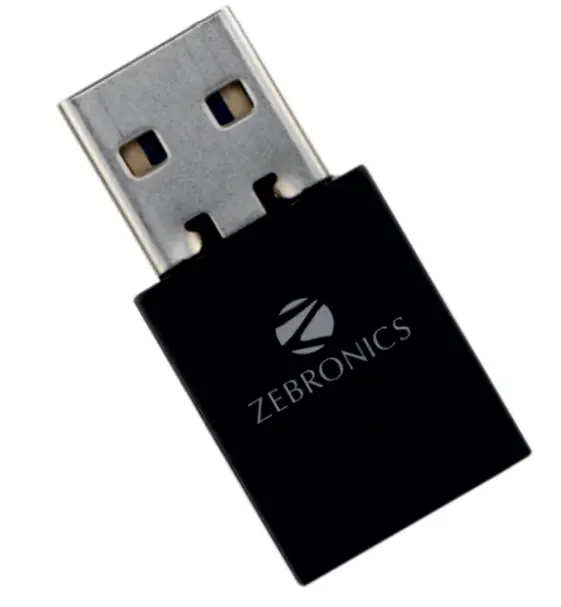
ZEBRONICS ZEB-USB150WFBT-WiFi USB Mini Adapter
Dear Customer,
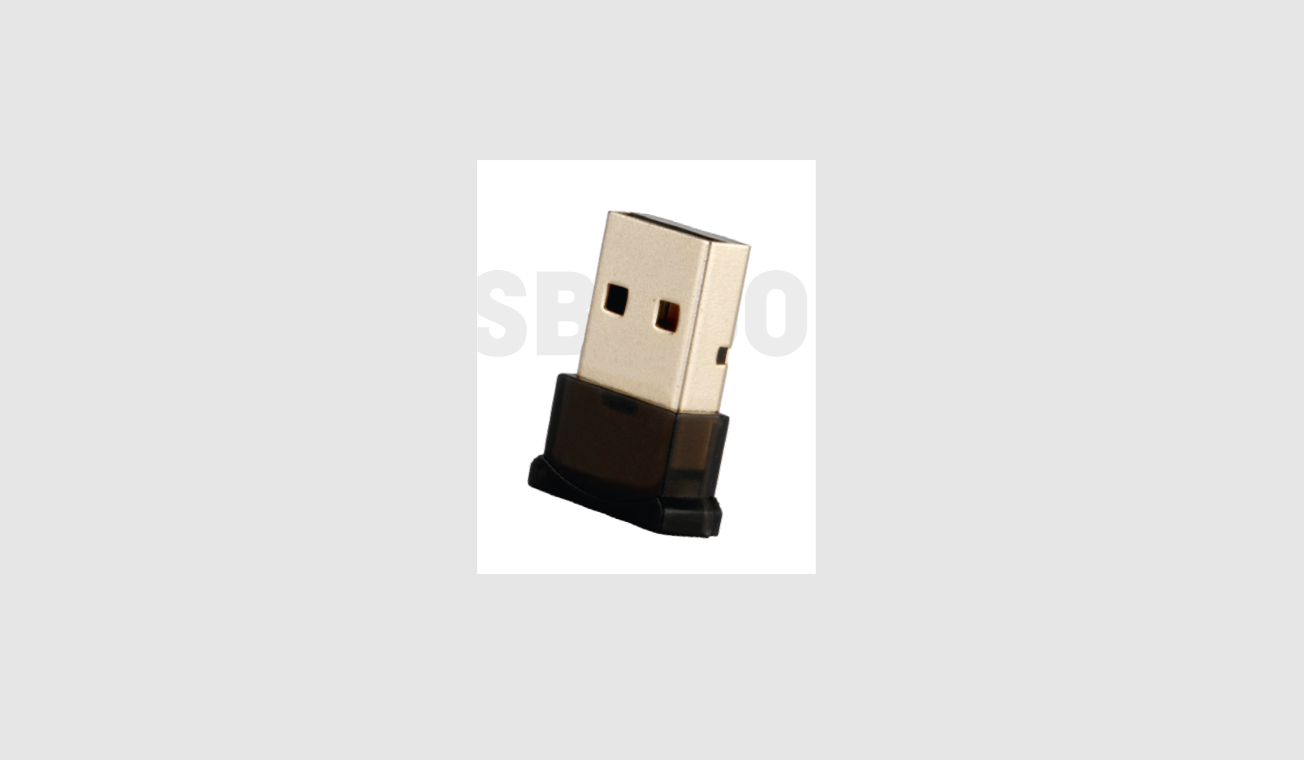
Thank you for purchasing the ZEB-USB150WFBT Wireless BT& Wi-Fi Dongle. Please read the user manual carefully before usage & save it for future reference.
Note:
- Avoid the usage of this product at a high temperature and high humidity environment.
- Avoid the self-disassembly of the product as it results in the failure of the Warranty.
- Please Use the product with the Laptop/PC USB Port.
Caution:
- Keep it away from the children.
- Do not use it with the external power adapter.
Features
- BT+ WI-Fl
- Supports WI-Fl 1 S0Mbps & BT 3M bps
- IEEE 802.11 a/b/g/n client
- Data Transfer & Audio Streaming
- High-Speed Connectivity
- LED Indicator
Specification
- BT Version: v4.0
- Supported BT Profile: A2DP / AVRCP / HFP / HSP
- Interface: USB
- BT Range: 10 (without obstacles)
- Supported BT Speed: 3 Mbps
- Supported WI-Fl Speed: 150 Mbps
- WI-Fl Frequency Range: 2.4GHz
- Input Voltage: DCSV
- Supported OS: Windows XP & Above, Linux
- Product Dimension: 16 x 32.5 x 8 mm
- Product Weight: 3g
Package Content
Wifi + BT Adapter: 1 Unit
Driver CD: 1 Unit
How to use: (BT Configuration)
- Plug in ZEB-USB1 SOWFBT to the PCTLaptop
- Insert the given Driver CD to the PC/Laptop
- Kindly follow the steps given below
- After Successful Installation do not restart, restart after
Wi-Fi drivers are also installed
NOTE:
While installing the driver make sure the ZEB-USB150WFEIT is plugged In.
Windows Installation Procedure:
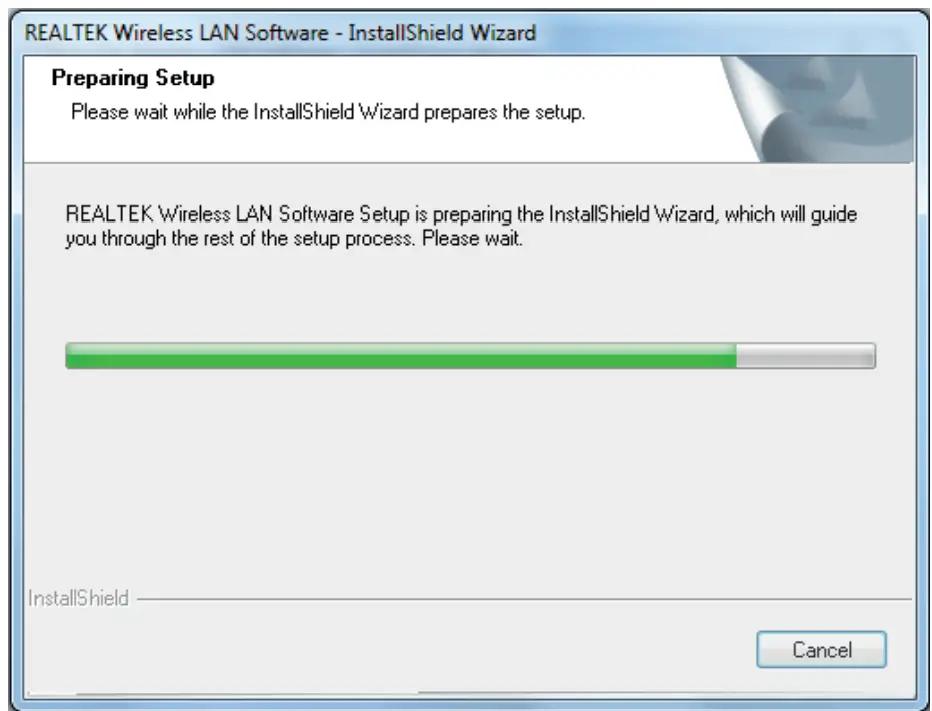
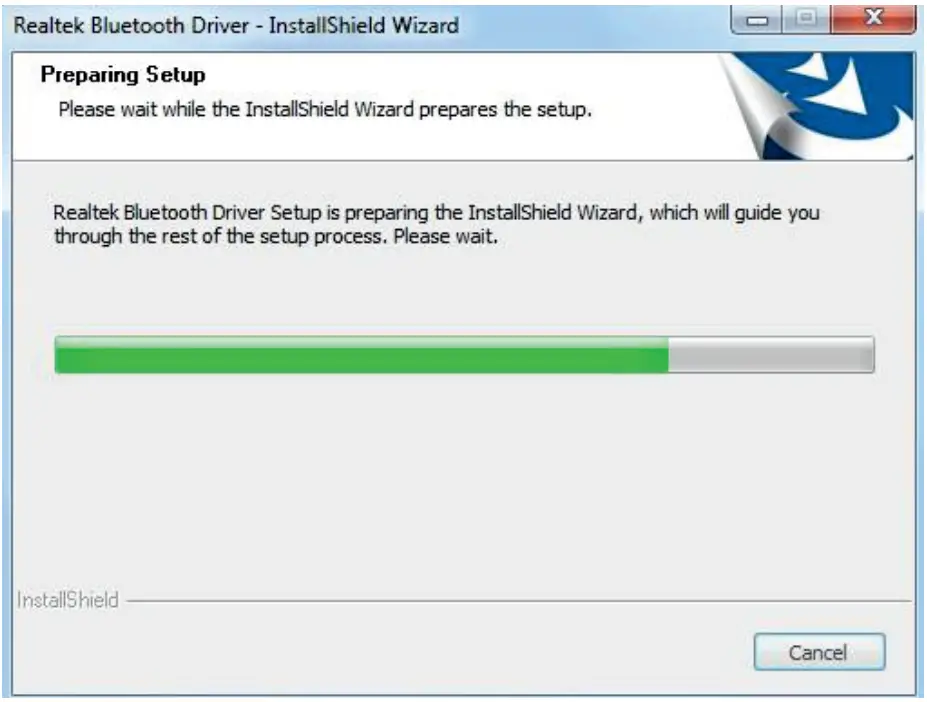
- After inserting the given driver CD, click on setup.exe and this loading dialog box will appear.

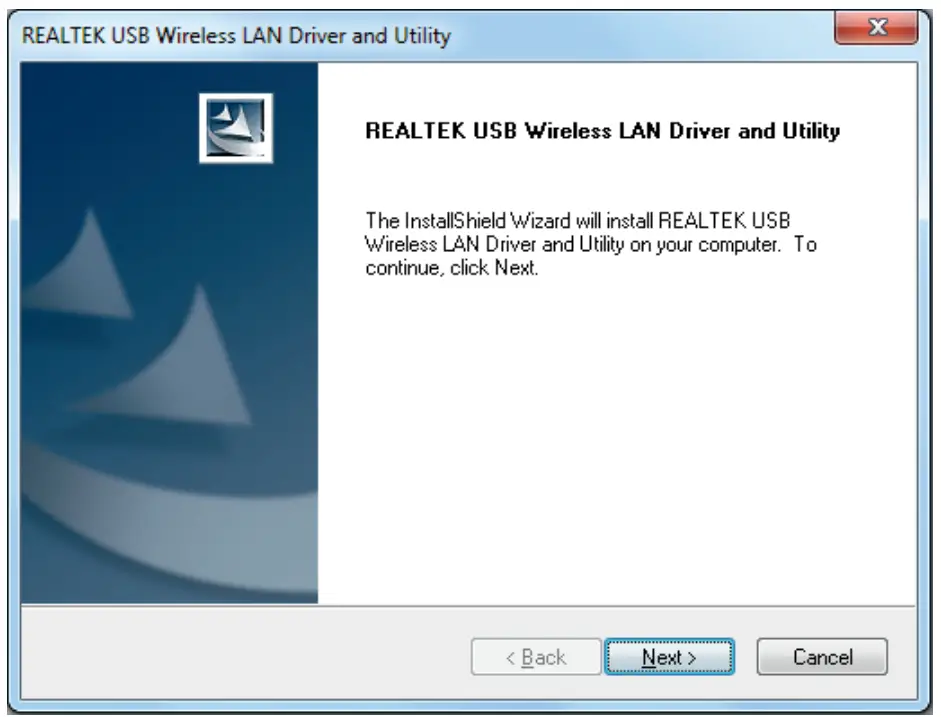
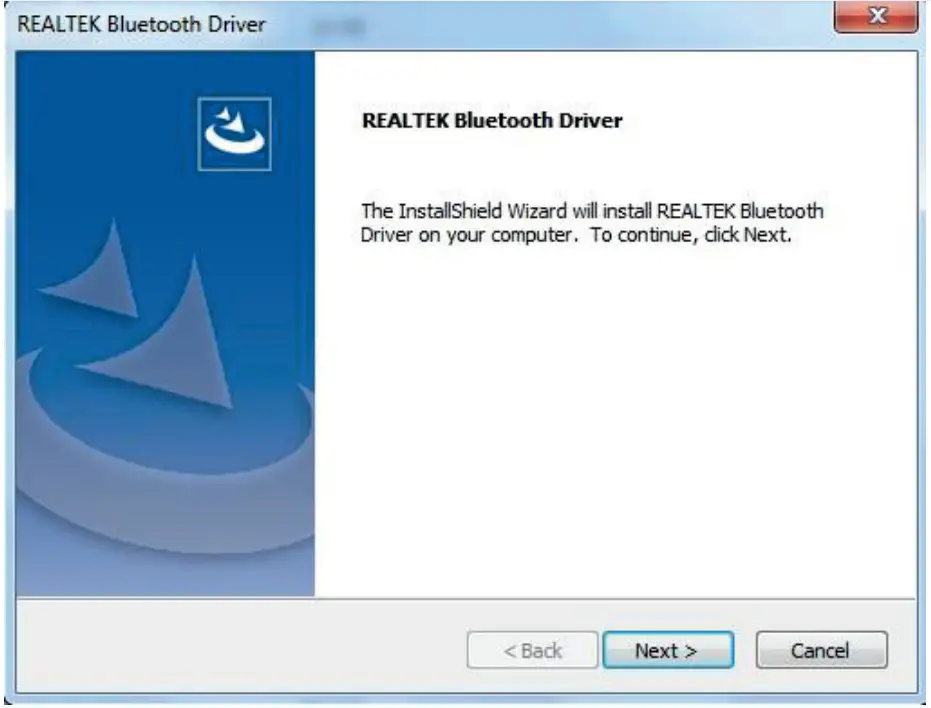
- Click on NEXT for further installation

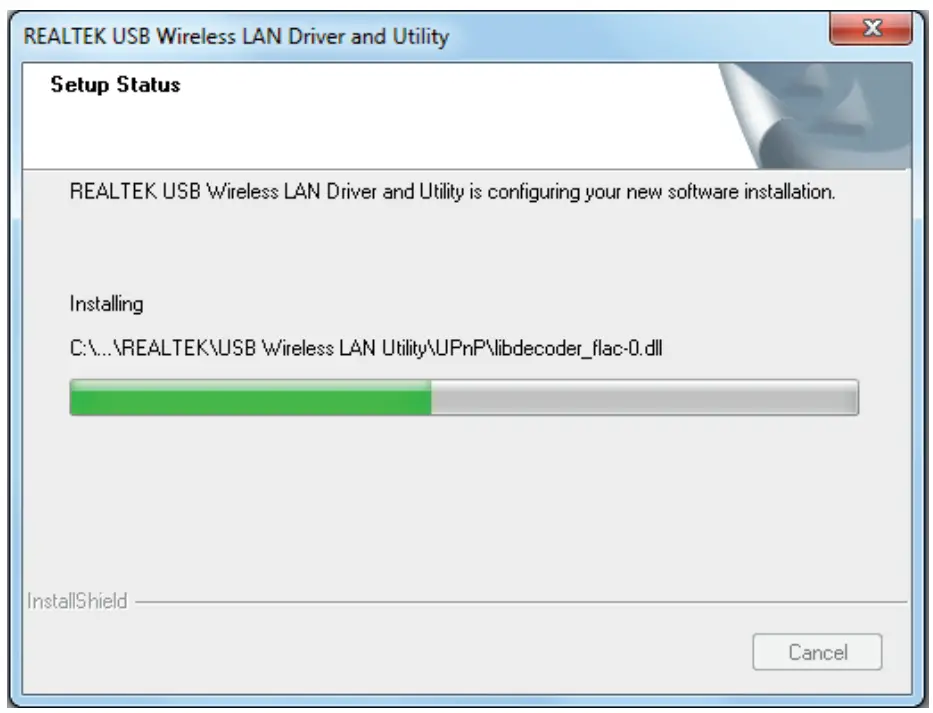
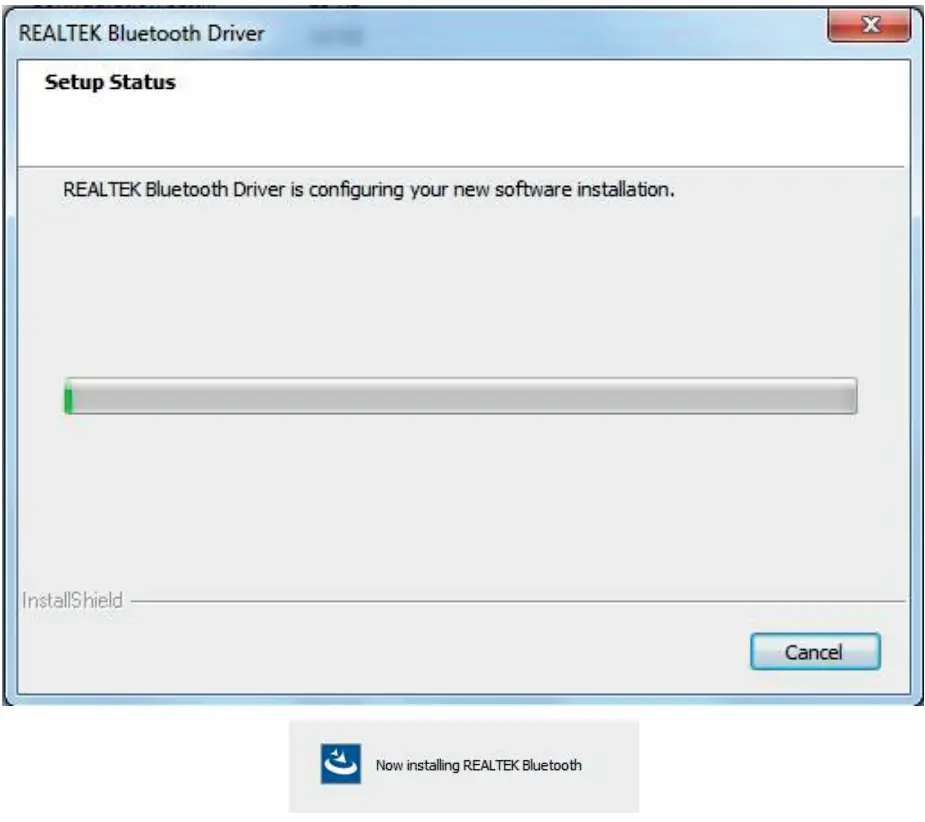
- After clicking on NEXT this dialog box will appear, saying that drivers are installing.

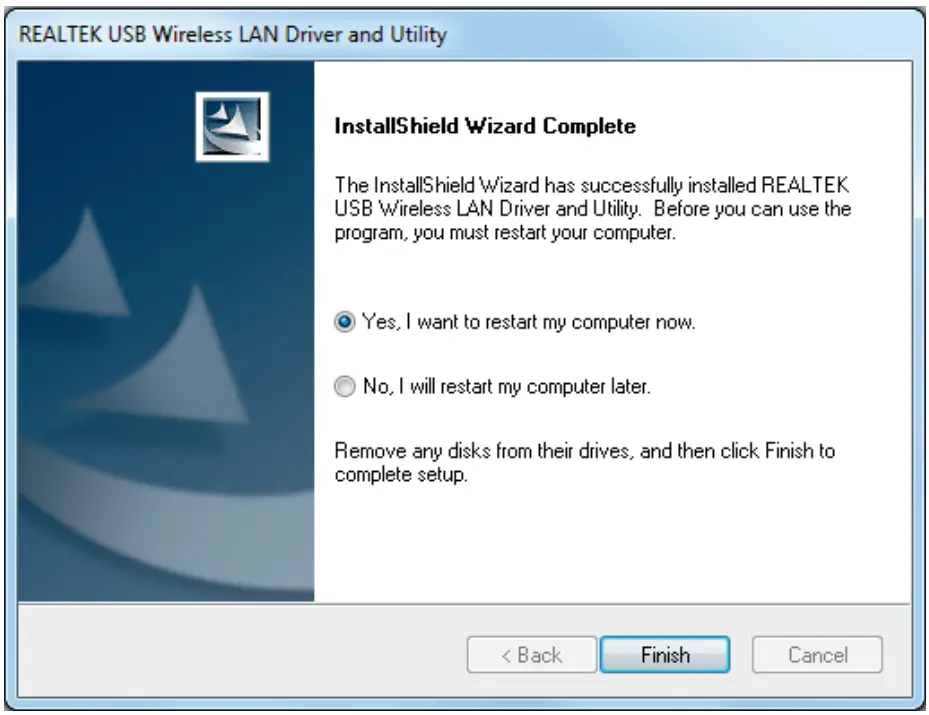
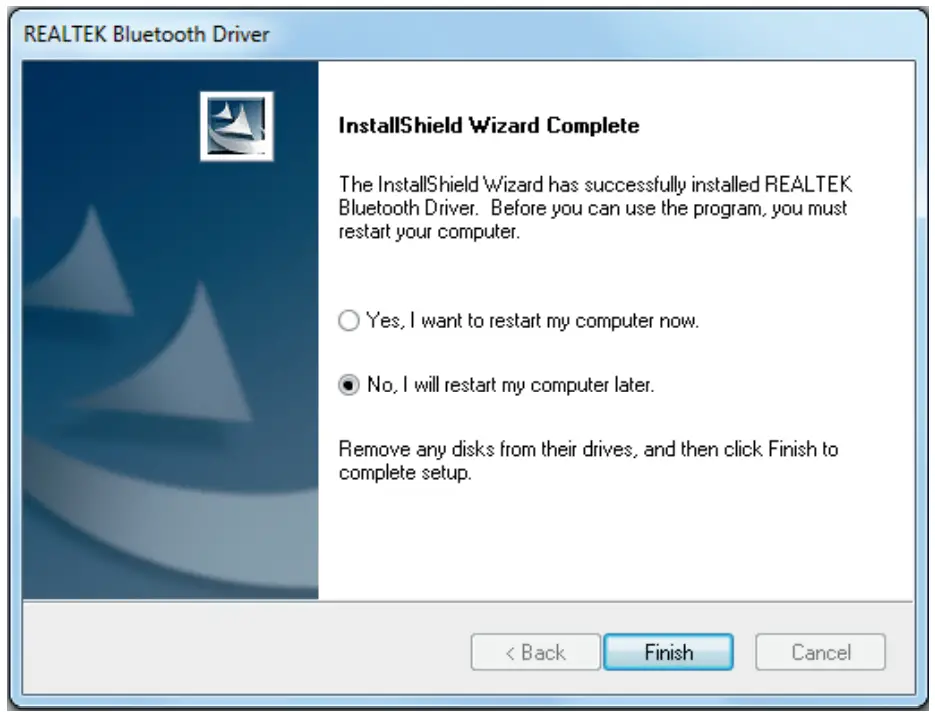
- Do not click on Restart. Press restart once the WI-Fl drivers are also Installed.

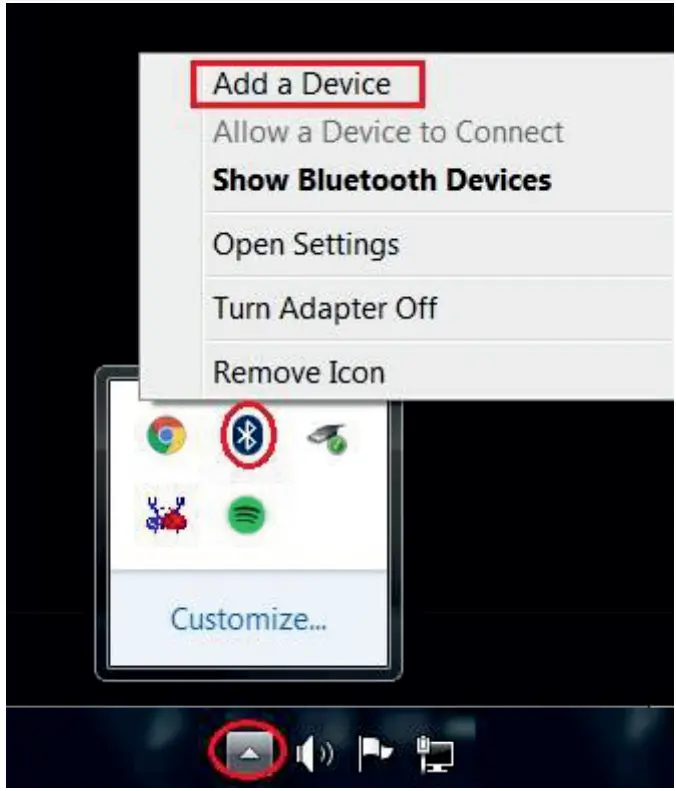
- After the driver is installed, BT Setting can be accessed from the Taskbar as marked below.

WI-Fl Configuration
- Plug in ZEB-USB1 SOWFBT to the PC/Laptop.
- Insert the given Driver CD to the PC/Laptop.
- Kindly follow the steps given below.
- After Successful Installation, CIiek on restart
NOTE:
While installing the driver make sure the ZEB-USB1 SOWFBT Is Plugged In.
Windows Installation Procedure:
- After Inserting the given driver CD, cllck on setup.exe and this loading dialog box will appear.

- click on NEXT for further installation,

- After dicking on NEXT this dialog box will appear, saying that drivers are installing.

- Finally, Click Restart Now and finish the setup.

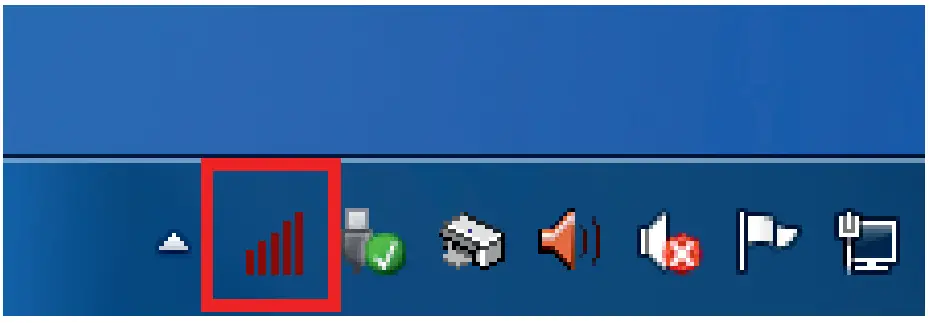
- After the drivers are installed, WI-Fl Setting can be accessed from the Taskbar as marked below.

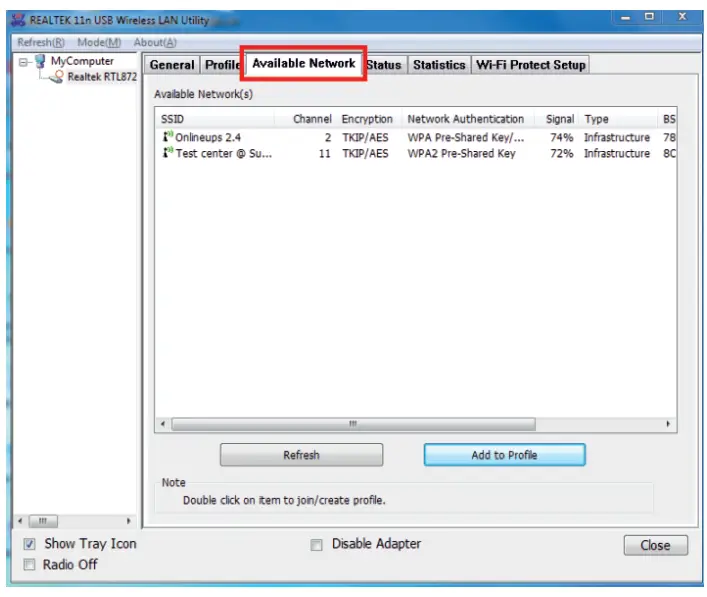
- After the icon is pressed, the Utility dialog box will appear. From that – select Available Network & Scan for the nearby Wi-Fi. Tap on your network & press “Add to Profile

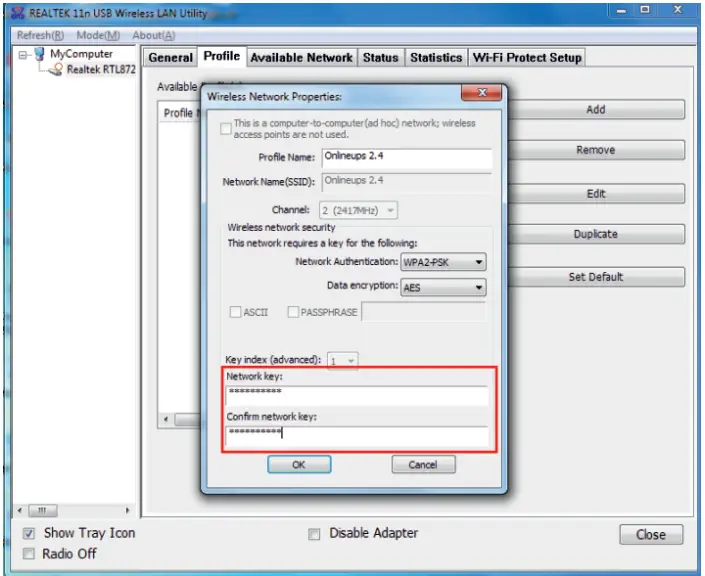
- After selecting the network, enter the credentials and click “Ok