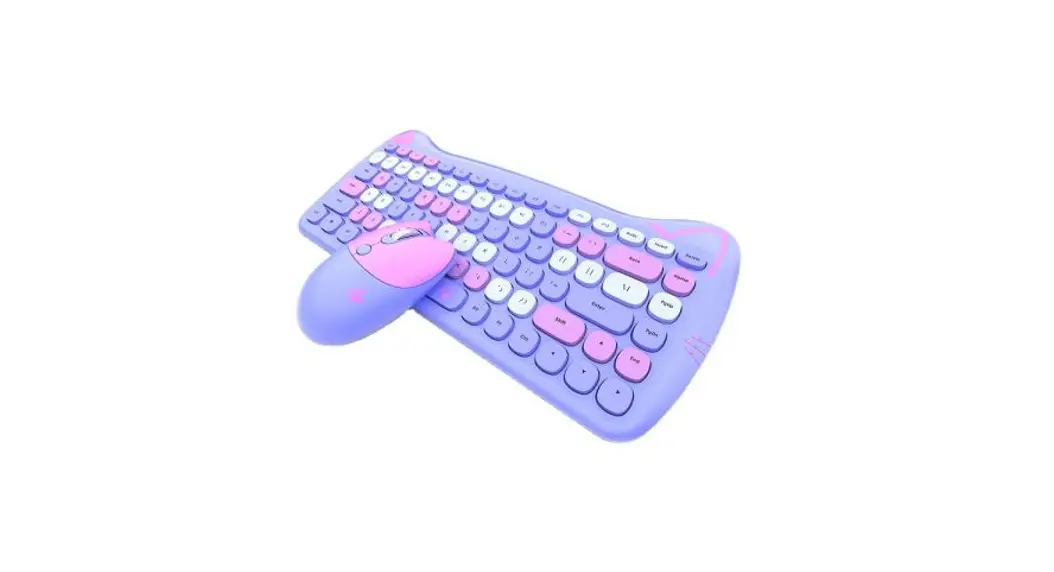
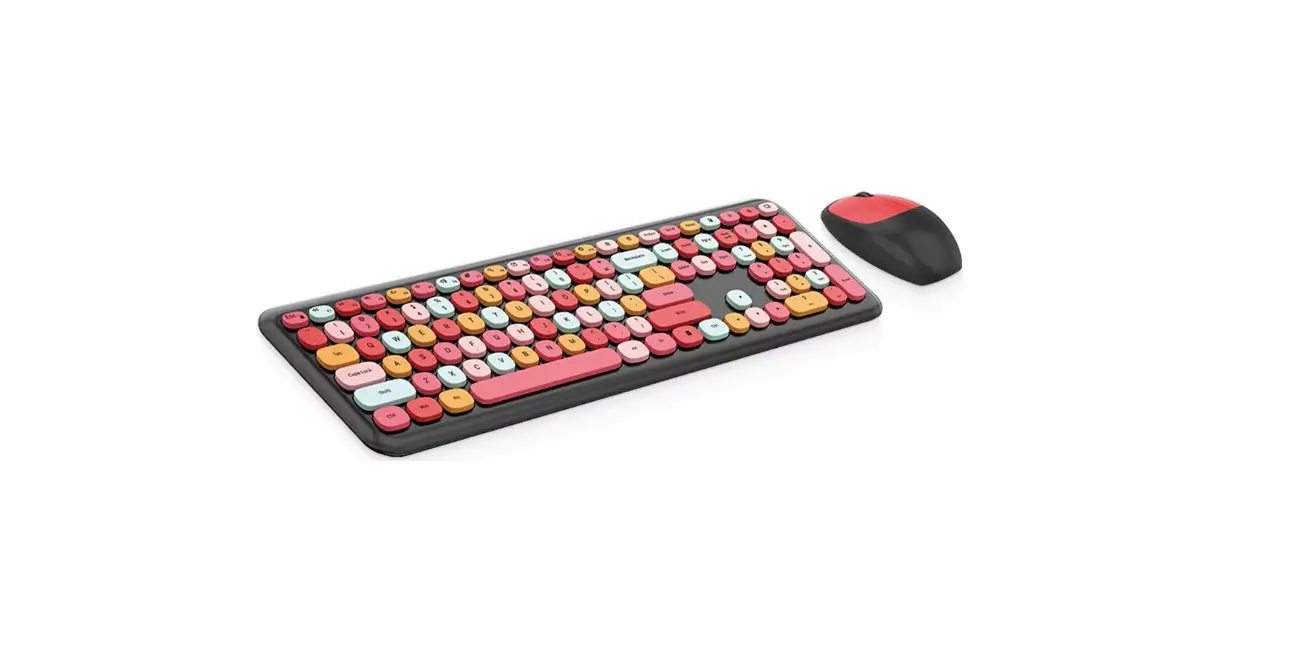
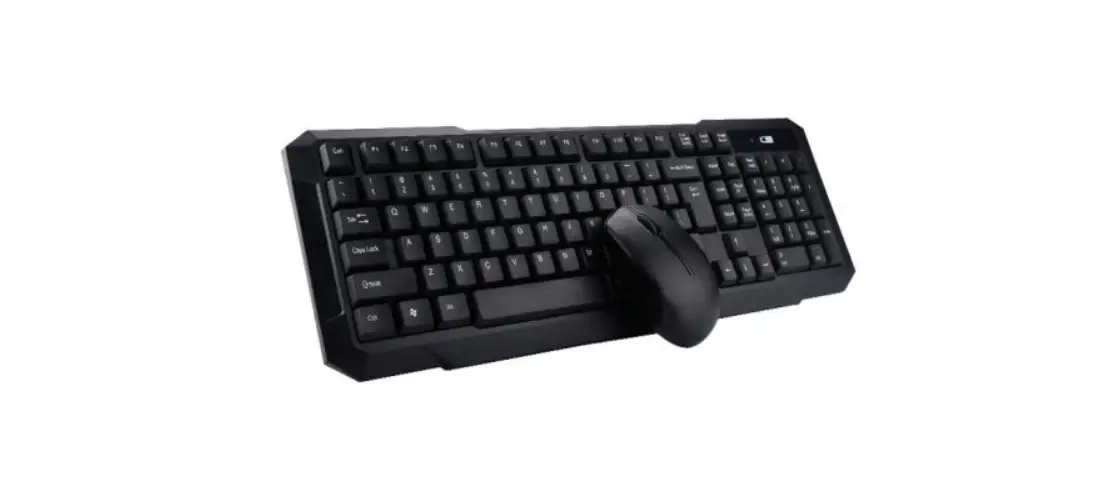
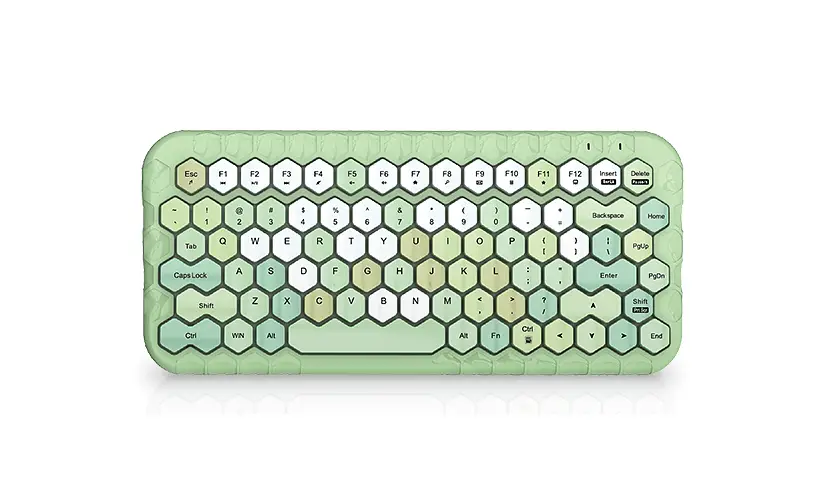
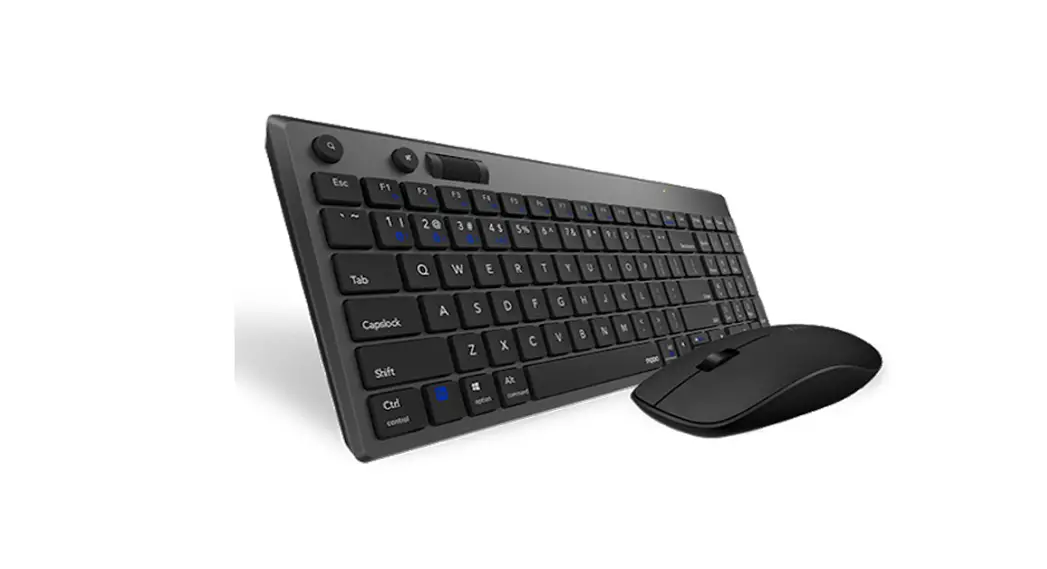
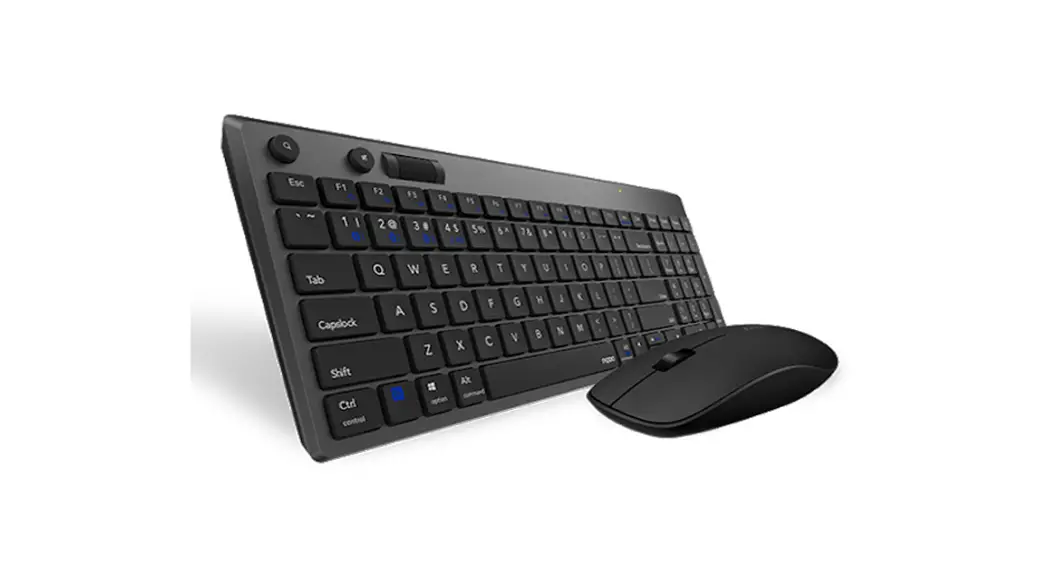
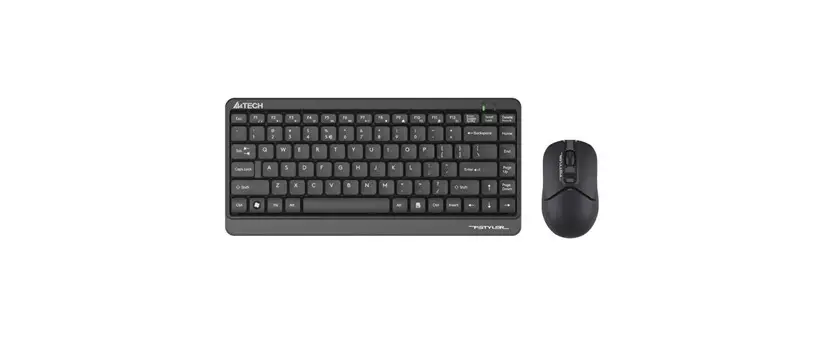
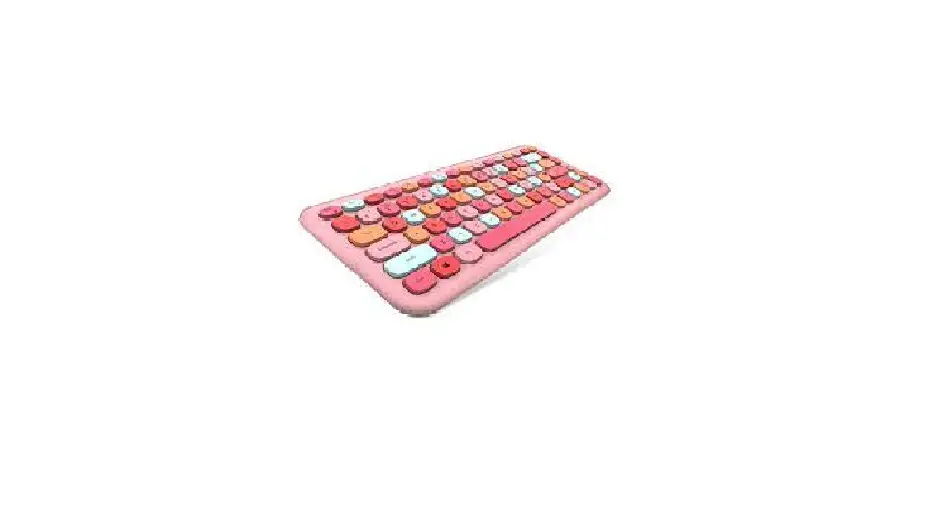
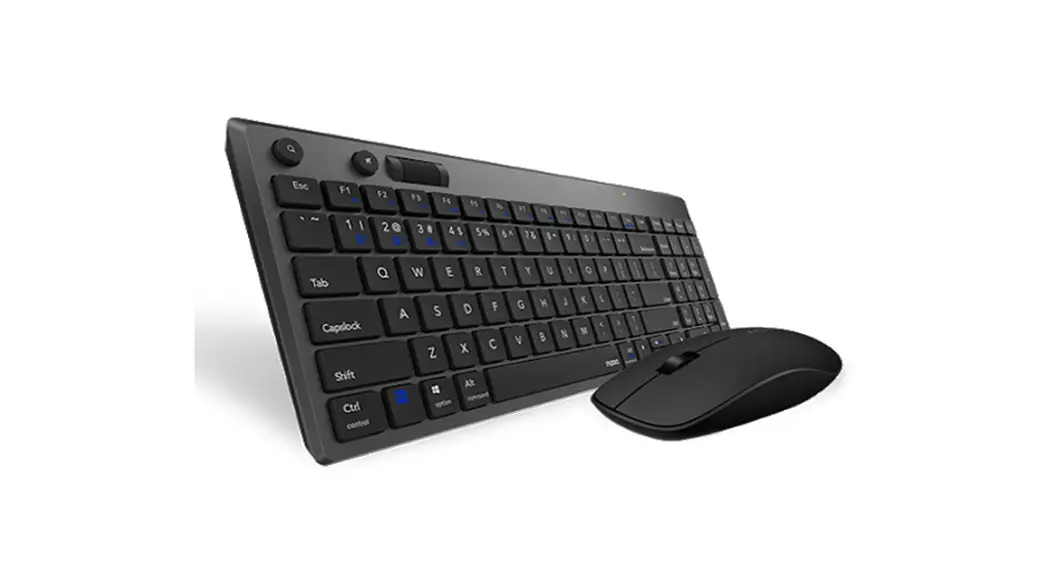
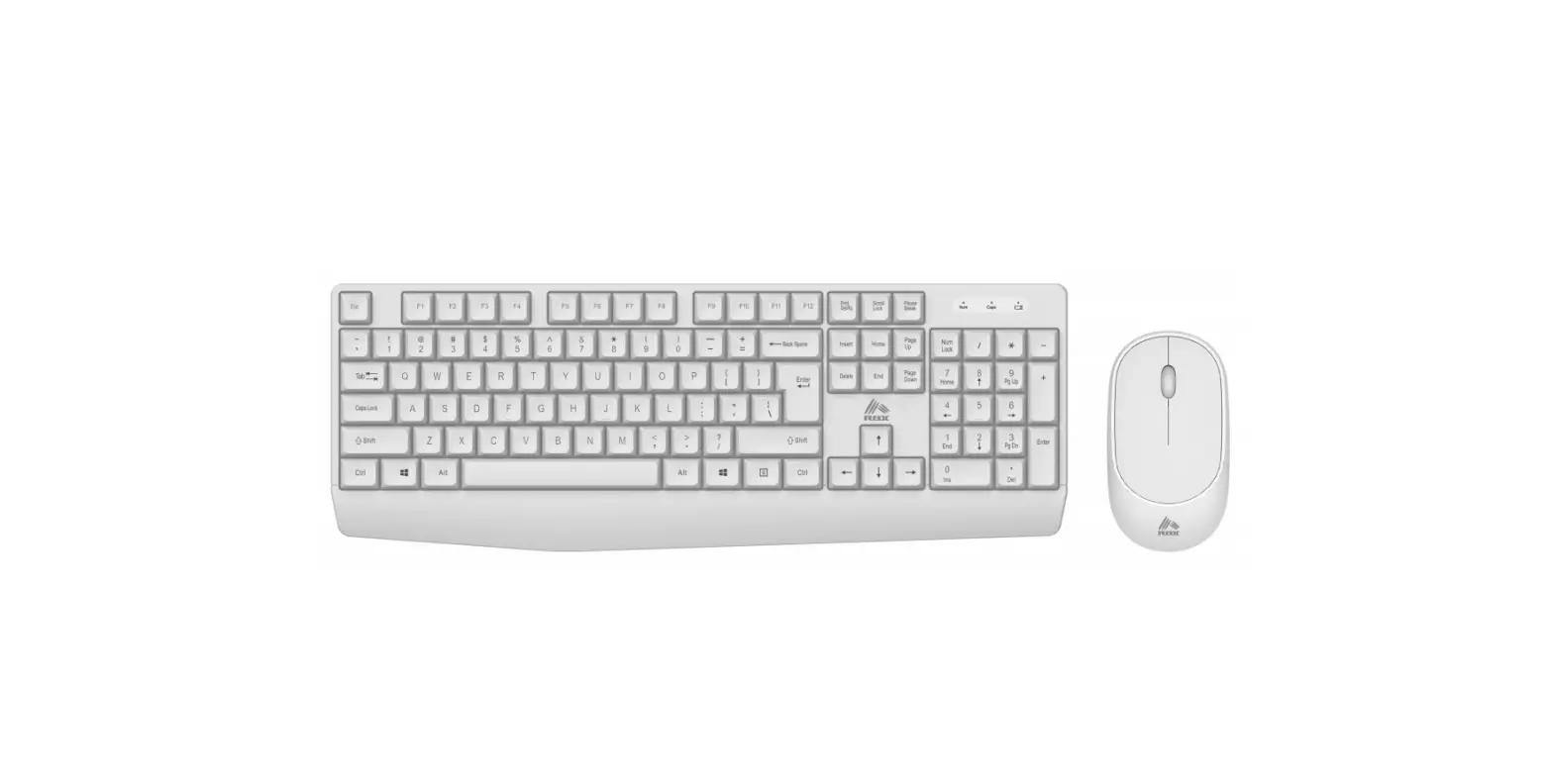
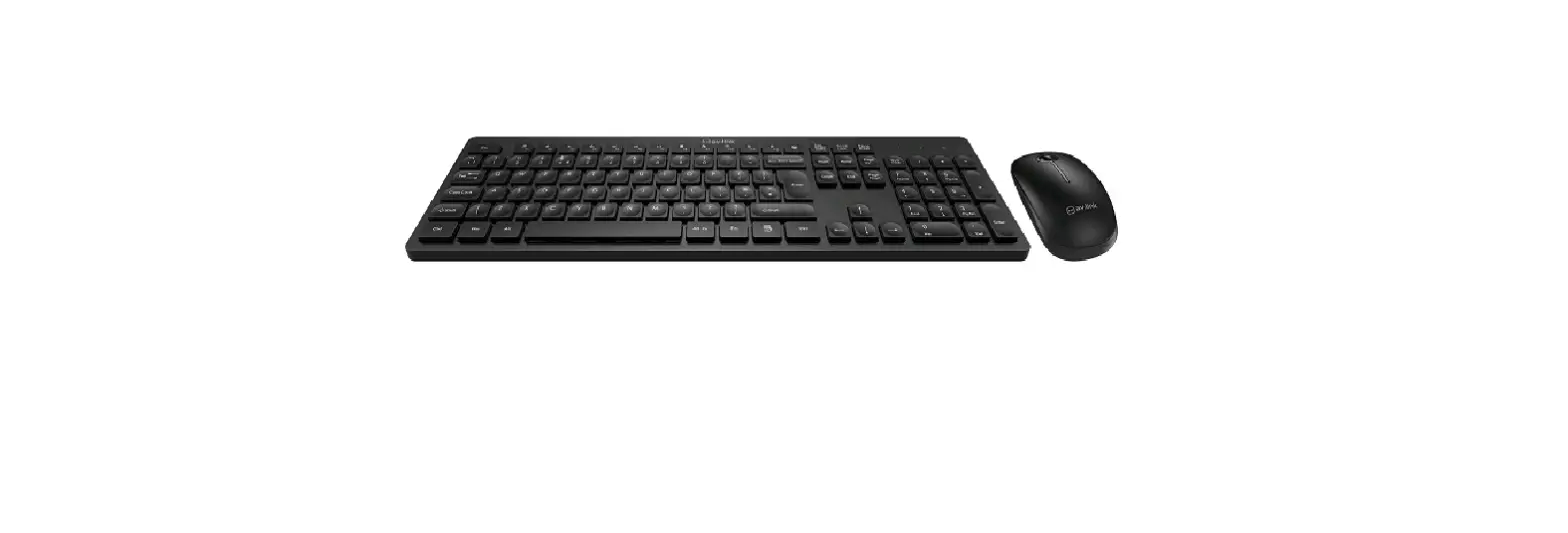
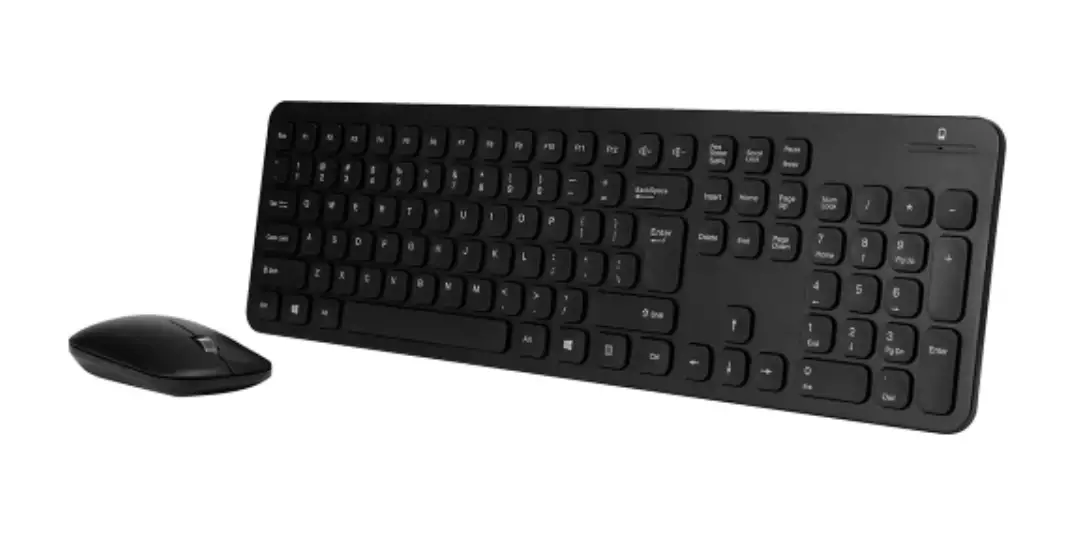
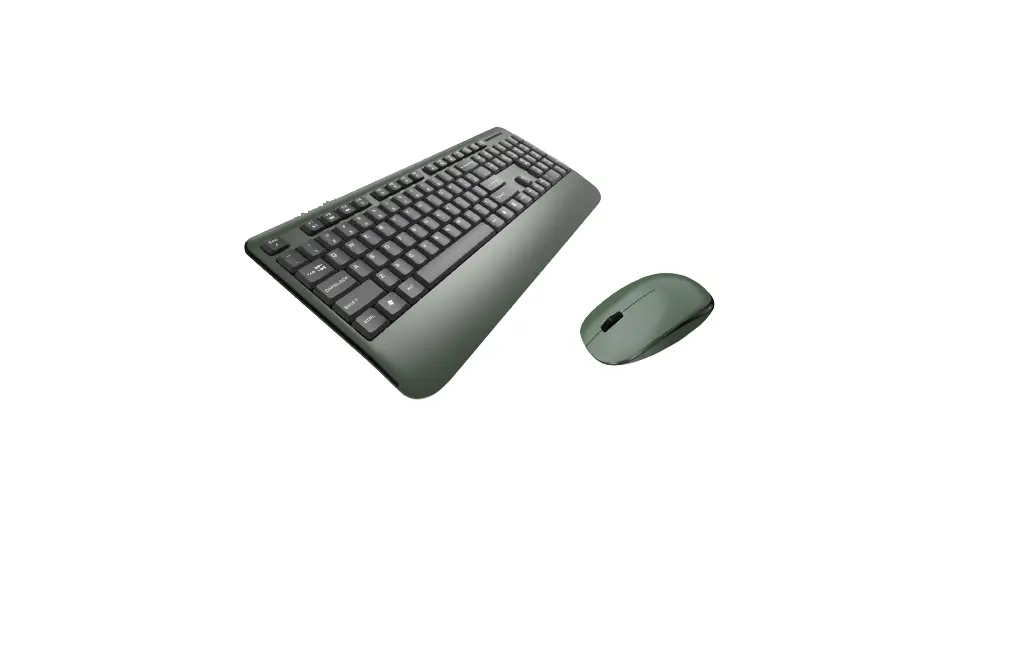
SMK-676683M6AG RF 2.4GHz Auto Link Two Keyboard and Optical Mouse
Product Information:
- The RF2.4GHz Optical Mouse requires two AA alkaline
batteries. - The RF2.4GHz Optical Keyboard requires two AAA alkaline
batteries. - The Nano receiver can be inserted into the USB port immediately
or by using an extra USB cable. - The optical 3D mouse provides 1200 dpi.
- The keyboard has an FN function that can be accessed by
pressing the FN key in combination with other keys to perform
specific functions. - The FCC Warning Statement indicates that changes or
modifications not approved by the responsible party may void the
user’s authority to operate the equipment. - Model: SMK-676683M6AG
Product Usage:
Installing Batteries in the Mouse:
- Open the battery compartment of the mouse.
- Insert two AA alkaline batteries as shown inside the battery
compartment. - Replace the cover of the battery compartment.
Using the Mouse:
- To use the mouse, take out the receiver and insert it into the
USB port of your computer. - To stop using the mouse or for travel, store the receiver on
the mouse by reversing the previous step. - The mouse will go into standby mode after 8 minutes of
inactivity. To wake it up, click any button or scroll the
wheel.
Installing Batteries in the Keyboard:
- Squeeze the tab on the bottom of the keyboard cover to release
it and remove the battery compartment cover. - Insert two AAA alkaline batteries into the battery compartment
as shown. - Replace the cover of the battery compartment.
Connecting the Keyboard:
- Connect the USB plug to the USB port of your computer.
Using the FN Function:
- To access the FN function, press the FN key in combination with
other keys to perform specific functions. - For example, pressing FN+ESC will type the ` symbol, pressing
SHIFT+1 will type !, and pressing FN+1 will activate F1
function.
The RF2.4GHz Optical mouse use two A AA alkaline batteries. The RF2.4GHz Optical keyboard use two AAA alkaline battery. The RF2.4GHz Optical keyboard use one AAA alkaline battery.
Installing Batteries in the Mouse Step 1. Open the battery compartment Step 2.Insert the batteries as shown inside the battery compartment Step 3.Replace the cover
1:when you want use the mouse ,you can take out the receiver to computer by the list step;
2:when you need stop the work or to travel, you can store the receiver on the mouse for the moving by the list step.
Install the batteries in the keyboard Step1: Remove the battery compartment
cover on the bottom of the keyboard by squeezing the cover in from the tab to release it Step2:Insert the batteries as shown inside the battery compartment Step3:Replace the cover
Install the batteries in the keyboard Step1: Remove the battery compartment
cover on the bottom of the keyboard by squeezing the cover in from the tab to release it Step2:Insert the batteries as shown inside the battery compartment Step3:Replace the cover
The receiver is insert to USB port immediate, or by a extra USB cable.
Nano receiver USB port
Connect the USB plug to USB port of your computer
Your optical 3D mouse is provide 1200 dpi .
State of standby and wake up the mouse
Without any clicks or scroll movement for 8 minutes, the mouse will go
into standby mode. Click any button or scroll the wheel to wake up the mouse.
Under this economize mode, the optical Red LED will turn of automatically and
the mouse won’t respond by moving it.
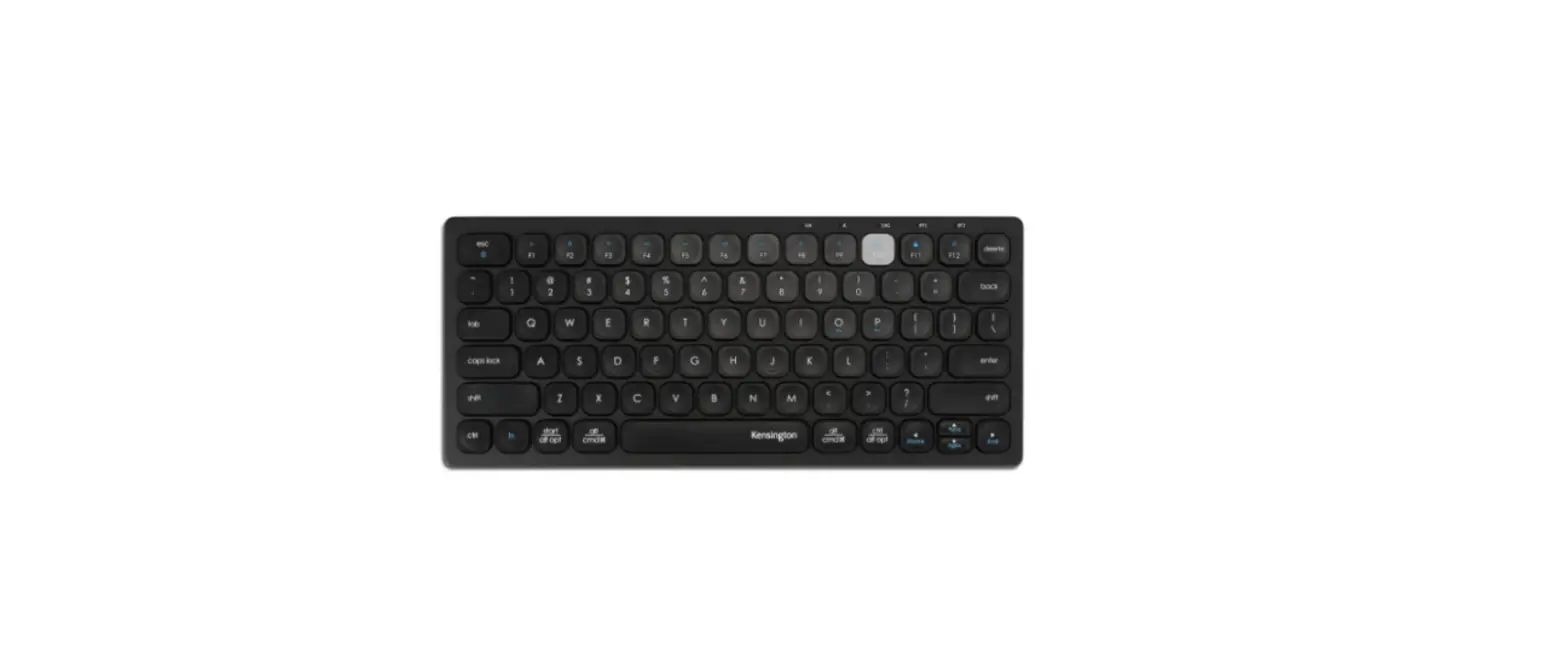
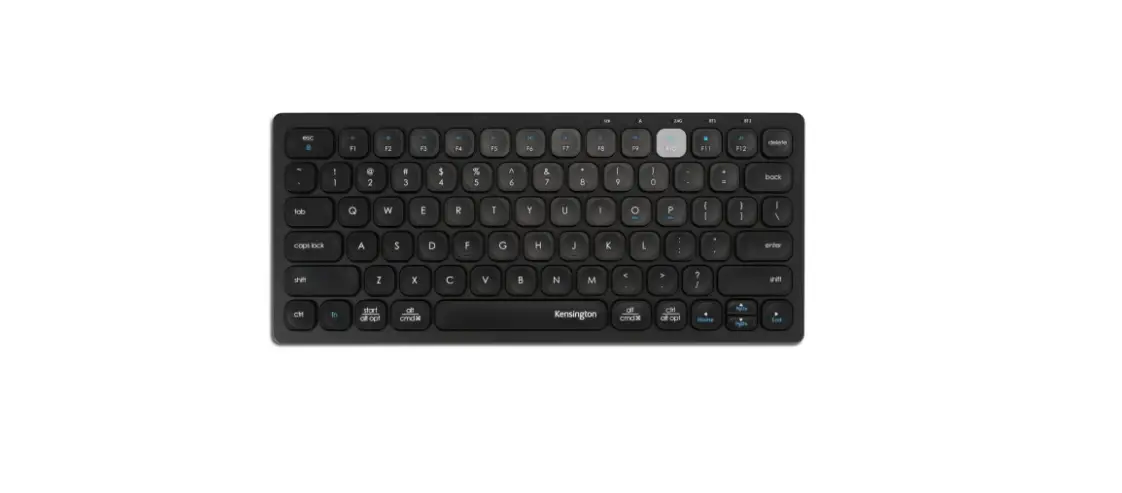
. FN+ functions:
FN+ESC= `
SHIFT+1=!
FN+ SHIFT+ ESC=~
FN+1=F1
SHIFT+2=@ FN+2=F2
SHIFT+3=# FN+3=F3
SHIFT+4=$ FN+4=F4
SHIFT+5=% FN+5=F5
SHIFT+6=^ FN+6=F6
SHIFT+7=& FN+7=F7
SHIFT+8=* FN+8=F8
SHIFT+9=( FN+9=F9
SHIFT+0=) FN+0=F10
SHIFT+- = _ FN+-=F11
SHIFT+= =+ FN+==F12
FN+Backspce=A Line function to flip the top
FCC Warning Statement Changes or modifications not expressly approved by the party responsible for compliance could void the user’s authority to operate the equipment.
Model:SMK-676683M6AG
This equipment has been tested and found to comply with the limits for a Class B digital device, pursuant to Part 15 of the FCC Rules. These limits are designed to provide reasonable protection against harmful interference in a residential installation. This equipment generates uses and can radiate radio frequency energy and, if not installed and used in accordance with the instructions, may cause harmful interference to radio communications. However, there is no guarantee that interference will not occur in a particular installation. If this equipment does cause harmful interference to radio or television reception, which can be determined by turning the equipment off and on, the user is encouraged to try to correct the interference by one or more of the following measures: –Reorient or relocate the receiving antenna. –Increase the separation between the equipment and receiver. –Connect the equipment into an outlet on a circuit different from that to which the receiver is connected. –Consult the dealer or an experienced radio/TV technician for help.
RF2.4GHz Auto-Link Two Keyboard & Optical Mouse
This device complies with part 15 of the FCC rules. Operation is subject to the following two conditions (1) this device may not cause harmful interference, and (2) this device must accept any interference received, including interference that may cause undesired operation.