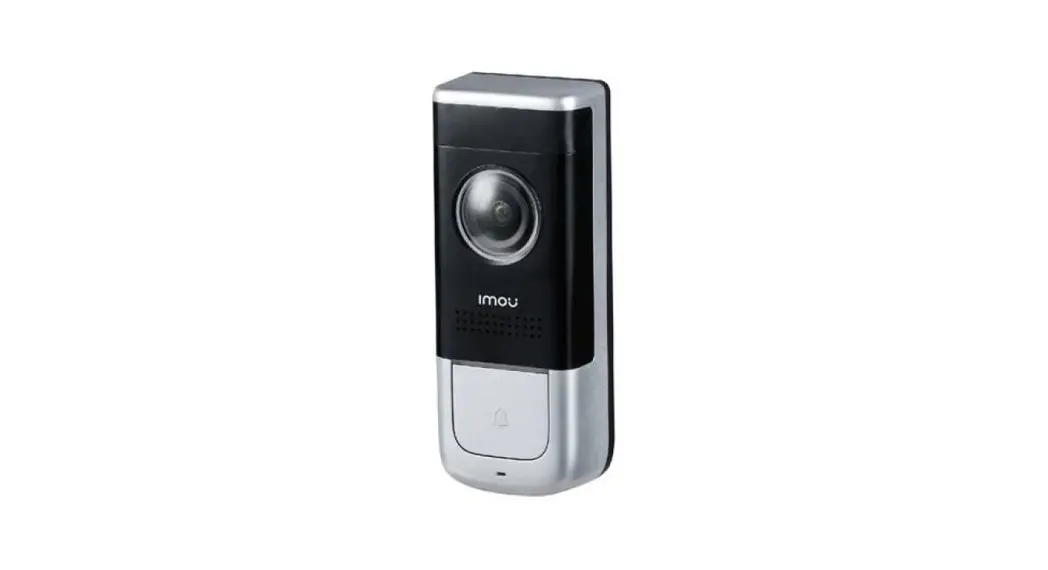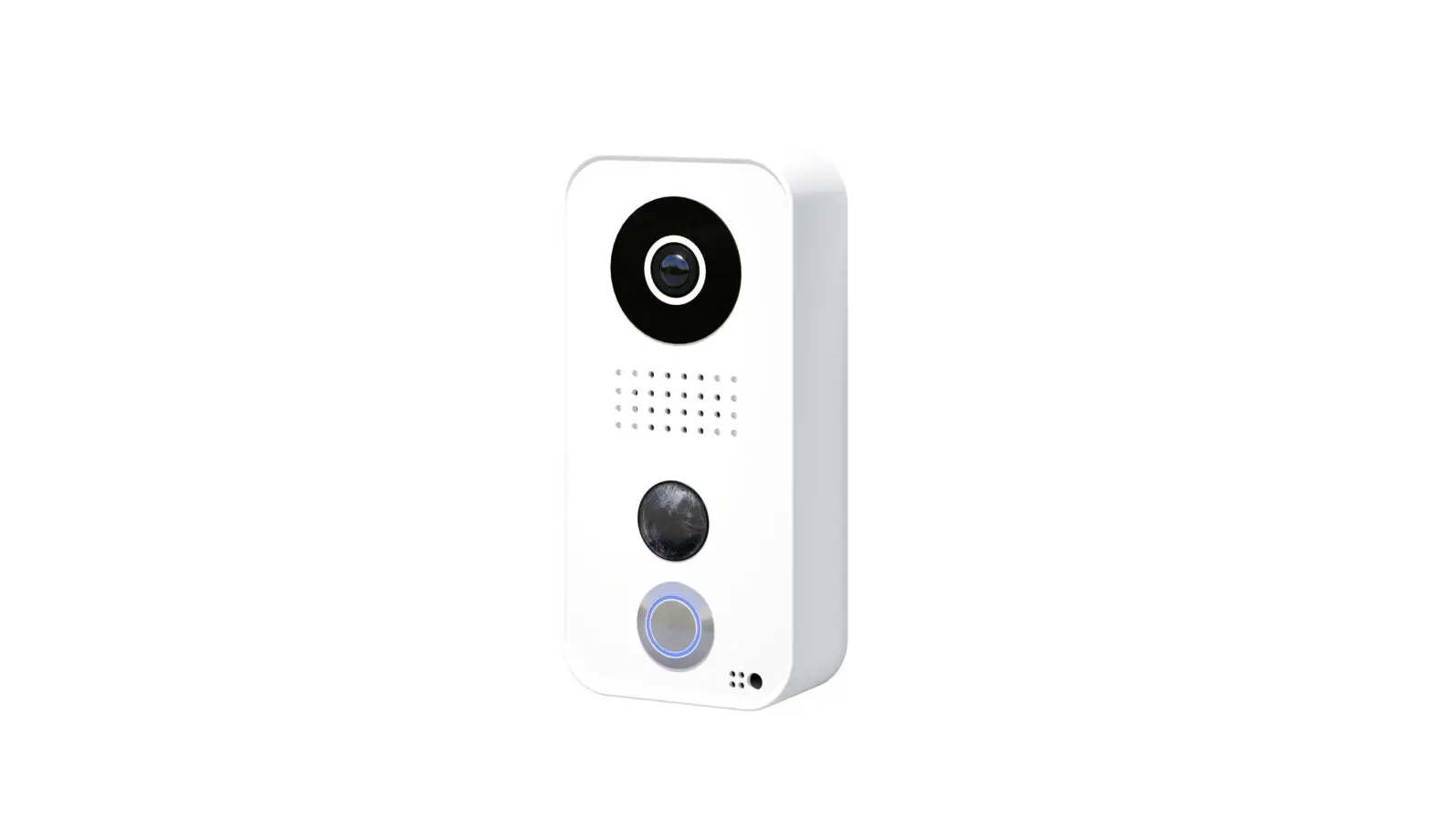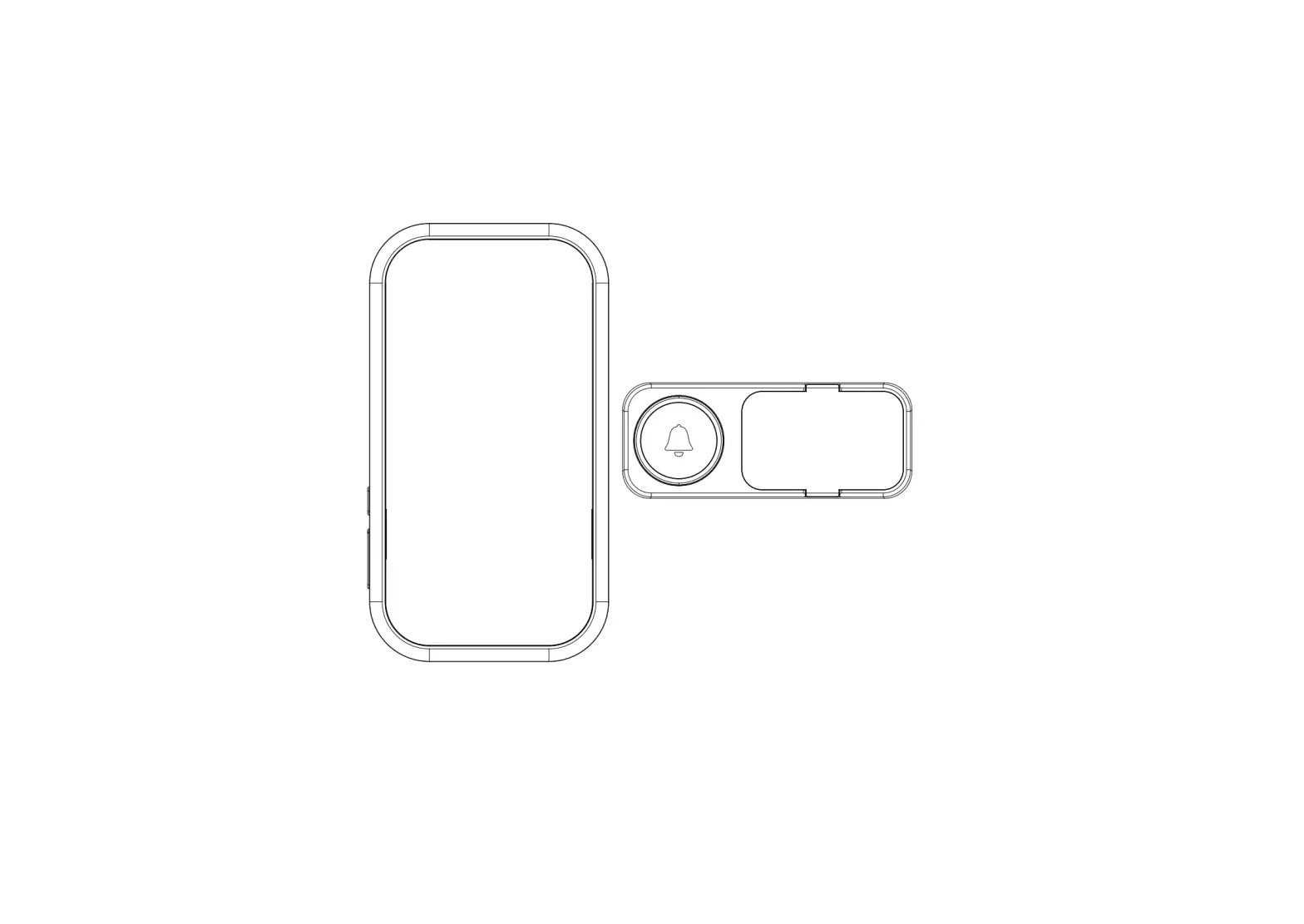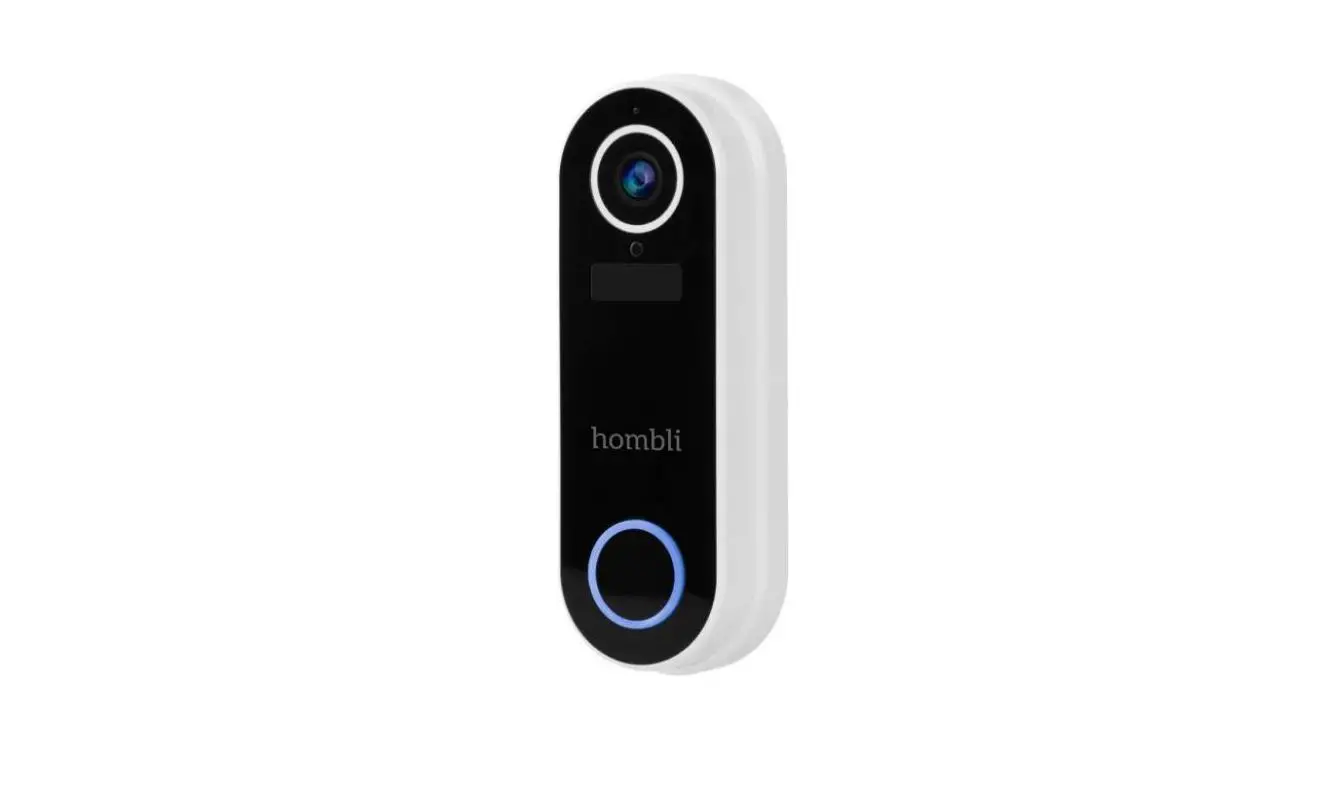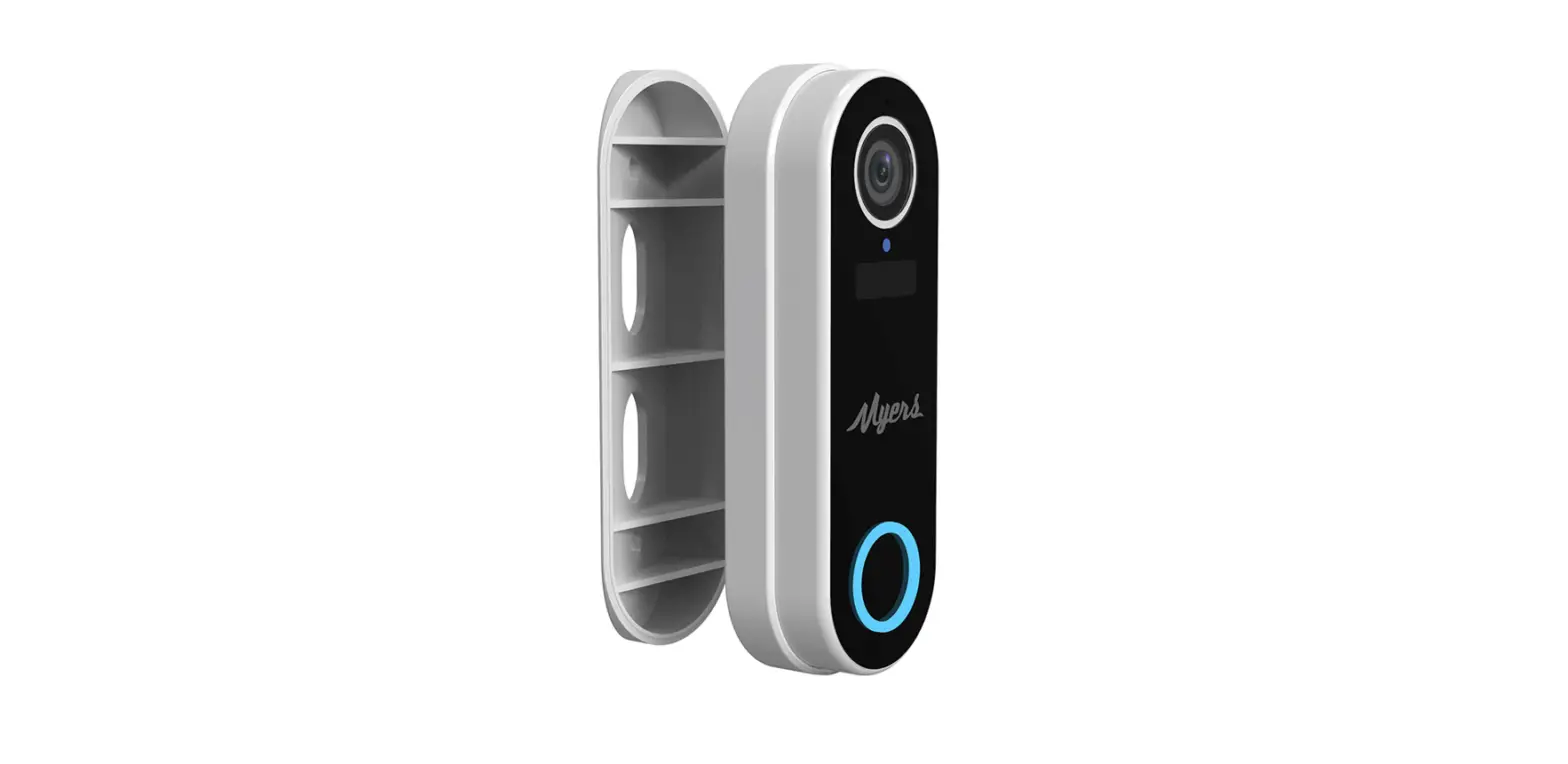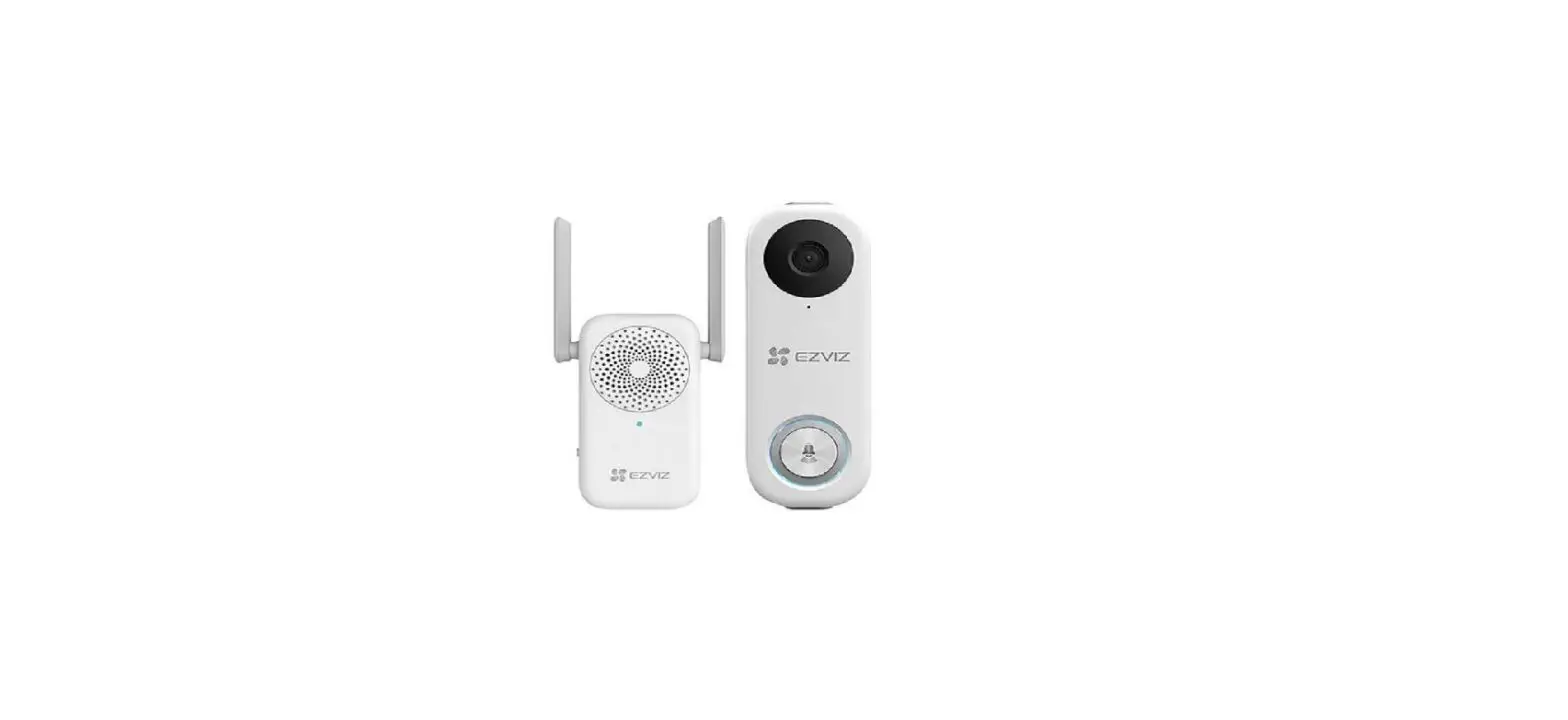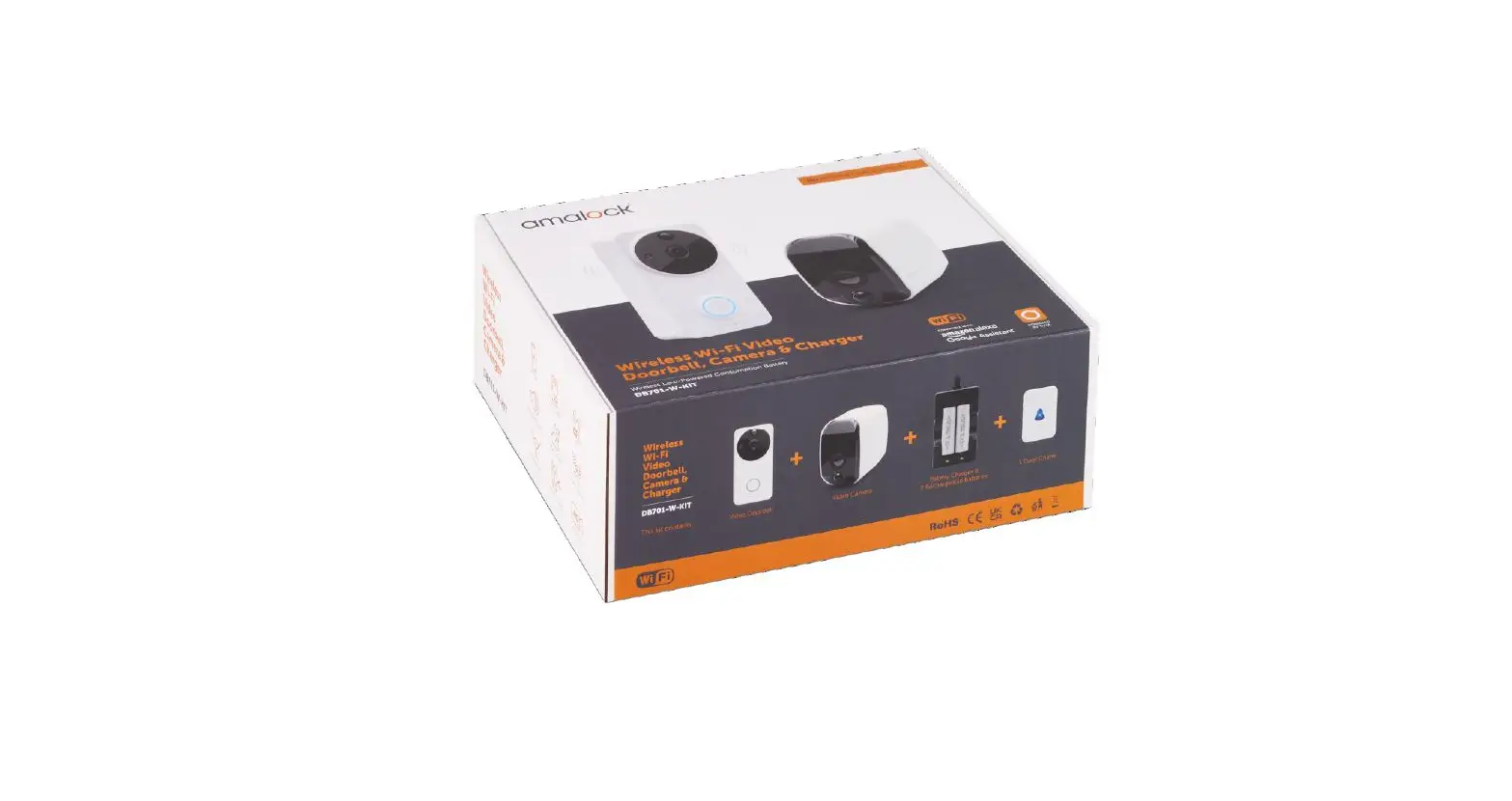
 DB-101
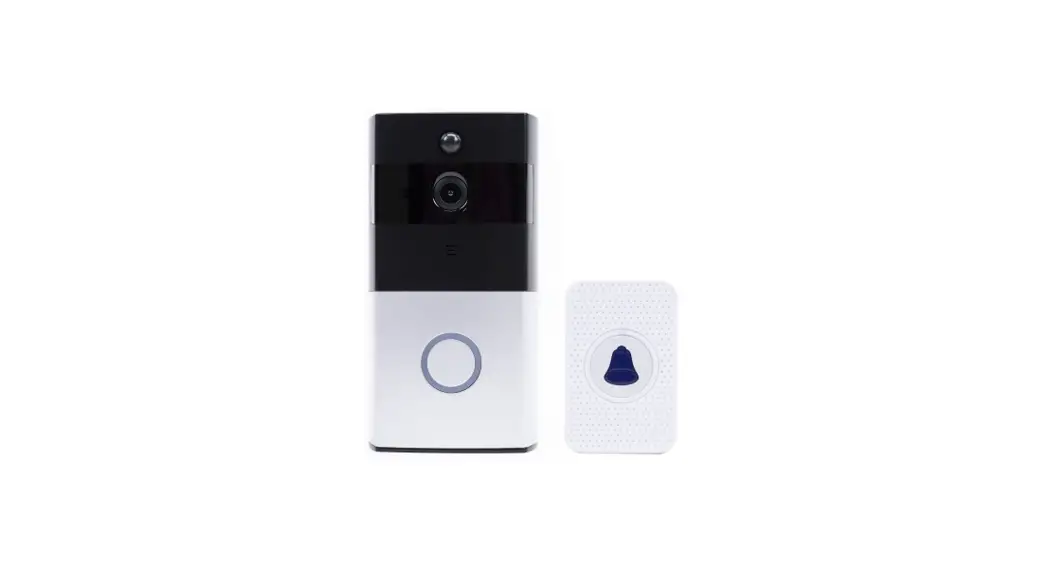
SMART DOORBELL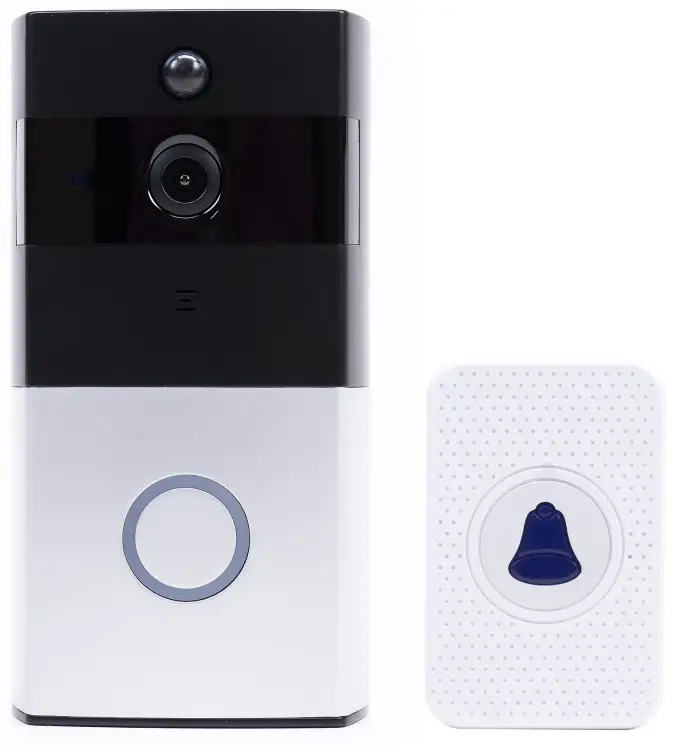
user manual
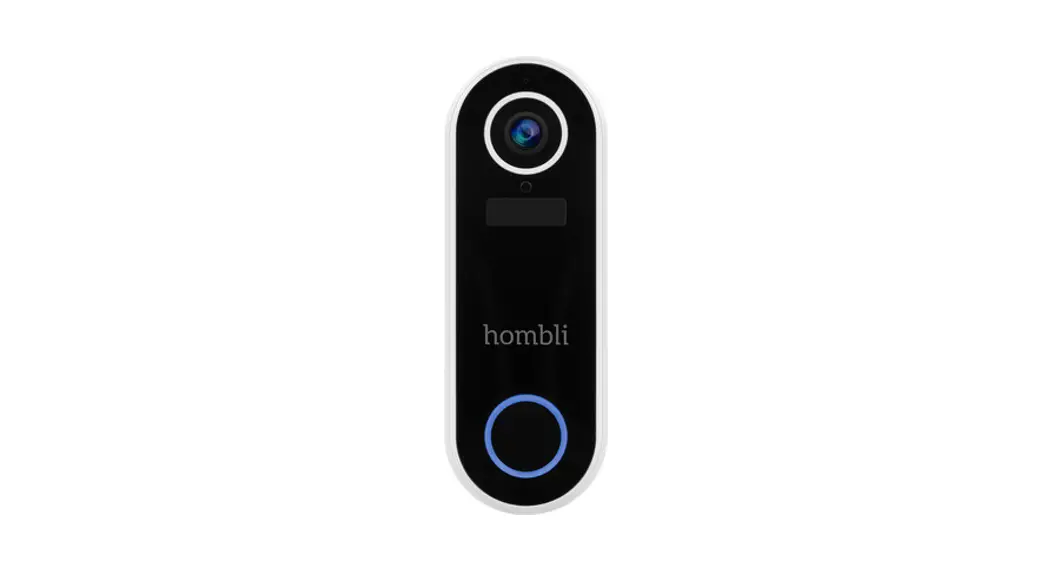
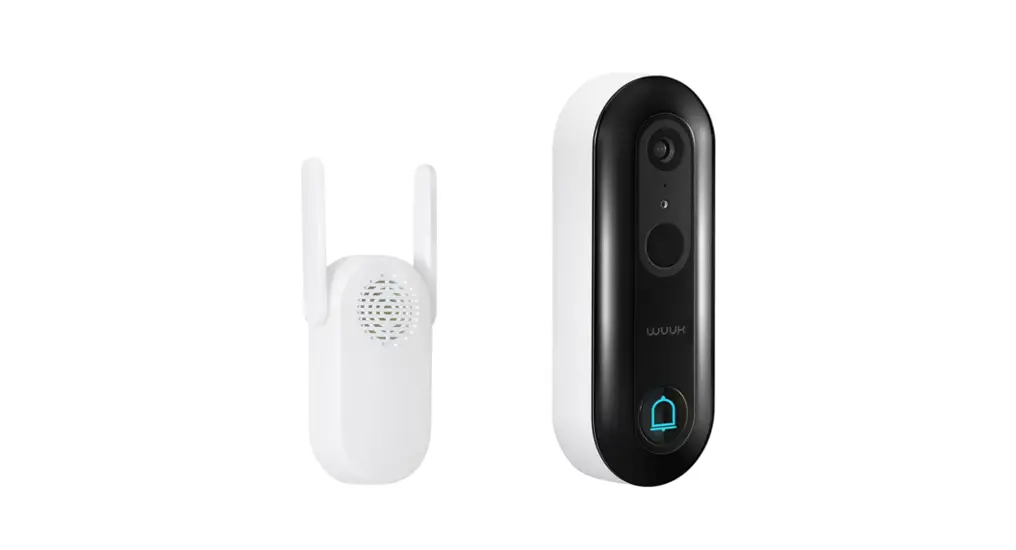
DB-101 Smart Doorbell
Toya Smart APP
Download the Toya Smart app by accessing Google Play or App Store or scan the QR codes below:
 |  |
| https://play.google.com/store/apps/details?id=com.tuya.smart&hl=en | https://apps.apple.com/us/app/tuyasmart/id1034649547 |
Add device in Toya Smart application
- Open the application, create an account and log in.
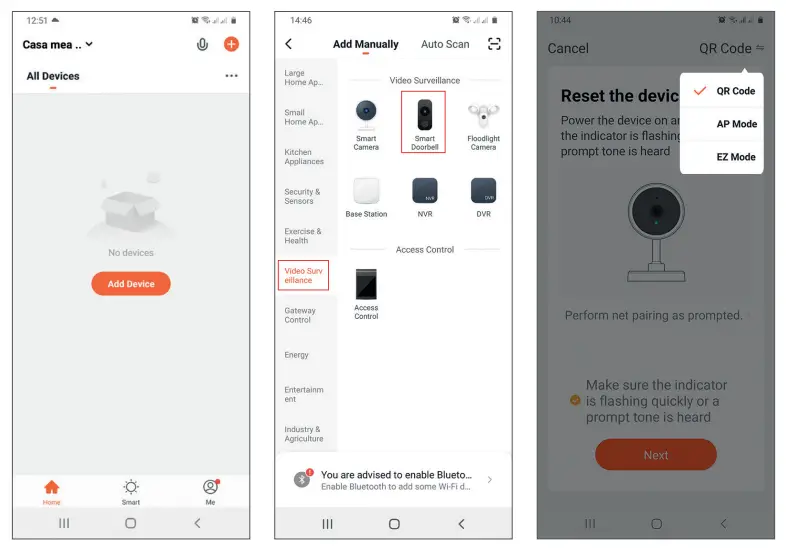
- Add your device by pressing the + icon in the upper right corner of the screen or by clicking the Add device button (this button appears when you have no device added to the application).
- Select the option Video surveillance on the left side of the screen.
- From the list of devices on the right side of the screen, select Smart Doorbell

- In the next interface, select the option QR Code from the upper right corner.
- Then tick Make sure the indicator is flashing quickly or a prompt tone is heard. Click Next.
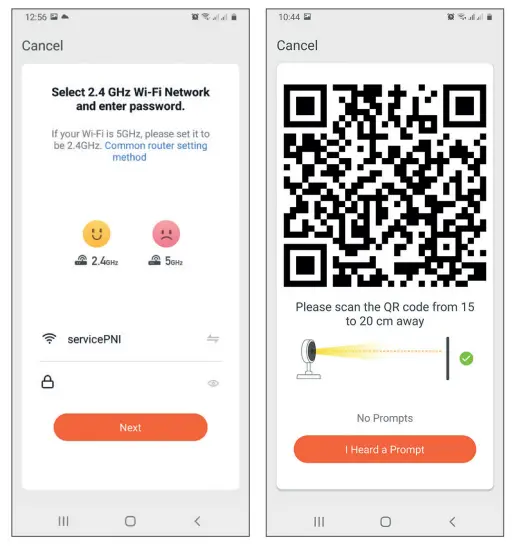
- Select the WIFI network you want to connect to and add the password.
- Position the smartphone with the QR code in front of the door phone lens. Wait a few seconds until you hear a confirmation beep, and the light ring on the bell turns purple.
- Go back to the application and check I heard a prompt. The application will immediately start scanning nearby devices.
- After the app identifies your device, you will receive the confirmation Added Successfully.
- To finish, click the Done button.

{“p”:”4533505569″,”s”:”servicePNI”,”t”:”EUSj1PAFRPkwML”}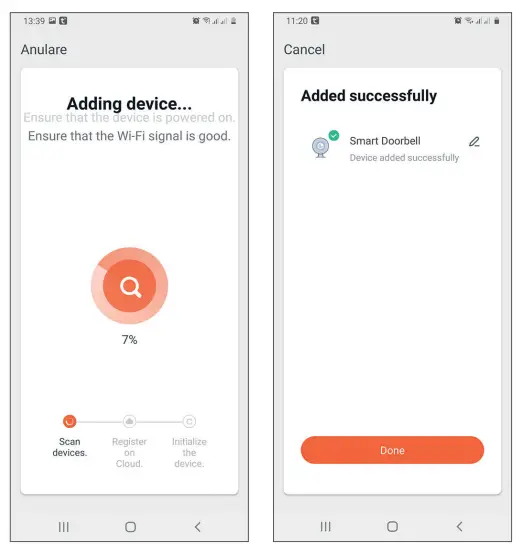
Device control via the application
Options:
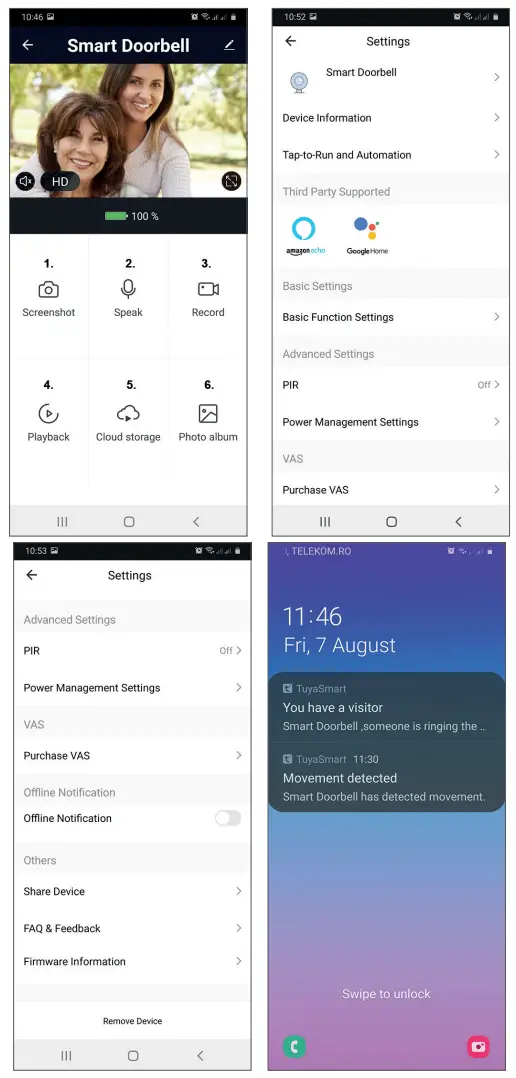
- Snapshot: takes an image and saves it in the phone’s memory
- Intercom: press to talk to the person in front of your door
- Recording: press to record video. The recording will be saved in the phone memory.
- View files saved on the SD card inserted in the door phone
- Cloud storage: cloud access (paid option)
- View photos and videos saved in the phone memory
- Access the door phone settings (by clicking on the pencil icon in the upper right corner) to set the sensitivity level of the motion sensor or turn off the PIR sensor, manage power consumption, share your device, or turn on offline notifications and so on.
- When a visitor rings the bell, you will receive a “You have a visitor” notification on the phone accompanied by a repetitive audible warning.
- If you enter the application, you can see who is at the door and you can talk to the visitor. You also receive notifications every time the camera detects movement.
Technical specifications
| Processor | Hi3518E |
| Sensor | 1/3 CMOS |
| Video resolution | 1920 x 1080@25fps |
| Video compression | H.264/H.265 |
| Audio | Built-in microphone / Built-in speaker |
| Viewing angle | 166° |
| IR-CUT filter | Yes |
| IR LEDs | 6 pcs. 850mm |
| Minimum lighting | 1 Lux |
| WIFI | 2.4GHz, IEEE 802.11 b/g/n |
| Storage | Micro SD card, max. 64GB (not included) |
| PIR | Yes, 3 levels of sensitivity |
| Power supply | Built-in battery 3.7V type 18650 or external power supply 14V – 24V AC |
| Current | max. 170mA |
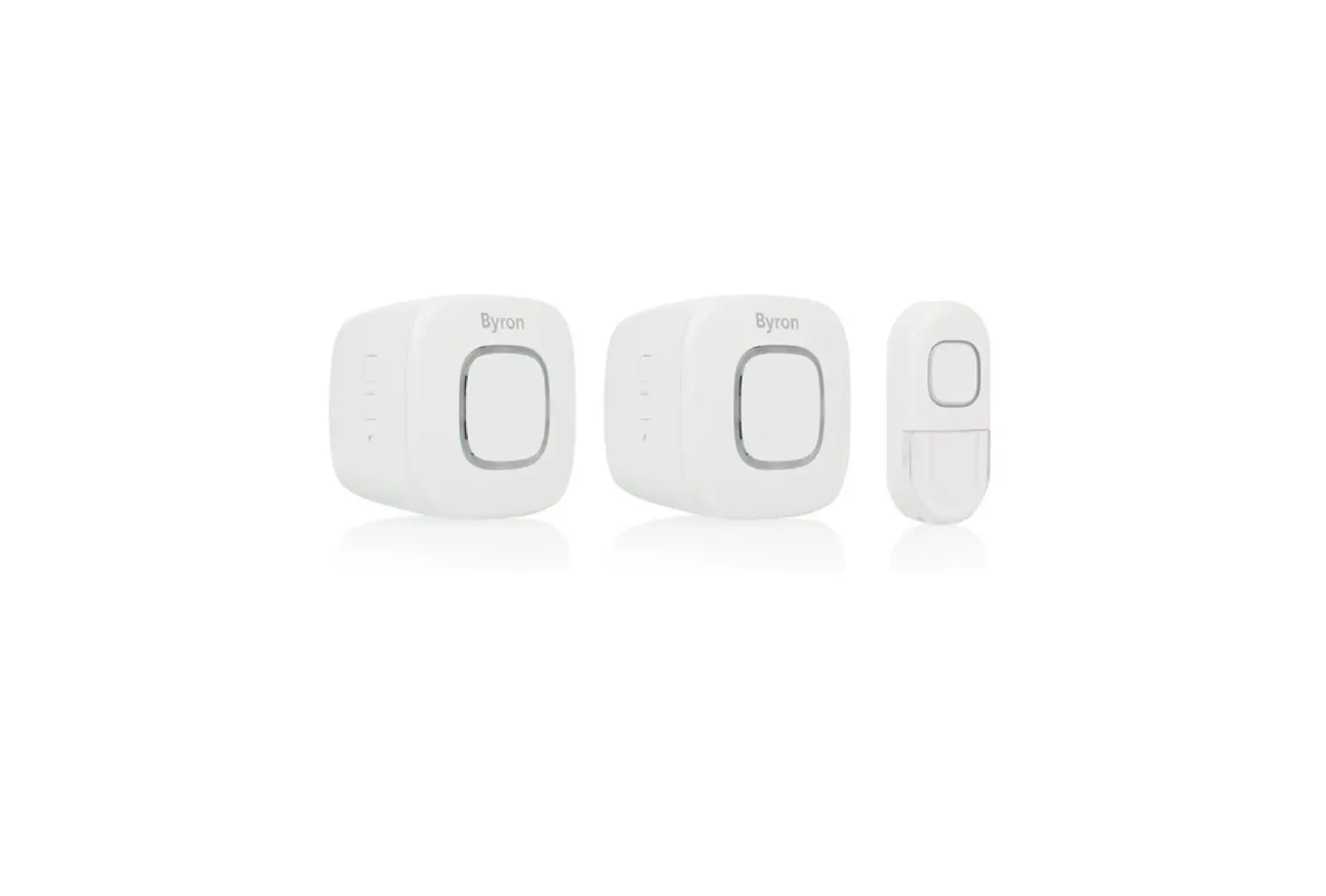
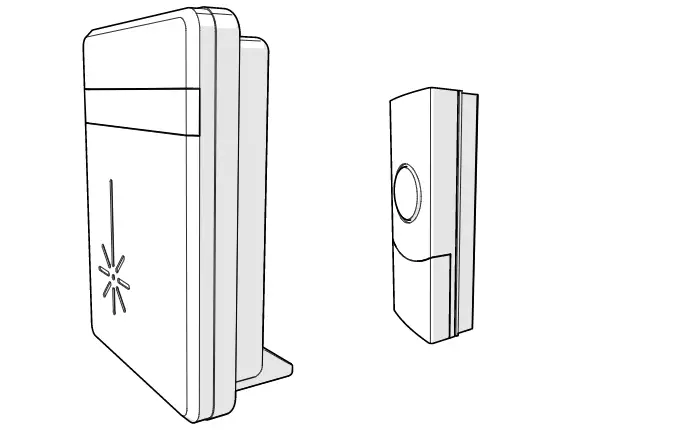
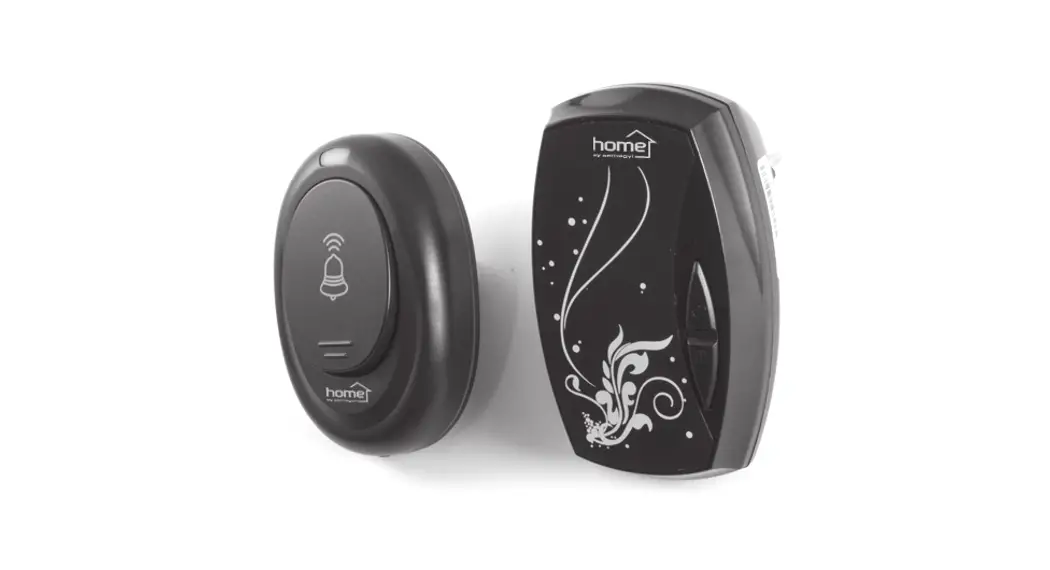
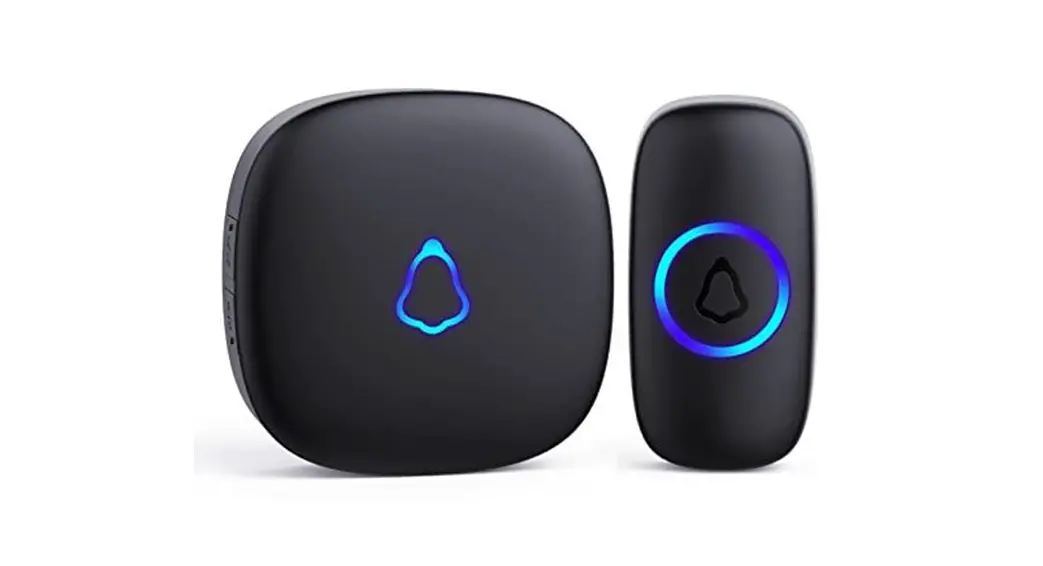
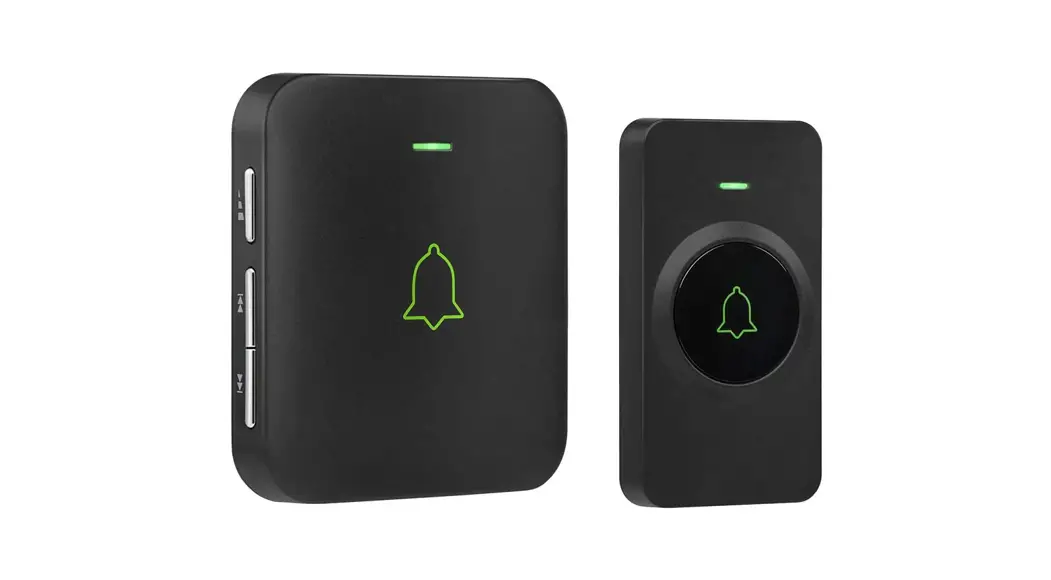
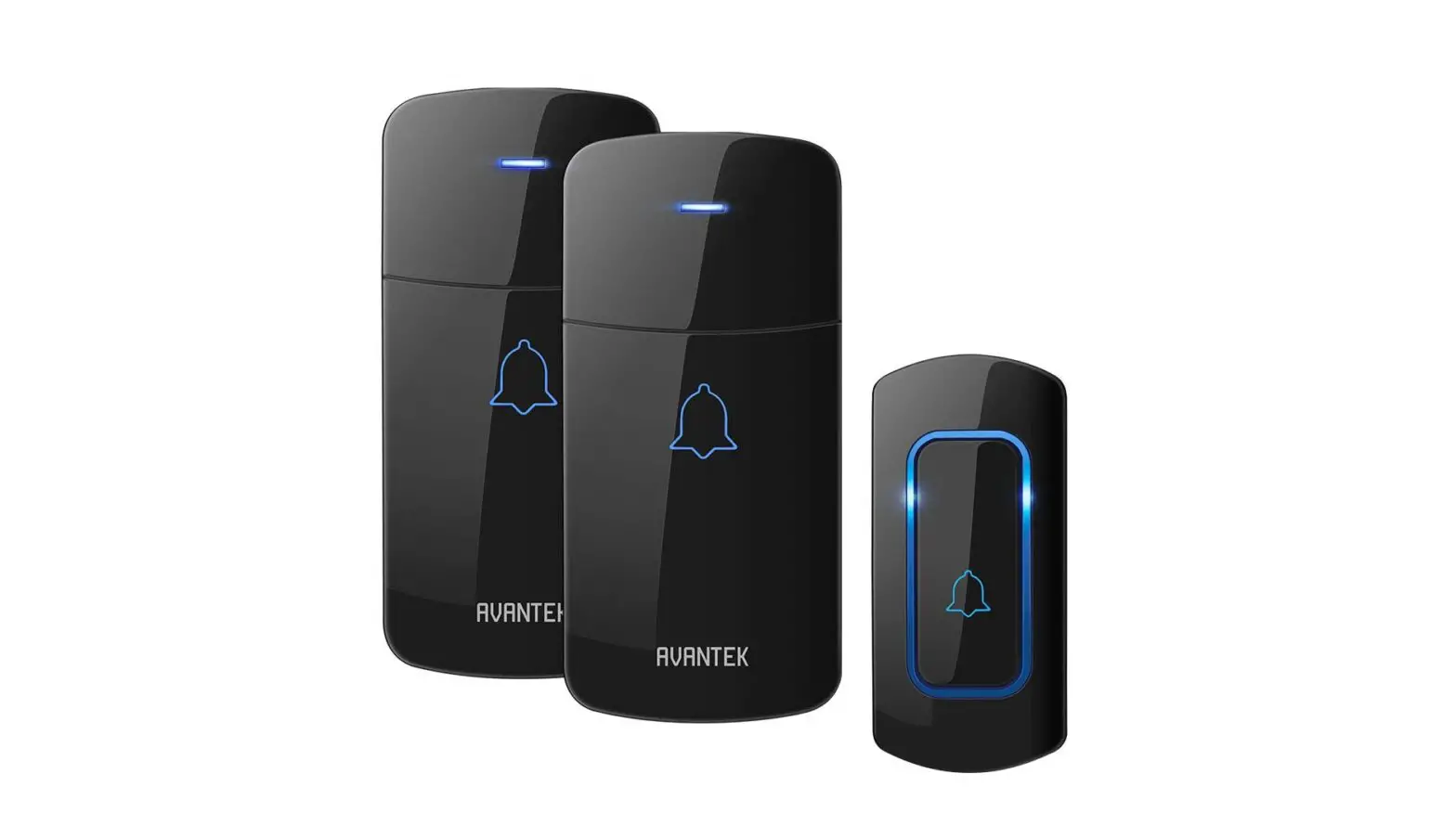
Doorbell chime
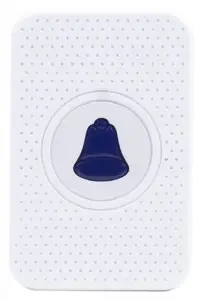
Features:
- Easy to install and use
- 5 Levels Volume Control, max volume: 110dB
- 55 Ringtones, with LED indicator
- 300m Wireless Working Range in Open Area
- No batteries, Low Power Consumption
- Compatible with Smart Video Doorbells
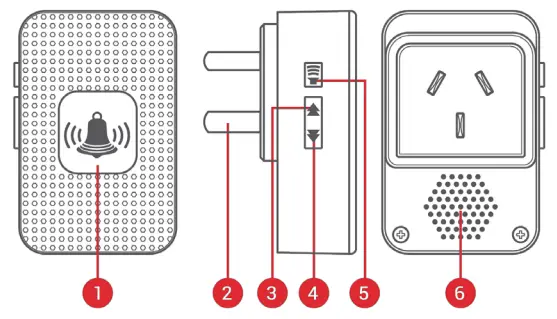
Details:
- LED Indicator
- Power Plug (EU)
- Previous Ringtone
- Next Ringtone
- Volume Control Button
- Speakers
First time using
- Plug the chime to AC outlet, device will play the default ringtone once at the maximum volume.
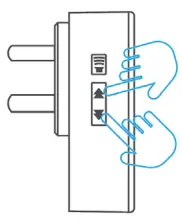
- Short press on volume button to adjust the volume of speaker.

Level 1: mute (LED indicator flashes only)
Level 2 -> 5: gradual increase - Ringtone selection.
Press on previous/next button to select your favorite ringtone
Pairing in seconds
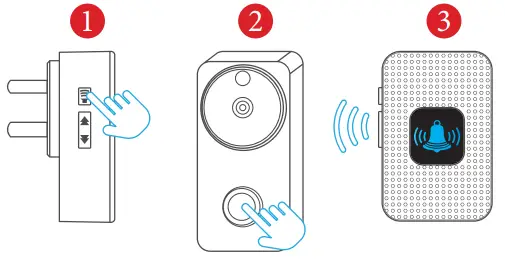
- Select your favorite ringtone, press & hold the volume button for 5 seconds till you hear a “Ding” sound from the Chime.
- The Chime will be in pairing mode for 8 seconds. Press the call button on the Smart Doorbell during that time, and the Chime will make a “Dinging”’ sound. Pairing succeeded.
- Press again the call button, the Chime will alert with ringtone & LED flashing.
Unpair
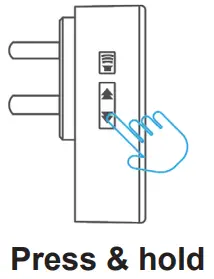
- Press & hold the next button (Next Ringtone) for 5 seconds to delete the pairing codes
- The Chime will be restored to factory default
 Syco
Syco