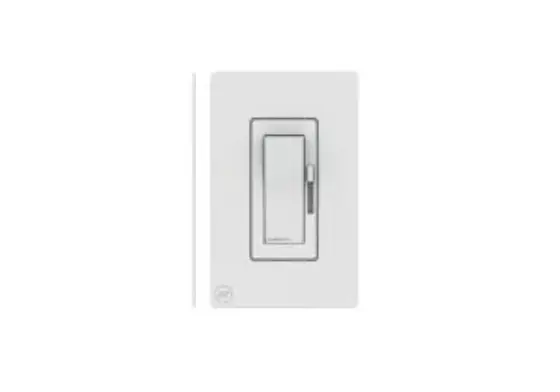
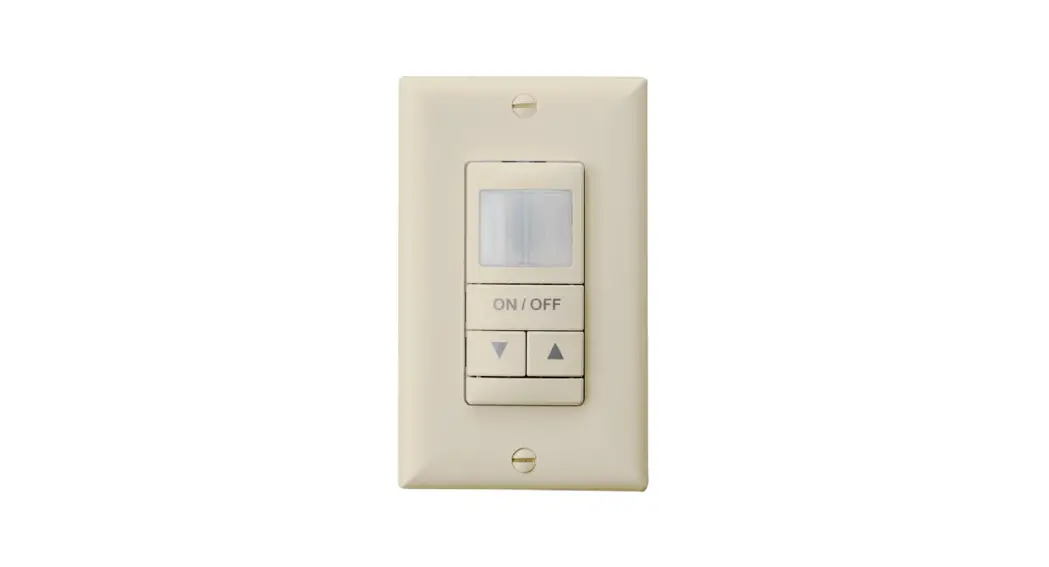
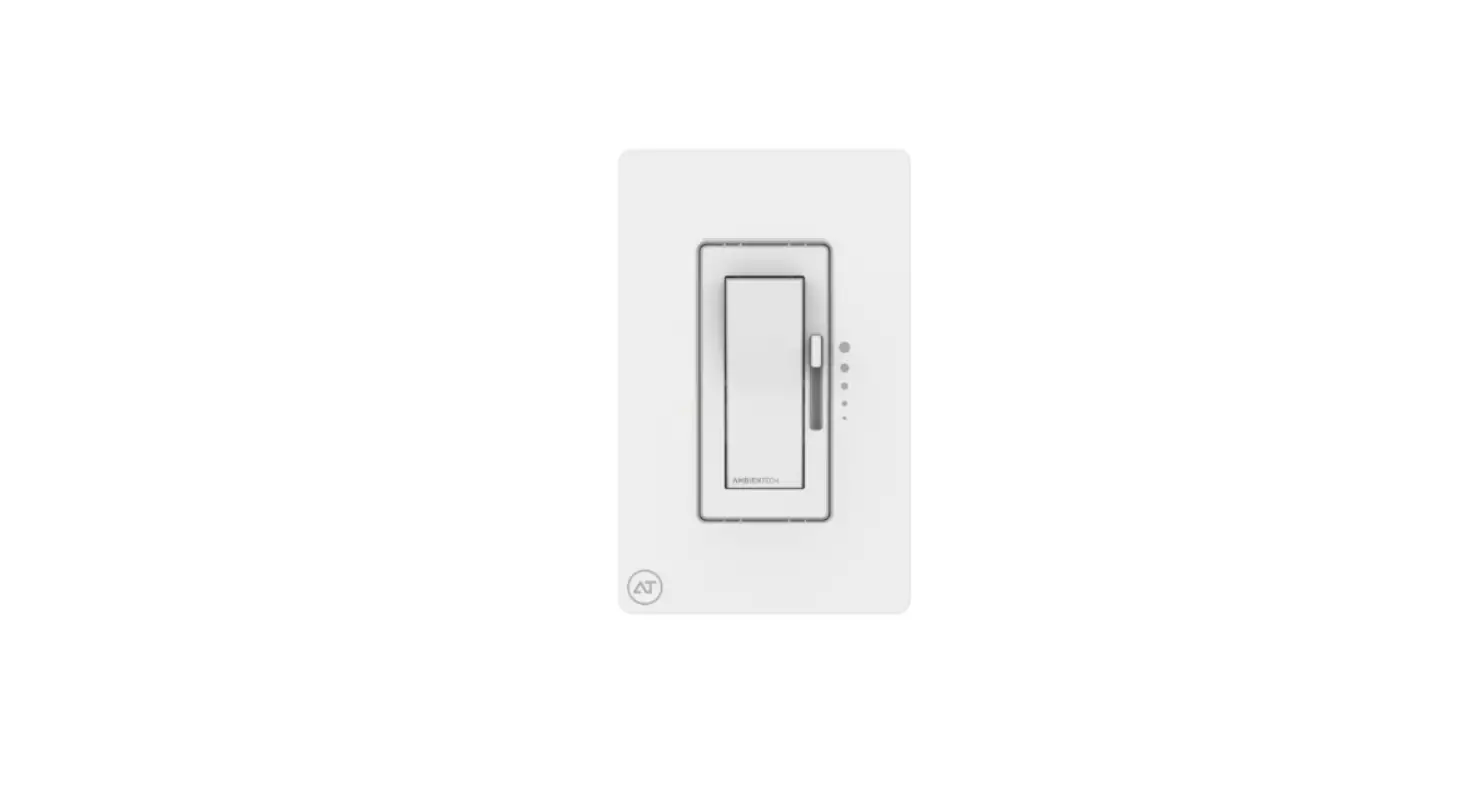
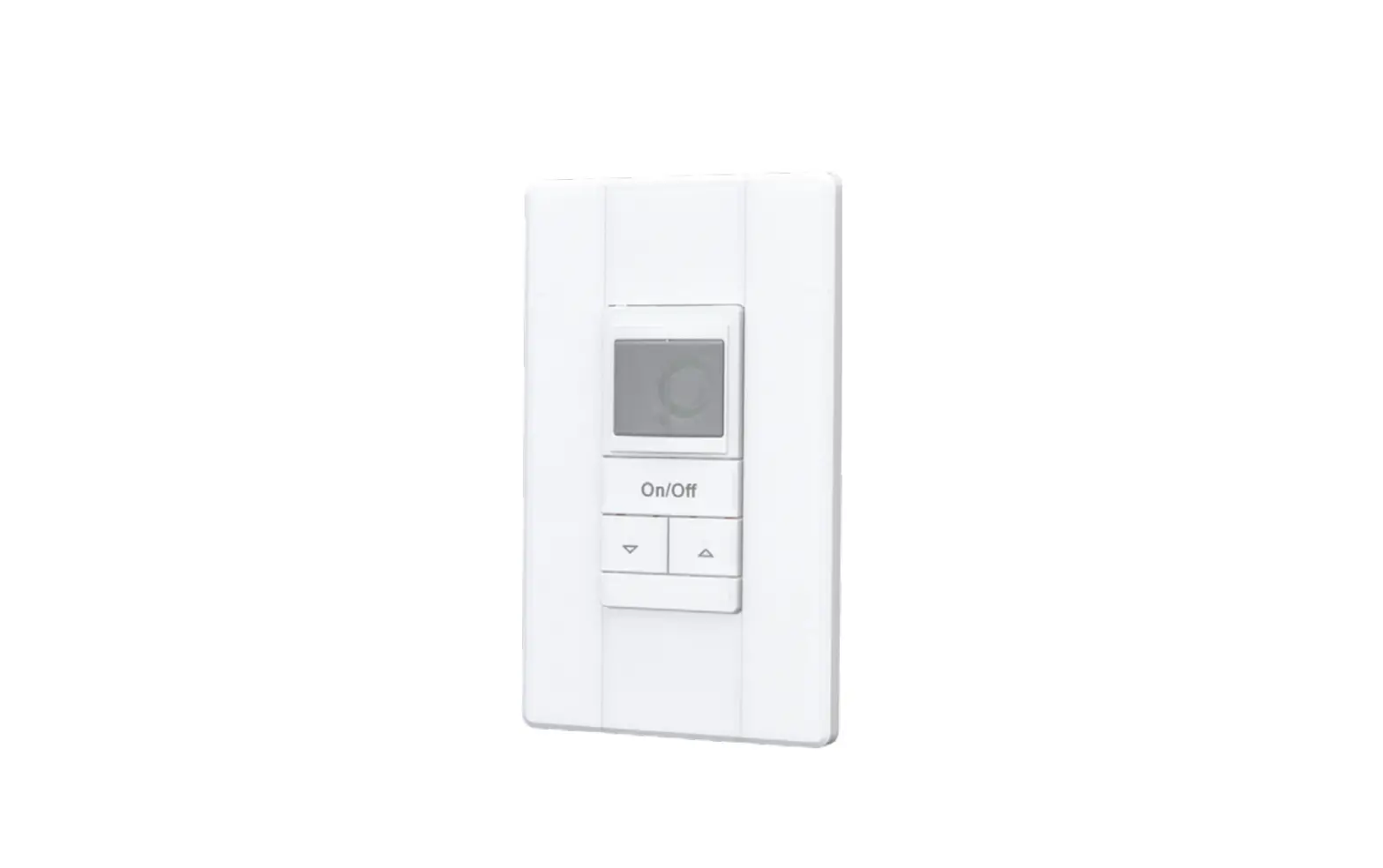
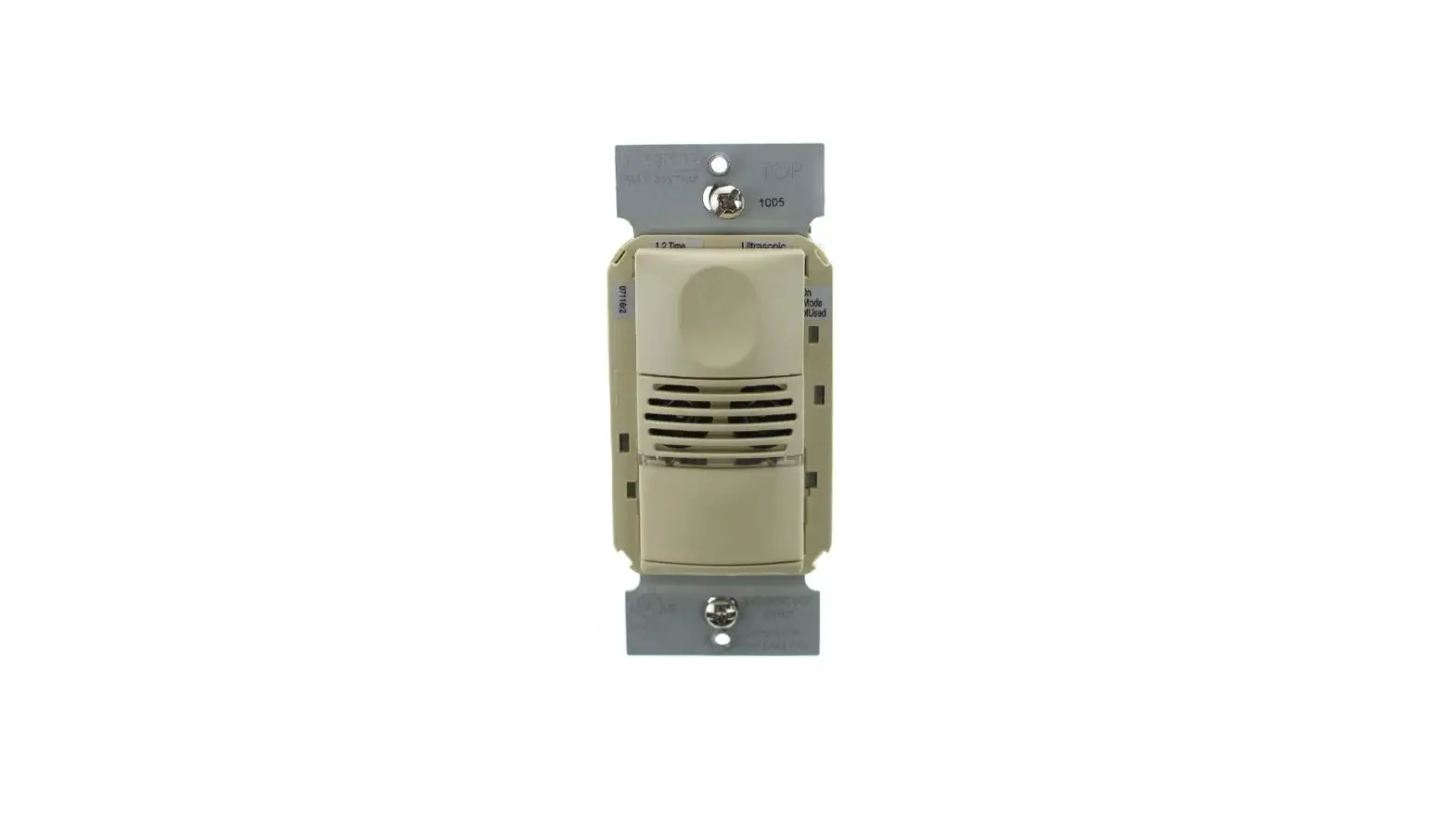
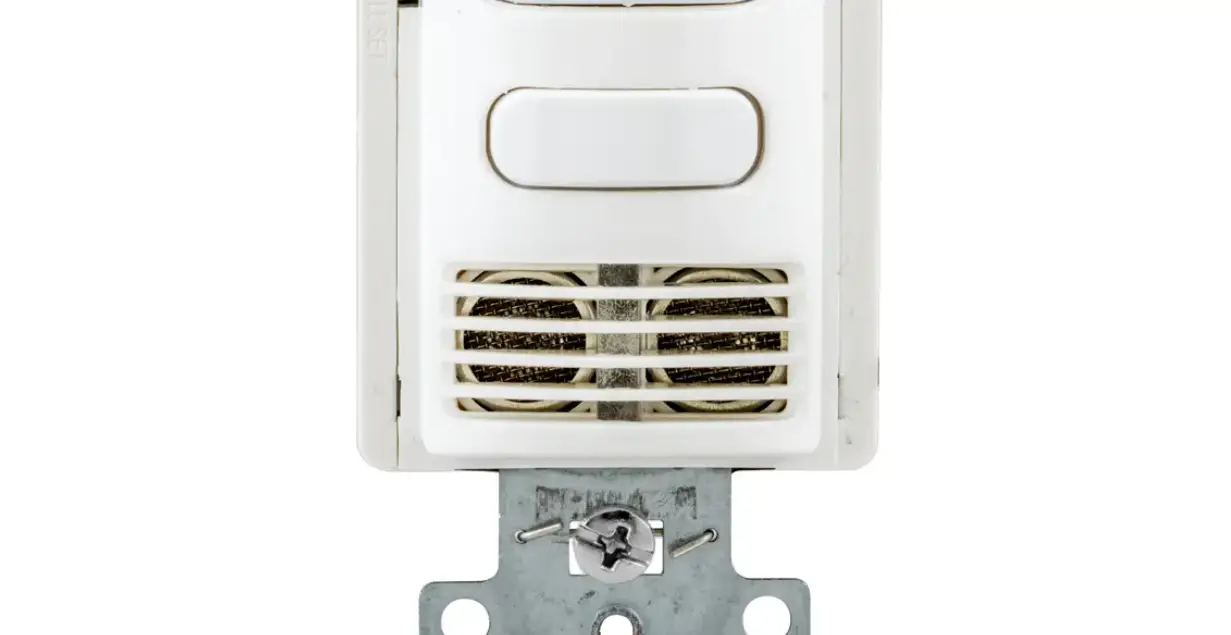
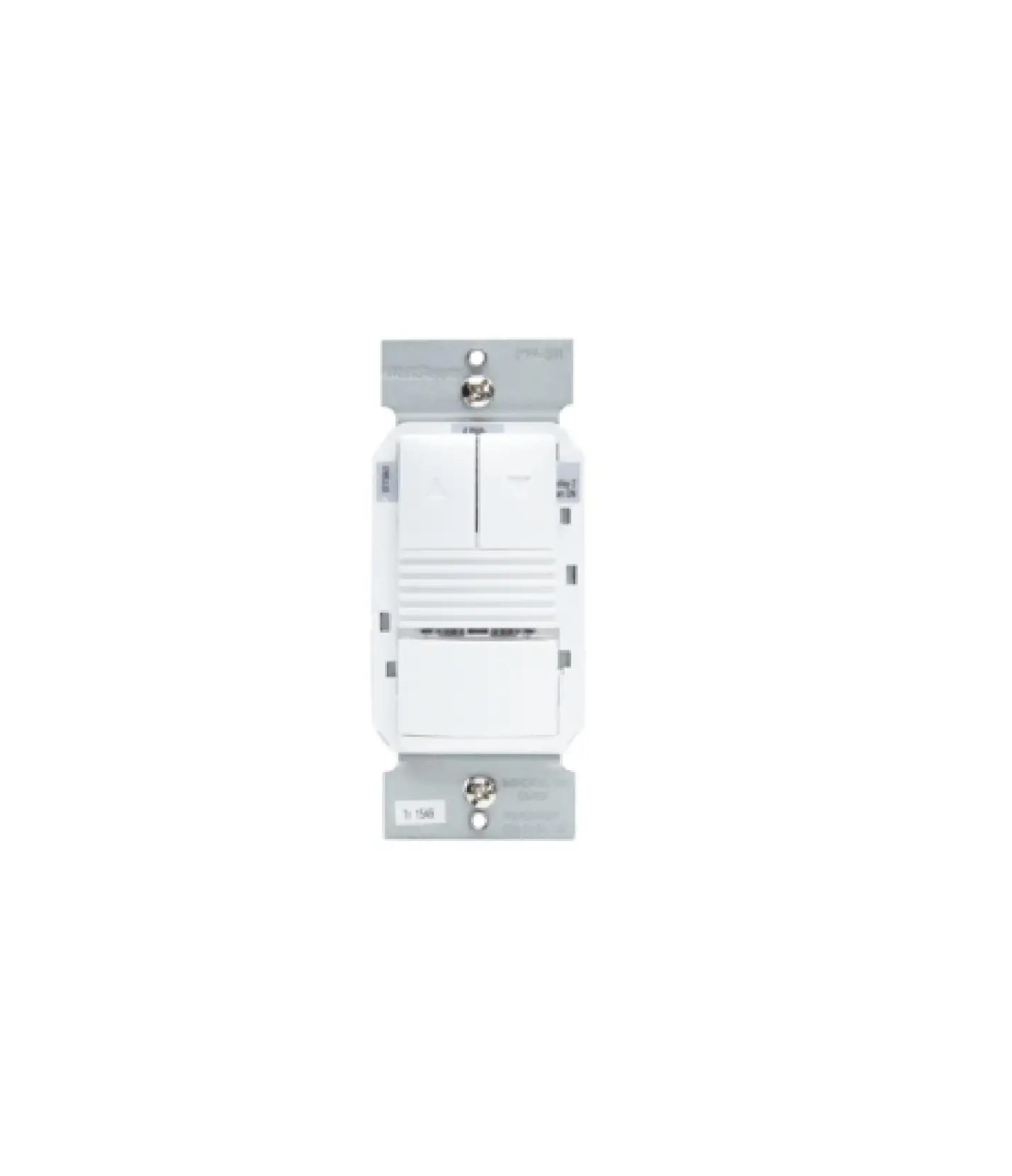
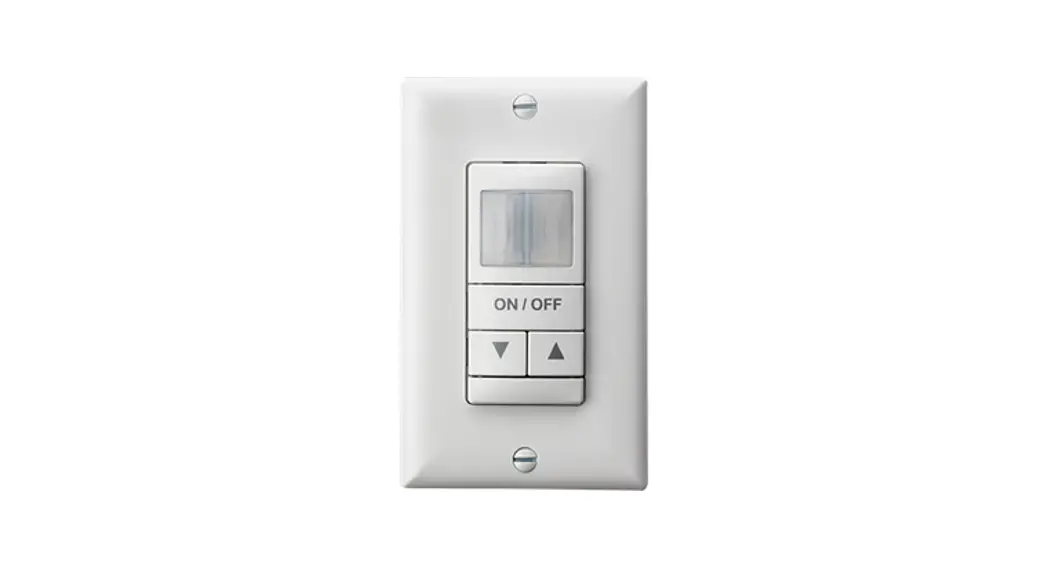
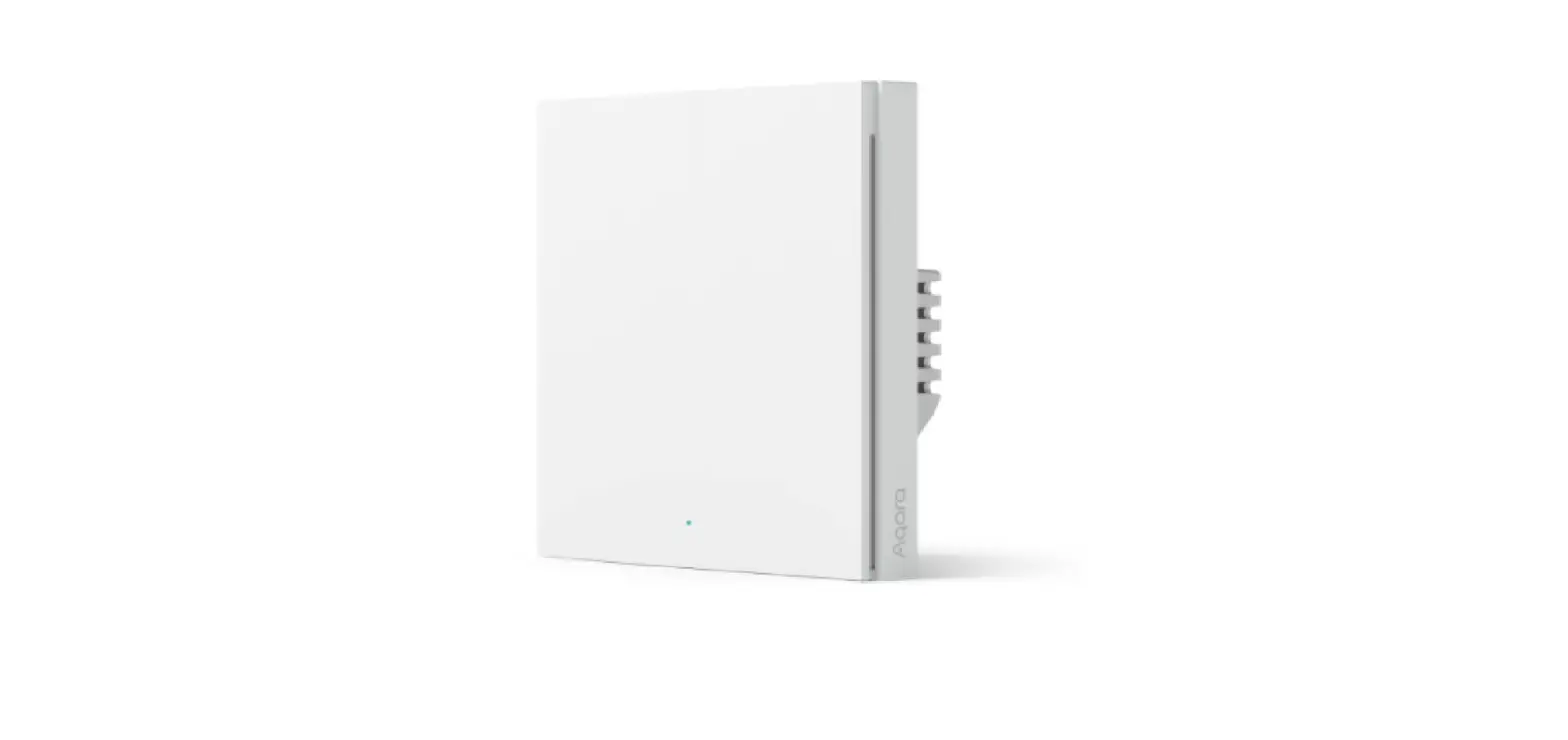
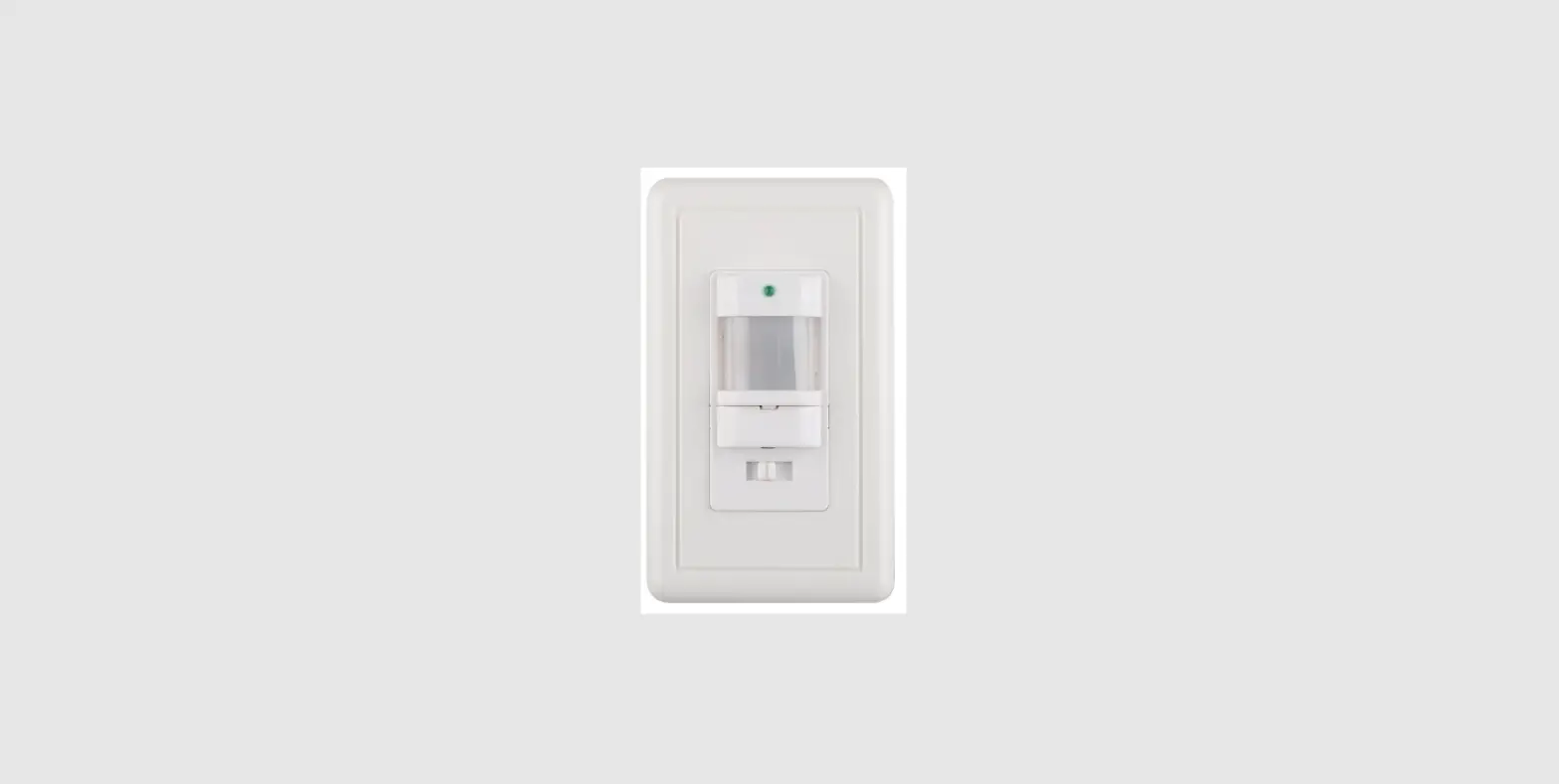
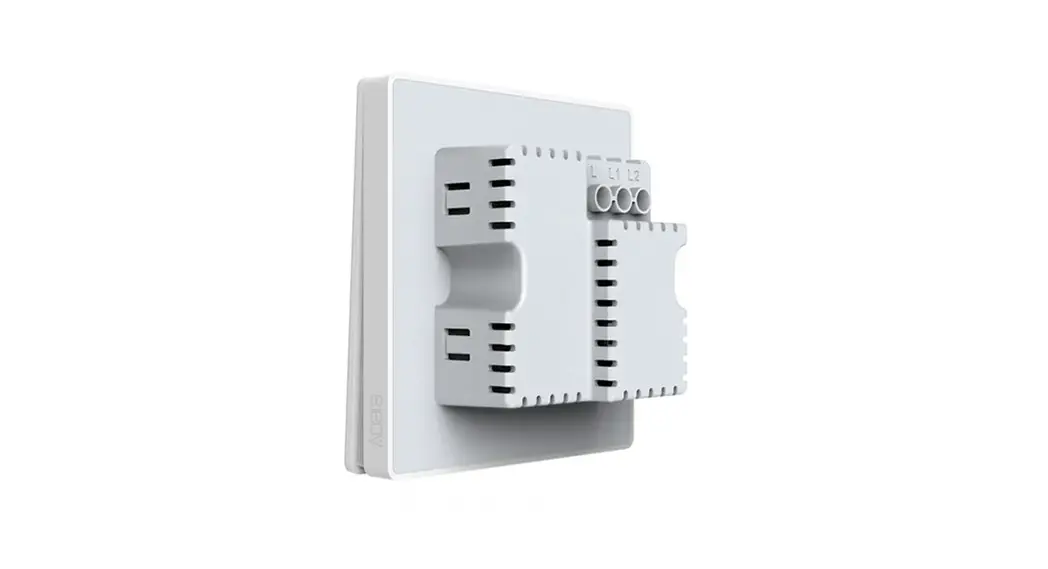
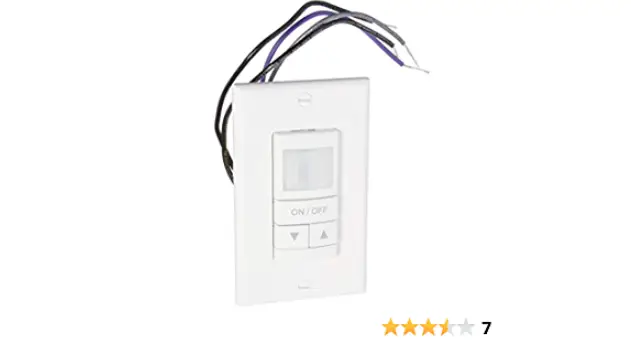
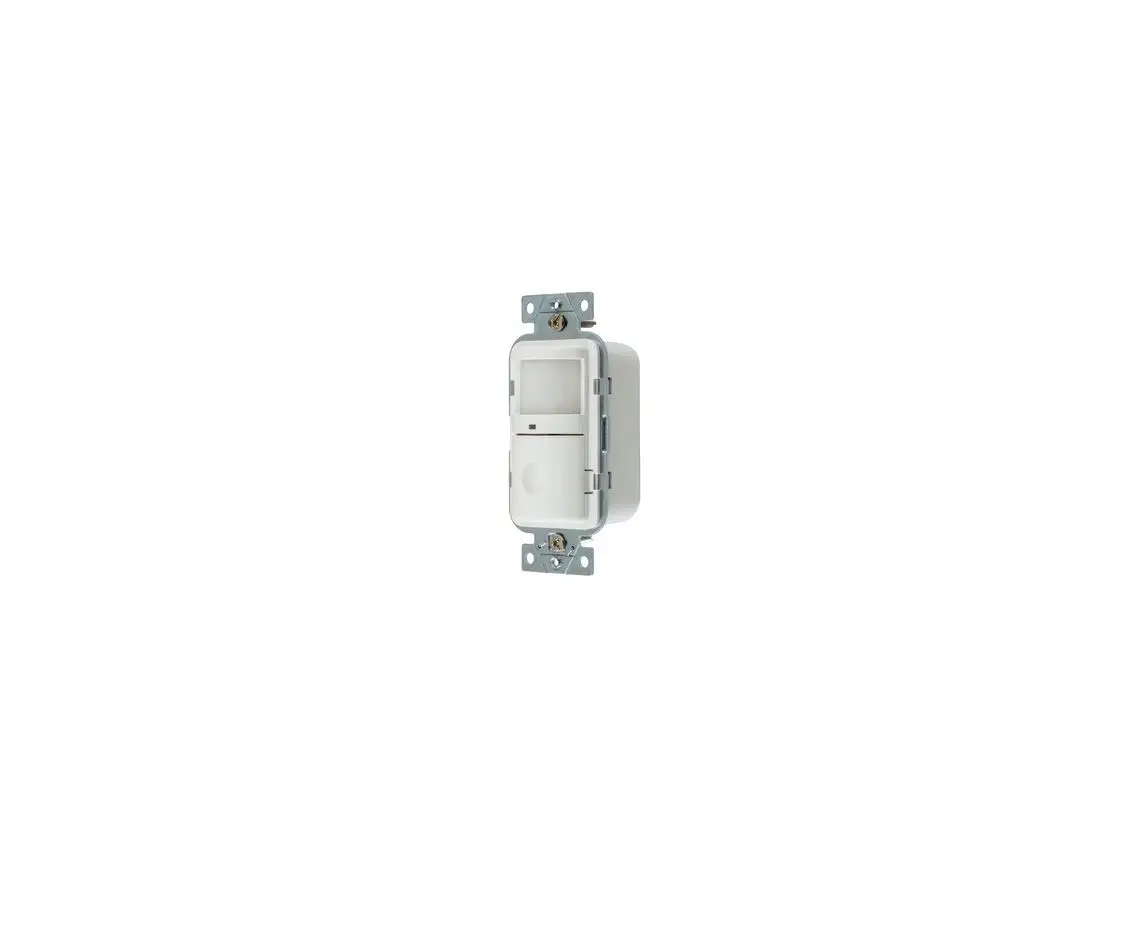
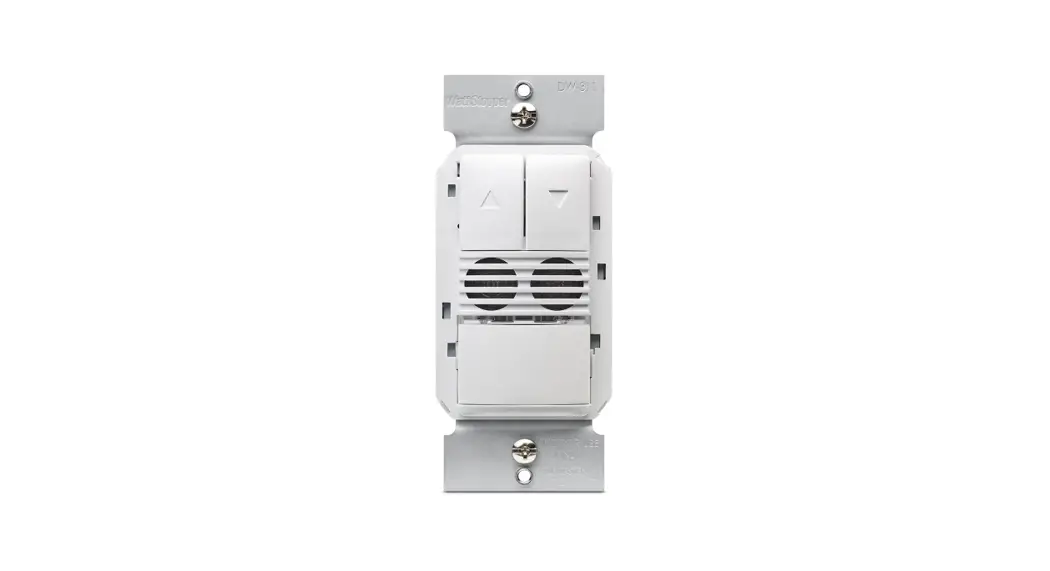
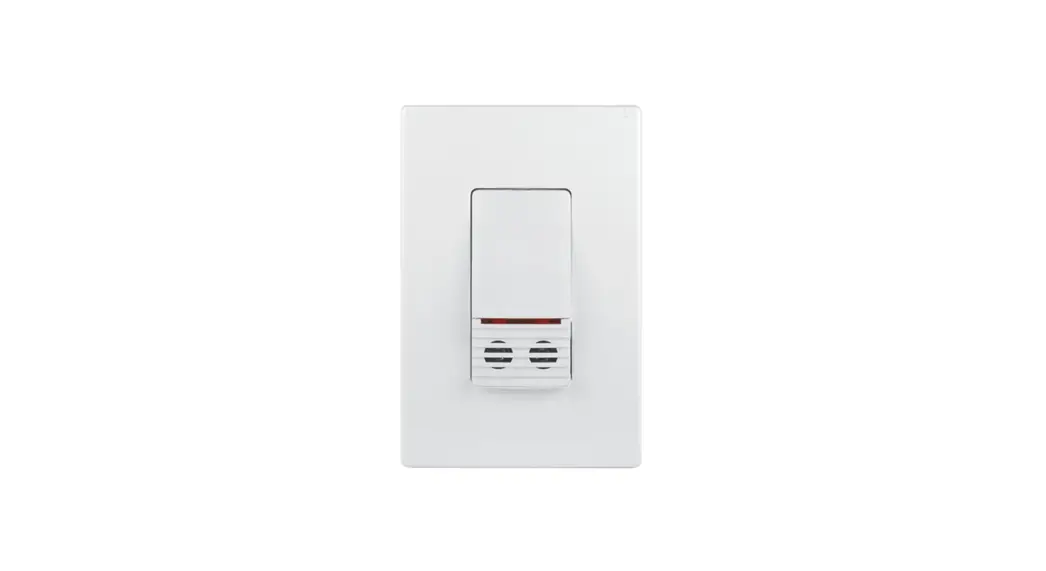
SA-WSx-C Wall Switch Sensor
Product Information
The Cyan Dimmer RGB Wall Switch is a device used to control LED
fixtures. It is designed to work with an input voltage of 120VAC
and can handle a maximum load of 700W. The product comes with an
installation manual (P/N:CyanDim-WSx-SA) that provides instructions
on how to install and pair the switch with LED fixtures. The switch
has a pairing button and a function button that allows users to
change the dimmer functionality according to the table provided in
the manual. The switch also has an ON/OFF switch, a mode switch,
and an indicator LED that shows the status of the switch during
normal operation. The product can be paired with the SmartAir App
via a QR code that can be scanned from the manual.
Product Usage Instructions
- Before starting the installation process, turn off the power at
the circuit breaker and test to ensure the power is off. - Prepare the wires from the wall box by cutting them if needed
and stripping the wire insulator for each wire inside the wall
box. - If installing more than one Wall Switch unit, make sure all
others are switched off while pairing. - Set both sliders to the top and switch off the Wall
Switch. - Switch on the power at the circuit breaker.
- Push a short press on the A Button on the Cyan Driver. The
green LED will turn on constantly. - Select the right function from the function button table.
- Turn on the Wall Switch. The green LED indicator will blink
while pairing. - After up to 15 seconds, your LED fixture will be paired with
the Wall Switch. - Select your ambient mode on the mode switch.
- To verify a successful pairing, adjust the sliders and observe
if the LEDs respond to the slider movements in
synchronization. - Scan the QR code to download the app. Follow the instructions
to connect to the SmartAir App. - If pairing is not successful, make a long press on the B Button
of the Cyan Driver until the Red LED Indicator blinks. Then repeat
the process again. - Mount the Wall Switch into the wall box using the appropriate
screws. - Turn on the power at the circuit breaker and verify 120V with a
Voltmeter.
Cyan Dimmer RGB
Wall Switch Installation
Installation Instructions
P/N:CyanDim-WSx-SA
Pairing with LED Fixture
Wall Box
1. A standard single-gang wall box sized 3 x 2 x 2 ½ cm will service Dimmer.
2. Not compatible with multi or double Mud Rings.
3. When using a retrofit gang box (cut in box) you might need to recess the ears.
Maximum Load
Input Voltage 120VAC
Max Load 700W
Before You Begin
To avoid fire, shock, or death, turn the power Off at circuit breaker and test to ensure the power is Off before wiring.
ON OFF
Step 1: Prepare Wall Box Wires
1. Make sure that the ends of the wires from the wall box are straight (cut if needed). 2. Strip the wire insulator for each wire inside the wall box as shown here:
Strip 5/8″(1.6 cm)
If you are installing more than one Wall Switch unit, all others must be switched Off while pairing.
1. Make sure both sliders are set to the top and the Wall Switch is switched Off.
2. Switch the power On at the circuit breaker.
3. Push a short press on the A Button on the Cyan Driver. Green LED will turn on constantly.
4. Select the right function from the function button table.
5. Turn On the Wall Switch, the green LED Indicator will blink while pairing.
6. After up to 15 seconds, your LED fixture will be paired with the Wall Switch.
7. Select your ambient mode on the mode switch.
8. To verify a successful pairing, adjust the sliders and observe if the LEDs respond to the slider movements in synchronization.
9. Scan the QR code to download the app. Follow the instructions to connect to the SmartAir App.
* If pairing is not successful make a long press on the “B” Button of the Cyan Driver until the Red LED Indicator blinks. Then Repet the all process again.
LED Mode Indicators
Step 3: Mount the Wall Switch
Mount the Wall Switch into the wall box using the appropriate screws.
Step 4: Restore Power
1. Turn the power On at the circuit breaker. 2. Verify 120V with a Voltmeter
1
Function
Color Temp / RGB
Pair
Dimming Control
Mode Switch
On/Off Switch
Connect to the SmartAir App
· Scan the QR code to download the App. Follow the instructions to connect to the SmartAir App
Installation Instructions
Pairing Button
Function Button
Press the Function button, each press will change dimmer functionality according the following table, after last entry restart from first entry:
Function
Action
Pair to Driver(s)
Press “Pair” SW
Define as a secondary (3 Way) Device
Press “Pair” SW
Reset Wifi Info
Long press “Pair” SW until Red indicator lights
On/Off Switch Position
Indicator
“ON”
Green On Until Action Completes
“OFF”
Red and Green Blinking until pairing or after 5 min timeout
“OFF”
Red On for 3 seconds
Press the Function button, each press will change dimmer functionality according the following table, after last entry restart from first entry:
#
Dimmer Function
Indicator (On for 3 Seconds after mode change)
1
Tunable White
2
RGB (Hue / Saturation)
Red, Green and Blue Red
3
RGBW (Pastel / RGB)
Green
4
RGBWW (Tunable White / RGB)
Blue
Pairing and Resetting
Dimmer Mode Functionality
Dimmer Mode Functionality depends on the dimmer function and acts as following:
·Tunable White Dimmer: The dimmer mode switch acts as a scenario selector. Each press on the mode switch change to the next scene out of 3 possible scenes. A long press on the mode switch will add new scene, or if all 3 scenes already set it will override the current scene.
·RGBW or RGBWW Dimmer: The mode switch toggles between RGB mode and Tunable White mode, no scenes are available (if it is RGBW dimmer the CCT slider is not operational in TW mode) With this type of dimmer the “color” slider set the Hue and color saturation (contrast) is maximum by default and can be only be changed by the mobile App.
2
Installation Instructions
Indicator LED Functionality during normal operation:
Name
Indicator
Scene 1
Red on for 3 sec
Scene 2 Scene 3
Green on for 3 sec Blue on for 3 sec
RGB Mode
Green On for 3 sec
Tunable White Mode Blue on for 3 sec
Available on the following Dimmer functions TW TW TW
RGBW, RGBWW RGBW, RGBWW
Troubleshooting
Symptoms
Wall Switch LED Indicator blinking RED
Wall Switch LED Indicator steady RED
Lights do not respond to Wall Switch
Cause The Pairing button is pressed while the wall switch is Off The Wall Switch is trying to perform pairing The Breaker is Off or tripped
Improper pairing
Improper wiring
Short circuit at the LED Driver output
Possible Solution
Turn ON the Wall Switch and press the Pairing button again
Turn On the Wall Switch until paring is completed
Turn power On at the Circuit breaker
Perform “Pairing”
Make sure all wires are connected according to the wiring diagram
Check LED Driver output for short circuits
The wall switch is controlling the wrong lights (Only if multiple Wall Switches units are installed in the same location)
Wall Switch / LED Driver Replacement
The Wall Switch was paired with the wrong LED Driver
Any reason
Perform “Pairing”. Make sure all the other Wall Switches are turned Off while pairing
Perform “Pairing”. Make sure all the other Wall Switches are turned Off while pairing
Customer Assistance
For technical questions regarding the installation or operation of this product, please contact our customer support team:
347-334-6368 ext 3
www.ambientechinc.com
For more info
Caution
To reduce the risk of overheating and possible damage to other equipment, do not install to control a receptacle, A motor-operated appliance, or a transformer-supplied appliance.
“GRADATEURS COMMANDANT UN BALLAST – AFIN DE REDUIRE LE RISQUE DE SURCHAUFFE ET LA POSSIBILITE D’ENDOMMAGEMENT A D’AUTRES MATERIELS, NE PAS INSTALLER POUR COMMANDER UNE PRISE, UN APPAREIL A MOTEUR,”
FCC/IC Information
This device complies with Part 15 of the FCC Rules. Operation is subject to the following two conditions: 1. This device may not cause harmful interference. 2. This device must accept any interference received, including interference that may cause undesired operation.
3
 AmbienTech | Tunable White Wall Switch | DimTone