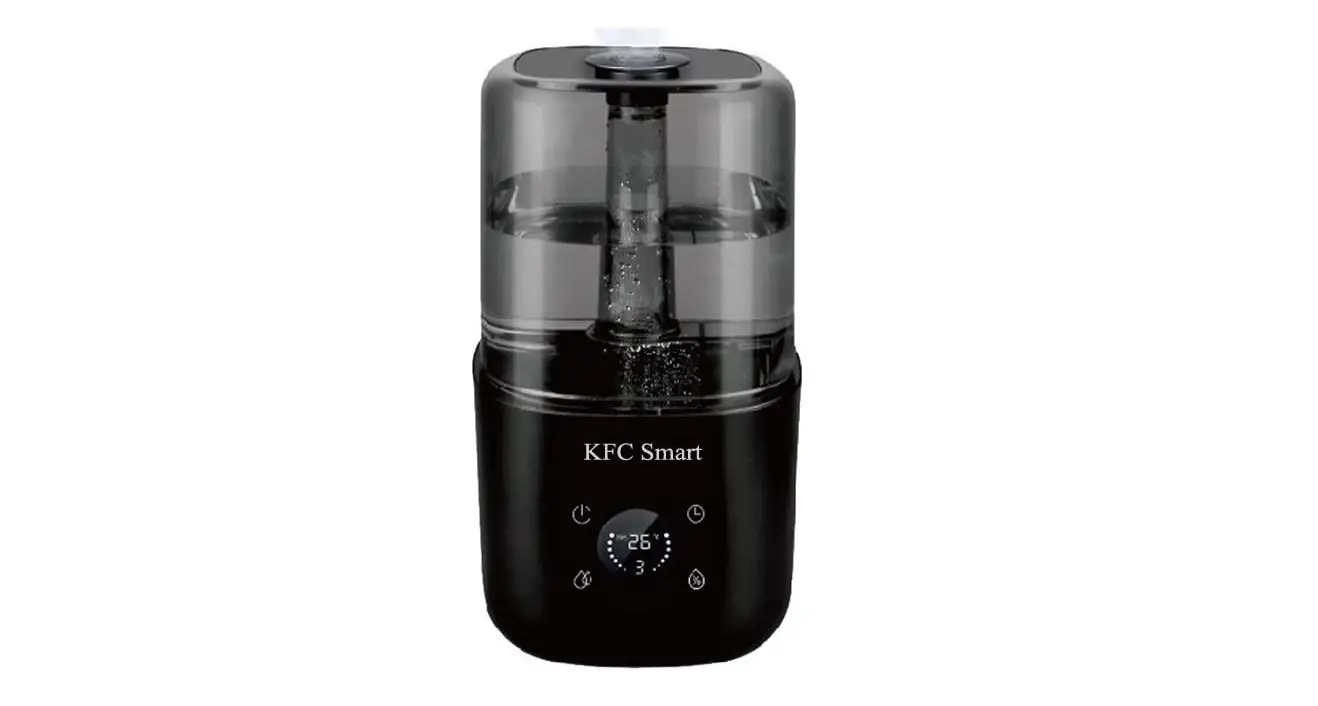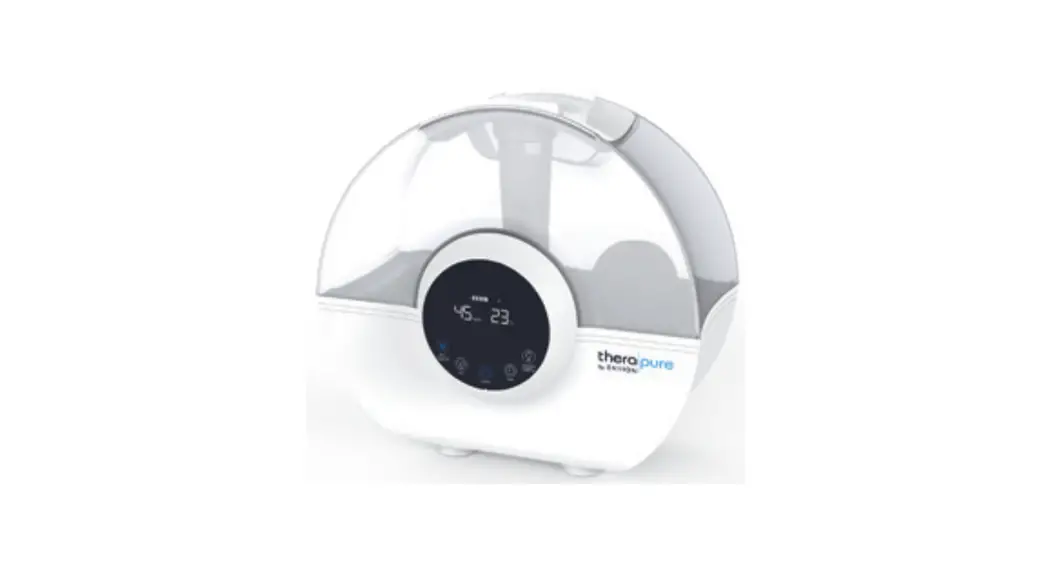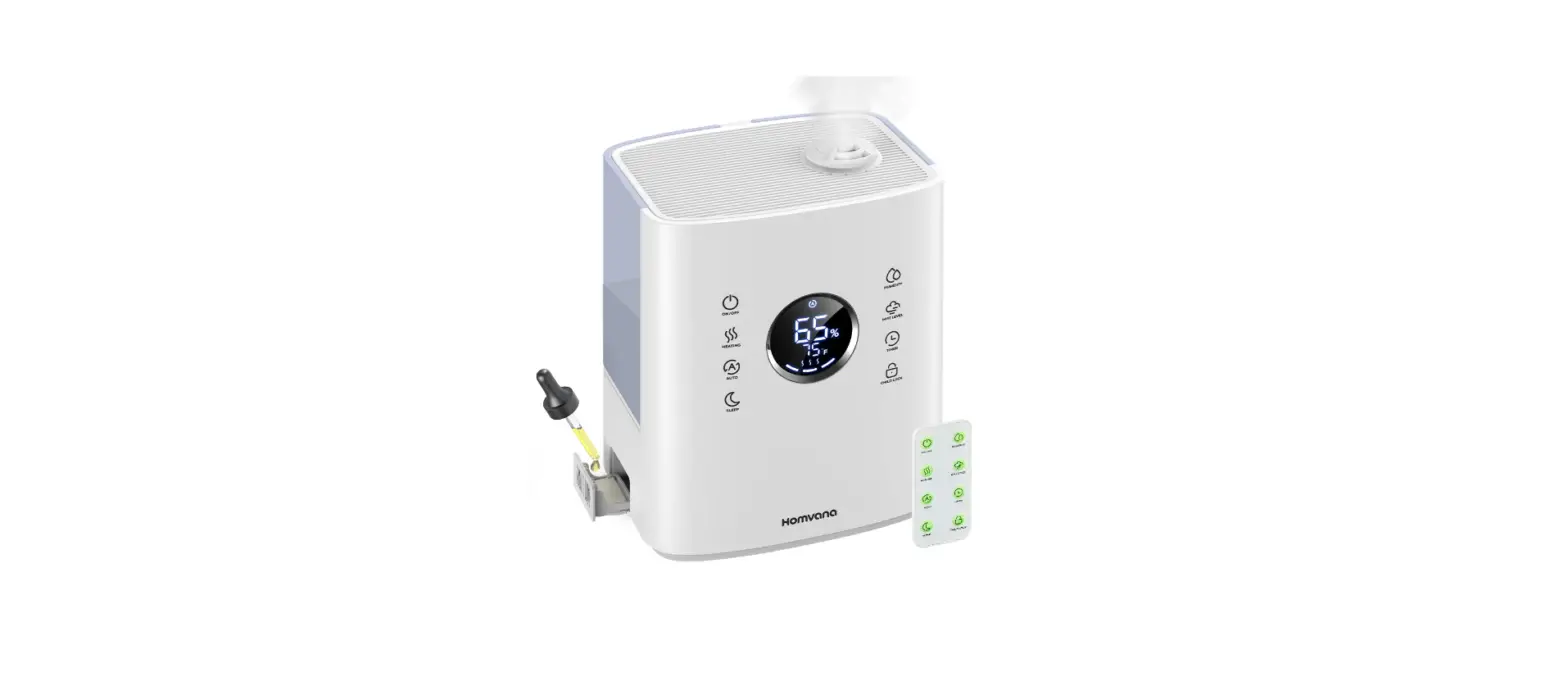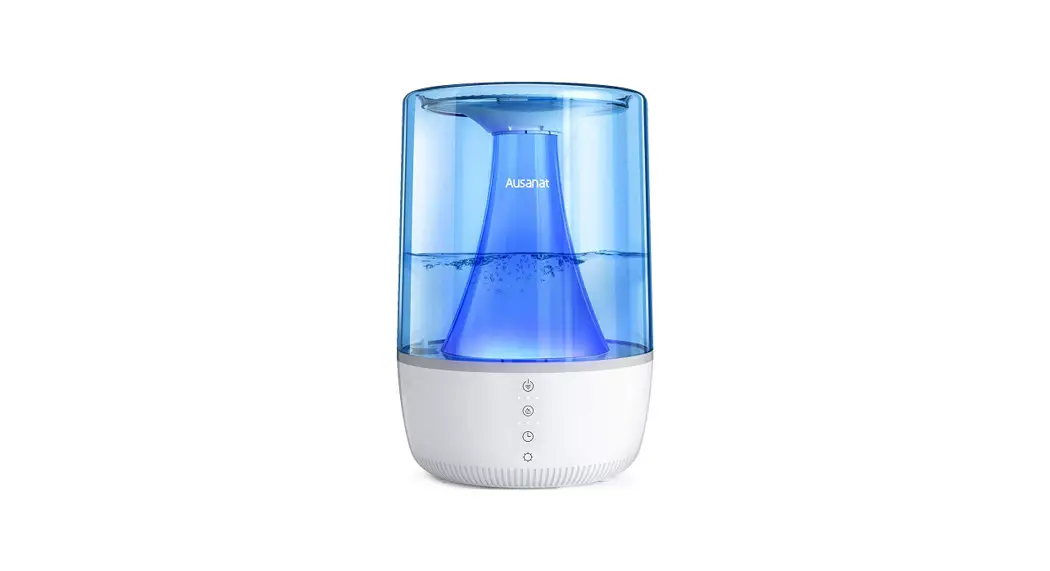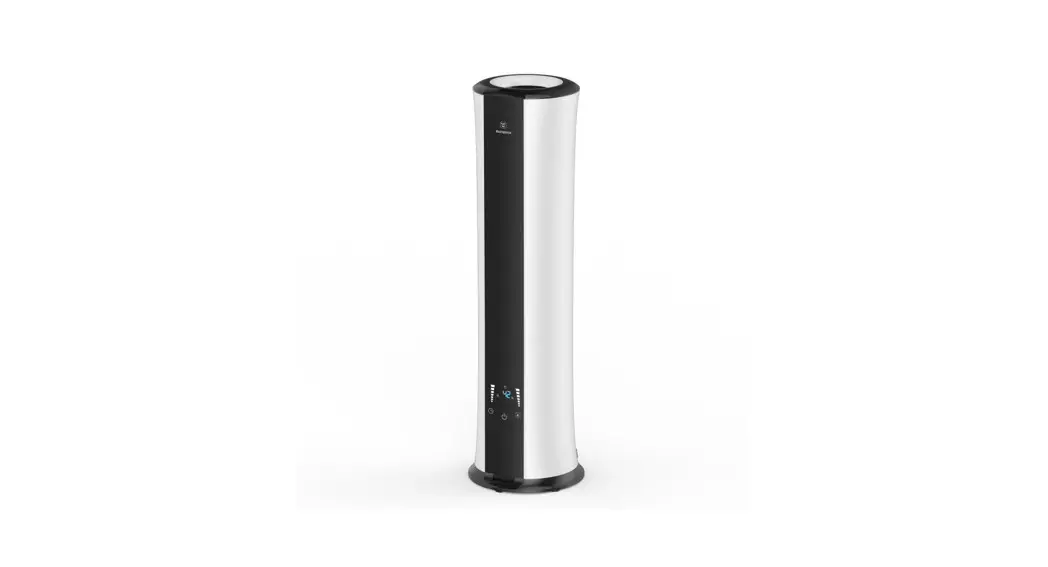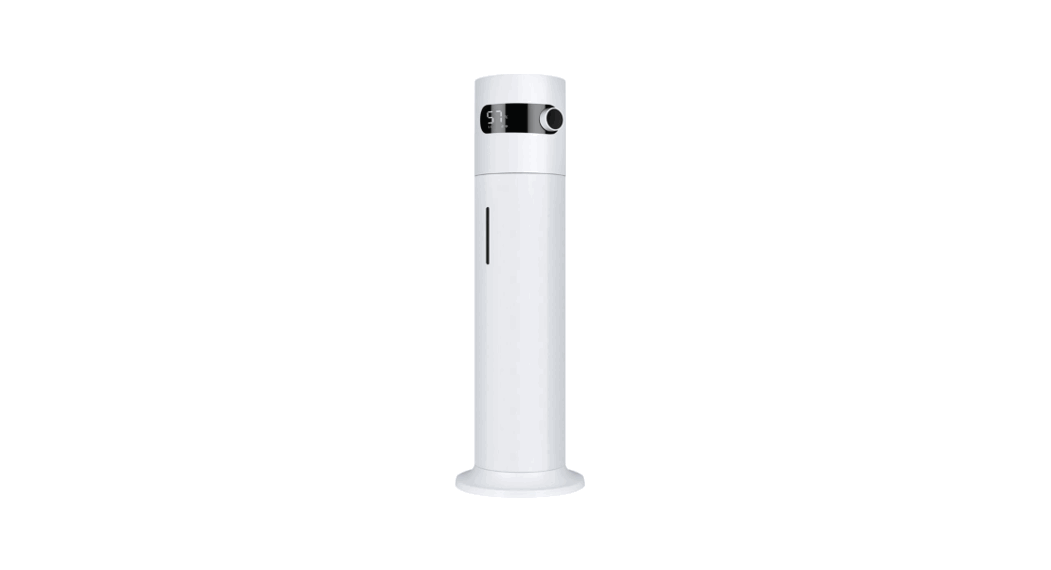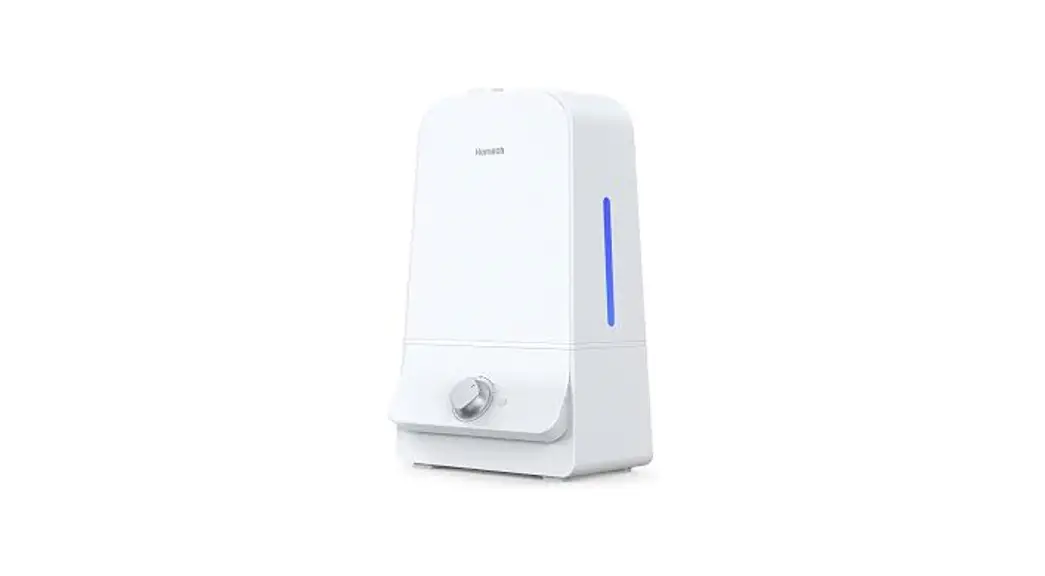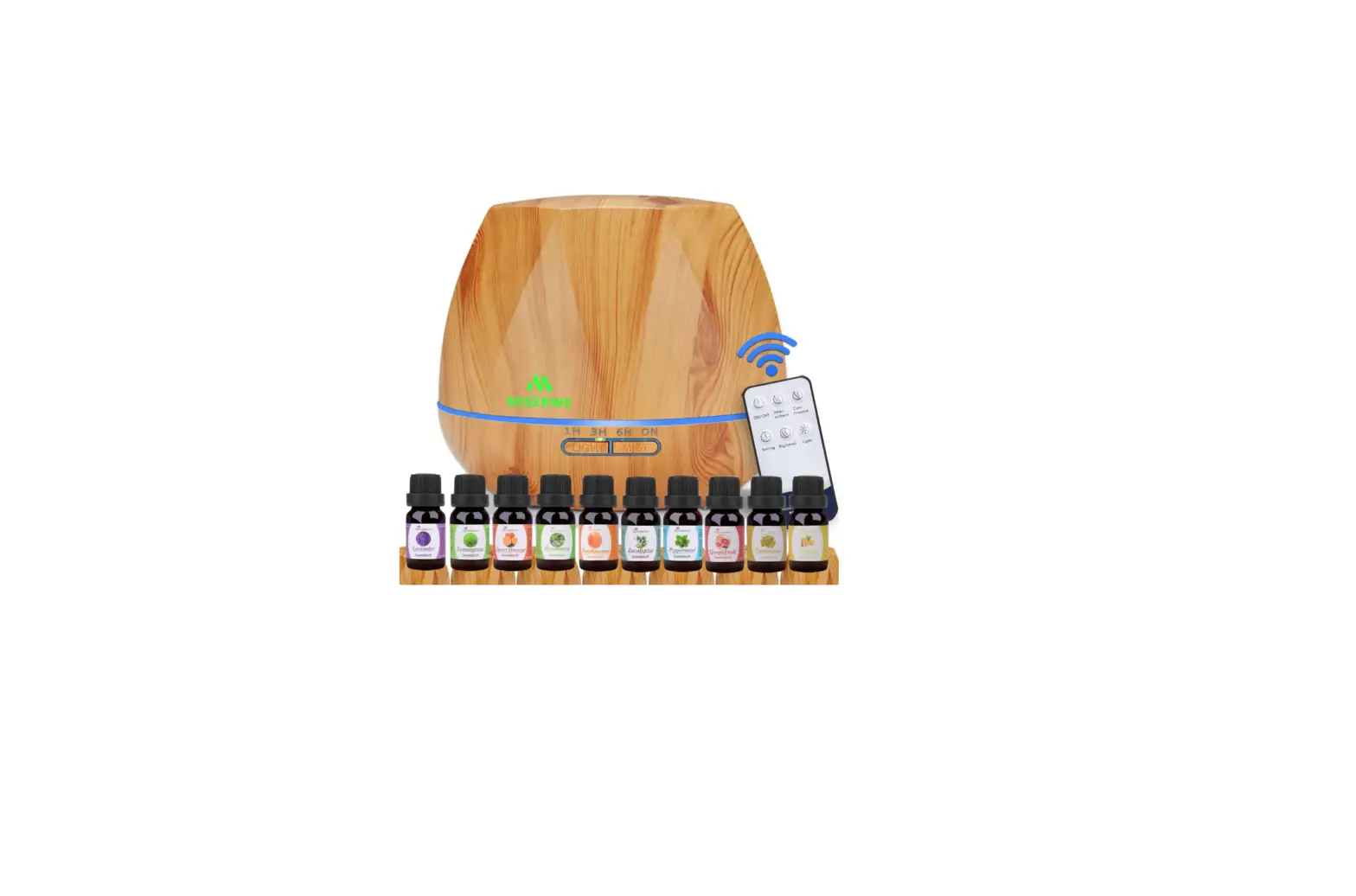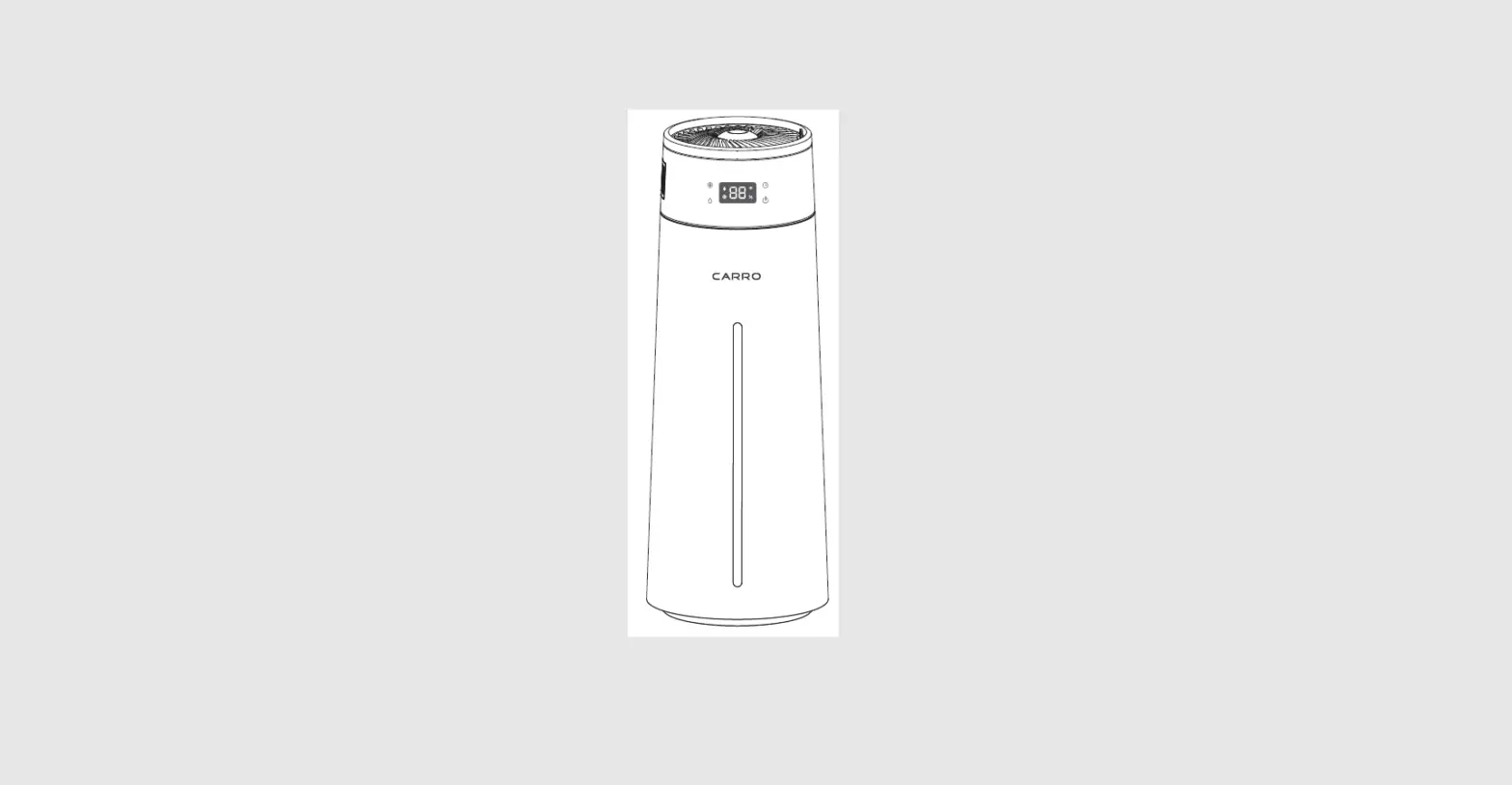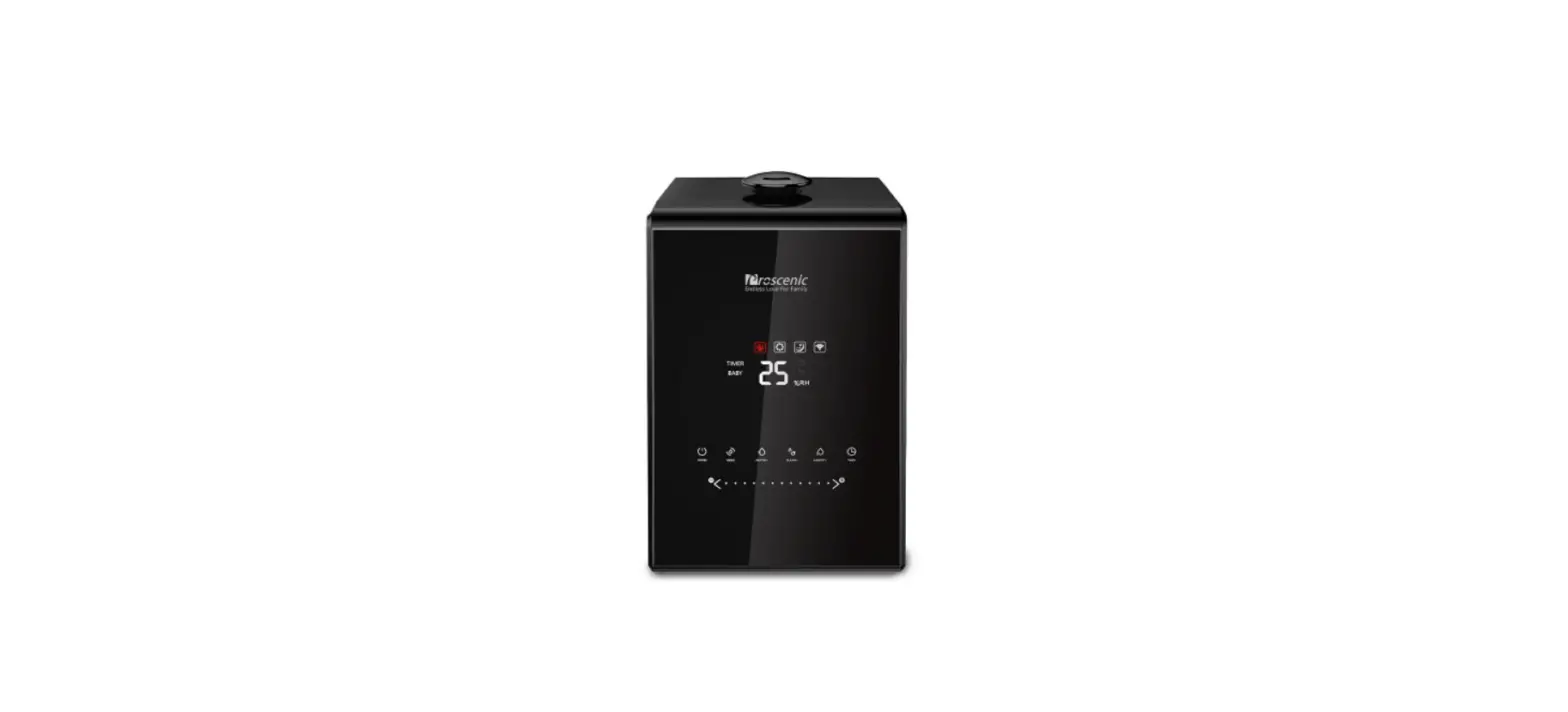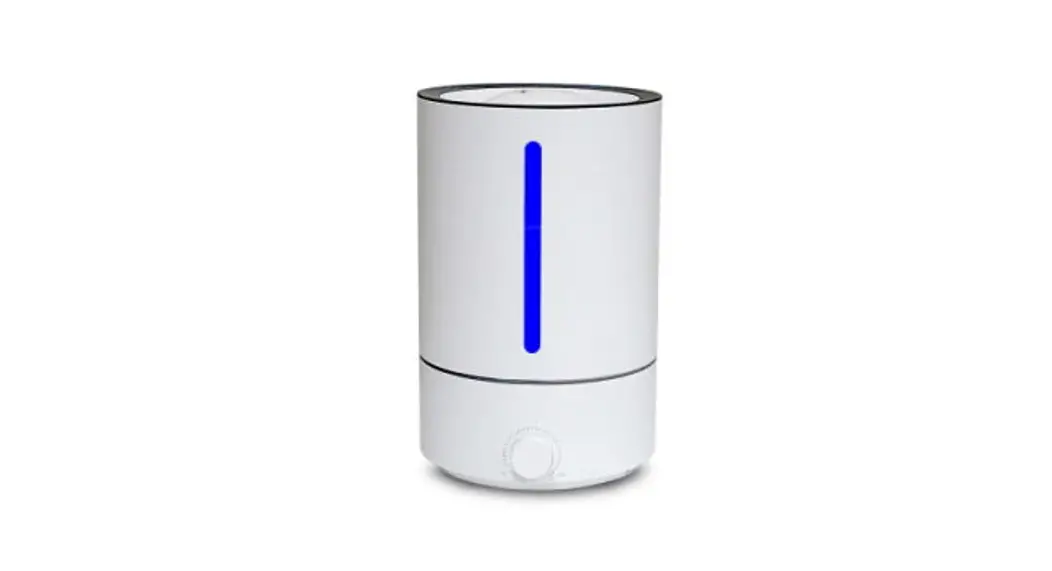
Getting to Know Humidifier LED
Screen Icon
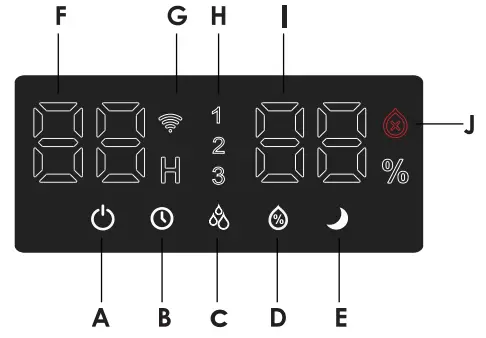
| Panel Button A. Switch Button B. Time Button C. Mist Level D. Humidity Button E. Sleep Mode | Screen Icon F. Timer G. WiFi Indicator H. Mist Level Indicator I. Humidity Indicator J. Lack of Water Indicator |
‘E.’ Note:
- When the machine is short of water, the screen will pop out
 ” and flash red, and the machine will enter the standby state after 3 seconds.
 ” and flash red, and the machine will enter the standby state after 3 seconds.
‘F.’ Note:
- When you do not set the humidity range, the humidifier will automatically detect the humidity range of the current environment and display it on the LED screen (with an error of 5%).
How to Control Your Smart Humidifier
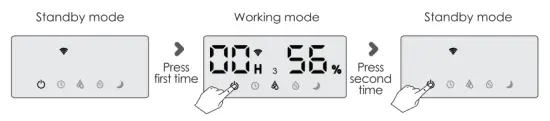
 Power Button
- Press to turn on/off your humidifier.
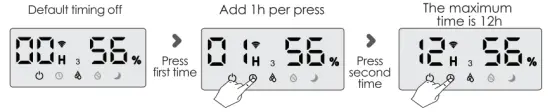
 Timing Function Button
- Press repeatedly to switch time settings, time range: 1-12H;
- After the timer finish, the humidifier will enter the standby state.
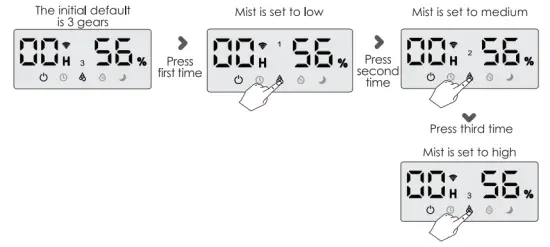
 Mist Level
- Press the
 repeatedly to set the mist level: Low—medium → High;
 - The subsequent mist size will default to the size you used last time.
 Constant Humidity Button
- You can press repeatedly to switch the humidity value. You can also press and hold the button for 3 seconds, the humidity value will automatically increase, and you can let it go when it reaches the humidity value you want;
- The humidity range is 40%-90%, and each press increases by 5%;
- When the ambient humidity detected by the humidifier reaches your set humidity value, the humidifier stops working;
- When you do not set the humidity range, the humidifier will automatically detect the humidity range of the current environment and display it on the LED screen (with an error of 5%).

 Sleep Mode
- Turn on the sleep mode, the LED screen will become translucent. Press any key to end sleep mode and change to working mode;
- The spray mode works for 5 minutes each time, and pauses for 5 minutes, 10 minutes, and 15 minutes in sequence (5-10-15-5-10-15, and so on).


Steps for Filling Water
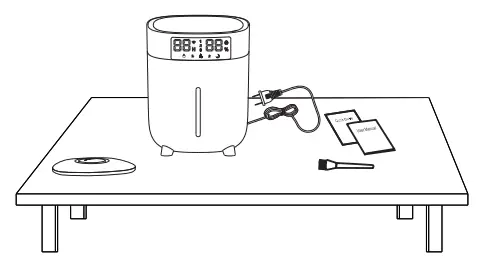
- Remove all packaging and take out the user manual, quick guide & brush in the water tank.

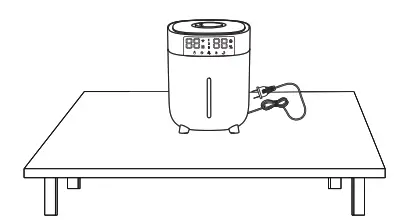
- The humidifier should be placed on a flat surface.

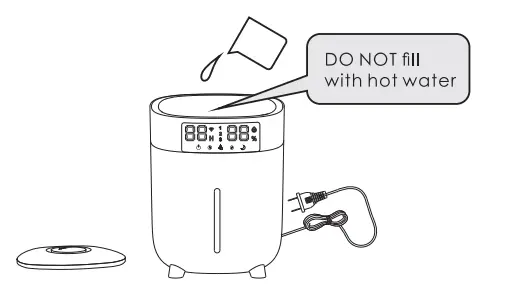
- Open the cover and fill in water, or take up the water tank and take it to the tap to add water.

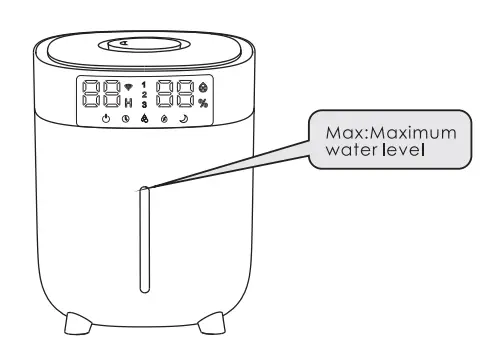
- Note that water must not exceed the maximum water level.

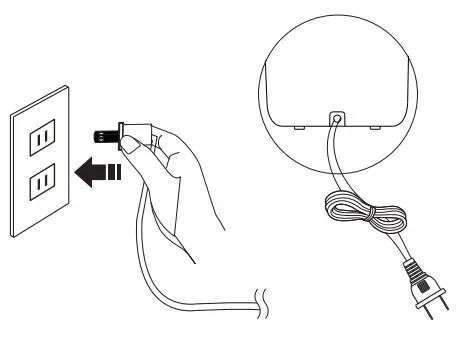
- Put the cover on and plug in the power cord.

- Please insert the wires in a sta-ndard way and keep your hands dry.

Precautions
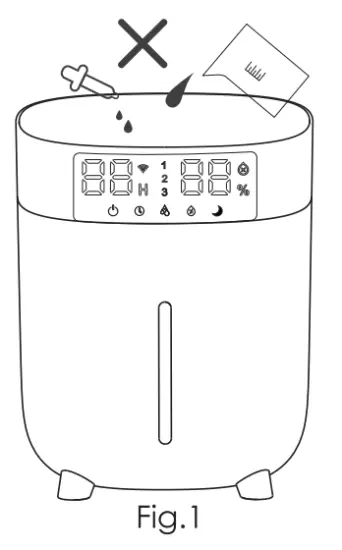
- DO NOT add essential oils, water treatment fluids or water filters into the water tank. (Fig.1)

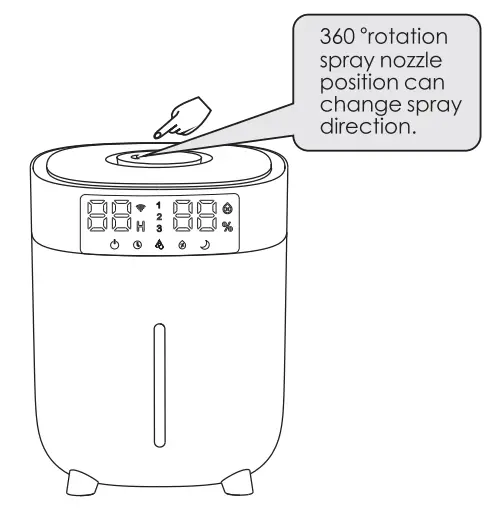
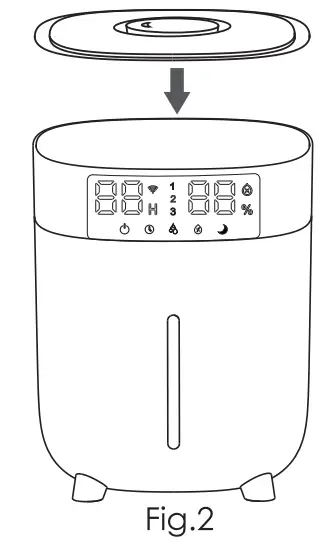
- Make sure that the nozzle cap is back in the water tank, otherwise, the humidifier may not be able to spray mist. (Fig.2)

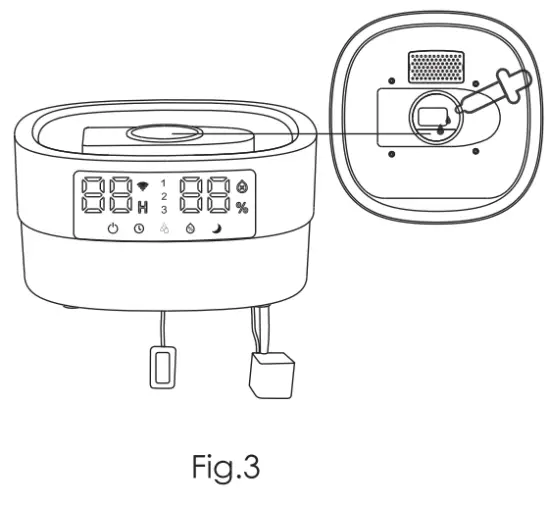
- Please drop the essential oil into the essential oil box which in the half bottom of the mist outlet. (Fig.3)

Cleaning and Maintenance
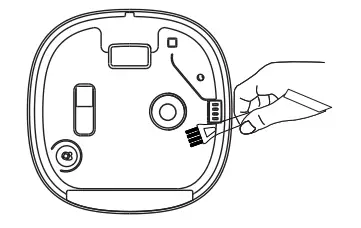
- Add appropriate amount of water and clean the machine with a cleaning brush.

- Wipe the atomizer with a cotton swab dipped in the citric acid solution.

- Rinse with water and wipe with a soft

- Remove the upper cover and nozzle in cloth. turn, wash with water, and wipe with a damp soft cloth.

- Wipe with a soft damp cloth and dry with a dry towel.

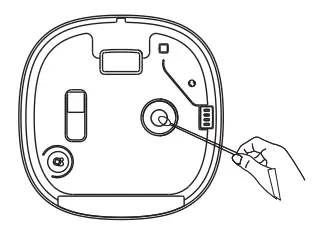
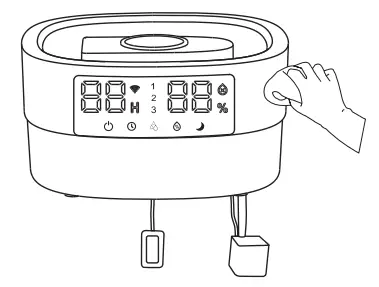
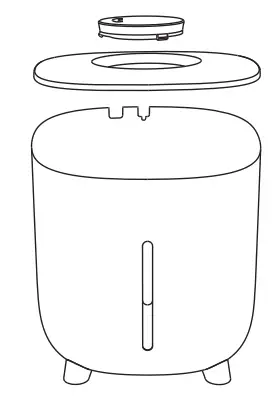
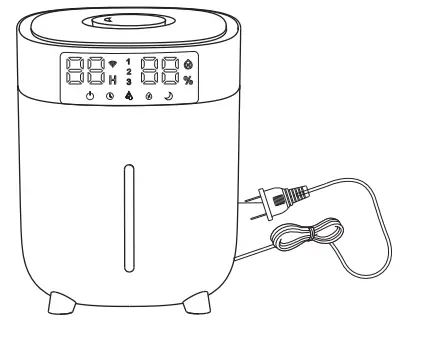
Note:
- We do not recommend to use detergent for cleaning, long-term use may cause corrosion of the shell;
- DO NOT use hard and sharp devices to touch or hit the atomizing sheet;
- DO NOT use a cleaner like a steel ball to clean the water tank, which will scratch the water tank.