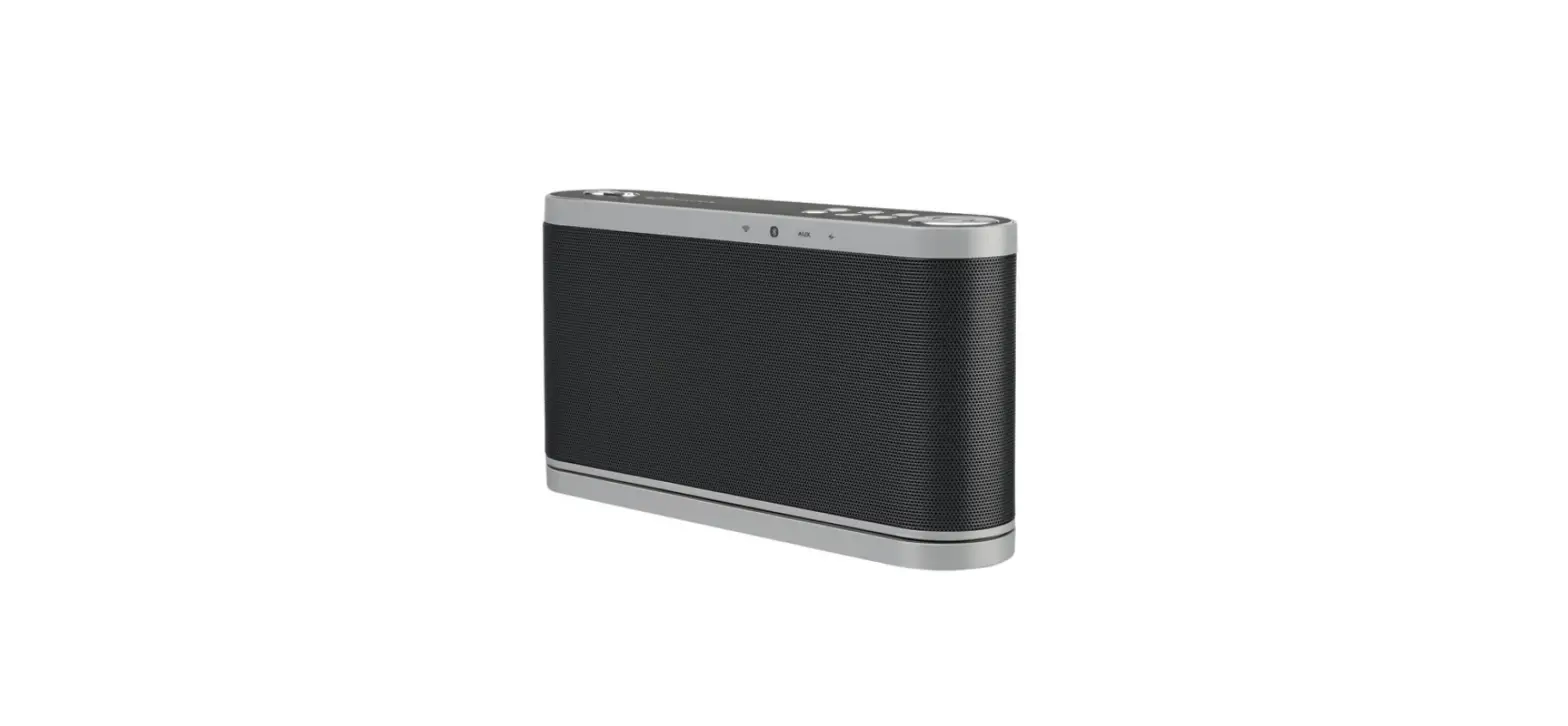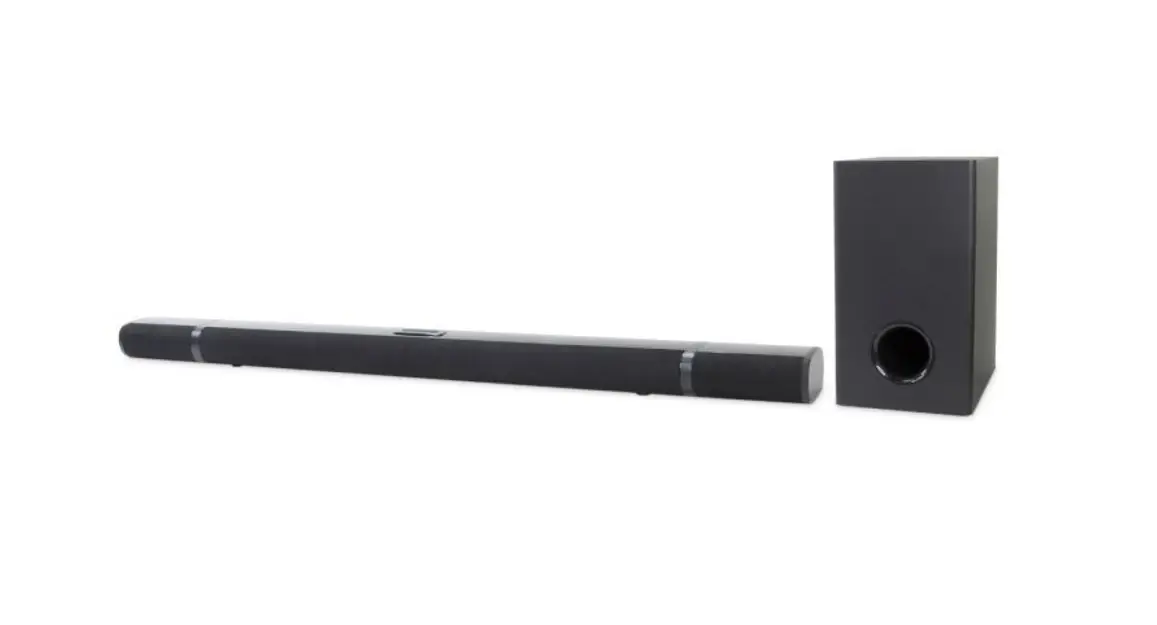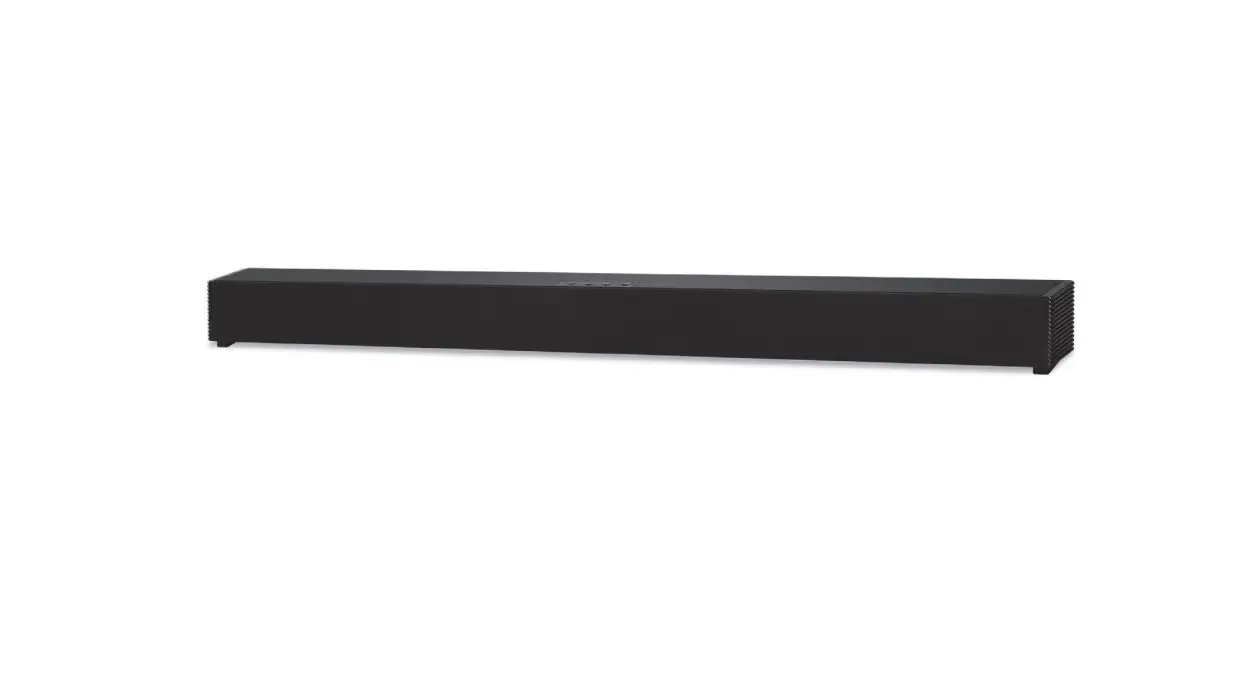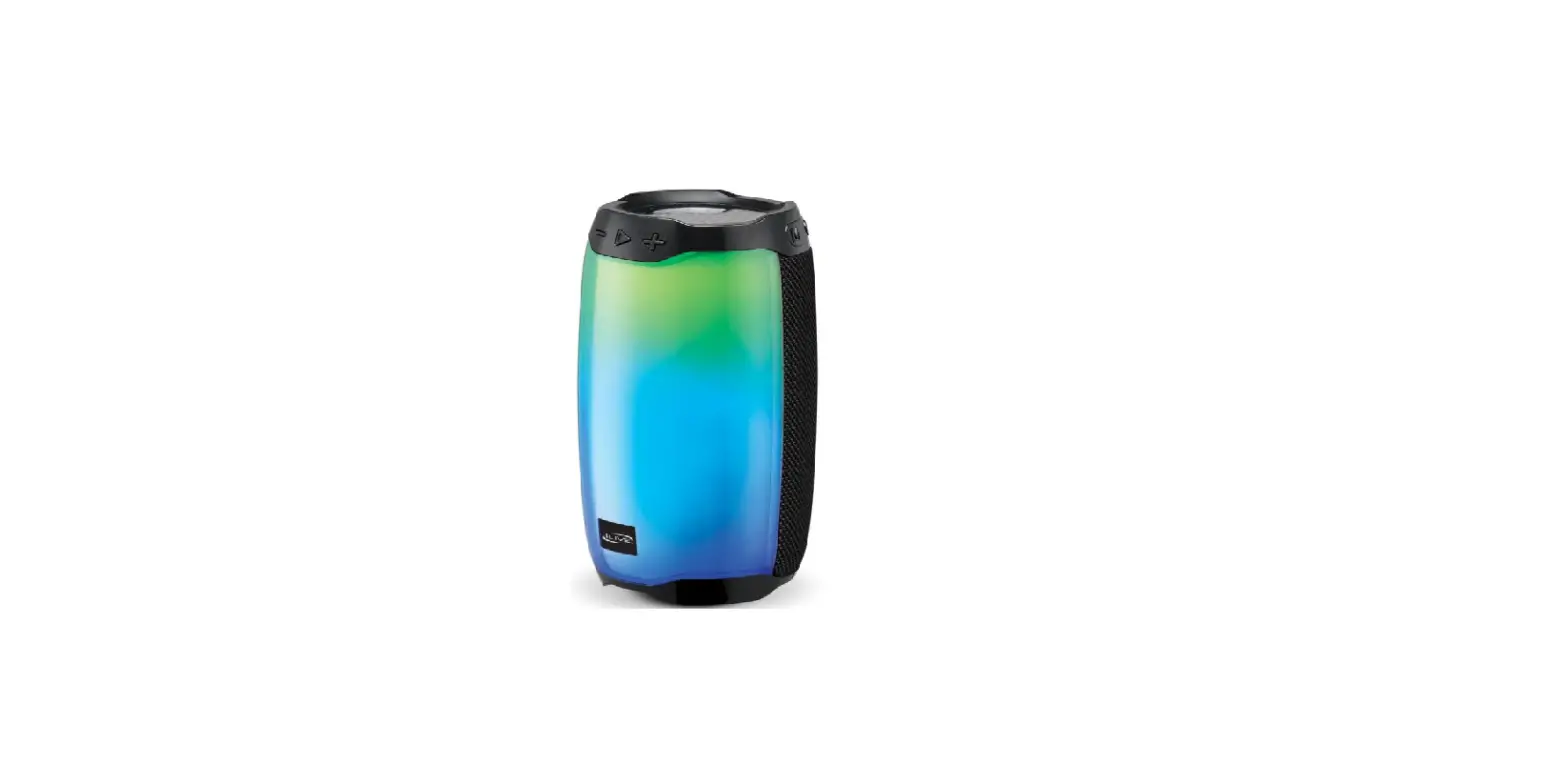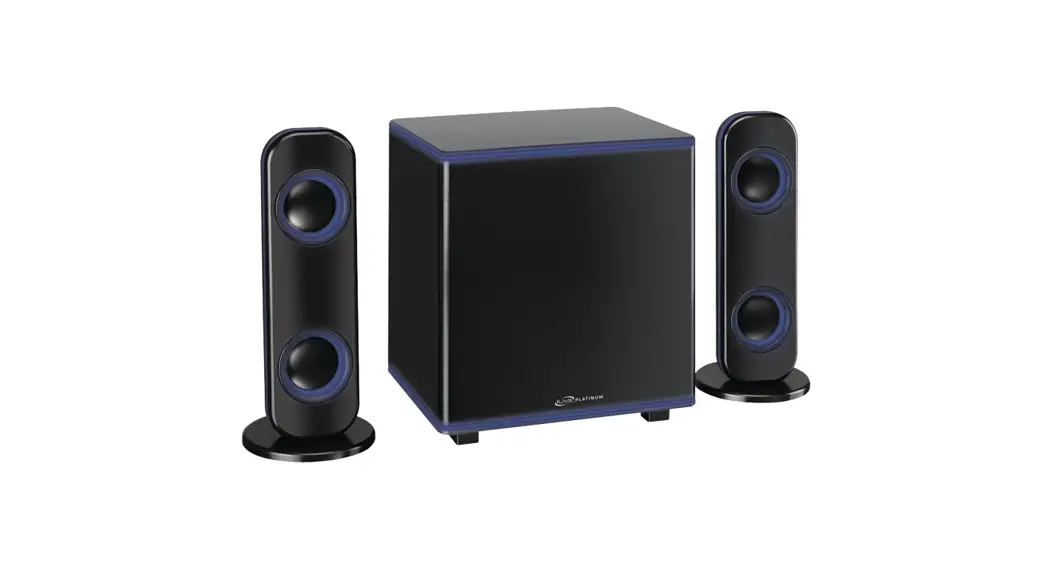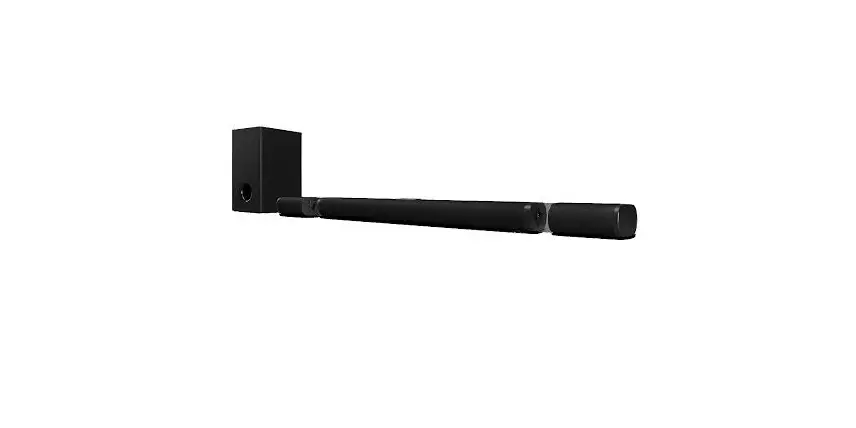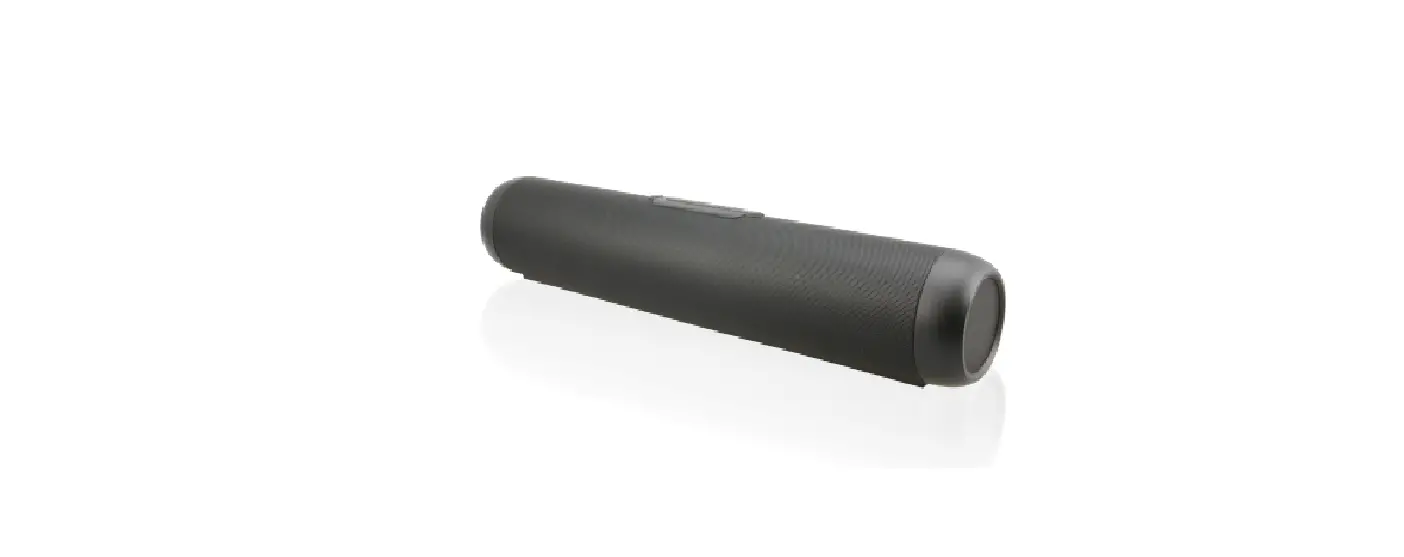

iLive ISWF776B Wireless Multi-Room Sound Bar Speaker
Introduction
Make your home audio ready with our Wi-Fi speakers and easy to use app. Connect to Spotify and other online music services with the touch of a button and play your favorite songs in any room of the house.
Features
- Multi-room/multi-speaker play
- On-speaker play, volume, and preset controls
- Built-in Wi-Fi & Wi-Fi Direct
- Wi-Fi range – 98.5 ft
- Supports Bluetooth
- Bluetooth range – 33 ft
- Stereo RCA audio input with sub-woofer output
- Optical audio input
- Built-in rechargeable battery
- Battery life – 4 hours at 50% volume
Includes
- Remote Control: requires CR2025 button cell battery (included)
- RCA to 3.5mm audio cable
- Wall mount hardware and instructions
- AC/DC power adapter
- User’s Guide
Overview
On Speaker Controls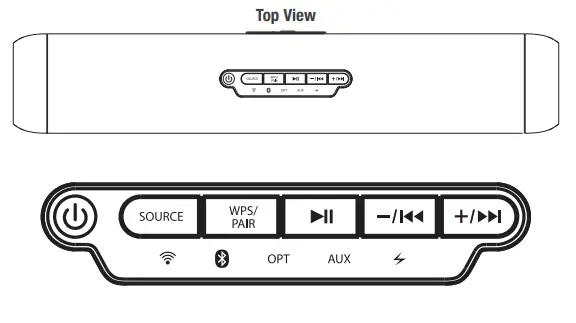 Power & Audio Inputs
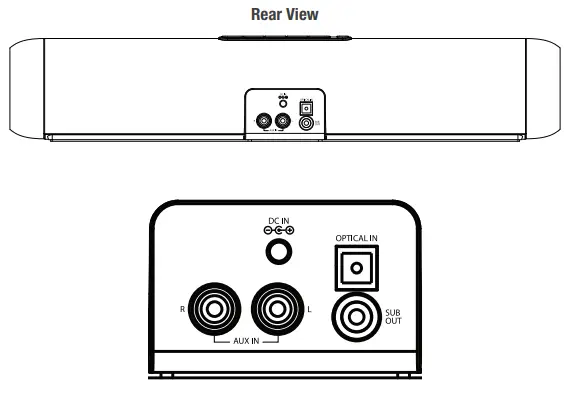
Indicator Lights
 Wi-Fi (white light)
- Blinking Connecting to Wi-Fi
- Solid Connected to Wi-Fi
 Bluetooth Wireles (blue light)
- Blinking – Pairing Bluetooth
- Solid Paired
 Optical Audio Input (amber light)
 Auxiliary Audio Input (green light)
 Battery (red light)
- Solid Charging
- Off – Full charge
 Power
Power- Press and hold to power the speaker ON or OFF.
 Select Source
- Press to switch between Wi-Fi, Bluetooth, Optical and Aux.
 Pair Bluetooth/Wi-Fi Connect
- Press to begin searching for Wi-Fi networks while in Wi-Fi mode. Press to begin pairing to a Bluetooth device.
- Press and hold to disconnect Bluetooth pairing.
 Play/Pause
- A short press will pause or play audio.
 Skip Track/Volume
- Press and hold to skip between tracks.
- Press to adjust volume.
 Wi-Fi (white light)
 Bluetooth Wireles (blue light)
 Optical Audio Input (amber light)
 Auxiliary Audio Input (green light)
 Battery (red light)
 Power
Power Select Source
 Pair Bluetooth/Wi-Fi Connect
 Play/Pause
 Skip Track/Volume
Remote
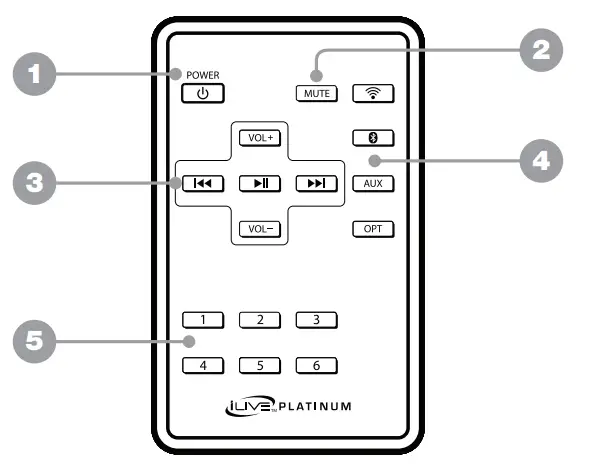
- Power ON/OFF
- Mute
- Play/Skip/Volume
- Source Select:
- Wi-Fi/Bluetooth/Aux/Optical
- Presets 1-6
Remote Batteries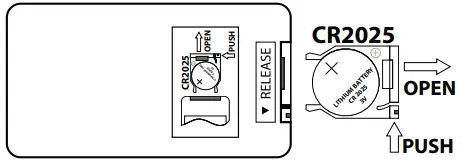
Connecting to Other Devices
Stereo RCA Inputs (Aux In)
- When connecting two products using an RCA audio cable (included), match the colored ports (red/white) to their corresponding plugs.
- Use an RCA to 3.5mm audio cable (included) to connect the RCA Stereo Inputs on the back of the speaker to the headphone jack on a smartphone or other audio source.
- Power on the speaker and press the Source button to select Aux In, indicated by a green light on the speaker.
- Audio played through the television will now be heard through the speaker.
To connect a subwoofer (optional):
With the main stereo RCA cables connected, use another RCA cable (not included) to connect an external subwoofer to the Sub Out on the back of the speaker.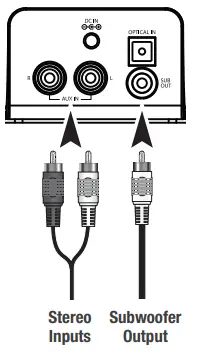
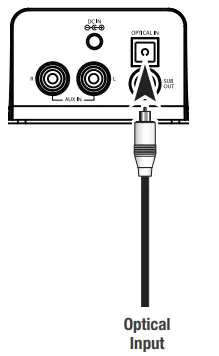
Optical Input
- Requires a Digital Optical Audio Cable (not included).
- Use a Digital Optical Audio Cable (not included) to connect the Optical Input on the back of the speaker to the Optical Output on a television or other audio source.
- Power on the speaker and press the Source button to select Optical (SPDIF Mode), indicated by an amber light on the speaker.
- Using the controls on the connected audio source, make sure the audio settings are set to PCM or
- Optical Audio and are turned ON.
- Audio from the connected audio source will now be played through the speaker.

Important tips for optical audio:
Use the correct toslink cable and make sure that it is firmly seated in both the source and soundbar sockets. Optical audio output is activated on the source (you should see a red light emitting from the toslink socket). It may be labeled SPDIF in the setting menu of the source. The optical output is set to output PCM and not Dolby Digital.
Power & Charging
Charging The Speaker
The speaker should be fully charged before use. A fully charged battery should last for approximately 4 hours of continuous use at 50% volume. Play time will decrease at louder volumes and increase at lower volumes.
It is not recommended to charge the speaker overnight.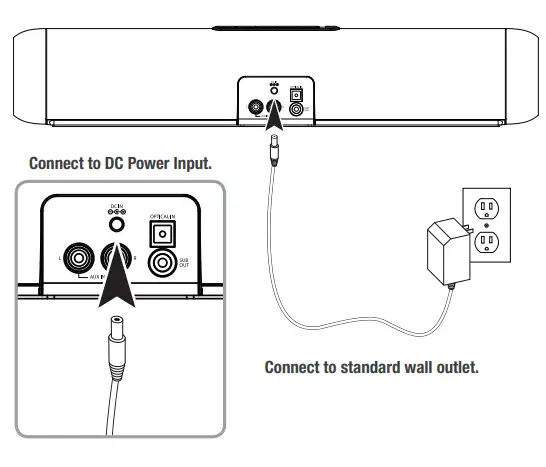
iLive Wi-Fi App
App Download
The iLive Wi-Fi app lets you play music and audio from streaming services like Spotify, iHeartRadio and others. It also controls the speaker’s other functions, such as multi-room play, multi-channel play, etc. Download the app for your device by scanning the QR codes below, or searching for the iLive Wi-Fi app in the Apple App Store™ or Google Play Store™. Note that this app is designed for mobile devices only, such as smartphones or Wi-Fi enabled tablets. It is not available for use on regular desktop or laptop computers.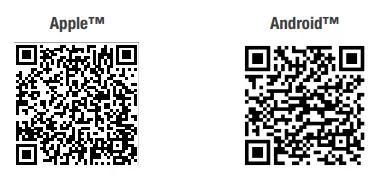
Initial Setup & Connecting To Wi-Fi
Before use, the speaker and your phone or tablet must connect to the Wi-Fi network you want to use. The on screen prompts will guide you through the process, but the steps below are provided for your reference.
If you have a dual band wireless router, be sure to connect using the 2.4G frequency.
- Power on the speaker and press the Source button to select Wi-Fi mode.
- Press the WPS/Pair button on the speaker to begin searching for a Wi-Fi network to connect the speaker to.
- Launch the app by tapping the iLive Wi-Fi app tile on your phone.
- Tap the Search button on the launch screen.
- Enter your Wi-Fi network password and tap Next.
- Be sure to follow the network configuration all the way through to the end, do not back out or stop the configuration halfway. If the app or speaker fails to connect to Wi-Fi, tap the WPS/Pair button on the speaker and try again. If you are still having trouble, see the next section on Alternative Wi-Fi Setup (pg.12).
- The speaker and the phone should now be connected. A voice prompt will sound from the speaker indicating that Wi-Fi has successfully connected. Tap the Next button on the screen.
- Setup is now complete and the system is ready to use.
Alternative Wi-Fi Setup
If you are having trouble connecting your phone to the speaker or the speaker to your Wi-Fi network (time/percentage runs out), the app will automatically detect the malfunction and provide steps for a different connection method. This connection type involves accessing your phone’s Wi-Fi settings to first connect the phone to the speaker, then the speaker to your wireless router/Wi-Fi network. If you are still experiencing trouble, consult the Troubleshooting section at the back of this manual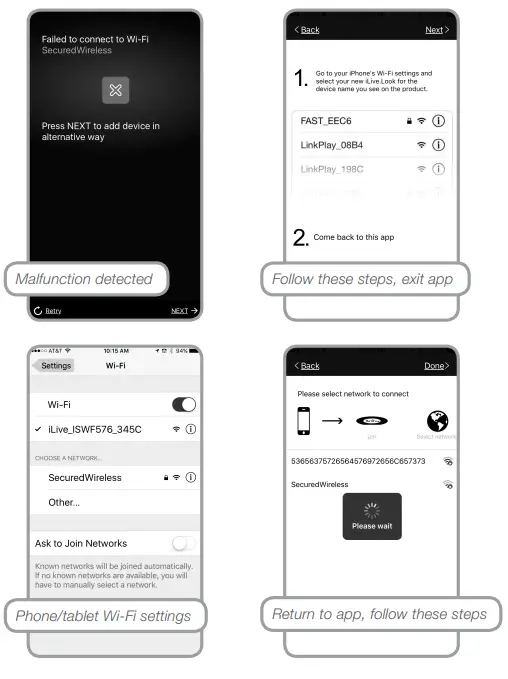
Main Screen/Now Playing
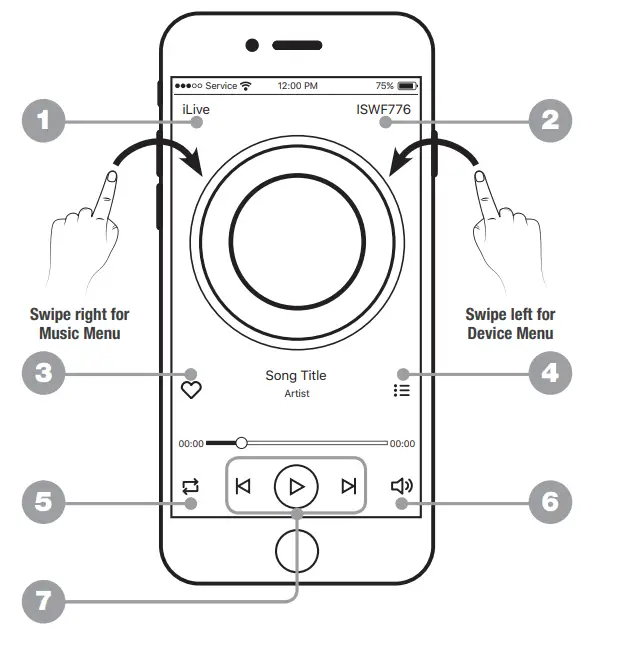
- Music Menu
- Current Speaker/ Device Menu
- Add to Favorites
- Current Playlist
- Repeat/Shuffle
- Volume
- Play Controls
Music Menu
- SEARCH
- Search for songs, albums and artists.
- FAVORITES
- Open songs, artists, albums, or stations that you have saved.
- MY MUSIC
- Open music that is stored on your phone or tablet.
- INTERNET MUSIC SERVICES
- Can be enabled or disabled in Settings.

- Can be enabled or disabled in Settings.
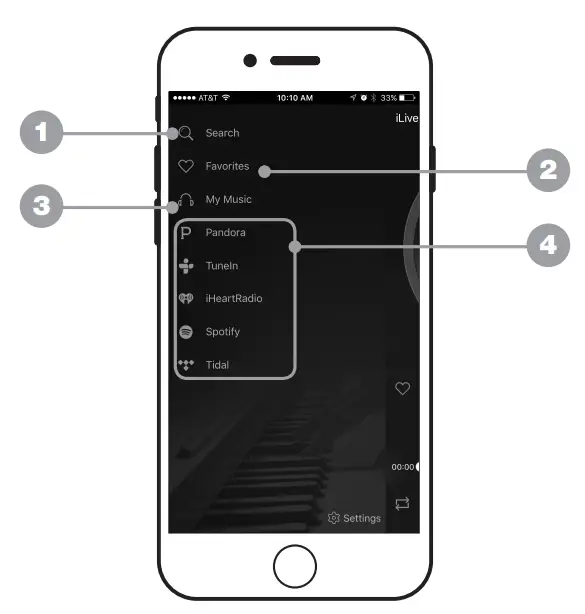
Internet Music Services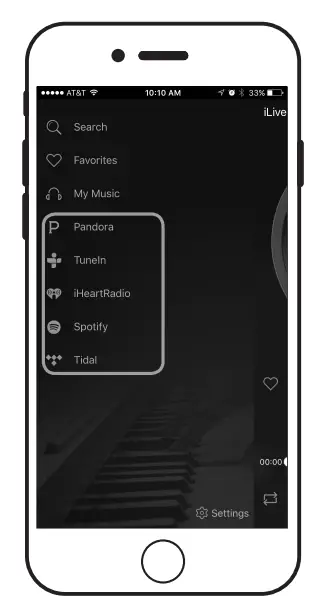
The iLive Platinum app supports and can play songs from Spotify, iHeartRadio, TuneIn, and Tidal. If you already have accounts with any of these services, the app will prompt you to sign in so that it can access any songs or stations you may already have saved with that service. If you do not have an account with one of these services, the iLive Platinum app can guide you through the set up process; however, you may need to download and install one of the internet music services first (ex. Spotify app), before it can play. Follow the on screen prompts to add services and set up an account.
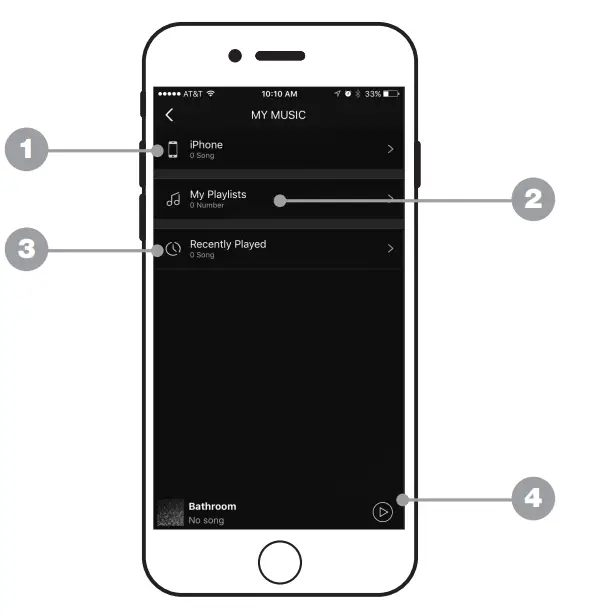
My Music
- THIS PHONE/TABLET
- Find music stored on the phone or tablet you are currently using.
- MY PLAYLISTS
- Open and create playlists in the app or link a playlist from another source.
- RECENTLY PLAYED
- Browse and open any recently played music.
- CURRENT SPEAKER & TRACK
- Press to return to the Main/Now Playing screen.

- Press to return to the Main/Now Playing screen.
Setting Preset Stations
You can set up to six presets for fast and easy play from the app or just the speaker. Any station, playlist, or album can be set as a preset*. To set a preset, press the  button on the Music screen, select the preset slot of your choice (1-6) and confirm the selection. You can now press the corresponding preset button on the speaker or the app to play that music. Presets not compatible with Spotify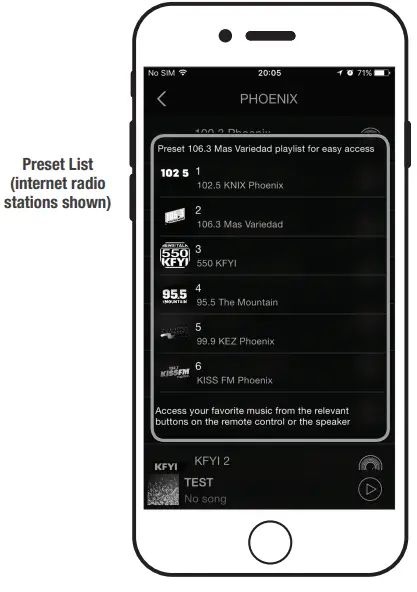
Device List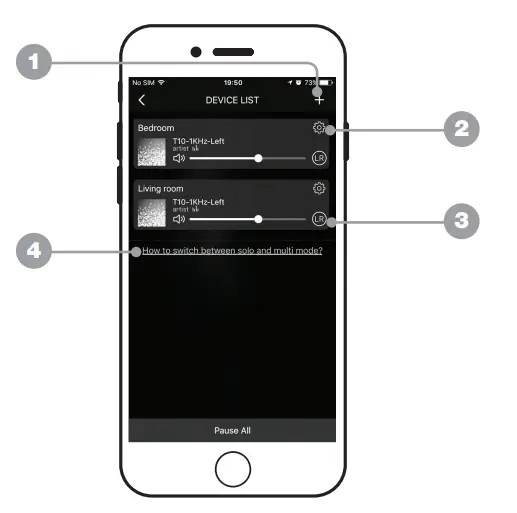
- ADD DEVICE
- Add more speakers for more play options.
- SPEAKER SETTINGS
- Rename a speaker, set preset stations, and find additional information on a speaker.
- AUDIO CHANNEL SELECTOR
- Set audio channels for the speaker L / R / LR (left/right/stereo).
- DEVICE HELP
- Click for help on setting up additional devices.
Adding Speakers/Devices
The procedure for adding more speakers is almost the same as the initial Wi-Fi setup for the first speaker. From the Device screen, press the button and follow the on screen prompts to connect a new iLive Wi-Fi speaker to your Wi-Fi network. When successfully completed, the new speaker should appear in the Device List, and be ready to use.
Multi-Room Play
Place speakers in any room and use the app to play music from the speaker of your choice. You can play different songs from different speakers, set individual volume levels, or you can link all of the speakers to play the same song.
Multi-Mode
In the Device List, press and hold a device icon for two seconds, then drag towards another device to link the speakers together.
Solo-Mode
Press and hold the device icon, then drag downwards past the dotted line.
Multi-Channel Play With Multiple Speakers
You can use two or more speakers in one room for a surround sound effect by setting the Audio Channel selector to “LR” (stereo) for all of the speakers. You can also use two speakers at once for stereo play by setting the Audio Channel selector to “L” and “R” for the “left” and “right” speaker respectively. See #3 on the previous page.
Other Ways to Play
Bluetooth Wireless
- The speaker can also connect to devices through Bluetooth. Follow the steps below to pair to a Bluetooth enabled device.
- Power on the speaker and press the Source button to select Bluetooth mode.
- The Bluetooth indicator on the speaker will begin blinking as it searches for a device. Enable your phone’s Bluetooth and search for nearby devices.
- Find and select the speaker ISWF776 in the list. If the speaker does not immediately appear in the list, press the WPS/Pair button and try again.
- When connected, the indicator on the speaker will turn solid, and a voice prompt will sound from the speaker. The speaker is now connected, use the controls on your phone to select and begin playing audio.
Troubleshooting
| PROBLEM | POSSIBLE SOLUTION |
| Cannot complete
Wi-Fi network set up | » Make sure the speaker has power and is charged.
» Make sure you are connecting to the correct Wi-Fi network. » If using a dual band wireless router, be sure to use the 2.4G frequency. » Be sure to enable Wi-Fi on your mobile device. » Test your internet connection by loading/reloading a web page. If you cannot load the page, you may need to restart your router. » Use the alternate connection method (pg.12). » Uninstall then reinstall the app, power the speaker OFF, then ON, and restart setup. |
| Intermittent audio/audio doesn’t play | » Make sure the volume on the speaker or your connected device is not too low.
» Interference may be interrupting the Wi-Fi signal (possible sources could be microwaves, cell phone signals, etc.). Move the system to another location to test. » Stop other applications that may be streaming media from the internet. » System may have a weak Wi-Fi connection. Move system closer to your router. |
| Bluetooth fails to connect | » Make sure the speaker has power and is charged.
» Make sure both the speaker and your device are in Bluetooth mode. » Stay within 33 ft of the speaker when pairing. |
| Aux In won’t play | » Make sure the audio cable is firmly connected to the audio ports of both devices.
» Make sure the volume on the speaker or your connected device is not too low. » Press the Source button to manually switch to Aux In mode. |
| White noise | » Turn the speaker off and restart. |
| Speaker still will not function properly | » Hold down the WPS button for 10 seconds to restore factory settings. |
Contact Information
- Website: www.iLiveElectronics.com
- Email Support: [email protected]
- Email Parts: [email protected]
- Phone Support: 1-888-999-4215
Warranty Information
For Warranty Information and the most up-to-date version of this User’s Guide, go to www.iLiveElectronics.com and search for model ISWF776B.
International Support
To download this User’s Guide in English, Spanish, or French, or to get answers to frequently asked questions, visit the support section at: www.iLiveElectronics.com
Additional Warnings
- CAUTION: TO PREVENT ELECTRIC SHOCK, MATCH WIDE BLADE OF PLUG TO WIDE SLOT, FULLY INSERT.
- Mains plug is used as disconnect device and it should remain readily operable during intended use. In order to disconnect the apparatus from the mains completely, the mains plug should be disconnected form the mains socket outlet completely.
- WARNING: To reduce the risk of fire or electric shock, do not expose this apparatus to rain, moisture, dripping, or splashing.
- WARNING: Changes or modifications to this unit not expressly approved by the party responsible for compliance could void the user’s authority to operate the equipment.
- Lithium batteries, like all rechargeable batteries, are recyclable and should be recycled or disposed of according to state and local guidelines.
- They should never be disposed of in normal household waste, and they should never be incinerated, as they might explode.
- Contact your local government for disposal or recycling practices in your area.
- Battery shall not be exposed to excessive heat such as sunshine, fire or the like.
- Batteries should be recycled or disposed of as per state and local guidelines.
- WARNING: This product may contain chemicals known to the State of California to cause birth defects, or other reproductive harm (California Prop 65).
- Wash hands after handling.
- This product meets and complies with all Federal regulations.
FCC
Changes or modifications to this unit not expressly approved by the party responsible for compliance could void the user’s authority to operate the equipment. NOTE: This equipment has been tested and found to comply with the limits for a Class B digital device, pursuant to Part 15 of the FCC Rules. These limits are designed to provide reasonable protection against harmful interference in a residential installation. This equipment generates, uses, and can radiate radio frequency energy and, if not installed and used in accordance with the instructions, may cause harmful interference to radio communications. However, there is no guarantee that interference will not occur in a particular installation. If this equipment does cause harmful interference to radio or television reception, which can be determined by turning the equipment off and on, the user is encouraged to try to correct the interference by one or more of the following measures:
- Reorient or relocate the receiving antenna.
- Increase the separation between the equipment and receiver.
- Connect the equipment into an outlet on a circuit different from that to which the receiver is connected.
- Consult the dealer or an experienced radio/TV technician for help
FAQS
Press the power button to power ON the Bar Speaker. Press the Blue BT on your remote to select the Bluetooth source. Press the Pairing button on the side of the speaker. A blue light will begin to flash on the front of the speaker.
Founded in 1971, Digital Products International, Inc.’s headquarters and distribution center is located at a state-of-the-art, 330,000 square foot facility in downtown Saint Louis, Missouri.
Connect the red and white connectors to the Audio-In, AUX-In or RCA Audio Input ports on your speaker bar and the Audio-Out port on your TV.
Connect the yellow connectors to the Video-Out or Composite Video port on your speaker bar and the Video-In port on your TV. Tip.
A powerhouse of sound, the slim, wall-mountable 32” Wireless Sound Bar features Bluetooth wireless, 2 channel stereo sound, and all the connection points you need to get setup at home (I/O: aux in, optical digital audio input(cable included), coaxial audio input and RCA stereo inputs)
Take control with the iLive Smart Bluetooth app. This easy to use app lets you control your music from your smartphone or tablet to listen on your iLive speakers and more. With the app you can manage your music, stations and presets, control volume, and more.
To charge the internal battery, plug the USB charging cable into the DC Power Input on the speaker and a powered on computer or USB power adapter (not included) and standard power outlet. Charging time is approximately 3-4 hours. Battery life is approximately 10 hours at 50% volume.
Do they work with any TV? Soundbars have the technology that makes them work with any TV, regardless if they are new or previous-generation models. They also have different technologies to connect with a TV, including optical cables, HDMI cables, Wi-Fi, and Bluetooth
Connect one end of the HDMI cable (sold separately) to the HDMI IN port on your TV. Connect the other end to the TV OUT (ARC) port on your sound bar. Then, connect an optical audio cable from the TV’s Optical digital audio out to OPTICAL IN on your sound bar (this is necessary to hear the TV audio)
You can set up an iLive sound bar by connecting it via cables or wirelessly. For a wired connection, insert the ends of the cables into the correct ports. As for Bluetooth, put both devices into pairing mode and wait for the connection to establis
At lower volume, it is harder to tell if the soundbar is working, but if you turn the volume up you should hear a difference. Also put your ear next to the subwoffer and you should be able to hear if it is working. Also, light on subwoffer turns to blue when it is on
(0) Stream music from any Bluetooth capable device to any music system via the audio line output/input. Small footprint for optimal space saving and portability. $29.99.
You can wirelessly connect some soundbars to TVs if they are enabled for WiFi and/or Bluetooth connection. While this avoids using cables, it’s better to use an HDMI connection because there is no danger of lag or network problems. It’s also possible to use an optical cable
Locate the HDMI OUT port on your soundbar and plug in one end of the HDMI cable. c. On your TV set, locate the HDMI IN (ARC) port and plug in the other end of the HDMI cable and you are ready to go!
To power the unit or charge the internal battery, plug the AC/DC power adapter into the Micro-USB DC Power Input on the speaker and a standard power outlet. Battery life is approximately 3 hours.
This speaker is designed to give listeners the power (5W) and sound they want with the easy transmission of Bluetooth audio all at an amazing price. A: No, the lights on the speakers will flash randomly while music is playing. DC power: Micro-USB to USB cable (included).