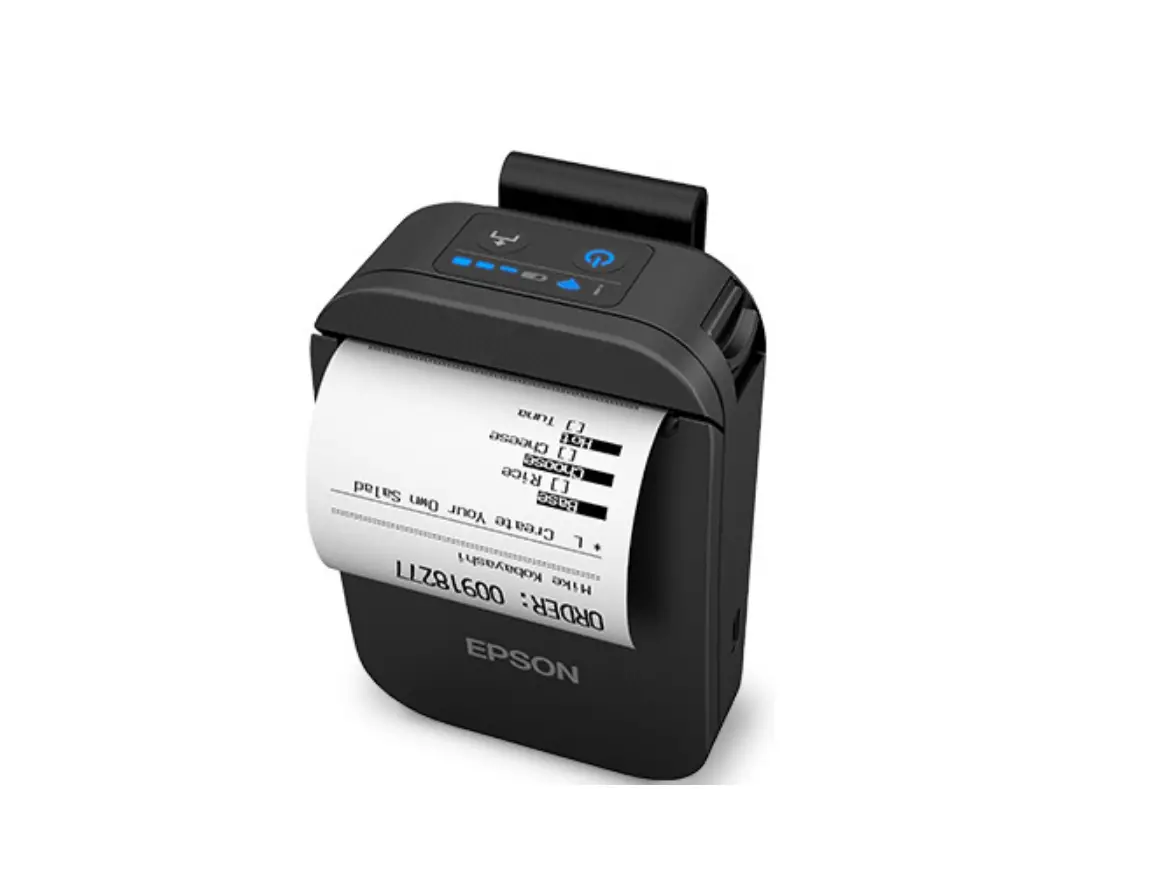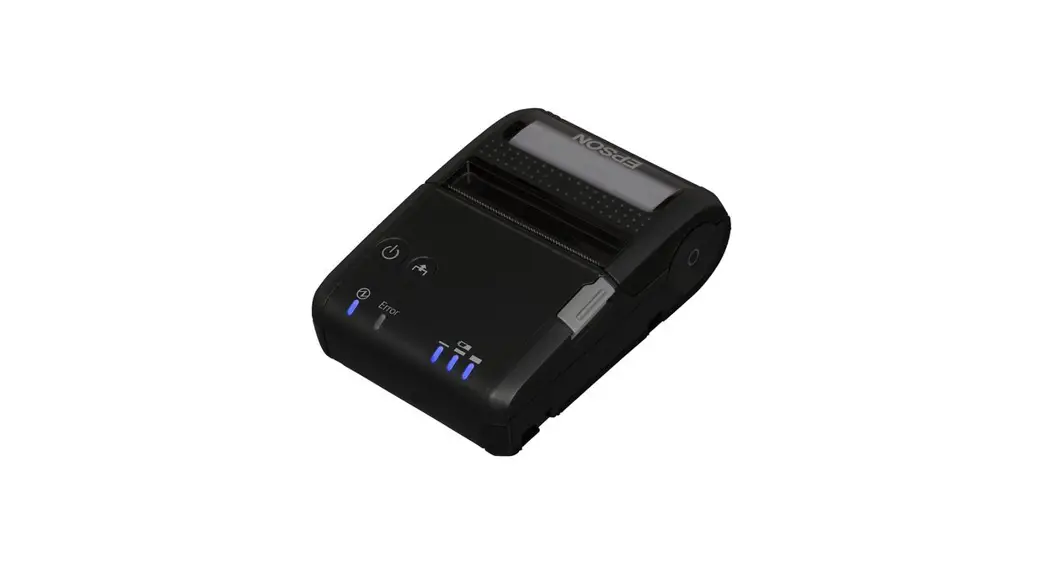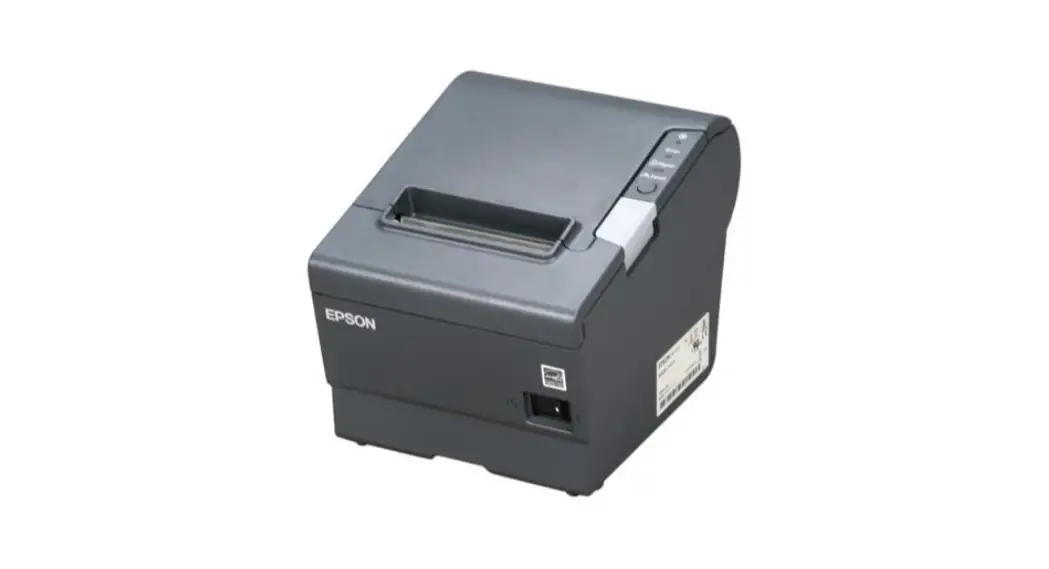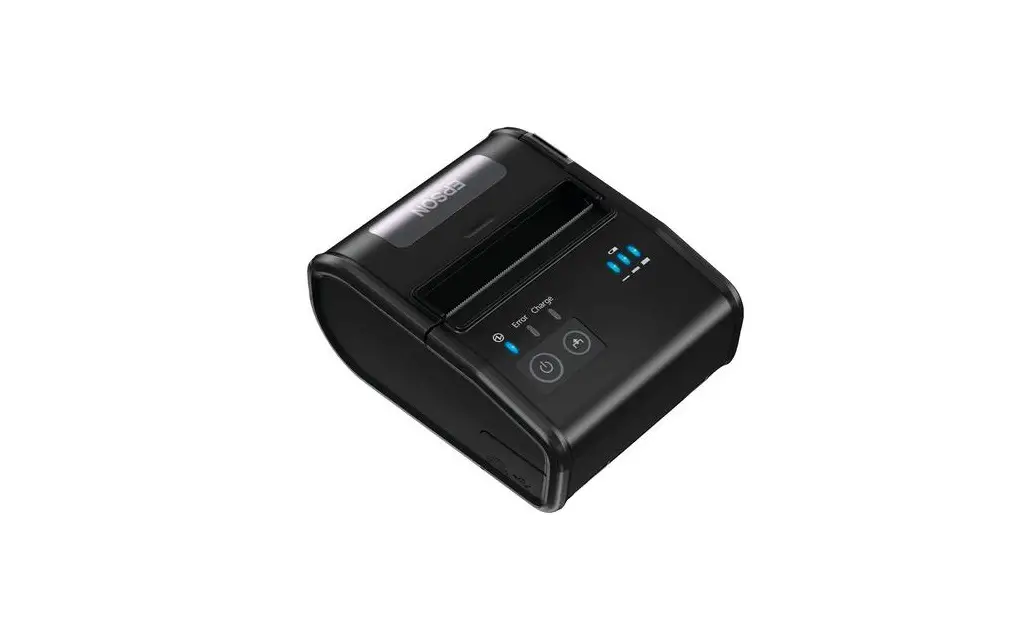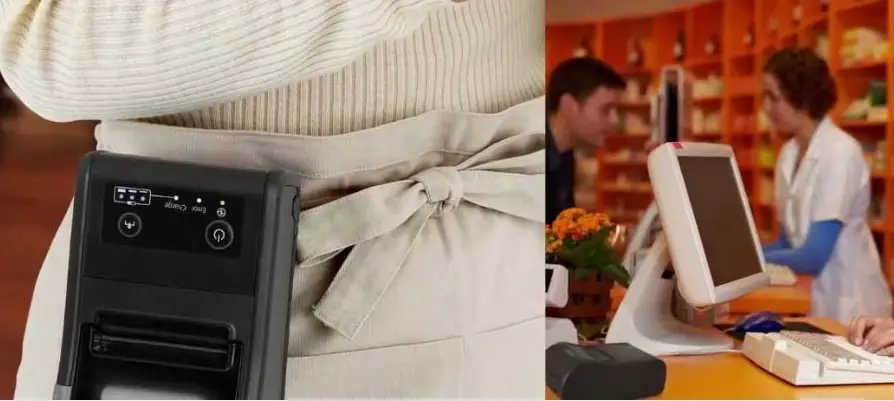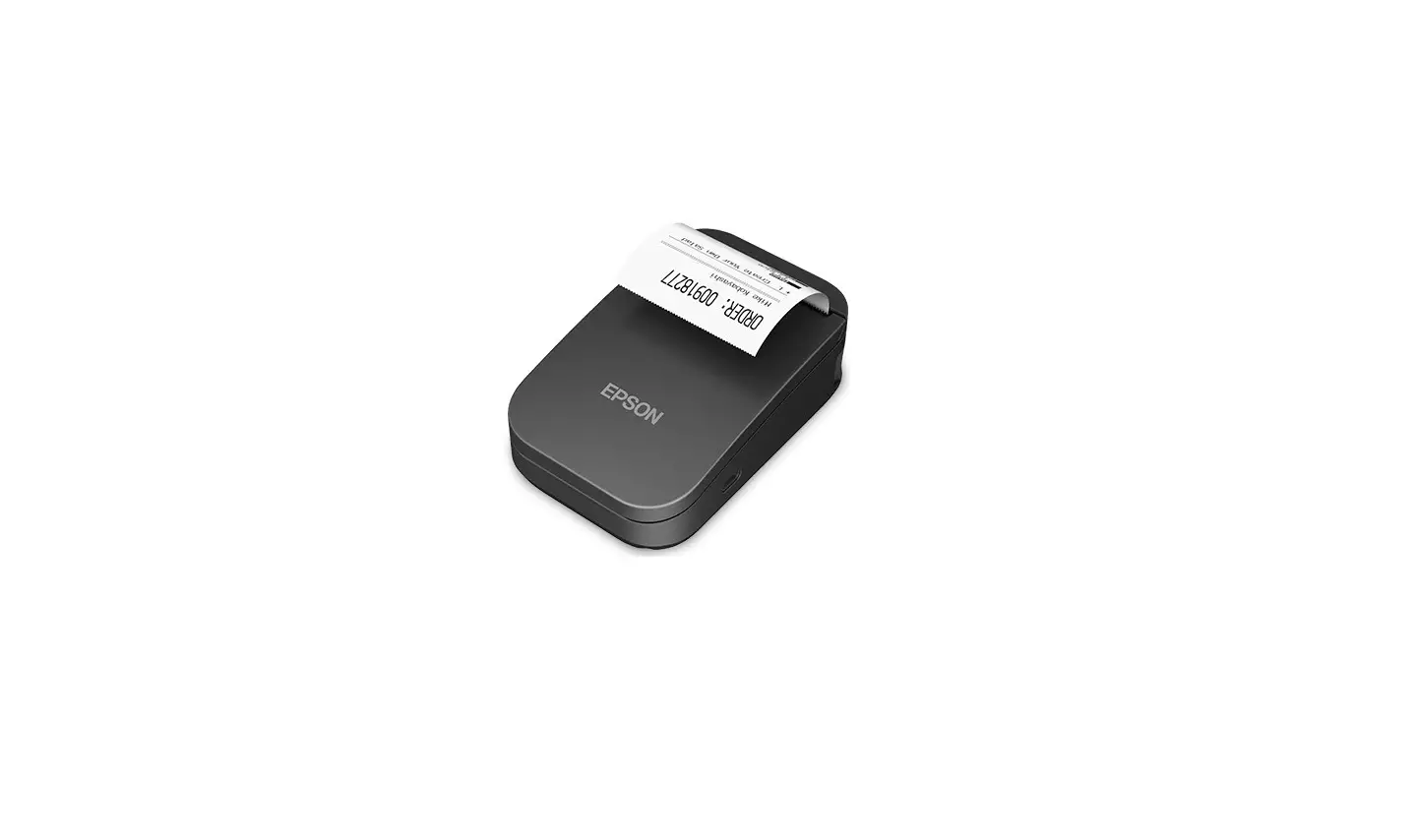
EPSON TM-P20II Mobilink Wireless Portable Receipt Printer Instruction Manual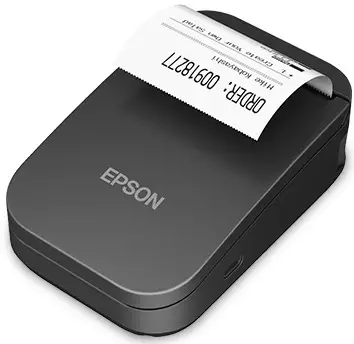
Start Here
IMPORTANT
Before using this product, make sure you read these instructions and the safety instructions in the Notices sheet.
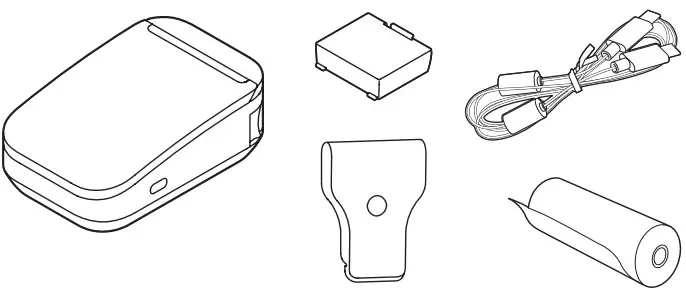
Note: The illustrations show the TM-P20II, but the steps are the same for all models, unless otherwise specified.
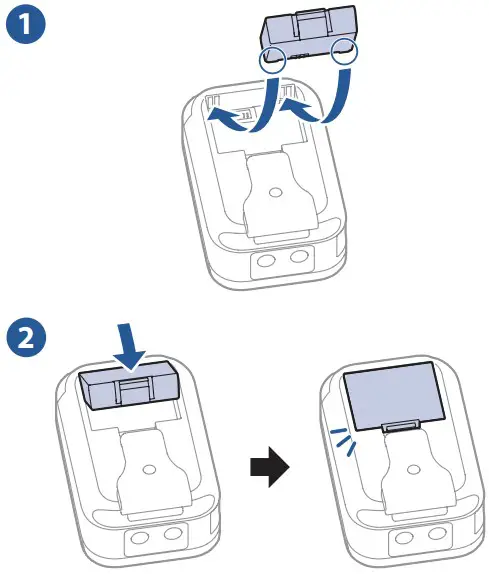
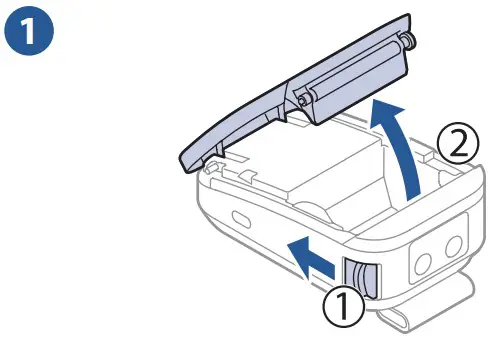
Installing the Battery
Charging the Battery
USB-C Cable
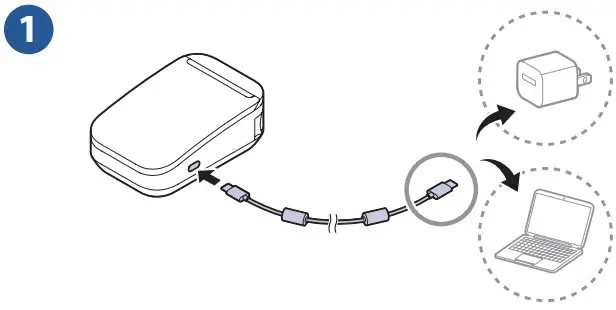
Note: USB adapter sold separately.
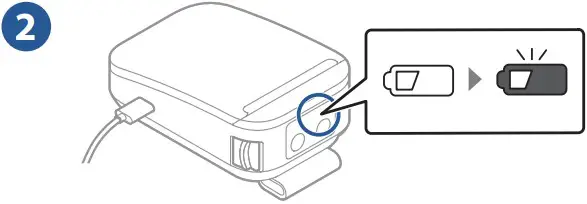
The printer’s charge light turns off when charging is complete.
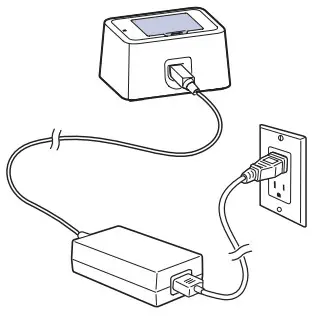
Battery Charger
Note: Battery charger sold separately.
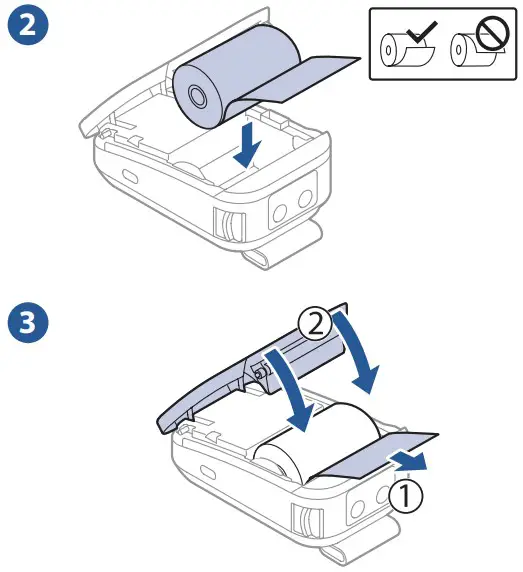
Loading Paper
Connecting to a Wi-Fi Network
Note:
- Wi-Fi connectivity not available for all models.
- To view a Wi-Fi setup video, scan the QR code below.

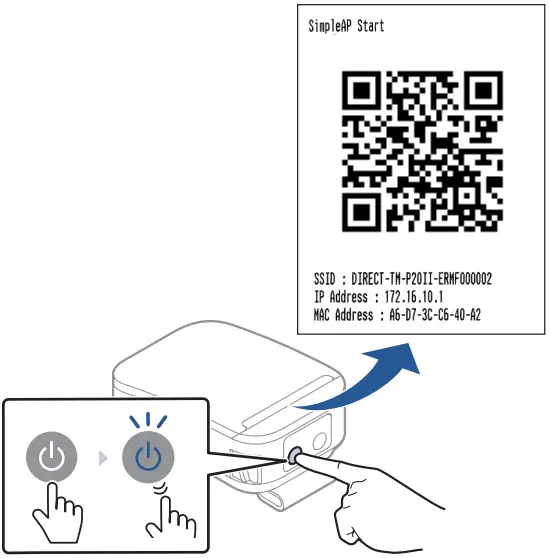
- Get SimpleAP Start printout: Turn the printer on. A SimpleAP Start page prints.

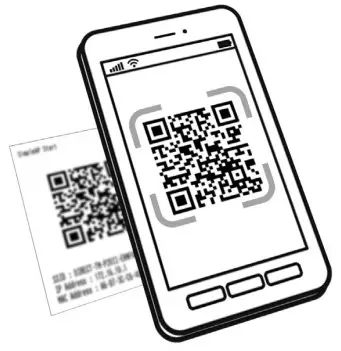
- Scan QR code: Using the camera app on your smartphone or tablet, scan the QR code on the SimpleAP Start page. If you see a request to join the network shown in the “SSID“ section of the SimpleAP Start page, accept the request.

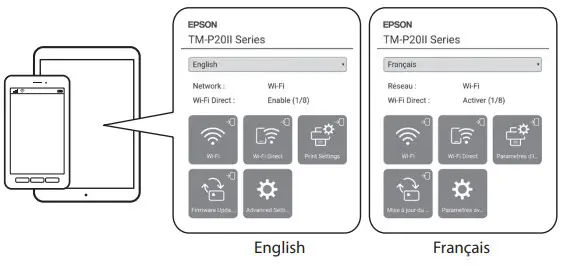
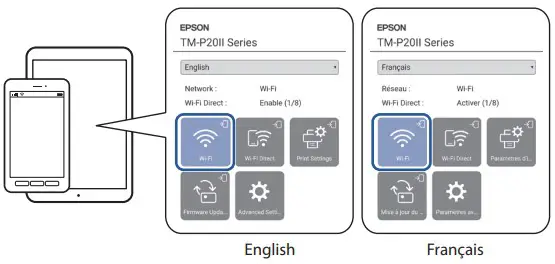
- If the web page below appears, skip to step 6.

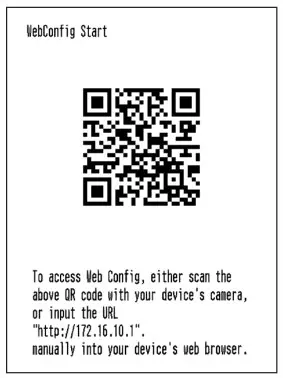
- A WebConfig Start page prints.
Note: If the page does not print, connect your smartphone or tablet to the Wi-Fi network shown in the “SSID” section of the SimpleAP Start page.
- Scan the QR code on the WebConfig Start page.
- Select Wi-Fi.

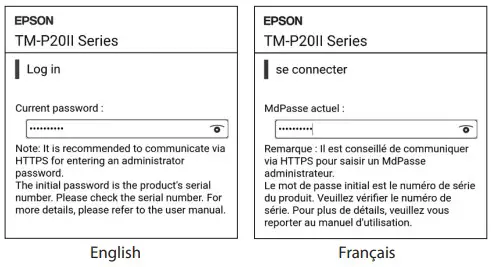
- Enter the printer’s serial number, then select OK.

Note:- The serial number is shown on the bottom of the printer.
- The password is case-sensitive. Make sure you enter the serial number exactly as it appears.
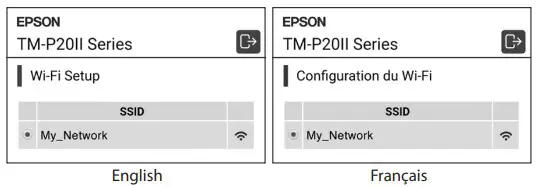
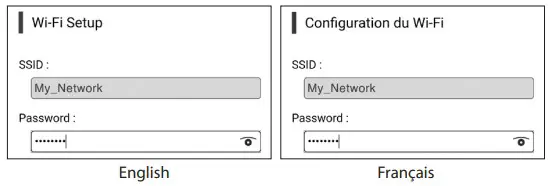
- Select Wi-Fi network: Select the network you want to connect the printer to, then select OK.

- Enter the network’s password, then select OK.

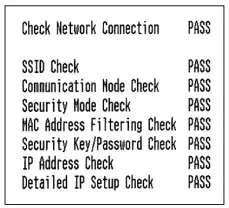
A network status page prints and your printer is now connected to the network.
Note: You can now close the web page on your device.
Making a Bluetooth Connection
Note:
- Bluetooth connectivity not available for all models.
- To view a Bluetooth setup video, scan the QR code below

- Turn the printer on.

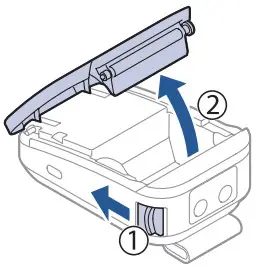
- Open the roll paper cover.

- Press and hold the
 feed button until the printer beeps.
- Close the roll paper cover. A Next Action page prints.

- Press and release the feed button once, then press and hold the feed button.
A Bluetooth Interface page prints and the printer’s Bluetooth light flashes to indicate that the printer is in pairing mode.
- Pair your smartphone or tablet with the printer.
Note: The printer’s Bluetooth device name is shown in the “Device Name” section of the Bluetooth Interface page.
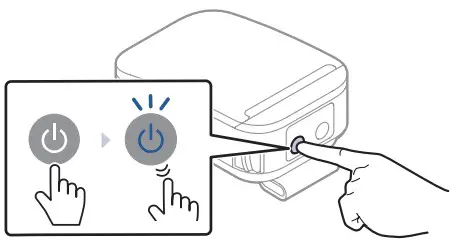
 feed button until the printer beeps.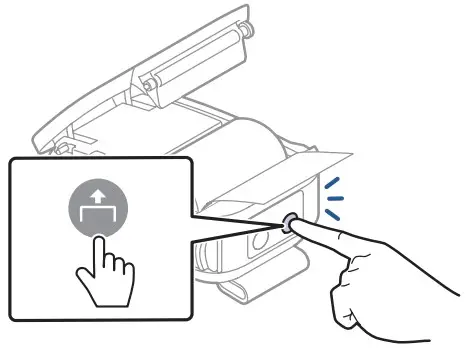
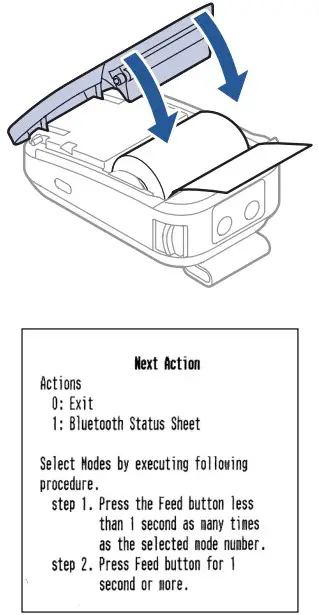
 Bluetooth light flashes to indicate that the printer is in pairing mode.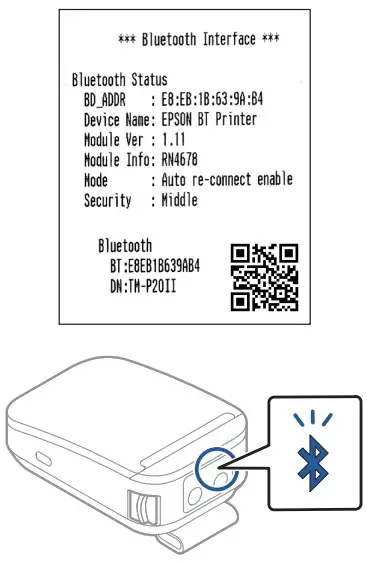
Technical Support
Visit http://epson.com/support (U.S.), http://epson.ca/support (Canada), or http://latin.epson.com/support (Caribbean) and search for your product to
download drivers, access manuals, or contact Epson.
Call (562) 276-1314, 7 am to 4 pm, Pacific Time, Monday through Friday. Days and hours of support are subject to change without notice. Toll or long distance charges may apply.
Recycling
Epson offers a recycling program for end of life hardware. Please go to http://epson.com/recycle (U.S.) or http://epson.ca/recycle (Canada) for information on how to return your products for proper disposal.
EPSON is a registered trademark and EPSON Exceed Your Vision is a registered logomark of Seiko Epson Corporation.
General Notice: Other product names used herein are for identification purposes only and may be trademarks of their respective owners. Epson disclaims any and all rights in those marks.
This information is subject to change without notice.
 Recycling Program - For Printers, Hardware, Ink Cartridges | Epson Canada
 Reciclagem - Programa de Coleta | Epson Brasil
 Recycling Program - For Printers, Hardware, Ink Cartridges | Epson US
 Epson
Epson