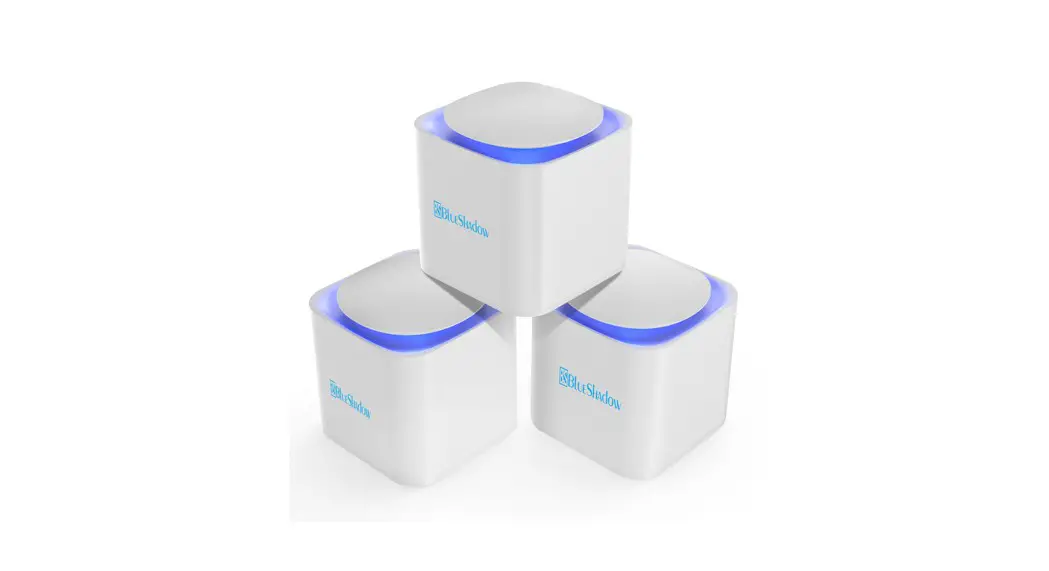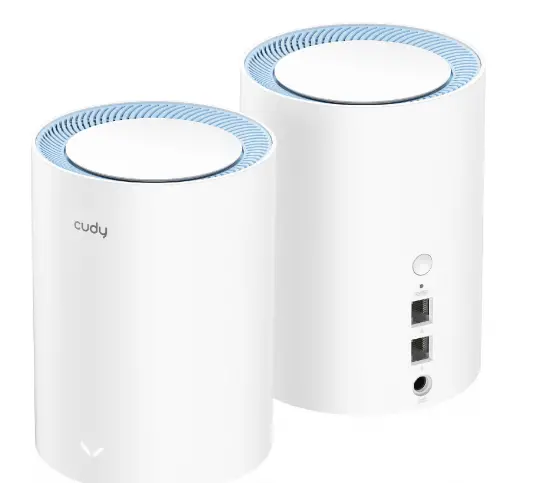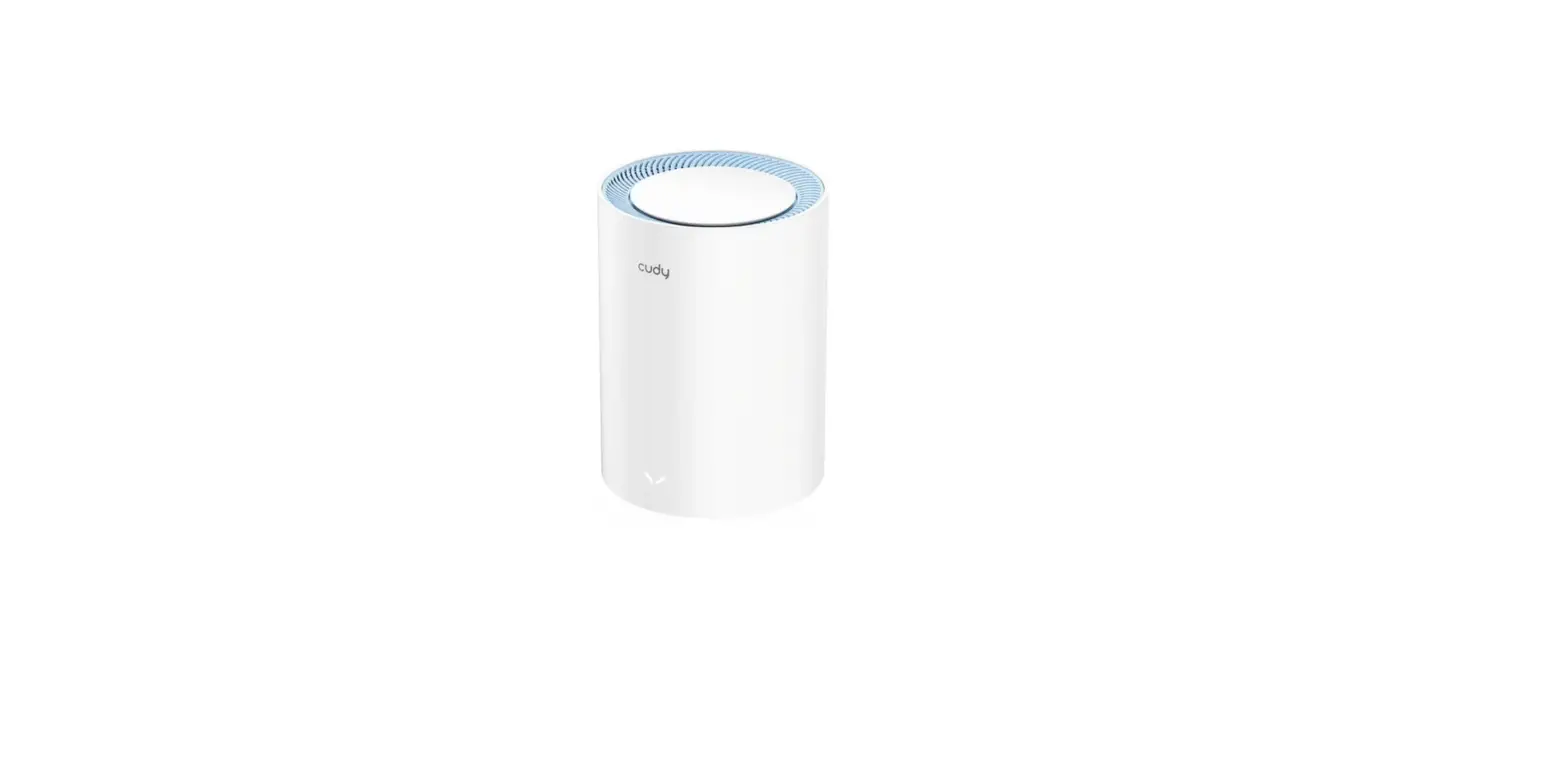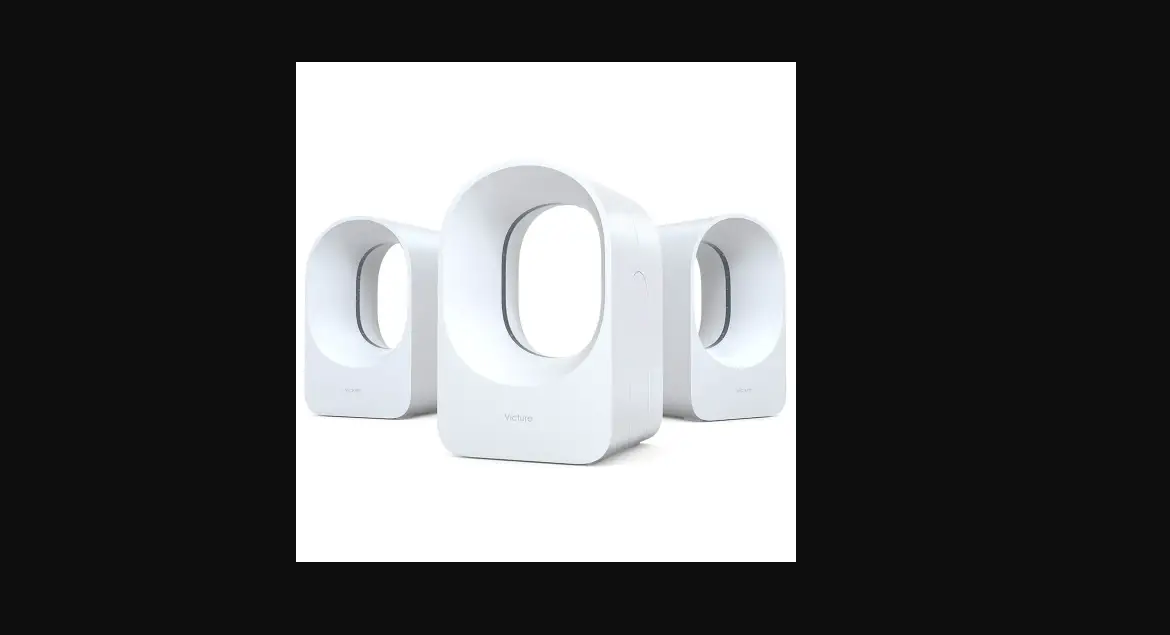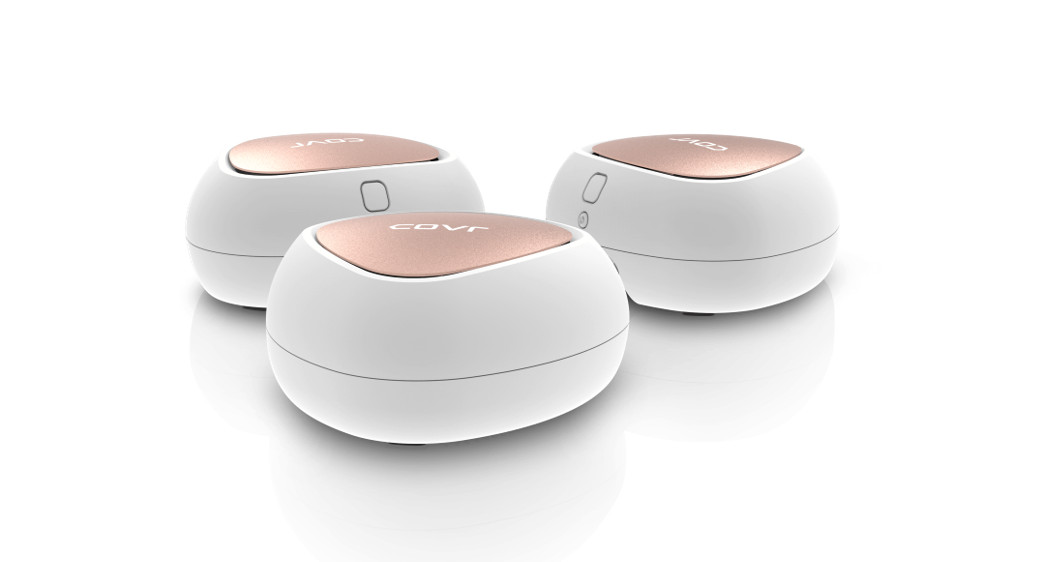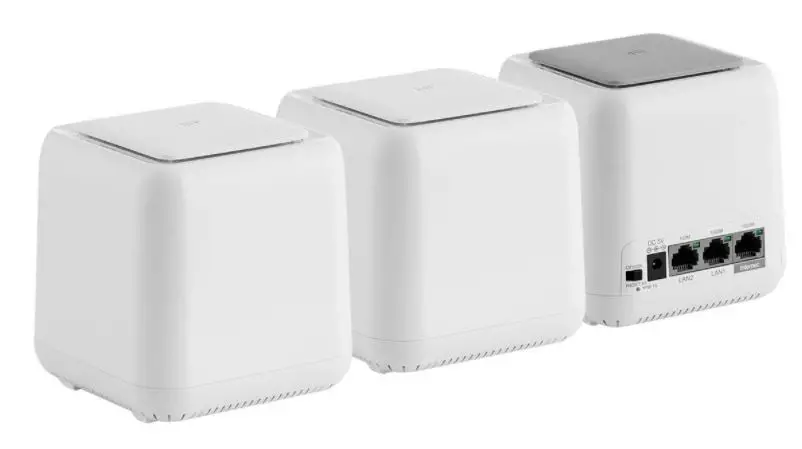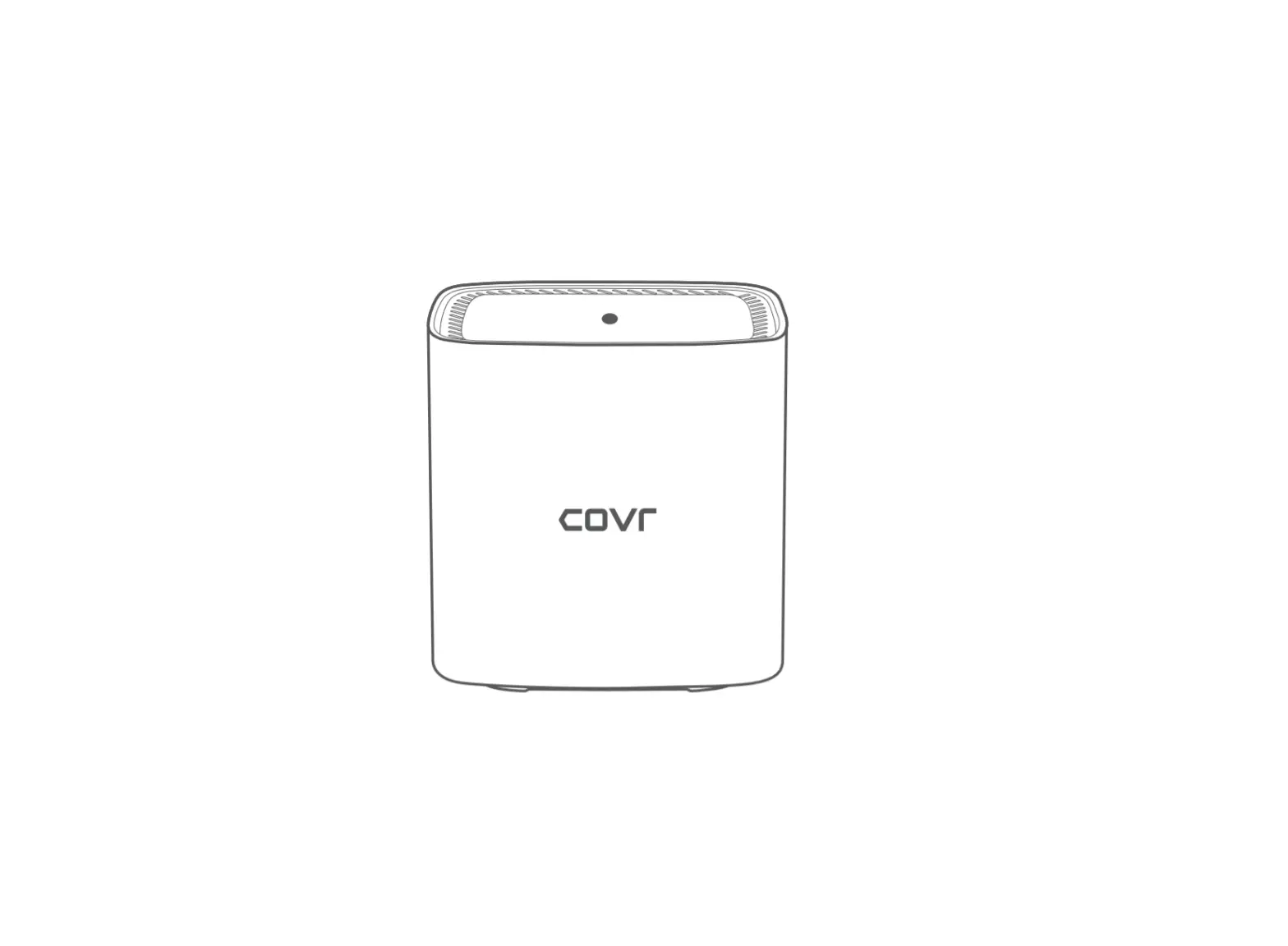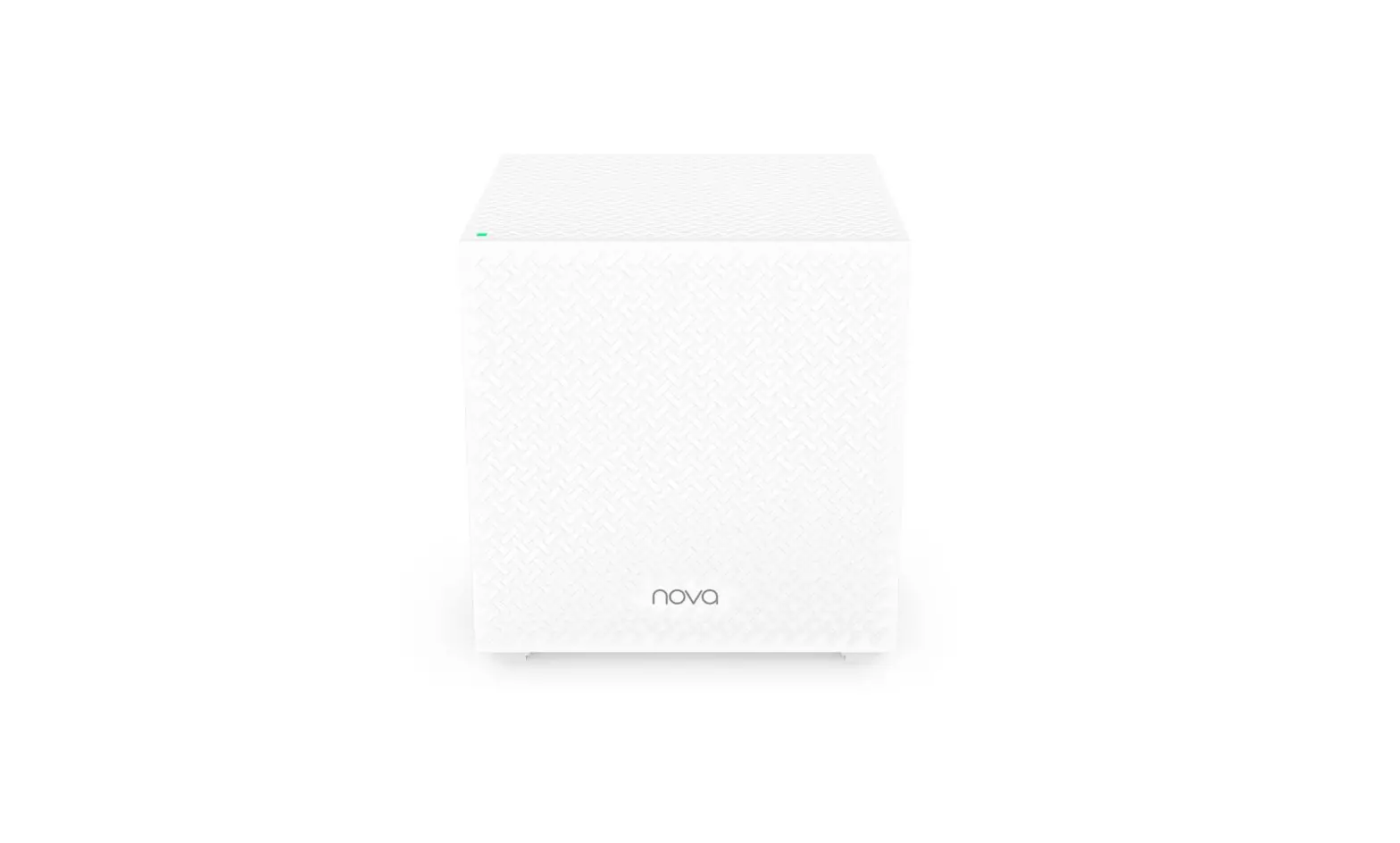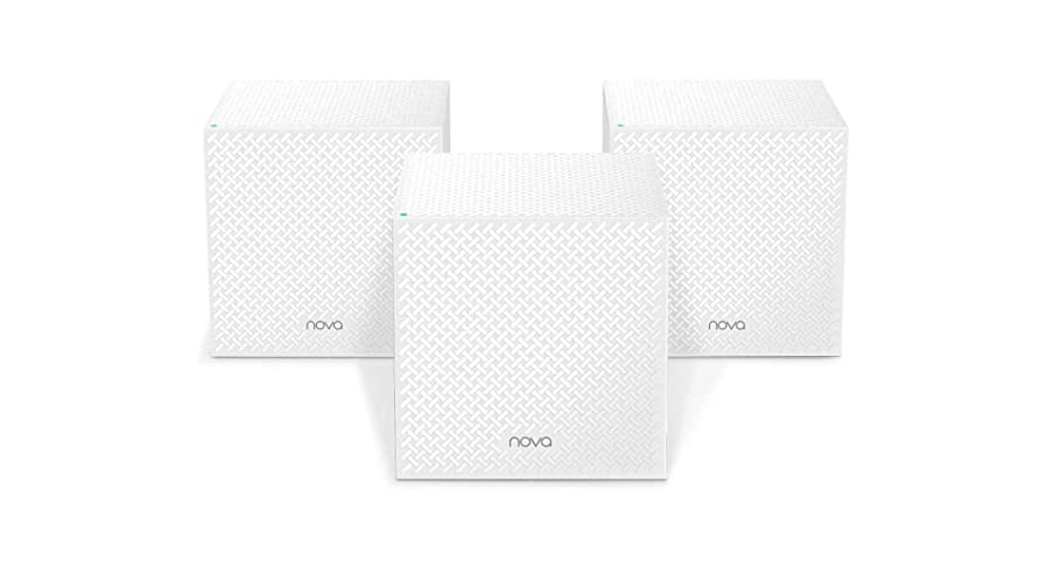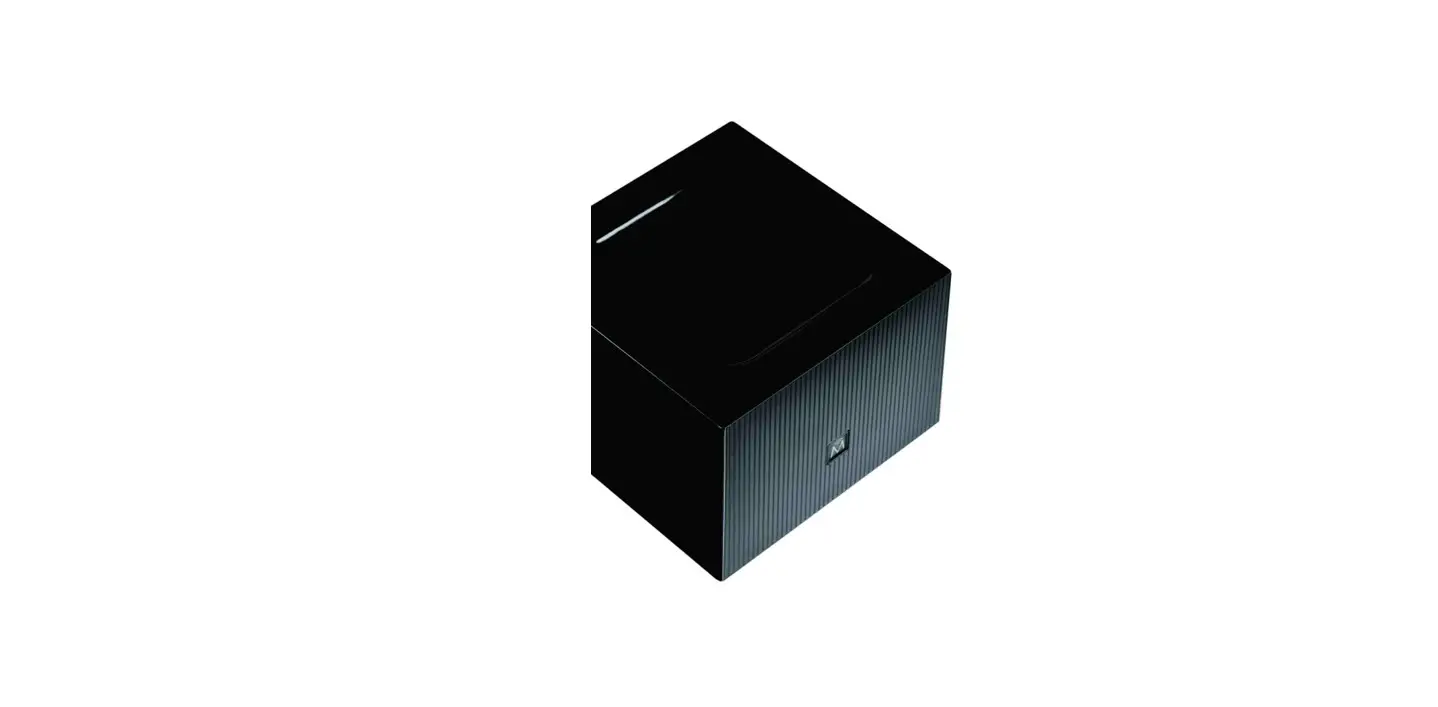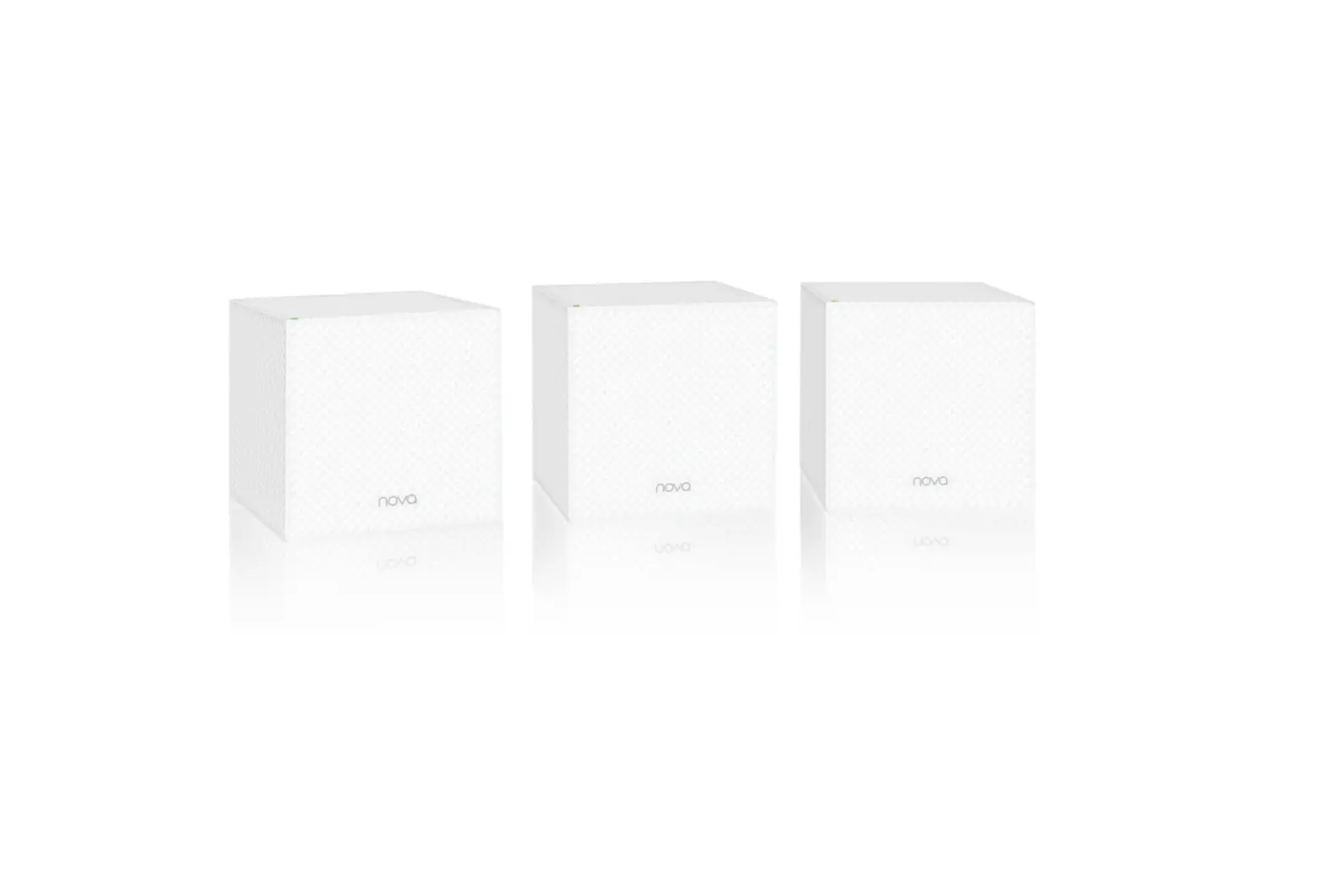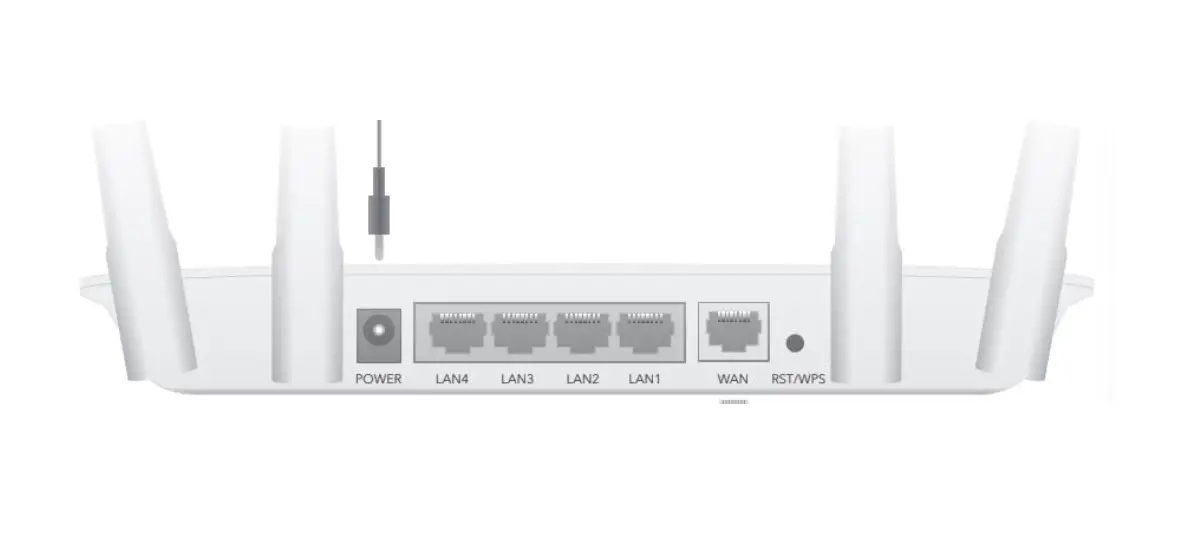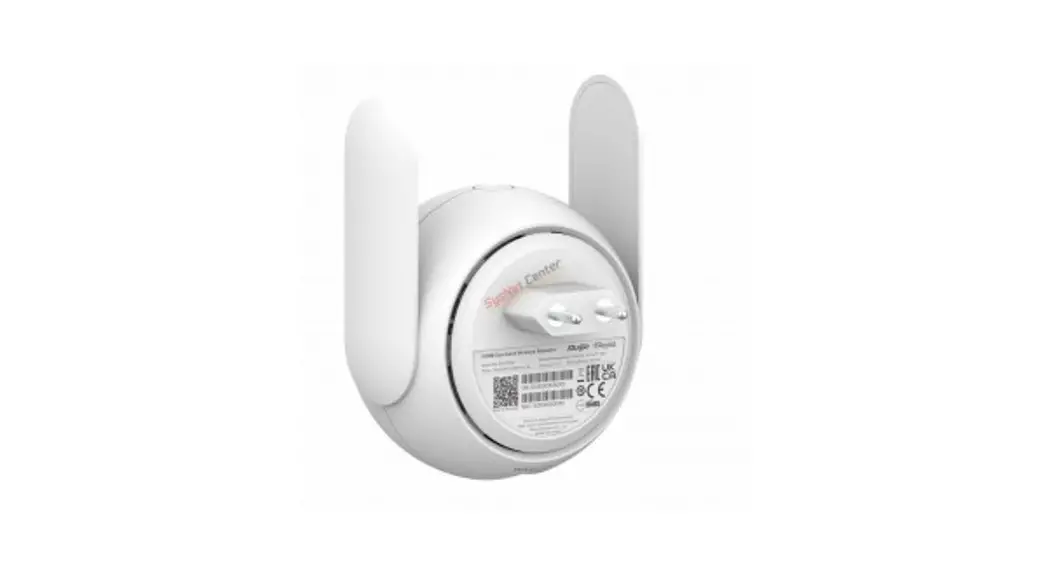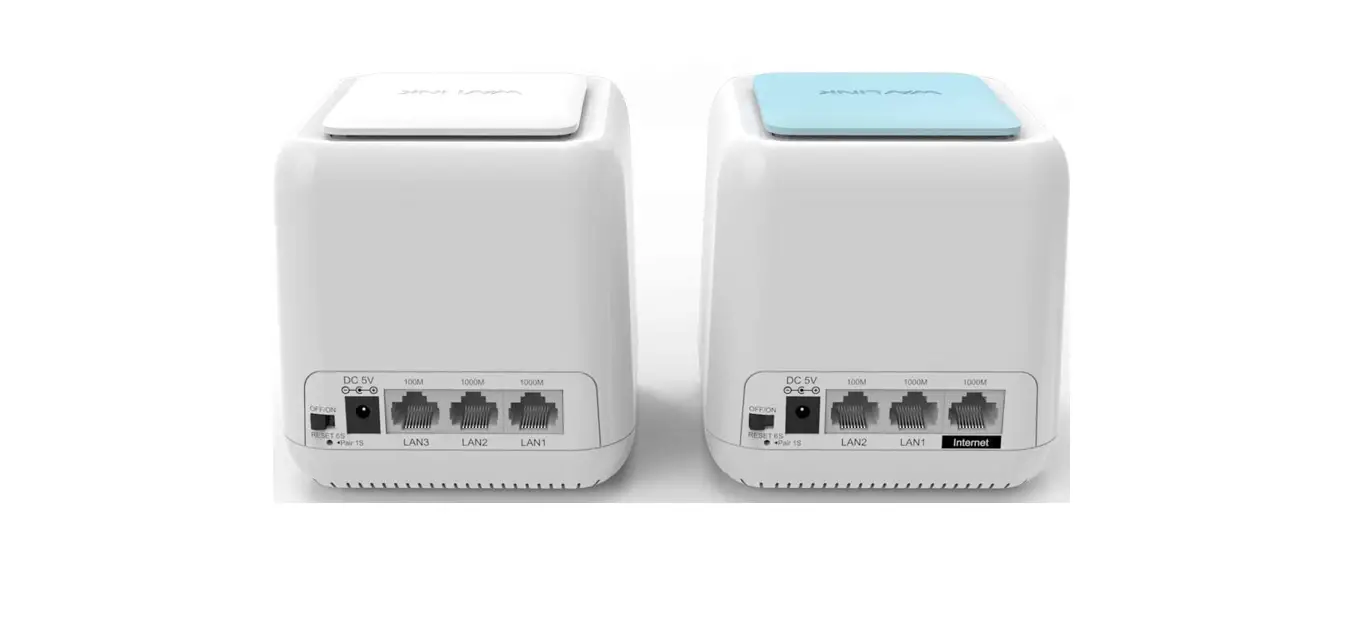

Gshine CUKA-M1200C AC1200 Dual Band Whole Home Mesh WiFi System
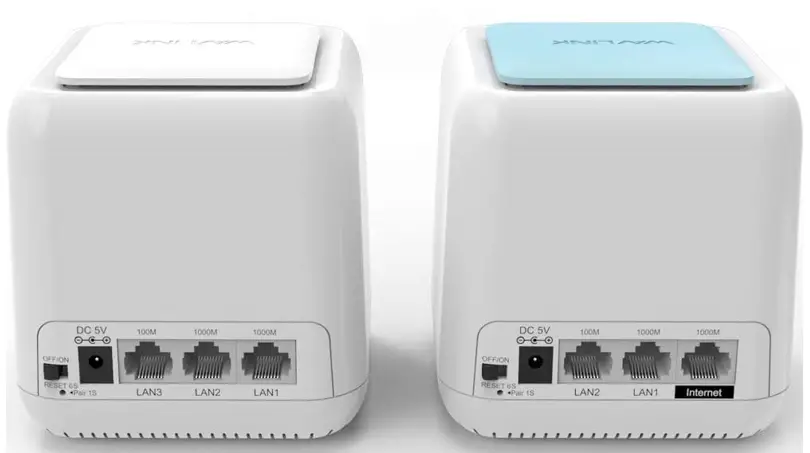
Package Contents
- Cuka-M1200C X1
- Power Adapter X 1
- Ethernet Cable X 1
- Quick Installation Guide X 1
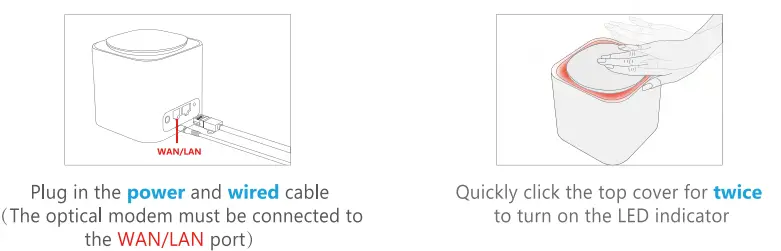
How to set up mesh tutorials
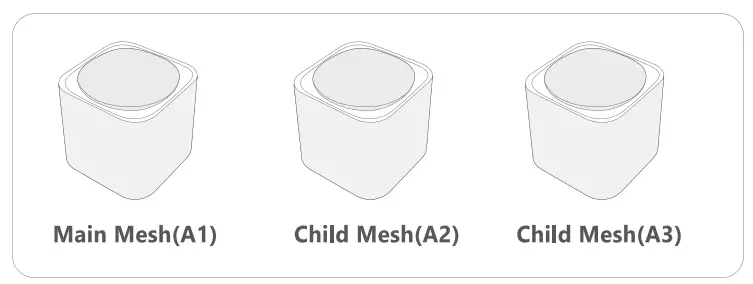
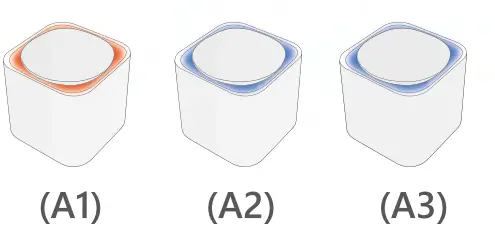
- Select one of them as main mesh randomly, the remaining two are child mesh, {Al, A2, A3, is just show how to use each mesh, not stipulatetd on the mesh]

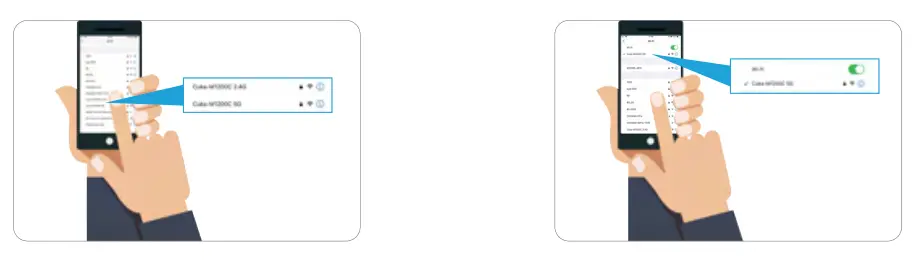
- Search Cuka-M1200C 2.4G/5.0G from mobile phone
- Choose 2.4G or 5.0G to connet
 Input SSID password : 22109088
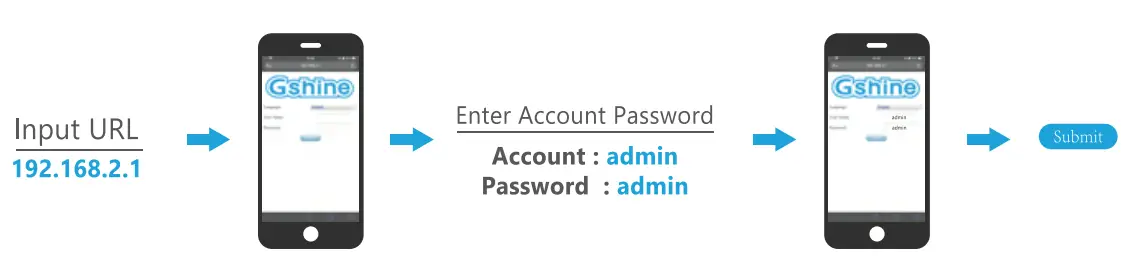
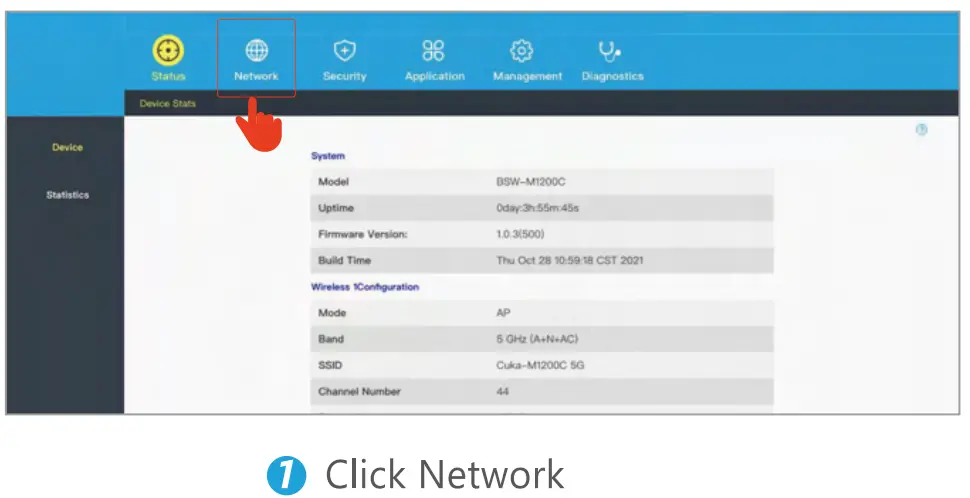
- Open the browser, input URL to connect from mobile phone

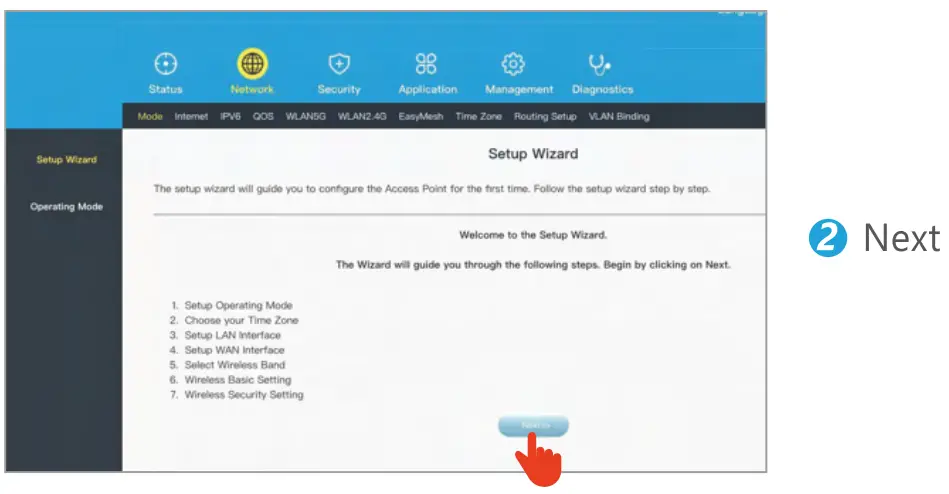
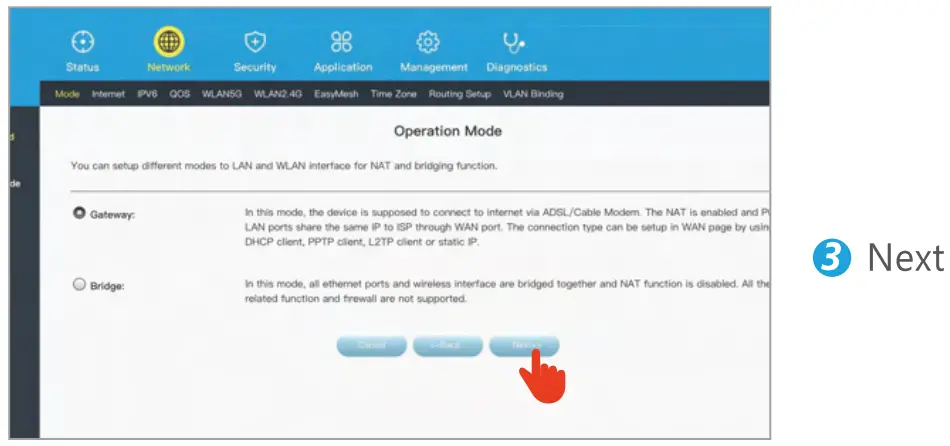
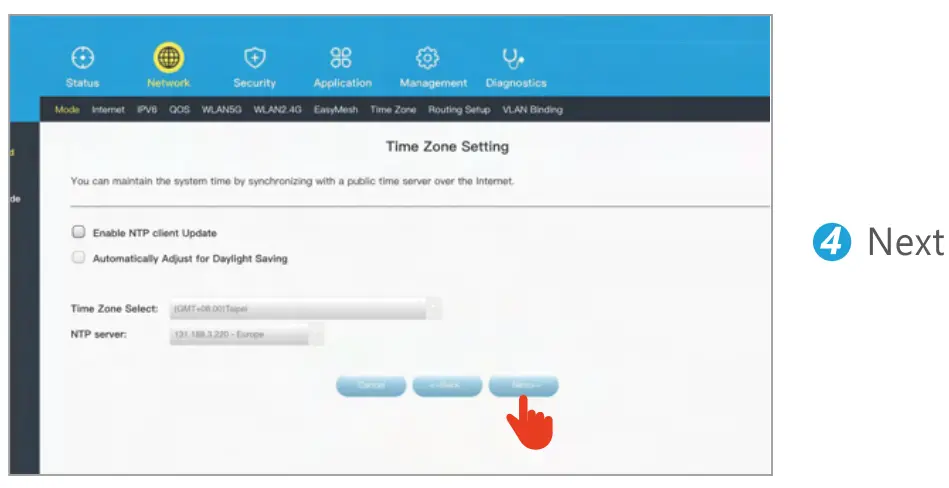
- Network enters the setup installation wizard


 Input SSID password : 22109088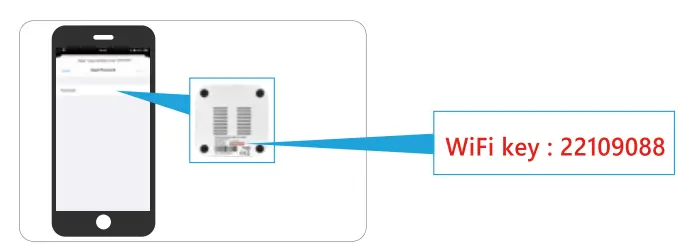
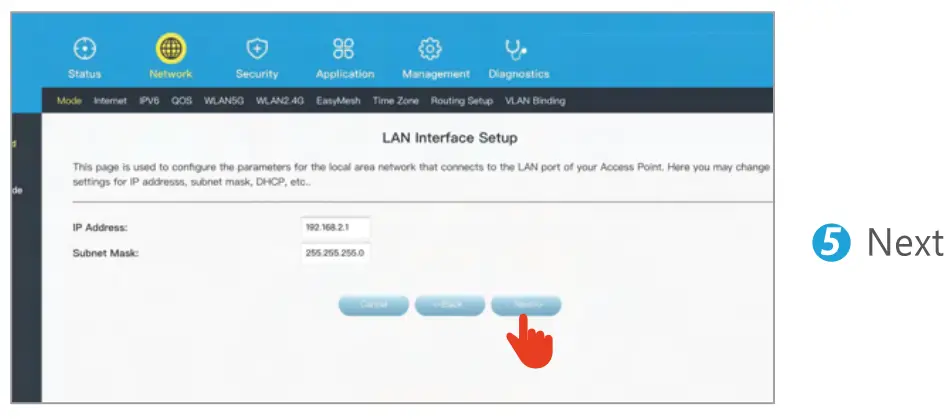
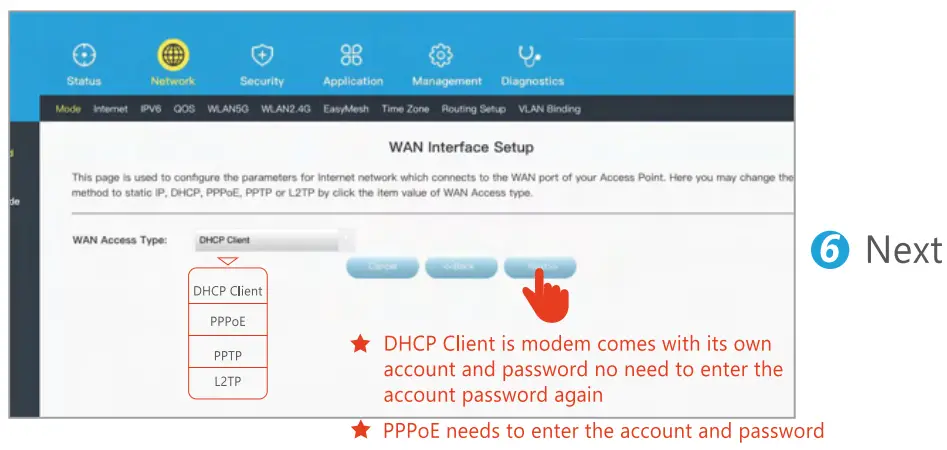
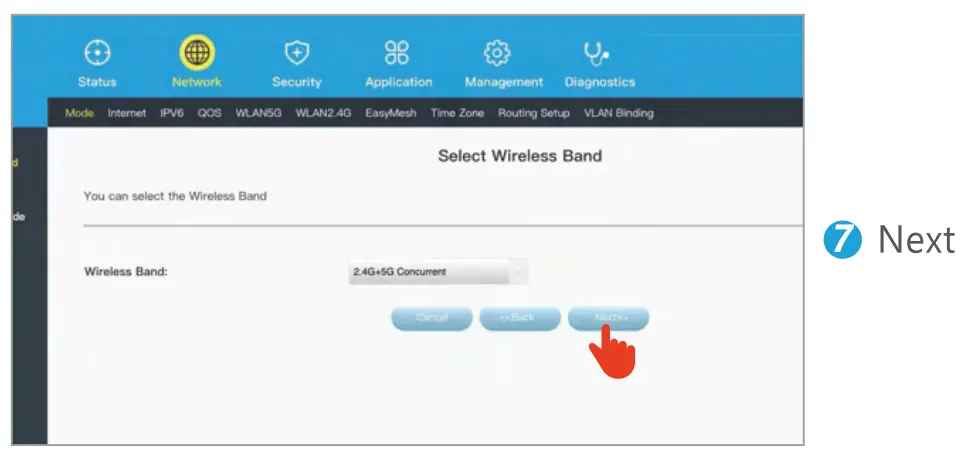
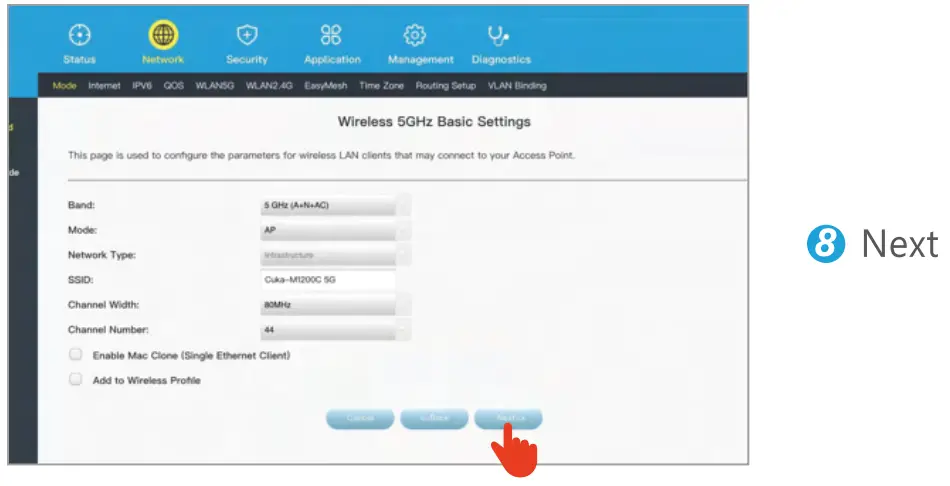
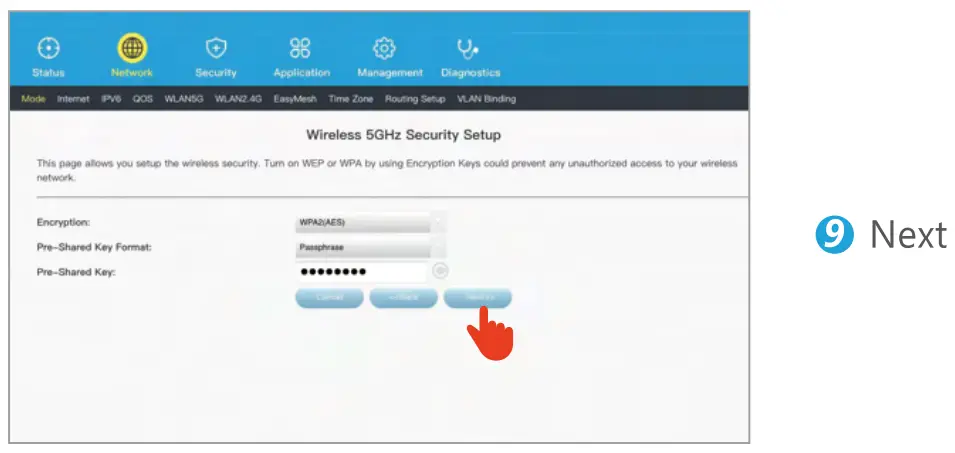
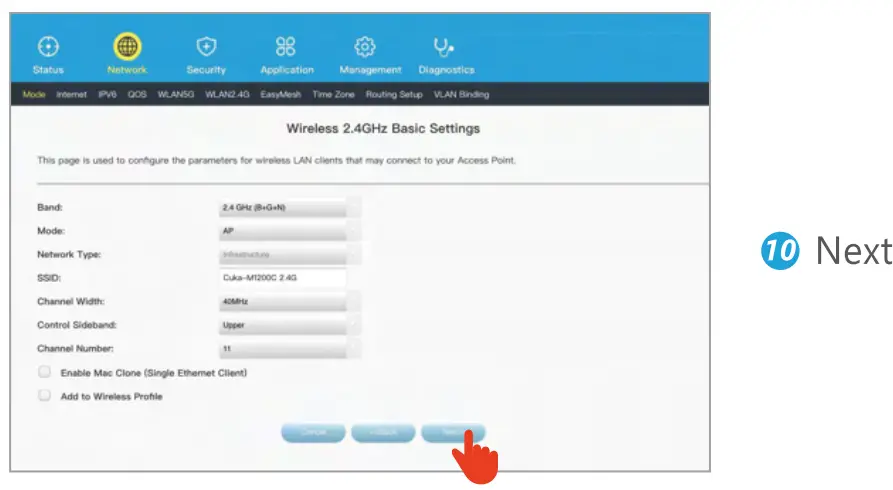
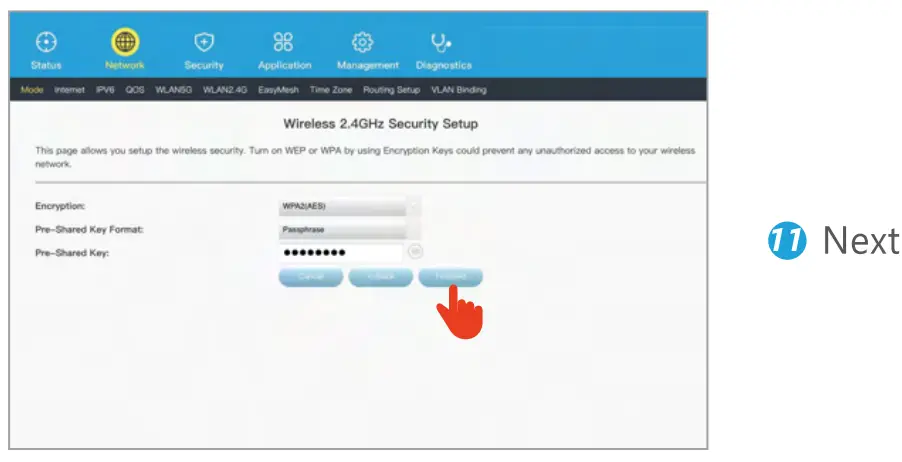
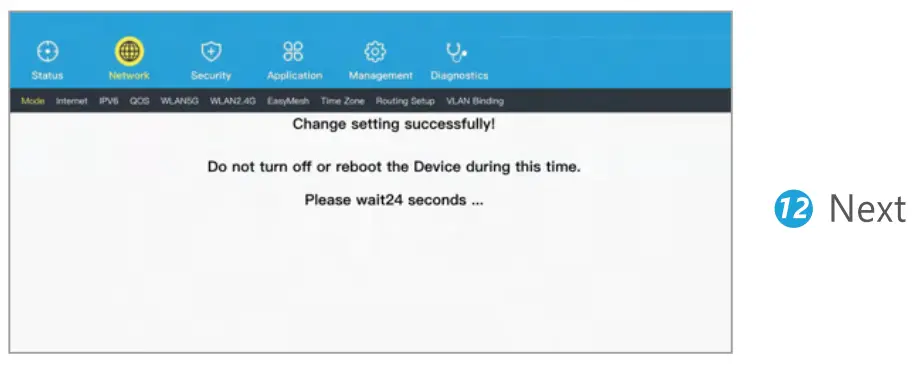
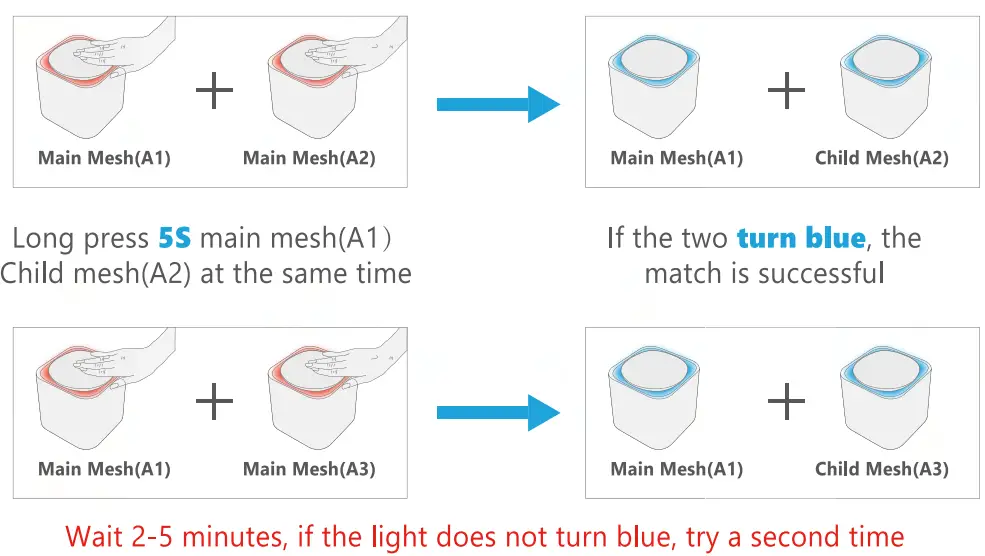
How to pair the other two child mesh
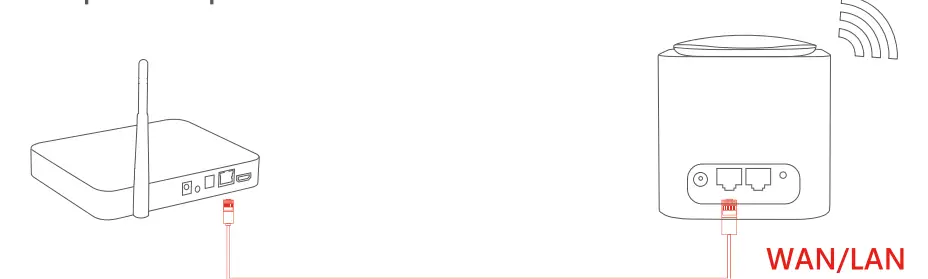
How to setup access from WiFi router
Input SSID password : 22109088
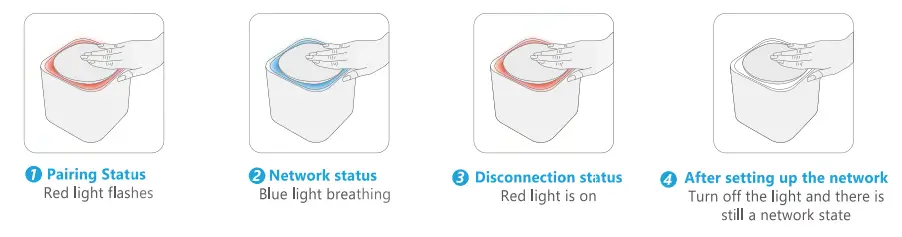
LED Indicator Explanation
| Status | Explanation | |
|
Solid blue | The system is starting. | |
| The primary node is connected to the internet. | ||
| The secondary node is connected to the WiFi network of the primary node well. | ||
|
Solid red | The primary node is not connected to the internet. | |
| The secondary node is not connected to the WiFi network of the primary node. | ||
| The secondary node is connected to the WiFi network of the primary node very poorly. | ||
When your network goes through a switch or router
Q : What should I do when the main mesh keep solid red state ?
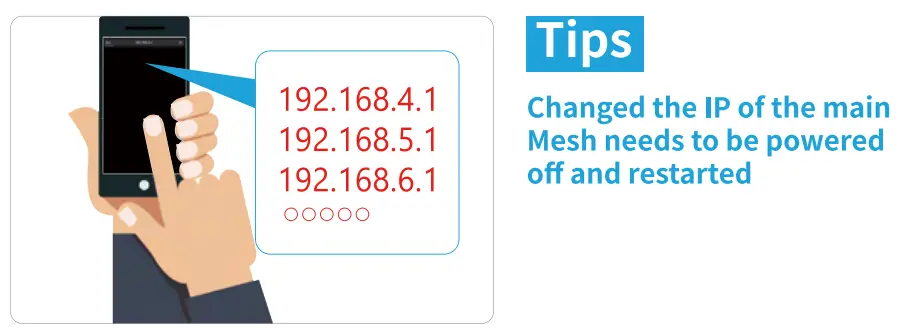
A: Change the IP address ,make the penultimate digit greather than 3 (Browser input)
Such as : 192.168.4.1 / 192.168.5.1 / 192.168.6.1
Shenzhen Grandshine Technology Co Ltd
web:www.grashine.com
Address:1-3/F, Building C, Yuexing Industrial Zone, No.11, Xintian shabo Industrial Park, Guanhu Street, Longhua District, Shenzhen, China(518110)
Copyright & Trademarkes
Gshine is a registered trademark of GSHINE TECHNOLOGY CO., LTD
Other brands and product names mentioned herein are trademarks or registered trademarks of their respective holders.
As the technology is constantly updated and improved, contents in this document are subject to change without notice.