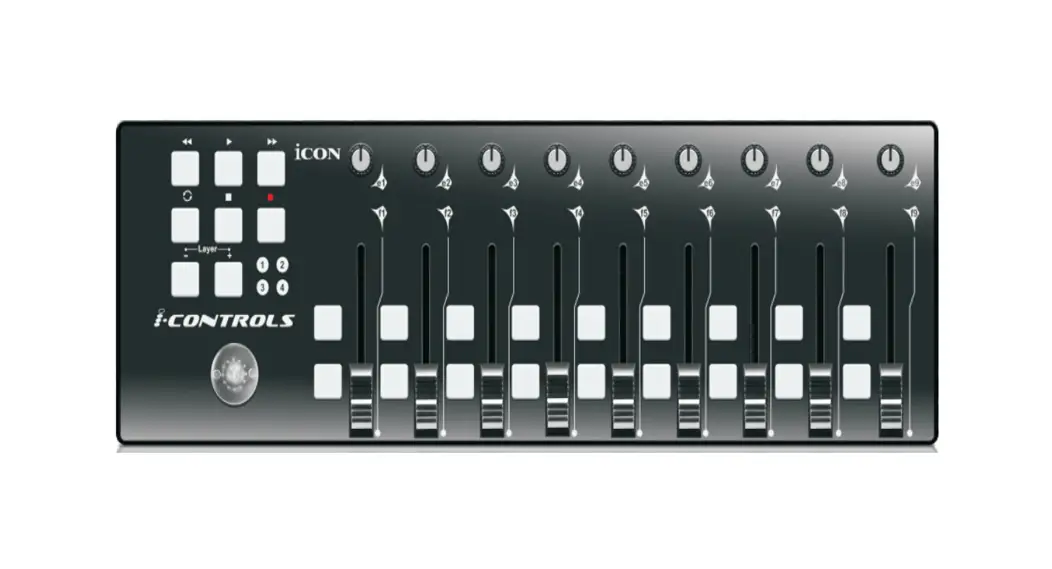


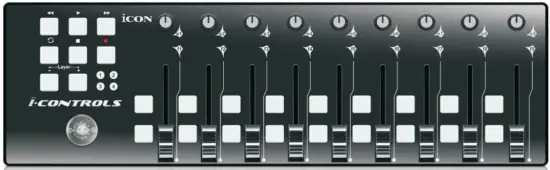
Multi-Controls with Joystick
USB MIDI controller
 CAUTION
RISK OF ELECTRIC SHOCK DO NOT OPEN RISQUE DE CHOC ELECTRIQUE NE PAS OUVRIR CAUTION: TO REDUCE THE RISK OF ELECTRIC SHOCK DO NOT REMOVE COVER (OR BACK) NO USER-SERVICEABLE PARTS INSIDE REFER SERVICING TO QUALIFIED PERSONNELThe lightning flash with an arrowhead symbol within an equilateral triangle is intended to Waled the user to the presence of uninsulated dangerous voltage within the product’s enclosure, which may be of sufficient magnitude to electric shock to persons.
Important Safety Instructions
- Read these instructions.
- Keep these instructions.
- Heed all warnings.
- Follow all instructions.
- Do not use this apparatus near water.
- Clean only with a dry cloth.
- Do not block any ventilation openings. Install in accordance with the manufacturer’s instructions.
- Do not install near any heat sources such as radiators, heat registers, stoves, or other apparatus (including amplifiers) that produce heat.
- Only use attachments/accessories specified by the manufacturer.
Introduction
Thank you for purchasing the ICON controls USB MIDI controller. We sincerely trust this product will provide years of satisfactory service, but if anything is not to your complete satisfaction, we will endeavor to make things right. In these pages, you’ll find a detailed description of the features of the controls, as well as a guided tour through its front and rear panels, step-by-step instructions for their setup and use, and full specifications. Please register the product on our website at the below link
www.iconproaudio.com/registration:
Please follow the step-by-step procedures. Start by inputting the device’s serial number as well as your personal information, etc. By registering your product online, you will be entitled to service and after-sales support at our Help Center by visiting our website at www.iconproaudio.com. Also, all the registered products under your account will be listed on your personal product page where you will find updated information such as firmware/driver upgrades, software bundles, user manual downloads, etc. for your device.
As with most electronic devices, we strongly recommend you retain the original packaging. In the unlikely event, the product must be returned for service, the original packaging (or reasonable equivalent) is required.
With proper care and adequate air circulation, your controls will operate without any trouble for many years.
What’s in the package?
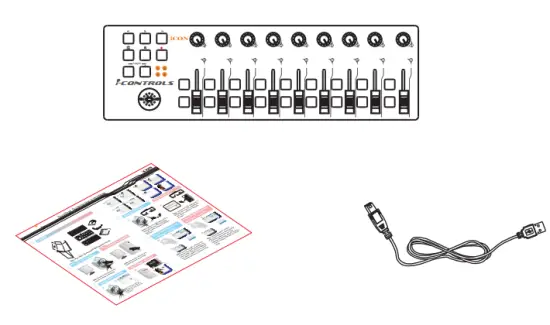
- iControls USB MIDI controller x 1
- Quick Start Guide
- USB2.0 Cable
Register your ICON ProAudio product to your personal account
1. Check the serial number of your device
Please go to http://iconproaudio.com/registration or scan the QR code below.
Input your device’s serial number and the other information on the screen. Click“Submit”.
A message will pop up showing your device information such as model name and its serial number – Click “Register this device to my account” or if you see any other message, please contact our aftersales service team
2.Log into your personal account page for existing users or sign up for a new user
Existing user: Please log in to your personal user page by inputting your user name and password.
New user: Please click “Sign Up” and fill in all the information.
3. Download all useful materials
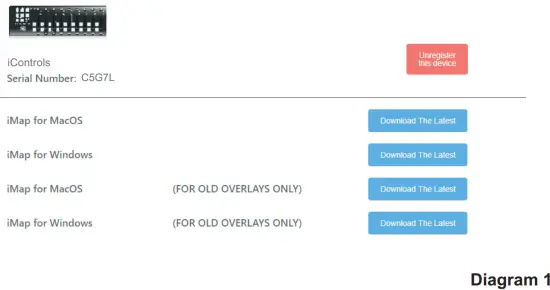
All your registered devices under your account will show on the page. Each product will be listed along with all its available files such as drivers, firmware, user manual in different languages and bundled software, etc. for download. Please make sure you have to download the necessary files such as the driver before you begin device installation.
Features
- Main features include: TM
- Extremely compact and designed to match the MacBook
- 9 assignable faders 18 assignable buttons
- 9 assignable rotary knobs for setting MIDI CC
- Joystick for control
- “Layer” buttons for customizing 4 scenes for instant control of multiple applications
- 6 transport buttons
- 2xUSB Connectors for daisy chain with any i-series controllers
- Class-compliant with Windows XP, Vista (32 bit), and Mac OS X
- USB bus-powered
- iMapTM software included for easy mapping of MIDI functions.
- An aluminum cover, in different graphic designs and colors, is available as an option.
Front Panel Layout
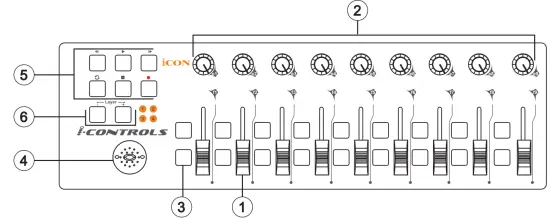
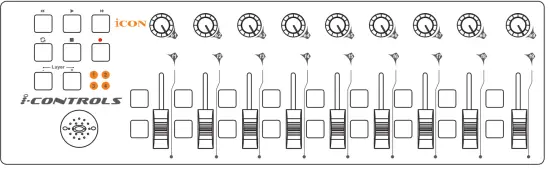
- Faders
These nine programmable faders slide up and down to adjust linear MIDI parameters such as volume. - Knobs
These nine programmable knobs allow to adjustment of linear MIDI parameters such as Pan. - Control Buttons
These eighteen programmable buttons, set in nine groups of two, allow you to activate or control the features of your DAW or the music software that you are using. - Joystick
This joystick works as a mouse pad on your notebook computer. - Transport Buttons (MMC)
iControls has dedicated MIDI Machine Control (MMC) buttons on the front panel. - Layer Buttons
These two buttons allow you to switch between the four layers. Each layer can be set to different parameters for the faders and other knobs.
Side Panel Layout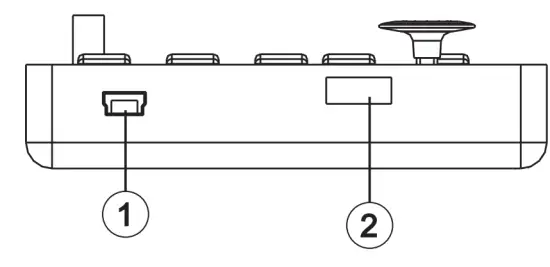
USB port (B-Type)
Functions as a MIDI port to your notebook (or computer) and compatible software. Also provides power to your iControls.
USB port
Use to daisy chain with the second unit of iControls or any i-series controllers such as iKey or iPad.
Getting Started
Connecting your iControls controller system
Choose a USB port on your Mac/PC and insert the wide (flat) end of the USB cable. Connect the cable’s small jack end to the iControls. Your Mac/PC should automatically “see” the new hardware and notify you that it is ready to use.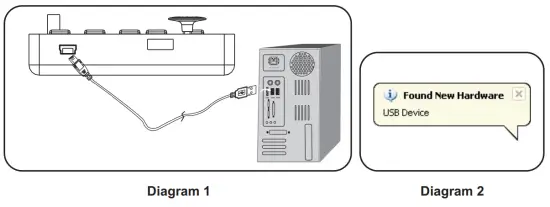
Assign the MIDI messages to iControls
Refer to page 10 for “Assign the MIDI functions with “iMap TM” software”
Controller Features and Settings
Learning how to effectively and creatively use the functions on your iControls is simple.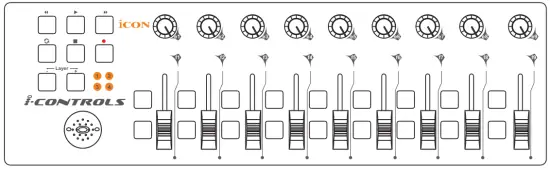
Faders
There are nine faders on iControls. Fader 9 is the generally-accepted control for volume. You can assign any one of 119 different MIDI CC numbers to any fader, although we recommend keeping Fader 9 set to volume (CC07), for volume control. CC numbers 120 to 127 are nonlinear parameters, and cannot be controlled by a linear fader.
Control Buttons
There are eighteen control buttons. You can assign different CC numbers as well as MIDI channels to any button.
Knobs
There are nine knobs on iControls. Any linear CC number can be assigned to any knob, as well as any individual channels 1-16. Michael says, “Think about how fine or smooth a control technique you will need to use, and then decide whether to use a knob or a fader for that function. Your fader chops may be smoother, or a knob, with its slow rotary action, might be more suitable.”
Joystick
You may use this joystick as your computer mouse to control the computer pointer.
MIDI Machine Control (MMC) buttons
MIDI Machine Control (MMC) messages are used by some devices and software to simulate the controls that any analog tape recorder would have, such as Stop, Play, and Record. Not all software/hardware will respond to MMC messages, so look for the section on this topic in the manual for whatever software or hardware device you are using with iControls. It will tell you what functions can be operated with the MMC buttons on iControls.
The MMC message is a SysEx message. The device ID for iControls is 127, the standard MIDI default. Your software/hardware can be configured to accept this device ID, if it does not already recognize the default 127 value. The CC numbers for these controls are
<< – rewind = 05
>> – fast forward = 04
– stop = 01
> -play = 02
– record = 06
Installing iMapTM Software for MAC OSX
Please follow the procedures below step-by-step to install your iMapTM software to Mac OS X
- Turn on your MAC.
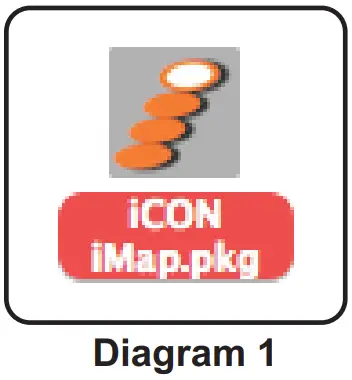
- Download the Mac app from your Personal User Page at www.iconproaudio.com
After you downloaded the file, please click it to start the installation process.  Setup Wizard appears Setup wizard appears, please click “Continue”
- Choose Install Location
Select a destination to install iMapTM software to Mac OS X, then click “Continue  Change Install Location
If you want to change the install location, please click the “Change Install Location” button and select another location or just Click the “Install” button to continue. Input Administrator information
To install iMapTM software, you need to input administrator user information, please input the name and password of the administrator then click “Install” to continue. Installation finished
Click “Close” to complete the iMapTM software installation.
 Setup Wizard appears Setup wizard appears, please click “Continue”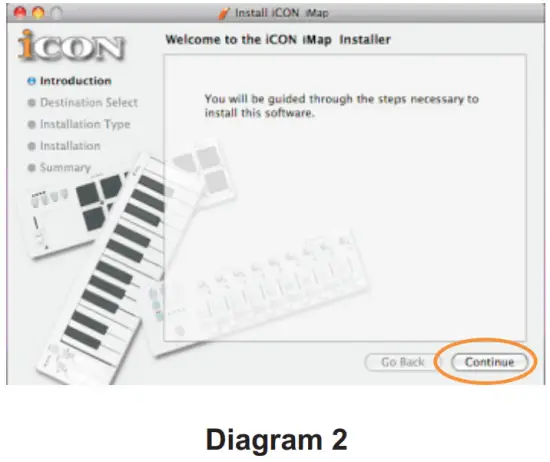
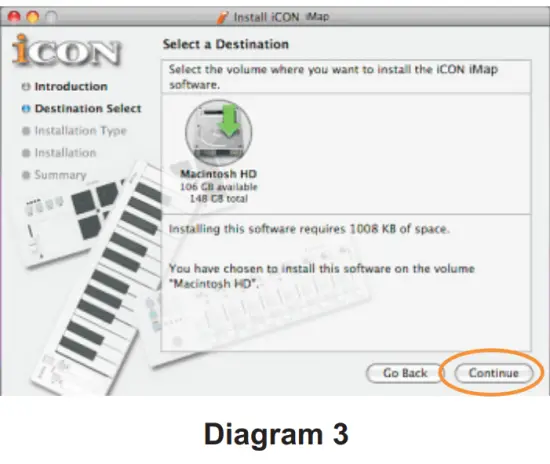 Change Install Location
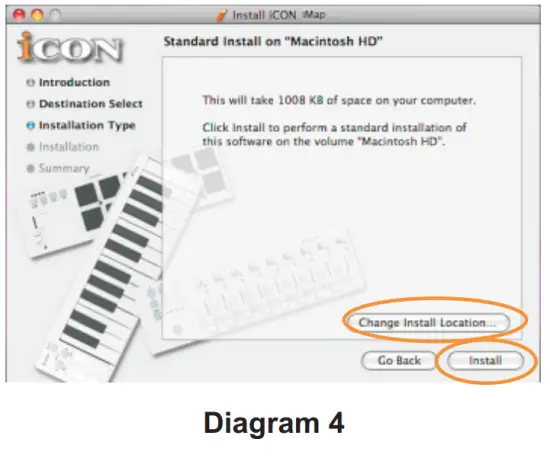 Input Administrator information
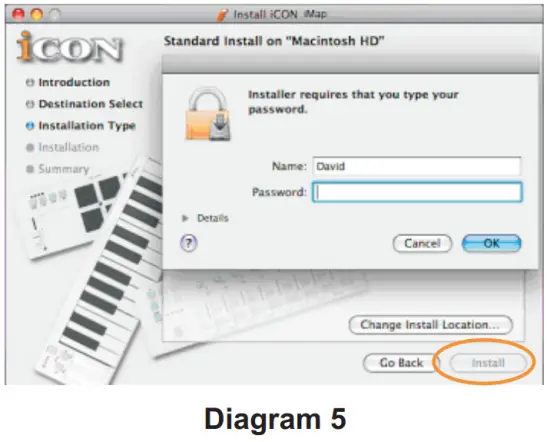 Installation finished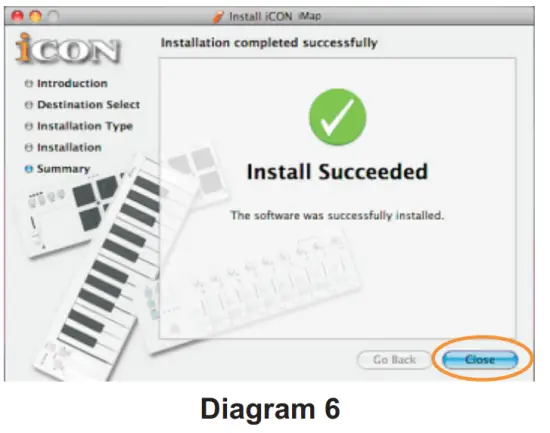
Installing iMapTM Software for Windows
Please follow the procedures below step-by-step to install your iMapTM software.
- Turn on your PC.
- Download the Mac iMap from your Personal User Page at www.iconproaudio.com
After you downloaded the file, please click it to start the installation process.  Setup Wizard appears
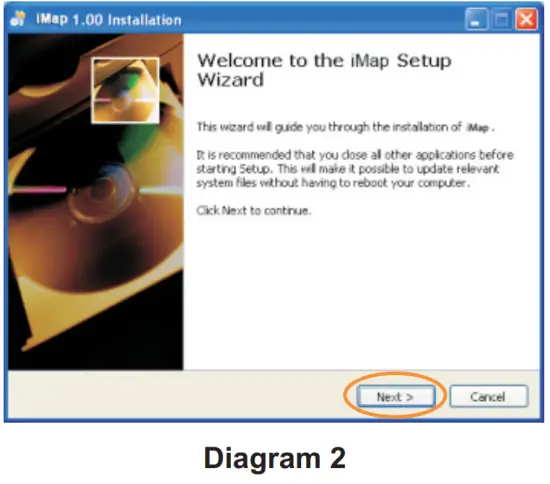
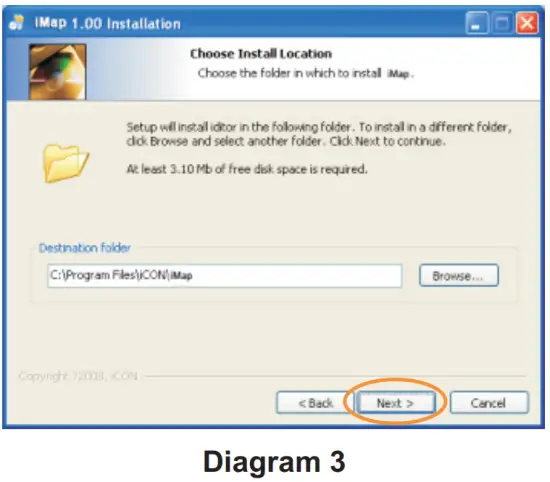
Setup wizard appears, please click “Next” Choose Install Location
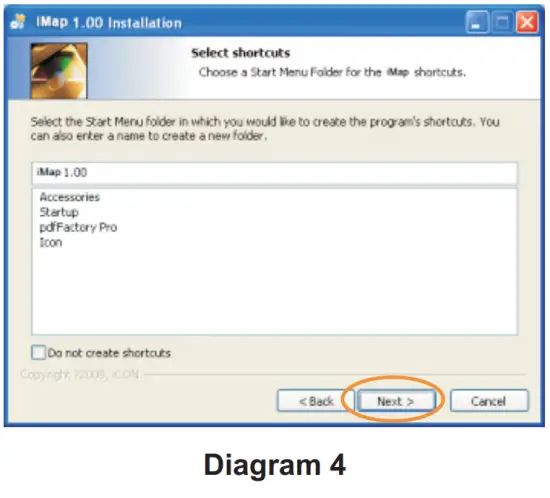
Choose your preferred install location for iMapTM or use the default location and click “Next” Select shortcut
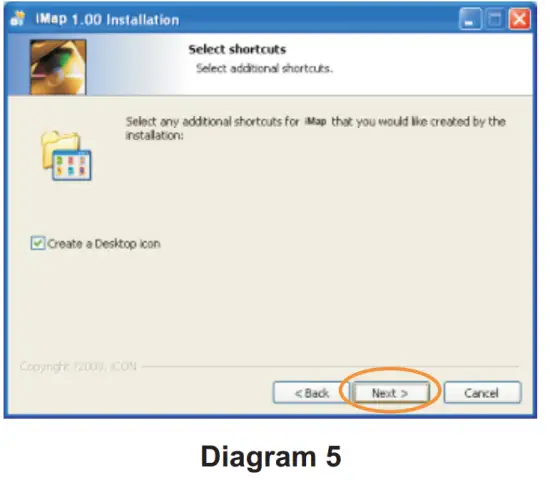
Select the start menu folder in which you would like to create the iMapTM shortcut. Then click “Next” Create a shortcut on your desktop
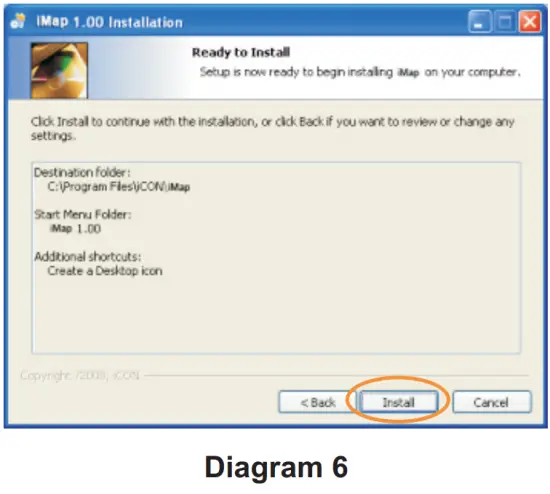
Please un-tick the box if you do not want to place a shortcut icon on your desktop for iMapTM, otherwise click “Next” iMapTM started to install
The iMapTM installation has now started, wait for it to finish. Then click “Finish” Installation finished
Click “Finish” to complete the iMapTM software installation.
 Setup Wizard appears
 Choose Install Location
 Select shortcut
 Create a shortcut on your desktop
 iMapTM started to install
 Installation finished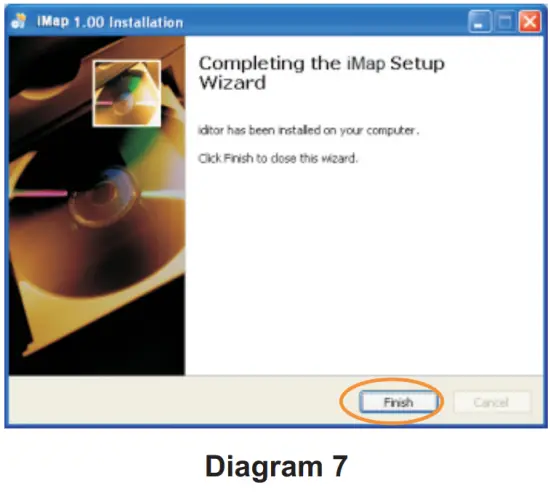
Assigning MIDI functions with iMapTM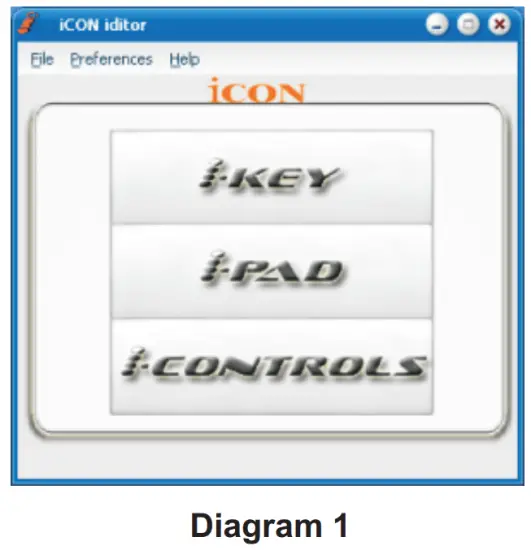
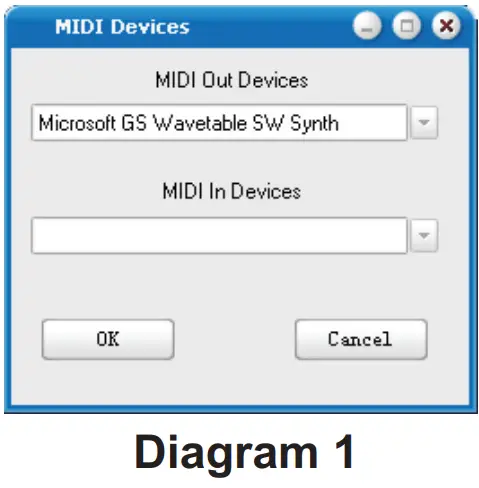
You can use iMapTM to assign the MIDI functions of your iControls easily. Please launch the iMapTM software, a device selector screen will appear as shown in diagram 1. Then click the “iControls” button.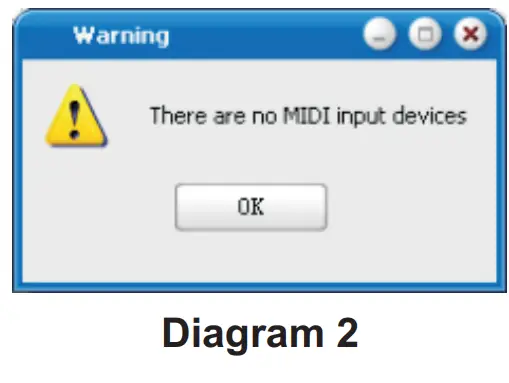
Note: If your iControls is not connected to your Mac/PC, a message of “There are no MIDI input devices” will appear. Please connect iControls to your Mac/PC with the provided USB cable.
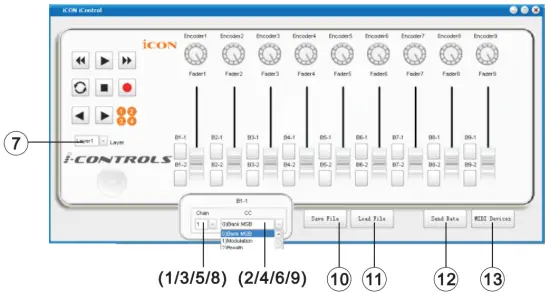
iMapTM iControls software panel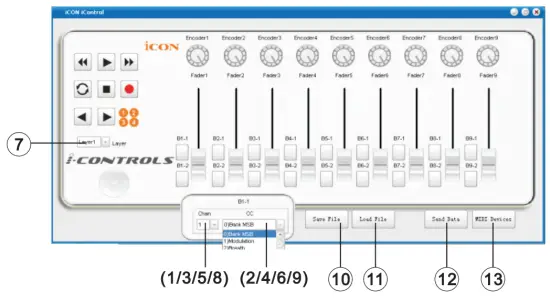
- Assign the MIDI channels to the fader
Select your desired MIDI channel from 1-16 for the fader - Assign the CC number to the fader
Select your desired CC number from 0-127 in the pull-down menu for the fader. - Assign the MIDI channels to the control buttons
Select your desired MIDI channel from 1-16 for the control button - Assign the CC number to the control button
Select your desired CC number from 0-127 in the pull-down menu for the control button.
- Assign the MIDI channels to the knob
Select your desired MIDI channel from 1-16 for the knob - Assign the CC number to the knob
Select your desired CC number from 0-127 in the pull-down menu for the knob. - Select the 4 different Layers and choose the desired settings for each layer
You may have 4 different “Layers” for different applications. Each “Layer” can have its own control settings. - Assign the MIDI channels to the MMC buttons
Select your desired MIDI channel from 1-16 for the MMC buttons - Assign the CC number to the MMC buttons|
Depending on your DAW or music software, assign a CC number to these buttons according to your software. (Note: We have created a series of templates for different software. These are contained on the Utility CD. Simply import the correspondence template file into your DAW and these buttons will function as MMC right away.) - The “Save file” button
Click this button to save your current settings for the iControls. The file is a “.icon” file. - The “Load file” button
Click this button to load a previously saved “.icon” setting file for your iControls. - The “Send Data” button
Click this button to upload the iMapTM software settings to your iKey via USB connection.
(Note: You must have connected your iControls to your Mac/PC, otherwise, the settings upload will not be successful.)
- “MIDI Devices” button
Click this button, a MIDI device select window will appear as shown in diagram 1. Please select “ICON iControls” for the MIDI Out Devices.
Restore the factory default settings
By holding down the buttons “Rewind “ “Play
“Play ” and “FastForward
 ” together, the settings of the iControls will return to its factory default condition.
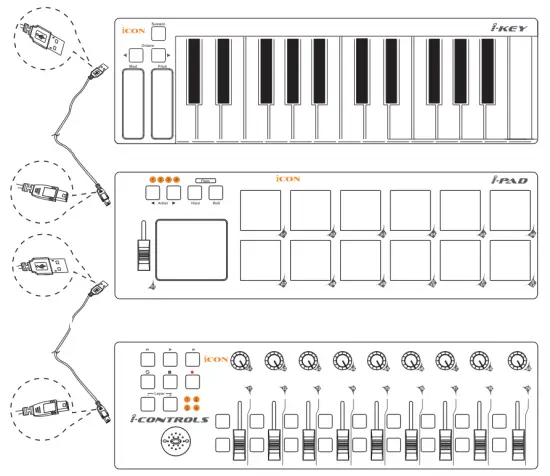
Daisy Chain with iControls or any i-series controllers
You may daisy chain up to 3 units of iControls or any i-series controllers.
Connect the first unit of iControls to your Mac/PC via the USB port.
Choose a USB port on your Mac/PC and insert the wide (flat) end of the USB cable and the other small end (B-type USB pack) to iControls.
Connect the next units of iControls (or iKey/iPad)
Insert the wide (flat) end of the USB cable to the first unit of iControls’s second USB port and the other small end (B-type USB jack) to the second unit iControls’s USB port. By following the same procedure, you may daisy chain with the 3rd unit of iControls (or iKey/iPad).
 Specifications
 Specifications
Connector:
To computer USB connector (mini B type)
To i-series controller USB connector (standard type)
Power supply: USB bus power
Current consumption: 100mA or less
Weight: 0.51kg (1.1lb)
Dimensions: 325(L) X 99(W) X 20(H)/12.78″(L) x 3.78″(W) x 0.75″(H)
Appendix A
General MIDI Controller Numbers (MIDI CC’S)
| oo | Bank Select | 46 | Controller 46 | 92 | Tremolo Depth |
| 1 | Modulation | 47 | Controller 47 | 93 | Chorus Depth |
| 2 | Breath Control | 48 | Gen Purpose i LSB | 94 | Celeste (De-tune) |
| 3 | Controller 3 | 49 | Gen Purpose 2 LSB | 95 | Phaser Depth |
| 4 | Foot Control | 50 | Gen Purpose 3 LSB | 96 | Data Increment |
| 5 | PortaTime | 51 | Gen Purpose 4 LSB | 97 | Data Decrement |
| o6 | Data Entry | 52 | Controller 52 | 98 | Non-Reg Param LSB |
| 7 | Channel Volume | 53 | Controller 53 | 99 | Non-Reg Param MSB |
| 8 | Balance | 54 | Controller 54 | 100 | Reg Param LSB |
| 9 | Controller 9 | SS | Controller 55 | 101 | Reg Param MSB |
| 10 | Pan | 56 | Controller 56 | 102 | Controller 102 |
| ii | Expression | 57 | Controller 57 | 103 | Controller 103 |
| 12 | Effects Controller 1 | 58 | Controller 58 | 104 | Controller 104 |
| 13 | Effects Controller 2 | 59 | Controller 59 | 105 | Controller 105 |
| 14 | Controller 14 | 6o | Controller 6o | 106 | Controller 1o6 |
| 15 | Controller 15 | 61 | Controller 61 | 107 | Controller 107 |
| 16 | Gen Purpose 1 | 62 | Controller 6z | 108 | Controller 108 |
| 17 | Gen Purpose 2 | 63 | Controller 63 | 109 | Controller 109 |
| 18 | Gen Purpose 3 | 64 | Sustain Pedal | 110 | Controller 110 |
| 19 | Gen Purpose 4 | 65 | Portamento | 111 | Controller iii |
| 20 | Controller 20 | 66 | Sostenuto | 112 | Controller 112 |
| 21 | Controller 21 | 67 | Soft Pedal | 113 | Controller 113 |
| 25 | Controller 25 | 68 | Legato Pedal | 114 | Controller 114 |
| 26 | Controller 26 | 69 | Hold 2 | 115 | Controller 115 |
| 27 | Controller 27 | 70 | Sound Variation | 116 | Controller 116 |
| 28 | Controller 28 | 74 | Cut-off Frequency | 117 | Controller 117 |
| 29 | Controller 29 | 75 | Controller 75 | 118 | Controller 118 |
| 3o | Controller 30 | 76 | Controller 76 | 119 | Controller 119 |
| 31 | Controller 31 | 77 | Controller 77 | Channel Mode Messages | |
| 32 | Bank Select LSB | 78 | Controller 78 | 120 | All Sound Off |
| 33 | Modulation LSB | 79 | Controller 79 | 121 | Reset all Controllers |
| 34 | Breath Control LSB | 8o | Gen Purpose 5 | 122 | Local Control |
| 35 | Controller 35 | 81 | Gen Purpose 6 | 123 | All Notes Off |
| 36 | Foot Control LSB | 82 | Gen Purpose 7 | 124 | Omni Off |
| 37 | Porta Time LSB | 83 | Gen Purpose 8 | 125 | Omni On |
| 38 | Data Entry LSB | 84 | Portamento Control | 126 | Mono On (Poly Off) |
| 39 | Channel Volume LSB | 85 | Controller 85 | 127 | Poly On (Mono Off) |
| 40 | Balance LSB | 86 | Controller 86 | Additional Messages | |
| 41 | Controller 41 | 87 | Controller 87 | 128 | Pitch Bend Sensitivity |
| 42 | Pan LSB | 88 | Controller 88 | 129 | FineTune |
| 43 | Expression LSB | 89 | Controller 89 | 13o | CoarseTune |
| 44 | Controller 44 | 90 | Controller 90 | 131 | Channel Aftertouch |
| 45 | Controller 45 | 91 | Reverb Depth | ||
Services
If your need servicing, follow these instructions. iControls
Check our online Help Center at http://support.iconproaudio.com/hc/en-us, for information, knowledge, and downloads such as:
- FAQ
- Download
- Learn More
- Forum
Very often you will find solutions on these pages. If you don’t find a solution, create a support ticket at our online Help Center at the link below, and our technical suppor t team will assist you as soon as we can. Navigate to http://support.iconproaudio.com/hc/en-us and then sign in to submit a ticket.
As soon as you have submitted an inquiry ticket, our support team will assist you to resolve the problem with your ICON ProAudio device as soon as possible.
To send defective products for service:
- Ensure the problem is not related to operation error or external system devices.
- Keep this owner’s manual. We don’t need it to repair the unit.
- Pack the unit in its original packaging including the end card and box. This is very important. If you have lost the packaging, please make sure you have packed the unit properly. ICON is not responsible for any damage that occurs due to non-factory packing.
- Ship to the ICON tech support center or the local return authorization. See our service centers and distributor service points at the link below:
If you are located in US
Send the product to:
Nor th America
Mixware, LLC – U.S. Distributor
11070 Fleetwood Street – Unit F.
Sun Valley, CA 91352; USA
Tel.: (818) 578 4030
Contact: www.mixware.net/help
If you are located in Europe
Send the product to:
Sound Service
GmbHEuropean
Headquar terrorize-Seeler-Stra
3D-12489 Berlin
Telephone: +49 (0)30 707 130-0
Fax: +49 (0)30 707 130-189
E-Mail: [email protected]|
If you are located in Hong Kong
Send the product to:
ASIA OFFICE:
Unit F, 15/F., Fu Cheung Centre,
No. 5-7 Wong Chuk Yeung
Street, Fotan,
Sha Tin, N.T., Hong Kong.
5. For additional update information please visit our website at: www.iconproaudio.com






 http://iconproaudio.com/dashboard/
 Registration – Icon Pro Audio
 Make choice for purchasing this domain - Domeinenbank
 suppor
 t.iconproaudio.com/hc/en-us
 Help - Mixware