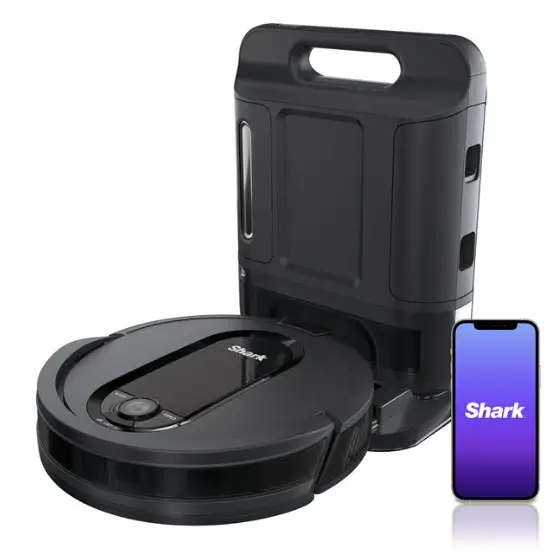
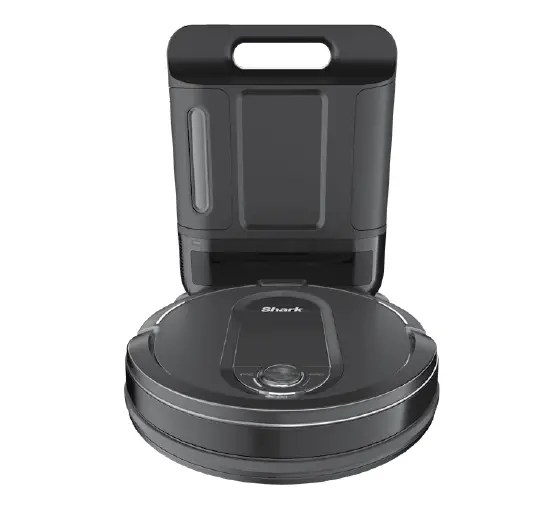
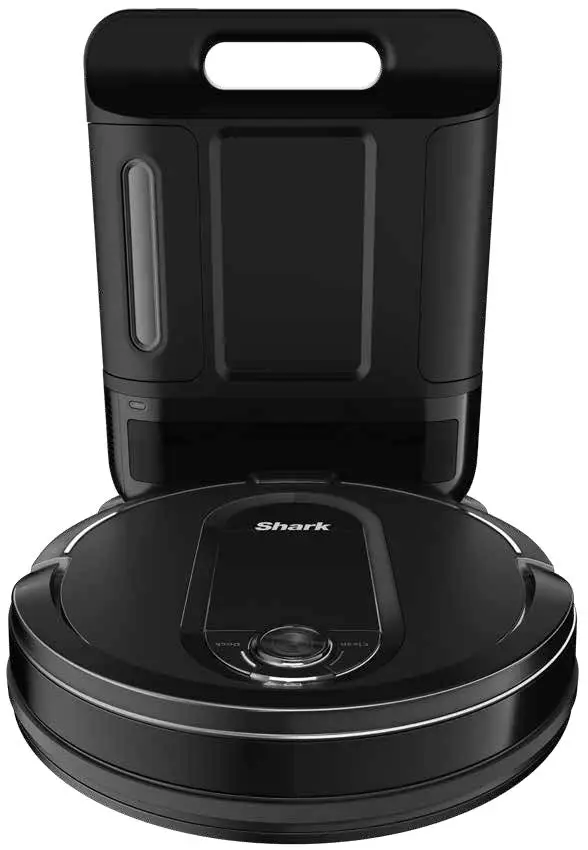
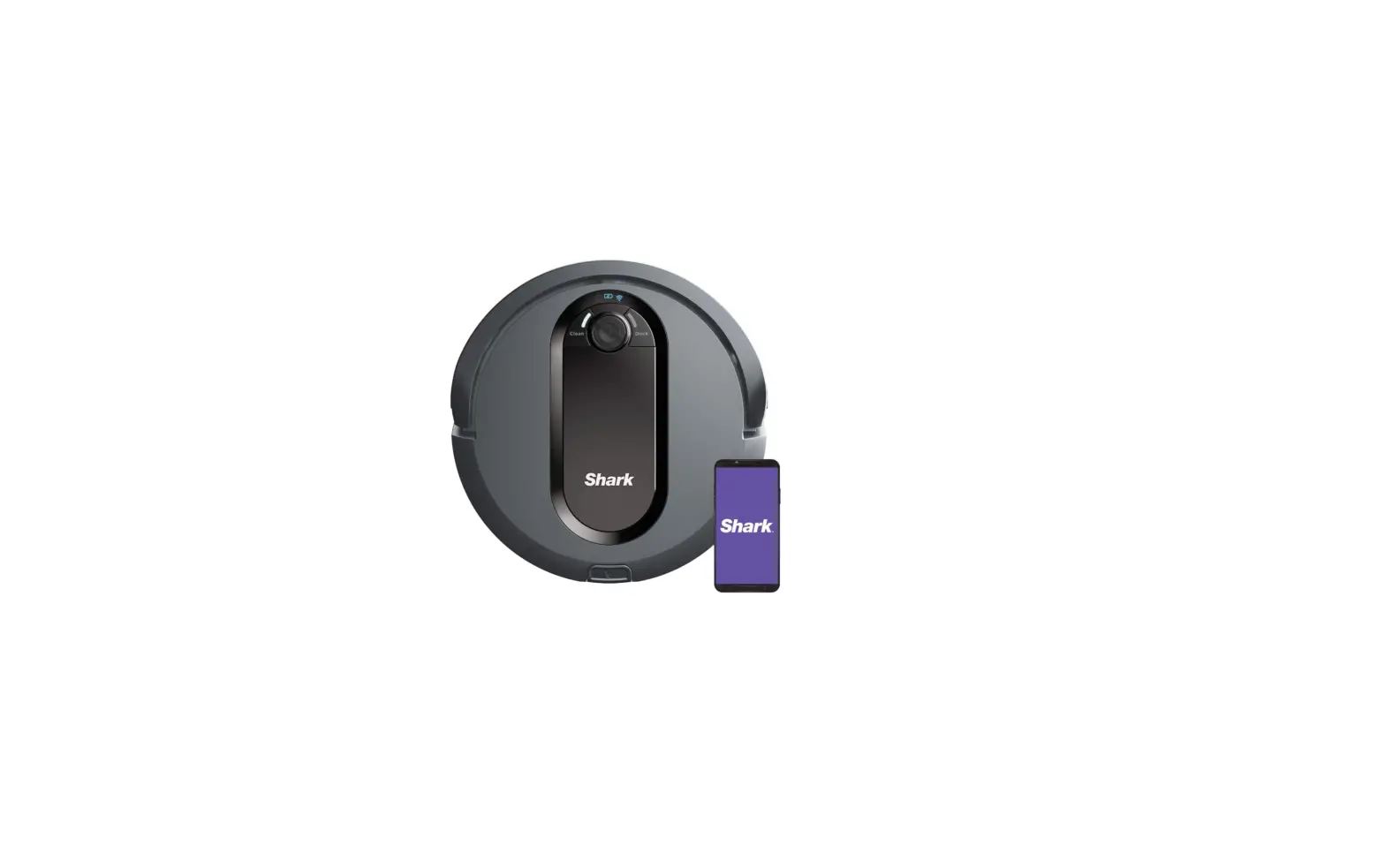
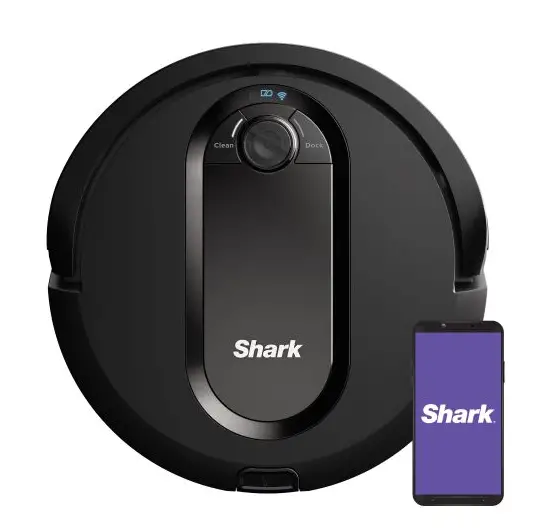
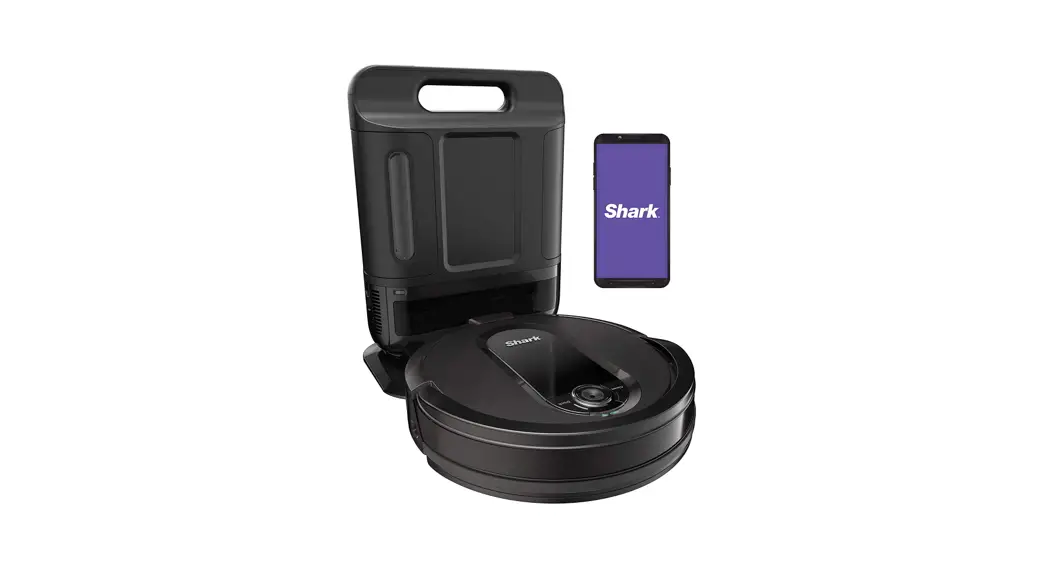
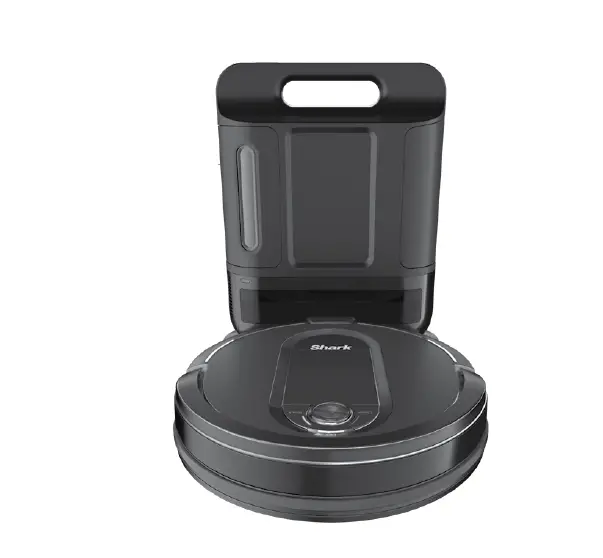
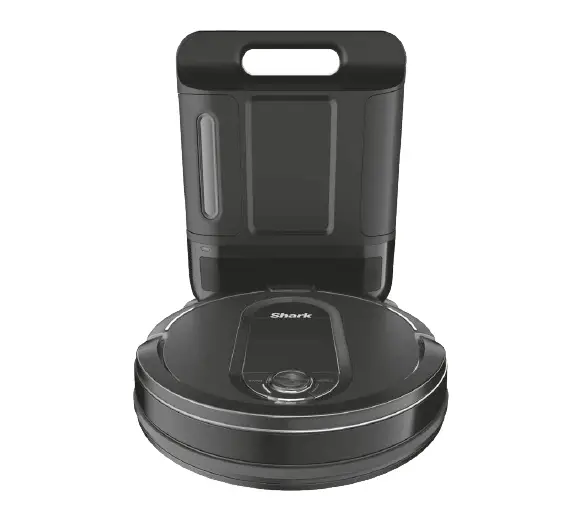
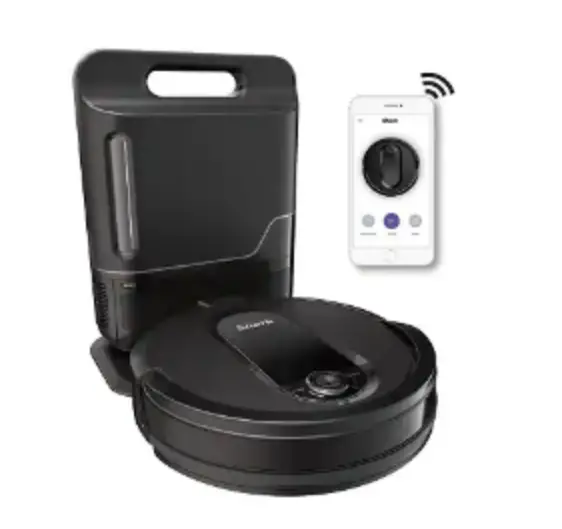
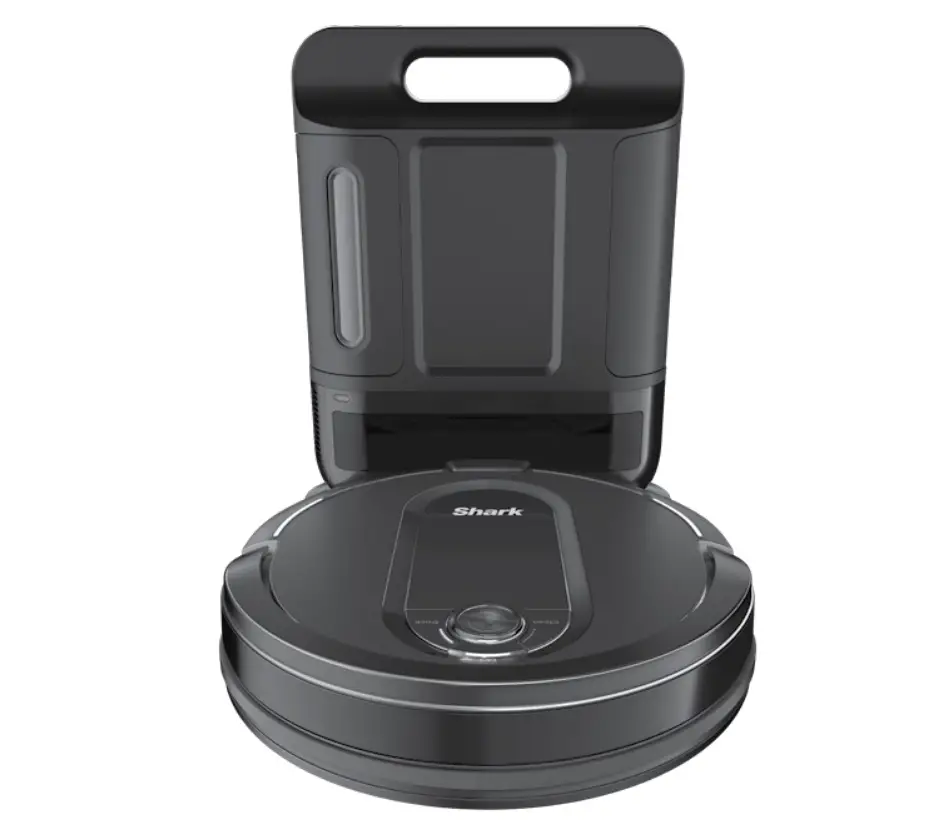
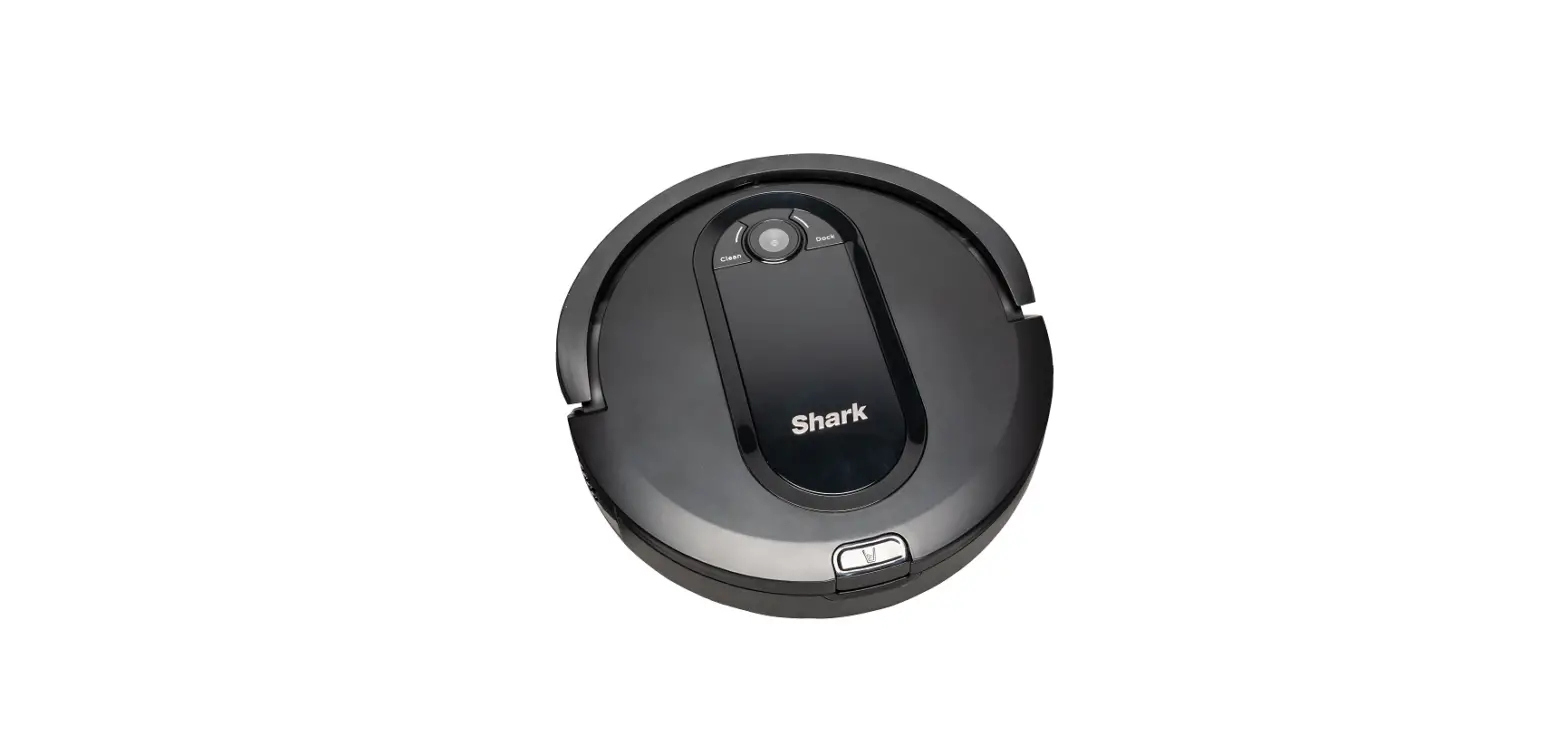
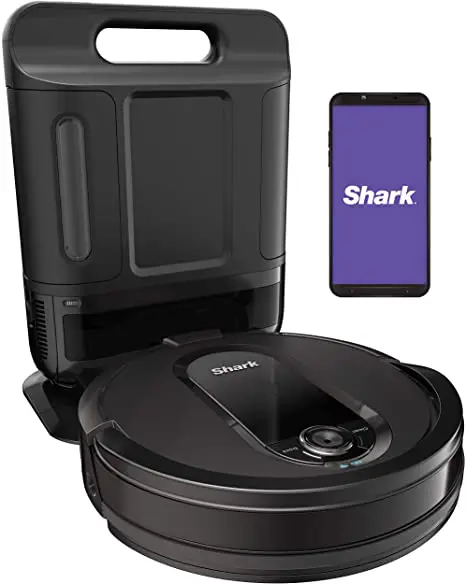
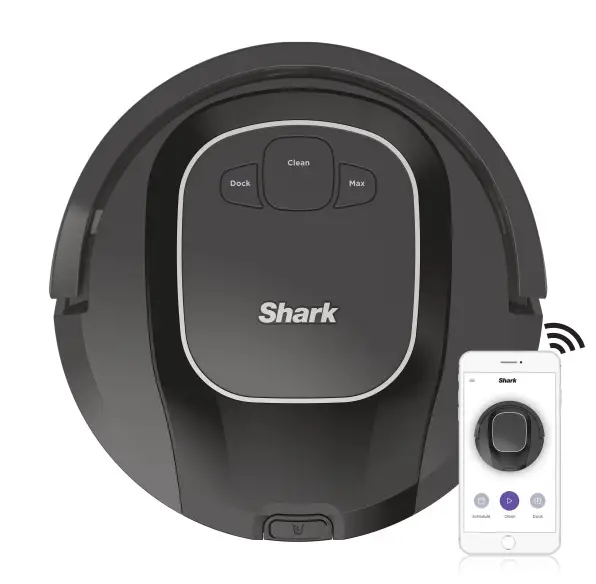
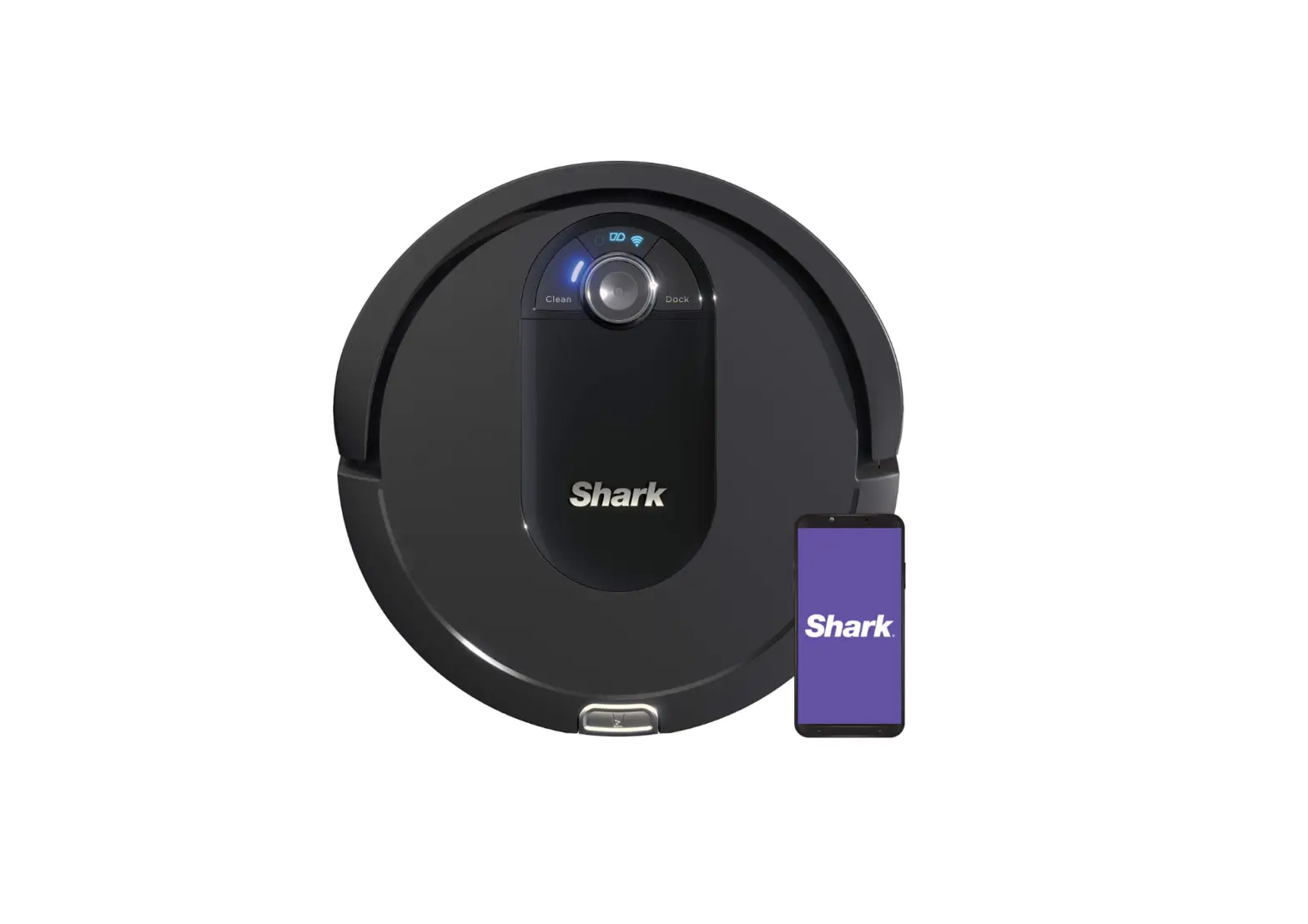
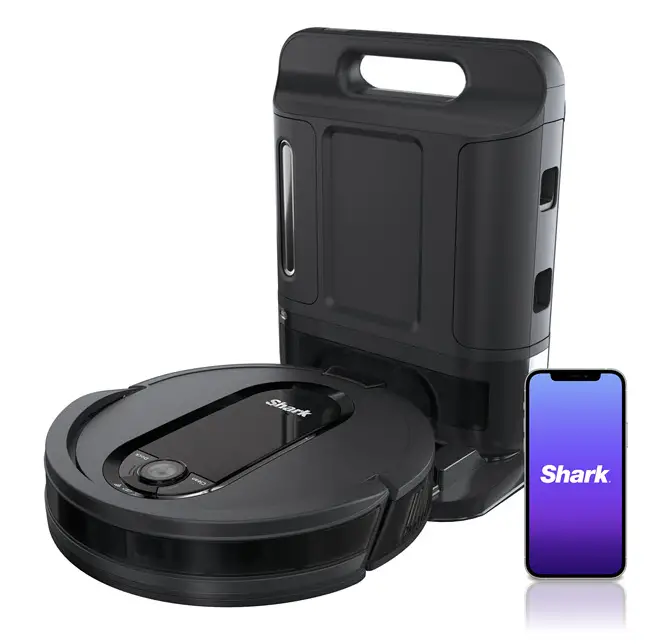
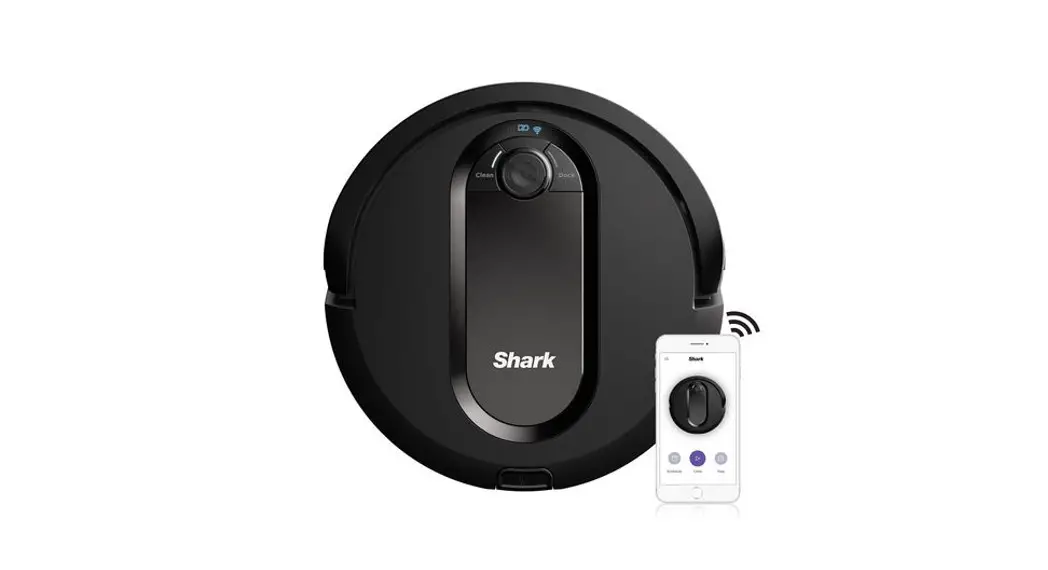
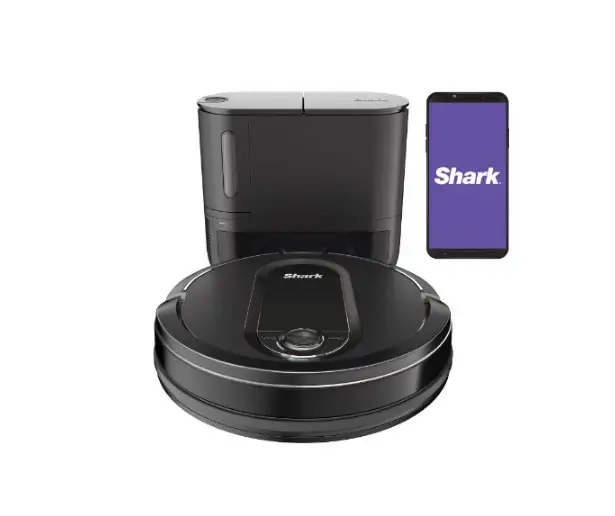
AV1010AE IQ Robot Vacuum Cleaner with XL Self-Empty Base
Product Information
The product is a robot vacuum cleaner designed to clean your
home autonomously. It has the ability to map your home and optimize
its performance over time. The vacuum cleaner comes with a charging
base, which needs to be set up in a location with a good Wi-Fi
signal. The robot can be controlled and monitored through the
SharkCleanTM app, which can be downloaded from the app store. The
robot has side brushes to assist in cleaning and an indicator light
that shows the charging status.
Product Usage Instructions
- Scheduling: To have a constant state of clean,
set up a cleaning schedule in the SharkCleanTM app. - Avoid Moving the Robot or Base: While the
robot is cleaning, do not pick it up or move it, and avoid moving
the charging base. This could impact the robot’s ability to map
your home. - Lighting Conditions: For best results, run the
robot in well-lit conditions. If running the robot at night, keep
the lights on in the areas to be cleaned. - Checking Base Fill Level: As the robot cleans,
regularly check the fill level of its bin. Home environments vary,
and the bin may fill up quicker in some homes. - Doorways and Thresholds: Ensure that doorways
and thresholds are clear for the robot to move through easily. - Prepping the Robot: Before using the robot,
make sure to prep it by attaching the side brushes. - Setting Up the Base: Find a permanent location
for the base and place it against a wall with a good Wi-Fi signal.
Remove any objects that are closer than 3 ft. from either side of
the base or closer than 5 ft. from the front. Set up the base on a
hard floor for best results. - Charging the Robot: Ensure that the power
button on the robot is in the (I) ON position. Place the robot on
the base with its back side against the base to charge for 6 hours.
The indicator light on the base will turn green when it has power.
When charging begins, the robot will beep and the dock light will
turn blue. Note that the robot will make a loud noise when it
empties debris each time it returns to the dock, which is
normal. - Optimizing Your Home for Cleaning: Clear cords
and remove small objects from floors. Open interior doors in rooms
you want the robot to clean. - Connecting the SharkCleanTM App and Robot:
Download the SharkCleanTM app from the app store. Follow the steps
in the app to create an account, activate robot Wi-Fi, select the
robot (Apple iOS only), and connect to your home Wi-Fi.
If you have any questions or need support, you can call
1-888-228-5531 for robot support. For additional help, visit
sharkclean.com/support. To set up voice control using Google Home
or Amazon Alexa, visit sharkclean.com/app for instructions.
WHAT TO EXPECT
As your robot learns your home, you may need to make some small adjustments to optimize performance.
SCHEDULING
AVOID MOVING THE ROBOT OR BASE
Please be sure to read the enclosed Shark® Owner’s Guide prior to using your robot.
! Clean
Dock
For a constant state of clean, set up a cleaning schedule in the app.
CHECK BASE FILL LEVEL
While your robot is cleaning, do not pick it up and move it, or move the charging base–this could impact the robot’s ability to map your home.
LIGHTING CONDITIONS
During the first few weeks, your robot will empty more often than usual. Check the fill level regularly. Home environments vary, and the bin may fill up quicker in some homes.
DOORWAYS AND THRESHOLDS
For best results, run your robot in well-lit conditions. If you run your robot at night, keep the lights on in the areas to be cleaned.
QUICK START GUIDE
To stay current on our latest updates and features,
DOWNLOAD THE SHARKCLEANTM APP.
Search “SharkClean” in the app store.
Your robot can easily climb over most thresholds, but if one is higher than 7/8ths of an inch, block it off with a BotBoundary® strip.
© 2020 SharkNinja Operating LLC. BOTBOUNDARY, SHARK, and SHARK IQ ROBOT are registered trademarks of SharkNinja Operating LLC. CONSTANT STATE OF CLEAN, SHARKCLEAN, and SHARK IQ ROBOT SELF-EMPTY are trademarks of SharkNinja Operating LLC. APPLE, the Apple logo, and iPhone are trademarks of Apple Inc., registered in the U.S. and other countries. APP STORE is a service mark of Apple Inc., registered in the U.S. and other countries. GOOGLE, GOOGLE ASSISTANT, GOOGLE PLAY, the Google Play logo, and Android are trademarks of GOOGLE LLC.
AV1010AE_QSG_E_MP_Mv1
Scan QR code with your phone’s camera to quickly find
and download the app
STEP 1
PREP THE ROBOT Side Brushes
SETUP
STEP 2 SET UP THE BASE
3 ft. 5 ft.
3 ft.
· Remove protective film from robot and base. · Attach side brushes located in the red packaging. · The power button on the side of the robot must
be in the (I) ON position.
STEP 3 PLUG IN THE BASE
Find a permanent location for the base. Place it with its back against a wall, in an area with a good Wi-Fi signal. Remove any objects that are closer than 3 ft. from either side of the base, or closer than 5 ft. from the front. For best results, set up base on hard floor.
STEP 4 CHARGE THE ROBOT
SWITCH
INDICATOR
6h
First Charge
! Clean
Dock
· Plug cord into electrical outlet.
· Make sure the power switch on the back of the dock is in the ON position.
The Indicator Light will illuminate green when base has power.
Place robot on base to charge for 6 hours. Power button must be in the (I) ON position and the robot must be aligned correctly, with its BACK side against the base. When charging begins, the robot will BEEP and the DOCK light will turn BLUE.
NOTE: Every time the robot returns to the dock, it will make a loud noise as it empties debris. This is normal and no cause for concern.
OPTIMIZING YOUR HOME FOR CLEANING
STEP 5 PREP YOUR HOME
Clear cords and remove small objects like toys, clothing, or drapes from floors. Open interior doors in rooms you want your robot to clean.
CONNECTING THE SHARKCLEANTM APP AND ROBOT
Search SharkClean in the app store and download to get started.
STEP 1 Create An Account
STEP 2 Activate Robot Wi-Fi
· Open the SharkClean app and set up your account.
· Hold down Dock and Clean buttons simultaneously until your Shark prompts you with audio, and Wi-Fi light ( ) on robot blinks
STEP 3 Select Robot (Apple iOS Only)
· Exit the app and open Wi-Fi settings.
· Select your robot (Ex. Shark_ RVXXX) from the menu.
· Exit settings and return to the SharkClean app.
STEP 4 Connect To Home Wi-Fi
STEP 5 Success!
· Select your home Wi-Fi network · When pairing is complete, the
and enter your password.
Success screen will appear.
NOTE: Most networks are 2.4 GHz. The app will not work on 5 GHz network.
Questions?
CAN’T CONNECT? Restart your phone Reboot your robot · Make sure the power switch on the
back of the BASE is in the ON position. · Press the power button on the side
of the ROBOT to the OFF position for 10 seconds, then press it again to turn power back ON. Reboot your router · Unplug the router power cable for 30 seconds, then plug it back in. Allow several minutes for your router to reboot completely.
Two Easy Steps If You’re Stuck: Having trouble connecting to your robot? Call 1-888-228-5531 for robot support. For additional help, visit: sharkclean.com/support
· How-to Videos · FAQs · Troubleshooting · Tips & Tricks
Smart Home Setup To set up voice control using Google Home or Amazon Alexa, visit sharkclean.com/app for instructions.
 Vacuum Cleaners, Steam Mops, Hair Care & Air Purifiers | Shark Home Cleaning