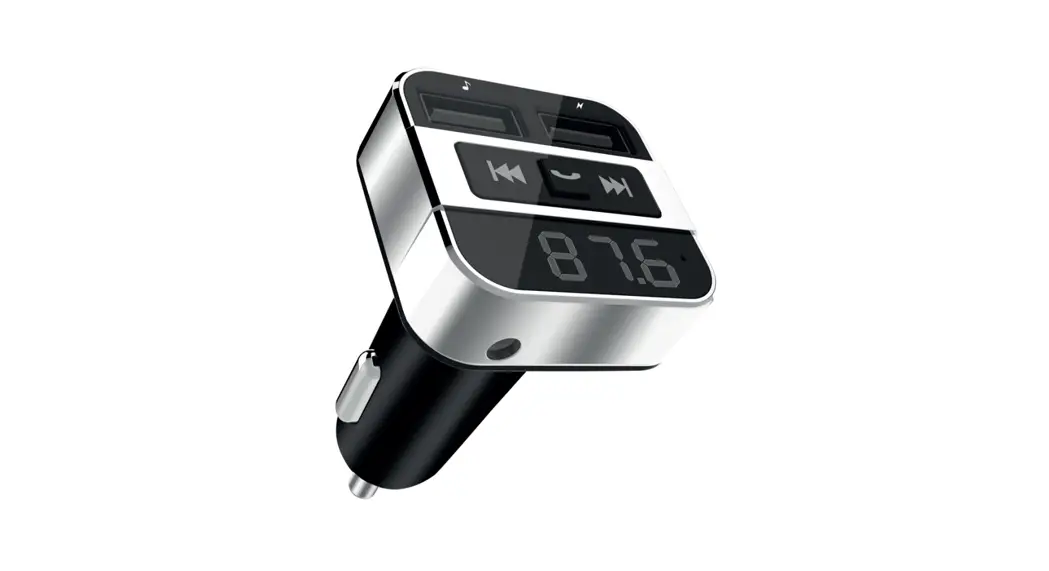
M55 Bluetooth Handfree
Product Information:
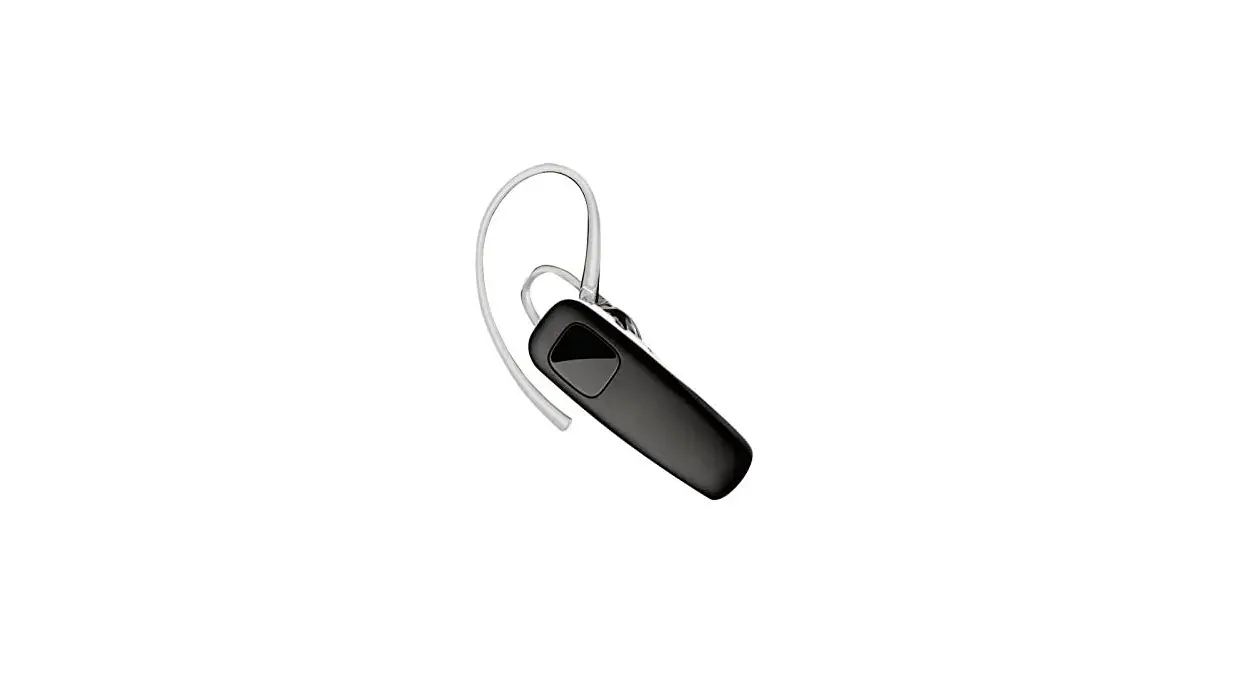
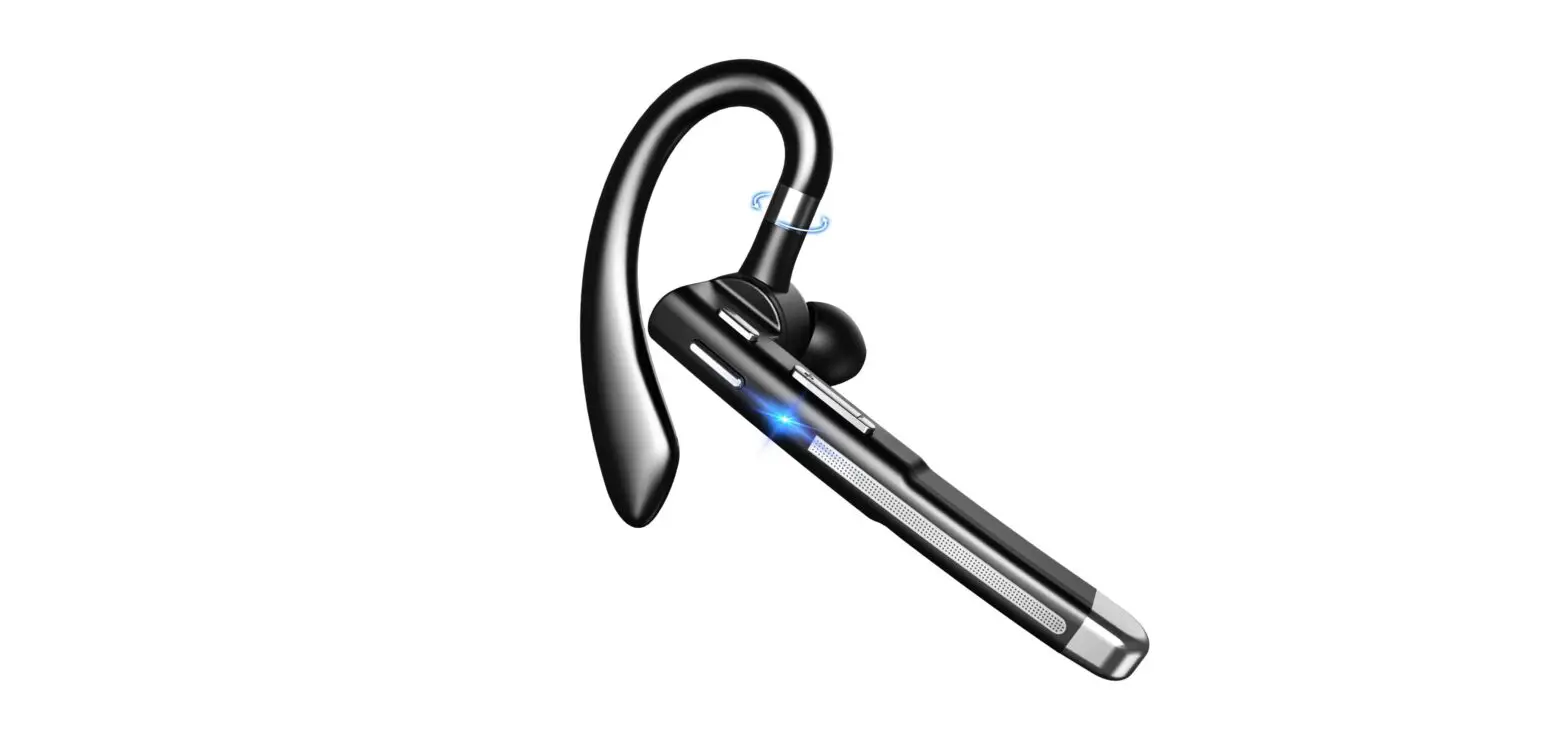
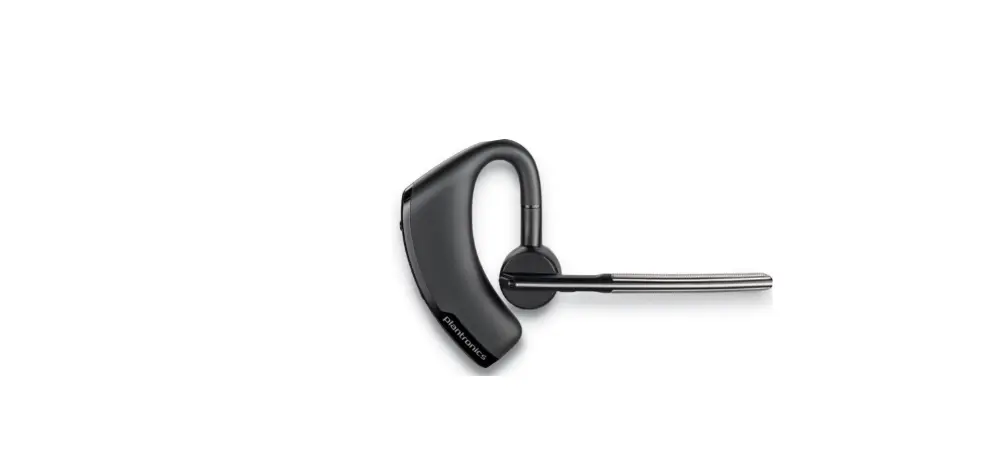
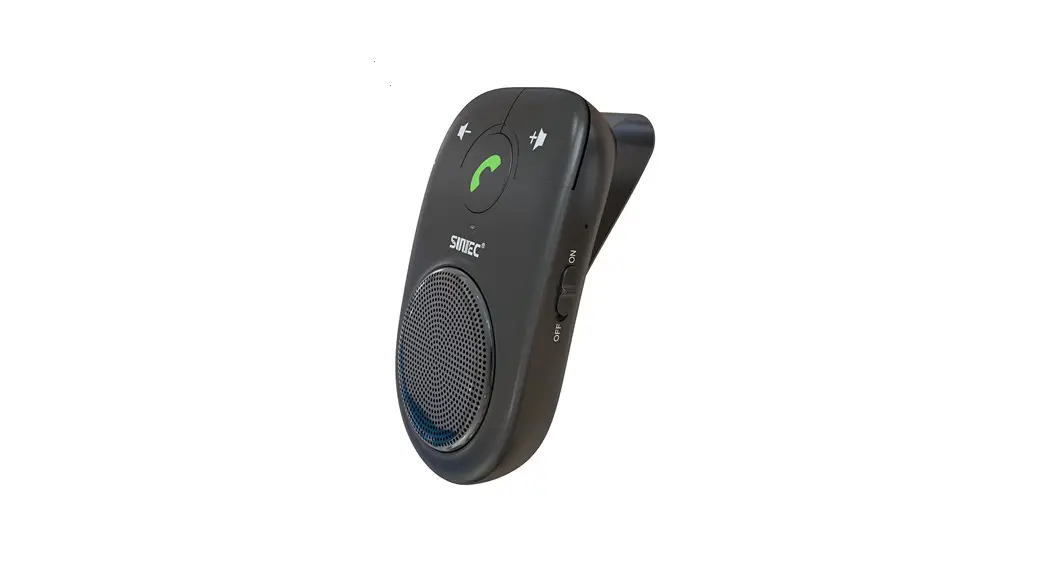
The M55TM is a Bluetooth-enabled headset that allows you to make
and receive calls from your phone hands-free. It features a call
button, volume button, indicator light, micro USB charging port,
and a power switch. The headset can be paired with two phones using
the Multipoint feature.
Product Usage Instructions:
- Pairing:
- Turn on the headset. The LED will flash red/white to indicate
pairing mode. - To pair a new or second phone, turn on the headset and press
the call button until the LED flashes red/white. - Activate the Bluetooth feature on your phone and use the phone
menus to add, search, or scan for new Bluetooth devices. - Select “PLT_M55” from the list of Bluetooth devices shown on
your phone. - If prompted for a passcode, enter “0000” (four zeros).
- Turn on the headset. The LED will flash red/white to indicate
- Connecting:
- After pairing, you can make a call using your phone’s keypad or
voice-dialing feature.
- After pairing, you can make a call using your phone’s keypad or
- Wearing the Headset:
- Position the loop of the gel eartip into the back curve of your
ear for a stable fit. - You can rotate the eartip to best fit your left or right
ear. - The gel eartip and speaker click into matching grooves to
prevent the eartip from moving out of place during use. - To ensure the best voice pickup, make sure the headset points
towards the corner of your mouth.
- Position the loop of the gel eartip into the back curve of your
- Tips:
- Stay within 33 feet of your phone to maintain a good Bluetooth
connection. - If your headset is out of range for more than 90 minutes, it
will enter DeepSleep mode to conserve battery power. To exit
DeepSleep mode, tap the Call button when back in range. - If the connection is lost, your headset will try to reconnect.
If it can’t, tap the Call button once or manually reconnect via the
phone’s Bluetooth device menu. - To disable voice commands, press and hold both the Call button
and Volume button until the white LED flashes twice. Repeat the
steps to reactivate the feature. - On an iPhone, you can check the headset battery by using the
phone’s settings.
- Stay within 33 feet of your phone to maintain a good Bluetooth
LEARN MORE
M55TM
TAKE A GOOD LOOK
E
A CALL BUTTON
C VOLUME BUTTON
· Take a call (1 tap or say “Answer”)
· Reject a call (1-second press or say “Ignore”)
B
· Redial (2 taps)
· Initiate phone’s voice-dialing
(2-second press until tone is heard)
· Reconnect lost Bluetooth® connection (1 tap if the headset doesn’t automatically reconnect)
· Activate pairing mode after initial set up
(press until red/white LED flashes)
· Exit DeepSleepTM mode (1 tap)
C A
D
· Volume presets (1 tap per level change)
D INDICATOR LIGHT (LED)
· Charging (solid red until charged) · Very low battery (3 red flashes at powering on) · Pairing mode (repeating red/white flashes)
E MICRO USB CHARGING PORT
· Use with the AC wall charger: 1 hour before first use 2 hours (full charge)
B POWER SWITCH
· Do not use headset while charging
· On (slide back)
· Off (slide forward)
Your headset may look slightly different than the illustration, but will still work as described.
CONNECT TO YOUR PHONE
PLT_M55
“Pairing” is the set-up process of introducing your headset to your phone. Before using your headset for the first time, you must pair it with your Bluetooth-enabled phone.
“Multipoint” lets you pair this headset with two phones so you can answer a call from either phone.
1. READY
First Time, Right Out of the Box: Turn on the headset. The LED flashes red/white to indicate pairing mode.
Pair New or Second Phone: Turn on headset. Press Call button until the LED flashes red/ white.
2. SET
3. CONNECT
Activate the Bluetooth feature on your phone, then use phone menus to “add,” “search” or “scan” new Bluetooth devices.
For Example:
iPhone: Settings > General > Bluetooth: On (starts the search for devices)
Select “PLT_M55” from the list of Bluetooth devices shown on your phone.
If phone asks for a passcode, enter four zeros (0000). You may see **** on screen.
Some phones also ask to confirm headset connection after pairing.
BlackBerry®: Settings/options > Headset LED will stop flashing red/ Bluetooth: On > Search for devices white once successfully paired/
connected.
AndroidTM: Settings > Wireless & Networks > Bluetooth: On > Scan for devices
You can now make a call using your phone’s keypad or voice-dialing feature.
TRY IT ON
The loop of the gel eartip tucks into the back curve of your ear for a stable fit.
Try on the headset. The eartip is positioned to suit most people, but you may want to rotate it to best fit your left or right ear.
The gel eartip and speaker click into matching grooves so the eartip doesn’t move out of place during use.
For best voice pickup, always check that the headset points towards the corner of your mouth.
For Left Ear For Right Ear
TIPS
Stay Near Your Phone
Bluetooth has a working “range” of up to 33 feet between the phone and headset before audio degrades and the connection is lost.
Try DeepSleep
If you leave your headset powered on but out of range from your paired phone for more than 90 minutes, your headset will conserve its battery power by entering into DeepSleep mode.
This power-saving mode keeps your headset charged for up to 5 months so it’s ready when you need it.
Once back in range with your phone, tap the Call button to exit DeepSleep mode. If your phone is also ringing, tap the Call button again to answer your call.
Know How to Reconnect
Your headset tries to reconnect a lost connection. If it can’t, then tap the Call button once or manually reconnect via the phone’s Bluetooth device menu.
If your headset remains out of range for more than 90 minutes, the DeepSleep mode will activate.
Turn Off Voice Commands
If you prefer not to use the voice-answer feature, you can disable it and just use the Call button.
With the headset powered on, simultaneously press the Call button and Volume button until you see the white LED flash twice. To reactivate the feature, just repeat the steps and you will see the white LED flash twice.
Use an iPhone to Check Headset Battery
An icon representing the battery level of your headset is automatically displayed on-screen beside the phone’s battery level icon.
Listen to Music and More
If your phone also has the Bluetooth “A2DP” stereo music feature, then your music, podcasts, favorite internet radio and other streaming audio can be heard through this headset.
Use Multipoint One Call at a Time
Once you have paired your two phones, it’s easy to answer calls from either phone.
When already on a call, you will hear a ringtone notification of the incoming call from the second paired phone.
To answer a second call from the other
phone, you must end the current call (tap Call button) so new call automatically answers.
If you choose not to answer the second call, it will go to voicemail.
SPECIFICATIONS
Talk Time Standby Time DeepSleep Mode Operating Distance (Range) Headset Weight Charge Connector Battery Type Charge Time (Maximum) Power Requirements Bluetooth Version Bluetooth Profiles
Operating Temperature Storage Temperature Charging Temperature
Up to 11 hours Up to 16 days Up to 150 days Up to 33 feet (10 meters), Class II 8 grams Micro USB charging Rechargeable non-replaceable lithium ion polymer 2 hours for full 5V DC 180mA Bluetooth v3.0 A2DP, Hands-Free (HFP) Profile 1.6 and Headset (HSP) Profile 1.2 32°F – 104°F (0 – 40°C) 32°F – 104°F (0 – 40°C) 32°F – 104°F (0 – 40°C)
NEED MORE HELP?
Read these guides for set up, use and safety tips. For more help, don’t return to the store, call our team of problem solvers at 1-866-363-2583.
© 2012 Plantronics, Inc. All Rights Reserved. Bluetooth is a registered trademark of Bluetooth SIG, Inc. and any use by Plantronics is under license. All other trademarks are the property of their respective owners. Patents US 5,712,453; Patents Pending. 87608-06 (4-12) EN-US
Z302 N10687