
 Phone calls made easy with Roger™ Guide
Instruction Manual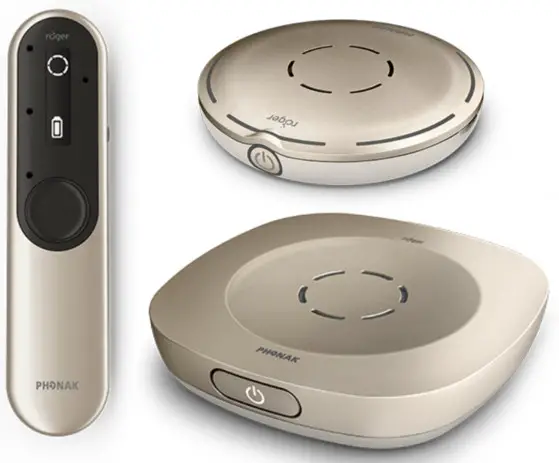
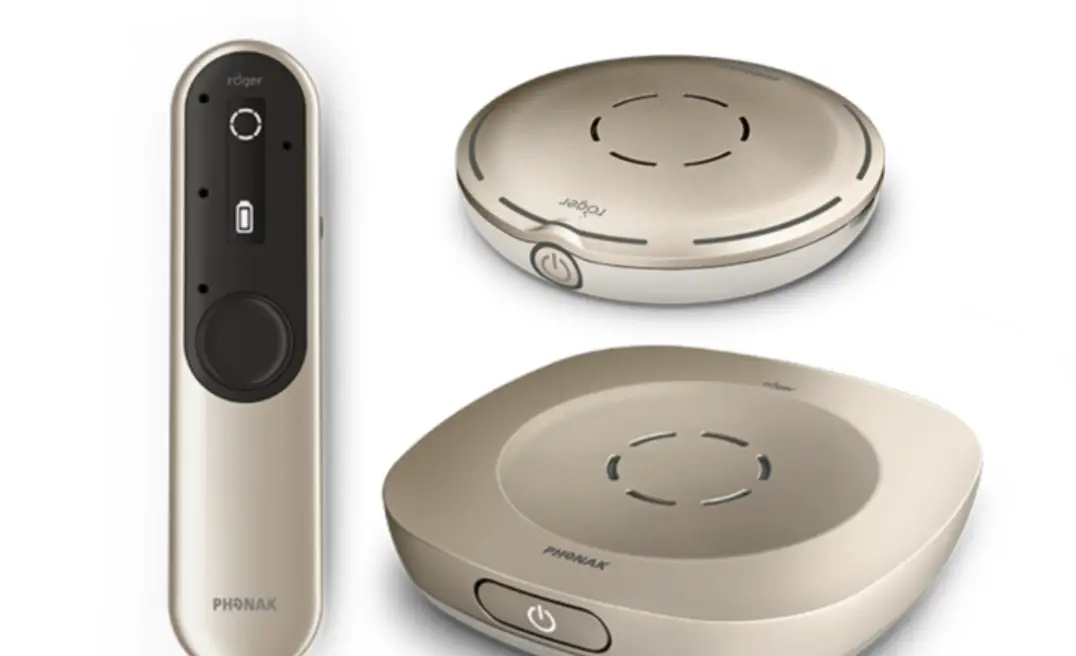
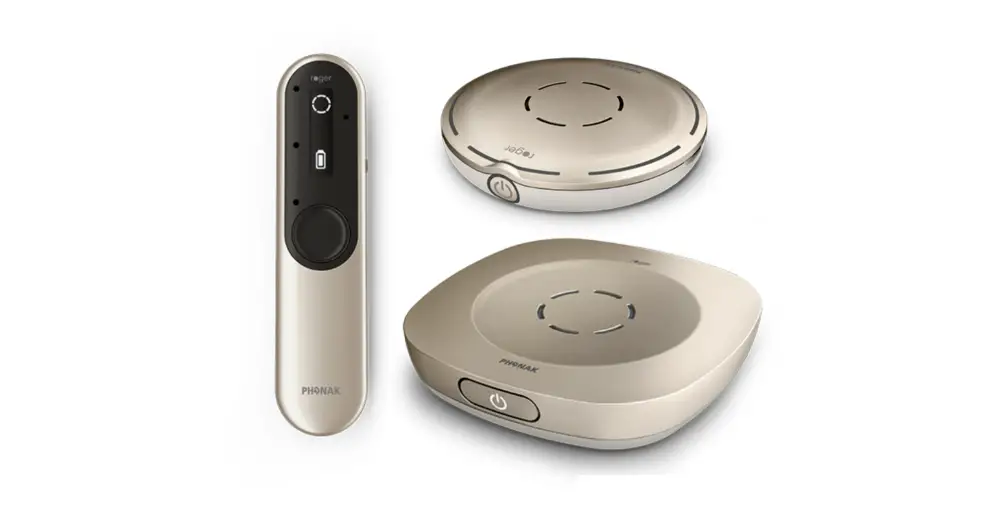
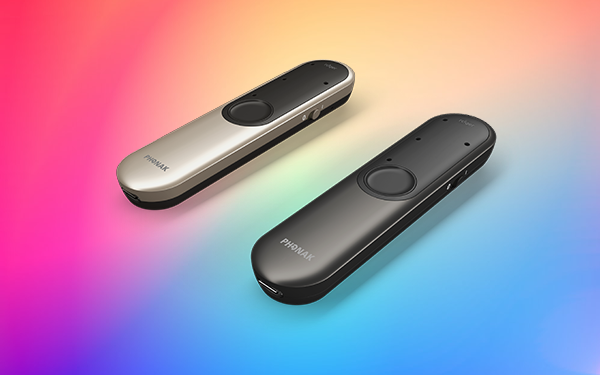
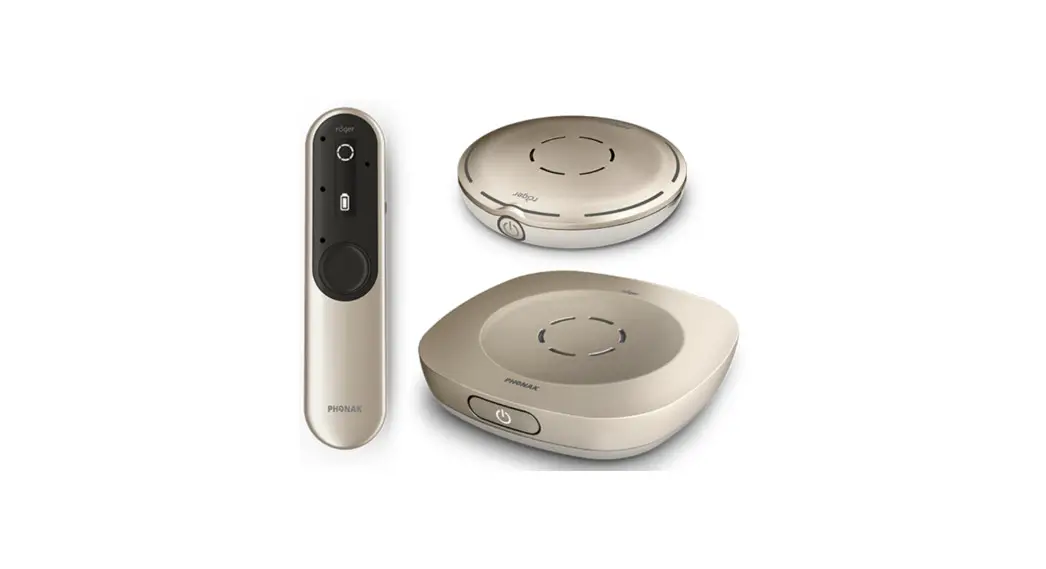
All microphone options at a glance
| Phone option | Roger On™ (iN) | Roger Table Mic II (iN) | Roger Select™ | Roger Select™ iN | Additional parts |
 | 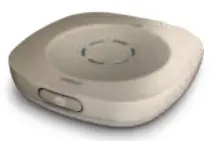 |  | | ||
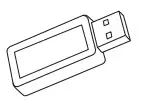
| Portable device/PC / laptop for phone calls over internet (wireless via Bluetooth®) |  | Optional: Bluetooth USB adapter | |||
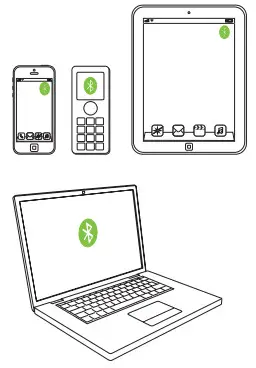 |  | ||||
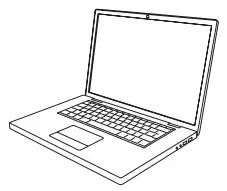
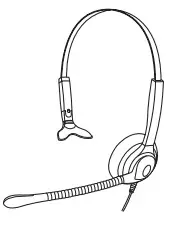
| PC / laptop for phone calls over internet (via cable) | | | | | Optional: External headset microphone |
 |  | ||||
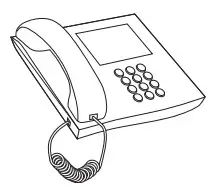
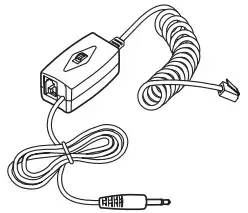
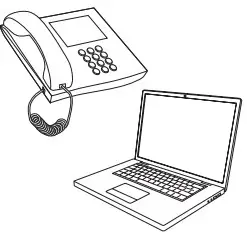
| Stationary desktop phone (via cable) | | | | | Phone recording adapter |
 |  | ||||
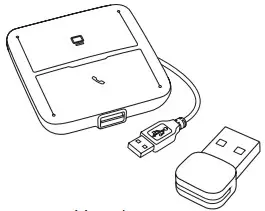
| Call center (via Bluetooth) | | Headset communications hub and Bluetooth USB adapter | |||
 |  |
Other phone options from Phonak are available, check www.phonak.com/phone-solutions
The Bluetooth® word mark and logos are registered trademark owned by Bluetooth SIG, Inc. and any use of such marks by Sonova AG is under license.
Portable device/PC/laptop for phone calls over internet
(VoIP, e.g., Zoom, MS Teams) wireless via Bluetooth
Required device
| |
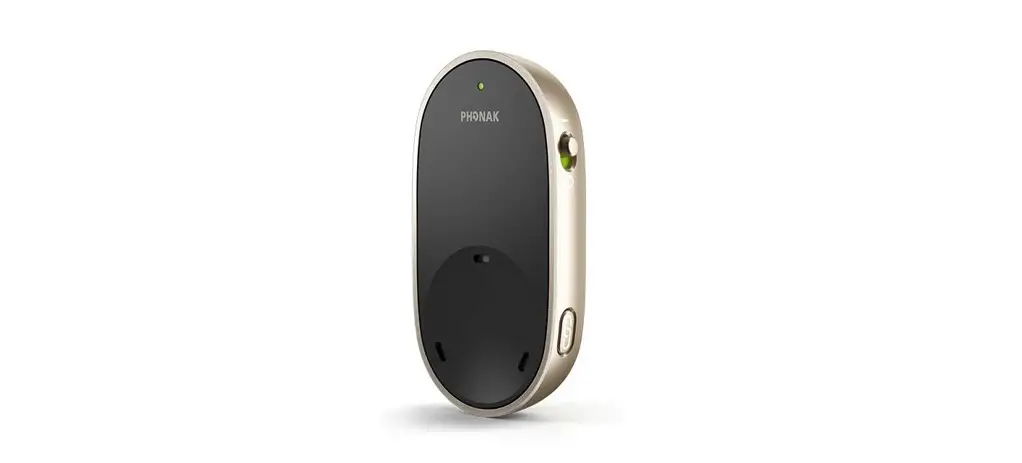
| Roger Select | Optional: Bluetooth USB adapter (Phonak part number: 076-0856) |
Using Bluetooth
Simply pair the Roger Select with your Bluetooth enabled portable device/PC/laptop. For making a phone call, you don’t need to hold your phone to your ear. And the best thing is, you hear the caller in both ears!
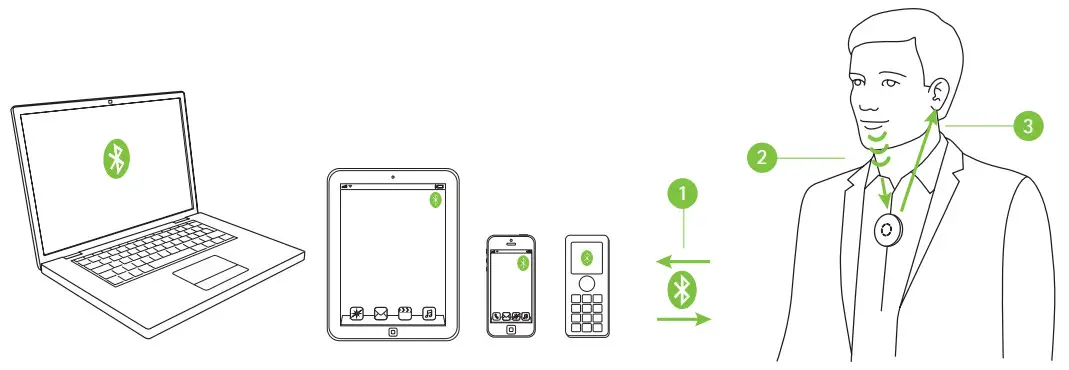
- Pair your portable device/PC/laptop with the Roger Select
- During the phone call, simply talk into the Roger Select
- Hear the caller’s voice in both ears!
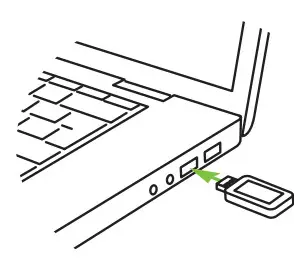
If your PC/laptop does not have Bluetooth integrated, then plug the Bluetooth USB adapter into a free USB slot on your PC/laptop and pair the Bluetooth USB adapter with the Roger Select.
Note: This solution does not work with hearing aids with RogerDirect™.
PC/laptop for phone calls over internet
(VoIP, e.g., Zoom, MS Teams) via audio cable
Required devices (options)
| |
| Roger Select Roger Select iN | Roger Table Mic II Roger Table Mic II iN |
| |
| Roger On Roger On iN | Optional: External headset microphone |
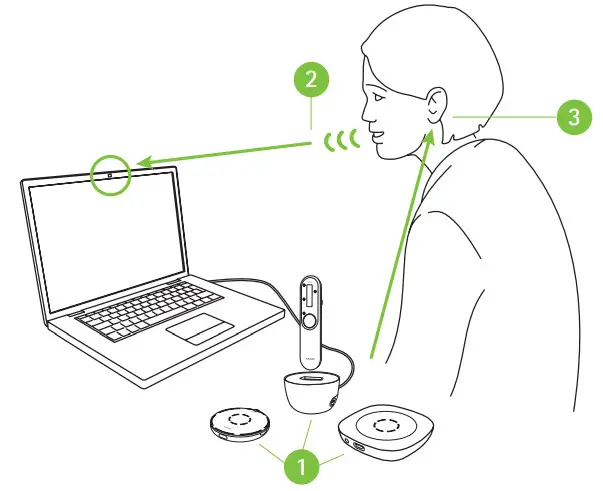
Using the integrated microphones from a PC/laptop
This easy-to-set-up option sends the caller’s voice directly to both ears.
- Connect the headphone output of your PC /laptop to the docking station’s audio input or directly to the Roger microphone’s audio input
- During the call, speak into the integrated PC /laptop microphone
- Hear the caller’s voice in both ears!
Using external headset microphone
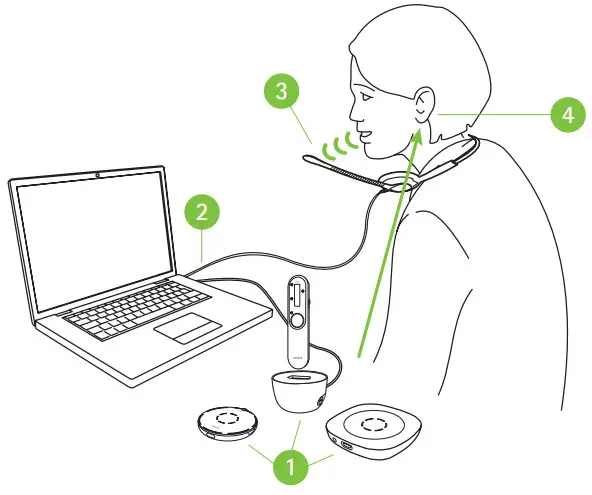
Using a headset microphone will ensure a better sound quality of your own voice.
Note: You may need to adjust the audio settings of your PC or VoIP software to define the 3.5 mm jack as audio output and the USB microphone as microphone input.
- Connect the headphone output of your PC/laptop to the docking station’s audio input or directly to the Roger microphone’s audio input
- Connect the headset microphone to the microphone input of your PC/laptop, alternatively, you can also connect the headset to a USB port if it is a USB headset
- During the call, speak into the external microphone
- Hear the caller’s voice in both ears!
PC/laptop for phone calls over internet
(VoIP, e.g., Zoom, MS Teams) via USB cable
Required device
Roger On
Roger On iN
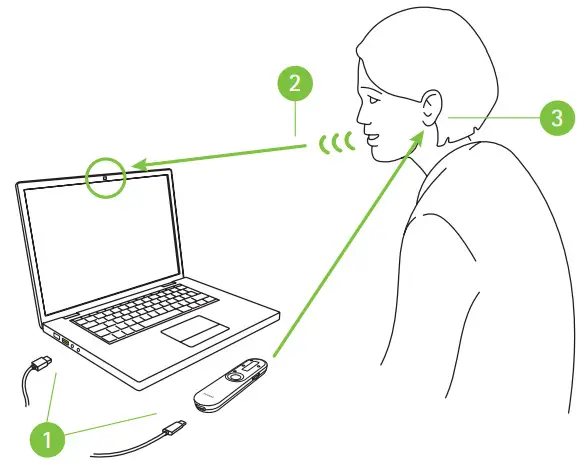
Using USB cable
- Connect the USB charging cable between your PC/laptop and Roger On
- During the phone call, speak into the integrated PC/laptop microphone or use an external microphone as shown on the previous page
- Hear the caller’s voice in both ears!
Stationary desktop phones
via cable
Required devices (options)
| |
| Roger Select Roger Select iN | Roger Table Mic II Roger Table Mic II iN |
| |
| Roger On Roger On iN | Phone recording adapter (e.g. Phone Kit 055-4064) |
Using phone recording adapter
To answer the phone, pick up the handset and hold it to your mouth because you still need to talk into the handset.
The voice from the caller, however, will be sent directly to both ears.
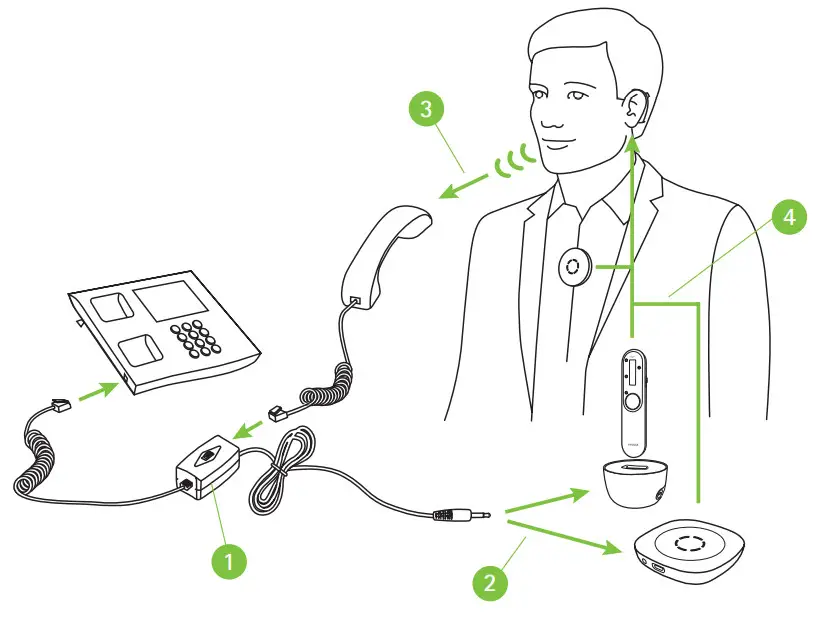
- Install the phone recording adapter between the phone and the handset
- Connect the audio output of the phone recoding adapter to the docking station’s audio input or directly to the Roger microphone’s audio input
- During the call, speak into the phone’s handset
- Hear the caller’s voice in both ears!
Call center
(PC/laptop and desk phone) wireless via Bluetooth
Required device
| 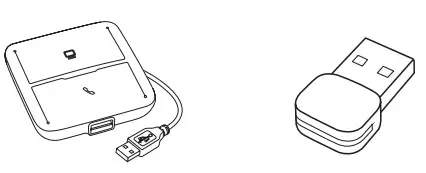 |
| Roger Select | Headset communications hub (e.g., Poly MDA200), Bluetooth USB adapter (e.g., Poly PLT-BT300) |
Using Bluetooth
This is the most advanced solution for busy office calls. Phones can be switched between PC and office phone. In both cases, the phone is transferred to the Roger Select which is ideally worn around the neck enabling you to have both hands free during the phone call.
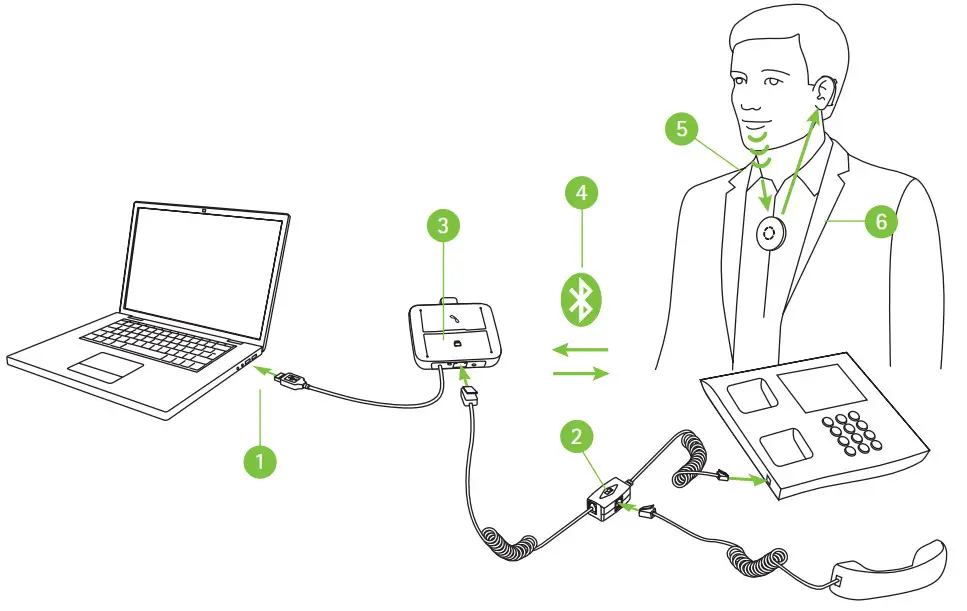
- Connect the headset communications hub to your PC/laptop
- Install the adapter of the headset communications hub between the phone and the handset
- Plug in the Bluetooth USB adapter into the headset communications hub
- Pair the Bluetooth USB adapter with the Roger Select
- During the call, speak into the Roger Select
- Hear the caller’s voice in both ears!
Note: This solution does not work with hearing aids with RogerDirect™.
life is on
At Phonak, we believe that well-hearing equates to well-being and is essential to living life to the fullest. For more than 70 years, we have remained passionate about creating a world where ‘life is on’ for everyone. Our innovative hearing solutions are designed for people of all ages and all degrees of hearing loss, to connect socially, thrive mentally and emotionally.


 Hearing Aid Microphones - Roger | Phonak