41-0054-001 Hybrid Wifi Adapter
Product Information: WiFi Adapter
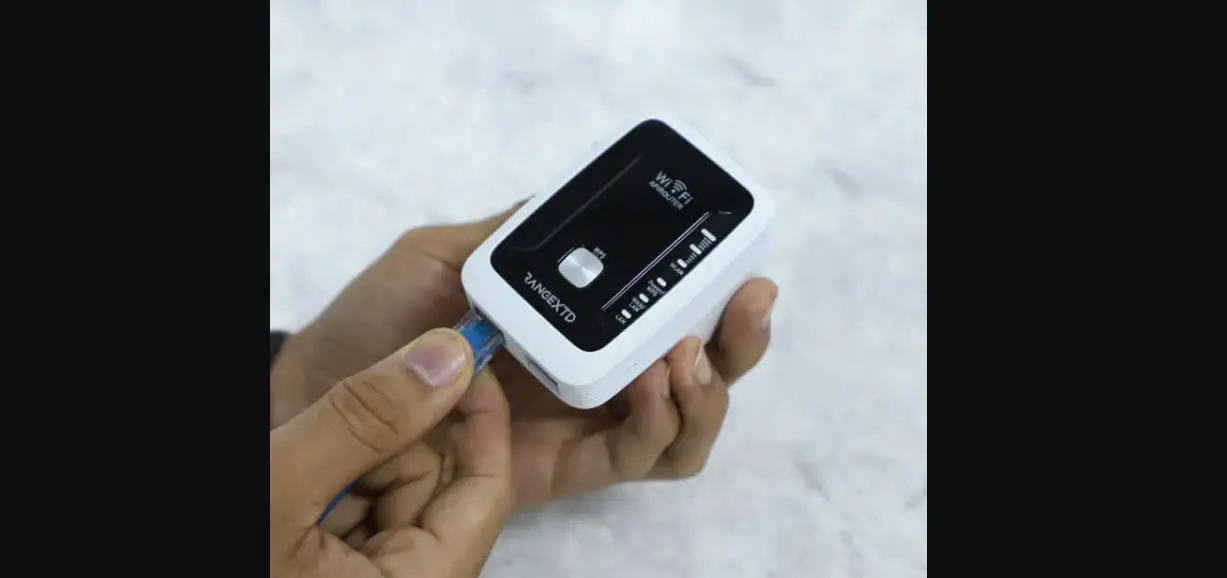
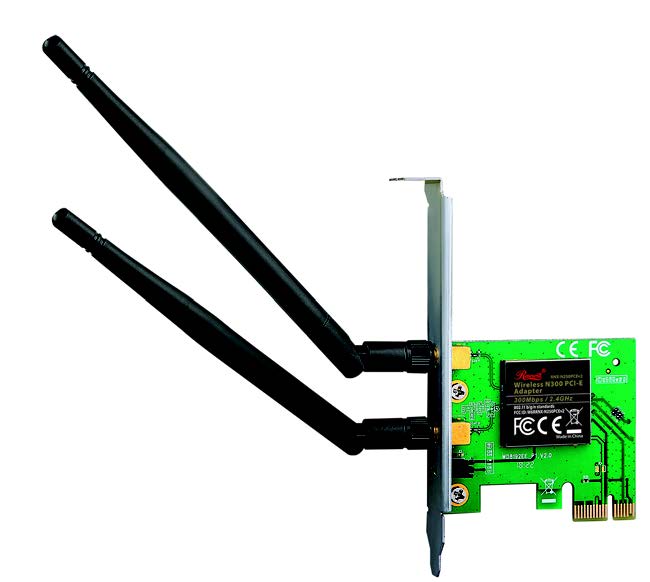
The WiFi Adapter is a device that enables wireless communication
between an inverter and a router. It has indicator lights that show
the status of the connection and running status. The adapter can be
installed by attaching it to the inverter’s WiFi communication
interface, and it requires an app called AIMS Hybrid APP for
operation.
Product Usage Instructions
Step 1: Installation
Attach the adapter to the inverter’s WiFi communication
interface as shown in the diagram. Do not hold the adapter’s body
to rotate while connecting or removing. Only turn the nut piece to
prevent breakage. Do not remove waterproof plug.
Step 2: Status Check
Check the indicator lights on the adapter to determine the
status of the connection and running status. The NET light
indicates the connection to the router, and the COM light indicates
communication with the inverter. The READY light indicates the
adapter’s running status. Refer to the table in the manual for a
detailed explanation of the different light patterns.
Step 3: Fault Troubleshooting
If there is an abnormality in the data on the platform, refer to
the table in the manual for simple troubleshooting tips. If the
fault doesn’t clear or the indicator light status is not listed in
the table, contact customer support at AIMS Power. Make sure to
power on the adapter for at least 2 minutes before
troubleshooting.
41-0054-001
WiFi Adapter Quick Guide
Read this quick guide before installing the app and and keep it for future reference. Due to ongoing product upgrades, the content of this manual may change from time to time. For the most up to date information, refer to the app.
Scan QR code below to download the AIMS Hybrid APP.
1. Wifi Adapter Installation Step1: Attach adapter to the inverter’s WiFi communication interface as shown in the diagram.
Warning: Do not hold the adapter’s body to rotate while connecting or removing. Only turn the nut piece to prevent breakage.
Note: Do not remove waterproof plug.
2. Status
Check Indicator lights on adapter
Lights
Implication Status Description(All lights are single green lights.)
NET COM
1.Light off: Connection to the router failed. Communication 2.On 1s/Off 1s(Slow flash): Connection to the router succeeded.
with router 3.Light stays on: Connection to the server succeeded. 4.On 100ms/Off 100ms(Fast flash): Distributing network fast.
Communication with inverter
1.Light stays on: Adapter connected to the inverter. 2.Light off: Connection to the inverter failed. 3.On 1s/Off 1s(Slow flash): Communicating with inverter.
READY
Adapter running status
1.Light off: Running abnormally. 2.On 1s/Off 1s (Slow flash): Running normally. 3.On 100ms/Off 100ms(Fast flash): Restore factory
settings.
When the status of the adapter is normal and connected to WiFi the following indicators will illuminate:
1. Connection to the app server succeeded: NET light stays on after the adapter is powered on.
2. Adapter running normally: READY light flashes. 3. Connection to the inverter succeeded: COM light stays on.
3. Fault Troubleshooting
If the data on the platform is abnormal when the adapter is running, refer to the table below for simple troubleshooting tips. If the fault doesn’t clear or the indicator light status is not listed in the table below, contact our Customer Support at AIMS Power. (Note: Power-on for at least 2 mins)
NET NET
Any state
OFF
Slow flash
OFF
Fast flash Any state
COM READY
Fault Description COM READY
Fault Cause
Solution
OFF
Slow flash
Abnormal
1. Connection between adapter inverter is loose.
and
1. Check the connection between adapter and inverter. Remove the adapter and install again. 2. Check inverter’s
communication with 2. Inverter does not communication rate to see if it
inverter
match with adapter’s matches with adapter’s.
communication rate. 3. Press Reset button for 5s,
reboot adapter.
ON
Slow flash
Connection between
adapter and router abnormal
1. Adapter does not have a network.
2. Router WiFi signal
1. Check if the wireless network is configured.
2. Improve router WiFi
strength weak.
signal strength.
ON
OFF
Any state Any state
Slow flash
OFF
Any state
Connection between adapter and router normal, connection
between adapter and remote server
abnormal.
1. Router networking abnormal. 2.The server point of adapter is modified. 3.Network limitation,
server cannot be
connected.
1. Check if the router has access to the network.
2. Check the router’s setting, if the connection is limited.
3. Contact our customer service.
Power supply abnormal
1. Connection between adapter and inverter is loose or abnormal. 2. Inverter power insufficient. 3. Adapter is abnormal.
1. Check the connection, remove the adapter and install again. 2. Check inverter output power. 3. our customer service.
Networking status
Normal
1. Exit automatically after 2mins. 2. Press Reset button for 5s, reboot adapter. 3. Press Reset button for 10s, restore factory settings.
Fast flash
Restore factory settings
Normal
1. Exit automatically after 1 min. 2. Press Reset button for 5s, reboot adapter. 3. Press Reset button for 10s, restore factory settings.
USER MANUAL for AIMS HYBRID APP
Please make sure Bluetooth and WiFi are ON and the router is connected to the network normally. 1.Registration Go to the APP and register. Click “Register” and create your account there. Enter email, phone number and create a password. You will receive a verification code to complete registration. 2.Create a Plant (this is your solar system) Click “Add Now” to create your plant. Complete the plant basic info and other info here:
3.Add the WiFi Adapter Method 1: Enter adapter’s SN manually. Method 2: Click the icon on the right and scan to enter adapter’s SN You can find the adapter’s SN on the external packaging or on the adapter’s body. NOTE: The term Logger on the app is referring to the WiFi adapter.
4.Network Configuration Step 1: Click”Go to Configure”to set the network. (Please make sure Bluetooth and WiFi are ON.)
If configuration failure occurs, check the following reasons and try it again. 1. Make sure WLAN is ON if applicable. 2. Make sure WiFi is normal. 3. Make sure wireless router does not have any blocks. 4. Remove the special characters in the WiFi network. 5. Shorten the distance between the phone and device (when using Bluetooth) 6. Try to connect to another WiFi if available.
Warning: Make sure the adapter is working properly before you leave the site. Prior to leaving the site, confirm your system is operational. If there is a problem, contact tech support at 775-359-6703.
If you have any technical questions about our products, please contact us and provide the following information:
1. Product model and serial number of adapter. 2. Product model and serial number of connected inverter.
In order to assist you with a warranty issue in the future, complete the warranty card and keep it for future reference.
User Name
Customer Address
Failure Cause and Treatment
Warranty Policy
See separate warranty policy that is included with your purchase.
Step 2: Please wait for a few minutes. Then click “Done” and view plant (solar) data.
Notice: 5 GHz WiFi is not supported . Only 2.4 GHz.