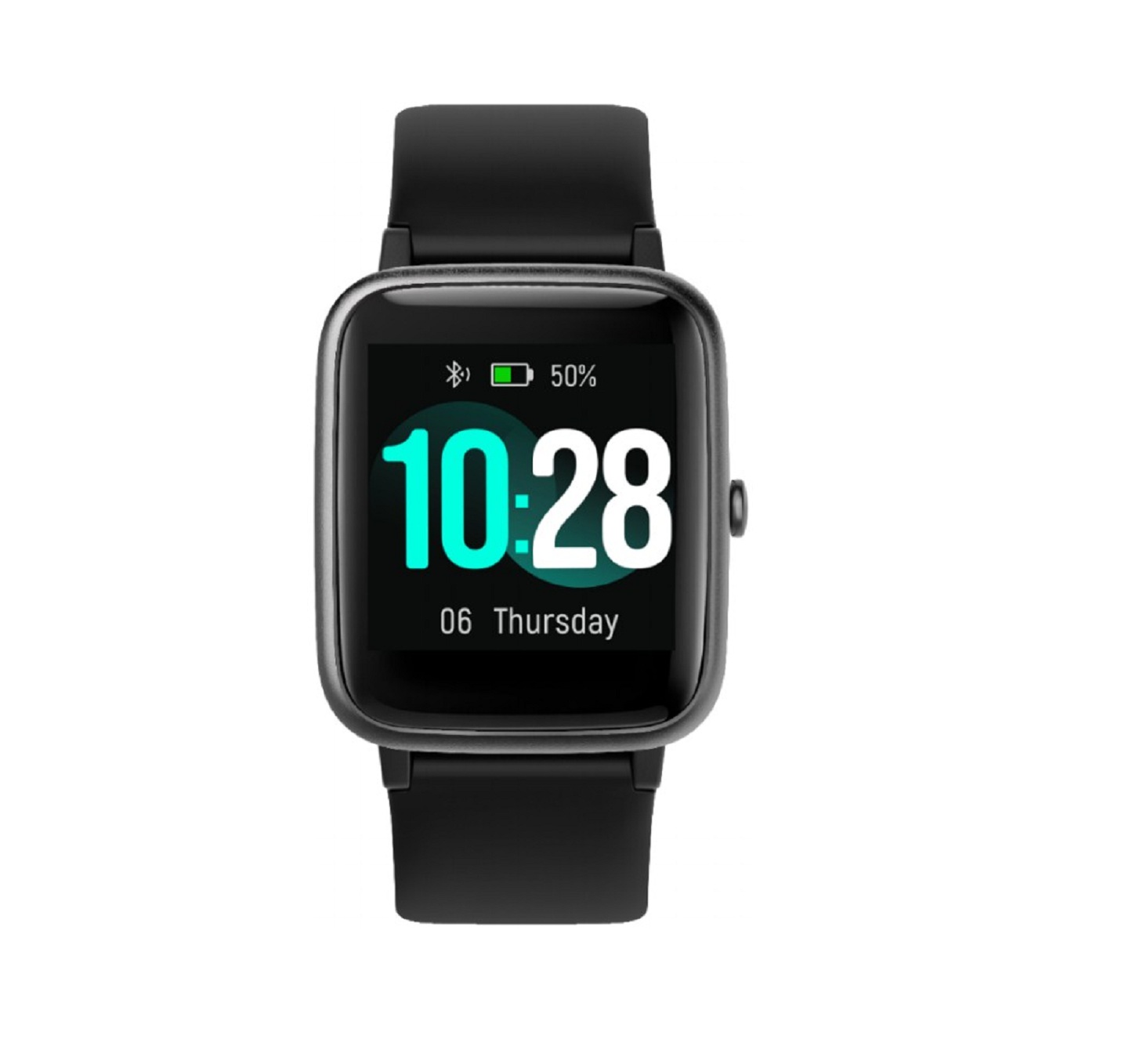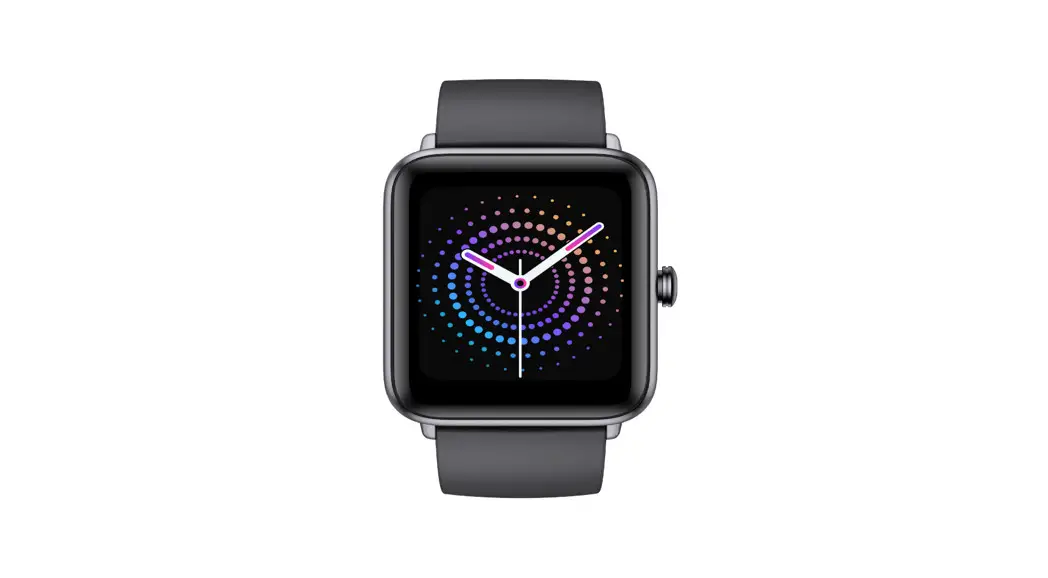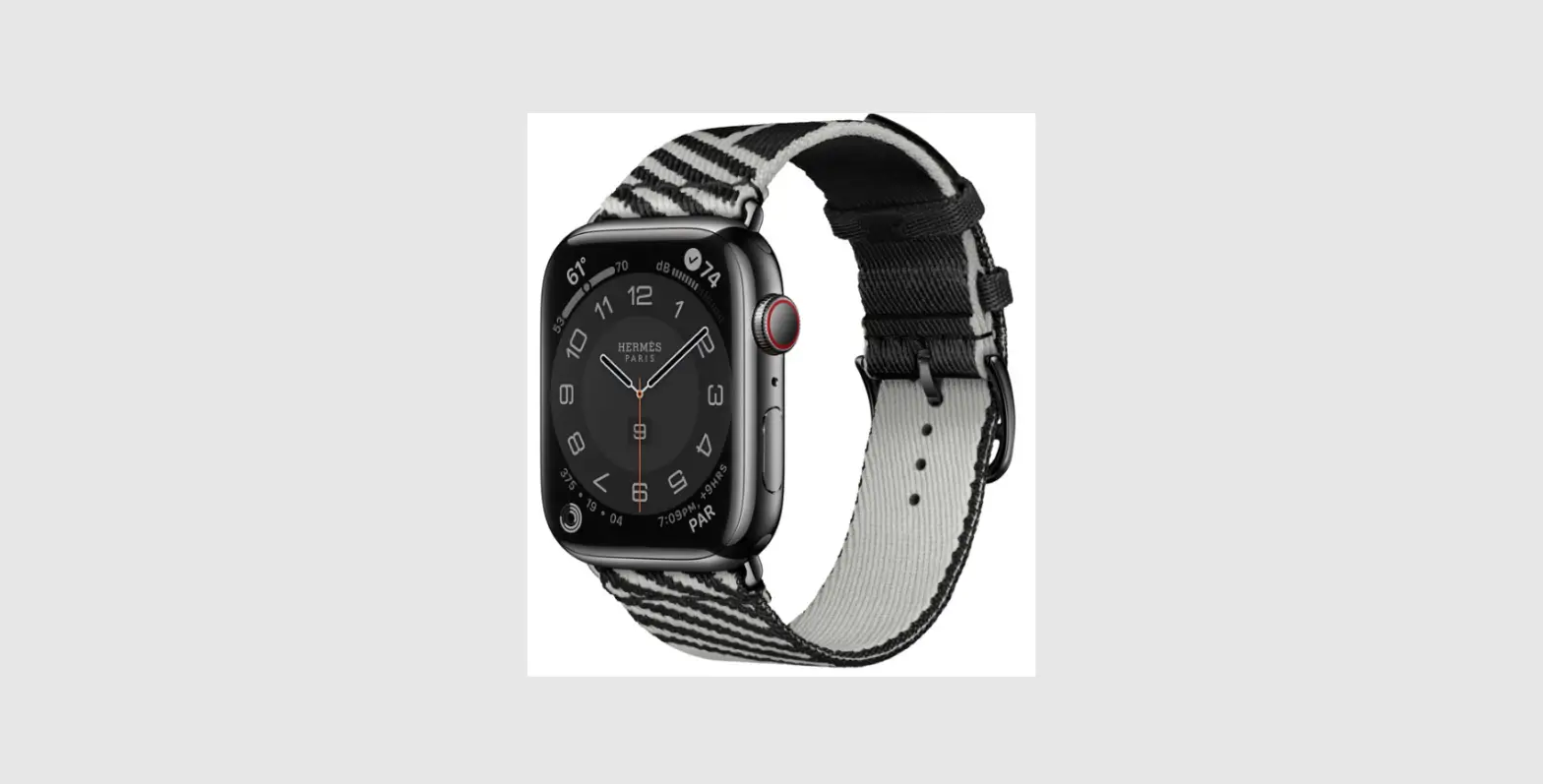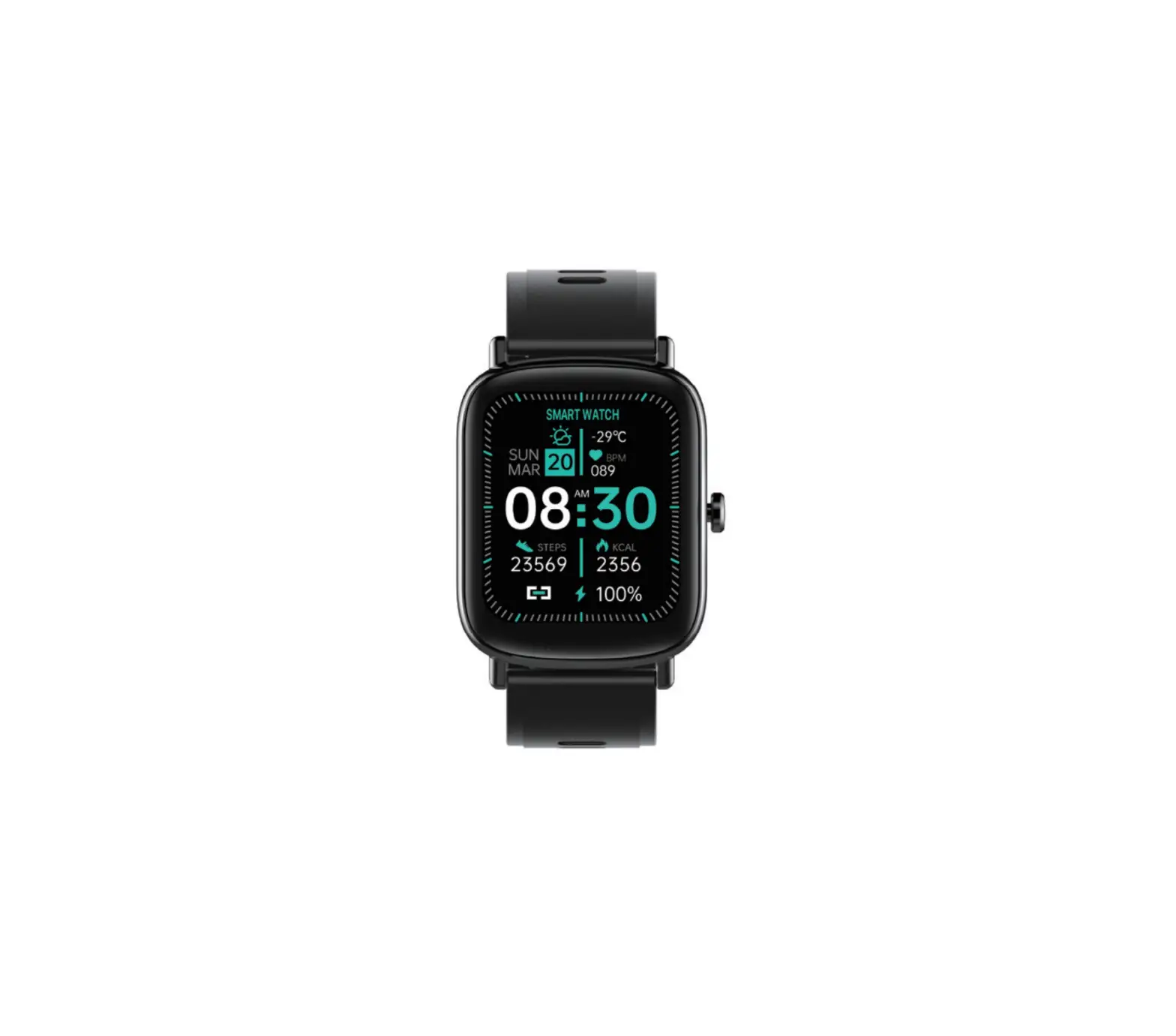
 USER GUIDE
kogan.com
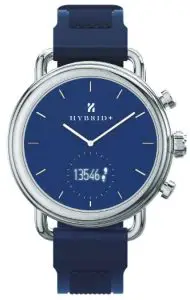
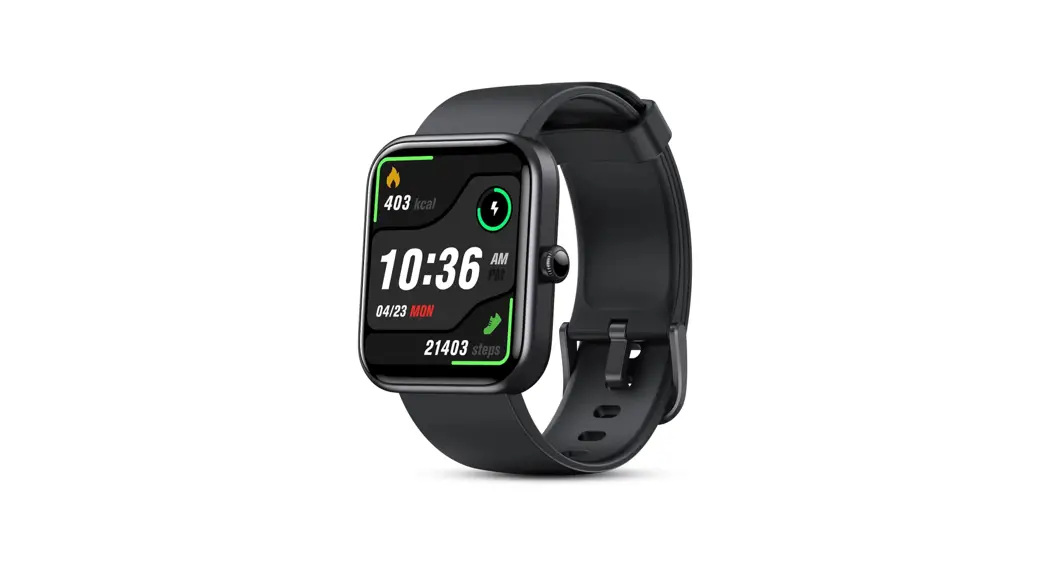
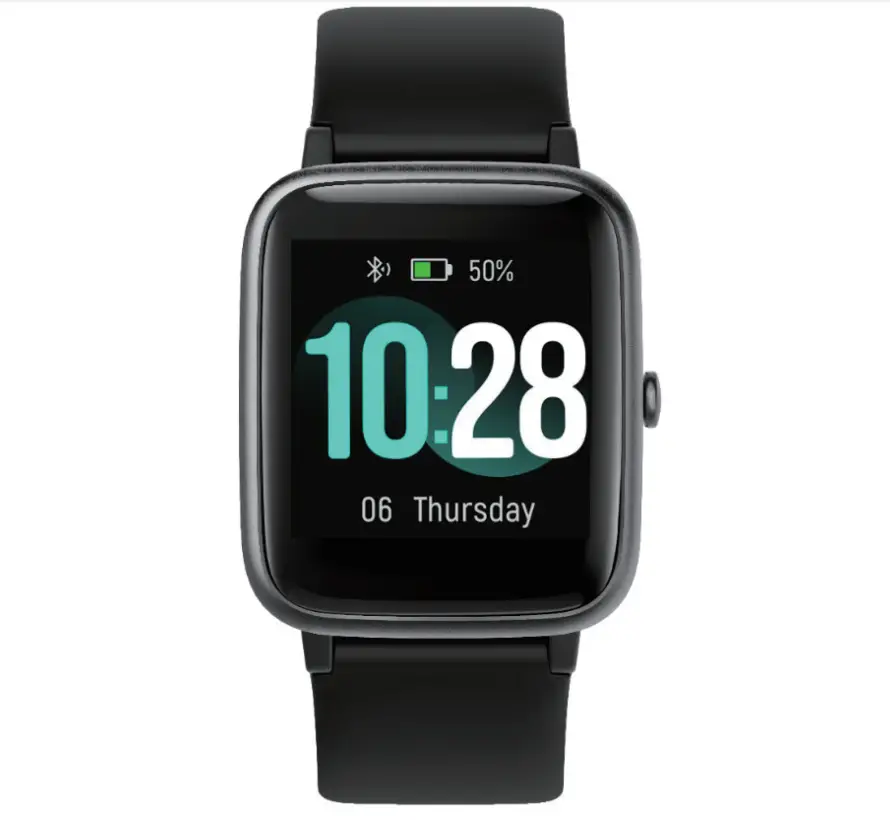
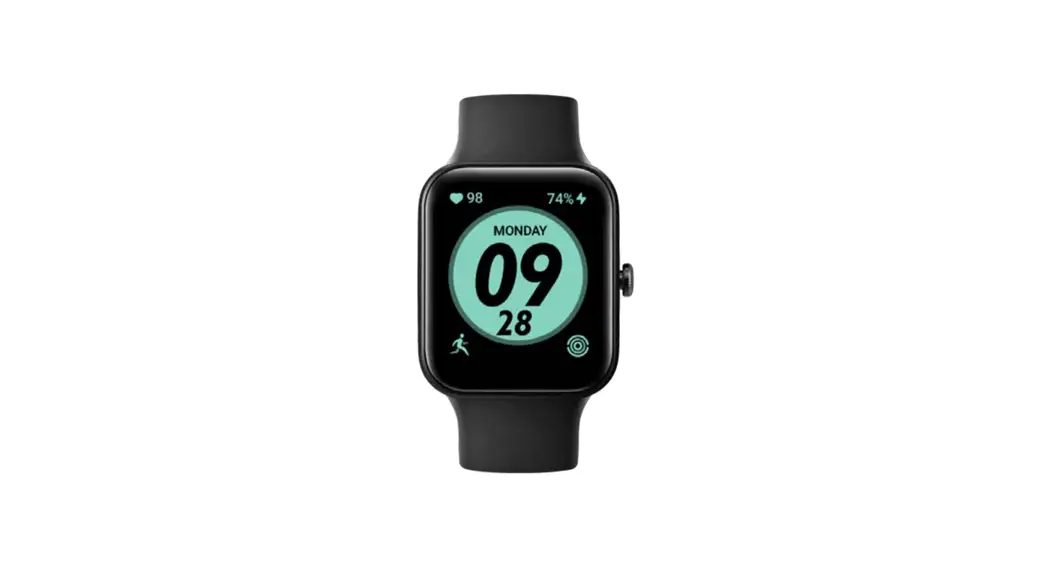
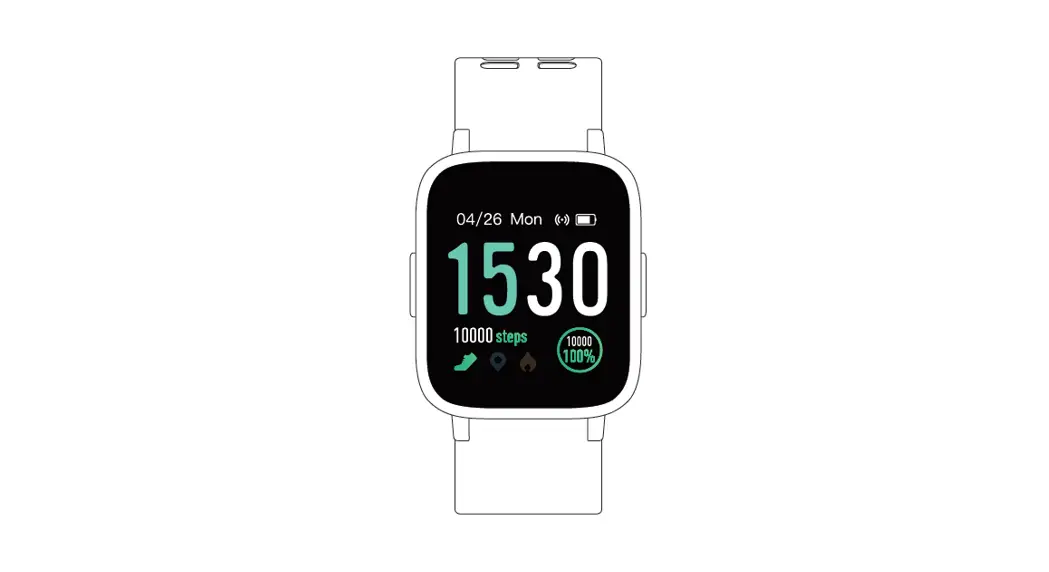
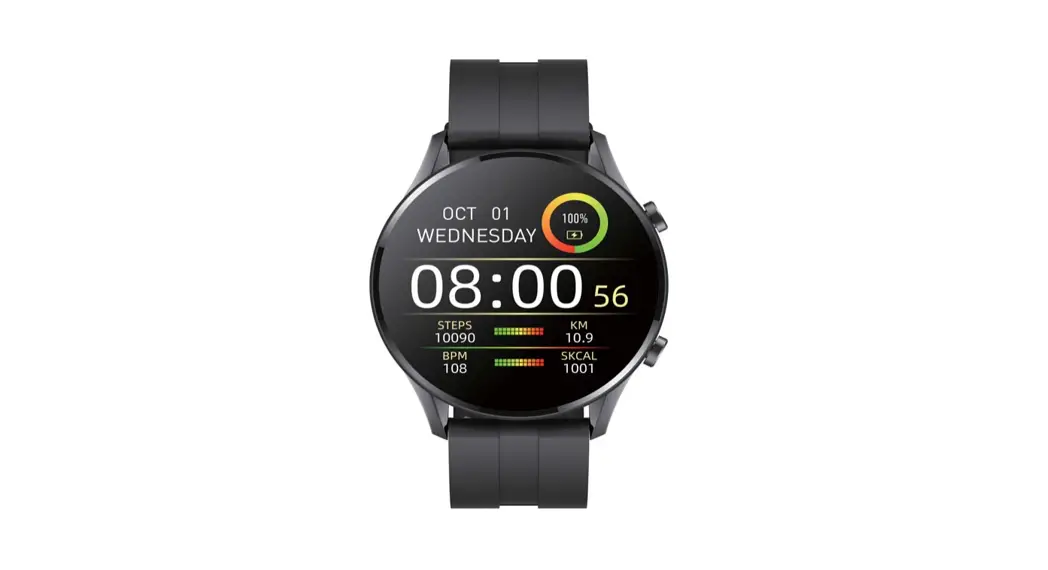
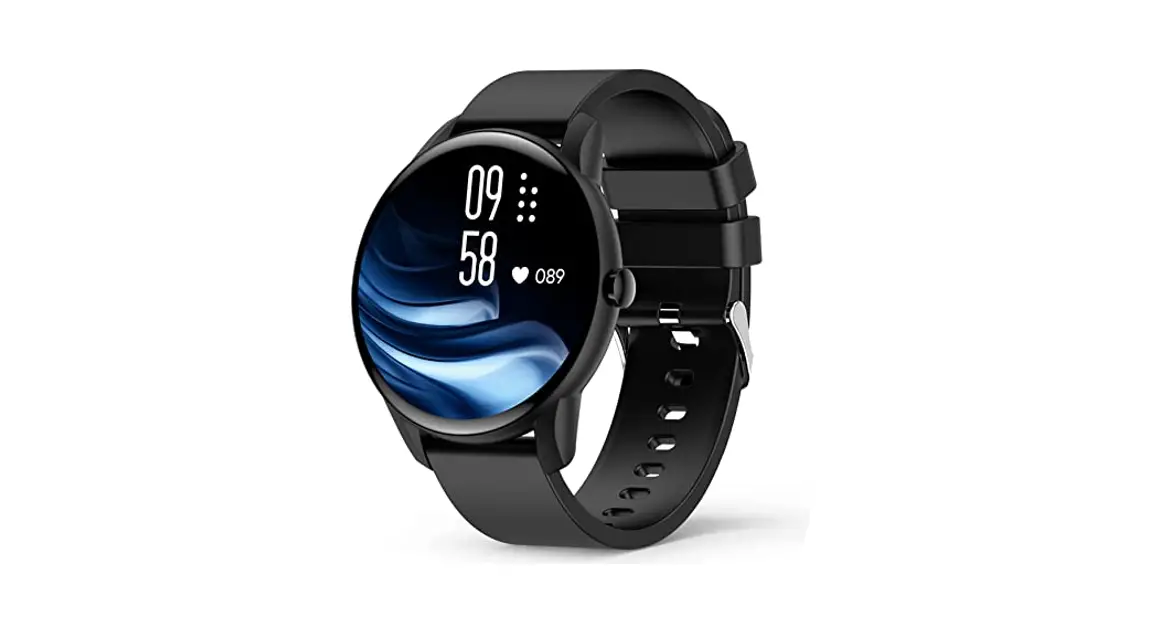
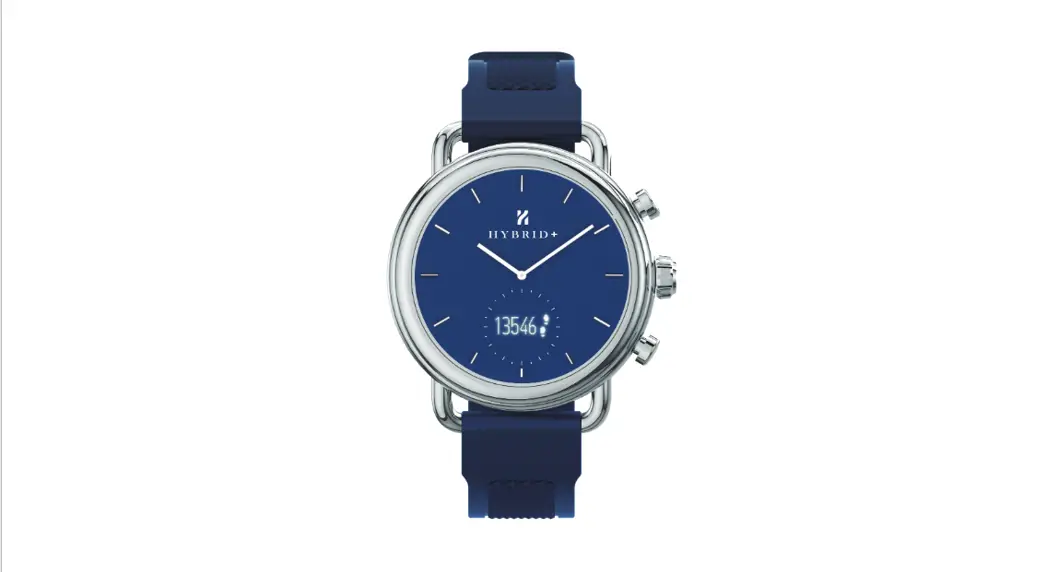
HYBRID+ SMARTWATCH
KAHBWCHWHTA & KAHBWCHBLKA
OVERVIEW
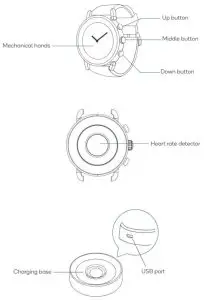
CHARGING
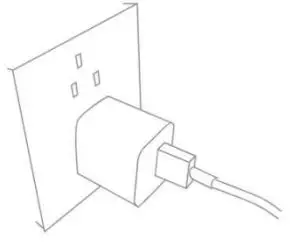
- Connect the USB cable to the USB power adapter.
- Connect the other end of the USB cable to the charging base.
- Connect the USB power adapter to a power outlet.

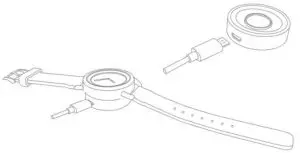
- Lay the back of the watch on the charging base to charge the watch.
Notes:
- Fully charge the watch before using it; it takes about two hours to complete a full charge. When using a computer USB port or other devices as a charging source it may take up to 3 hours to fully charge the watch.
- Use the charger only on a flat and stable surface.
- If there is an obstacle between the watch and the charging base, the watch may not charge properly.
- After charging the watch, turn off the power to the charger. To avoid damaging the watch, use the original charging accessories provided.
- Do not use the charging device if it is damaged.
- Disconnect the charging device during the cleaning of the watch, during a thunderstorm or after a prolonged period of inactivity.
- Do not attempt to disassemble or modify the watch, the charging cable, or the charging base.
- Do not twist or pinch the charging cable.
- Do not attempt to remove or replace the battery. The substances contained in this product and the battery can cause damage to the environment or health. Ensure to dispose of it properly in accordance with local regulations.
Battery
The fully charged battery can last for about 3 days. If the charge is insufficient, the smart functions will be automatically deactivated, and the hands will continue to indicate the time for approximately 30 days.
WARNING: The battery life with smart functions active is estimated based on the average use of the smartwatch. The actual duration may vary depending on the use of the device and based on the amount and time of activity of the functions and notifications.
APP INSTALLATION
Download the app
Scan the QR code below to download LeMovt, or search for “LeMovt” in the Apple App Store and Google Play Store to download and install the app. LeMovt supports smartphones with Bluetooth 4.2, and Android 6.0 + or iOS 9 +.
 https://d.fashioncomm.com/download/dl.html?g=ITPRO
Register an account
- Ensure that the mobile device has a stable internet connection (through Wi-Fi or cellular networks).
- Open the LeMovt app on your phone. Register the product account with an email address by clicking Email Registration on the page.
- For the initial pairing, press any button on the watch to activate the device and ensure the Bluetooth function on the mobile device is active.
Watch timing
After the binding is successful, complete the time adjustment operation of the watch manually, or enter the time adjustment process through the app’s watch calibration setting.
Screen interaction
The watch screen will dim by default after 5 seconds. This can be adjusted through the app to intervals of 5 seconds, 15 seconds, 30 seconds, and 60 seconds.
OPERATION
| Button | Function | Action | Description |
| Up Button | Screen off state | Click | The button function is set on the app side and the pointer date is displayed by default. Features include second-time zone, date, day of the week, music play or pause, volume +, volume-. |
| Bright screen status | Click | ||
| Middle Button | Screen off: light up the screen | Click | |
| The screen lit: switch interface | Click | ||
| Start function | Long press | ||
| Down Button | Screen off state | Click | The button function is set through the app and the pointer week is displayed by default. Features include (second-time zone, date, day of the week, music play or pause, volume +, volume-) |
| Screen on status | Click |
Binding to the mobile phone
The watch is bound to the mobile device by Bluetooth, so it must be enabled for these functions to operate.
| Initialized state, the watch screen display is lit | Activated state, long press the middle button, and the steps, calories, distance interface will display | Click the middle button to display |
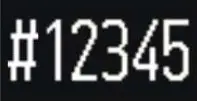 | | 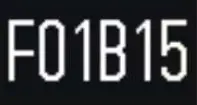 |
Click the middle button to return to the previous interface.
The binding is successful, and the watch enters the main time interface.
Device status display
Display layout 1

The display format can be set on the app: year/month/day, day/month/year, month/day/year.
Display layout 2
The modules can be changed through the app.
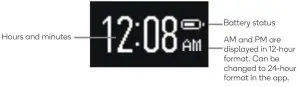
Display layout 3
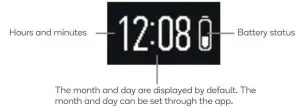
Display icon legend
 | Bluetooth not connected | 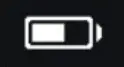 | 3 bar: 41%-60% |
 | Bluetooth connected | 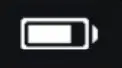 | 4 bar: 61%-80% |
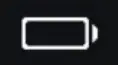 | 0 bar: 0% | 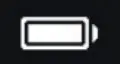 | Full bar: 81%-100% |
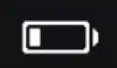 | 1 bar: 1%-20% | 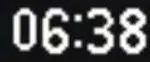 | Display hours and minutes |
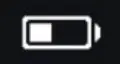 | 2 bar: 21%-40% |  | 12-hour display AM, PM |
Factory reset
Restoring the factory settings can be performed through the app.
Open the app on the mobile device and navigate to Settings – Device Settings – Reset. The watch will restart and will enter an inactive state. The device memory data is cleared, and the watch is restored to factory parameters.
Charge Status

The screen will be illuminated while charging, showing the charging scroll animation. The watch cannot be operated while charging. When the watch is fully charged, the full power icon will appear, and the screen will dim after 30 seconds.
Synchronization status display
The synchronization interface is displayed during synchronization and will display until synchronization is complete or interrupted.
After the synchronization is completed, the watch will return to the previous display interface.
OTA upgrade status
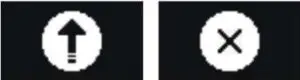
When it is detected that the server has a new firmware version, the firmware file will be downloaded automatically. After downloading the installation package to the mobile device, the watch will display a prompt to update the new version.
The upward arrow icon indicates that an upgrade is in progress, and the watch will restart after the upgrade is successful.
The “X” icon indicates that an upgrade failed to load, and the watch will revert to the main interface.
Main menu
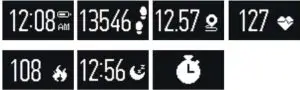
Click the middle button to cycle through the available interfaces. Press and hold the time interface to activate the function of finding a mobile phone.
Press and hold on to the step, distance, or calorie interface to display the recorded data.
In the sleep interface, long press the middle button to begin sleep mode. Click the middle button again to exit.
Heart rate

Sport data
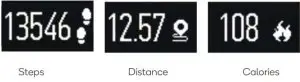
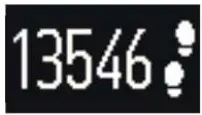 | Steps: the maximum displayed value is 99999. If the step count exceeds 99999, it will then roll back over to 00001. This value can also be checked in the application. When the number is only 1/2/3/4 digits, the number is displayed in the center. |
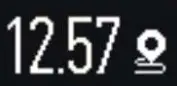 | Distance; the maximum displayed value is 99.99. If the distance exceeds 99.99, it will then roll back over to 00.01. This value can also be checked in the application. |
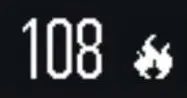 | Calories; the maximum displayed value is 9999. If the calorie count exceeds 9999, it will then roll back over to 0001. This value can also be checked in the application. When the number is only 1/2/3/4 digits, the number is displayed in the center. |
The message, social media, email, and calendar notifications
 | Message notification |  | Email notification |
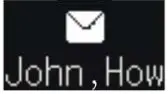 | Message content |  | Email content |
 | Social media notification |  | Calendar notification |
 | Social media content |  | Calendar content |
After the notification displays for two seconds, the display will scroll through the notification content until completed and then return to the previous interface.
During scrolling, press the middle button to view the next item and if there is no next item, return to the previous interface.
While not viewing/scrolling, long-press the middle button to cancel all message viewing and return to the previous interface
Missed call reminder
 |  |
| Missed call notification | Missed call content |
If the caller number exists in the phone address book, the name in the phone address book is displayed.
If it is not saved in the phone address book, the caller ID is displayed.
If the name or number is too long, it will scroll.
After the notification displays for two seconds, the display will scroll through the notification content until completed and then return to the previous interface.
During scrolling, press the middle button to view the next item and if there is no next item, return to the previous interface.
While not viewing/scrolling, long press the middle button to cancel all message viewing and return to the previous interface.
Call reminder
When a call comes in, the watch will vibrate at intervals of 1 second until the user operates the watch or answers/hangs up the call. After 60 seconds of no operation, the watch will exit the reminder interface.
If the caller number exists in the phone address book, the name in the phone address book is displayed.
If it is not saved in the phone address book, the caller ID is displayed.
If the name or number is too long, it will scroll.
Press the middle button to reject the call, exit the reminder and return to the previous interface.
Alarm reminder
The alarm can be set and deleted from the app. When the set time arrives, the notification will appear, and the watch will vibrate at intervals of 1 second for a minute.
Click the middle button to cancel the remainder.
Sleep
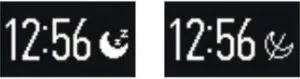
In the sleep interface, long-press the middle button to turn on sleep and display hours and minutes.
After sleep is turned on, interface switching is prevented; click the middle button to exit sleep monitoring. The icon changes to the exit sleep icon and the watch vibrate for 1 second.
In the default sleep interface, the sleep duration of the latest period of sleep will be displayed. The total sleep duration is calculated from both deep sleep and light sleep.
Preset sleep instructions: Set a preset sleep period on the app; only during this period will the device enter sleep mode.
Reminder icons
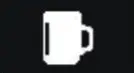 | Drink Water |
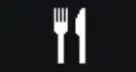 | Eat |
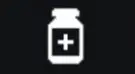 | Take medicine |
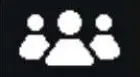 | Meeting |
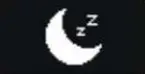 | Sleep |
A reminder pops up and vibrates for 1 second. Add or delete reminders from the app.
Click any key to return to the previous interface.
The reminder disappears after the watch screen dims.
Find mobile phone
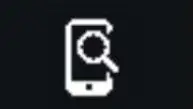
Press and hold the middle button for 3 seconds to start and click the middle button again to stop.
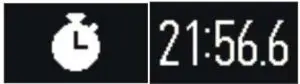
Stopwatch
- Press and hold the middle button for 3 seconds on the timing interface to enter the stopwatch.
- Click the middle button to turn on the timer without dimming the screen. At the maximum value, the screen is off.
- Click the middle button to set a lap marker, and the time will continue to count in the background.
- Click the middle button again to add the lap time to the background accumulated time and continue to count
- Click the up button to pause the timer, the background timer is also paused; click the up button to continue the timer.
- Click the lower button to clear the time.
- The maximum time is 59 minutes and 59.9 seconds, with an automatic pause.
After the maximum value is reached, click to clear and click to open again. - On the timing interface, press and hold the middle button for 3 seconds to exit and return.
Low battery reminder
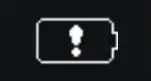
When the power reaches 20%, 10%, and 5%, each reminder the interface pops up and vibrates for 1 second.
Click any key to return to the previous interface.
Bluetooth broken link remainder
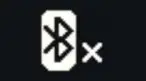
If the Bluetooth connection is lost, a reminder pops up and vibrates for 1 second.
Click any key to return to the previous interface.
After the broken link reminder, no more reminders will appear within 1 minute.
Sedentary reminder
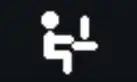
Set sedentary reminder function on the app. Within the set time, if the detected movement is less than 100 steps, a reminder pops up and vibrates for 1 second.
Click any button to return to the previous interface.
Goal achieved

When the goal of step count is reached, a reminder pops up and vibrates for 1 second.
Modify the goal on the app to set this goal as desired.
Click any key to return to the previous interface
Calibration
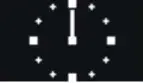
Appears when calibration is selected through the app.
When the calibration is completed, the watch returns to the time interface.
Second-time zone
According to the needs of the user, a second-time zone can be set on the app and sent to the watch. The watch will enter the second time zone according to the custom trigger operation and display the current time in the second time zone. The setting of the second time zone needs to be linked to the custom button function in the app.
Date
The app must specify the date and send it to the watch crown setting button to ensure the time is accurate.
The hour and minute hands point to the date; the hour hand represents the month and the minute hand represents the date. For example such on September 4, the hour hand points to 9 o’clock, and the minute hand points to the 4-minute position.
Wait 8 seconds or click the customized button to exit the current mode.
Weeks
The app must specify the day of the week and send it to the watch crown setting button to ensure travel time is correct.
The hour and minute hands overlap, pointing to the day and moving clockwise sequentially.
For example, for Monday, both hands will point to 1 o’clock, for Wednesday, both hands will point to 3 o’clock, through to Sunday, where both hands will point to 7 o’clock.
Wait 8 seconds or click the customized button to exit the current mode.
Exercise
The app must specify the exercise value and send it to the crown setting button of the watch; the hour and minute hands point to the amount of movement and move clockwise.
The minute hand and the hour hand point to several scales at the same time, indicating that the value of task completion is tens of percent. For example, taking the number of steps as a reference value, the hour and minute hands pointing at 6 o’clock indicate 60%, and at 10 o’clock indicate 100%.
Wait 8 seconds or click the customized button to exit the current mode.
TROUBLESHOOTING
Unable to connect to the smartwatch
- Check that the smartphone’s GPS and Bluetooth are active.
- Make sure that the smartwatch and the smartphone are not too far apart. The connection must take place within 10 meters.
- Check if the watch or phone is in airplane mode. In airplane mode, the watch cannot be connected.
- Make sure the watch is not connected to another account or smartphone.
- Ensure that your phone’s operating system is Android 5.0 or later, iOS 8.0 or later.
- Make sure that a previous connection is not already active; in this case, dissociate the previous connection and re-pair exclusively through the app.
Unable to synchronize data
- Check that the smartphone’s GPS and Bluetooth are active.
- Make sure the smartwatch and the smartphone are not too far apart. The connection must take place within 10 meters.
- Check if the watch is in airplane mode. In airplane mode, the watch cannot be connected.
- Make sure the watch is connected to the smartwatch via the app.
Unable to receive notifications
- Make sure that the notification permissions on the app are active.
- Make sure the smartwatch and the smartphone are not too far apart. The connection must take place within 10 meters.
NOTES
Need more information?
We hope that this user guide has given you the assistance needed for a simple setup.
For the most up-to-date guide for your product, as well as any additional assistance you may require, head online to help.kogan.co