
401105901 Powerstation Go Wireless Portable Car Jump Start
Instruction Manual
mophie powerstation go
Thank you for choosing mophie!
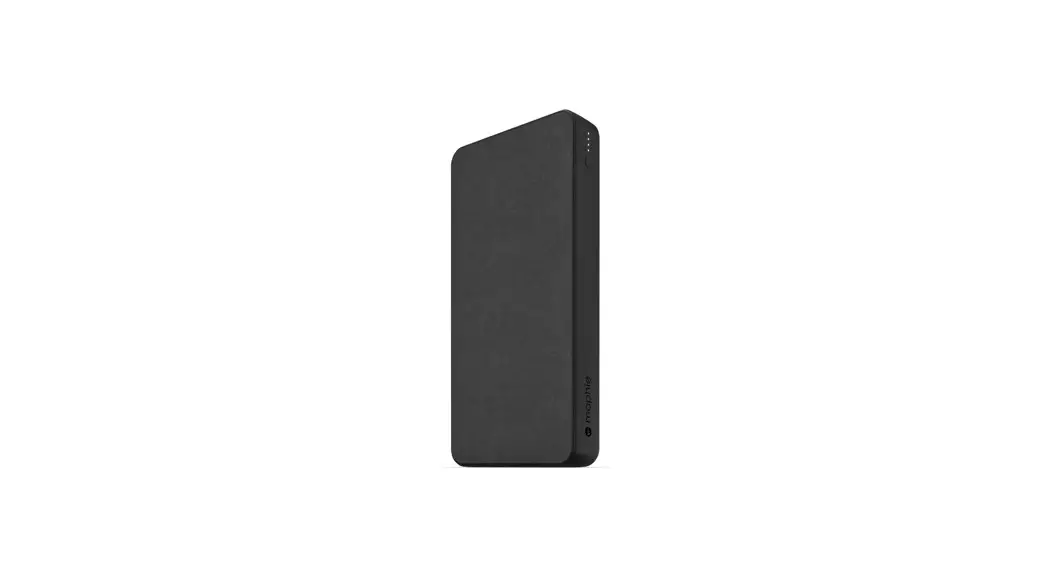
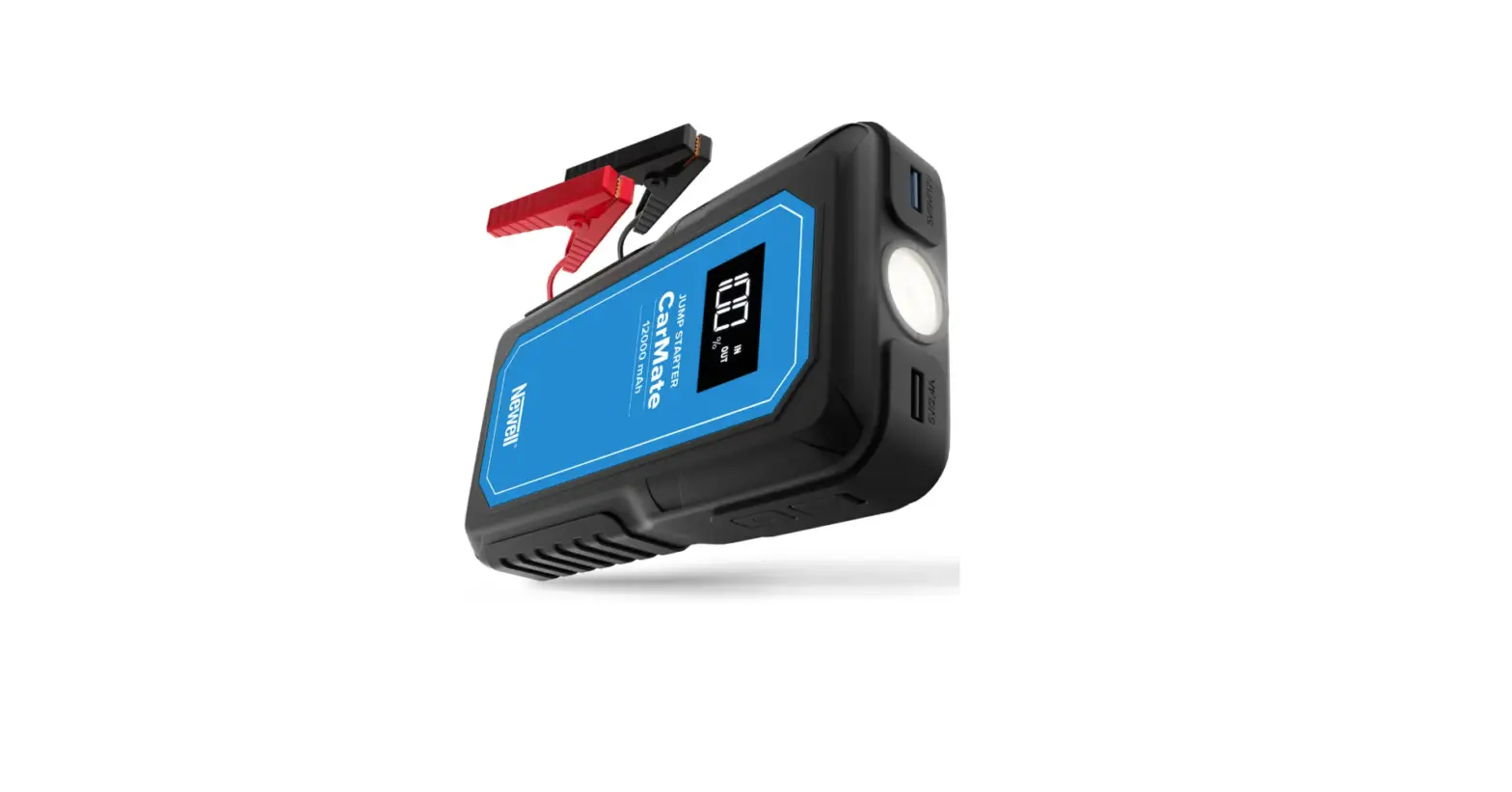
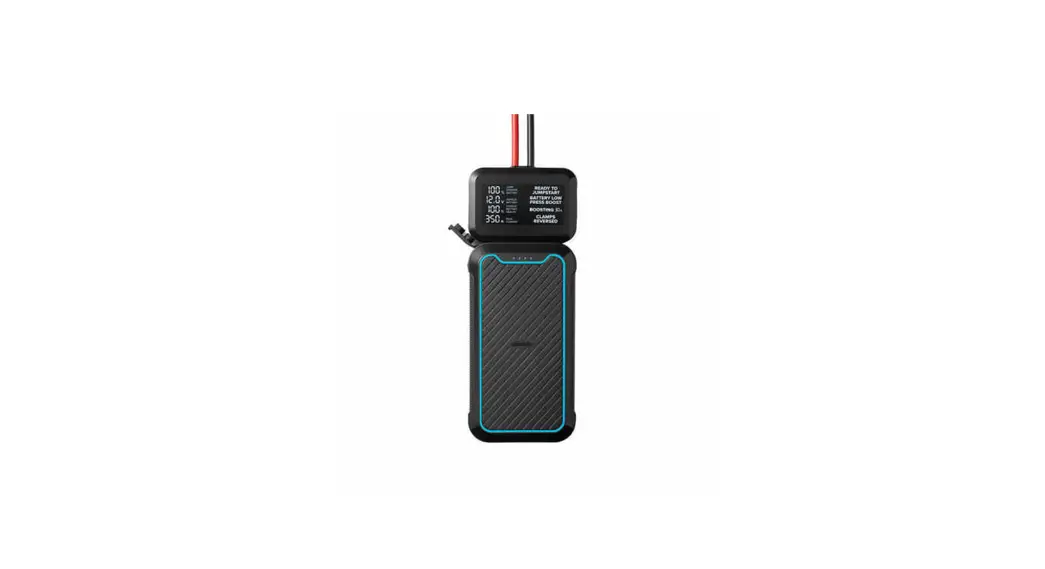
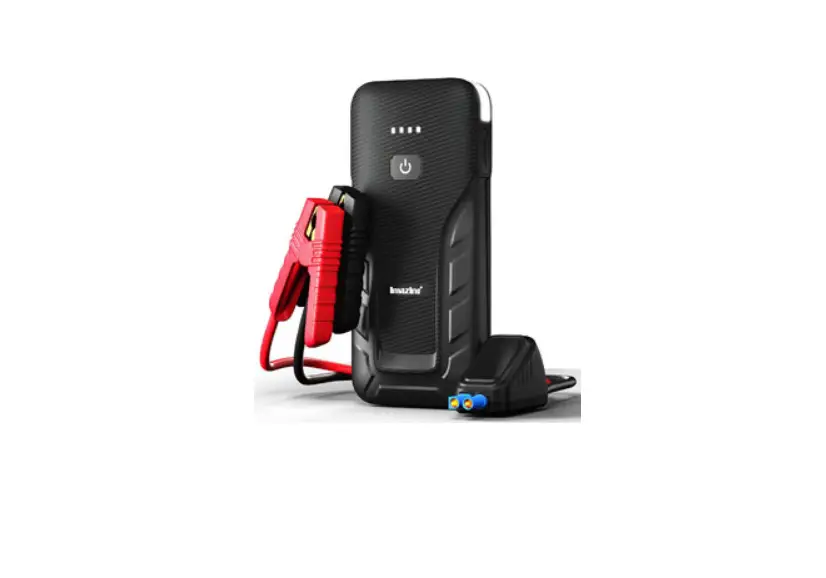
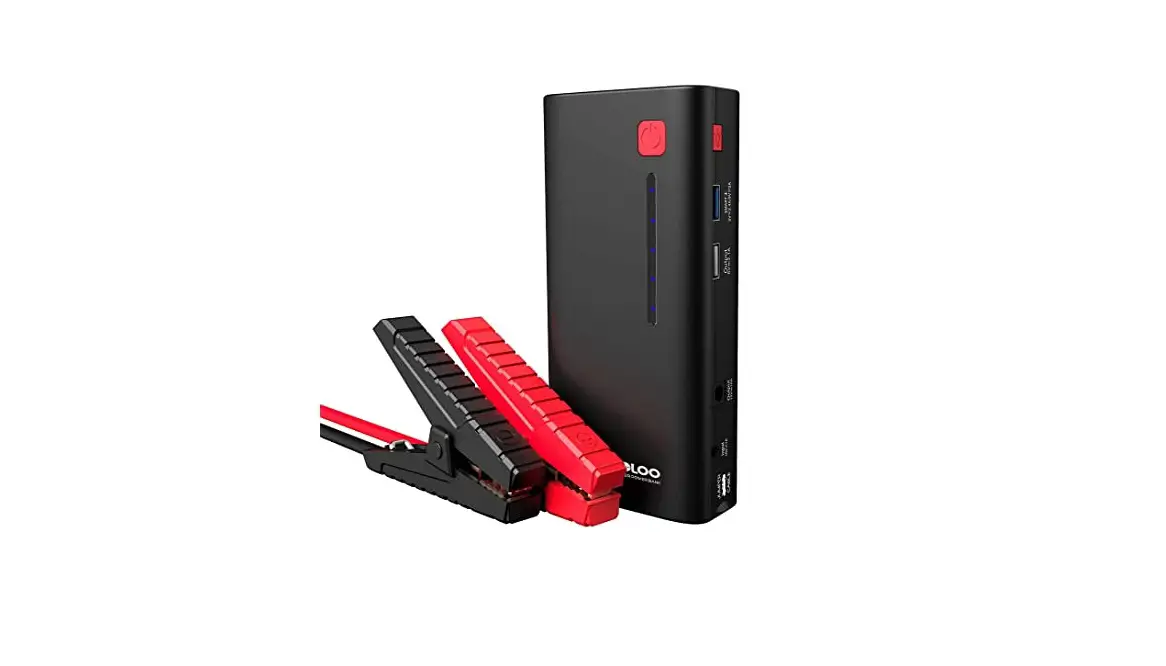
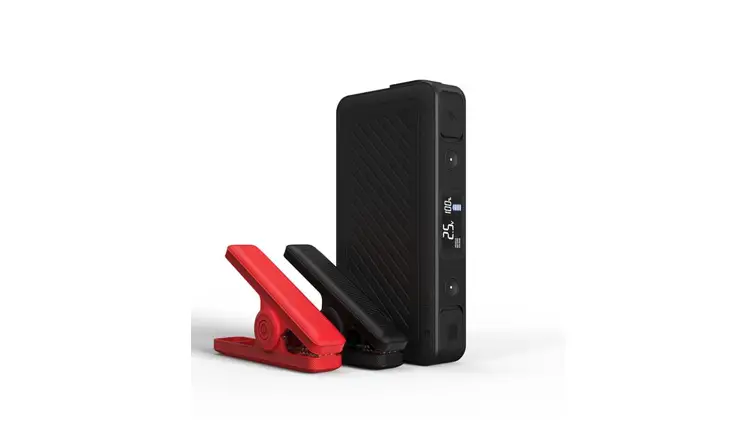
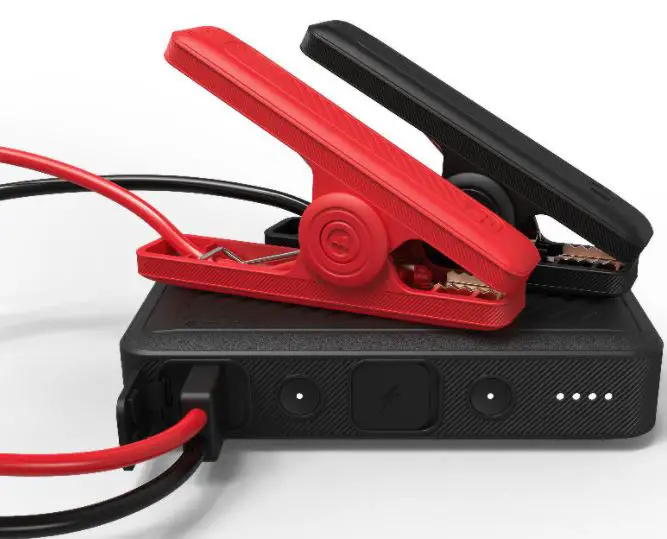
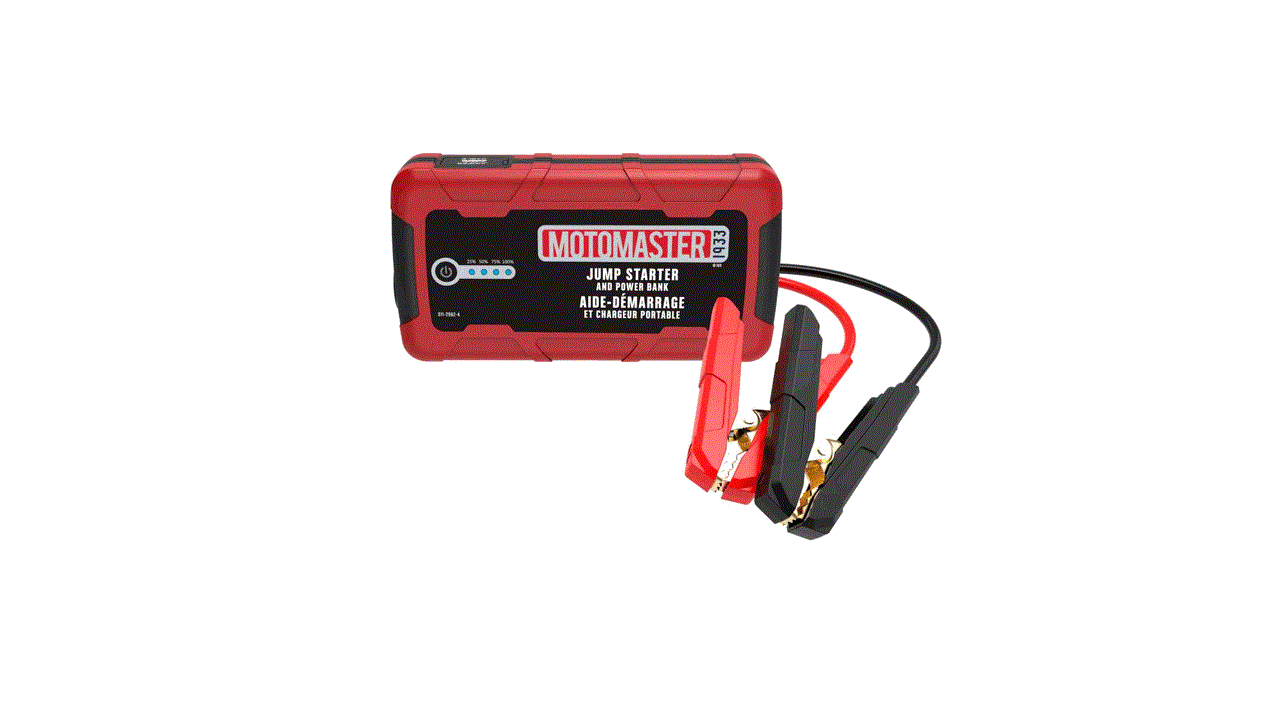
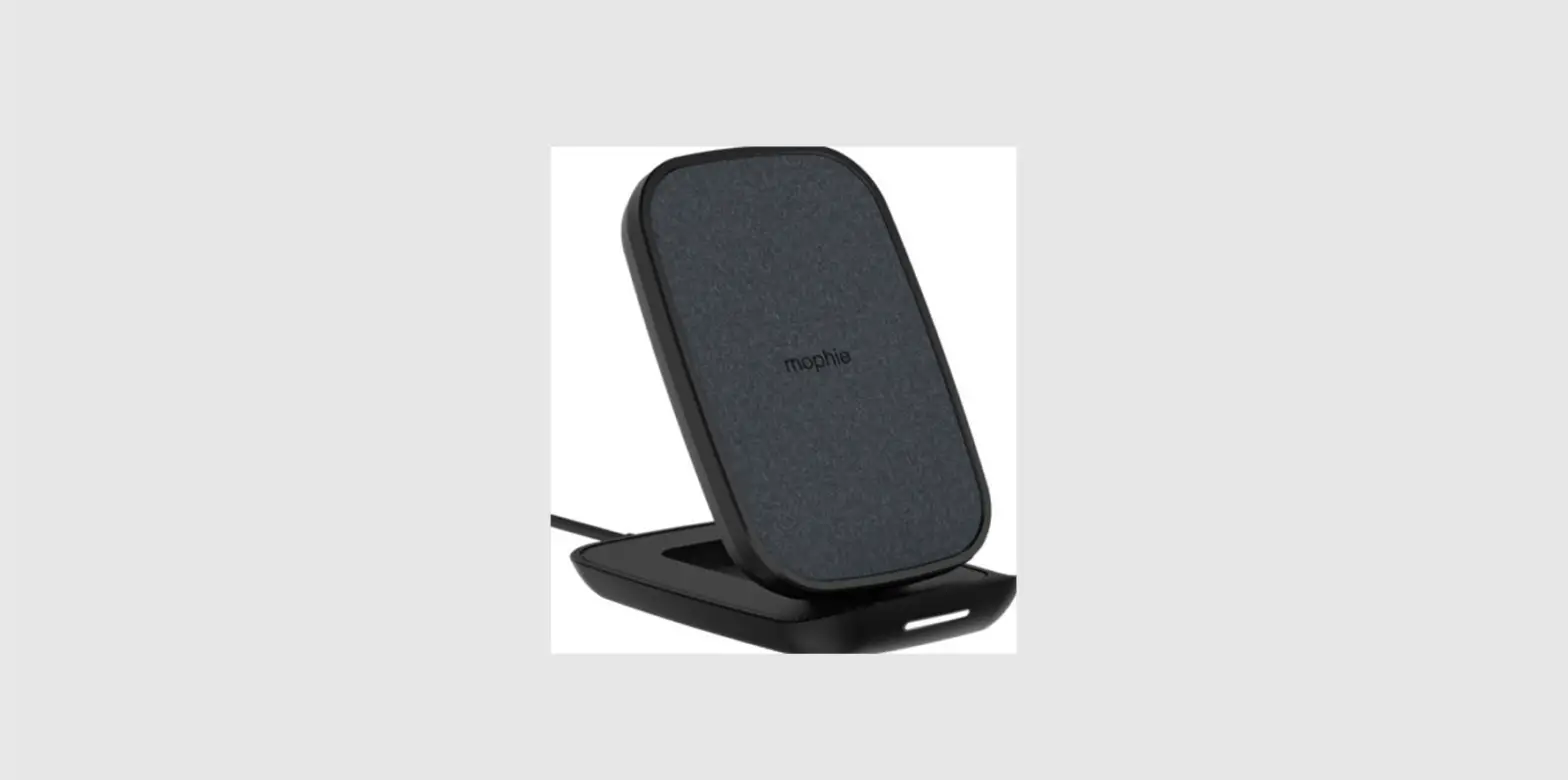
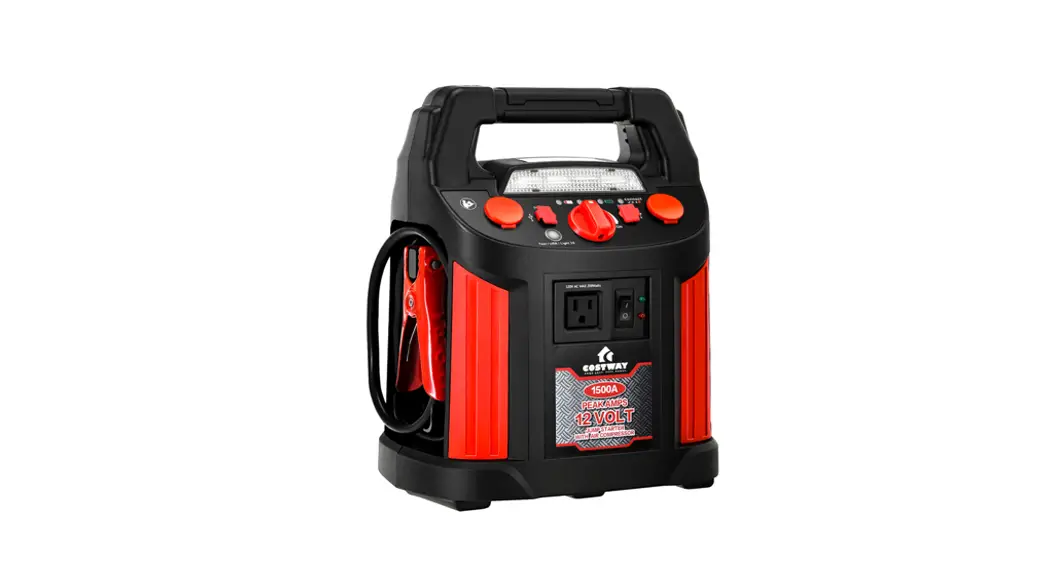
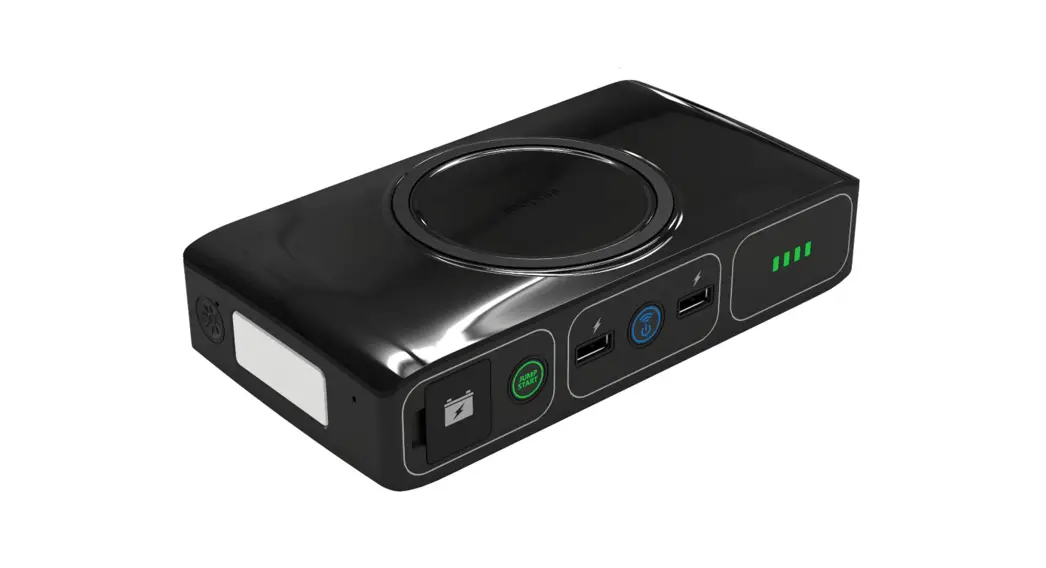
Powerful, compact, and easy to use, the mophie powerstation go portable charger can safely jump-start your car or charge your laptop. In addition, you can use it to charge your phone, tablet, or other electronic devices. Equipped with wireless charging to charge compatible smartphones, the mophie powerstation go charger also features a convenient LED floodlight.
Included items
– mophie powerstation go charger
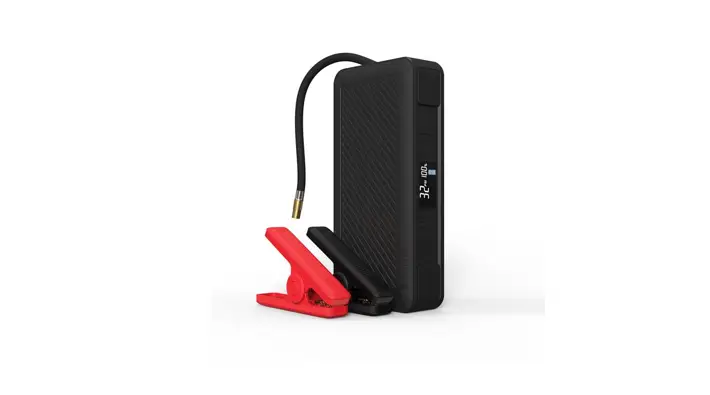
– Jumper Cables
– USB to Micro-USB Cable
– Carrying Pouch
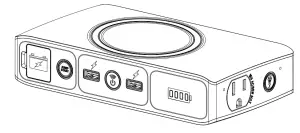
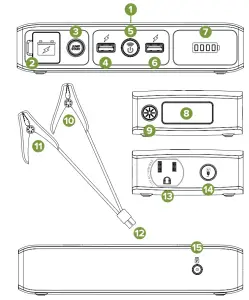
Location of controls
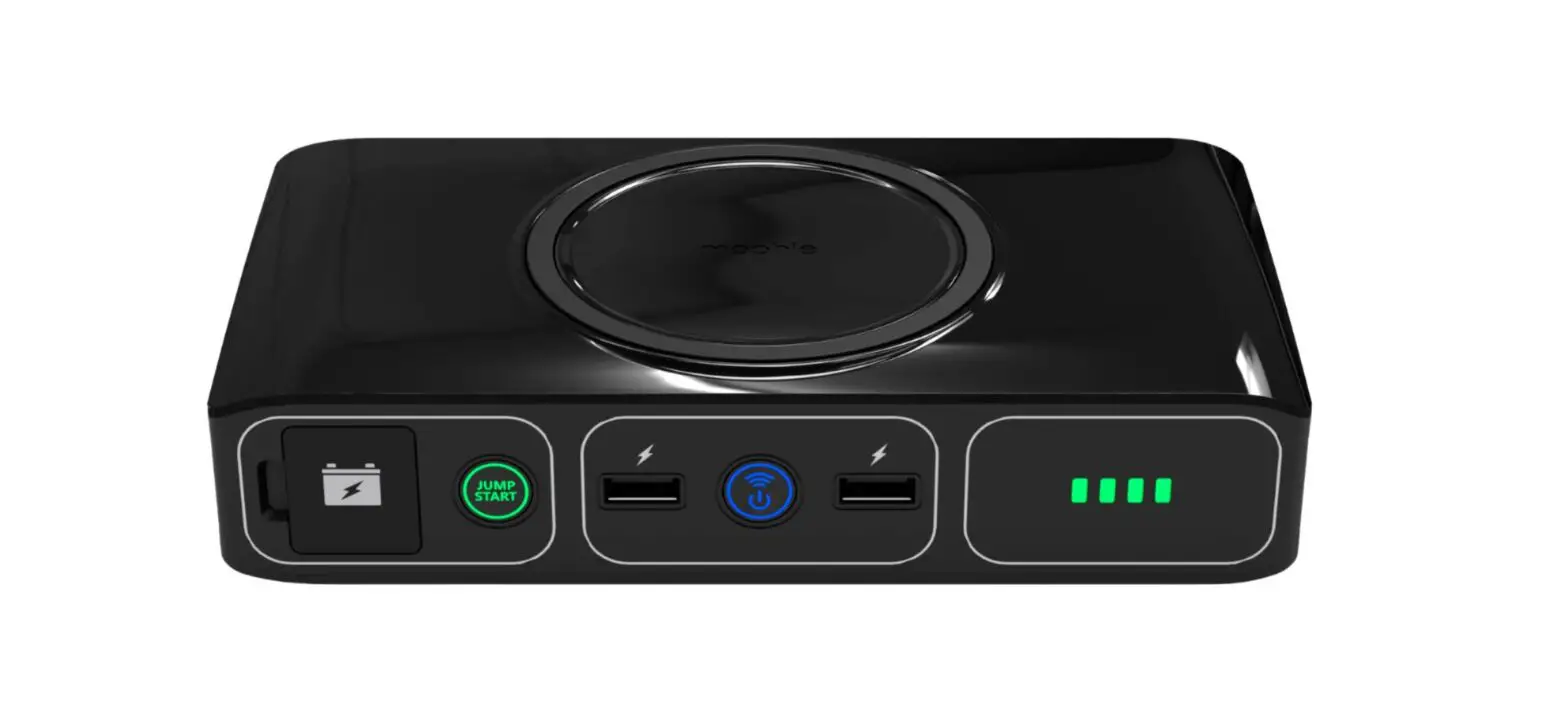
- Wireless-Charging Pad
- Jump-Start Output
- Jump-Start Button
- USB Output 1
- USB/Wireless-Charging ON/OFF Button
- USB Output 2
- LED Battery Indicator
- LED Floodlight
- LED Floodlight Button
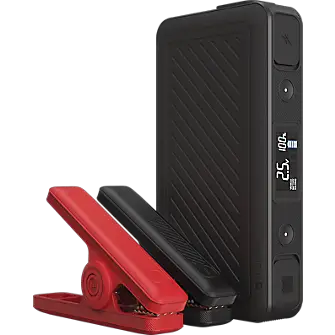
- Positive Clamp (red)
- Negative Clamp (black)
- Jump-Start Plug
- AC Output Port
- AC Power ON/OFF Button
- Charge Input: 14VDC/.85A
Operating instructions
Please make sure to fully charge the powerstation go battery before using your powerstation go charger.
Charging the powerstation go battery
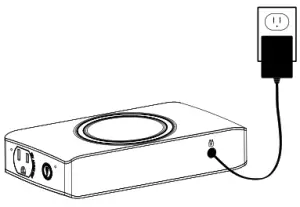
To charge the powerstation go battery, use the provided AC charging wall adapter, and plug the AC adapter tip into the powerstation go’s charge input.
Next, connect the AC adapter to a wall outlet. The powerstation go battery will automatically begin charging. When the powerstation go battery is fully charged, all four indicator lights will be solid green (this could take up to 9 hours).
When your powerstation go charger is on, the LED indicator lights will display their power level.
powerstation go Battery power level indicators:
| Indicator Lights | How to Read | Amount of Charge |
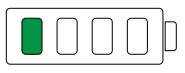 | One Solid Light | 0% – 25% |
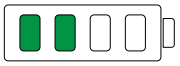 | Two Solid Lights | 26% – 50% |
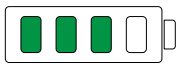 | Three Solid Lights | 51% – 75% |
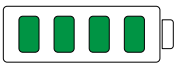 | Four Solid Lights | 76% – 100% |
powerstation go
Battery power level indicators while charging:
| Indicator Lights | How to Read | Amount of Charge |
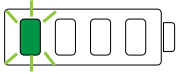 | First light blinking | 0% – 25% |
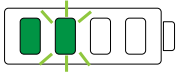 | First light solid, second light blinking | 26% – 50% |
 | The first two lights are solid, the third light blinking | 51% – 75% |
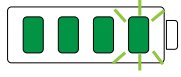 | The first three lights are solid, the fourth blinking | 76% – 100% |
| All four lights solid | 100% fully charged |
Jump starting your vehicle with the powerstation go charger
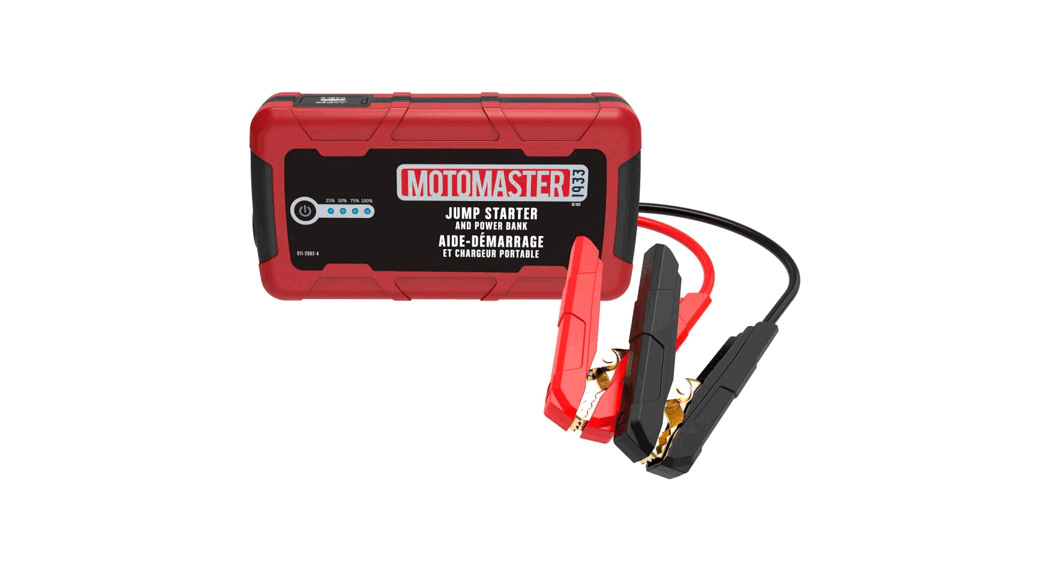
- Plug the jumper cables into the jump-start output on the powerstation go charger.
 NOTE: Make sure the jumper cables are fully plugged into the jump-start output before trying to jump your vehicle.
 - Attach the jumper-cable clamps to the vehicle battery.
 – Red clamp on positive terminal (+)
– Black clamp on negative terminal (-) - Press the “Jump Start” button and wait for a solid green light.

- Start your vehicle.
NOTE: The mophie powerstation go charger will allow 3 consecutive jump-start attempts after each time you press the jump-start button. You must allow up to 15 seconds between each jump-start attempt. During the 15 seconds, the jump-start button will flash green while the powerstationgo charger performs its safety checks. Once the jump-start button illuminates solid green, the powerstation go charger is ready for the next jump-start attempt. If your vehicle does not start after three attempts, we recommend you consult a certified mechanic. - disconnect the jumper-cable clamps from the car battery.
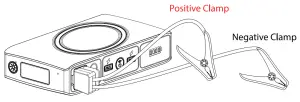 NOTE: Make sure the jumper cables are fully plugged into the jump-start output before trying to jump your vehicle.
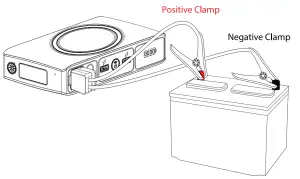 – Red clamp on positive terminal (+)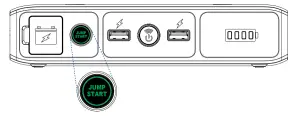
NOTE: While jump-starting your vehicle, you cannot charge your electronic devices using the USB or AC output ports and you cannot charge the powerstation go battery via the AC wall adapter.
Jumpstart troubleshooting tips
| Condition | Potential Cause | Solution |
| power station go Jump Start button shuts off unexpectedly | The powerstatlon go battery is not sufficiently charged to jump-start the vehicle | Recharge the powerstatlon go battery |
| The powerstation go charger detects that it is connected to a vehicle battery that does not require a jump start. This could indicate that the vehicle battery or other component is faulty | It is recommended that you consult with a <edified mechanic | |
| power station go Jump Start and On/Off button flash red and blue | This could occur when attempting to jump-start a vehicle while other electrical components (le headlights, heater, radio, etc.) are on | Turn off your headlights and any other components that may drain your car battery and try the jump start process again |
| The vehicle battery may be faulty | It is recommended that you consult with a certified mechanic | |
| power station go battery Indicators flash green | The powerstation go charger has detected a high-temperature condition | Disconnect the powerstation go charger and allow it to cool for several minutes then try the jump start process again |
| power station go Jump Start button flashes red | The jumper cables have not | Check the jumper cables and ensure that the red clamp is connected to the positive terminal (+I and the blackdamp is connected to the negative terminal (-) |
| been properly connected to the vehicle battery | ||
| power station go Jump Start button flashes green continuously | The powerstation go charger is waiting to be connected to a battery | Check the jumper cables and ensure they are properly connected to the battery |
| power station go The jump Start button has been pressed but does not flash green | The blue LED power button is ON | Ensure the US8 and Wireless Charging output is OFF and then press the Jump Start button |
NOTE: If none of these troubleshooting tips work, please consult a certified mechanic for assistance.
Charging a laptop (via the AC output port)
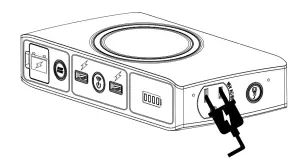
- Connect the AC power plug from your laptop (or another electronic device that is rated at 65 watts or less) into the AC output port of the powerstation go charger.
NOTE: Any electronic device can be powered by the AC output port as long as it is rated at 65 watts or less. BE SURE TO CHECK THAT YOUR LAPTOP OR OTHER ELECTRONIC DEVICE IS RATED AT 65 WATTS OR LESS.
- Press the AC Power ON/OFF Button and wait for a solid green light
NOTE: Make sure the AC power plug is fully plugged into the AC output port before pressing the AC Power ON/OFF Button.
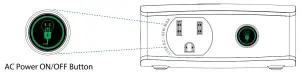
NOTE: A flashing green light indicates safety checks are in progress. If you see a flashing red light, the device you connected is rated for greater than 65 watts and cannot be powered using the powerstation go charger.
The powerstation go charger will automatically power off after 30 minutes of inactivity. While jump-starting your vehicle, you cannot charge your electronic devices using the USB or AC output ports and you cannot charge the powerstation go battery via the AC wall adapter.
Laptop charging troubleshooting tips
| Condition | Potential Cause | Solution |
| powerstatlon go AC power ON/OFF button flashes red | Electronic device is rated at greater than 65 watts | Only electronic devices rated at 65 watts or less can be used with the powerstation go charger |
| The powerstation go battery is not sufficiently charged to power the connected electronic device | Recharge the powerstation go battery | |
| powerstatlon go shuts off unexpectedly | The powerstation go battery is not sufficiently charged to power the connected electronic device | Recharge the powerstation go battery |
| powerstatlon go battery Indicators flash green | The powerstation go char has de a high- temperature condition | Disconnect the powerstation go charger and allow it to cool for several minutes. Then try to power your device again |
| A single LED battery Indicator flashes green | The powerstation go battery is getting low on power | Recharge the powerstation go battery |
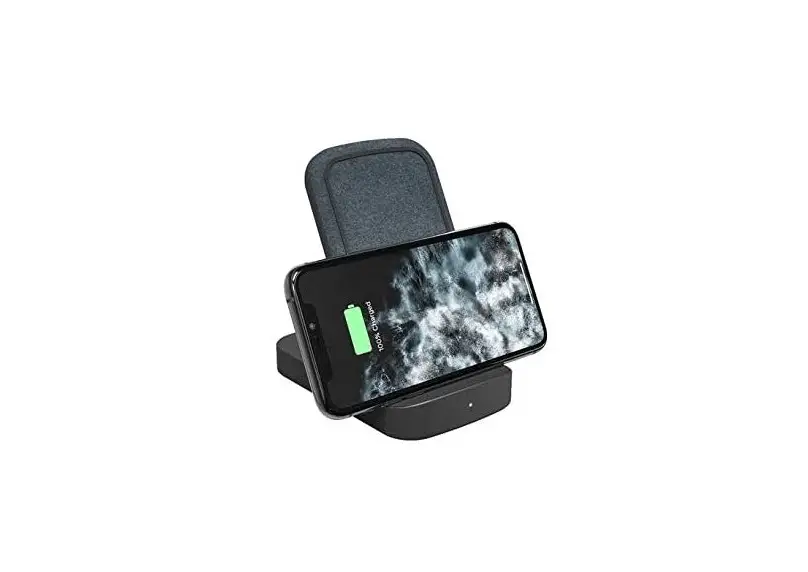
Charging a compatible smartphone using wireless charging
- First, make sure your smartphone is compatible with wireless charging.
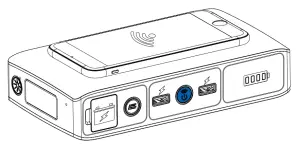
- Place your wireless-compatible device on top of the powerstation go charger and press the USB/Wireless ON/OFF Button. Charging will begin.
- Check your smartphone to confirm it is charging. If it is not charging, adjust the position of the phone on top of the powerstation go charger.
NOTE: Ensure there is no metal obstruction on the back of the phone or phone case, or credit cards inside the phone case while wirelessly charging.
Wireless charging troubleshooting tips
Condition | Potential Cause | Solution |
| The smartphone does not charge when placed on the wireless charging pad. | Phone case may be too thick or other obstructions such as metal, magnets, stickers, and rings may prevent wireless charging | Remove any obstructions that are on the back of the phone |
| The phone is not compatible with wireless charging | Confirm your smartphone is compatible with wireless charging. | |
| The wireless function is controlled via the USB and Wireless Charging ON/OFF Button | Press the USB and Wireless Charing ON/ OFF Button to activate wireless charging. The button will illuminate blue | |
| The mobile phone is not properly aligned and centered on top of the wireless charging pad | Reposition mobile phone so that it is centered on top of the wireless charging pad |
Charging an electronic device using the USB output ports
- Plug the Micro USB connector of the supplied Micro USB cable into the Micro USB input of your electronic device and plug the Standard USB connector of the supplied Micro USB cable into either one of the powerstation go charger’s two USB Output ports.
NOTE: If your electronic device does not have a Micro USB Input, your powerstation go charger is also compatible with the charging cable provided with your electronic device. To use, plug the standard USB end of the cable into either one of the two USB Output ports located on your powerstation go charger. - Turn on the USB charging feature by pressing and releasing the USB/Wireless ON/OFF Button on the powerstation go charger.
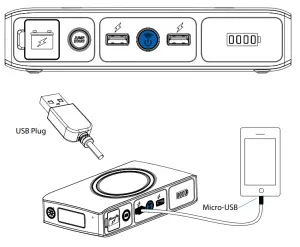
NOTE: The powerstation go USB charging feature will automatically power off after 30 minutes of inactivity.
mophie smart charge technology
Your mophie powerstation go charger contains mophie SMART CHARGE TECHNOLOGY to achieve greater compatibility for charging standard 5V USB electronic devices. mophie SMART CHARGE TECHNOLOGY will allow the powerstation go charger to communicate with your electronic device and provide the fastest and safest charge for that device.
Compatibility
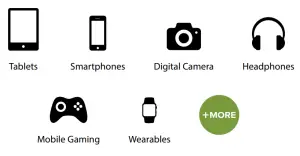
Standard 5V USB electronic devices include mobile phones, tablets, PSP, NDS, MP3, MP4, MP5, Bluetooth, GPS, cameras, and more.
Using your powerstation go floodlight
The floodlight can be turned on and off by simply pressing and releasing the floodlight ON/OFF button. The floodlight will automatically turn off after 2 hours of inactivity.
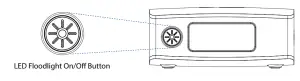
NOTE: Do not look directly into the LED floodlight.
Maintenance and Care
- Do not get your powerstation to go charger wet or store it in extreme temperature conditions.
- Do not disassemble or attempt to repair your powerstation go charge yourself.
- . Use a soft cloth with soap to clean the exterior of your powerstation go charger. Do not use liquid detergent or chemicals of any kind on your powerstation go charger.
Safety precautions
- Your powerstation go charger has been designed and manufactured to ensure personal safety. Please read the following carefully before using. Incorrect operation or incompatibility with your personal electronic device may result in reduced battery performance or damage.
- Carefully read the operating instructions, and use your powerstation go charger correctly.
- Your powerstation go charger should not be used to jump-start unregistered vehicles.
- Make sure the jumper cables are fully plugged into the jump start output before trying to jump-start your vehicle.
- Caution: The lithium-ion rechargeable battery used in this charging device may present a risk of fire or chemical burn if mistreated. Do not disassemble, expose to heat above 212°F (100°C), or incinerate.
- Misusing or incorrectly connecting your powerstation go charger may cause an electric shock to users and damage equipment.
- Your powerstation go charger may become warm under extended high-power operation. During operation, keep your powerstation go charger away from materials that may be affected by these temperatures. Do not cover, wrap, or otherwise restrict the powerstation go charger during operation.
- When used correctly, lithium-ion rechargeable batteries provide a safe and dependable source of portable power. However, if they are misused or bused, this may result in leakage, burns, fire, or explosion, causing personal injury or damage to other devices.
- Do not disassemble your powerstation go charger. There are no user-serviceable parts inside. Incorrect reassembly may result in shock or fire hazards.
- Do not drop or be subject to strong impacts. Do not operate your powerstation go charger if it has received a sharp blow, or has otherwise been damaged in any way.
- Do not expose your powerstation go charger to moisture, water, rain, or snow.
- Do not insert any object into the ports or openings of your powerstation go charger.
- Only charge your powerstation go charger by the specified method with the specified charging adapter provided with the unit.
- In the unlikely event of leakage or explosion use sand or a chemical fire extinguisher.
- Ensure there is no metal object between your device and the powerstation go charger when charging your device wirelessly as the object may become hot.
- Batteries should be recycled or disposed of as per state and local guidelines.
Specifications
Battery Cells: …………………………………………………….3x 4000 mAh cells
Battery Pack Energy: ………………………………………………….44400 mWh
Input: ……………………………………………………………………….. 14V DC/0.85A
Wireless Output: ……………………………………………………………. 5V DC/1A
USB Output: …………………………………………………. 2 x USB 5V DC/2.4A
AC Output: ……………………………………. 115VAC / 60Hz / 65 Watt Max
Dimensions: ………………………………………182 mm x 97 mm x 40 mm
Weight: ……………………………………………………………………………….. 743.9 g
FCC Compliance Statement
This device complies with Part 15 of the FCC Rules. Operation is subject to the following two conditions:
- This device may not cause harmful interference, and
- This device must accept any interference received, including interference that may cause undesired operation.
15.21
You are cautioned that changes or modifications not expressly approved by the party responsible for compliance could void the user’s authority to operate the equipment.
15.105(b)
This equipment has been tested and found to comply with the limits for a Class B digital device, pursuant to Part 15 of the FCC rules. These limits are designed to provide reasonable protection against harmful interference in a residential installation. This equipment generates, uses, and can radiate radio frequency energy and, if not installed and used in accordance with the instructions, may cause harmful interference to radio communications.
However, there is no guarantee that interference will not occur in a particular installation. If this equipment does cause harmful interference to radio or television reception, which can be determined by turning the equipment off and on, the user is encouraged to try to correct the interference by one or more of the following measures:
- Reorient or relocate the receiving antenna.
- Increase the separation between the equipment and receiver.
- Connect the equipment into an outlet on a circuit different from that to which the receiver is connected.
- Consult the dealer or an experienced radio/TV technician for help.
Limited warranty
What does this limited warranty cover and how long is the coverage?
mophie warrants its products to be free from defects in material and workmanship under normal use and service for a period of ninety (90) days beginning on the date your purchase the product.
What is not covered by this limited warranty?
This Limited Warranty does not cover defects or damage due to: (1) accidents, acts of God, misuse, abuse, abnormal use, abnormal conditions, improper storage, or exposure to liquid or moisture, (2) unusual or abnormal physical force or impact, including dropping off the product, (3) connection of the product to the improper voltage supply, or (4) attempted to repair or modification by anyone other than mophie or a facility authorized by mophie.
What are mophie’s obligations under this limited warranty?
Provided that you comply with the conditions of this Limited
Warranty, during the duration of this Limited Warranty mophie, will repair or replace the product, at its sole option, without charge. When repairing or replacing a product, mophie may, at its sole option, repair or replace the product with new, used, rebuilt, or reconditioned parts or products. mophie will warrant any product that is repaired or replaced under this Limited Warranty for a period equal to the remaining time period under the original Limited Warranty or ninety (90) days, whichever is longer.
What are the limits of mophie’s liability?
This Limited Warranty sets forth the full scope of mophie’s obligations and liabilities with respect to the product. All implied warranties, including, without limitation, implied warranties of merchantability and fitness for a particular purpose, are limited to the duration of this Limited Warranty. In no event shall mophie be liable for any incidental, special, consequential, or punitive damages or any damages or losses of or to electronic equipment or products that are used with any of mophie’s products.
How does state law relate to this limited warranty?
Some states do not allow limitations on how long an implied warranty lasts or the disclaimer or limitation of incidental or consequential damages. Therefore, some or all of the disclaimers and limitations above may not apply to you.

Customer Service
Telephone: 1-888-8mophie (1-888-866-7443)
International: +1 (269) 743-1340
Web: www.mophie.com/cs