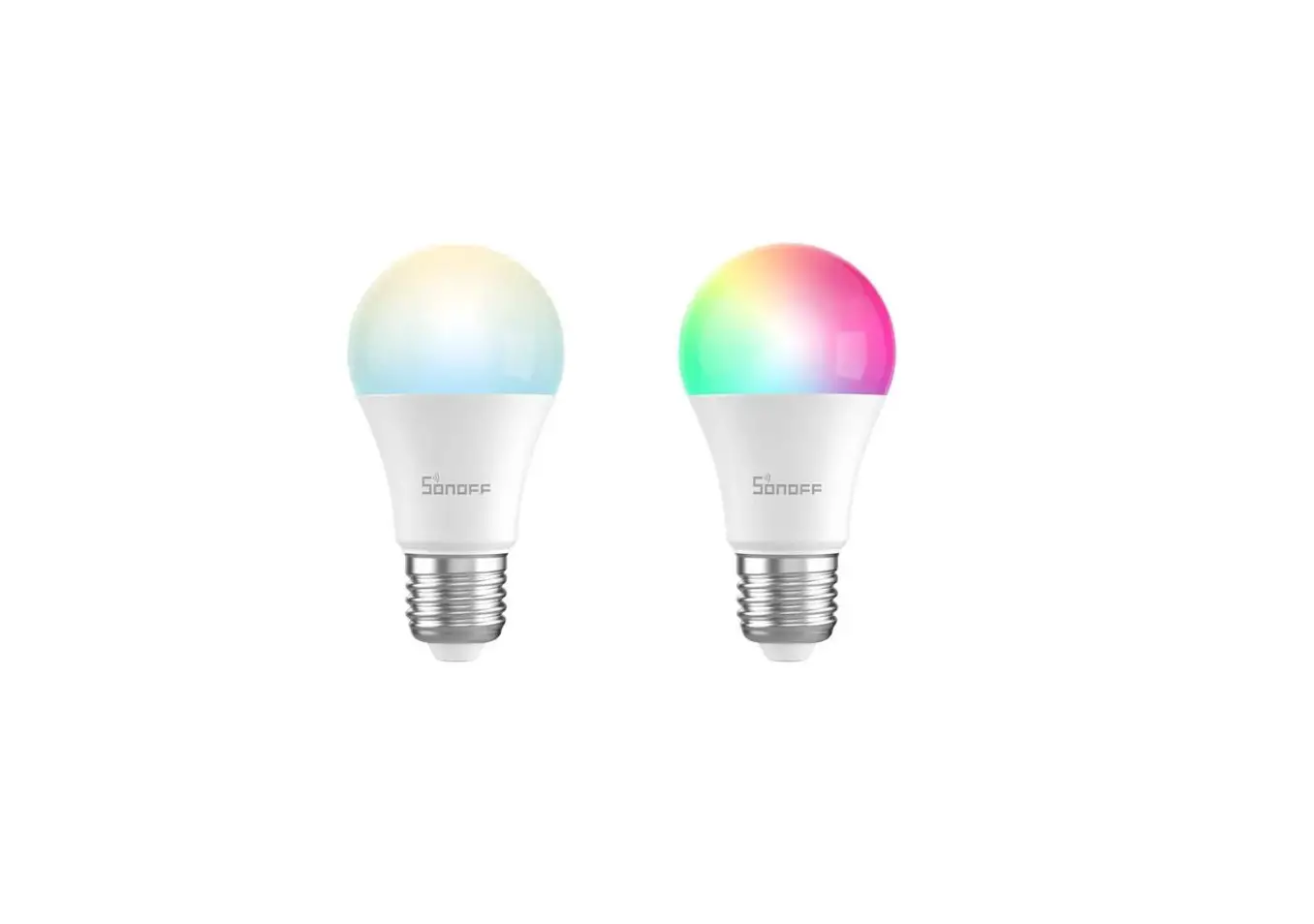
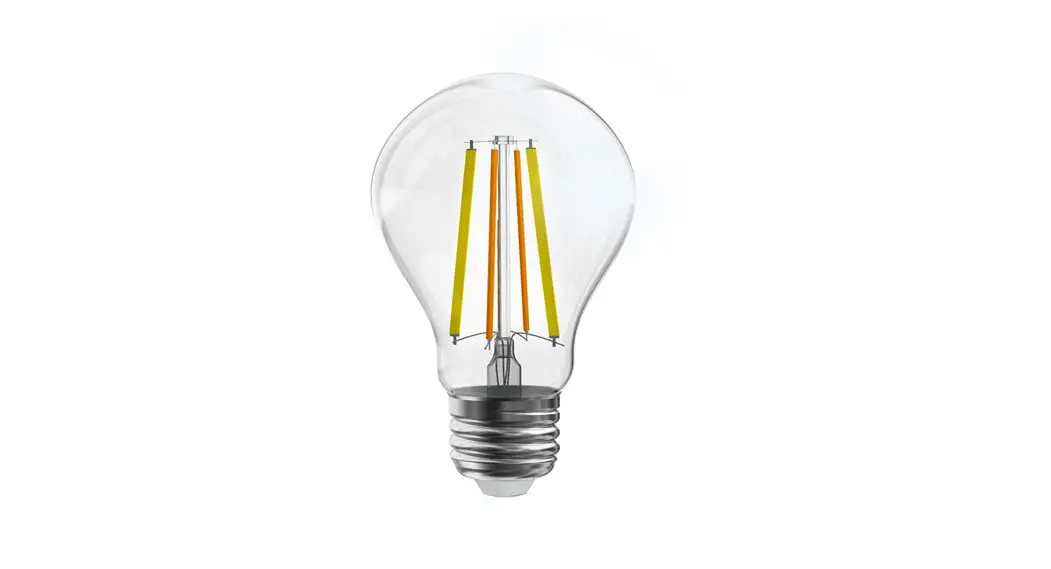
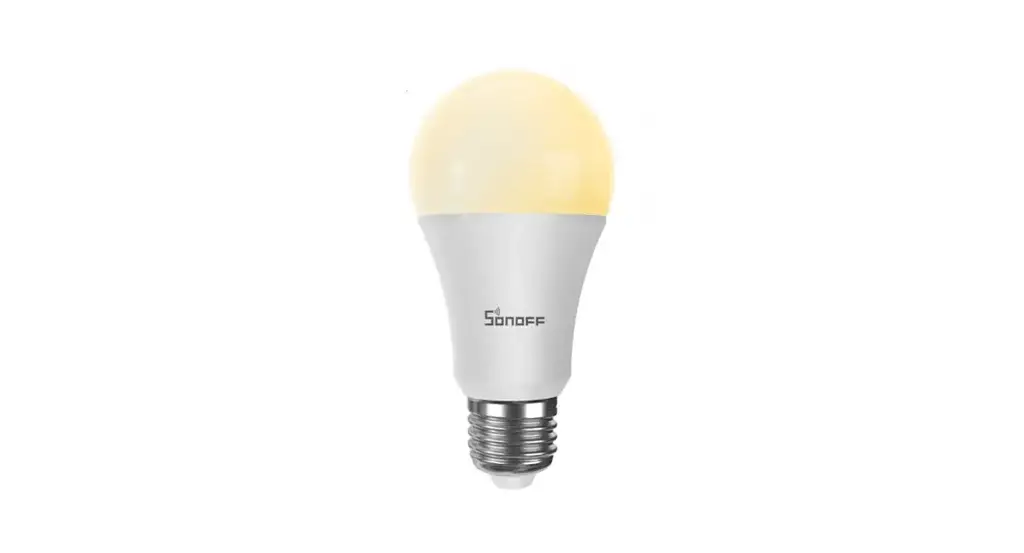
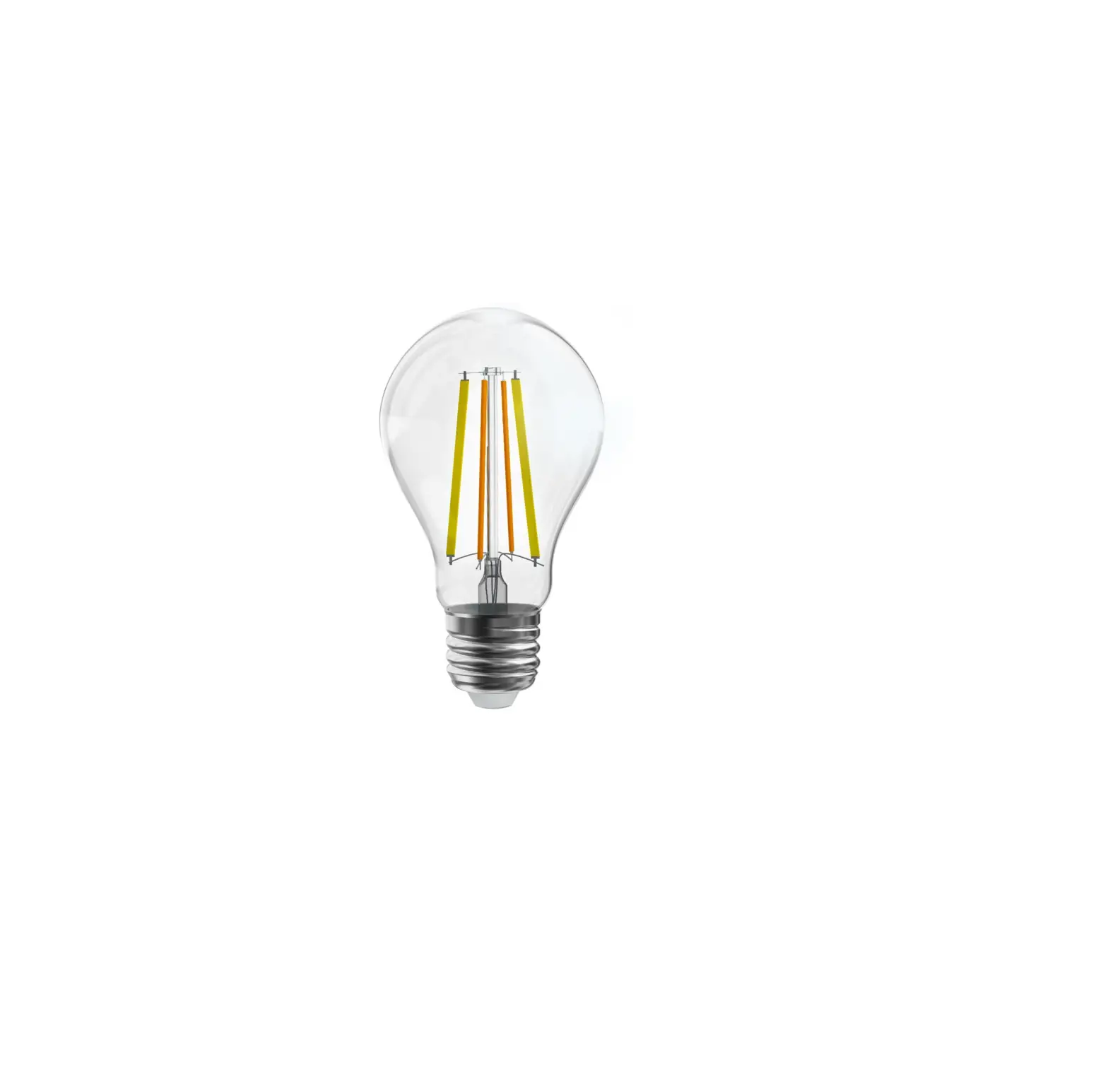
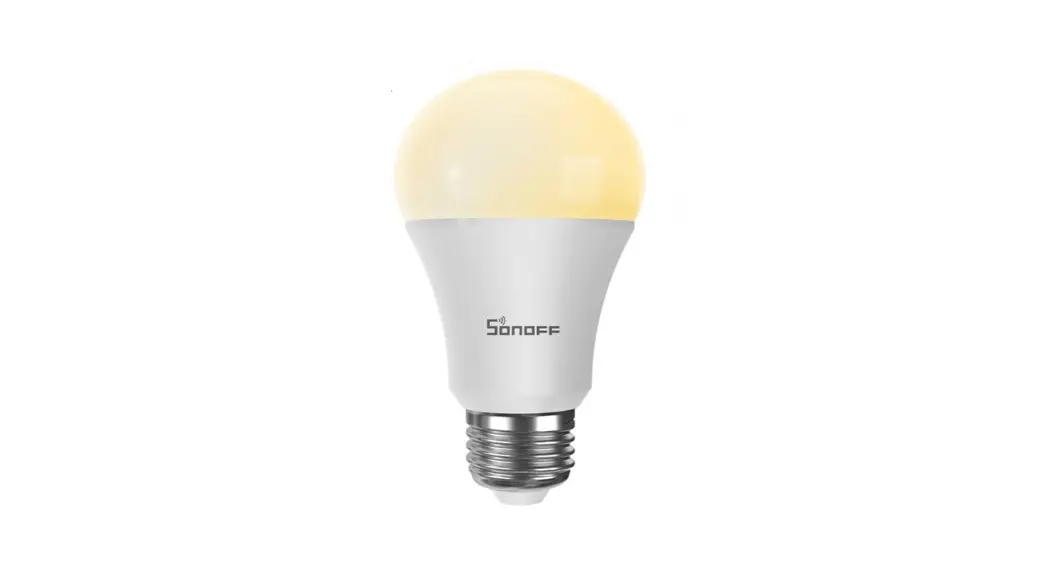
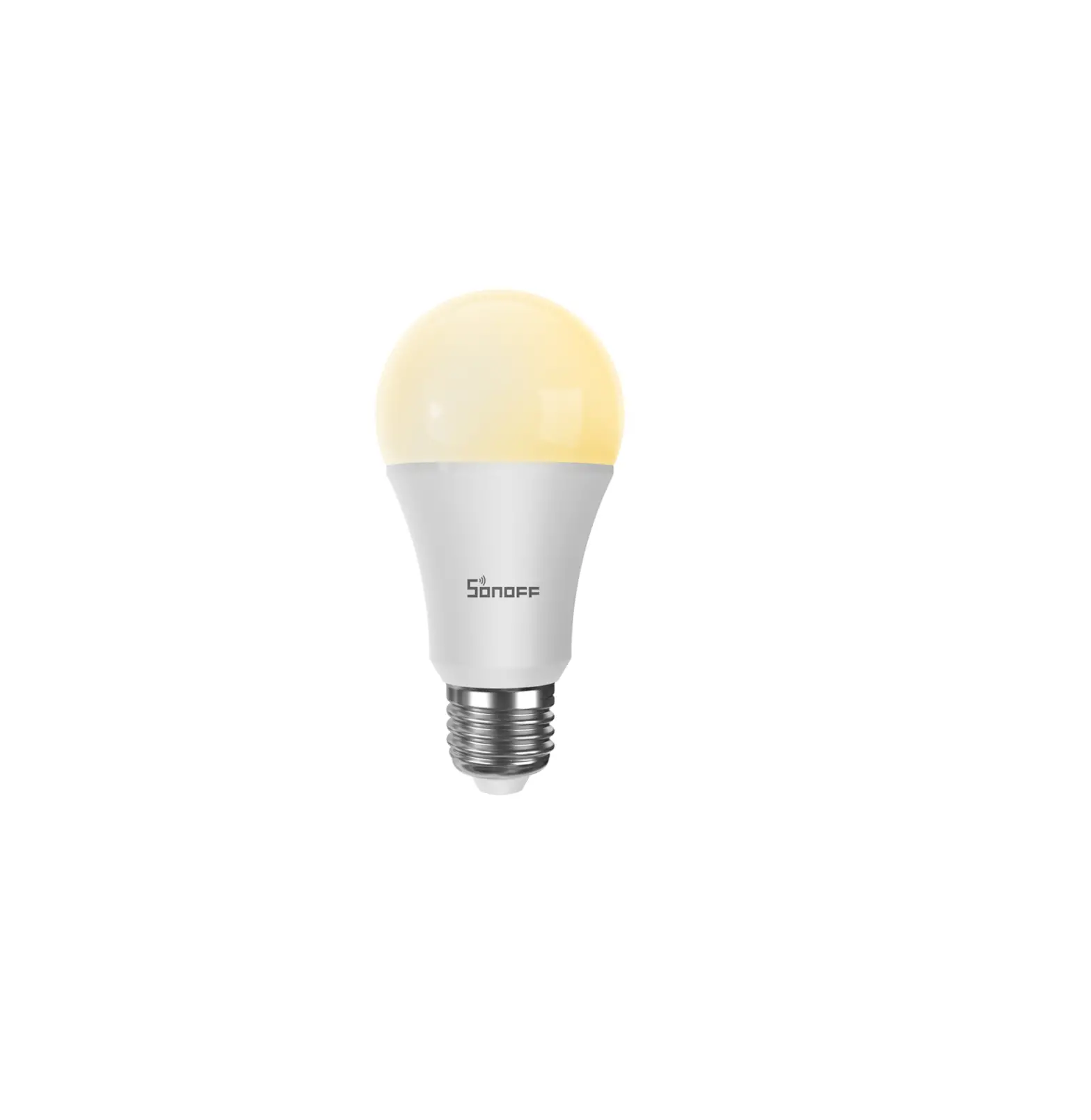
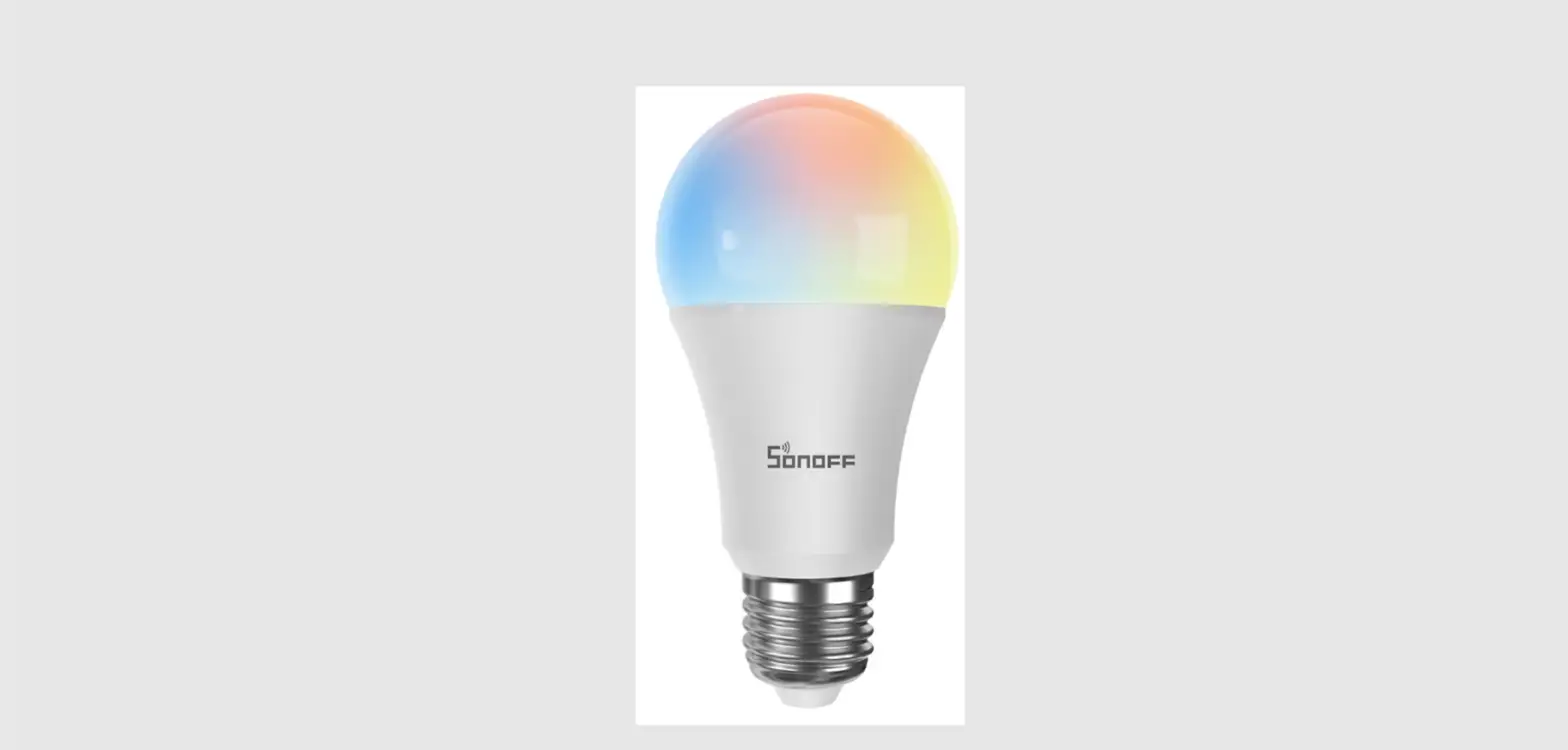
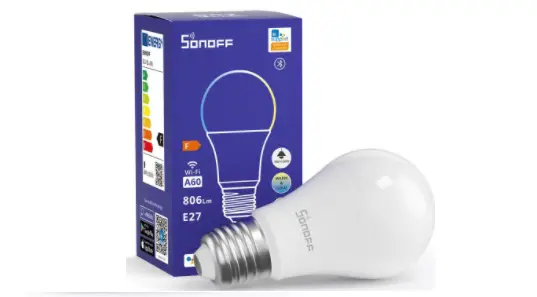
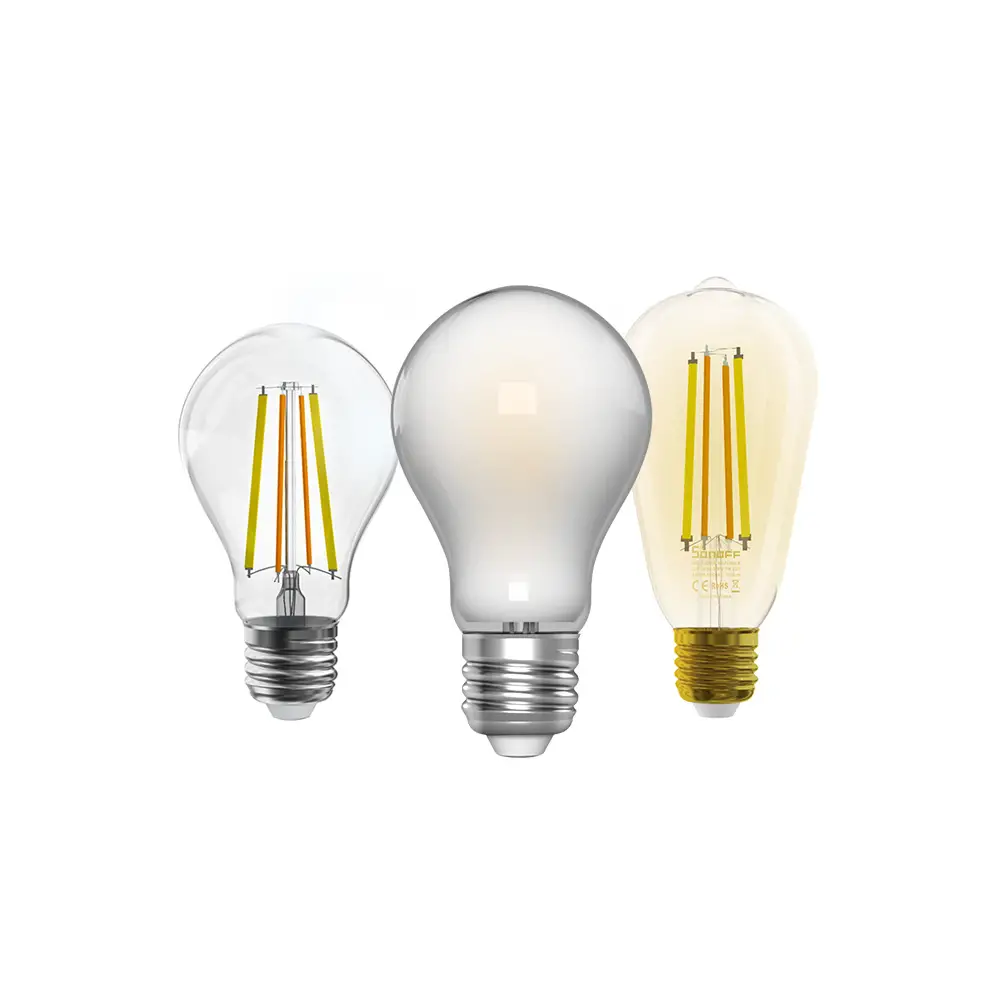
B02-F-A60 LED Lamp
Product Information
The SONOFF LED is a smart bulb that allows users to adjust the
brightness and color, and remotely turn on/off the connected
devices through a smartphone. It is compatible with Android and iOS
operating systems and works under 220-240V AC only. The bulb has a
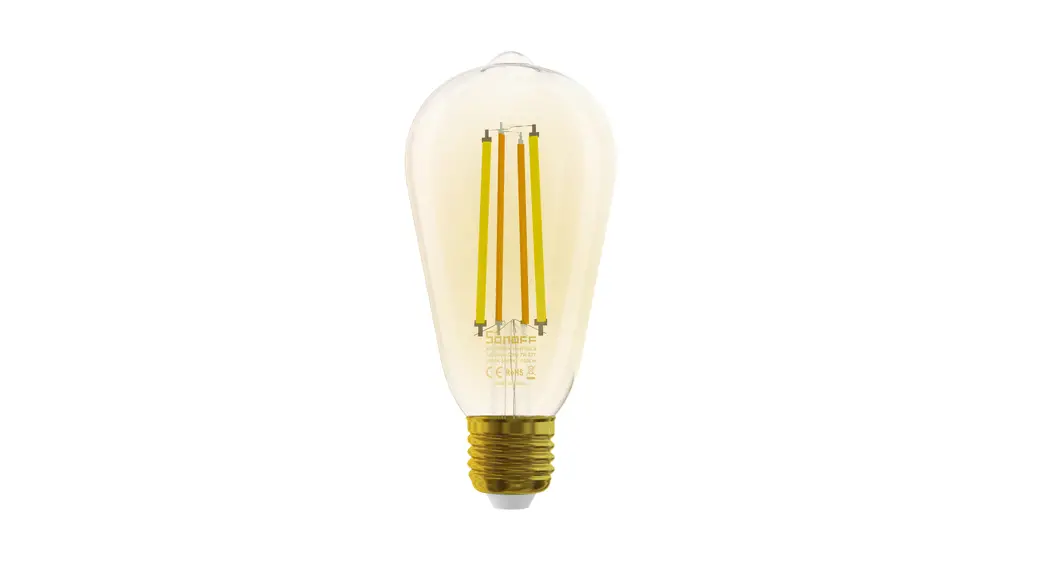
rated power of 7W, a luminous flux of 806Lm (B02-F-A60) or 700Lm
(B02-F-ST64), and a color temperature range of 2200K-6500K
(B02-F-A60) or 1800K-5000K (B02-F-ST64). The bulb base is E27 and
has a CRI of Ra80, with a life expectancy of 15000h. It can be
controlled through the eWeLink app and supports IEEE 802.11 b/g/n
2.4GHz Wi-Fi networks.
Product Usage Instructions
- Before installation, turn off the power to avoid electric
shock. - Download the eWeLink app.
- Power on the bulb. It will enter quick pairing mode (the bulb
will change from bright to dim and cycle the mode). If it is not
paired within 3 minutes, it will exit quick pairing mode. - To enter quick pairing mode, press the manual switch three
times repeatedly at an interval of every 1s
(Off-ON-Off-ON-Off-ON). - Add the device by tapping + in the eWeLink app and selecting
Quick Pairing. Follow the prompts on the app for Wi-Fi devices. For
GSM devices and devices with QR code, scan the code. For devices
that support sound pairing, add the device in this mode. - If you fail to enter quick pairing mode, try compatible pairing
mode. Press the light switch five times repeatedly at an interval
of every 1s (Off-ON-Off-ON-Off-ON-Off-ON-Off-ON) when the light is
on. The quick flash indicates the device enters the compatible
pairing mode. Then, select Compatible Pairing Mode on the app,
select Wi-Fi SSID with ITEAD-****** and enter the password
12345678, and tap Next. - Use the eWeLink app to control the bulb’s brightness and color,
turn it on/off, and set schedules. The bulb also supports voice
control, share control, smart scenes, stepless dimming, scene mode,
camera feature, group control, and factory reset. - To reset the device to factory defaults, press the light switch
three times repeatedly at an interval of every 1s
(Off-ON-Off-ON-Off-ON) when the light is on. The breathing mode
indicates the device enters the quick pairing mode(touch). Then,
reconnect the network. - If the device stays offline, check if it is connected to a
Wi-Fi network and if the network is stable. Also, check if the bulb
is too far from the router or if there are too many devices
connected to the same network.
SONOFF TECHNOLOGIES CO., LTD.
Operating Instruction
1. Install the device
English
OFF
To avoid electric shock, please turn off the power before installing the device. The device works under 220-240V AC only. 2. Download APP
eWeLink
3. Power on
eWeLink
AndroidTM & iOS
After powering on, the device will enter the quick pairing mode (Touch) during the first use. The device enters the “breathing mode”.
The device will exit the quick pairing mode (Touch) if not paired within 3mins. If you want to enter this mode, please press the manual switch three times repeatedly at an interval of every 1s (Off-ON-Off-ON-Off-ON). The “breathing mode” indicates the light enters quick pairing mode.
1S
1S
1S
1S
1S
5
SONOFF TECHNOLOGIES CO., LTD. 4.Add the device
English
AddDevice
QuickPairing
WIFIdevicescanbeaddedinthismo de(makesurethedeviceisinpairing mode).
Scan QR code
GSM devices and devices with QR co de can be added in this mode.
Sound Pairing Add device in this mode if your devic e support this feature.
Tap “+” and select ” Quick Pairing “, then operate following the prompt on the app.
Compatible Pairing Mode
If you fail to enter Quick Pairing Mode (Touch), please try “Compatible Pairing Mode ” to pair. 1. Press the light switch 5 times repeatedly at an interval of every 1s (Off-ON-Off-ON-
Off-ON-Off-ON-Off-ON) when the light is on. The “quick flash” indicates the device enters the compatible pairing mode. 2. Tap “+” and select ” Compatible Pairing Mode ” on APP. Select Wi-Fi SSID with ITEAD-****** and enter the password 12345678, and then go back to eWeLink APP and tap “Next”. Be patient until pairing completes.
Usage of being an ordinary bulb
Power on the bulb, it will enter quick pairing mode (The bulb change from bright to dim and cycle the mode), after 10s, if power off, it will go solid and keep warm light at the highest brightness.
6
SONOFF TECHNOLOGIES CO., LTD.
English
Specifications
Model Input Luminous Flux Color temperature Rated power Lamp base CRI Life Expectancy Wi-Fi Operating systems Dimension Weight
B02-F-A60/B02-F-ST64 220-240V AC 50Hz B02-F-A60: 806Lm / B02-F-ST64: 700Lm B02-F-A60: 2200K-6500K / B02-F-ST64: 1800K-5000K 7W E27 Ra80 15000h IEEE 802.11 b/g/n 2.4GHz Android & iOS B02-F-A60: 60x104mm / B02-F-ST64: 64x138mm B02-F-A60: 35g / B02-F-ST64: 50g
Product Introduction
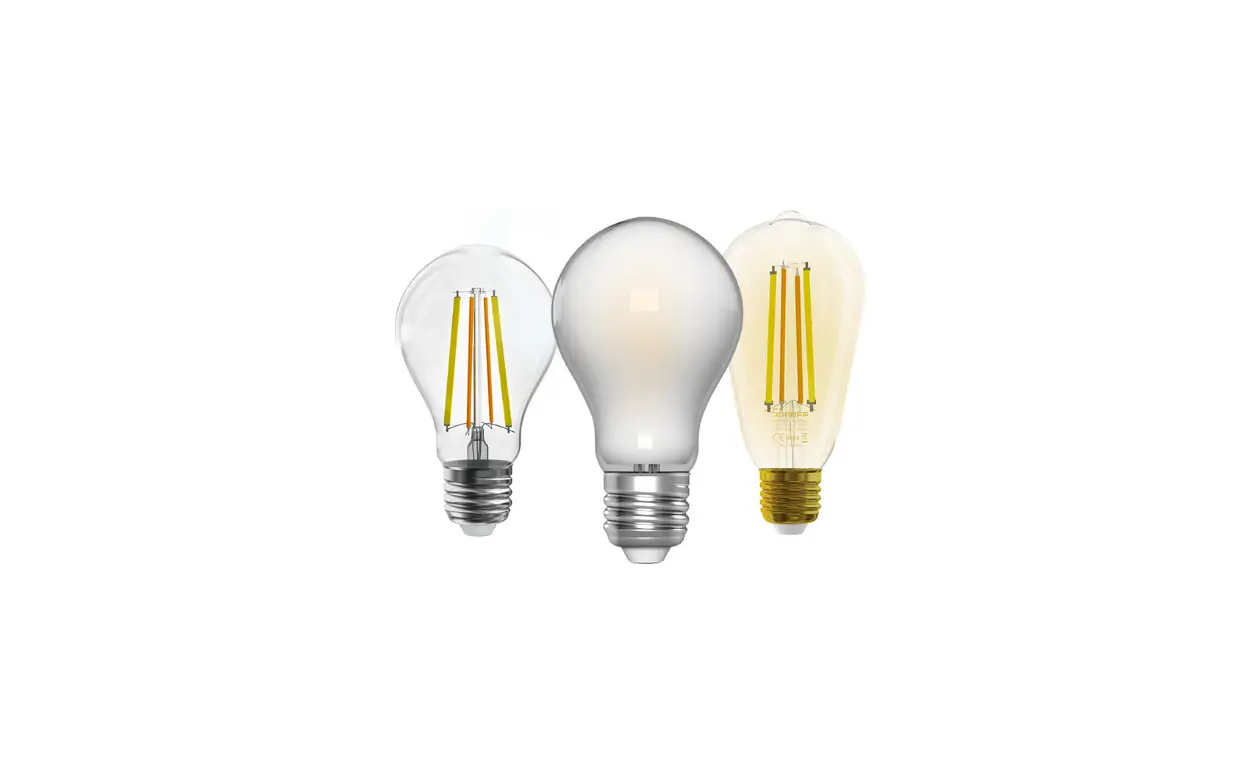
Lampshade
E27 lamp screw base
B02-F-A60
B02-F-ST64
7
SONOFF TECHNOLOGIES CO., LTD.
English
Features
SONOFF LED is a LED smart bulb that allows users to adjust the brightness and color, and remotely turn on/off the connected devices via your smartphone, schedule it on/off and share it to your family to control together.
Remote Control Single/Countdown Timing
Voice Control
Share Control
Smart scene
Sync Status
Stepless dimming
Scene Mode
Camera Feature
Group control
Factory Reset
Press the light switch 3 times repeatedly at an interval of every 1s (Off-ON-Off-ONOff-ON) when the light is on. The “breathing mode” indicates the device enters the quick pairing mode (Touch).
1S
1S
1S
1S
1S
Please reset the device to factory defaults if you want to use other Wi-Fi networks, then reconnect the network.
Common Problems
Why my device stays “Offline”?
Maybe you have entered a wrong Wi-Fi password. Maybe there’s too much distance between the switch your router or the environment
causes interference, consider getting close to the router. If failed, please add it again. The 5G Wi-Fi network is not supported and only supports the 2.4GHz wireless network. Maybe the MAC address filtering is open. Please turn it off.
If none of the above methods solved the problem, you can open the mobile datanetwork on your phone to create a Wi-Fi hotspot, then add the device again.
8