Contents hide

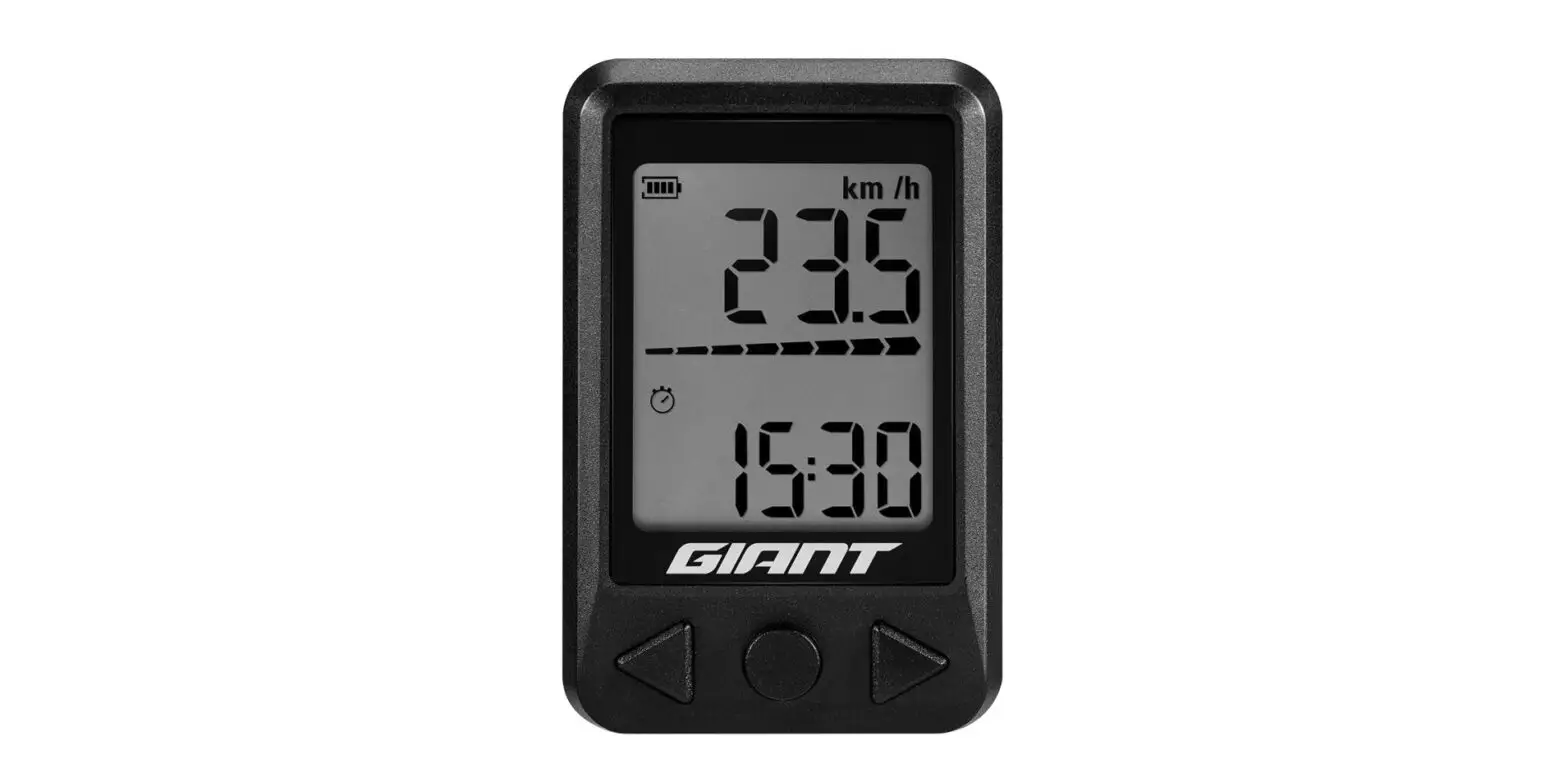
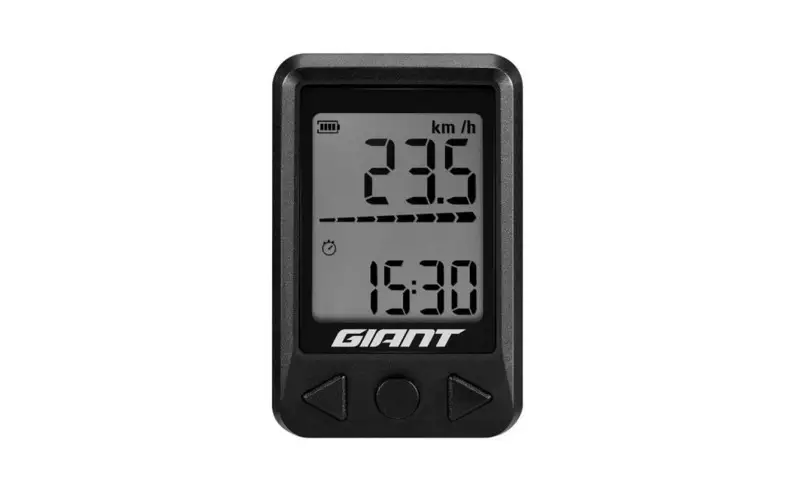
23RideDash Plus Electric Bike Cycling Computer
Content
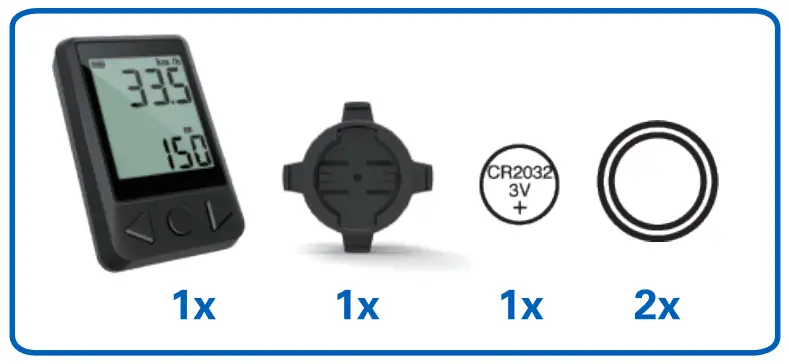
The complete RideDash Plus set includes:
Specification
| Category | Description |
| Physical Size | 60*38*15mm (L*W*H) |
| Weight | 24g(incl. CR2032 battery) |
| Radio Frequency | 2.4GHz ANT™ |
| Transmission Range | 3m |
| Operating Temperature | -10°C – 60°C |
| Water Resistance | 1m |
| Battery | CR2032 Lithium Battery |
| Battery Life Time | Up to 100 Hours ofOperating |
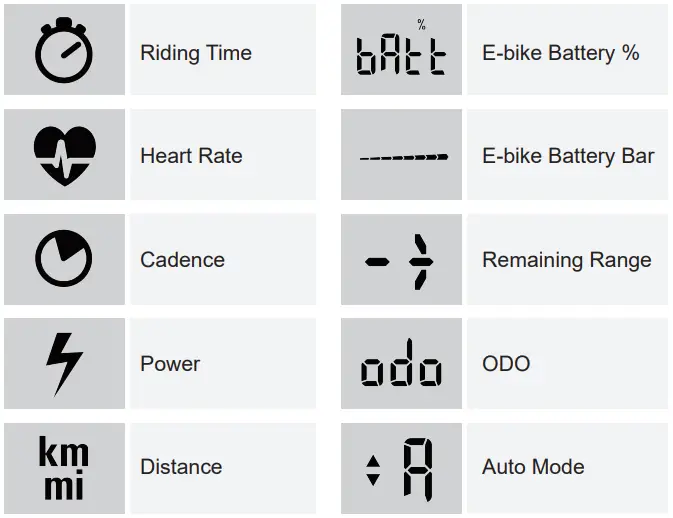
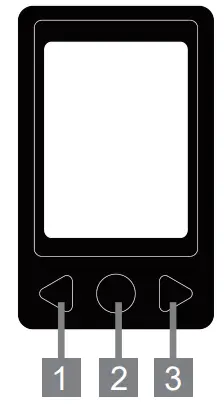
Data field icon Description
- Previous Data Field
- Clear current data
- Wake up
- Enter setting mode
- Next Data Field

How to Setup
Please insert CR2032 battery to computer before activate RideDash Plus.
A. Wake up
Press central button.
B. Pair with your E-bike via ANT+
- Turn on E-bike power, and wake up RideDash Plus computer.
- Recommend: Take E-bike away from other ANT+ signal to avoid RideDash Plus finding other sensor.
- Press Reset Button on back side to enter pair mode. Screen will show “Pair” when RideDash Plus finds E-bike.
- Auto search: don’t need to pair with same E-bike next time waking up RideDash Plus.
C. Setting wheel circumference
- Wheel circumference setting is not necessary when pairing with E-bike system. When using a speed sensor on regular bike, please set wheel circumference.
- To enter setting mode, it’s not necessary to connect to E-bike, you can operate solely with RideDash Plus.
- Press right button to remaining range/distance/odo data field.
- Press and hold central button for 2 seconds to enter setting mode.
- When seeing “LEN” on upper screen, press and hold central button for 2 seconds. Screen will show “SEt”. Press left and right buttons to adjust wheel size. After setting, press central button to confirm and computer will remain in setting mode. If not confirmed by user, system will automatically set and go back to original data field after 2 seconds.
D. Setting metric/imperial unit
- To enter setting mode, it’s not necessary to connect to E-bike, you can operate solely with RideDash Plus.
- Press right button to remaining range/distance/odo data field.
- Press and hold central button for 2 seconds to enter setting mode.
- After setting, press central button to confirm and computer will remain in setting mode. If not confirmed by user, system will automatically set and go back to original data field after 2 seconds.
- After wheel size setting, when seeing “Unit” on bottom screen, press and hold central button for 2 seconds. Screen will show “SEt”. Press left and right buttons to adjust unit.
How to operate
Assist level
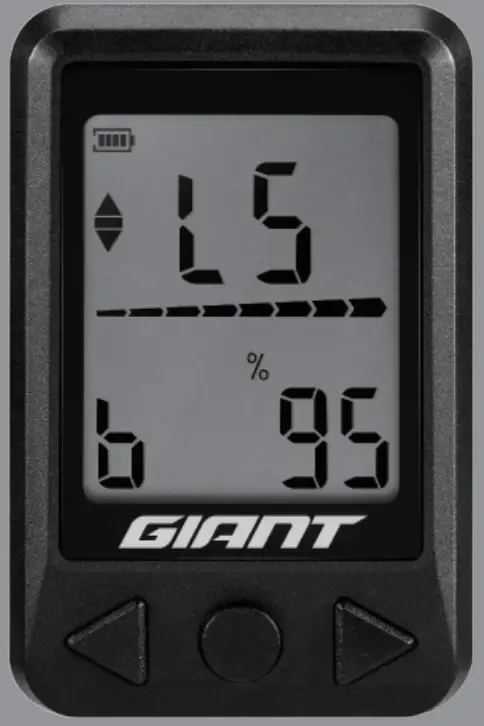
- The upper screen will show L1 to L5 which corresponds to E-bike assist level.
- The upper screen will show “A” when switching to Smart assist mode. (GIANT E-bike only)
- The upper screen will show L1 to L5 which corresponds to E-bike assist level.
- The upper screen will show “A” when switching to Smart assist mode. (GIANT E-bike only)
Clear current riding record
- Press and hold left button for 3 seconds.
C. Sleep
- RideDash Plus will enter Sleep mode 90 seconds after not receiving signal from E-bike.
Warranty
Giant warrants for the original owner of the RideDash Plus (incl. mounting kit) to be free from defects in material and workmanship for the period of two years from the date of purchase. Please note: batteries are excluded from warranties.
This warranty applies only when the RideDash Plus is purchased new from an Authorized Giant Dealer.
www.giant-bicycles.com Giant and its symbol are trademarks of Giant All rights reserved.