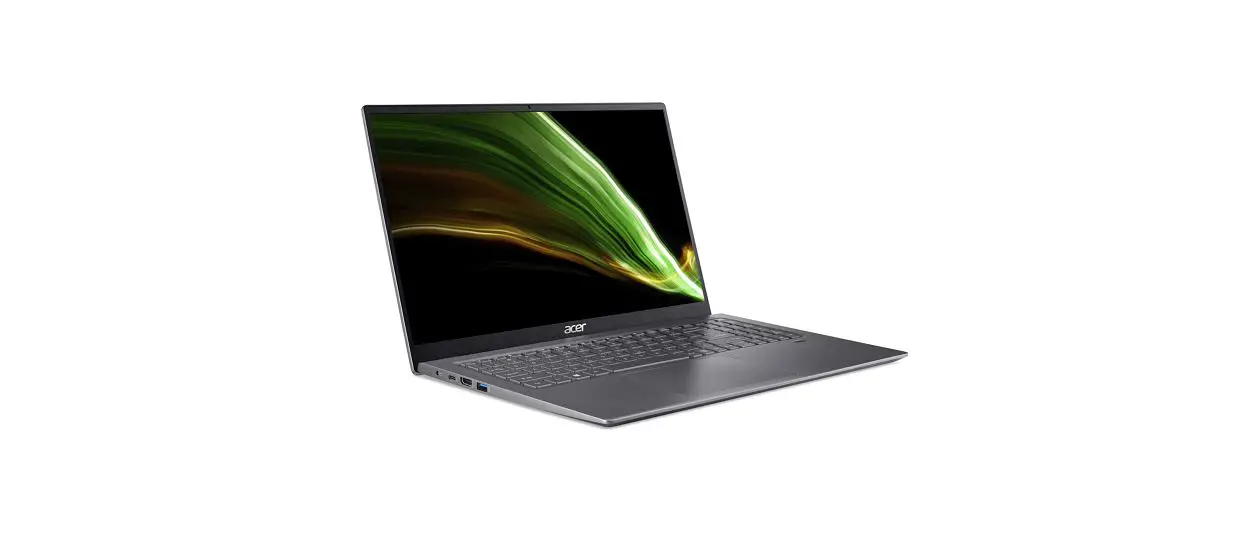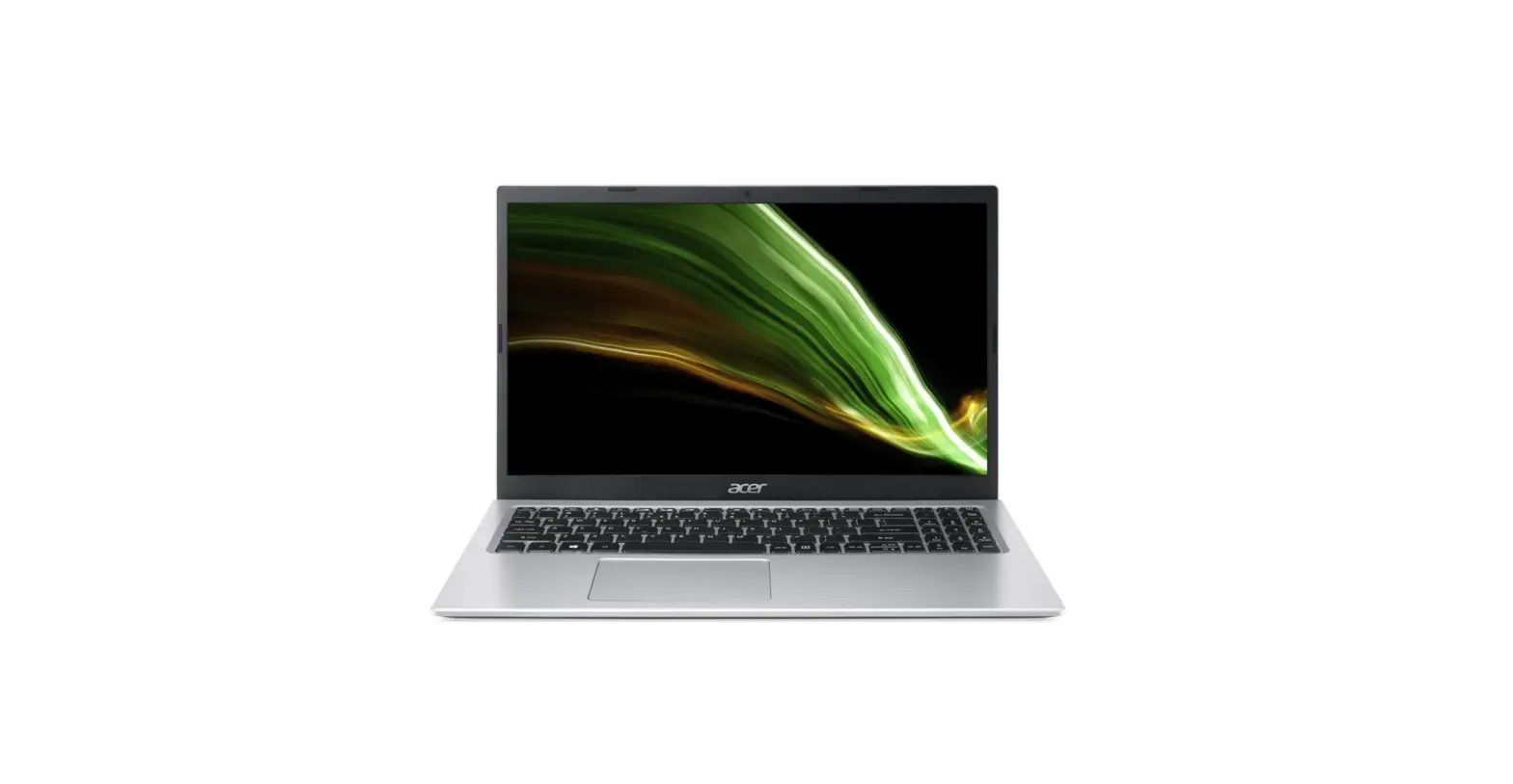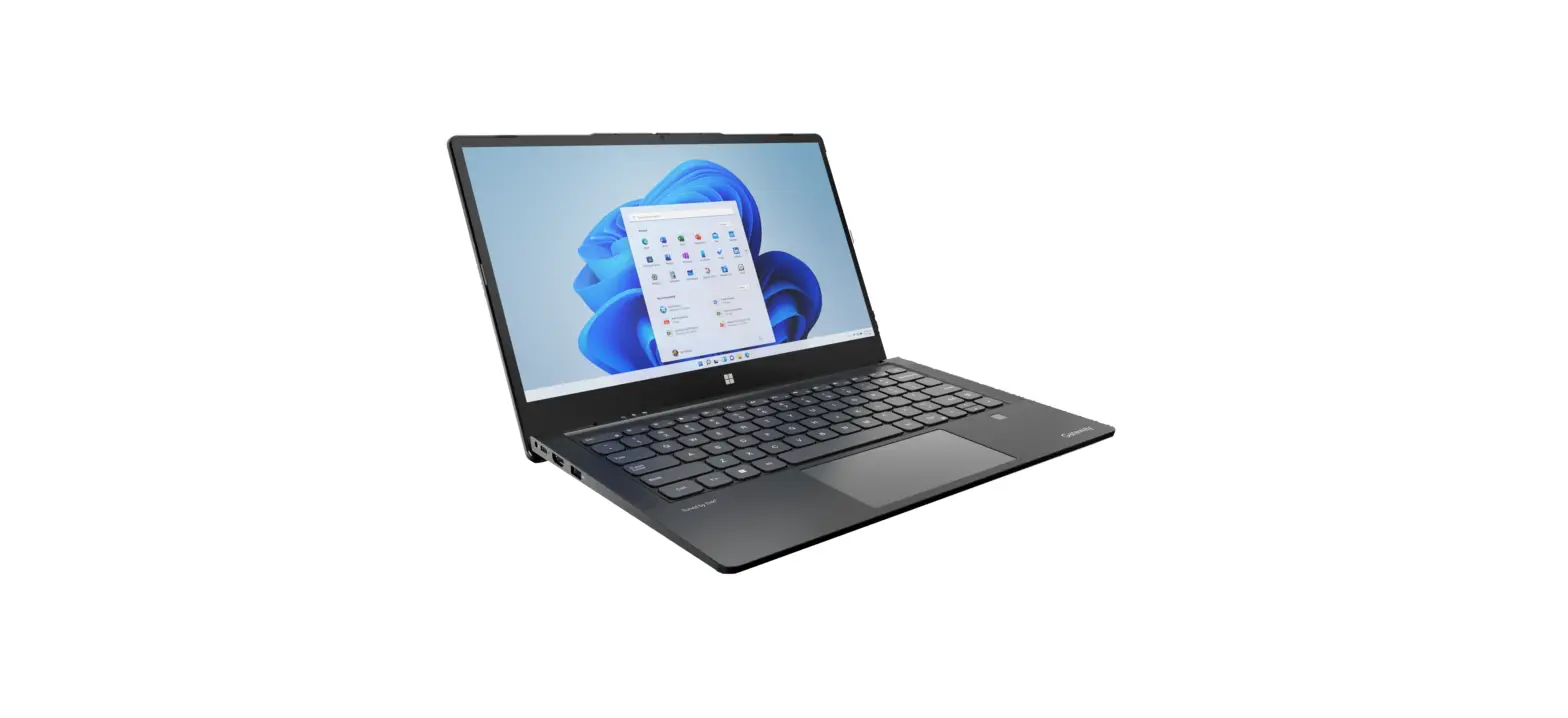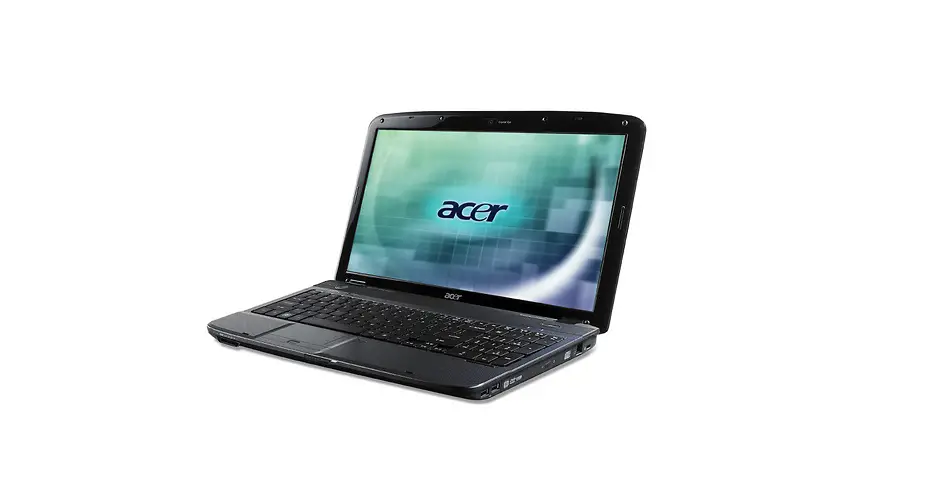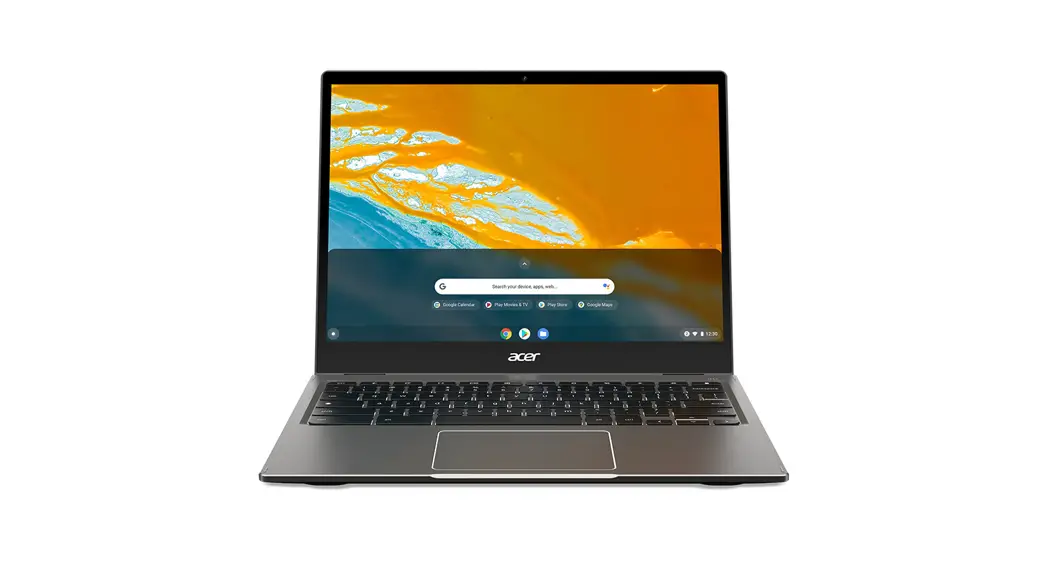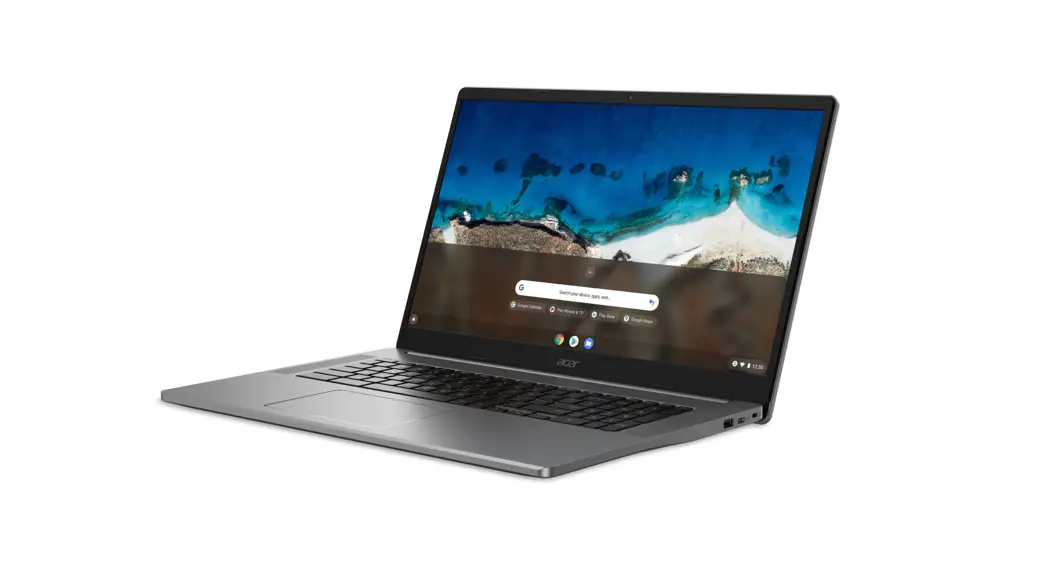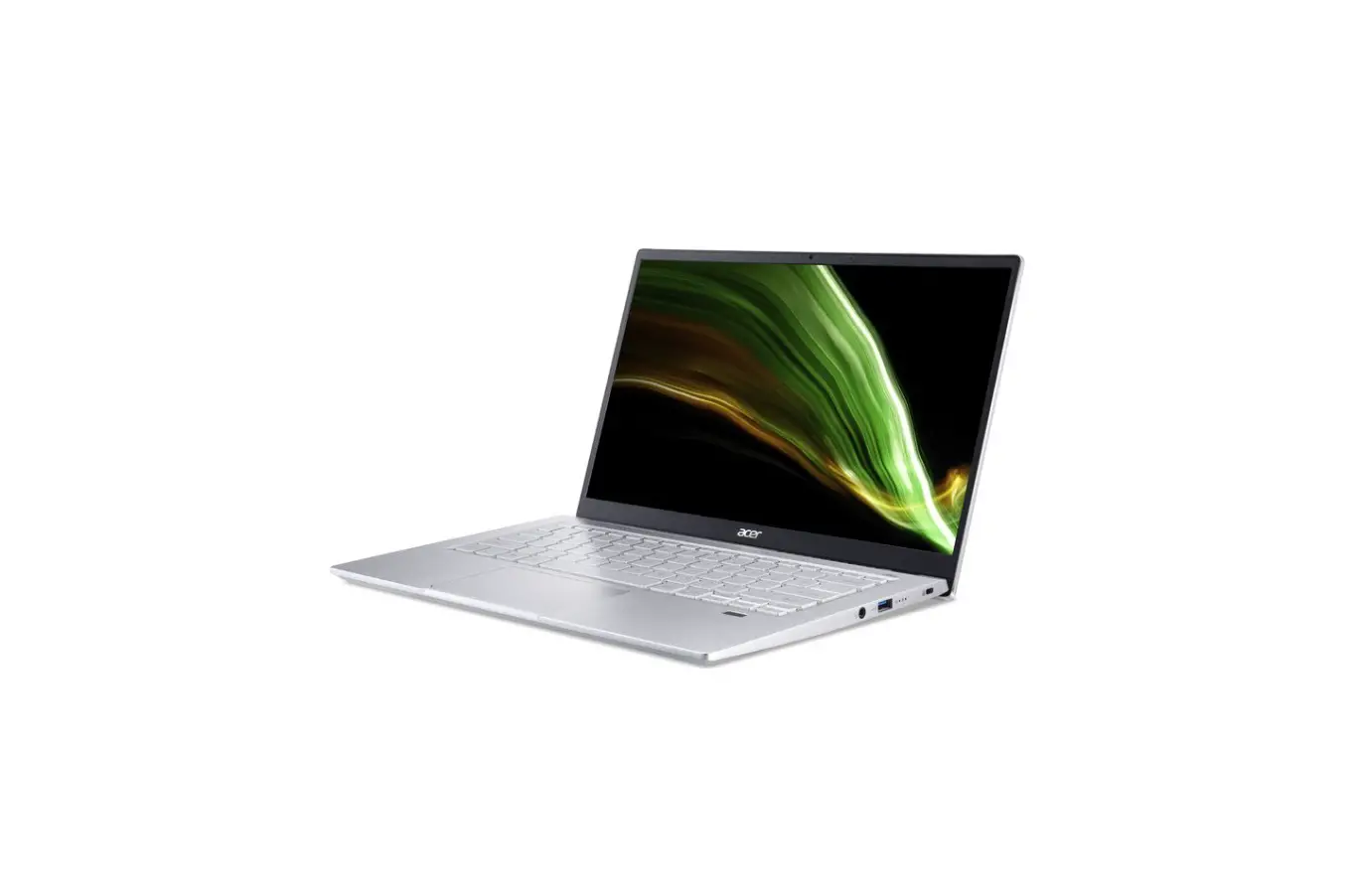
acer SF314-43 Slim Laptop User Manual
First things first
We would like to thank you for making this Acer notebook your choice for meeting your mobile computing needs.
Your guides
To help you use your Acer notebook, we have designed a set of guides: First off, the Setup Guide helps you get started with setting up your computer.
The Quick Guide introduces you to the basic features and functions of your new computer.
For more on how your computer can help you to be more productive, please refer to the Swift 3 User’s Manual. The Swift 3 User’s Manual contains useful information applying to your new computer. It covers basic topics such as using the keyboard and audio, etc.
This guide contains detailed information on such subjects as system utilities, data recovery, expansion options and troubleshooting. In addition it contains warranty information and the general regulations and safety notices for your notebook.
The User’s Manual can be downloaded from the Acer support website by going to:
http://go.acer.com/?id=17883
Software installation
The first time you turn on your computer, it will automatically install software and set up for use. This may take some time, please do not turn off your computer; wait until the installation has finished.
Recovery
You should create recovery backups as soon as you can. The Acer Recovery Management program allows you to create recovery backups and then to restore or reinstall applications and drivers provided by Acer.
Having trouble?
Acer provides several options to support your purchase.
Acer support
Make sure you write down your computer serial number, date and place of purchase and model name on the area provided in this guide; save your proof of purchase. Before you call us, please write down any error message that accompanies the problem, and have the computer in front of you and switched on if possible. Having English these items to hand when contacting us will ensure better and quicker service.
Acer website
Remember to visit www.acer.com and refer to the support section for up-to-date information, help, drivers and downloads.
Warranty and contact information
You can find information about the warranty for your computer and how to contact technical support in your computer’s Warranty.
Your Acer notebook tour
After setting up your computer as illustrated in the Setup Guide, let us show you around your new Acer computer.
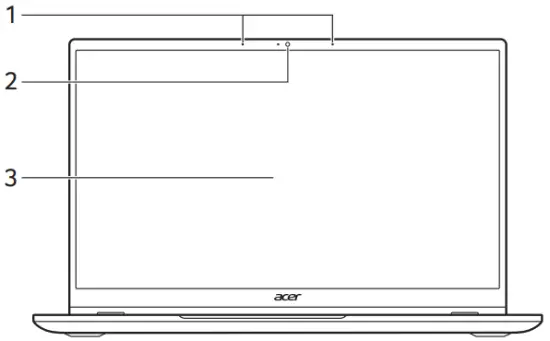
Screen view
| # | Icon | Item | Description |
| 1 | Microphones | Internal stereo microphones for sound recording. | |
| 2 | Webcam | Web camera for video communication. A light next to the webcam indicates that the webcam is active. | |
| 3 | Screen | Displays computer output. |
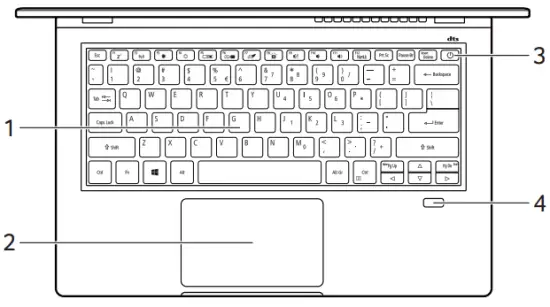
Keyboard view
| # | Icon | Item | Description |
| 1 | Keyboard | For entering data into your computer. | |
| 2 | Touchpad | Touch-sensitive pointing device. The touchpad and selection buttons form a single surface. Press down firmly on the touchpad surface to perform a left click. Press down firmly on the lower right corner to perform a right click. | |
| 3 |  | Power button | Turns the computer on and off. |
| 4 | Fingerprint reader | Fingerprint reader for Windows Hello and security. |
Left view
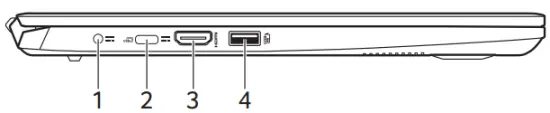
| # | Icon | Item | Description |
| 1 |  | DC-in jack | Connects to an AC adapter. |
| 2 |  | USB Type-C port with DC-in | Connects to the provided USB Type-C power adapter and to USB devices with a USB Type-C connector. Supports DisplayPort™ over USB-C™. |
| 3 |  | HDMI port | Supports high-definition digital video connections. |
| 4 |  | USB port with power- off charging | Connects to USB devices. |
USB Type-A information
- USB 3.2 Gen 1 compatible ports are blue.
- Compatible with USB 3.2 Gen 1 and earlier devices.
- For optimal performance, use USB 3.2 Gen 1-certified devices.
- Defined by the USB 3.2 Gen 1 specification (SuperSpeed USB).
USB Type-C information
- USB 3.2 Gen 2 with transfer speeds up to 10 Gbps.
- Supports DisplayPort™ audio/video output.
- Delivers up to 3 A at 5 V DC for USB charging.
- • DC-in: requires power adapter or power source providing 65 W at 19 V.
For optimal performance, please use a certified Acer power adapter or USB Power Delivery device.
Right view
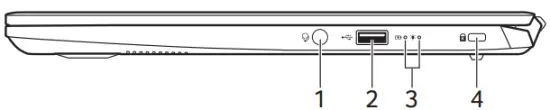
| # | Icon | Item | Description |
| 1 |  | Headset/speaker jack | Connects to audio devices (e.g., speakers, headphones) or a headset with microphone. |
| 2 |  | USB port | Connects to USB devices |
| 3 |  | Battery indicator | Indicates the computer’s battery status. Charging: The light shows amber when the battery is charging. Fully charged: The light shows blue when in AC mode. |
 | Power indicator | Indicates the computer’s power status. | |
| 4 |  | Kensington lock slot | Connects to a Kensington-compatible security lock. |
Base view
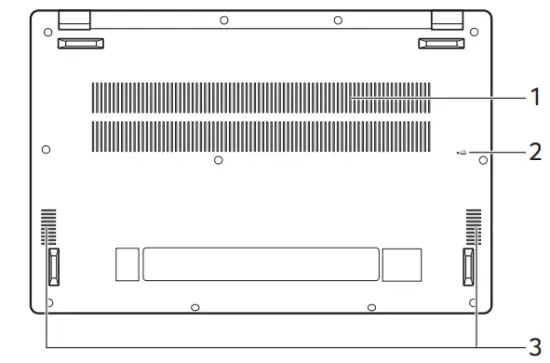
| # | Icon | Item | Description |
| 1 | Ventilation and cooling fan | Allows the computer to stay cool. Do not cover or obstruct the openings. | |
| 2 |  | Battery reset pinhole | Simulates removing and reinstalling the battery. Insert a paperclip into the hole and press for four seconds. |
| 3 | Speakers | Deliver stereo audio output. |
Using the keyboard
The keyboard has full-sized keys, a numeric keypad, separate cursor, lock, Windows, special keys and hotkeys.
Special keys
Your computer’s keyboard includes keys that activate special functions. The function of each key is clearly marked with an icon.
| Icon | Function | Description |
 | Sleep | Puts the computer in Sleep mode. |
 | Flight mode | Turns on / off the computer’s network devices. |
 | Brightness down | Decreases the screen brightness. |
 | Brightness up | Increases the screen brightness. |
 | Display toggle | Switches display output between the display screen, external monitor (if connected) and both. |
 | Display of | Turns the display screen backlight off to save power. Press any key to return. |
 | Touchpad toggle | Turns the built-in touchpad on and of |
 | Keyboard backlight toggle | Turns the keyboard backlight on and off. (optional) |
 | Speaker toggle | Turns the speakers on and off. |
 | Volume down | Decreases the sound volume. |
 | Volume up | Increases the sound volume. |
 | Microphone toggle | Turns the microphones on and off. |
| Prt Sc | Print Screen | Take quick screen shots. |
| Pause Br | Pause / Break | Sends a Break Command. |
| Pg Up | Page up | Scrolls up a page in a document. |
| Pg Dn | Page down | Scrolls down a page in a document. |
Hotkeys
To activate hotkeys, press and hold the Fn key before pressing the other key in the hotkey combination.
| Hotkey | Icon | Description |
| Fn + F1-F12 | Activates the F1 to F12 keys. | |
| Fn + F | Switches fan mode between Silent, Normal and Performance. For more information on how to achieve optimal cooling efficiency in different scenarios, please launch Acer Quick Access application. | |
| Fn + F | Insert | Turns Insert on or off. |
| Fn + Pg Up | Home | Scrolls to the beginning of a document. |
| Fn + Pg Dn | End | Scrolls to the end of a document. |
 Download Acer Support Drivers and Manuals | Acer United States
 Acer Laptops, Desktops, Chromebooks, Monitors & Projectors | Acer United States