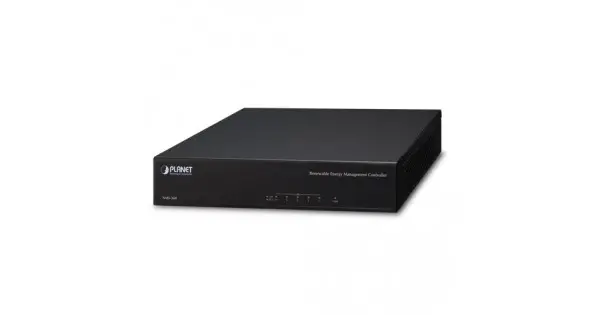
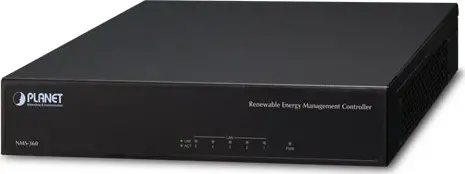
PLANET Renewable Energy Management Controller NMS-360
Package Contents
Thank you for purchasing PLANET Universal Network Management Controller.
The description of the model is shown below:
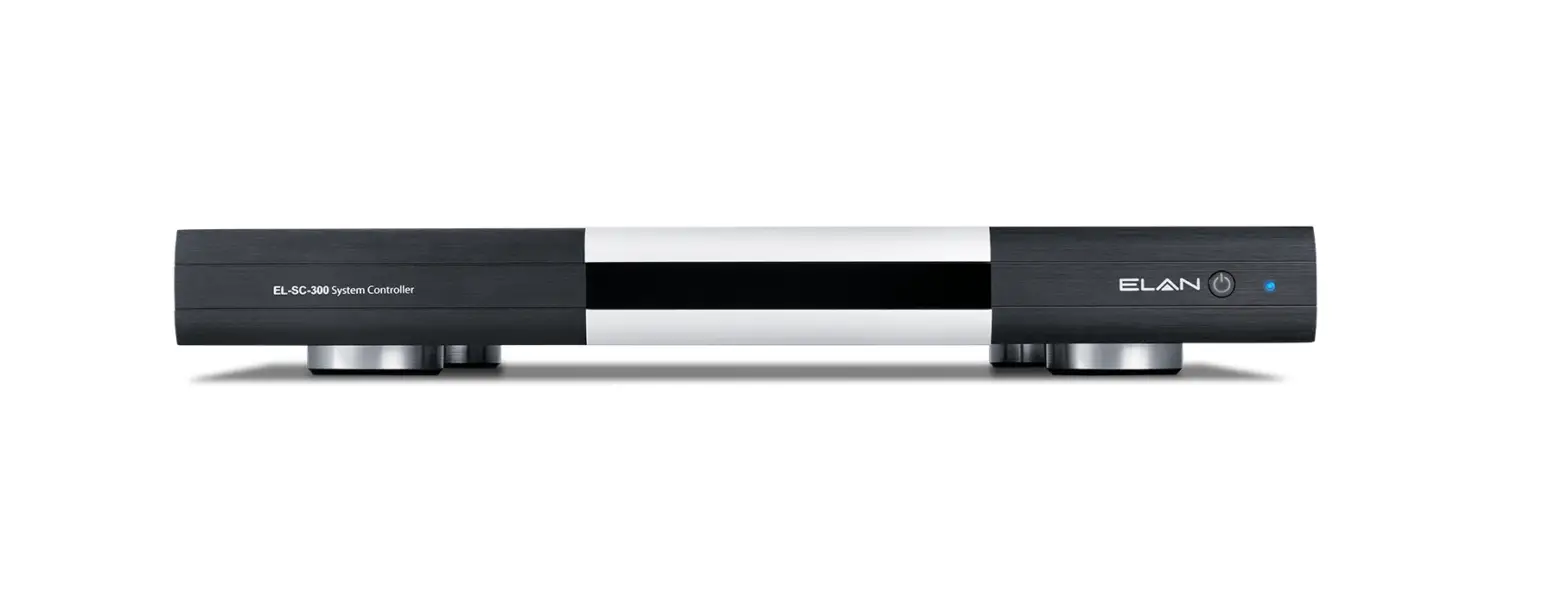
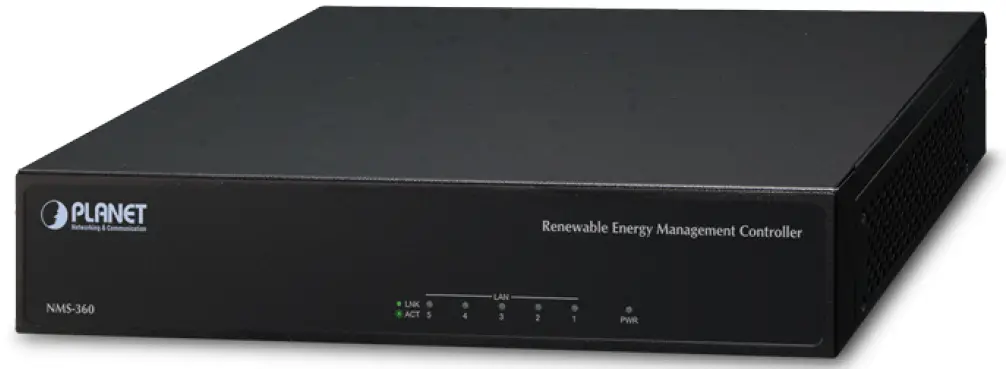
NMS-360 Renewable Energy Management Controller
“NMS-360 Controller” is used as an alternative name in this Quick Installation Guide.
Package Contents:
- The NMS-360 Controller x 1
- Quick Installation Guide x 1
- RS232 to RJ45 Console Cable x 1
- Adapter with Power Cord x 1
- UTP Cable x 1
- Round Gasket x 4
If any item is found missing or damaged, contact your local reseller for replacement.
Hardware Description
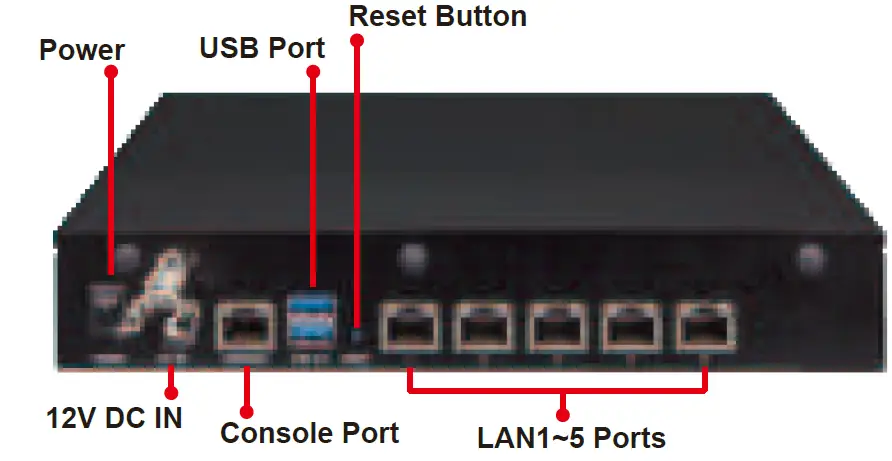
Reset Button: < 5 sec: System reboot; > 5 sec: Factory default
Hardware Interface Definition
| Interface | Description |
| Power Switch | Press the power switch to power on the device |
| DC IN | DC jack power input 12V, 5A |
| Console Port | Connect PC through the RS232 to RJ45 serial cable (115200, 8, N, 1) to enter the management interface |
| USB Port | Connect the USB HDD to enable USB backup/restoration function |
| Reset Button | < 5 sec: System reboot > 5 sec: Factory default |
| LAN Ports (1~5) | 10/100/1000BASE-T RJ45 auto-MDI/MDI-X ports |
| PWR LED | Indicates that the device is powered on (Blue) |
| LAN LED | Link: Steady Green (Green) Active: Flashing Green (Green) |
Remarks: The console port is used for technology maintenance.
| RJ45 LED | Color | Function | |
| 1000 LNK/ACT | Green | Lights | To indicate the port is successfully established at 1000Mbps. |
| Blinks | To indicate that the switch is actively sending or receiving data over that port. | ||
| 100 LNK/ACT | Orange | Lights | To indicate the port is successfully established at 100Mbps. |
| Blinks | To indicate that the switch is actively sending or receiving data over that port. | ||
Physical Specifications
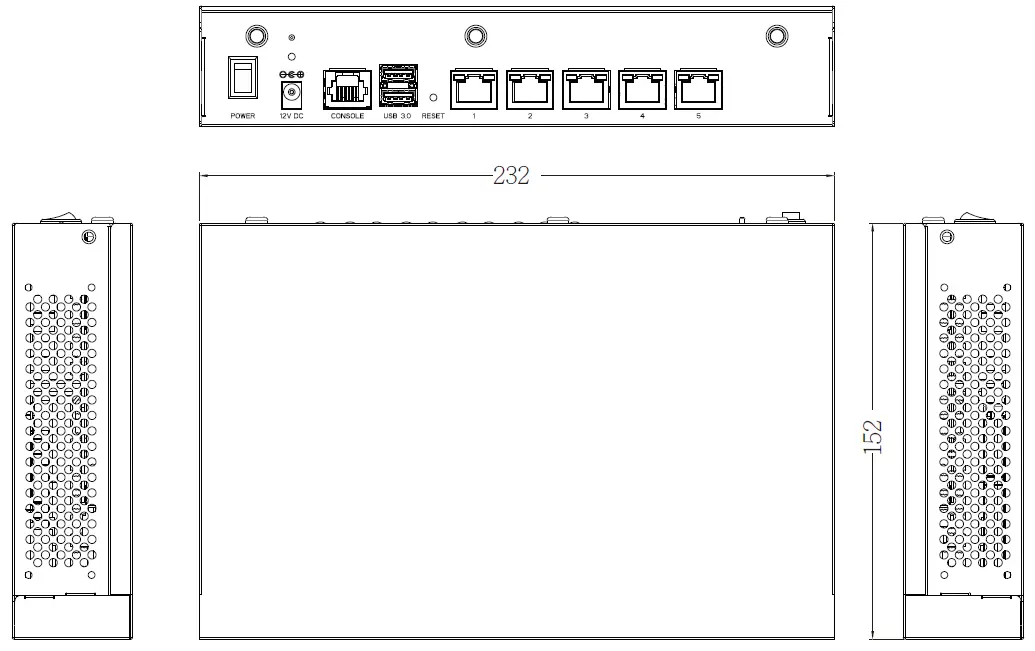
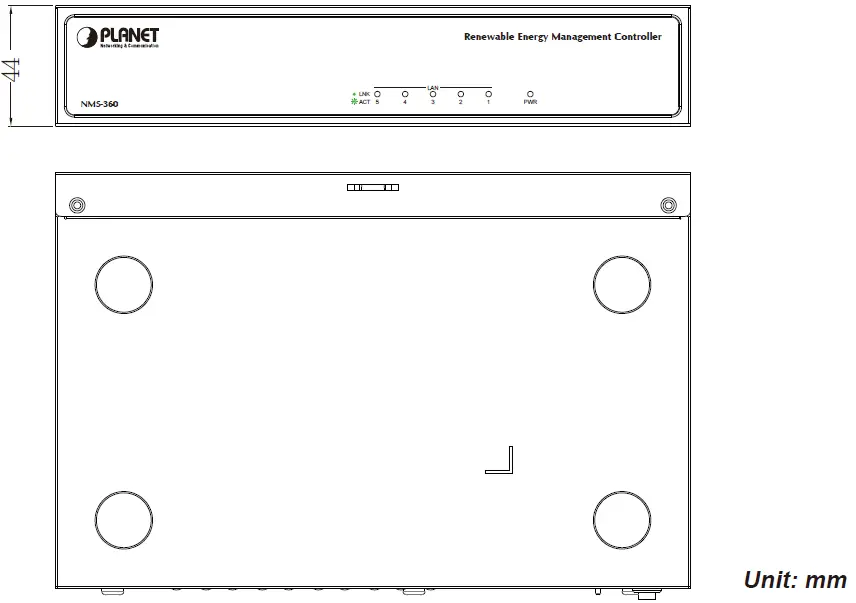
| Dimensions (W x D x H) | 232 x 153 x 44 mm |
| Weight | 1.15 kg |
Product Features
| Dashboard | Providing the at-a-glance view of system, power, traffic, system statistics and device event statuses. |
| Device List | Providing devices status overview and managed function |
| Setup Wizard | Easy-to-use step-by-step guidance. |
| Node Discovery | Management is carried out once a BSP-360-powered device is detected. |
| App-like Device Viewing | App-like devices that are compliant with SNMP, MQTT, and Smart Discovery. |
| Event Table | The status of system can be reported via event alarm. |
| Alarm System | E-mail alerts for the administrator via the SMTP server. |
| Device Provisioning | Enabling BSP-360 to be configured and upgraded at the same time. |
| Site Map | Real-time site map of BSP-360 and IP cams on the user- defined map to optimize energy deployment. |
| Remote PoE control | Real-time remote PoE on/off to reboot connected devices. |
| User Control | Allowing on-demand account creation and user-defined access policy. |
| Scalability | Free system upgrade and BSP-360 firmware bulk upgrade capability. |
| Maximum Scalability | 1 site map, 512 nodes, 2048 managed IP cameras. |
Specifications
| Product | NMS-360 |
| Renewable Energy Management Controller | |
| Platform | |
| Form Factor | Desktop |
| Physical Specifications | |
| I/O Interface | Five 10/100/1000BASE-T RJ45 ports with auto-MDI/MDI-X |
| 2 USB 3.0 ports (They cannot be used at the same time.) | |
| 1 RS232-to-RJ45 console port (115200, 8, N, 1) | |
| 1 DC jack power input | |
| 1 power switch | |
| 1 reset button | |
| Storage | 8GB EMMC5.1, 15nm/2 eMLC |
| Dimensions (W x D x H) | 232 x 153 x 44 mm |
| Weight | 1.15 kg |
| Enclosure | Metal |
| Power Requirement | 60W adapter 12V 5A with DC jack |
| AC 100~240V, 3~1.5A, 60~50Hz. | |
| Environment & Certification | |
| Temperature | Operating: 0 ~ 40 degrees C Storage: -20 ~ 75 degrees C |
| Humidity | Operating: 10 ~ 85% (non-condensing) Storage: 10~85% @ 40 degrees C (non-condensing) |
| MTBF (Hours) | 120,000 @ 25 degrees C |
Remarks: Hold the Reset Button for < 5 sec for System reboot; hold the button > 5 sec for Factory default.
| Devices Management | |
| Number of Managed Devices*1 | 512 BSP-360 (V2) |
| Number of IP Cameras | 2,048 |
| Network Management Feature | |
| Dashboard | Providing the at-a-glance view of system, power, traffic, and device event statuses |
| Setup Wizard | Easy-to-use step-by-step guidance |
| Node Discovery | Management is carried out once a BSP-360-powered device is detected. |
| App-like Device Viewing | App-like devices that are compliant with SNMP, MQTT, and Smart Discovery |
| Event Table | The status of system can be reported via event alarm |
| Alarm System | E-mail alerts for the administrator via the SMTP server |
| Device Provisioning | Enabling BSP-360 to be configured and upgraded at the same time |
| Site Map | Real-time site map of BSP-360 and IP cams on the user-defined map to optimize energy deployment |
| Remote PoE Control | Real-time remote PoE on/off to reboot connected devices |
| User Control | Allowing on-demand account creation and user- defined access policy |
| Scalability | Free system upgrade and BSP-360 firmware bulk upgrade capability |
| Maximum Scalability | 1 site map, 512 nodes, 2048 managed IP cameras. |
| Backup/Restoration/Read | Provides system and profile backup/restoration/read raw data from USB |
| User Account Management | Supports on-demand account creation per user- defined access policy |
Remarks: *1 BSP-360 Hardware version 2 is required and please also refer to the PLANET Web site for the latest firmware that supports NMS Control features.
| Network Services | ||
| Network | DDNS | Supports PLANET DDNS/Easy DDNS |
| DHCP | Built-in DHCP server for auto IP assignment to APs | |
| Management | Console; Telnet; SSL; Web browser (Chrome is recommended); SNMP v1, v2c, v3 | |
| Discovery | Supports SNMP, ONVIF, PLANET Smart Discovery | |
| Maintenance | Backup | System backup and restore to local or USB HDD |
| Reboot | Provides system reboot manually or automatically per power schedule | |
| Diagnostic | Provides IPv4/IPv6 ping and trace route | |
| Standards Conformance | |
| Regulatory Compliance | CE, FCC |
| Standards Compliance | IEEE 802.3 10BASE-T IEEE 802.3u 100BASE-TX IEEE 802.3ab Gigabit 1000BASE-T |
Deployed Devices Monitored via NMS-360 Controller
Prior installation
The NMS-360 is used to centrally manage a large number of BSP-360s(V2). Therefore, you need to upgrade the BSP-360(V2) firmware before using NMS-360.
Please download and use the latest BSP-360(V2) firmware from the website so that setting can be completed smoothly.
The NMS-360 incorporated in a workstation or PC can monitor the BSP-360s compliant with the MQTT Protocol, SNMP Protocol, ONVIF Protocol and PLANET Smart Discovery utility.
Follow the steps below to set up the NMS-360 and BSP-360(V2) accordingly.
Step 1. Connect the devices, NMS-360 Controller and your computer, to the same network.
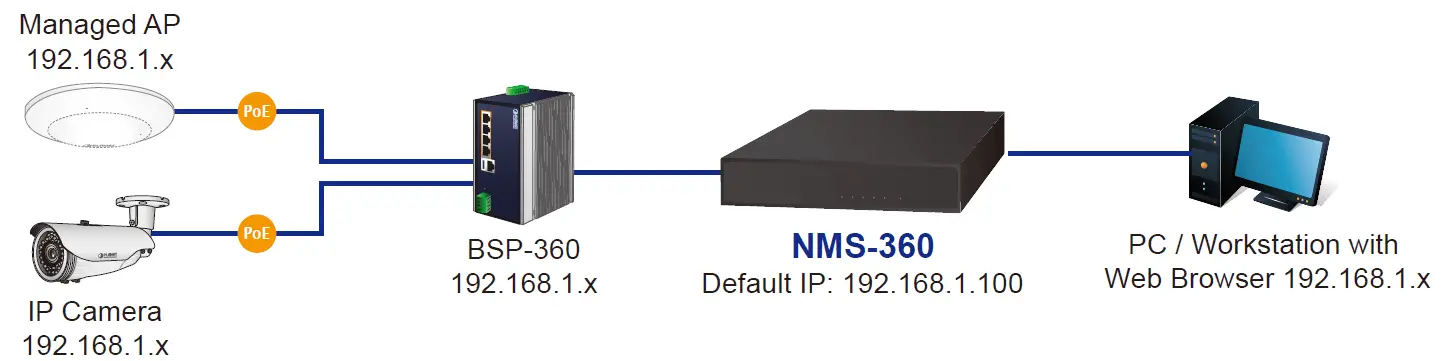
Step 2. BSP-360: Log in to the Switch’s Web User Interface and enable the SNMP and NMS controller functions.
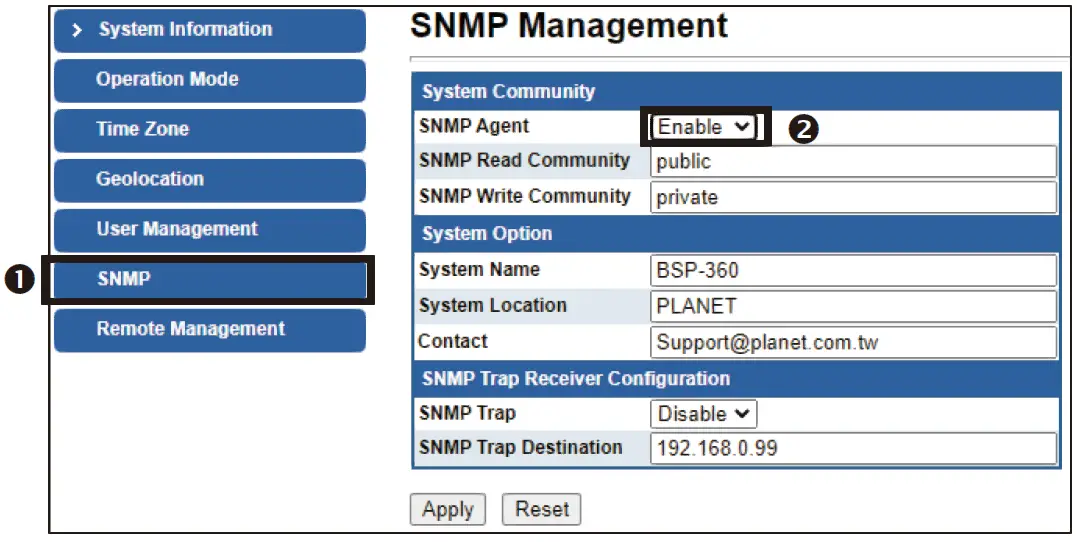
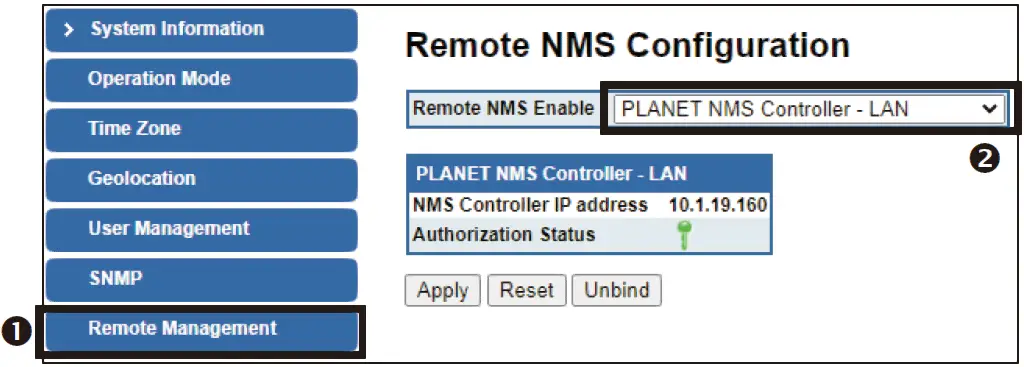
Wired Network Configuration
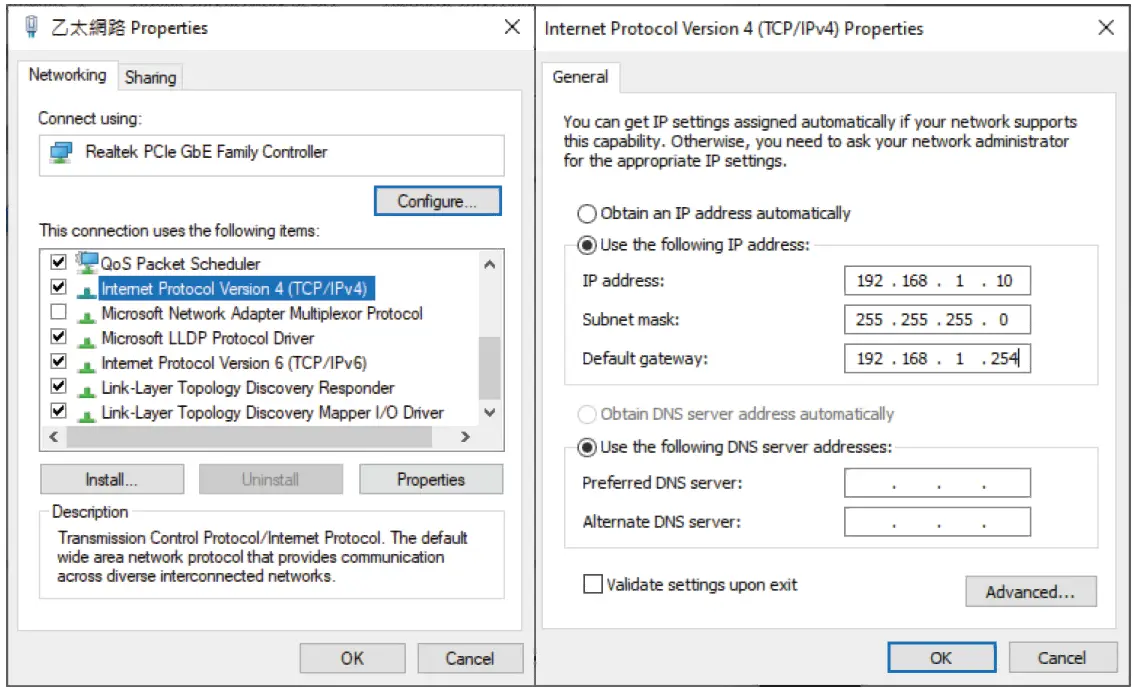
A computer with wired Ethernet connection is required for the first-time configuration of the NMS-360 Controller.

- Go to “Control Panel-> Network and Sharing Center-> Change Adapter Settings”.
- Double-click “Local Area Connection”.
- Select “Internet Protocol version 4 (TCP/IPv4)” and click “Properties”.
- Select “Use the following IP address” and then click the “OK” button twice to save the For example, the default IP address of the NMS-360 Controller is 192.168.1.100, then the manager PC should be set to 192.168.1.x (where x is a number between 1 and 254, except 100), and the default subnet mask is 255.255.255.0.
Entering into the Web Management
Default IP Address: 192.168.1.100
Default Management Port: 8888
Default Username: admin
Default Password: admin
Launch the Web browser (Google Chrome with seamless mode is recommended.) and enter the default IP address “https://192.168.1.100:8888”. Then, enter the default username and password shown above to log on to the system.
The secure login with SSL (HTTPS) prefix is required.
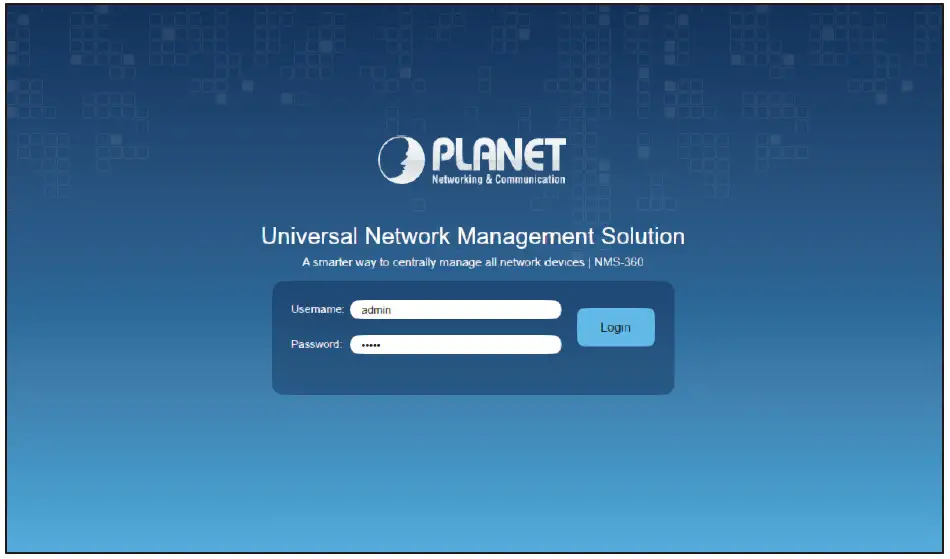
After logging on, connect the NMS-360 Controller to the managed network to centrally control PLANET managed devices.
Setup Wizard
- Account Modification: Set a new account and password for security.

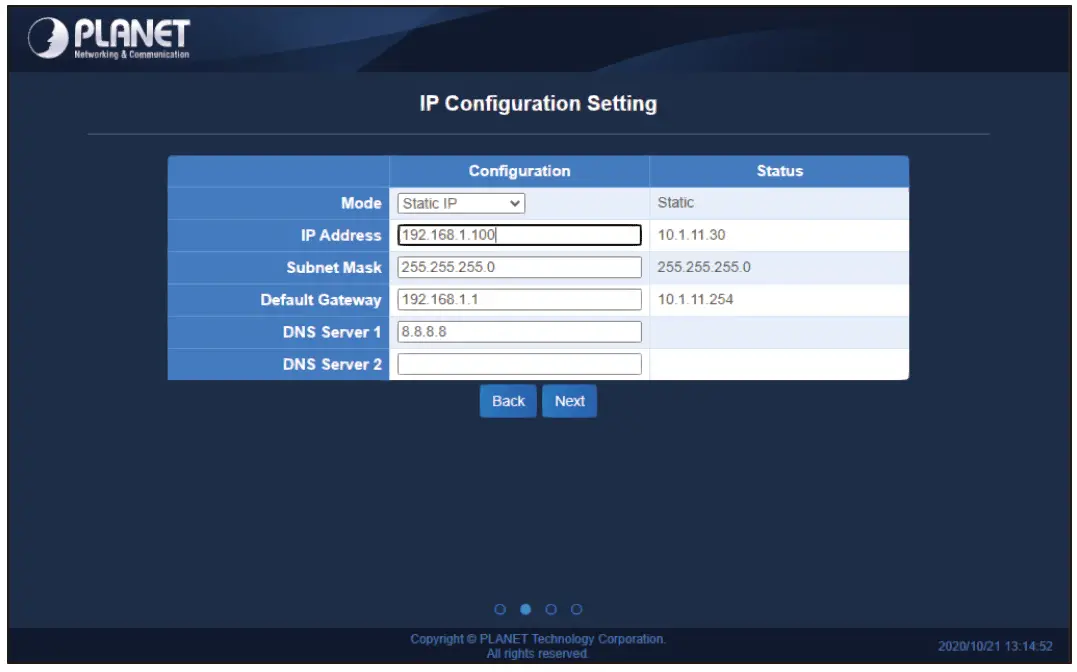
- IP Configuration Setting: Set the NMS-360’s IP into the same local network segment.

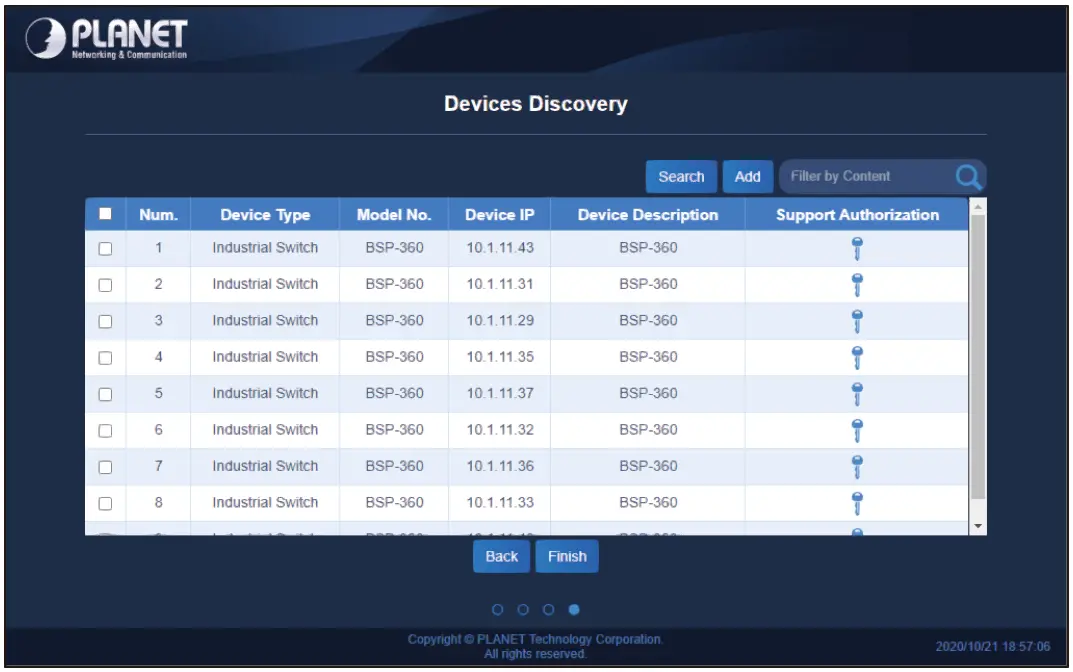
- Devices Discovery: Search the managed devices and add to (Finish Wizard)

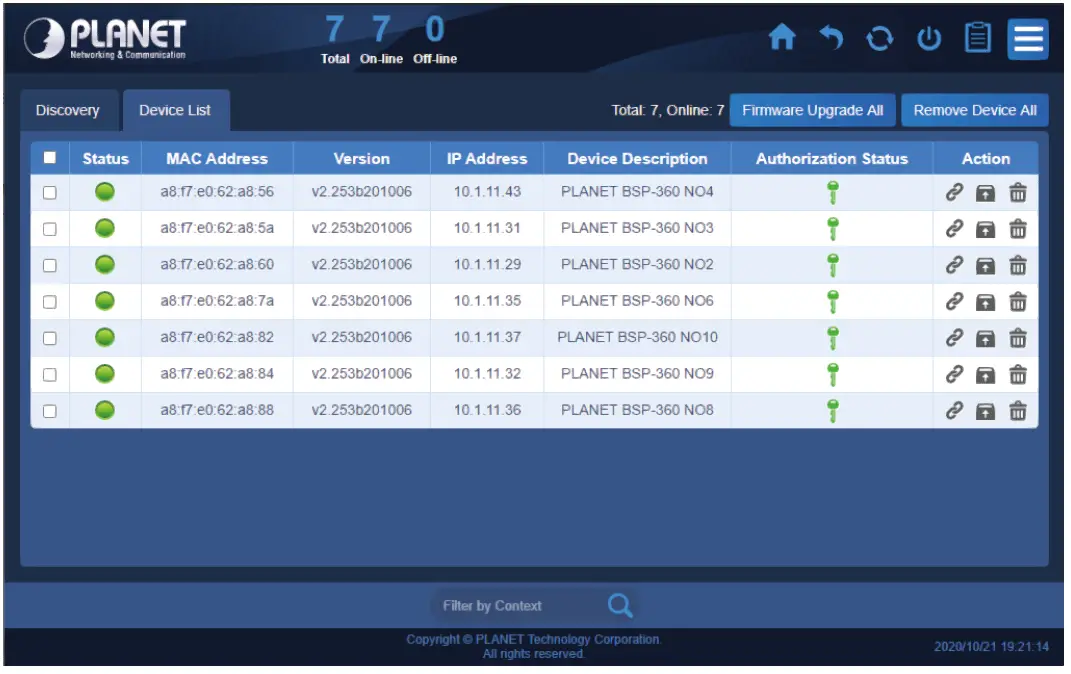
- If added devices are successful, you can see them in Device List / Management page.
- Account Modification: Set a new account and password for security.

Further Information
The above steps introduce the simple installations and configurations of the NMS- 360 Controller. For further configurations of PLANET NMS-360, please refer to the user manual, which can be downloaded from the website.
PLANET online FAQs: http://www.planet.com.tw/en/support/faq
Support team mail address: [email protected]
User’s Manual: https://www.planet.com.tw/en/product/nms-360
(Please select your model name from the Product Model drop-down menu.)
If you have further questions, please contact the local dealer or distributor where you purchased this product.
Copyright © PLANET Technology Corp. 2020.
Contents are subject to revision without prior notice.
PLANET is a registered trademark of PLANET Technology Corp. All other trademarks belong to their respective owners.