 User Guide
Cautions on mobile phone use
1.1 Interference
All phones may be interfered, which affect phone calls.
1.2 Reasonable use
Use only in the normal position. Do not touch the antenna area unnecessarily.
1.3 Qualified maintenance service
Only qualified personnel may install or repair this product.
1.4 Water-resistance
Your device is non water-resistant. Keep it dry.
1.5 Emergency calls
Ensure the phone is switched on and in service. Enter the emergency number and press the Dialer icon.
Precautions for use of battery
2.1 Do not dispose of batteries near or in a fire to avoid dangers.
2.2 Do not dispose of batteries in the garbage. Dispose of batteries to assigned battery recycling center.
Cautions for children
Keep your device out the reach of children in case of accidental injury caused by incorrect use of the device as toys.
Keys and parts
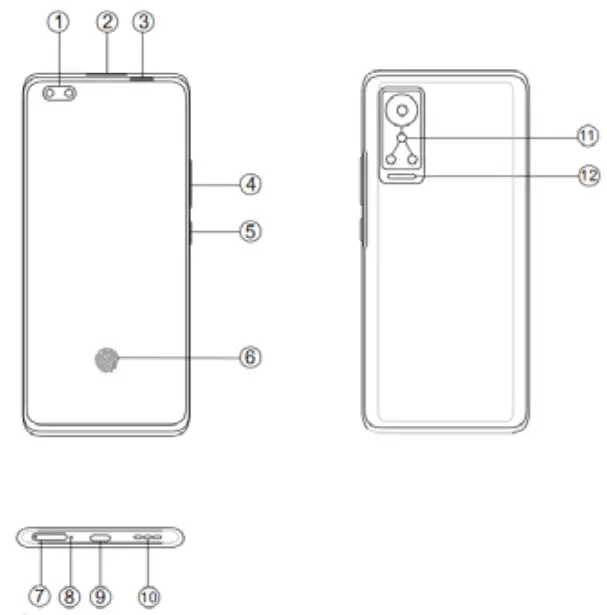
| 1. Front camera 2. Receiver 3. L/P sensor 4. Volume key 5. Power key 6. Display inner fingerprint | 7. SIM tray 8. Mic 9. USB connector 10. Speaker 11. Rear camera 12. Flashlight |
Start to use
3.1 To insert SIM card(S):
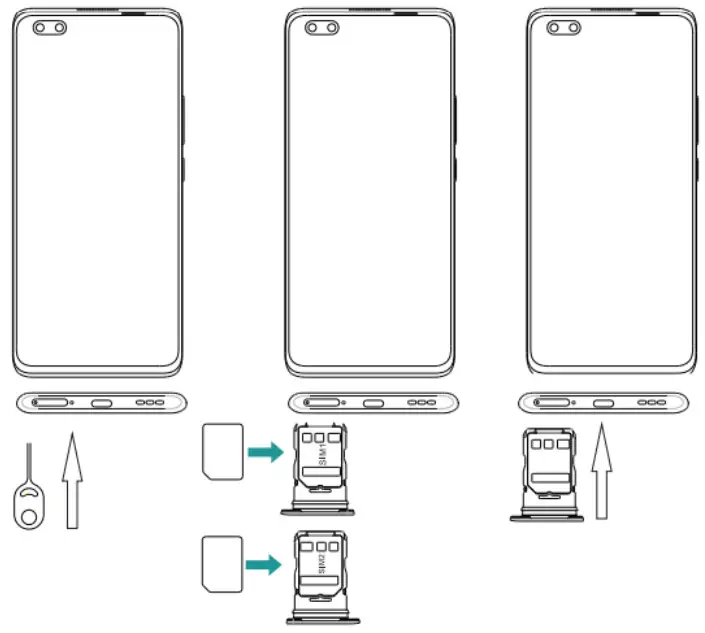
Insert the SIM card correctly in the card slot(s) (See figure below), suggest switch off the phone when you insert SIM card.
Insert the Micro SD card into the slot with the correct direction (See figure below), suggest switch off the phone when you insert Micro SD.
Note: Use only compatible memory cards with this device. Incompatible memory cards may damage the card or the device and corrupt the data stored in the card.
3.2 Charge the battery
During charging, the battery indicator on the phone is a thunder icon. If the device is switched off during charging, there will still be a charging indication on the screen that shows the phone is being charged. If the device is overused when the battery is low, the charging icon might take some time to appear.
When the battery indicator on the screen display ‘Battery is full’, thunder icon will disappear, which means the completion of charging. If the phone is switched off during charging, the screen will display ‘ Battery is full ‘. It generally takes 4 hours to charge the battery. During charging, the battery, the device and the charger will get hot. This is normal.
Unplug the charger from the AC electrical outlet and disconnect the wiring between the phone and the charger after charging. .
Cautions: Charge the phone in a well ventilated place in which the temperature is between -10 ℃ t o + 5 5 ℃. Use the charger provided by the manufacturer only. The use of
unconfirmed charger may lead to dangers and violate the manufacturer’s warranty clause. If the temperature is too high or too low during charging, the device will utomatically
send a warning and stop charging to avoid damage to the battery or any danger.
IV. Basic functions
- Lock and unlock the screen
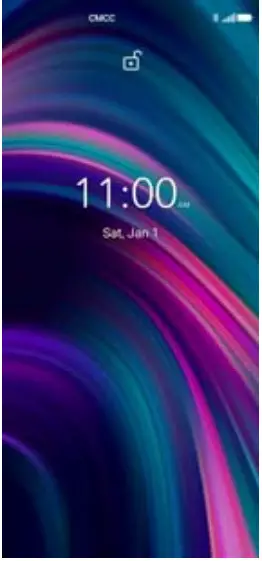
Press power button to enter Sleep mode and meanwhile the screen will be locked; press power button again to wake up and then swipe up for unlock.
- Make it yours
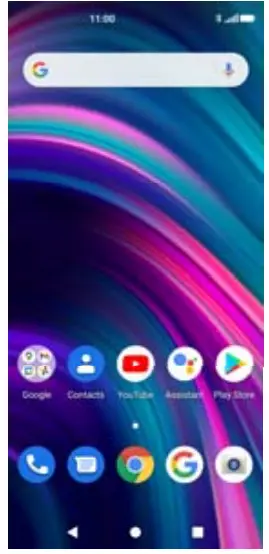
2.1 Home screen: It is your starting point to access all the features on your phone. It displays application icons, widgets, shortcuts, and other features. 2.2 Long press Home screen, and then you can Modify Wallpaper; or enter Launcher and long press and hold an application till the screen vibrates, and then loosen your hold finger.
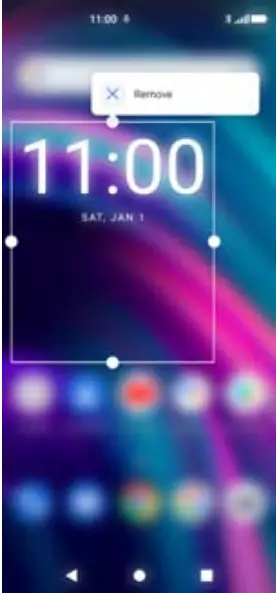
 Long press the widget or icon, after the phone vibrates, select delete or uninstall (select delete for widget, select uninstall for APP)
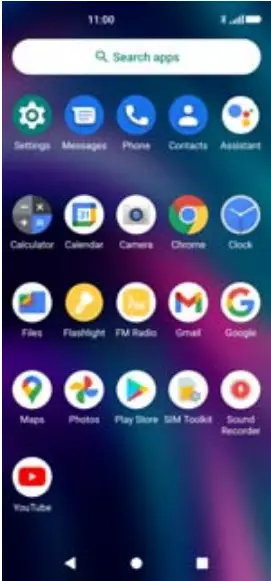
 Swipe up and enter the application list.
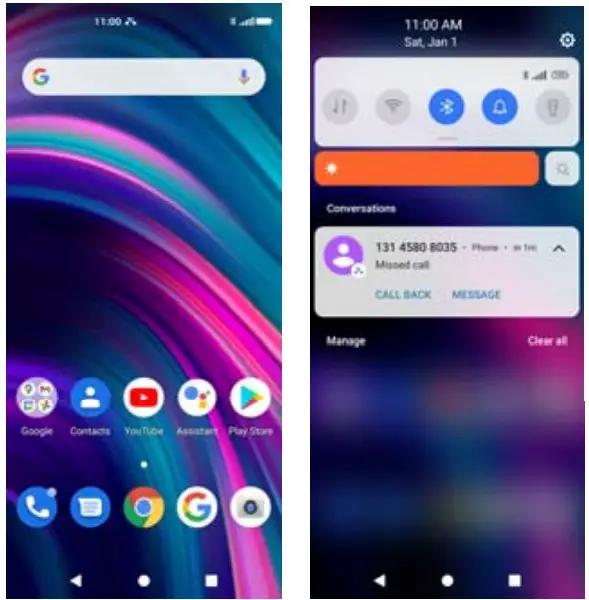
 2.3 Notification Bar: At the top of the screen, the Status Bar displays the time, status, and notifications. If there is a new message, missed call or something in the notification bar, you can drag it down to open notification panel and click the desired one to have a view. When you finished, you can close it by dragging the panel up or pressing “Back”.
 2.4 Android™ and computer connection
If you connect your phone to PC via USB, you can find the USB options, choose This Device – file Trans feroption , you can see your phone memory in PC, this is same function like USB storage.
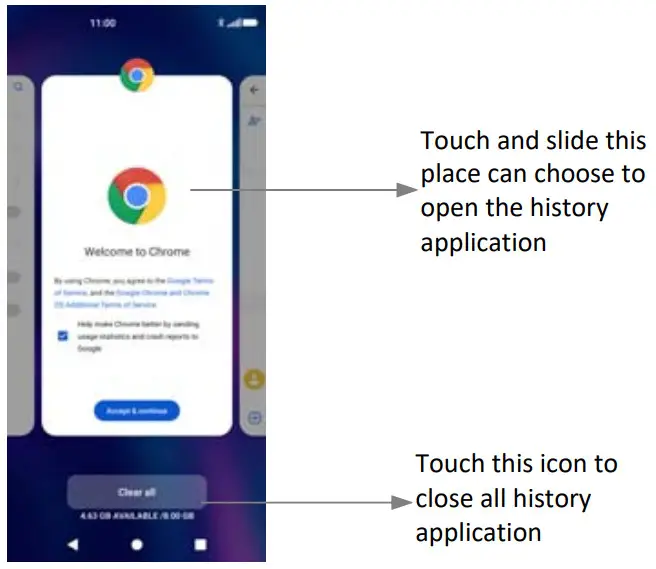
- Switch to Recently Used Application
Press menu key.
- Make a call
Click and enter a complete phone number to make a call. Your phone supports smart search.
- Call log
 Press the number if you want to see the details , send message or call back, there are three options for you.
Press the number, you can view the contact details, send a message or call back. - Answering phone calls and rejection
When there is an incoming call, you can drag the icon up or down to answer or hang up it directly.
- Add a contact
Touch to enter contact
Touch to add a new contact
 Click here to add new contact and in this page press menu key to enter menu view, setting, etc.
 - Send and Receive message(s)
Touch enter to messaging, touch “Start chat”.
 When you are composing a new text message, you can select text for cutting or copying. The selected text is highlighted in blue
Tap to add “Attach” including Pictures, Videos, Audios, etc to send MMS.SMS When a new message comes, you can read by dragging notification panel and click the message, or entering Message to read it directly.
Long press one of the all message threads, you can delete it”. - Browser the Web
9.1 Set up Internet/Data connection
Enter Settings > More…, scroll down to find out Mobile network, and then enter “Access Points Names, choose the desired WAP account.
9.2 Switch on Data connection or Wi – Fi
To browse the web, you need to switch on Data connection. If there is Wi-Fi around, you can switch on Wi-Fi to use it browse the web. - Download applications from Play Store
10.1 Add Google™ account
10.2 Enter play store and download apps
- Manage Applications
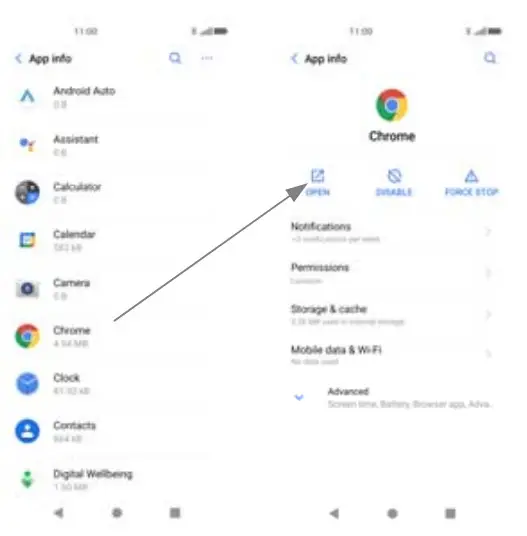
Enter Setting > App.
You can see app info
- APPLICATIONS & UTILITIES
For your entertainment purpose, applications and utilities, such as Gmail, Email, Play Store.Before accessing the applications, please turn on the data connection or connect to wifi. - Settings
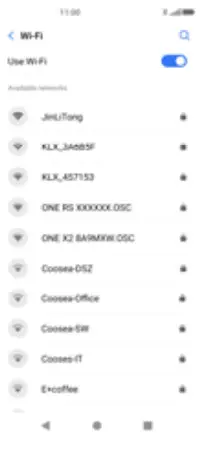
13.1 Wi-Fi
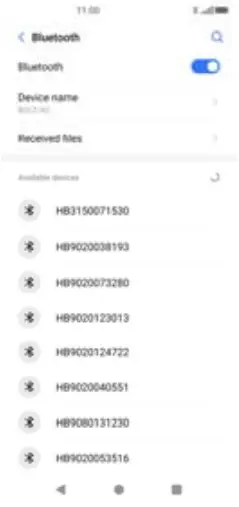
Open Wi-Fi, search nearly Wi-Fi and connect it, then you can use Internet or download apps for free. 13.2 Bluetooth
Open Bluetooth, connect to other phone, you can share something like music, photos, movies etc to other people. 13.3 Security
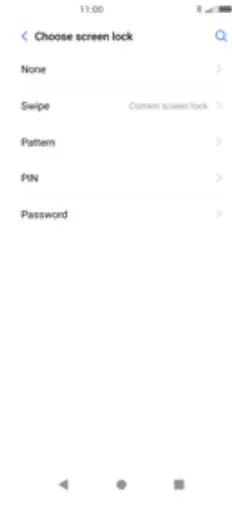
Screen lock.
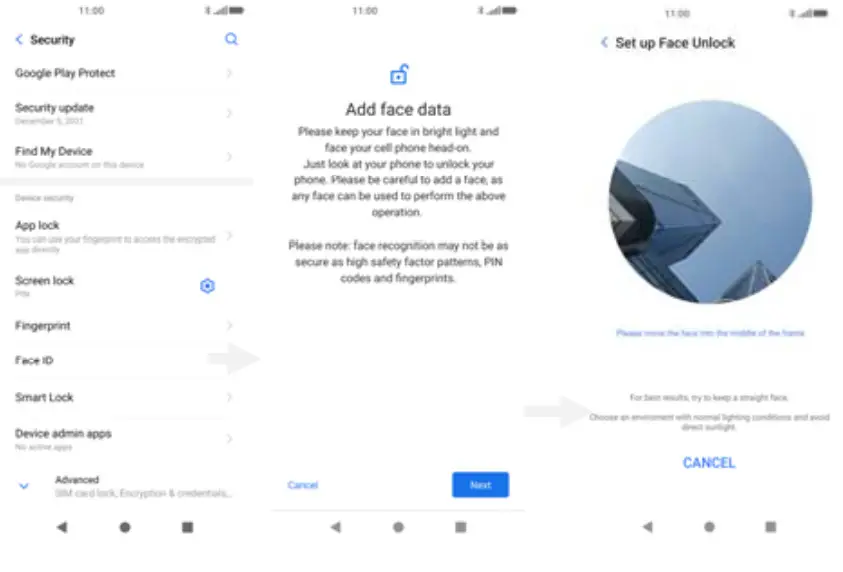
There are four screen lock ways for you to choose :Swipe, Pattern, PIN, Password. 13.4 Face ID
Click Settings –Security – Face ID, follow the prompts ,after completing the face recording, you can use the face unlock function. 13.5 Fingerprint
Click Settings – Security – fingerprint, follow the prompts ,after completing the fingerprint recording, you can use the fingerprint unlock function.
 2.2 Long press Home screen, and then you can Modify Wallpaper; or enter Launcher and long press and hold an application till the screen vibrates, and then loosen your hold finger.
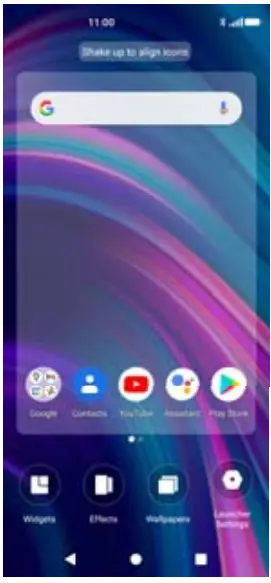 Long press the widget or icon, after the phone vibrates, select delete or uninstall (select delete for widget, select uninstall for APP)
 Swipe up and enter the application list.
 2.3 Notification Bar: At the top of the screen, the Status Bar displays the time, status, and notifications. If there is a new message, missed call or something in the notification bar, you can drag it down to open notification panel and click the desired one to have a view. When you finished, you can close it by dragging the panel up or pressing “Back”.
 2.4 Android™ and computer connection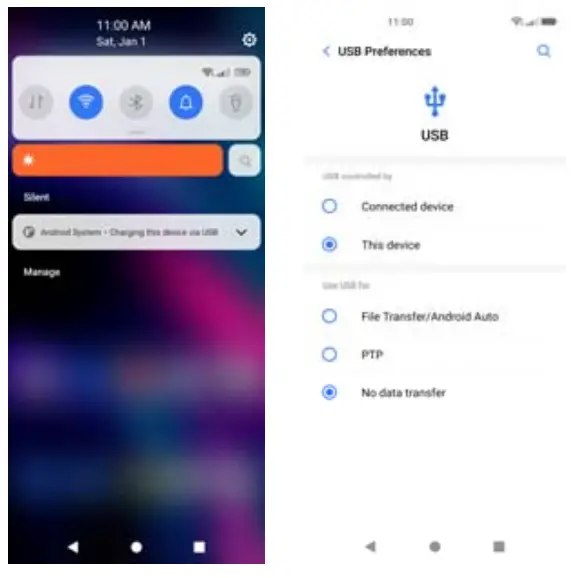
 and enter a complete phone number to make a call. Your phone supports smart search.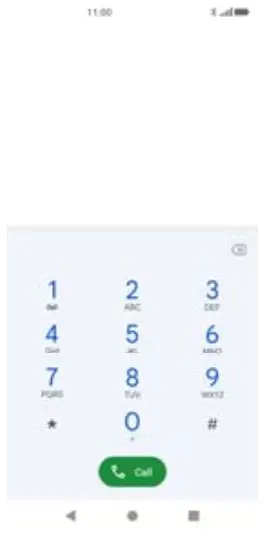
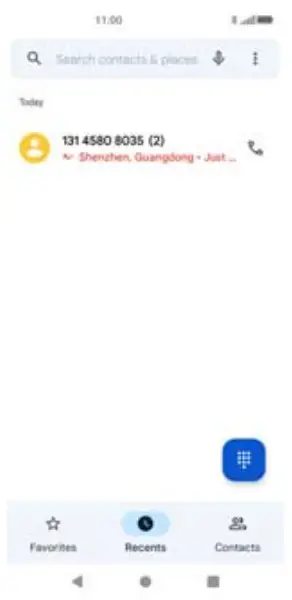 Press the number if you want to see the details , send message or call back, there are three options for you.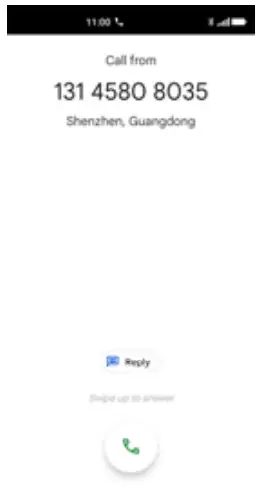
 to enter contact
 to add a new contact
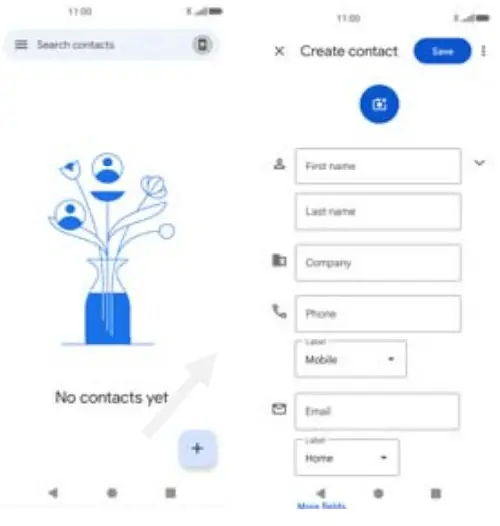 Click here to add new contact and in this page press menu key to enter menu view, setting, etc.
 enter to messaging, touch “Start chat”.
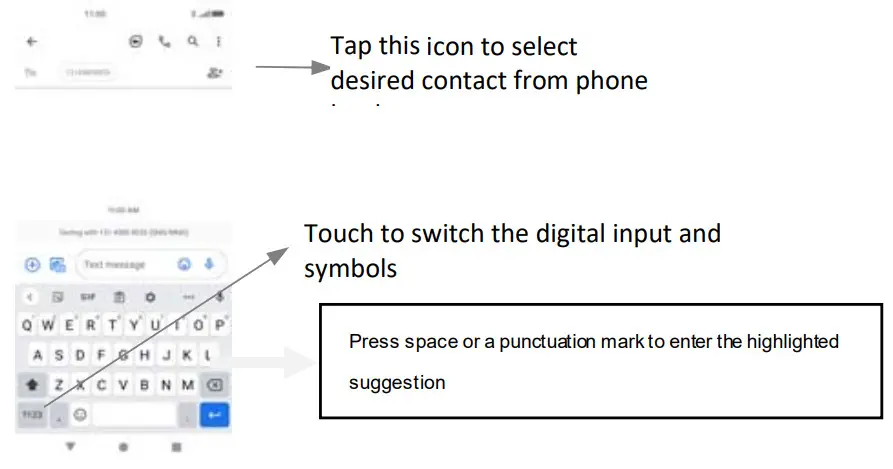 When you are composing a new text message, you can select text for cutting or copying. The selected text is highlighted in blue
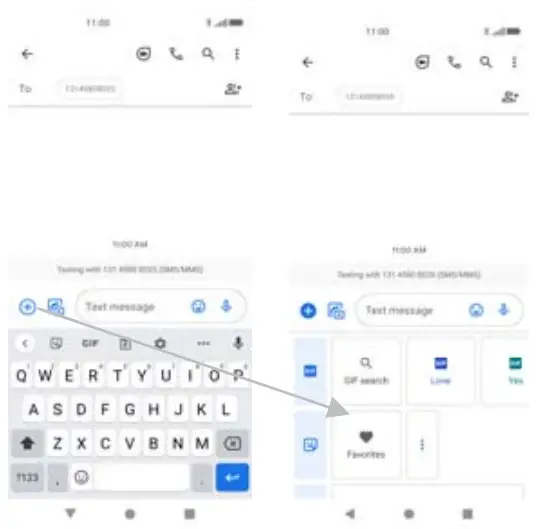 When a new message comes, you can read by dragging notification panel and click the message, or entering Message to read it directly.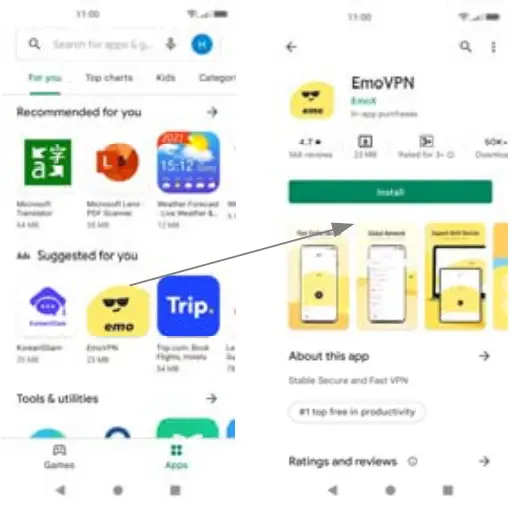
 13.2 Bluetooth
 13.3 Security
 13.4 Face ID
 13.5 Fingerprint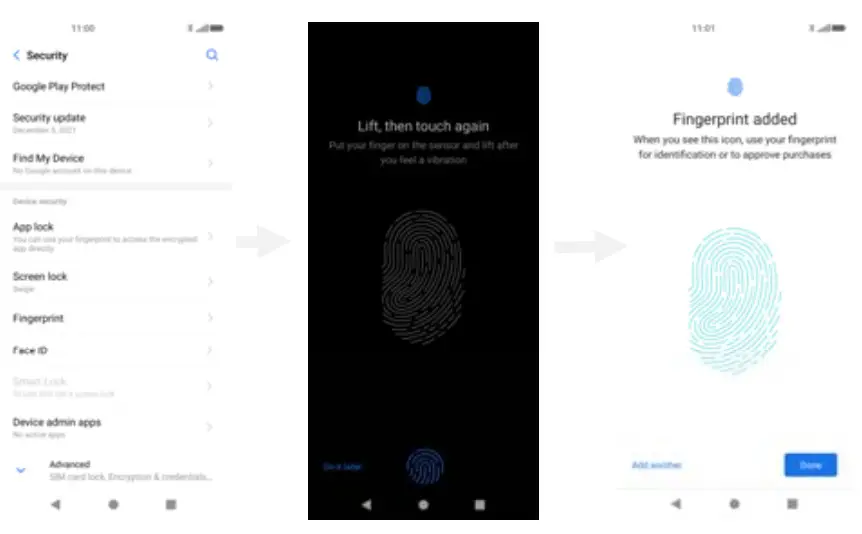
Technical Information
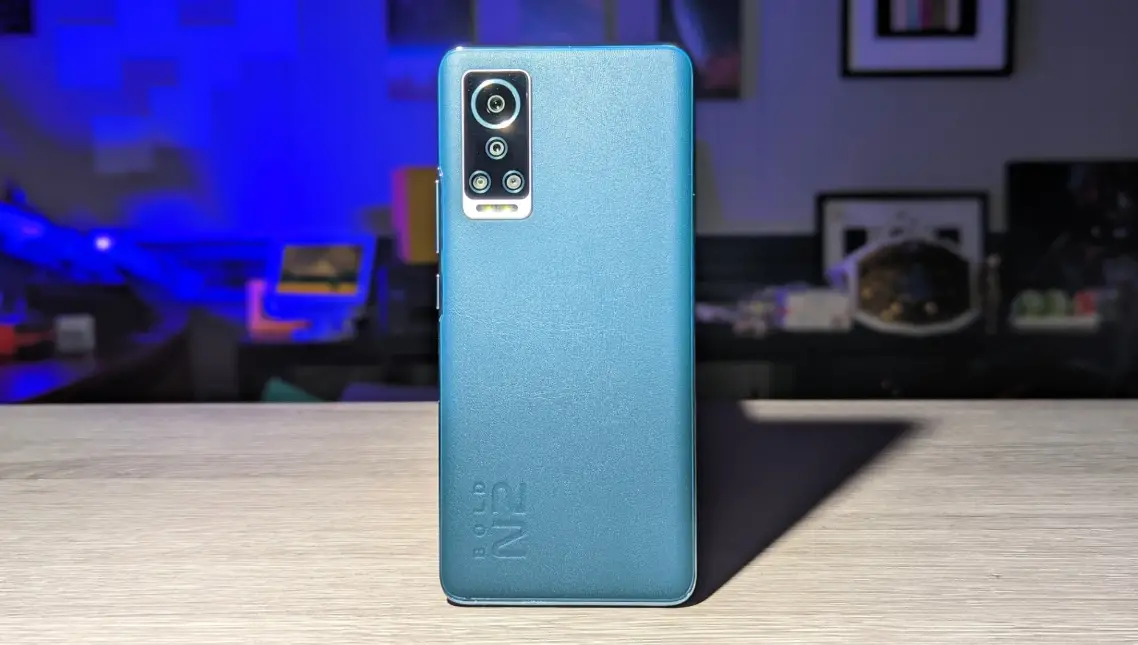
Model: BOLD N2
GSM :B2/3/5/8
WCDMA: B1/2/4/5
FDD-LTE: B2/4/5/12/13/17/25/26/66/71
TDD-LTE: B41
5G:N2/5/25/41/66/71/77
Google, Google Play, Google Pay, YouTube and other marks are trademarks of Google LLC.
FCC Radiation Exposure Statement:
This device meets the government’s requirements for exposure to radio waves. The guidelines are based on standards that were developed by independent scientific organizations through periodic and thorough evaluation of scientific studies. The standards include a substantial safety margin designed to assure the safety of all persons regardless of age or health. The SAR limit of USA (FCC) is 1.6 W/kg averaged. Device types: Smart Phone (FCC ID: YHLBLUN2) has also been tested against this SAR limit. SAR information on this and other pad can be viewed on‐line at http://www.fcc.gov/oet/ea/fccid/. Please use the device FCC ID number for search. This device was tested simulation typical 10mm to body. To maintain compliance with FCC RF exposure requirements, use accessories should maintain a separation distance between the user’s bodies mentioned above, the use of holsters and similar accessories should not contain metallic components in its assembly, the use of acc essories that do not satisfy these requirements may not comply with FCC RF exposure requirements, and should be avoided.
FCC Warning
This device complies with Part 15 of the FCC Rules. Operation is subject to the following two conditions:
(1) This device may not cause harmful interference, and (2) this device must accept any interference received, including interference that may cause undesired operation.
NOTE 1: This equipment has been tested and found to comply with the limits for a Class B digital device, pursuant to part 15 of the FCC Rules. These limits are designed to provide reasonable protection against harmful interference in a residential installation. This equipment generates uses and can radiate radio frequency energy and, if not installed and used in accordance with the instructions, may cause harmful interference to radio communications. However, there is no guarantee that interference will not occur in a particular installation. If this equipment does cause harmful interference to radio or television reception, which can be determined by turning the equipment off and on, the user is encouraged to try to correct the interference by one or more of the following measures:
– Reorient or relocate the receiving antenna.
– Increase the separation between the equipment and receiver.
-Connect the equipment into an outlet on a circuit different from that to which the receiver is connected.
-Consult the dealer or an experienced radio/TV technician for help.
NOTE 2: Any changes or modifications to this unit not expressly approved by the party responsible for compliance could void the user’s authority to operate the equipment.
 FCC ID Search | Federal Communications Commission