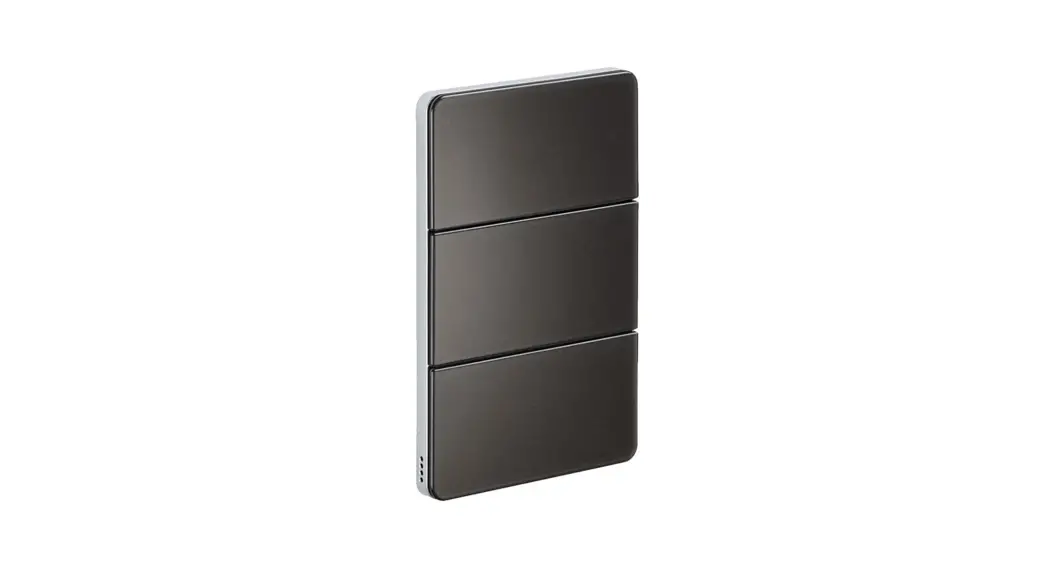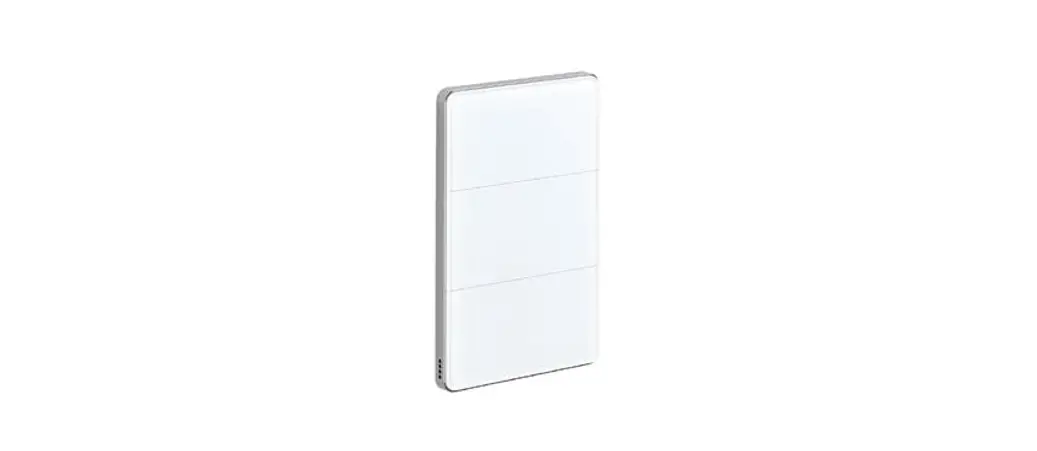

novo nordisk Dialoq FlexTouch Pen
How it works
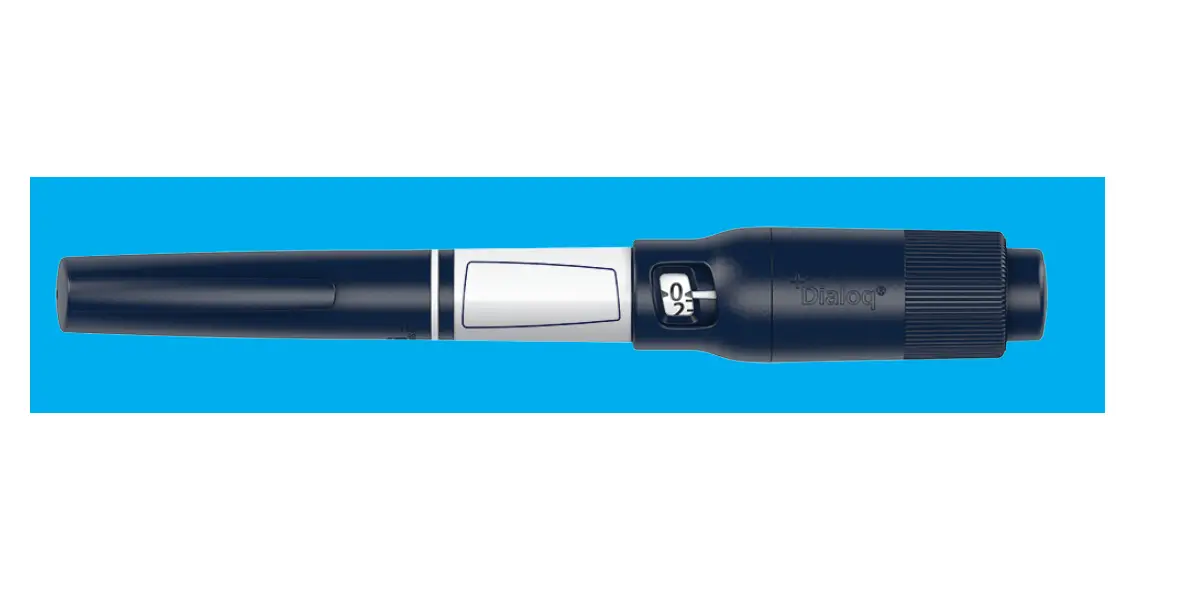
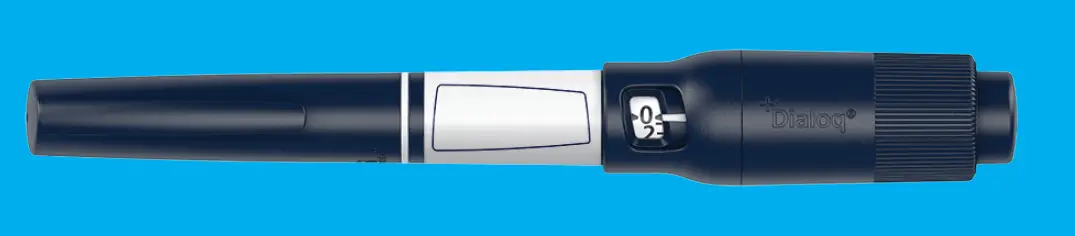
Dialoq® works with FlexTouch® to track your doses
While Dialoq® is attached to your FlexTouch® pen, it records and remembers:
- the drug brand name and strength
- the number of units dosed
- the time and date of your doses.
Dialoq® stores up to 1200 doses including your priming doses. Dialoq® is a medical device.
Read this user guide before you start using Dialoq® to learn how to use Dialoq® correctly.
Use Dialoq® with your phone
You can export the doses in your Dialoq® to a compatible app on your phone. That way you can keep a digital insulin log.
Export your doses
Dialoq® sends your injected doses and priming doses to the app when you press and release the dose button. Make sure Bluetooth® on your phone is turned on and that the app is open. 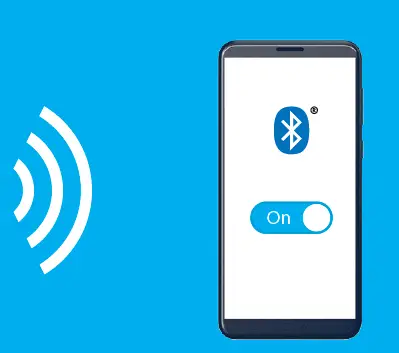
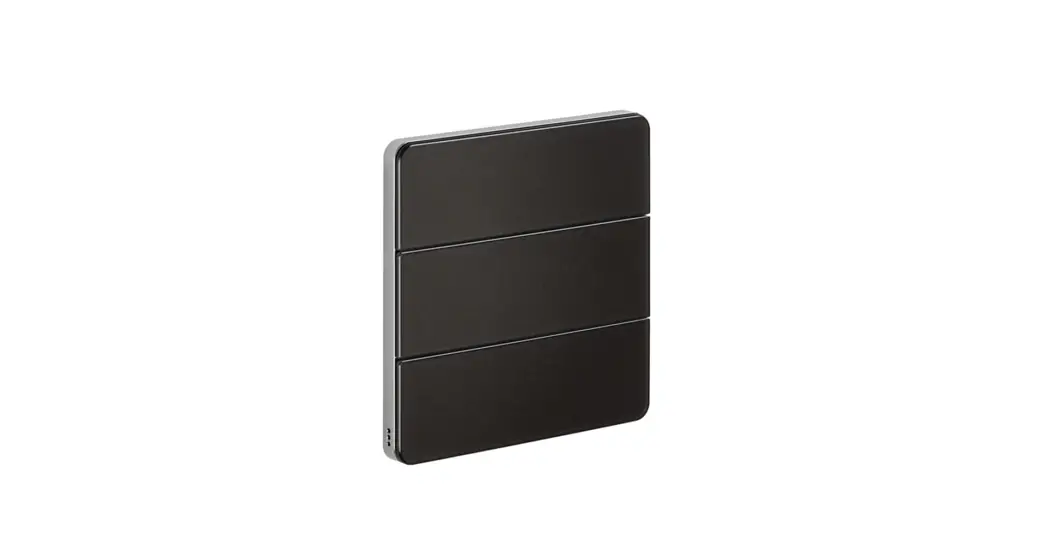
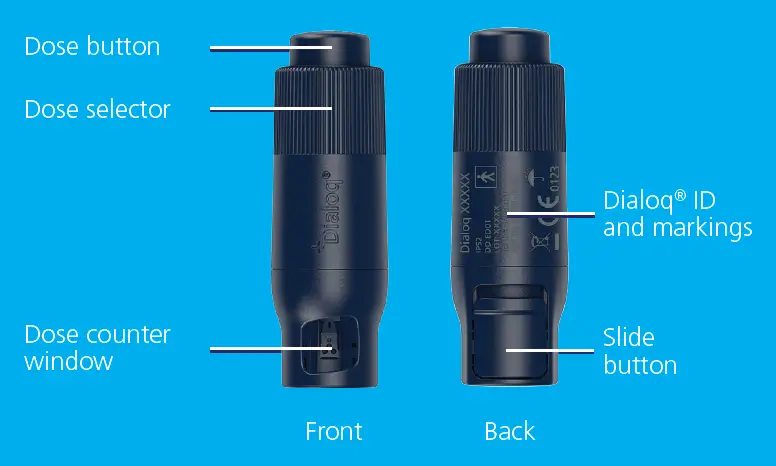
Dialoq® overview
Need help?
Call us at 1-833-4-DIALOQ
Attach Dialoq®
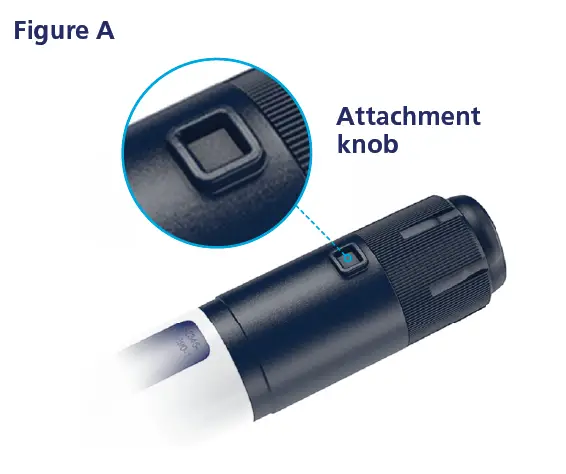
- Look at the back of your FlexTouch® pen to make sure it has a small attachment knob.
Note: FlexTouch® pens with this knob can be used with Dialoq® (see a list of compatible FlexTouch® pens at
www.mydialoq.com). 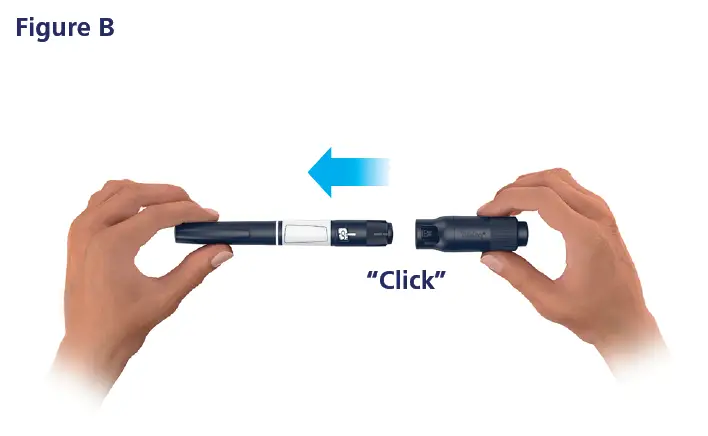
- Attach Dialoq® to your FlexTouch® pen. Make sure the dose counter window on your FlexTouch® pen lines up with the dose counter window on your Dialoq®.
- Leave it on until your FlexTouch® pen is empty. Remove Dialoq® before you dispose of your FlexTouch® pen.

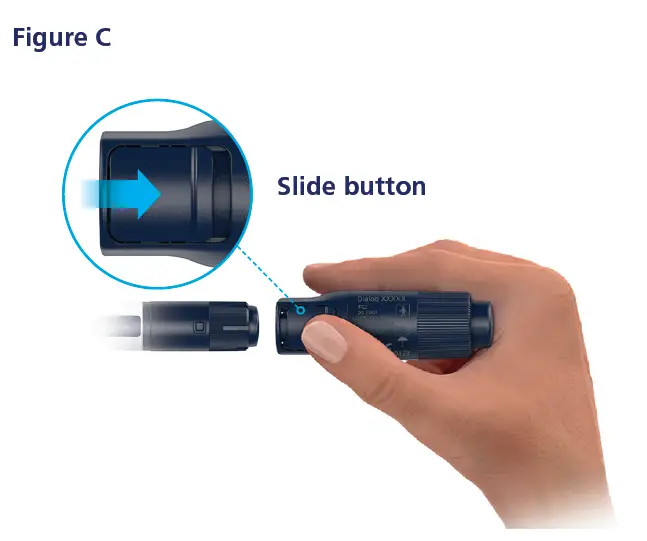
- You can remove Dialoq® from your FlexTouch® pen by using the slide button on the back.
Note: Never use excessive force to remove Dialoq®.
Download app and pair
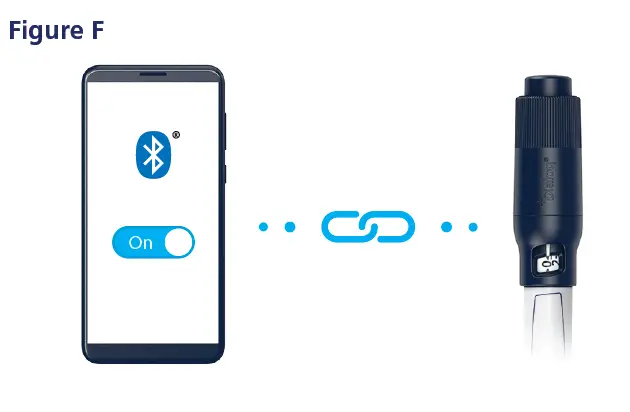
- Check your phone to make sure you are connected to the internet and Bluetooth is turned on. To ensure a secure connection, avoid pairing your Dialoq® in public places.
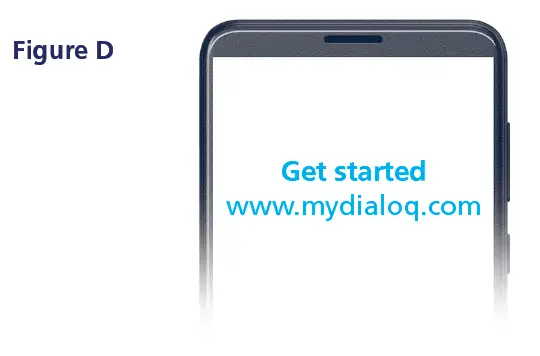
- Go to: www.mydialoq.com on your phone to see where you can download a compatible app. You can skip this step if you already have a Dialoq® compatible app on your phone.
- Open the app and follow the instructions to pair your Dialoq® with the app.

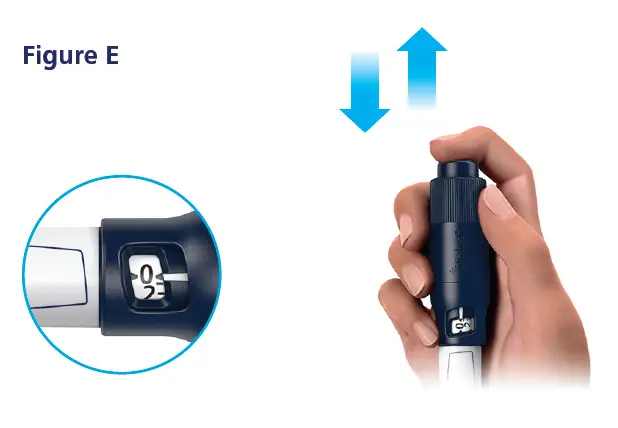
- To pair your Dialoq® with the app, make sure that the dose selector shows 0 on your FlexTouch® pen.
- Then press and release the dose button on Dialoq®.
- Check that the Dialoq® ID in the app matches the ID you can find on the back of your Dialoq®. (See Dialoq® overview in How it works section of this User guide)
- Follow the instructions in the app to complete the pairing.

- Dialoq® is now paired with the app, and you are ready to start using Dialoq® with your FlexTouch® pen.
Note: Always check the app to see if pairing succeeded. If not, repeat the steps for figures D and E.
When you attach Dialoq® to a new FlexTouch® pen, you do not need to pair your Dialoq® again.
Use Dialoq® with your FlexTouch® pen
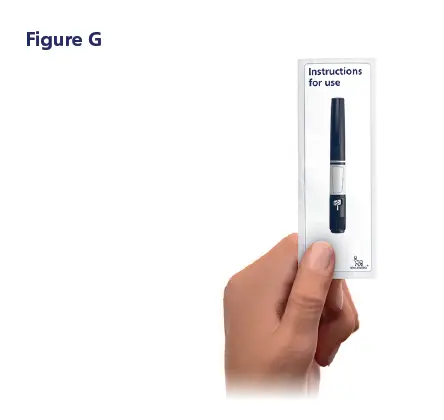
Note: Always follow the instructions for use that comes with your FlexTouch® pen to ensure you receive the correct dose. 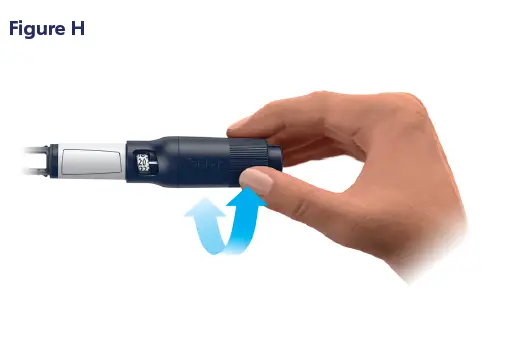
- Make sure Dialoq® is paired (see section 2) and is correctly attached to your FlexTouch® pen (see section 1).
- Turn the dose selector on your Dialoq® to select your dose.

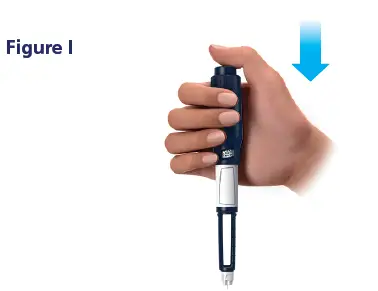
- Insert the needle into your skin.
- Press and hold down the dose button on your Dialoq® until the dose counter shows 0, then count slowly to 6 before dosing is complete.
- Your Dialoq® records the size, time and date of the injected dose.
Note: Dialoq® exports the dose when you inject if you keep the app open, keep your phone within reach of your Dialoq®, and Bluetooth turned on. If you export this way, you can skip the steps in section 4.
Export doses to app
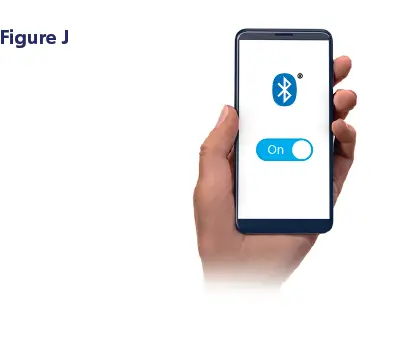
- Make sure Bluetooth on your phone is turned on and Dialoq® is attached to your FlexTouch® pen.

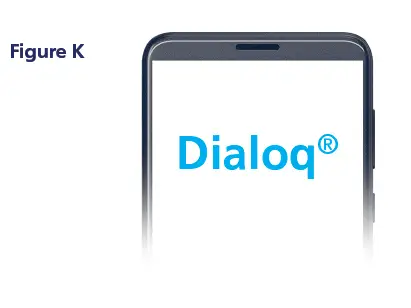
- Open the app on your phone.
- Check that the dose counter on your FlexTouch® pen shows 0, unless you are taking a dose, see section 3.

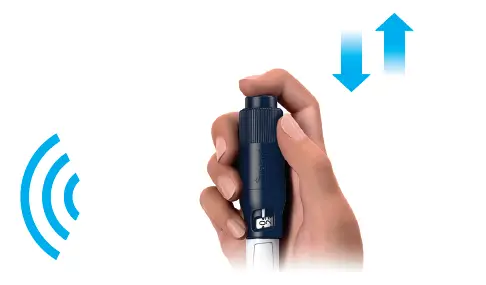
- Press and release the dose button on your Dialoq® to export your doses to the app.
- Check the app to see if the export was successful.
Note: It is recommended to export your doses from Dialoq® whenever you want to consult your dose log and at least once every month.
 Novo Nordisk | driving change to defeat diabetes
 Novo Nordisk | driving change to defeat diabetes