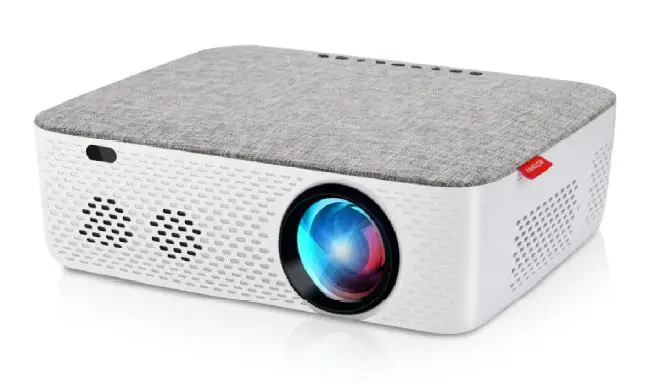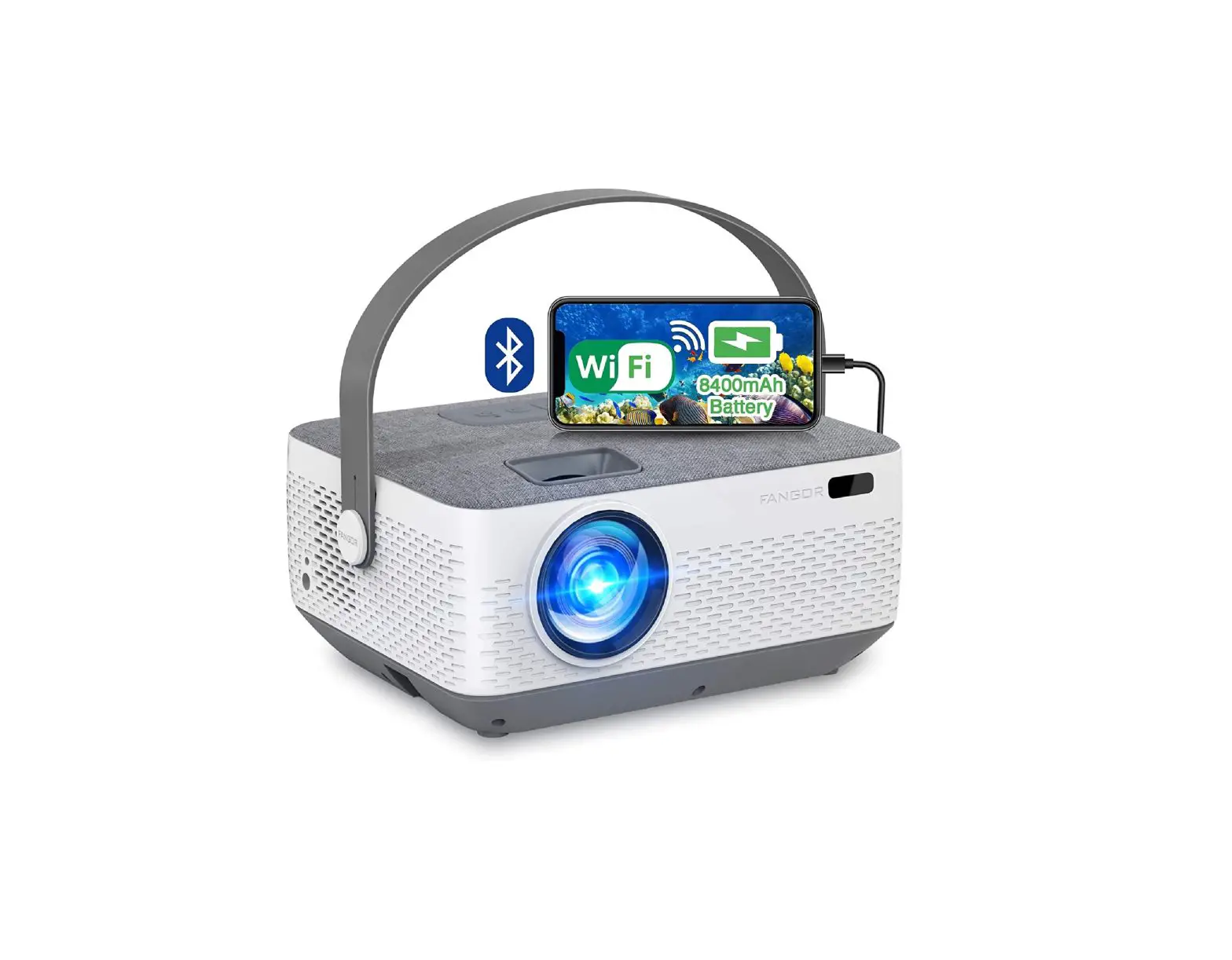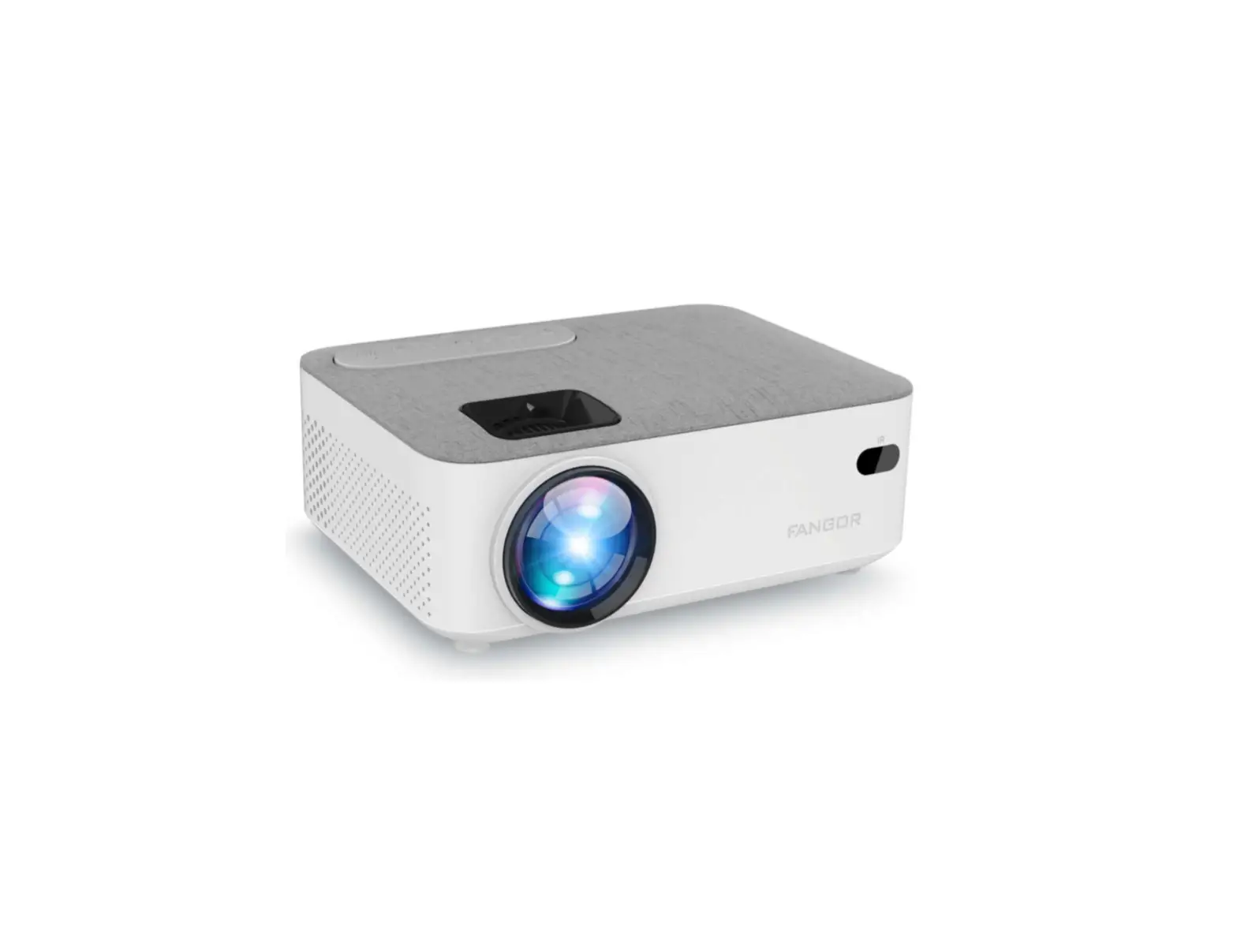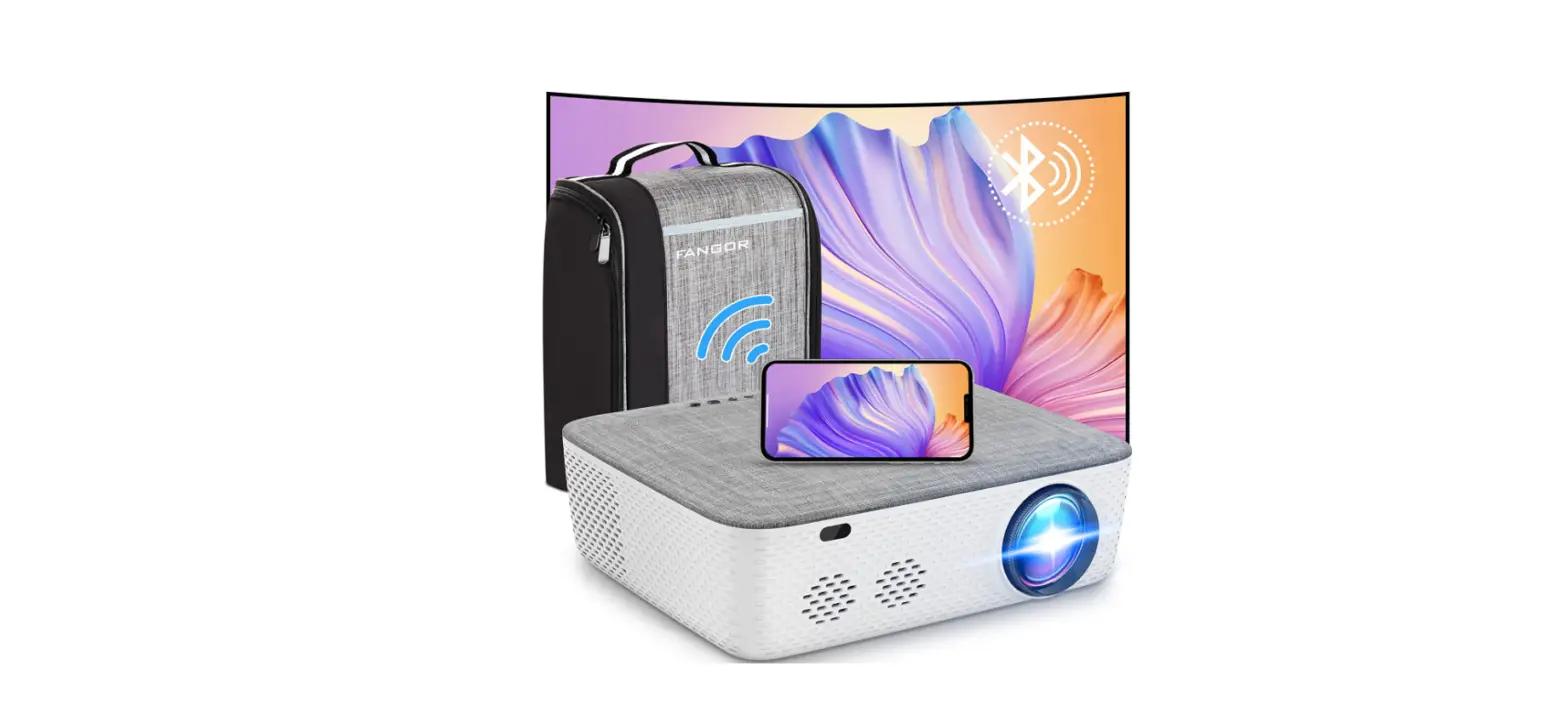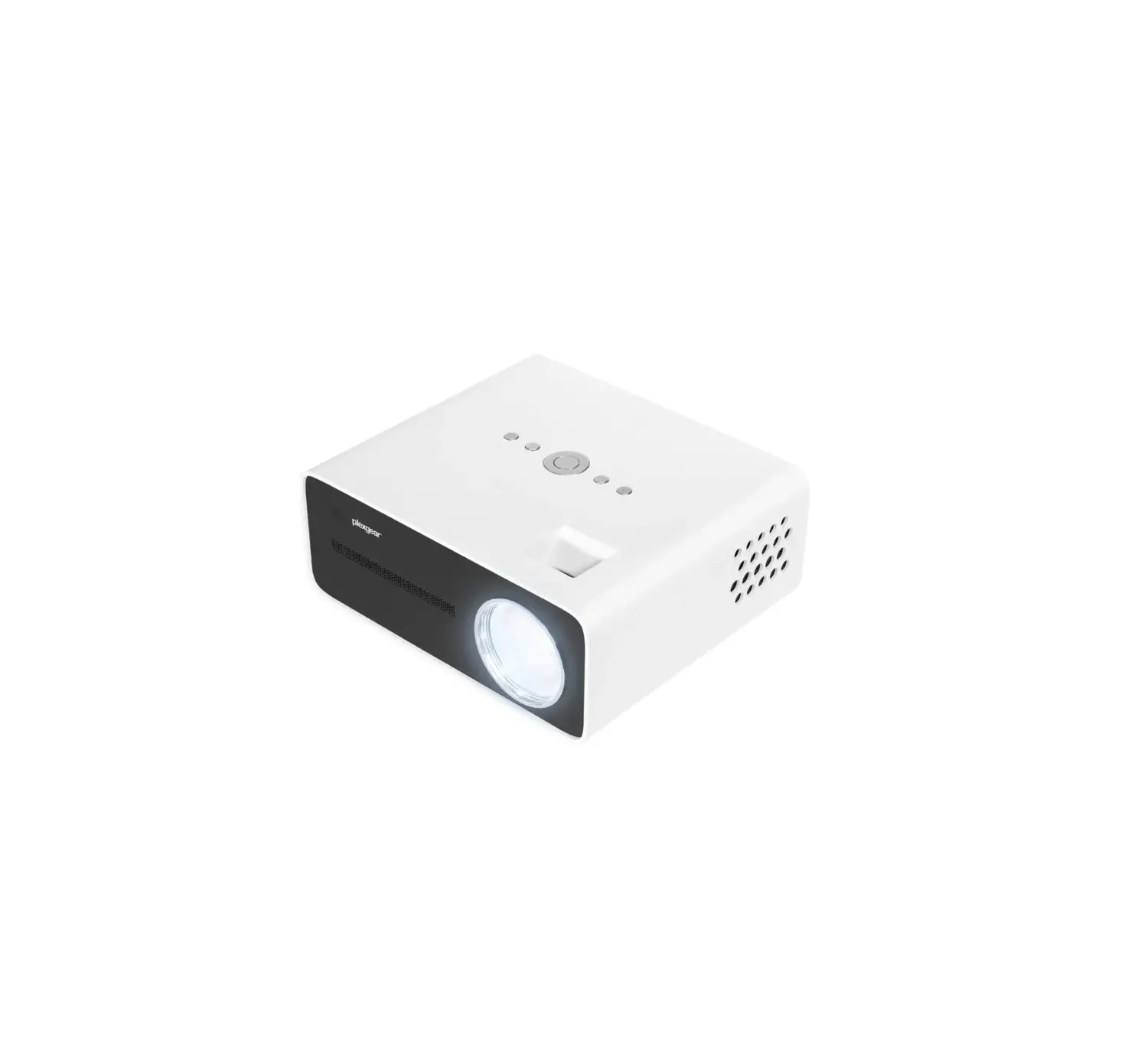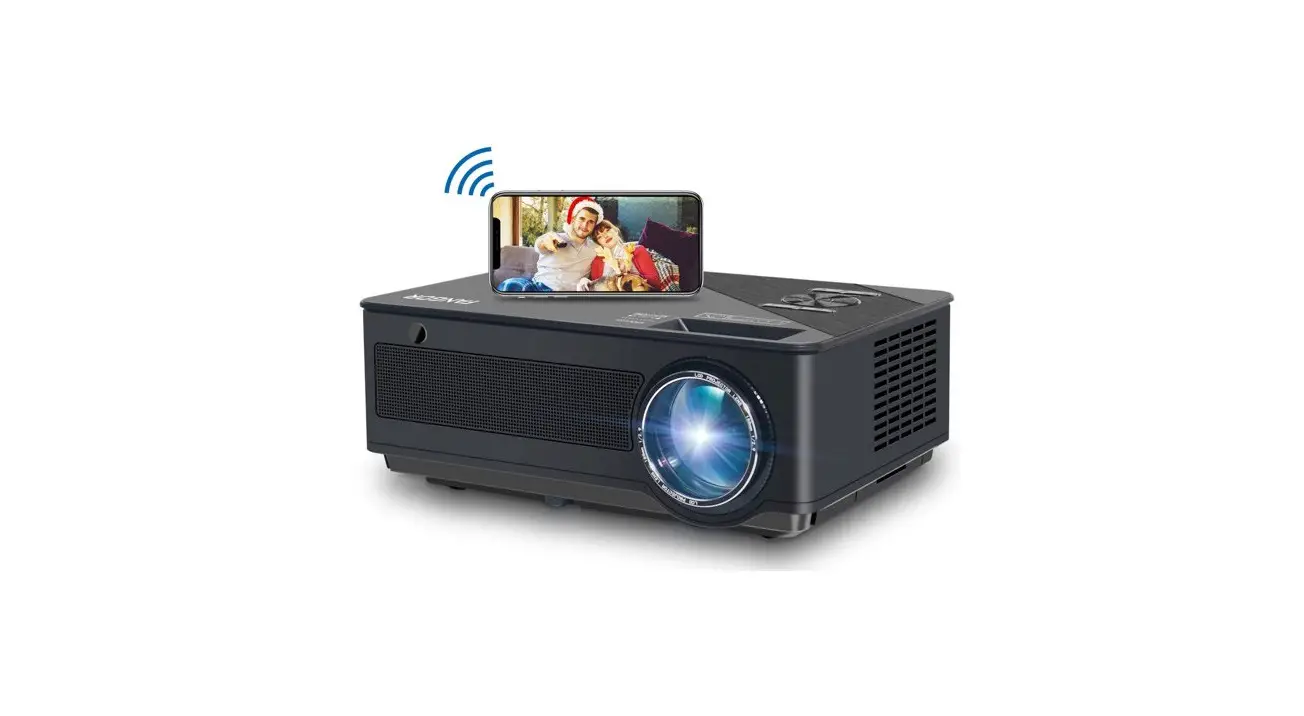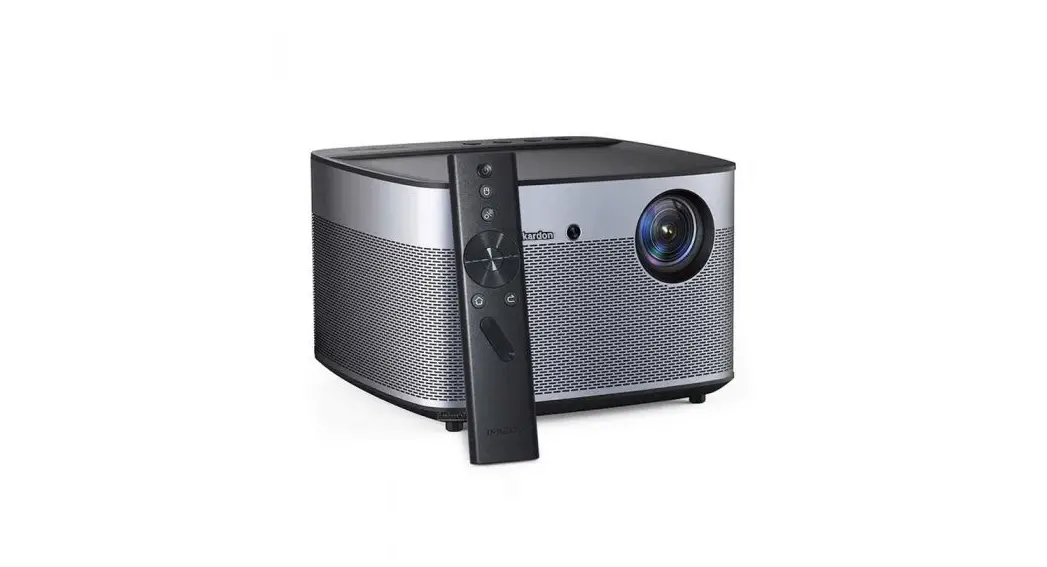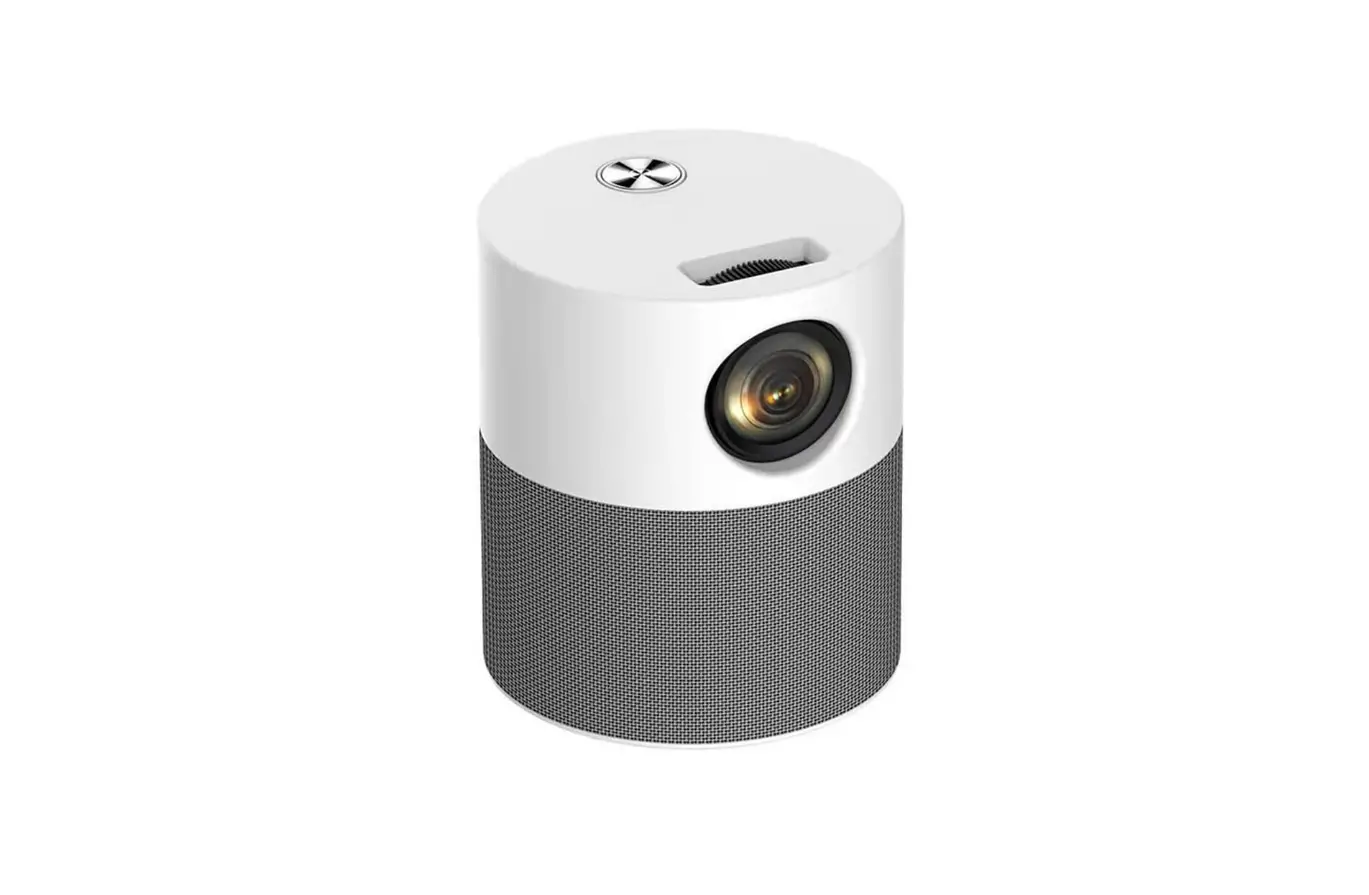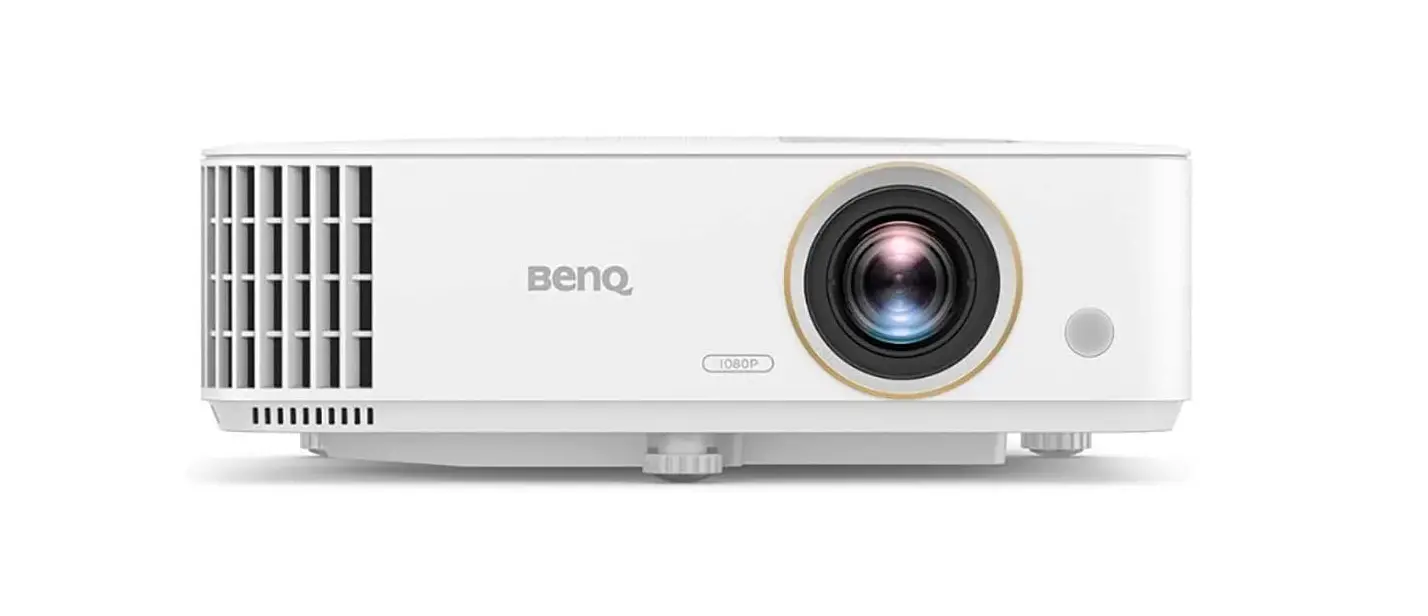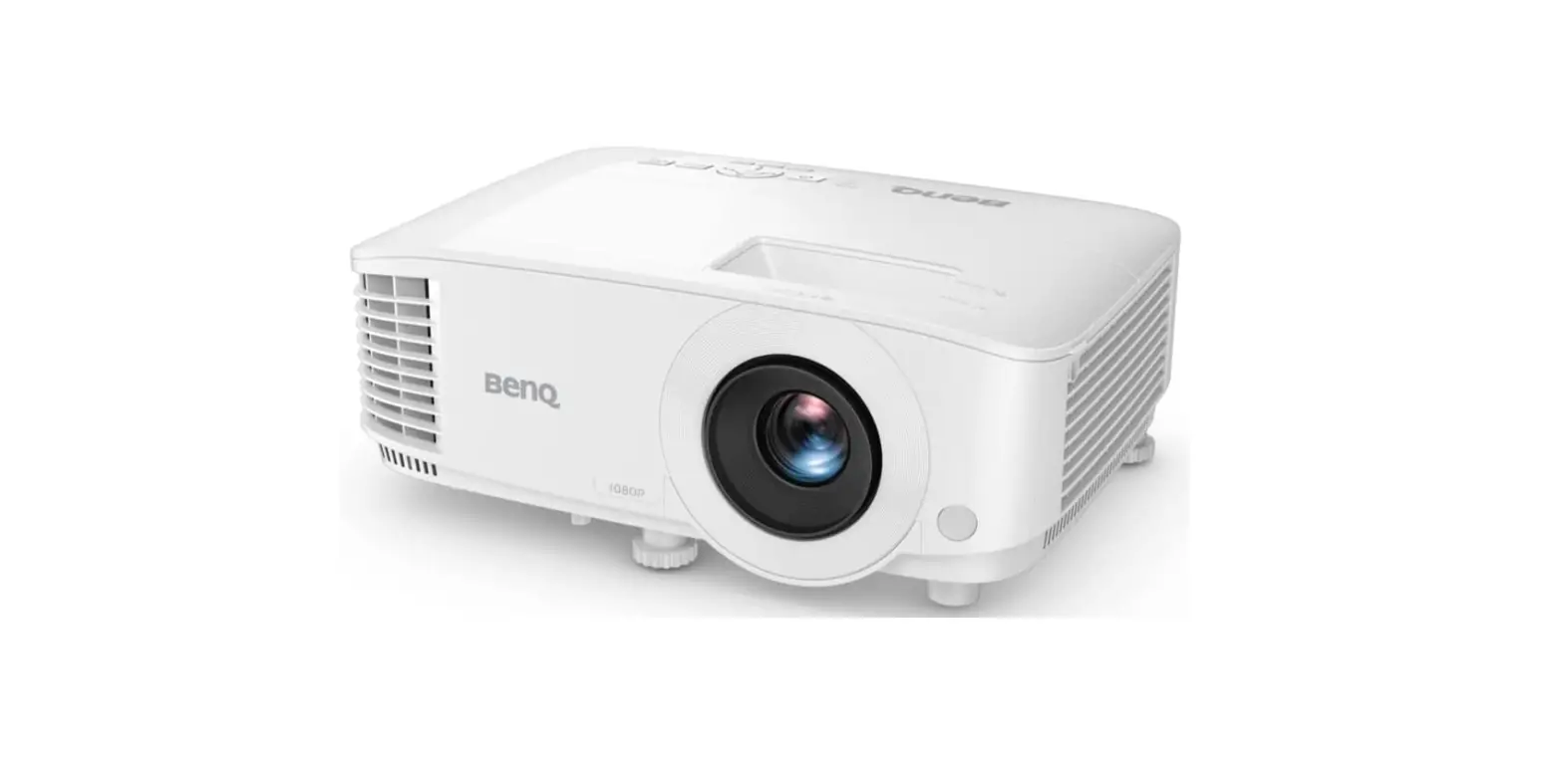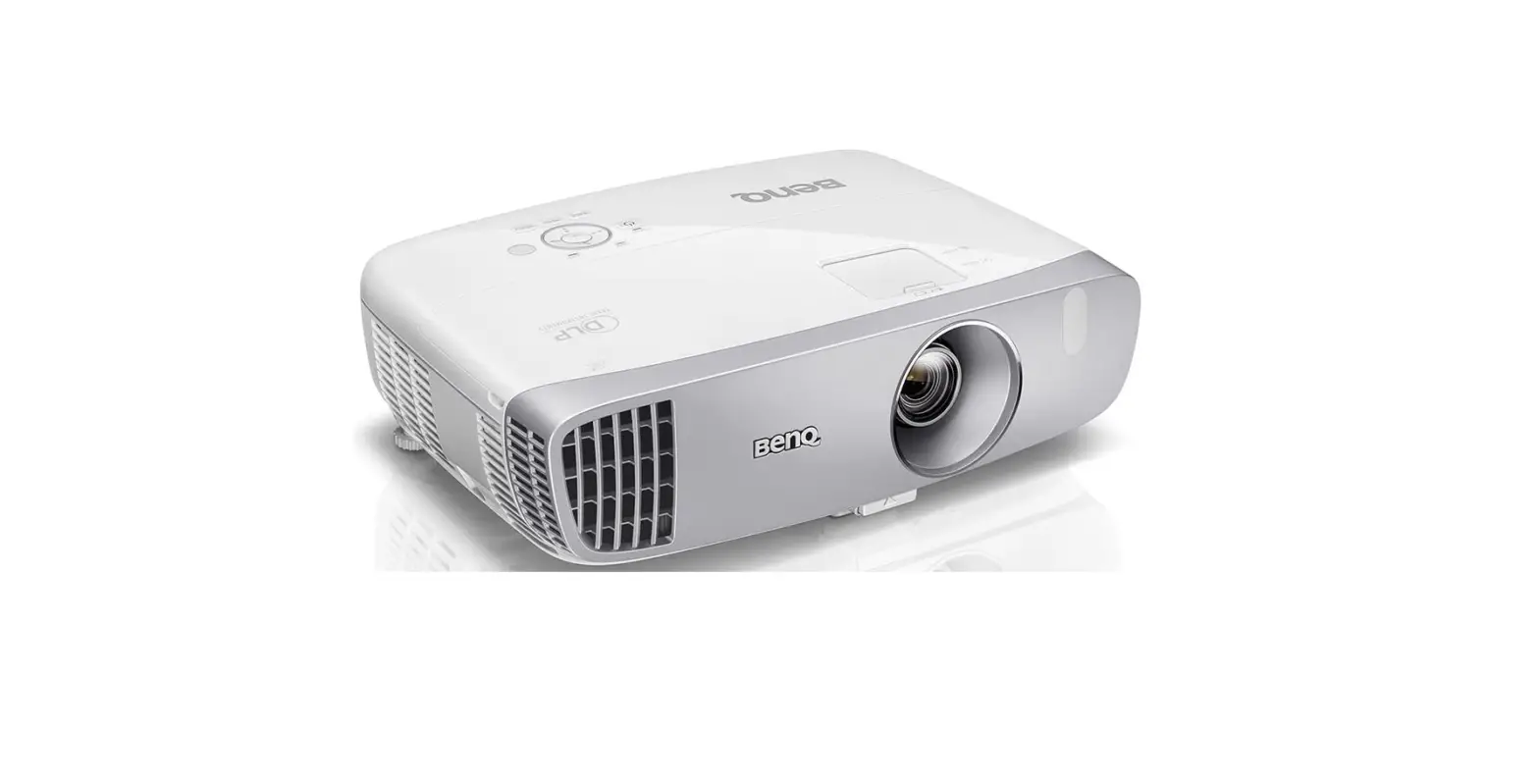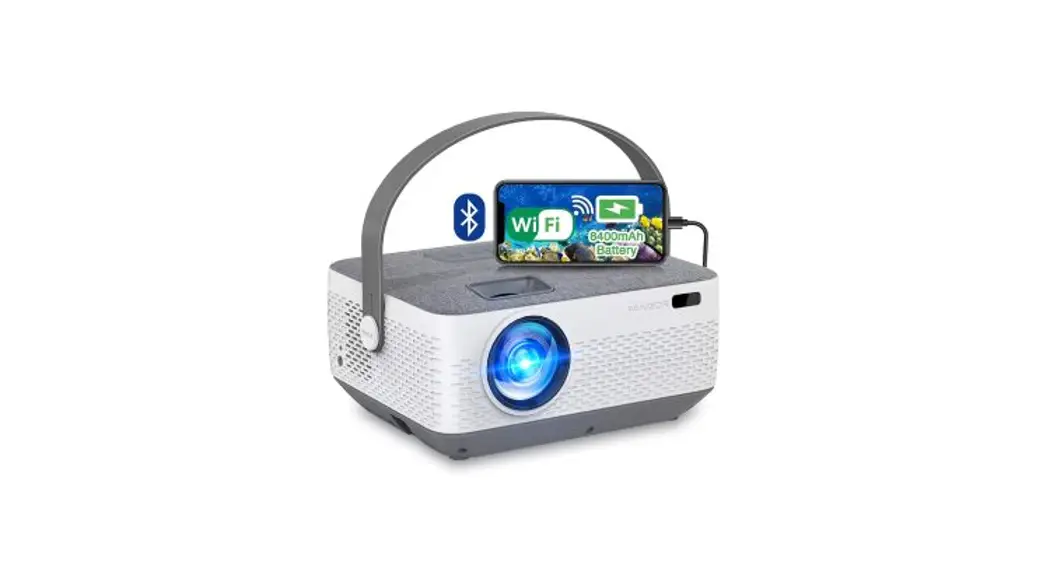
 Home Theater Projector
USER MANUAL
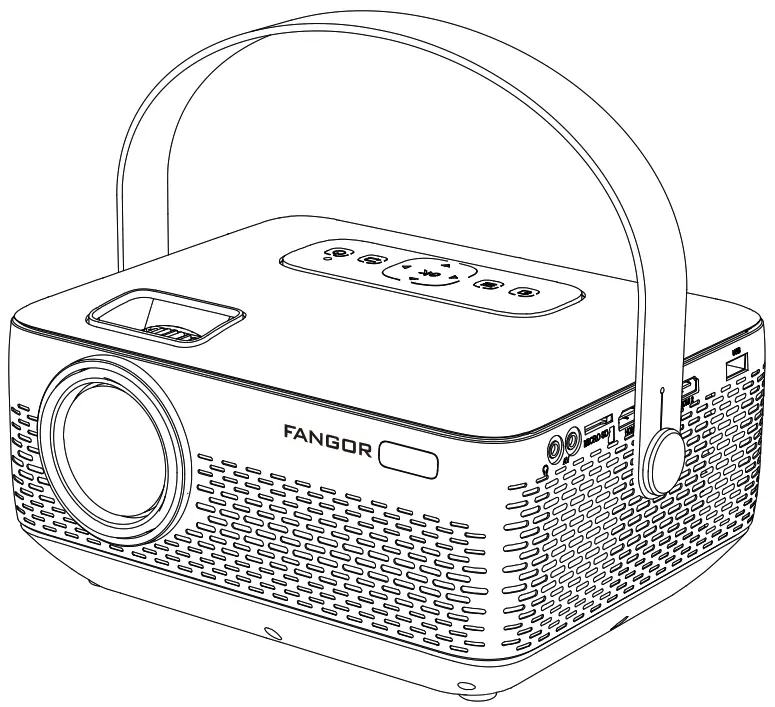
F-601
Safety Instructions & FCC Warning
Important Safety Instructions
- Please use the included AC power cable to power the machine. Only use the included accessories specified by the manufacturer.
- It is normal for the machine to generate heat during operation. To prevent overheating, do not block the ventilation openings.
- CAUTION: Do not look straight into the projector lens while on, as it may cause serious eye damage. Do not touch the lens.
- Clean only with a dry cloth.
- To reduce the risk of fire or electric shock, do not expose the device to rain or moisture. Objects filled with liquids, such as vases, should not be placed on these devices, as it may lead to potential accidents that damage the device.
- Protect this device from overexposure to direct sunlight, heat, big temperature fluctuations, and moisture. Avoid extreme temperatures. The suitable operations and storage temperature for this device and its accessories are 0°C to 35°C / 0°F to 95°F.
- Avoid any type of impact, as it may damage the internal components.
- Do not make any repairs to this device by yourself. Our company will not cover the warranty if self-repair efforts were undertaken.
- Please contact the seller for technical support when the product has any type of problem, Contact details are revealed at the end of this manual.


FCC Warning This device complies with part 15 of the FCC rules. Operation is subject to the following two conditions:
(1) this device may not cause harmful interference, and
(2) this device must accept any interference received, including interference that may cause undesired operation.
Changes or modifications not expressly approved by the party responsible for compliance could void the user’s authority to operate the equipment.
NOTE: This equipment has been tested and found to comply with the limits for a Class B digital device, pursuant to part 15 of the FCC Rules. These limits are designed to provide reasonable protection against harmful interference in a residential installation. This equipment generates uses and can radiate radio frequency energy and, if not installed and used in accordance with the instructions, may cause harmful interference to radio communications. However, there is no guarantee that interference will not occur in a particular installation. If this equipment does cause harmful interference to radio or television reception, which can be determined by turning the equipment off and on, the user is encouraged to try to correct the interference by one or more of the following measures:
reorient or relocate the receiving antenna.
increase the separation between the equipment and receiver.
connect the equipment into an outlet on a circuit different from that to which the receiver is connected.
consult the dealer or an experienced radio/TV technician for help.
Radiation Exposure Statement
This equipment complies with FCC radiation exposure limits set forth for an uncontrolled environment. This equipment should be installed and operated with a minimum distance of 20cm between the radiator and your body.
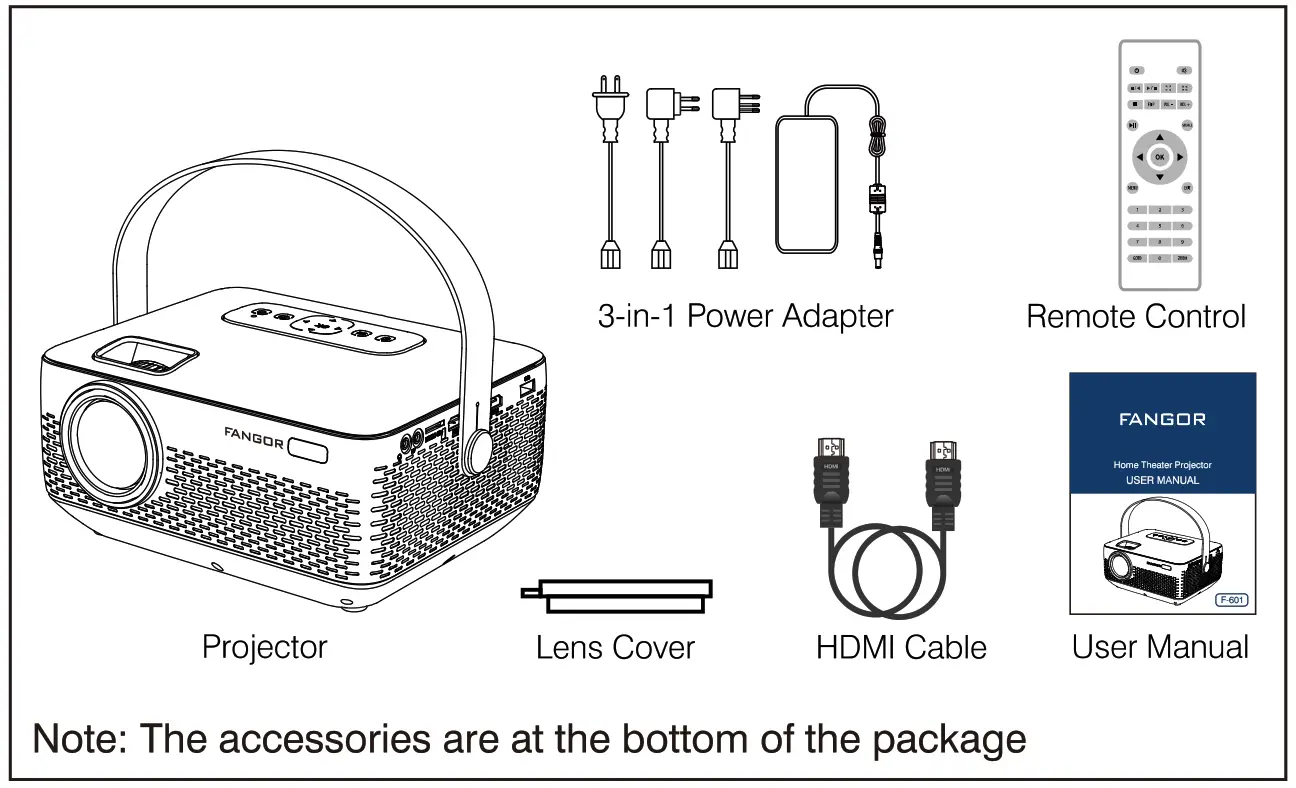
Package Listing
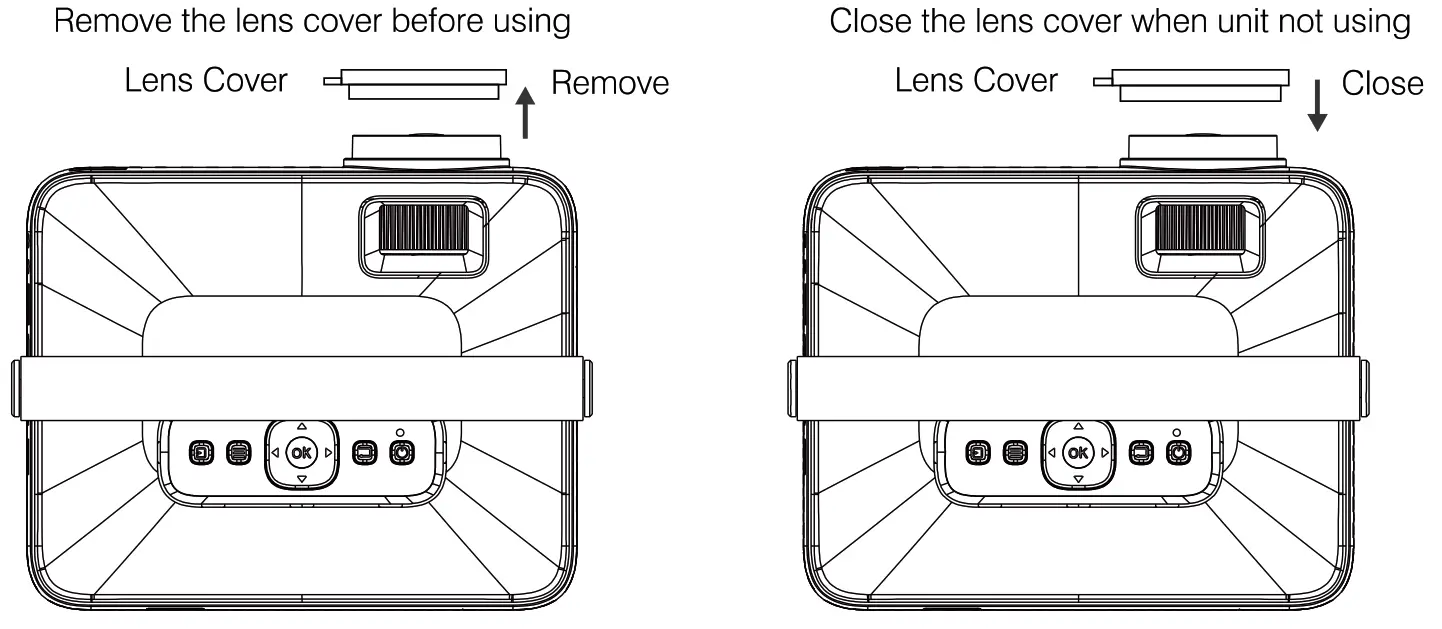
Remove &Close The Lens Cover
Boot Operation Guide
TURN ON
1)Turn on the power switch at the bottom. Indicator light: Red. (If used at home, it is recommended to plug in the power adapter)
2) Press the power button . Indicator light: Green.
3) The projector turned on after 5 seconds.
Note: When the battery is exhausted, please charge it for 10-15 minutes before turning on the projector.
TURN OFF 1: Turn off the power button
2: Turn off the power switch (OFF ON
3: Unplug the power adapter.
Note:
Please turn off the projector before unplugging the power source, so as not to affect the life and operation of the projector.
Distance Between The Projector And Screen
| Projection Distance | lm | 2m | 3m | 4m | 6m |
| Projection Size | 30 inch | 68 inches | 98 inches | 120 inches | 200 inch |
| Light, brightness, etc. will affect the pro section distance, this data is for reference only. | |||||
| Projection Position | |||||
| It is recommended to place the projector in front of the center of the screen. | |||||
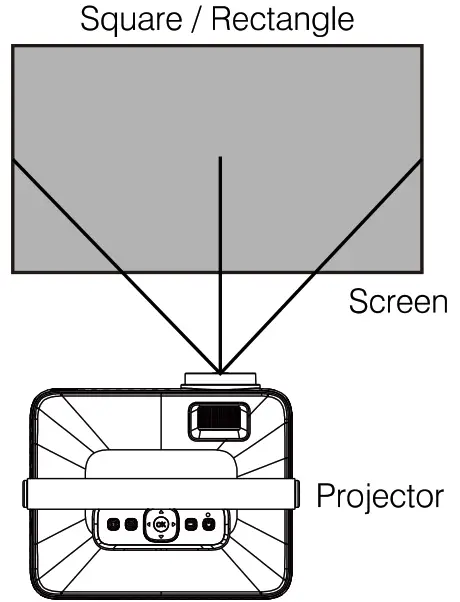
Viewing Options
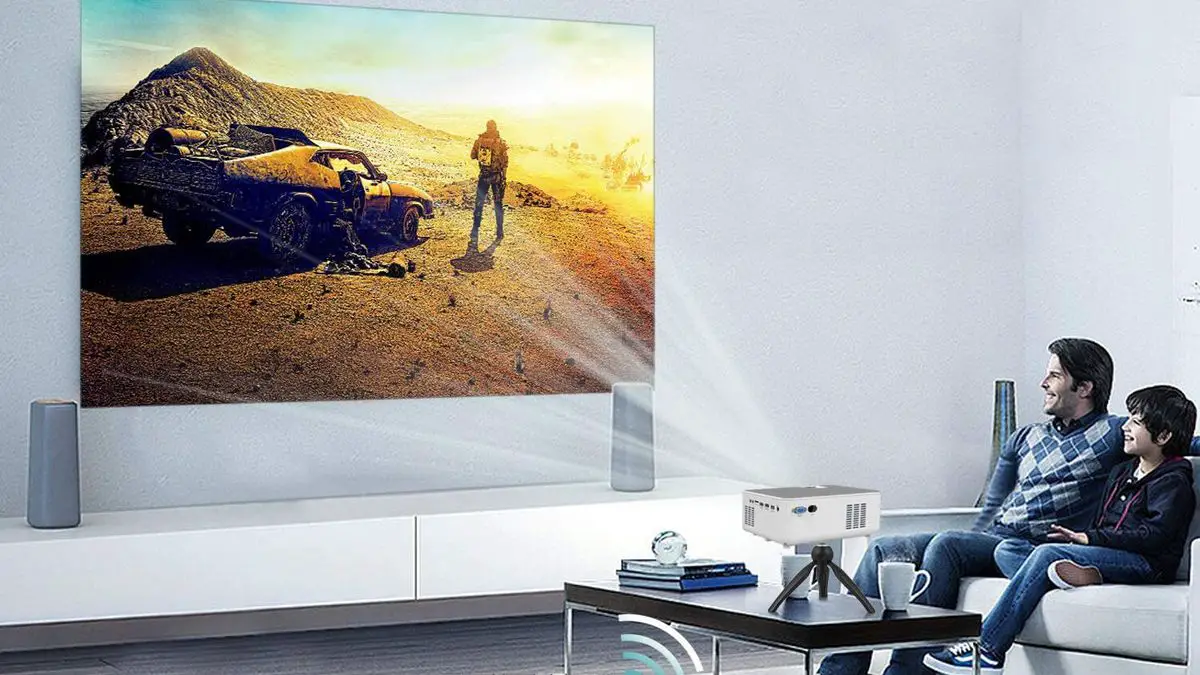
The projector can be used to project onto a wall or screen, mounted from the ceiling or on a table, When projecting from the rear position, a special screen will be needed (not included) to display the image. Be sure to aim the remote at the sensor on the front or rear of the projector.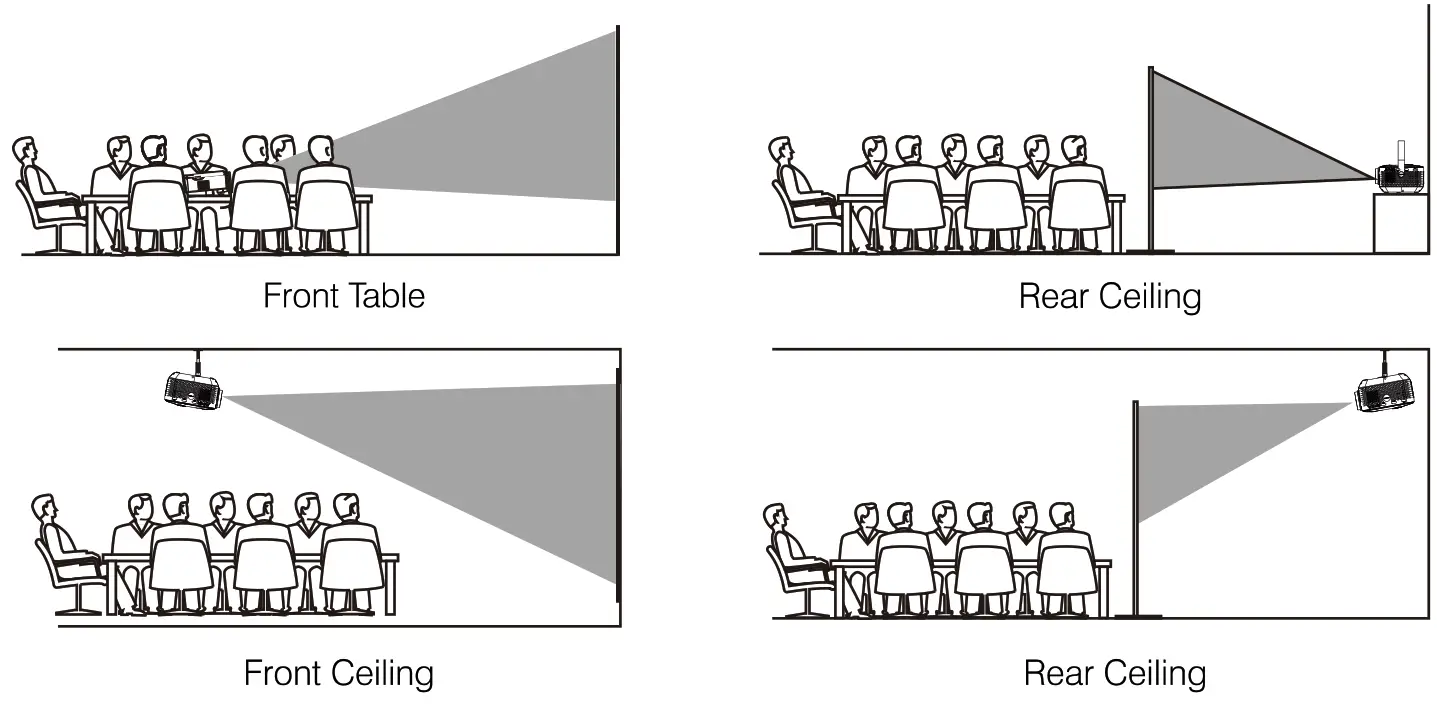
Placing Your Projector On Ceiling
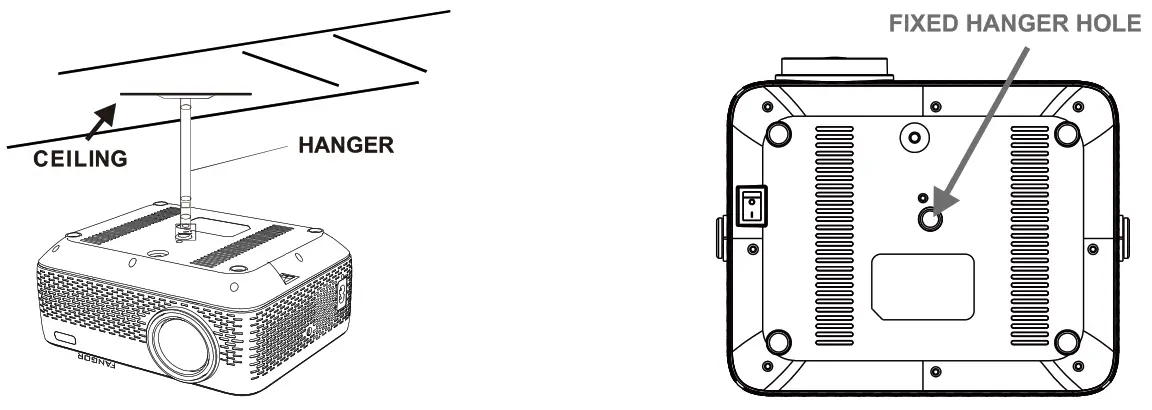
When installing the projector in the ceiling, please purchase a projector mount recommended by an installation professional and follow the instructions that come with the mount. Before installing the projector in the ceiling, please check to make sure the ceiling structure can support the weight of the projector and the mount. If in doubt, please ask the advice from an installation professorial. NOTE: Projector mount and screw(s) not included
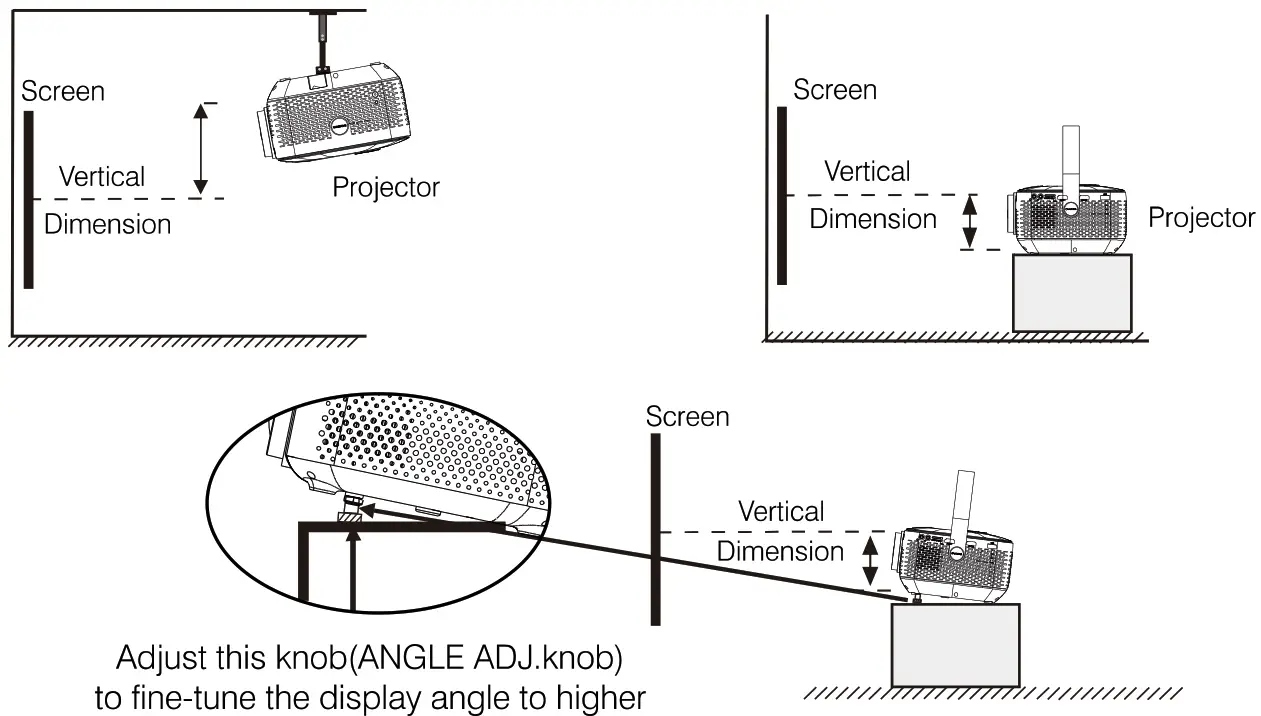
Adjust the Vertical Location
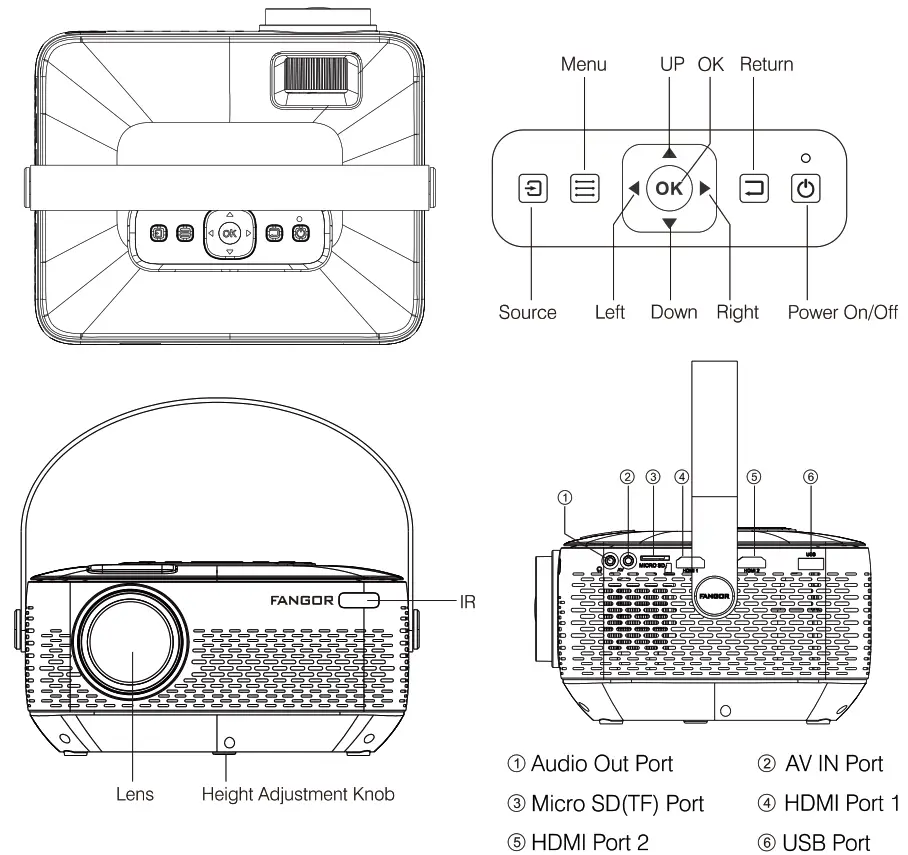
Follow below picture to adjust the vertical location
Adjust the Focus and Keystone
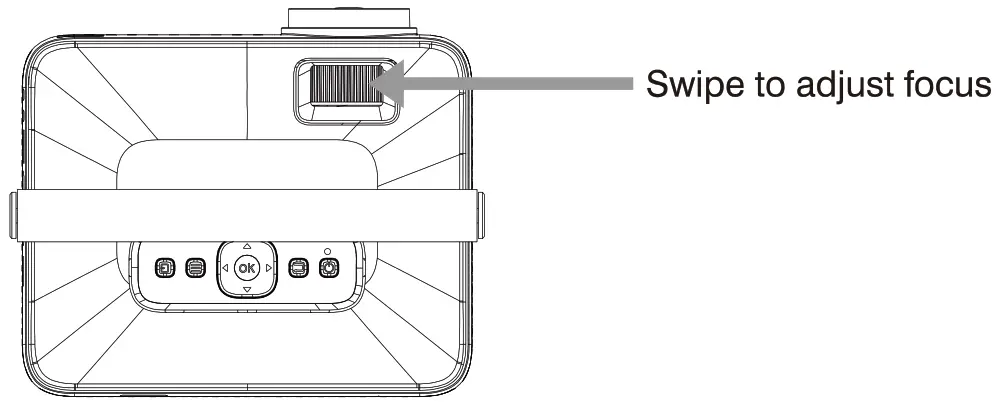
As shown in the picture, adjust the lens focus wheel until you get a clear picture.
Keystone Correction on the remote control Patel :
On the remote control, press N, 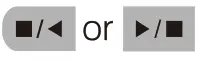 . Path2: Click “SETUP” -select “Option”-click “Keystone Correction”-Adjust by Up
  and down
  keys on the remote control.
Functional Overview
Controls of Remote
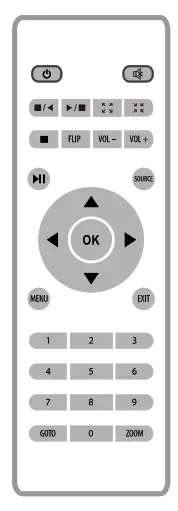
 Power Power | Press to power ON. Press and hold to power OFF. |
| Press for keystone correction. 0° to ± 22° |
 | Press for digital zoom ” 0-10 “ |
 Play/Pause Play/Pause | Press to play or pause an individual chapter or track |
| Arrows/OK | Press to navigate and confirm selections in Settings and other menus |
 | Press to access projector Settings |
| Gob Number Keypad | Press to enter specific chapters or track numbers. Use the play button to begin playing |
| MUTE | Press to mute volume |
 back/fwd back/fwd | Press to reverse or fast forward during playing video/music |
| VOL+/VOL- | Press to adjust the audio level. |
| SOURCE | Press to select media source (AV, PC, HDMI, MEDIA) |
| EXIT | Press to exit menus. |
| ZOOM | Press to adjust the aspect ratio during playing video (Auto/16:9/4:3) |
Install Remove Battery Of Remote
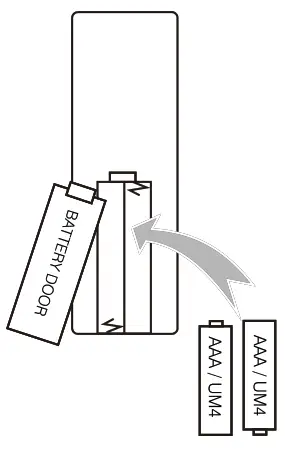
Remove the battery compartment cover on the back of your remote by carefully sliding it open. The battery cover can then be lifted away. Fit the correct batteries (2XAAA batteries not included), referring to the polarity markings. Finally, replace the cover.
NOTE:
- Batteries shall not be exposed to excessive heat such as sunshine, fire.
- Make sure that the batteries are installed polarity correctly.
- Only same or equivalent type batteries as recommended are to be used.
- Do not dispose of batteries in fire, the battery may explode or leak. Do not try to recharge a battery.
- Do not mix old and new batteries.
- Do not mix alkaline, standard(carbon-zinc), or rechargeable (ni-cad,ni-me,etc) batteries.
Built-in Rechargeable Lithium Battery
- When using the remote controller, please make sure that the signal transmitter of the remote controller aims at the infrared signal receiver of the projector ( front or rear )
- If you are not using the remote controller for an extended period please take out the batteries(Battery on include) to prevent batteries leakage.
- Battery capacity: 8400mAh.
- Battery properties: Polymer lithium battery
- Playing time: 2.5-3 hrs
- Charging time: 5 hrs
- Charging time during playback: 8 hrs
- Indicator light: Charging – Red light; Fully Charged – Greenlight
Notes: - The above parameters are tested by engineers and are for reference only. The actual parameters depend on the brightness of the environment, temperature, battery consumption, etc.
- Please use the machine principle as a heat source.
- In order to prevent excessive current from causing damage to the machine, please pay attention to the current and voltage before charging, Avoid overcharging.
- Batteries are dangerous goods. If you have any questions about charging, it is recommended to contact our technical team directly through the last page.
Connection Instructions
Select an input source
You will see the picture below when the projector is turned on. You can choose between the different input sources ( AV / HDMI1 / HDMI2 / Screen Mirroring/ Media Player) by pressing the ” Source ” button at the projector touch panel, or remote controller.
You can connect different devices with the projector, according to the following connection instructions. 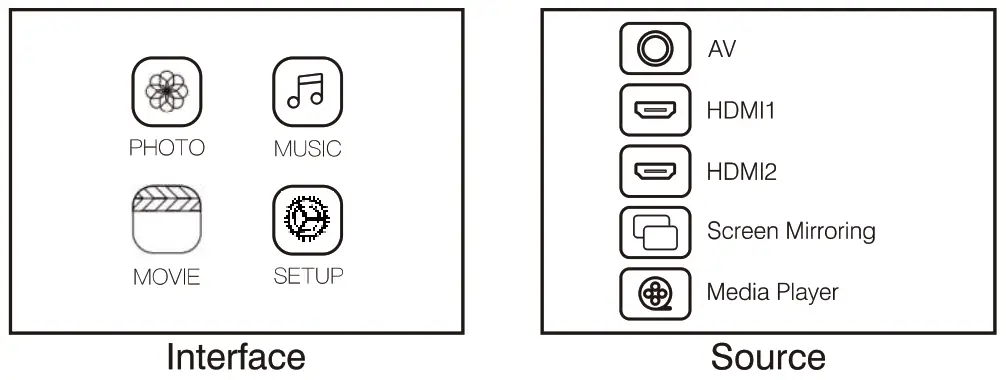
Multimedia connection
Insert USB / Micro SD card ( TF card ) into the corresponding slots (as shown in the picture). Choose Media source, Select ” Video “, ” Music “, ” Picture ” to enter the content you want to play.
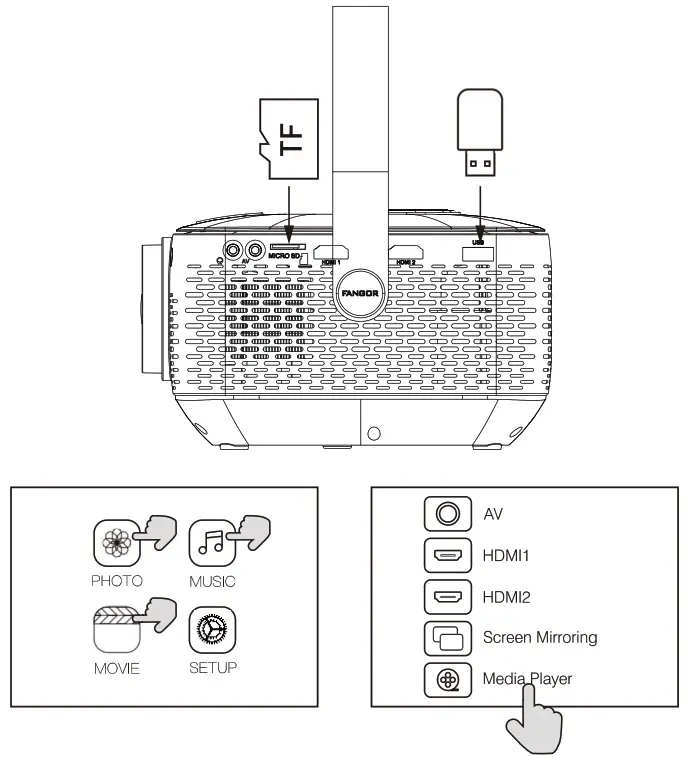
HDMI device connection
The projector can connect to devices with HDMI input functions. It is compatible with laptops, DVD players, Blu-ray players, Chromecast, TV Stick, etc. An HDMI cable is included. The F-601 projector is equipped with 2 HDMI input ports, C)If you connect your devices to the projector via the “HDM 1” port, please choose the “HDMI 1″ input source. Olt you connect via the ” HDMI 2″ port, please choose the ” HDMI 2″ input source.
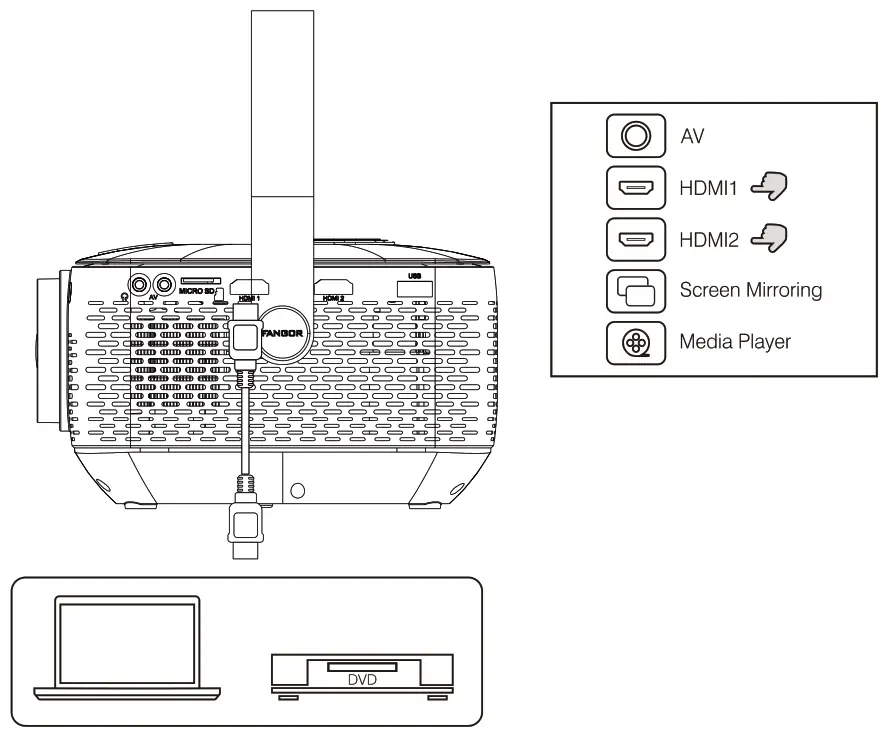
AV video device connection
Connect the projector AV interface with the AV cable (Not included), as is shown in the pictures.
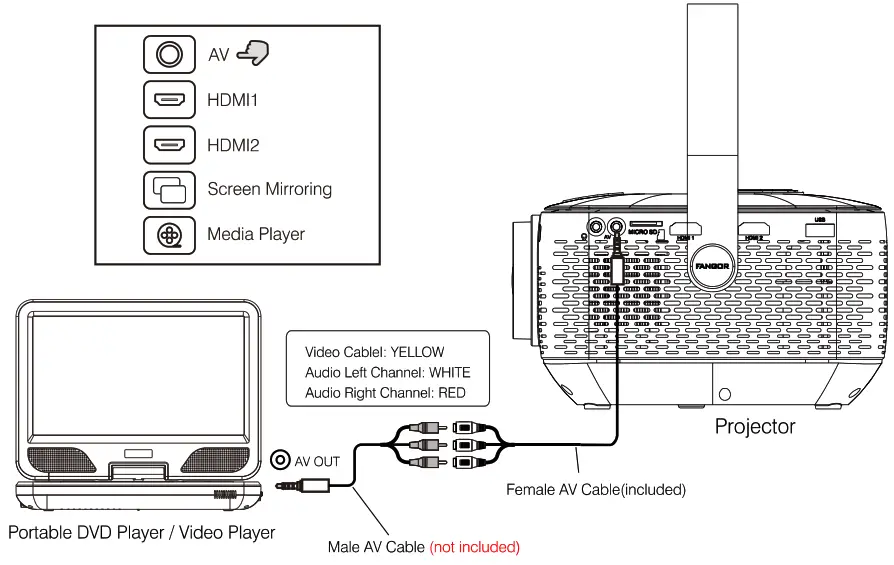
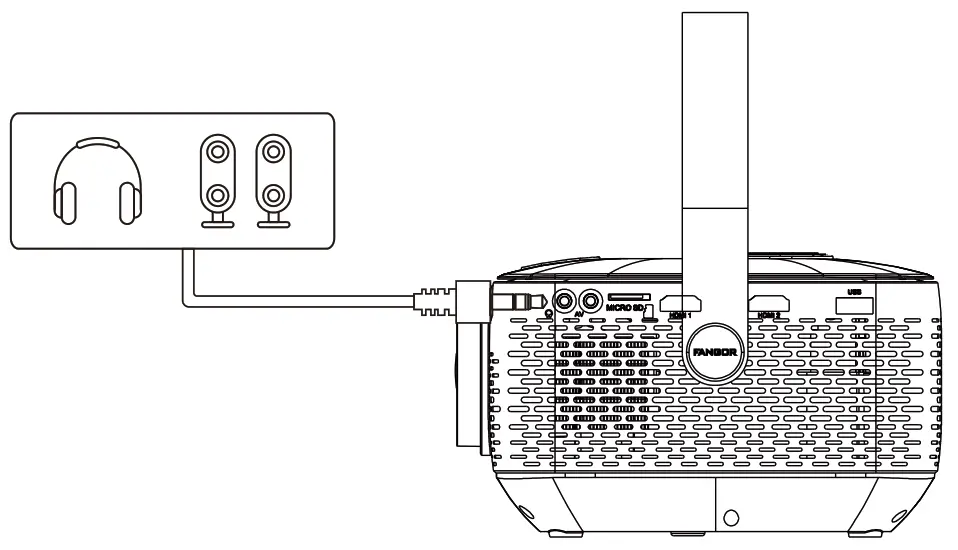
Audio devices connection
The projector can connect to a headphone and to a wired audio system using a 3.5mm jack ( not included)
Using Bluetooth Playback
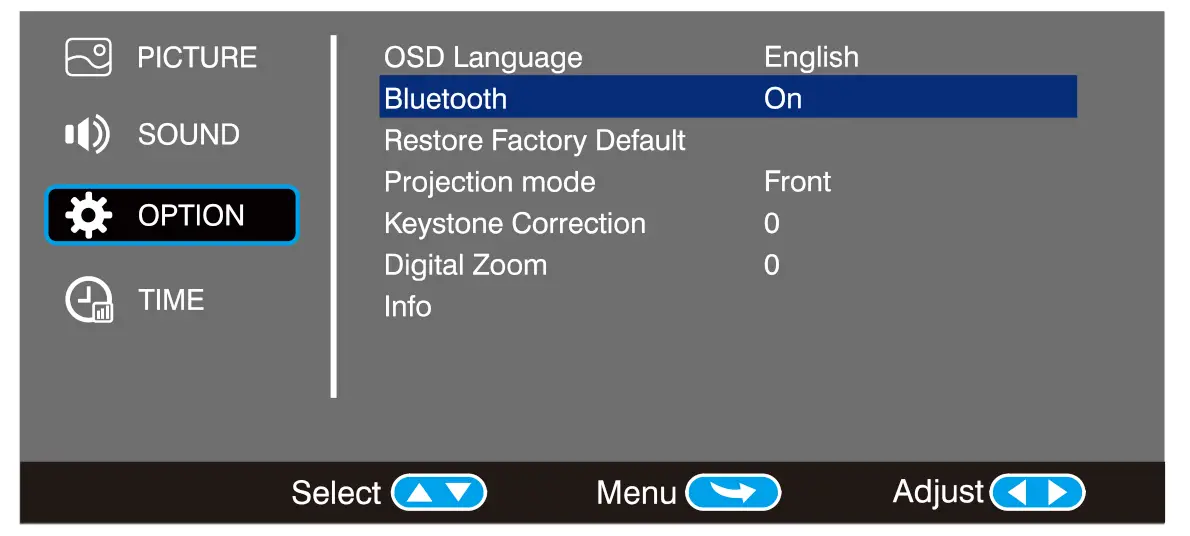
| Bluetooth On/Off | Bluetooth is OFF by default when the projector first powers ON |
| Pairing to Bluetooth Wireless Speaker | Turn on Bluetooth. The projector will begin searching for a nearby Bluetooth device, choose one, and connect successfully. |
| When successfully connected, the projector will display the Bluetooth name on the top right portion of the Main Menu screen, and you will be heard through the Bluetooth receiver | |
| Attention | |
| The Bluetooth function only supports audio devices. Smartphones, tablets, or computers can not connect to the projector! !! | |
| About automatically connect. After the initial pairing, The device will keep the pairing status all the time when Bluetooth functions for both devices are opened. To ensure that you can hear from the projector next time, we suggest that turn off the Bluetooth function before the turn off the projector. | |
| When you try to connect a new blue tooth speaker please turn off the previous speaker /headphone and re-search your new Bluetooth device for connecting. | |
FAQ
| Q: Why can my projector not be turned on? A: Please be sure that the AC power cable is plugged in tightly, and press the power switch on the projector’s panel or use the remote controller to turn it on. |
| Q: The projector is turned on, but no image is displayed A: (1)Please make sure your device is connected to the projector correctly. (2)Check the lens cover has been removed. (3)Check if the input signal source is correct, and then switch into projection mode, Wait for a while and operate it again. (4)Please make sure that the video source is equal to or under 1080P 5. If it is still not working, please contact us for further support. |
| Q: The Lamp ( Bulb ) switches off after a period of time. A:1. Leave the projector to cool for a few moments. 2. Once cooled, check if anything is blocking the ventilation vents. 3. Turn on the projector. If the issue persists please contact us. |
| Q: When playing a video, sees the image but I hear no sound A: If you connect to your laptop via an HDMI adapter. The audio cable of the adapter needs to be plugged into the audio output port from your laptop to the projector using a 3.5mm audio jack. |
| Q: The projection is not bright enough A: We recommend using the projector in a relatively dark environment to bring out the best image brightness. This project is designed for Home Entertainment and s not recommended for Powerpoint or other business presentations. |
| Q: Spots on the screen. Using a vacuum cleaner to dean the lens. If cleaning does not resolve things, please contact your support provider for further assistance. |
| Q: I get a blurry image? A: The recommended projection distance is 3-9ft. Please adjust the Keystone correction to get a rectangular image first, then adjust the Focus to get a clear image. The optimal focus is obtained when the pixels are clearly visible. If the projection size is too large, the focus near the screen edges may be less sharp than at the screen center |
| Q: My projector noise is too loud, is it broken? A: The projector noise comes from the fan of its cooling system. The projector generates heat during operation as the light bubble produces strong light to make a bright image. It is normal for the projector to make a loud noise. Brighter the image .louder the sound is. You can place the projector far from where you are, or you can connect a louder speaker to the projector to cover up the noise |
| Q: Bluetooth does not work. A: Please note the Bluetooth function is not supported connecting with a smartphone or pad etc. If the Bluetooth speaker or earphone is not able to connect, please contact our customer service, we will help to solve it soon. |
| Q: After scanning the OR code, it prompts to upgrade the system? A: We will continue to improve customer experience based on market feedback (such as mobile phone system upgrades), so we will upgrade (irregularly). |
| Q: Can you adjust the brightness/Sharpness of the video? A: Path: Set up (Click “Source”)-Picture-Picture Mode(Choose “User”)-Adjust via remote control. For non-professionals, we recommend using the default value. |
| Need to know more www.fangor-store.com / [email protected] You can find the operation video on FAGOR official website |
Specifications
| Light Source Type | LED |
| Display Native Resolution | Support 1080P |
| Supported Video Resolution | 1080p, 1080i,720p, 576i,480p,and 480i |
| Power Input Connect Included Adapter | DC 12V 5A |
| Included Adapter Connect DC input of the unit | Input AC100-240V , 50/60HZ; Output DC12V , 5A |
| Display Color | 7000K-8000K |
| Dolby Sound | Support |
| Keystone | ±45 |
| Connect Types | HDMI / USB / Micro USB(TF) / AV / Audio |
| Input | HDMI*2 / AV*1 / Micro USB(TF) *1 / USB*1 |
| Output | Audio Out *1/Bluetooth |
| USB Port | Support USB device up to 32GB |
| SD Card | Support SD card up to 32GB |
| Supported image format | *.jpg*.png*.bmp |
| Supported audio formats | *.mp3*.wma*.ogg*.aac*.flac |
| Supported video formats | .avi*.flv*.rmvb*.mkv*.mp4*.3gp*.mov*. mpg*.mpeg*.ts*.tp*.vob |
| Weight | 1.58kg |
| Dimension | 225*176*110mm |
Warranty
Customer support
If you have any questions about this projector, please contact us.
Email: [email protected]