Contents hide
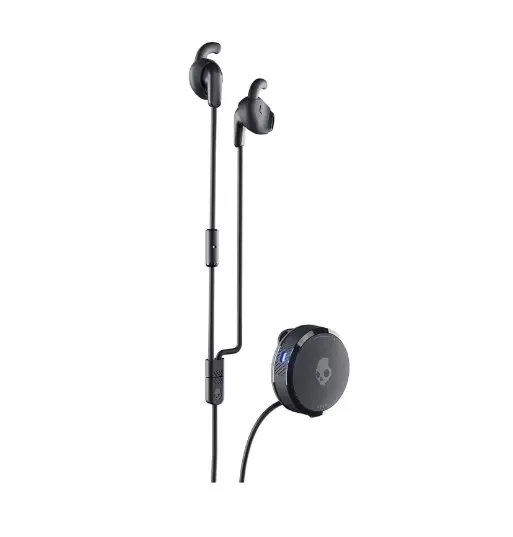
Skullcandy VERT WIRELESS Wired Earbuds User Manual
WALKTHROUGH
User Guide
First Time Pairing
Troubleshooting
PAIRING ISSUES?
Issue: The biggest challenge with wireless earbuds is maintaining a paired status. Easy fix!
Solution:
- If you have previously paired to your device, simply turn your Vert® Wireless on and it will pair to the last known device.
- If your Vert® Wireless does not successfully pair to your device, turn the product off. From the off state, hold the power on button for 5 seconds until you see a blue LED and hear “pairing.”
- Enter your device’s Bluetooth settings and choose Vert® Wireless. The product should connect to your device.
- If that is not successful, you will need to reset your Vert® Wireless. With the product in the on state, hold the on/off button and turn and hold the dial clockwise simultaneously for 3 seconds until you hear two beeps.
- Turn your Vert® Wireless off and then back on and it will go into pairing mode. Select Vert® Wireless in your Bluetooth settings.
- If your earbuds do not pair after choosing them in your Bluetooth settings, choose to forget Vert® Wireless in your device.
- Turn your Vert® Wireless off and back on. It will enter pairing mode. Choose Vert® Wireless in new devices in your Bluetooth settings.
How to Wear
Onboard Controls
TILE
ACTIVATING TILE
Here are more detailed activation instructions:
- Download and open the Tile app on your smartphone or tablet
- Tap the + on the top left corner of your screen
- On the Add a Device page, choose Skullcandy and select the Tile enabled headphones
- Press the button on your Tile device and listen for the tune
- Hold the Tile close to your device until they connect, it should take about ten seconds
- That is all! Your Skullcandy headphones are now activated with Tile!
LOCATING YOUR DEVICE WITH TILE
- When searching for misplaced headphones, use the Tile app to audibly locate them. In the Tile app, tap “find” and listen for your headphones playing the Tile tune.
- Detailed instructions on how to ring your headphones:
- Ring your Tile from the Tile app when it is within Bluetooth range
- Open up the Tile app to find your list of Tiles.
- Tap the headphones you want to ring.
- Tap the green “Find” button
- Listen for the Tile tune!
- After you’ve found your Tile, tap the blue “Done” button or press once firmly on the Tile button to make your Tile stop ringing.
FAQs
BATTERY & CHARGE
What is the total charging time for Vert® Wireless?
- <1 Hour
- Note: This product has Rapid Charge. This means that you can charge your earbuds for 10 minutes to get 2 hours play time.
Can I charge Vert® Wireless with my PC/laptop?
- Almost all USB outputs will work for charging Vert® Wireless.
Does Vert® Wireless have some sort of fast charge?
- Yes, these earbuds have Rapid Charge technology. You can charge your earbuds for 10 minutes to get 2 hours of playtime.
CONNECTION
What is the Bluetooth range of Vert® Wireless?
- You may be able to listen up to 30+ feet (10 meters) away from your paired device, though your connection experience may vary based on your environment.
Can I connect Vert® Wireless to a computer?
- Yes as well as to a phone, tablet, MP3 player, or anything else with a Bluetooth connection.
Which version of Bluetooth does Vert® Wireless use?
- Bluetooth® version 5.0
GENERAL QUESTIONS
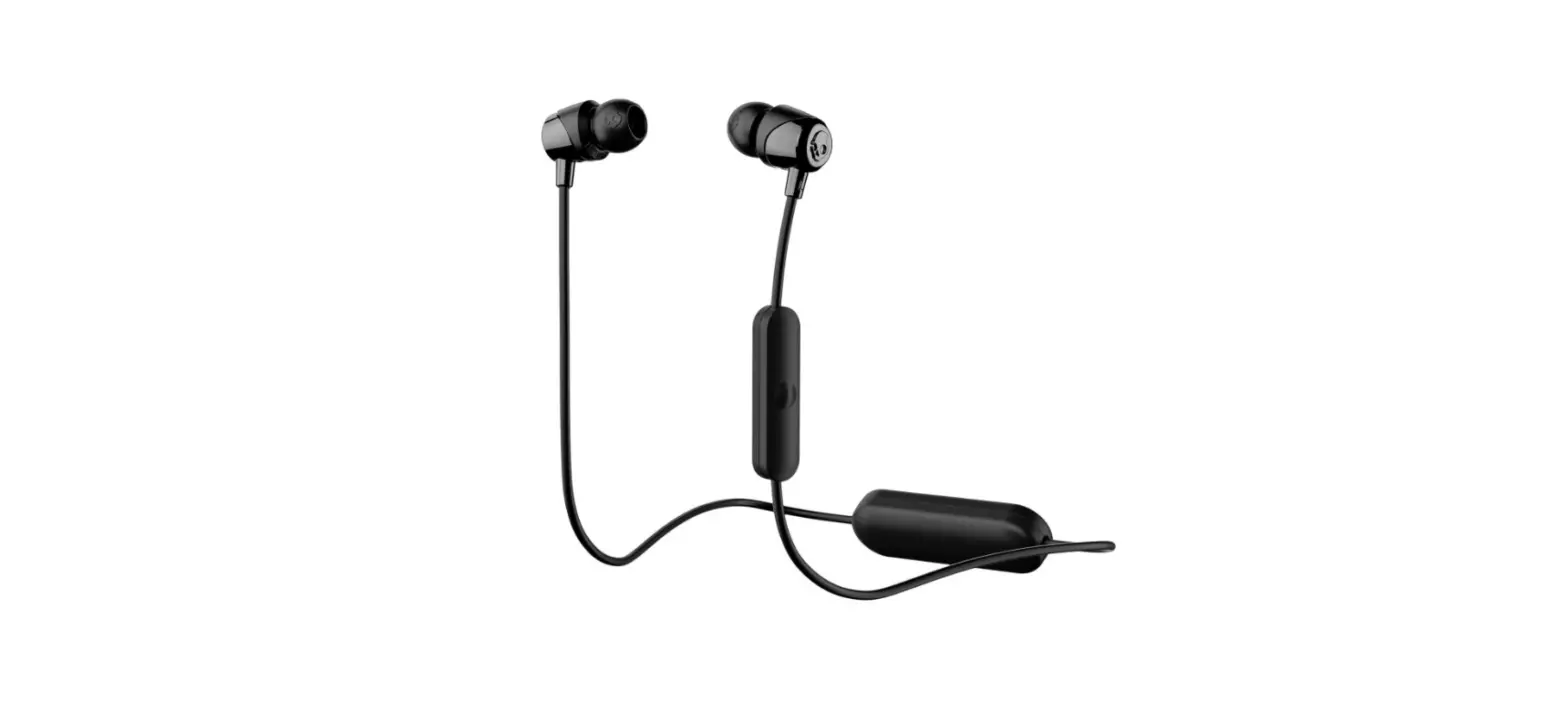
Where can I attach the Vert® Wireless dial?
- You can attach the Vert® Wireless dial anywhere you would like. It was designed specifically to attach to your goggle straps when on the slopes or to your backpack shoulder straps.
How can I check the fit of my Vert® Wireless?
- The Vert® Wireless earbuds should feel secure straight out of the box, however if you would like added comfort or stability there are a pair of FitFinÔ ear gels included. Simple slide the FitFin ear gels over each earbud and hit the slopes or trail with more confidence
Can I wear my Vert® Wireless underneath a helmet?
- Absolutely! In fact, the Vert® Wireless was specially designed with a low profile to comfortably fit under any kind of helmet!
Can I use Siri/Google Assistant/Alexa with my Vert® Wireless?
- Yes, just double tap your on/off button.
Can I use Vert® Wireless for sports or working out?
- Yes! Vert® Wireless is sweat and water resistant (IPX4).