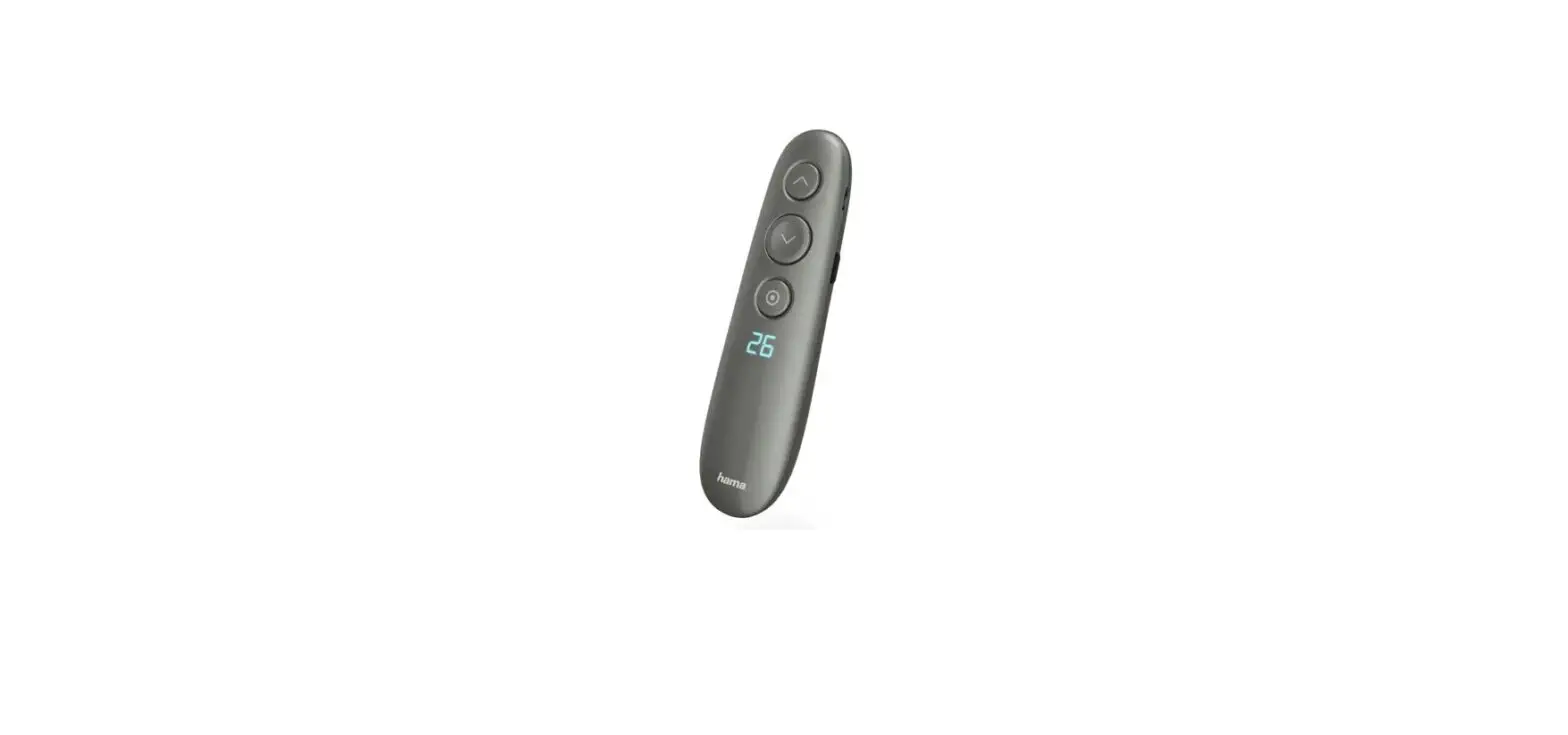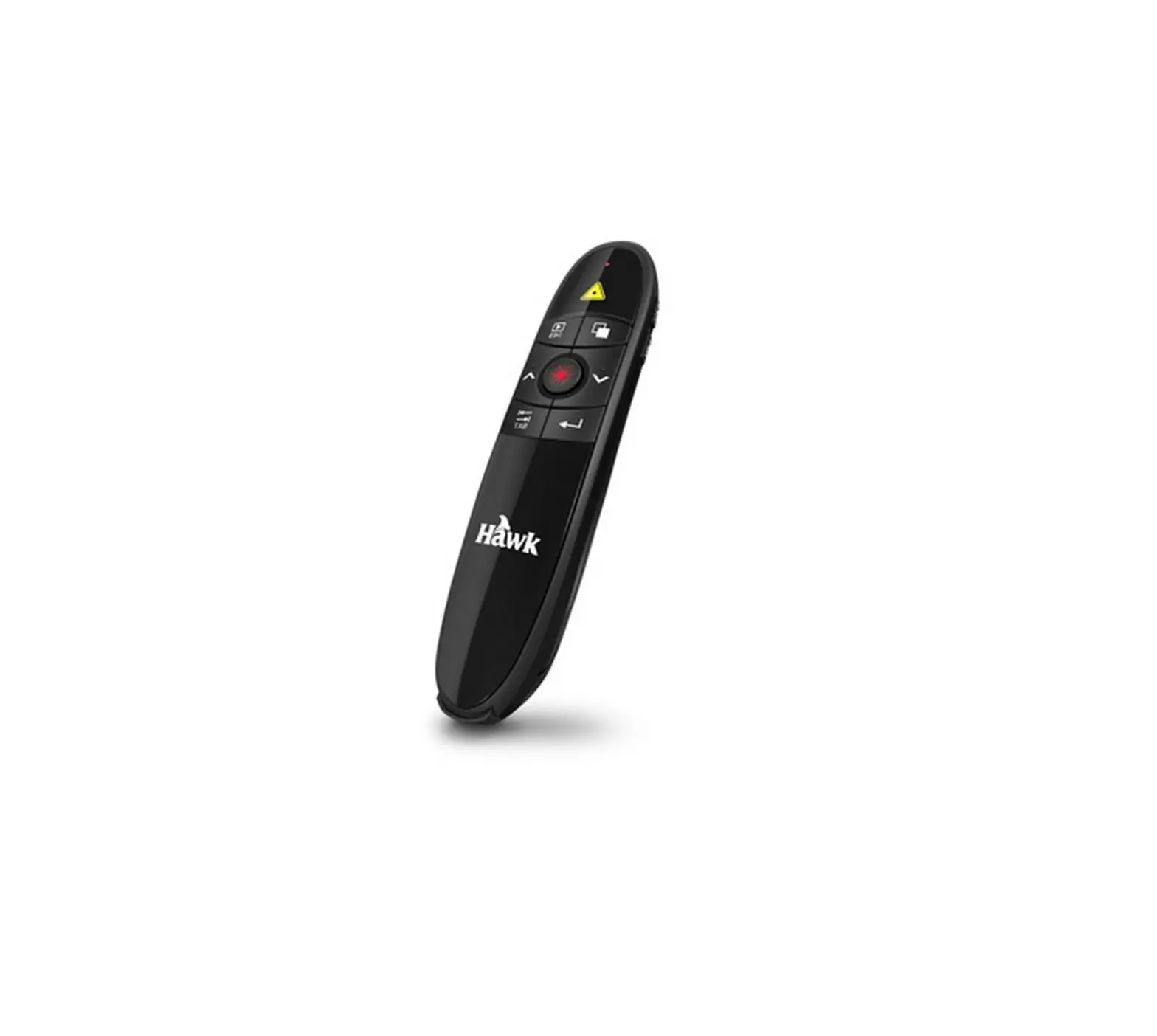
Hawk HCR400 Wireless 2.4GHz Laser Prensenter
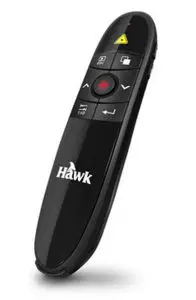
Welcome
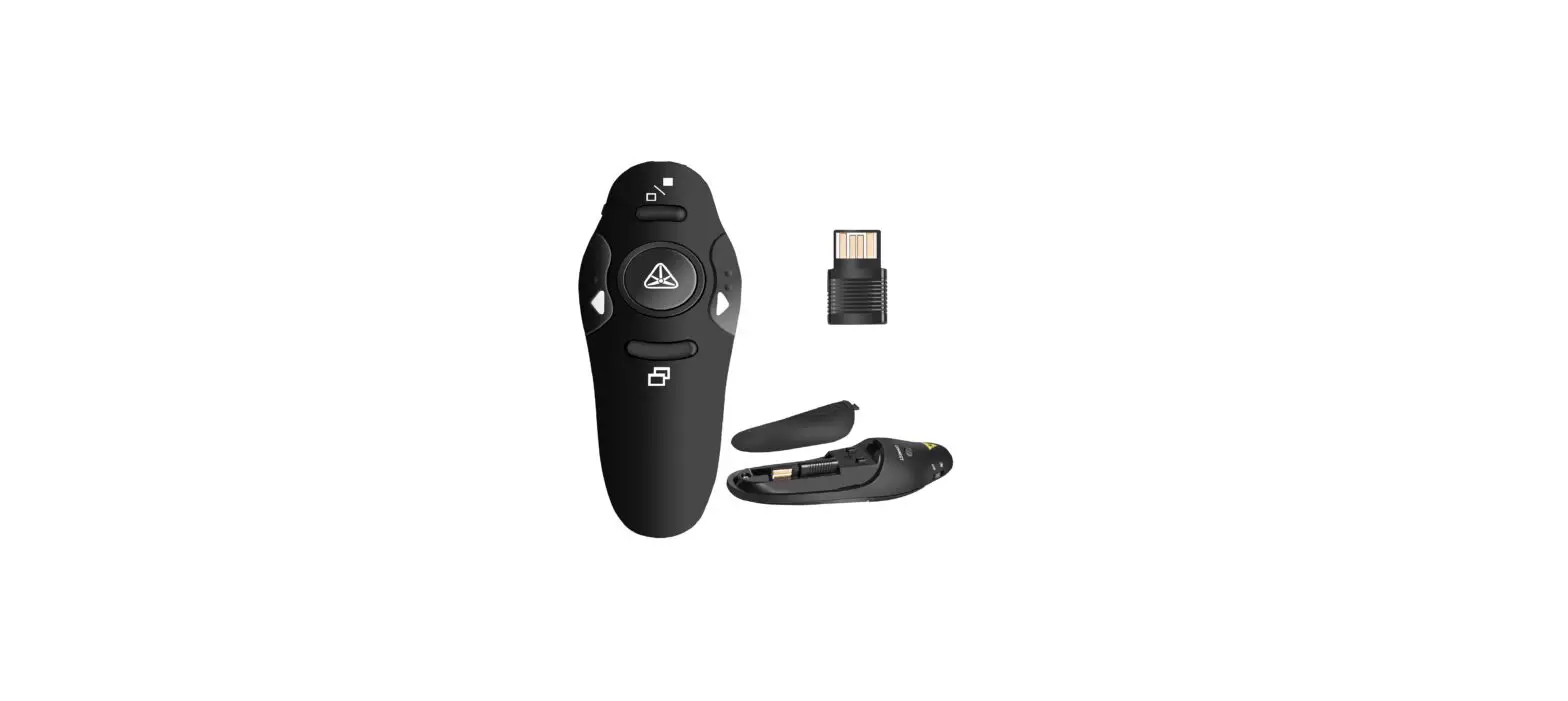
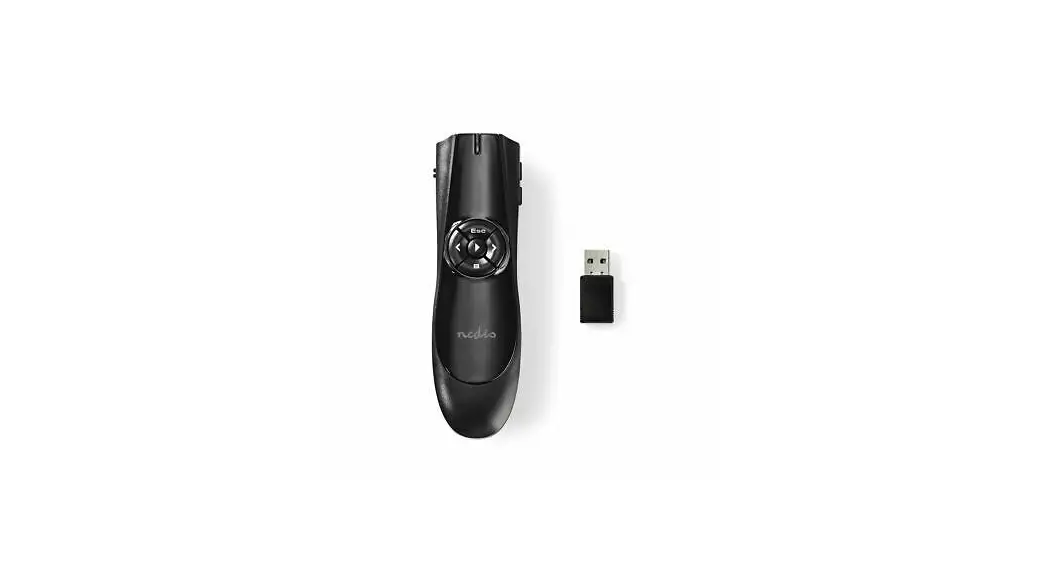
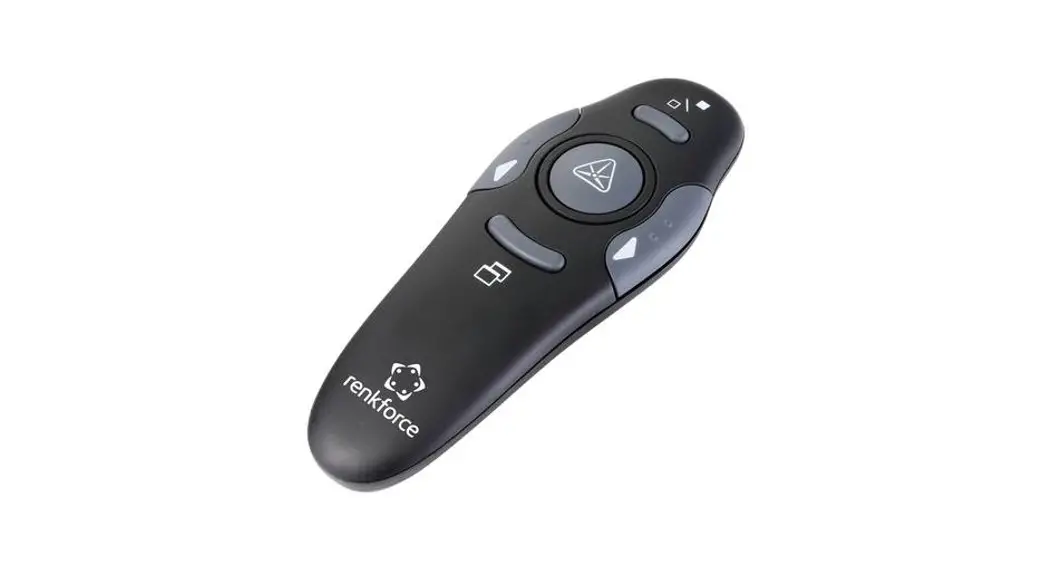
Thanks for choosing this laser presenter. It gives you remote control of your onscreen presentations with a range of up to 35 feet which is a prefect idea for a large conference room.
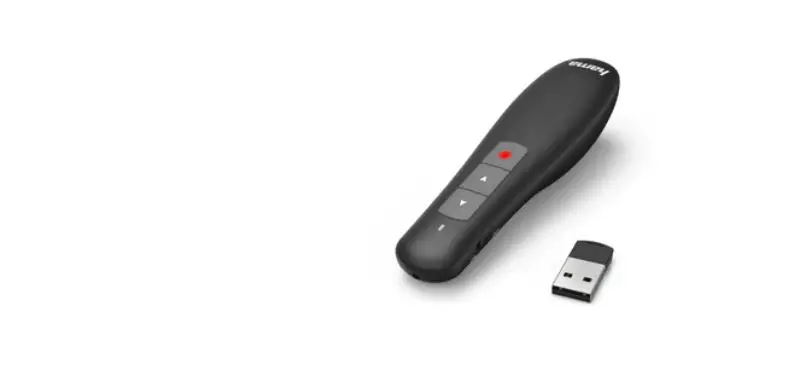
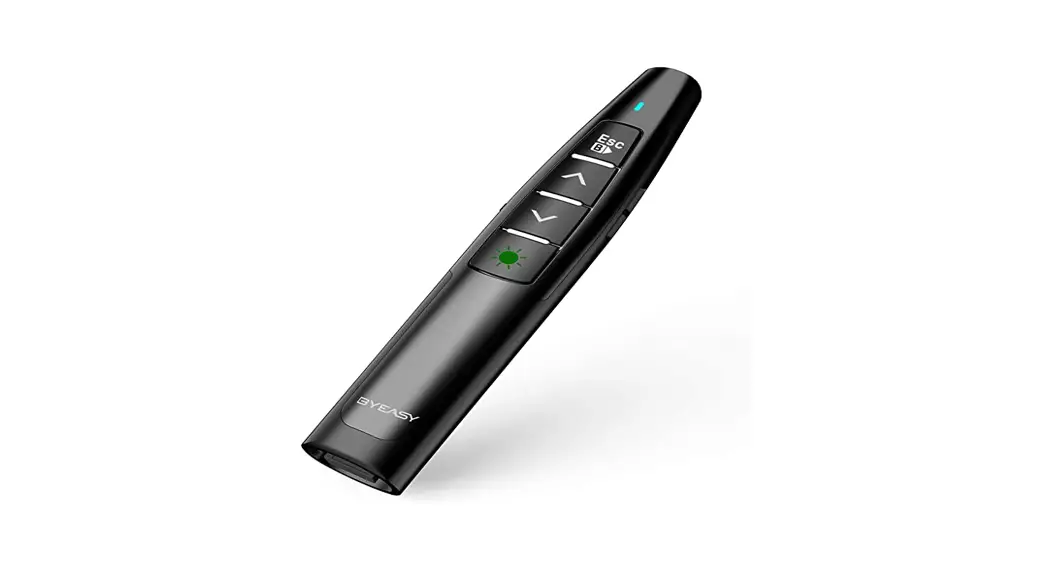
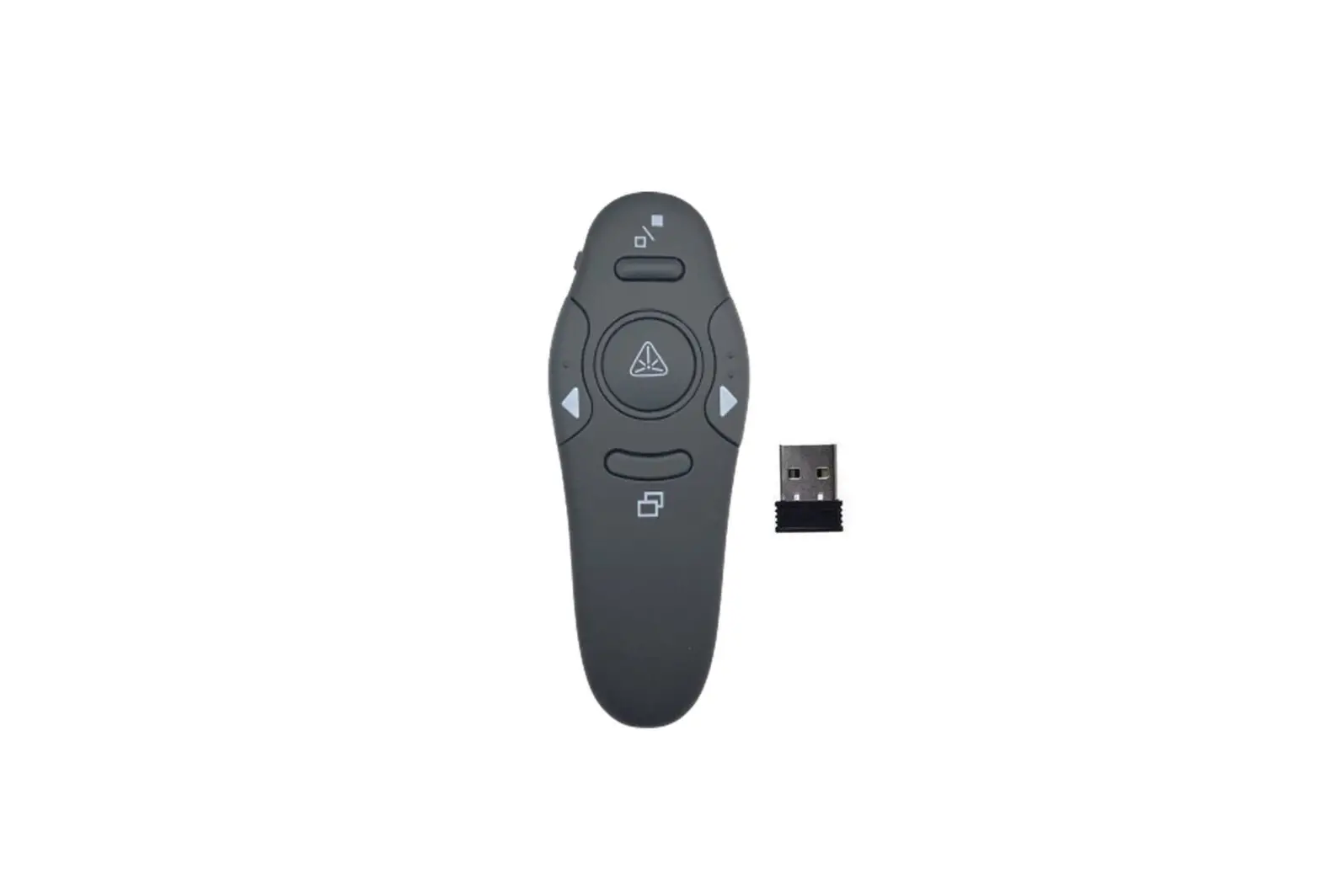
This presenter supports the most common presentation tools including Page Up, Page Down, Start & Exit slideshow , Screen black. It also has a laser pointer that helps you focus in on your key messages. Just plug and play, no software is required. It allows you to control your presentation with one touch easily in the palm of your hand, and enjoy freedom of movement as you present.
Be sure to carefully read this User’s Guide first for the proper use of this product and keep it for future reference.
© 2012 All rights reserved.
IMPORTANT SAFETY AND HEALTH INFORMATION

Package Contents
- Wireless 2.4GHz Laser Presenter x 1
- User’s Manual x 1
- Cable x 1
- Warranty Card x 1
Minimum System Requirements
- Windows® 98SE / 2000 / ME / XP / Vista / 7 / 8 or Above,Mac OS X® v.10.4 (or later)
- IBM or PC Compatible or Notebook with USB port
Product Features
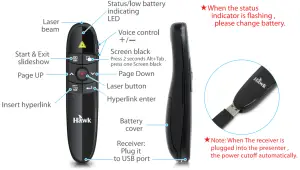
Getting Started
STEP 1 Pull out the receiver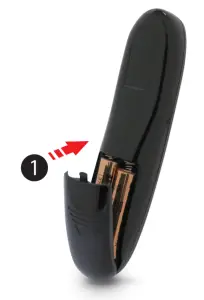
STEP 2 Connecting the Receiver Connect the USB connector of the receiver into an available USB port of your computer.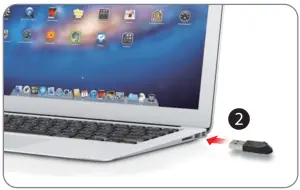
STEP 3 Open the Powerpoint file and test the key functions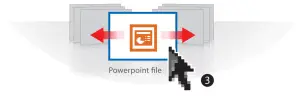
Trouble Shooting
| Question | Possible cause | How to resolve |
| Need to install software for first use of this product? | No, this is a plug and play device. | |
| Need to link ID before first use? | No need | |
| Possible to use 2 or more of this product in a room at the same time? | Yes | |
| Remote control malfunction | Interfered by other RF signal | To Implement ID Link (see Switching Channels) |
| Laser pointer and remote control both malfunction | Put batteries in wrong direction or run out of battery power | Check the batteries |
Switching Channels
Plug receiver to your PC USB port Within the 20-second stand-by time, press  and
and  simultaneously 2 seconds until the red LED of Status indicating becomes blinking for 2 times, the ID link has been successfully done.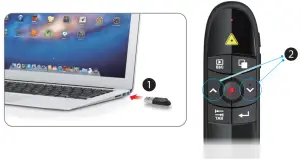
Care and Maintenance
- For cleaning, you are advised to use a soft, slightly moistened cloth.
- Avoid using solvents or abrasive substances.
- Do not open the presenter: for maintenance, consult qualified staff only.
Safety Notice
- This product complies with FCC and CE rules.
- This product has no serviceable parts. Use of controls or adjustments of procedures other than the user guide may result in danger.
Specifications
| Frequency range | 2.4GHz |
| Remote range | About 30 meters |
| Power | AAA battery x 2 |
| Output power | Under SmW |
| Size | 134 (L) x 34(w) x 27 (h) millimeters |
| Weight | 40g |
FCC Requirement
Any changes or modifications not expressly approved by the party responsible for compliance could void the user’s authority to operate the equipment.
This device complies with Part 15 of the FCC Rules. Operation is subject to the following two conditions: (1) this device may not cause harmful interference, and (2) this device must accept any interference received, including interference that may cause undesired operation.
Note: This equipment has been tested and found to comply with the limits for a Class B digital device, pursuant to Part 15 of the FCC Rules. These limits are designed to provide reasonable protection against harmful interference in a residential installation. This equipment generates, uses, and can radiate radio frequency energy, and if not installed and used in accordance with the instructions, may cause harmful interference to radio communications. However, there is no guarantee that interference will not occur in a particular installation. If this equipment does cause harmful interference to radio or television reception, which can be determined by turning the equipment off and on, the user is encouraged to try to correct the interference by one or more of the following measures:
– Reorient or relocate the receiving antenna.
– Increase the separation between the equipment and receiver.
– Connect the equipment into an outlet on a circuit different from that to which the receiver is connected.
– Consult the dealer or an experienced radio/TV technician for help.