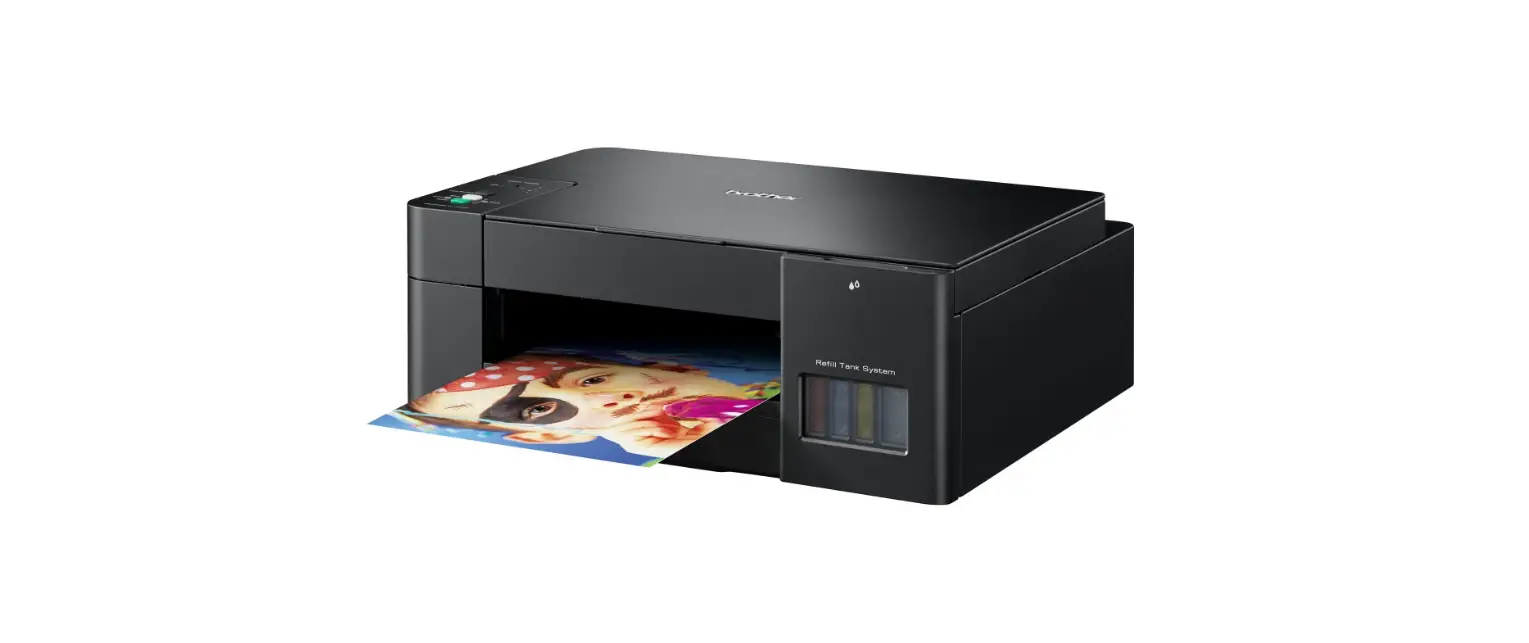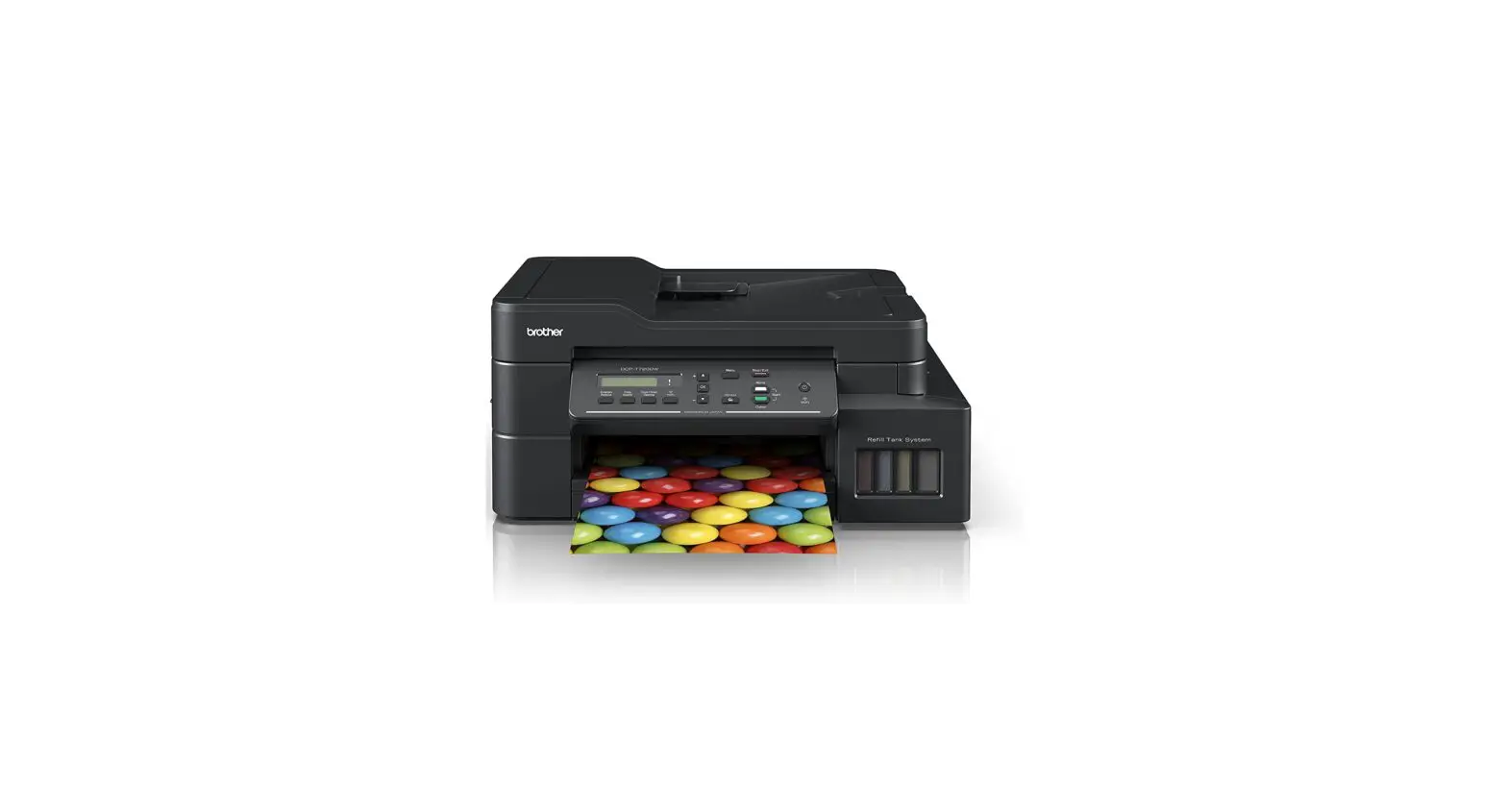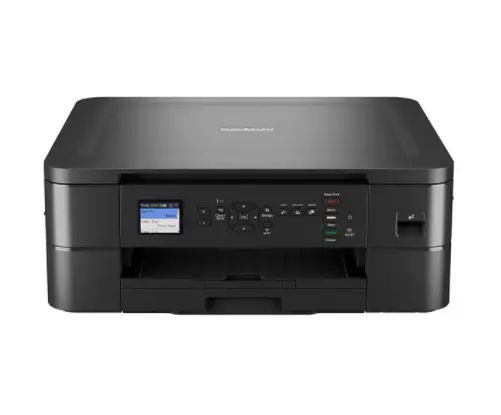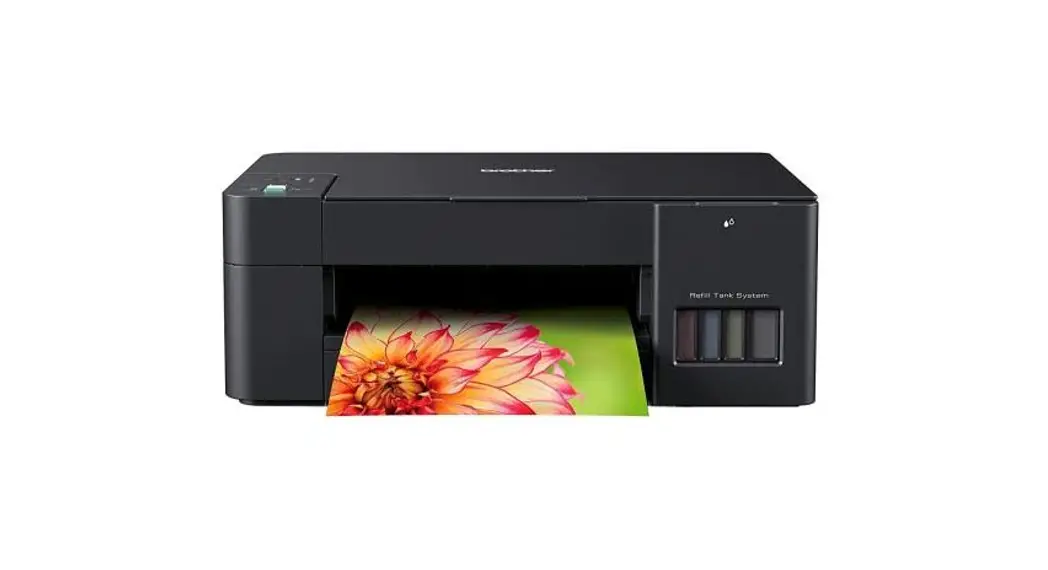

DCP-T220 / DCP-T225
Quick Setup Guide D02A0V001-00
Read the Product Safety Guide first, then read this guide for the correct installation procedure.
Keep this guide next to your machine for quick reference.
Bacalah Panduan Keselamatan Produk (Product Safety Guide)
You must follow steps
 Video setup instructions:
https://support.brother.com/videos
Unpack the machine and check the components
Remove the protective tape and the film covering the machine.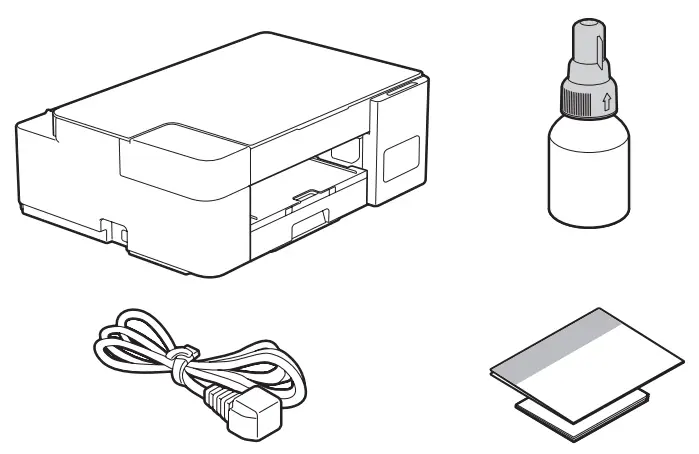
NOTE
- The components may differ depending on your country.
- Save all packing materials and the box in case you must ship your machine.
- We recommend using a USB 2.0 cable (Type A/B) that is no more than 2 meters long (included in some countries).
Fill the ink tanks with inbox ink
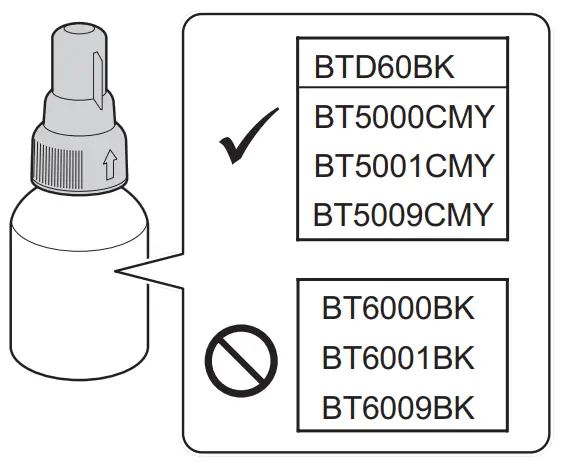
IMPORTANT
Check the ink bottle model name on the label.
Using the incorrect ink may cause damage to the machine.
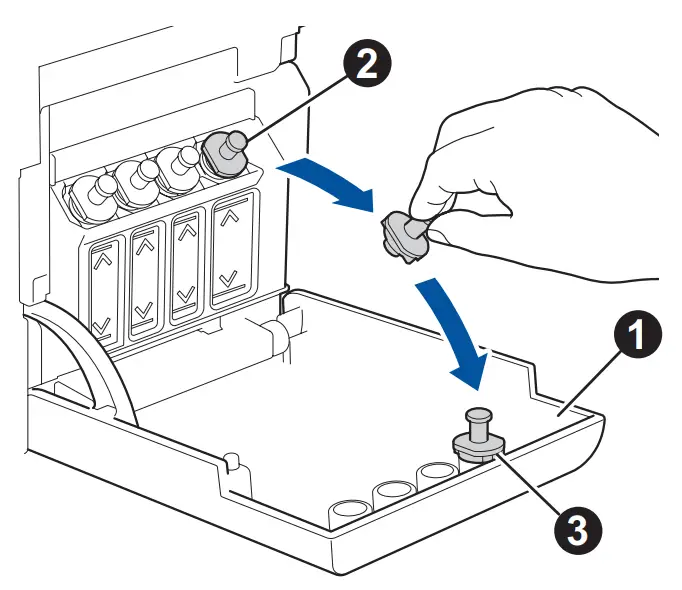
Open the ink tank cover a, remove the cap b, and place it on the back of the cover c.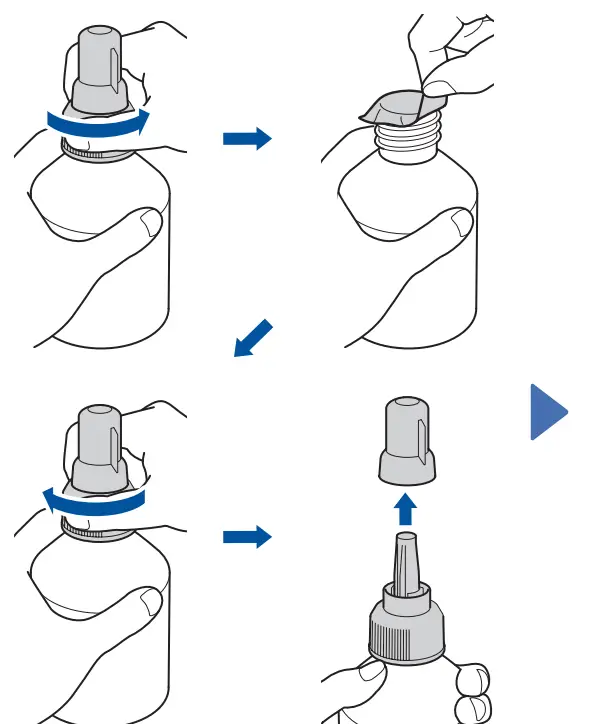
Remove the film and tighten the cap firmly.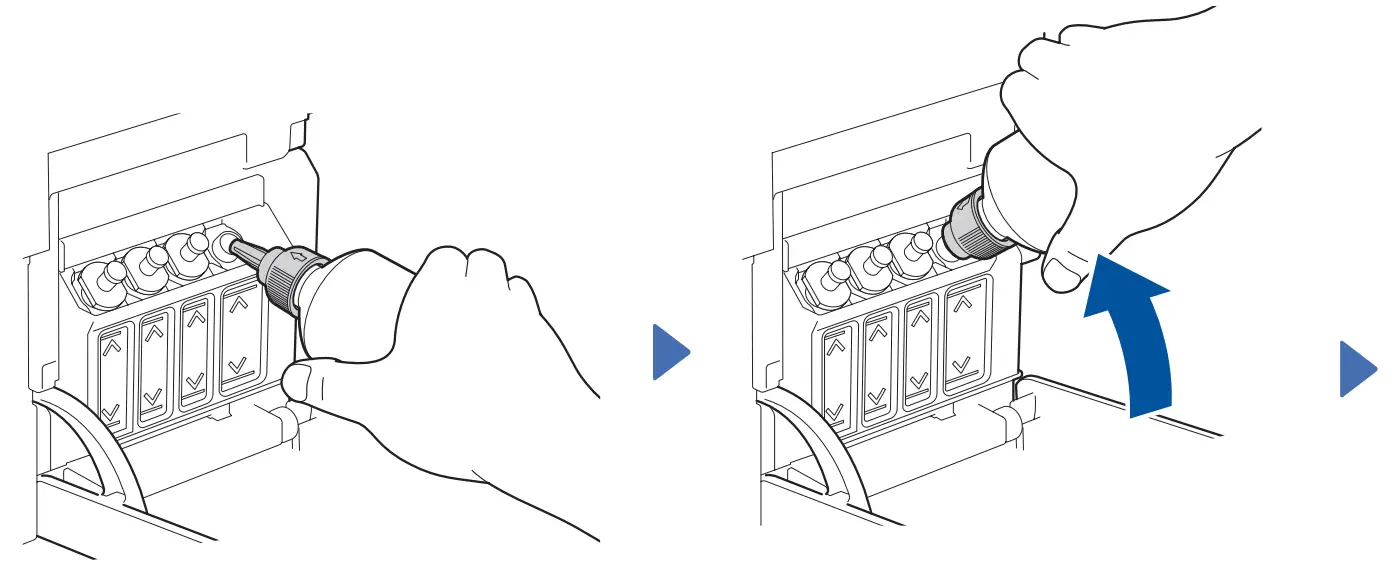
Remove the nozzle cap and insert the bottle nozzle firmly into the ink tank so that the ink does not spill.
The bottle is self-standing and the ink fills automatically until the bottle is empty. To fill the ink tank faster, squeeze the bottle on both sides.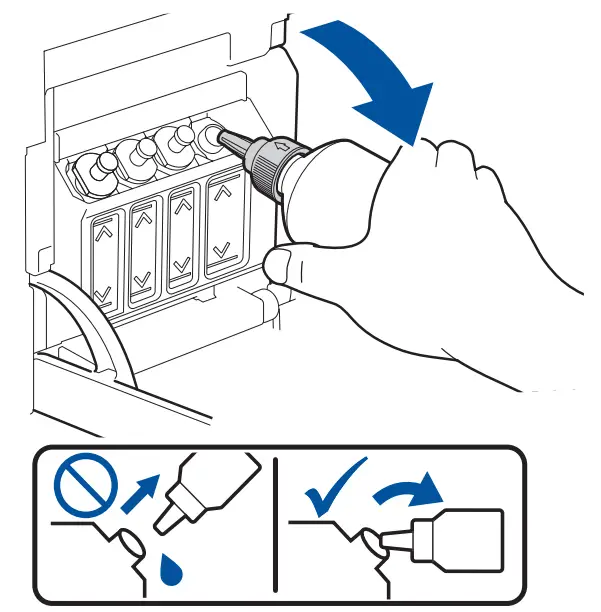
When finished, remove the bottle, pointing the nozzle upward so the ink does not spill.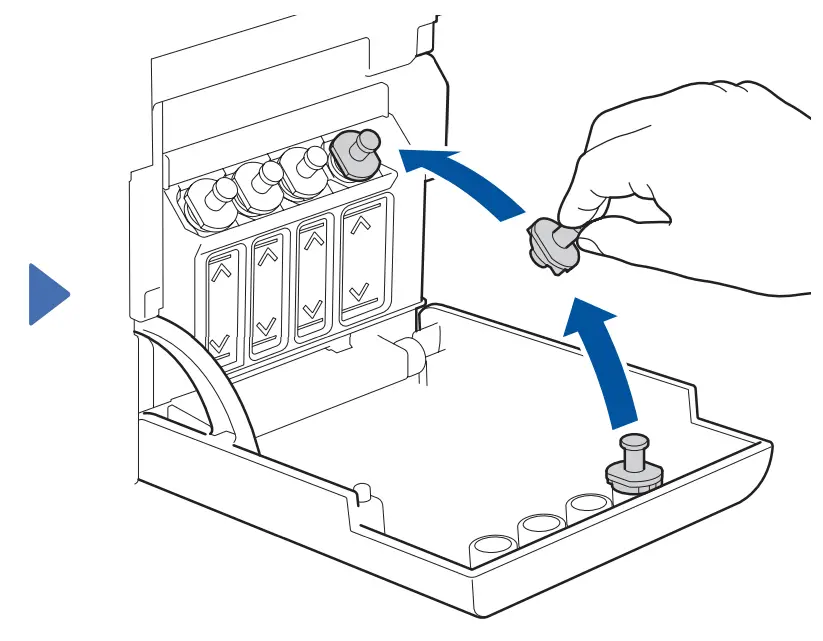
Replace the ink tank cap. Repeat step 2 for the other ink tanks, and then close the ink tank cover.
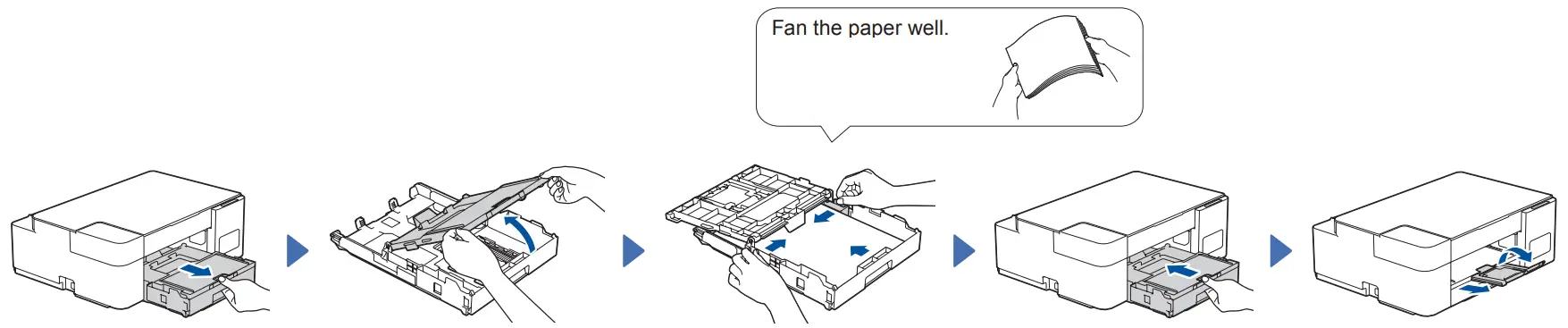
Load plain A4 paper in the paper tray
Start the initial cleaning
In this guide, the illustrations of the DCP-T420W are used unless otherwise specified.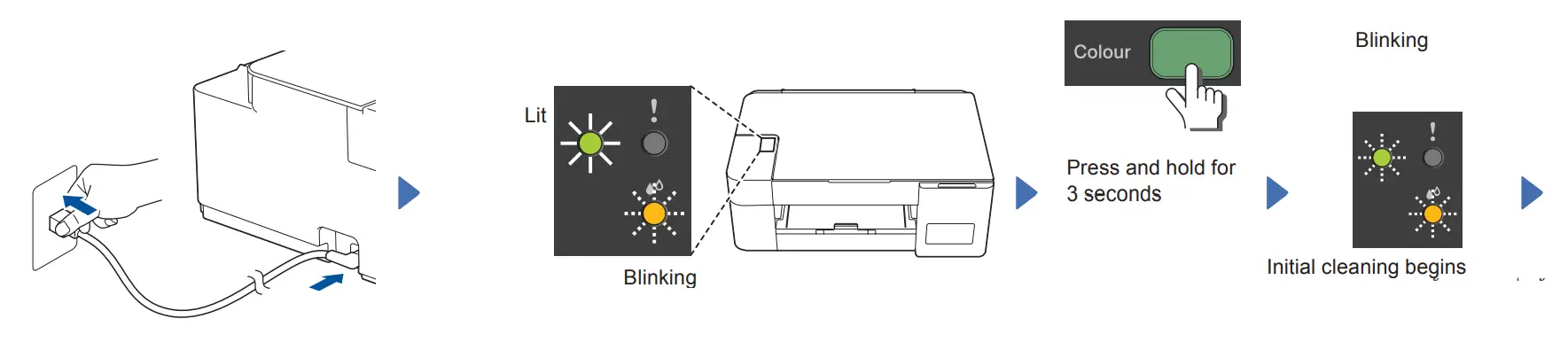
The machine prints the
Print Quality Check Sheet.
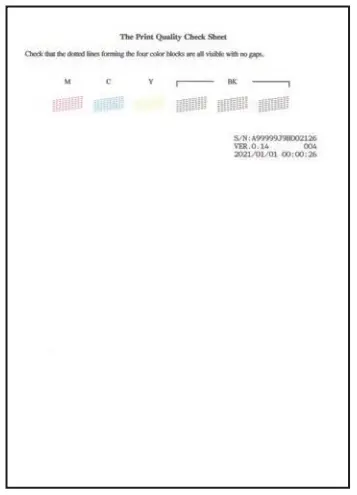
Check the Print Quality Check Sheet.
To improve the print quality, clean the print head. See Improve Print Quality in this guide.
Connect your computer or mobile device
Install Brother software to use your machine. Visit one of the following websites:
For Computers:
For Mobile Devices: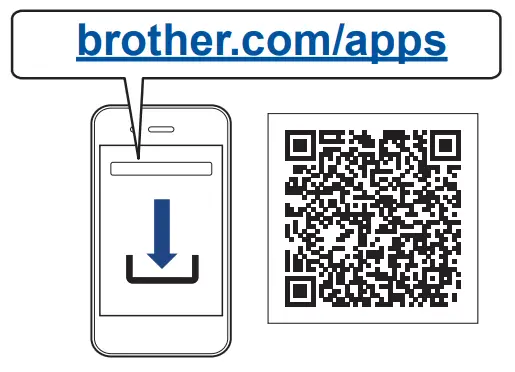
Install the Brother iPrint&Scan application.
Follow the on-screen instructions.
For USB Connection:
Use the USB port inside the machine, as shown.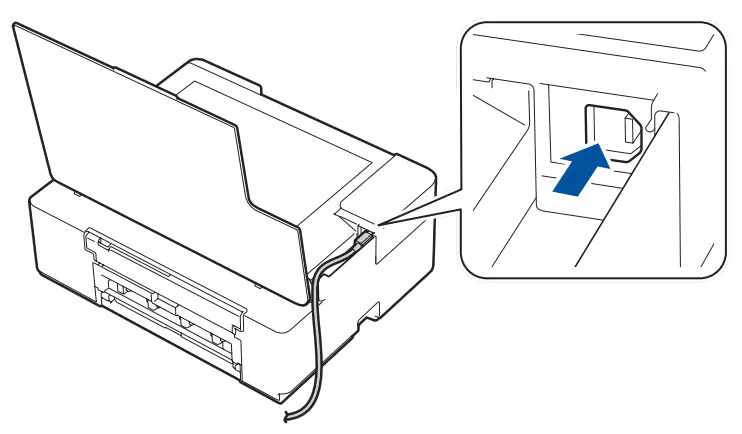
Setup Complete

For detailed machine operations including scanning and troubleshooting tips, see the Online User’s Guide: support.brother.com/manuals
Control Panel Overview
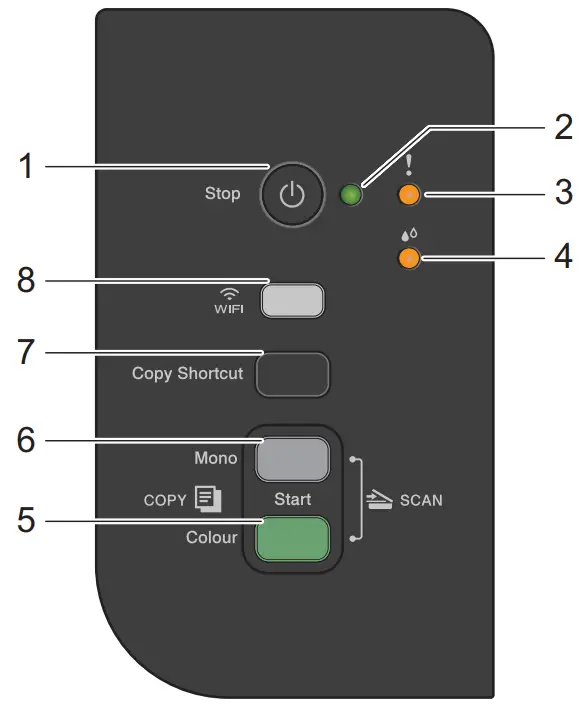
| 1 | Power / Stop button | 5 | Colour Start button |
| 2 | Power LED | 6 | Mono Start button |
| 3 | Warning LED | 7 | Copy Shortcut button |
| 4 | Ink LED | 8 | Wi-Fi button / LED |
Press to turn the machine on. Press and hold to turn the machine off.
Machine Settings
The machine’s settings are set from the application (Brother iPrint&Scan or Brother Utilities) on your computer or mobile device.
Important Notice for Network Security: The default password to manage this machine’s settings is located on the back of the machine and marked “Pwd”. We recommend immediately changing the default password to protect your machine from unauthorized access. See the Online User’s Guide.
LED Indications

 | Standby |
 | Busy (blinking) |
 | See Check Ink Volume in this guide. When finished, press Stop. |
 | Paper jam (blinking simultaneously): See Remove Jammed Paper in this guide. |
 | No paper loaded: Load paper in the tray, and then press Mono Start or Colour Start. |
 | Wrong paper size |
 | Out of memory |
 | Machine error For solutions, see the Online User’s Guide: |
 | Off Wi-Fi (DCP-T420W/DCP-T425W/DCP-T426W) |
 | Connecting |
 | Connected |
Copy
- Load the paper in the paper tray.
- Place the document in the lower right corner of the scanner glass.
- Press Mono Start or Colour Start.
Multiple Copy
In step 3 on the left, press Mono Start or Colour Start once for each additional copy.
Best Quality Copy
In step 3 at the left, press and hold Mono Start or Colour Start for two seconds.
Other Copy
Use the Brother iPrint&Scan application on a computer or mobile device. See the Online User’s Guide.
2 in 1 ID Copy


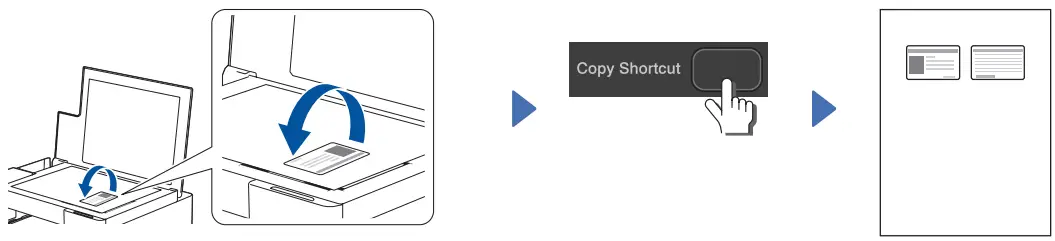
You can set one specific copy function for the Copy Shortcut button (see the Online User’s Guide). The default is 2 in 1 ID Copy.
Check Ink Volume
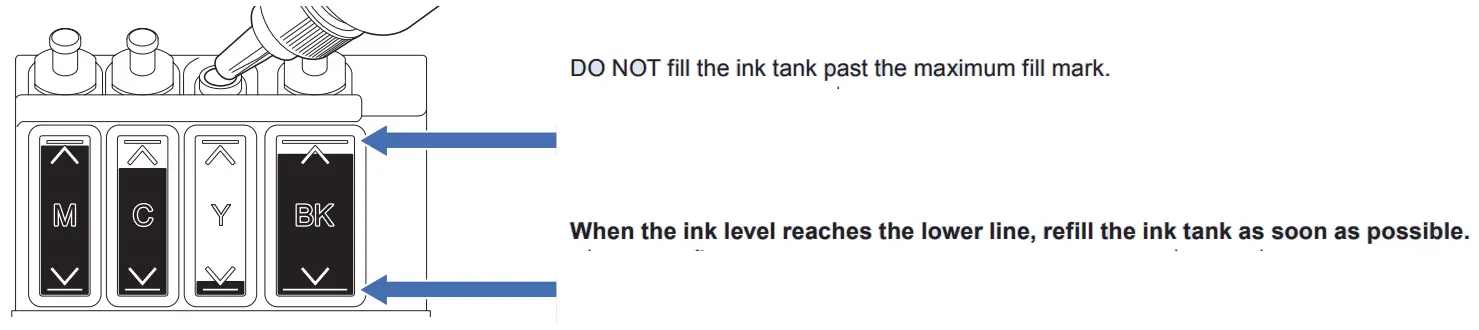
Improve Print Quality
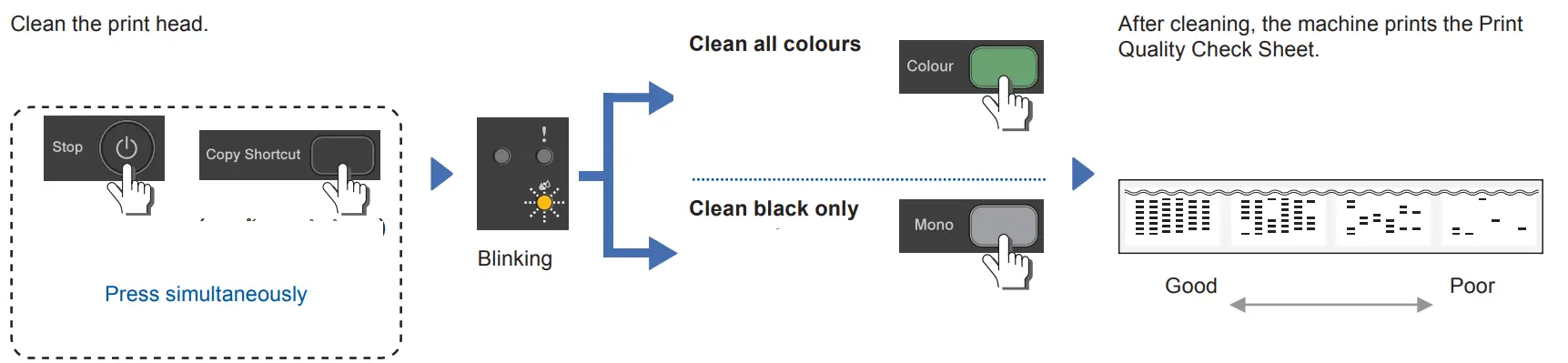
If the print quality does not improve with normal cleaning, try the Special cleaning (Note that this operation will consume a large amount of ink).
- Make sure all ink tanks are at least half-full.
- Use the procedure above, but hold Mono Start and Colour Start simultaneously for five seconds while the Ink LED is blinking.
Remove Jammed Paper
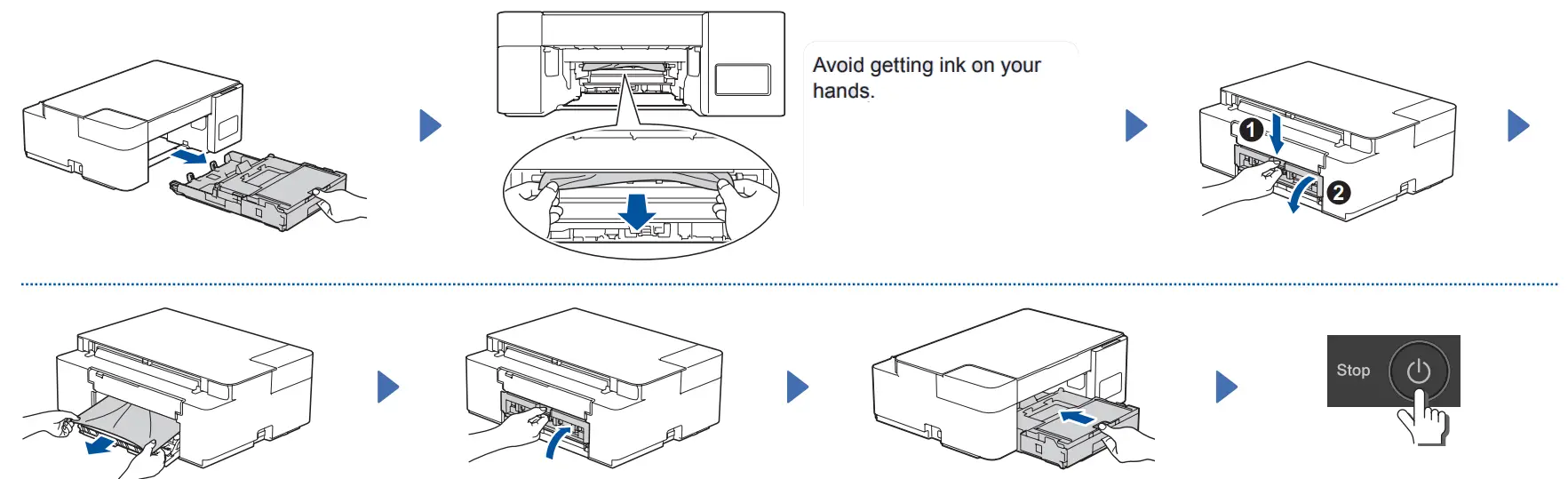
For FAQs, Troubleshooting, and downloading software and manuals, visit support.brother.com.
© 2020 Brother Industries, Ltd. All rights reserved.
 Apps | Brother
 setup.brother.com | Official Machine setup site | Brother
 United States | Brother support website