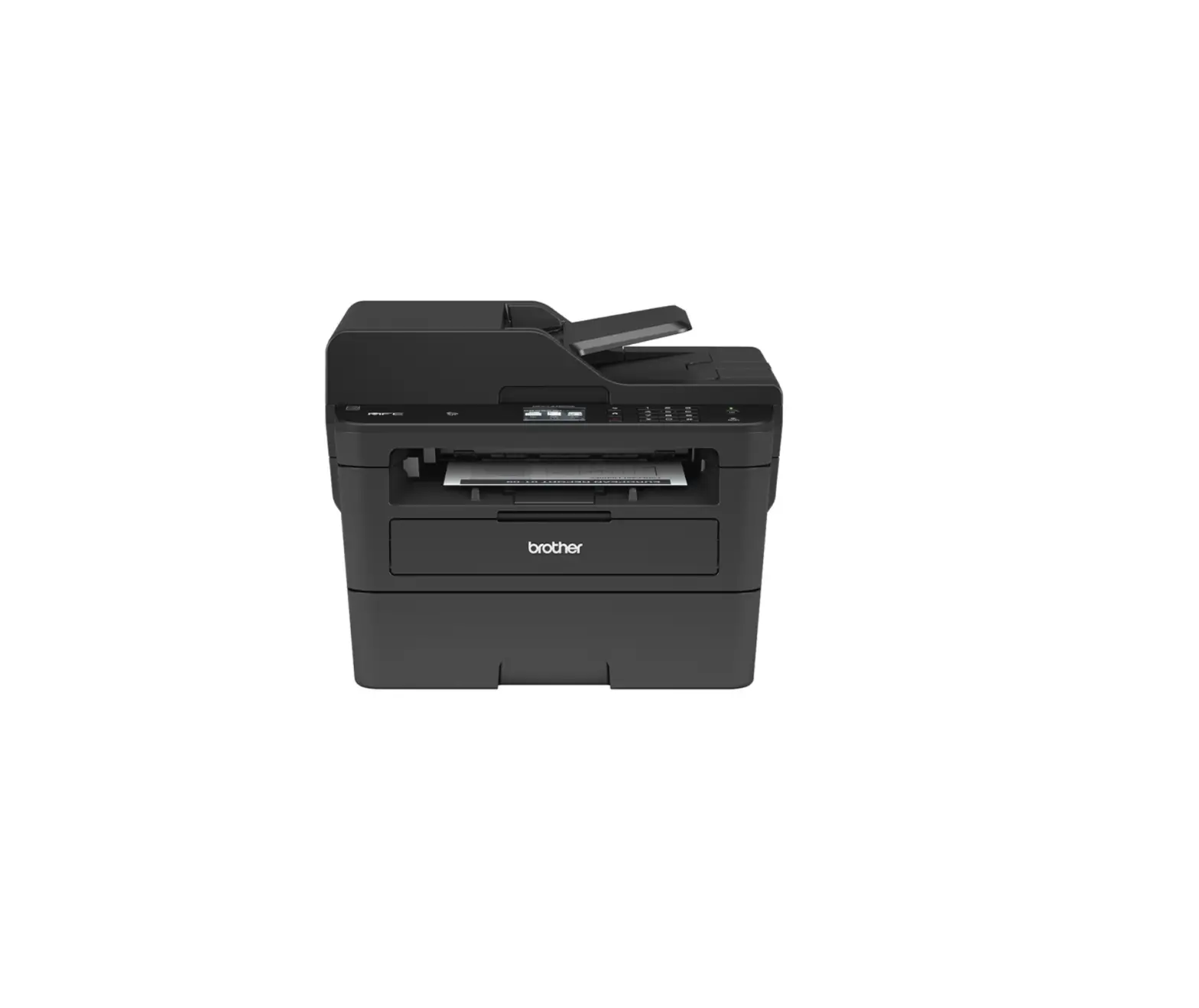
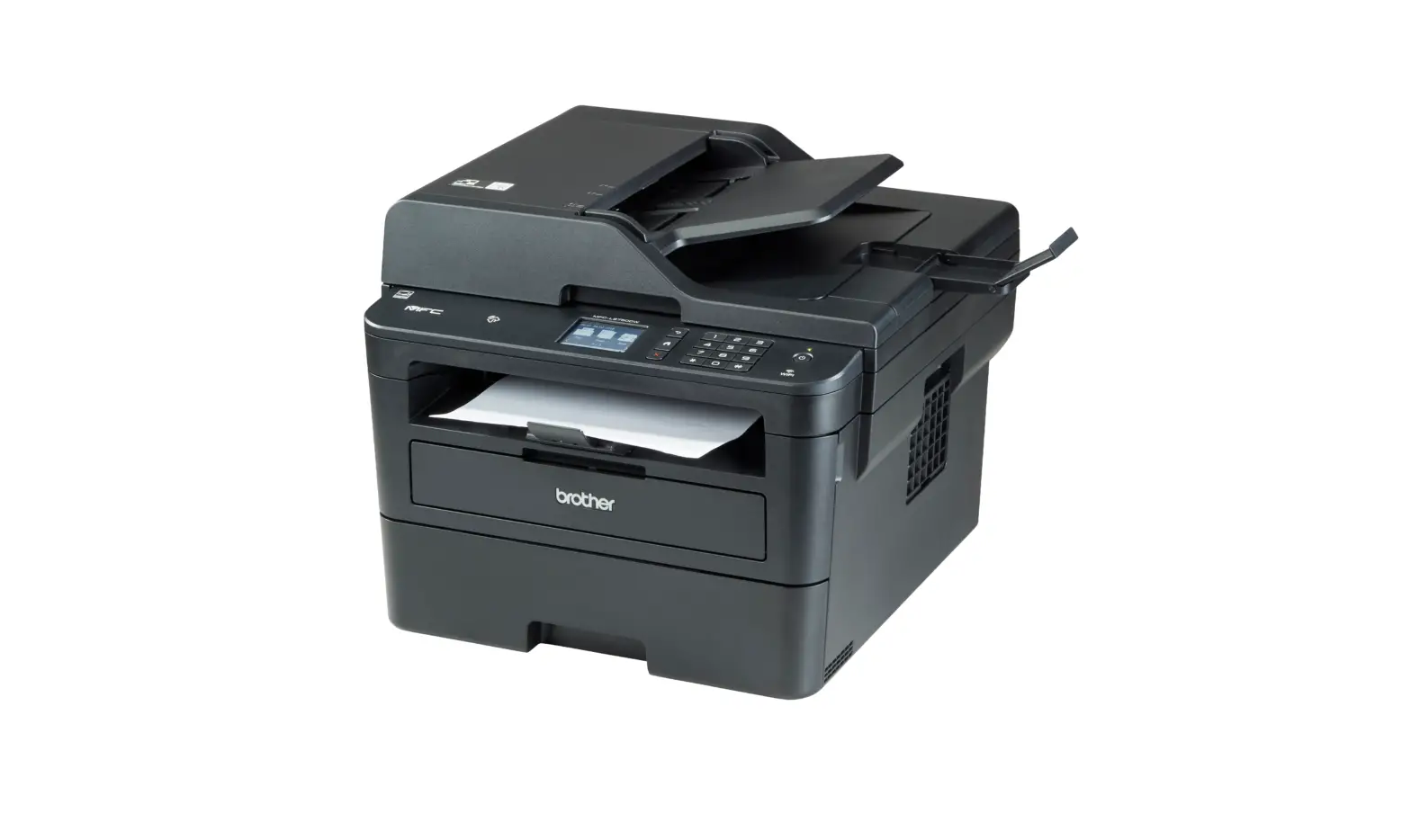
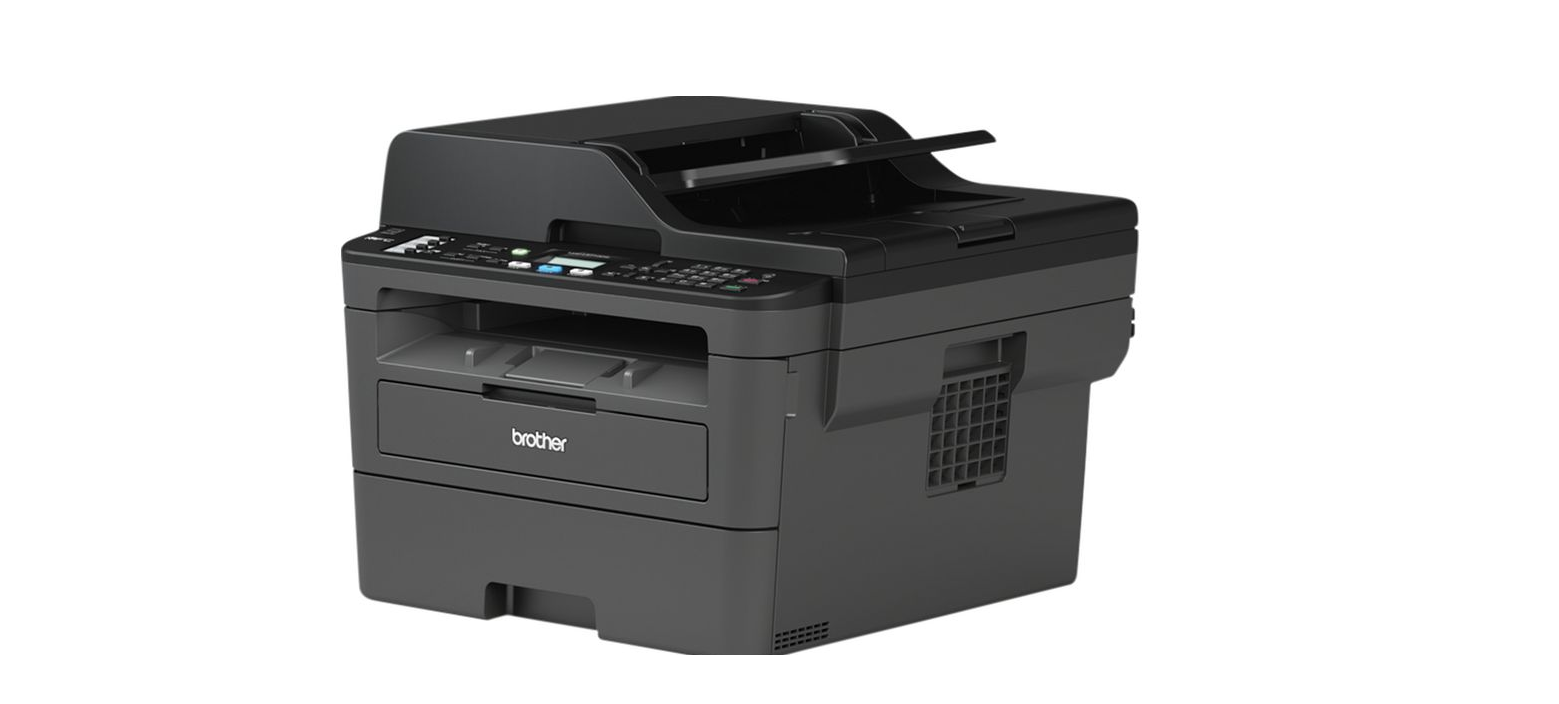
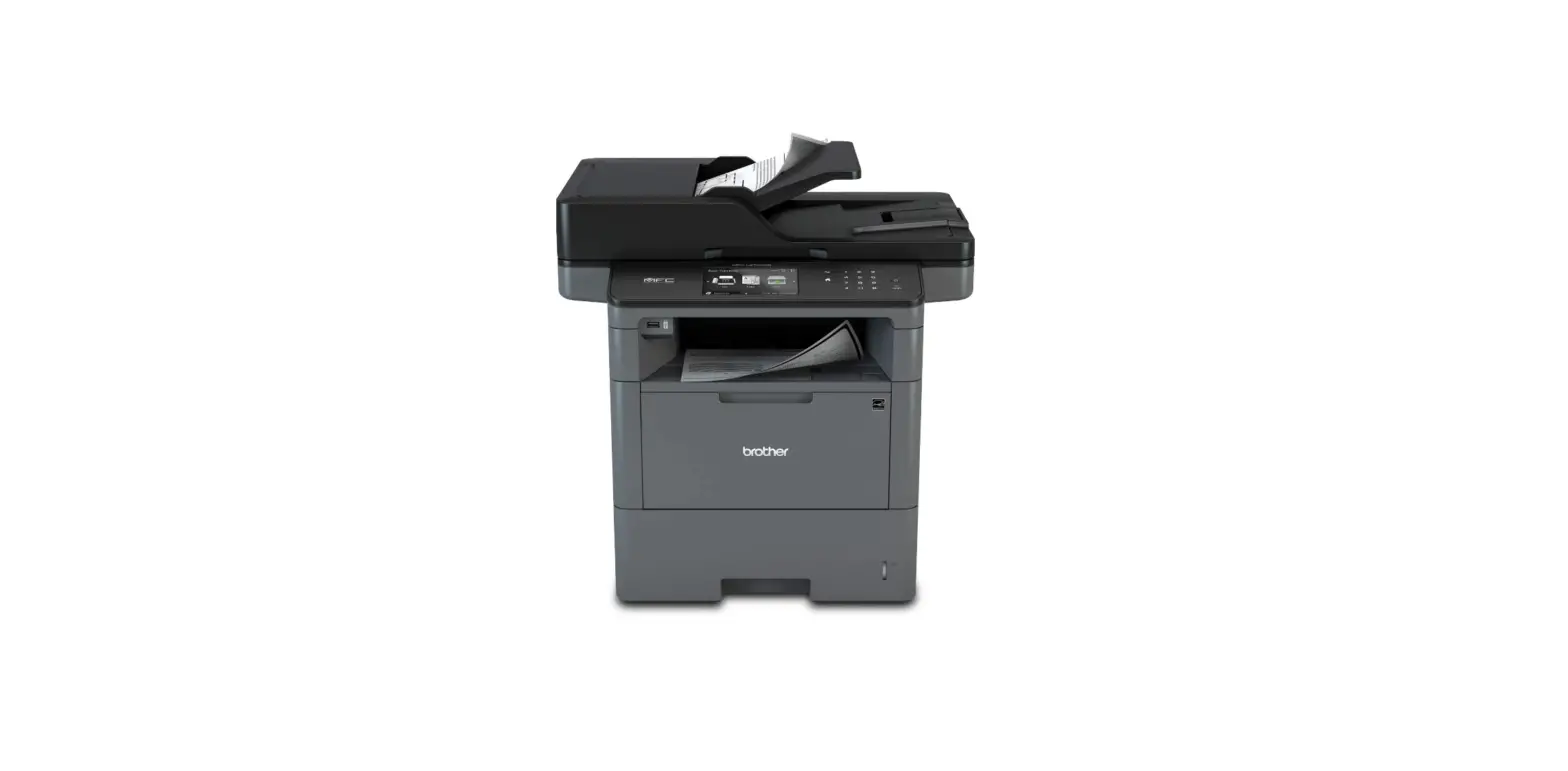
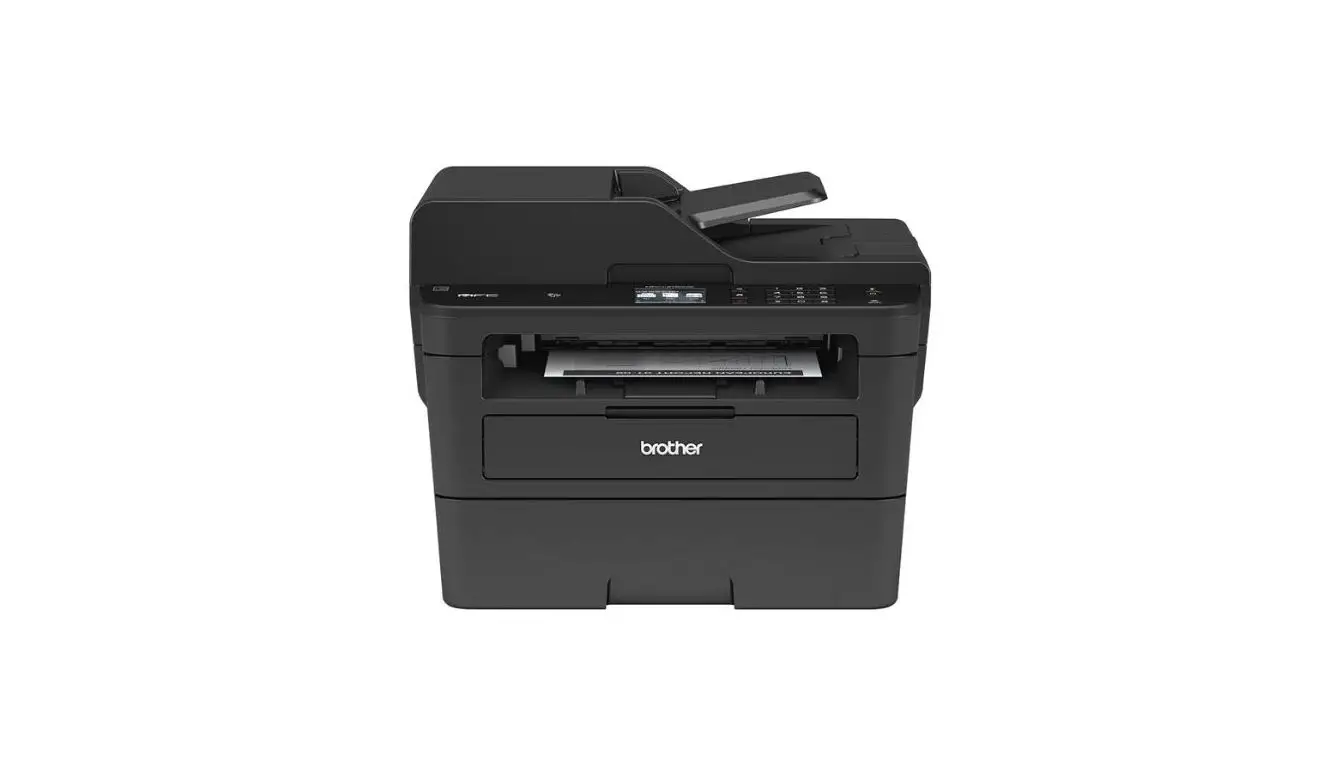
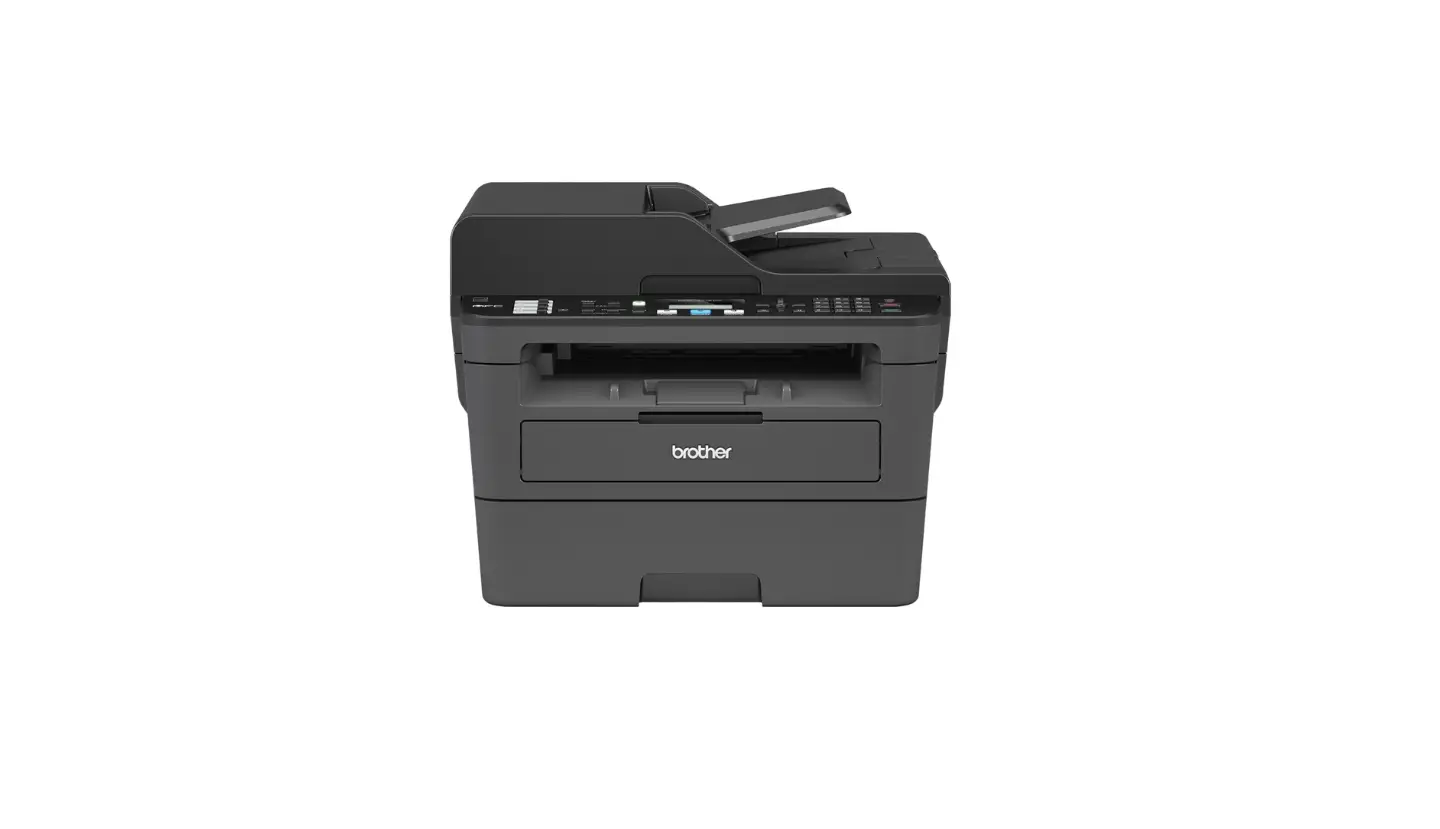
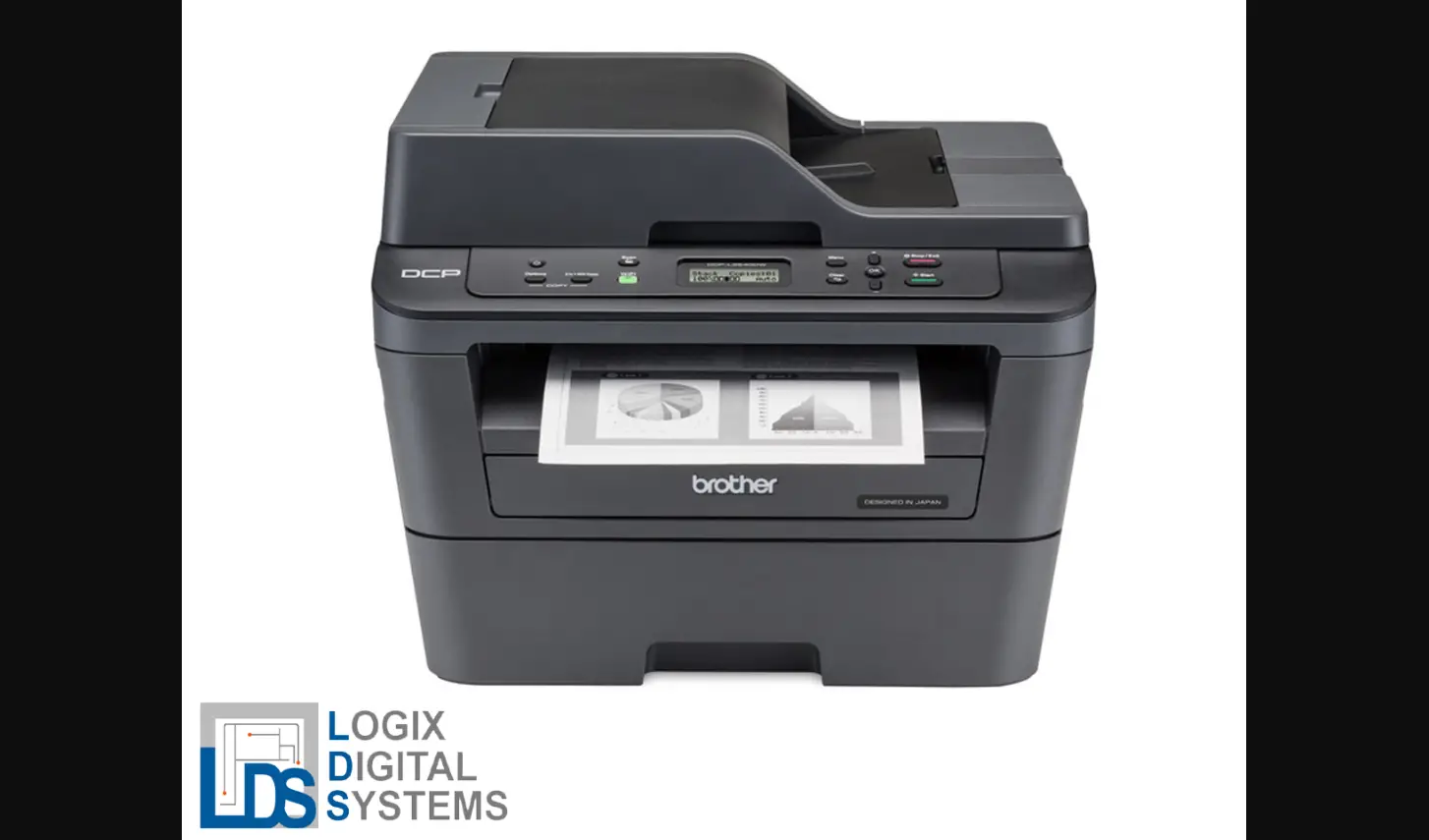
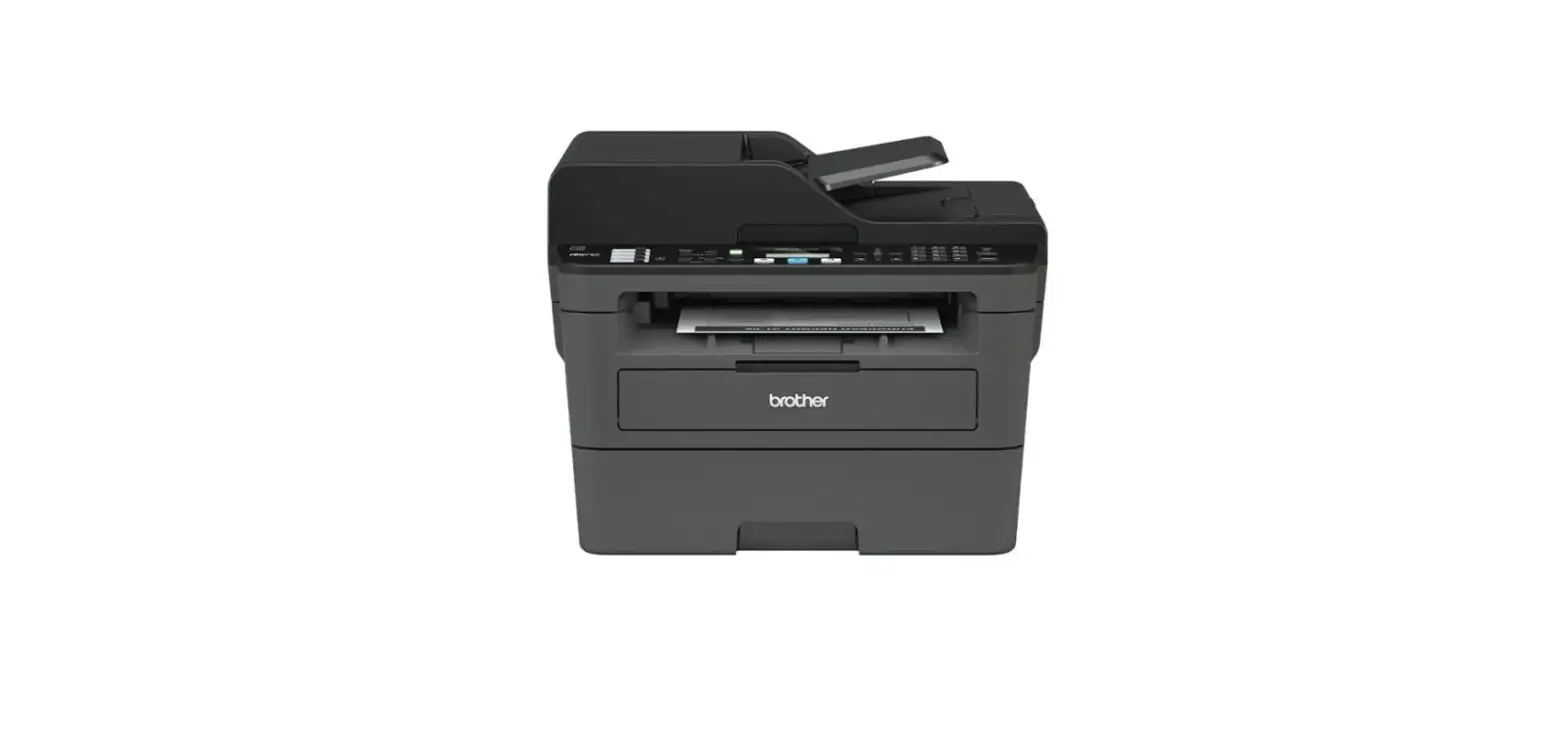
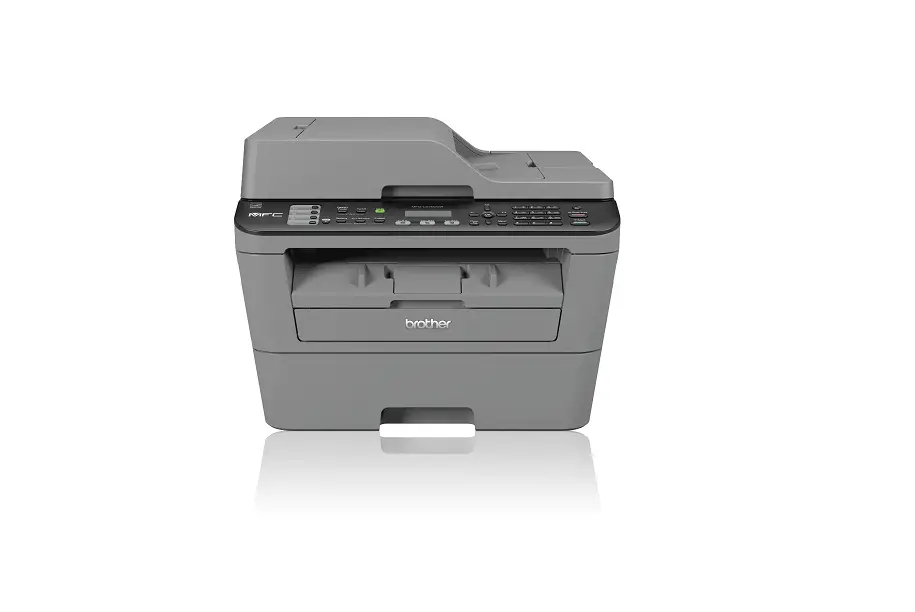
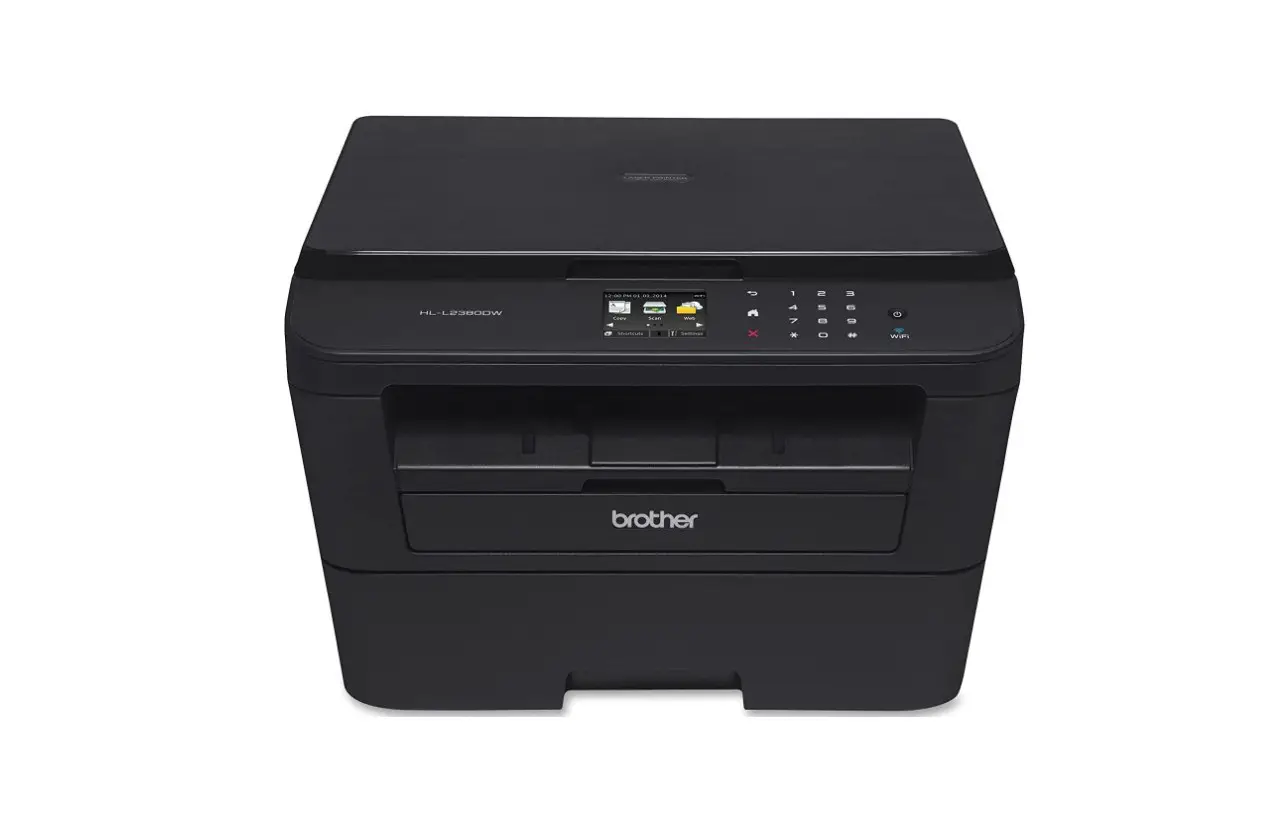
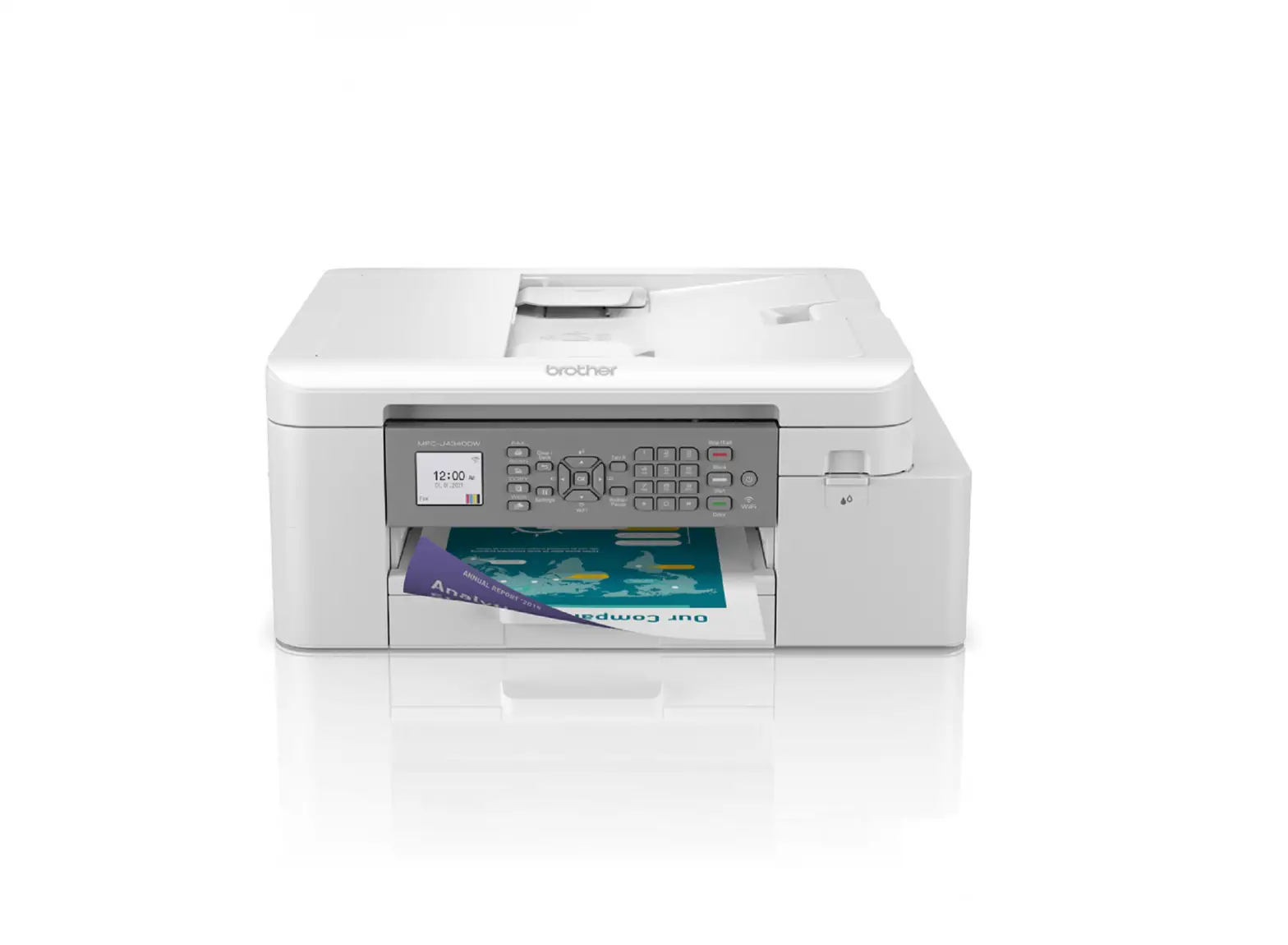
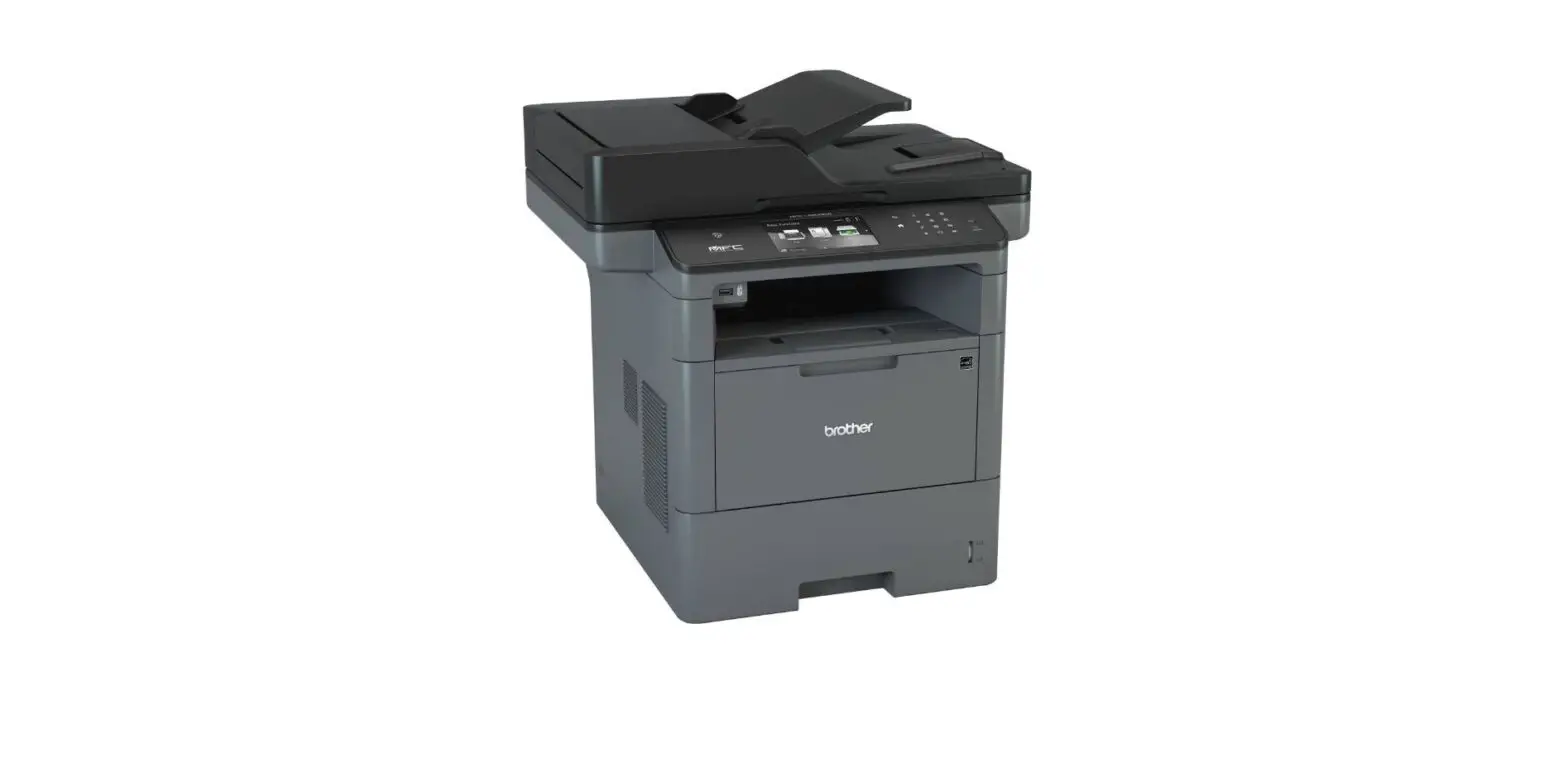
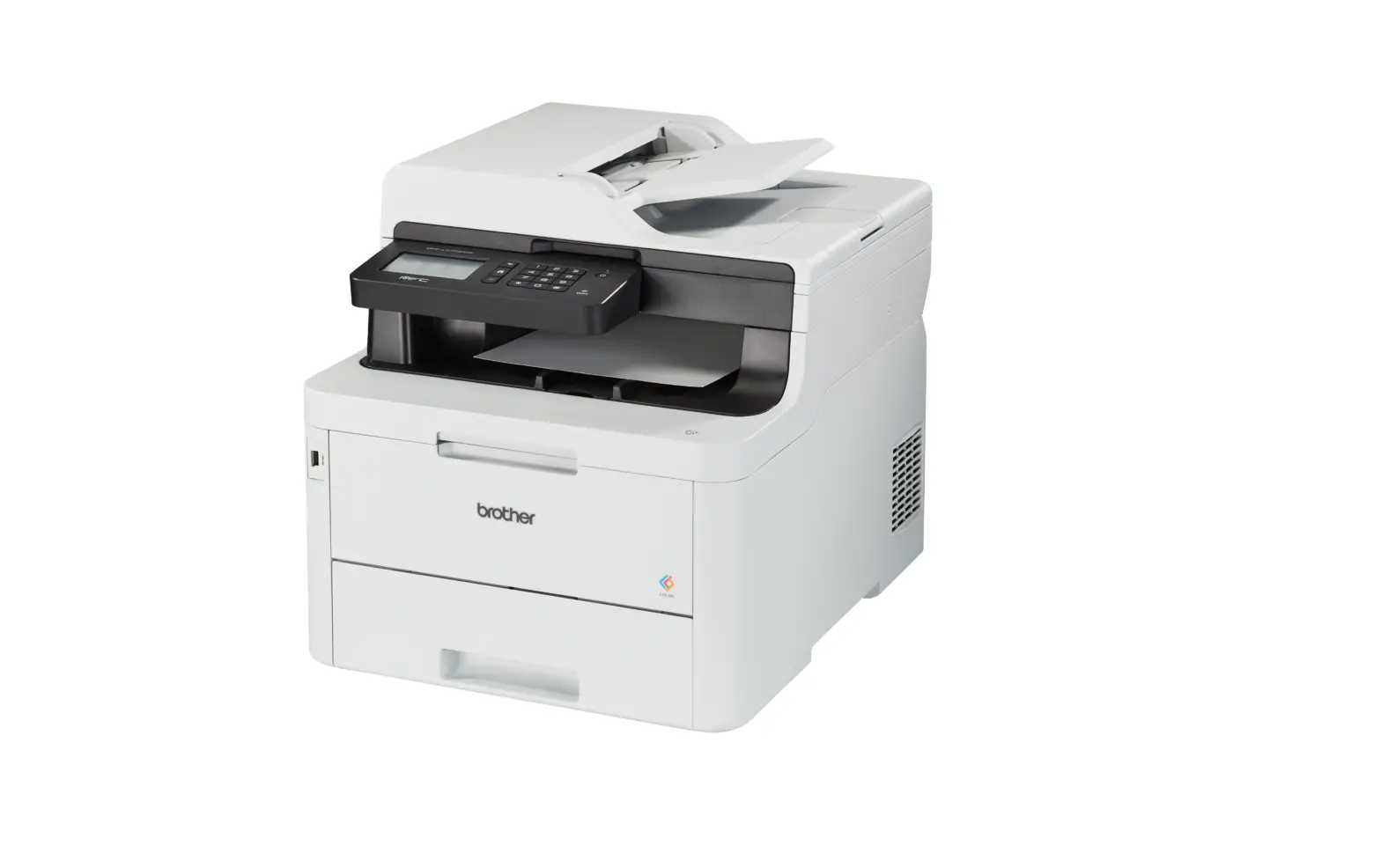
MFC-L2712DW Monochrome Printer
Product Information:
The following models are included in the product range:
- MFC-L2712DW
- MFC-L2712DN
- MFC-L2710DW
- MFC-L2710DN
- DCP-L2552DN
- DCP-L2550DN
- DCP-L2537DW
- DCP-L2532DW
- DCP-L2530DW
- DCP-L2512D
- DCP-L2510D
Please note that not all models are available in all
countries.
The latest manuals can be found at the Brother Solutions Center:
support.brother.com/manuals.
For video tutorials on setting up your Brother machine, visit:
support.brother.com/videos.
Secure Network Access: The default password for your machine is
located on the label on the back of the machine (preceded by Pwd).
It is strongly recommended to change this password to protect your
machine from unauthorized access.
Product Usage Instructions:
- Remove the packing materials and install the drum unit and
toner cartridge assembly:- Remove the orange part.
- Push firmly to install.
- Load paper in the paper tray:
- Adjust the paper guides.
- Do not exceed the maximum paper mark.
- Connect the power cord and turn the machine on:
- The power cord should be connected to the back of the
machine.
- The power cord should be connected to the back of the
- Select your language (if needed):
- For DCP models:
- Press Menu.
- Press or to display [Initial Setup], and then press OK.
- Press or to display [Local Language], and then press OK.
- For MFC models:
- Press Menu, 0, 0.
- Press or to select your language, and then press OK.
- Press Stop/Exit.
- For DCP models:
- Select your country/language (Initial setup only):
After turning on the machine, follow the on-screen instructions
to set your country or language if prompted. - Select a device to connect to your machine:
- To connect from a computer, go to the provided website and
follow the instructions. Wireless settings are recommended to be
configured from your computer. - To connect from a mobile device, go to the provided website and
follow the instructions.
- To connect from a computer, go to the provided website and
- Connect your computer:
- Download the Brother installation disc or the Full Driver &
Software Package from the provided website. - Follow the on-screen instructions and prompts for
installation. - Note: For Mac users, it is recommended to choose the CUPS
driver for full functionality when adding a printer.
- Download the Brother installation disc or the Full Driver &
- Alternative wireless setup (Wireless models only):
Find your SSID (Network Name) and Network Key (Password) on your
wireless access point/router and write them in the provided
table.
If you encounter any issues with the setup or connection, please
refer to the FAQs & Troubleshooting section at support.brother.com.
MFC-L2712DW / MFC-L2712DN / MFC-L2710DW / MFC-L2710DN / DCP-L2552DN / DCP-L2550DN / DCP-L2537DW / DCP-L2532DW / DCP-L2530DW / DCP-L2512D / DCP-L2510D
Quick Setup Guide
Read the Product Safety Guide first, then read this Quick Setup Guide for the correct installation procedure.
Not all models are available in all countries.
The latest manuals are available at the Brother Solutions Center: support.brother.com/manuals.
D01H7V001-00 UK
Version B
Watch our Video FAQs for help with setting up your Brother machine: support.brother.com/videos.
Unpack the machine and check the components
Drum Unit and Inbox Toner Cartridge
(For U.K.)
(For Others)
Telephone Line Cord (For MFC models)
AC Power Cord (only for certain models)
NOTE:
· The components included in the box may differ depending on your country. · The available connection interfaces vary depending on the model. · Interface cables are not included. You must purchase the correct interface cable if
you require one.
USB cable We recommend using a USB 2.0 cable (Type A/B) that is no more than 2 metres long.
Network cable Use a straight-through Category 5 (or greater) twisted-pair cable.
· The illustrations in this Quick Setup Guide show the MFC-L2710DW.
Brother Installation Disc
Quick Setup Guide Product Safety Guide
Secure Network Access Your machine’s default password is on the label on the back of the machine (preceded by “Pwd”). We strongly recommend you change it to protect your machine from unauthorised access.
1 Remove the packing materials and install the drum unit and toner cartridge assembly
1
2 1
Remove the orange part.
Push firmly.
2 Load paper in the paper tray
Adjust the paper guides.
Do not exceed this mark.
3 Connect the power cord and turn the machine on
Back
Front
5 Select your language (if needed)
1. (for DCP models)
a. Press Menu. b. Press or to display [Initial Setup], and then press OK. c. Press or to display [Local Language], and then press OK.
(for MFC models) Press Menu, 0, 0.
2. Press or to select your language, and then press OK. 3. Press Stop/Exit.
4 Select your country/language (Initial setup only)
After turning the machine on, you may be required to set your country or language (depending on your machine). If required, follow the on-screen instructions.
6 Select a device to connect to your machine
Computer
Go to and follow the instructions. NOTE:
We recommend configuring wireless settings from your computer.
Mobile Device
Go to and follow the instructions.
7 Connect your computer
Download
Brother regularly updates firmware to add features and apply bug fixes. To check for the latest firmware, visit support.brother.com/up5.
Put the installation disc into your CD/DVD drive, or download the Full Driver & Software Package at:
For Windows®: support.brother.com/windows For Mac: support.brother.com/mac
If you are using a recently released operating system on your computer, visit the above websites for updated driver and software information.
Follow the on-screen instructions and prompts.
For Windows®: If the Brother screen does not appear automatically, go to Computer (This PC). Double-click the CD/DVD-ROM icon, and then double-click start.exe.
For Mac: For full driver functionality, we recommend choosing the CUPS driver when adding a printer.
Finished
Can’t Connect? Check the following:
Wireless network
Restart your wireless access point/router (if possible).
Wired network USB connection
Disconnect the cable.
Restart your machine and computer, and then go to .
If still not successful, go to .
If still not successful, visit support.brother.com for FAQs & Troubleshooting.
8 Alternative wireless setup (Wireless models only)
Find your SSID (Network Name) and Network Key (Password) on your wireless access point/ router and write them in the table provided below.
SSID (Network Name) Network Key (Password)
SSID: XXXXXXX Network key: XXXX
To select each menu option, press or , and then press OK to confirm. Select [Network] > [WLAN] >
[Setup Wizard], and then press .
If you cannot find this information, ask your network administrator or wireless access point/router manufacturer.
Even if you do not have a wireless access point/router, you can connect your device and your machine directly. For additional wireless network support, go to support.brother.com/wireless-support.
Select the SSID (Network Name) for your access point/router and enter the Network Key (Password).
When the wireless setup is successful, the LCD displays [Connected].
If setup is not successful, restart your Brother machine and your wireless access point/router, and repeat .
For Computer
Go to to install software.
For Mobile Device
Go to to install apps.
9 Print or scan using your mobile device Your mobile device must be connected to the same wireless network as your Brother machine.
Brother SupportCenter is a mobile app that provides the latest support information for your Brother product. Visit the App Store or Google PlayTM to download.
AirPrint is available for Apple device users. You do not need to download any software to use AirPrint. For more information, see the Online User’s Guide.
Download and install the Mopria® Print Service app from Google PlayTM using your AndroidTM device.
Download and install our free application Brother iPrint&Scan from a mobile application store, such as the App Store, Google PlayTM or Microsoft® Store using your mobile device.
Optional apps You can print from and scan to your mobile device using various apps. For instructions, see the Online User’s Guide.
Additional Wireless Support: support.brother.com/wireless-support
For FAQs, Troubleshooting, and to download software and manuals, visit support.brother.com. For product specifications, see the Online User’s Guide.
© 2017 Brother Industries, Ltd. All rights reserved.
 United States | Brother support website