Product Information:
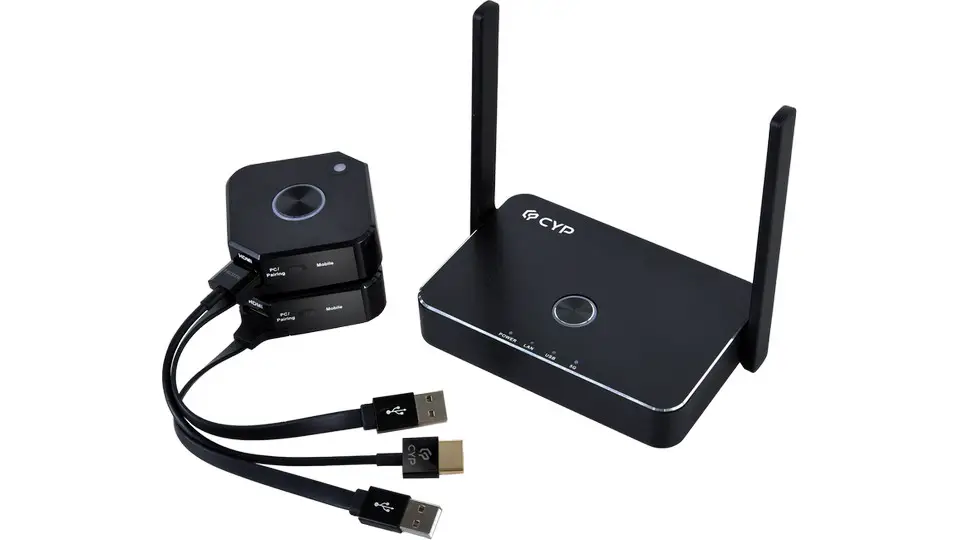
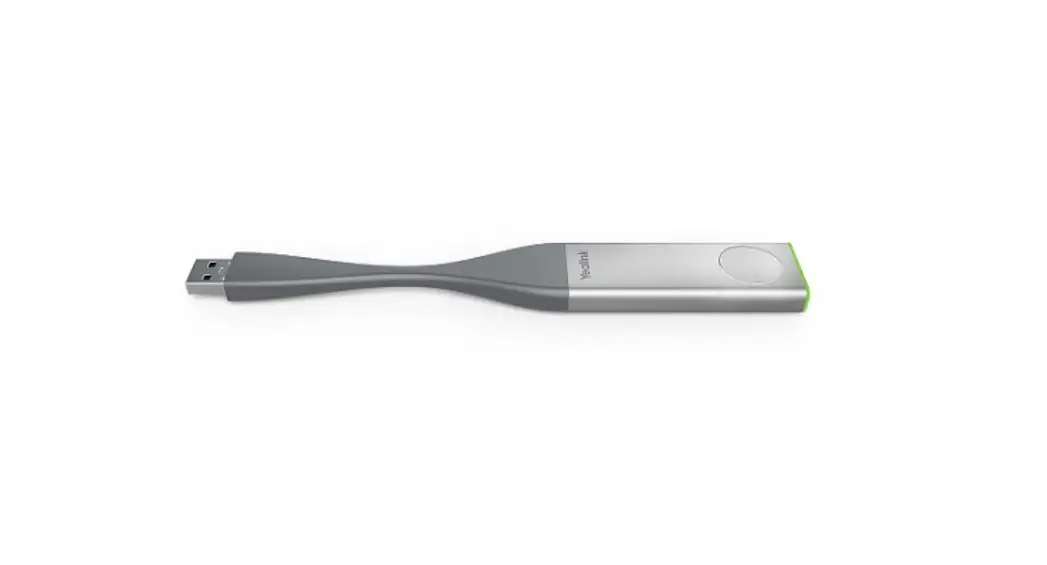
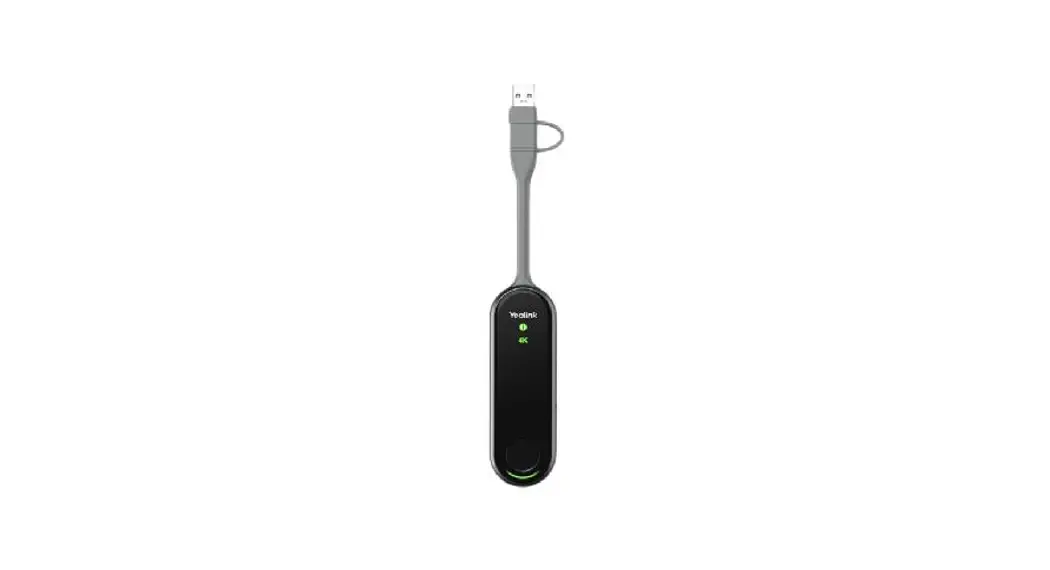
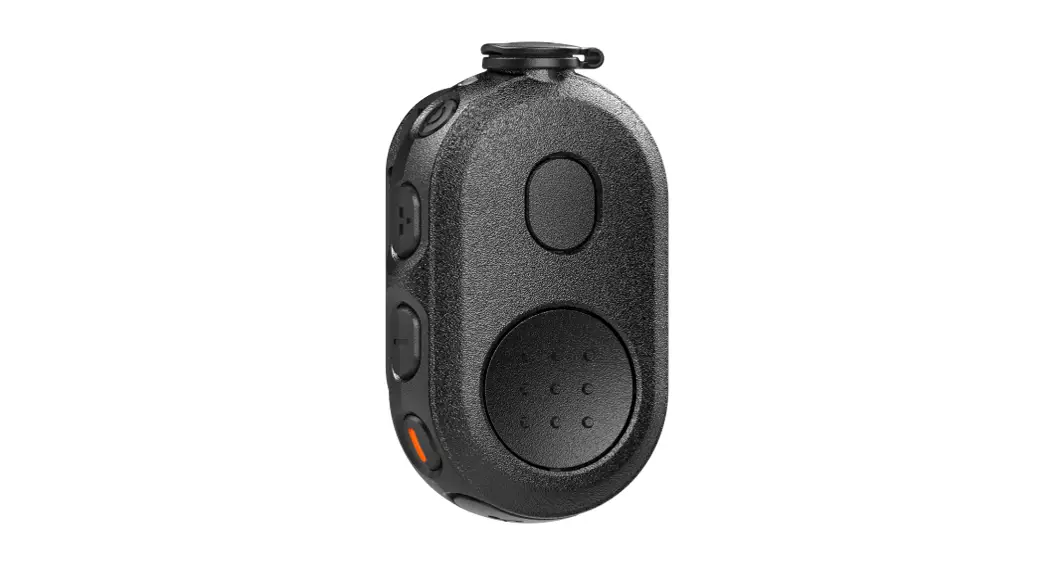
The product is the Hyshare Pro Pod, model number WPS-HP201T. The
package contains two Hyshare Pro Pods and a Quick Start Guide. The
Hyshare Pro Pod is a device that enables screen sharing during
presentations. The device uses a USB-C port for connectivity and
has an LED light that indicates the status of the device.
The device is manufactured by Cypress Technology Co., Ltd. and
is compliant with Part 15 of the FCC Rules. The device has been
tested with a 5mm separation distance SAR and is compliant with the
general population/uncontrolled RF exposure limit. The device comes
with an NCC Warning Statement.
Product Usage Instructions:
- Ensure Hyshare Pro firmware version is 1.0.0.36 or newer.
- Connect the Pod to the USB-C port of Hyshare Pro.
- Check the main screen message for pairing status:
- Breathing green: pairing
- Steady green: pairing finished
Starting a Presentation:
- Connect the Pod to your device’s USB-C port.
- Wait until the LED light becomes steady white, then press the
cast button to share. - The LED light will be steady blue while screen sharing.
- To switch between full-screen and split-screen, long-press the
cast button. - Press the cast button again to stop sharing.
Note: If pairing or connection fails, refer to the LED color
definition table for troubleshooting steps. If the problem
persists, consult the dealer or an experienced technician for
help.
WPS-HP201T
Hyshare Pro Pod
Quick Start Guide
PACKAGE CONTENTS
1. Hyshare Pro Pod x 2 2. Quick Start Guide x 1
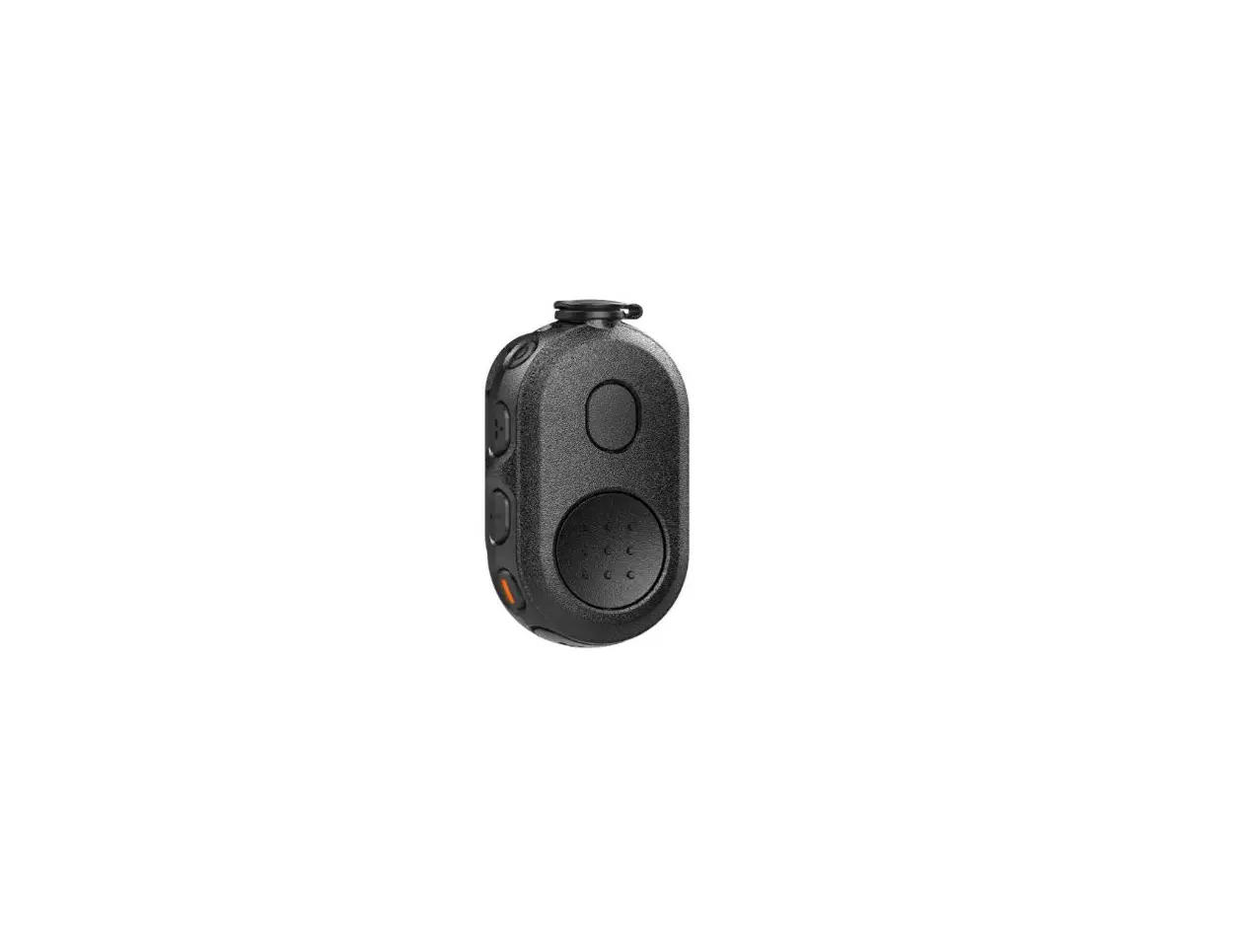
HYSHARE PRO POD OVERVIEW
· LED · Cast Button · Function Button · USB-C, Power Rating: 5V 900mA
START USING HYSHARE PRO POD
1. Pair Hyshare Pro Pod Step 1. Ensure Hyshare Pro firmware version is 1.0.0.36 or newer. Step 2. Connect the Pod to the USB-C port of Hyshare Pro. Step 3. Users may check the main screen message for pairing status.
Breathing green: paring; steady green: pairing finished 2. Start the presentation
CYPRESS TECHNOLOGY CO., LTD.
www.cypress.com.tw
Step 1. Connect the Pod to your device’s USB-C port. Step 2. Wait until the LED light becomes steady white, press the cast button to share. The LED light is steady blue while screen sharing Step 3. Long press cast button to switch between full-screen and splitscreen. Step 4. Press cast button again and stop sharing.
CYPRESS TECHNOLOGY CO., LTD.
www.cypress.com.tw
LED COLOR DEFINITION
LED Color
Breathing green
Steady green Breathing white
Category
Firmware Pairing Pairing Presentation
Definition
Checking new version/ upgrade complete Pairing Pairing finished Preparing for presentation
Steady white Steady blue Breathing blue + red Steady Red
Presentation Presentation Firmware Pairing Connection
Amber
Connection
Pink
Connection
Standby (ready to present) Presenting Firmware upgrading Pairing failed Wi-Fi connection failed or disconnected Please pair with the Station again Station connection failed or disconnected Please replug the Pod USB-C doesn’t support A/V output
CYPRESS TECHNOLOGY CO., LTD.
www.cypress.com.tw
FEDERAL COMMUNICATIONS COMMISSION (FCC) STATEMENT
This equipment has been tested and found to comply with the limits for a Class B digital device, pursuant to Part 15 of the FCC Rules. These limits are designed to provide reasonable protection against harmful interference in a residential installation. This equipment generates, uses and can radiate radio frequency energy and, if not installed and used in accordance with the instructions, may cause harmful interference to radio communications. However, there is no guarantee that interference will not occur in a particular installation. If this equipment does cause harmful interference to radio or television reception, which can be determined by turning the equipment off and on, the user is encouraged to try to correct the interference by one or more of the following measures:
Reorient or relocate the receiving antenna.
Increase the separation between the equipment and receiver.
Connect the equipment into an outlet on a circuit different from that to
which the receiver is connected.
Consult the dealer or an experienced radio/TV technician for help.
Any changes or modifications not expressly approved by the party responsible for compliance could void the user’s authority to operate this equipment.
This device complies with Part 15 of the FCC Rules. Operation is subject to the following two conditions: (1) This device may not cause harmful
CYPRESS TECHNOLOGY CO., LTD.
www.cypress.com.tw
interference, and (2) this device must accept any interference received, including interference that may cause undesired operation. IMPORTANT NOTE: This device has been tested with 5mm separation distance SAR, and it is compliant with the general population/uncontrolled RF exposure limit.
NCC Warning Statement
NCC LP0002 _3.8.2
CYPRESS TECHNOLOGY CO., LTD.
www.cypress.com.tw
 Cypress Technology Co., Ltd. a ProAV solution provider. CYP target on vertical markets of enterprise, education, hospitality, Industry IoT and medical.