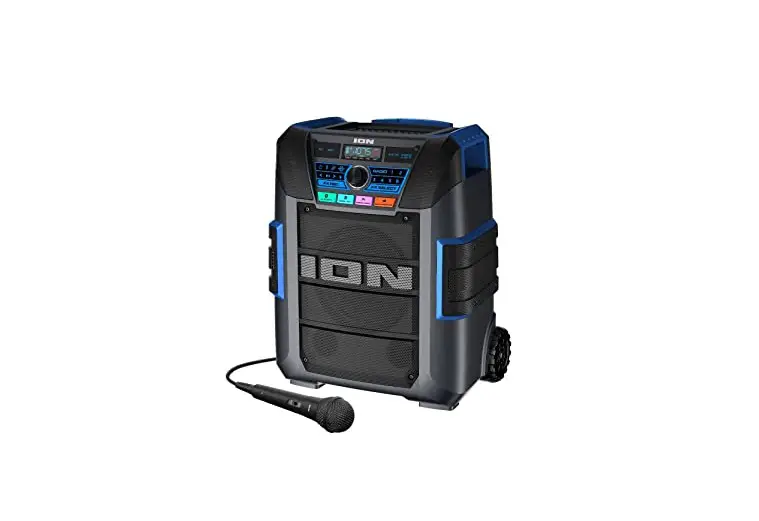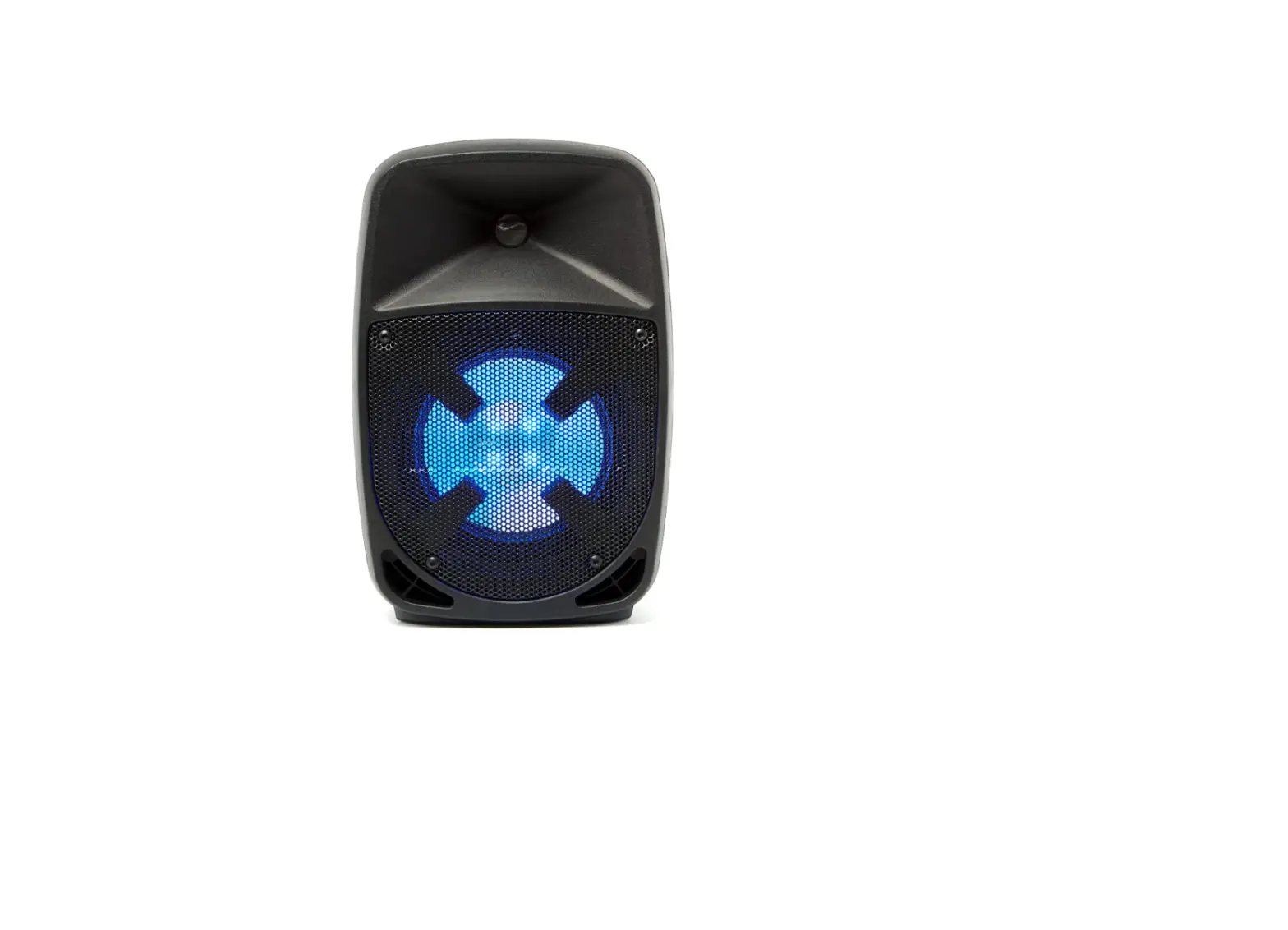

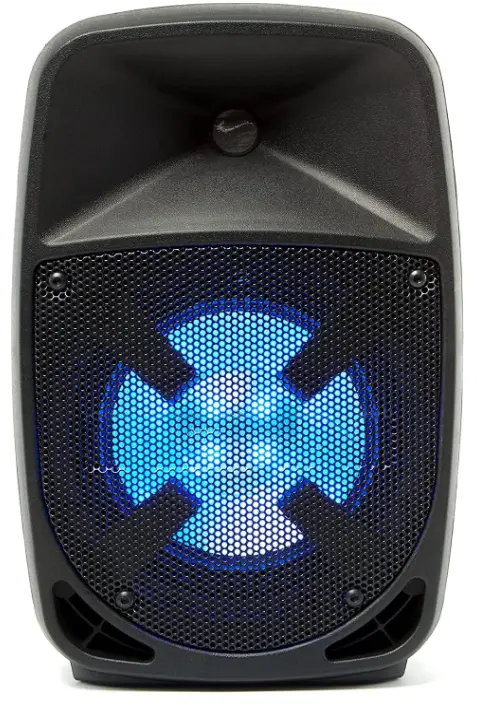
ION Audio ProGlow8 Wireless Bluetooth Speaker
SPECIFICATION
- BRAND: ION Audio
- SPEAKER TYPE: Woofer
- CONNECTIVITY TECHNOLOGY: RCA, Bluetooth, Auxiliary, USB
- UNIT COUNT:0 Count
- CONTROLLER TYPE: Battery Powered
- ITEM WEIGHT:81 pounds
- PRODUCT DIMENSIONS:11 x 9.88 x 15.31 inches
INTRODUCTION
Pro Glow 8 is an all-in-one Bluetooth speaker and PA system that has everything you need for a successful event: Even the largest spaces are filled with clear, lively music with a powerful (150-watt) bi-amplified, equalized karaoke sound system/powerful Bluetooth speaker with lights driving an 8-inch robust woofer and 1-inch tweeter. Additionally, the woofer lights in a variety of colors for incredibly spectacular visual effects, making for utterly unforgettable events. It’s not just great sound and a speaker that lights up! With a dedicated mic input and Master volume control, it has a multi-channel mixer.
You can even wirelessly stream music from any Bluetooth® device, use the onboard FM radio with 30 presets, or use the built-in music player to read music files from a USB or SD card. If you want to have even more fun, use the accompanying karaoke microphone with echo effect for karaoke performances or announcements. This Bluetooth speaker and microphone combo is the best on the market.
- Make sure all items listed in the Box Contents are included in the box. Look in the box under the foam sheet for the power cable and microphone.
- Read the safety instruction booklet before using the product.
- Study the Connection Diagram.
- Make sure all input devices such as microphones, CD players, or digital media players are turned off and volume settings are set at “zero.”
- Connect all devices as shown.
- Switch everything on in the following order:
- Audio input sources (i.e. microphones, instruments, CD players)
- Pro Glow 8
- When turning off, always reverse this operation:
- Pro Glow 8
- Any input devices
BOX CONTENTS
- Pro Glow 8 Microphone with Cable Remote Control
- Power Cable (IEC)
- QuickStart Guide
- Safety Instructions & Warranty Information Booklet
SUPPORT
For the latest information about this product (system requirements, compatibility information, etc.) and product registration, visit ionaudio.com.
For additional product support, visit ionaudio.com/support.
CONNECTION DIAGRAM
Items not listed under Introduction > Box Contents are sold separately.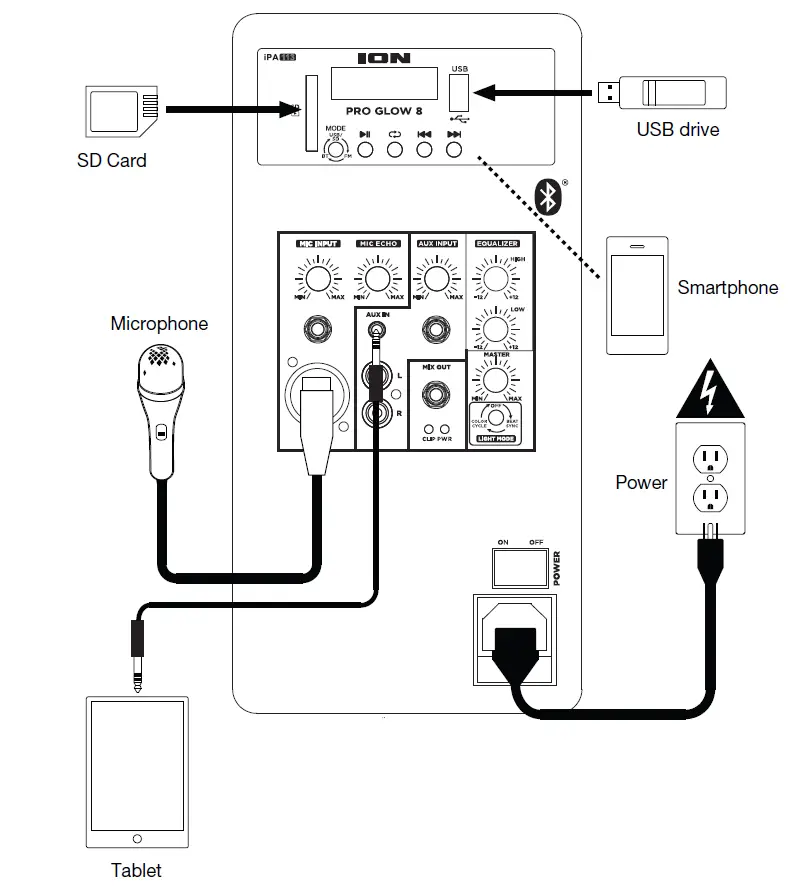
FEATURES
REAR PANEL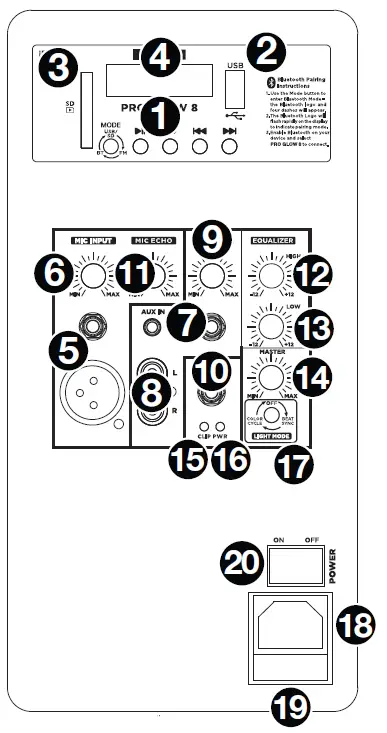
- Media Panel: Controls for the USB, SD, FM radio, and Bluetooth sources. The Media Panel Mode source symbol will illuminate when that source is playing.
NOTE: A USB drive or SD card must contain playable files in order for it to appear properly in the media panel’s display. You can play MP3s, WAVs, and WMA files. - USB PORT: Connect your USB flash drive here to play music.
- SD CARD SLOT: Insert your SD card here to play music.
- DISPLAY: Displays the media panel modes for USB, SD, FM radio, and Bluetooth.
- MIC INPUTS (1/4”/6.35 MM & XLR): Connect a dynamic microphone to the 1/4” (6.35 mm) or XLR inputs. Control the volume of the inputs using the Mic Input Volume knob.
- MIC INPUT VOLUME: Turn this knob to adjust the input volume of the Mic Input.
- AUX INPUTS (1/8”/3.5 MM AND 1/4”/6.35 MM): Connect a CD player, digital media player, or other audio source to the 1/8” (3.5 mm) and 1/4” (6.35 mm) stereo auxiliary inputs. Control the volume using the Aux Input Volume knob.
- RCA INPUTS: Connect a CD player, digital media player, mixer, or other media source to these inputs. Control the volume using the Aux Input Volume knob.
- AUX INPUT VOLUME: Turn this knob to adjust the input volume of the Aux Input, XLR Input, and RCA INPUTS.
- Mix Out (1/4” / 6.35 mm): Connect this output to another active (powered) speaker. The level of the output is controlled by the Mic Input Volume, Aux Input Volume, and Master Volume.
- Mic Echo: Use this knob to add or remove an echo effect to the Mic Inputs.
- High EQ: Increases or decreases the high (treble) frequencies for Mic Input, Line Input, and Media Panel sources at a range between -12 dB to +12 db.
- Low EQ: Increases or decreases the low (bass) frequencies for Mic Input, Line Input, and Media Panel sources at a range between -12 dB to +12 db.
- Master Volume: Turn this knob to adjust the overall output volume of the loudspeaker.
- Clip LED: This LED will flash red if the signal from the inputs or media panel source is clipping. If this happens, decrease the setting of the Mic Input Volume knob, Aux Input Volume knob, or Master Volume knob.
- Power LED: Indicates whether Pro Glow 8 is powered on or off.
- Light Mode Button: Press this button to select how the lights on the front panel function
- Color Cycle: The lights slowly glow and cycle through colors. Press and hold the light mode button to freeze the lights on one color. This is the default mode when Pro Glow 8 is first powered on.\
- Beat Sync: The lights react to the beat of the music.
- Off: The lights turn off.
- Power Cable Input (IEC): Insert the included power cable here to power the unit.
- Fuse: The orientation of the fuse holder determines the current voltage setting of Pro Glow 8. If the unit’s fuse is broken, remove the fuse holder and replace the broken fuse with one with the same rating (printed on the fuse holder). Using a fuse with an incorrect rating can damage the unit and/or fuse.
- Power Switch: Turns Pro Glow 8 on or off.
MEDIA PANEL
MEDIA PANEL FUNCTIONS:
- MODE MODE: Switches modes from USB, SD, FM radio, or Bluetooth.
NOTE: A USB drive or SD card must contain playable files in order for it to appear properly in the media panel’s display. You can play MP3s, WAVs, and WMA files. - PLAY/PAUSE: Play/pause the USB, SD, or Bluetooth source. Press and hold Play/Pause for 2 seconds to begin the preset auto-store function. This jumps to the lowest station (87.5) and then travels through the bandwidth to auto-store the strongest stations as presets.
- REPEAT: Repeat all of the tracks (ALL), repeat all of the tracks in the folder (Fold), repeat the current playing USB or SD track (One), or shuffle the track order (ran).
- PREVIOUS: Plays the previous USB, SD, or Bluetooth track. When listening to the FM radio), press the button once to skip back through the FM stations and hold the button down to seek back through the channel presets.
- NEXT: Plays the next USB, SD, or Bluetooth track. When listening to the FM radio, press the button once to tune the radio down one preset and hold the button down to seek forward through the channel presets.
Media Panel Remote
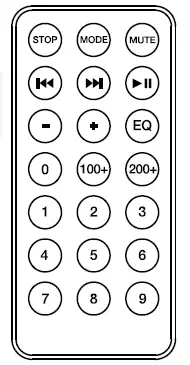
NOTE: Aim the remote straight at the front of the speaker woofer. Room lighting and battery life can affect the operating range of the remote control.
NOTE: In order to use the remote control for the first time, first pull out the tab attached to the battery compartment. To change the remote battery, follow the diagram located on the back of the remote. Use a 3 V DC CR2032 lithium button cell battery for replacement.
- Stop: Stops the media panel source from playing.
- Mode: Selects the media panel source: USB, SD, FM radio, or Bluetooth.
NOTE: A USB drive or SD card must contain playable files in order for it to appear properly in the media panel’s display. You can play MP3s, WAVs, and WMA files. - Mute: Silences the music playback on media panel sources.
- Prev: Goes to the previous USB or SD card track. When listening to Bluetooth sources, pressing Prev in some apps may go to another playlist or music genre. When listening to the FM radio, press the Prev button once to skip back through the FM stations and hold the button down to seek back through the channel presets.
- Next: Advances to the next USB or SD card track. When listening to Bluetooth sources, pressing Next in some apps may go to another playlist or music genre. When listening to the FM radio, press the Next button once to tune the radio down one preset and hold the button down to seek forward through the channel presets.
- Play/Pause: Plays or pauses the USB, SD, or Bluetooth media panel source. Press and hold Play/Pause for 2 seconds to begin the preset auto-store function. This jumps to the lowest station (87.5) and then travels through the FM band to auto-store the strongest stations as presets.
NOTE: Files are played from the USB or SD source first by alphabetical order of what is on the root level, then alphabetical by folder, and then alphabetical by the track name. - Vol –: Decreases the media panel source volume.
- Vol +: Increases the media panel source volume.
NOTE: The remote volume only affects the media panel source and works together with the physical media panel volume knob on the unit’s rear panel. - EQ: Selects one of the following digital EQ presets to use with a media panel source: Bass (BAS), Pop (POP), Rock (rOC), Jazz (JA2), Classical (CLA), Country (COU), No EQ (OFF, factory default setting).
NOTE: The digital EQ only works for Bluetooth, USB flash drive, and SD card sources. - 100+: Jumps ahead by 100 tracks.
- 200+: Jumps ahead by 200 tracks.Number Keys: Provides channel selection for FM radio stations, and track selection for USB and SD card sources.
OPERATION
PAIRING A BLUETOOTH DEVICE
- Turn on your Bluetooth device.
- Power on Pro Glow 8.
- Use the Mode button to select Bluetooth mode, which appears as “BT” in the display. Pro Glow 8 will automatically go into pairing mode to search for Bluetooth devices. You will know you are in pairing mode when the Bluetooth icon is flashing.
- Navigate to your Bluetooth device’s setup screen, find PRO GLOW 8, and connect. The BLUETOOTH ICON WILL REMAIN SOLIDLY LIT.
NOTE: Users should consider updating their device’s OS if experiencing trouble with pairing or playing music. - To disconnect pairing, turn off Bluetooth on your device or select Forget this device from your device.
CONNECTING TWO SPEAKERS
TO LINK TWO PRO GLOW 8 SPEAKERS:
- Plug a 1/4” cable into the Mix Output located on the rear panel of one Pro Glow 8.
- Plug the other end of the 1/4” cable into the 1/4” input of another Pro Glow 8.
- Power on both speakers. Use the Aux Input Volume on the second speaker to adjust the input signal level.
TROUBLESHOOTING
- IF THE SOUND IS DISTORTED: Try lowering the volume control of your sound source or musical instrument. Also, try to reduce the overall volume of Pro Glow 8.
- IF THERE IS TOO MUCH BASS: Try adjusting the tone or EQ control from Pro Glow 8 or your sound source to lower the bass level. This will allow you to play the music louder before clipping (distortion) occurs.
- IF THERE IS A HIGH-PITCHED WHISTLING NOISE WHEN USING A MICROPHONE: This is probably feedback. Point the microphone away from the speaker.
- IF YOU CAN’T HEAR THE MICROPHONE OVER THE MUSIC VOLUME: Turn down the music volume from your source.
When I press Previous or Next, it doesn’t increment to the next FM station: Short presses of the button will jump to presets. Hold the button down to seek to the next station - IF THE RADIO STATION CHANNEL IS FLASHING: The unit is currently muted. Unmute to stop the flashing and resume playback.
- IF THE BLUETOOTH LOGO IS FLASHING RAPIDLY: The unit is currently in pairing mode.
- IF THE BLUETOOTH LOGO IS FLASHING SLOWLY: A device is paired, but the music is muted. Unmute to stop the flashing and resume playback.
- THE USB TRACK NUMBER (EXAMPLE: 001) IS FLASHING SLOWLY: The USB drive music playback is muted. Unmute to stop the flashing and resume playback
- THE LCD SHOWS “NONE”: If a USB drive or SD card is already properly inserted, make sure it contains playable files (MP3s, WAVs, and WMA files).
IF YOU CANNOT CONNECT YOUR AUDIO DEVICE TO PRO GLOW 8 VIA BLUETOOTH:- Have your audio device (e.g., smartphone or tablet) and Pro Glow 8 as close together as possible while trying to connect. Make sure both the audio device and Pro Glow 8 are unobstructed by walls, furniture, etc.
- Reset the Bluetooth connection on Pro Glow 8 to disconnect Pro Glow 8 from any other audio device and restart the search process. If this does not work right away, power off Pro Glow 8 and then power it back on. See Operation > Pairing a Bluetooth Device for more information.
- Reset the Bluetooth connection on your audio device by turning Bluetooth off and back on. You can find this under the Bluetooth menu in the Settings for your phone or another audio device.
If this does not work, and you have connected to Pro Glow 8 before, find Pro Glow 8 in the list of available or previously connected devices in your audio device’s Bluetooth menu, tap the “gear” or “i” icon located next to it and then select Unpair or Forget. Turn Pro Glow 8 off and back on and try pairing again once it reappears in the list of your available devices.
NOTE: If Pro Glow 8 has been paired to another audio device recently that is still within range, you may need to repeat this process with that audio device to fully disconnect.
FAQs
Does it have wheels ?
ION Audio support here! No, Pro Glow 8 is not supplied with wheels. For further support on this subject, please contact us directly – [email protected].
Does it come with a longer handle to pull behind you?
ION Audio support here! Pro Glow 8 does not feature an extended handle for pulling the speaker behind you however, this product can be ‘lifted’ using the handle located on the back panel of this product.
Does it come with a stand ?
I received NO STAND!!
What is the rms watts?
ION Audio support here! The RMS is 75-watts.
How do you setup the FM stations can’t find it anywhere
ION Audio support here! Turn the ‘Mode’ dial (located on the back panel) clockwise until ‘FM’ is selected. Next, press the < or > buttons to automatically search for preset stations. We’d love to assist further, please feel free to contact us – [email protected].
What kind / rating of auxiliary speakers should be used ??
ION Audio support here! The 1/4″ mix output is specifically designed for connectivity with an active (powered) speaker. For further support, please feel free to contact us – [email protected].
Can you connect 2 of these speakers together?
ION Audio support here! Yes! Connectivity to a secondary Pro Glow speaker can be achieved using a standard 1/4″ TRS cable from the ‘Mix Out’ on your main speaker to an available input on your secondary speaker.
i need a microphone replacement for my ion proglow 8 and have been unsuccessful at finding one. Where can i find it?
ION Audio support here! Pro Glow 8 is compatible with any dynamic microphone which uses an XLR or 1/4″ jack cable. We’d love to assist you with obtaining one, please feel free to contact us directly – [email protected].
Can I plug a dual wireless mic receiver in to the mic input so i can use 2 mics? or is only compatible with the corded mic it comes with?
ION Audio support here! Pro Glow 8 is suitable for operation with virtually any dual wireless mic receiver which uses a standard XLR connectivity method. Please note that the included microphone does not feature a transmitter, so your dual wireless mic pack must include both a transmitter and receiver.
Can you take it to the beach?
ION Audio support here! Pro Glow 8 is not suitable for this purpose. If a portable and water-resistant speaker is something you’re looking for, we recommend using our Raptor speaker.
Can the LED lights be turned off on the front of the speaker?
ION Audio support here! The LED lights can be turned off by pressing the ‘LIGHT MODE’ button located on the back panel of this speaker.
Is this rechargeable?
ION Audio support here! This speaker does not feature an inbuilt battery. If a rechargeable speaker is something you’re looking for, we recommend using the Block Rocker Plus.
Which version of Bluetooth does the Pro Glow 8 employ?
ION Audio support here! Pro Glow 8 features a AC690X, v4.2 Bluetooth Module.
Does it come with a stand ?
ION Audio support here! Pro Glow 8 is not supplied with a stand. For further support on this subject, please feel free to contact us – [email protected].
Can you use two Microphones at one time with this speaker?
ION Audio support here! Pro Glow 8 is designed for operation with x1 microphone. If you would like to use x2 microphones, x2 Pro Glow speakers will be required. For further support, please contact us – [email protected].
VIDEO