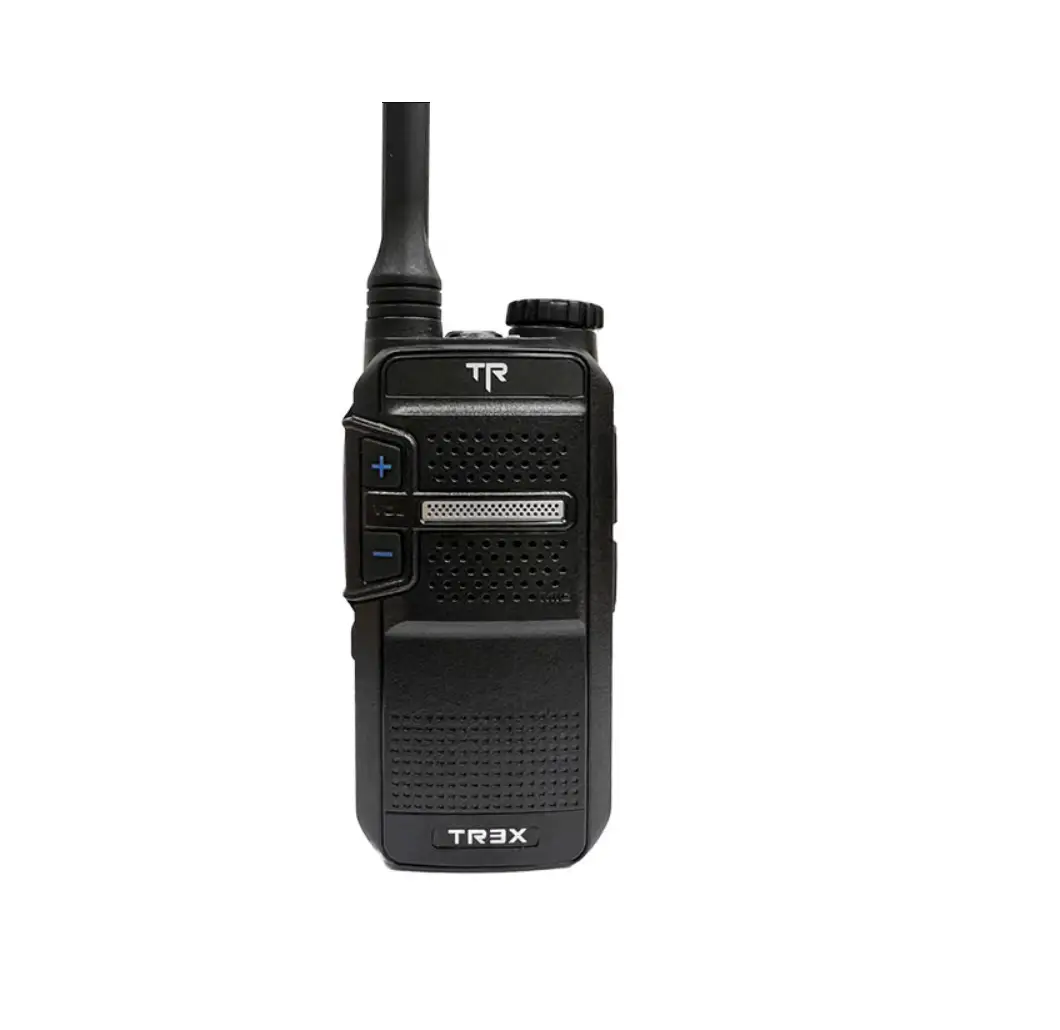
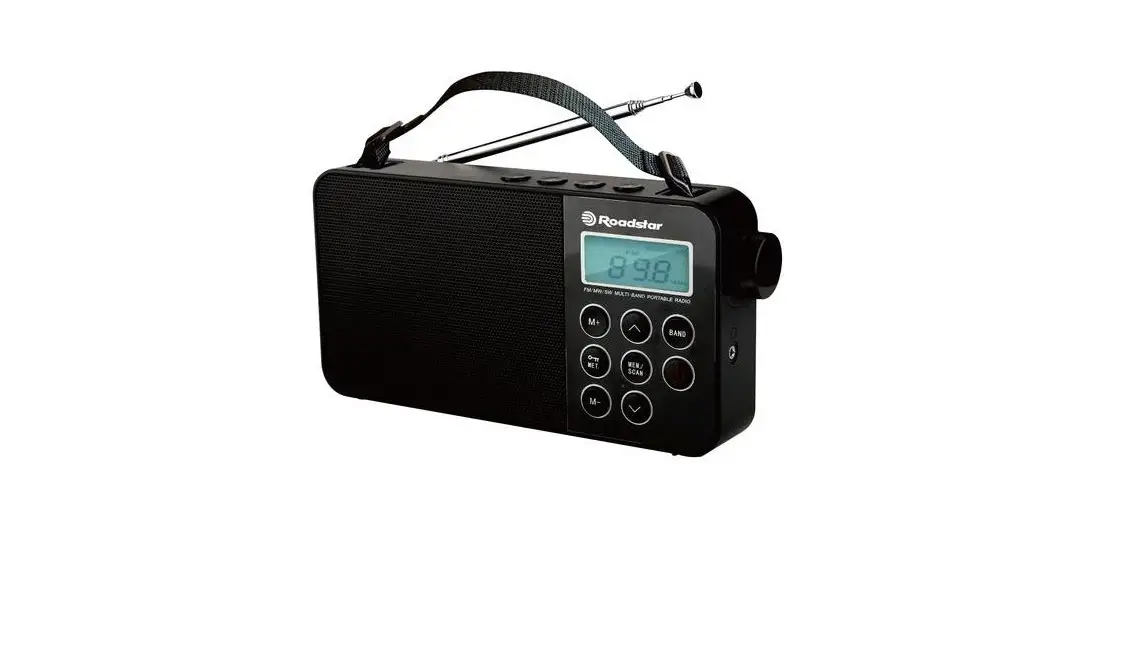
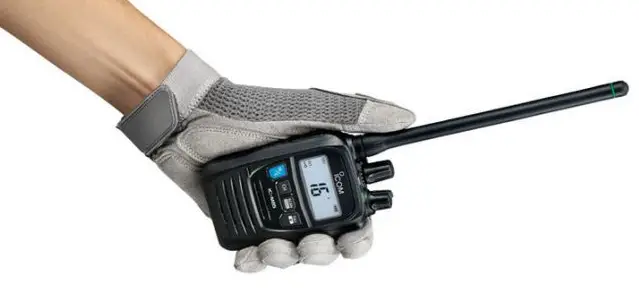
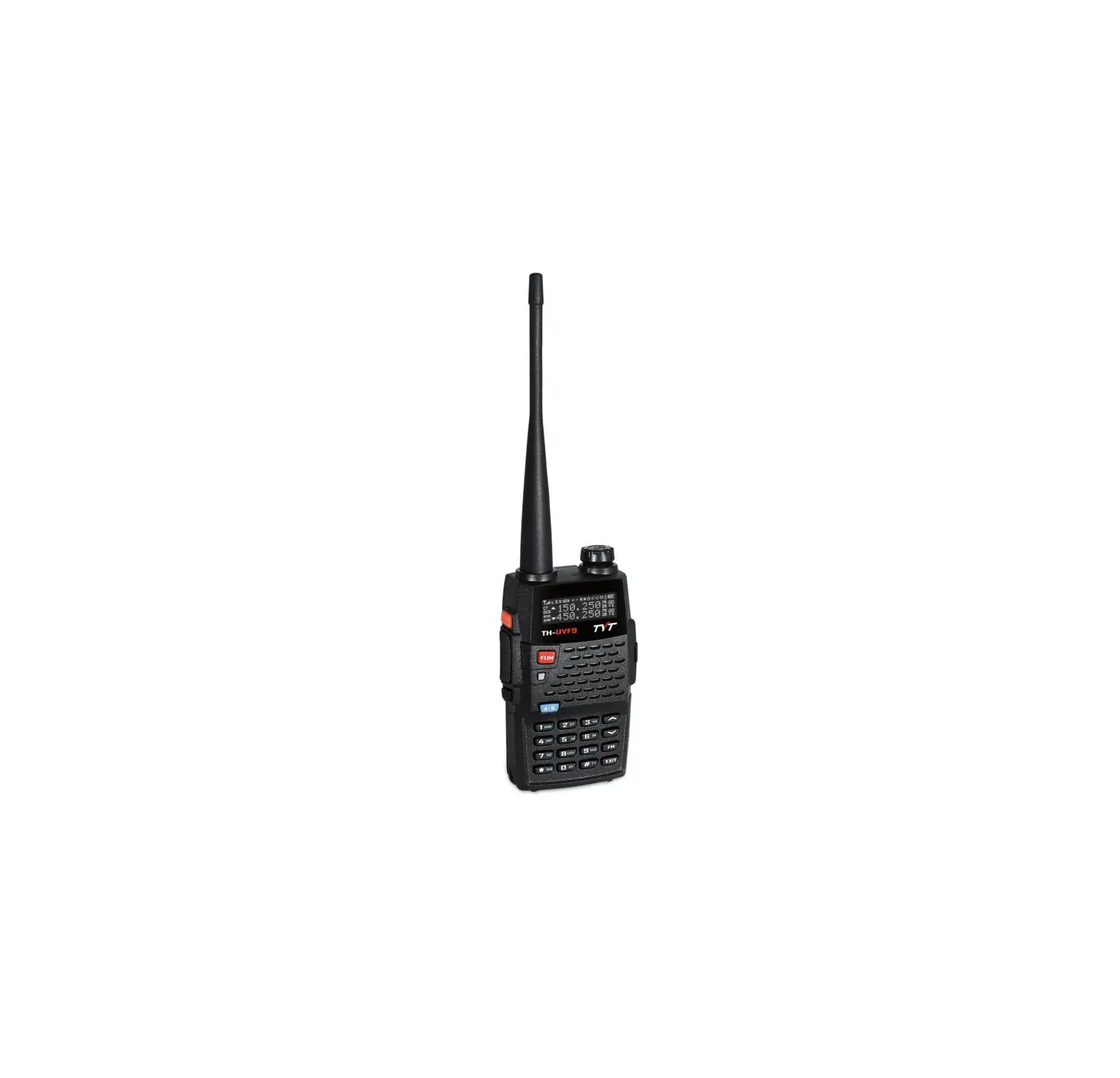
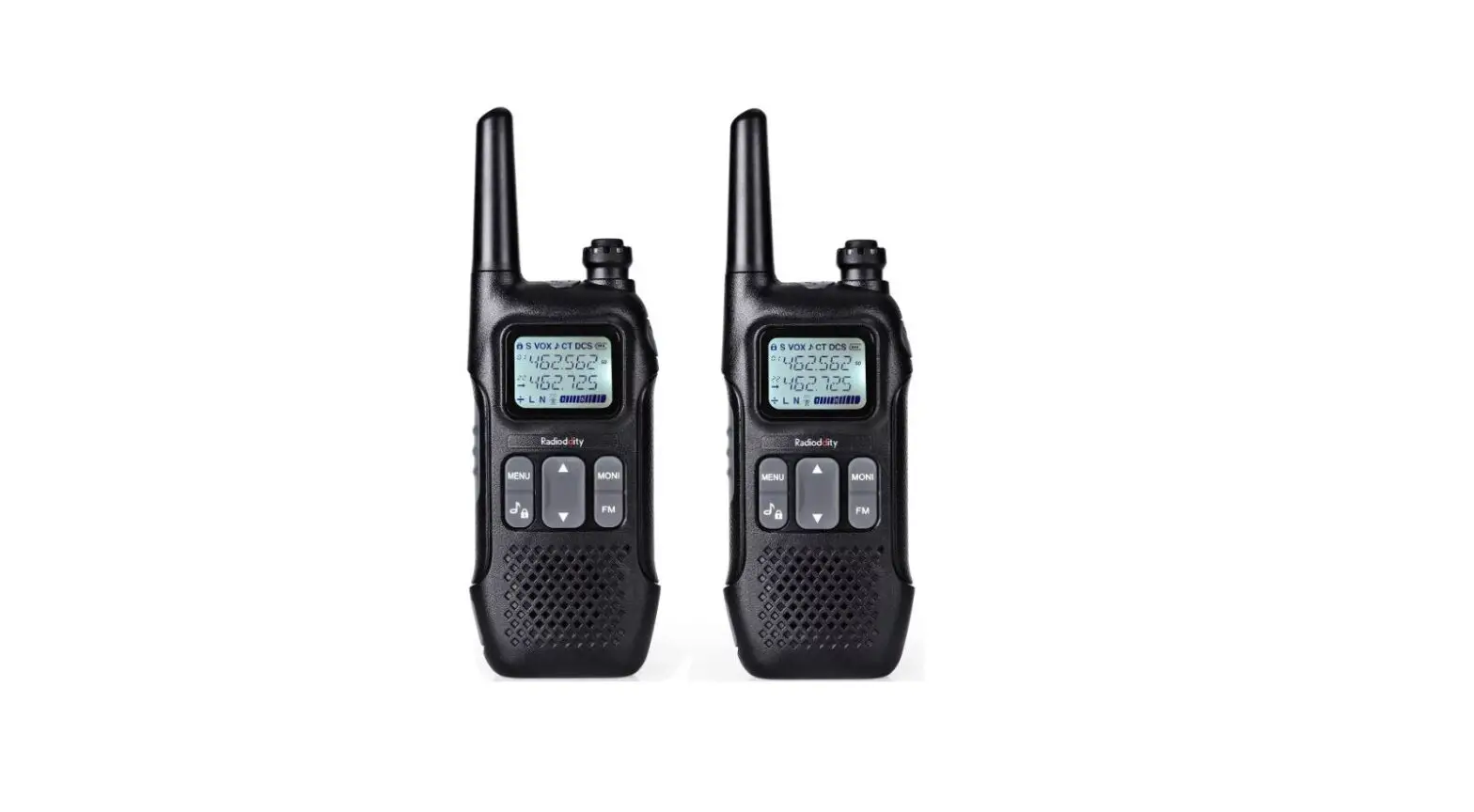
TR300 UHF Two-Way Radio
Product Information
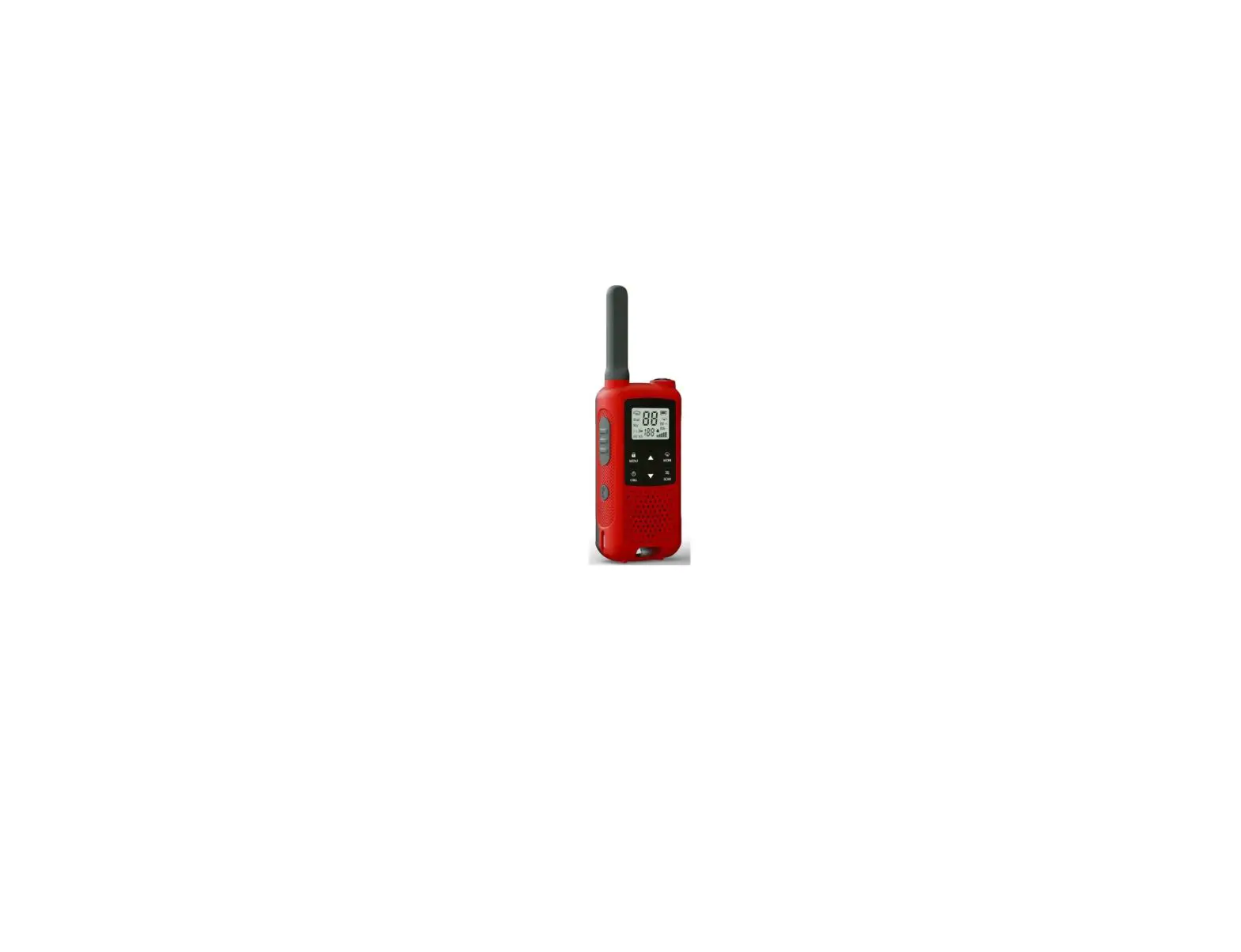
The Titan Radio TR300 Two Way Business Radio is a compact and
rugged radio designed for portability. It provides secure, instant,
and reliable communication at peak efficiency. The radio comes with
a Li-Ion battery, switching power, antenna, nylon strap, belt clip,
and screw (belt clip). The frequency band is marked on the label of
the antenna, and the radio unit has a label for detailed frequency
band information.
Models Covered in this Manual
- TR300 UHF Two-way Radio
Contents
- Safety Information
- Product Inspection
- Radio Overview
- PTT (Push-to-Talk) Key
- SK (Side Key)
- Status Indicator
Safety Information
During operation, service, and repair of the equipment, observe
the following safety precautions:
- The equipment should only be serviced by qualified
technicians. - Do not modify the radio for any reason.
- Use only Titan Radio supplied or approved batteries and
chargers. - To avoid electromagnetic interference and/or compatibility
conflicts, turn off the radio. - If you wear a radio on your body, ensure the radio and its
antenna are at least 2.5 centimeters away from your body when
transmitting.
Product Inspection
Unpack the package box carefully and check that all items
shipped are received. Report any missing or damaged items to your
dealer.
Radio Overview
The radio has the following features:
- PTT (Push-to-Talk) Key
- SK (Side Key)
- Speaker
- Volume Adjust Keys [+]/[-]
- Microphone
- Nameplate
- Charging Terminal
- Antenna
- Power Switch
- Channel/Status Indicator
- Channel Selector Knob
- Accessory Jack
- Audio Accessory Cover Jack
- Mini USB Jack
- Charge Indicator
- Strap Hole
- Rear Cover
- Battery Latch
- Belt Clip
- Screw (Belt Clip)
PTT (Push-to-Talk) Key
To transmit, press and hold down the PTT key. Release it to
receive.
SK (Side Key)
The Side Key is a programmable key that can be assigned with
long/short press functions by your dealer. Short press refers to a
key press shorter than 1 second, and long press refers to a key
press longer than 1 second.
Status Indicator
Status indications and alert tones are shown in the table
below:
| Status | Indicator | Alert Tone |
|---|---|---|
| Power on (to enter user mode) | Flashes orange once | Power on alert tone |
| Power off | N/A | Power off alert tone |
| Low battery alert | Flashes red | Low-pitched tone at intervals of 10 seconds |
| Transmitting | Glows red | N/A |
| TOT pre-alert | N/A | Beep tone |
| TOT timer expires | N/A | Beep tone continuously |
| Receiving | Glows green when carrier is present | N/A |
| Scanning is in process | Flashes green once every 1 second | N/A |
| Scan Start Alert Tone (programmable by your dealer) | N/A | Beep tone |
Product Usage Instructions
Safety Precautions
- The equipment should only be serviced by qualified
technicians. - Do not modify the radio for any reason.
- Use only Titan Radio supplied or approved batteries and
chargers. - To avoid electromagnetic interference and/or compatibility
conflicts, turn off the radio. - If you wear a radio on your body, ensure the radio and its
antenna are at least 2.5 centimeters away from your body when
transmitting.
Product Inspection
Unpack the package box carefully and check that all items
shipped are received. Report any missing or damaged items to your
dealer.
Radio Usage
Follow the steps below to use the radio:
- Turn on the radio using the power switch (9).
- Select a channel using the channel selector knob (11).
- To transmit, press and hold down the PTT key (1). Release it to
receive. - To adjust the volume, use the volume adjust keys [+]/[-] (4).
- To program the Side Key (2), contact your dealer.
Battery Charging
Follow the steps below to charge the battery:
- Connect the switching power (included) to the charging terminal
(7) of the radio. - Connect the power cord of the switching power to an AC power
source. - The charge indicator (12) will light up red when charging is in
progress. It will turn off when charging is complete.
Preface
Thank you for purchasing Titan Radio’s TR300 Two Way Business Radio. TR300 is unique for its compact and rugged body. It is ergonomically designed to give you an exceptional experience of portability. This easy-to-use radio will deliver secure, instant and reliable communications at peak efficiency. Please read this manual carefully before use. The information presented herein will help you to derive maximum performance from your radio.
MODELS COVERED IN THIS MANUAL TR300 UHF Two-way Radio
Contents
Safety Information………………………………………………………………………………………………….2 Product Inspection …………………………………………………………………………………………………3 Radio Overview……………………………………………………………………………………………………..4 Battery Information ………………………………………………………………………………………………..6 Antenna Information ………………………………………………………………………………………………9 Assembly and Disassembly…………………………………………………………………………………..10
Attaching/Removing the Battery………………………………………………………………………10 Attaching/Removing the Antenna ……………………………………………………………………. 11 Attaching/Removing the Belt Clip…………………………………………………………………….12 Attaching/Removing the Battery When the Belt Clip is Attached………………………….13 Attaching/Removing the Earpiece/Mini USB……………………………………………………..13 Basic Operations………………………………………………………………………………………………….14 Turning the Radio On/Off ……………………………………………………………………………….14 Adjusting the Volume……………………………………………………………………………………..14 Selecting a Channel ………………………………………………………………………………………14 Transmitting ………………………………………………………………………………………………….14 Receiving ……………………………………………………………………………………………………..14 Programmable Auxiliary Functions …………………………………………………………………………14 Advanced Operations …………………………………………………………………………………………..15 CTCSS/CDCSS ……………………………………………………………………………………………. 15 Battery Save …………………………………………………………………………………………………15 Power Adjust…………………………………………………………………………………………………16 Time-out Timer (TOT) …………………………………………………………………………………….16 Battery Strength Indicator……………………………………………………………………………….16 Monitor ………………………………………………………………………………………………………… 17 Scan ……………………………………………………………………………………………………………. 17 Busy Channel Lockout (BCL) ………………………………………………………………………….19 Low Battery Alert …………………………………………………………………………………………..19 VOX (Voice-Operated Transmit)………………………………………………………………………19 Troubleshooting …………………………………………………………………………………………………..21 Care and Cleaning……………………………………………………………………………………………….22
1
Safety Information
The following safety precautions shall always be observed during operation, service and repair of this equipment.
This equipment shall be serviced by qualified technicians only. Do not modify the radio for any reason. Use only Titan Radio supplied or approved batteries and chargers. To avoid electromagnetic interference and/or compatibility conflicts, turn off your
radio in any area where posted notices instruct you to do so. Turn off your radio before boarding an aircraft. Any use of a radio must be in accordance with airline regulations or crew instructions. For vehicles with an air bag, do not place a radio in the area over an air bag or in the air bag deployment area. Turn off your radio prior to entering any area with explosive and flammable materials. Do not charge your battery in a location with explosive and flammable materials. Turn off your radio before entering a blasting area. Do not use any portable radio that has a damaged antenna. If a damaged antenna comes into contact with your skin, a minor burn can result. Do not expose the radio to direct sunlight over a long time, nor place it close to heating source. When transmitting with a portable radio, hold the radio in a vertical position with the microphone 3 to 4 centimeters away from your lips. Keep antenna at least 2.5 centimeters away from your body when transmitting.
WARNING: If you wear a radio on your body, ensure the radio and its antenna are at least 2.5 centimeters away from your body when transmitting.
2
Product Inspection
Please unpack the package box carefully and check that all items shipped are received;
report any missing or damaged items to your dealer.
Accessories
Item
Qty. (PCS)
Antenna
1
Nylon Strap
1
Belt Clip
1
Screw (Belt Clip)
2
Li-Ion Battery
1
Switching Power
1
Antenna
Li-Ion Battery
Switching Power (varying in different countries and
regions)
Nylon Strap
Belt Clip
Note: Frequency band is marked on the label of antenna, if not, please refer to the label on the radio unit for detailed frequency band information.
3
Radio Overview
(1) PTT (Push-to-Talk) (2) SK (Side Key)
Key
(5) Microphone
(6) Nameplate
(9) Power Switch
(10) Channel/Status Indicator
(13) Accessory Jack (14) Audio Accessory
Cover
Jack
(17) Screw (Belt Clip) (18) Belt Clip
(3) Speaker (7) Charging Terminal (11) Channel Selector Knob (15) Mini USB Jack (19) Rear Cover
(4) Volume Adjust Keys [+]/[-] (8) Antenna (12) Charge Indicator
(16) Strap Hole
(20) Battery Latch
PTT (Push-to-Talk) Key Press and hold down the PTT key to transmit, and release it to receive.
SK (Side Key)
4
Side Key is a programmable key that can be assigned with long/short press functions
by your dealer.
Note:
Short Press: Key press shorter than 1 second.
Long Press: Key press longer than 1 second.
Status Indicator Status indications and alert tones are shown in the table below:
When the radio is turned on, the power on alert tone sounds and
Power on (to enter user Status Indicator flashes orange once.
mode)
When the current channel is a blank channel, the radio sounds
beep tone continuously.
Power off
When the radio is turned off, the power off alert is heard.
Low battery alert
Status Indicator flashes red, and a low-pitched tone sounds at intervals of 10 seconds.
Status Indicator glows red when transmitting.
Transmitting
When TOT timer expires, the radio sounds beep tone continuously.
TOT pre-alert: A beep is heard.
Receiving
Status Indicator glows green when carrier is present.
Status Indicator flashes green once every 1 second, while
scanning is in process.
Scan Start Alert Tone (programmable by your dealer): A beep is
Scanning
heard. When signal is received on a certain channel, Status Indicator
solidly glows green.
Scan Exit Alert Tone (programmable by your dealer): A beep is
heard.
Power adjust
A low-pitched tone is heard when transmit power is switched from high power to low power.
5
VOX
A high-pitched tone is heard when transmit power is switched from low power to high power. One beep sounds when the VOX feature is activated. Two beeps sound when the VOX feature is disabled.
* Battery Latch Used to secure or remove the battery. * Audio Accessory Jack Used to connect audio accessories such as earpieces. * Mini USB Jack Used to connect accessories such as programming cable, cloning cable and power cord.
Battery Information
Initial Use
New batteries are shipped not fully charged from the factory. Charge a new battery for 5 hours before initial use. The maximum battery capacity and performance is achieved after three full charge/discharge cycles. If you notice the battery power runs low, please recharge the battery.
Applicable Battery Packs
To reduce the risk of injury, charge only the battery specified by the manufacturer. Other batteries may burst, causing bodily injury and damage.
Caution:
1. To avoid risk of personal injury, do not dispose of batteries in a fire! 2. Dispose of batteries according to local regulations (e.g. recycling). Do not dispose as
household waste. 3. Never attempt to disassemble the battery.
Battery Tips
1. When charging your battery, keep it at a temperature among 5 – 40. Temperature
6
out of the limit may cause battery leakage or damage. 2. When charging a battery attached to a radio, turn the radio off to ensure a full charge. 3. Do not cut off the power supply or remove the battery when charging a battery. 4. Never charge a battery that is wet. Please dry it with soft cloth prior to charge. 5. The battery will eventually wear out. When the operating time (talk-time and standby
time) is noticeably shorter than normal performance, it is time to buy a new battery. 6. In case the radio shuts off automatically at low battery power, recharge the battery
promptly, or the battery could suffer damage. 7. Remove the battery before you store the radio for a long time, or the battery could
suffer damage.
To Prolong Battery Life
1. Battery performance will be greatly decreased at a temperature below 0. A spare battery is necessary in cold weather. The cold battery unable to work in this situation may work under room temperature, so keep it for later use.
2. The dust on the battery contact may cause the battery cannot work or charge. Please use clean dry cloth to wipe it before attaching the battery to the radio.
Battery Storage
1. Fully charge a battery before you store it for a long time, to avoid battery damage due to over-discharge.
2. Recharge a battery after several months’ storage (Li-Ion & Li-polymer batteries: 6 months), to avoid battery capacity reduction due to over-discharge.
3. Store your battery in a cool, dry place under room temperature, to reduce self-discharge.
Charging the Battery
When the Status Indicator flashes red and an alert tone sounds at intervals of ten seconds indicating the battery power runs low, please recharge the battery. Use only the charger specified by the manufacturer. The Charge Indicator indicates the charging progress. Please follow these steps to charge your radio using the switching power or charger:
7
1. Plug the AC connector of the switching power into the AC outlet socket.
2. Plug the Mini USB connector of the switching power into the Mini USB jack of the
radio or charger.
3. Place the radio with the battery attached in the charger when the charger indicator
glows green to indicate the power supplies normally. (Please skip this step if you don’t
use a charger)
4. Make sure the radio is connected to the switching power or the charger. The charging
process initiates when the Charge Indicator of the radio glows red.
5. The Charge Indicator glows green when the battery is fully charged. Please remove
the radio then.
Status
Charge Indicator of the Radio
Battery is charging.
Charge Indicator solidly glows red.
Battery is fully charged. Charge Indicator solidly glows green.
Note: Make sure the radio is attached with a battery before charging, and is powered off
during charging.
Please follow these steps to charge a battery using the desktop charger:
8
1. Plug the AC connector of the switching power into the AC outlet socket.
2. Plug the Mini USB connector of the switching power into the Mini USB jack of the
charger. Indicator of the charger glows green.
3. Place the battery in the charger.
4. Make sure the battery is connected to the charger. The charging process initiates
when the charger indicator glows orange.
5. The charger indicator glows green when the battery is fully charged. Please remove
the battery then.
Status
Charger Indicator
Battery is charging.
Charger Indicator solidly glows orange.
Battery is fully charged. Charger Indicator solidly glows green.
Antenna Information
Stubby antenna is durable, and is ideal for communication at low transmit power. Communication range may vary with terrain and your operating conditions. Rainy
days or forest locations may narrow your communication range, please make preparation in advance to avoid potential inconvenience.
9
Assembly and Disassembly
Attaching/Removing the Battery
Attaching the Battery 1. Hold the top part of the radio’s body, and slide the battery latch in the direction of
arrow Then lift the rear cover and remove it from the radio’s body, as shown in Figure 1.
Figure 1 2. Align the discharging terminal of the battery with the radio’s charging piece, and insert
the tab at the top of the battery into the slot at the top of the radio’s body. Then press the bottom of the battery towards the radio, until the battery is securely inserted into the battery slot, as shown in Figure 2. Note: If the battery is not well locked, please remove the battery and attach it again.
Figure 2 3. Fit the two extensions at the top of the rear cover into the slots at the top of the radio’s
body, slightly press the bottom of the rear cover towards the radio until a click is heard, and then the rear cover is securely attached to the radio, as shown in Figure 3. Note: If the rear cover is not well locked, please remove the rear cover and attach it again.
10
Figure 3 Removing the Battery 1. Turn off the radio, if it is turned on. Then follow step 1 in the section “Attaching the
Battery” to remove the rear cover. 2. Hold the top part of the radio’s body, and lift the battery in the direction of arrow by
the notch at its bottom, and then remove the battery from the radio’s body in the direction of arrow , as shown in Figure 4.
Figure 4
Attaching/Removing the Antenna
Attaching the Antenna 1. Align the threaded end of the antenna with the radio’s antenna connector. 2. Turn the antenna clockwise to fasten it, as shown in Figure 5.
11
Figure 5 Removing the Antenna Turn the antenna counter-clockwise until you can remove it.
Attaching/Removing the Belt Clip
Attaching the Belt Clip Align the two screw holes on the metal bracket of the belt clip with holes on the elliptical protrusion on the back side of the radio. Then secure the belt clip on the back side of the radio, as shown in Figure 6. Align the belt clip screws with screw holes on the metal bracket of the belt clip, and then secure the screws.
Removing the Belt Clip
Figure 6
12
Loosen the screw to remove the belt clip. Please refer to the operations for attaching the belt clip.
Attaching/Removing the Battery When the Belt Clip is Attached
When the belt clip is attached to the radio, please first press the belt clip to make its bottom up, and then attach/remove the rear cover and battery by the steps mentioned above, as shown in Figure 7.
Figure 7
Attaching/Removing the Earpiece/Mini USB
Attaching the Earpiece/Mini USB 1. Open (not remove) the accessory cover, plug the audio accessory firmly into the
accessory jack, and the Mini USB into the USB jack, as shown in Figure 8.
Figure 8 Removing the Earpiece/Mini USB Open the accessory cover, and then remove the earpiece or Mini USB. Note: Use of audio accessory may affect the waterproof performance of the radio.
13
Basic Operations
Turning the Radio On/Off
Long press the Power Switch until an alert tone is heard to turn the radio on. To turn the radio off, do the same as you turn it on.
Adjusting the Volume
You may adjust the volume level through Volume Adjust Keys [+]/[-]. Press the [+] key to increase the volume, or press the [-] key to decrease the volume.
Selecting a Channel
Turn the Channel Selector knob to select a channel. Make sure the desired channel number points at the Channel Indicator.
Transmitting
To transmit, press and hold down the PTT key, and then speak into the microphone at normal voice level. Hold the radio about 2.5 to 5 centimeters away from your mouth.
Receiving
Release the PTT key to receive.
Programmable Auxiliary Functions
The SK key is a programmable function button. Your dealer may assign any of the following auxiliary functions to a short or long programmable key-press. None Power Adjust Monitor Monitor Momentary
14
Scan Scrambler VOX (Voice-Operated Transmit) Compandor Squelch Off Squelch Off Momentary Battery Strength Indicator Channel Lock (If you rotate the Channel Selector knob with Channel Lock function
enabled, the current channel number will remain unchanged. This function will not be disabled after programming. )
Advanced Operations
The following functions are programmable by your dealer.
CTCSS/CDCSS
Set up talkgroups with unique CDCSS/CTCSS to prevent unwanted conversations on the same frequency. If CTCSS/CDCSS has been set on the current channel, CTCSS/CDCSS match is required for the radio to unmute to an incoming signal. If CTCSS/CCSS is not set, the radio can receive calls from all users operating on the same frequency. Your dealer may set CTCSS/CDCSS for some channels. This feature does not mean that your conversation will not be heard by others. Radios with the same CTCSS/CDCSS or with no CTCSS/CDCSS, can receive calls from you.
Battery Save
The Battery Save feature will be automatically activated once no activity is present on the channel and no operation is performed (no key press and no knob selection), for extended operation time. Once the radio detects no activity on the channel and no operation performed (no key press and no knob selection) during radio standby time, it will automatically enter sleep
15
mode ten seconds later. Pressing any key or receiving a signal will cause the radio to exit from Battery Save and restore it to normal operation.
Power Adjust
Users can switch the Tx power level between high and low power by pressing the programmed Power Adjust key.
Time-out Timer (TOT)
The TOT timer limits the amount of time the radio can continuously transmit on a channel. This can also protect your radio from damage due to excessive transmission. If the user holds down the PTT key longer than the preprogrammed time period, the radio will automatically stop transmitting and generate a warning tone. To stop the warning tone, release the PTT key. Your dealer may program the alert tone that sounds before the TOT timer nearly expires.
Battery Strength Indicator
TR300 allows you to simply press the programmed Battery Strength Indicator key to illuminate the Status Indicator, which gives different indications representing battery strength levels. To exit the indications, release the key. The Status Indicator gives the following indications to represent corresponding battery strength levels: Battery Strength Status Indication
70%-100%
Status Indicator solidly glows green.
50%-70%
Status Indicator solidly glows orange.
30%-50%
Status Indicator solidly glows red.
10%-30%
No indication is given when the programmed key is pressed; Status Indicator flashes red while the radio is operating.
Less than 10%
No indication is given when the programmed key is pressed. While the radio is in standby mode, Status Indicator flashes red and a low-pitched tone sounds at intervals of ten seconds. If PTT key is
16
pressed at the moment, the radio will give an alert indicating that transmission is prohibited.
Monitor
Squelch Off Purpose: In this mode, the speaker is unmuted in any condition so as to receive any sound on the current channel. When audio signal is received on the channel, audio will be heard. Otherwise, background noise will be heard. Operation: Press the Monitor key to enter this mode, and press it again to exit.
Squelch Off Momentary Purpose: Refer to Squelch Off. When audio signal is received on the channel, audio will be heard. Otherwise, background noise will be heard. Operation: Hold down the programmed key continuously to enter this mode, and release the key to exit.
Monitor Purpose: In this mode, the receiving party can receive incoming calls from the transmitting party regardless of CTCSS/CDCSS condition. If the carrier condition is not satisfied, the receiving party will fail to receive any incoming calls. Operation: Press the Monitor key to enter this mode, and press it again to exit.
Monitor Momentary Purpose: Refer to Monitor. Operation: Hold down the programmed key continuously to enter this mode, and release the key to exit.
Scan
The Scan feature enables a two-way radio to continuously scan each channel for activity. Press the programmed Scan key to initiate scanning channels in the order as they appear in scan list. Status Indicator flashes green during the scan process, and solidly glows
17
when activity is detected and signaling condition is satisfied on a channel. Press the key again to exit scanning. When scanning is active, the radio will continuously scan for activity on scan list members. Once activity is detected on a channel, scanning will pause on the active channel for you to receive activity. The channels available for scanning are programmed by your dealer. No Priority Channel Providing that there is a scan list with 6 channels and all channels are non-prioritized, the normal scan operation would proceed in the following sequence, as shown in Figure 1.
Figure 1 Normal Scan Sequence Priority Channel Scan If you prioritize Channel 2 as Priority 1, the scan operation would proceed in the following sequence, as shown in Figure 2.
Scan On/Off
Figure 2 Priority Scan Sequence
You can enter scan mode through any of the following two methods:
(1) Key Operation
Press the programmed Scan key to enter scan mode, provided that there’re no less than
2 members in the scan list. Press the Scan key again or power off to exit.
18
(2) Auto If Auto Scan is enabled for a channel, the radio will automatically enter scan mode when it is switched to this channel. When it is switched to other channels or powers off, the radio will exit from scan mode. Talk Back This option defines whether users can talk back on the channel where scanning pauses. When the option is checked, users can do so. If the scanning does not pause on any channel, users may talk back on the predefined channel. Priority Channel Scan This function enables users to scan the most frequently used channel so that messages will not be missed. The priority channel is programmed by the dealer via programming software. Contact your dealer for details. Note: Even though the radio remains on a non-priority channel, activities on the priority channel are still under monitoring. The radio will switch to the priority channel once any activity is detected. Available Keys in Scan Mode PTT key, Volume Adjust keys [+] / [-], and 4 programmable keys of Squelch Off, Squelch Off Momentary, Monitor and Monitor Momentary.
Busy Channel Lockout (BCL)
This function can help avoid interference between radios operating on the same channel. When the channel is already in use, the radio will sound a continuous warning tone and return to Receive mode upon PTT press. To cancel the tone, release the PTT key.
Low Battery Alert
When battery power runs low, Status Indicator will flash red and a low-pitched tone will sound every ten seconds to remind users to replace the battery.
VOX (Voice-Operated Transmit)
With the dedicated VOX earpiece, you can enjoy hands-free communication. After this
19
function is enabled, the radio will automatically begin transmitting when you speak, and terminate transmitting when you stop talking, with no need of PTT press. Operation Steps: 1. Push the PTT/VOX switch on the earpiece to VOX. 2. Plug the earpiece into the accessory jack of the radio. 3. Press the programmed VOX key to activate the VOX feature. 4. When no signal is received, speak through the microphone of the earpiece and your
voice will be transmitted. Operation Instructions: 1. Press the PTT key on you radio to disable the VOX during its operation, and release
PTT key to reactivate this function. 2. Press the programmed VOX key to enable/disable the VOX feature, with
corresponding alert tone. When it is enabled, the alert tone sounds once; when it is disabled, the alert tone sounds twice. 3. The VOX feature will be disabled automatically after the radio is turned off or programmed. 4. The VOX function will work with a dedicated earpiece. 5. Your dealer may set VOX sensitivity or disable the VOX feature through the programming software. The VOX key will be null when the VOX feature is disabled. Note: 1. VOX / PTT function switch can be realized in this way: unplug the earpiece switch between VOX and PTT plug the earpiece. 2. After the above operations are completed, it takes approximately 2-3 seconds for the radio to perform auto-detection until it operates normally. To avoid breakdown caused by expected detection error, do not use the earpiece during auto-detection process. 3. If the earpiece operates abnormally, please pull and plug it again as instructed above. 4. You may select VOX levels according to the operating environment. Too much noise and high VOX level may cause the radio to transmit continuously. 5. Use only the VOX earpieces specified by Titan Radio. Please plug a VOX earpiece into the radio’s jack properly, or the VOX function may not work.
20
Note: To purchase accessories, please contact your local dealer.
Troubleshooting
Symptom
Cannot power on the radio.
The operating time is noticeably shorter than normal performance, even though the battery is properly charged.
Cannot talk to or hear group members.
Hear non-group members
No voice or low voice while transmitting
Noise always on
Solution The battery has run out. Please recharge the battery or replace it with a new one. The battery is not properly installed. Please remove the battery and attach it again. The battery has worn out, and it is time to buy a new battery. The battery is not fully charged. Make sure the charge indicators glow green. Make sure you are on the same channel check whether the Channel Lock function is enabled or other channels are locked by error. If you rotate the Channel Selector knob with Channel Lock function enabled, the current channel number will remain unchanged. Make sure radios have the same channel and the same CTCSS/CDCSS settings. Make sure you are within their communication range. Send the radio to your dealer to change your CTCSS/CDCSS settings, and so as your group members. Make sure the volume is turned up to its maximum value. Send the radio to your dealer for microphone examination. Group members are too far away to receive their call. Please go within the communication range and re-power on the radio to try.
21
Care and Cleaning
Do not hold the radio by its antenna or external earpiece directly. Do not place the radio in a dusty or dirty environment. Clean the radio with a lint-free cloth to remove dirt or grease, to avoid poor contact
due to excessive dust. Clean the radio using a lint-free cloth moistened with clean water and a mild
dishwashing liquid. Avoid subjecting the radio to corrosives, solvents or spirits. Titan Radio endeavors to achieve the accuracy and completeness of this manual, but no warranty of accuracy or reliability is given. All the above specifications and design are subject to change without notice due to continuous development. No part of this manual may be copied, reproduced, translated, stored in a retrievable system, distributed, or transmitted in any form or by any means, electronic or mechanical, for any purpose without the express written permission of Titan Radio.
22