Check system updates on the Razer Phone
A system update is a way of adding new features to devices and may also include repairs for potential software vulnerabilities. It may also help fix minor issues on your phone.
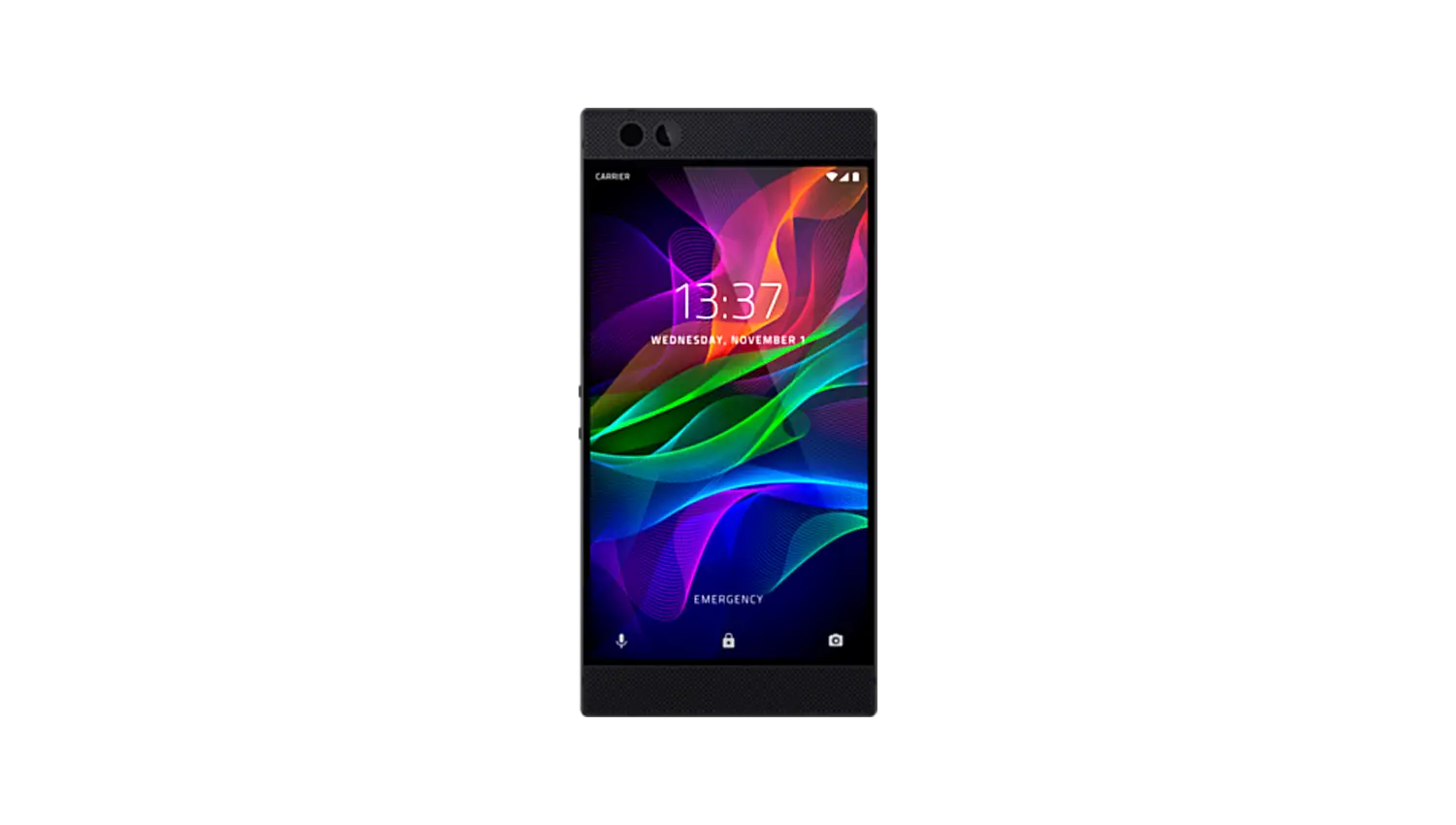
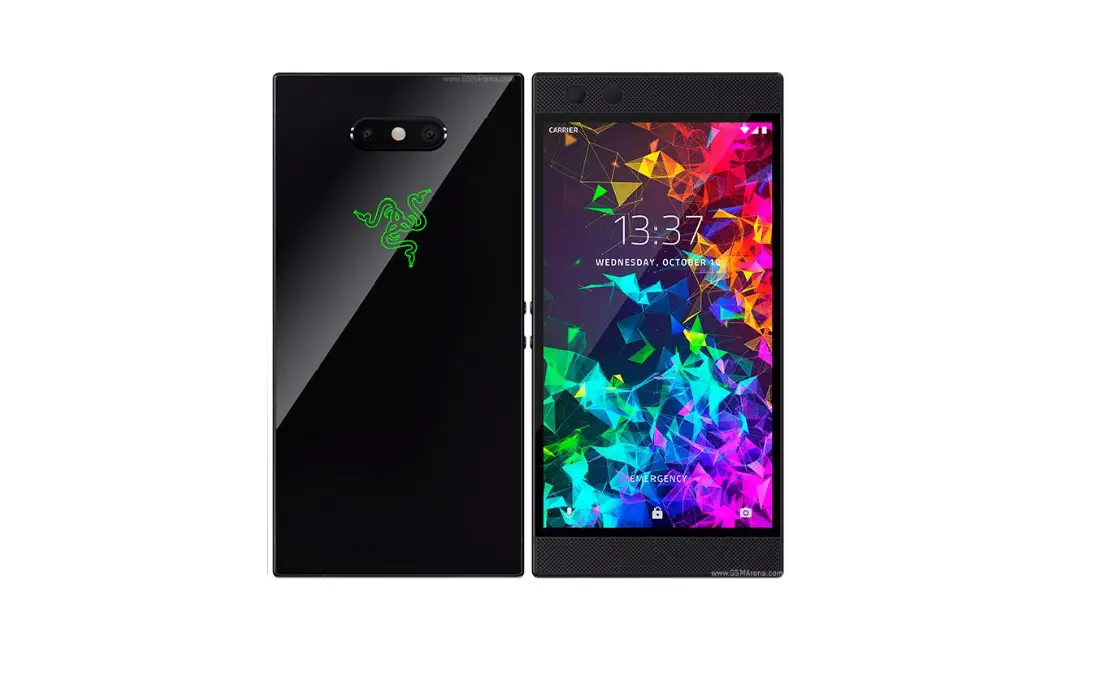
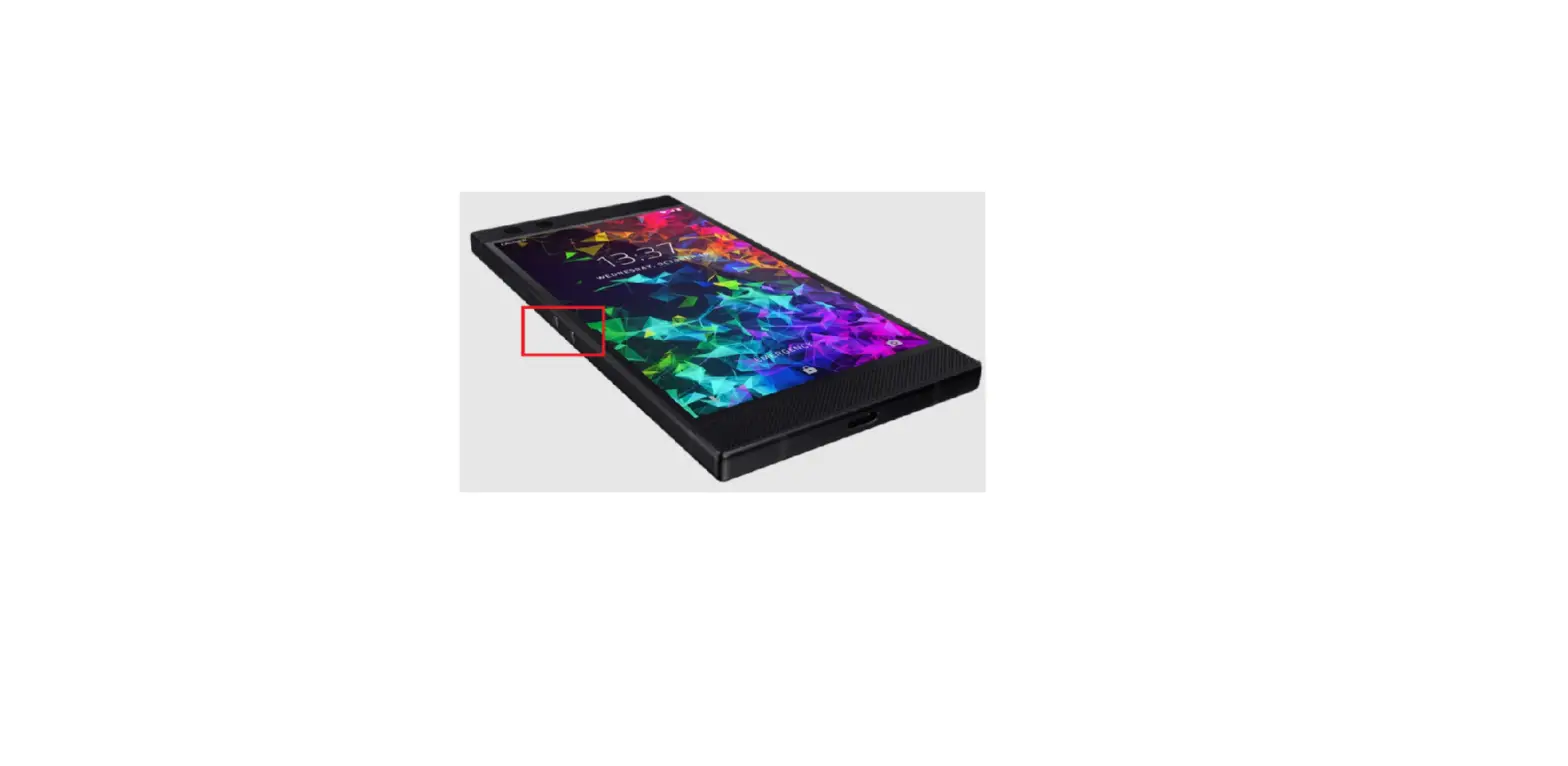
This article guides you on how to check for system updates on the Razer Phone with Android Oreo and Nougat Operating Systems.
Razer Phone with an Android Oreo OS:
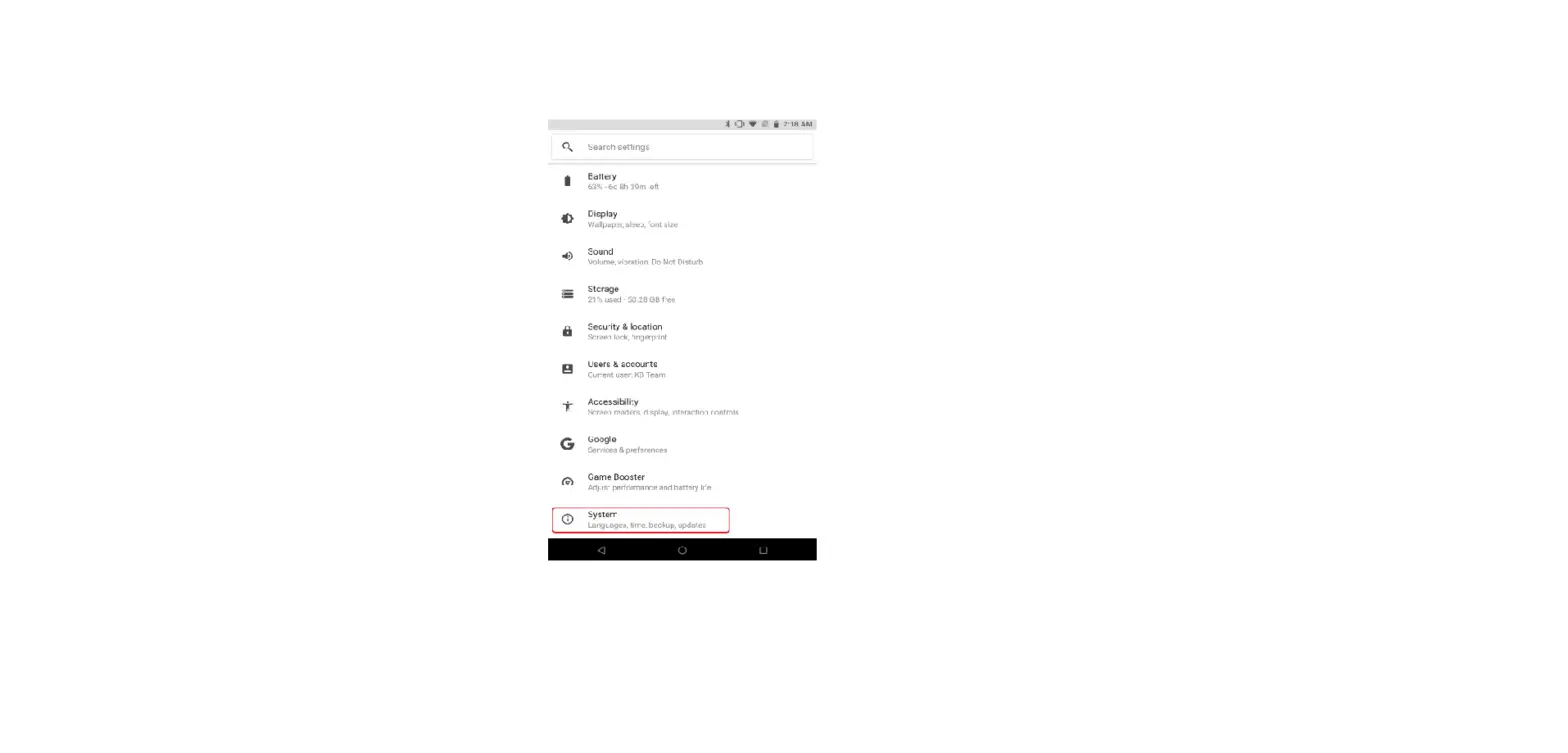
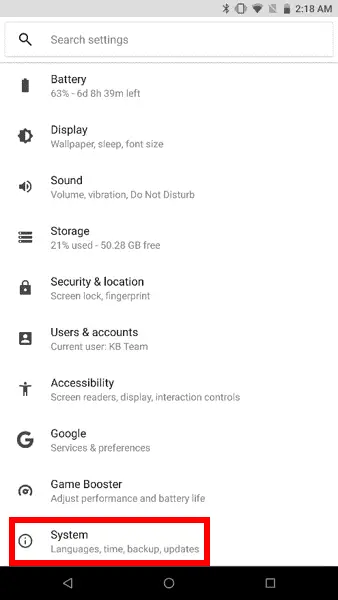
- Go to “Settings” and tap “System”, which can be found at the bottom-most part of the list.

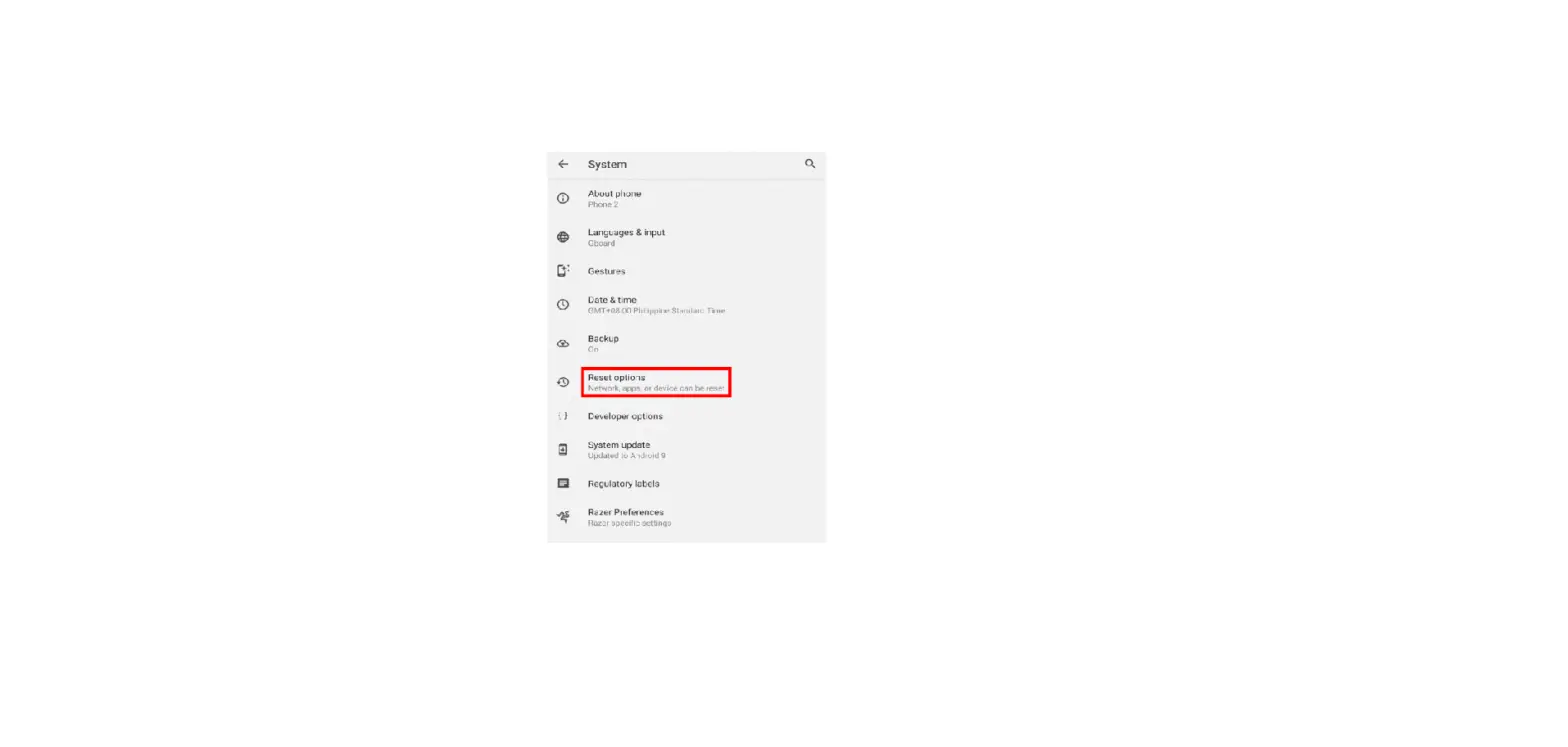
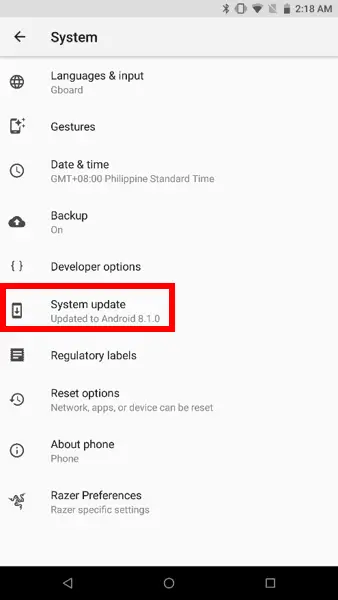
- Select “System update”.
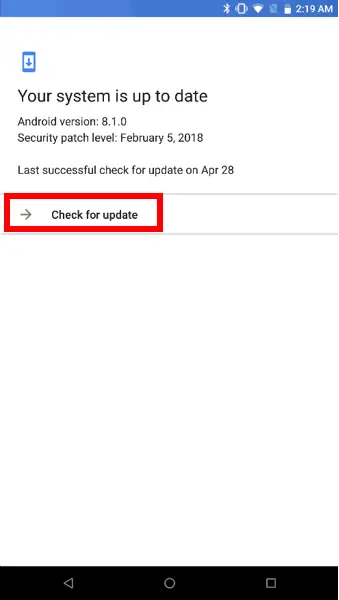
- Tap “Check for update” and the system will automatically detect an update (when available) and prompt you if you wish to proceed.

Razer Phone with an Android Nougat OS:
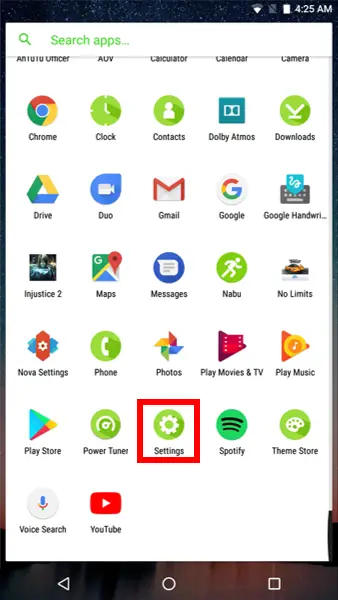
- Go to “Settings”.
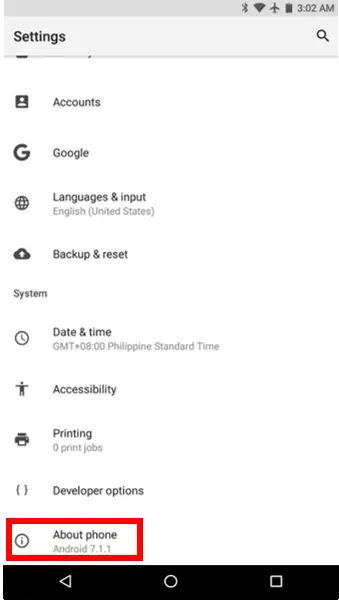
- Under “Settings”, scroll down to the bottom-most part of the menu and select “About phone”.
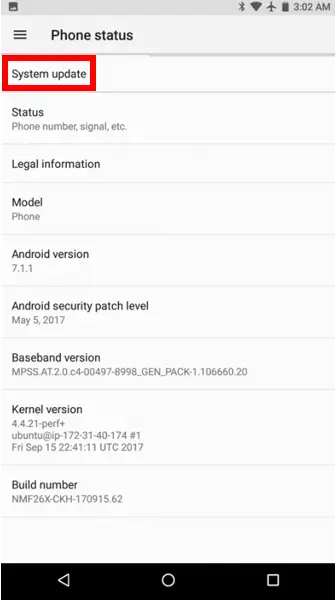
- Select “System update”.

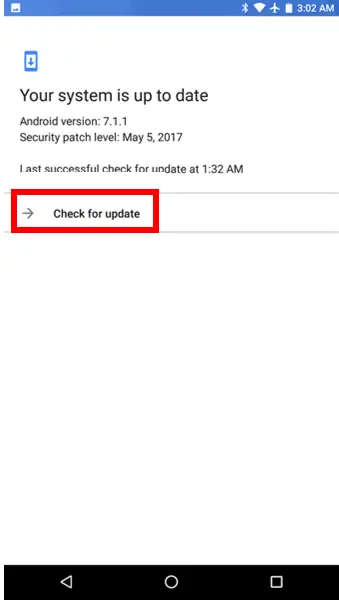
- Tap “Check for update” and the system will automatically detect an update (when available) and prompt you if you wish to proceed.