JoneR GO User Manual
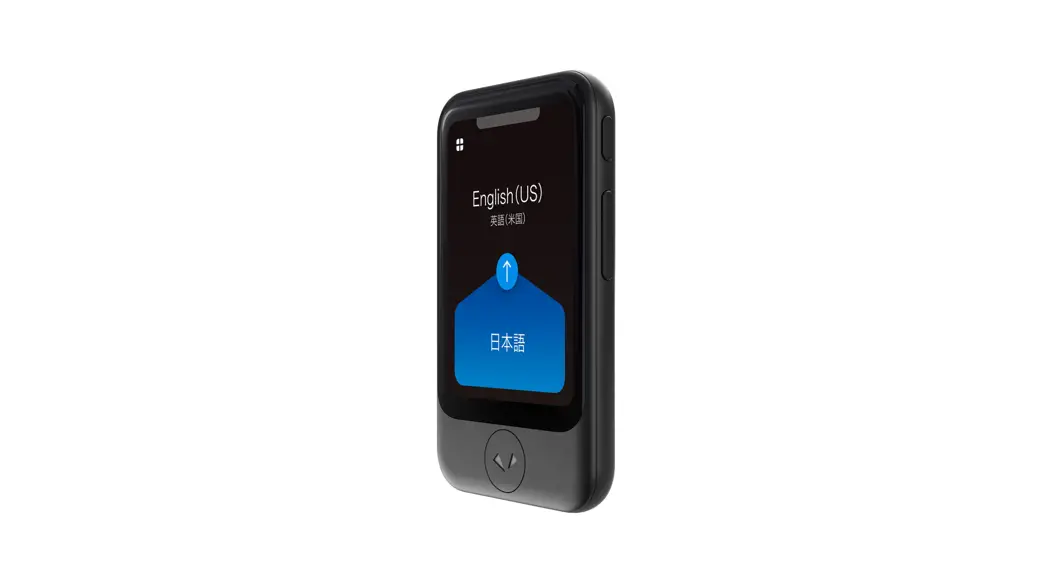
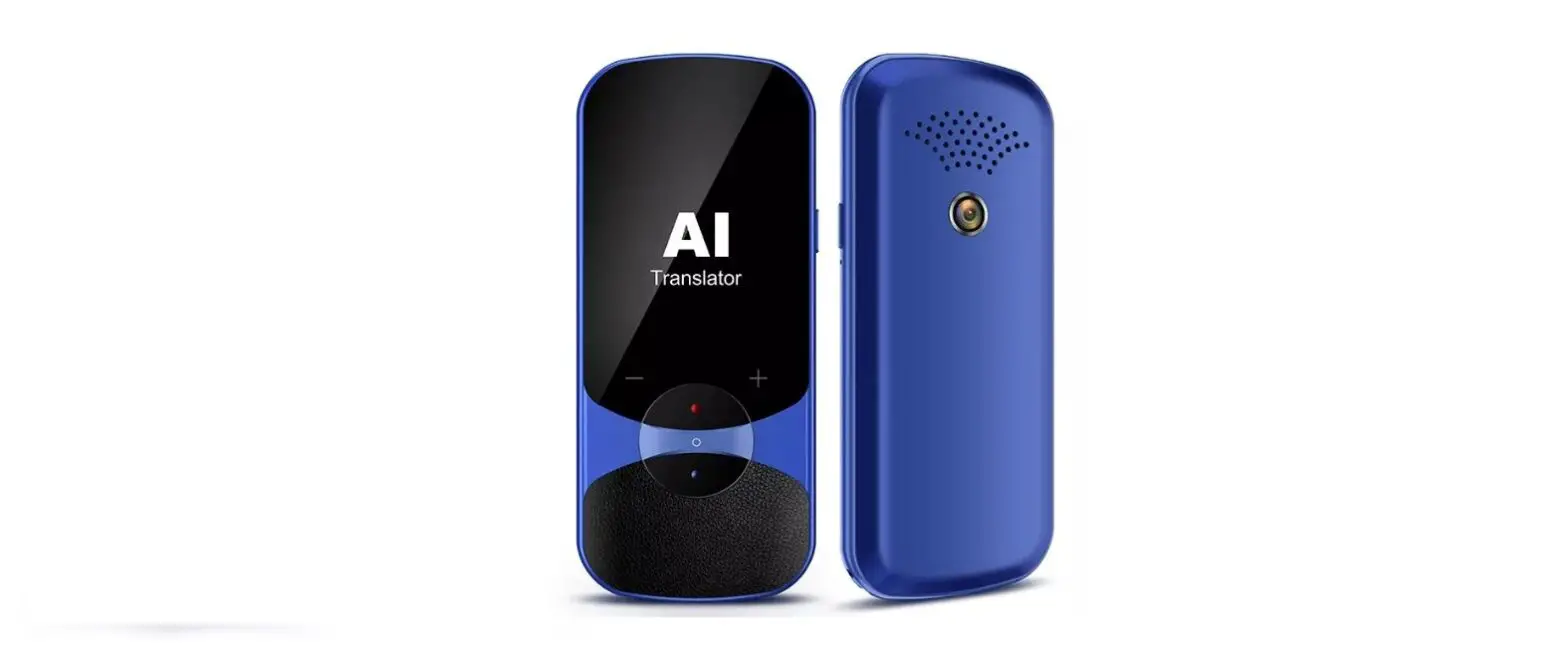
Product Dimensions
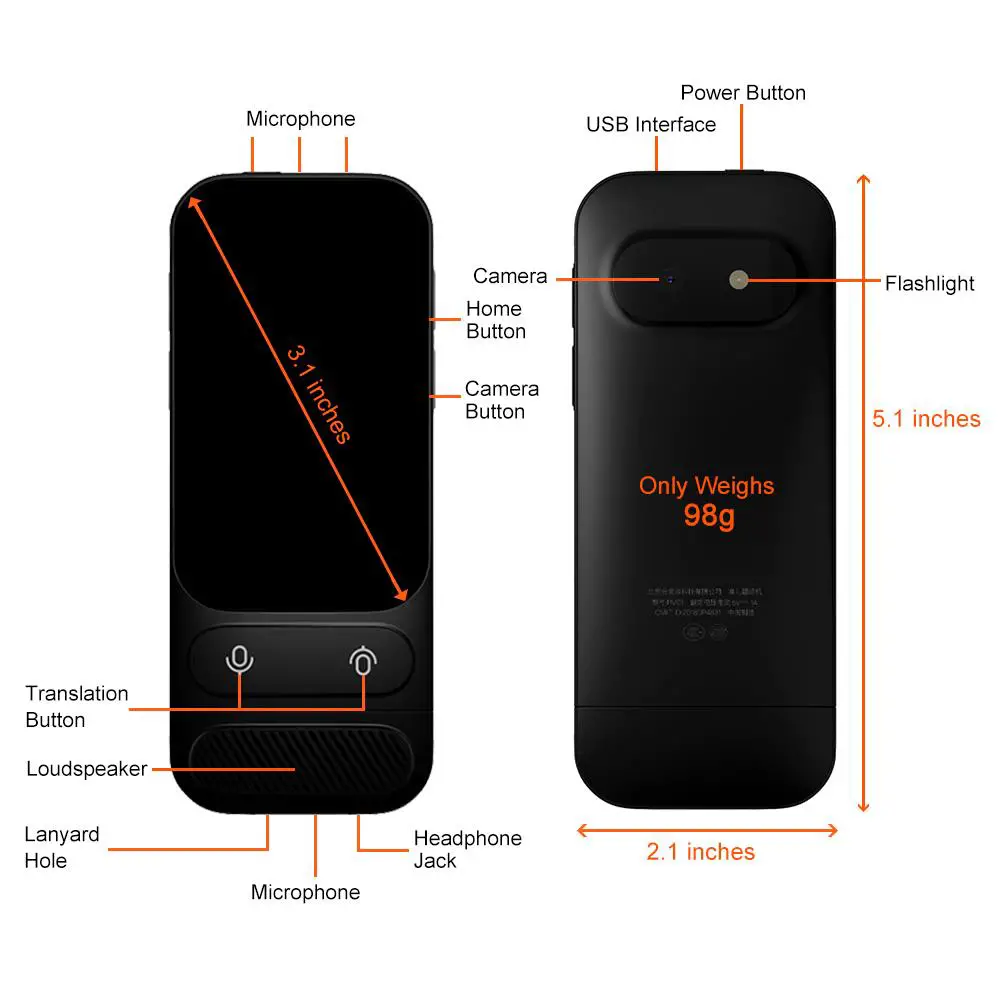 Image 1
Voice Translation
Tutorial Video: https://youtu.be/43YsIiPMmbI
Step 1 Enter Voice Translation
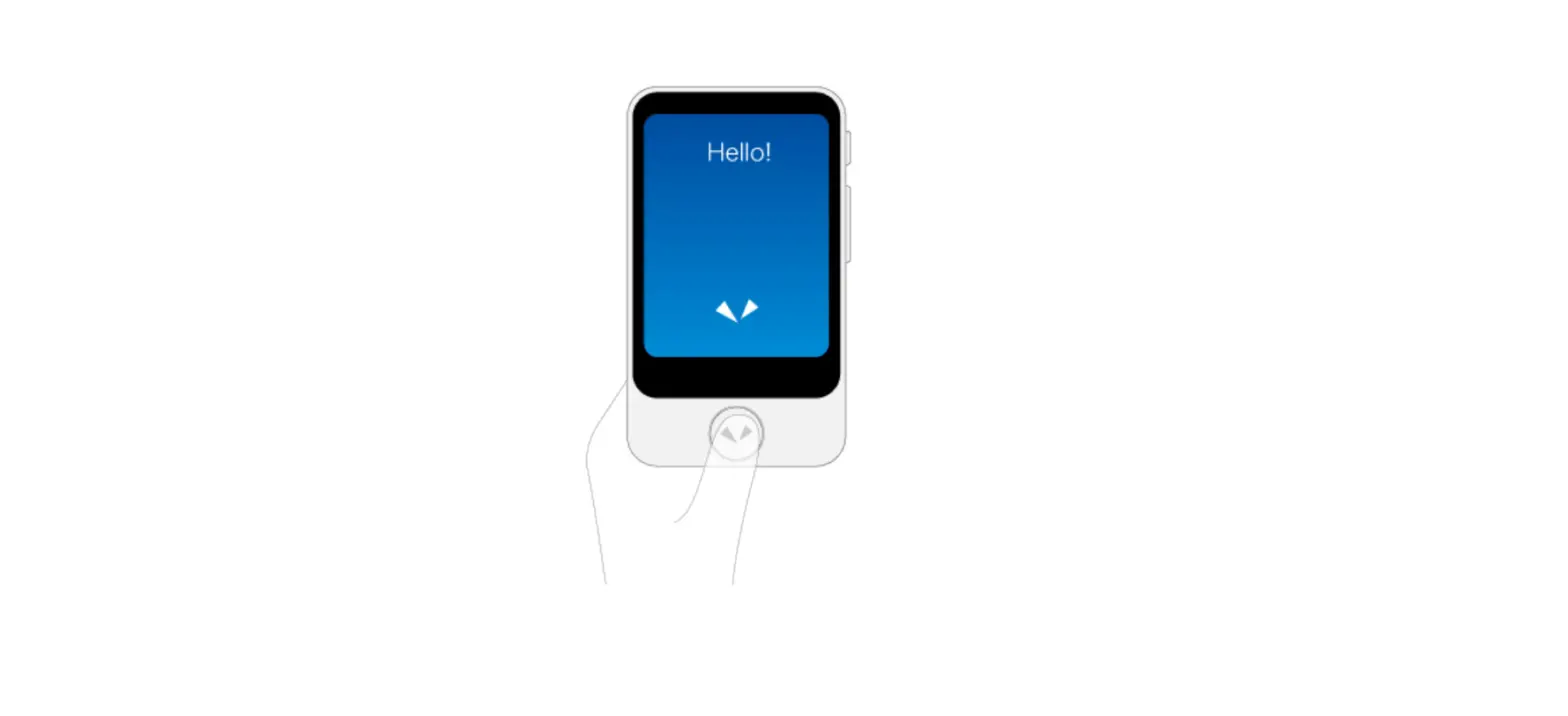
Select ‘Voice Translation’ from the main menu or press one of the ‘translation button’ and hold for 2 seconds.
Step 2 Select Languages
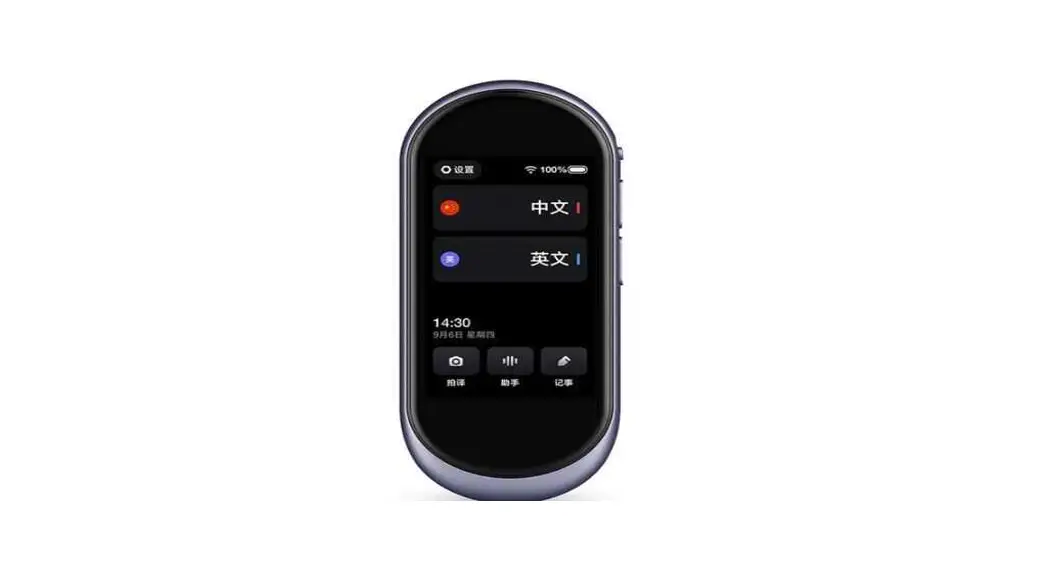
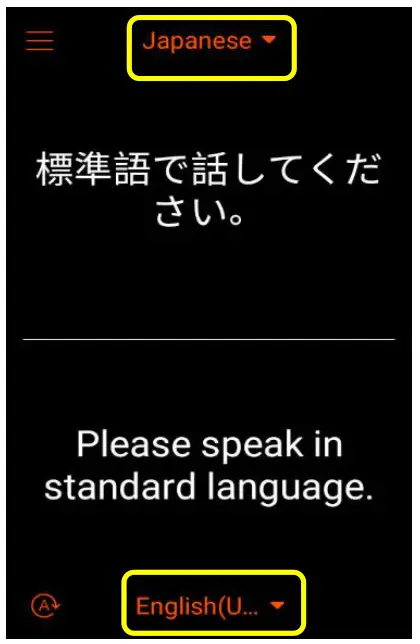 Image 2
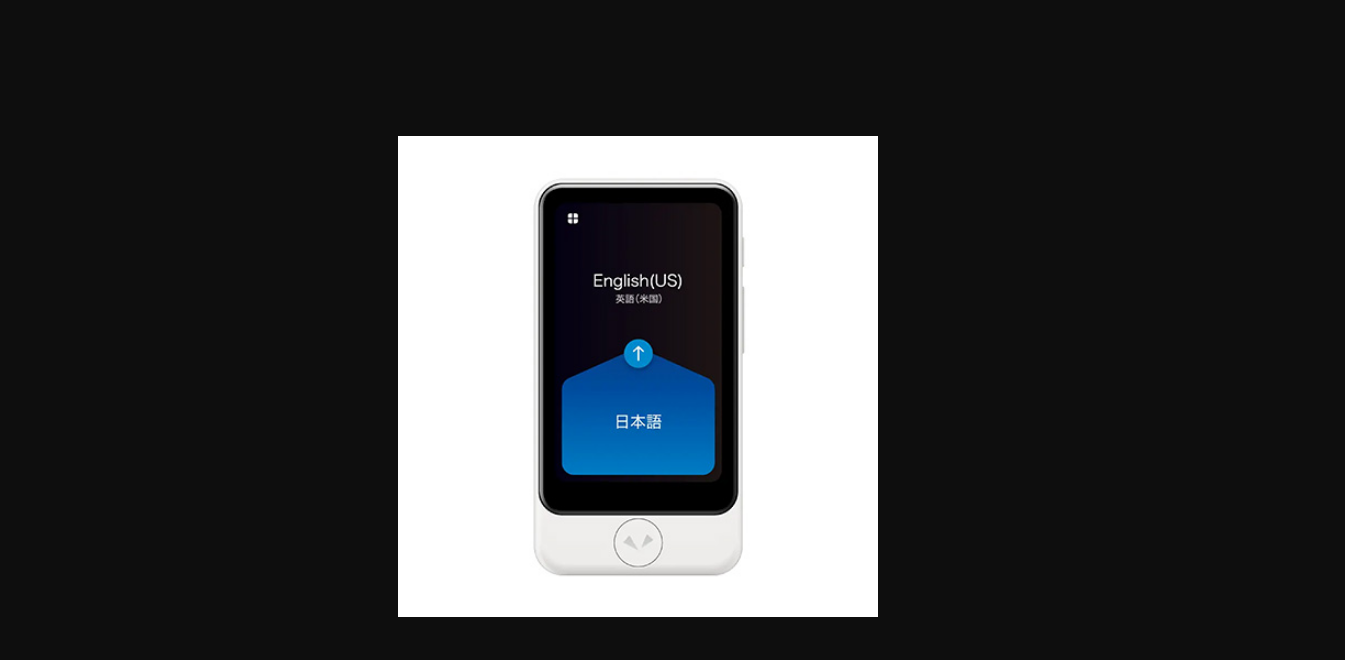
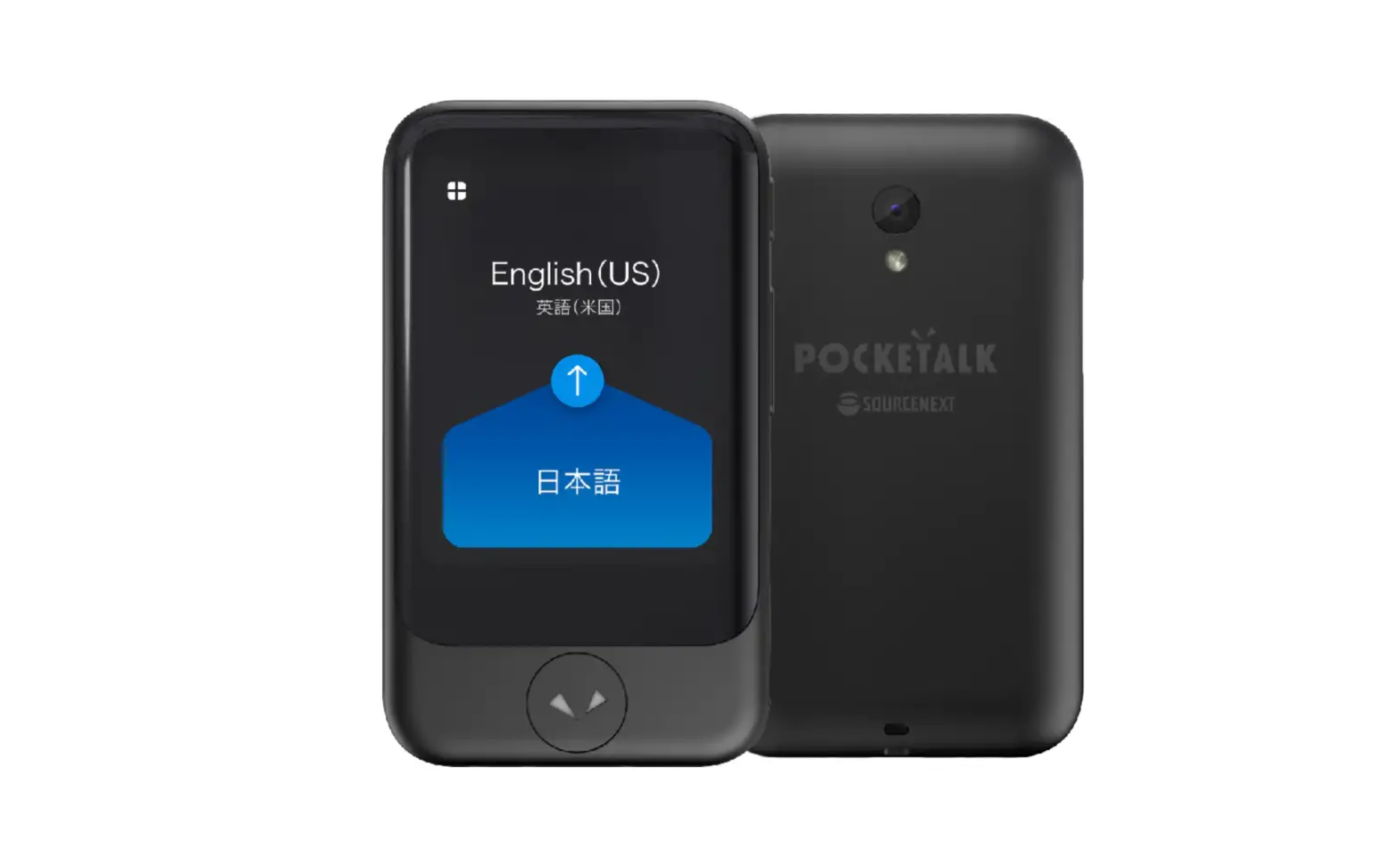
The section below is your language and the section on the top is the language you want to translate. Touch the language name to select.
Step 3 Record and Speak
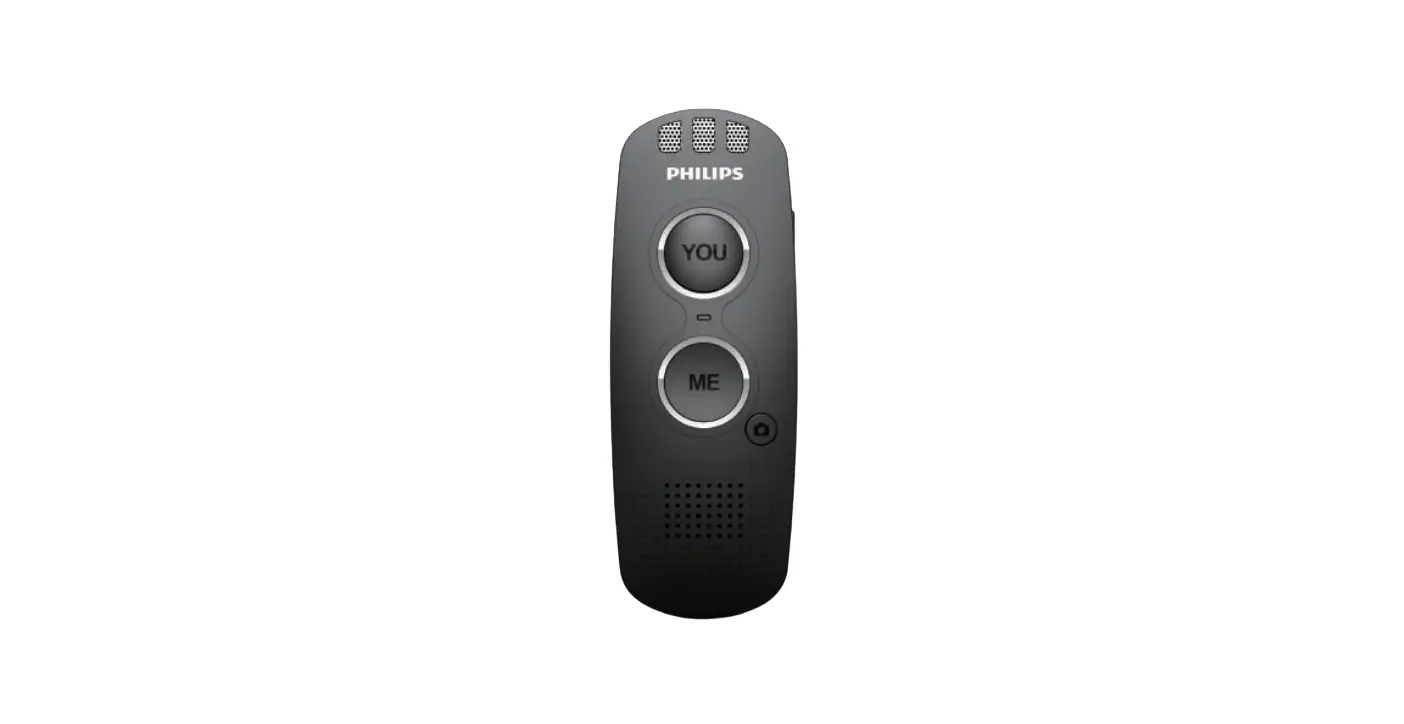
Press and hold the LEFT microphone button to record your voice. Your speaking will be automatically translated into both a voice message and a text record.
Then, press and hold the RIGHT microphone button to record the other person’s speaking.
Notes:
* The translator could only record 15 seconds each time.
* If the surrounding is noisy, please be close to the microphone so that the translator can
better catch your voice.
* If the translation result shows up longer than 2 seconds, please check your network connection. If the connection is weak or unstable, it will severely affect the translation speed.
Tips:
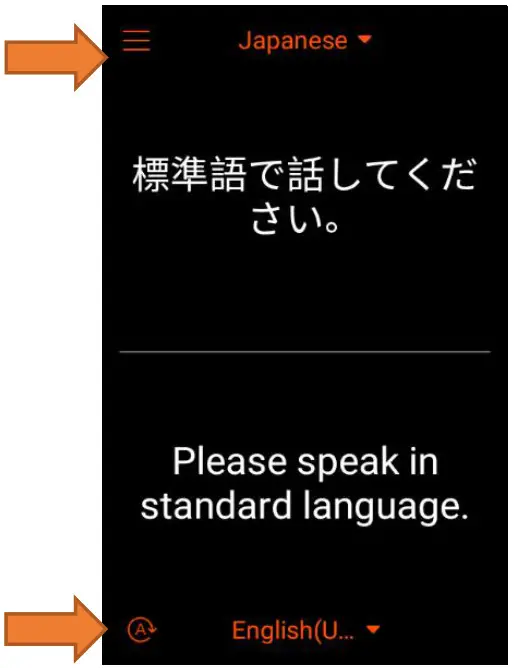
① Reverse the Text
The translation result could be showed reversely by clicking on the lower-left button before recording your voice. You can easily present the translation to the other without
having to reverse the device or hand it over.
② Translation History
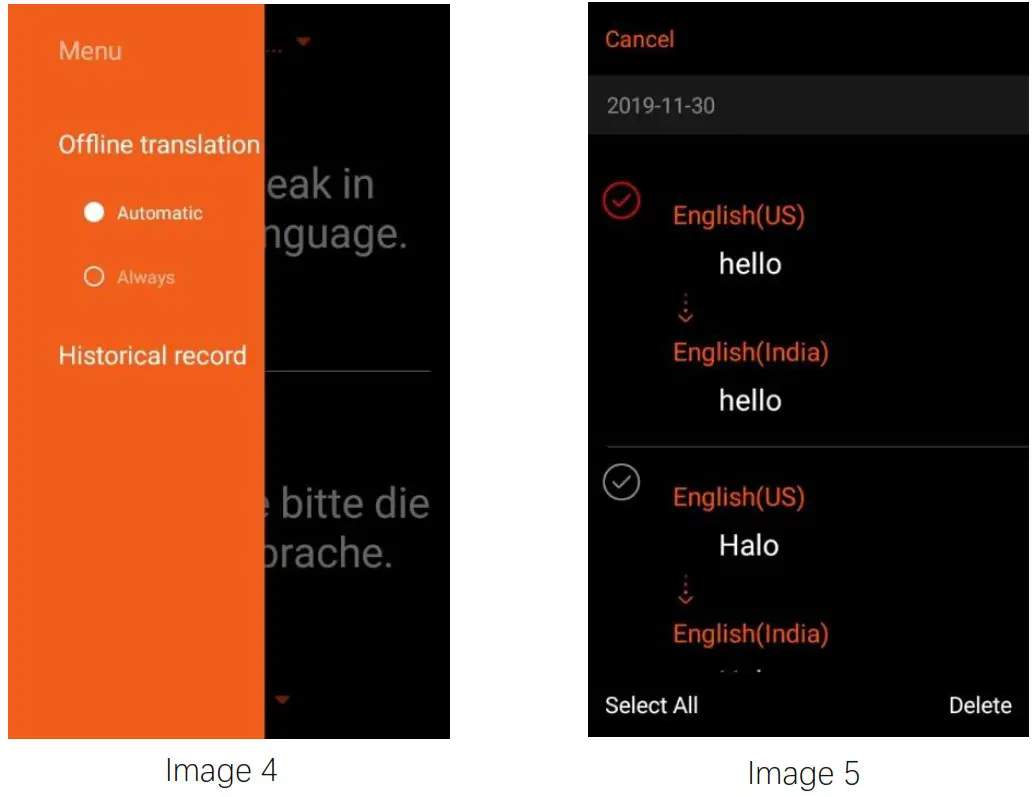
You can view the historical records by clicking on the upper left button. 
By pressing the screen, you can select records to delete (see Image 5). Please note that translation history could only be viewed in text. Voice replay is not available yet.
45 Languages & 57 Accents supported:
Languages:
English, Chinese, Japanese, Cantonese, Thai, Indonesian, Russian, French, Spanish, Korean, German, Italian, Portuguese, Greek, Dutch, Arabic, Malay, Turkish, Vietnamese, Polish, Swedish, Danish, Finnish, Czech, Romanian, Slovenian, Catalan, Hungarian, Slovak, Norwegian.
The following languages only support text translation (voice output is not available): Filipino, Ukrainian, Croatian, Icelandic, Zulu, Javanese, Lithuanian, Latvian, Galician, Bulgarian, Khmer, Lao, Nepali, Hebrew, Hindi.
Regional Accents:
English: UK, US, Australia, New Zealand, Canada, India, China, Ireland, South Africa;
French: France, Canada;
Spanish: Spain, Latin America;
Portuguese: Portugal, Brazil;
Arabic: Egypt, Saudi Arabia, International.
Camera Translation
Tutorial Video: https://youtu.be/Y3b_XcSpbo0
Step 1 Enter CameraTranslation
Select ‘Camera Translation’ from the main menu or press the ‘Camera button’ (see Product Dimensions).
Step 2 Select Languages
Touch the language name, then select the languages you want to translate.
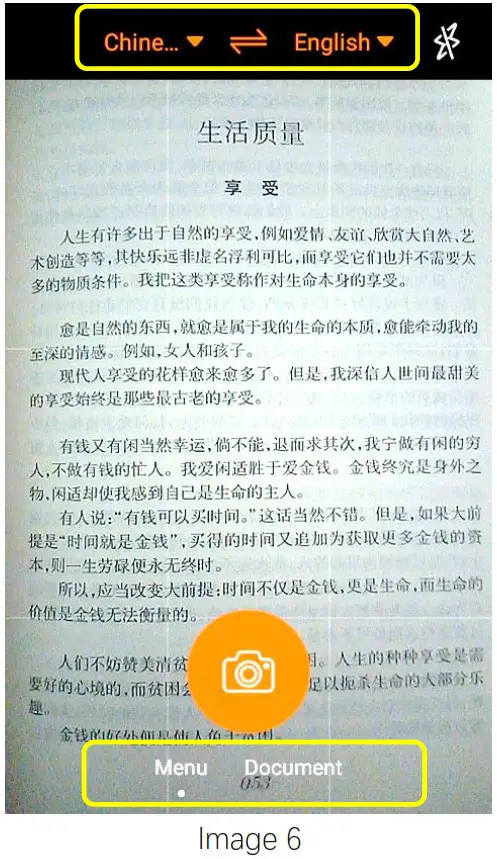 Step 3 Select Recognition Mode
Menu Mode: The translation result will appear on the same position of the original text. It’s suitable for menu, map, sign, and product label translation (see Image 7).
Document Mode: The translation result will appear by paragraphs. It’s suitable for document translation (see Image 8).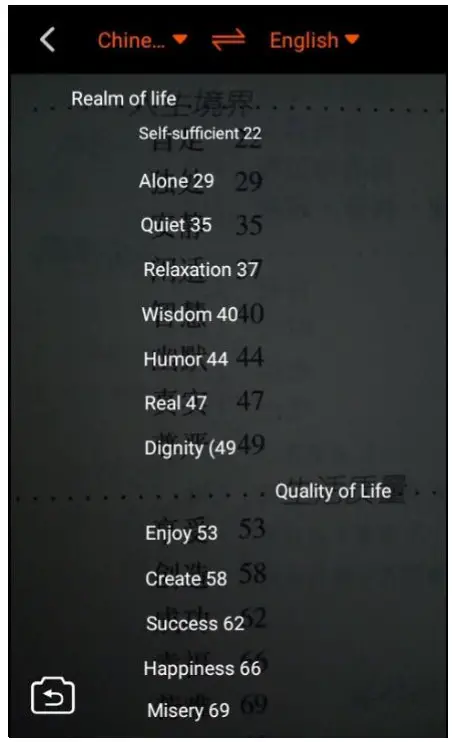
Image 7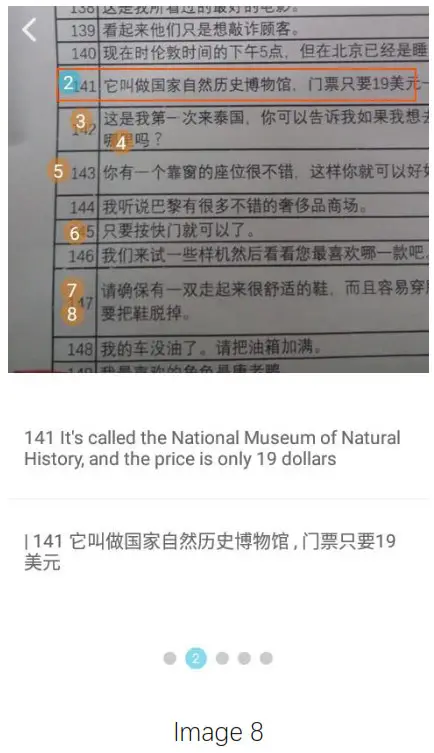
Step 4 Take a Photo and Recognize
Touch the ‘Camera’ button to take a picture and click Yes to start recognizing.
Tips:
- By touching the translation area, you could help the camera focus.
- In ‘Document Mode’, by swiping the screen, you can select a specific area to translate.
- If the text is too small to be clearly caught, please try to take a larger picture and swipe the text area to translate it.
Notes:
* If the surrounding is dark, please turn on the flashlight by clicking on the upper right button.
* If the translation result shows up longer than 4 seconds, please check your network connection. If the connection is weak or unstable, it will severely affect the translation speed.

15 Languages supported:
English, Chinese, Japanese (Horizontal, Vertical), Thai, Indonesian, Russian, French, Spanish, Korean, German, Italian, Portuguese, Turkish, Polish, Swedish
Offline Translation
JoneR GO supports two-way offline translation of English – Chinese, Japanese – Chinese, Russian – Chinese, Korean – Chinese, and French – Chinese. Please note that all the other languages are not available for offline translation yet.
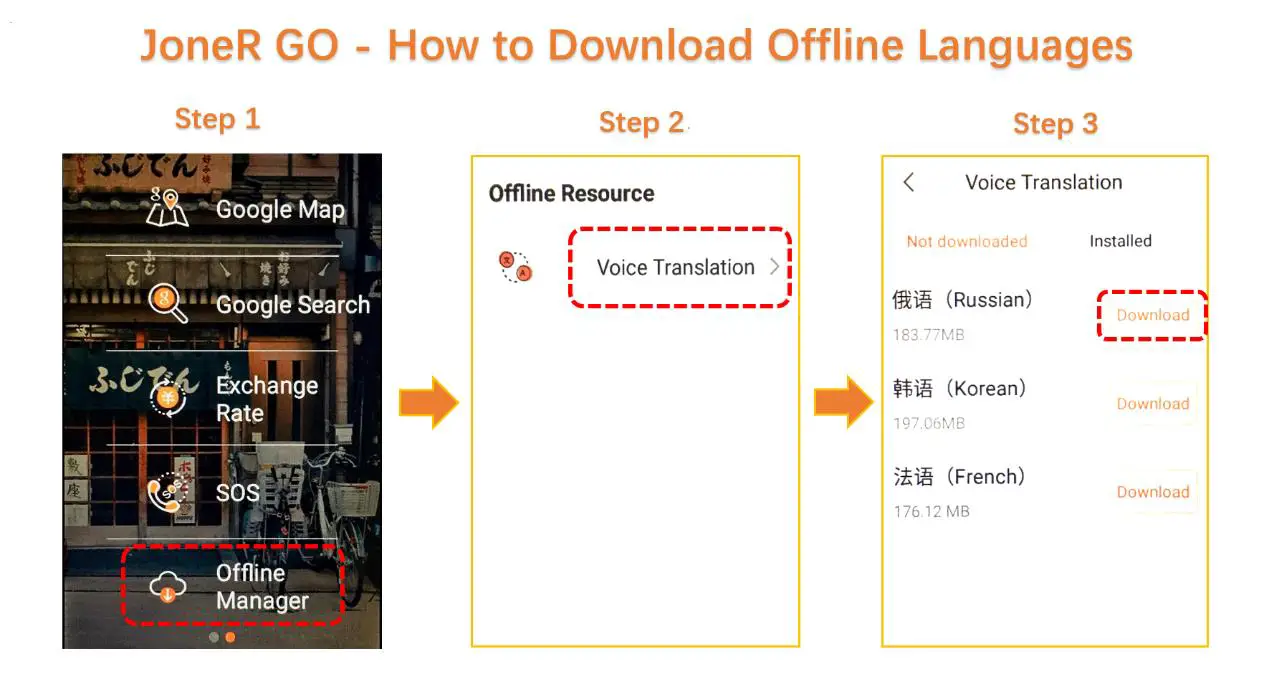
English, Chinese, and Japanese are pre-installed already (but will not listed under “Installed” section), whereas the other three languages need to be downloaded manually. Please see the image below to learn the guide steps:
When the network is not available, it will automatically change to offline mode. To switch to offline mode when the network is connected, please go to ‘Settings’ and change the network into ‘Flight Mode’ (see Image 9).
In Offline Mode, only English, Chinese and Japanese can be selected (see Image 10).
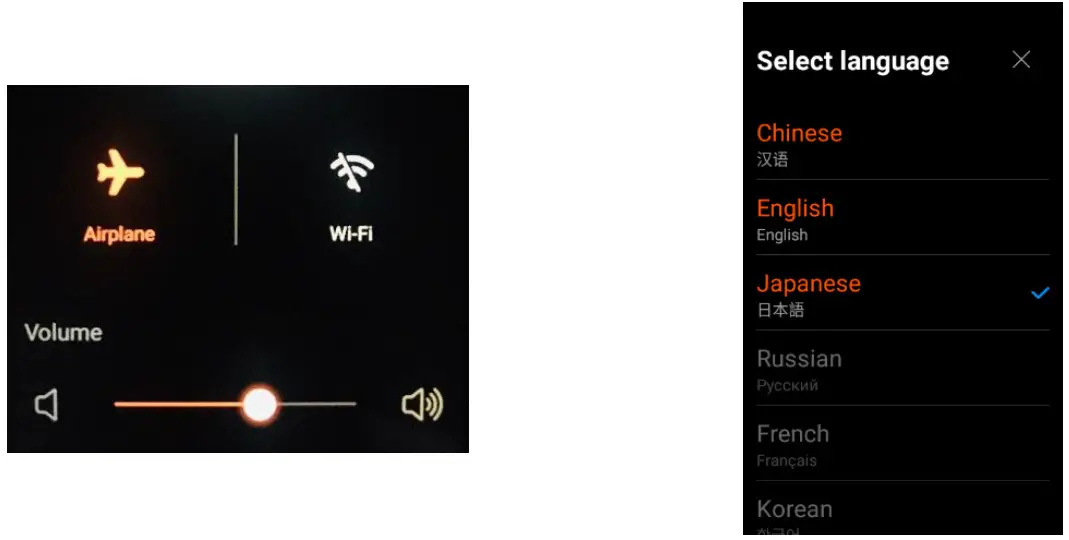
Image 9 Image 10
Network Connection
JoneR GO only supports two ways of network: WiFi and Personal Hotspot.
WiFi & Personal Hotspot
Step 1 Click ‘Setting’ on the main menu
Step 2 Click ‘WiFi’
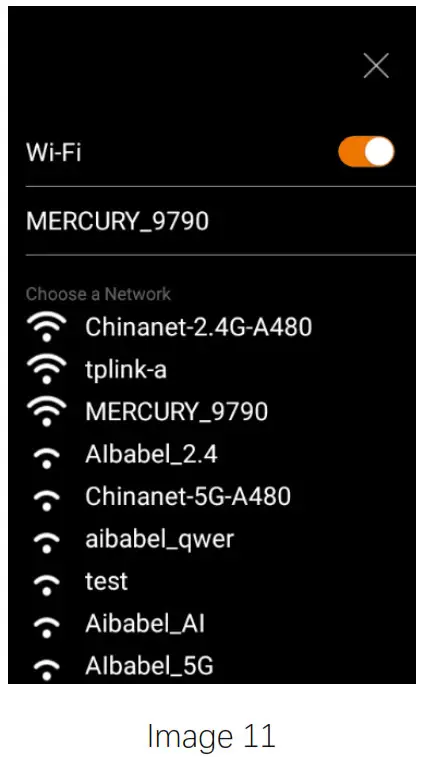
Step 3 Select the WiFi or personal hotspot you want to connect with. By dragging the screen down, the network list will be refreshed.
Step 4 Enter the password and click ‘Connect’. Please make sure the password you entered is correct.
Step 5 Test the network via voice translation or camera translation. If the translation is not reacting or the recognition speed is very slow, please try connecting with another
network (Find more details in the Troubleshooting page).
Other Functions
Object Identification
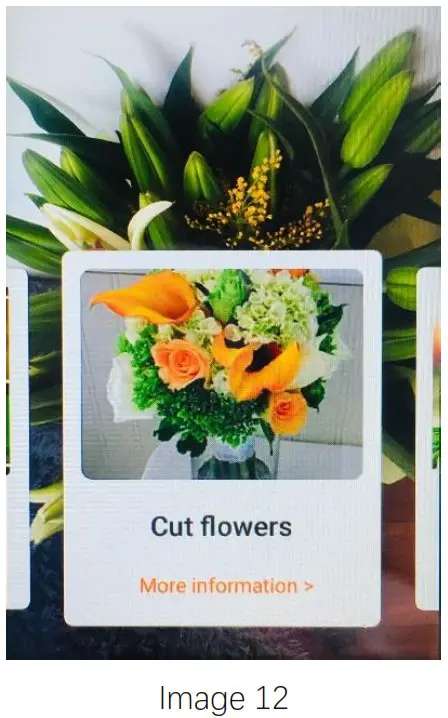
Take a photo of the object you want to recognize and click √. Swipe the screen to view the recognition results and click ‘More information to read detailed introductions.
Exchange Rate
Settings
Software Update
JoneR Translator is keep updating and by clicking ‘Settings – Update’, you are able to check for software updates and enter the download and installation process.
By clicking the top right button, you are able to set the cycle of checking for updates automatically. In order to have the best user experience, we suggest you set the checking cycle as one day.
Note: The update will be downloaded automatically, but it still needs to be installed manually.
Battery Percentage
The battery percentage can be found in ‘Settings – About – Battery’.
Specifications
Dimensions: 129.9×53.4×10.4mm
Weight: 98g
Screen: 3.1 inch multi-touch screen
Screen Resolution: 800×480
Camera Resolution: 8 Megapixel
Flash Light: Yes
Processor: 4 Core 1.3G Hz
Storage: ROM 16GB; RAM 3GB
Battery Capacity: 1500mAh
Working Time: 4 Hours
Standby Time: 72 Hours
Microphone: 3+1 Noise Reduction Mic Array
Loudspeaker: High Fidelity Speaker
Sensor: Gravity Sensor
System Languages: English, Simplified Chinese, Traditional Chinese, Japanese, Korean
Troubleshooting
| Issue | Solution |
| Cannot turn on the device |
|
| Fails to recognize your voice message. |
|
| The translation result does not make sense. |
|
| The translation is not working or the speed is very slow |
|
| Fails to recognize the photo and translate. |
|
| Only 3 languages are available for offline translation |
|
| Google Map cannot locate my position. |
|
Warranty & Support Service
Our products follow Amazon’s 30-day Return Policy.
In addition to that, we provide warranty service for one year since the date you purchased.
If you find the translator has any malfunction issues, please feel free to reach us at [email protected]. If the problems cannot be solved, you can return it even after the 30-day period to our warehouse in Los Angles and get a refund. The return shipping fee is not included and needs to be paid in advance. Please note that malfunction issues caused by human factors, natural disasters, inappropriate usage, and collision are excluded from our warranty rules.
Thanks again for choosing our product! Wish you have a nice journey!
 📧
📧 JoneR Voice Translator - How to use Voice Translation - YouTube