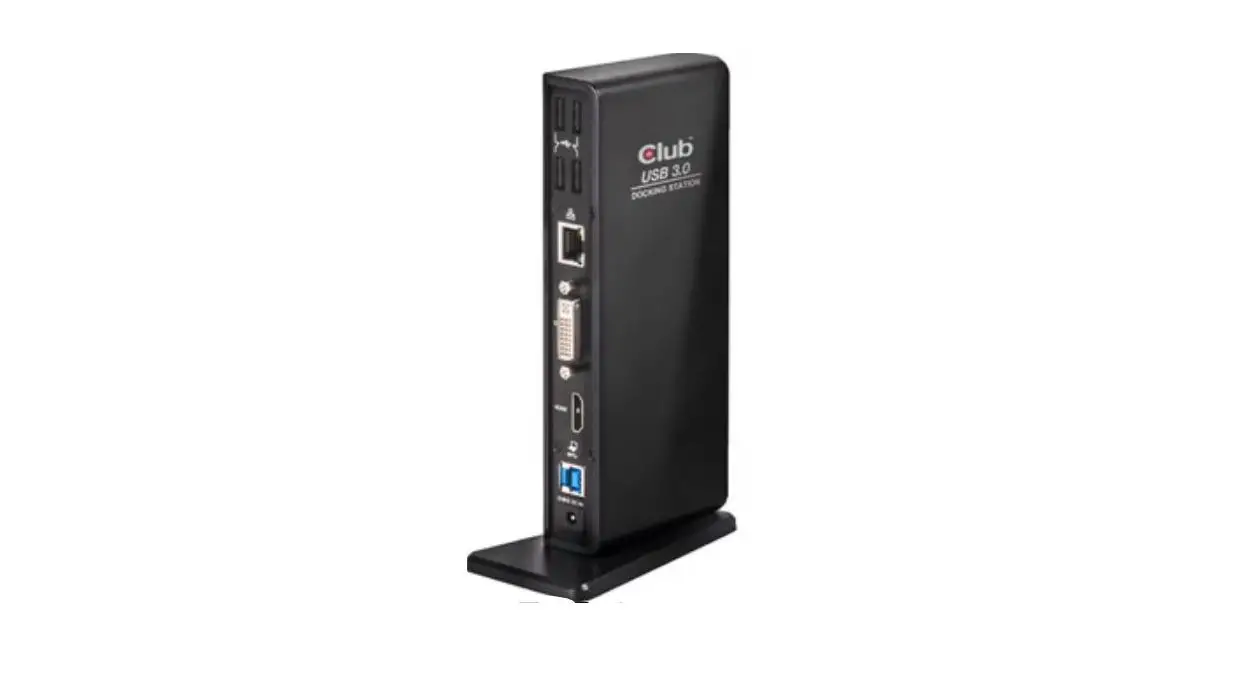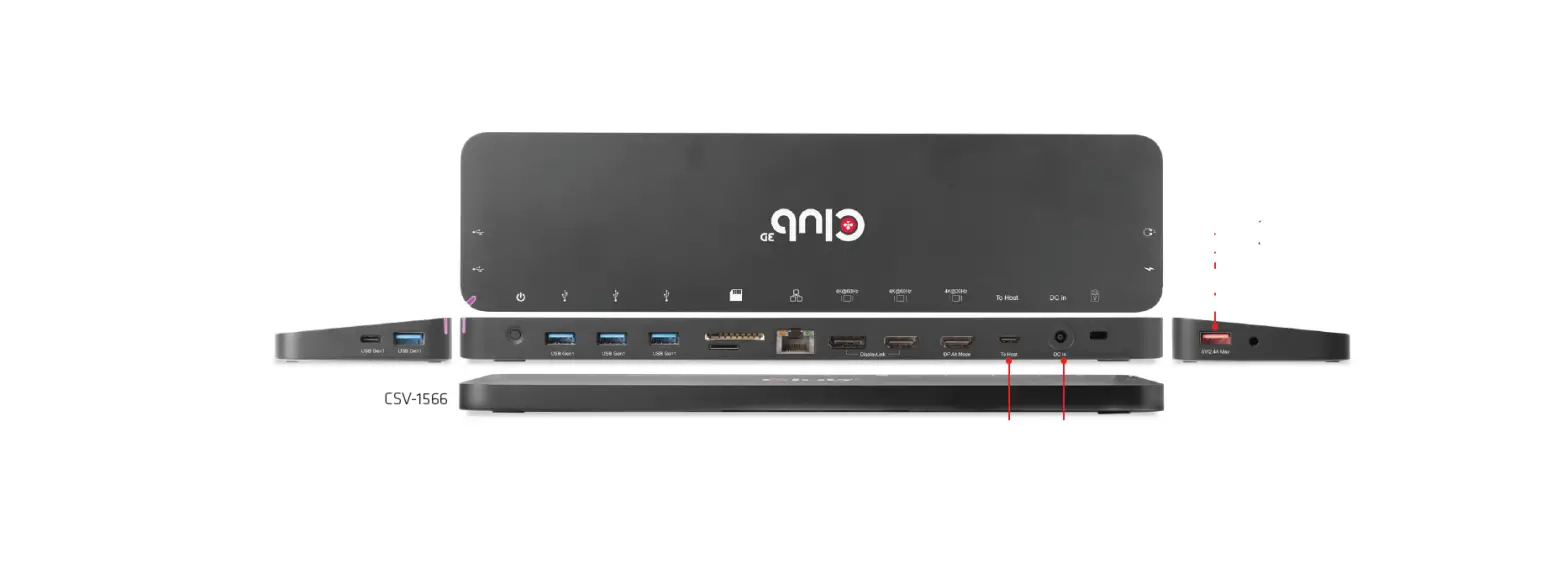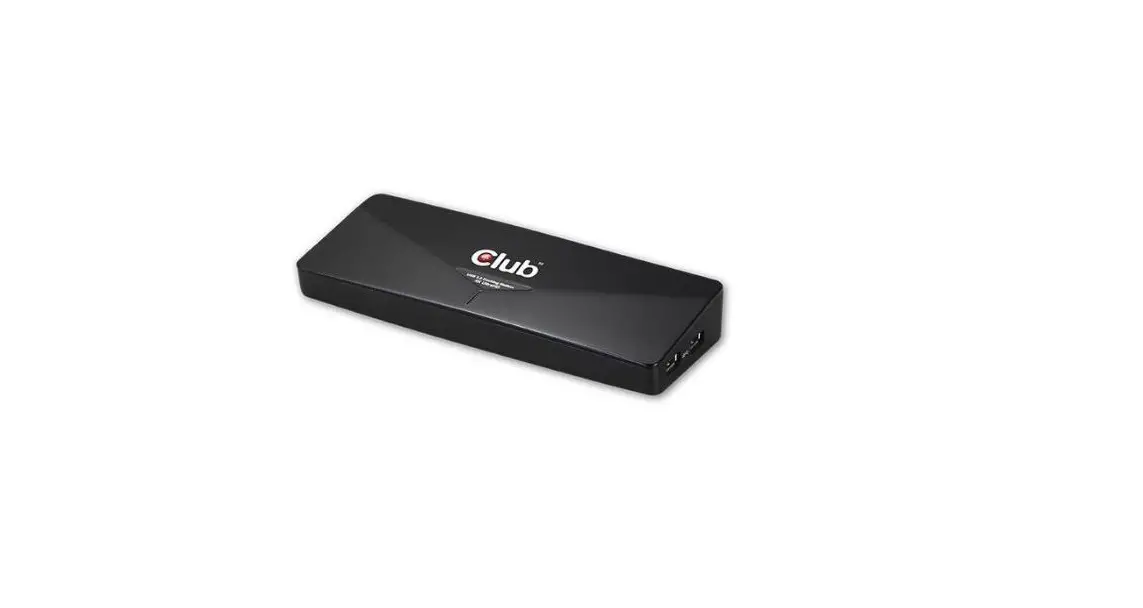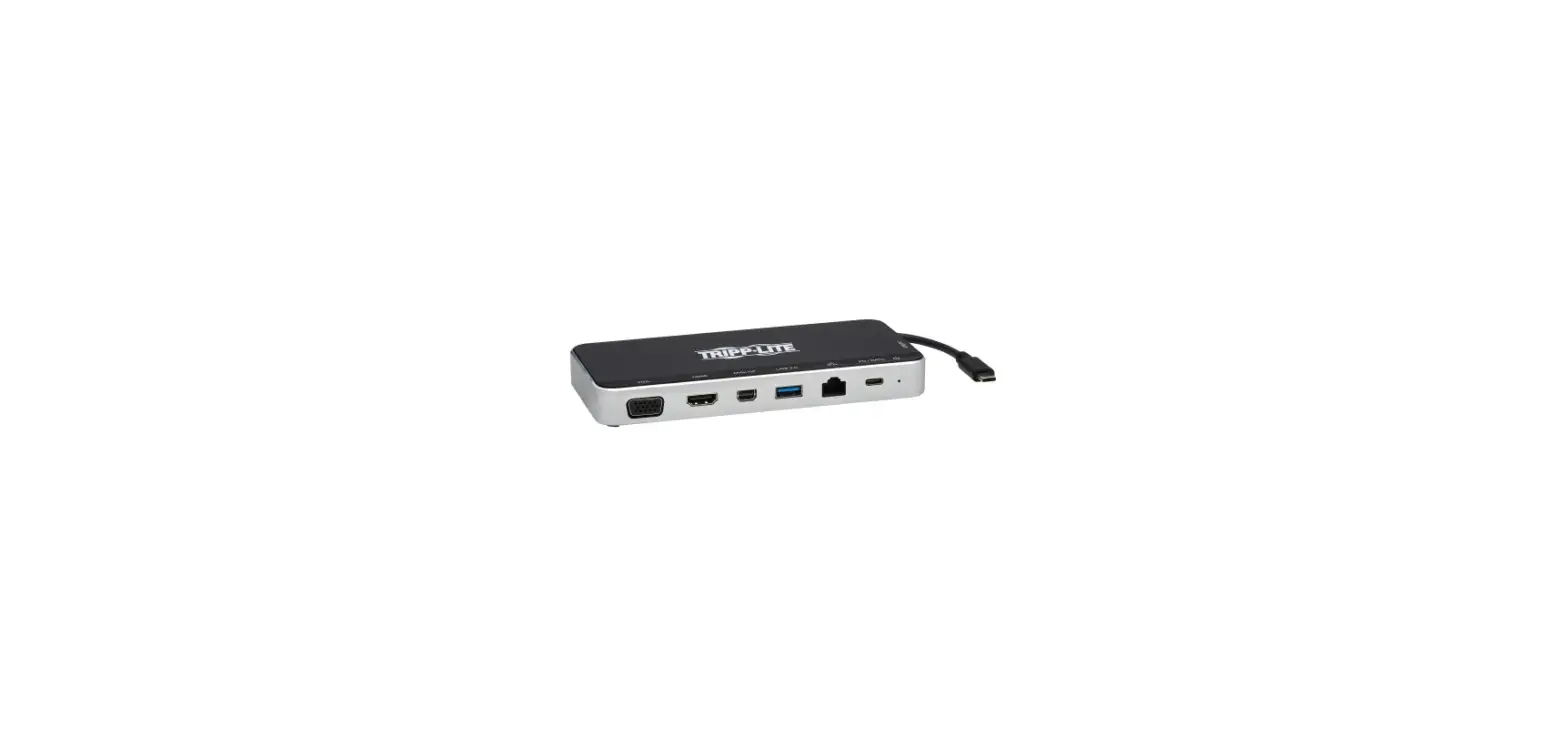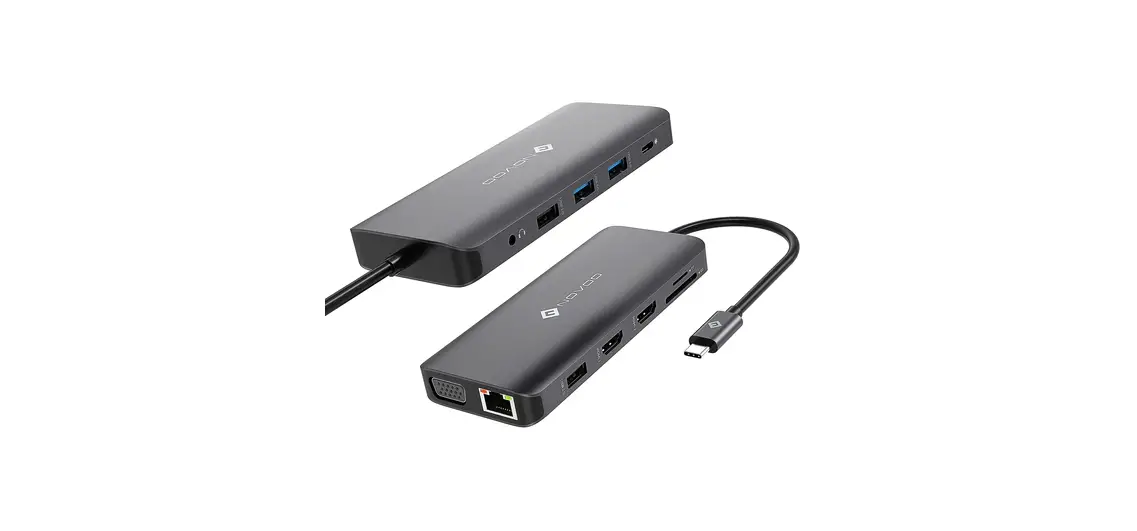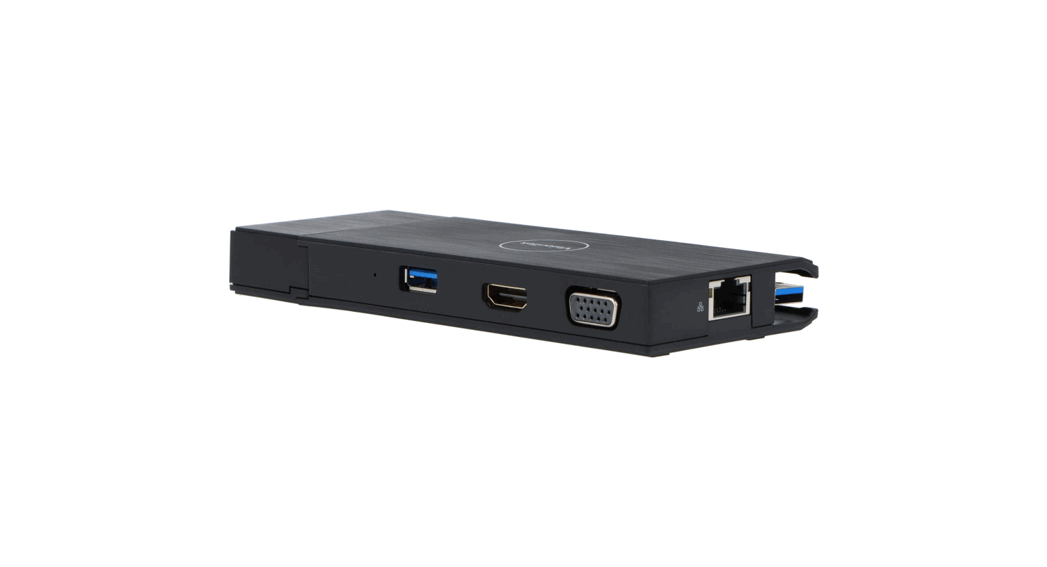

Club-3D SV-1460 USB 3.2 Gen 1 Dual Display 4K60Hz Docking Station
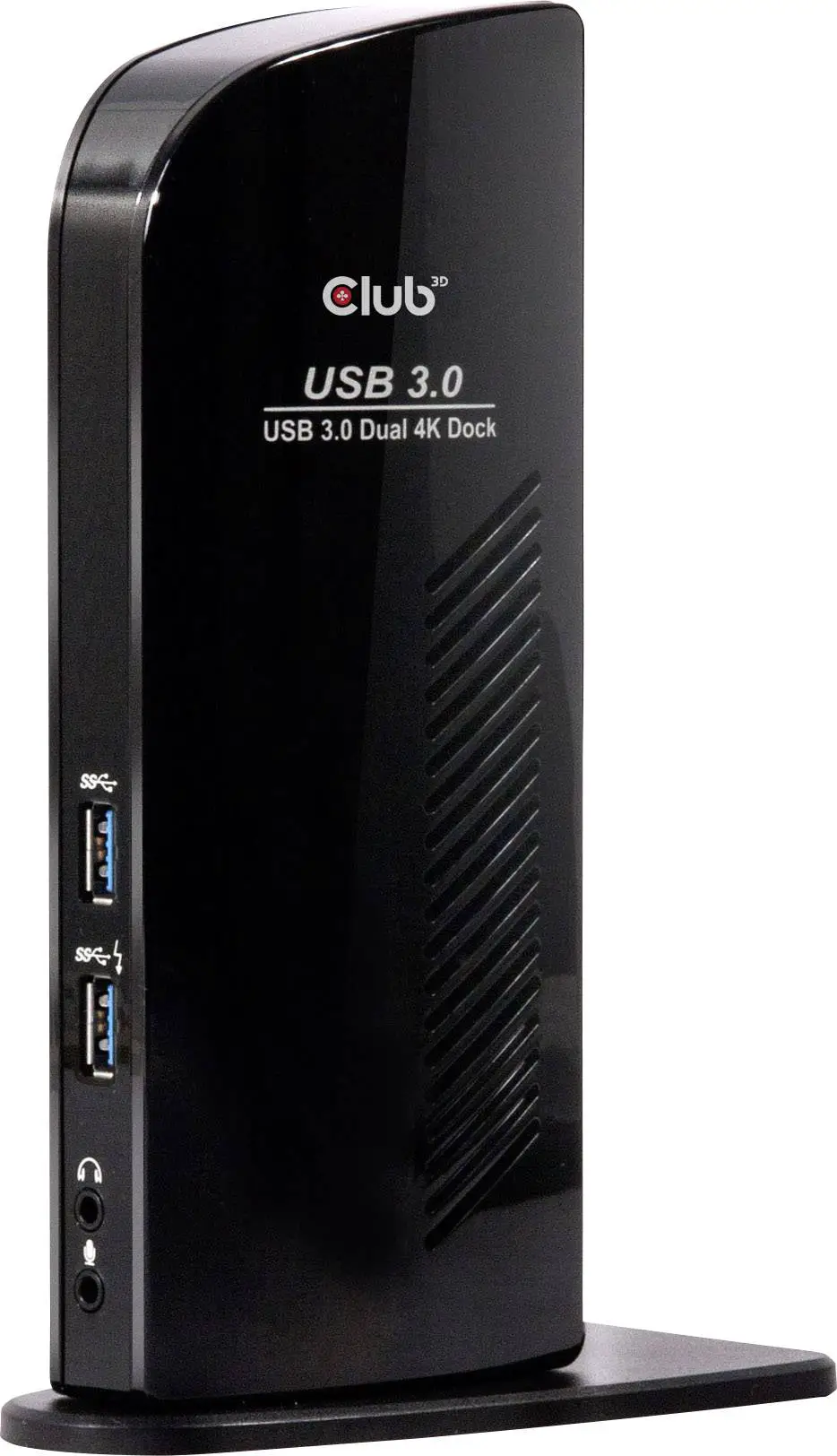
Getting the most out of the Club 3D CSV-1460!
USB 3.2 Gen 1 Dual Display 4K60Hz Docking Station
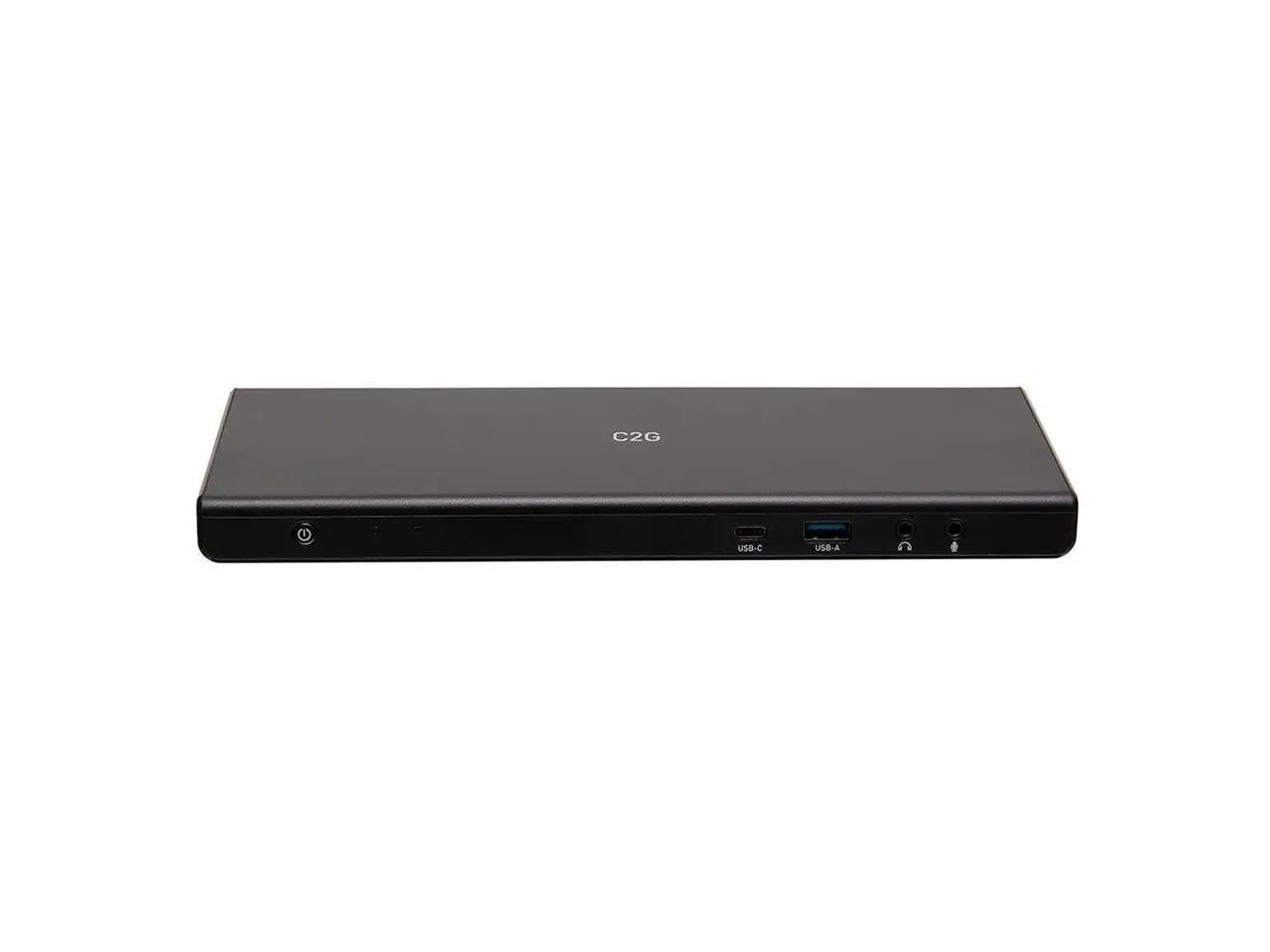
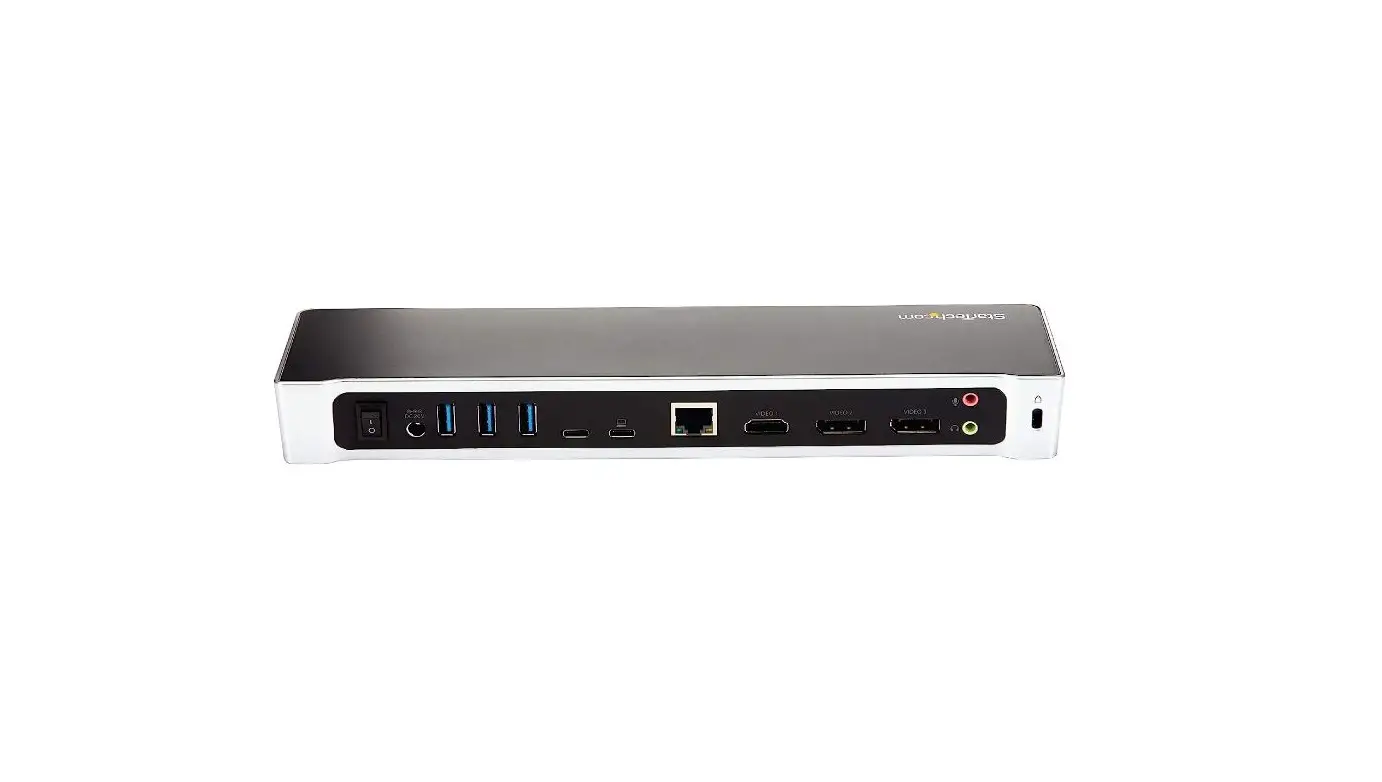
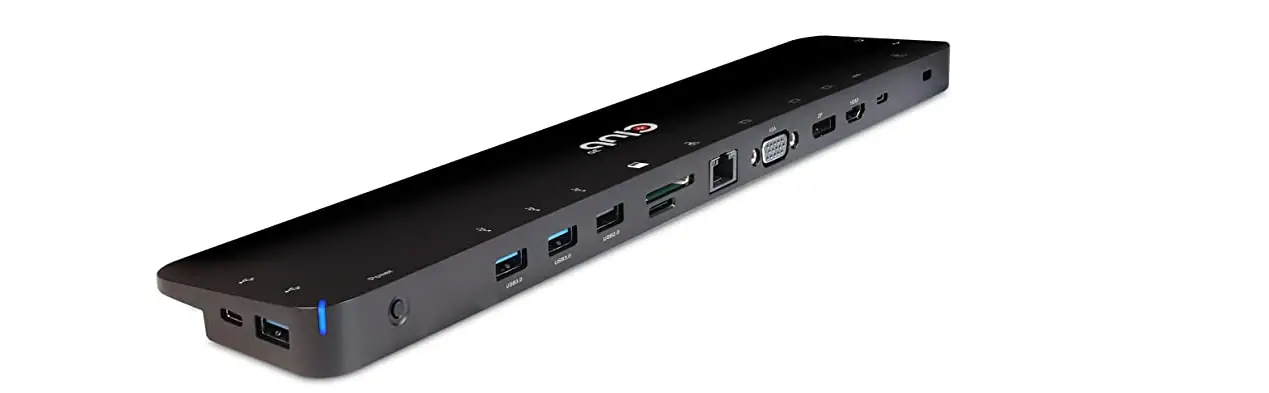
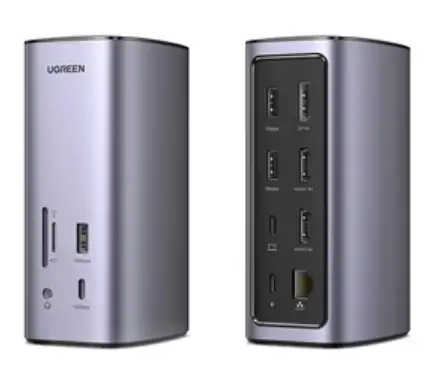
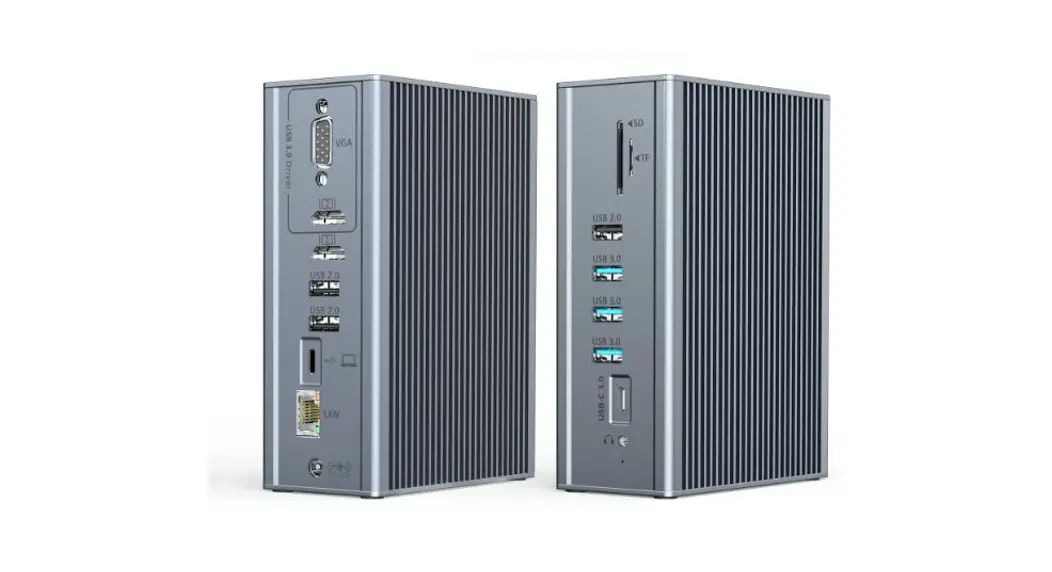
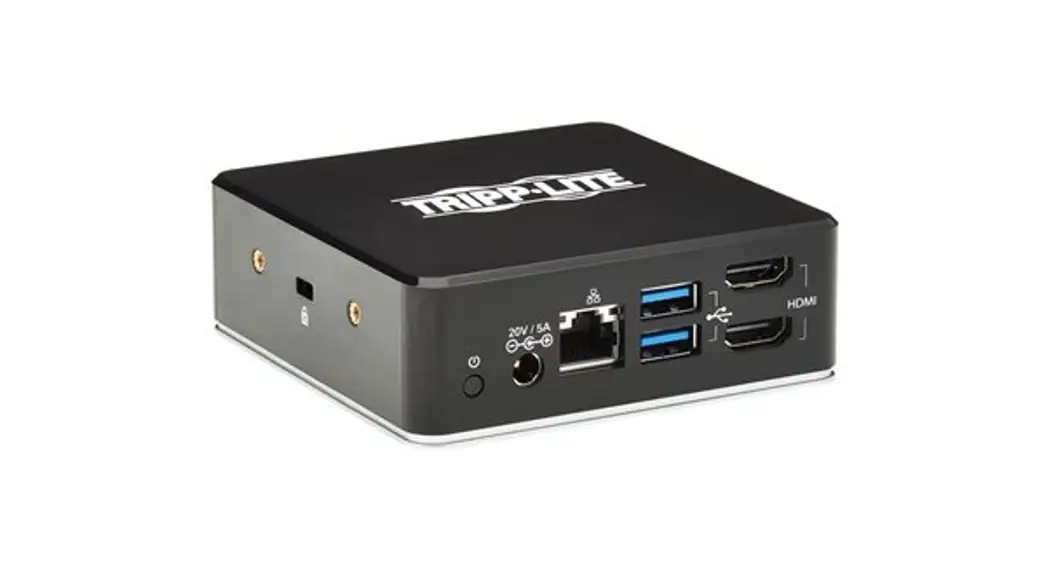
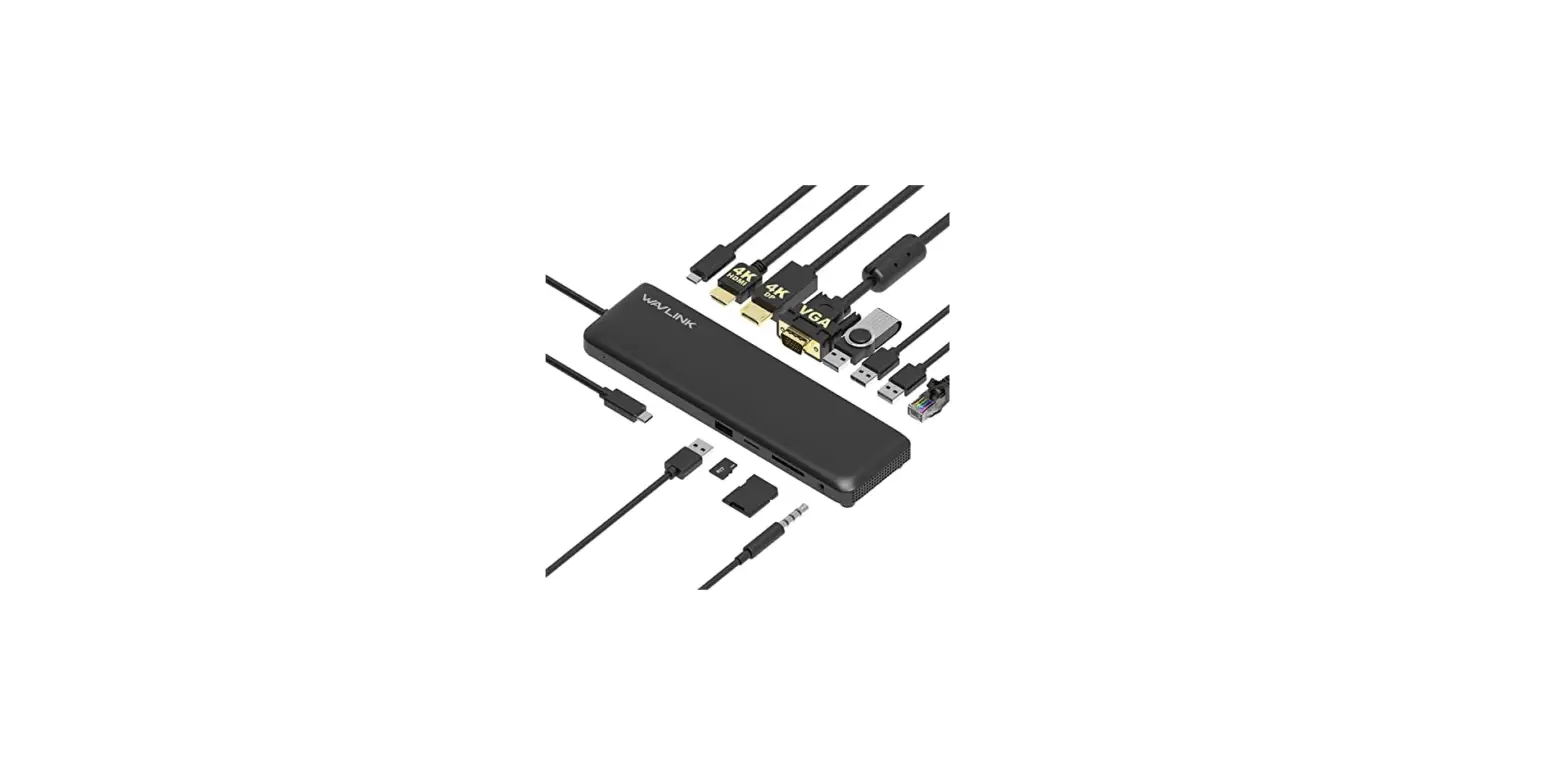
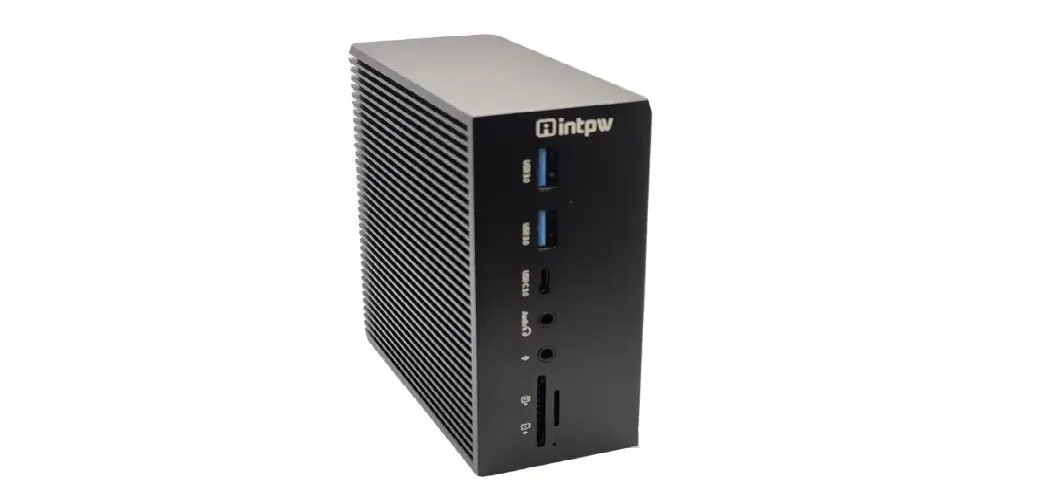
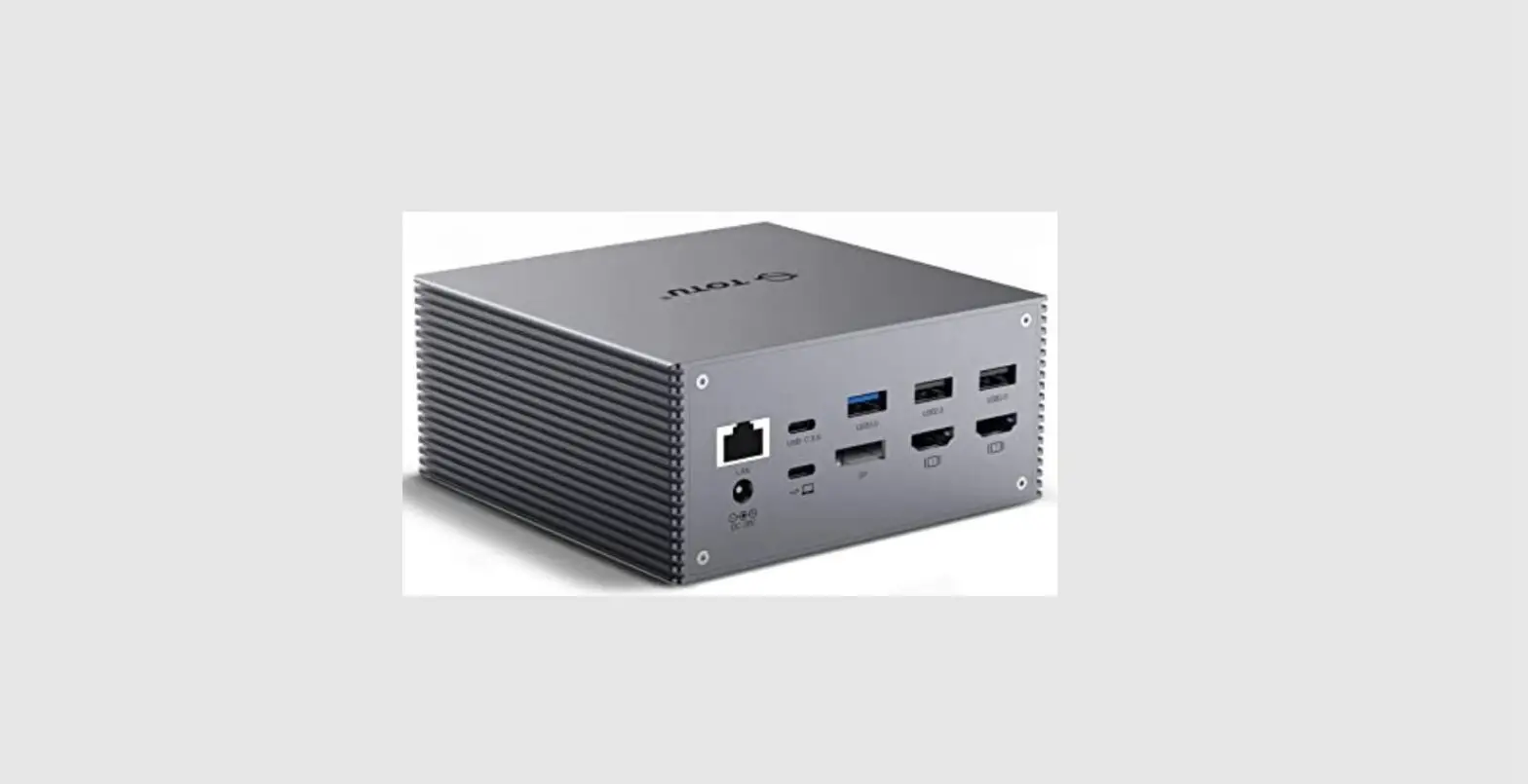
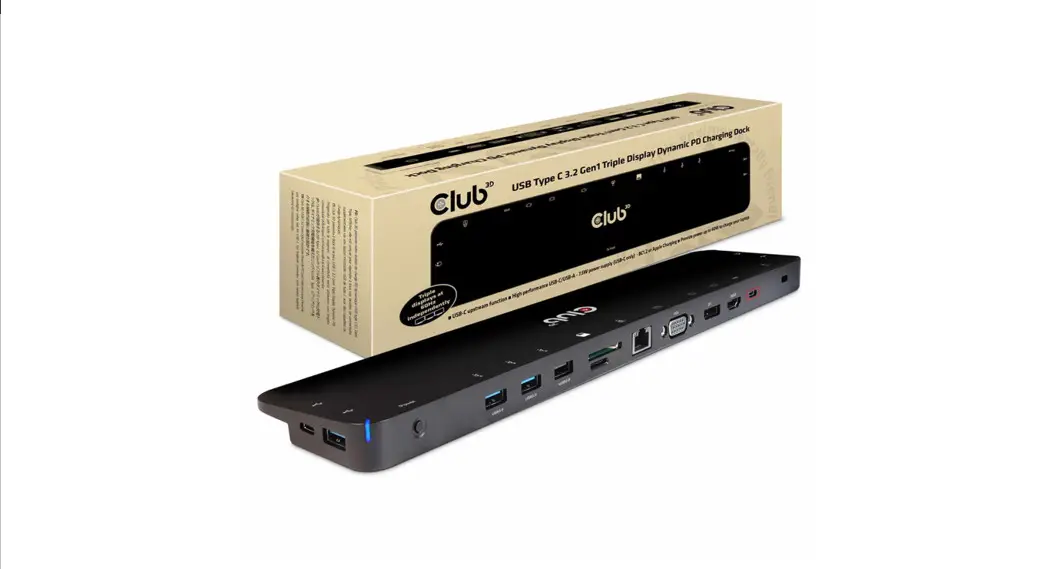
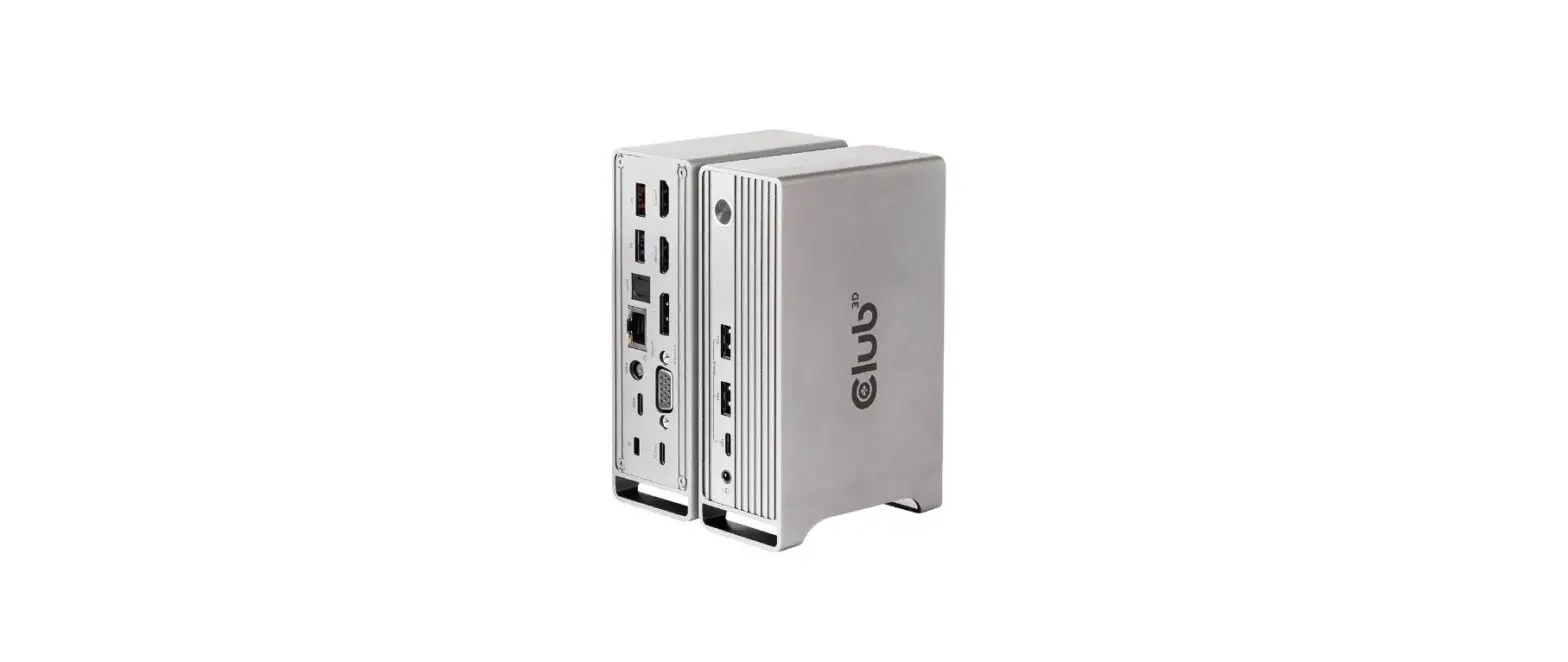
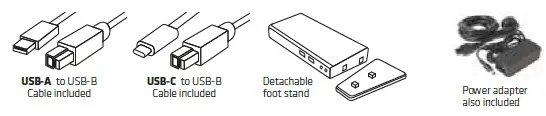
The Club3D USB 3.2 Gen 1 Dual Display 4K 60Hz Docking Station is designed to satisfy all your connectivity demands. It provides no less than 6 USB 3.0 Ports, Headphone connection, Microphone connection, Gigabit Ethernet port and 2 x DisplayPort™ outputs. It reduces cable clutter and adds data and display connectivity ports to your Laptop or Ultrabook via a single USB 3.2 Gen 1 port.
PRODUCT IMAGE
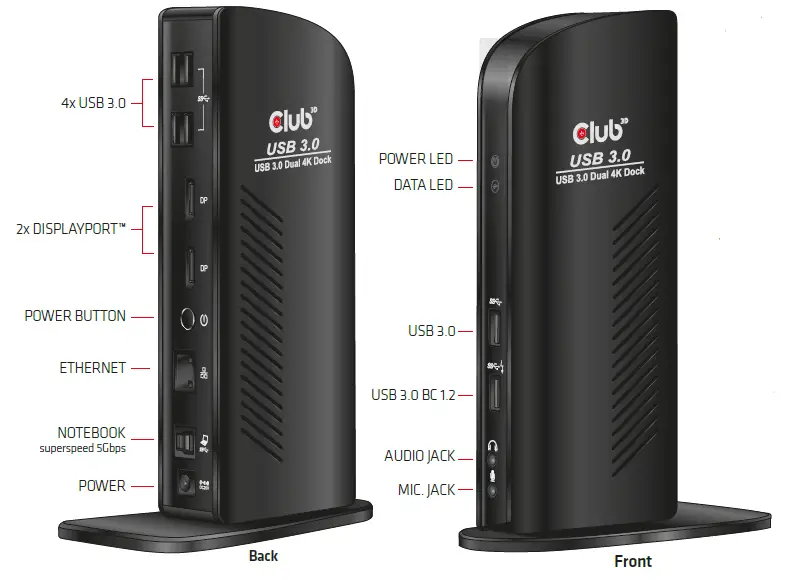
PACAKAGE CONTENTS
Setup for up to Two Screens
Supports 2 External monitors via Displayport™
Max res. for Dual Screen: 3840×2160 @ 60Hz
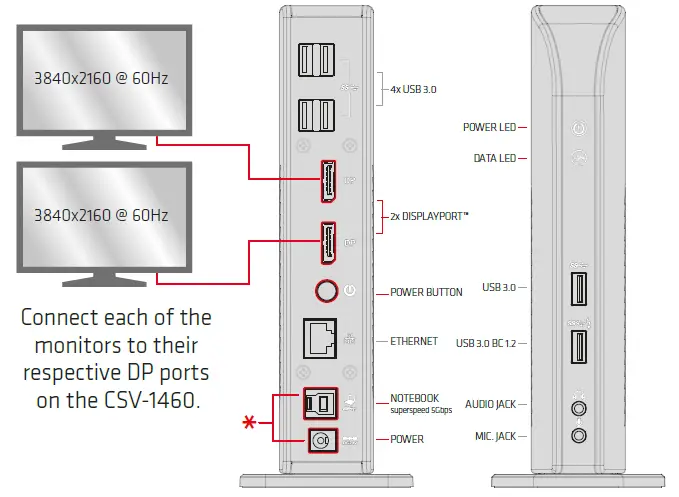
Setup for One Screen
Support 1 External monitor via Displayport™
Max res. for Single Screen: 5120×2880 @ 60Hz 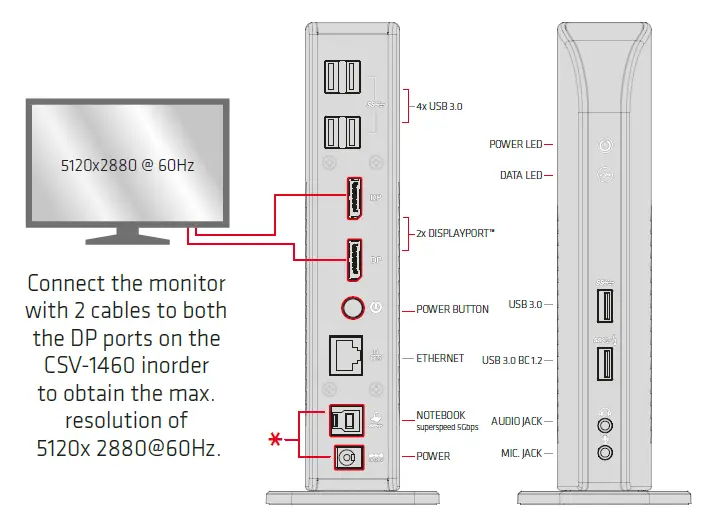
Setup for Network Connection
Supports Gigabit Ethernet 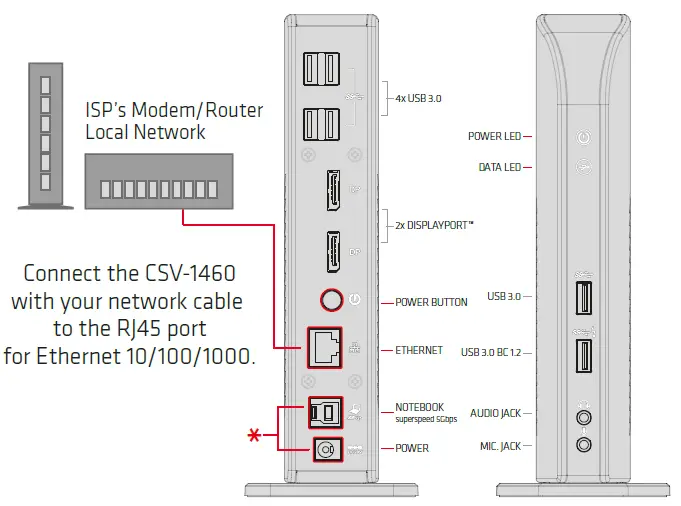
Setup for Data and External Devices
5 x USB 3.2 Gen 1 ports
1 x USB 3.2 Gen port with BC 1.2 charging 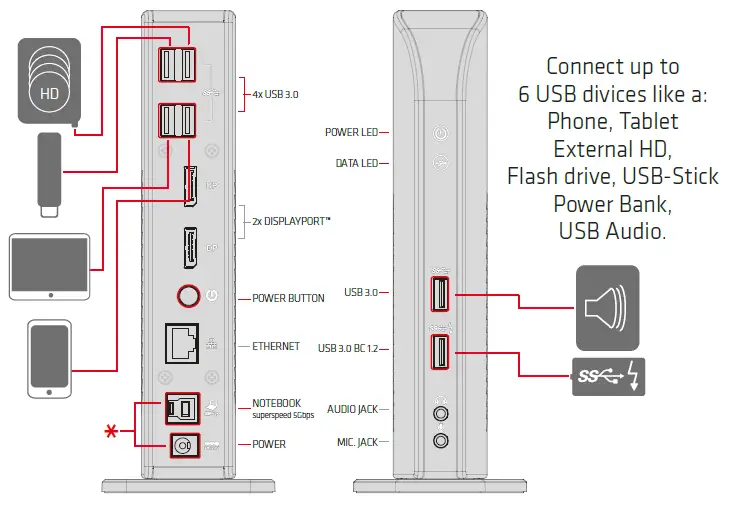
Setup for Charging/Extra Power
USB 3.2 Gen 1 downstream port BC 1.2 quick charging 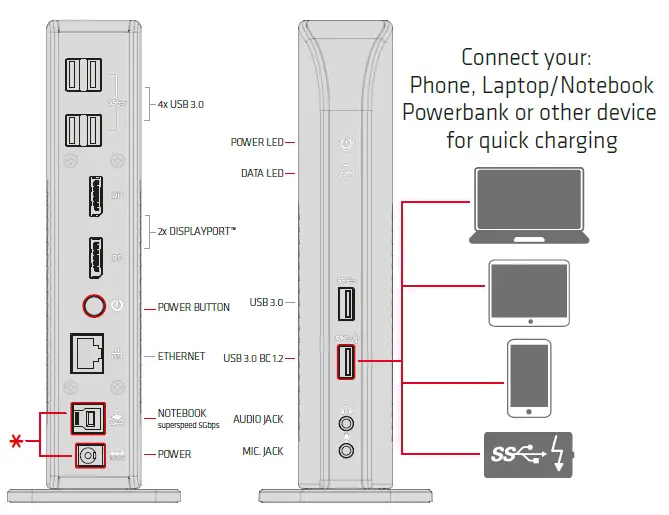
Setup for Audio
3.5 mm Jack for Headphone and 3.5 mm Jack for Micropphone 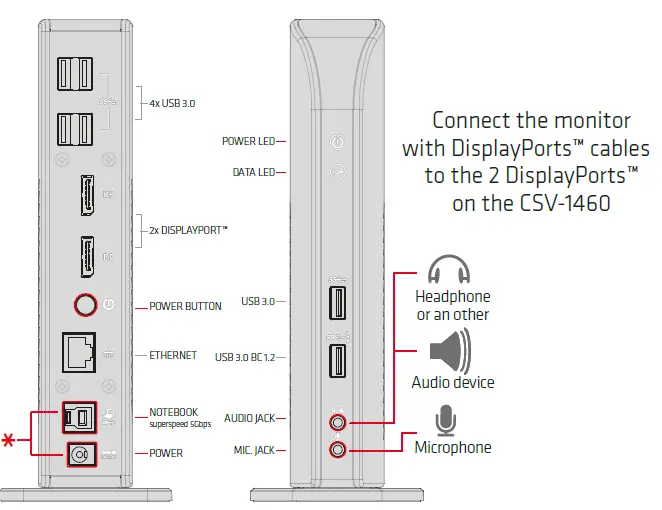 * Make sure that the USB A / USB C to USB B cable is connected to your PC/Laptop/Device. And that the Power Adapter is properly installed.
Check if the Power Button is switch On or Off.
NOTE: Some external device may need driver install or driver-updates. Always use the latest drivers!