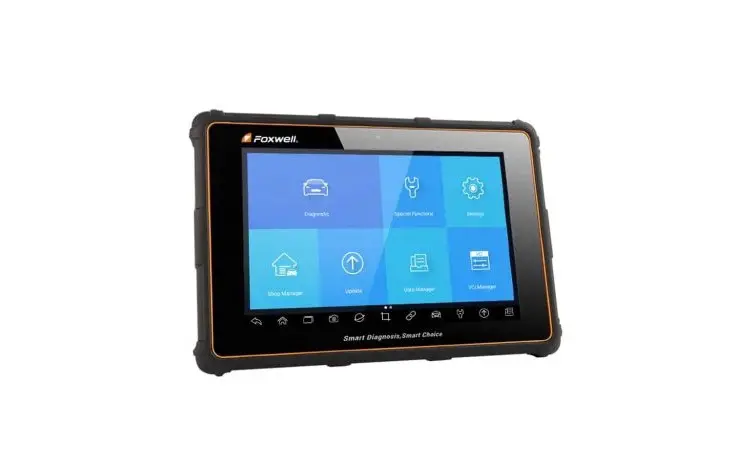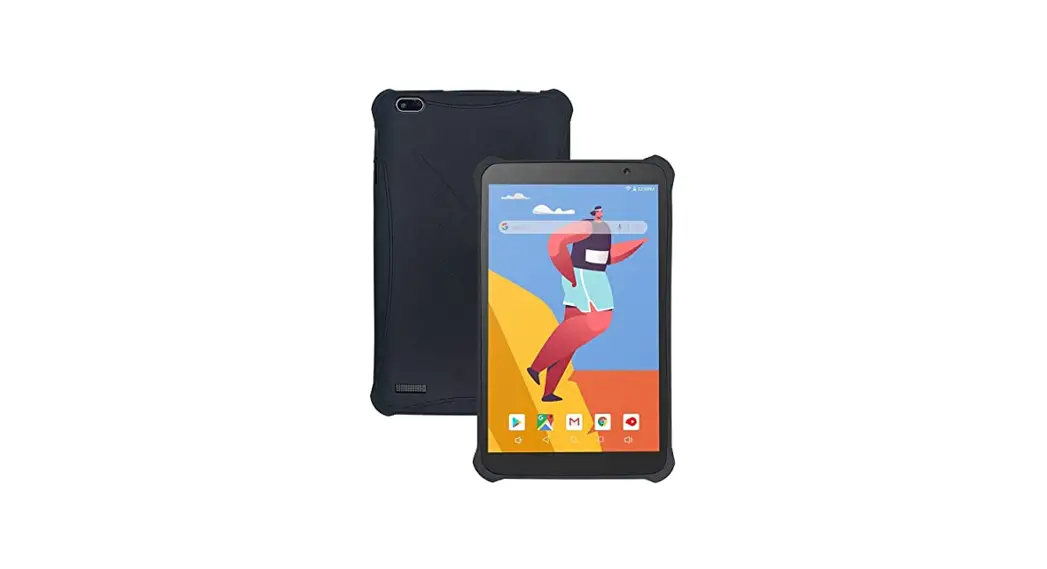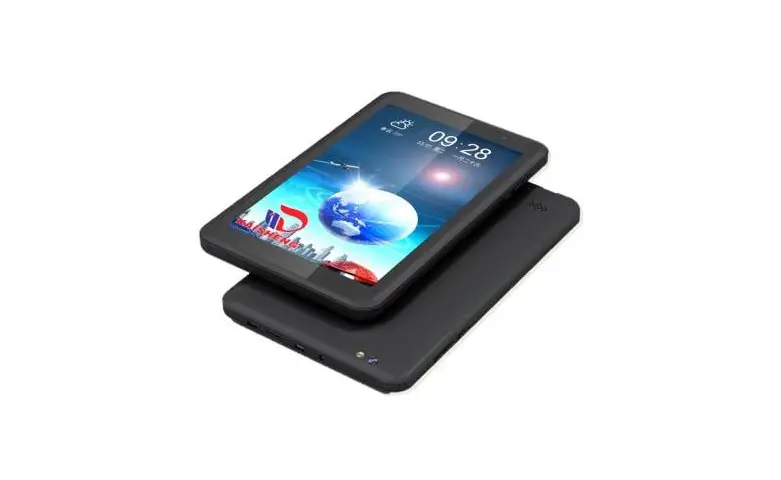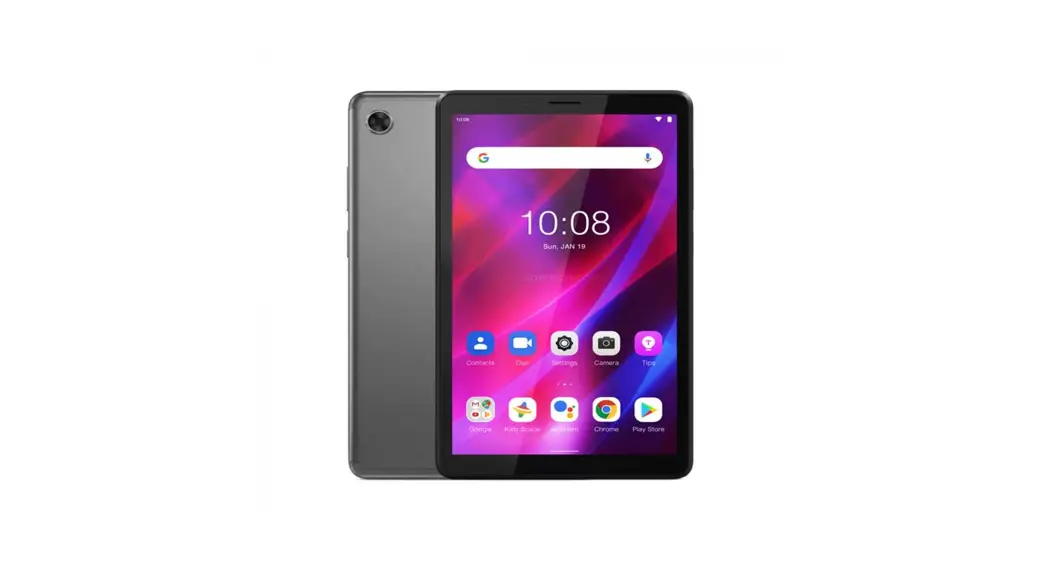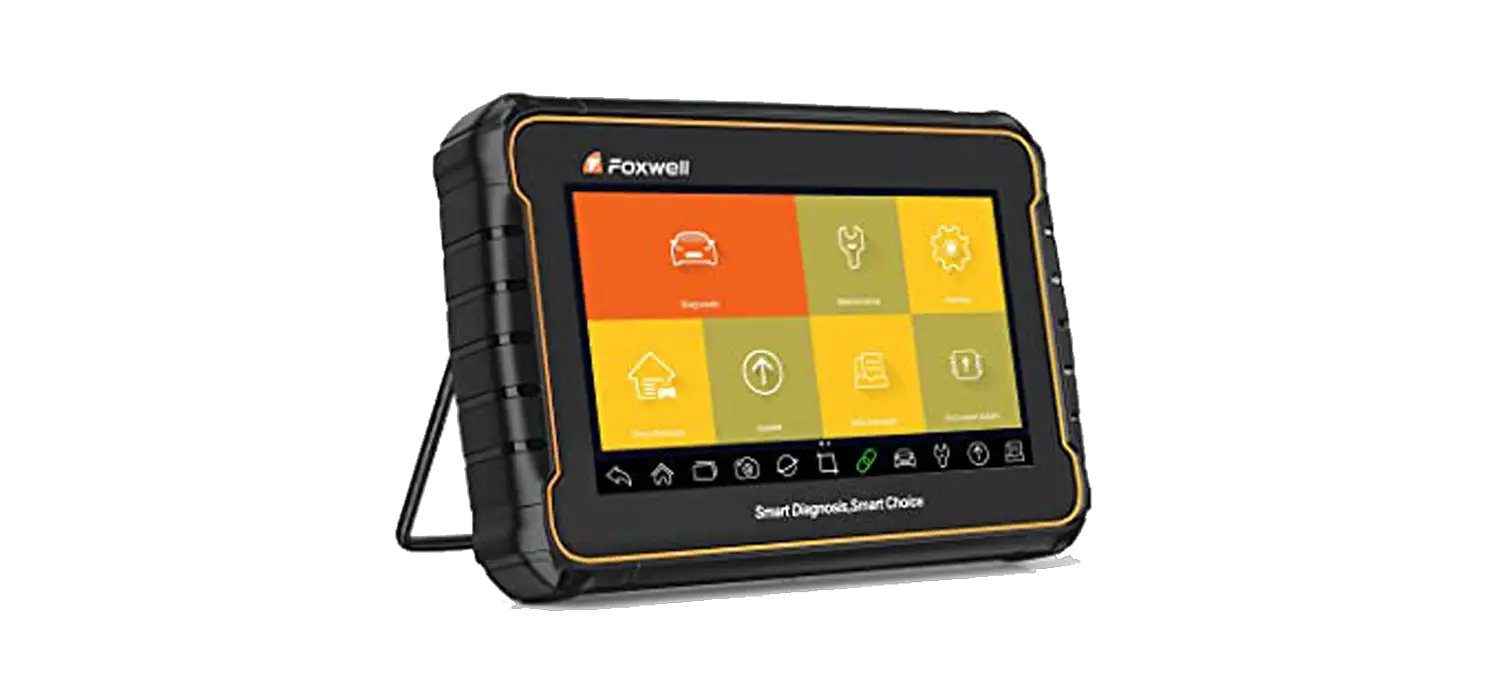
 i75TS TPMS RDKS und Diagnosegerät 8″ Tablet
User Guide
Vehicle Connection
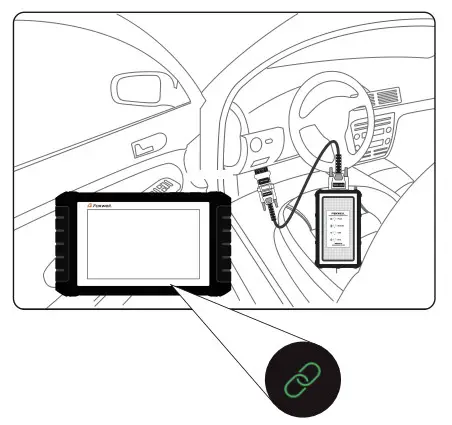
NOTE: Different scanner models have different vehicle connection methods.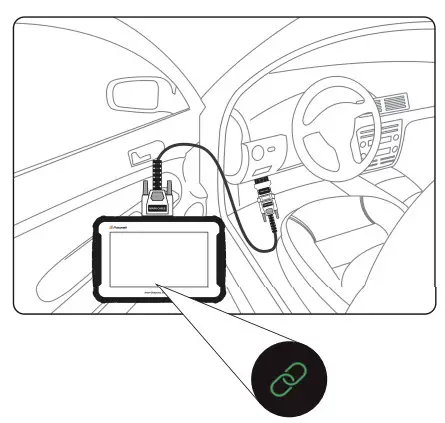 Tablet with cable
- Locate the data link connector (DLC) under the dash on the driver’s side of the vehicle.
- Connect the diagnostic cable to the scanner and plug it into the vehicle DLC with a correct adapter.
- Switch the ignition key to the ON position.
- Boot up the scanner and launch the diagnostic APP.
- Check if the connection indicator turns green. If yes, it means the scanner is ready to start diagnosis.
Tablet with VCI dongle: Bluetooth Connection
- Locate the data link connector (DLC) under the dash on the driver’s side of the vehicle.
- Connect the diagnostic cable to the VCI dongle and plug it into the vehicle DLC with a correct adapter.
- Switch the ignition key to the ON position.
- Boot up the scanner, launch the diagnostic APP, and make Bluetooth pairing of the VCI dongle and tablet.
- Check if the connection indicator turns green. If yes, it means the scanner is ready to start diagnosis.
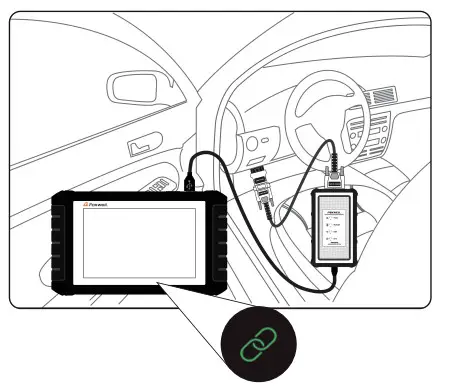
Tablet with VCI dongle: USB Connection
- Locate the data link connector (DLC) under the dash on the driver’s side of the vehicle.
- Connect the diagnostic cable to the VCI dongle and plug it into the vehicle DLC with a correct adapter.
- Switch the ignition key to the ON position.
- Connect the VCI dongle to the tablet with the USB Type-B cable.
- Boot up the tablet and launch the diagnostic APP.
- Check ff the connection Indicator tums to green.
Registration
NOTE
Please make sure your network works correctly and the tablet is fully charged or connected to the external power supply.
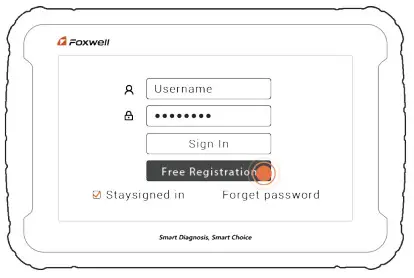
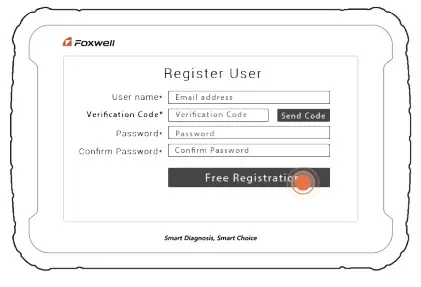
- Press Update from the home screen of the diagnostic APP, and then press Free Registration to start.

- Enter one of your emails and tap Send Code to get a 4-digit security code. aut the code, create a password and click Free Registration to complete.

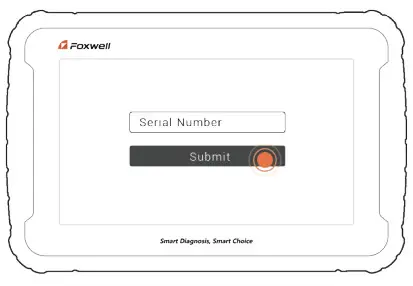
- The serial number will be recognized automatically and click Submit to activate the scanner.

Update
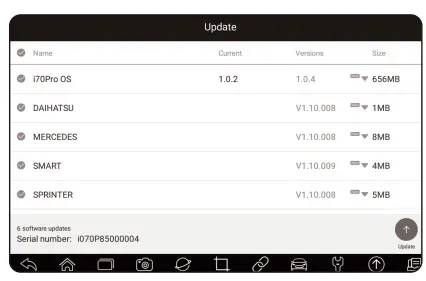
- Press Update from the home screen of the diagnostic APP or press the updated shortcut at the toolbar.
- The available updates are displayed. Click the check box(s) in front of the software you wish to update and then click the Update button to download.

Diagnostic Operations
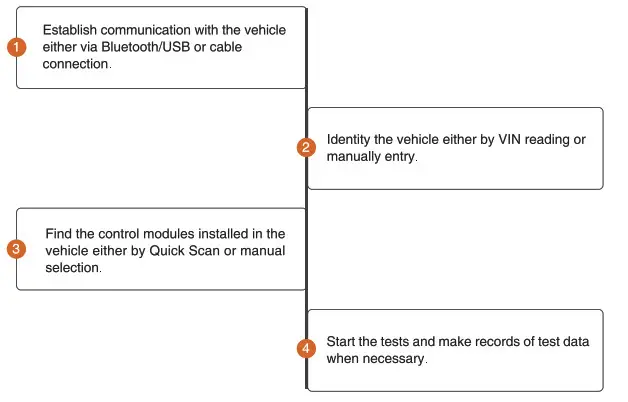
- Before starting diagnosis, please make sure:
1. The ignition switch is turned to ON position.
2. The engine is off.
3. The vehicle battery voltage is between 10-14 volts.
4. The scanner is correctly connected to the vehicle. - Don’t connect or disconnect the equipment while the ignition is on or the engine is running.

Remote Control
Whenever you need to get remote support from Foxwell,
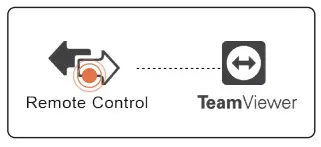 | 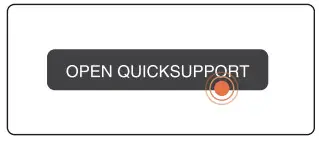 | 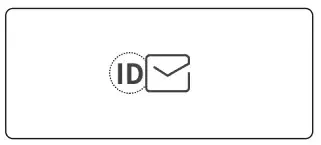 |
| 1. Click the Remote Control icon on the home screen to start TeamViewer. | 2. Press the QuickSupport icon and the TeamViewer ID will show. | 3. Send your ID to us to let our team to take control of your tablet. |
TPMS Sensor Programming
Manual Create
 | ||||
| Highlight TPMS from the main menu and select the vehicle model as needed. | Select Programming-Manual Create from the available menu. | Input the sensor ID in the the dialog box and click OK to continue. | Place a new Foxwell sensor near the TPMS tool (around 0-20 cm). | Click Ok to complete the programming with success. |
Clone by Activation
 | |||||
| Highlight TPMS from the main menu and select the vehicle model as need. | Select Trigger from the available menu. | Place the tool near the original sensor to be copied and click Trigger to continue. | After triggering successfully, click Programming-Clone by Activation to continue. | Place a new Foxwell sensor near the TPMS tool (around 0-20 cm). | Click OK to complete the programming with success. |
Automatic Create (1-16 sensors)
 | |||
| Highlight TPMS from the main menu and select the vehicle model as needed. | Select Programming-Automatic Create from the available menu. | Place new Foxwell sensors(1-16) near the TPMS tool (around 0-20 cm). | Click OK to start the programming when the tool detects the sensor. |
Clone by OBD
 | |||||
| Highlight TPMS from the main menu and select the vehicle model as needed. | Select Programming– Clone by OBD from the available menu. | Connect the TPMS tool with the vehicle via OBDII cable and turn the ignition on. | Select the sensor ID to be copied after reading ID information successfully and click Clone by OBD to continue. | Place a new Foxwell sensor near the TPMS tool (around 0-20 cm). | Click OK to complete the programming with success. |
TPMS Sensor Activation
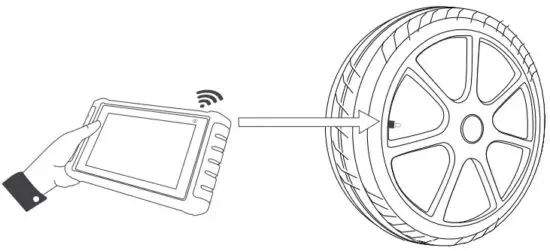
Hold the i75TS tablet and place its upper-right corner close to the tire sidewall right above the sensor.
Click Trigger to activate the sensor.
Powering Up the Scanner
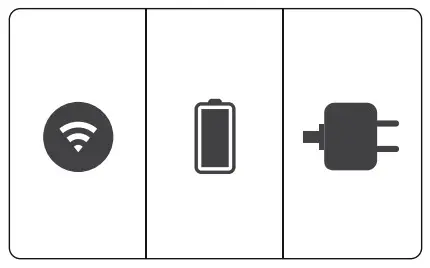
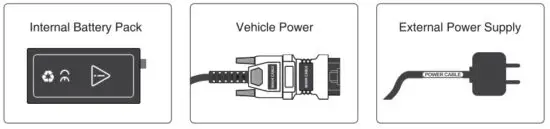
Before using the diagnostic APP of the scanner (including updating the scanner), please make sure to provide power to the scanner. In case of low battery volume, please charge it with the power cable.
The unit operates on any of the following sources:
Contact Us WebSite : www.foxwelltech.us
 E-mail : [email protected]
 Service Number : + 86 – 755 – 26697229
 Fax : + 86 – 755 – 26897226
 REGISTER YOUR PRODUCT AT
http://www.foxwelltech.us/register.html