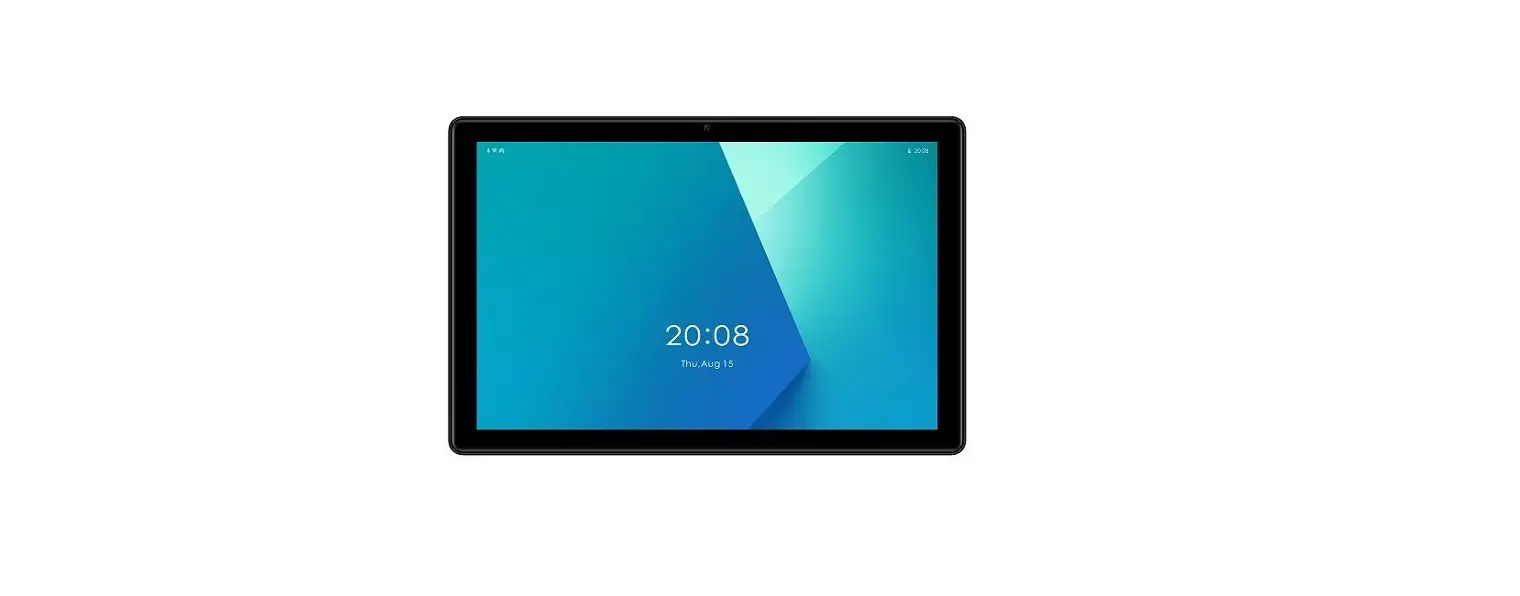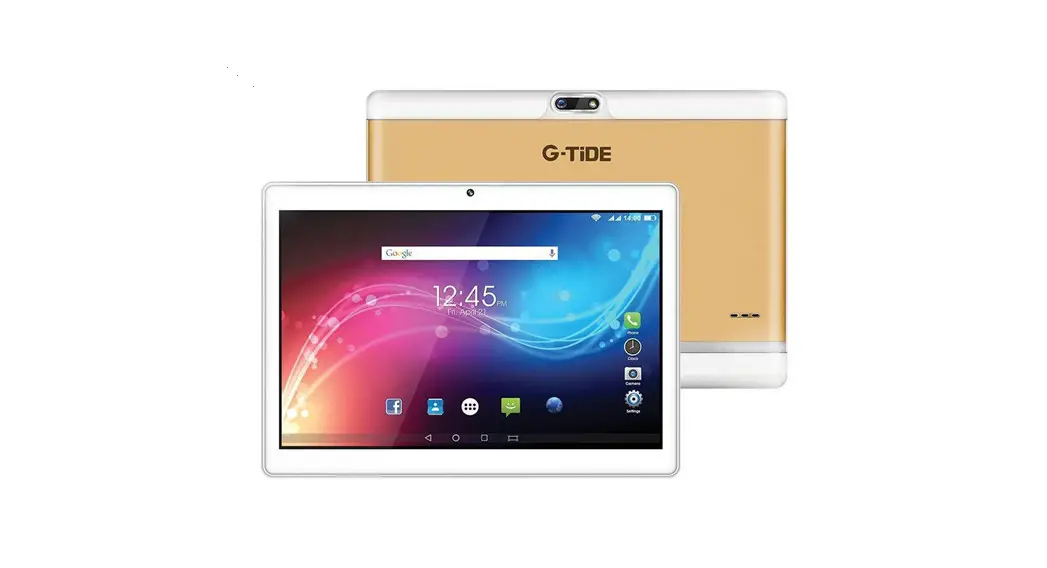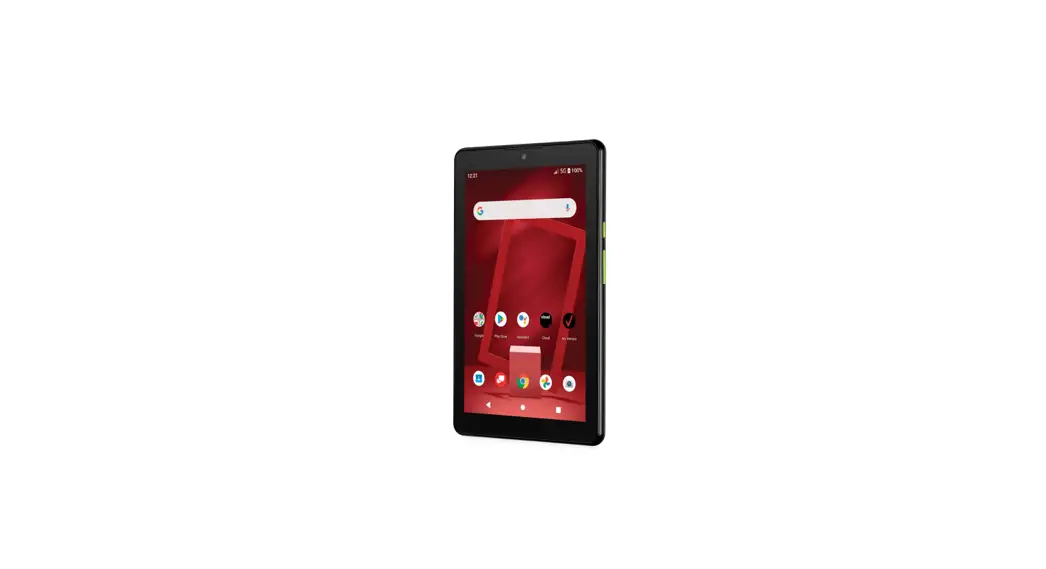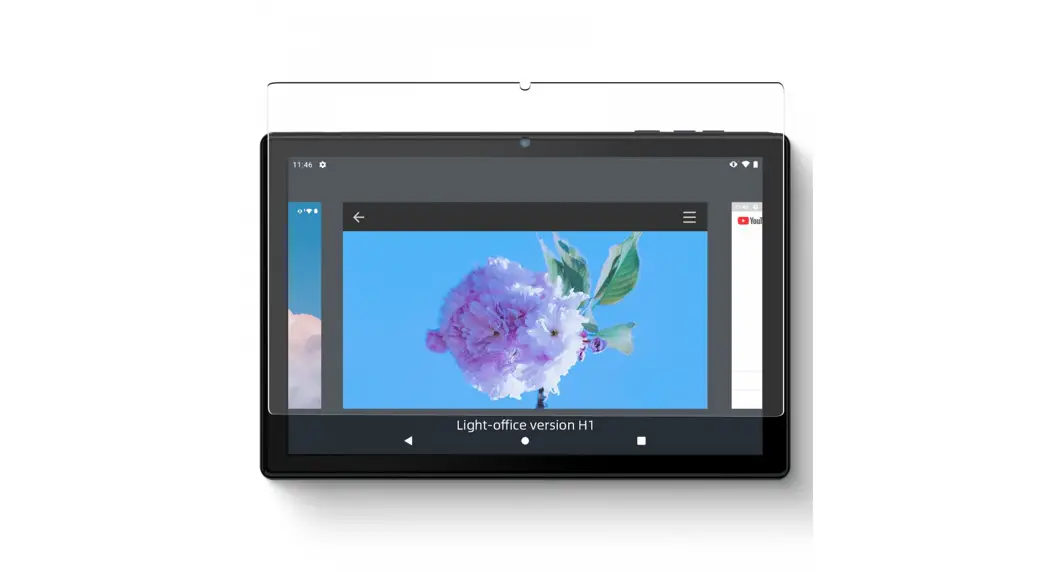

Smart Tablet
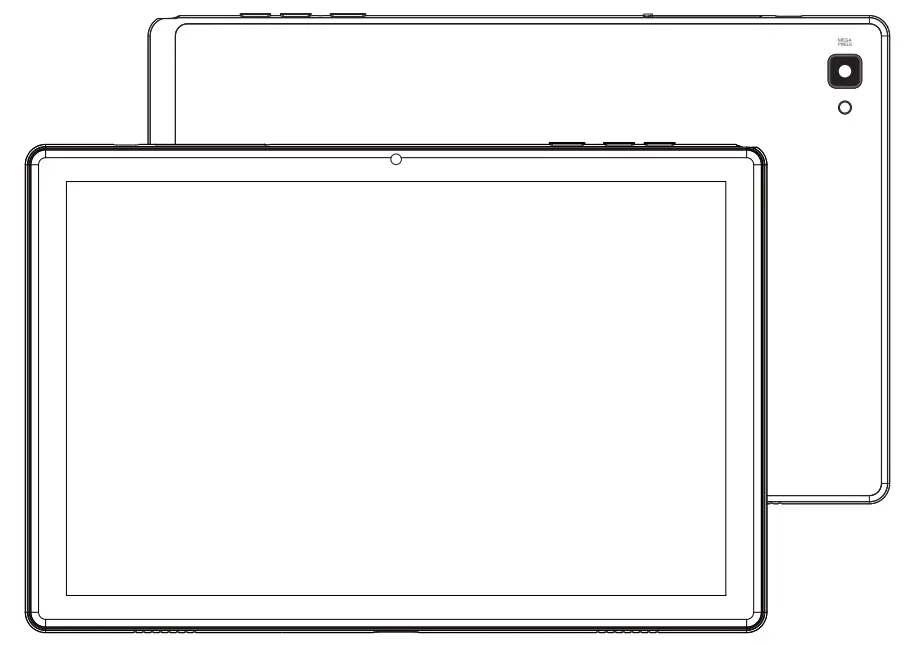
H2
User Manual
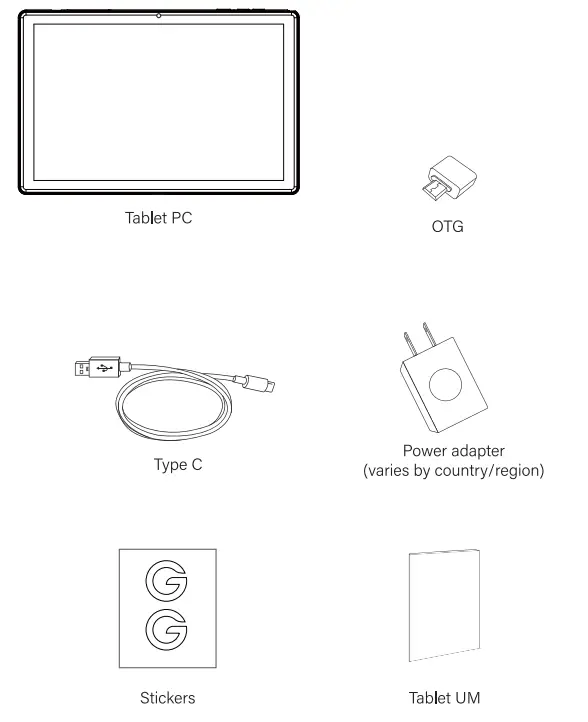
What’s in the box
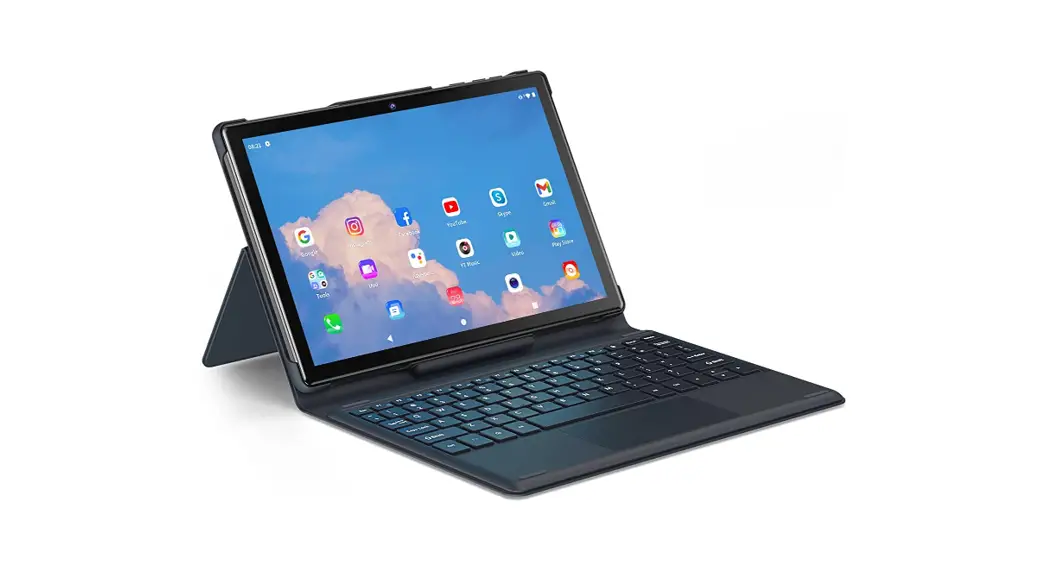
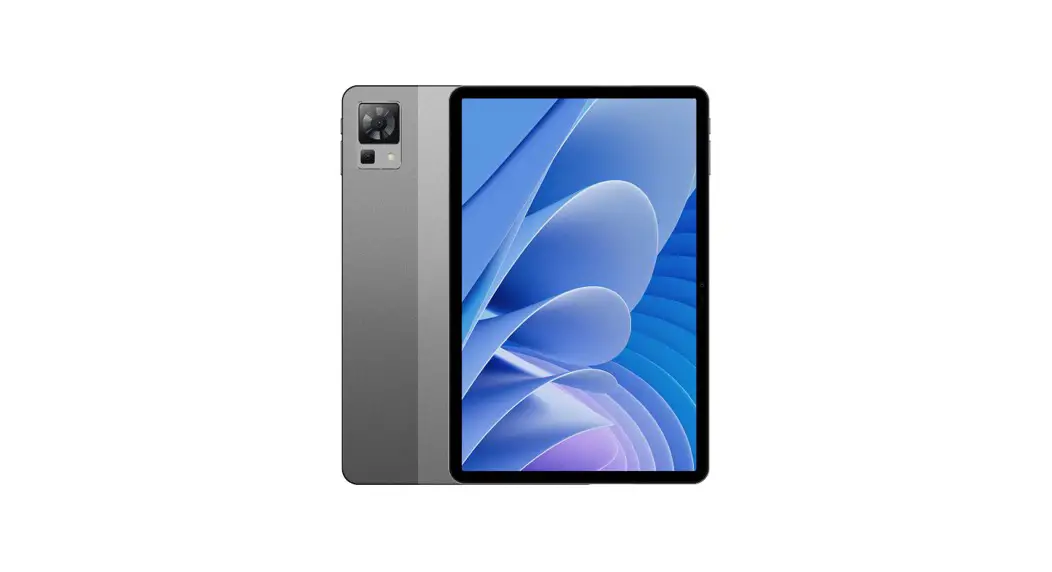
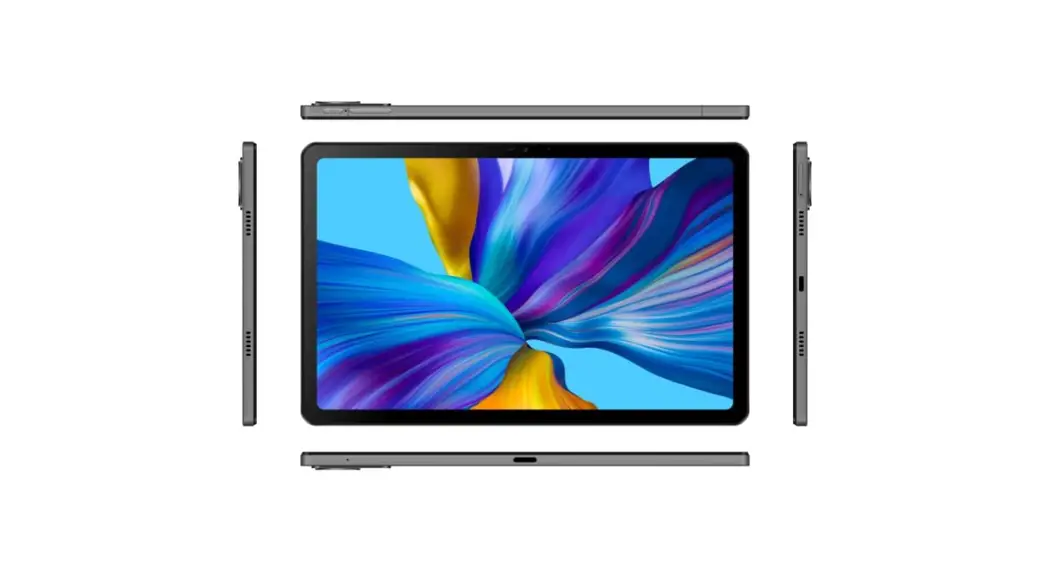
Function Overview
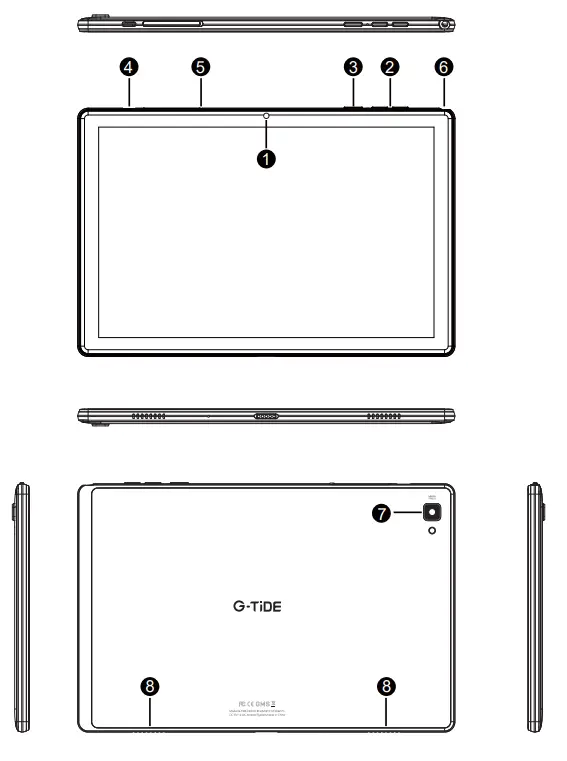
- Front Camera
- Volume+/-
- Power Button
- Type-C Port
- Memory Card Slot
- Headphone Jack
- Rear Camera 8. Speaker
Google, Android, Google Play and other marks are trademarks of Google LLC.
Getting started
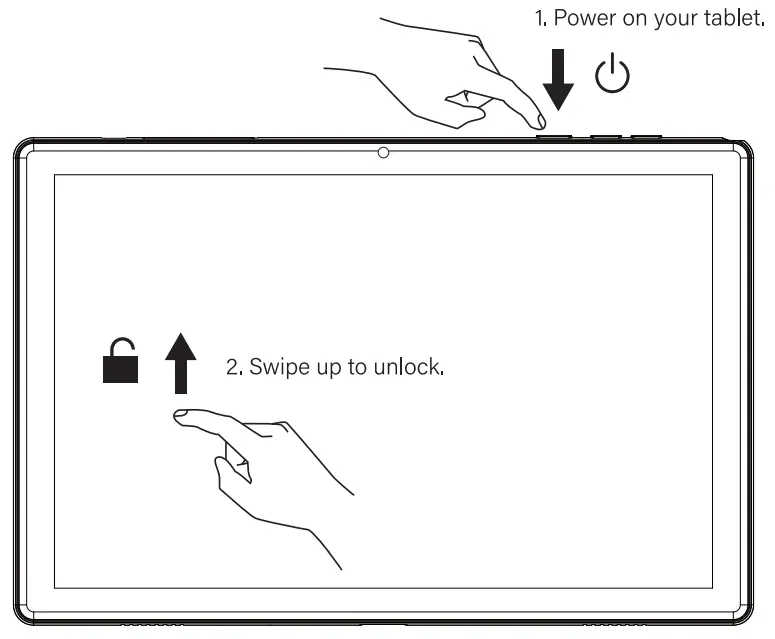
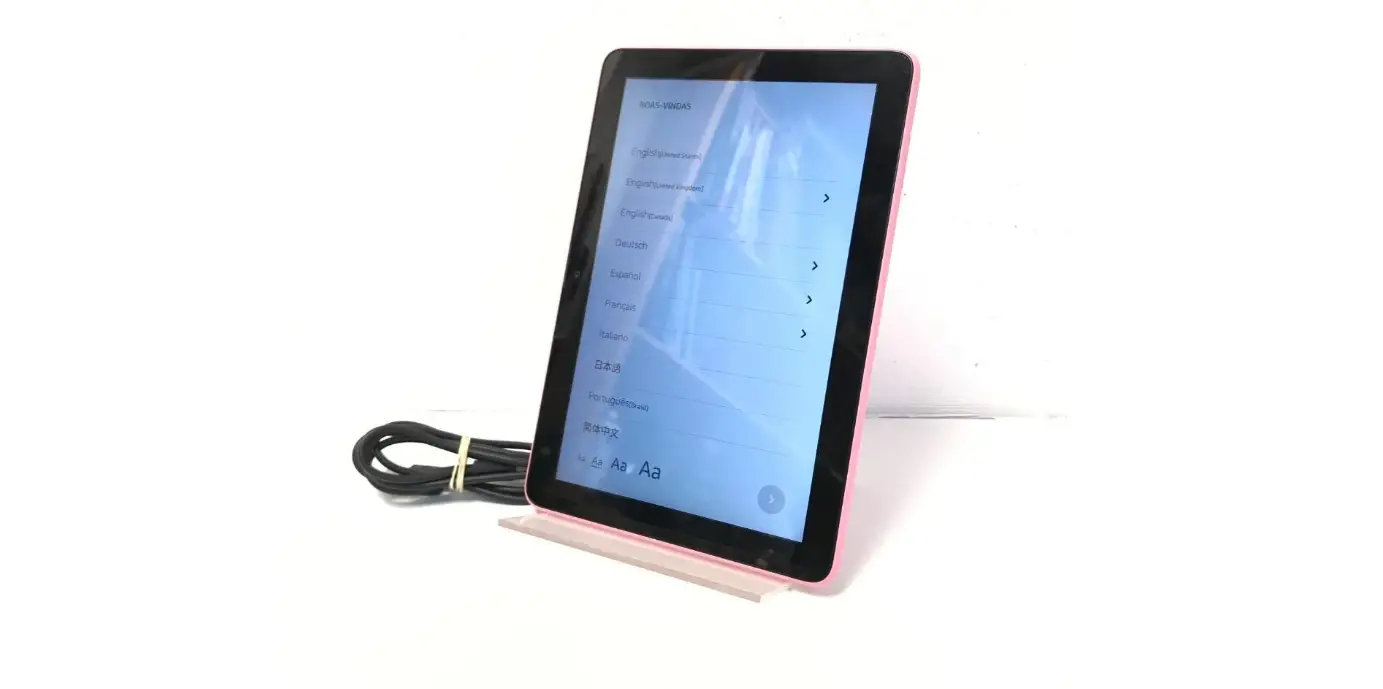
3. Follow the prompts to connect the WI-Fl network,
Charging your tablet
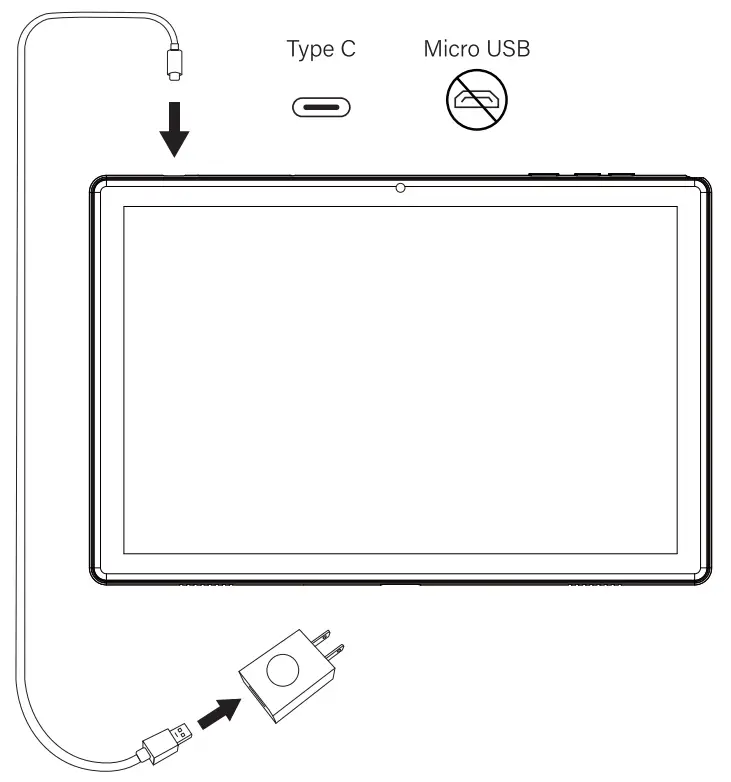
Tips: Please use the ORIGINAL power adapter provided by us to charge the tablet battery.
Important Product Information
Safety Information
 FAILUER TO FOLLOW THESE SAFETY INSTURCTIONS COULD RESULT IN FIRE, ELECTRIC SHOCK, OR OTHER INJURY OR DAMAGE.
Battery Safety
- A rechargeable Li-ion battery is installed in the tablet.
- DO NOT attempt to replace the tablet battery by yourself because you may damage the battery, which might cause overheating, fire or injury.
- DO NOT dispose of tablet in fire.
- DO NOT expose the tablet battery to any heat source, direct sunlight or high temperature.
- DO NOT GET WET. Do not use or permit anyone to use your device in rain or near sinks or other wet or highly humid locations.
- We suggest you drain the battery completely once a month if only use your tablet occasionally.
- The Li-ion battery in your tablet should be serviced or recycled by an authorized service provider, and must be cycled or disposed of separately from household waste.
- Dispose of battery according to your local environmental laws and regulations.
Recycling
RISK OF EXPLOSION IF BATTERY IS REPLACED BY AN INCORRECT TYPE. DISPOSE OF USED BATTERIES ACCORDING TO THE INSTRUCTIONS This product bears the selective sorting symbol for Waste electrical and electronic equipment (WEEE). This means that this product must be handled pursuant to European directive
2012/19/EU in order to be recycled or dismantled to minimize its impact on the environment This product can be used across EU member states. The packaging must be retained since it contains important information. Please avoid prolonged listing at high volume, which may damage the ear of the users.
Q&A
– Reboot your tablet after charging for more than 30 minutes.
– Press the power button to check if the tablet is in the Sleep Mode.
– Press and hold the power button for 10s to reboot it.
– Press the Reset button with a pin to power off the tablet.
– Make sure the USB cable is properly plugged into the charging port.
-Try another compatible USB cable and adapter.
– Uninstall the App with the error message, then download and install again.
– Press the Reset button with a pin to power off the tablet.
– Make sure the tablet is powered on
– Try another USB cable
– Try another USB port on the computer
– Instead of Charge only, choose Media device(MTP) or Camera(PTP) when connecting the tablet to the computer.
– Yes, our camera supports OTG function. The OTG cable is included in the box.
Warranty
All G-Tide products carries a 12-month warranty from purchase date. Please contact us via official mail to activate the extra 2-year warranty.
G-Tide CUSTOMER SERVICE E-MAIL ADDRESSES:
[email protected]
Official Website: www.g-tide.com
PRODUCT SPECIFICATION
| SIZE | 1a1″ |
| Chipset | A133 |
| CPU | Quad Core |
| RAM | 4GB |
| ROM | 64GB |
| Display/Resolution | 1280X800 IPS |
| Front-facing camera | 5.0 MP |
| Rear Camera | 8.0 MP |
| Battery | 6000mAh |
| Operating system | Powered by Androidm 11 |
| Connection | WIFI |
| Function | TYPE C/OTG/G-SENSOR |
| Network | IEEE 80211 b/g/n |
| Touch | Multi-touch |
| Accessories | Charger 5V 2A /USB cable |
 Equipment Authorization | Federal Communications Commission