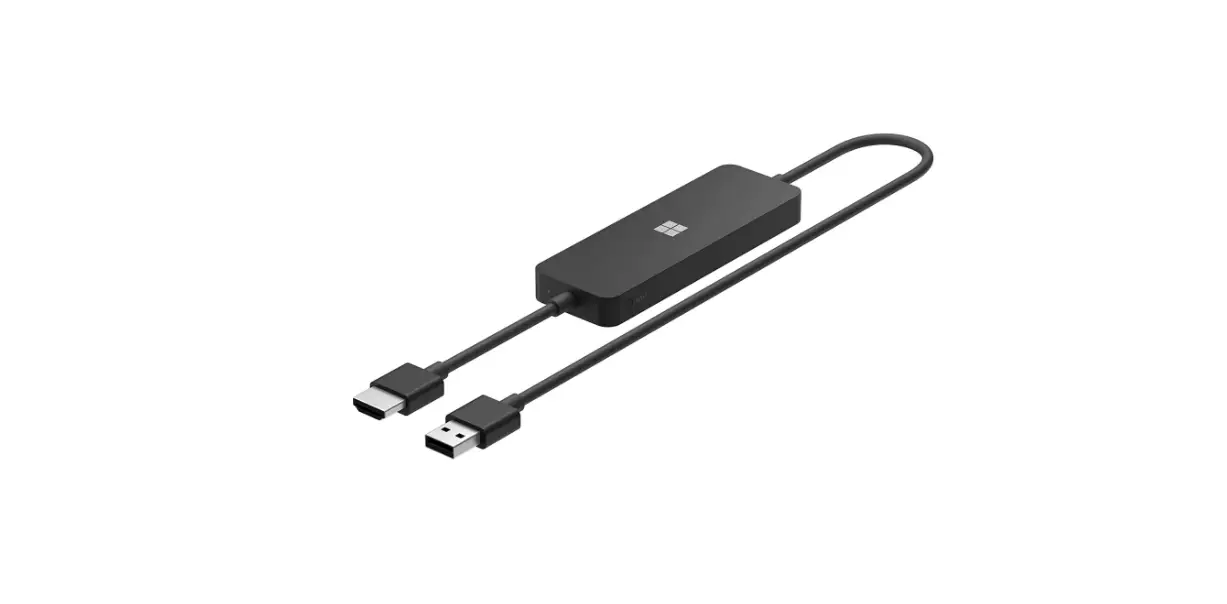
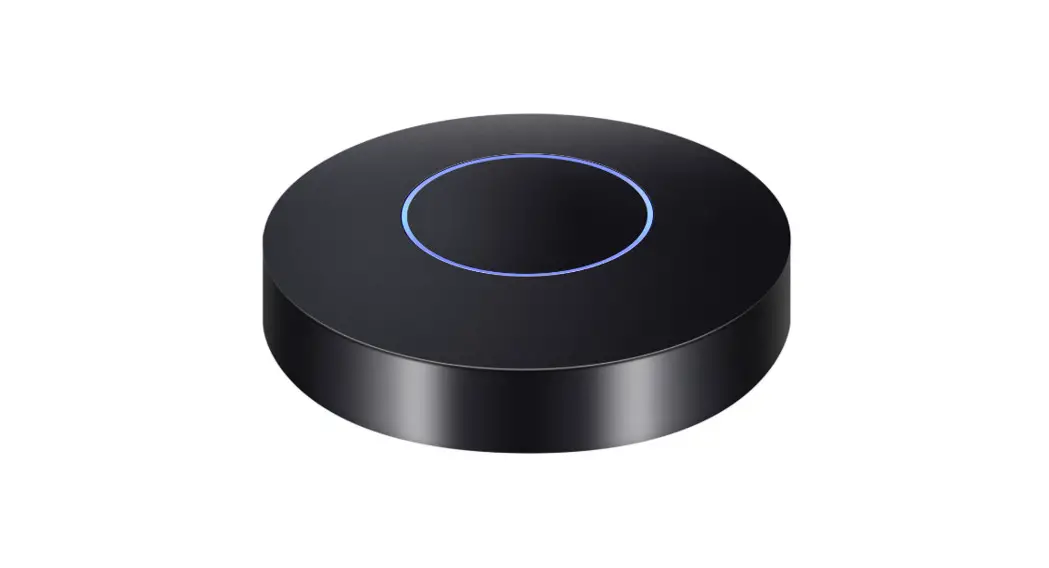
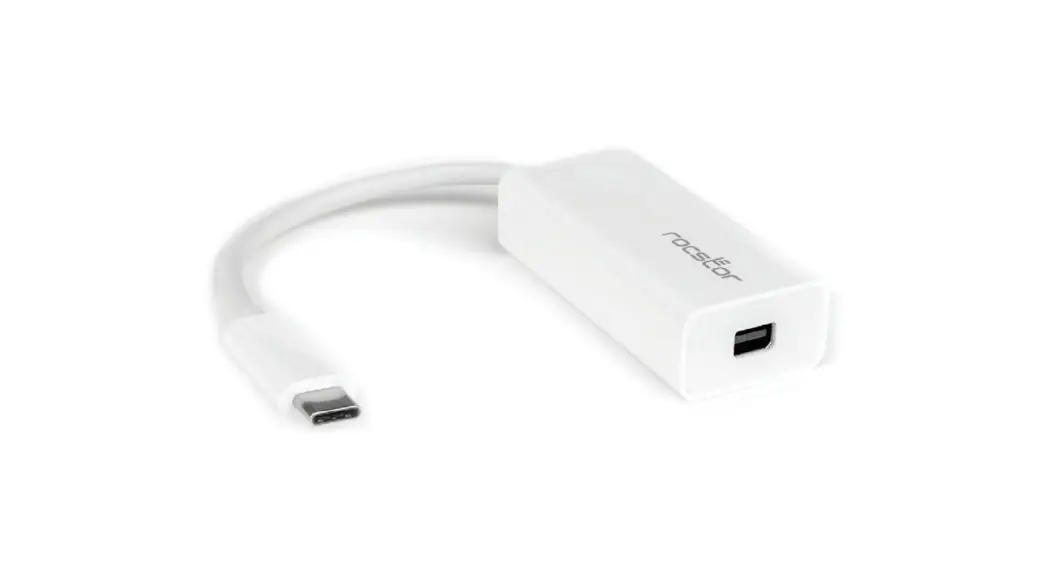
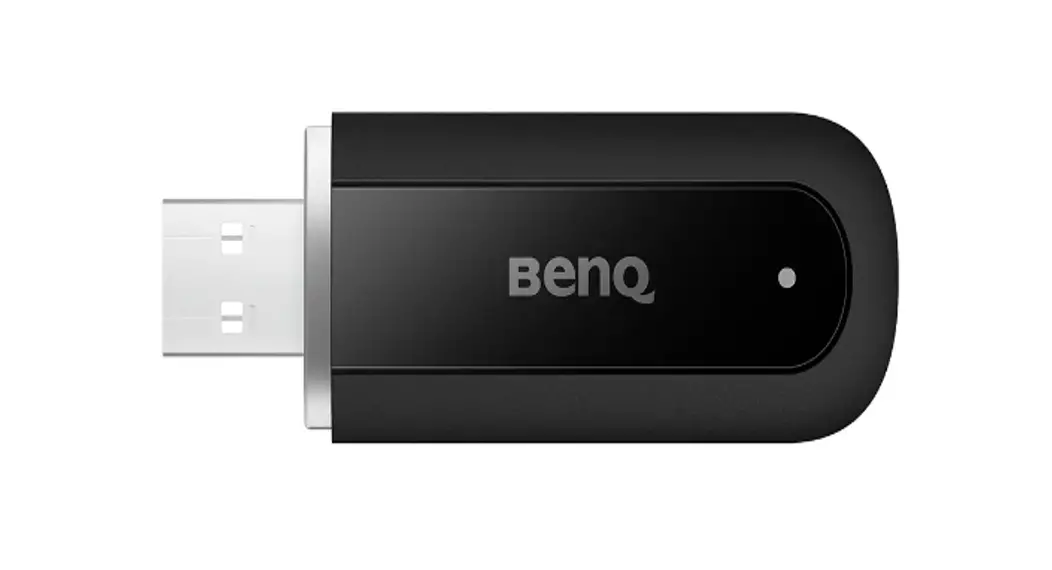
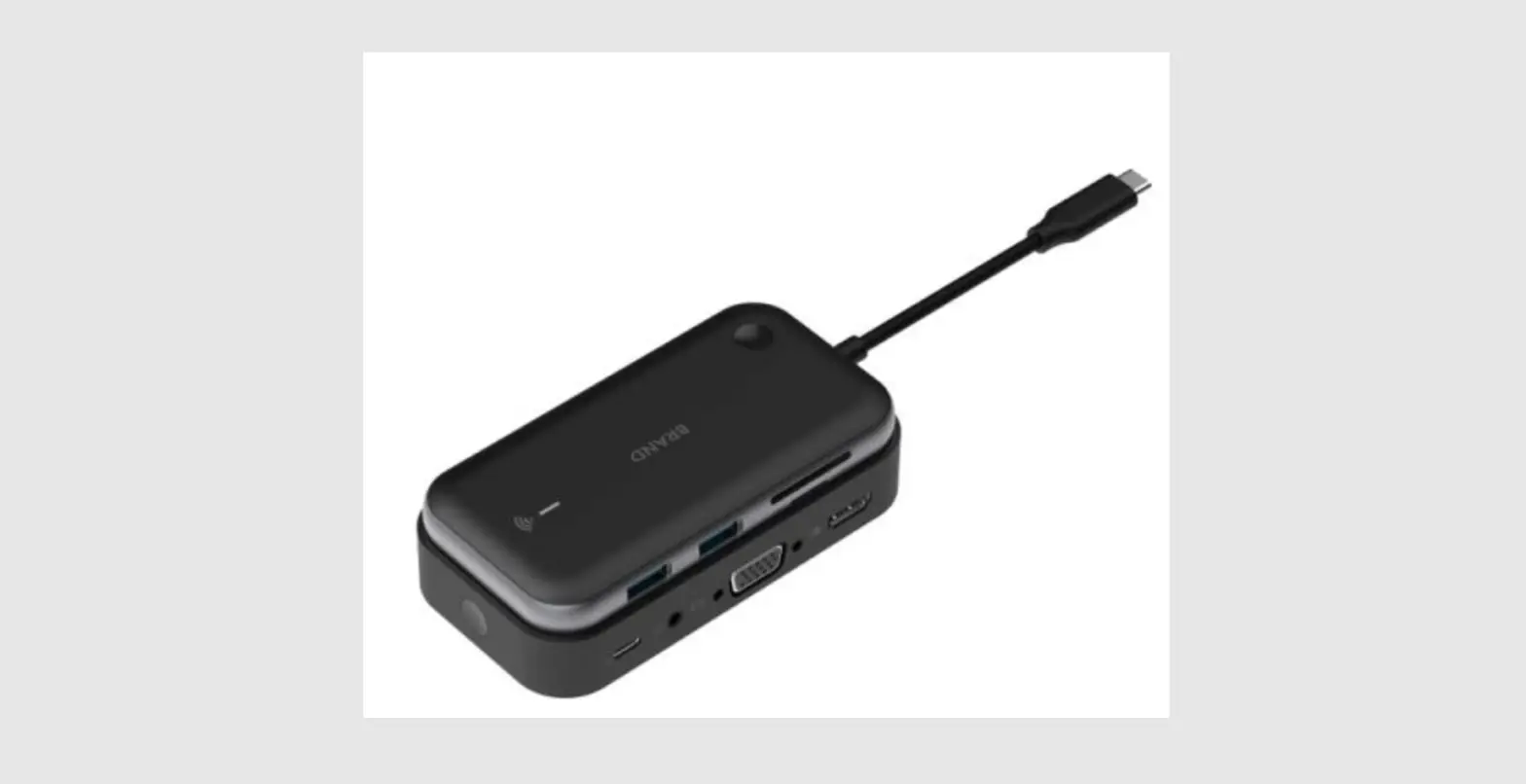
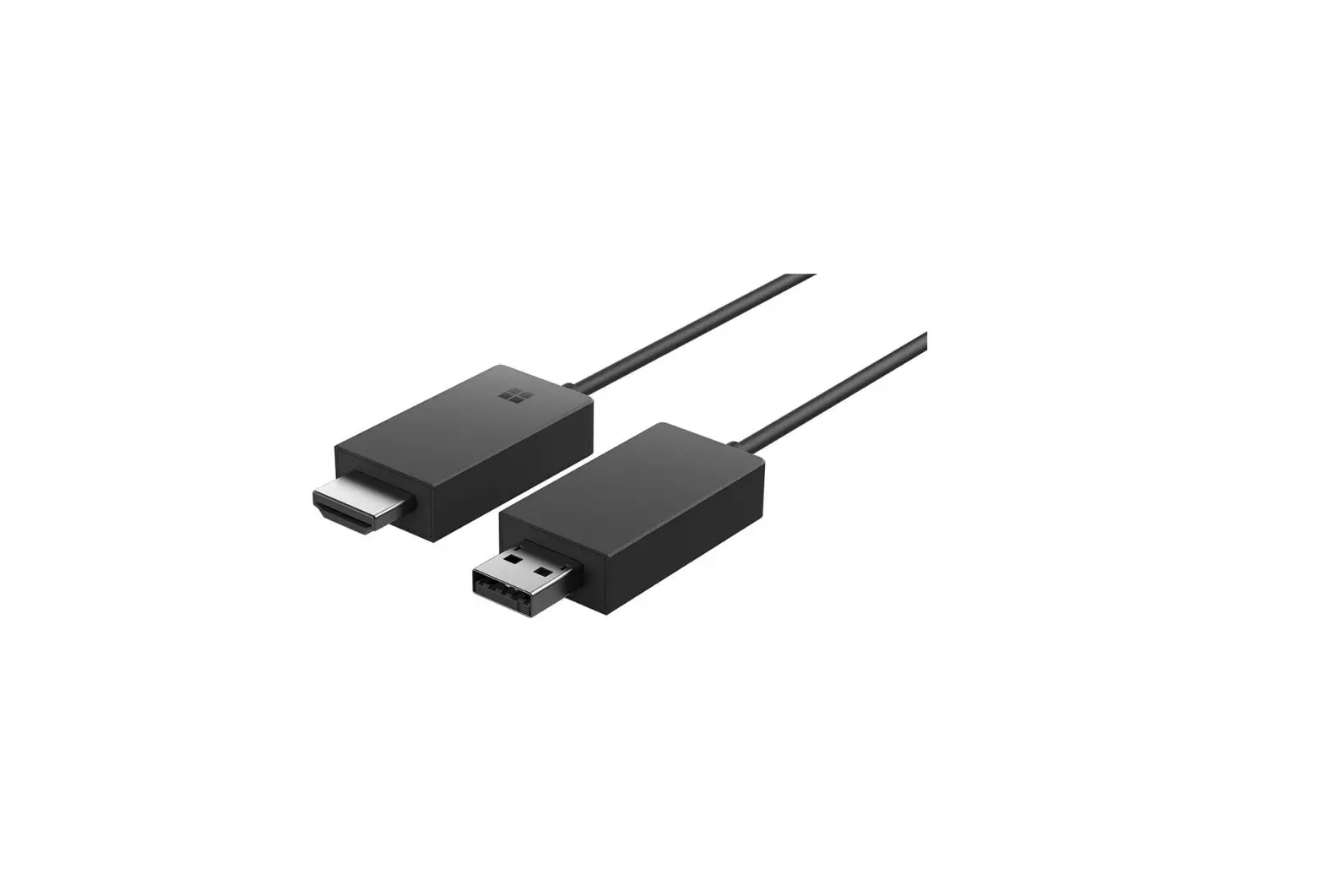
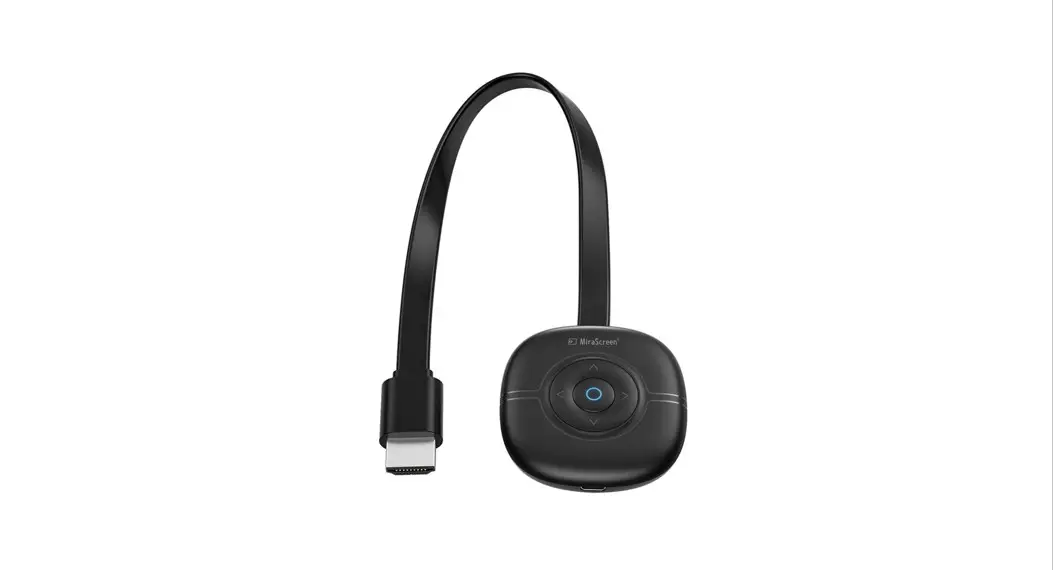
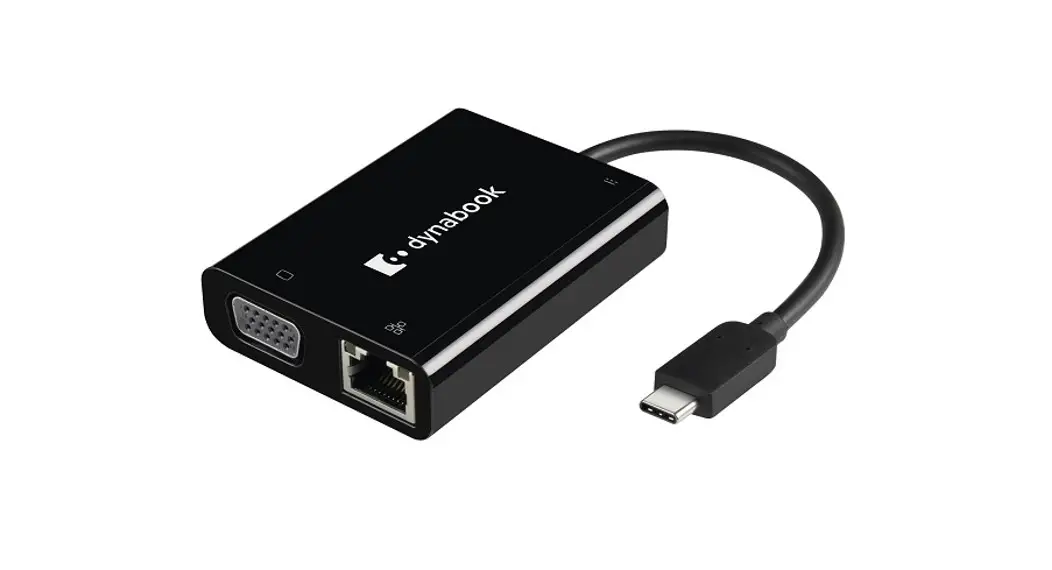
WD1401ATX USB-C Adapter with Wireless Display
Product Information
| Product Name | USB-C adapter with Wireless Display Transmitter + Receiver |
|---|---|
| Transmitter Function Key |
|
| Transmitter USB 2.0 | 480Mbps data transfer, 5V/[email protected] |
| Transmitter WiFi | Supports wireless dual frequency Protocol standard 802.11a/b/g/n/ac |
| Receiver Function Key |
|
| Receiver USB-C | Power supply to the receiver, 5V/2A |
| Receiver HDMI |
|
Product Usage Instructions
Transmitter Connection:
- Connect the transmitter to mobiles/tablets/laptops (USB-C
devices should support video output). - Use the USB 2.0 port for data transfer.
Receiver Connection:
- Connect the receiver to the monitors with HDMI cables.
- Supply power delivery to the receiver via USB-C port.
- The video will automatically display after connecting, which
may take around 10 seconds.
Note:
- Do not splash liquid into the connector to avoid affecting its
performance. - Place the product in a dry environment, not a wet place.
- If any accidents occur, re-pair the product according to the
FAQ. - Supply 5V2A power, NOT the USB from TV or lower than 5V2A.
RF Exposure Statement:
To maintain compliance with FCC’s RF Exposure guidelines, this
equipment should be installed and operated with a minimum distance
of 20cm from the radiator to your body. This device and its
antenna(s) must not be co-located or operated in conjunction with
any other antenna or transmitter.
Frequently Asked Questions:
a. Why is there no video output?
- Check if the connection is good.
- Use a standard HDMI cable.
- The automatic screen casting link may take about 10 seconds,
please wait patiently. - Ensure that the mobile phone/computer supports video
output. - Make sure the HDMI or VGA monitor has selected the correct
input source. - If everything is good with the above 5 points, re-pair the
product to use.
b. Why is there no audio output from HDMI port?
- Make sure that there is audio output function on the
monitor. - Set the external monitor as the default audio output
device.
c. How to re-pair?
- Supply power to the receiver and press for 5 seconds to enter
pairing mode, then the screen will show “wait for pairing”. - After connecting the transmitter to devices for 10 seconds,
press for 5 seconds to enter pairing mode. - It takes 5-15 seconds to match automatically when the
transmitter and receiver enter pairing mode simultaneously. - After the pairing is successful, you will be prompted that the
pairing is successful.
USB-C adapter with Wirelss Display cTransmitter + Receiver
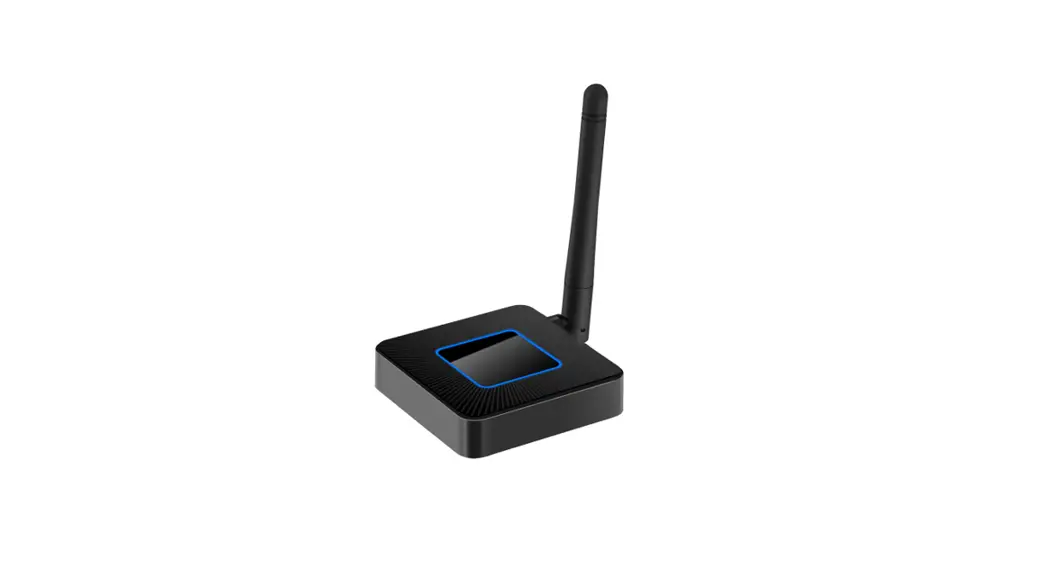
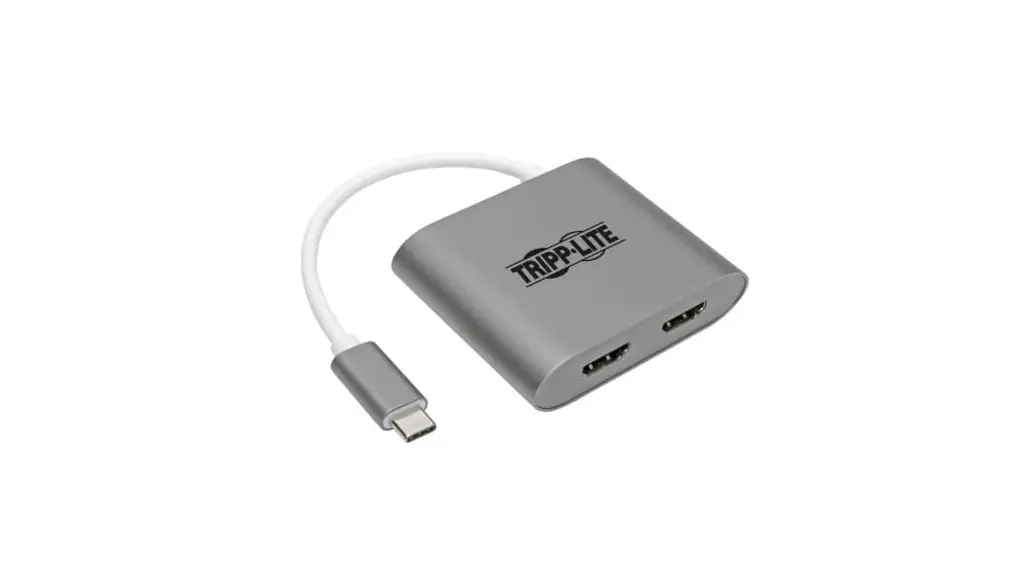
This is a USB-C multi-function adapter with wireless display, composed of transmitter and receiver. The built-in conversion chip inside the transmitter converts the DP signal of USB-C to MIPI signal and I2S signal, and encodes the MIPI signal and I2S signal together to audio and video stream, then this stream is sent to the adaptive receiver via 5G WiFi by its private protocol. Support USB-C devices with video output includes mobiles, tablets and Notebooks. And HDMI output is up to 4k/30Hz resolution.
1
Transmitter: 1. Function Key
Single click : stop/Restart video display Long press 5s : Enter pairing mode Long press 10s : Factory reset 2. USB 2.0: 480Mbps data transfer, 5V/[email protected] 3. WiFi supports wireless dual frequency Protocol standard 802.11a/b/g/n/ac
Receiver: 1. Function key:
Long press 5s : Enter pairing mode 2. USB-C:
Power supply to the receiver, 5V/2A 3. HDMI:
Support max 4K@30Hz
Support max transmission distance 10 meters No need any settings Plug and PlayMirror directly.
Transmitter
2
1. Function Key
Single click : stop/Restart video display Long press 5s : Enter pairing mode Long press 10s : Factory reset
2. USB 2.0
2 3
1
Receiver 1. Function key
Long press 5s : Enter pairing mode
2. USB-CPower supply to receiver 3.
USB2.0
Connectivity:
Transmitter Connection: 1. Connect the transmitter to mobiles/tablets/lap
tops(USB-C devices should support video output) 2. USB 2.0 : Data transfer
Receiver Connection: 1. Connect the receiver to the monitors with HDMI cables 2. Supply power delivery to the receiver via USB-C port 3. It takes around 10 seconds to display video
automatically after connecting
Note:
1. Don’t splash liquid into the connector in case of affecting its performance
2. The product should be placed in a dry environment rather than a wet place
3. The product is well-matched in factory, if there’s any accident occurs, pls re-pair it according to the FAQ
4. Please supply 5V2A power, NOT the USB from TV or lower than 5V2A.
FCC Warning Statement Changes or modifications not expressly approved by the party responsible for compliance could void the user’s authority to operate the equipment. This equipment has been tested and found to comply with the limits for a Class B digital device, pursuant to Part 15 of the FCC Rules. These limits are designed to provide reasonable protection against harmful interference in a residential installation. This equipment generates uses and can radiate radio frequency energy and, if not installed and used in accordance with the instructions, may cause harmful interference to radio communications. However, there is no guarantee that interference will not occur in a particular installation. If this equipment does cause harmful interference to radio or television reception, which can be determined by turning the equipment off and on, the user is encouraged to try to correct the interference by one or more of the following measures: — Reorient or relocate the receiving antenna. — Increase the separation between the equipment and receiver. — Connect the equipment into an outlet on a circuit different from that to which the receiver is connected. — Consult the dealer or an experienced radio/TV technician for help. This device complies with part 15 of the FCC Rules. Operation is subject to the following two conditions: (1) This device may not cause harmful interference, and (2) this device must accept any interference received, including interference that may cause undesired operation.
RF Exposure StatementReceiving To maintain compliance with FCC’s RF Exposure guidelines, This equipment should be installed and operated with minimum distance of 20cm the radiator your body. This device and its antenna(s) must not be co-located or operation in conjunction with any other antenna or transmitter.
SAR statementTransmitting This device meets the government’s requirements for exposure to radio waves. This device is designed and manufactured not to exceed the emission limits for exposure to radio frequency (RF) energy set by the Federal Communications Commission of the U.S. Government. The SAR limit set by the FCC is 1.6W/Kg. For body-worn operation, this device has been tested and meets the FCC RF exposure guidelines for use with an accessory that contains no metal and positions the device a minimum of 0mm from the body. RF exposure compliance with any body-worn accessory that contains metal was not tested and certified. and use of such body-worn accessory should be avoided. Accessory available in market and must be used to keep use distance 0mm from EUT to body-worn operation.
a. Why is there no video output?
1. Pls check the connection is good 2. Pls use standard HDMI cable 3. The automatic screen casting link will take about
10 seconds, please wait patiently 4. Mobile phone/computer supports video output 5. Pls make sure the HDMI or VGA monitor has
selected the correct input source 6. The product is well-matched in factory. If
everything’s good with the above 5points, pls re-pair to use
b. Why is there no audio output from HDMI port?
1. Pls make sure that there is audio output function on the monitor
2. Pls set the external monitor as default audio output device
C. How to re-pair ?
1. Supply power to the receiver and press 5 seconds
to enter pairing mode, then the screen will show
“wait for pairing”
2. After connecting the transmitter to devices for 10
seconds, press 5 seconds to enter pairing mode
3. It takes 5-15 seconds to match automatically when
transmitter and receiver enter pairing mode
simultaneously
4. After the pairing is successful, you will be prompted
that the pairing is successful