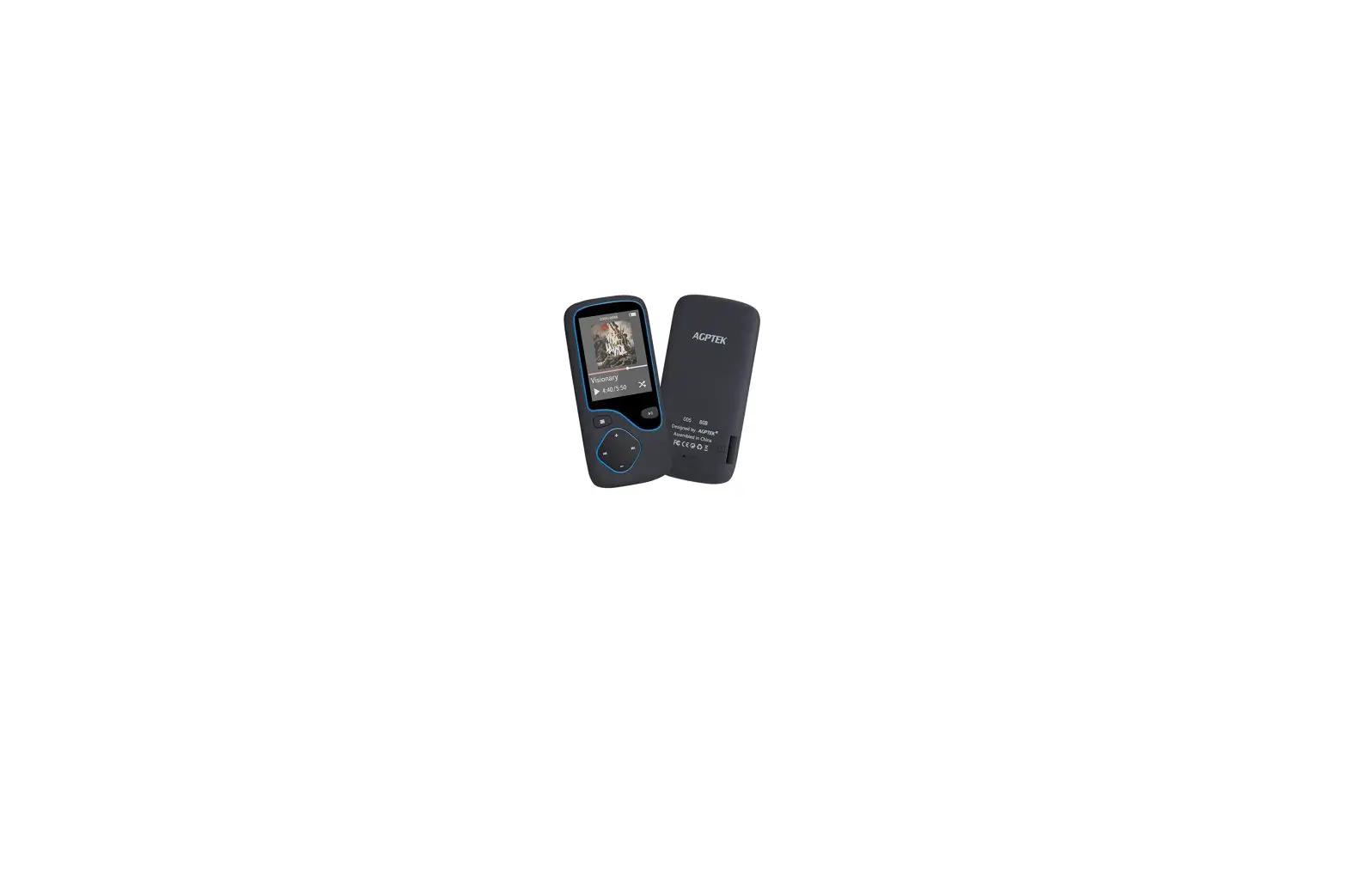
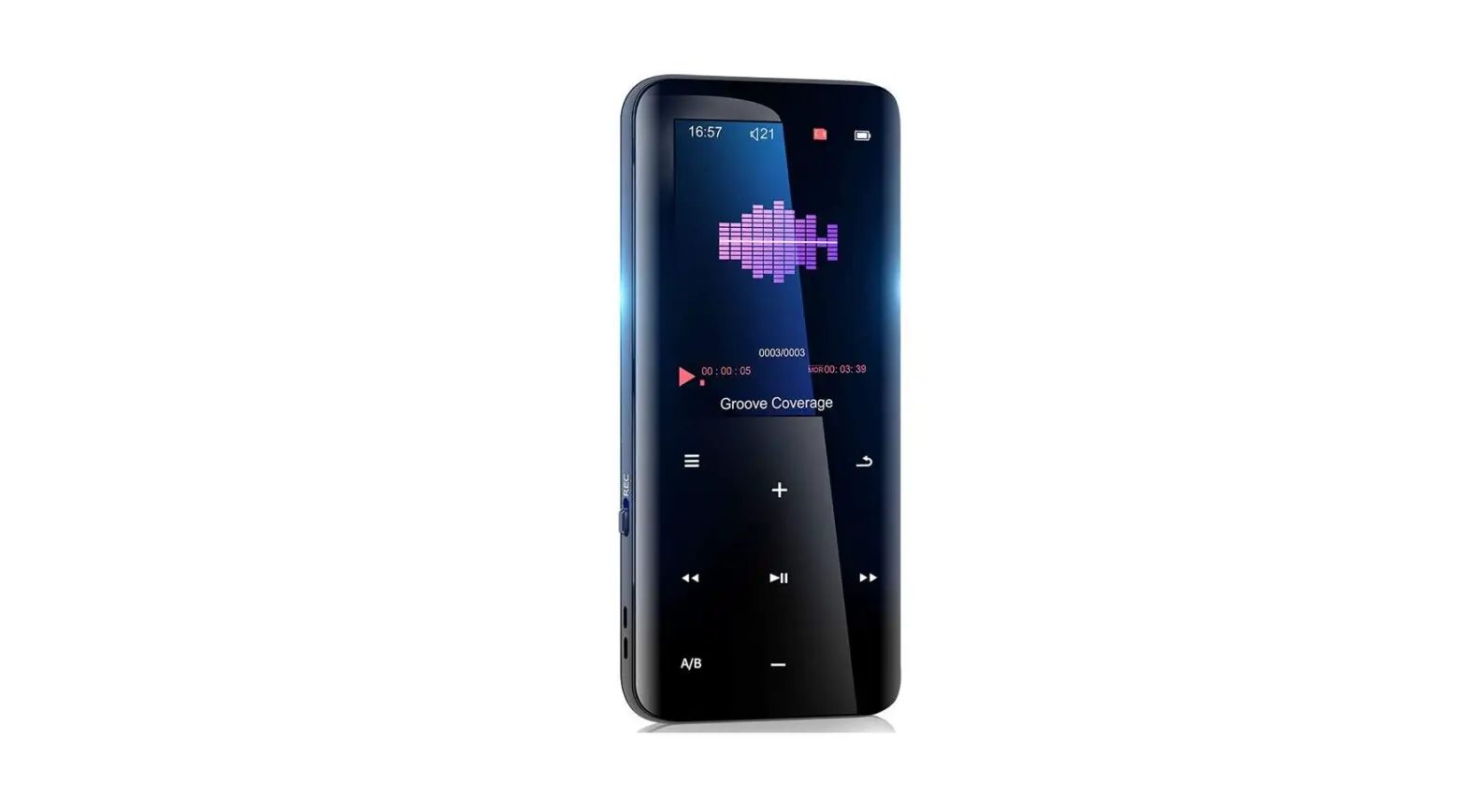
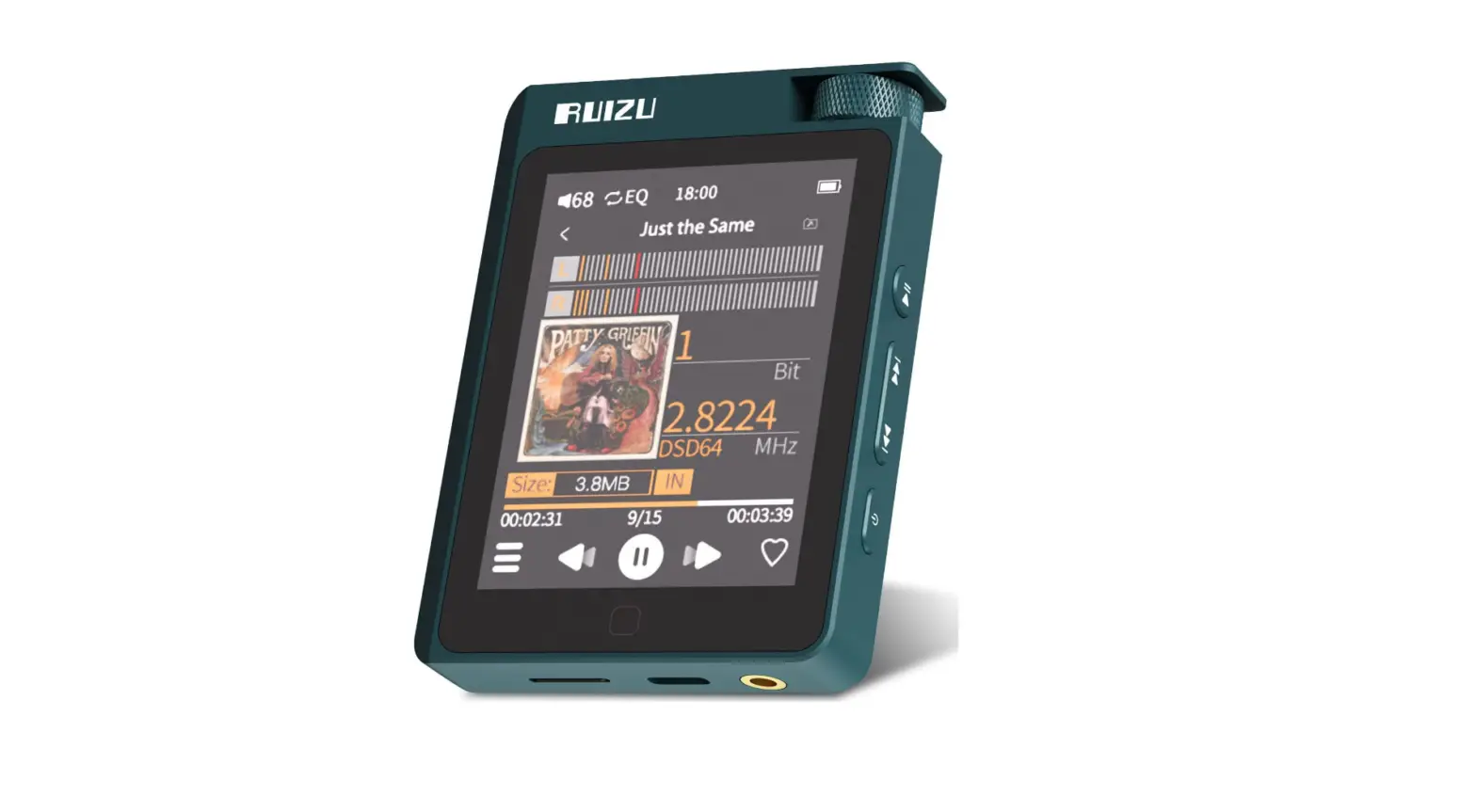
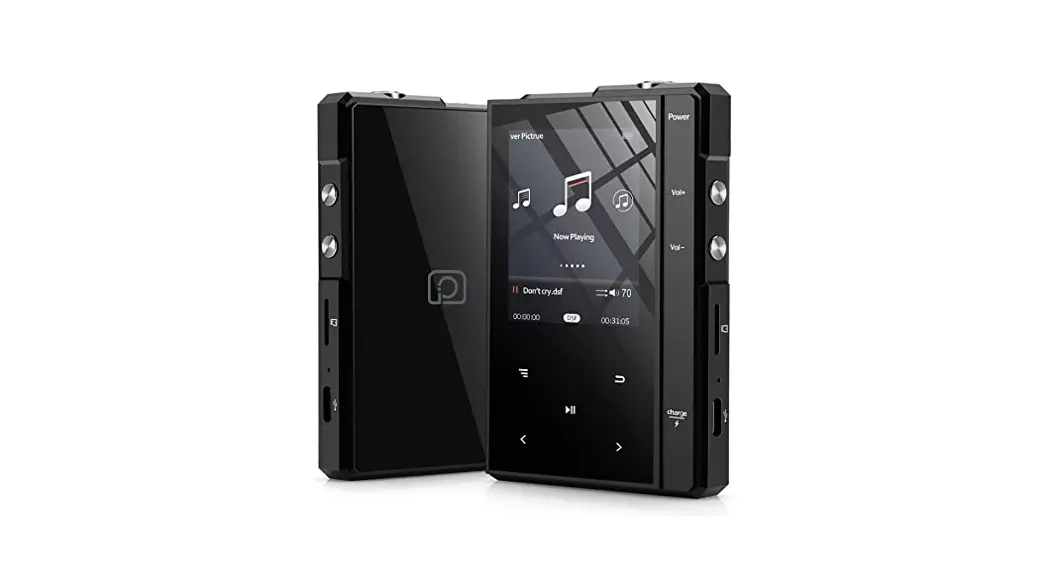
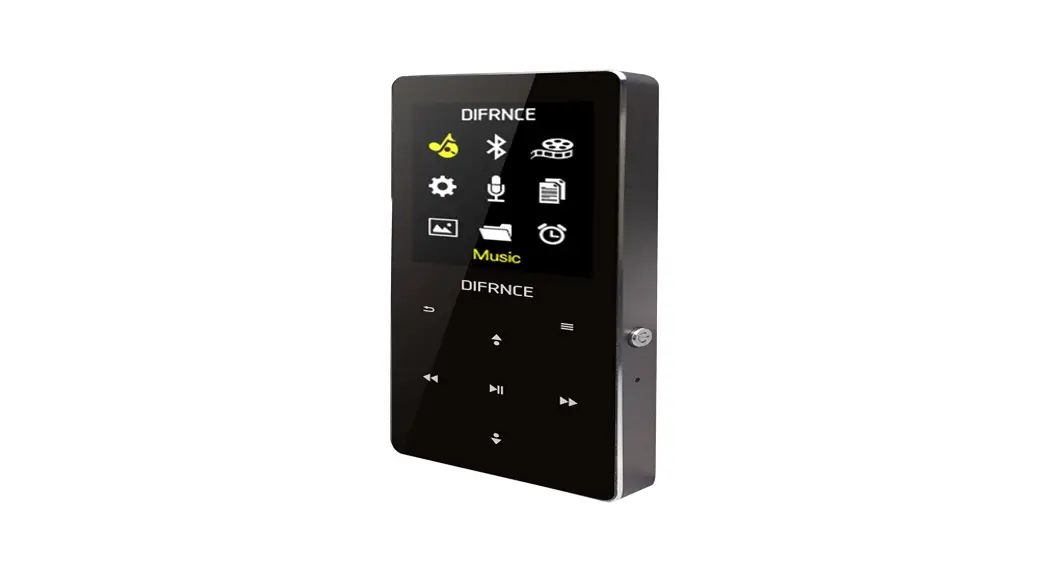
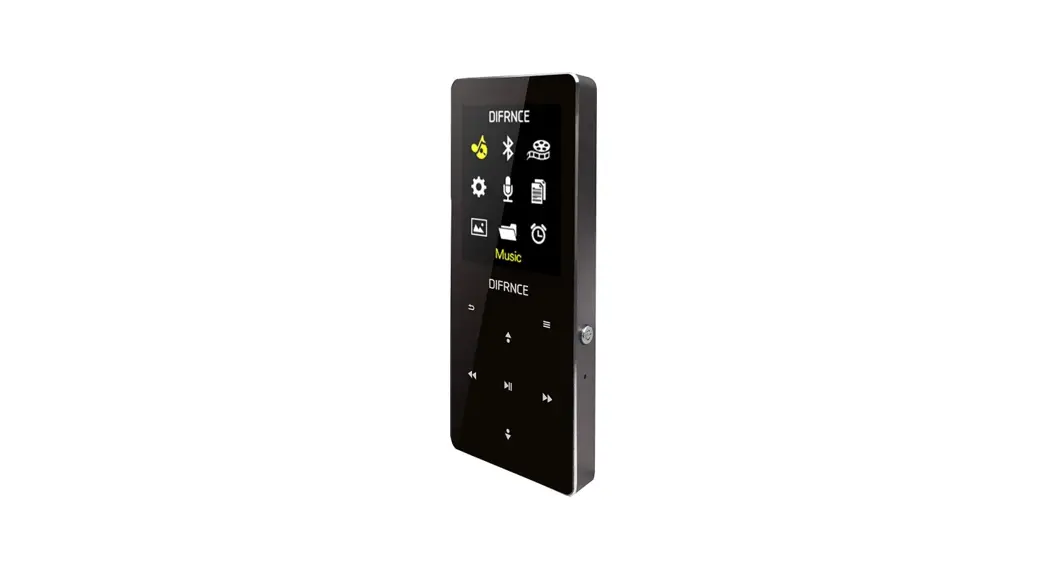
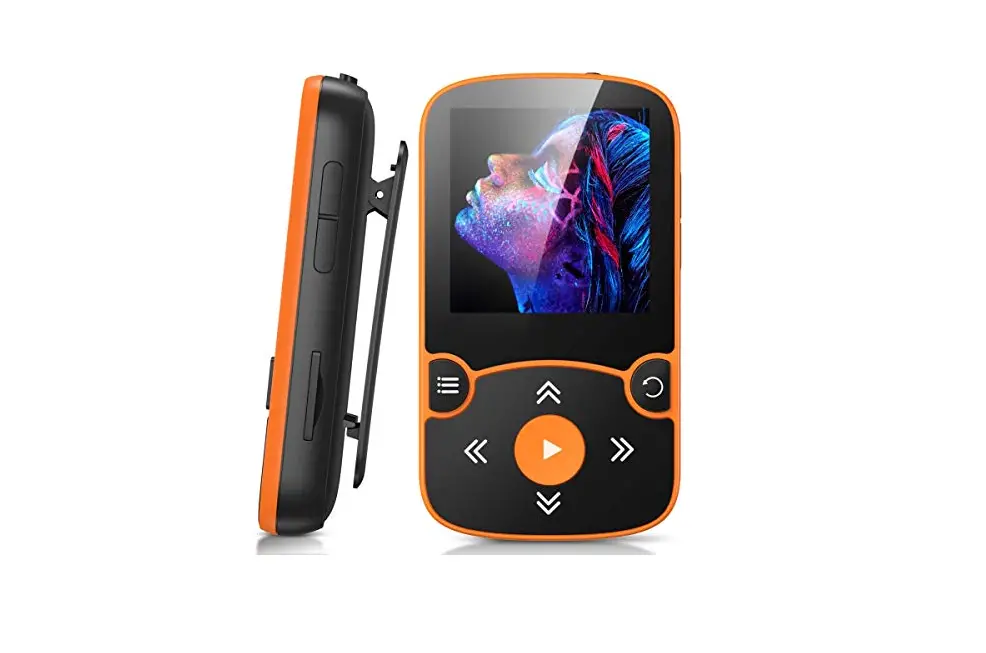
B0BCVZLKVX 48GB MP3 Player with Bluetooth 5.0
Product Information
- Product Name: Unknown
- Product Size: 100*60mm
- User Manual: Included
Product Usage Instructions
- Children should not play alone with the machine.
- Avoid dropping or rubbing the machine against hard objects to
prevent data loss or damage to the appearance. - Adjust the volume to an appropriate level when using headphones
to protect your hearing. - Do not use chemical or cleaning agents to wipe the machine as
it may damage the surface and corrode the appearance. - Avoid using the MP3 player while driving motor vehicles or
non-motor vehicles for safety reasons. - Back up important files stored on the machine to avoid any
trouble. - Do not use an overloaded power supply to prevent heat and short
circuit. - Avoid unplugging the power supply with wet hands to prevent
electric shock. - If there are any inconsistencies with the settings or usage
methods mentioned in the manual due to program upgrades, contact
your local dealer.
Product Appearance – Marking Diagram

Basic Key Operations
- Last/Next Button: In the music interface, short press to switch
to the last or next song. Long press for fast forward and
rewind. - Power Switch: Long press to turn on and off the machine. Short
press to lock the screen. - Return Button: In any menu application, press this button to
return to the previous menu. - Volume Up and Down: In any interface, short press to enter
volume adjustment. - Up/Down Selection Key: Under the main interface or sub-menu,
short press to browse up or down or adjust values. - OK Button: In the play interface, short press to pause and
play. In the setting interface, short press to confirm the save
function. - Menu Key: Short press in the playback interface to enter the
submenu option setting. - A-B Repeat Function: In the music sub-menu interface, select
the repeat mode. Short press the Next key to switch between A and B
characters.
Note: Please refer to the user manual for more
detailed instructions on specific functions and operations.
100*60mm
User Manual
Please read this manual carefully before use.
7
Matters needing attention
1. Children are not allowed to play alone on the machine
2. Do not drop the machine or rub it against hard objects, otherwise it may cause the loss of machine data or damage to the appearance of the product
3. To avoid damage to your hearing, please adjust the volume to an appropriate level when using headphones
4. Do not use chemical agents or cleaning agents to wipe the machine, which will damage the surface of the machine and corrode the appearance of the main body
5. In order to ensure your driving safety, it is recommended that you do not use MP3 when driving motor vehicles or non-motor vehicles
6. In order to avoid unnecessary trouble, please back up important files stored in this machine in advance
7. It is forbidden to use overloaded power supply, so as not to cause heat and cause short circuit to burn out the product
8. When your hands are wet, it is forbidden to unplug the power supply with wet hands to prevent electric shock
9. If the actual settings and usage methods are inconsistent with this manual due to program upgrade, please contact your local dealer.
TipsIf the machine is not used for a long time, please charge and discharge the product at an interval of 2 months to ensure the service life of the battery.
Product Appearance – Marking Diagram
14
3
4
1
9 7
5
2
10
6
8
13 11 12
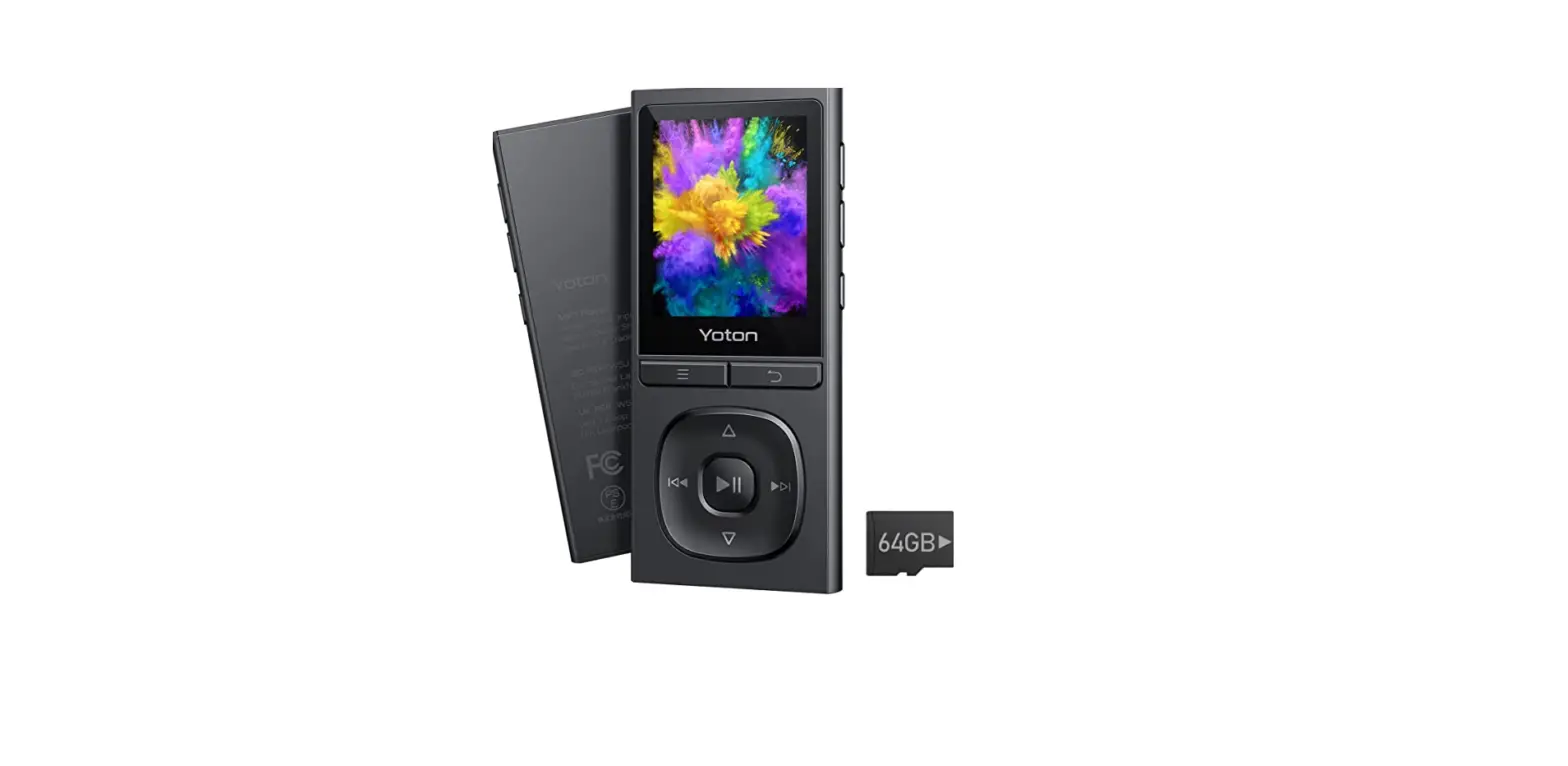
1 Power switch 2 Enter/confirm 3 Return 4 Menu 5 Last
6 Next
11 TF card slot
7
c+Up selection key
12
Headphone jack/Reset jack
8
c-Down selection key
13 USB jack
9 Volume up 14 Speaker hole
10 Volume down
Product Introduction
¸ Music playback FunctionSupport MP3, WMA, WAV, APE, FLAC, AAC-LC, M4A, OGG and other music formats
¸ Bluetooth Playback: Support MP3, WMA, WAV, APE, FLAC, AAC-LC, M4A, OGG and other formats
¸ Recording Function: Support FM and MIC recording; Supports MP3 and WAV formats
¸ Photo browsing: JPG, BMP, and GIF formats are supported
¸ Video Playback: Support AMV, AVI format (need to convert to 320*240 resolution format through conversion tool)
¸ E-book function: supports TXT format
¸ Other functions: support radio listening, folder, alarm clock and other functions
¸ Support Micro SD external storage (expandable to 128G memory card).
Basic key operation
Last/Next buttonIn the interface of playing music,
short press this two button
to switch to the
last song or the next song; Long press to achieve fast
forward and fast rewind.
In the main interface of MP3, short press Press these
two buttons to move the selection left and right.
Power switchLong press to turn on and off the machine; short press to lock the screen.
ReturnIn any menu application, just press this
button
to return to the previous menu.
Volume up and downIn any interface, short press to enter volume adjustment.
Up/down selection keyUnder the main interface or
sub-menu, short press
to browse up/down or
add or subtract value adjustmentcNote: In the play or
pause interface of music, recording and video, short
press the up/down selection key
can also
increase or decrease the volume level operation).
OK keyIn the play interface, short press this button to pause and play; in the setting interface, short press this button to confirm the save function.
Menu keyShort press the menu key in the playback interface to enter the submenu option setting.
A-B Repeat functioncIn the playback stateIn
the music sub-menu interface, select the repeat mode.
When entering, the A character in the middle of the
bottom of the LCD screen flashes, and the B character
does not flash. At this time, short press
Next
key to switch to the B character flashing.At the
moment when AB flashes and switches, it indicates
that the start time of repeat reading is selected. At this
time, short press the Next button again, indicating that
the ending time of repeat reading has been selected.
Repeat the interval between the start time and the end time.cNote: the machine will return to point A flashing
again after the set number of replay times. If you want
to exit the replay mode, press the play/pause button to exit the replay mode.
Operation description Each function
Main interfaceselect each menu application, press OK key to enter
1. Music : Select music menu, press OK key to enter all
songs, press up/down key to select songs, press OK
key to play. (Note: In all songs list interface, short
press
button to turn the page.)
¸ Volume adjustmentUnder any interface,short
press the volume up and down keys to enter the volume adjustmentcNote: The volume adjustment
operations for recording, video, radio, and Bluetooth playback are the same.
¸ Play/PauseShort press the OK button during playback to realize pause/play;
¸ Fast forward/rewindlong press
the button
during playback to achieve fast forward/rewind;
¸ Track switchingshort press
the button
during playback to switch the previous/next track;
¸ Music settingWhen music is playing or paused,
short press the menu key to enter the playback
setting interface, and operate the playback
mode/replay setting/sound setting, etc., short press
the up/down selection key
to select the
setting function, short press OK key to confirm and
save the settings;
¸ ReturnIn each menu application, short press on any interface key to return to the previous menu step by step.
2. Recording : Select the Recording menu, short press the OK button to enter, short press Start Voice
Recording to enter the recording. During the recording
process, short press Return key
to prompt
Save the recording? Select “Yes’ to save the current
recording.
¸ Recording PlaybackAfter the recording file is
saved successfully, enter the recording library, short
press the up/down selection button
to select
the recording file,short press the OK button to play;
¸ Recording settingsEnter the Recording menu
interface, you can operate and set the recording
format/recording bit rate and other functions, short
press the up/down selection key
to select,
short press the OK key to confirm the save (Note:
Under the recording library file list interface, the
function of short press
is to turning pages).
3. Video : select the video menu, short press the OK key
to enter the video file list interface; short press the
up/down selection key
to select the video,
short press the OK key to play (Note: in the video file
list interface,the function of short press
is to
turning pages).
¸ Play/PauseShort press the OK button during playback to pause/play;
¸ Fast forward/rewindlong press the
button
during playback to achieve fast forward/rewind;
¸ Video settingsIn the video playback interface,
short press the menu key to enter the video
sub-menu setting interface, you can choose the
brightness and playback mode etc., short press the
up/down selection key
to select, short press
the OK key to confirm the save;
¸ Video switching Short press
key during
playback to switch the previous/next video.
4. Radio : Select the Radio menu, short press the OK button to enter the first-level sub-menu interface, select manual tuning or automatic tuning, and short press the ok button to enter (Note: Before searching for a radio station, the earphone must be inserted first, so as to increase the antenna signal).
¸ Submenu setting In the radio operation interface,
short press the menu key to enter the radio
secondary ubmenu setting interface, short press the
up/down selection key
to select, and short
press the OK key to confirm the save.
5. Picture : Select the Picture menu, short press the OK
button to enter, under the picture file list interface,
short press the up/down selection button
to
select a picture, and short press the OK button to
play;
When the picture is playing, you can short press the OK button to realize the automatic play and pause functions;
When the picture is playing, you can short press the
up/dowr selection key
and short
press
key to switch pictures manually;
¸ Picture setting When the picture is playing, short
press the menu button to enter the sub-menu setting
interface; you can choose brightness, slide show
settings and other operations, short press the
up/down selection button
to select, short
press the OK button confirm the save; (Note: In the
picture file list interface, short press the
key
to turn the page).
6. E-book : 6.Select the E-book menu, short press the
OK button to enter the e-book file list interface; Short
press the up/down selection button
to select an
E-book, and short press the OK button to play;When
the e-book is playing, you can short press the OK
button to realize automatic play and pause functions;
¸ Page up/down In playback state, short press the
up/down selection button
to turn one page up
and down.
NoteIn playback state, for e-book files with more than
10 pages, short press
key, then it will jump to
10 pages directly;
¸ E-book settings In the e-book reading interface,
short press the menu button to enter the sub-menu
setting interface, you can choose the setting functions
such as electronic bookmarks/delete bookmarks,
short press the up/down selection button
to
select, short press OK key to confirm the save (Note:
In the e-book secondary sub-menu list interface, the
function of short press
key is turning pages).
7. Folder : Select the Folder menu, short press the OK
button to enter the file list interface; Short press the
up/down selection button to select a sub folder or a
single file, and short press the OK button to enter
(Note: In the file list interface, the function of short
press
key is turning pages).
8. Settings : Select the Setting menu, short press the OK button to enter the setting interface: Tools/pedometer/language selection/display settings/shutdown settings/external sound switch/button light mode/date and time/information/formatting device/ Factory setting, etc;
8.1 Tools : Select tools menu, there are calendar,
stopwatch, alarm clock function, short press up/down
selection key
to select, short press OK button
to confirm.
8.2 Language setting : Select language menu, press OK key to enter, press up/down key to select the required language, press OK key to confirm saving Settings.
8.3 Display Settings : Select language menu, press OK key to enter, press up/down key to select the required language, press OK key to confirm saving Settings.
8.4 Shutdown setting : select ‘timed shutdown’ or `power saving shutdown’ and short press the OK key to enter, you can set the required time as the shutdown time.
The time for timer shutdown is 1-99 minutes optional, short press the ‘ ” ‘ button on the front to adjust the required time, after setting, short press the OK button to save;
NoteThe timed shutdown is the startup is in any state, after the time is up -the system will perform a forced shutdown;
The power-saving shutdown time can be selected from 0 to 99 minutes. Short press the ‘ ‘ and ‘ ‘ buttons on the front to adjust the required time. After setting, short press the OK button to save;
Power-saving shutdown instructions: When the machine is in standby without any operation, after the set time is up, the system will automatically shut down to save power;
8.5 External sound switch: Select ‘External sound switch’ and short press the OK button to enter, you car set the function of turning on and off the external sound.
8.6 Button light mode : select ‘button light mode’, short press the OK key to enter, you can choose ‘always on’, ‘on’ and ‘off’.
8.7 Date and time : select ‘date and time’, short press OK key to enter, short press up/down selection key to select time setting and date setting, short press OK key to enter; Short press the up/down selection key to adjust the value, short press the key to switch the selection, after setting the required time and date, short press the OK key to confirm the save.
8.8 Information : Select ‘Information’, short press OK to enter, you can view player information and disk space.
8.9 Format device : Select ‘Format device’, short press OK key to enter, the interface prompts ‘All data will be deleted; do you want to continue? ‘, select “Yes’, the machine will execute to clear all data in the machine disk (Note: Please make a backup of the file in advance, please operate this function with caution).
8.10 Factory settings : select ‘factory settings’, short press the OK button, the interface will prompt ‘restore to factory settings? , select ‘Yes’, the machine will be restored to the original factory settings.
9. Bluetooth function : select the Bluetooth menu, short press the OK button to enter the Bluetooth menu interface, there will be three options: Bluetooth switch control, search device, device list; select search device conduct Bluetooth search, after the search is completed, the machine will list the searched Bluetooth devices, please manually select the name of the device to be connected, and make a matching connection; after the connection is successful, the small Bluetooth
icon will turn green, indicating that the connection is successful. At this time, press the return key to exit the Bluetooth background and enter the music application. Just select the file you want to play;
NoteAfter the device fails to search, the interface will
automatically jump to the Bluetooth menu interface after
displaying ‘no device’, short press the up/down selection
key
to select the operation, and short press the OK
key to confirm.
Bluetooth can also achieve video, recording and radio
playback (Note: When searching for connected devices,
the audio device needs to be turned on in advance)
Transmission of data
Connect MP3 to computer via USB cable and copy in computer Music and other related data that need to be transferred, and then switch to the MP3 player’s capacity disk to paste, and then the data transfer can be realized;
NoteThis machine has OTG function, only mobile phones with OTG download function can be connected to the product for operation.
1. Format the player: connect the MP3 player to the computer with a data cable, open ‘My Computer’ or ‘Computer’ and a removable disk will appear, right-click the removable disk, click Format, Start, OK, and wait for the format to complete Formating is to clear all files in the machine, and it can repair the disk.
NotePlease make a backup of the file in advance, please operate this function with caution.
Charging steps
¸ Use USB data cable: used for data transmission, can also be used to connect a charger for charging;
¸ MP3 Player can be charged with computer and charger.
¸ Special attention The specification of selected charger must meet the following requirements, otherwise any external or fault occurs, we will regard it as man-made damage.
¸ Input AC110-240V 50/60Hz Max100mA ¸ Output DC5V 500mA-1A
Technical parameter
Product Name MP3 Player
Battery Capacity 450mAh
Dimensions
106*49.5*9.7mm cThe specific size shall prevail in kind
Display screen TFT-2.4 Inch Resolution240*320
Net Weight Bluetooth information Headphone jack
Audio Format
Video Format
86g
Version 5.0
Standard 3.5 jack MP3aWMAaWAVaAPEaFLACaAAC-LCa M4AaOGG AMVAVI
Image Format JPGaBMPaGIF
E-Book Format
Language support
Operating temperature
TXT Chinese, English and other 29 languages 0-40 Degree
Frequently Asked Question
When in use, if the machine encounters anomalies caused by illegal operations, such as crash, black screen, etc., you can short press the reset button to restart the machine to return to normal (Note: the reset button is set in the ear hole, you can use Slender and hard things go in and short press to reset)
¸ Connect to the computer
Insert one end of the USB cable into MP3 player, and the other end into the USB port of the computer. After connecting to the computer, the MP3 player will automatically turn on; For the first connection, the computer will prompt to create driver information and find new hardware information until it is recognized in “My Computer”. A new disk indicates that the connection is successful; after the file transfer is completed, please click the removable disk in the lower right corner of the computer desktop to eject it safely, and finally unplug the data cable.
¸ MP3 Player does not turn on
Please check whether the machine is completely out of power;
Check the power of the machine again after connecting the power adapter;
If it still cannot be turned on after charging, please contact our customer service;
¸ Severe noise
Please check whether the music file is damaged; you can try other normal music files to judge; If the file is damaged, there may be serious noise and other abnormalities during playback
¸ No sound can be heard in the headset
Please check whether the volume is set to 0; Please check the quality of the headset and connection problems;
¸ FM radio can’t find stations
Please check whether the earphones are inserted to search for stations; NoteIt is normal that the radio station cannot be found in very remote areas
¸ Can’t connect to bluetooth
Please confirm whether the external device is turned on;
Please check whether the pairing is successful between the external device and the MP3 Bluetooth;
¸ Ebook garbled
Please confirm whether the file is damaged, the format is correct, etc.;
NoteWhat language is set in the MP3 system, then the content of the e-book must correspond to the national language to be displayed normally.
Product warranty card
Product Model:
S/N:
Dealer Name: Dealer stamp:
Date of Purchase:
If it is a replacement service, it must be marked in the “replacement/repair record”; the warranty card must be presented at the same time as the official purchase invoice, and it is valid with the seal of the dealer; please fill in the contents of the warranty card carefully and in detail, if any Altered, this card is invalid.
 flashing.at is available for purchase - Sedo.com