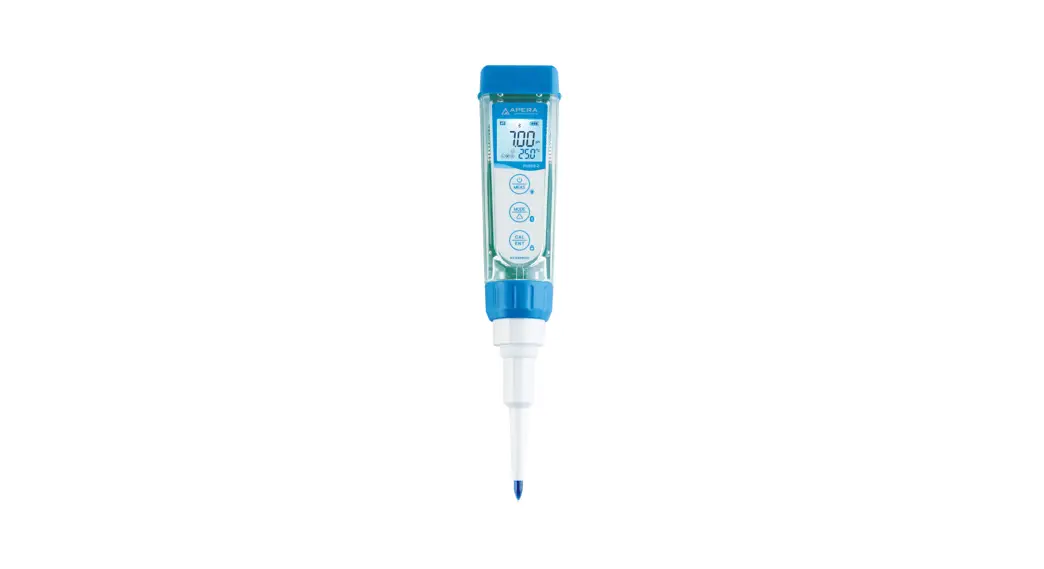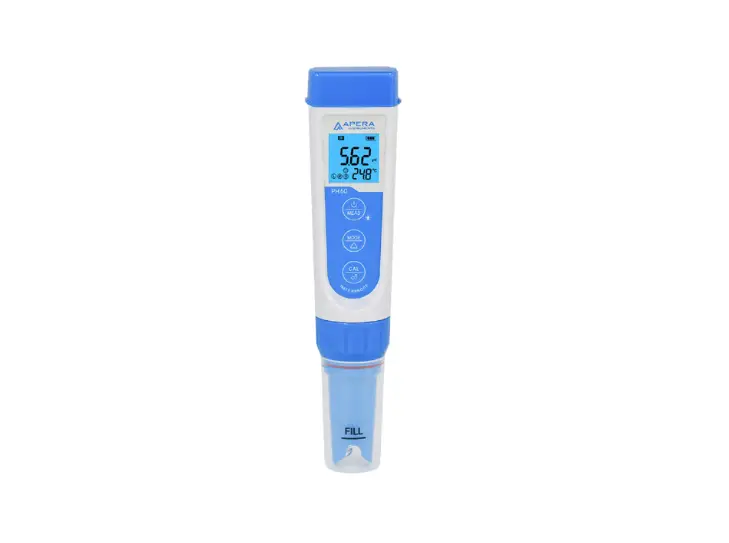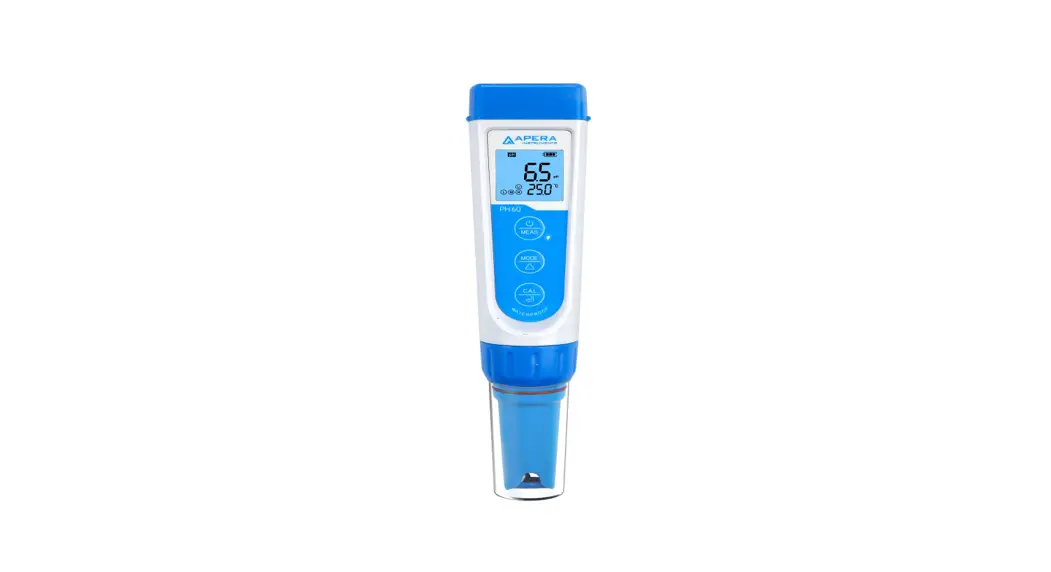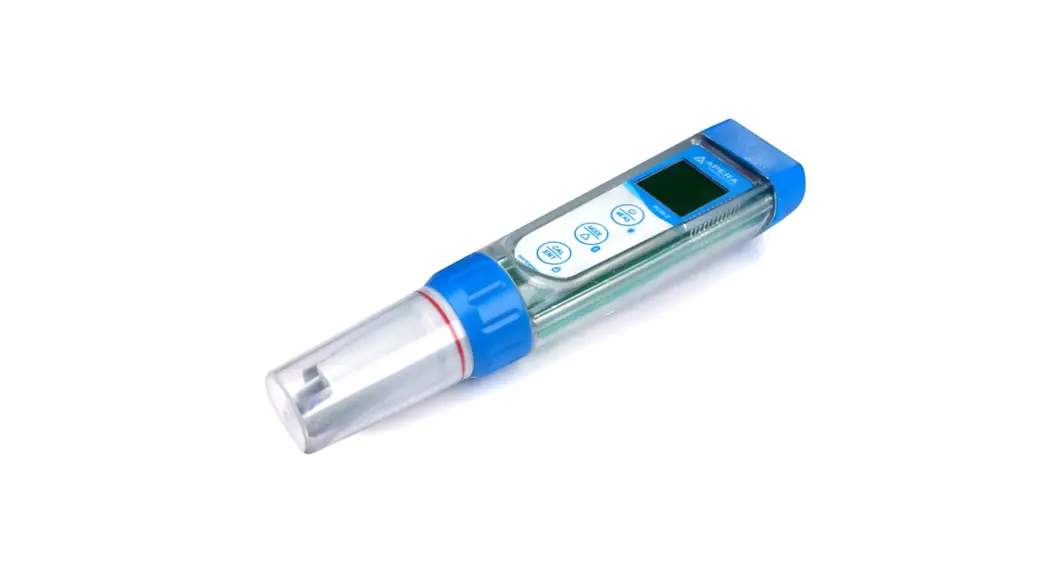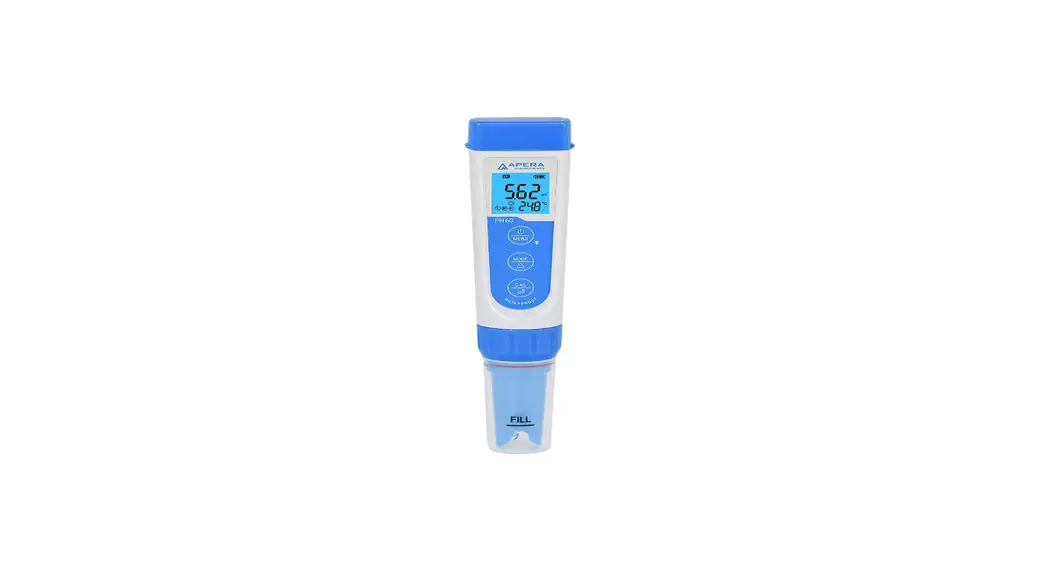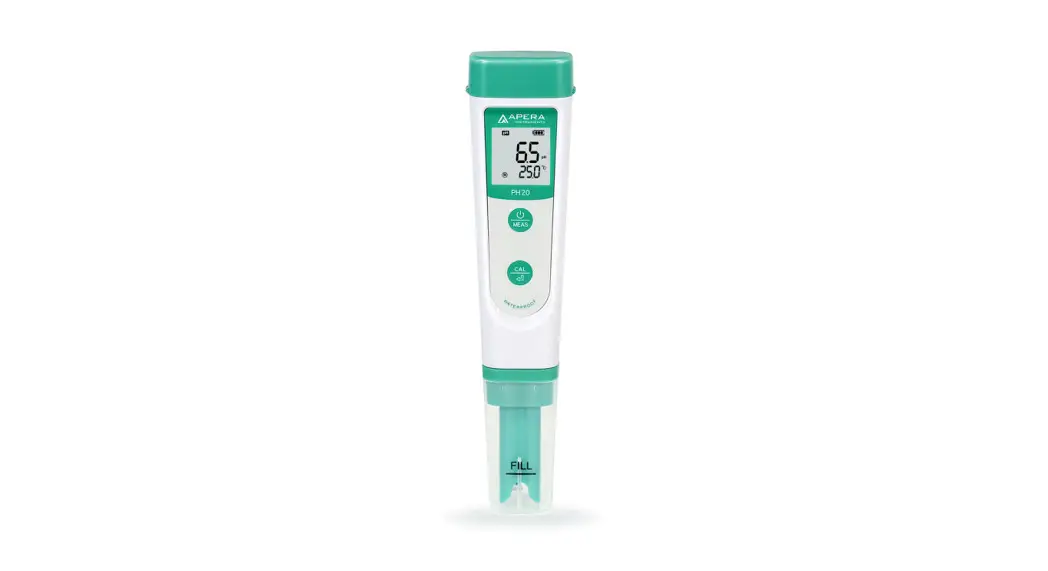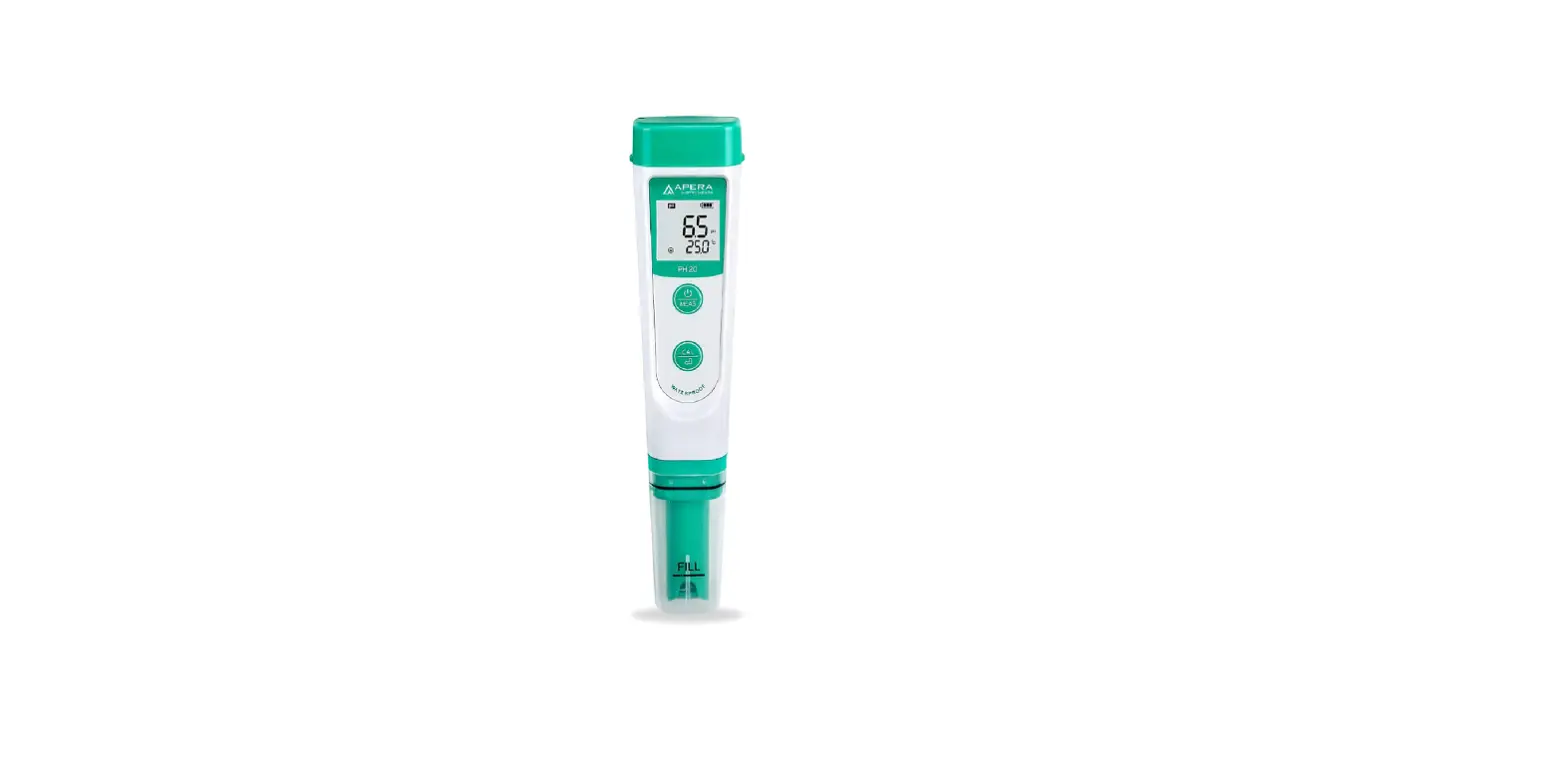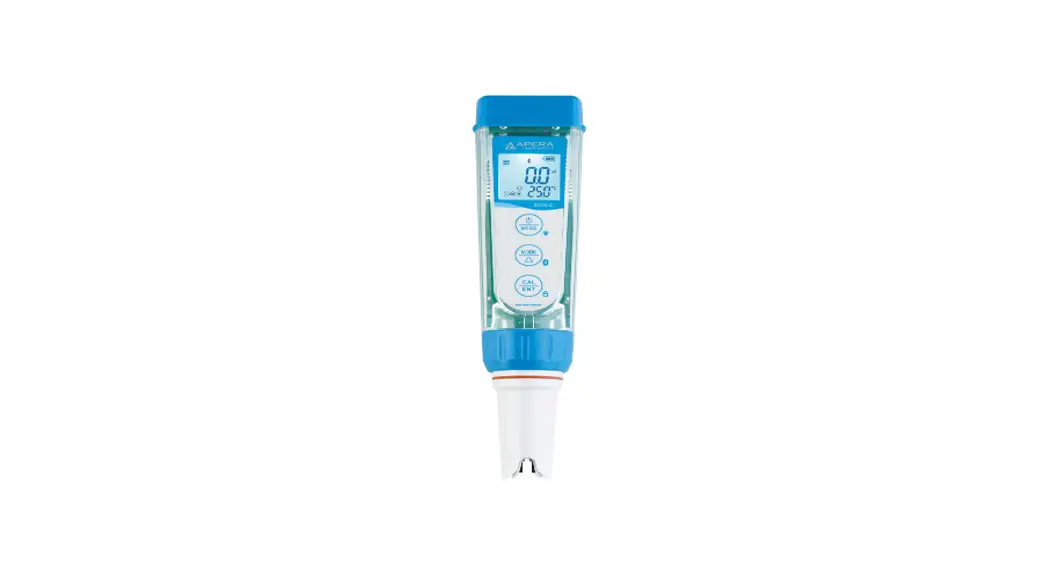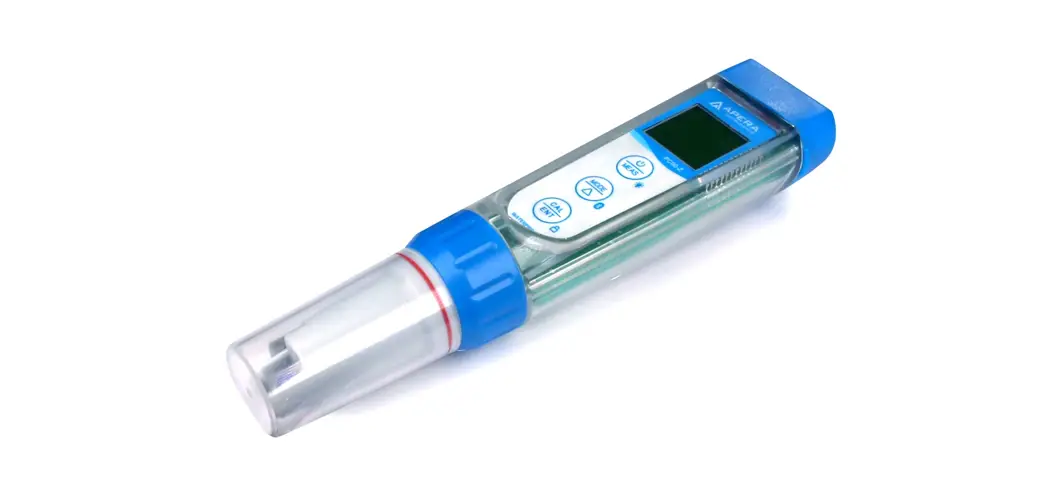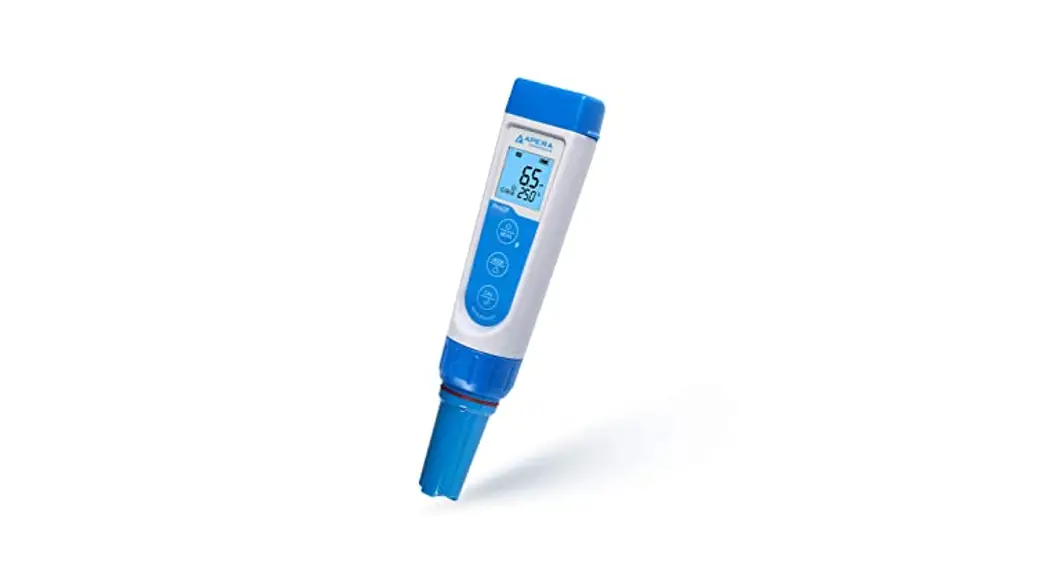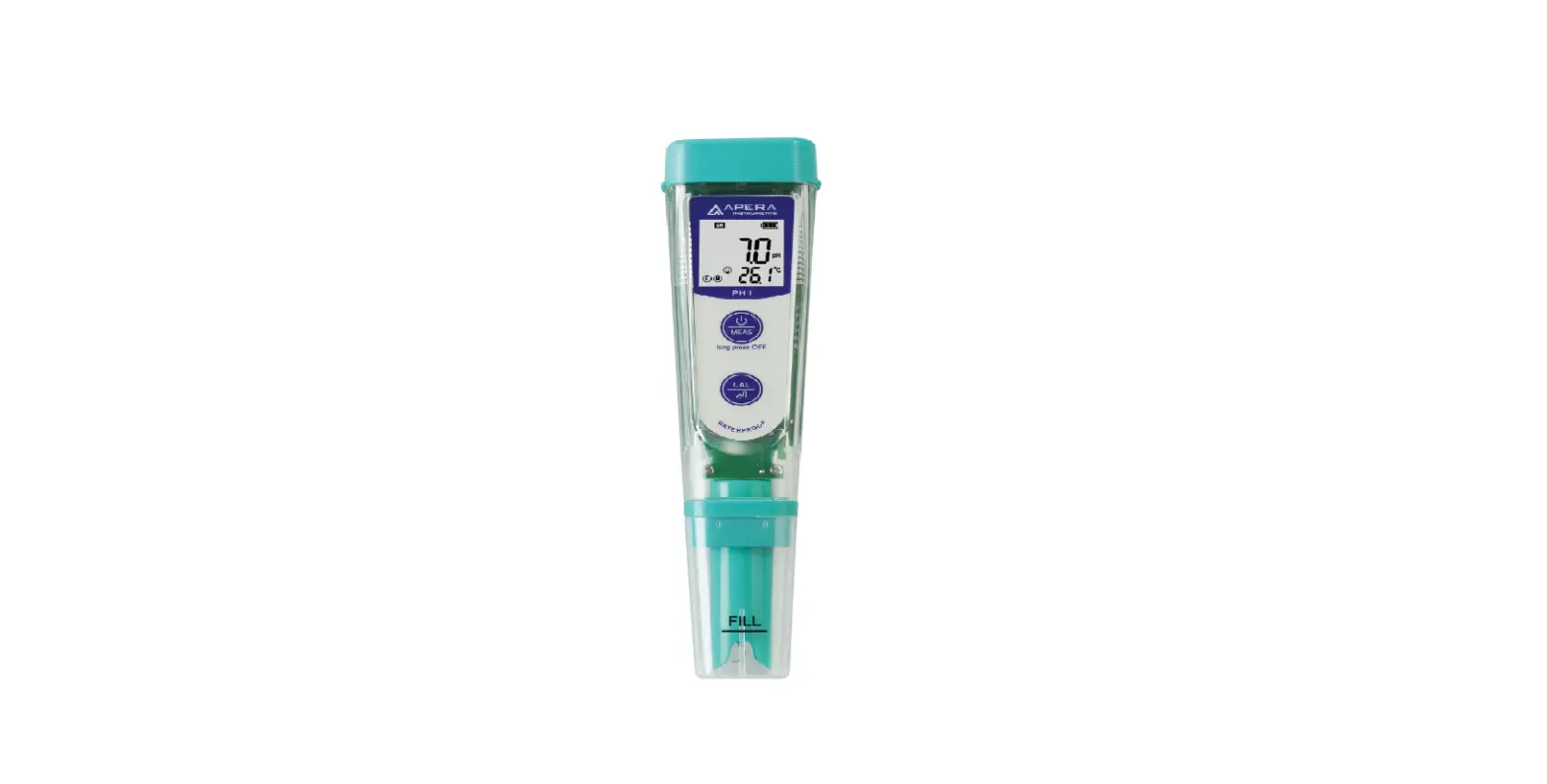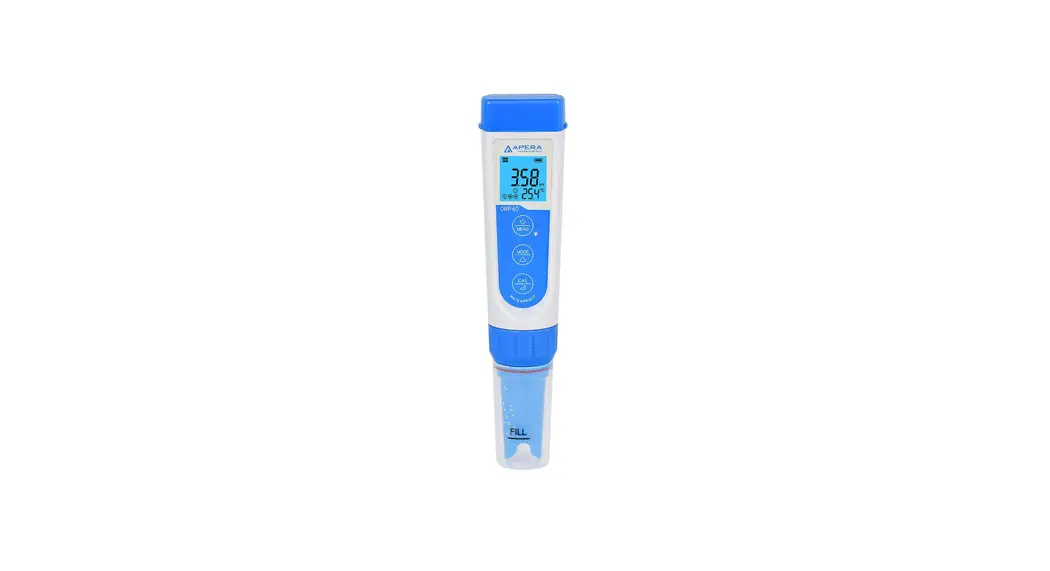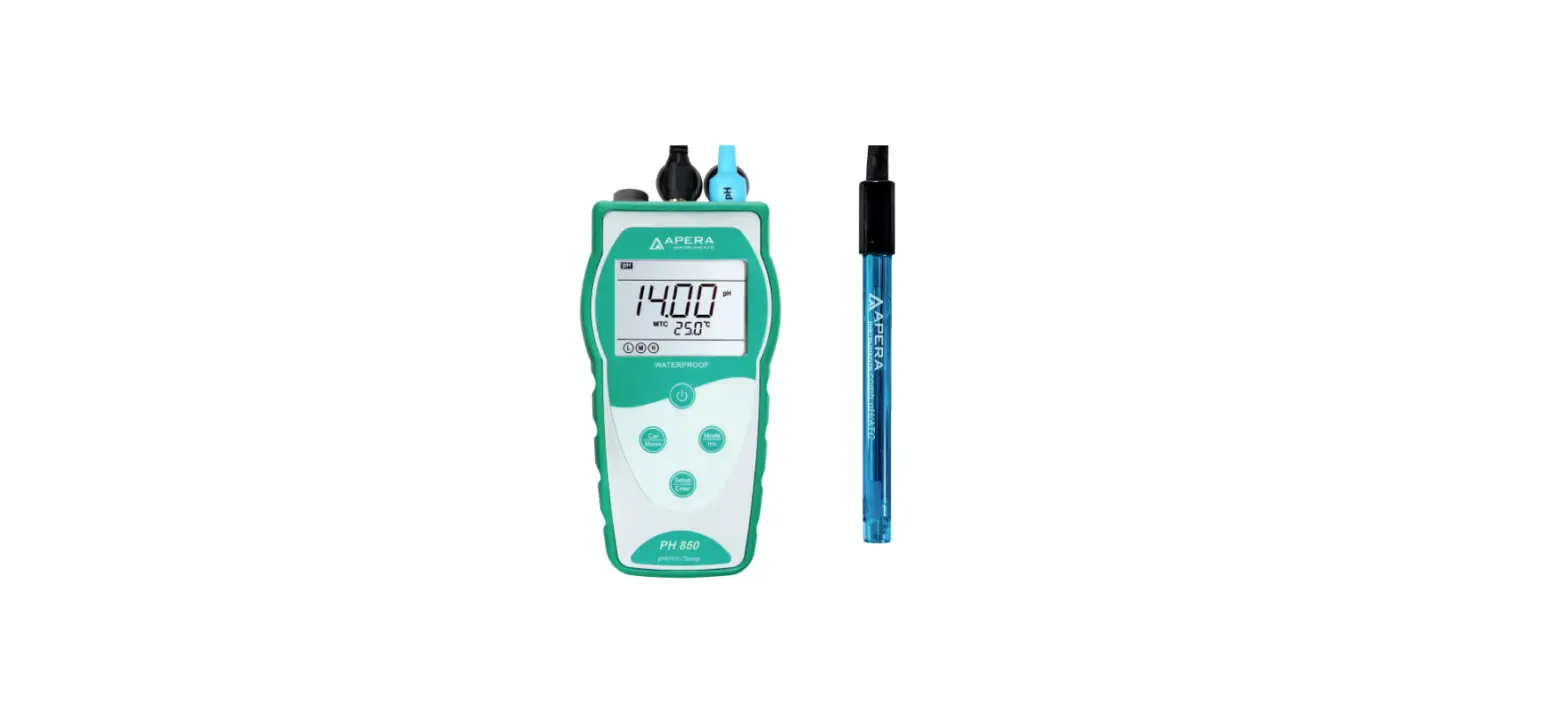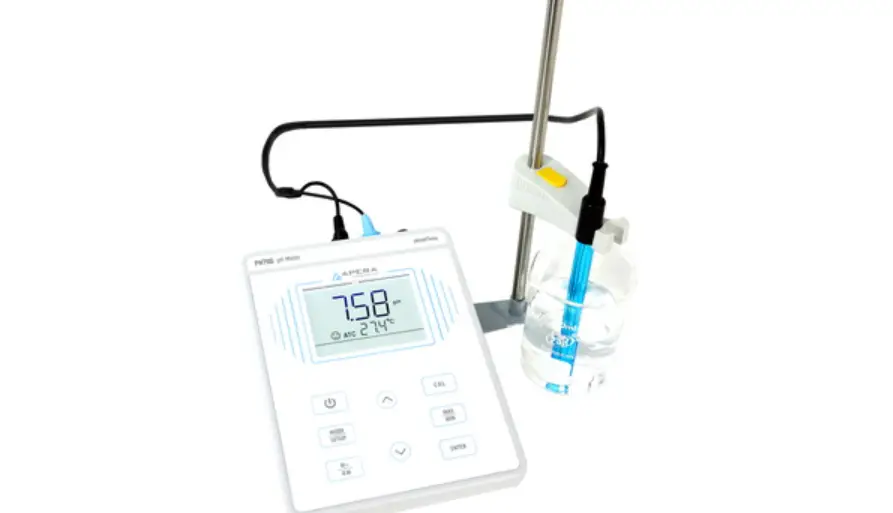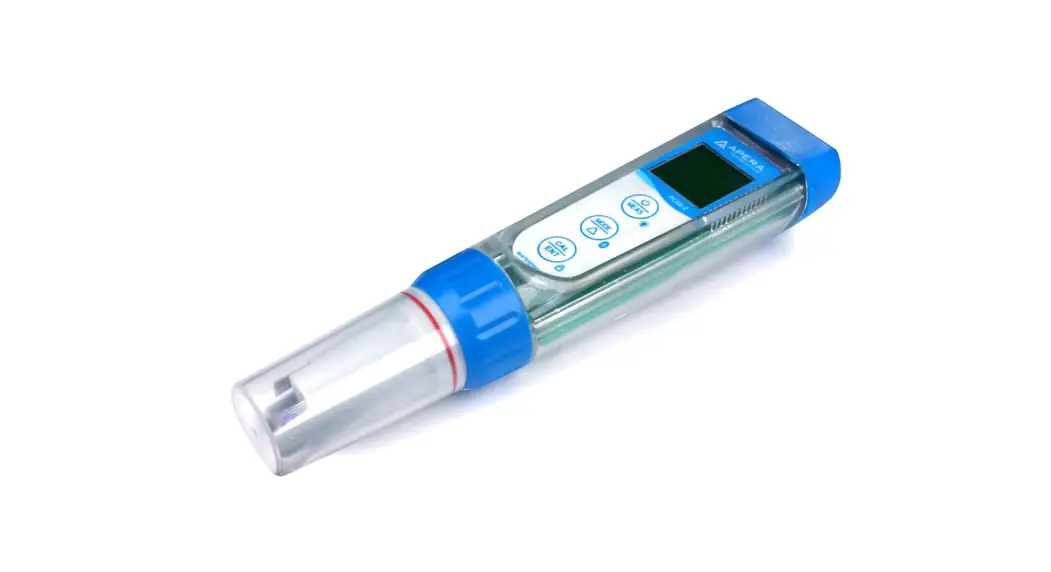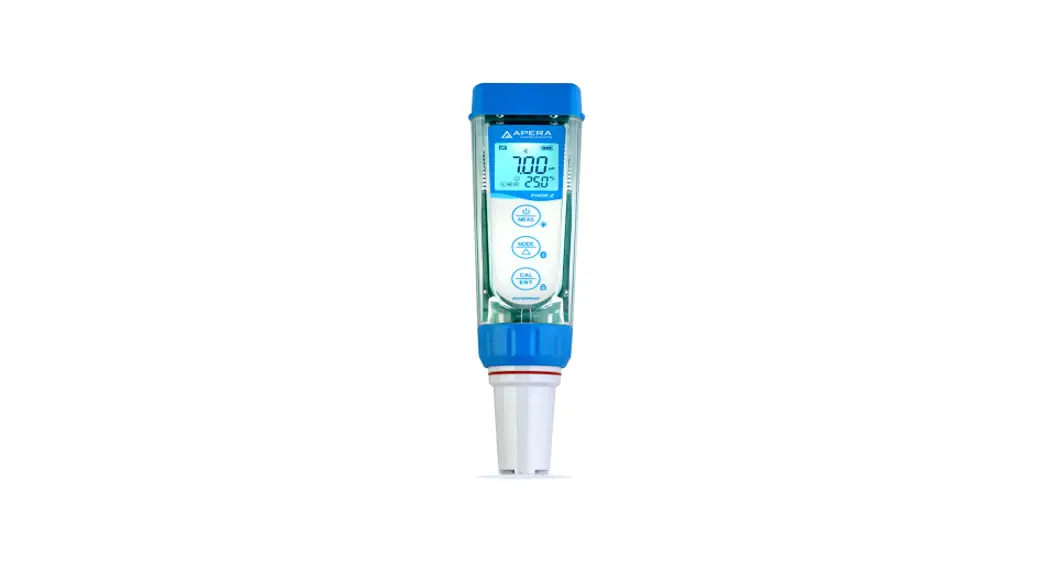
 ZenTest™ PH60F-Z Smart Flat pH Tester
(pH/Temp./ORP)
Instruction Manual 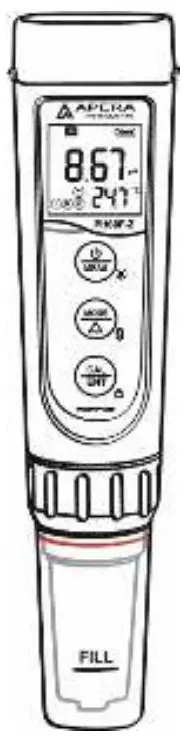
 APERA INSTRUMENTS (Europe) GmbH
www.aperainst.de
ZenTest PH60F-Z Smart Flat pH Tester
ATTENTION
- Water droplets are added during production to maintain the moisture of the probe. This is normal practice and should not be attributed to used product.
- Never use the product when it’s freezing cold. Let it warm to room temperature before using.
Introduction
Thank you for choosing Apera Instruments PH60F-Z Smart Flat pH Tester. Please carefully read this manual before using the product.
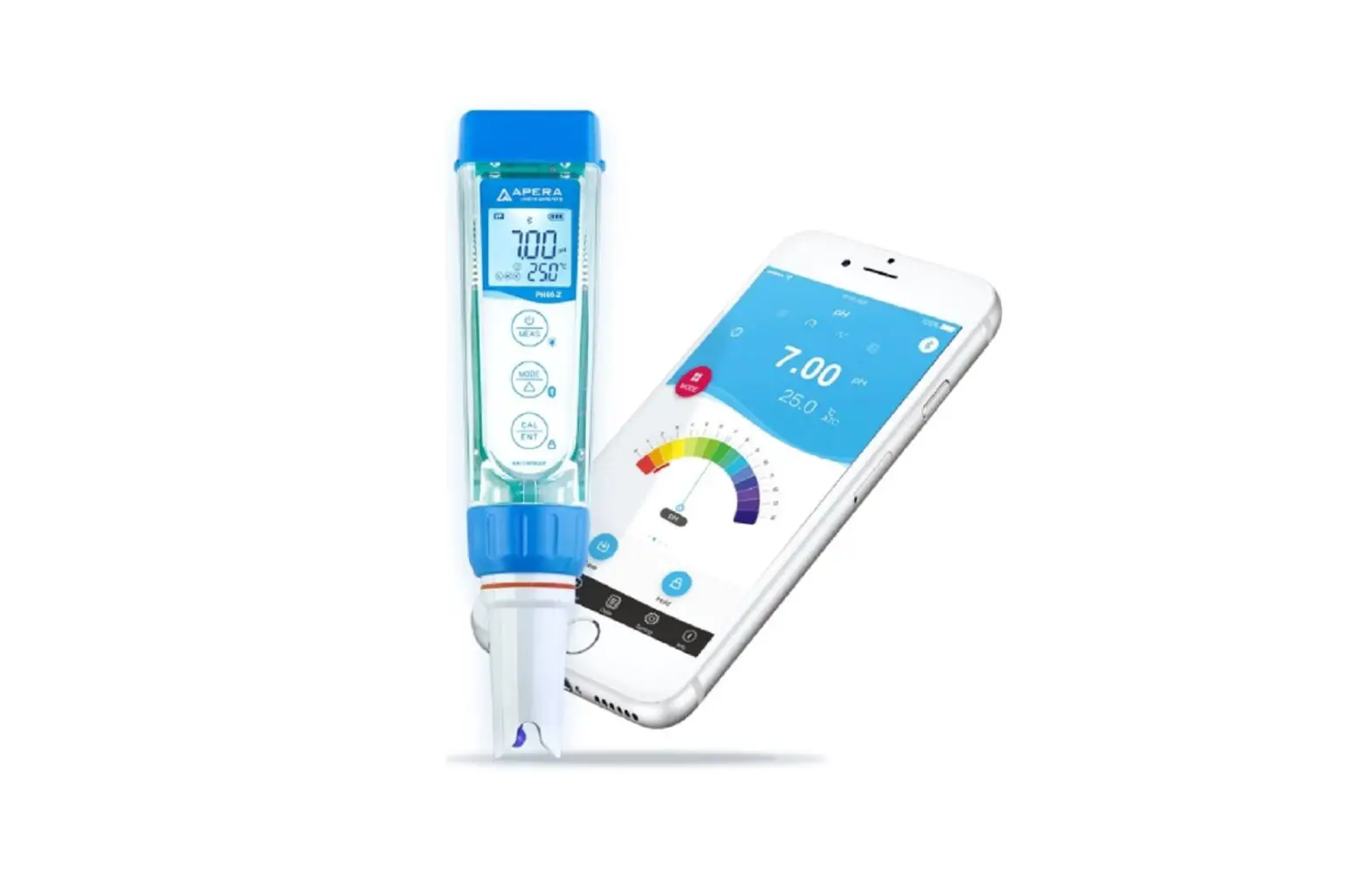
Search “zentest smart” in Apple App Store or Google Play App Store to download the latest App for your tester. Turn on the Bluetooth of your phone, go to ZenTest™ App, tap on the upper right corner, then select your tester to connect.
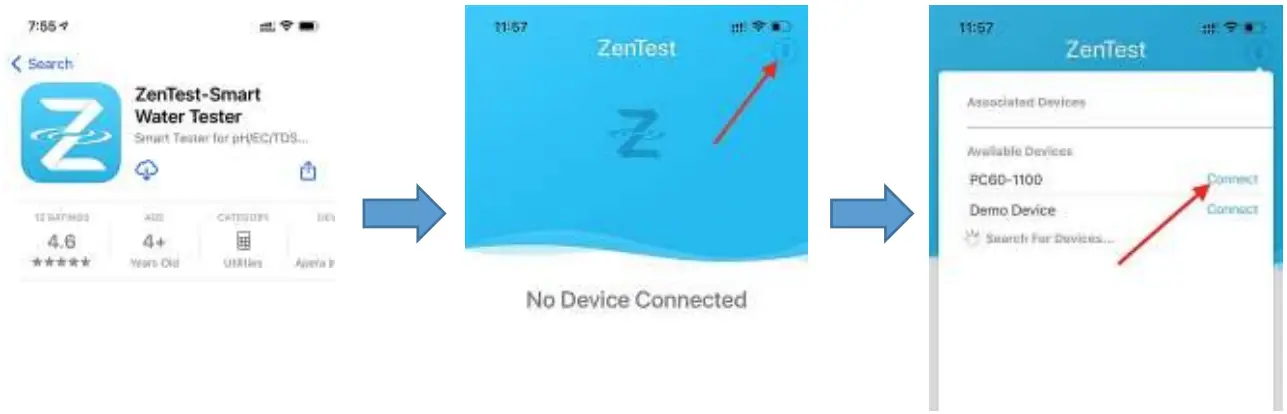
For video tutorials on how to get the most out of ZenTest™, please go to www.aperainst.de
This product is designed with a two-way control on both the tester and ZenTest™ App. Please
refer to the functions available on each platform in the following table. This manual shows you how to operate the tester without connecting to a smartphone.
Table 1: Funtions on 60-Z Tester and ZenTest® Mobile App
| Functions | 60-Z Tester | ZenTest Mobile App | |
| Display | LCD display | 1.Basic Mode: digital display +calibration info | Swipe to switch among various modes |
| 2.Dial Mode: digital display+dial display | |||
| 3.Graph Mode: digital display+graph display | |||
| 4.Table Mode: digital display+real time measurement and history display | |||
| Calibration | Press buttons to operate | Operate on smartphone following graphic guides | |
| Self-Diagnosis | Er1 — Er6 icons | Detailed problem analysis and solutions | |
| Parameter Setup | Press buttons to set up (except for P7 and P11) | All parameters can be set up in Settings. | |
| Alarm | The screen turns red when alarm triggered; cannot be setup | Alarm display and alarm values can be preset for each parameter | |
| Datalogger | N/A | Manual or Auto. Datalogger; notes can be added to saved data | |
| Data Output | N/A | Share data via Email | |
What’s in the Kit
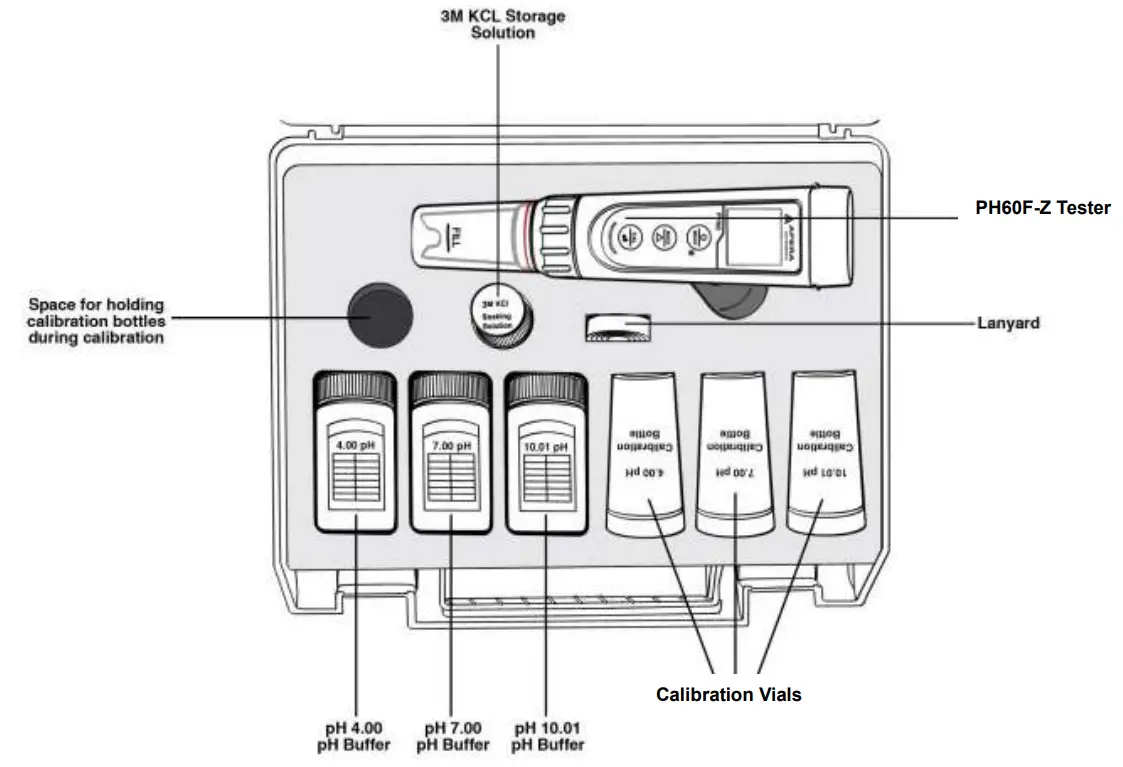
Battery Installation
Please install batteries according to the following steps. *Please note direction of batteries: All POSITIVE SIDES (“+”) FACING UP. (Wrong installation of batteries will cause damage to the tester and potential hazards)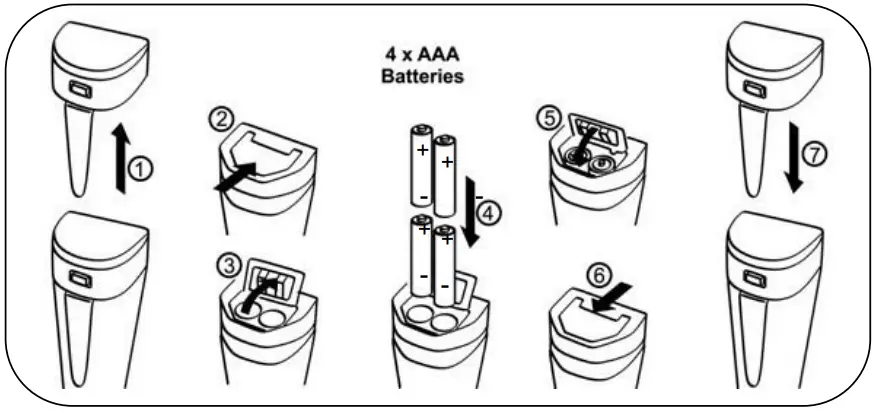
Keypad Functions
 | 1. When turned off, short press to turn on the tester; longpress to enter parameter setting. 2. In calibration mode or parameter setting, short press toreturn to measurement mode. 3. In measurement mode, long press to turn off the tester,short press to turn on/off backlight. |
 | 1.In measurement mode, long press to turn on/off Bluetooth® receiver. When turned on, will be flashing; when connected to smartphone, will stay on. 2.In parameter setting, short press to change parameter (Uni-directional). |
 | 1. Long press to enter calibration mode. 2. In calibration mode, short press to confirm calibration. 3. In measurement mode, when automatic lock is turned off, short press to manually lock or unlock readings. |
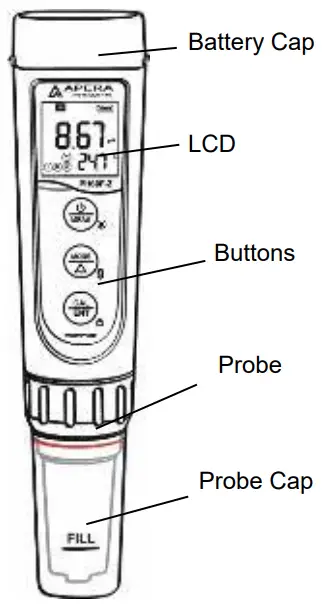
Preparation before Use
Pull out the battery insulation slip, and take off the probe cap.
Rinse off the probe in pure water (preferably distilled or deionized water. RO water or tap water is the alternative) , then shake off excess water.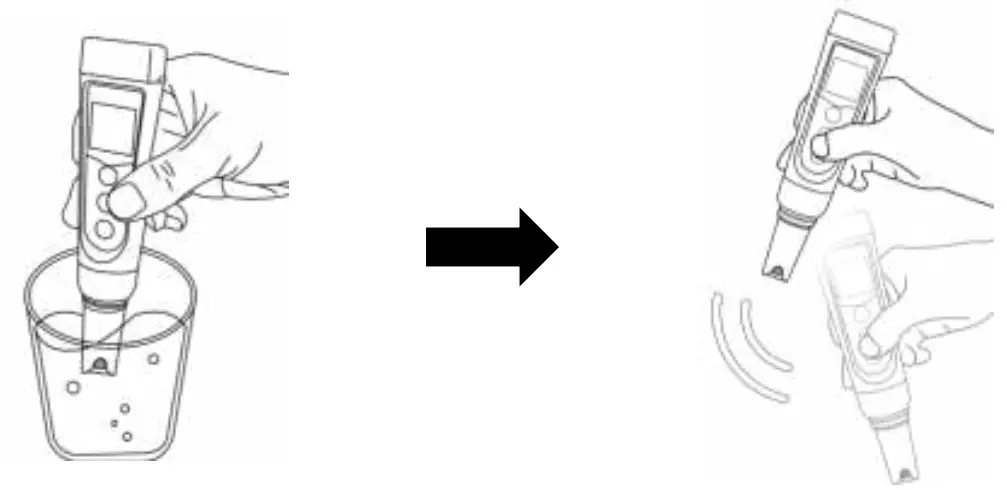
Perform calibration. For pH calibration tutorial, refer to Section 6; for conductivity calibration, refer to Section 8.
If the tester hasn’t been used for a long time (over 1 month), please soak the probe in the 3M KCL soaking solution for 15 minutes, then calibrate it before test.
pH Calibration
Short press to turn on the meter; rinse the probe in distilled water, Shake off excess water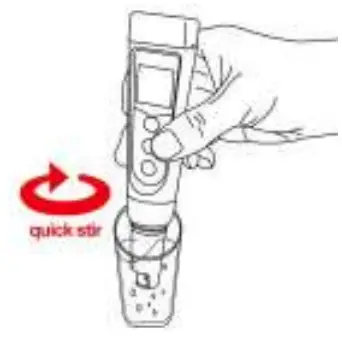
Pour certain amount of pH 7.00 and pH 4.00 buffer solution into the corresponding calibration bottles (to about half volume of the bottle);
Long press to enter calibration mode; Short press to exit.
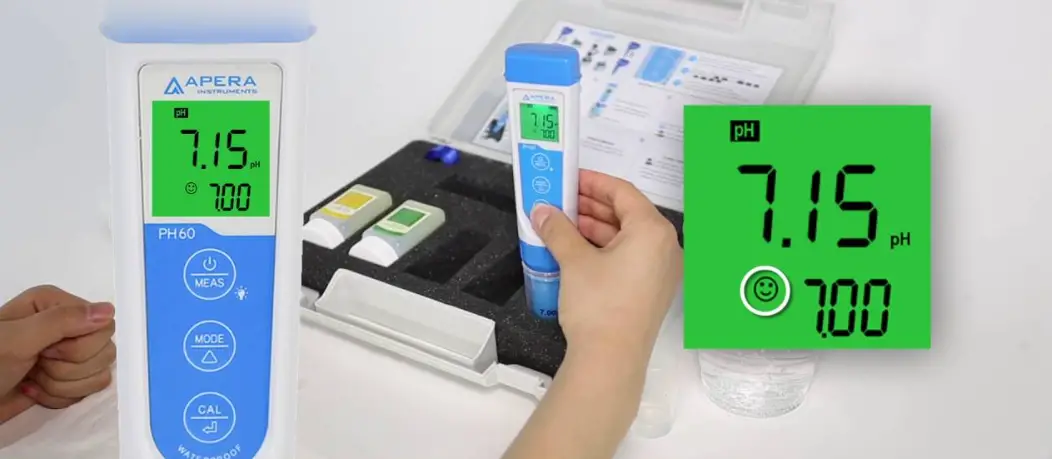
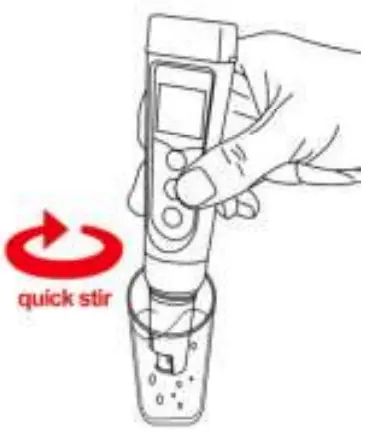
Insert the probe into pH 7.00 buffer solution, make a quick stir, and hold still. When the reading is stabilized (  stays on the LCD screen), short press to complete 1 st point calibration. After calibration is completed, the tester will return to measurement mode. Icon
 will appear at the bottom left of the LCD screen. indicating a successful 1st point pH calibration.
To calibrate 2nd point, use 4.00 pH buffer and repeat Step 6.3 to 6.4 (Do NOT turn off the tester after you finish pH 7 calibration) . will display next to , indicating a successful 2- point pH calibration (low and middle points).
If necessary (target pH>8.00), calibrate 3rd point using 10.01 standard pH buffer and repeat Step 6.3 to 6.4,  will show up next to and , indicating a successful 3-point calibration (high, low, and middle points).
Notes about Calibrationhe
- The 1st point calibration must be 7.00 pH. Perform the 2nd and 3rd point calibrations (4.00, 10.01, 1.68, or 12.45) immediately after the 1st point calibration is finished. o NOT turn off the meter before you calibrate 2nd or 3rd point. Otherwise, you will need to restart the calibration process with 7.00 pH first.
- The pH 4.00 and 7.00 buffer solutions poured into the calibration vials can be used for up to 10 times as long as they are not contaminated and the bottles are capped when not in use. pH 10.01 can only be used for up to 5 times as it will lose its accuracy much faster. After that, replace the buffer solutions in the calibration vials with new ones to keep the accuracy. Keeping the freshness and cleanliness of calibration buffers is essential for accurate pH measurement.
- The tester can perform 1 to 3 points of automatic calibration and can recognize 5 types of pH standard solutions. For details, please refer to the following table:
| Calibration | USA Series | NIST Series | Indication icon | Recommended | ||
| 1-point | 7.00 pH | 6.86 pH | | Accuracy requirement 0.1 a – | ||
| 2-pt | Option A | 1st pt: 7.00 pH 2nd pt: 4.00 pH or 1.68 pH | Option A | 1st pt: 6.86 pH 2nd pt: 4.01 pH or 1.68 pH | | Range < 7.00 pH |
| Option B | 1st pt: 7.00 pH 2nd pt: 10.01 pH or 12.45 pH | Option B | 1st pt: 6.86 pH 2nd pt: 9.18 pH or 12.45 pH | | Range >7.00 pH | |
| 3-pt | 1st pt: 7.00 pH 2nd pt: 4.00 or 1.68 pH 3rd pt: 10.01 or 12.45 pH | 1st pt: 6.86 pH 2nd pt: 4.01 or 1.68 pH 3′ pt: 9.18 pH or 12.45 pH | | Range: 0 to 14.00 pH | ||
For the self-diagnosis information, please refer to the table below:
| Symbol | Self-Diagnosis information | Potential problems and how to fix |
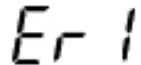 | The pH calibration solution cannot be recognized by the meter. | 1.Make sure the probe is fully immersed in the calibration solution. 2.Check if calibration solution is expired or polluted. 3.1st point of pH calibration must be pH 7.00 or 6.86. See 6.2 (1). 4.Please check whether pH electrode is damaged or broken. If so, please replace with a new one. 5.The glass bulb or junction is severely contaminated. Please use a soft brush with soap water to clean it thoroughly. Then soak it in 3M KCL 3-5 hours before performing calibration again. |
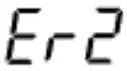 | Is pressed before measurement is fully stable | Wait for to come up and stay on screen before pressing |
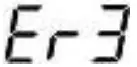 | During calibration, readings being unstable for over 3 minutes | 1.Please check whether pH electrode is damaged or broken. If so, please replace with a new one. 2.The glass bulb or junction is severely contaminated. Please use a soft brush with soap water to clean it thoroughly. Then soak it in 3M KCL overnight before performing calibration again. 3.The electrode is aged (used for over a year and has a much slower response). A replacement is needed. |
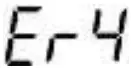 | pH electrode zero electric potential out of range (<-60mV or >60mV) | 1.Check whether pH buffer solutions comply with the USA or NIST standard. 2.Check whether pH buffers are expired or contaminated. 3.Please check whether pH electrode is damaged or broken. If so, please replace with a new one. 4.The electrode is aged (used for over a year and has a much slower response). A replacement is needed. 5.The electrode is invalidated (Er4/Er5 repetitively appears, and problems 1, 2, 3 are excluded). A |
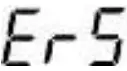 | pH electrode slope out of range (<85% or >110%) | |
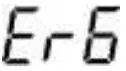 | The calibration reminder is triggered. It’s time to perform a new pH calibration | Perform pH calibration or cancel calibration reminder in ZenTest App settings. |
pH Measurement
How to take pH measurements
Short press to turn on the tester. Rinse the probe in distilled water, shake off excess water.
Insert the probe in your sample solution, make a quick stir and hold still. Record the reading when it is stabilized ( appears and stays on screen).
PH60F Flat probe testers are mostly for flat surface sample test.
- For skin test: skin should be without sweat or dirt, nor be overly cleaned (do not use facewash products before testing) to avoid affecting measurement results, dampen skin with some distilled water, slightly force flat probe onto the skin, get readings after value stabilized.
- For paper, fabric and leather test: add a few drops of distilled/deionized water on surface before performing tests.
- For micro sample testing, use a container with an inner diameter<=19mm and a flat bottom. The tester can test volume >=0.5ml.
ORP Measurement
- ORP stands for Oxidation-Reduction Potential, measured in mV. It’s also called redox. ORP is a measure of the cleanliness of water & its ability to break down contaminants. A separate ORP probe (ORP60-DA) needs to be installed to be able to measure ORP.
- Power on the PC60-Z tester, unscrew the original probe, and install the ORP60-DA probe, then the tester will automatically switch to ORP measurement mode (Refer to Section 14 for how to replace a probe).
- Rinse the probe in distilled water and dry it. Dip the probe in sample solution, shake for a few seconds, and allow it to stand still. Get the ORP readings after
 appears and stays on screen.
Probe Cleaning
- The tester is only as accurate as the probe is clean. Always thoroughly rinse off the probe before and after each measurement with pure water in a container or with a wash bottle.
- For tough contaminants, detach the sensor shield, soak the probe in Apera probe cleaning solution (AI1166) or detergent water for 30 minutes. Then use a soft brush to remove the contaminants. Afterwards, soak the probe in 3M KCL soaking solution for at least 1 hour. Rinse it off, then re-calibrate the tester before using again.
Probe Storage
- Under regular usage (daily or weekly use), make sure the probe cap is wet, and tightly close the cap with the O-ring.
- For long-term storage (you are not going to use the product for a while), add 3M KCL soaking solution to the Fill line in the probe cap and store the probe in it. Close on the probe cap tightly with the O-ring.
- If you find white crystals inside or outside the probe cap, it is perfectly normal. It is the 3M KCL soaking solution that crystalizes over time by its nature. Just rinse them off and add in new soaking solution. This chemical is not poisonous nor dangerous, and the probe’s performance will not be affected at all.
- NEVER store the probe in pure water like tap, RO, distilled, or deionized water as they could damage the pH probe. If this happens, immediately soak the pH probe Apera 3M KCL soaking solution overnight, then re-calibrate it before using. Pure water is only for rinsing the probe.
Parameter Setting
Table of Settings
| Symbol | Parameter Setting Contents | Content | Factory Default |
| P1 | Temperature Unit | `C — °F | `F |
| P2 | Select automatic lock | 5-20 seconds — Off | Off |
| P3 | Automatic Backlight Off | 1-8 minutes — Off | 1 |
| P4 | Automatic Power Off | 10-20 minutes — Off | 10 |
| P5 | pH Buffer Series Selection | USA — NIST | USA |
| P6 | pH Resolution | 0.1 — 0.01 | 0.01 |
| P7 | pH Calibration Reminder | H-hours D-Days (set up in ZenTest App) | |
| P8 | pH back to factory default | No — Yes | No |
Parameter Setting
- When the meter is turned off, long press
 to enter parameter setting →short press
 to switch P01-P02… →P8. Short Press , parameter flashes → short press
 to adjust parameter → short press to confirm →Short press to exit parameter setting and go back to measurement mode.
 - Auto. Lock (P02) – Users can set the auto lock time from 5 to 20 seconds. For example, if 10 seconds is set, when the measured value is stable for more than 10 seconds, the measured value will be automatically locked, and the HOLD icon will be displayed. Short press to release the lock. When the setting is “Off”, the Auto. lock function is turned off, that is, the measured value can only be manually locked. Short press to lock or unlock the measured value. The HOLD icon will be displayed when reading is locked.
- Auto. Backlight (P03) ─ Users can set the automatic backlight time for 1 to 8 minutes. For example, if 3 minutes is set, the backlight will turn off automatically after 3 minutes; when the “Off” is set, the auto. backlight function will be turned off, and short press to manually turn the backlight on or off.
- Auto. Power off (P04) ─ The auto. power off time can be set to 10 to 20 minutes. For example, if 15 minutes is set, the meter will automatically shut down after 15 minutes if no operation; when “Off” is set, the auto. power off function will be turned off. Long press to manually shut down the meter.
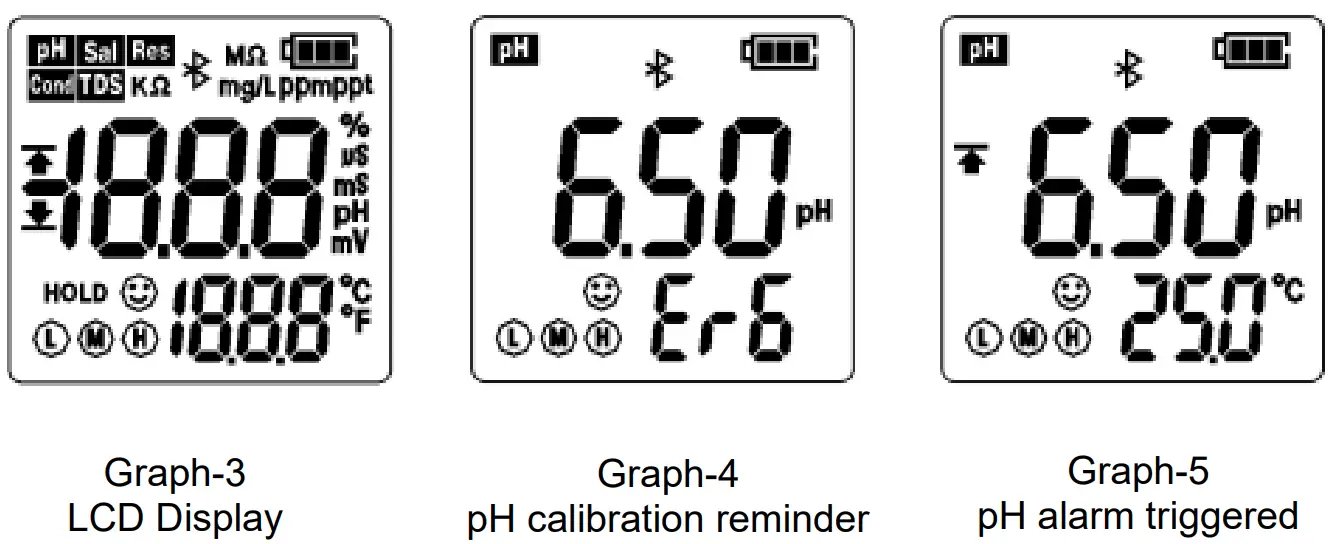
- pH Calibration Reminder (P07) – set X hours (H) Or X days (D) in ZenTest mobile app – settings – Parameter – pH – Calibration Reminder. On the meter, you can only check the values that’s been set up on ZenTest App. For example, if 3 days is set up, the Er6 icon (see Figure-4) will appear in the lower right corner of the LCD screen in 3 days to remind you to perform calibration, also in the ZenTest App there will be a pop-up reminder. After calibration is finished or the reminder setting is cancelled in the ZenTest App, the Er6 icon will disappear.
- pH Back to Factory Default (P08) – Select “Yes” to recover instrument calibration to theoretical value. This function can be used when instrument does not work well in calibration or measurement. Calibrate and measure again after setting the instrument back to factory default.
Technical Specifications
| pH | Range | -2.00 to 16.00 pH |
| Resolution | 0.01 pH | |
| Accuracy | ±0.01 pH ±1 digit | |
| Calibration Points | 1 to 3 points | |
| Auto. Temperature Compensation | 0 — 50°C (32 — 122`F) | |
| ORP (mV) | Range | -1000 mV to 1000 mV |
| Accuracy | ±0.2% F.S | |
| Temperature | Range | 0 to 50°C (32-122°F) |
| Accuracy | ±0.5°C |
Icons and Functions
| Calibrated points | | Self-Diagnosis Symbol | Erl, Er2, Er3, Er4, Er5, Er6 |
| Stable reading indicator | | Waterproof Rating | IP67, floats on water |
| Reading Lock | HOLD | Power | DC3V, AAA batteries*4 |
| Bluetooth Signal |  | Battery Life | > 200 Hours |
| Low power reminder |  | Backlight | White: Measurement. Green: Calibration; Red: Alarm |
| Auto. Power Off | Automatically power off if no operation for 10 minutes | ||
| Dimension/Weight | Instrument: 40×40 x 178mm/133g; case : 255 x 210 x 50mm/680g; | ||
Probe Replacement
pH probes don’t last forever. Every probe will eventually age and fail even if you don’t use it that often. The typical service life of Apera probes is 12-24 months depending on the frequency of usage and how well you keep it clean and properly stored. We recommend replacing your probe every 1 to 2 years to ensure the best performance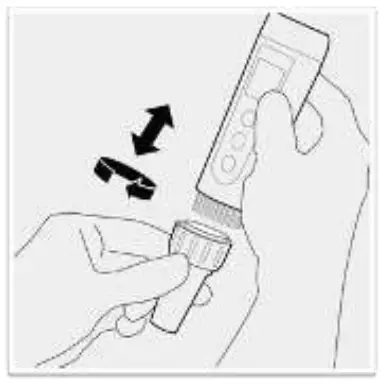
To replace a probe:
- Take off the probe cap;
- Screw off the probe ring
- Unplug the probe;
- Plug in the new replacement probe (pay attention to the probe’s position);
- Screw on the probe ring tightly. Soak the probe in 3M KCL for 5-15 minutes. Then perform calibration before testing.
The replacement probes that are compatible with PH60F-Z are:
- PH60F-DE (Flat pH probe for surface pH testing), PH60-DE (Regular pH glass bulb probe), PH60S-DE (Spear pH probe for solids/semi-solids pH testing)
- ORP60-DA (ORP Probe).
Troubleshooting Guide
| Trouble | Reason | How to fix |
| Cannot calibrate | Pressing too soon | Wait for to stay on screen before pressing |
| Incorrect standard solutions | Reboot tester, calibrate pH 7 first, then pH 4. For details refer to Section 5.2 (a). | |
| Poor quality standard solutions | Replace with fresh and clean standard calibration solutions made by legitimate scientific instrument manufacturers. | |
| Contaminated probe | Clean the probe with Apera cleaning solution or detergent water. | |
| Aged probe | Replace the probe. | |
| Dried-out probe | Soak the probe in 3M KCL solution for at least 15 minutes. | |
| Probe is not fully submerged in the solution | Make sure the probe is fully immersed in the solution at least 1 inch deep. | |
| Air bubbles around the sensor | Make a quick stir in the solution to remove air bubbles. | |
| Reading is always slowly changing, won’t stabilize | Contaminated probe | Clean the probe with Aprea’s cleaning solution or detergent water. |
| Clogged junction | Clean the probe with Aprea’s cleaning solution, then soak it in 3M KCL soaking solution overnight. | |
| Aged probe | Replace the probe. | |
| Testing pH of low iconic strength solutions like tap water, drinking water, RO water | Be patient, wait for 1-5 minutes to reach a fully stabilized reading. If still not stabilizing, add 1 ml of 3M KCL solution to 1000m1 of test solution (or 1 teaspoon to 1 gallon). |
| Display similar readings in any solutions or always display 7.0 pH | Broken probe | If you don’t find any visible damage of the probe, contact us for warranty fulfillment; If there is visible damage, replace the probe. |
| Reading keeps jumping | Probe is not fully submerged in the solution | Make sure the probe is fully immersed in the solution at least 1 inch deep. |
| Air bubbles around the sensor | Make a quick stir in the solution to remove air bubbles. | |
| Probe is not properly connected, or the pin connector is broken. | Check the probe’s connector, make sure it’s not broken and is correctly connected. Align the probe and instrument correctly before plugging in. Never force it. Ensure that the probe connector is not exposed to air too long. | |
| Calibration is successful, but reading is not accurate | Aged probe | Replace the probe. |
| Air bubbles around the sensor | Make a quick stir in the solution to remove air bubbles. | |
| Clogged junction | Clean the probe with cleaning solution, then soak it in 3M KCL soaking solution overnight. | |
| Comparison with other testers, test strips, or drop tests | To compare with other testers, make sure to perform a 2-point calibration for all testers in the same standard, then test a 3rd point. Whichever gives more accurate reading is the more accurate one. Test strips or drop tests’ accuracy is not comparable to pH meters ‘. |
Warranty
We warrant this instrument to be free from defects in material and workmanship and agree to repair or replace free of charge, at option of APERA INSTRUMENTS (Europe) GmbH, any malfunctioned or damaged product attributable to responsibility of APERA INSTRUMENTS (Europe) GmbH for a period of TWO YEARS (SIX MONTHS for the probe) from the delivery. This limited warranty does NOT cover any damages due to: accidental damage, unauthorized repair, normal wear and tear, or external causes such as accidents, abuse, or other actions or events beyond our reasonable control.
APERA INSTRUMENTS (Europe) GmbH
Wilhelm-Muthmann-Straße 18, 42329 Wuppertal, Germany
Contact: [email protected] | www.aperainst.de
Tel. +49 202 51988998