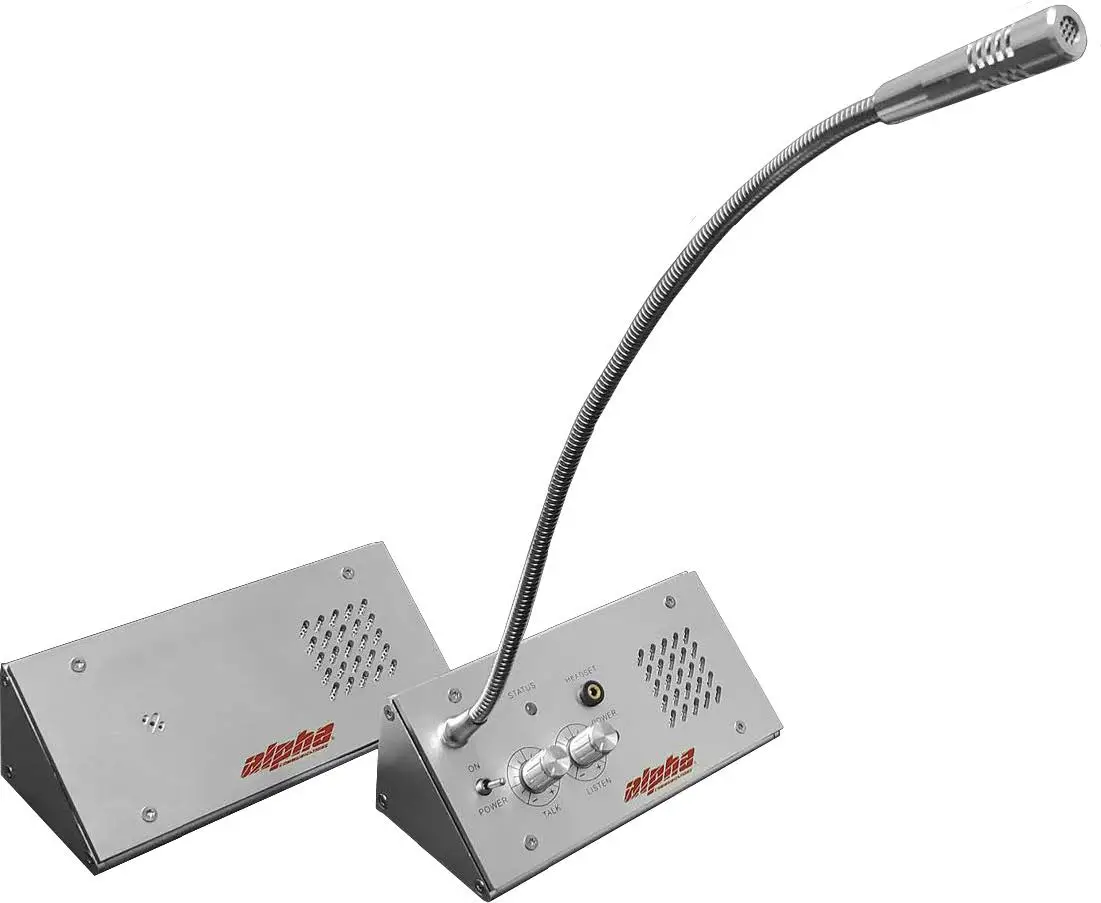
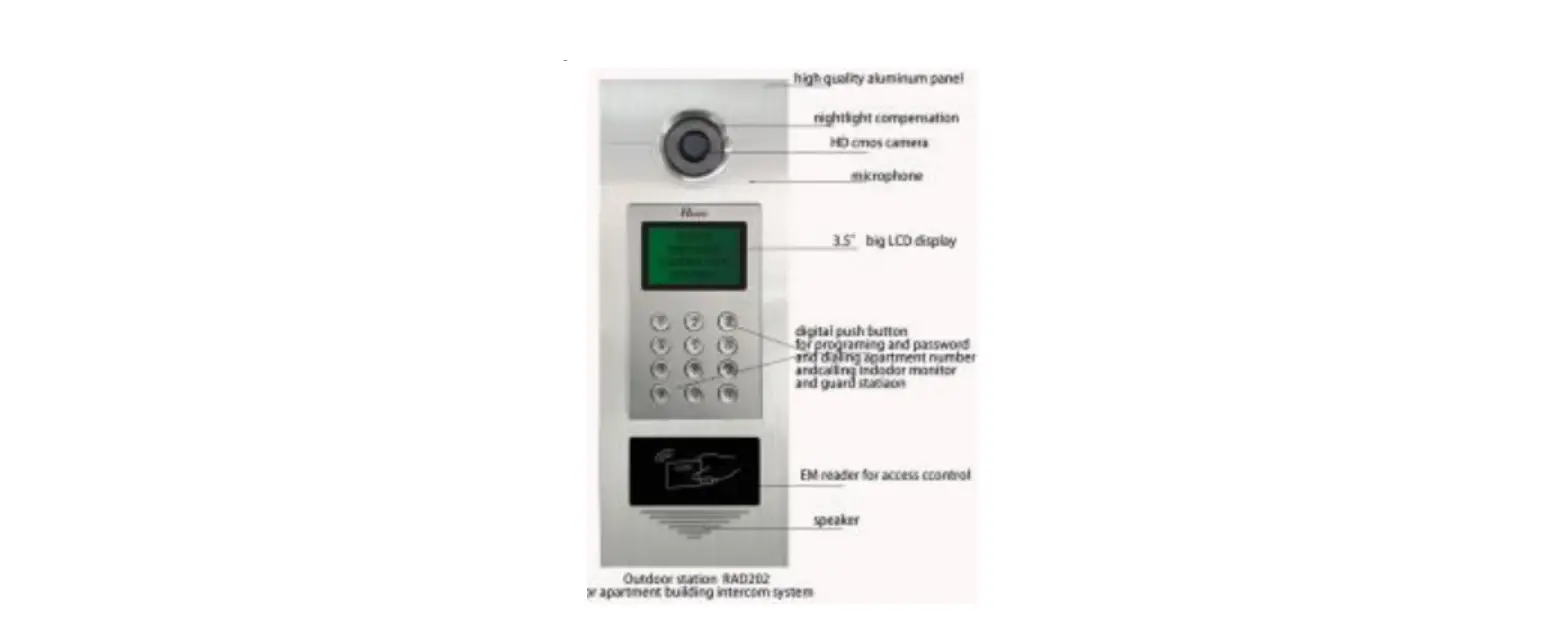
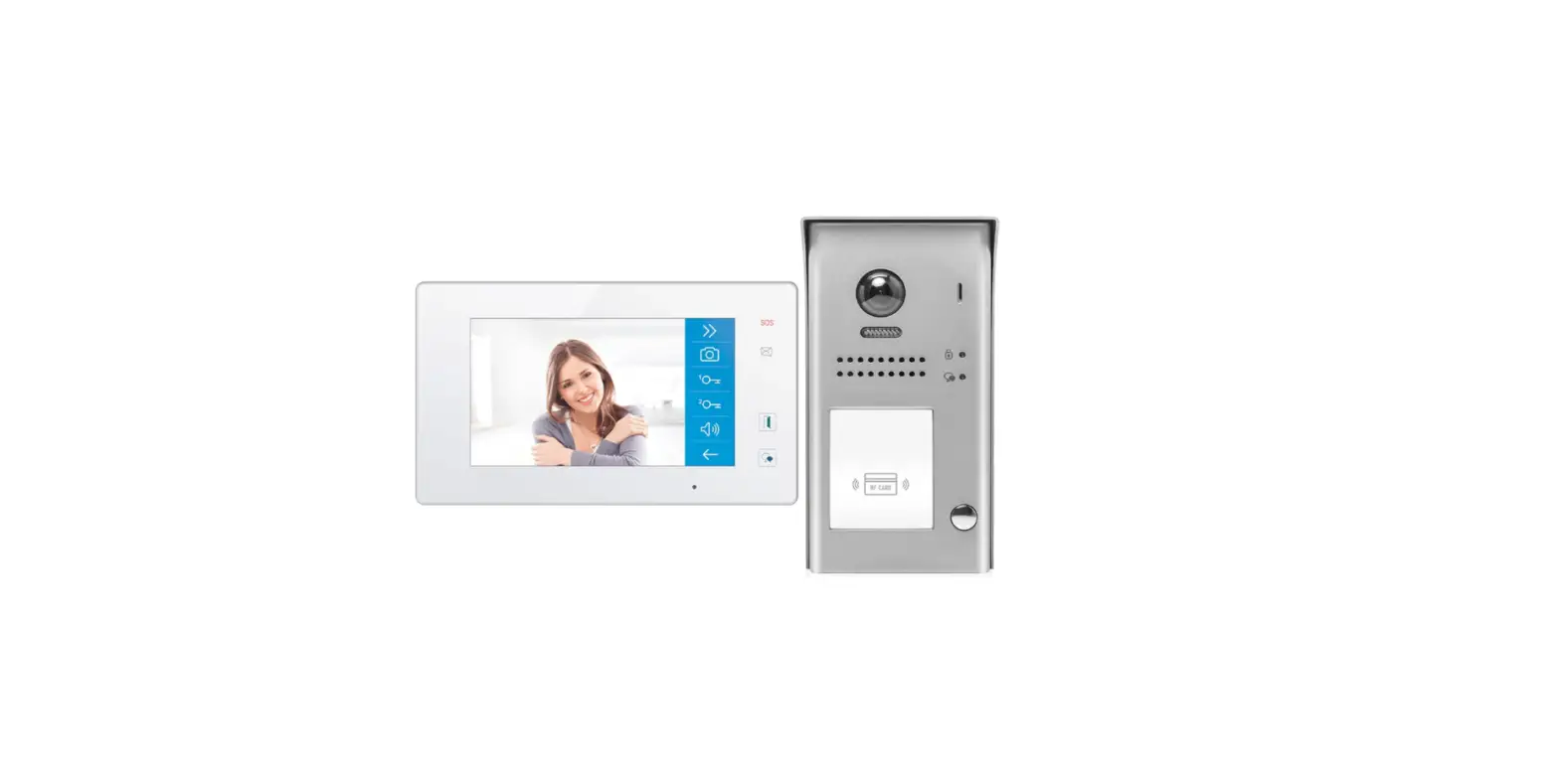
i10K GSM Intercom
Product Information:
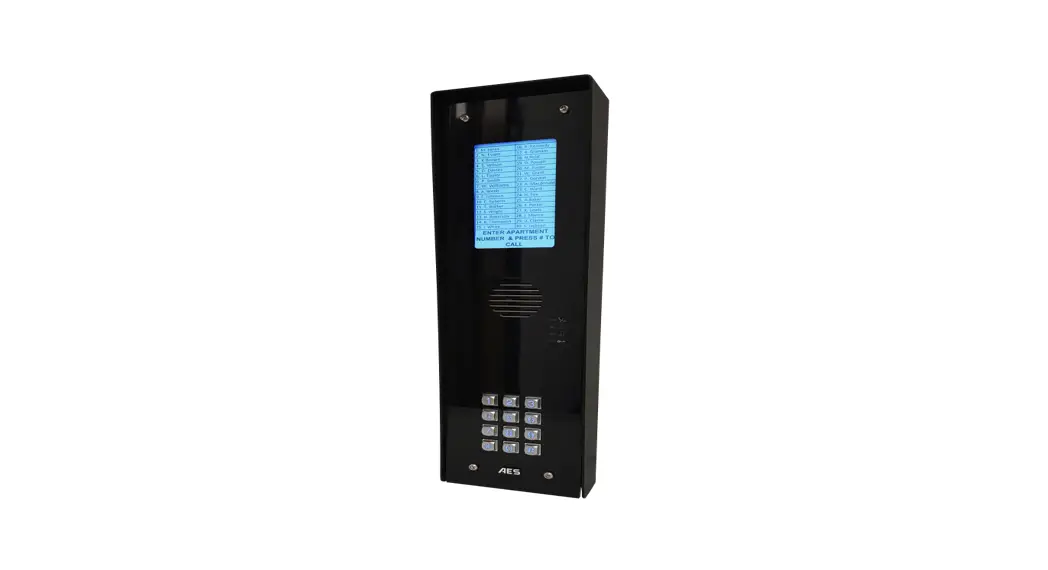
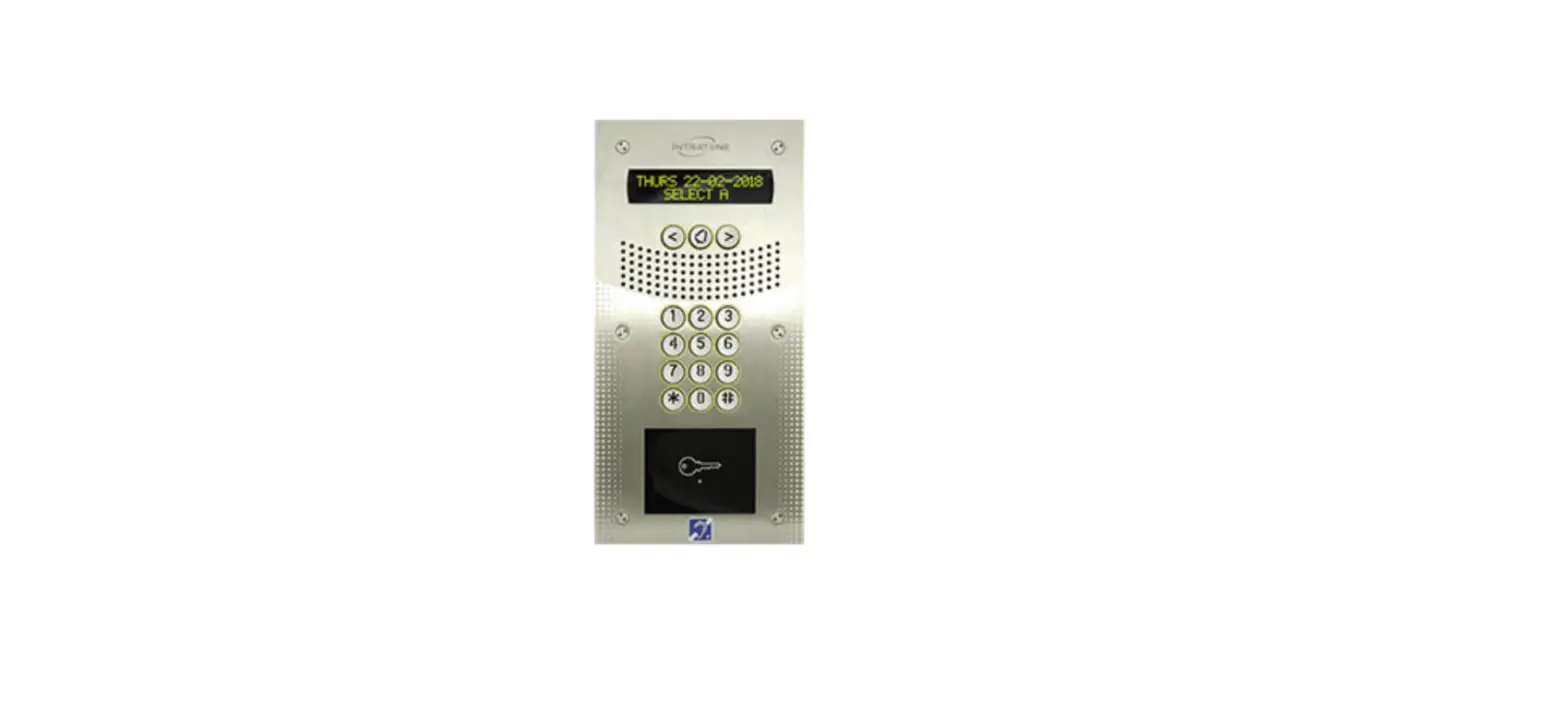
The GSM/i10K GSM Intercom is a keypad-based intercom system that
allows for access control and communication with two gate stations.
It features four buttons on the keypad and supports a MicroSIM card
for communication. The intercom has multiple relays for controlling
various functions and is powered by a 12VDC power source. It also
includes a USB connector for programming and a slide and open hinge
antenna connector.
Product Usage Instructions:
To install the GSM/i10K GSM Intercom, follow these steps:
- Configure each keypad as A or B by holding * and 0 for A or #
and 0 for B when applying power to the keypad. Confirmation will be
indicated by a beep and an orange illuminated LED. - Send an SMS to the unit with the following content: *2222 DUAL
1 (replace 2222 with your password) to enable Dual gate station
functionality. - To disable Dual gate station, send an SMS to the unit with the
following content: *2222 DUAL 0 (replace 2222 with your
password).
To program access control passwords, follow these steps:
- Enter programming mode by entering the default master password
(1 2 3 4 5) and holding down the red * button. - A beep will be heard to indicate programming mode.
- Press numbers 1 – 4 to program the password for relays 1 –
4. - Press the red * button.
- Enter the password (up to 8 numbers) and press the red *
button. - An acknowledgment tone will be heard to confirm the
programming.
To reset the master password, follow these steps:
- Hold down the numbers 1 9 while applying power until a beep is
heard. - Enter the new password followed by the green # button.
- Power-cycle the unit.
To connect a handset, a connection unit may need to be purchased
from the supplier. Follow the provided instructions for connecting
the handset.
Please note that if the unit is connected to a computer via the
USB cable, the SMS and dialing capabilities will not work. Remove
the USB cable after programming to allow the unit to proceed with
the boot sequence.
GSM/i10K GSM INTERCOM NEW INSTRUCTIONS
Installation Manual
GSM INTERCOM Keypad
GSM/i10K
GSM INTERCOM 4 Button
M000042
Page 2
GSM INTERCOM Two gate stations
5 21 8 1112 14
A
NB!!!
GSM/i10K
5 21 8 1112 14
B
11
11
12 21 5
11 12 6
12 21 5
11 12 6
G
G
21
21
5
5
up to 20m
USB Connector
–
11 G 12 7 6 21 5
MicroSIM Slide and open hinge Antenna connector
+
Rel 4 Rel 3 Rel 2 Rel 1
(13.8) 12 VDC
To add two gate stations configure each keypad as A or B. This is done by holding (about 2seconds) * and 0 for A or # and 0 for B when applying power to the keypad. confirmation can be heard by a beep and an orange illuminated LED. There after send the following SMS to the unit: *2222 DUAL 1 where 2222 is your password. to Disable Dual gate station: *2222 DUAL 0 where 2222 is your password.
NOTE: All relays are normally open contacts
M000042
Page 3
GSM INTERCOM
11
1
12 21 5
11 12 6
2
G 21 5
GSM/i10K
Access control
The gatestation with access control module is now equipped with the ability to trigger the relays on the GSM master board by entering in a password on the keypad. This is useful in the case where entry and exit maybe be provided to home owners and guests, in addition to the missed call feature of the intercom.
Programming access control
All passwords for access control are programmed via the keypad. Four passwords may be programmed to activate the respective four relays on the GSM master board.
1. To enter programming mode enter 1 2 3 4 5 and hold down the red * button (1 2 3 4 5 is the default master password).
2. A beep will be heard which signifies programming mode. 3. Press numbers 1 – 4 to program the password for relays 1 – 4 4. Press the red * 5. Enter the password (up to 8 numbers) and press the red* 6. An acknowledgment tone will be heard.
The unit has now exited from programming mode and the programmed password may be used by pressing the password followed by the green #.
NOTES: 1. Password 1 is the also master password – changing this will change the programming password. 2. All numbers less than 4 characters are interpreted as a unit number, therefore choose a password of 5 numbers or more for access control. 3. If an incorrect password is entered 3 times the keypad will prevent any input for the following 20 seconds. Reactivation is indicated by a beep. 4. A single invalid tone indicates an unprogrammed unit number has been entered 5. A double invalid tone indicates an invalid access control password has been entered
Resetting the master password: 1. Hold down the numbers 1 9 while applying power until a beep is heard. 2. Enter in the new password followed by the green # button 3. Power-cycle the unit
M000042
Page 4
CONNECTING A HANDSET
GSM/i10K
11
12
57 8 9
6 G
21
5
USB Connector
–
11 G 12 7 6 21 5
+
330e
47e 100uF
9 5 8 6 21 5
Connection unit may be purchased from supplier
12 VDC (13.8)
+
Rel 4 Rel 3 Rel 2 Rel 1
MicroSIM
Slide and open hinge
Antenna connector
M000042
Page 5
PROGRAMMING – sms
GSM/i10K
Booting sequence
On power up all LEDs will be on. As the unit passes the various tests the LEDs will turn off. Only when the green and blue LEDs are flashing slowly is the unit in the normal running state. “System ready” audio notification will be played through the gatestation.
Please note that if the unit is connected to a computer via the USB cable, none of the SMS or dialing capabilities will work. Remove the USB cable after programming and the unit will proceed with the boot sequence.
Programming
The unit may be programmed via PC software through the USB port or via SMS.
The following are the structure of the SMSs for the various programming options. The default password is 2222 and must be changed. All messages start and end with a * (asterisk)
Change password from 2222 to 7788: *2222 PASS 7788
Add airtime:
*2222 NETW XXXXXXXXXXX
where XXXXXXXXXX is the recharge USSD Command and voucher pin
eg *2222 NETW 12345678912345#
Retrieve airtime available:
*2222 NETW *136#
(NB: No *asterisk at the end)
Set automatic hang-up time to 60s:
*2222 HANG XX*
XX – hangup time seconds (25 seconds default)
Set the status number:
*2222 STAT 27821234123
The status number will SMS’d on a weekly basis
Adding & Calling numbers (Keypad Version)
Each unit may have two numbers associated with it. By pressing the unit number and either the * or # dial buttons the associated number will be dialed. (# for number 1 and * for number 2) The GSM intercom may have up to a 4 digit number (9999 max)
The unit will give and audible message acknowledging that the call is in progress. If an unprogrammed unit is dialed, an error message will be heard.
Should the caller wish to cancel the phone call at any stage they may press either of the dial buttons to hung up. NB: all numbers added must contain the country code ie, 27821234123 and no +’s
*2222 ADDN AAAAAAAAA,BBBB,C,D
AAAAAAAAA – telephone number eg 27821231234 BBBB – unit number 1-9999 C – user number 1,2 D – missed call permission (1- relay1, 2 relay2)
Examples Add number 2 for unit 123 and allow missed call relay 1: Add number 1 for unit 32 and allow missed call relay 2:
*2222 ADDN 27821234123,123,2,1
*2222 ADDN 27821234123,32,1,2
Remove a number: Clear telephone list:
*2222 DELN 27821234123 *2222 CLRN
Gate triggering
At any point during the conversation the home owner may key in on their keypad the number 1 or 2 or 3 or 4. This will activate one of the 4 relays at the unit respectively which will typically trigger the gate to be opened.
Missed-call activation
The GSM unit comes equipped with a missed call function. Only programmed numbers may activate this function. When the caller phones the number of the SIM card in the GSM intercom, the unit will proceed to hang up the called and activate relay 1 and no charge to the caller.
M000042
Page 6
PROGRAMMING – software
GSM/i10K
1. Download GSMi10000 software: https://gsmi10k.co.za./GSMi10config.EXE. 2. Launch GSMi10000 software and connect USB Cable (Ensure that the PCB is powered via 12 DC).
The purpose of these screenshots is to help with editing or creating of new units
3. Select COM Port by clicking below box ( the COM port will appear automatically).
M000042
Page 7
PROGRAMMING – software
GSM/i10K
4. Very important Always Read Settings from Unit (if the pop up message from previous step doesn’t appear)
5 .Select the “Unit numbers” tab
6. Creating a unit: Enter a unit number between 1 9999 which represents a house or office and Click “Add to list” tab (See below example, adding unit 100).
M000042
Page 8
PROGRAMMING – software
GSM/i10K
7. Adding a telephone number belonging to the unit: (a) Click Add user, (b) Select user number between 1 – 3. (c) Enter a telephone number starting with country code and no +’s (eg, South Africa 27821231234), (d) click Add button.
NB: To add a second or third number in the same unit please select the relevant user number in step (b) of above example and follow step (c) and (d).
8. To create additional units, repeat same process starting from step 6 and do the same for all the units required.
M000042
Page 9
PROGRAMMING – software
GSM/i10K
9. Click “upload settings to unit” button and wait for the “Upload complete” message as shown on the next page.
M000042
Page 10
PROGRAMMING – software
GSM/i10K
10. Unplug the USB cable after the below message and wait for the unit to reboot then you can start dialing from the entry panel.
11. Dialing the units The # button on the keypad will dial 1st number and * button will dial the second number, the system will divert to 3rd number if 1st & 2nd numbers don’t answer. Always start with unit number followed by # or * button.
Example: To call the 1st number of unit 100, dial 100# To call the 2nd number of unit 100, dial 100*
SIM Network selection The system works with all network service providers.
Very Important! The missed call option is not automatically available with MTN Network, please contact the service provider to enable “LTE Voice Over” to access the feature.
M000042
Page 11