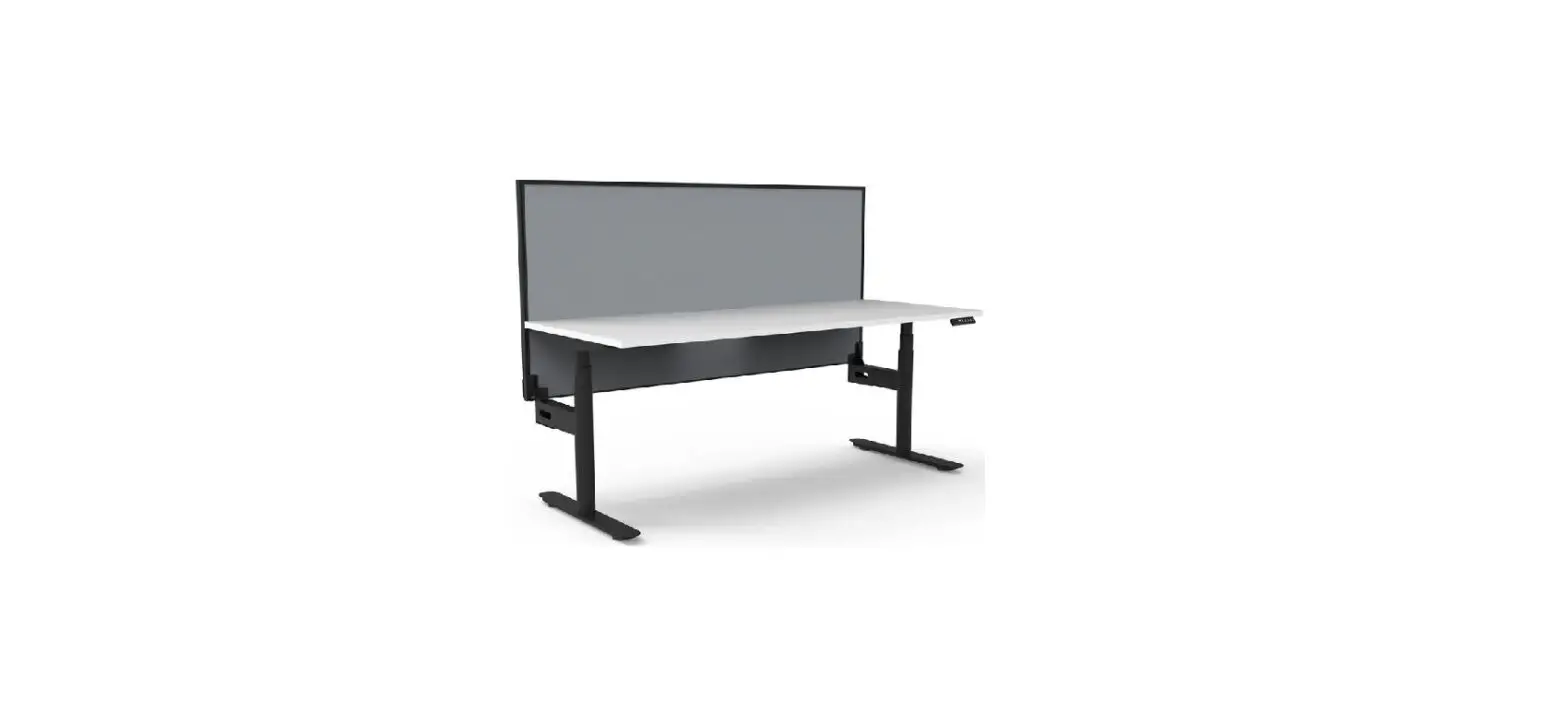
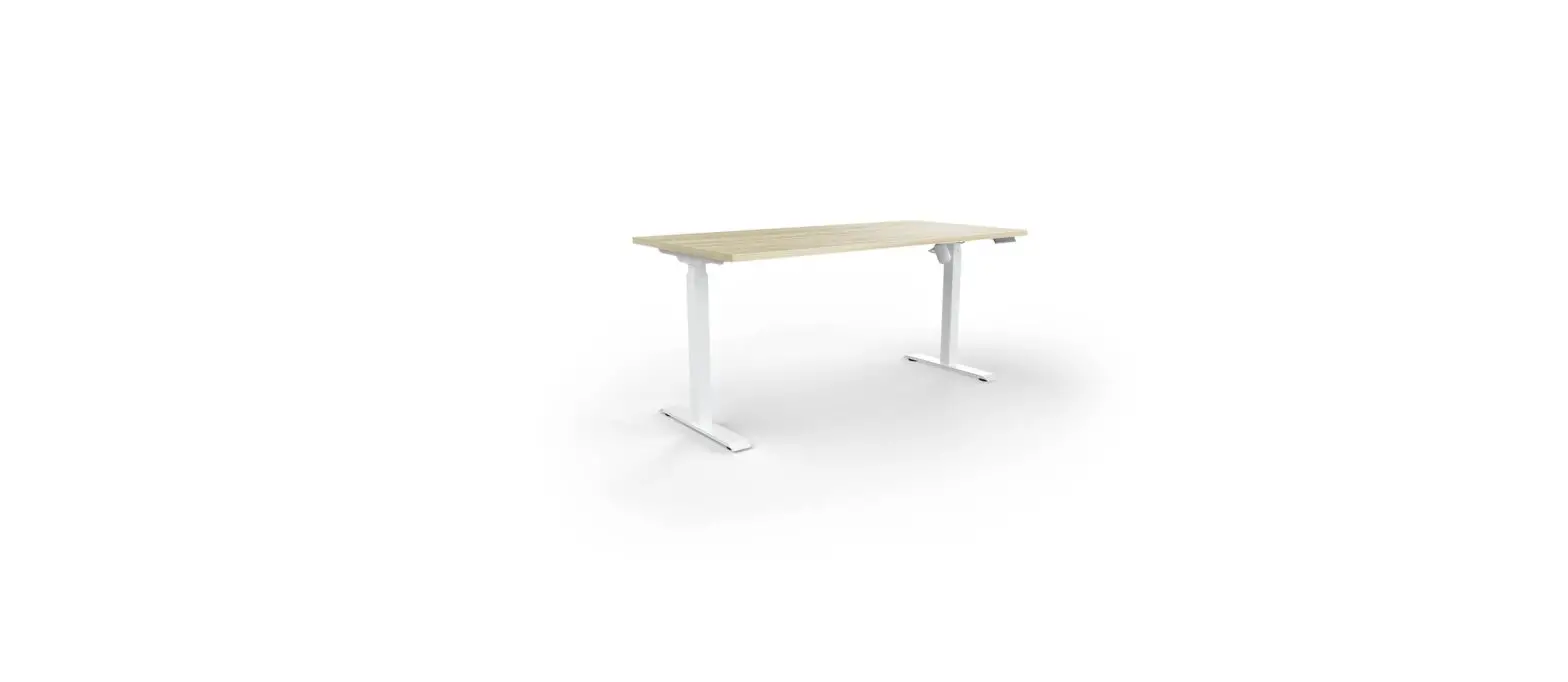
Halo Plus Return Frame
Product Information:
The Halo Plus Return Frame is a component of the Halo Plus
workstation system. It is designed to provide height-adjustable
functionality to a standard single workstation. The frame includes
various component parts such as bolts, leveling pads, table feet,
lifting column, side brackets, rubber pads, top frames, control
box, motor cable, and Allen wrench.
Product Usage Instructions:
- Step 1: Loosen the pre-installed bolts and
adjust the length of the top frame to match the size of the table
top. - Step 2: Insert the lifting column into the top
frame. First, fix 2pcs screws M6x12 as shown in image C. Then,
tighten the pre-installed bolts as shown in image B. - Step 3: Install the table feet using screws 4
pcs M6x16 and install the 4 leveling pads. - Step 4: Install the side bracket with screws 2
pcs M6x12. - Step 5: Connect the return frame to the single
workstation and fix it with 2 hand bolts. Fix the centre brackets
with 2pcs screws M6x10. - Step 6: Mount the tabletop and fix it with 12
pcs screws ST4x20. Tighten the bolts on the top frame to secure
it. - Step 7: Mount the control box to the frame and
fix the handset with 2pcs screws ST4x20. Connect the cables and
secure them with cable ties.
Use Instructions:
Connect the cables as shown in the photo below:

Control Panel Operation and Programming Instructions:
Refer to the provided Control Panel Operation and Programming
Instructions for detailed information on operating and programming
the control panel.
Troubleshooting:
- HOT Issue: If the control box is operated
continuously for more than 2 minutes, wait for 18 minutes or
disconnect and reconnect the power cable to resolve the error
code. - E01 and E02, E03 Issue: Check the connection
of the control box cables and ensure they are properly connected.
If the problem persists, replace the engine or remove the load from
the desk. - E06 Issue: If the difference between the two
lifting columns is higher than 1 cm, start the reset process. - E07 Issue: If the load weight exceeds the
limit of 120 kg, remove some items from the desk to reduce the
total weight. - E08 Issue: If the input voltage is lower than
the required value, wait for the voltage to increase and reach the
required limits. - E09 Issue: If the input voltage is too high
and exceeds the maximum allowed value, wait for the voltage to
decrease and reach the maximum value supported by the device. - E10 Issue: If the control panel is not
connected or does not receive power while the control box is
connected to a power source, wait for 1 second or check the
connection cables.
Halo Plus Return Frame Instruction Manual
Table of Contents
Component parts ………………………………………………………………………………………………………………………….. 2 Assembly Instructions …………………………………………………………………………………………………………………….. 3 Use Instructions ……………………………………………………………………………………………………………………………… 6 Troubleshooting …………………………………………………………………………………………………………………………….. 9 Important Safety Instructions …………………………………………………………………………………………………………. 10 Advanced Programming ………………………………………………………………………………………………………………… 11
Return frame
Standard single workstation
1
Component parts
NO. Component Name
PCS
NO. Component Name
PCS
1
Bolt: M6x16
5
10 Bolt: M6x10
3
2
Leveling pads
2
11 Centre bracket
1
3
Table feet
1
12 Center rails
2
4
Lifting column
1
13 Top frame-2
1
5
Bolt: M6x12
4
14 Hand bolts M6x10
2
6
Screw:ST4x20
13
15 Allen Wrench(4mm)
1
7
Side brackets
1
16 Cable tie
2
8
Rubber pad
10
17 Control Box
1
9
Top frame-1
1
18 Motor cable
1
2
Assembly Instructions
Step 1 Loosen the pre-installed bolts and Adjust the length of the top frame to match the size of the table top.
A
Step 2 Inset the lifting column to the top frame. – First fix 2pcs screws M6x12 like C displayed – And then tighten the pre-installed bolts like B displayed
B
C
3
Step 3 Install the table feet Screws 4 pcs M6x16,install the 4 leveling pads.
Step 4 Install the side bracket with Screws 2 pcs M6x12,
4
Step 5 Connect the return frame to the single workstation and fixed with 2 hand bolts. Fix the centre brackets with 2pcs screws M6x10.
D
Step 6 Mount the tabletop and fix it with 12 pcs screws ST4x20 Tighten the bolts on top frame to fix it.
5
Step 7 Mount the control box to the frame,fix the handset with 2pcs screws ST4x20. Connect the cables and zipped it with cable tie.
6
Use Instructions
A. Parts list 1. Lifting Column …….. ………………………………………………………………………………………………………………. 3 pcs 2 Handset……………………………………………………………………………………………………………. 1 pcs 3. Control Box ………………………………………………………………………………………………………………………….. 1 pcs 4. Motor Cable …………………………………………………………………………………………………………………….. 3 pcs 5. Power Cord …………………………………………………………………………………………………………………………. 1 pcs
Connect the cables as shown in the photo below:
Lifting Column
Power Cord
Lifting Column Lifting Column
Handset
Control Box
patch cord
patch cord B. Technical Specifications Input: 100-240VAC Output Power: 29VDC Maximum accepted weight: 120 kg (including tabletop weight) Maximum speed: 38 mm/s Minimum height: 620mm Travel distance: 650 mm Operating temperature: 5-40°C Duty Cycle: Max.10% or 2 min on and 18 min pause
patch cord
7
Control Panel Operation and Programming Instructions
1. Make sure all components are connected correctly (control box, control panel, power cable and connecting cable, lifting columns). 2. Connect the power cable to a 110/240VAC outlet. After the control panel will display “62.0” sign for a few seconds, the system is turn on and the desk is ready for use. 3. Up and Down Press and hold the “UP” button to move up the desk to the desired height. The desk will stop when the button is released. Press and hold the “DOWN” button to lower the desk to the desired height. The desk will stop when the button is released. 4. Memory Settings After adjusting the desk height using the “UP”/”DOWN” buttons, press the “M” button and “S -” sign will be displayed on the control panel. Then press the desired button from 1 to 4 to assign the current height to a number on the keypad. Can be saved and memorized 3 different heights. Moving the desk to a preset height can be done by pressing the corresponding button from 1 to 3. During operation you can stop the desk by pressing one of the “UP”/”DOWN” buttons. 5. Keypad Lock To lock: Press and hold “UP” and “DOWN” buttons for 5 seconds until “LOC” sign appears on the display, indicating that the system is locked. To unlock: Press the “UP” and “DOWN” buttons for 5 seconds at a same time until the “LOC” sign disappears and the height of the desk is displayed, indicating that the system is ready to be adjusted again. 6. Reset When the system is experiencing a problem or the control panel displays “RES”, the system must be reset. Press and hold the “DOWN” button throughout the process. After 5 seconds, the desk will lower slightly until it reaches its lowest height, then rises slightly and the display changes back to the numeric height setting.After the desk stops, the reset process is successfully completed.
8
Troubleshooting
1. HOT Issue: Operation of the control box, continuously, for more than 2 minutes. Solution: a. Wait 18 minutes. b. Disconnect the power cable, wait a few minutes, and then plug the cable to the power source. The error code will disappear.
2. E01 and E02,E03 Issue: a. One of the control box cables is not connected properly, it is defective or broken; b. The weight on one side of the desk exceeds 160 kg. Solution: Make sure all the connection cables are properly connected. Then wait 3 seconds and the error code will disappear. If the problem still persists, replace the engine with a new one. Remove load from desk, then the error code will automatically disappear.
3. E06 Issue: The difference between the two lifting columns is higher than 1 cm (0.4 inches). Solution: Start the “Reset” process.
4. E07 Issue: The load weight exceeds the limit of 120 kg. Solution: Remove some from the things on the desk to make sure the total weight does not exceed 120 kg.
5. E08 Issue: The input voltage is lower than the required value. Solution: The error code will automatically disappear when the voltage increases and reaches the limits required by the device.
6. E09 Issue: The input voltage is too high and exceeds the maximum allowed value. Solution: The error code will disappear automatically when the voltage decreases and reaches the maximum value that the device can support.
7. E10 Issue: The control panel is not connected or does not receive power, while the control box is already connected to a power source. Solution: Wait 1 second, the error code will disappear automatically. If the problem persists, check the connection cables.
9
Important Safety Instructions
· Before using this device, read these operating instructions carefully and keep this user manual for future reference. · Before using the product, check the desk and power cables for any visible signs of damage. If you notice cuts or deep scratches, do not turn on the device. · Before connecting the product to the power supply, make sure that the power supply voltage is compatible with the parameters of the product. · Before using it, make sure that the length of the power cable allows you to connect the desk to the power supply. · The height-adjustable desk contains electronic circuits and should only be used in dry environments. Do not use outdoors or in very dusty environments. Keep away from heat sources and any corrosive materials. · Keep all electrical components away from liquids. Never touch or handle the desk, power supply, the control box, the panel control or any other cable with wet hands. · Clean the product only with a clean, dry, soft cloth or cloth. Disconnect from the power supply before moving or cleaning electrical components. · Do not disassemble the columns, control box and control panel. These actions are considered damage caused by the user. · This product contains small parts. Make sure they are out of the reach of children. Do not allow children to play with the device. Packing materials must not be used as toys. · Do not lay or sit on the worktop. This product is not for lifting people. · Do not exceed the maximum permissible load weight. · This product can be used in a 10% cycle (2 minutes of operation, followed by 18 minutes pause). · The manufacturer cannot be held liable or responsabile for any damage or injuries resulting from improper use of the adjustable desk, in other words, non-compliance with these safety instructions and warnings.
10
Advanced programming
1Un-Display units setting ————————————————————————————————12 2br-Handset brightness setting—————————————————————————————–12 3bE-Voice setting —————————————————————————————————————12 4Fu-Go up anti-collision sensitivity setting —————————————————————————-13 5Fd-Go down anti-collision sensitivity setting ————————————————————————-13 6FS-Balance sensitivity———————————————————————————————————14 7SH-Setting the new lowest display and height range ————————————————————14 8Hc-Setting Constant-touch & One-touch ————————————————————————–15 9St-Time Reminder setting ———————————————————————————————15 10H-Setting bounce height ———————————————————————————————-15 11r-Restore Factory Defaults ——————————————————————————————16 12d-Fatigue test mode —————————————————————————————————16
11
1Un- Display units
Change the numeric display to show heights in either inches or centimeters Press “M” button and hold 3 seconds, handset display “S–” ,Release “S” button,Press “M” button to enter,Display ” 1Un”,Press “M” button again to confirm the first programming setting.
1. It will display
,Press S button to get CM display,wait 2 seconds,centimeters setting is done,It will
display current height (cm)
2. After it display ,press UP or DOWN ,It will display setting is done,It will display current height (Inch)
,Press button “S”,Wait 2 seconds, inches
2br-Handset display brightness
Press “M” button and hold 3 seconds, handset display “S–” ,Release “M” button,Press “M” button to enter,Display ” 1Un”. 1. Press UP/Down ,It will display 2br.
2. Press “M” to enter,It will display current brightness level
: Means normal brightness, : Means low brightness, : Means high brightness 3. Press UP or DOWN to select the desired brightness level,press “S” button to confirm,wait 2 seconds,It will display current height.
3bE-Setting voice
Press “M” button and hold 3 seconds, handset display “S–” ,Release “S” button,Press “M” button again to
enter,Display ” 1Un”.
1. Press UP or DOWN,It will display “3bE”
2. Press “M” button,It will display current sound status ,
or
: Means no voice when you press the button , : Means with voice when you press the button.
3. Press UP or DOWN to select
or ,then Press “M” to confirm,wait 2 seconds,It will display
current height.
12
4Fu-Go up anti-collision sensitivity
The desk has an Anti-Collision Sensitivity that will stop the desk’s movement if it hits something on the way up. You can change this Sensitivity level by doing the following: Press “M” button and hold 3 seconds, handset display “S–” ,Release “M” button,Press “M” button again to enter,Display ” 1Un”. 1. Press UP or DOWN ,It will display 4Fu. 2. Press “M” button to enter,It will display current anti-collision sensitivity level.Total 9 levels for up from
to
;
is the most sensitivity setting,
is the least sensitivity setting.
3. Press UP or Down to select the your favorite level,Press “M” button to confirm,wait 2 seconds,It will
display current height.
5Fd-Go down anti-collision sensitivity
The desk has an Anti-Collision Sensitivity that will stop the desk’s movement if it hits something on the way down. You can change this Sensitivity level by doing the following: Press “M” button and hold 3 seconds, handset display “S–” ,Release “S” button,Press “M” button again to enter,Display ” 1Un”. 1.Press UP or DOWN,It will display 5Fd. 2.Press “S” button to enter,It will display current anti-collision sensitivity level L5 .Total 9 levels for down
from
to
;
is the most sensitivity setting,
is the least sensitivity setting.
3.Press UP or Down to select the your favorite level,Press “M” button to confirm,wait 2 seconds,It will
display current height.
13
6FS-Balance sensitivity
The desk has a balance Sensitivity to make sure the 2 columns always work in the same position . You can change this Sensitivity level by doing the following: Press “M” button and hold 3 seconds, handset display “S–” ,Release “S” button,Press “M” button again to enter,Display ” 1Un”. 1.Press UP or DOWN ,It will display 6FS. 2.Press “M” button to enter,It will display current balance sensitivity level L5.Total 9 levels for down from
to
;
is the most sensitivity setting,
is the least sensitivity setting.
4. Press UP or Down to select the your favorite level,Press “M” button to confirm,wait 2 seconds,It will
display current height.
7SH-Setting the new lowest display and height range
The desk frame ships defaulted to its minimum and maximum height limits. These steps allow the upper and lower limits to be adjusted to your preference: Press “M” button and hold 3 seconds, handset display “S–” ,Release “S” button,Press “M” button again to enter,Display ” 1Un”. 1.Press UP or DOWN ,It will display 7FS.
2.Press “M” button to enter,It will display
,Press UP or DWON,It will display
and
: Set the lowest position height display
:Set a new minimum desk height
:Set a new maximum desk height
5. Press UP or DOWN ,It will display
,Press “M” button to enter,It will display current lowest
height,Press UP or DOWN to set the lowest height display ,Press “S” to confirm .
6. Press UP or DOWN ,It will display
,Press “M” button to enter,It will display current lowest
height,Press UP or DOWN to set a lowest height position ,Press “M” to confirm .
7. Press UP or DOWN ,It will display
,Press “M” button to enter,It will display current highest
height,Press UP or DOWN to set a new highest height position ,Press “M” to confirm .
14
8Hc- Setting Constant-touch & One-touch for go Up or Down
Press “M” button and hold 3 seconds, handset display “S–” ,Release “M” button,Press “M” button again to enter,Display ” 1Un”. 1. Press UP or DOWN,It will display 8Hc
2. Press ” S” button to enter,It will display current mode
,Press UP or DOWN,It will display
: Keep pressing UP or DOWN button to make the desk moving up or down.
: Press UP or DOWN button and release,the desk will moving up or down automatically; Press any button can stop the desk when it moving.
3. Press “M” to confirm the the way you need,wait 2 seconds,setting is done.
9St-Reminder setting
To get a healthier working style,the desk can remind you to stand up when you sit in a long time,you can set it by doing the following: Press “M” button and hold 3 seconds, handset display “S–” ,Release “M” button,Press “M” button again to enter,Display ” 1Un”. 1. Press UP or DOWN go get “9St” 2. Press ” S” to enter,It will display ” 0.0H”,It no time reminder ,(H means Hour) 3. Press UP or DOWN to select the time reminder you need ,(1.5H means 1.5 hours),Press ” S” to confirm. Note: When handset time reminder beep,press any button to make it disappear ; the time reminder will last 30 seconds if no any operations.
10H-Setting bounce height
Press “M” button and hold 3 seconds, handset display “S–” ,Release “M” button,Press “M” button again to enter,Display ” 1Un”. 1. Press UP or Down to get 10H. 2. Press “M” button to enter,It will show current bounce height. 3. Press UP or DOWN to get the bounce height,Press “M” to confirm;Wait 2 seconds,It will display current height
15
11r- Restore Factory Defaults
Press “M”button and hold 3 seconds, handset display “S–” ,Release “M” button,Press “M” button again to enter,Display ” 1Un”. 1. Press UP or DOWN ,It will display 11r
2. Press “M” to enter,It will display
and flash.
3. Press “M”to confirm,wait 2 seconds,It will display current height.
12d-Fatigue test mode
Factory use,please ignore this programming.
16