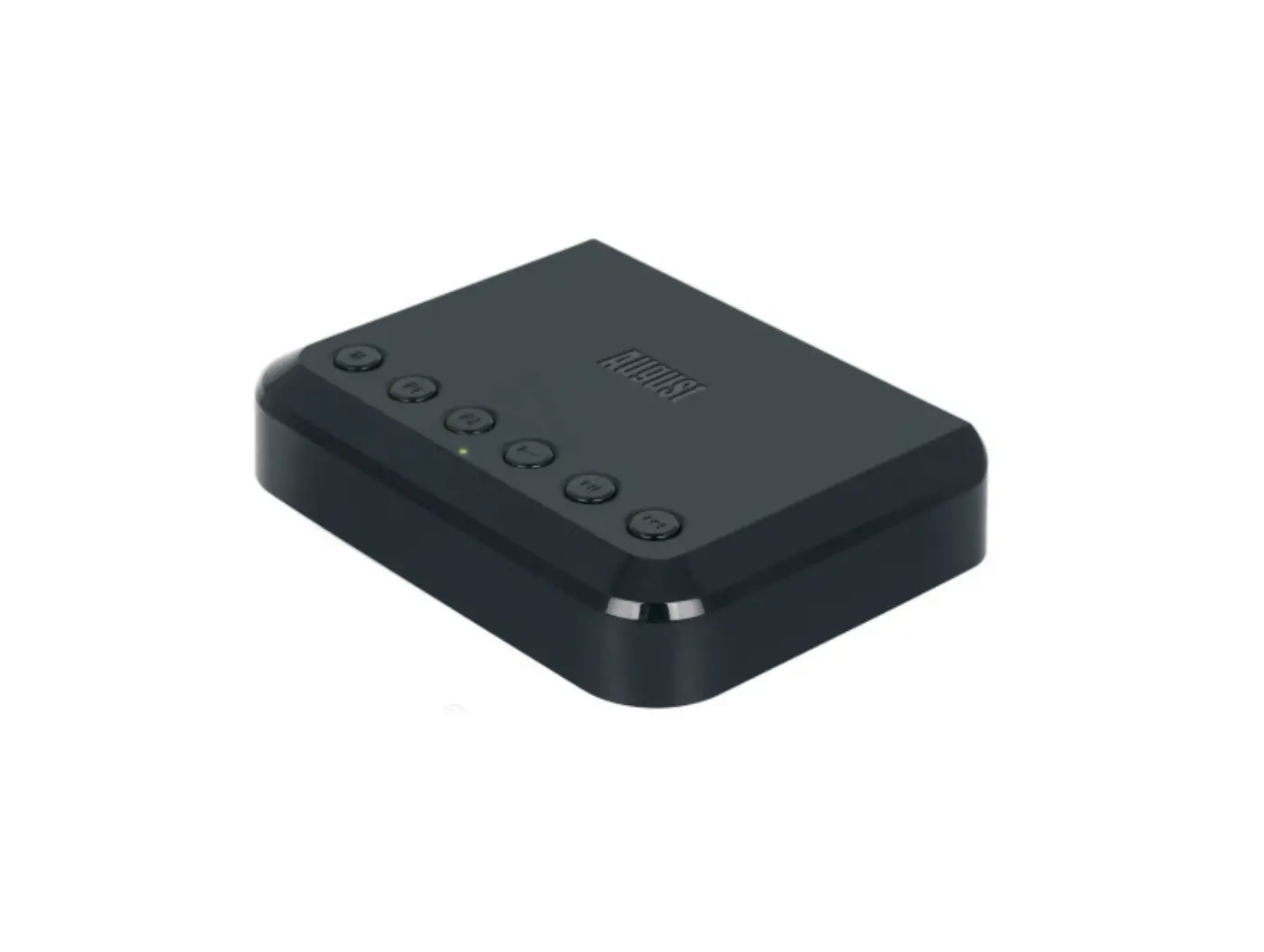
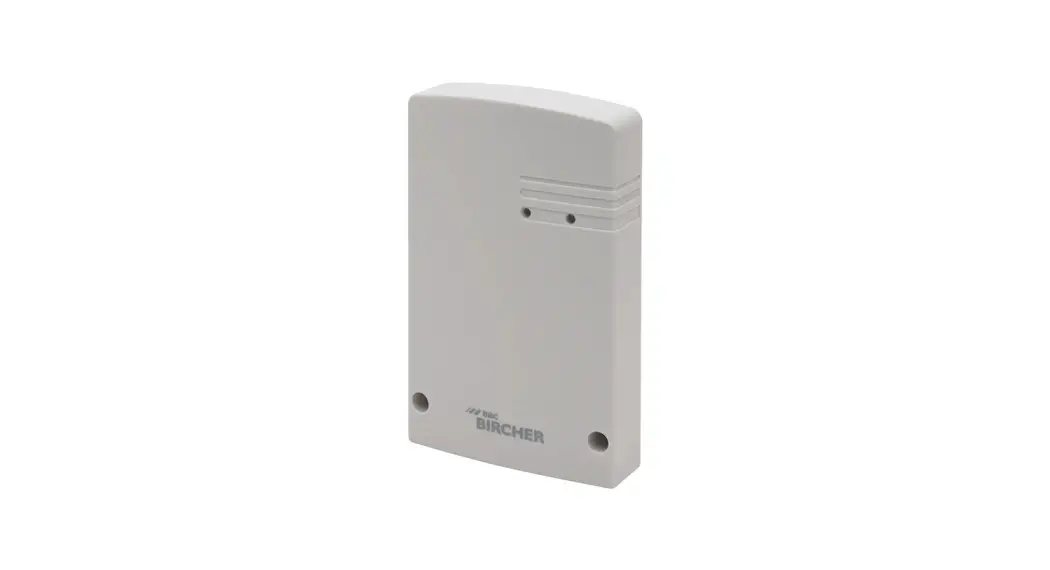
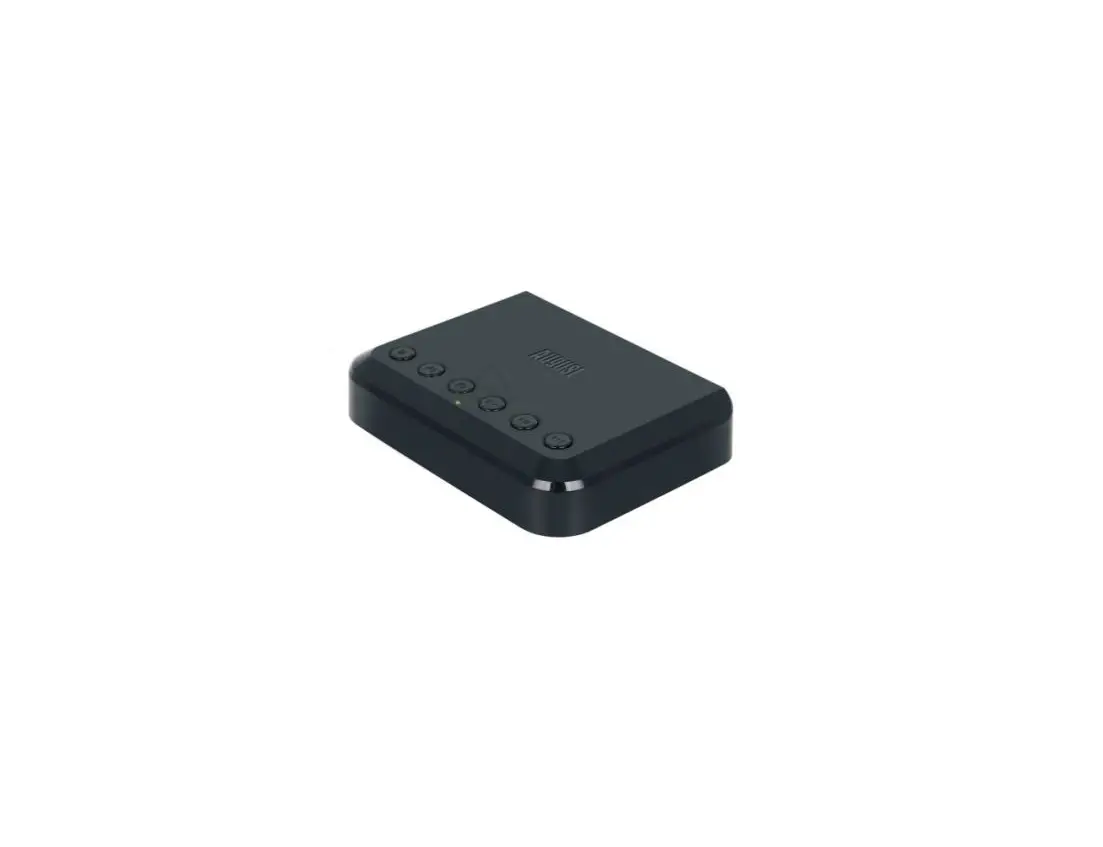
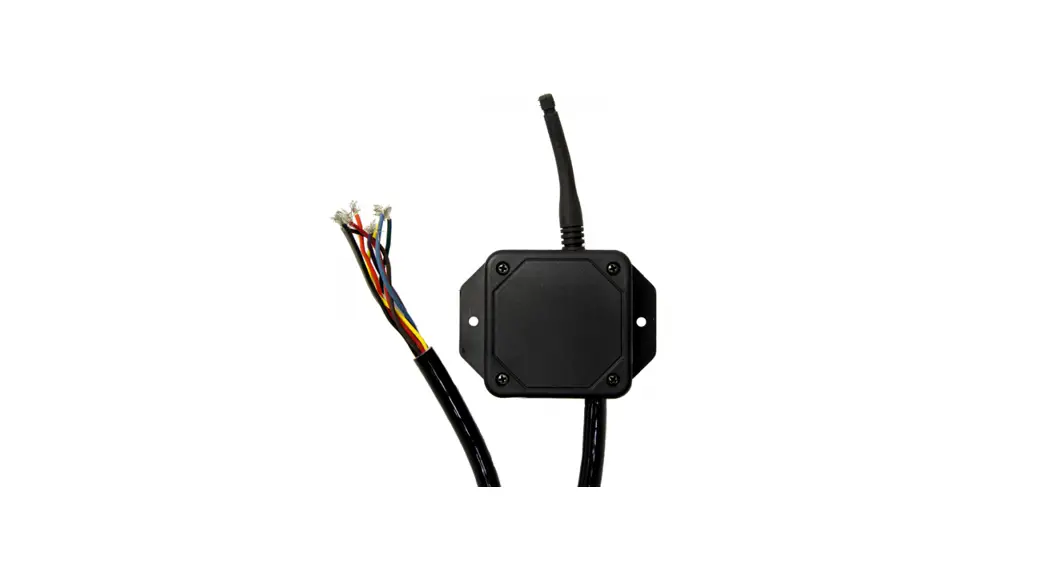
XH-SM18-03W Wifi Receiver
Product Information
The WIFI Receiver is a versatile device that combines WiFi and
RF capabilities. It supports 1-3 channels relay and offers various
features for convenient control and management. The key features of
the WIFI Receiver include:
- Support for remote control and mobile phone APP control
- Jog mode and self-locking mode (bistable and monostable) for
the relay - Timing and countdown functions
- Delay setting for each relay (1-999)
- Support for sharing and administrator management
- Operation record management
- No limits on the number of users
- Control status feedback function for each relay in the APP
- Support for binding with a camera
The specifications of the WIFI Receiver are as follows:
- Working voltage: DC12V
- Working current: [Not Specified]
- WiFi: 2.4G IEEE 802.11 b/g/n
- RF frequency: 433.92MHz
- RF distance: 80-100m in an open area
- Model: XH-SM18-03W
- Memory capacity: 200 codes
Product Usage Instructions
1. Download and Install the Xhouse IOT APP
To control the WIFI Receiver, you need to download and install
the Xhouse IOT APP. Follow these steps:
- Scan the QR code provided in the manual to get the APP.
- Download and install the APP from Google Play Store or App
Store by searching for “XHouse IOT”. - Register and log in to your account.
2. Adding the Device
To add the WIFI Receiver to your network, follow these
steps:
2.1 AP Mode with Internet
- Press the “+” button on the top right corner of the APP.
- Choose “Receiver (wifi+RF)” and select the “AP Mode”.
- On the device, press and hold the SW1 button for 10 seconds
until the indicator light starts fast and slow flashing. - In the APP, click “NEXT STEP” and select “XHOUSE-AP” from the
WLAN list on your mobile phone to connect to it. - Go back to the Xhouse IOT APP and click “NEXT STEP”.
- Select your home network WiFi for connection.
- If prompted with “Confirm connection”, click “Keep”.
- Enter your WiFi password and click “CONFIRM” to start the
network configuration.
2.2 Network Configuration with 2.4G WiFi and Internet
- Press and hold the SW1 button on the device for 5 seconds until
the indicator light starts fast flashing. - If the network configuration is successful, the indicator light
will stay on. - The network configuration will automatically be withdrawn after
180 seconds.
3. Operation Instructions
After adding the device, you can control and manage it using the
Xhouse IOT APP. The available operations include:
- Device name modification
- Key name modification
- Relay delay setting
- Model setting
- User sharing
- Assigning administrator privileges
- Timing setting
- Binding with a camera
To share the device, open the QR code for sharing first.
WIFI Receiver
Features:
It is a WiFi+RF receiver, which supports 1-3 channels relay. 1. support the use of remote control and mobile phone APP control. 2. the relay supports jog mode and self-locking mode (bistable and monostable). 3. Support timing and countdown. 4. Each relay supports 1-999 delay setting. 5. Support sharing to use, administrator management mode, free deletion and addition, operation record
management, and no limits for numbers of users. 6. For each relay, APP has a control status feedback function. 7, support binding with camera.
Specifications: Instruction:
(1) Working voltage: DC12V (2) Working current: (3) WiFi: 2.4G IEEE 802.11 b/g/n (4) RF frequency: 433.92MHz
(5) RF distance: 80-100m in an open area (6) Model: XH-SM18-03W (7) Memory capacity: 200 codes
1Download the Xhouse IOT APP.
Scan the QR code (as follows) to get the APP, download and install it.
You can also try to search XHouse IOT on google play
store or APP store to download.
Register and login into account.
GET IT ON
WIFI & RF universal receiver
Input: DC 12-24V Wireless Standard: Frequency: 2.4Ghz & 433.92mhz
Diagram:
FOR Android & IOS
CH1
ANT GND
GND VDD
Lamp Motor Power
AC IN
M
NL
Limit
Signal
SW2 SW1
LED1 LED2
Limit
Close Open COM
Close Open Com Start Vcc Com Ph Com Open Close ANT
2Adding device
(2)The AP mode with internet.
(1) Please press the”+”on the right top corner.
1 Please press the “+” on the right top corner,
And then choose”Reciver(wifi+RF)”,and press Reciver(wifi+RF). and then choose the AP Mode.
Keep pressing the button SW1 on the device for 10 seconds and release the button after the indicator light fast and slow flashing. which means it is entering into the network configuration mode. Tick off and confirm the indicator light fast flashing Click “NEXT STEP” 2 Click”GO TO CONNEXT”, then choose the”XHOUSE-AP”on Select WLAN list of your mobile phone and stay connected state. After that, go back to Xhouse iot APP and click”NEXT STEP”.
2
1
3
3 Choose your own home network wifi to do connection. Remarks: If it shows “Confirm connection”, please click “Keep”.
4 Type in your own wifi password, then press “CONFIRM”, it will start to do the network configuration. RemarksIf your wifi name did not show out in the select WLAN list, please check and open xhouse iot app location authority.
(3) Network configuration 2.4G WiFi with internet. Keep pressing the button SW1 on the device for 5 seconds and release the button after the indicator light fast flashing. which means it is entering into the network configuration mode. Indicator light will be always on If network configuration is successful. It will auto withdraw network configuration after 180 seconds.
RemarksRed indicator means status of network; Fast flashing means to enter into network configuration; Slow flashing means network is unusual; Indicator always on means network is ok.
Device added successfully as follow.
3. Operation instruction
Choose the device to open
On setting page: device name modification, key name modification, relay delay setting, model setting, user sharing, assign administrator privileges, timing setting, available to bind with camera. 1 Device sharing: Open the QR code for sharing firstly.
2 Now another user opens the xhouse iot app. Click the “+” symbol on the top right corner, now it is going into the adding device interface. Click the “sweep code” symbol on the top right corner, then choose the sweep code sharing to scan the generated QR code.
4Function setting(learn code and clear code)
+
(1) RF remote control bistable learning code (Press SW1 button of receiver) Press N times SW1 button then release, blue LED light will be always on after flashing N times. This means it is on bistable learn code status of N times. Press the button of remote control, blue LED light will flash if learning code successfully and the relay also will have sound. If learning code is failed, it will auto withdraw learning code mode after 8 seconds. (Remark: N=1,2,3).
(2) RF remote control monostable learning code (Press SW2 button of receiver) Press N times SW2 button then release, blue LED light will be always on after flashing N times. This means it is on bistable learn code status of N times. Press the button of remote control, blue LED light will flash if learning code successfully and the relay also will have sound. If learning code is failed, it will auto withdraw learning code mode after 8 seconds. (Remark: N=1,2,3)
(3) Clear code: long press SW2 button 8 seconds, blue LED light will flash 3 times which means clear code is successful. All code will be clear with this operation.
Remarks 1 Bistable mode: relay will connect, after some time it will auto disconnect.
Monostable mode: relay state will be opposite. In other words, originally it is in connection state, it will become disconnection state. Originally it is in disconnection state, it will become connection state. 2 2 mode could be set separately by app and actual remote. For example, actual remote leaning code is in bistable mode. App could be also set learning code in monostable mode. 3 App mode setting: you also can change each channel’s mode(bistable or monostable) in APP. 4 APP setting relay connection time: it will work when the channel is in bistable mode. Setting unit is second. In bistable mode, firstly relay will connect, after the time you set relay will disconnect.