Use a braille display with VoiceOver on iPad
iPad supports many international braille tables and refreshable braille displays. You can connect a Bluetooth wireless braille display to read VoiceOver output, including contracted and uncontracted braille and equations using Nemeth Code. When you edit text, the braille display shows the text in context, and your edits are automatically converted between braille and printed text. You can also use a braille display with input keys to control your iPad when VoiceOver is turned on.
For a list of supported braille displays, see the Apple Support article Braille displays supported by iPhone, iPad, and iPod touch.
Connect a braille display and learn commands to control iPad
- Turn on the braille display.
- On iPad, go to Settings
 > Bluetooth, turn on Bluetooth, then choose the display.
 - On iPad, go to Settings > Accessibility > VoiceOver > Braille, then choose the display.
- To see the braille commands for controlling iPad, tap More Info, then tap Braille Commands.
 > Bluetooth, turn on Bluetooth, then choose the display.
See the Apple Support article Common braille commands for VoiceOver on your iPhone, iPad, and iPod touch.
Change the braille display settings
- On iPad, go to Settings > Accessibility > VoiceOver > Braille.
- Set any of the following:
Setting
Description
Output Choose uncontracted six-dot, uncontracted eight-dot, or contracted braille. Input Choose uncontracted six-dot, uncontracted eight-dot, or contracted braille; you can also turn on Automatic Translation. Braille Screen Input Choose the input method for entering braille using the screen. See Type braille directly on iPad using VoiceOver. Braille Tables Add tables that appear in the Braille Table rotor. Status Cells Turn on the general and text status cells and choose their location. Equations use Nemeth Code Turn on Nemeth Code for mathematical equations. Show On-screen Keyboard Display the keyboard on the screen. Turn Pages when Panning Automatically turn pages when panning. Word Wrap Wrap words to the next line. Braille Alert Messages When turned on, your braille display shows an alert message for the specified duration. Ignore Chord Duration Adjust the amount of time required before subsequent key presses are recognized as braille chords. Auto Advance Duration Adjust this setting to your preferred reading speed.
Output closed captions in braille during media playback
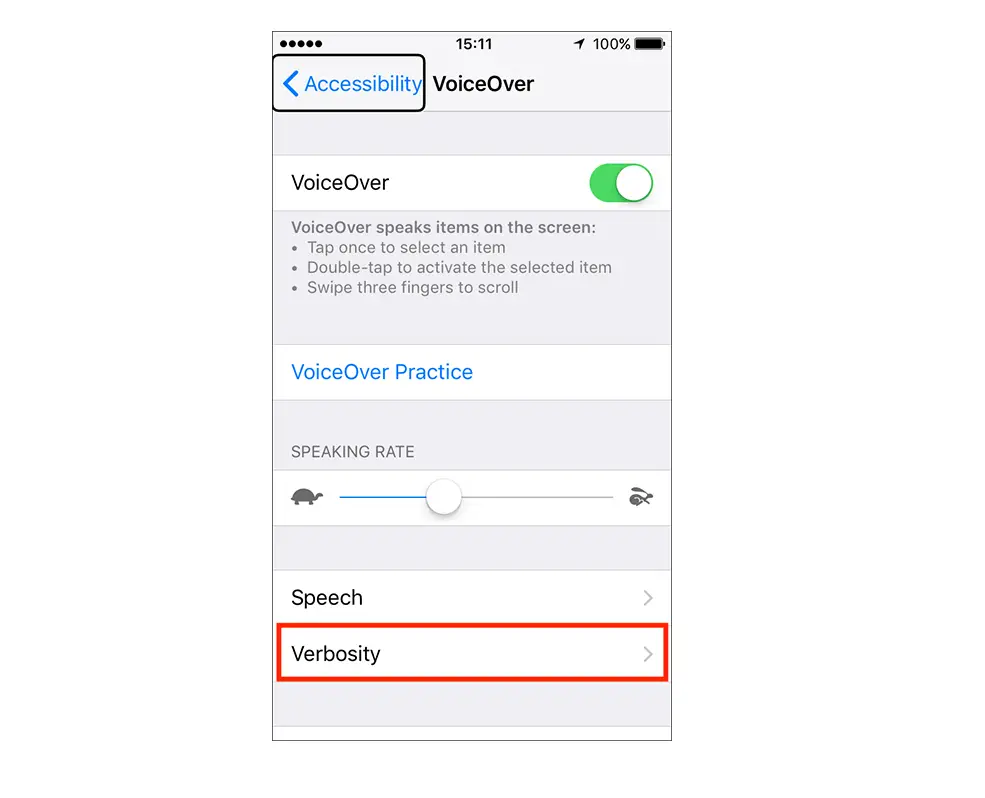
- On iPad, go to Settings > Accessibility > VoiceOver > Verbosity.
- Choose Braille or Speech and Braille.