
FAST
Networking Solutions
FARTHEST• EASY • SECURE• TRUSTED
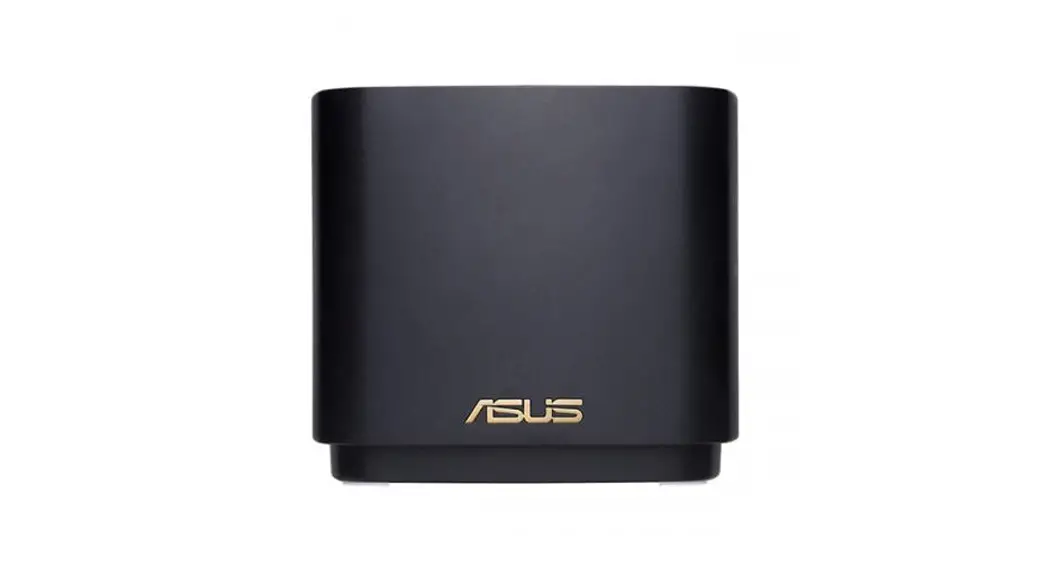
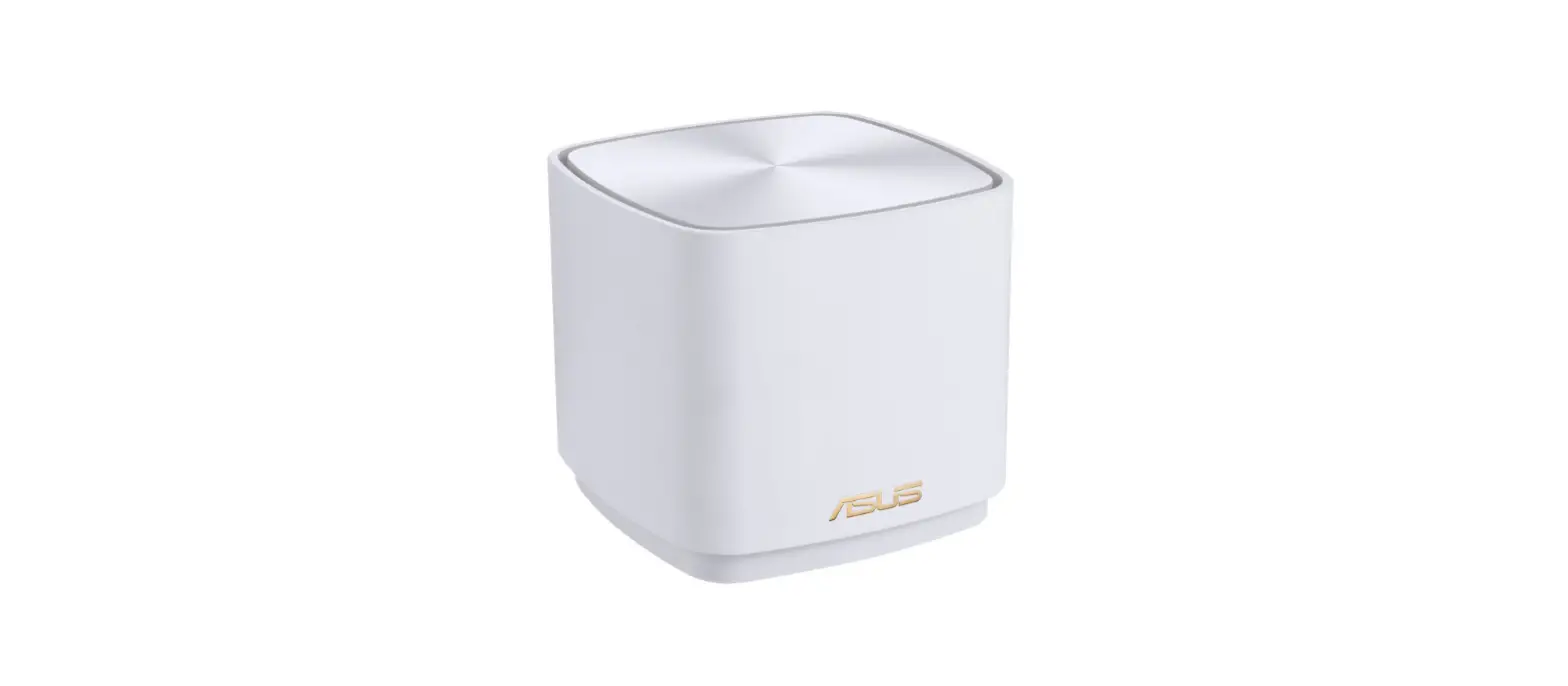
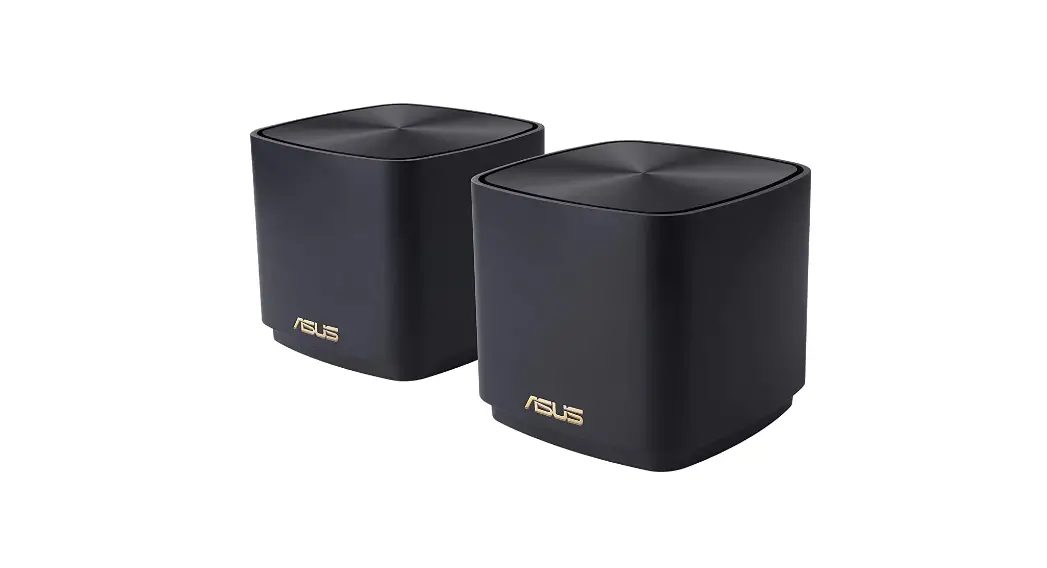
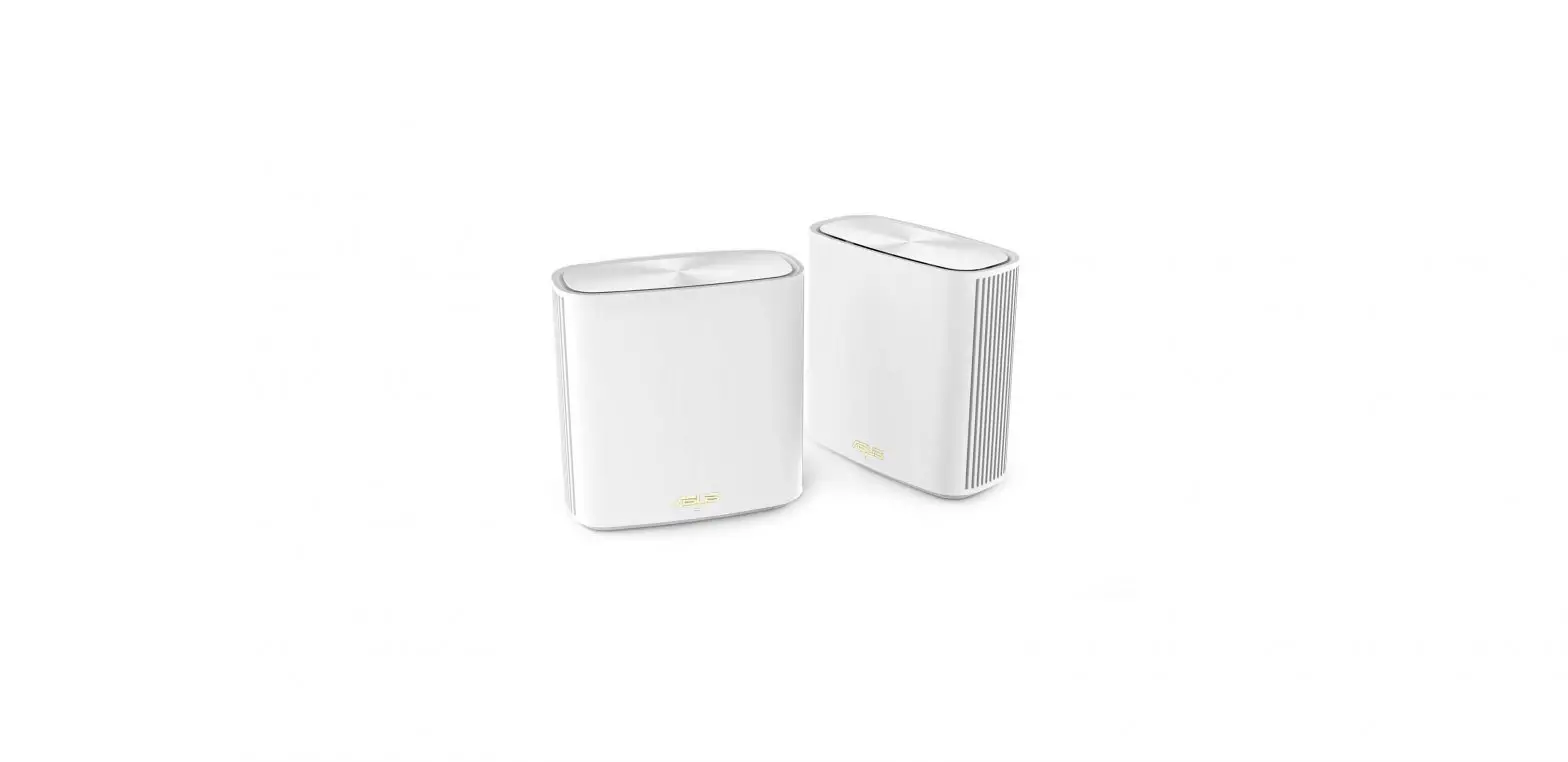
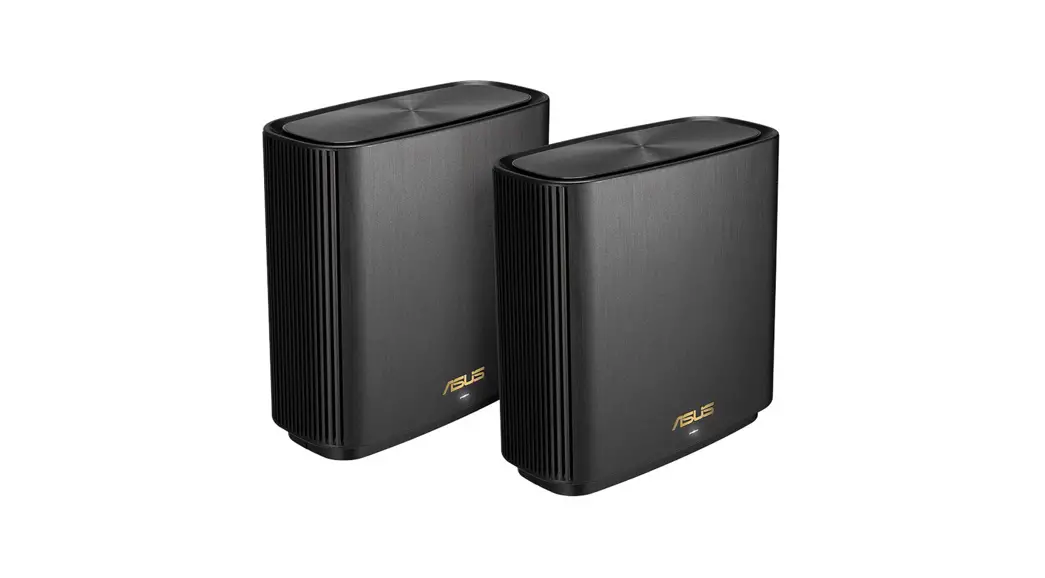
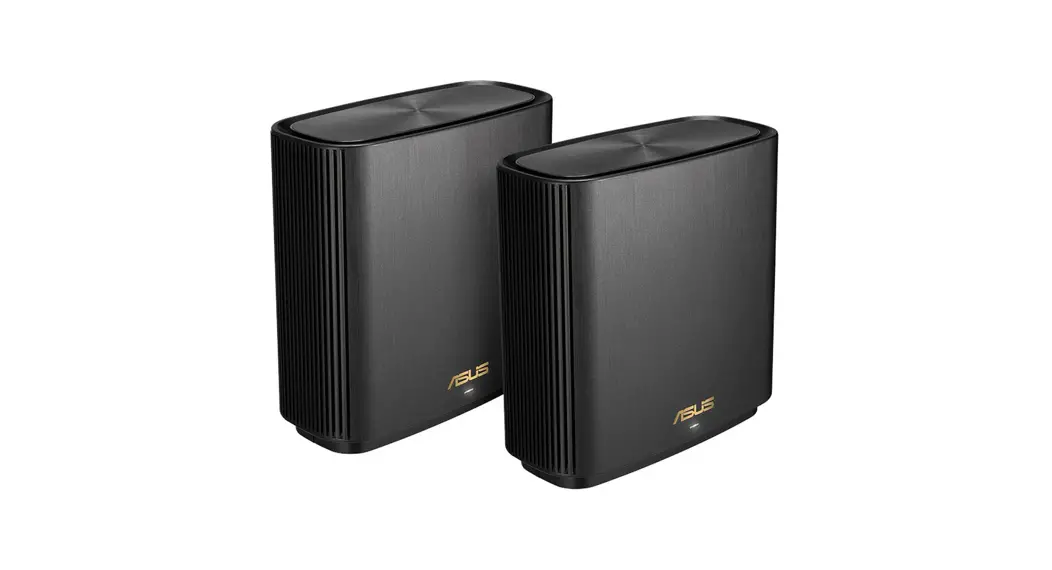
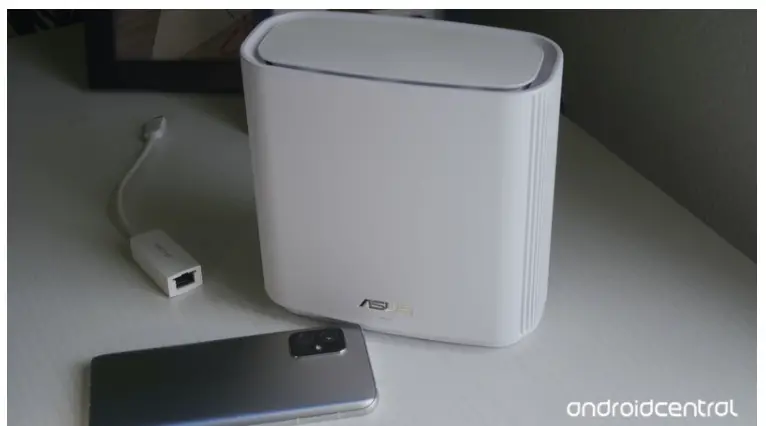
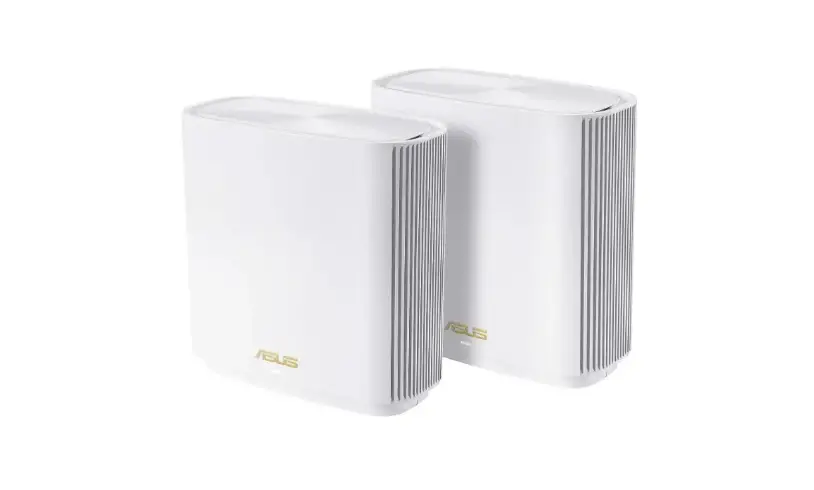
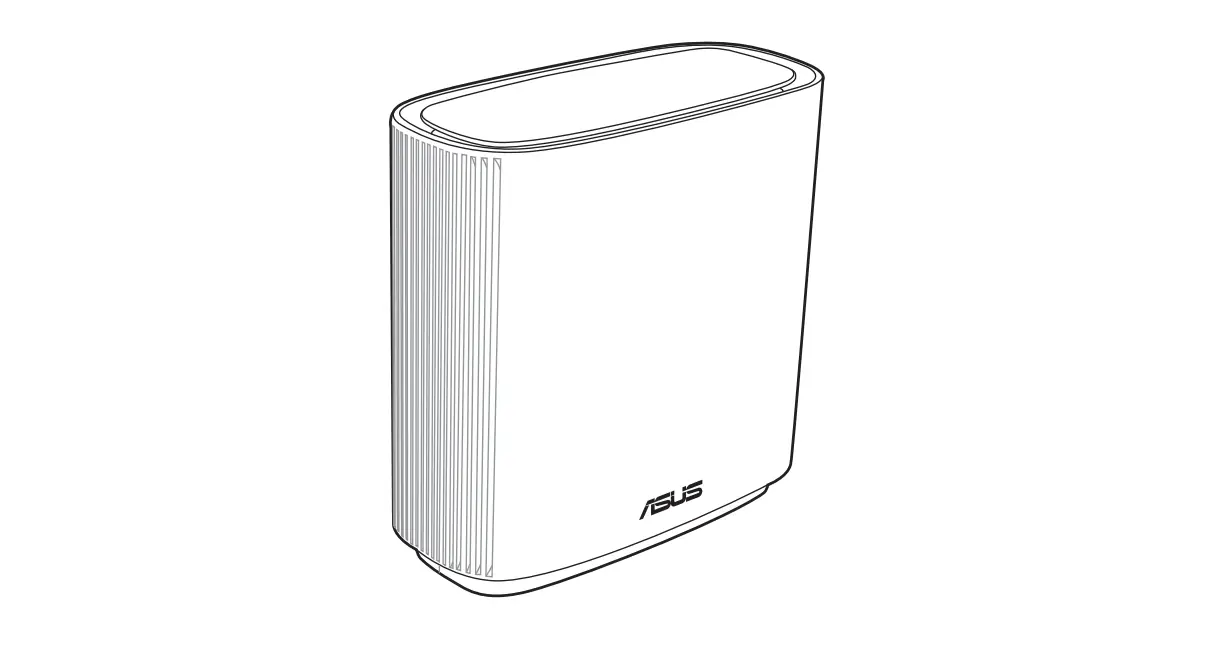
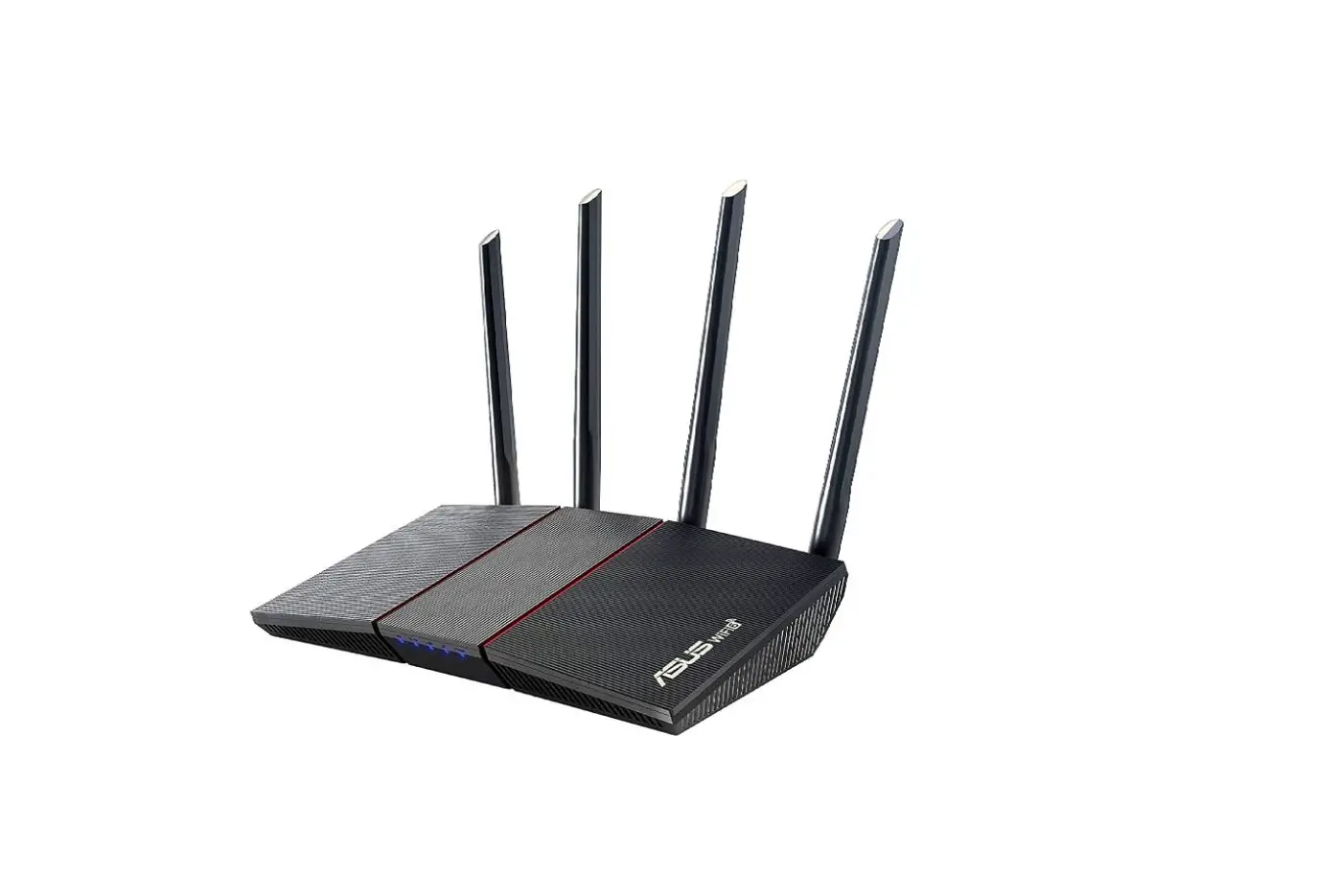
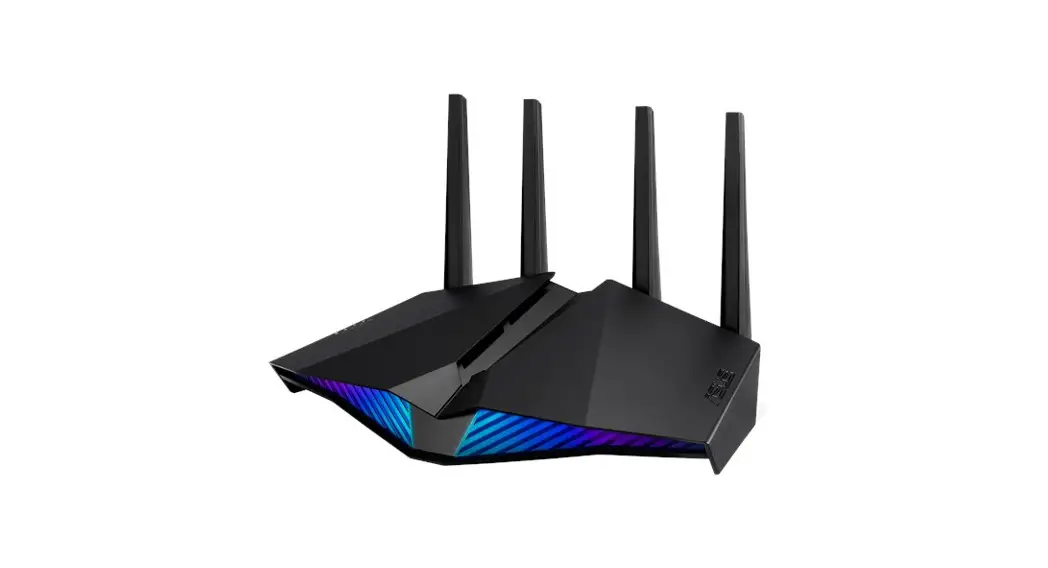
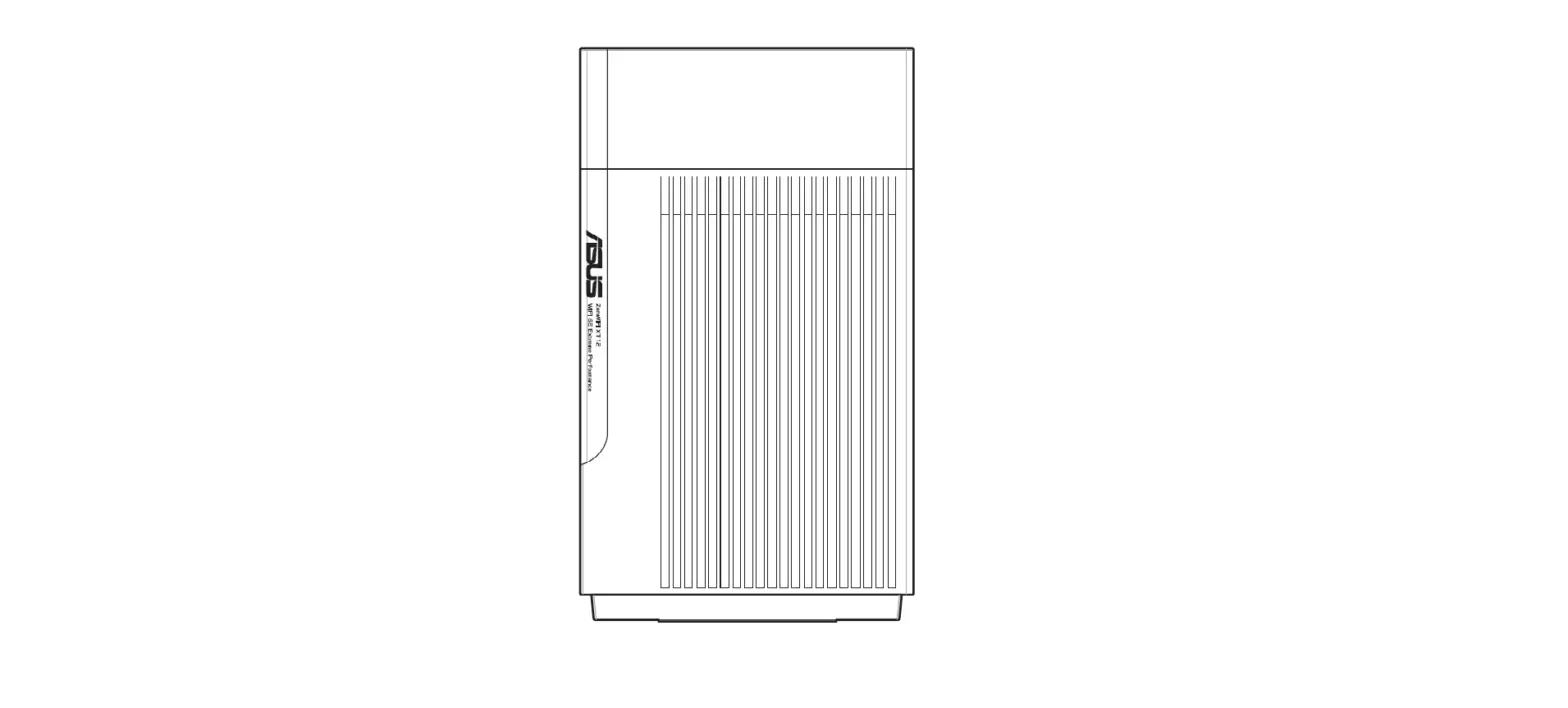
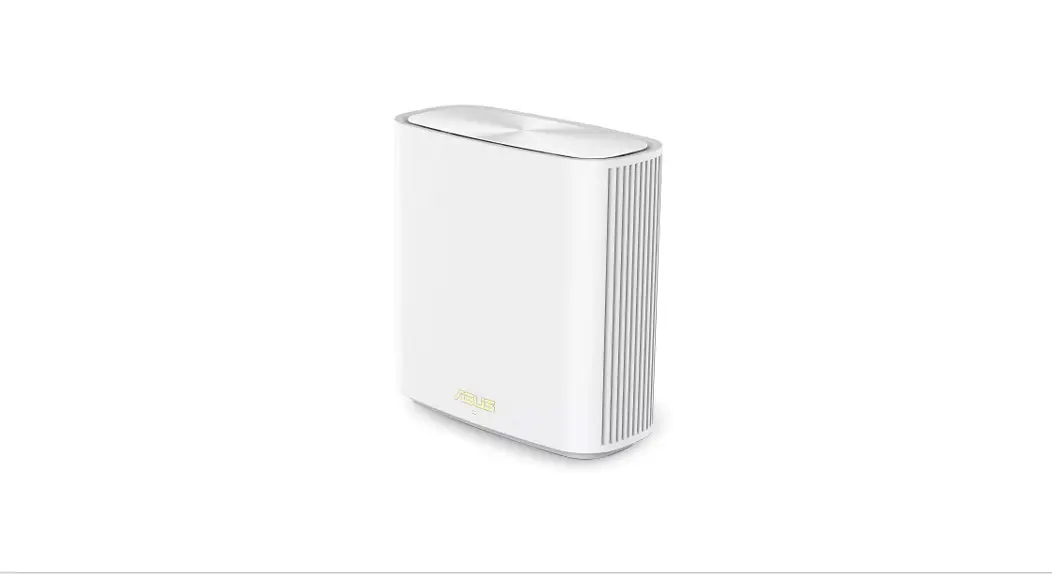
ASUS ZenWiFi XD6
AX5400 Dual Band WiFi Router
Model: XD6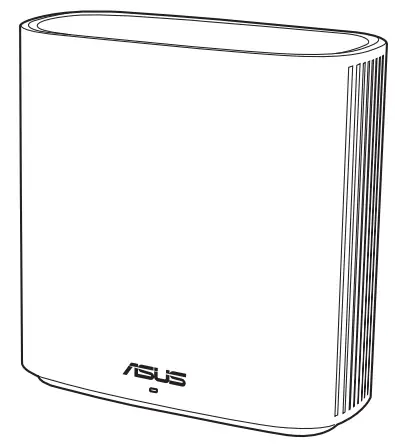 Quick Start Guide
U18146 / First Edition / April 2021
Hardware Explanations
- Plug the adapter into the DCIN port.
- The power LED will light up when your hardware is ready.
Button and Port Explanations
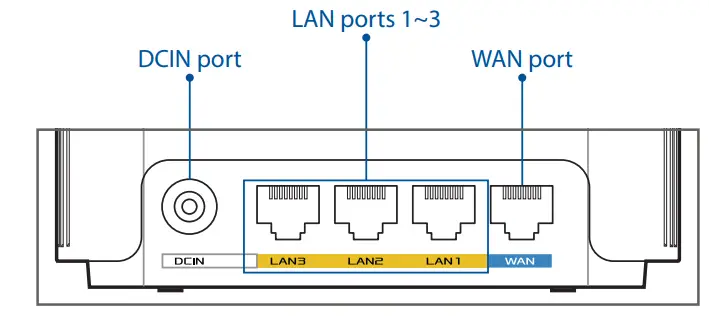
WAN port
Connect your modem to this port with a network cable.
LAN ports 1~3
Connect your PC to a LAN port with a network cable.
Specifications:
| DC Power adapter | DC Output: +12V with max 2A current | ||
| Operating Temperature | 0~40oC | Storage | 0~70oC |
| Operating Humidity | 50~90% | Storage | 20~90% |
Before Setup
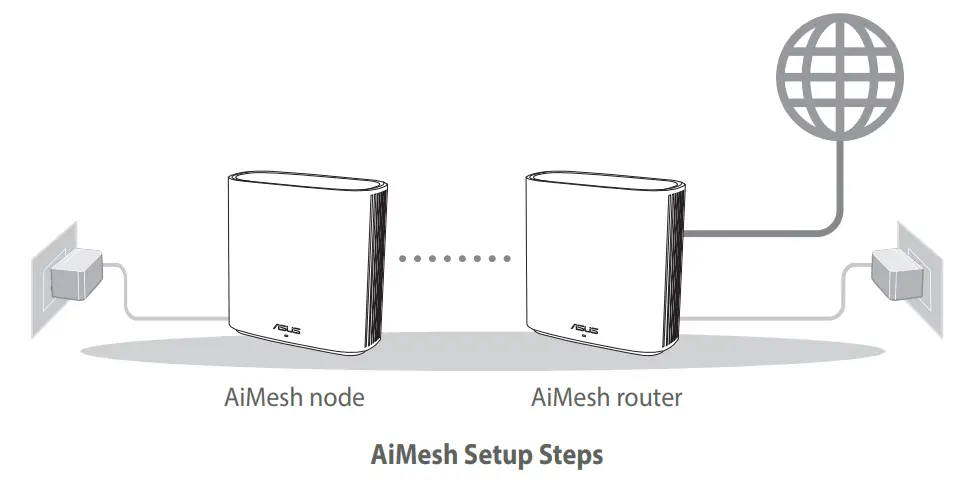
Preparing to set up an AiMesh WiFi system
- Find two ZenWiFi XD6 and power them on.
- Use a network cable to connect your optical modem to the WAN port of either ZenWiFi XD6. This ZenWiFi XD6 will be the AiMesh router, and the other ZenWiFi XD6 will be the AiMesh node.
- The LED turns solid blue to indicate that ZenWiFi XD6 is ready for setup.
ASUS Router App
Download the free ASUS Router APP to set up and manage your router(s).
 ASUS Router
 |  |
| https://play.google.com/store/apps/details?id=com.asus.aihome&hl=en | http://itunes.apple.com/app/asus-router/id1033794044 |
U18146_ZenWiFi_XD6_no_wallmount_booklet_2pk_QSG.indb 4
 ASUS Global
 ASUS Corporate Social Responsibility
 Radio equipment list (REL)