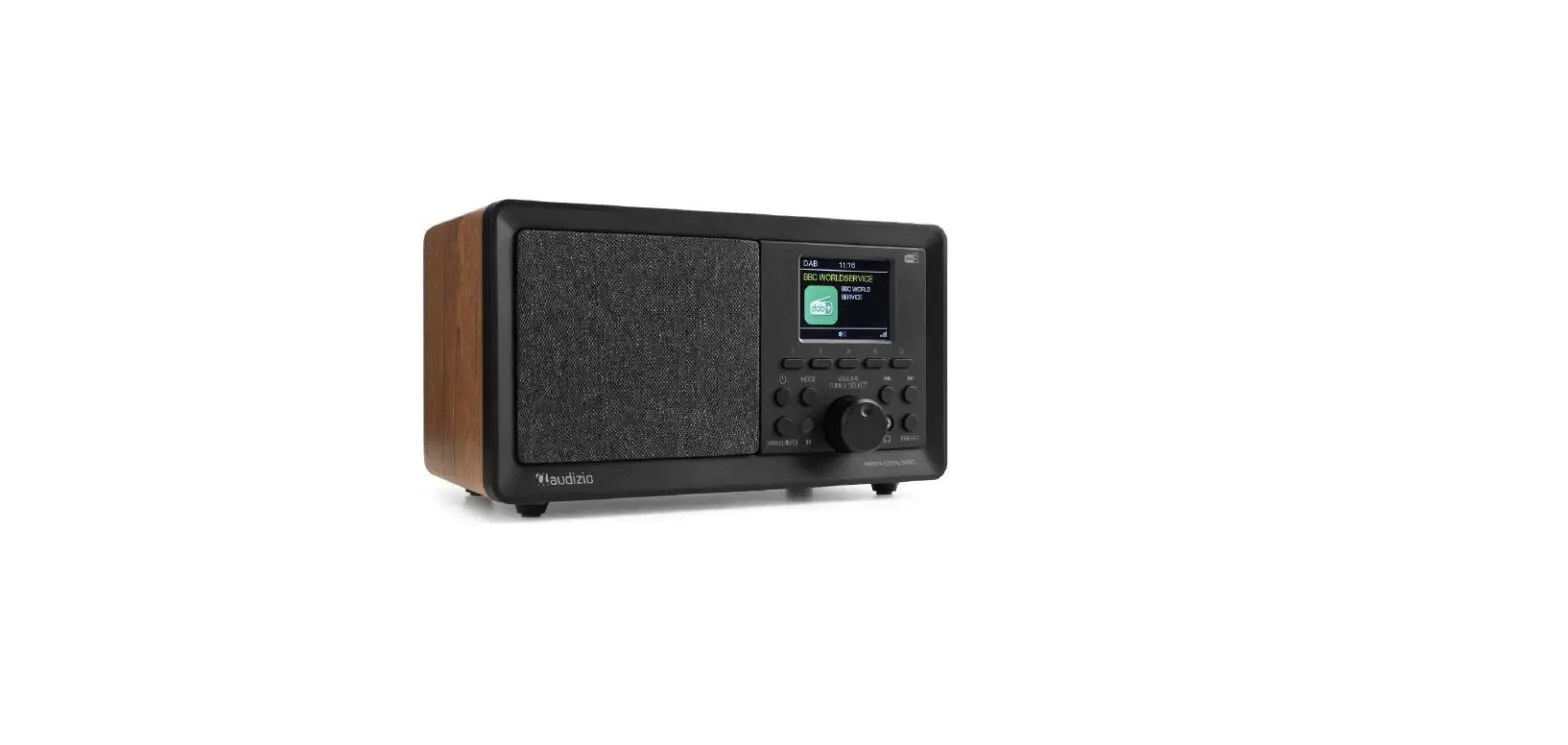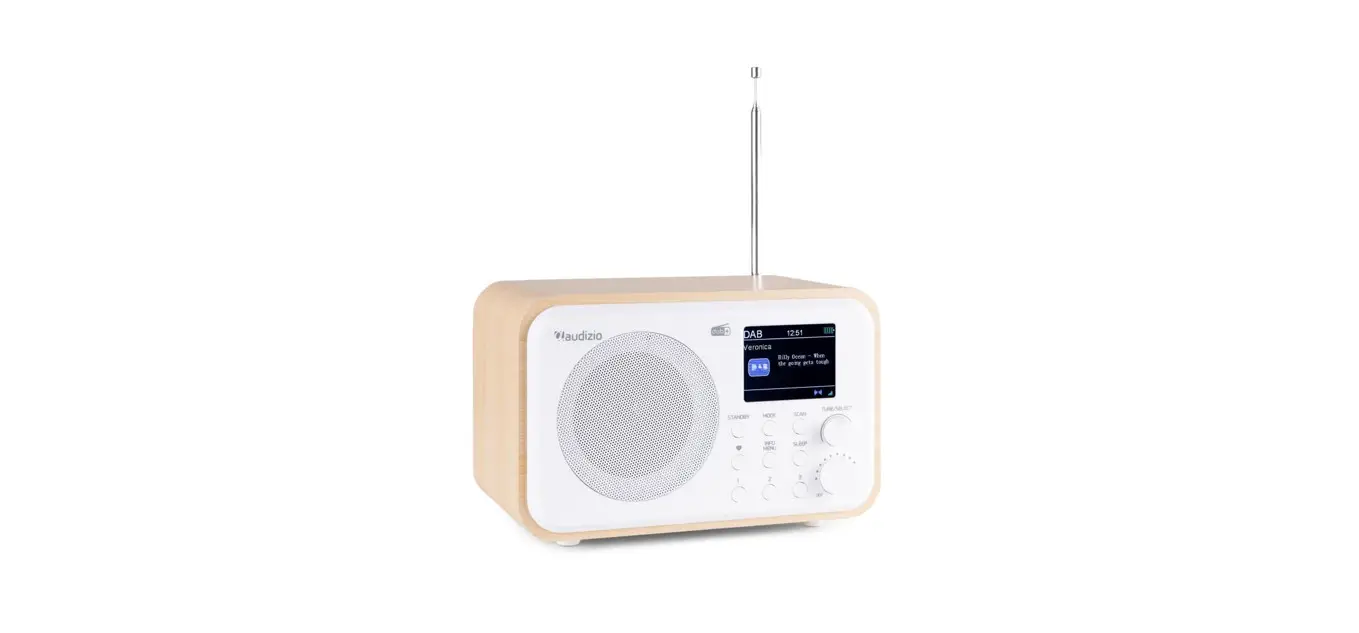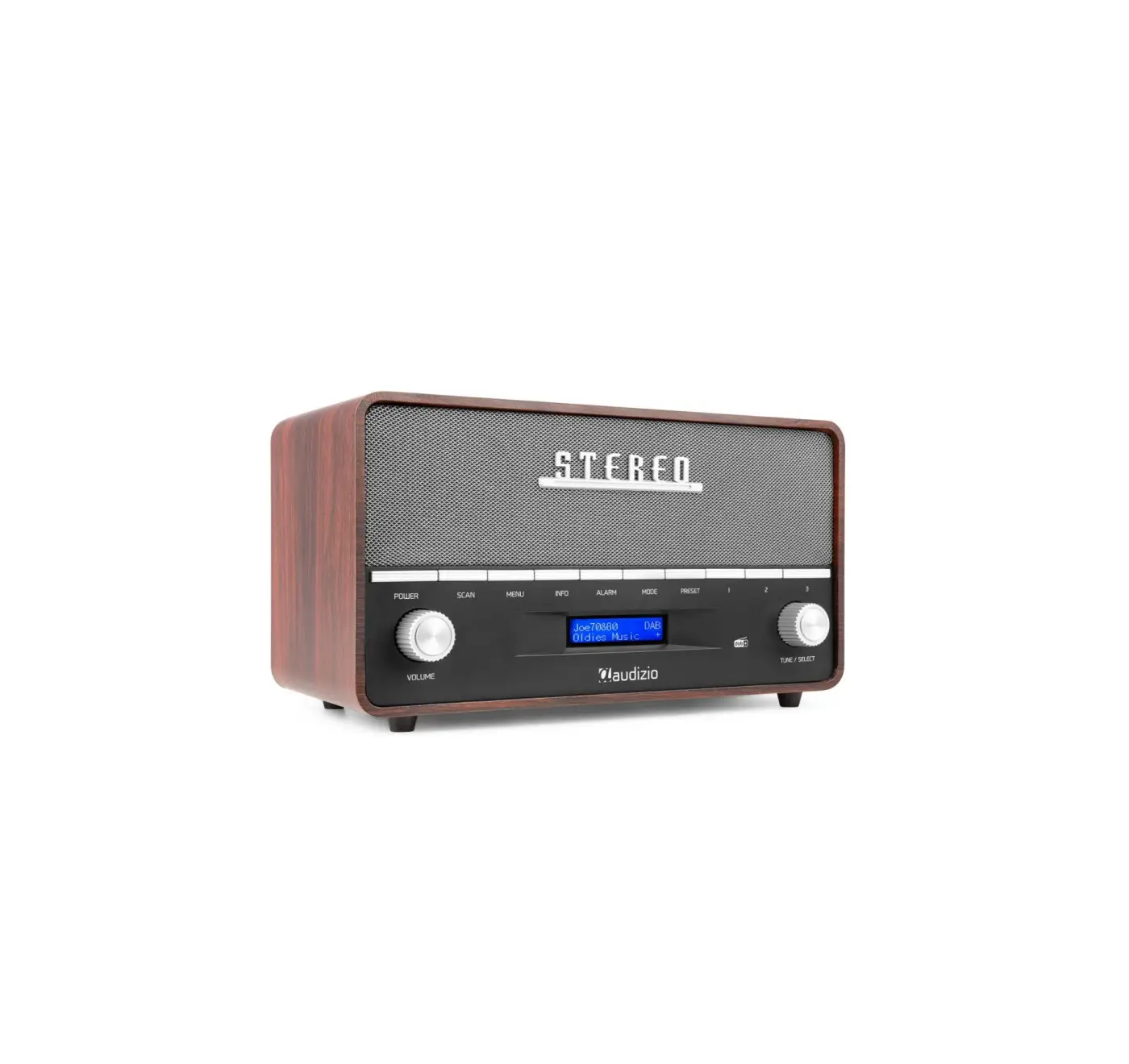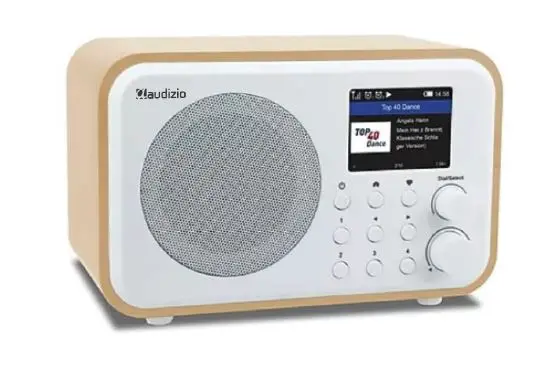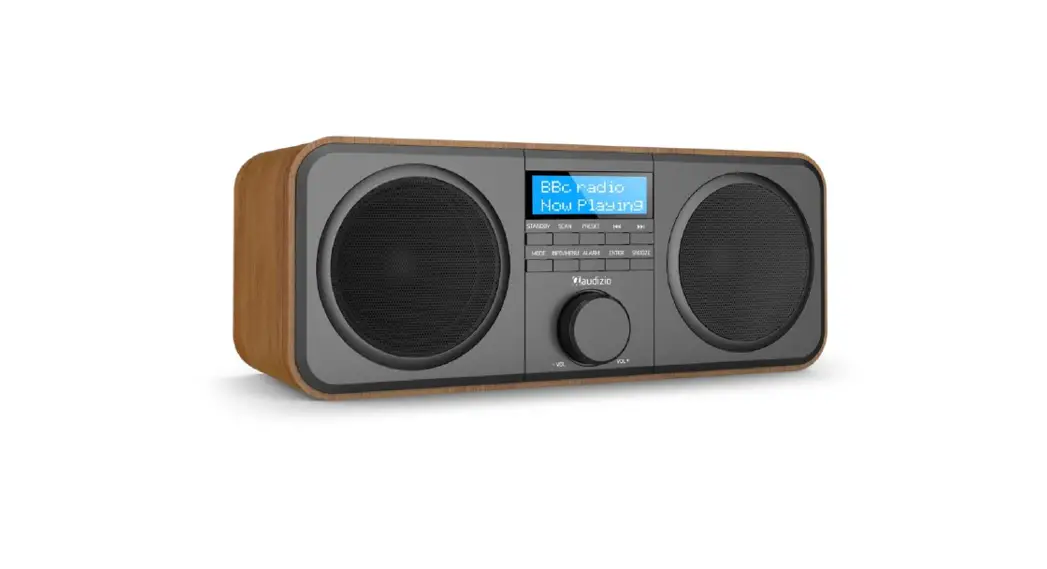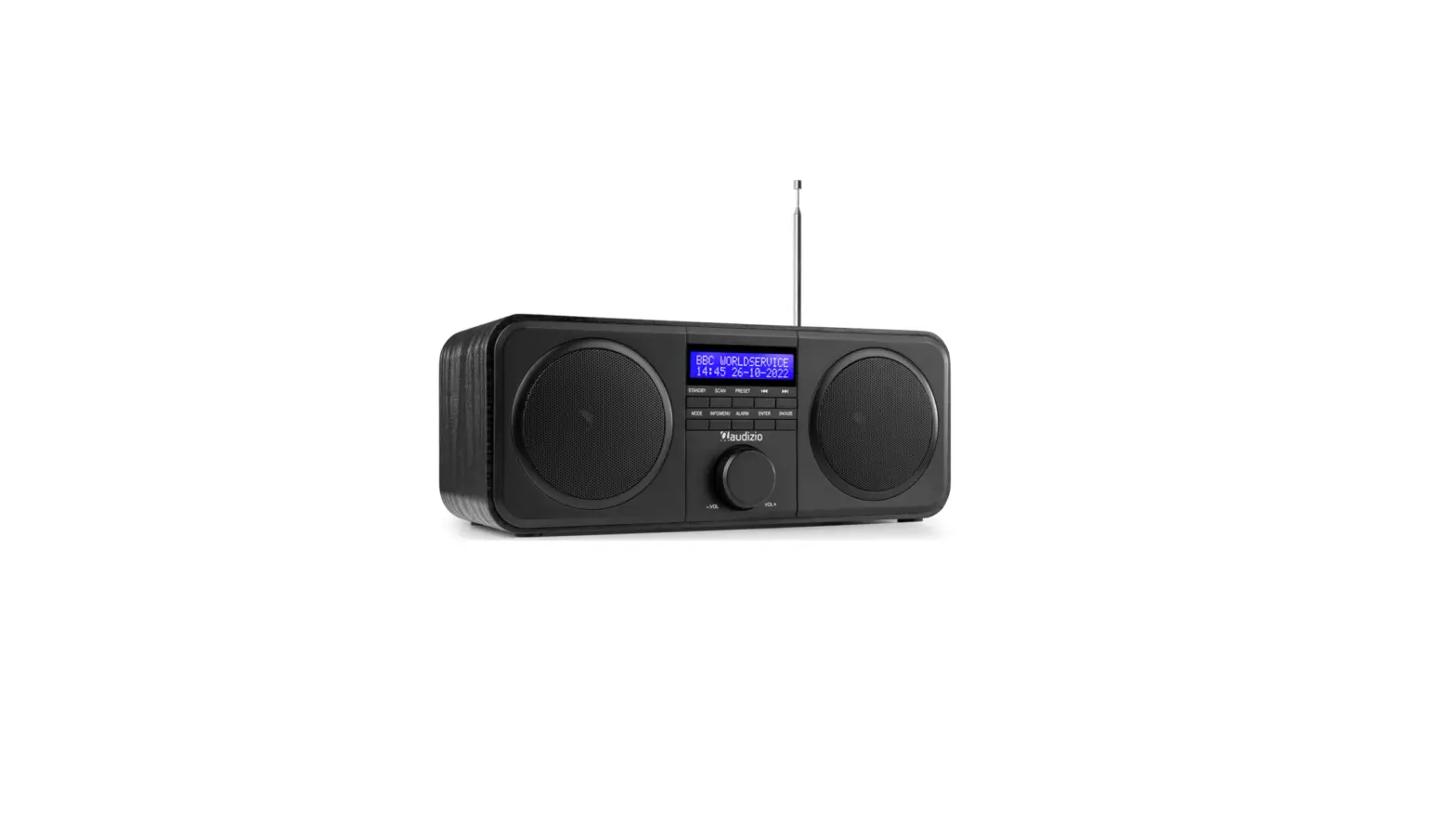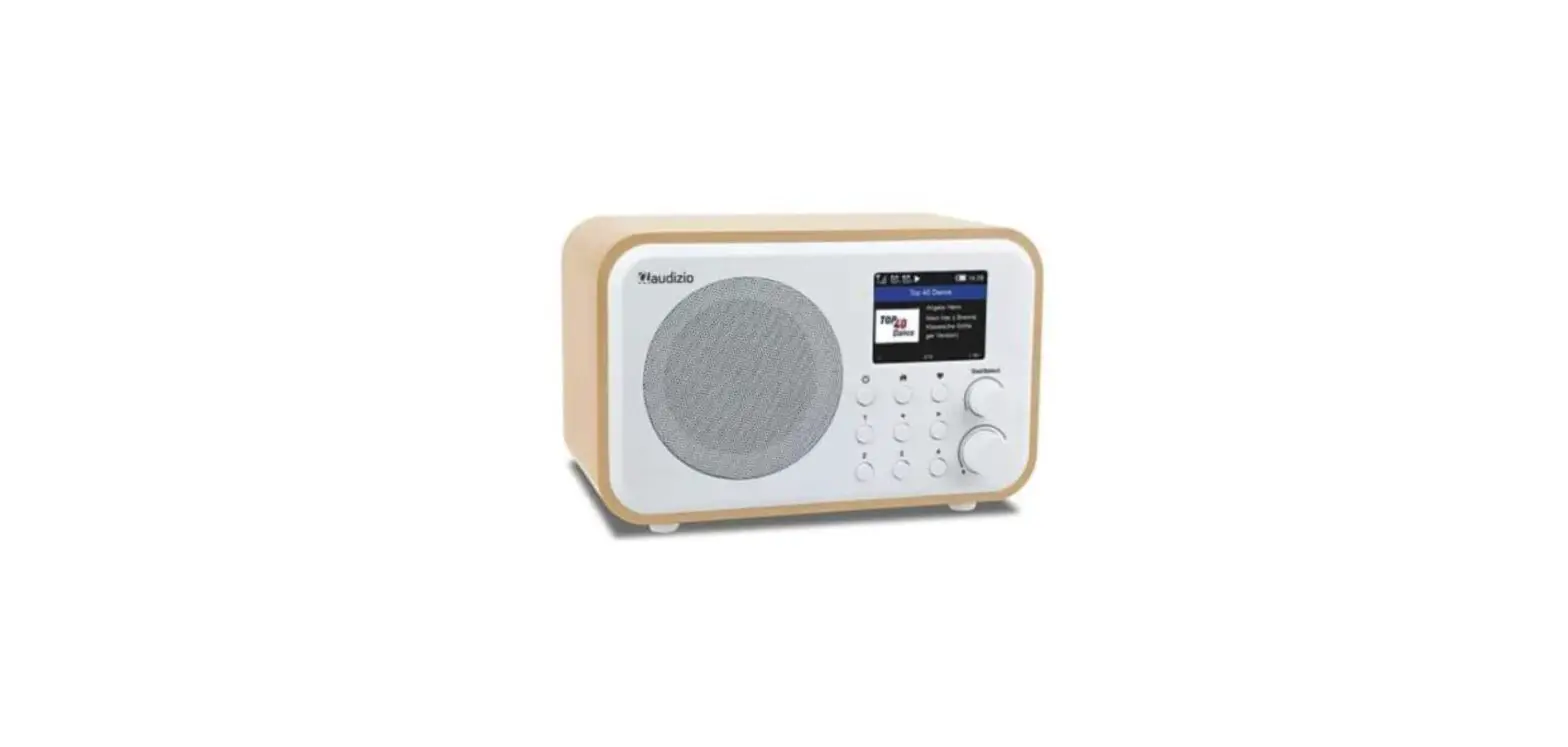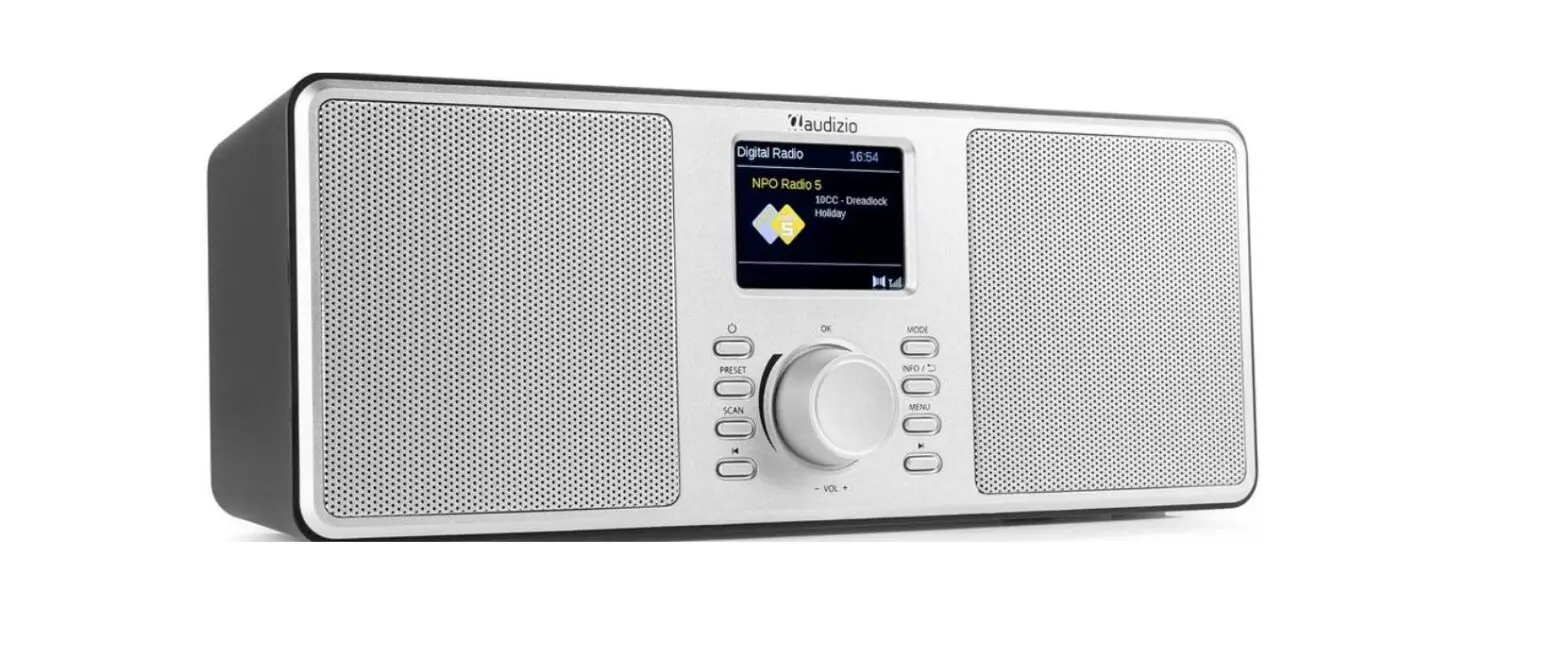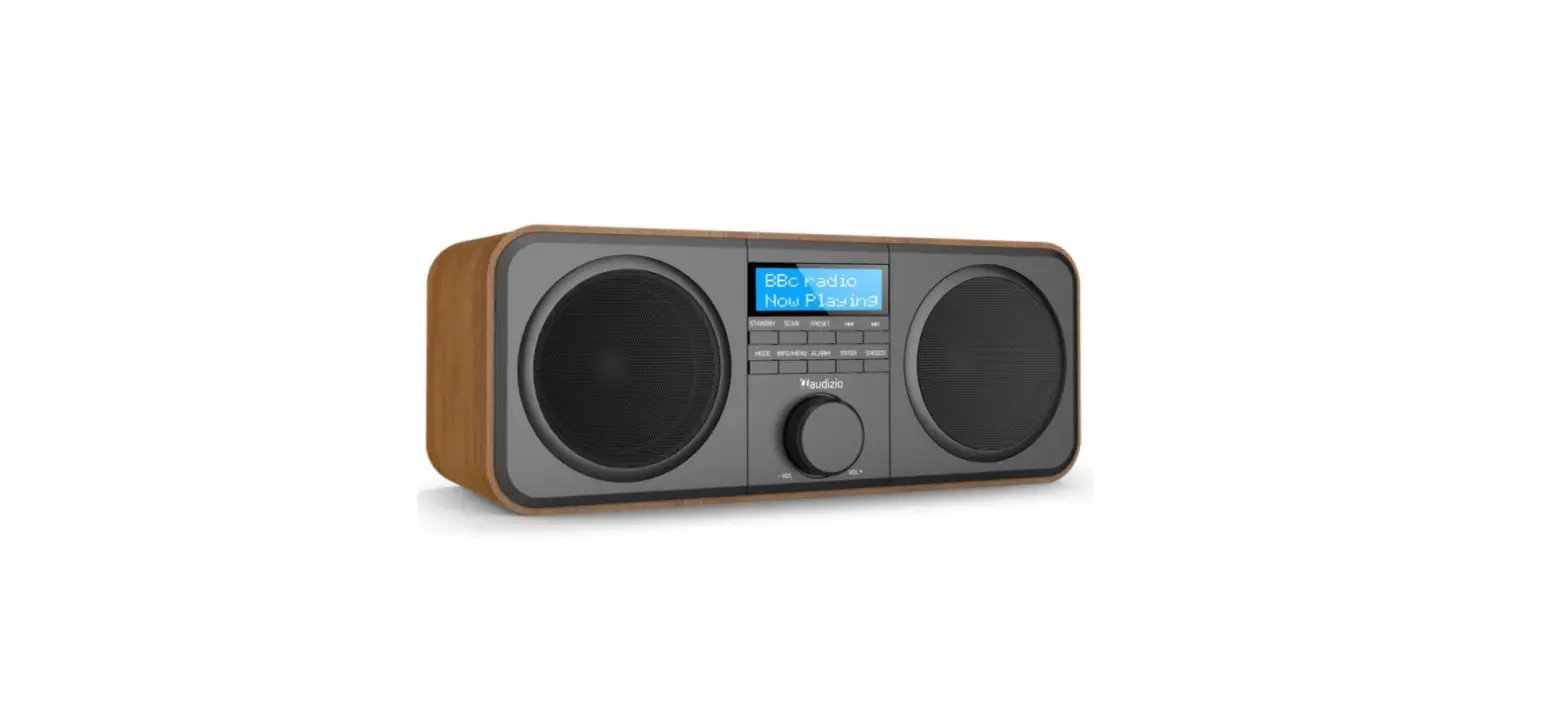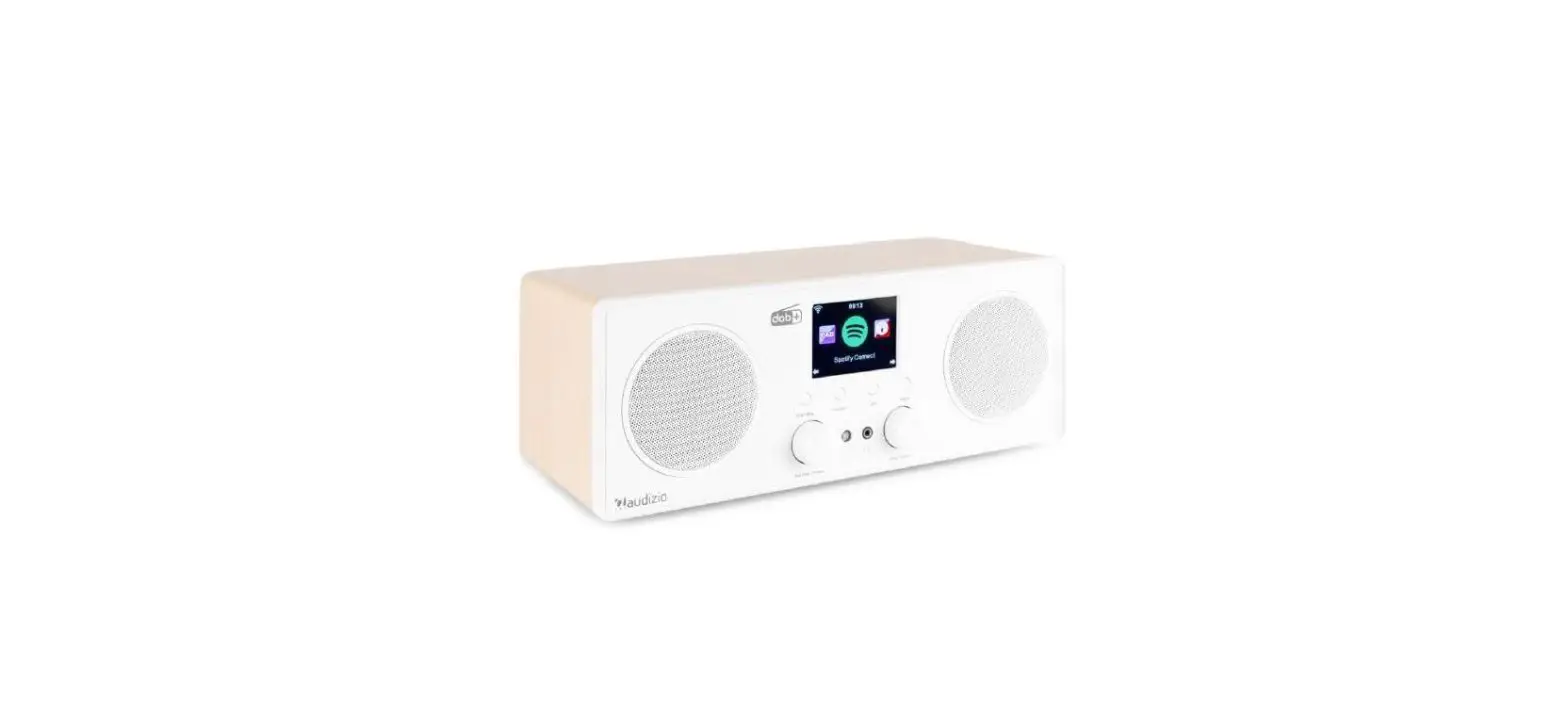

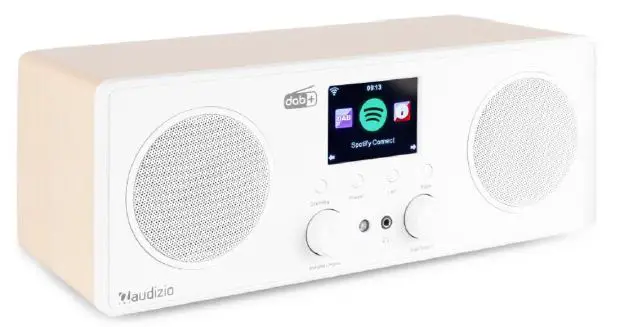
audizio 102.232 Bari WiFi DAB+ Radio
Congratulations to the purchase of this Audizio product. Please read this manual thoroughly prior to using the unit in order to benefit fully from all features.
Read the manual prior to using the unit. Follow the instructions in order not to invalidate the warranty. Take all precautions to avoid fire and/or electrical shock. Repairs must only be carried out by a qualified technician in order to avoid electrical shock. Keep the manual for future reference.
- Prior to using the unit, please ask advice from a specialist. When the unit is switched on for the first time, some smell may occur. This is normal and will disappear after a while.
- The unit contains voltage carrying parts. Therefore do NOT open the housing.
- Do not place metal objects or pour liquids into the unit This may cause electrical shock and malfunction.
- Do not place the unit near heat sources such as radiators, etc. Do not place the unit on a vibrating surface. Do not cover the ventilation holes.
- The unit is not suitable for continuous use.
- Be careful with the mains lead and do not damage it. A faulty or damaged mains lead can cause electrical shock and malfunction.
- When unplugging the unit from a mains outlet, always pull the plug, never the lead.
- Do not plug or unplug the unit with wet hands.
- If the plug and/or the mains lead are damaged, they need to be replaced by a qualified technician.
- If the unit is damaged to such an extent that internal parts are visible, do NOT plug the unit into a mains outlet and DO NOT switch the unit on. Contact your dealer. Do NOT connect the unit to a rheostat or dimmer.
- To avoid fire and shock hazard, do not expose the unit to rain and moisture.
- All repairs should be carried out by a qualified technician only.
- Connect the unit to an earthed mains outlet (220-240Vac/50Hz) protected by a 10-16A fuse.
- During a thunderstorm or if the unit will not be used for a longer period of time, unplug it from the mains. The rule is: Unplug it from the mains when not in use.
- If the unit has not been used for a longer period of time, condensation may occur. Let the unit reach room temperature before you switch it on. Never use the unit in humid rooms or outdoors.
- To prevent accidents in companies, you must follow the applicable guide lines and follow the instructions.
- Do not repeatedly switch the fixture on and off. This shortens the life time.
- Keep the unit out of the reach of children. Do not leave the unit unattended.
- Do not use cleaning sprays to clean switches. The residues of these sprays cause deposits of dust and grease. In case of malfunction, always seek advice from a specialist.
- Do not force the controls.
- This unit is with speaker inside which can cause magnetic field. Keep this unit at least 60cm away from computer or TV.
- If this product have a built-in lead-acid rechargeable battery. Please recharge the battery every 3 months if you are not going to use the product for a long period of time. Otherwise the battery may be permanently damaged.
- If the battery is damaged please replace with same specifications battery. And dispose the damaged battery environment friendly.
- If the unit has fallen, always have it checked by a qualified technician before you switch the unit on again.
- Do not use chemicals to clean the unit. They damage the varnish. Only clean the unit with a dry cloth.
- Keep away from electronic equipment that may cause interference.
- Only use original spares for repairs, otherwise serious damage and/or dangerous radiation may occur.
- Switch the unit off prior to unplugging it from the mains and/or other equipment. Unplug all leads and cables prior to moving the unit.
- Make sure that the mains lead cannot be damaged when people walk on it. Check the mains lead before every use for damages and faults!
- The mains voltage is 220-240Vac/50Hz. Check if power outlet match. If you travel, make sure that the mains voltage of the country is suitable for this unit.
- Keep the original packing material so that you can transport the unit in safe conditions.
This mark attracts the attention of the user to high voltages that are present inside the housing and that are of sufficient magnitude to cause a shock hazard.
This mark attracts the attention of the user to important instructions that are contained in the manual and that he should read and adhere to.
The unit has been certified CE. It is prohibited to make any changes to the unit. They would invalidate the CE certificate and their guarantee!
NOTE: To make sure that the unit will function normally, it must be used in rooms with a temperature between 5°C/41°F and 35°C/95°F.
UNPACKING INSTRUCTIONS
CAUTION! Immediately upon receiving the product, carefully unpack the carton, check the contents to ensure that all parts are present, and have been received in good condition. Notify the shipper immediately and retain packing material for inspection if any parts appear damaged from shipping or the package itself shows signs of mishandling. Save the package and all packing materials. In the event that the product must be returned to the factory, it is important that the product be returned in the original factory box and packing. If the device has been exposed to drastic temperature fluctuation (e.g. after transportation), do not switch it on immediately. The arising condensation water might damage your device. Leave the device switched off until it has reached room temperature.
CONTROLS
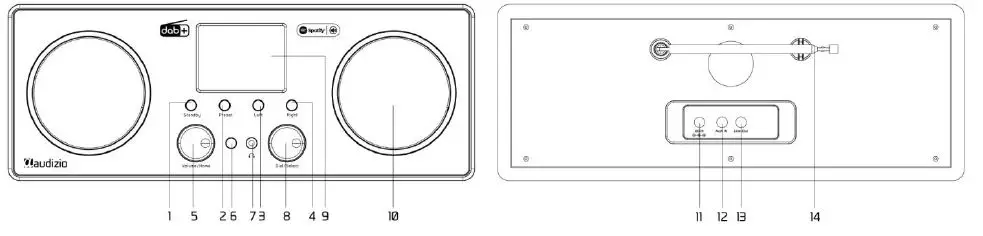
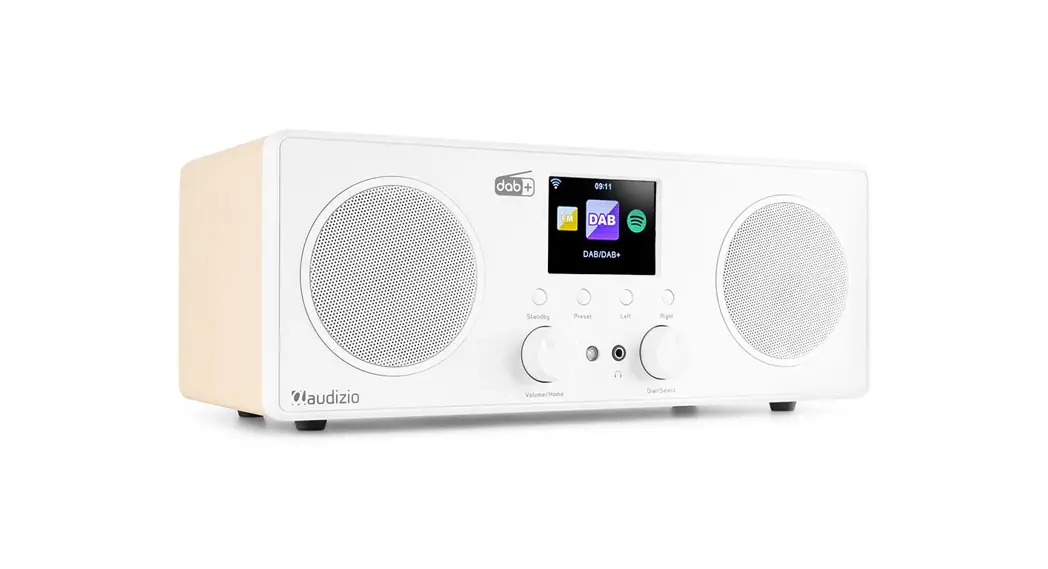
- Standby button
- Preset Long press to enter the “Add to favourite” list. Press it briefly to recall the preset list.
- Left Left cursor/Press to return to previous menu.
- Right Right cursor/View radio info
- Volume/Home Rotate to adjust the volume level/Press the knob to return Home (main menu).
- Infrared remote sensor
- 3.5 mm earphone jack
- Dial/Select Rotate to browse the menu/Press to confirm a selection or stop the playback.
- 2.8” color display
- Speaker
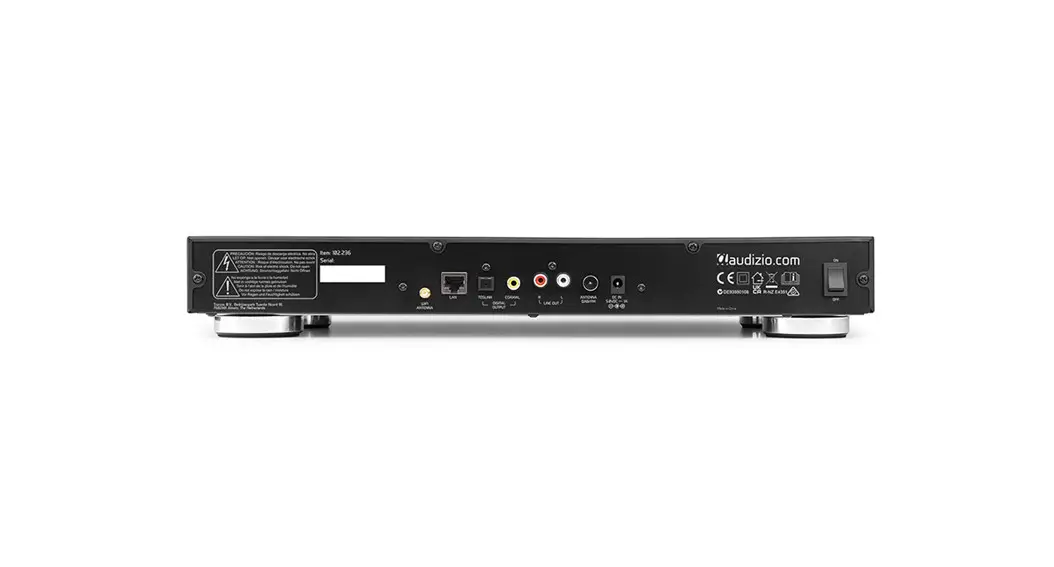
- DC IN Socket
- Aux-In Jack
- Line out Jack
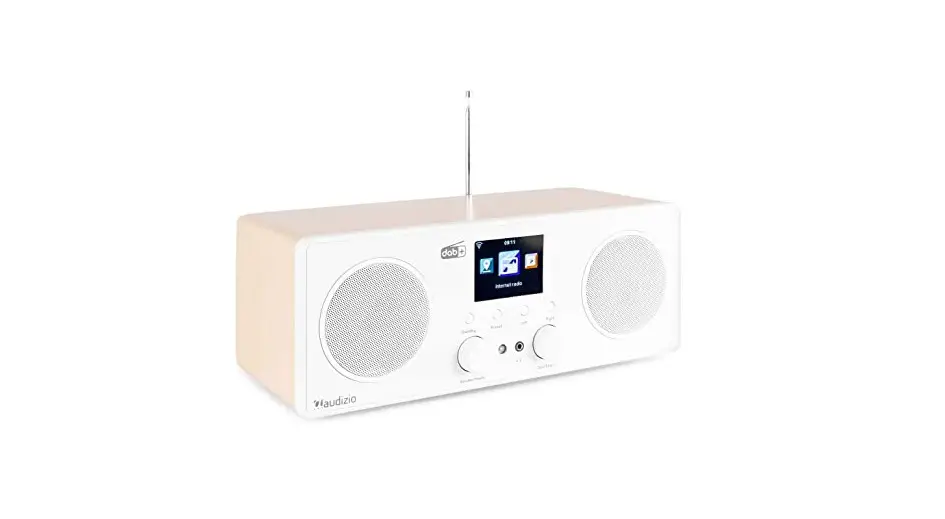
- Telescopic antenna
REMOTE CONTROL
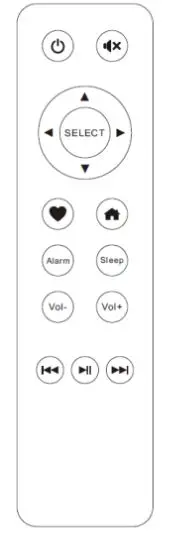
- Standby button
- Mute
- ▲ : Cursor up
- ▼ : Cursor down
- ◄ : Cursor left / back to previous menu
- ► : Cursor right
- SELECT: confirm button
- Favorite button, press to recall the favorite stations, hold to enter the “Add to favourite” list
- Main menu
- Alarm: Alarm button, press to set the alarm
- Sleep: Sleep Timer, press to set the sleep time
- Vol+: Volume up
- Vol-: Volume down
- Previous radio channel on the list
- Play/pause
- Next radio channel on the list
BEFORE YOU START
Please ensure the following is ready:
- You have a broadband internet connection.
- A wireless broadband router is connected to the internet successfully. The radio supports Wireless B, G and N connection (Wireless N router can also be used with the setting on B or G).
- You know the Wired Equivalent Privacy (WEP) or Wi-Fi Protected Access (WPA) data encryption code/password. You need to key in the correct code when the radio is connected to the wireless router for network connection. If you do not know the code/password, please contact the person/technician who set up the router/network for you.
- The radio can work via Wireless network connection (Wi-Fi connection)
GETTING STARTED
Connect the mains adaptor to the radio unit, one end to the DC IN on the radio and the other end to the mains wall outlet.
Caution: Use only the mains adaptor supplied with the radio. Connecting a power supply with a different rating will cause permanent damage to the radio and may be hazardous.
The display on the front of the radio will light up and show:
Then you can select your prefer language on the radio.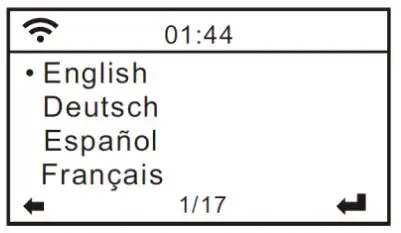
It will ask you if you want to Enable the <Check Network when Power on>, it is suggested to choose <Yes>. Then the radio will always check the available WiFi network automatically.
CONNECTING TO YOUR WIFI NETWORK
The screen below will appear. You can choose <Yes> to proceed to search for the available WiFi network. If your router has the WPS function, you can select <Yes(WPS)> to proceed.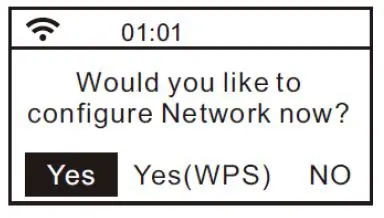
It will then start scanning the network. After the search is done, it will display a list of the available router.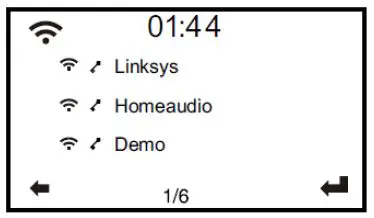
Choose your router from the list, enter the WEP(Wired Equivalent Privacy) or WPA(Wi-Fi Protected Access) code. If your network is not enabled with security code, the unit will connect to the router automatically.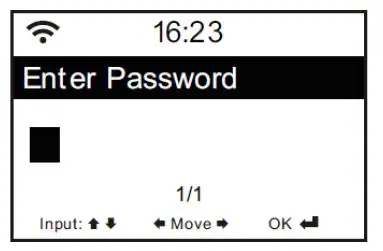
Note: The encryption code would have been set up by the person who set up and configured your network. Please follow the steps below to enter the encryption code of your router using the buttons on the radio:
- Rotate the <Dial/Select> knob to browse the character
- Press the <Right> button to skip to the next entry
- After you finish with the entries, press the <Dial/Select> knob to confirm. Do NOT press the right button again.
To use the remote control entering the password: Press <▲> or <▼> button to select the characters. Press the < ►> button for the next entry, press <◄> button to delete the character or to amend it. When the last character is entered, press the <SELECT> button this time.Do NOT press the <►> button. The radio will start connecting to the network. After the router is connected successfully, it will display the main menu as follow: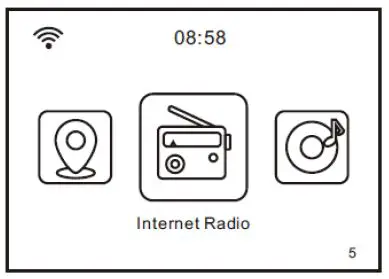
You can now start enjoying the internet radio.
INTERNET RADIO
Choose <Internet Radio> from the menu, you can see several listed options. To start listening the radio stations worldwide, select <Radio Station/Music>.
My Favorite
This is to show the list of your Favorite stations which have been assigned to the presets.
To preset a station:
While you are playing the favorite station, long pressing the <Preset> button (on the remote) and the <Add to My Favorite> menu will display. Press the rotary knob to confirm. The playing station will be added to the preset list automatically.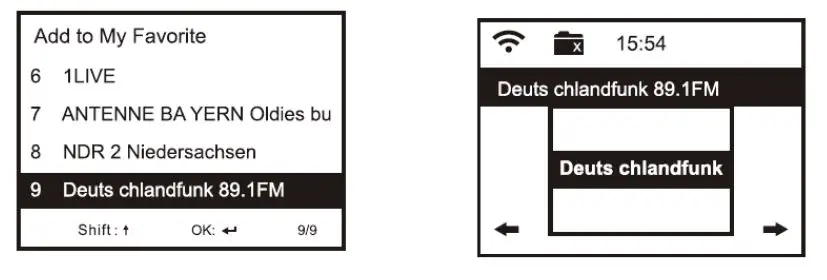
The presets will be stored in ascending order. You can store up to 250 presets.
Note: Preset 1 to 5 are reserved for your own choice of the dedicated radio channels. Scroll to choose the desired number to save your favourite channel. To save more channels after the first five presets are occupied, press and hold the preset button and it will assign to preset no. 6 onwards.
You can edit your favorite list anytime. Go to Internet radio> My Favourite or press the <Preset> button ( When it displays the list of favorite stations then press the right button. The following options will display: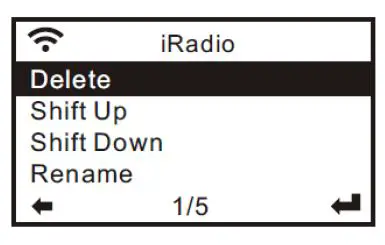
- Delete – To delete the selected station
- Shift up- To shift the selected station by one level up on the ranking
- Shift down – To shift the selected station by one level down on the ranking
- Rename – To rename the selected station
- Play – press and play the selected station
- Choose the radio station that you want to make with the above changes.
- Then press the <Right> button, it will enter into the list with the options listed above. Then choose your desire action.
- To recall a preset station: Press the <Preset> button ( on the remote) briefly and choose your desire station.
Radio Station / Music
Select this option, then you can select your desired radio station by Category, Genre or Location., etc.
Local Radio
If you want to access quickly the radio station located in your area via internet, select this function and it will display the list of the stations available.
History
The radio will memorize the last listened 10 stations. Service
Search Stations
You can find your desire radio station by entering the name of the radio.
Add New Radio Station
If you cannot find your desire station from the Radio station list and you have the URL address, you can input the link here and add to your favorite list.
Note: The URL has to be an audio streaming URL in order to play on the radio.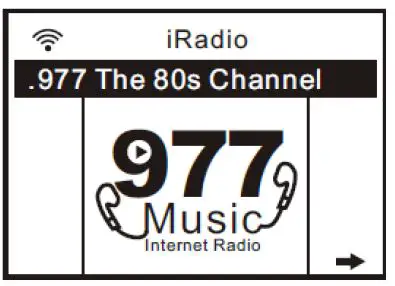
SPOTIFY
A better way to listen at home. Listen on the Bari using the Spotify app as a remote. Enjoy the music together. Use your phone, tablet or computer as a remote control for Spotify. Go to spotify.com/connect to learn how.
BT
The radio receives and plays music streamed by other BT-device. Choose BT from the main menu or use the < > button on remote to find the BT mode. Once it enters into BT mode, it will be discoverable from other BT-devices.
- Turn on BT on the BT device and look up the device named “Audizio Bari” from the list. Select it to start pairing.
- If the connection is successful, it will show “Connected” on your BT-device list.
- . You can start playing music from your BT-device now.
MEADIA CENTER
UPnP (Universal Plug and Play)
The device supports UPnP and is DLNA-compatible. This provides the opportunity to stream music from your other network devices. However, this requires you to have a compatible device in your network that can function as a server. This can be e.g., a network hard drive or a conventional PC with e.g., Windows 8 via which access to the shared folder or media sharing is permitted. The folders can then be browsed and played on the Tuner.
Music streaming
- Once the UPnP/DLNA compatible server is configure to share media files with your radio, you can start music streaming.
- On the main menu, select [Media Centre] and choose [UPnP].
- It may take a few seconds for the radio to complete the scan for available UPnP servers. If no UPnP servers are found, it will show [Empty List].
- After a successful scan is done, select your UPnP server.
- The radio will show the media categories available from the UPnP server, e.g. ‘Music’, ‘Playlists’ etc.
- Choose the media files that you wish to play. You can set the mode of playback under Configuration>Playback setup.
My Playlist
You can make your own playlist from the UPnP music files. Choose and highlight the song you want to add to playlist, press and hold the [Dial/Select] knob, unit the sign appears. The song will be added to My playlist.
Clear My Playlist
Remove all songs in My playlist to allow a new playlist to be prepared. Note: If you have DLNA compatible servers available, follow the steps described above to browse the audio files from DLNA compatible device on the radio to play.
FM
You can listen to the ordinary FM radios without internet connection. Extend the telescopic antenna or in other direction / length of the antenna may be required to optimize the reception level.
Choose the FM from the main menu or use the < > button on the remote to find to FM mode.
To auto scan the next available FM station, press and hold the <Left> or <Right> button for 2 seconds, the radio will seek the next available station. If you want to fine tune the frequency, rotate the <Dial/Select> knob on the unit or press the <▲ /> button on the remote control.
Auto preset scan
There is an option to auto preset the FM station. Press the <Dial/Select> knob (or Select button on the remote), it will ask you whether to Auto Scan or not. Choose <Yes> and press <Select> to confirm, and it will start scanning and preset the station. When it is finished, press the <Preset> button ( on the remote) and it will display the first preset station. The preset can be superseded by a new station anytime. Service Following This is a feature to help finding the same channel over internet provided that the radio station has an internet stream available and it is suitable to play on the radio. Listening over internet radio allows free of noises which usually caused by interference or weak reception over FM. After the scan is done on FM, choose a channel to play. If the same channel is available on Internet, there will be an icon appeared as follow: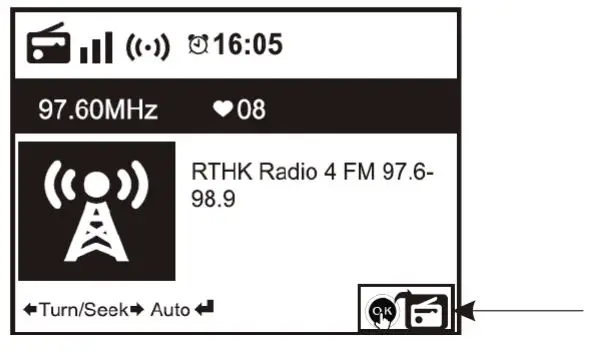
Press and hold the <Dial/Select> knob (or <Select> button on remote), it will switch to the internet radio mode to play the corresponding channel.
It can store up to 99 presets.
DAB MODE
You can listen to ordinary DAB channels without internet connection. Extend the telescopic antenna or in other direction / length of the antenna may be required to optimize the reception level.Choose the DAB from the main menu or use the < > button on the remote to find to DAB. If this is the first time you use the DAB mode, it will scan the DAB radio station automatically. It will display the DAB station list when the scan is done.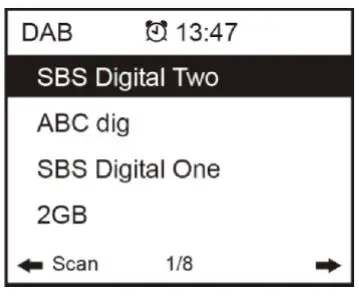
Choose the station you want to listen, and press the <Dial/Select> button (or Select button on remote) to confirm for playing. Press the <Left> button (or ◄ on remote) to return to station list. If you press the <Left> button (or ◄ on remote) again, it will display as follow. It allows for a re-scan of the DAB stations: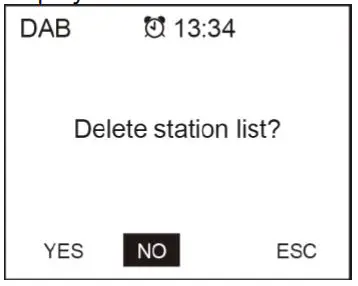
Choose <NO> to keep the existing station list and scan for any new stations.
Choose <YES> to delete the existing station list and perform a full scan again.
Choose <ESC> to exit the current operation.
To stop playing the station, press the <Dial/Select> knob (or <Select> button on remote). Whenever you want to resume to play, press the same button again.
Service Following This is a feature to help finding the same channel over internet provided that the radio station has an internet stream available and it is suitable to play on the radio. Listening over internet radio allows free of noises which usually caused by interference or weak reception over DAB. After the scan is done on DAB, choose a channel to play. If the same channel is available on Internet, there will be an icon appeared as follow: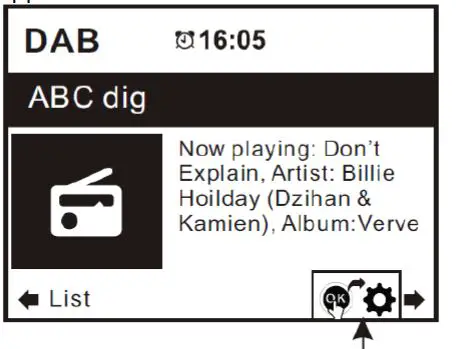
Press and hold the <Dial/Select> knob (or <Select> button on remote), it will switch to the internet radio mode to play the corresponding channel.
It can store up to 99 presets.
INFORMATION CENTER
Weather
The radio provides weather information and can display in Standby mode. To enable this feature, follow the steps below: Go to main menu, choose Information Center> Weather Information, choose the region you want it to display the weather information. After region is selected, press the <Dial/Select> knob (or Select button on remote) it will display the weather info of the selected region. Then press the same button again and it shows <Add to Standby Display>, select to confirm using the <Dial/Select> knob or <Select> button on remote. The weather info is enabled now to display in standby. The date/time and weather info will appear alternatively every 10 seconds. In standby with the analogue clock display, press the <Right>button (or the <►> button on remote) to see the real time weather information. Press the same button repeatedly to see the forecast for the next 4 days. To view more details for a particular day individually, rotate the
<Dial/Select> knob to scroll down for more information ( or the <▲ / ▼> button on the remote). To refresh the weather information, press the <Dial/Select> knob or Select button on the remote.
AUX IN
You can enjoy the music from other audio devices by connecting the audio cable to the AUX IN connector at the rear of the unit, such as mobile phone, MP3 player, etc.
DLNA
The Internet radio can play music stream from DLNA compatible device, provided that the Internet radio and other DLNA devices are under the same Wi-Fi network.
The radio will be discovered as “AirMusic” when you try to search it on other devices. If you want to change other name from AirMusic, go to Configuration and DLNA setup to make the change.
CONFIGURATION
Time Display
You can choose the time display at Analog or Digital.
Network
Wireless Network Configuration Press the <Dial/Select> knob (or Select button on remote) to scan the available wireless network.
Wireless Network (WPS PB)
The WPS allows to connect the radio with your router by pressing one key on the radio and a WPS key on your router for wifi connection, provided that your router has the WPS function.
Manual Configuration
You can set the DHCP on or off, and enter the SSID name, or delete the connected SSID.
Check network when power on
This is set to enable or disable <Check network when power on>.
Date & Time
The time is set automatically to your local area. You can choose to manual set the time if you want. Time Format settingTime format setting: 12hours / 24hours Date Format setting Date format: YYYY/MM/DD, DD/MM/YYYY and MM/DD/YYYY
Dual alarm clock
There are 2 alarm clocks available and settings as follow:
Scheduling alarm: You can schedule the alarm repeated for every day, particular day in the week or just once.
Alarm sound: Wake to Radio (must be the preset station), Wake to Melody and Wake to Beeping sound.
Alarm Volume: Select this option to adjust your desire volume level.
Nap Alarm
If you would like to take a nap or need an alarm to due in short time, you can use this function. You can select the time from 5 minutes up to 120 minutes. No Snooze function available for the NAP alarm. Remark: The NAP Alarm will only release beeping sound.
Snooze
When the Alarm sounds, press any key except <Standby> button, alarm will enter into snooze mode. The alarm will come on again 5 minutes later. You can always press <Standby> button to cancel the alarm. Remark: In case there is network issue renders the wake to radio not working, it will auto-release beeping sound after 1 minute.
Language
There are 17 Languages available, such as English, German, French, Norwegian, Italiano, Svenska, Dansk and others.
Dimmer
You can adjust the backlight of the LCD with below settings:
Power Saving
You can set the backlight to dim down when there is no operation for a certain time of period.
Turn on
You can adjust the backlight level for the operation mode, i.e. when you are operating the radio or checking on the menu.
Display
You can choose the display in colour or monochrome style.
Power Management
This function is to allow the radio to go to Standby if there is no internet signal received in order to save power. The default setting is 30 minutes. When the radio does not receive any internet signal, the radio will go into Standby after 30 minutes. Another time frame for 5 minutes and 15 minutes are available. You can choose to turn it off too.
Sleep Timer
You can set the timer to put the radio in standby after certain time elapsed, from 15 minutes to 180 minutes with the step of every 15 minute. You also can do the setting with the <Sleep> button from remote control, when you press <Sleep>, then you can see the sleep timer on the top right corner of the display.
Weather
You can set to display the weather information in standby mode by choosing different regions and the temperature unit. To turn off the weather display, please navigate to Configuration > Weather > Show on Standby > select OFF Local Radio Setup The radio will detect your local area stations automatically and simply press the <Local> on the radio to access the radio stations in your local area. You can find it under the <Internet radio> menu too. If you would like to change the Local area stations to other countries, you can choose “Manual setup” to make the change.
Playback Setup
This is to set the preference of UPnP playback. You can set the playback as Off, Repeat one, Repeat all, Shuffle.
Device
DLNA Setup
The radio can play music from DLNA compatible devices which connected to the same wifi network as the radio. The radio will be discovered by the DLNA devices with the name as “AirMusic”. This is the name by default. You can change other name here as you desire.
Remark: The DLNA feature is compatible and works with corresponding 3rd party Apps on the Android platform. Apple devices are not supported.
Remote App – AirMusic Control
Using your smartphone/tablet to control the radio by installing the App “AirMusic Control”. It is available on Android Play store and iOS App Store. It’s free of charge. Both the radio and the device with the remote app installed must be on the same wifi network to work. Search the App with the name “AirMusic Control” . You can also locate it by scanning the QR code below: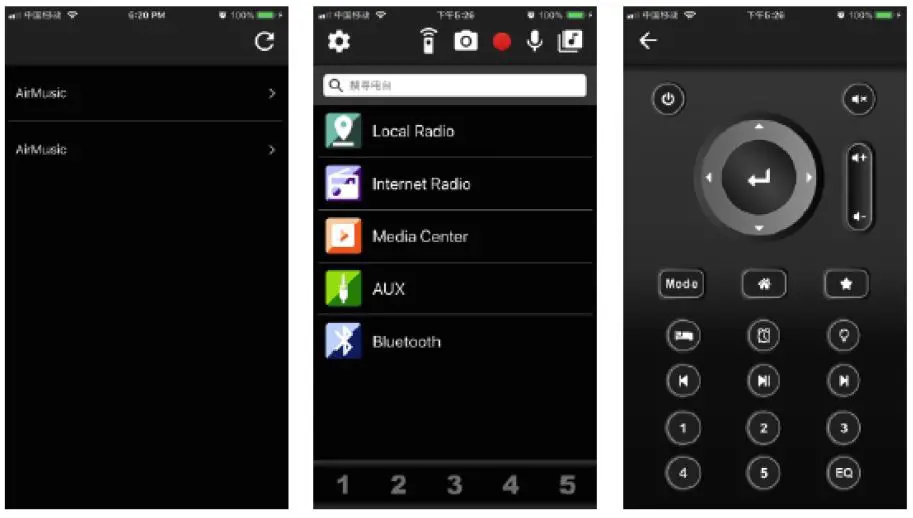
Equalizer
Select your prefer equalizer to suit your listening preference.
Resume When Power On
The radio will resume playing the last listened station when you power it on next time if ON is selected in this option. The ON is set by default.
Software update
Upgrade information will pop up on the display when there is update version available. Note: This option is for manufacturer’s use only.
Reset to default
You can do this factory reset to empty all of the settings and it comes back to default settings. Note: Please note all the Station presets, Settings and configurations will be lost after you have carried out the “Reset to default”.
TROUBLESHOOTING
If you have trouble connecting the radio to your wireless network, these steps may help to resolve the problem:
Confirm that a Wi-Fi or Ethernet Wired connected PC can access the internet (i.e. can browse the web) using the same network. Check that a DHCP server is available, or that you have configured a static IP address on the radio. Check that you firewall is not blocking any outgoing ports. Some access points may be set so that only equipment with registered MAC addresses can connect to them. This is one possible cause of the Internet Radio being unable to connect to the Wi-Fi network, and the Internet Radio display will show Bad ESSID or key. To overcome this problem you will need to add the Internet Radio’s MAC address to the list of allowed equipment in your access point. The Internet Radio’s MAC address can be found using the menu Information Center > System Information > Wireless Info > MAC address. You will need to refer to the guide for you Access Point in order to enter the Internet Radio as an allowed piece of equipment. If you have an encrypted network, check that you have entered the correct key or passphrase into the radio. Remember that text-format keys are case-sensitive. If your wireless network name (ESSID) is ‘Hidden’(a setting on the wireless access point), then you can either turn on the name, or you can manually enter the name into the internet radio and media player, Select <Configure -> Network -> Manual Configuration-> Wireless -> Enter ESSID>. Confirm if the Network is encrypted, e.g. requires a WEP or WPA key, then enter the network name.
If your radio can connect to the network successfully, but is unable to play particular stations, it may be due to one of the following reasons:
The station is not broadcasting at this time of the day (remember it may be located in a different time zone). The station has too many people trying to attach to the radio station server and the server capacity is not large enough. The station has reached the maximum allowed number of simultaneous listeners. The station is not broadcasting anymore. The link on the radio is out of date. This is updated automatically every day, so the next time you turn on the link will be recognised. The internet connection between the server (often located in a different country) and yours is slow. Some internet service providers may fail to stream in certain geographical areas. Try using a PC toplay back the stream via the broadcaster’s web site. If you can play back the station with a PC, please report to the customer service where you bought this radio. If you have a laptop, try connecting it if your Internet Radio cannot find the station.
When you scan for PCs under UPnP function, none can be found, or the PC you are looking for does not appear in the list:
You have not connected to the wireless Access point. On the internet radio, select ‘Configuration’, ‘Network ’, ‘Wireless network connection’ and then select your Wireless network. (You may need to enter a security key to access the network wirelessly). You have a firewall set on your PC which is stopping you from accessing shared files. If you have a third-party firewall (Like Norton, or Zone Alarm) that will have its own control panel and you will need to consult the manual for your firewall. If your PC is connected to a managed network, with a server sometimes the PC being searched for needs to be set to Homegroup. See the instructions under Media Center.
You can see the PC you want to play music from, but cannot find any folders on the PC:
You have a firewall running which is preventing the internet radio from seeing the shared folder. As a quick check, you can disable firewalls like Norton to see if this overcomes the problem, if this resolves the issue then you can either leave the firewall off, or allow file sharing through the firewall. Note: If you firewall is required to provide security for your system, it should not be left off.
If the Internet Radio keeps re-buffering radio stations:
The Internet Radio is streaming the data from the radio station via your broadband connection, if there is a high error rate on your broadband connection, or the connection is intermittent, then it will cause the Internet Radio to pause until the connection is re-established and it has received enough data to start playing again. If your Internet Radio keeps stopping, please check the DSL modem to ensure that the Broadband line is not suffering a high error rate or disconnections. If you are experiencing these problems, you will need to contact your broadband supplier.
What is Buffering?
When playing a stream, the Internet Radio/Media player, downloads a small amount of the stream before it starts playing. This is used to fill in any gaps in the stream that may occur if the internet or the wireless network is busy. If a stream gets blocked or experiences Internet congestion while transferring it may stop/interfere with the quality of play. If this happens, check your internet connection speed- it must be faster than the speed of the stream
 Explore - Spotify | Connect at home
 Audizio – always a square deal
 Stibat
 Inleveren is terugkrijgen - Wecycle
 Third Party Licenses | Spotify for Developers