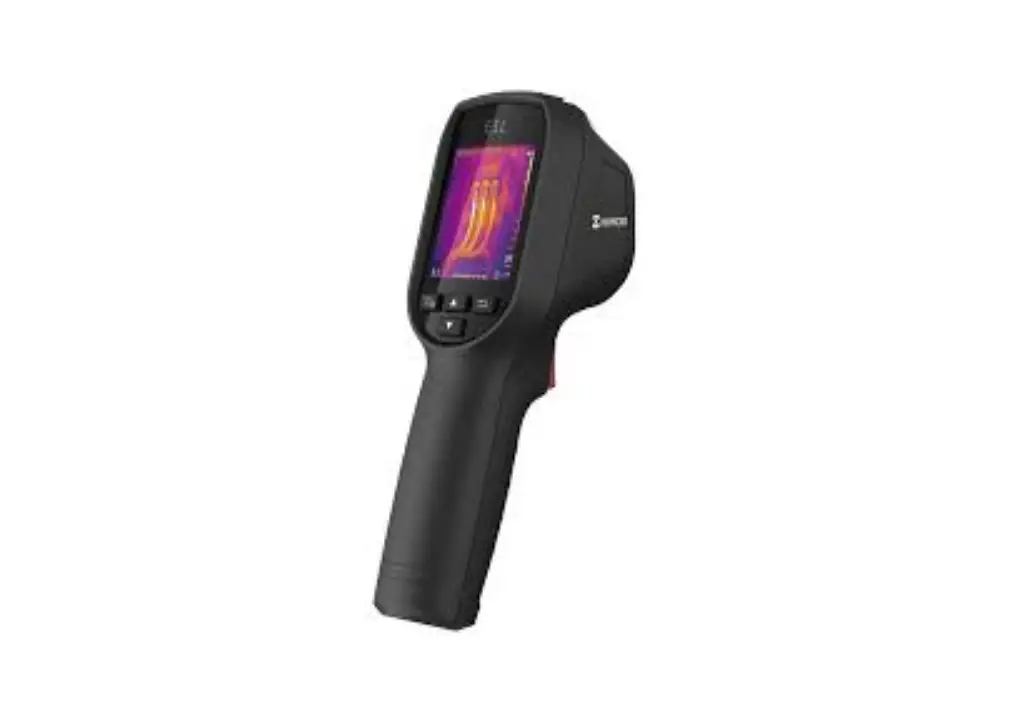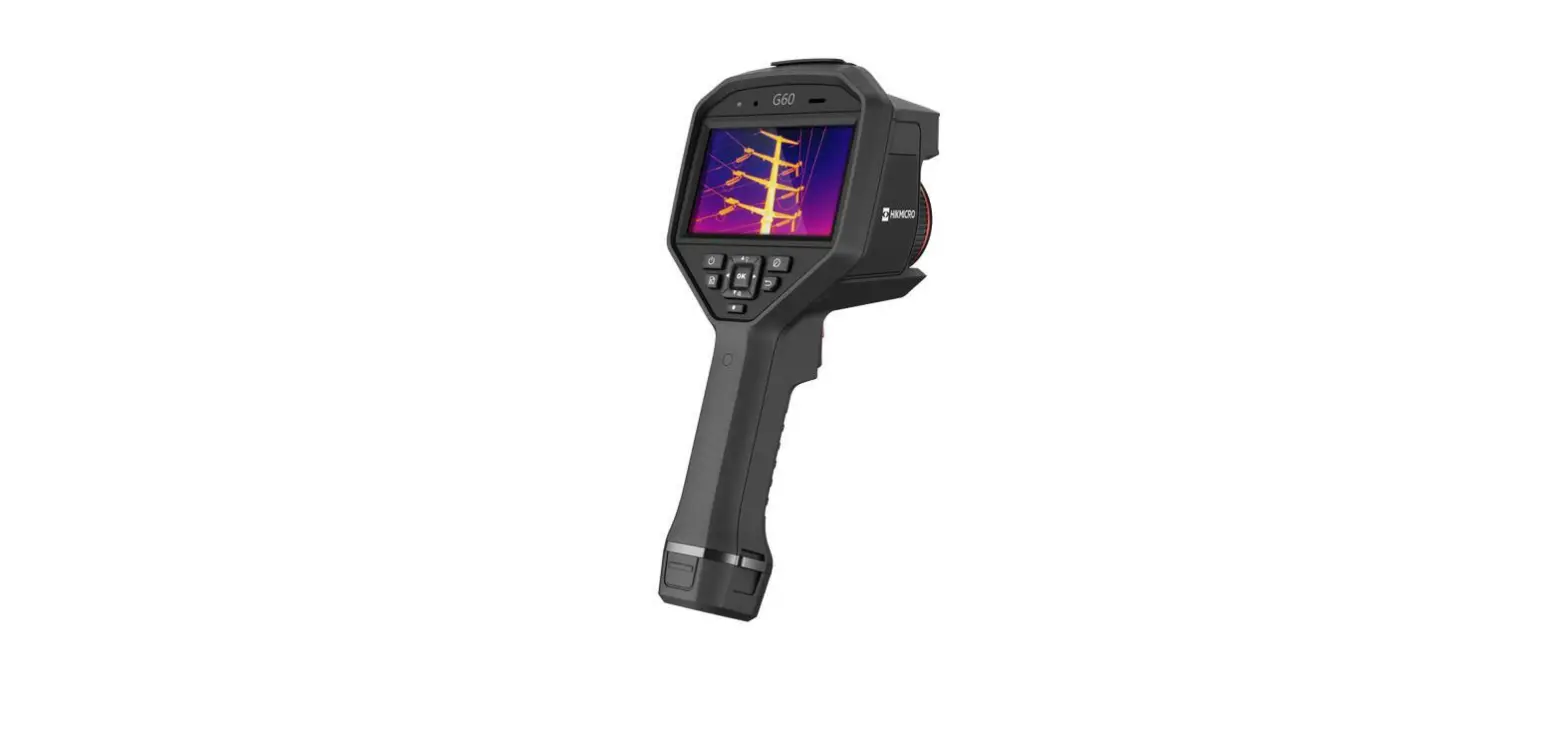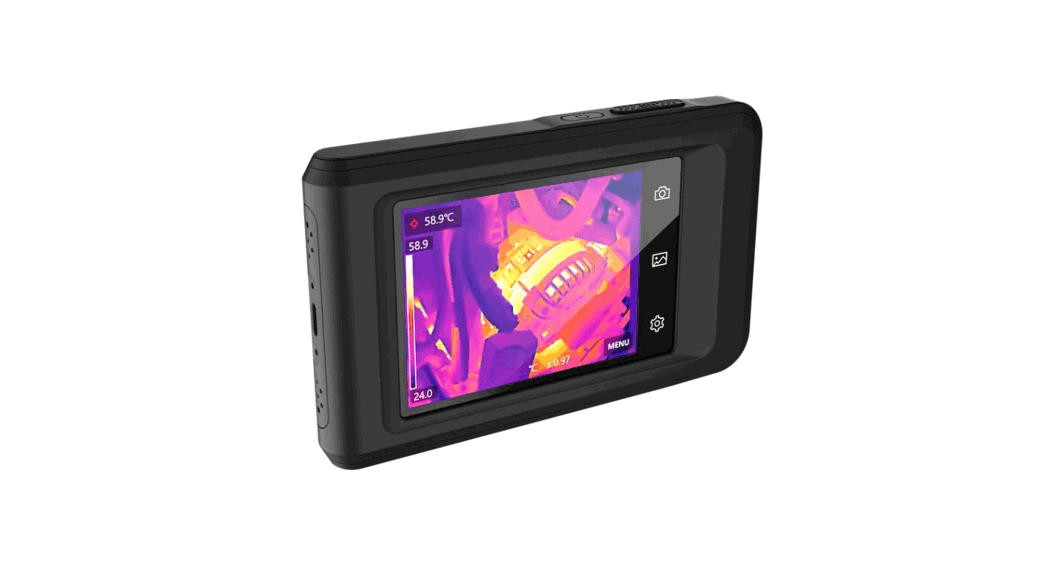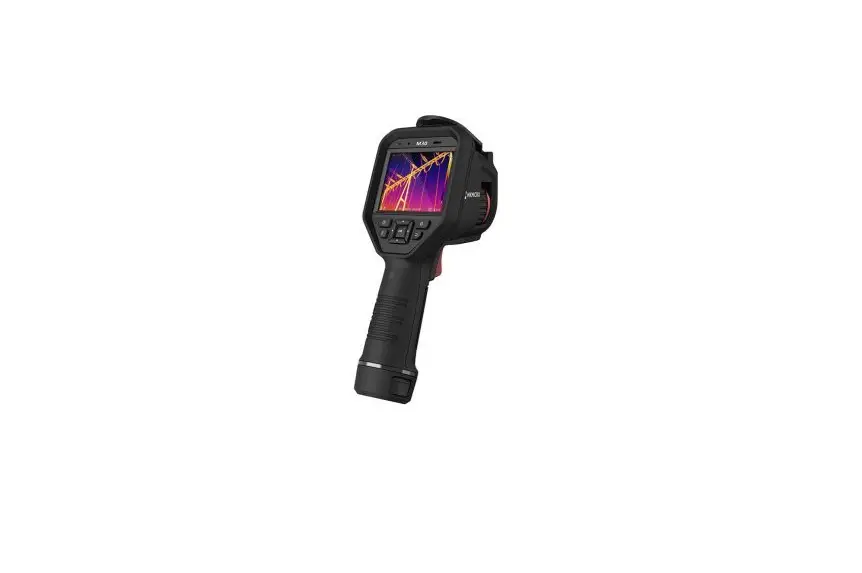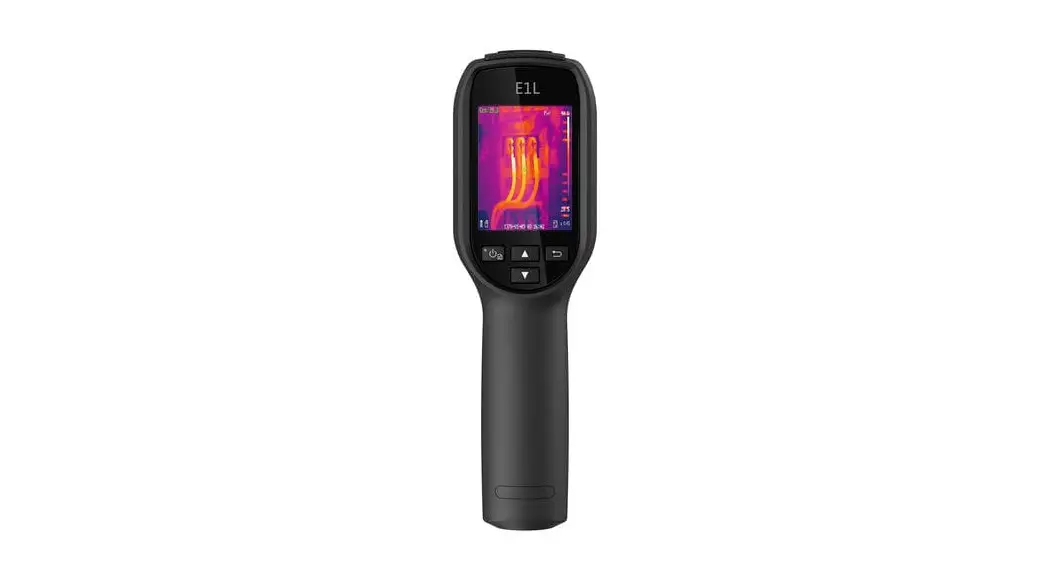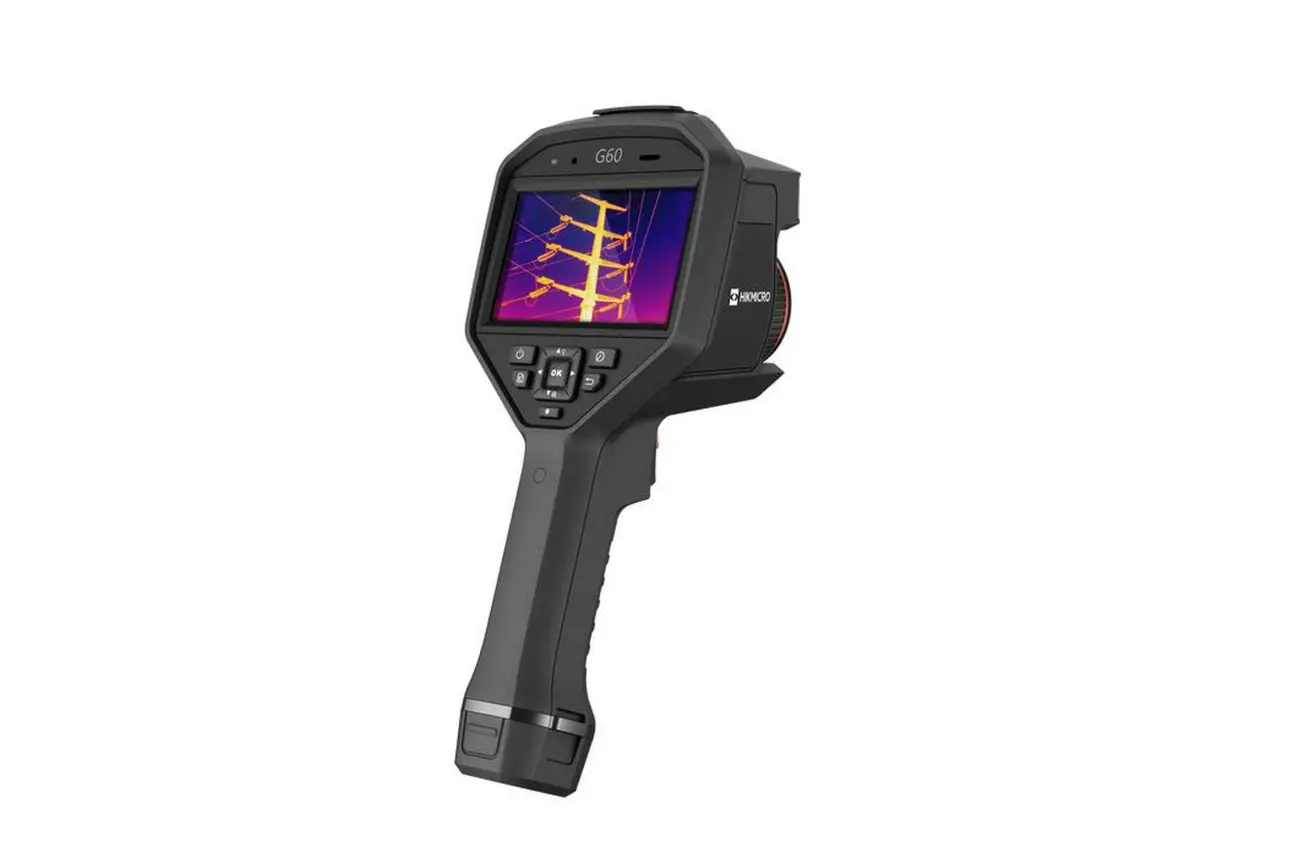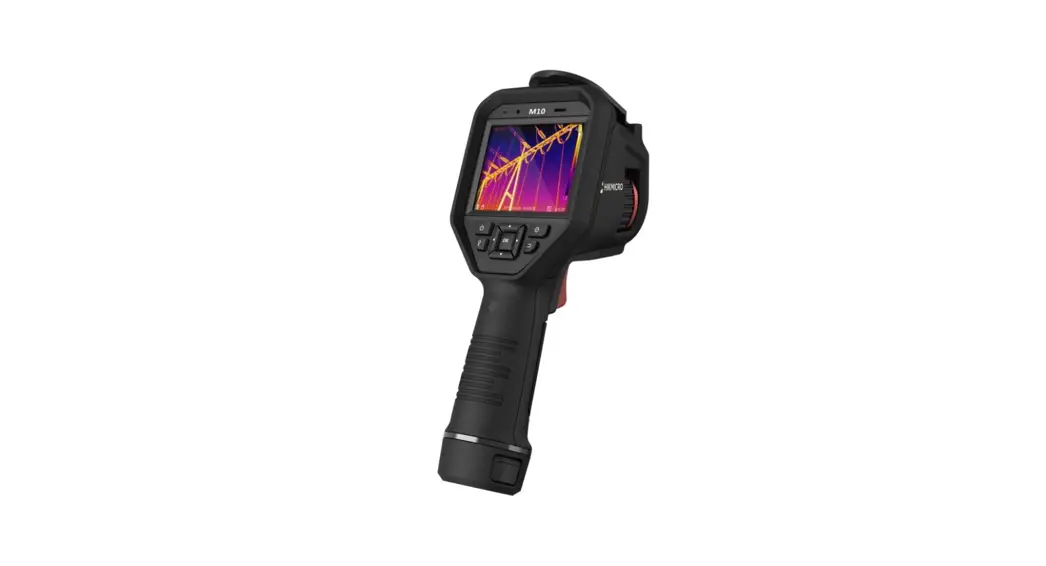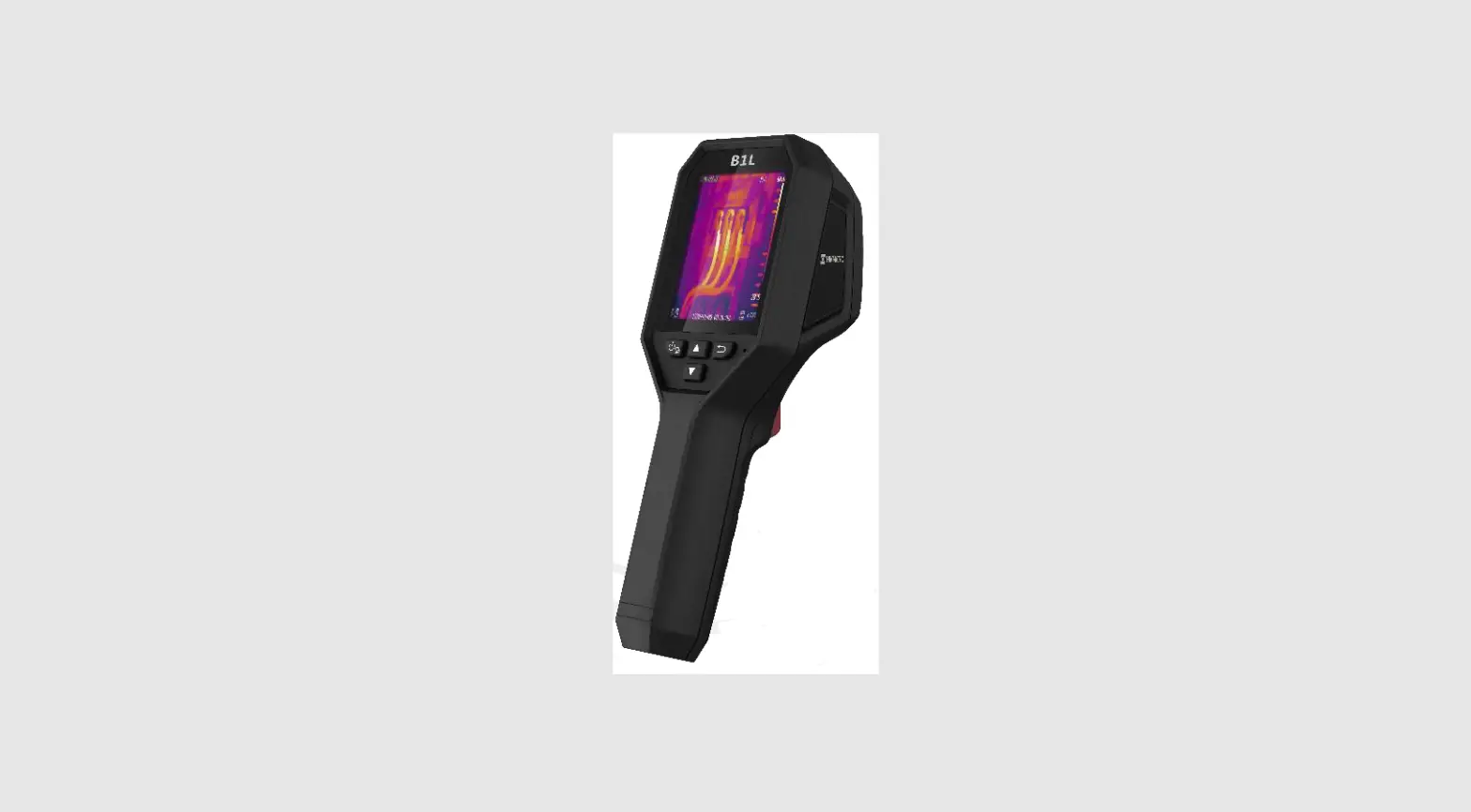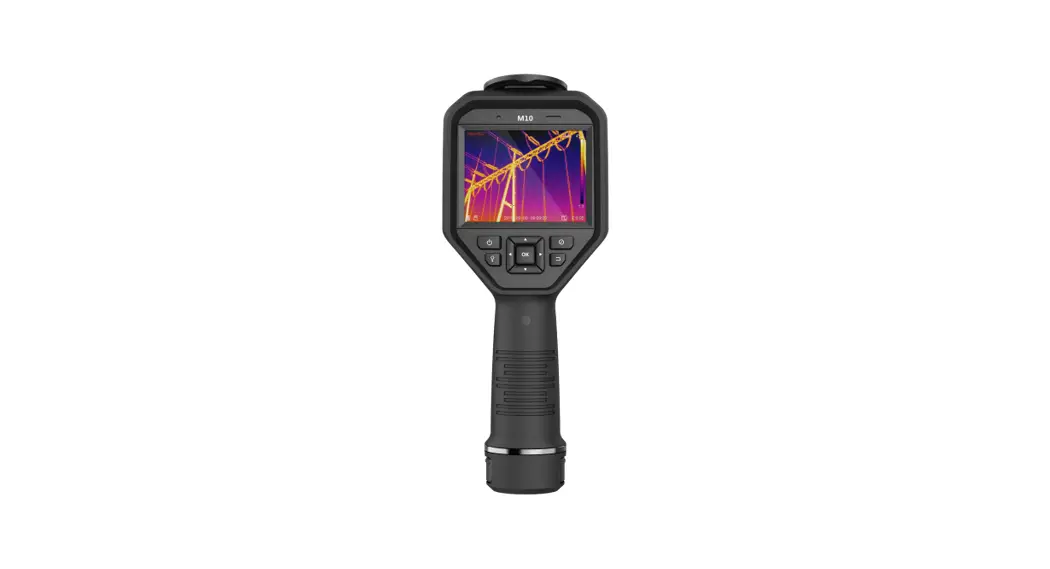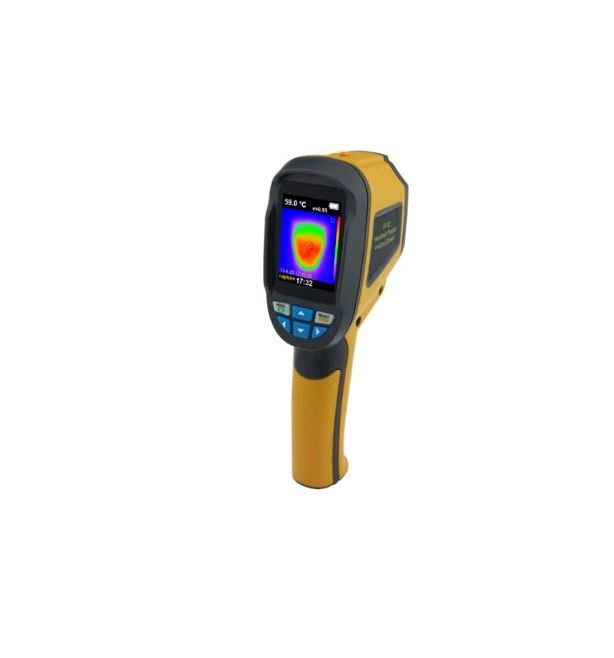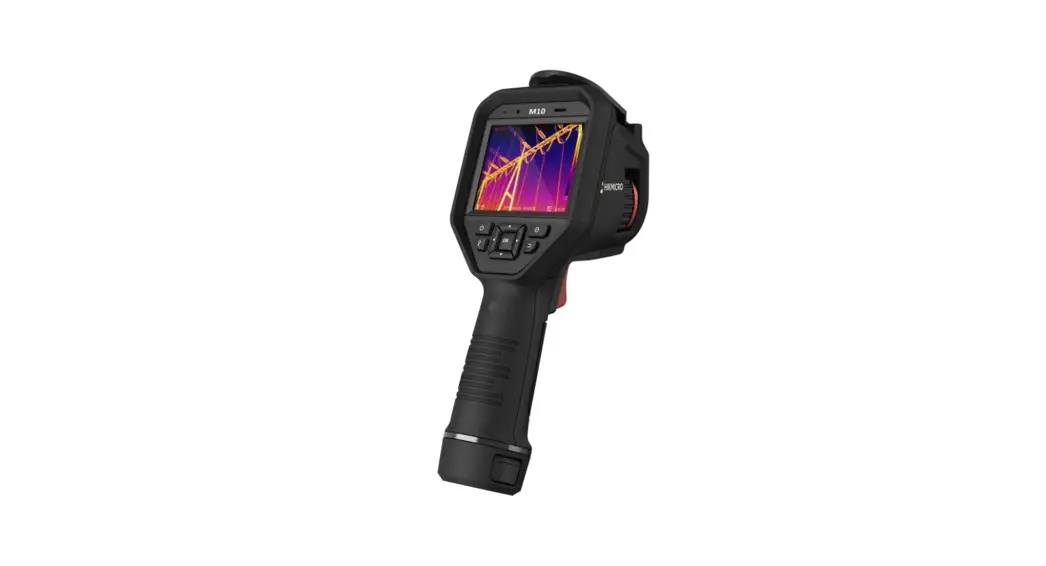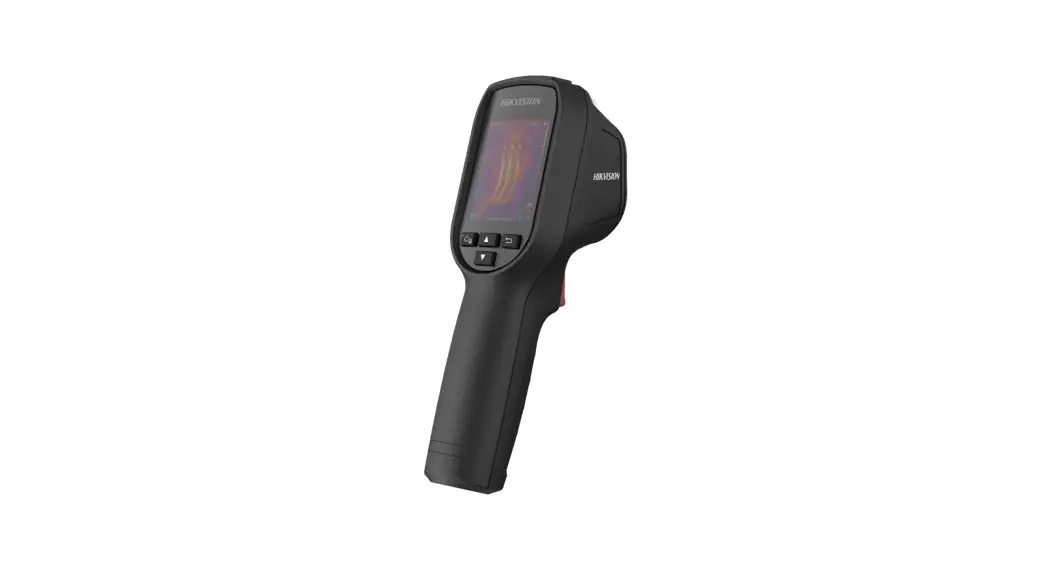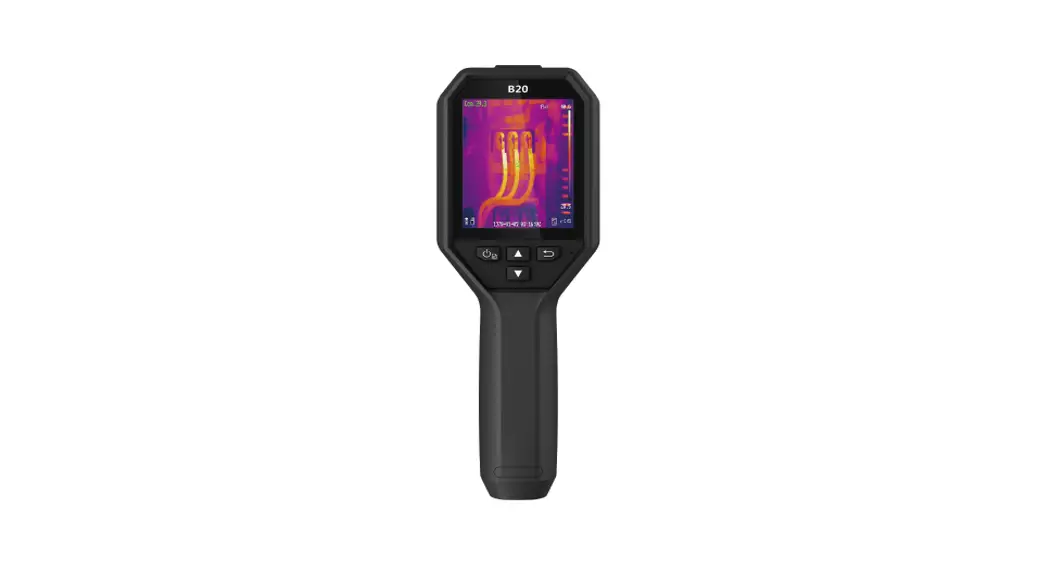

Handheld Thermography Camera
User Manual
© 2021 Hangzhou Microimage Software Co., Ltd. All rights reserved.
About this Manual
The Manual includes instructions for using and managing the Product. Pictures, charts, images, and all other information hereinafter are for description and explanation only. The information contained in the Manual is subject to change, without notice, due to firmware updates or other reasons. Please find the latest version of this Manual at the HIKMICRO website (www.hikmicrotech.com/). Please use this Manual with the guidance and assistance of professionals trained in supporting the Product.
Trademarks Acknowledgement
and other HIKMICRO’s trademarks and logos are the properties of HIKMICRO in various jurisdictions. Other trademarks and logos mentioned are the properties of their respective owners.
LEGAL DISCLAIMER
TO THE MAXIMUM EXTENT PERMITTED BY APPLICABLE LAW, THIS MANUAL AND THE PRODUCT DESCRIBED, WITH ITS HARDWARE, SOFTWARE AND FIRMWARE, ARE PROVIDED “AS IS” AND “WITH ALL FAULTS AND ERRORS”. HIKMICRO MAKES NO WARRANTIES, EXPRESS OR IMPLIED, INCLUDING WITHOUT LIMITATION, MERCHANTABILITY, SATISFACTORY QUALITY, OR FITNESS FOR A PARTICULAR PURPOSE. THE USE OF THE PRODUCT BY YOU IS AT YOUR OWN RISK. IN NO EVENT WILL HIKMICRO BE LIABLE TO YOU FOR ANY SPECIAL, CONSEQUENTIAL, INCIDENTAL, OR INDIRECT DAMAGES, INCLUDING, AMONG OTHERS, DAMAGES FOR LOSS OF BUSINESS PROFITS, BUSINESS INTERRUPTION, OR LOSS OF DATA, CORRUPTION OF SYSTEMS, OR LOSS OF DOCUMENTATION, WHETHER BASED ON BREACH OF CONTRACT, TORT (INCLUDING NEGLIGENCE), PRODUCT LIABILITY, OR OTHERWISE, IN CONNECTION WITH THE USE OF THE PRODUCT, EVEN IF HIKMICRO HAS BEEN ADVISED OF THE POSSIBILITY OF SUCH DAMAGES OR LOSS. YOU ACKNOWLEDGE THAT THE NATURE OF THE INTERNET PROVIDES FOR INHERENT SECURITY RISKS, AND HIKMICRO SHALL NOT TAKE ANY RESPONSIBILITIES FOR ABNORMAL OPERATION, PRIVACY LEAKAGE, OR OTHER DAMAGES RESULTING FROM CYBER-ATTACK, HACKER ATTACK, VIRUS INFECTION, OR OTHER INTERNET SECURITY RISKS; HOWEVER, HIKMICRO WILL PROVIDE TIMELY TECHNICAL SUPPORT IF REQUIRED. YOU AGREE TO USE THIS PRODUCT IN COMPLIANCE WITH ALL APPLICABLE LAWS, AND YOU ARE SOLELY RESPONSIBLE FOR ENSURING THAT YOUR USE CONFORMS TO THE APPLICABLE LAW. ESPECIALLY, YOU ARE RESPONSIBLE, FOR USING THIS PRODUCT IN A MANNER THAT DOES NOT INFRINGE ON THE RIGHTS OF THIRD PARTIES, INCLUDING WITHOUT LIMITATION, RIGHTS OF PUBLICITY, INTELLECTUAL PROPERTY RIGHTS, DATA PROTECTION, AND OTHER PRIVACY RIGHTS. YOU SHALL NOT USE THIS PRODUCT FOR ANY PROHIBITED END-USES, INCLUDING THE DEVELOPMENT OR PRODUCTION OF WEAPONS OF MASS DESTRUCTION, THE DEVELOPMENT OR PRODUCTION OF CHEMICAL OR BIOLOGICAL WEAPONS, ANY ACTIVITIES IN THE CONTEXT RELATED TO ANY NUCLEAR EXPLOSIVE OR UNSAFE NUCLEAR FUEL-CYCLE, OR IN SUPPORT OF HUMAN RIGHTS ABUSES. IN THE EVENT OF ANY CONFLICTS BETWEEN THIS MANUAL AND THE APPLICABLE LAW, THE LATTER PREVAILS.
Regulatory Information
FCC Information
Please take attention that changes or modifications not expressly approved by the party responsible for compliance could void the user’s authority to operate the equipment. FCC compliance: This equipment has been tested and found to comply with the limits for a Class B digital device, pursuant to part 15 of the FCC Rules. These limits are designed to provide reasonable protection against harmful interference when the equipment is operated in a commercial environment. This equipment generates, uses, and can radiate radio frequency energy and, if not installed and used in accordance with the instruction manual, may cause harmful interference to radio communications. Operation of this equipment in a residential area is likely to cause harmful interference in which case the user will be required to correct the interference at his own expense.
FCC Conditions
This device complies with part 15 of the FCC Rules. Operation is subject to the following two conditions:
- This device may not cause harmful interference.
- This device must accept any interference received, including interference that may cause undesired operation.
EU Conformity Statement
 This product and, if applicable, the supplied accessories are marked with “CE” and comply therefore with the applicable harmonized European standards listed under the Radio Equipment Directive 2014/53/EU, the EMC Directive 2014/30/EU, the RoHS Directive 2011/65/EU.
 2012/19/EU (WEEE directive): Products marked with this symbol cannot be disposed of as unsorted municipal waste in the European Union. For proper recycling, return this product to your local supplier upon the purchase of equivalent new equipment, or dispose of it at designated collection points. For more information see www.recyclethis.info.
 2006/66/EC (battery directive): This product contains a battery that cannot be disposed of as unsorted municipal waste in the European Union. See the product documentation for specific battery information. The battery is marked with this symbol, which may include lettering to indicate cadmium (Cd), lead (Pb), or mercury (Hg). For proper recycling, return the battery to your supplier or to a designated collection point. For more information see www.recyclethis.info.
Safety Instruction
The symbols that may be found in this document are defined as follows.
| Symbol | Description |
 Danger Danger | Indicates a hazardous situation that, if not avoided, will or could result in death or serious injury. |
| Caution | Indicates a potentially hazardous situation which, if not avoided, could result in equipment damage, data loss, performance degradation, or unexpected results. |
 Note Note | Provides additional information to emphasize or supplement important points of the main text. |
These instructions are intended to ensure that users can use the product correctly to avoid danger or property loss.
Laws and Regulations
- Use of the product must be in strict compliance with the local electrical safety regulations.
Transportation - Keep the device in original or similar packaging while transporting it.
- Keep all wrappers after unpacking them for future use. In case of any failure occurred, you need to return the device to the factory with the original wrapper. Transportation without the original wrapper may result in damage on the device and the company shall not take any responsibility.
- Do not drop the product or subject it to physical shock. Keep the device away from magnetic interference.
Power Supply - Please purchase the charger by yourself. Input voltage should meet the Limited Power Source (3.7 VDC, 0.5 A) according to the IEC61010-1 standard. Please refer to technical specifications for detailed information.
- Make sure the plug is properly connected to the power socket.
- DO NOT connect multiple devices to one power adapter, to avoid over-heating or fire hazards caused by overload.
Battery - The built-in battery cannot be dismantled. Please contact the manufacturer for a repair if necessary.
- For long-term storage of the battery, make sure it is fully charged every half year to ensure the battery quality. Otherwise, damage may occur.
- When the device is powered off and the RTC battery is full, the time settings can be kept for 4 months.
- Before the first use, charge the lithium battery for more than 8 hours.
Maintenance - If the product does not work properly, please contact your dealer or the nearest service center. We shall not assume any responsibility for problems caused by unauthorized repair or maintenance.
- Wipe the device gently with a clean cloth and a small quantity of ethanol, if necessary.
- If the equipment is used in a manner not specified by the manufacturer, the protection provided by the device may be impaired.
- We recommend you send the device back for calibration once a year, and please contact the local dealer for information on maintenance points.
Technical support - The https://www.hikmicrotech.com portal will help you as a HIKMICRO customer to get the most out of your HIKMICRO products. The portal gives you access to our support team, software, and documentation, service contacts, etc.
Using Environment - Make sure the running environment meets the requirement of the device. The operating temperature shall be -10°C to 50°C (14°F to 122°F), and the operating humidity shall be 95% or less.
- DO NOT expose the device to high electromagnetic radiation or dusty environments.
- DO NOT aim the lens at the sun or any other bright light.
Emergency
If smoke, odor, or noise arises from the device, immediately turn off the power, unplug the power cable, and contact the service center.
Manufacture Address:
Room 313, Unit B, Building 2, 399 Danfeng Road, Xixing Sub-district, Binjiang District, Hangzhou, Zhejiang 310052, China Hangzhou Microimage Software Co., Ltd.
COMPLIANCE NOTICE: The thermal series products might be subject to export controls in various countries or regions, including without limitation, the United States, the European Union, the United Kingdom, and/or other member countries of the Wassenaar Arrangement. Please consult your professional legal or compliance expert or local government authorities for any necessary export license requirements if you intend to transfer, export, re-export the thermal series products between different countries.
Introduction
1.1 Product Introduction
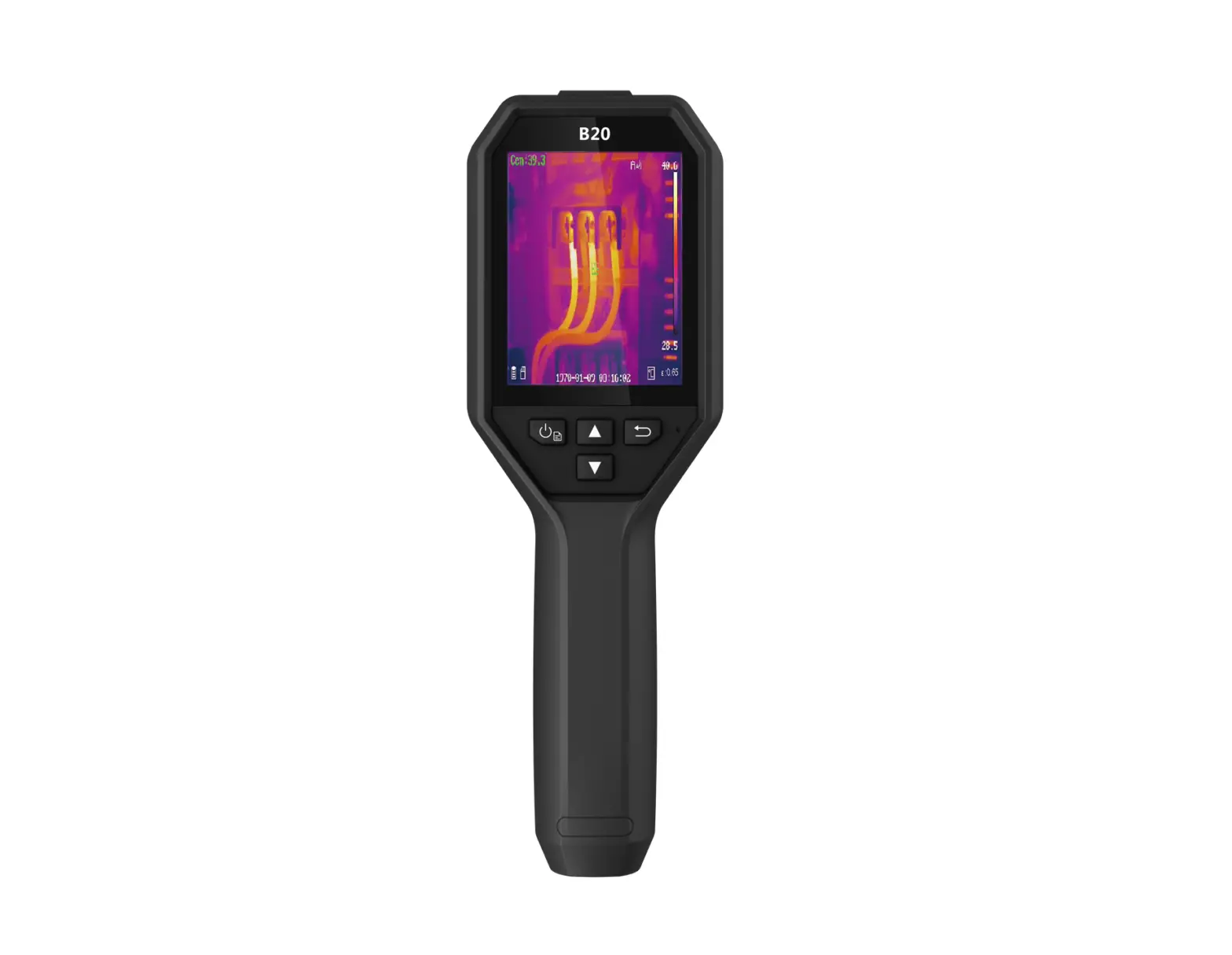
The handheld thermography camera is a camera with thermal and optical images. The built-in high-sensitivity IR detector and the high-performance sensor detect the temperature change and measure the real-time temperature. The accuracy of temperature measurement is ± 2 °C (3.6 °F) or ± 2% when the ambient temperature is from 15 °C to 35 °C (59 °F to 95 °F) and the object temperature is above 0 °C (32 °F). It helps the users to find the risky part and lower their property loss. The device supports live viewing and capturing, etc. It is mainly applied to various industries, such as building, HVAC, the auto industry, etc.
1.2 Main Function
Thermography
The device detects the real-time temperature and displays it on the screen.
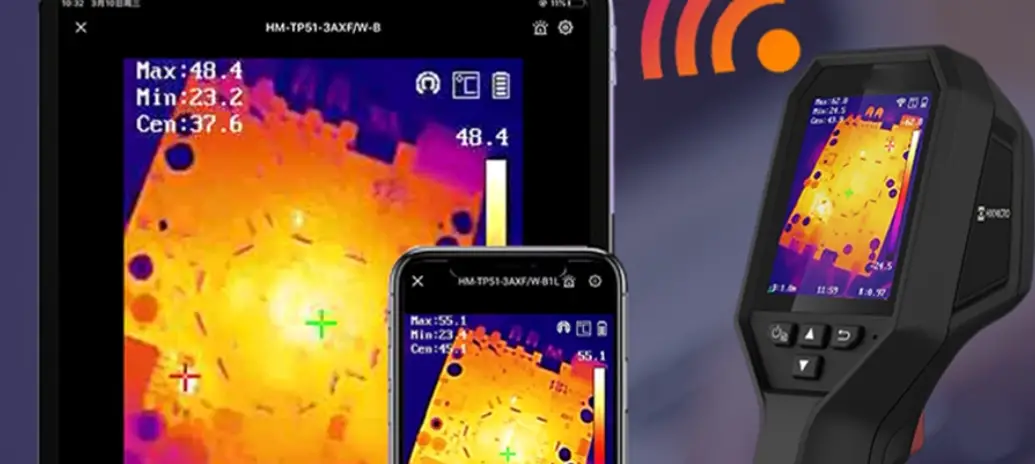
Client Software Connection
- Mobile Phone: Use HIKMICRO Viewer to see live images, capture, recording, etc. on your phone.
- PC: Use HIKMICRO Analyzer to see live images, capture, record, and receive alarm messages, etc., on your PC.
Alarm
The device outputs audible and visual alarms when the target’s temperature is higher than the threshold value.
Appearance
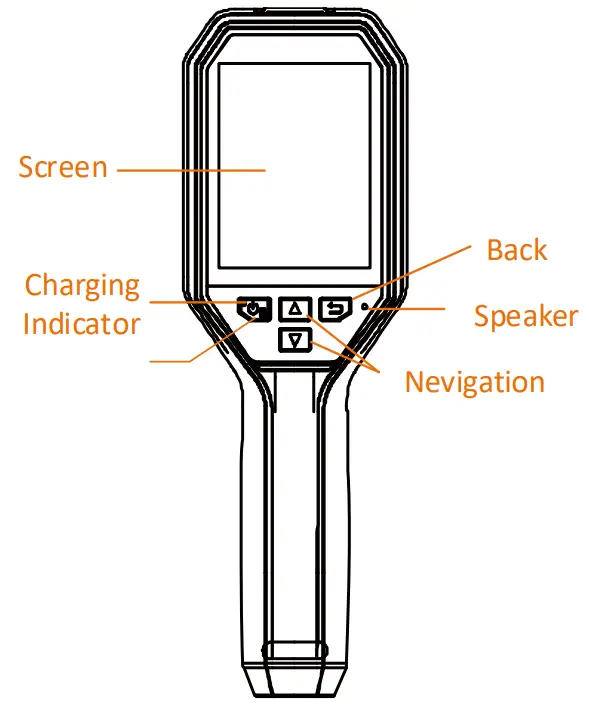
| Button | Function |
 | Hold: Power On/Off Press: Display menu or confirm the operation |
 | Exit the menu or return to the previous menu. |
 | Navigation Button Press ?, ? to select parameters. Press to confirm. |
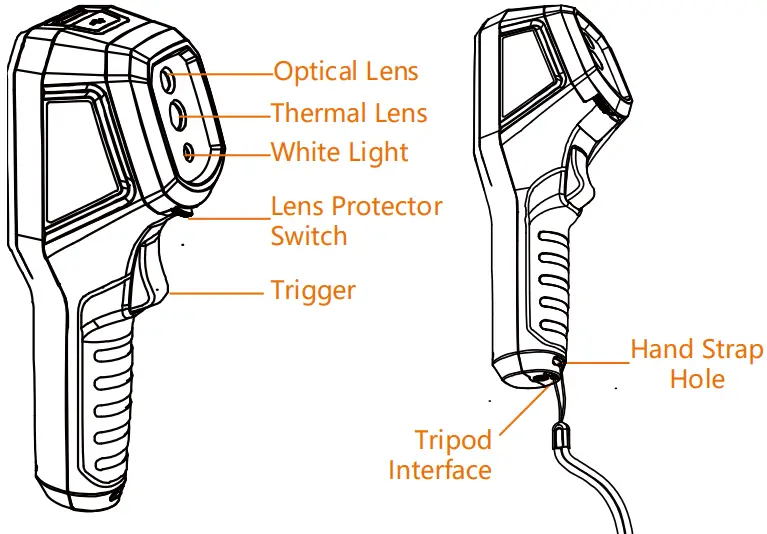
| Component | Function |
| Charging Indicator | When the device is charging, the LED indicator is solid red. When the device is fully charged, the LED indicator is solid green. |
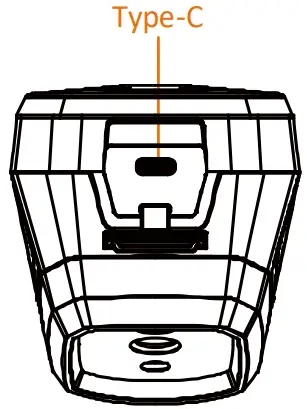
| Type-C Interface | Charge the battery or export snapshots. |
| Trigger | In the live view interface, pull the trigger to capture snapshots. In menu mode, pull the trigger to switch to live view. |
Note
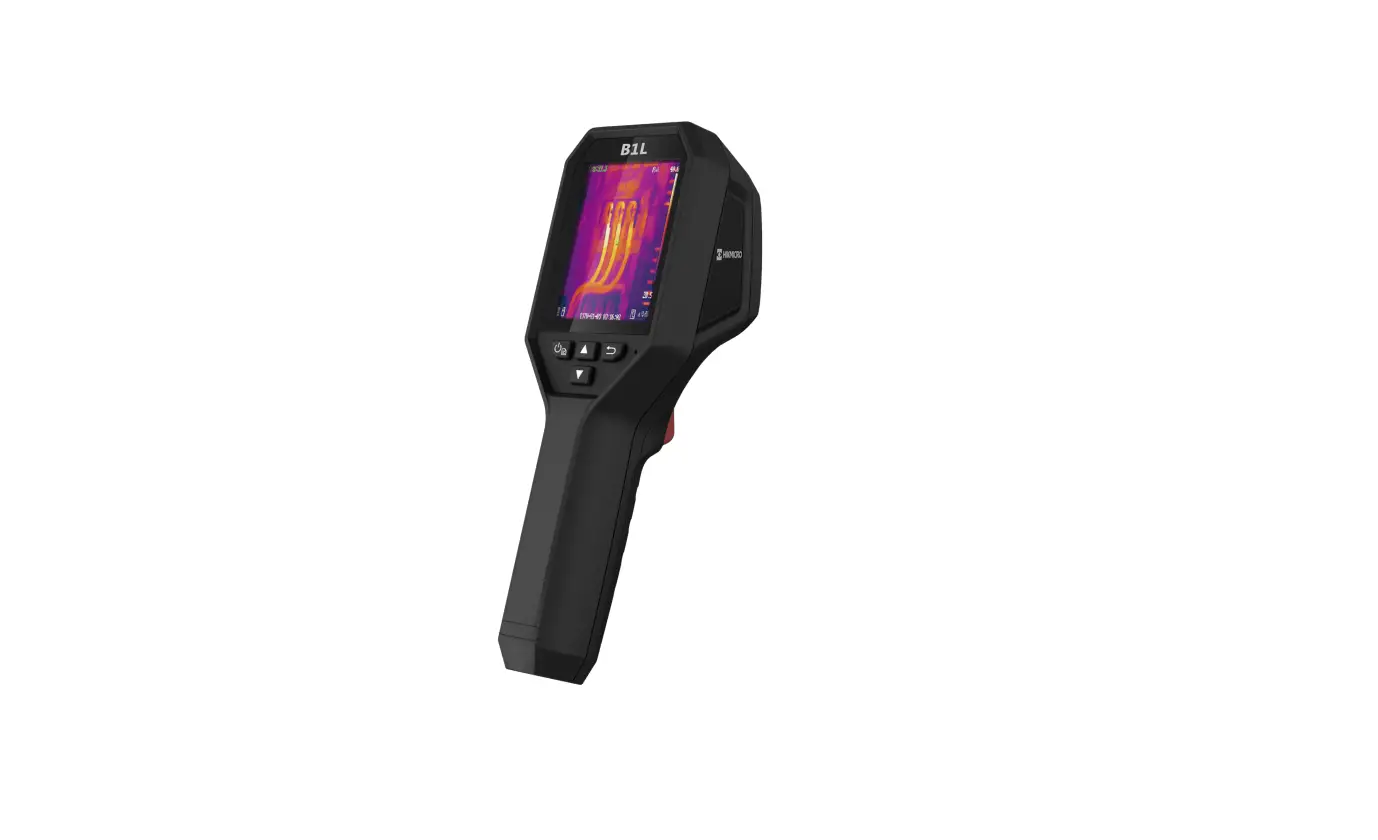
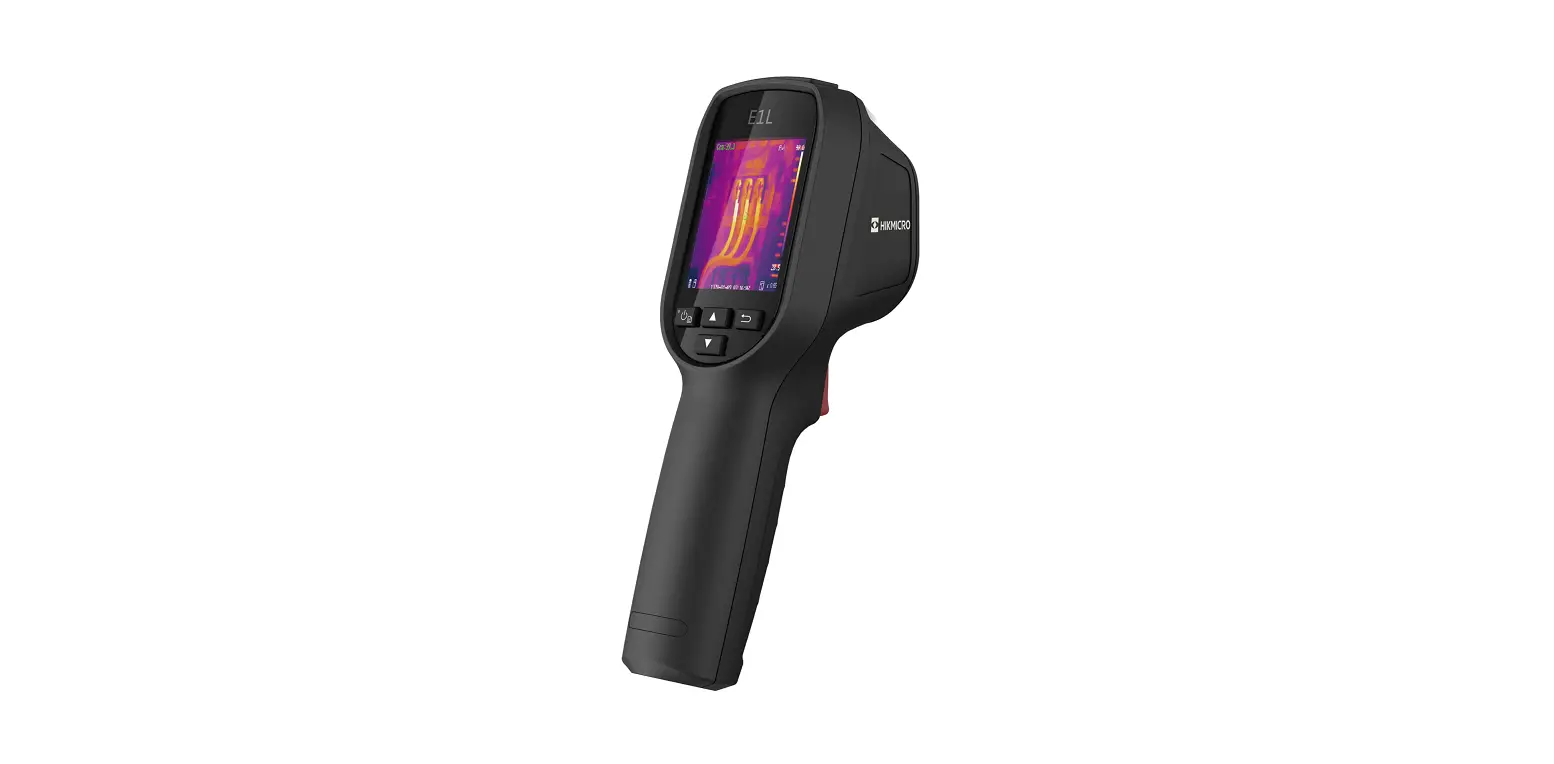
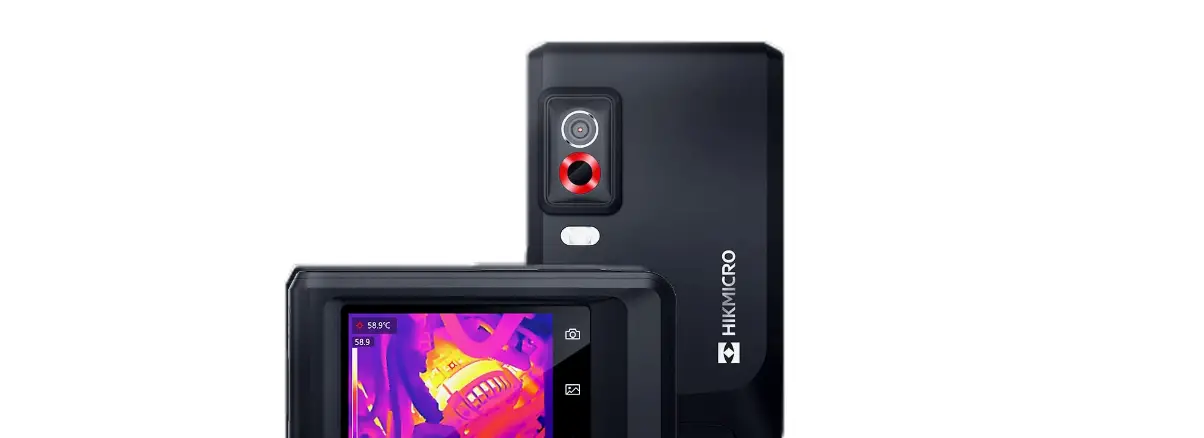
- The appearance varies according to different models.
- Certain models support the optical lens and white light. Please refer to the actual device or datasheet.
Preparation
3.1 Charge Device
Steps:
- Open the top cover of the camera.
- Connect the device interface and the power adaptor with a Type-C cable.
3.2 Power On/Off
Power On
Remove the lens cover, and hold it for over three seconds to turn on the device. You can observe the target when the interface of the device is stable.
Power Off
When the device is turned on, hold for three seconds to power off the device.
Set Auto Power-off Duration
In the live view interface, press and go to Auto Off to set the automatic shutdown time for the device as required.
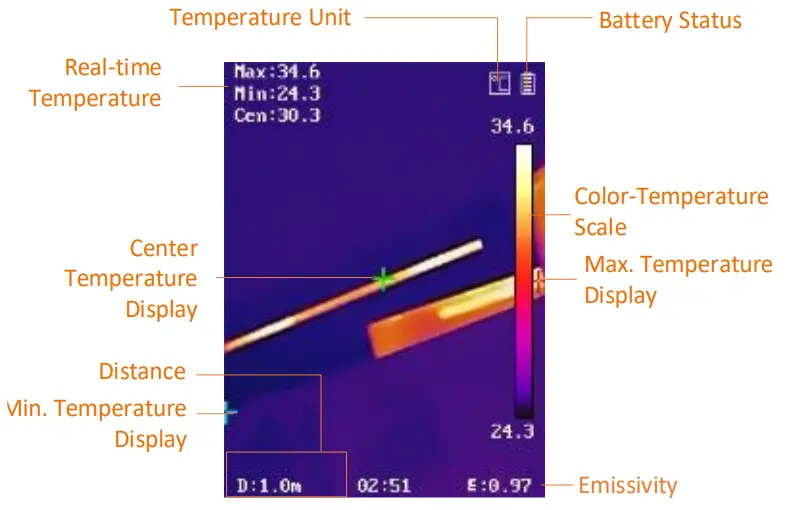
3.3 Interface Description
Temperature Measurement
The temperature measurement function provides the real-time temperature of the scene and displays it on the left of your screen. The function is turned on by default.
4.1 Set Thermography Parameters
You can set thermography parameters to improve the accuracy of temperature measurement.
Steps:
- In the live view interface, press
 to show the menu.
 - Press
 to select desired setting bar.
 - Press the button to go to the setting interface.
- Emissivity: Set the emissivity of your target as the effectiveness in emitting energy as thermal radiation.
- Distance: Set the distance between the target and the device.
- Unit: Set the temperature unit.
- Meas. Range: Select the temperature measurement range. The device can detect the temperature and switch thermography range automatically in Auto Switch mode.
4 Press to save and exit.
4.2 Set Temperature Range
Steps:
- In the live view interface, press to show the menu.
- Press , and select Temp Range.
- Select the setting mode.
- In Auto Mode, the device adjusts temperature range parameters automatically.
- In Manual mode, select Parameter. Press to select the max. temperature or min. temperature, andpressto adjust the value.
4 Pressto save and exit.
4.3 Set Thermography Rule
Steps:
- In the live view interface, press to show the menu.
- Press , and select Rule.
- Go to Display and select the hotspot, cold spot, center spot, or custom spot that you want to show on live view.
- Optional: You can customize the custom spot if needed.
1) Go to Custom Spot. Select a certain custom spot and press.
2) Press/  / to adjust the position of the spot.
3) Press the trigger to finish the setting. - The device shows the real-time temperature on the upper left side of the live view interface.
4.4 Enhance High-Temperature Target
In the target enhancement function, when the target’s temperature is higher than the set value,the target’s color will change to red
Steps:
- In the live view interface, press to show the menu.
- Press , and select Palettes.
- Switch the palette mode to Above Alarm.
- Set the temperature. When the temperature of the target is higher than the set value, the target will be red in live view.
- Press to save and exit.
4.5 Set Temperature Alarm
Set the alarm rules and the device will alarm when the temperature triggers the rule.
Steps:
- In the live view interface, press to show the menu.
- Press , and select Alarm.
- Press to enable the function, and you can select flashing alarm or audible alarm as required. Note
The white light will turn off automatically after enabling the flashing alarm. - Select the alarm rule and set the alarm and pre-alarm temperature. When the target’s temperature is higher or lower than the threshold value, the device will output alarm.
- Pressto save and exit.
Capture Snapshots
Steps:
- In the live view interface, pressto show the menu.
- Press , and select Picture Type.
● Offline Picture: Select this type when analyzing the picture with the HIKMICRO Analyzer.
● Thermal Graphic: Select this type for custom software development. - In the live view interface, pull the trigger to capture snapshots. The live view freezes and the device display the snapshot with temperature information.
- Press
 the button to save the picture, press the button to cancel it.
Note
You can not capture when the device is connected to a PC.
5.1 View Snapshots
Steps:
- In the live view interface, press to show the menu.
- Press , and select Picture.
- Press to select the picture, and press to view it.
- Optional: Pressto deletes a picture in the picture view interface. Pressto switches the picture.
- Press to exit.
5.2 Export Snapshots
Purpose:
Connect the device to your PC with a Type-C cable, you can export the captured snapshots.
Steps:
- Open the interface cover.
- Connect the camera to your PC with a Type-C cable and open the detected disk.
- Select and copy the snapshots to PC and view the files.
- Disconnect the device from your PC.
Note
- For the first-time connection, the driver will be installed automatically.
- DO NOT disconnect the Type-C connection from the PC or pull out the Micro SD card during drive installation or it may cause device damage.
HIKMICRO Viewer Connection
The device supports both a Wi-Fi connection and a WLAN hotspot. Connect the device to HIKMICRO Viewer App, and you can control the device via a mobile App.
6.1 Connect via Wi-Fi
Before You Start
Download and install app on your phone.
Steps:
- In the live view interface, press to show the menu.
- Press, and select Wi-Fi.
- Press to enable the function.
- Press to select Wi-Fi, and enter the password.
- Press to save and exit.
- Launch the app, and add the device to online devices.
Result
You can view the live view, or capture snapshots via the app. Note
Certain models support Wi-Fi. Please refer to the actual device or datasheet.
6.2 Connect via Hotspot
Before You Start
Download and install HIKMICRO Viewer on your phone.
Steps:
- In the live view interface, press to show the menu.
- Press , and select Hotspot.
- Pressto enables the function.
- Set the password.
- Press to save and exit.
- Connect your phone to the hotspot of the device.
- Launch the app, and add the device to online devices.
Result
You can view the live view, or capture snapshots via the app.
Image Settings
Steps:
- In the live view interface, press to show the menu.
- Press , and select Image.
- Press , go to Image -> Preview Mode, and select the preview mode needed.
- Thermal: Display the thermal image only.
- Fusion: Fuse the optical image with the thermal image. The fused image with the clear edge is displayed in this mode.
- Picture in Picture: Display a part of the thermal image on the optical image.
- Optical: Display the optical image only.
4. Optional: When selecting the fusion mode, you need to select the FusionLevel according to the target distance.
5. Press to save and exit.
Note
Certain models support the Image Setting function. Please refer to the actual device.
Set LED Light
In the live view interface, press , and go to White Light to enable or disable the LED light. Note
Certain models support the White Light. Please refer to the actual device or datasheet.
Cast Screen
Before You Start
- Connect the device and PC with supplied Type-C cable
- Install HIKMICRO Analyzer that supports UVC protocol on your PC.
Steps:
- In the live view interface, press to show the menu.
- Press, and enable Cast Screen.
- Open HIKMICRO Analyzer and you can view the live view and operation of the device on HIKMICRO Analyzer.
Maintenance
10.1 View Device Information
In the live view interface, press and select About to view the device information.
10.2 Set Date and Time
In the live view interface, pressand select Time & Date to set the information.
10.3 Format Memory Card
Steps:
- In the live view interface, press to show the menu.
- Pressbutton to select Format Memory.
- Press and select OK to start formatting the memory card.
Note
Format memory card before first use of it.
10.4 Upgrade
Steps:
- Connect the device to your PC with a Type-C cable and open the detected disk.
- Copy the upgrade file and replace it with the root directory of the device. Disconnect the device from your PC.
- Reboot the device and then it will upgrade automatically. The upgrading process will be displayed in the main interface.
Note
After the upgrading, the device automatically reboots. You can view the current version in Menu > About.
10.5 Restore Device
In the live view interface, press and select Restore to initialize the device and restore default settings.
Appendix
11.1 Common Material Emissivity Reference
| Material | Emissivity |
| Human Skin | Jan-00 |
| PCB | Jan-00 |
| Cement Concrete | 0.95 |
| Ceramics | 0.92 |
| Rubber | 0.95 |
| Paint | 0.93 |
| Wood | 0.85 |
| Asphalt | 0.96 |
| Brick | 0.95 |
| Sand | 0.9 |
| Soil | 0.92 |
| Cotton | 0.98 |
| Cardboard | 0.9 |
| White Paper | 0.9 |
| Water | 0.96 |
11.2 Frequently Asked Questions (FAQ)
Q: The charge indicator flashes red.
A: Examine the items below.
- Examine whether the device is charged with the standard power adapter.
- Make sure the environment temperature is above 0°C (32°F).
Q: Capturing fails.
A: Examine the items below:
- Whether the device is connected to your PC and the capture function is unavailable.
- Whether the storage space is full.
- Whether the device is low-battery.
Q: The PC cannot identify the camera.
A: Examine whether the device is connected to your PC with a standard Type-C cable.
Q: The camera can not be operated or no response.
A: Hold to reboot the camera.
Facebook: HIKMICRO Thermography
Instagram: hikmicro_thermography
E-mail: [email protected]
Website: https://www.hikmicrotech.com/
LinkedIn: HIKMICRO
YouTube: HIKMICRO
UD21752B-B
 HIKMICRO
 HOME
HOME