BR0013 Smart TV with Remote Controller
Product Information:
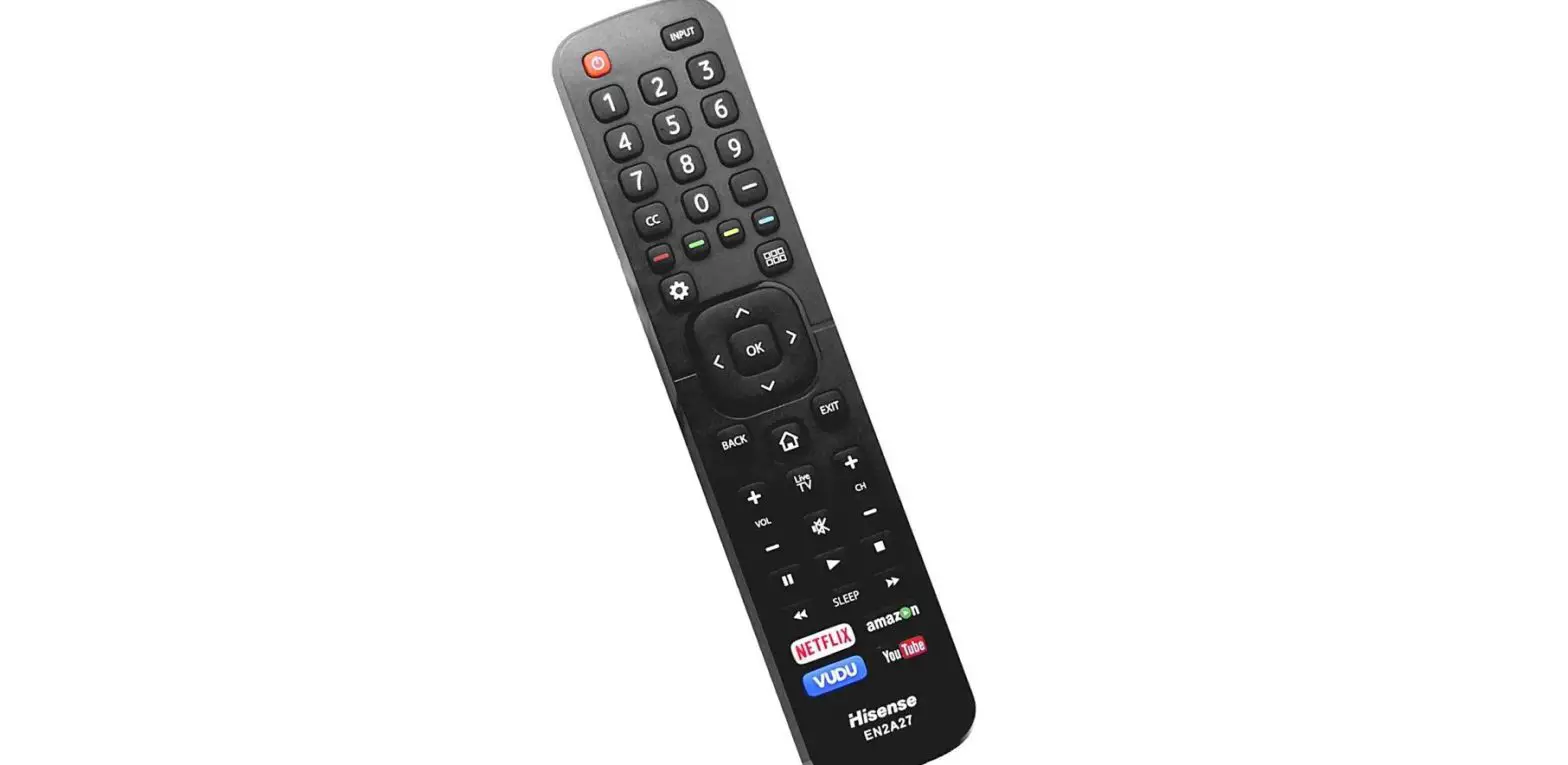
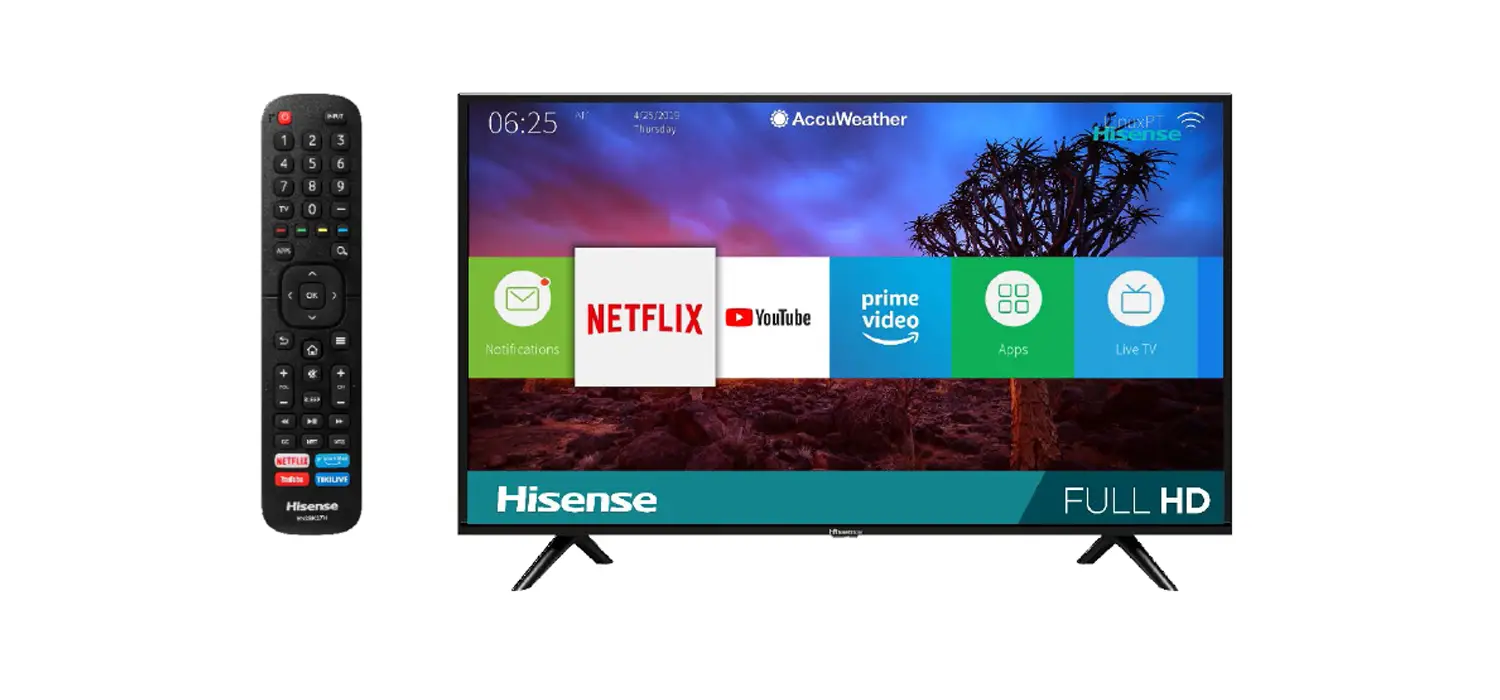
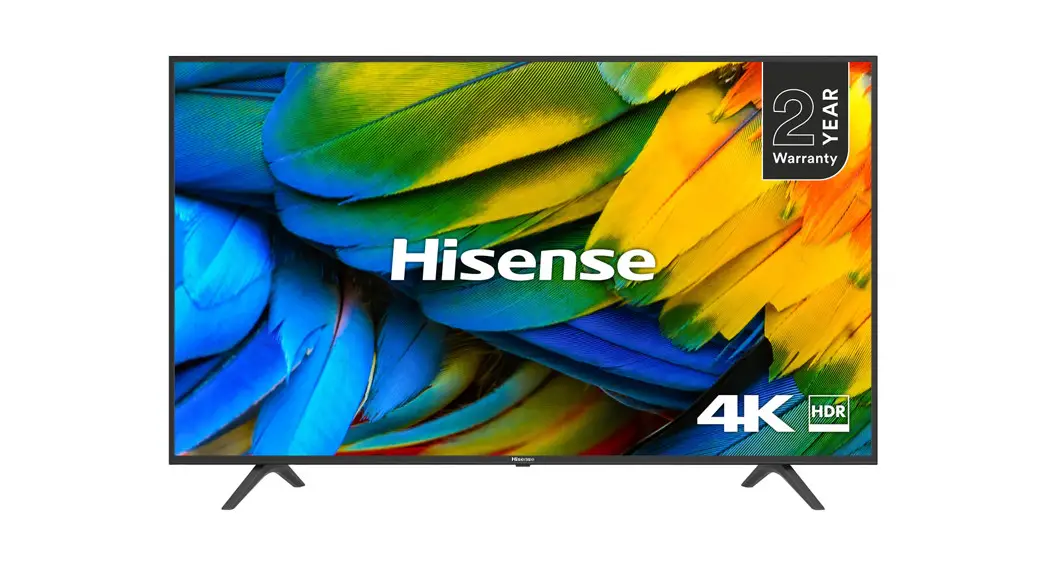
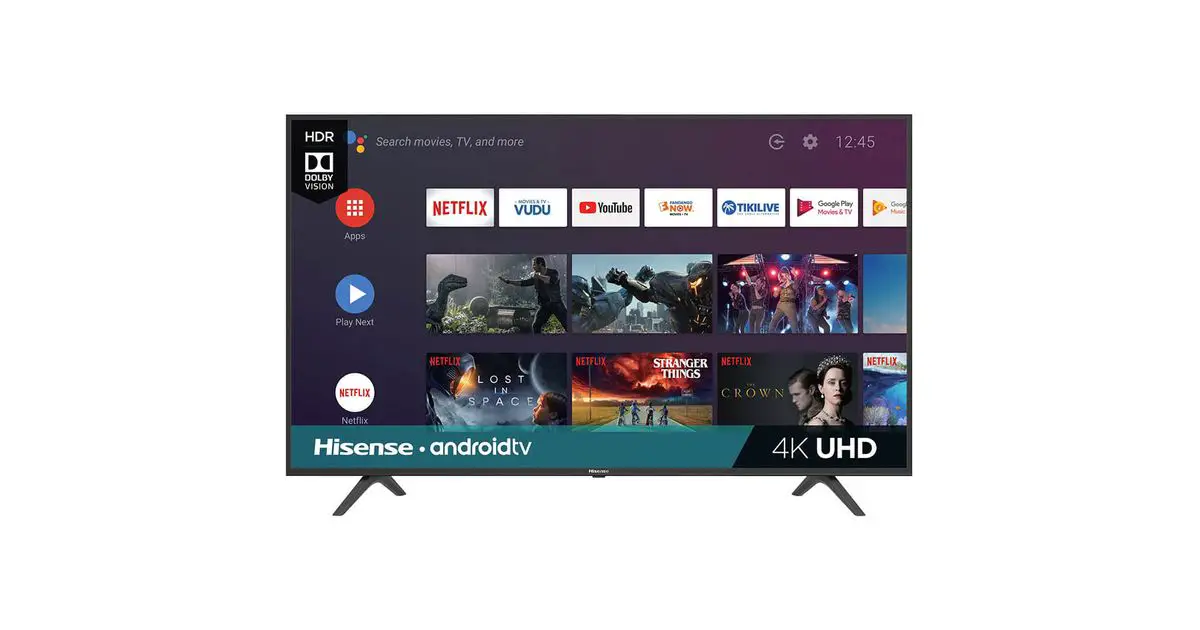
The product is a TV that comes with a remote control. Before
using the TV, it is highly recommended to read the user manual
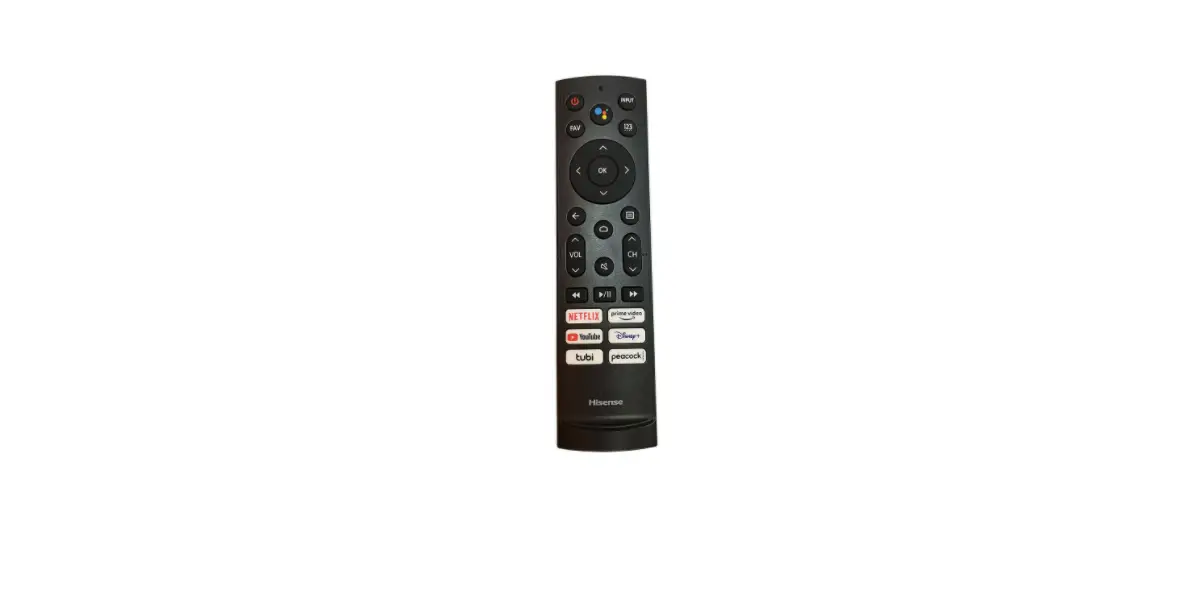
thoroughly and retain it for future reference. The remote control
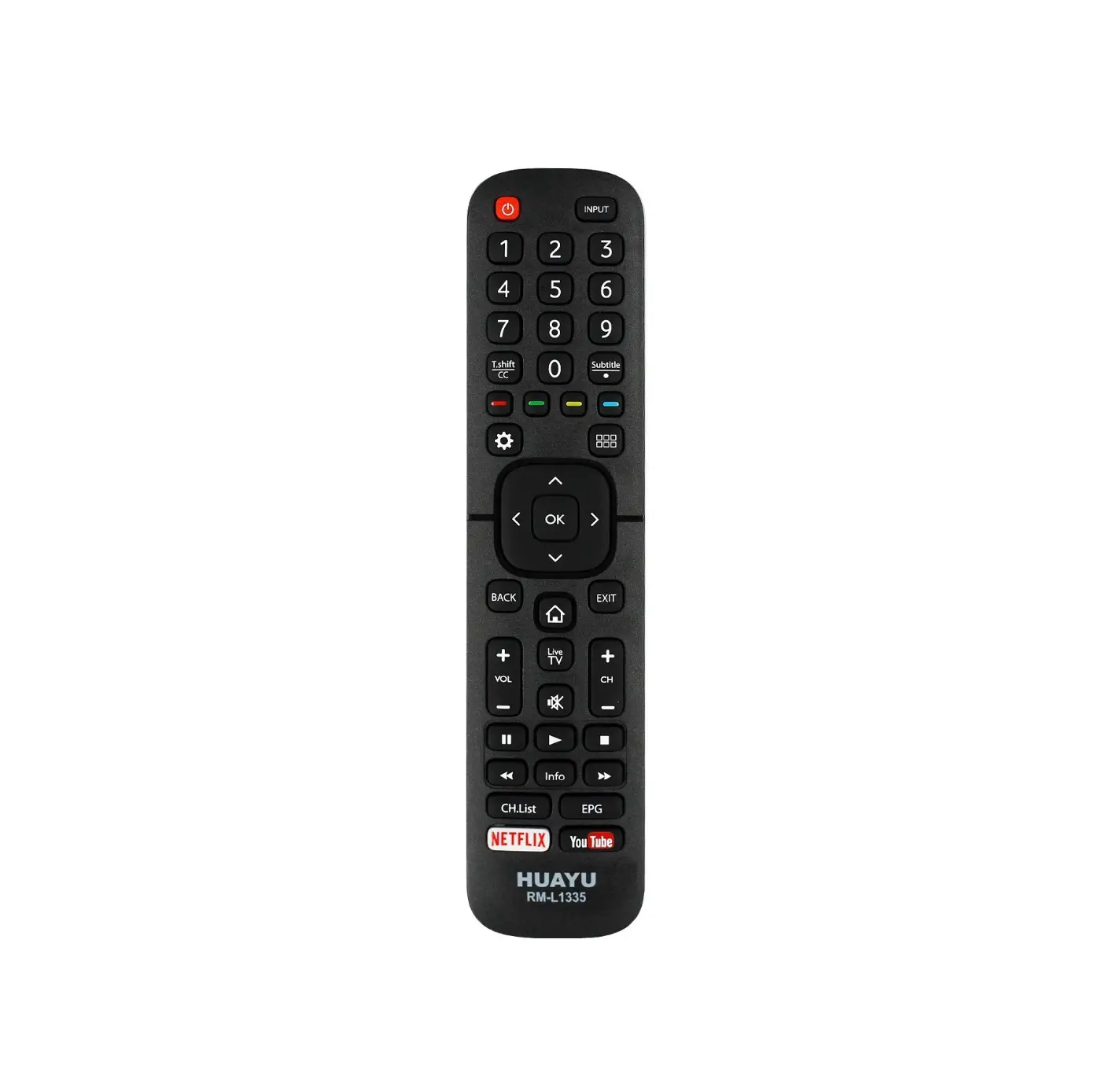
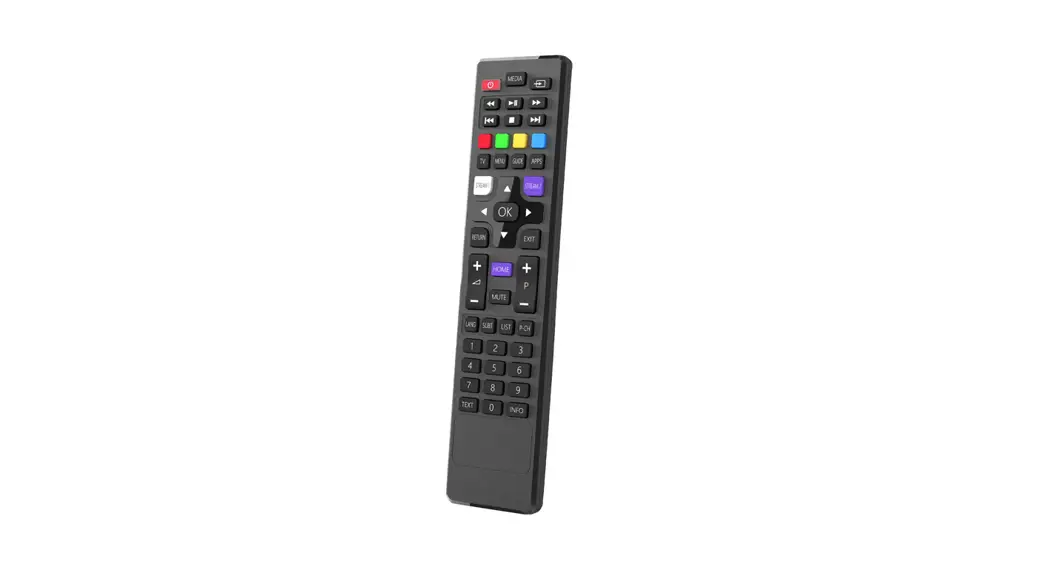
has various buttons that can be used to control the TV and access
its features. The buttons include Input, Power on/off, Change TV
input source, Google Assistant of TV, Accounts & Sign In or
switch profile, Access the settings (direct or through the
dashboard in GTV) from any place in the system, D-pad
(up/down/left/right navigation buttons), Confirmation button,
Return to the previous place in the menu or app, Return to Live
TV/Enter to Live tab in launcher/Display the Electronic Program
Guide(if support), VOL CH, MENU, Media content control function
buttons, Enter Channels/input numbers and special function buttons
(Red/Green/Yellow/Blue), and APPS.
Product Usage:
- Insert the batteries into the remote control by following these
steps:- Take off the back cover to open the battery compartment of the
remote control. - Insert two AAA or AA size batteries. Make sure to match the (+)
and (-) ends of the batteries with the (+) and (-) ends indicated
in the battery compartment. - Restore the battery compartment cover.
- Take off the back cover to open the battery compartment of the
- Pair the remote control to the TV by following these steps:
- Power on the TV.
- Keep the remote control within 10 feet (304.8 cm) from the
TV. - Press the Home button on the remote control.
- Select menu to select Remotes & Accessories icon to enter
the Settings. - Press and hold the Menu button for at least 3 seconds to start
pairing. - Select the remote name, and press the [OK] button to start
pairing. - If the remote pairs successfully, a confirmation will display
on the screen. If it does not pair successfully, an unsuccessful
message will display. Repeat the previous steps.
Note: It is important to read the certification and compliance
section of the user manual carefully before using the product.
Before using the TV, please read this guide thoroughly and retain it for future reference.
English
Step 3. Get your remote ready
The following table shows the buttons on your remote control and describes what they are for.
BUTTON
DESCRIPTION
INPUT
/ / / OK
Power on/off Change TV input source Google Assistant of TV Accounts & Sign In or switch profile Access the settings (direct or through the dashboard in GTV) from any place in the system D-pad (up/down/left/right navigation buttons) Confirmation button Return to the previous place in the menu or app Return to Live TV/Enter to Live tab in launcher/Display the Electronic Program Guide(if support) * Press to display the Home screen
VOL CH
MENU
Volume (up/down)
Channel (up/down)
Media content control function buttons
Press to enter Menu
Press to mute or restore sound Hold to display Accessibility menu
Enter Channels / input numbers and special function buttons(Red/Green/Yellow/Blue)
APPS
Quick access to all applications
NOTE: · Buttons listed here are for reference only. Actual remote control may vary depending
on model, country. · * Pressing the button in different scenarios will have different responses.
2
Insert the batteries
1. Take off the back cover to open the battery compartment of the remote control. 2. Insert two AAA or AA size batteries. Make sure to match the (+) and (-) ends of the
batteries with the (+) and (-) ends indicated in the battery compartment. 3. Restore the battery compartment cover.
Important Information about the remote and batteries
· Discard batteries in a designated disposal area. Do not throw them into a fire. · Remove old batteries immediately to prevent them from leaking into the battery
compartment. · If you do not intend to use the remote control for a long time, then remove the
batteries. · Battery chemicals can cause a rash. If the batteries leak, clean the battery
compartment with a cloth. If chemicals touch your skin then wash it immediately. · Do not mix old and new batteries. · Do not mix alkaline, standard (carbon-zinc) or rechargeable (NiCd, NiMH, etc.)
batteries. · Do not continue using the remote if it gets warm or hot. · Call our Support Center immediately on the support website.
Remote Control Range Information
· The remote control can work at a distance of up to 26 feet (792.5 cm) in front of the TV set. · It can work at a 30 degree horizontal or vertical angle.
Pairing the remote control
1. Pair the remote to the TV after you power it on. Keep the remote control within 10 feet (304.8 cm) from the TV.
2. Press the Home button on the remote control, select menu to select Remotes & Accessories.
icon to enter the Settings
3. Press and hold the Menu button at least 3 seconds to start pairing. Select the remote name, and press the [OK] button to start pairing.
4. If the remote pairs successfully, a confirmation will display on the screen. If it does not pair successfully, an unsuccessful message will display. Repeat the previous steps.
NOTE: · If an unknown error occurs with the remote, it could have been caused by interference. Try to remove what’s causing the interference and pair the remote again. · If an unknown error occurs with the remote control while the battery power is normal, you can take out the batteries and press any key for 1~2 seconds, and the remote control can work normally. · The remote cannot be paired to the TV while the TV is in the standby mode.
3
Certification and compliance
NOTE: The following warnings only apply to products with such certification. This device complies with Part 15 of the FCC Rules. Operation is subject to the following two conditions: (1) This device may not cause harmful interference, and (2) This device must accept any interference received, including interference that may cause undesired operation. Note: This equipment has been tested and found to comply with the limits for a Class B digital device, pursuant to Part 15 of the FCC Rules. These limits are designed to provide reasonable protection against harmful interference in a residential installation. This equipment generates, uses, and can radiate radio frequency energy and, if not installed and used in accordance with the instructions, may cause harmful interference to radio communications. However, there is no guarantee that interference will not occur in a particular installation. If this equipment does cause harmful interference to radio or television reception, which can be determined by turning the equipment off and on, the user is encouraged to try to correct the interference by one or more of the following measures: Reorient or relocate the receiving antenna. Increase the separation between the equipment and receiver. Connect the equipment into an outlet on a circuit different from that to which the receiver
is connected. Consult the dealer or an experienced radio/TV technician for help. The manufacturer is not responsible for any radio or TV interference caused by unauthorized modifications to this equipment. Such modifications could void the user’s authority to operate the equipment. This equipment complies with FCC radiation exposure limits set forth for an uncontrolled environment.This transmitter must not be co-located or operating in conjunction with any other antenna or transmitter. This device contains licence-exempt transmitter(s)/receiver(s) that comply with Innovation, Science and Economic Development Canada’s licence-exempt RSS(s). Operation is subject to the following two conditions: (1) This device may not cause interference. (2) This device must accept any interference, including interference that may cause undesired operation of the device. This equipment complies with radio frequency exposure limits set forth by the Innovation, Science and Economic Development Canada for an uncontrolled environment. This device must not be co-located or operating in conjunction with any other antenna or transmitter.
4