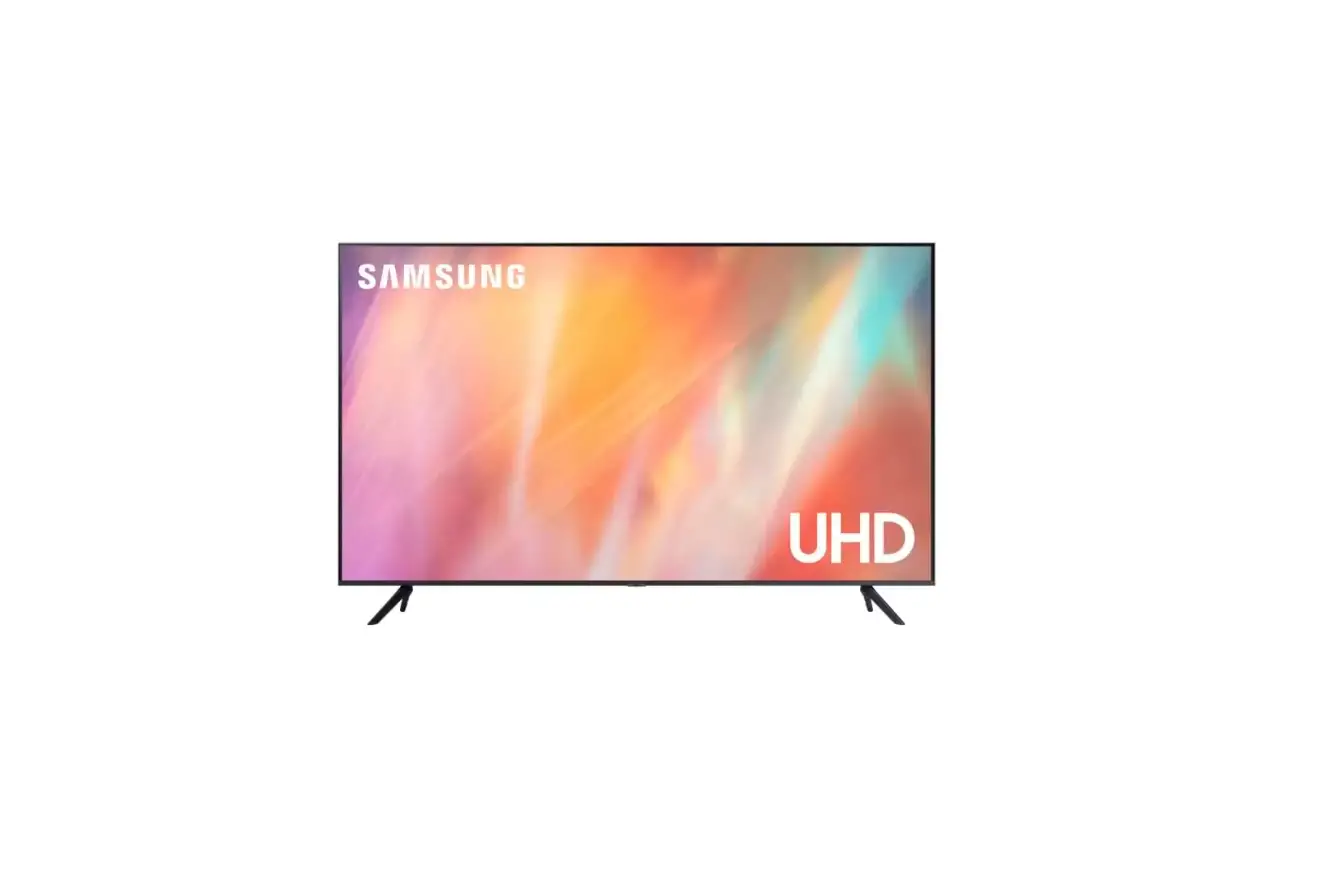
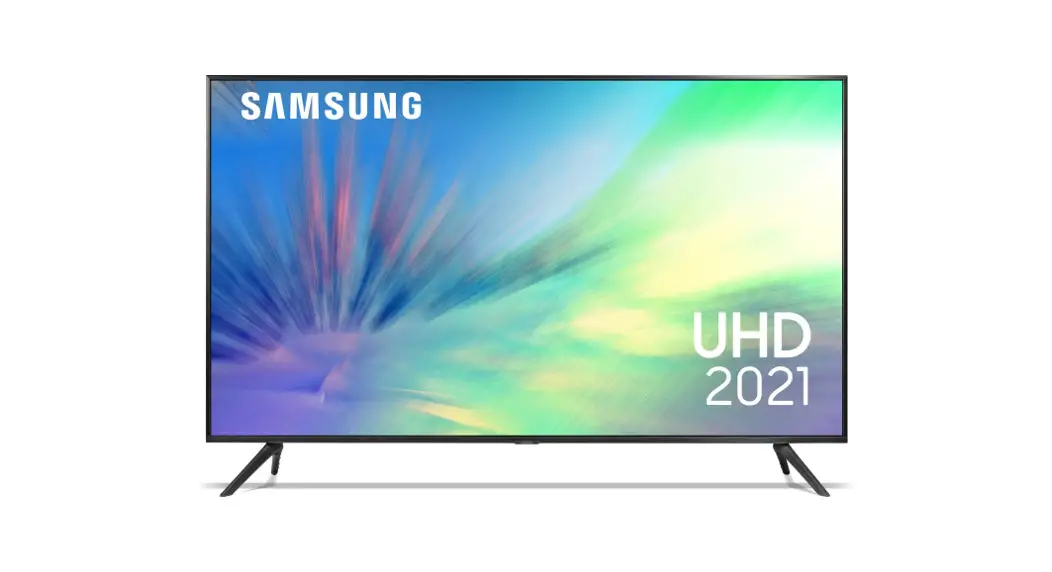
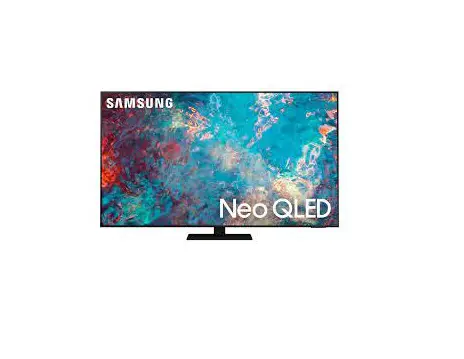
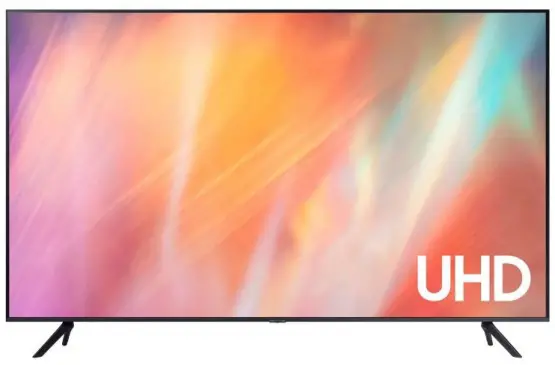
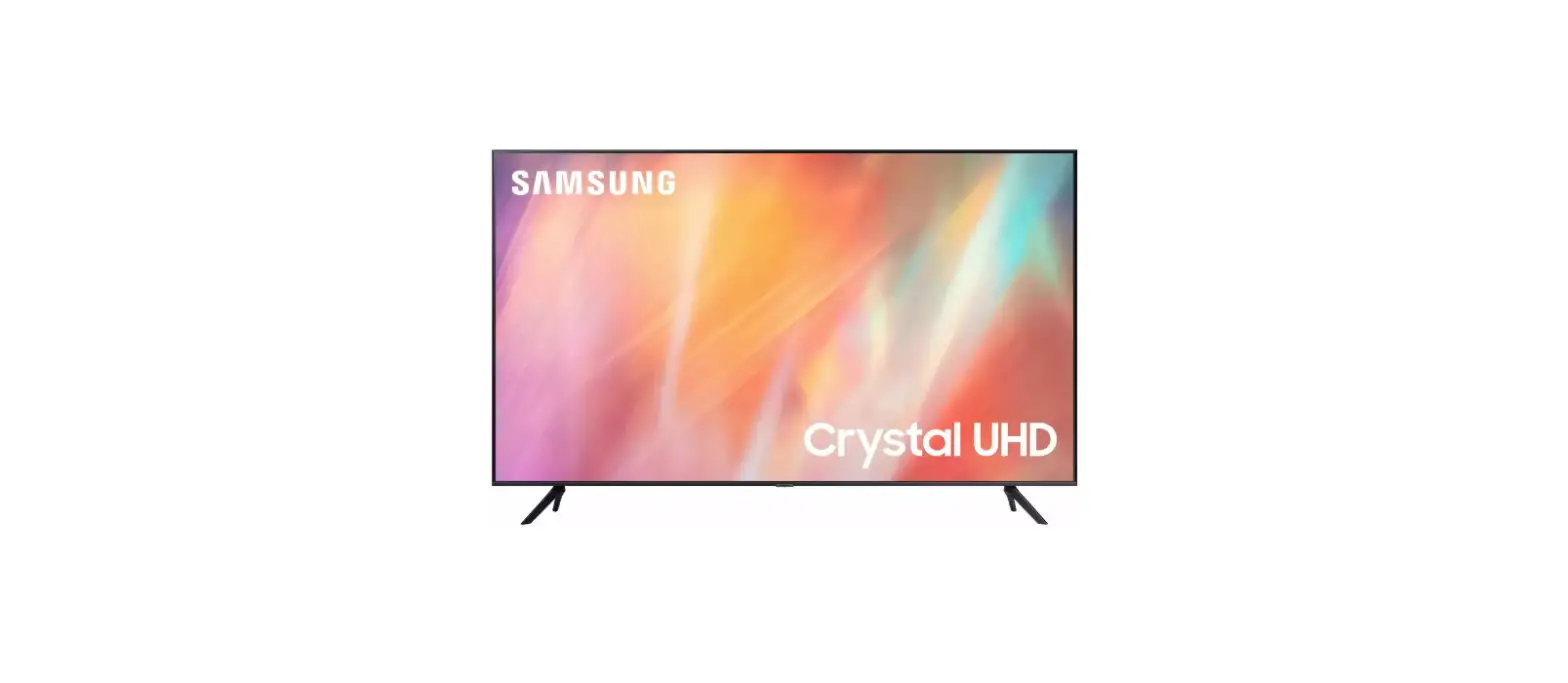
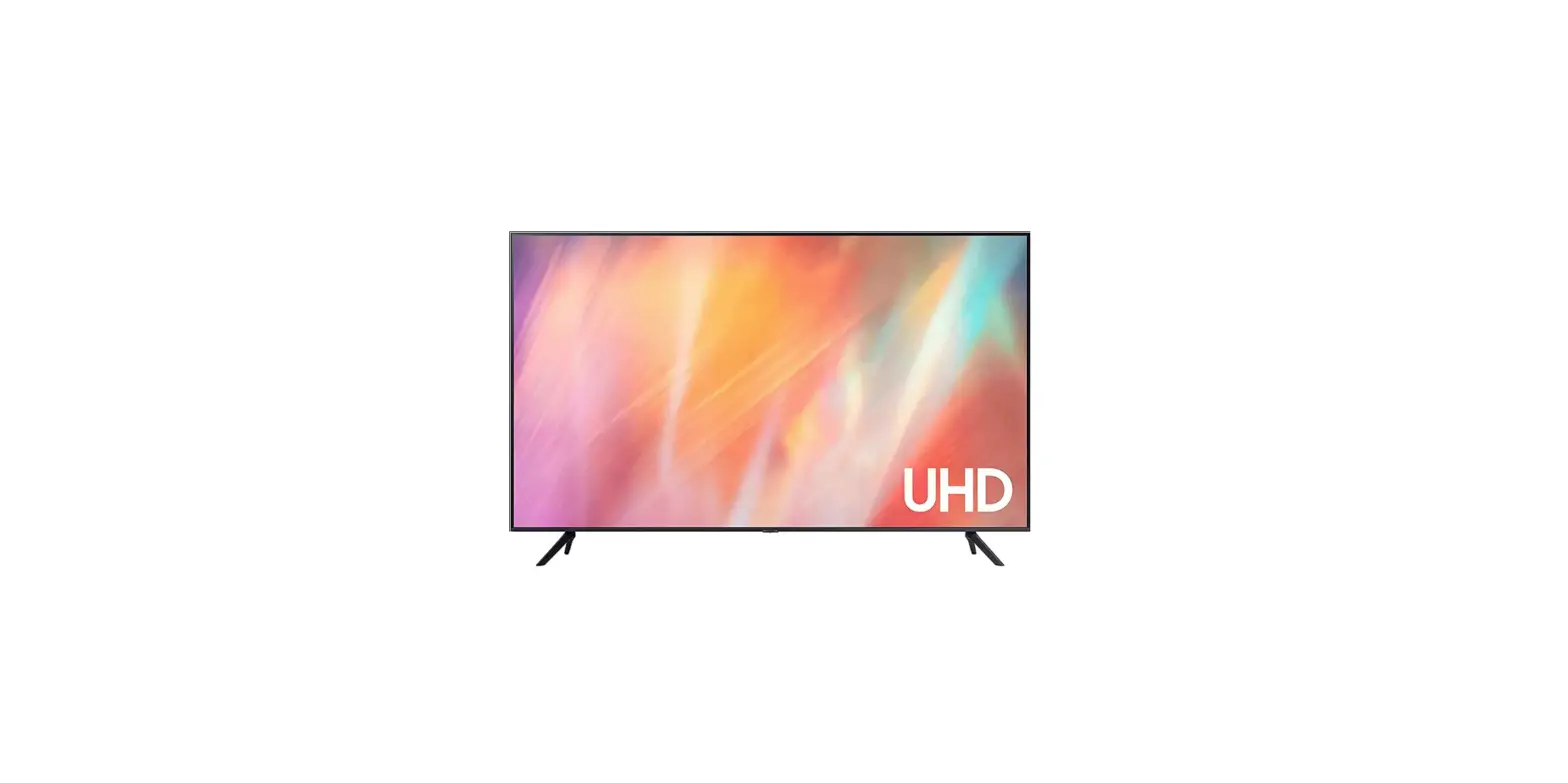
UE75CU7100KXXU UHD 4K HDR Smart Television
Product Information
The product is a television with a remote control that has
several buttons for controlling various functions. The remote
control has two versions: a standard remote control and a more
advanced remote control. The standard remote control has 12
buttons, while the advanced remote control has 9 buttons. The
buttons on both remote controls have different functions.
| Button | Description |
|---|---|
| 1 | Press to turn the TV on or off. |
| 2 | Each time you press this button, Settings menu / virtual numeric pad / Option pad are displayed alternately. |
| 3 | When pressed, coloured buttons appear on the screen. Use this button to access additional options that are specific to the feature in use. |
| Directional button (up, down, left, right) | Moves the focus and changes the values seen on the TV’s menu. |
| Select | Selects or runs a focused item. When pressed while you are watching a broadcast programme, detailed programme information appears. |
| Return | Press to return to the previous menu. When pressed for1 second or more, the running function is terminated. When pressed while you are watching a programme, the previous channel appears. |
| Smart Hub | Press to switch to the Home Screen. |
| Play/pause | When pressed, the playback controls appear. Using these controls, you can control the media content that is playing. |
| Volume | Move the button up or down to adjust the volume. To mute the sound, press the button. When pressed for 2 seconds or more, the Accessibility Shortcuts appears. |
| Channel | Move the button up or down to change the channel. To see the Guide screen, press the button. |
| Launch app button | Press to launch an app. |
| Button | Description |
|---|---|
| P (Power) | Turns the TV on and off. |
| Displays and selects available video sources. | Gives direct access to channels. |
| Alternately selects Teletext mode, Full TTX / Double TTX / Mix / Live TV. | Returns to the previous channel. |
| Adjusts the volume. | Turns the sound on/off. |
| Changes the current channel. | Displays the Guide screen. |
| Press to switch to the Media Home. | Moves the cursor, selects the on-screen menu items, and changes the values seen on the TV’s menu. |
| Select | Selects or runs a focused item. |
| Returns to the previous menu or channel. | Exits the menu. |
| Use these buttons according to the directions on the TV screen. | Displays the main on-screen menu. |
| INFO | Displays information about the current programme or content. |
| AD/SUBT. | Displays the Accessibility Shortcuts. |
| Use these buttons with specific features. Use these buttons according to the directions on the TV screen. |
Product Usage Instructions
Using the Advanced Remote Control
- To turn the TV on or off, press button 1 (Power).
- To access the Settings menu, virtual numeric pad, or Option
pad, press button 2 each time to cycle through the options. - To access additional options that are specific to the feature
in use, press button 3 (Colour button). - To navigate the TV’s menu, use the directional button (up,
down, left, right). - To select or run a focused item, press the Select button.
- To return to the previous menu, press the Return button. If you
press it for 1 second or more, the running function will be
terminated. If you press it while watching a programme, the
previous channel will appear. - To switch to the Home Screen, press the Smart Hub button.
- To control media playback, press the Play/pause button.
- To adjust the volume, move the Volume button up or down. To
mute the sound, press the button. If you press it for 2 seconds or
more, the Accessibility Shortcuts appears. - To change the channel, move the Channel button up or down. To
see the Guide screen, press the button. - To launch an app, press the Launch app button.
Using the Standard Remote Control
- To turn the TV on or off, press the P (Power) button.
- To display and select available video sources, press the
corresponding button. To give direct access to channels, press the
corresponding button. - To alternately select Teletext mode, Full TTX / Double TTX /
Mix / Live TV, press the corresponding button. To return to the
previous channel, press the corresponding button. - To adjust the volume, use the corresponding button. To turn the
sound on/off, use the corresponding button. - To change the current channel, use the corresponding button. To
display the Guide screen, use the corresponding button. - To switch to the Media Home, press the 0 button.
- To navigate the TV’s menu, use the cursor buttons. To select or
run a focused item, press the E (Select) button. - To return to the previous menu or channel, use the % button. To
exit the menu, use the ^ button. - To display the main on-screen menu, use the corresponding
button. To display information about the current programme or
content, use the INFO button. To display the Accessibility
Shortcuts, use the AD/SUBT. button. Use other buttons according to
the directions on the TV screen.
About the Buttons on the Remote Control
1 2
3
Button
Description
-00
(Power)
Press to turn the TV on or off.
(Settings / Number / Option button)
Each time you press this button, Settings menu / virtual numeric pad / Option pad are displayed alternately.
· Use this button to access additional options that are specific to the feature in use. · Press to bring up the virtual numeric pad on the screen. Use the numeric keypad to
enter numeric values. Select numbers and then select Done or Enter Number to enter a numeric value. Use to change the channel, enter a PIN, ZIP code and etc. · When pressed for1 second or more, the Shortcuts menu screen appears.
(Colour button)
When pressed, coloured buttons appear on the screen. Use this button to access additional options that are specific to the feature in use.
1 Directional button (up, down, left, right)
Moves the focus and changes the values seen on the TV’s menu.
2 Select
Selects or runs a focused item. When pressed while you are watching a broadcast programme, detailed programme information appears.
(Return)
Press to return to the previous menu. When pressed for1 second or more, the running function is terminated. When pressed while you are watching a programme, the previous channel appears.
(Smart Hub)
Press to switch to the Home Screen.
(Play/pause)
When pressed, the playback controls appear. Using these controls, you can control the media content that is playing.
(Volume)
Move the button up or down to adjust the volume. To mute the sound, press the button. When pressed for 2 seconds or more, the Accessibility Shortcuts appears.
(Channel)
Move the button up or down to change the channel. To see the Guide screen, press the button.
· When pressed for1 second or more, the Channel List screen appears.
3 Launch app button
Press each button to run its function. · Available apps may differ depending on the geographical area or contents provider.
The images, buttons, and functions of the remote control may differwith the model or geographical area. If you use the remote control that comes with your TV to control another TV, some functions may not operate normally.
About the Buttons on the Standard Remote Control
Number
Description
1
P (Power)
Turns the TV on and off.
2
Displays and selects available video sources.
3
Gives direct access to channels.
4
Alternately selects Teletext mode, Full TTX / Double TTX / Mix / Live TV.
5
Returns to the previous channel.
6
Adjusts the volume.
7
Turns the sound on/off.
8
Changes the current channel.
9
Displays the Guide screen.
0
Press to switch to the Media Home.
!, @
Press each button to run its function. · Available apps may differ depending on the geographical area or contents provider.
#
Moves the cursor, selects the on-screen menu items, and changes the values seen on the TV’s menu.
$
E (Select)
Selects or runs a focused item.
%
Returns to the previous menu or channel.
^
Exits the menu.
&
Use these buttons according to the directions on the TV screen.
SETTINGS Displays the main on-screen menu.
*
INFO
Displays information about the current programme or content.
AD/SUBT. Displays the Accessibility Shortcuts.
(
Use these buttons with specific features. Use these buttons according to the directions on the TV screen.
The images, buttons, and functions of the remote control may differ depending on the model. This remote control has Braille points on the Power, Channel, Volume, and Select buttons and can be used byvisually
impaired persons. If you use the remote control that comes with your TV to control another TV, some functions may not operate normally.