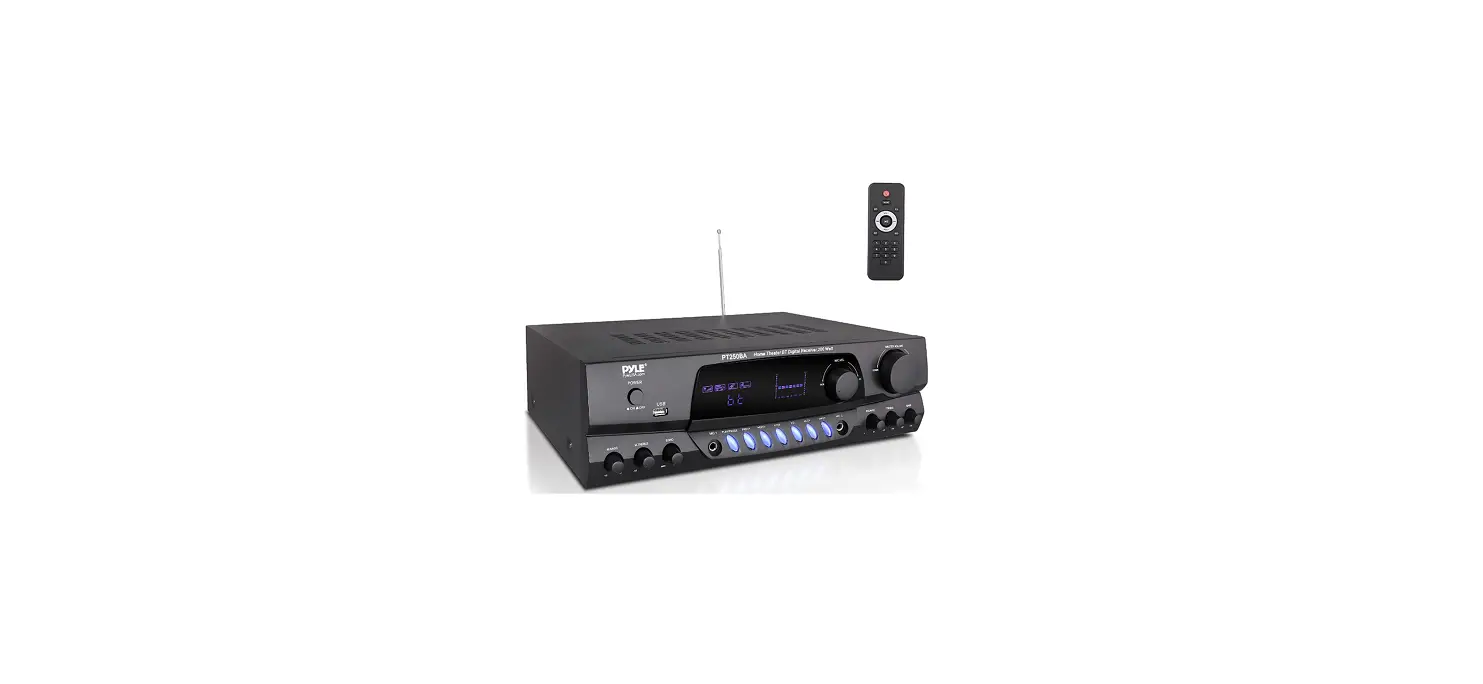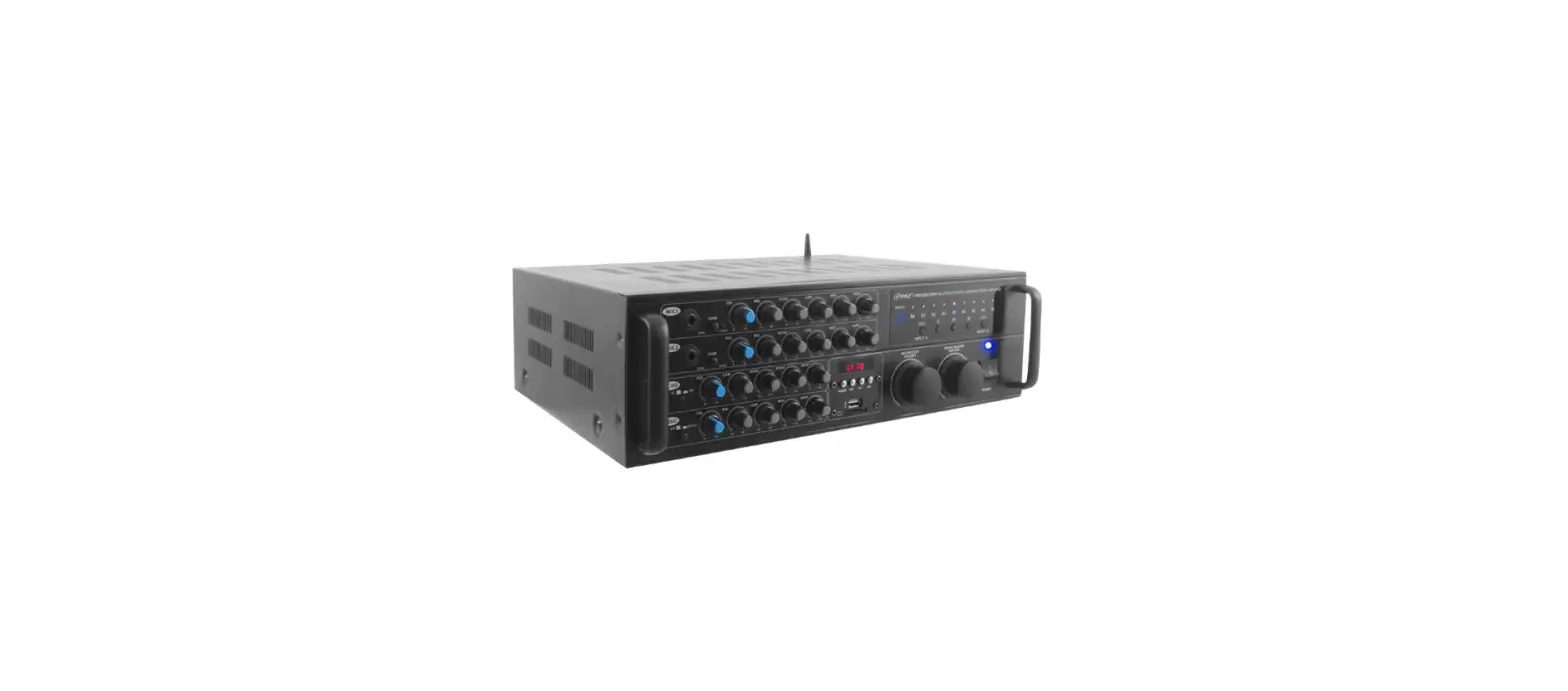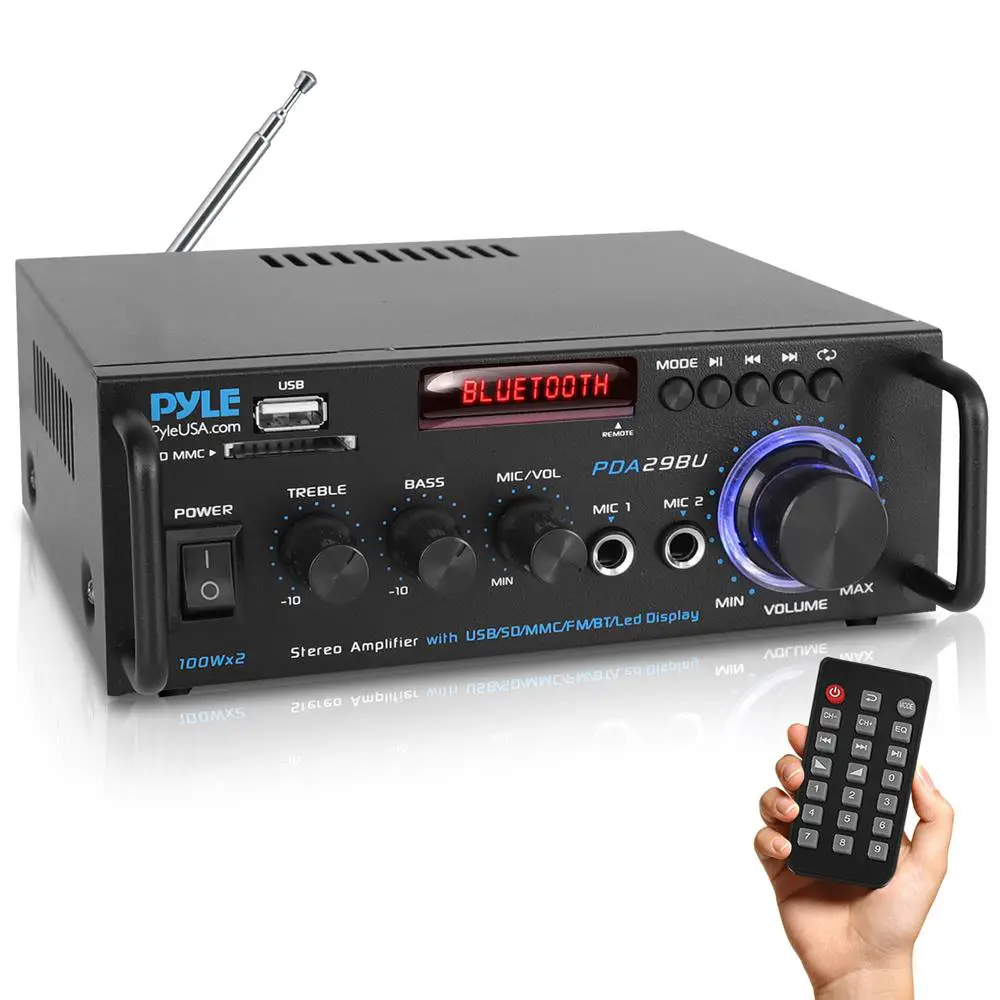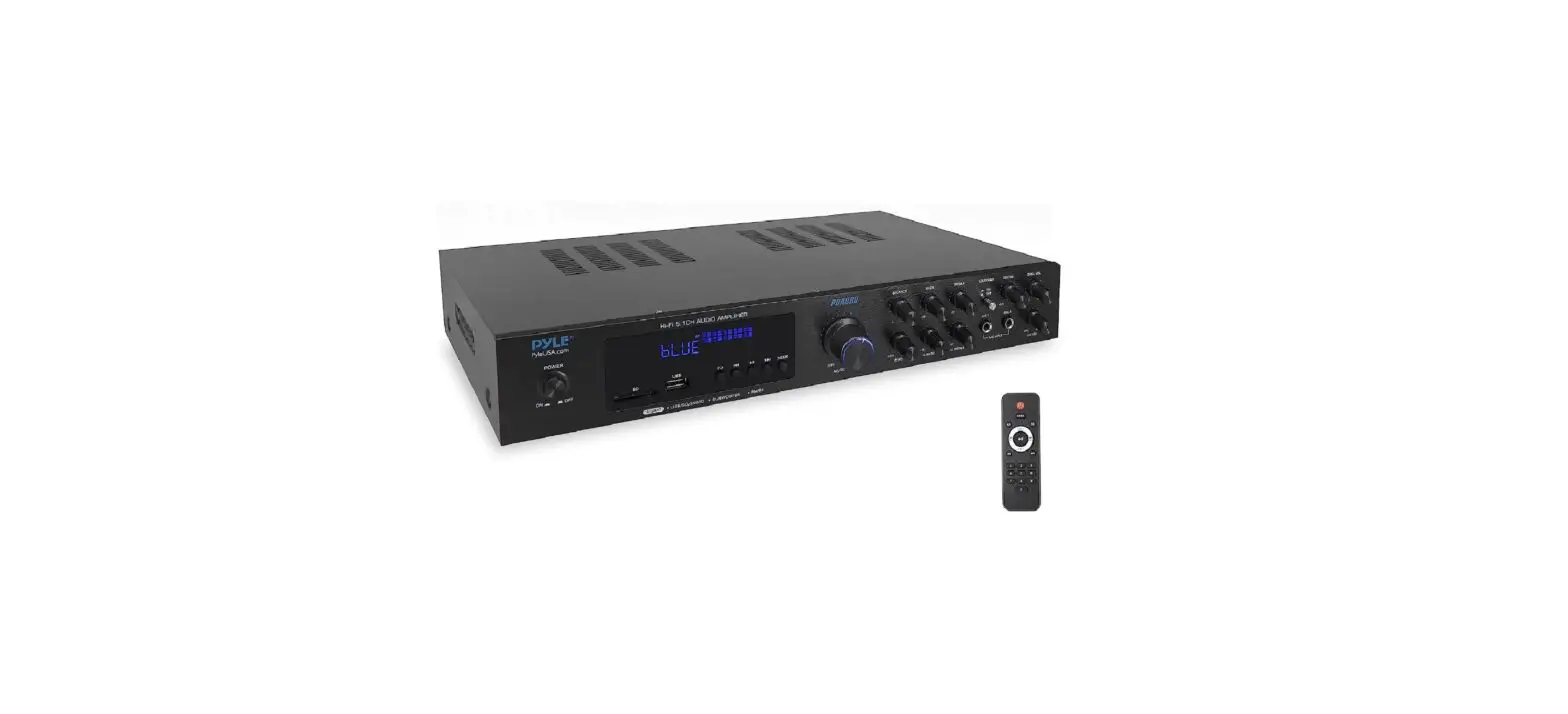

Pyle PD1000BA.5 4-Channel Wireless Bluetooth Power Amplifier
SAFETY PRECAUTIONS
The lightning flash with an arrowhead symbol, within an equilateral triangle, is intended to alert the user to the presence of uninsulated “dangerous voltage” within the product’s enclosure that may be of sufficient magnitude to constitute a risk of electric shock to persons.
The exclamation point within an equilateral triangle is intended to alert the user to the presence of important operating and maintenance (servicing) instructions in the literature accompanying the appliance.
The symbol for CLASS II (Double Insulation).
WARNING: TO REDUCE THE RISK OF FIRE OR ELECTRIC SHOCK, DO NOT EXPOSE THIS APPLIANCE TO RAIN OR MOISTURE, AS DANGEROUS HIGH VOLTAGES ARE PRESENT INSIDE THE ENCLOSURE. DO NOT OPEN THE CABINET. REFER SERVICING TO QUALIFIED PERSONNEL ONLY.
CAUTION: When replacing the direct plug-in power supply or a separable, cord-connected power supply, the replacement must be an exact duplicate or one recommended by the manufacturer TO PREVENT ELECTRIC SHOCK, MATCH THE WIDE BLADE OF THE PLUG TO THE WIDE SLOT, AND FULLY INSERT.
This Digital Video Disc player employs a laser System.
Use of controls, adjustments or the performance of procedures than those specified may result herein hazardous radiation exposure. To prevent direct exposure to the laser beam, do not try to open the enclosure. The visible laser may radiate when the cabinet is opened or the interlocks are defeated.
DO NOT STARE INTO THE BEAM.
This product incorporates copyright protection technology that is protected by Macrovision method claims of certain U. S. Patents and other intellectual property rights owned by Macrovision Corporation and other rights owners. Use of this copyright protection technology must be authorized by Macrovision Corporation and is intended for home and other limited viewing uses only unless otherwise authorized by Macrovision Corporation. Reverse engineering or disassembly is prohibited.
Manufactured under license from Dolby Laboratories. “Dolby” and the double-D symbol are trademarks of Dolby Laboratories. Confidential unpublished works. Copyright1992-1997 Dolby Laboratories. All rights reserved.
IMPORTANT SAFETY INSTRUCTIONS
CAUTION: PLEASE READ AND OBSERVE ALL WARNINGS AND INSTRUCTIONS GIVEN IN THIS MANUAL AND THOSE MARKED ON THE UNIT. RETAIN THIS BOOKLET FOR FUTURE REFERENCE.
This set has been designed and manufactured to assure personal safety. Improper use can result in electric shock or hazard. The safeguards incorporated in this unit will protect you if you observe the following procedures for installation, use, and servicing. This unit is fully transistorized and does not contain any parts that can be repaired by the user. DO NOT REMOVE THE CABINET COVER OR YOU MAY BE EXPOSED TO DANGEROUS VOLTAGE. REFER SERVICING TO QUALIFIED SERVICE PERSONNEL ONLY.
- Read these manuals
After unpacking this product. read the manual carefully. Follow all the operating and other instructions. - Ventilation
Slots and openings in the cabinet are provided for ventilation and to ensure operation of the product. These protect it from overheating. These openings must not be blocked or covered. The openings should never be blocked by placing the product on bed, sofa, rug or other. - Heat
The product should be situated away from heat sources such as radiators, heat registers, stoves, or other products (including amplifiers ) that produce heat. - Water and Moisture
Do not use this product near water for example, near a bathtub, wash bowl, kitchen sink, or laundry tub, in a wet basement or near a swimming pool. - Cleaning
Unplug this product from the wall outlet before cleaning. Do not use liquid cleaners or aerosol cleaners. Use a dry cloth for cleaning. - Lightning
For added protection for this product during storm, or when it is left unattended and unused for long periods of time, unplug it from the wall outlet. This will prevent damage to the product due to lightning and power-line surges. - Object and Liquid Entry
Never push objects of any kind into this product through openings as they may touch dangerous voltage points or short-out parts that could result in a fire or electric shock. Never spill liquid of any kind on the product. - Attachments
Do not use attachments not recommended by the product manufacturer as they may cause hazards. - Accessories
Do not place this product on an unstable cart, stand, tripod, bracket, or table. The product may fall causing serious injury to a child or adult, and serious damage to the product. Use only with a cart, stand, tripod, bracket, or table recommended by the manufacturer, or sold with the product. Any mounting of the product should follow the manufacturer‘s instructions and should use a mounting accessory recommended by the manufacturer. A product and cart combination should be moved with care. Quick stops, excessive force and uneven surfaces may cause the product and cart combination to overturn. - Disc Tray
Keep your fingers well clear of the disc tray as it is closing. Neglecting to do so may cause serious personal injury and damage to the product. - Burden
Do not place a heavy object on or step on the product. The object may fall causing serious personal injury and serious damage to the product. - Damage Requiring Service
Unplug this product from the wall outlet and refer servicing to qualified service personnel under the following conditions:- When the power-supply cord or plug is damaged.
- If liquid has been spilled, or objects have fallen into the product.
- If the product has been exposed to rain or water.
- If the product does not operate normally by following the operating instructions. Adjust only those controls that are covered by the operating instructions as an improper adjustment of other controls may result in damage and will oflen require extensive work by a qualified technician to restore the product to its normal operation.
- If the product has been dropped or damaged in anyway.
- When the product exhibits a distinct change in performance; this indicates a need for service.
- Servicing
Do not attempt to service this product yourself as opening or removing covers may expose you to dangerous voltage or other hazards. Refer all servicing to qualified service personnel. - Replacement Parts
When replacement parts are required, be sure the service technician has used replacement parts specified by the manufacturer or have the same characters tics as the original part. Unauthorized substitutions may result in fire, electric shock, or other hazards. - Safety Check
Upon completion of any service or repairs to this product, ask the service technician to perform safety checks to determine that the product is in proper operating condition.
NOTICES AND DISC PROTECTION
NOTES ON HANDLING
- The top and rear panels of the unit may become warm after a long period of use.
This is not a malfunction. - When the unit is not used, be sure to remove the disc and turn OFF the power.
- If you will not use the unit for a long period, the unit may not function properly in the future. Turn it ON and use the unit occasionally.
- Do not place foreign objects on the tray.
LOCATION
Do not locate the unit in places such as:
- Near heating devices orin enclosed car.
- High temperature (47°C/116.6°F or higher) or high humidity (90% or higher).
- Dirty places.
- Avoid direct exposure to sunlight
DISTURBANCE
- When you place this unit near a TV, radio or VCR the playback picture may become poor and the sound may be distorted. In this case, place the unit away from the TV, radio or VCR.
NOTES ON MOISTURE CONDENSATION
The pickup may be condensed with water under the following situation.
- When you bring the unit directly from a cold place to a warm place.
- When you use the unit in a room where you just turned on the heater or a place where the cold air from the air conditioner directly hits the unit.
- During the summer, when you use the unit in a hot and humid place just after you move the unit from an air-conditioned room.
- The room is vaporous or damp.
If condensation exists, the unit will not operate properly. Remove the disc, connect the power cord of the unit to the wall outlet, turn on the unit, and leave it for two or three hours. After two or three hours, the unit will have warmed up and evaporate any moisture. Keep the unit connected to the wall outlet and moisture condensation will seldom occur.
ON HANDLING DISCS
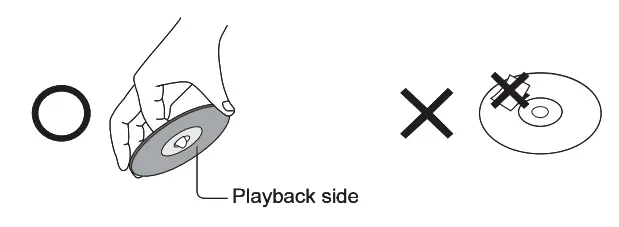
- Do not touch the playback side of the disc.
- Do not attach paper or tape to the disc.

ON CLEANING DISCS
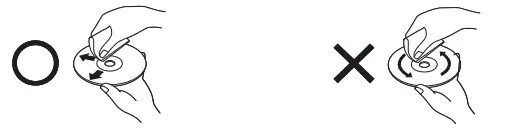
- Fingerprints and dust on the disc cause picture and sound deterioration. Wipe the disc from the center outwards with a soft cloth. Always keep the disc clean.
- If you cannot wipe oFF the dust with a soft cloth, wipe the disc lightly with a slightly moistened soft cloth and finish with a dry cloth.
- Do not use any type of solvents such as thinner, benzine, commercially available cleaners, or antistatic spray for vinyl LPs. It may damage the disc.

ON STORING DISCS
- Do not store discs in a place subject to direct sunlight or near a heat source.
- Do not store discs in a place subject to moisture and dust such as in a bathroom or near a humidifier.
- Store discs vertically in a case. Stacking or placing objects on discs outside or their case may cause warping.
STRUCTURE OF DISC CONTENTS
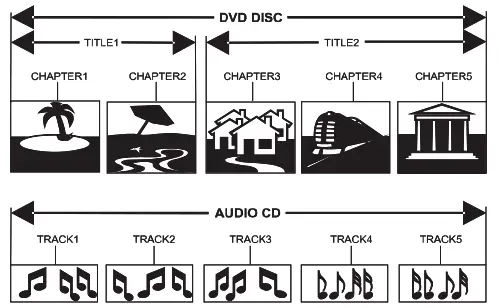
- Normally, DVD discs are divided into titles, and the titles are subdivided into chapters. Audio CD5 is divided into tracks.

Each title, chapter, or track has an assigned number, which is called the title number, chapter number or track number respectively. There may be discs that do not have these numbers.
PLAYABLE DISCS AND ACCESSORIES
The following discs can be played: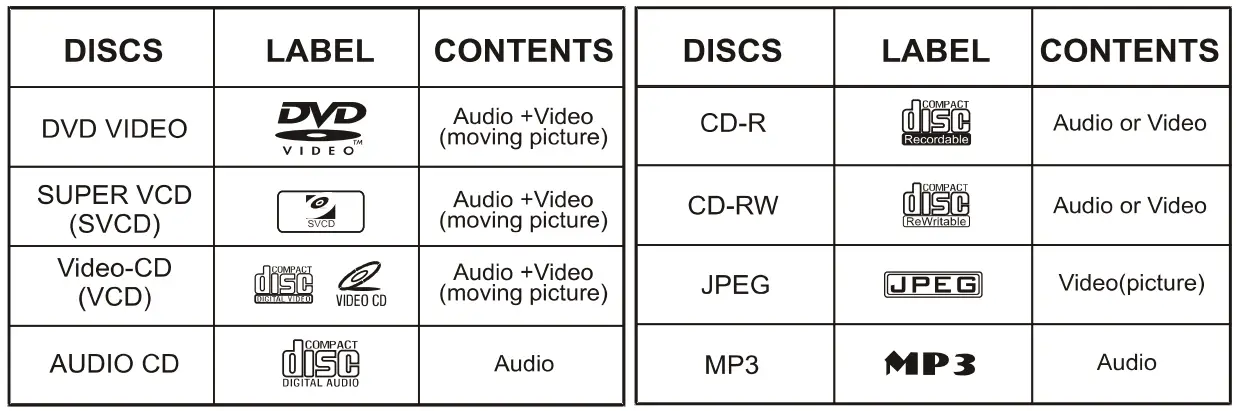
- Discs than those listed above cannot be played.
- Non-standardized discs, even if they may be labeled as above cannot be played.
- The performance of a recorded disc depends on the method and quality of disc burning. In some cases, the disc may not be played.
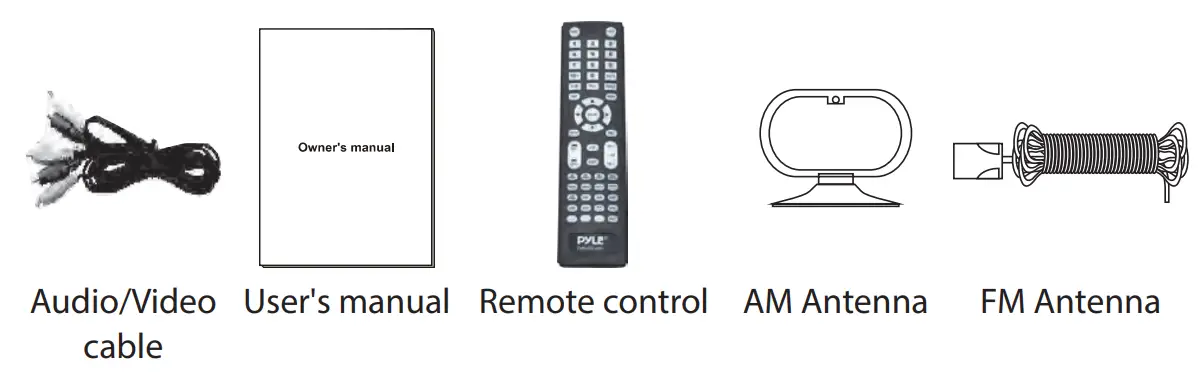
ACCESSORIES
- Audio/Video cable 1
- User’s manual 1
- Remote control 1
- AM Antenna 1Piece
- FM Antenna 1Piece

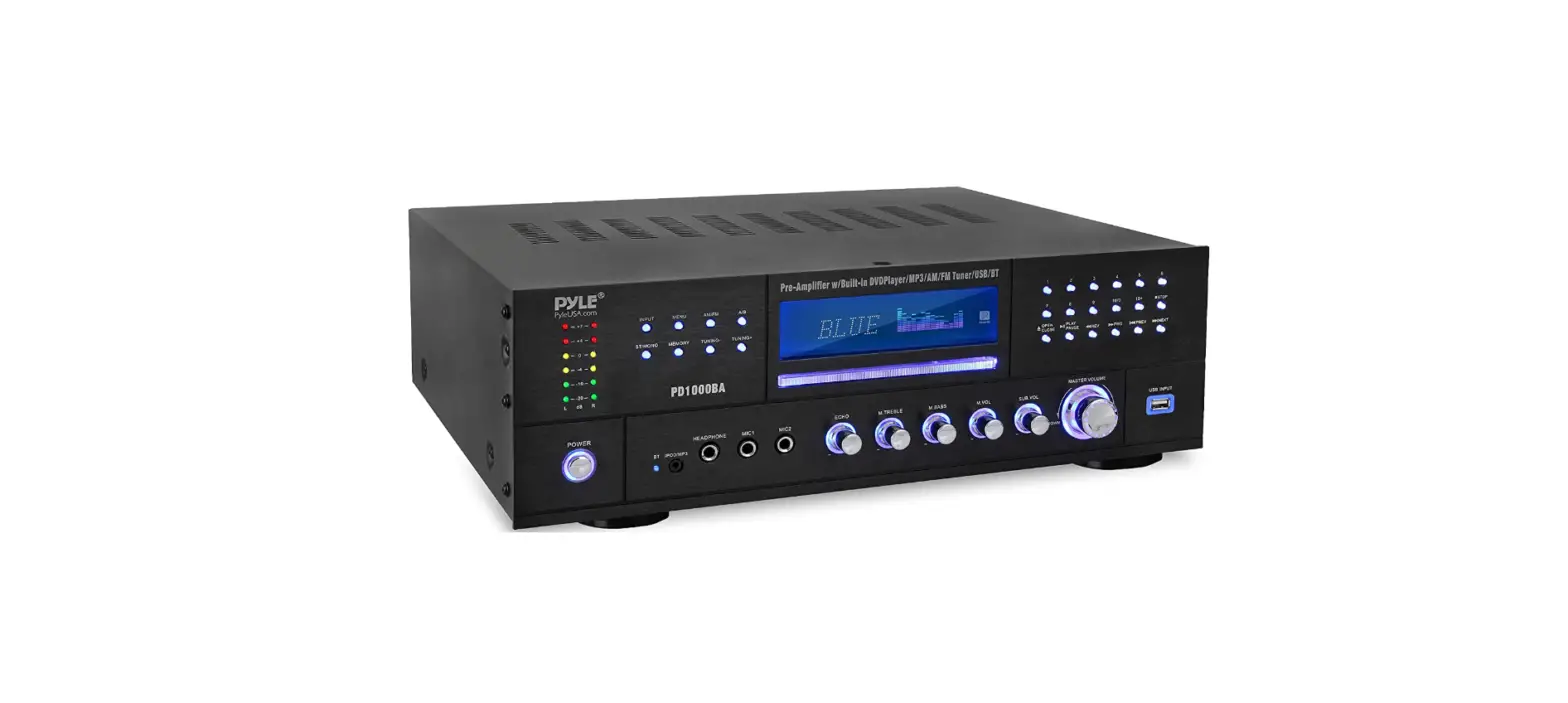
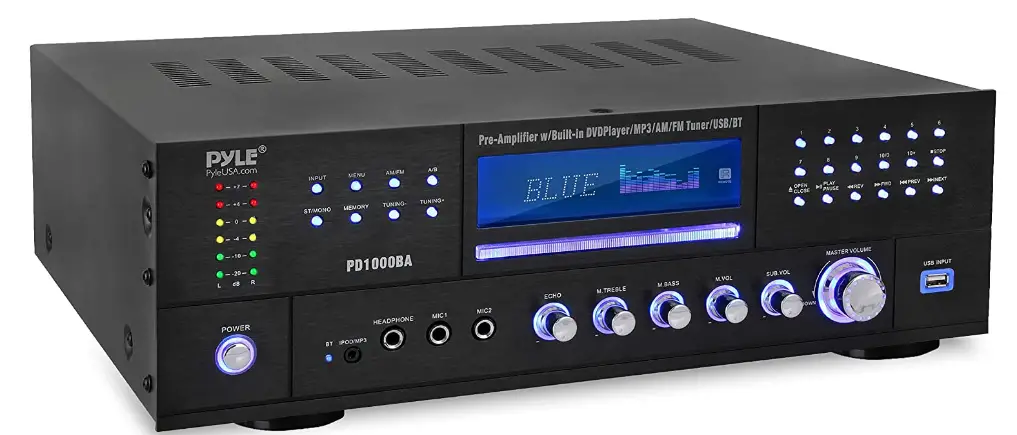
FRONT PANEL AND LED FUNCTION
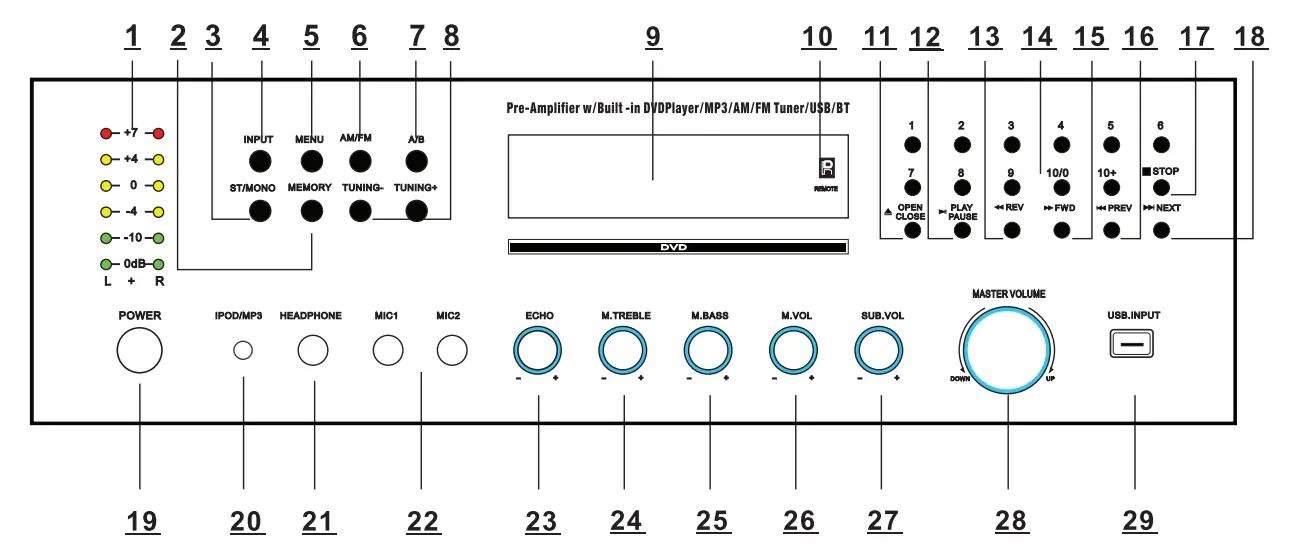
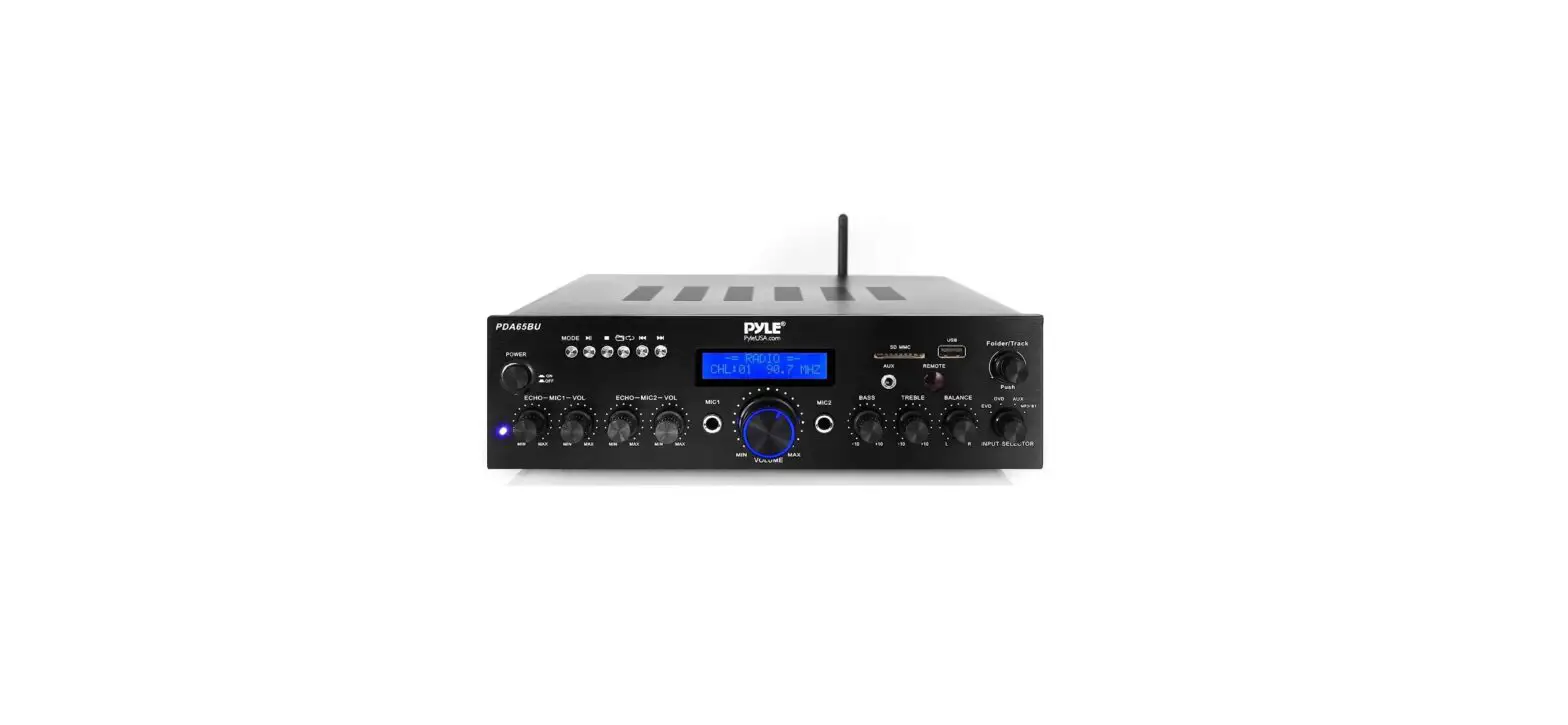
- LIGHT: Light indicates signal intensity
- MEMORY: After a station has been found, you can store the station by pressing the MEMORY button, and the screen will displays MEM above a channel number, then you can press the number knob to save the station, when the channel number displayis moving from right to left, it means the station hasbeen saved.
- ST/MONO: Stereo and Mono selector.
- INPUT: This is used to select the input sources DVD/CD/USB, TUNER, IPOD/MP3 AUX
- MENU CONTROL: This is used to increment and decrement level for the selected function of Master Volume, Bass, Treble, Balance, Auto Station seek.
- AM/FM: Press it to select /FM when it is tuning
- A/B SPEAKERS OUTPUT SELECTOR: Three mode: A, B, A+B
- TUNING- / TUNING+: The two keys are used to adjust to the best signal of the stations.
- FUNCTION DISPLAYED FLUORESCENT WINDOW
- REMOTE SENSOR WINDOW
- OPEN/CLOSE CONTROL: Press this key at any play mode will always turn to disc play mode
- PLAY/PAUSE: Play and pause control
- REV,FR: Quick/backward search the set
- NUMBER KEYS: While in radio status, you can choose the music number directly for example choose “28”, press “10+” key twice, then press “8”, you can
get “28” music or station. - FWD.FF: It is quick to enterlfonivard search the set
- PREV, SKPR: Top a songltop a set
- STOP: Stop control
- NEXT, SKPF: Next song/next set
- PRESS SWITCH: Press to switch the power unit ON or OFF
- IPOD/MP3 JACKS: IPOD/MP3 connect to these jacks
- HEADPHONE JACKS: Headphone connect to these jacks
- MIC INPUT JACKS 1&2: KARAOKE Mic connect to thesejacks
- ECHO CONTROL: Turn the knob to adjust the MIC echo level
- MIC TREBLE: Adjusts the treble of Mic
- MIC BASS: Adjusts the bass of MIC
- MIC VOLUME: Adjusts the volume level. Turn the knob clockwise to increase the MIC volume
- SUB.OUT VOLUME CONTROL
- MASTER VOLUME CONTROL: Adjusts the volume level. Turn the knob. Clock wise to increase the volume
- USB INPUT JACKS: Please note that this USB only can read MP3 files and do not support PWA files. In case of any damage to this unit, when you take USB out, please select the button “PAUSE” or other input source.
REAR PANEL FUNCTION
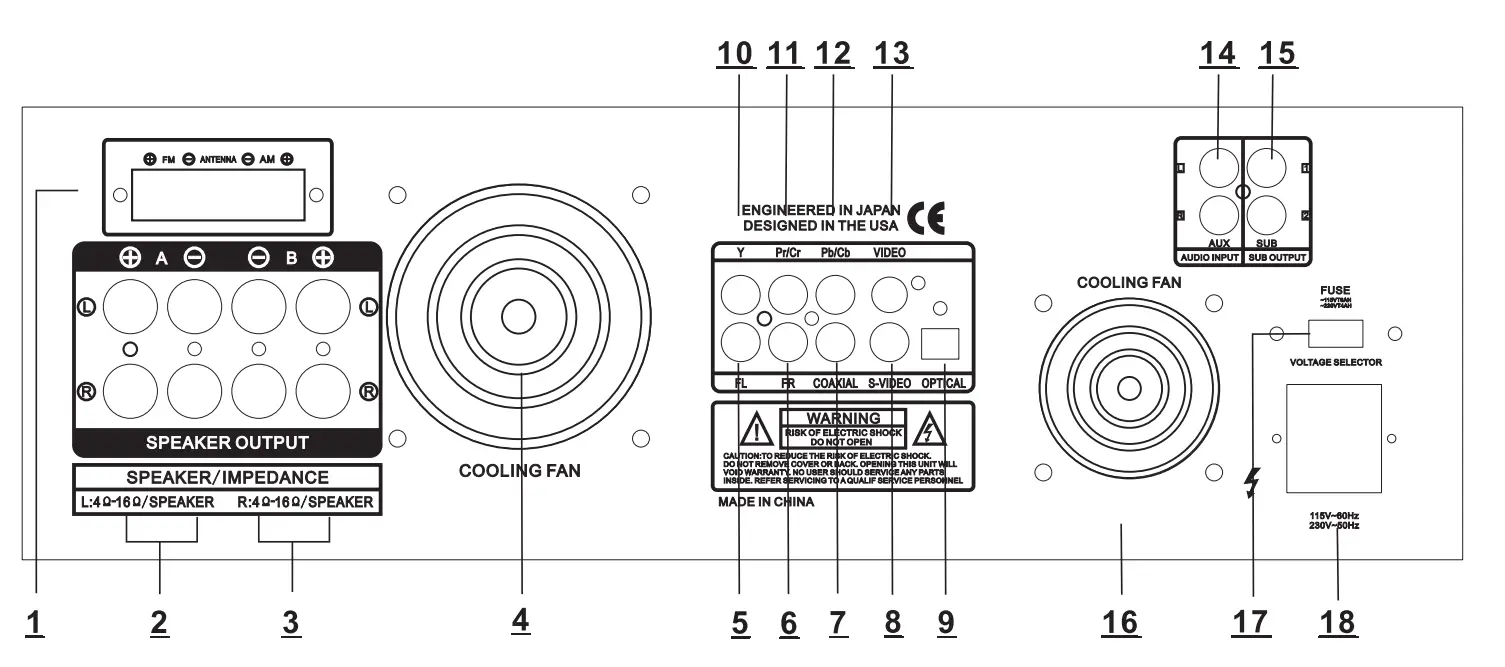
- TUNER ANT: Connect for AM and FM antennas.
- A SPEAKER OUTPUT TERMINALS: Connect your speaker system to these terminals.
- B SPEAKER OUTPUT TERMINALS: Connect your other speaker system(s) to these terminals.
- COOLING FAN
- R/L OUTPUT
- DIGITAL AUDIO OUTPUT: One coaxial one optical, this output can connect to the amplifier with Dolby Digital or DTS decoder to play the movie with
correspondent records. - VIDEO OUTPUT, S-VIDEO OUTPUT, COMPONENT VIDEO OUTPUT Press the “relevant” key on remote control to choose the output mode.
- AUDIO INPUT JACKS: Connect the audio output jacks of MP3, AUX to these jacks.
- SUB-WOOFER OUTPUT JACKS 1&2
- COOLING FAN
- 120V/240V SWITCH: According to the power voltage, push this button to the station of the 120V or 240V.
- POWER CORD: Connect to AC 120V/60Hz & 240V/50Hz outlet.
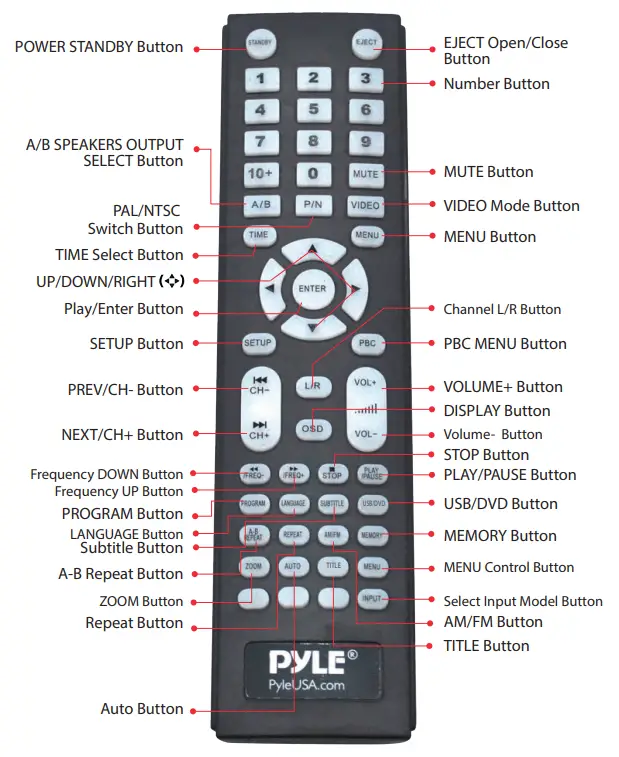
REMOTE DEVICE FUNCTION
Remote Control Operation
- remote control should be operated within 6 meters and a scope of 30° in front of receiver.
- Make sure that there is no big obstacle between remote control and the machine.
- Remote sensor should be far away from the light. High amounts of light can affect its performance.

REAR PANEL CONNECTION
Connecting to Amplifier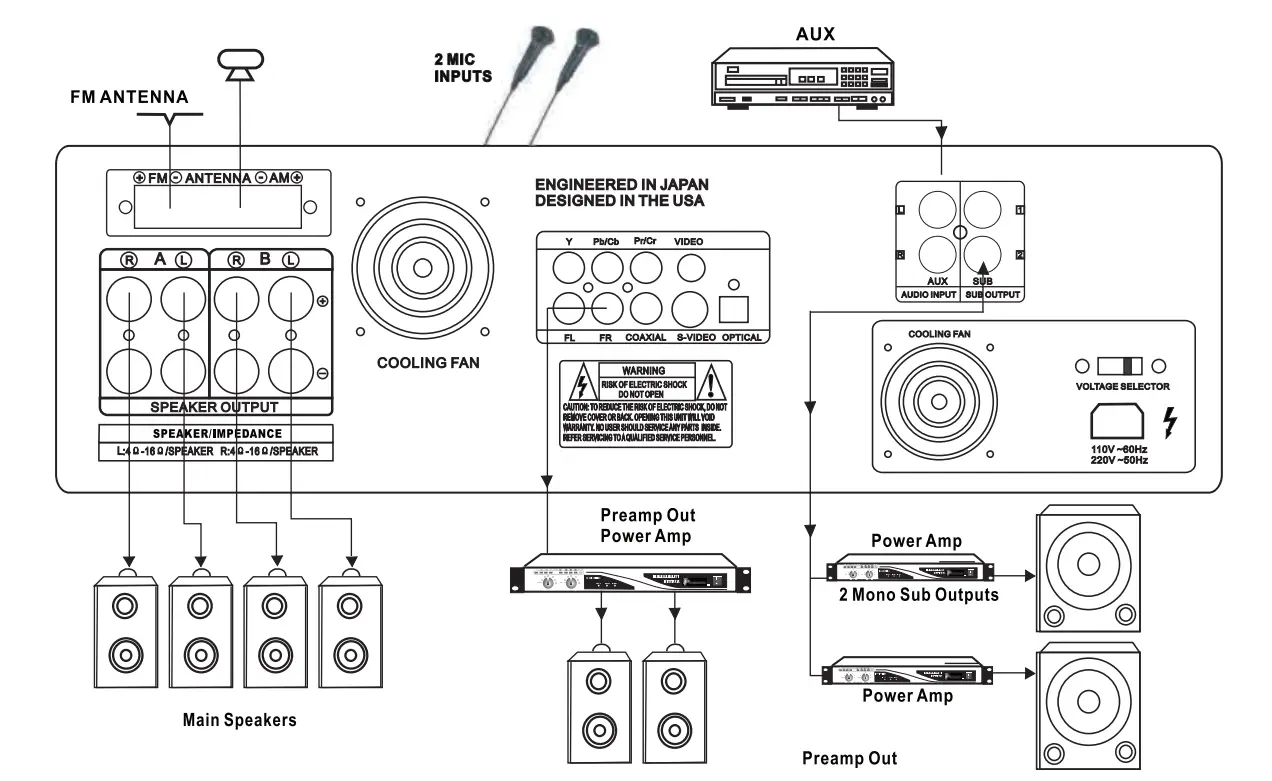
SAFETY INSTRUCTIONS
- Make sure that all connections are properly connected and the main volume is set to a minimum level before turning ON the unit.
- When more than one pair of speakers is used, (especially the main speaker output) make sure that the speakers used have the same wattage and impedance, otherwise, the unit may be damaged under high power or long-term operation.
- To avoid humming sounds and unwanted noise, make sure that all the wires are properly inserted.
- For speaker cords, strip off the vinyl coating and twist the wire tip. Push down the pink jack or loosen the screw terminal, before inserting the wire tip, then fasten it and tighten the screw. Be careful not to let the wires stick out of the terminal otherwise this may cause a short circuit when wires of different terminals contact each other.
- After the unit is turned ON, adjust the main volume to the desired level same with the bass and treble volume, etc.
BASIC CONNECTION
Connecting to a TV with an Audio/Video cable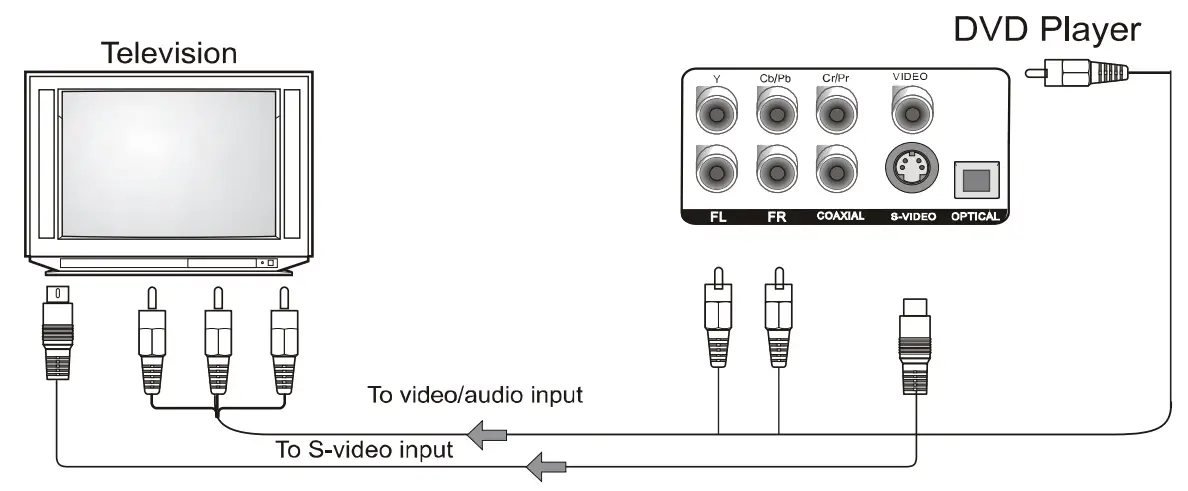
If the TV has an S-video input, connect the DVD player with an S-video cable.
When using an S-video cable, do not connect the yellow video cable.
Note:
The volume adjusting only works when it’s connected to a power amplifier. While it’s connected to a TV set without speakers, the volume cannot be adjusted on this device. You can only adjust the volume on the TV set.
Connecting to an Audio System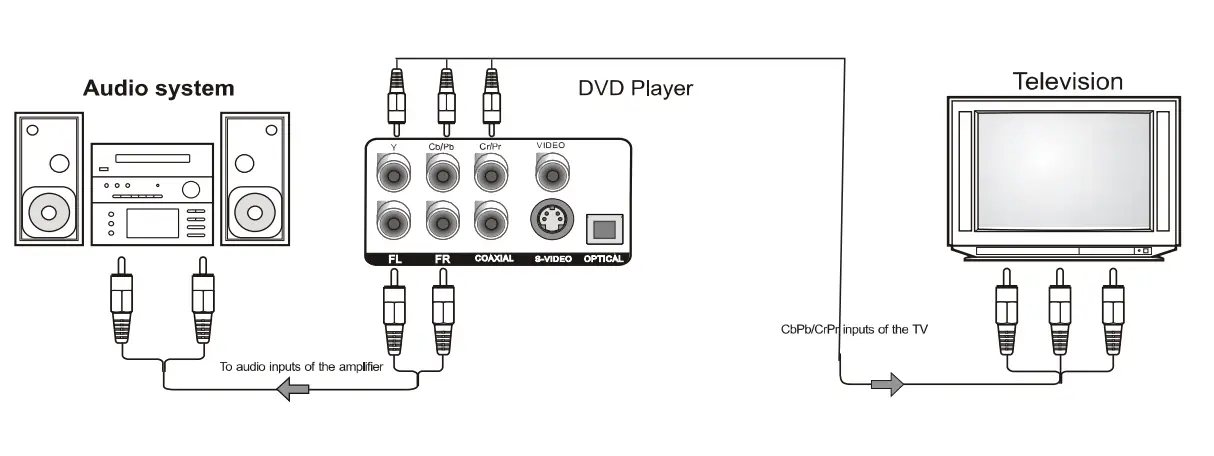
Connecting to an Ampliffer Equipment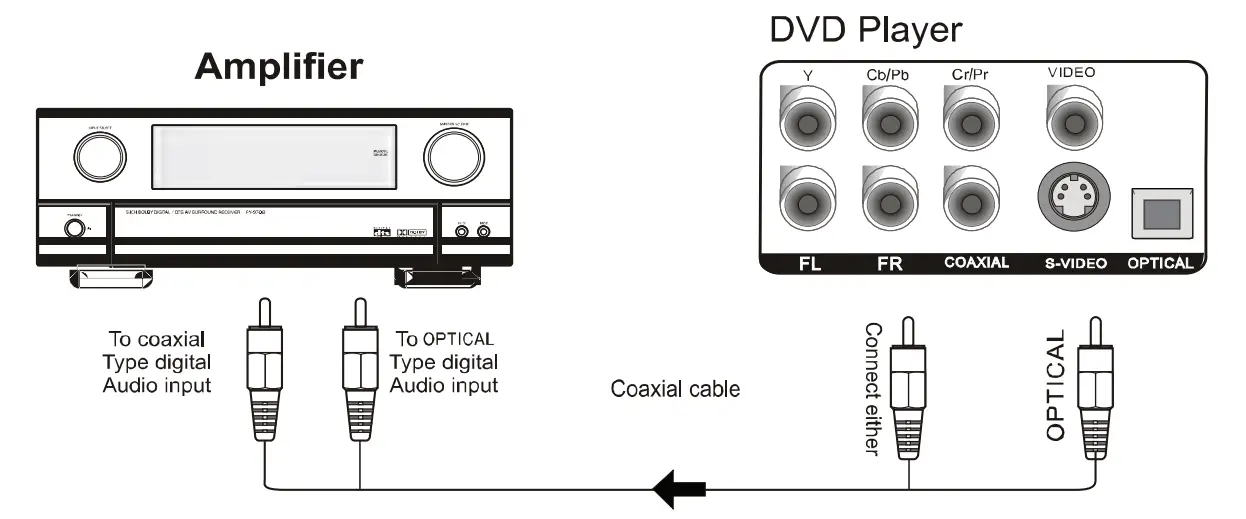
BASIC PLAYBACK
Preparations
When you want to view a disc, turn on the TV and select the video input connected to the unit
Basic Playback
- Press the POWER switch in the front panel to ON, the unit turns on and the TV screen will display the start logo. If a disc is already in the tray, it will begin to play once the power is ON.
- Press OPEN/CLOSE
 to open the disc tray, place a disc on the disc tray.
- There are two different disc sizes. Place the disc In the correct guide on the disc tray. If the disc is out of the guide, it may damage the disc and cause the unit to malfunction.
- Do not place a disc that is unplayable in this unit.
- Press OPEN/CLOSE to close the disc tray, and the playback will automatically start.
- Some discs may not playback automatically, you can press the PLAY
 button to start playback.
- Some discs may not playback automatically, you can press the PLAY
- Some discs may start playback with a menu, use the cursor button on the remote controller to select menu options and press PLAY to start, or press digits to select menu options directly.
 to open the disc tray, place a disc on the disc tray.
 button to start playback.
Pause/Step Playback
- Press PAUSE/STEP
 FIrst time to pause playback (still mode). The sound will be muted during the still mode.
 - Press STEP continuously to single step forward to the next frame in the video.
- Press PLAY to resume normal playback.
 FIrst time to pause playback (still mode). The sound will be muted during the still mode.
Previous and Next
While playing, press the PREV key to play back the previous chapter. Press until you reach the first chapter. Each press of the NEXT
  key while playing will skip the current chapter and play the next one.
Fast Forward and Fast Reverse
- Press FWD
 to fast-forward through the disc. Each time the FWD button is pressed, the fast-forward motion speed changes.
 - Press ENTER/PLAY to resume normal playback.
- Press REV
 to fast reverse through the disc. Each time the REV button is pressed, the fast reverse motion speed changes.
 - Press ENTER/PLAY to resume normal playback.
 to fast-forward through the disc. Each time the FWD
 to fast reverse through the disc. Each time the REV
 Stop Playback
- Press the STOP
 button to stop mode, the TV screen will show the start logo. As with some discs, the unit can recall the location where it stopped such as DVDs and audio CDs.
 - Press PLAY to playback to resume playback from the location where playback stopped or from the beginning of the disc.
- Press STOP twice to stop completely.
 button to stop mode, the TV screen will show the start logo. As with some discs, the unit can recall the location where it stopped such as DVDs and audio CDs.
Standby
Press the STANDBY key on the remote control to switch the player to standby mode or to
power ON.
NOTES:
- “INVALID KEY” may appear on the TV screen during operation. A “INVALID KEY” means that the operation is not permitted by the unit or the disc.
- this unit can be controlled by CPU under setting mode. While in screen saver, press any key to activate the unit. If you cannot use this function, you can set SCREEN SAVER to OFF in the SYSTEM SETUP PAGE of the SYSTEM SETUP.
LISTEN TO THE RADIO, LINE INPUT OPERATION ADVANCED PLAYBACK
- MP3, AUX EXTERNAL CONNECTION OF AUDIO SIGNAL INPUT
Press the INPUT key on the remote control or on the unit’s panel. The unit can input MP3/AUX and AM/FM external connection audio signals, the display shows the status. The audio signal of any equipment can be connected. - iNPUT TRANSFER TO MP3, AUX
Press the INPUT key on the remote control or on the unit’s panel. The unit can input MP3/AUX and AM/FM external connection audio signals, the display shows the status. The audio signal of any equipment can be connected. - LISTEN TO RADIO
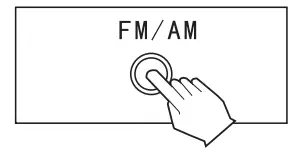
- FM/AM
Press the INPUT key to transfer the radio reception, then press the [FM/AM] key on the machine or in the remote control. The machine will turn into FM/AM mode, and the display shows the frequency and the channel number of the current radio station.
- MANUAL SCAN
Press a key on the unit’s panel or on the remote control to carry out a manual scan to search for your need.
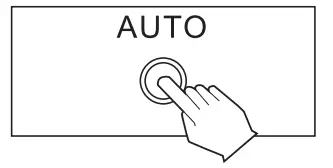
- AUTO SCAN
Press the AUTO key on the unit’s panel or on the remote control, then the machine itself will scan within the frequency range once completely automatically.
NOTES:
The machine will store the radio station into the current channel number when the machine receives one. The effect is much related to the intensity of the signal. If there are no signal or an immethodical signal, you’d better choose manual scan or frequency selection scan. - FREQUENCY SELECTION SCAN
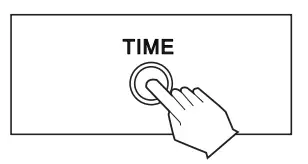
Press the [TIME] key on the remote control, the display shows the status. Then you can input the frequency of the radio station you want to listen to.- FM frequency range: 87.5-108.0MHz
- AM frequency range: 530-1620KHz

- CHANNEL SELECT
Press key on the remote control or on the panel, then you can select the channel you have already stored.
NOTES:
You can store your favorite radio stations in continuous channels. - MONOPHONY/STEREO MODE SELECT
Press the [L/R] key on the remote control to select monophony or stereo mode to listen to the radio.
NOTES:
We advise you to select monophony mode when the signal of the radio station you’ve chosen is not good enough. - AUTO STORE RADIO STATIONS
After starting AUTO SCAN function, the machine will store the radio stations received into ordinal channels.The current frequency will be stored into the current channel number automatically. - MANUAL STORE RADIO STATIONS
Press key to select the radio station you want to listen to, then press the [MEMORY] key to store the current radio station into the channel number you want until the signal intensity is strong enough.
TIPS:
If the reception is not good or there’s noise and it doesn’t become better even after changing into monophony mode, you should suitably adjust the antenna to a good position until you get the best reception.
 a key on the unit’s panel or on the remote control to carry out a manual scan to search for your need.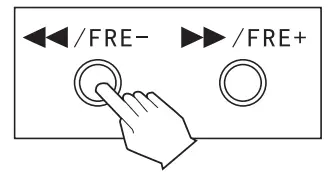
 key on the remote control or on the panel, then you can select the channel you have already stored.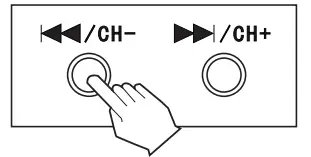
ADVANCED PLAYBACK
USB READER FUNCTION
- The machine will play USB the same as disks when there is only a single form of a playable file in the USB disk or in the triple card.
- MP3 and WMA files have the priority cover others to be played after the machine has scanned if the USB disk contains several forms of playable files.
USB/DVD
When the device is playing DVD, you can press the [USB/DVD] key, then the screen will display READ USB after pressing the [ENTER] key to turn to the USB status. The same when playing USB and you can change to DVD status by following above operation.
USB COPY SUBTITLE KEY FUNCTION
- You can insert USB equipment when the machine is playing MP3, CD or MPEG4.
Documents will be copied into the USB after you press the [SUBTITLE] key on the remote control.
- When playing an MP3 disk, press the [SUBTITLE] key to copy the files into the USB.
- When playing a CD disk, press the [SUBTITLE] key to copy the songs into a USB then change them into an MP3 file. (select a single file or all files to transfer)
NOTES:
It only works when the USB equipment’s capacity is large enough. Some styles of the machine won’t have the function.
ADVANCED PLAYBACK
IMPORTANT NOTE:
THE FOLLOWING FUNCTION DESCRIPTIONS ARE FOR DVDS OPERATION AND DISPLAY ON SCREEN MAY BE DIFFERENT FOR OTHER DISC FORMATS.
- TIME
Once the TIME button is pressed, the screen will display messages. Use the LEFT/ RIGHT cursor button to select your preference. Press ENTER/PLAY to confirm. - OSD
Pressing this button will display “DVD TT XX/XX CH XX/XX 00:00:05 (chapter elapsed),” 1/3 ENG 5.1CH 1/4 ENG OFF”, “DVD TT XX/XX CH XX/XX -00:00:00 (chapter remain)”, “DVD TT XX/XX CH XX/XX -00:00:00 (title elapsed)”, “DVD TT XX/XX CH XX/XX -00:00:00 (title remain)”, the sixth will cancel function. - ZOOM
Press this button to zoom into the picture. Each time the button is pressed, the magnification level will change. - SUBTITLE
Press this button and the screen will display: ” [1XX]”, “XX” indicates the language of the country. (the number of language depends on disc). - PROGRAM
Press this key can store your favorite picture as starting frame. If you have chosen several pictures, the latest picture willbe the starting frame. You can cancel it by pressing [SETUP], then press [ENTER] key after selecting [RESTORE] key of [LOGO SELECT] under system settings and the system will restore to the original frame. - TITLE/PBC
For DVD discs – Press this button to display the title menu. Press the digits to select your preferred chapter.
For SVCD and VCD – Follow the menu instructions on the screen. Press the digits during PBC playback. - A/B SPEAKERS OUTPUT SELECT
- LANGUAGE
Press this button on the remote control to change the mode of audio. For example: [1 XX 5.1CH], “XX” indicates the language of country. (the number of languages depends on disc). - VIDEO
In play or stop status press the VIDEO key on the remote control, the device will switch its video-output Intarface: TV-RGB, P-SCAN, S-VIDEO, INTERLACE YUV. - P/N
Press the key to switch between NTSC, PAL and AUTO - REPEAT
Press once to repeat CHAPTER.
Press twice to repeat TITLE.
Press thrice to repeat ALL.
Press 4 times to cancel the repeat. - A-B REPEAT
Press A-B to begin the start point, press again to set an end point and complete the setting.
The selected section A-B will be repeated. The third press will cancel this function. - VOLUME AND MUTE
Press “+” at the right of the VOLUME to increase volume, “-” to decrease volume.
The first press is MUTE which will display Mute no voice, the second press will return to normal. - MENU
This Is used to increment and decrement level for the selected function of Master Volume, Bass, Treble, Balance, AutoStatlon seek.
By pressing the MENU key you can select the functions above. If you want to adjust bass, press the MENU key to select bass, then press (master volume+) or (master volume-) on the remote control you can increase or decrease bass. If you want to adjust the treble, press the MENU key to select treble, then press (master volume+) or (master volume-) on the remote control you can increase or decrease the treble. Others function above can also be adjusted in the same way.
SPECIAL FUNCTION PLAYBACK
JPEG DISC PLAYBACK
When playing a JPEG disc, a navigation menu will be displayed automatically if the disc is loaded in succession. In the menu, use the UP or DOWN cursor button to select a file, then press “ENTER/PLAY” to be played as a slideshow. Press PREV or NEXT to select the previous or the next picture. Press PAUSE to pause the current picture for viewing, press ENTER/PLAY, to return to normal playing. Press ZOOM to start the zoom function, when the ZOOM function is on, press PREV or NEXT to switch between pictures. Pressing the CURSOR key can move the enlarged picture and the picture display direction can be changed by pressing “PROG” key, including RANDOM, WIPER L, WIPER R, UP-DOWN, LEFT-RIGHT, WINDOW V, EDGE TO CENTER, etc.
MP3 PLAYBACK
Place the MP3 disc on the disc tray, the DVD player will begin to play once. Simultaneously, a navigation menu will be displayed automatically if the disc is loaded In succession. In the menu, use the UP or DOWN cursor button to choose a folder. Press the “ENTER/PLAY” button to confirm. ln the folder, use the UP or DOWN button to select the file, then press “ENTER/PLAY” to play this file. On this page, using the LEFT cursor button will return to the previous menu. Press PREV or NEXT to go back to the previous or next page.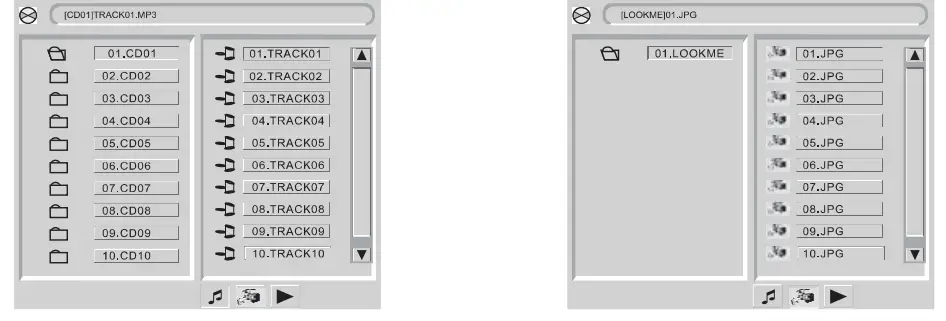
MPEG-4 DISC FUNCTION INTRODUCTION
MPEG-4 is the fourth video and audio encoding standard released by MPEG (The abbreviation of “Moving Pictures Experts Group”). VCD is based on MPEG-1 technology and DVD is based on MPEG-2. MPEG-4 takes advantage of narrow bandwidth, pursuing the best picture quality by compressing and transmitting the data in frame reconstructed technology. The audio data Is compressed by WMA standard. MPEG-4 is the most advanced compression technology standard in the AV field. It has the highest compression rate.
By MPEG-4 technology, we can encode and compress a DVD film into one or two CD-R discs with pretty good picture quality or can burn several films that has the same quality as VCD into one CD-R disc, or burn several films that have a similar quality to DVD into DVD-ROM disc.
Note:
- The MPEG-4 discs available in the market now have many different formats, such as Xvid, AVI, RM, etc. But some discs with the “MPEG-4” logo in the market are not encoded by MPEG technology. It is normal that some of the discs cannot function properly in this player because of the incorrect encoding standard.
- The MPEG-4 files are displayed as a list in the screen, choose the icon using the cursors and press the “ENTER/PLAY’ button to playback the movie.
- As AVI is the MPEG-4 format, and MPEG is the MPEG-1 format, please do not combine AVI and MP3/JPEG together into a disc. The player will only recognise MP3 or JPEG in that instance. However, MP3 and JPEG can be included in one disc together.
SPECIAL FUNCTION PLAYBACK
Kodak Picture CD Playback
Playback (Normal)
When a Kodak Picture CD is inserted into the unit, an automatic slide show is launched. Each picture in the Kodak Picture CD will be displayed consecutively in a slide-show fashion and will be scaled to fit in the whole TV screen. Some slide-show transition modes are provided, use the “PROG” key to select. You can set transition effects for each picture. To display an image indefinitely, press the “PAUSE” key. To view the next or previous picture, press the “NEXT” or “PREV” key. To resume the slide show, press the “ENTER/PLAY” key.
Image Rotation
There are four modes to rotate a picture: “Invert”, “Mirror”, Left”, and “Right”. These operations are allowed only when a picture is being displayed normally and will be canceled automatically when a new picture is displayed. The arrow key is used to select the different rotation modes:
ZOOM
The “ZOOM” key is used to turn on or off this function. When this mode is on, any picture will be displayed at the last ratio selected by the user. A message on the screen will indicate the current zoom ratio. If zoom mode is on, the “ZOOM” key are used to control the ratio of zoom in/out. With ZOOM mode off, a picture is scaled to it the whole TV screen.
Notes:
During the zoom function, slide-show transition and image rotation are disabled.
To cancel the zoom function press the “ZOOM” key again to resume the slide show.
IMPORTANT NOTE:
The quality of pictures displayed on the screen is highly dependent on the viewing device.
USB 2.0
USB 2.0 allows data transfers of 480 Mb/s.
Divx and Xvid Video Compatibility
- Plays most versions of DivX and Xvid Video with standard playback of DivX and Xvid media files.
- File Extensions: .avi and .divx (these must be used for the player to recognize DivX video files).
Note that all files with the .avi extension are recognized as Mp4, but not all of these are necessarily DivX video files and therefore may not be playable on this player.
PC-Created Disc Compatibility
Discs recorded using a personal computer may not be playable in this unit due to the setting of the application software used to create the disc. In these particular instances, check with the software publisher for more detailed information. Discs recorded in packet write mode (UDF format) are not compatible with this player. Check the DVD-R/RW or CD-R/RW software disc boxes for additional compatibility information.
SYSTEM SETUP
When you press the SETUP button on the remote control, the setup menu will be displayed. It will include “SYSTEM SETUP”, “LANGUAGE SETUP”, “AUDIO SETUP”, “VIDEO SETUP”, “SPEAKER SETUP”, ‘DIGITAL SETUP”.
- Within the setup menu, you can use UP, DOWN, LEFT and RIGHT buttons on the remote control to move the cursor, and then press ENTER/PLAY button to make your selection. Press LEFT to return to the previous menu.
- To exit setup menu, you can select the exit setup menu or press the SETUP button.
SYSTEM SETUP PAGE
Setup TV screen format, video type and all DVD functions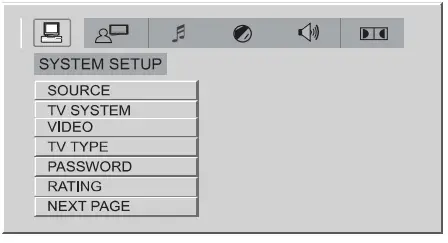
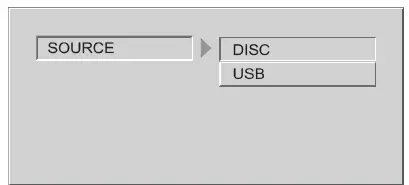
- SOURCE
This system will automatically read the USB if there is no playable disc loaded.
Use the source menu to select and read from either the disc and USB directory.
- TV SYSTEM:
This player supports different TV outputs, including AUTO, NTSC, and PAL systems.- If your TV supports only NTSC or PAL and had you inadvertently selected the wrong TV system, the screen will flicker and only black and white colors will be displayed. In this case, you should press the SETUP button to set as following Note.

- If your TV supports only NTSC or PAL and had you inadvertently selected the wrong TV system, the screen will flicker and only black and white colors will be displayed. In this case, you should press the SETUP button to set as following Note.
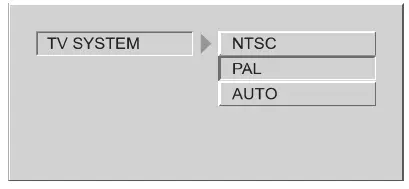
Note: How to Sat the TV Type?
- You may switch the NTSC/PAL setting of the DVD player to match the video signal of your TV.
- The table below shows what kinds of disc are compatible with each setting (AUTO, PAL and NTSC)
disc output format type format SELECT TV TIME MODE NTSC PAL MULTI DVD NTSC NTSC PAL NTSC PAL NTSC PAL PAL
VIDEO
VIDEO: Sets the video output.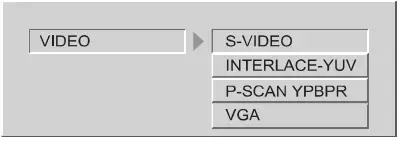
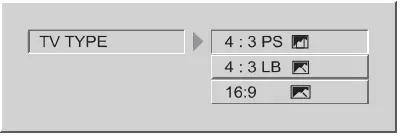
TV DIDPLAYTYPE
The TV TYPE will select the diFFerent ratio of display TV screen format. There are various types of displays on the screen for diFFerent matches between Disc and TV (Please see Multi-image ratio mode page).
Note:
- No matter which displays format is selected, a picture recorded in standard 4:3 format always displays in the 4:3 aspect ratio.
- The display format of DVD titles may vary; please refer to the information that accompanies your specific DVD title.
- If the DVD title is recorded in 16:9 wide display format while the TV is a standard 4:3 screen, horizontal compression of the image will result.
- Some DVD titles may be recorded in special formats. In such cases, the DVD titles will always appear on the screen in their original format, regardless of which TV display format you select.

PASSWORD CHANGE
PASSWORD CHANGE: You can change the password, please type 4 numerals as new password. The initial password is 0000.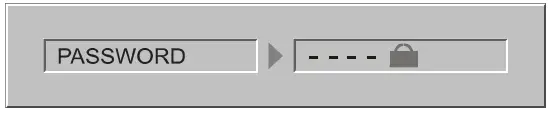
RATING
RATING: The rating control function works in conjunction with the diFFerent censorship classes assigned to DVDs. These classes help to control the types of DVDs that the family watches. There are up to 8 censorship classes for DVDs.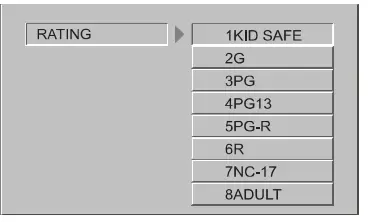
SCREEN SAVER
SCREEN SAVER: If the screen saver is on, then there will be an animated picture on the screen whenever the DVD player is idle for a certain time.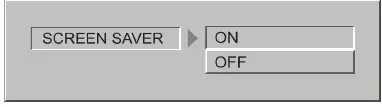
RESUME
RESUME: This setup can realize the memory playback. When this setup is on, the player will recall the memory where the player stopped under the circumstances of power oFF or withdrawing the discs. That is to say, when you replay the disc, it will be played from there it stopped last time.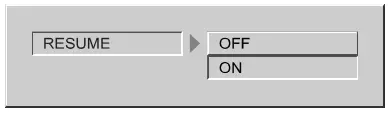
Note: With this function, each disc of diFFerent formats can be memorized.
DEFAULT
DEFAULT: Resets to all the manufacturer’s original settings for this DVD player Press ENTER/PLAY to perform the reset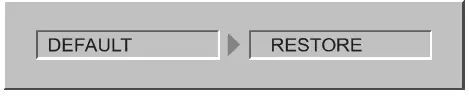
LANGUAGE SETUP PAGE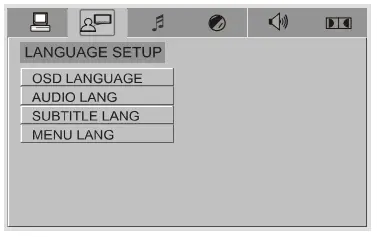
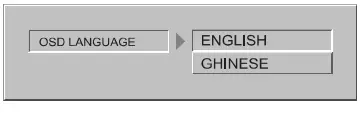
- OSD LANGUAGE
On Screan Display (OSD) Language: Users can select the whole setup menu and on-screen display language.
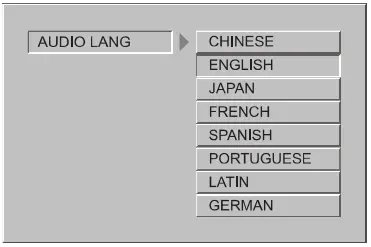
- AUDIO LANG
AUDIO: Sets the preferred audio language as the default when playing DVD. (If DVD support these languages)
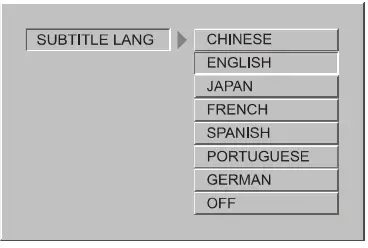
- SUBTITLE LANG
SUBTITLE: Sets the preferred subtitle language as the default when playing DVD. (If DVD supports these languages)
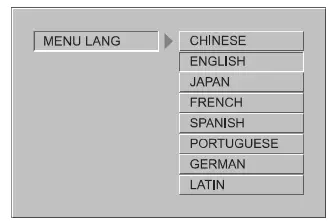
- MENU LANG
MENU LANG: Sets the preferred menu language as the default when playing DVD. (If DVD supports these languages)
AUDIO SETUP PAGE
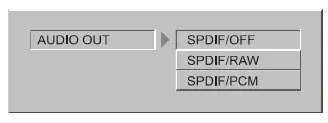
- AUDIO OUTPUT
AUDIO OUT: Sets the audio outputs
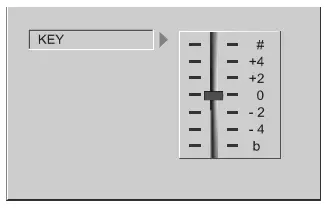
- KEY
KEY: Use the Up and Down arrow button to move the scroll and adjust the key.
VIDEO SETUP PAGE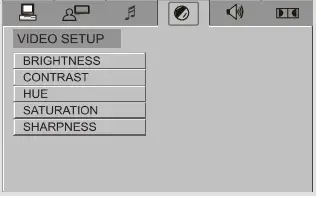
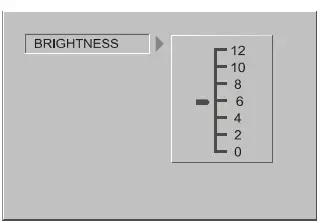
- BRIGHTNESS
BRIGHTNESS: Sets the brightness level of video output.
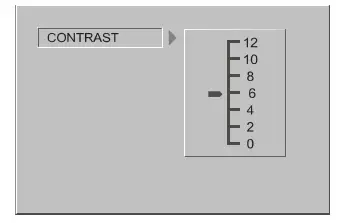
- CONTRAST
CONTRAST: Sets the contrast level of Video output.
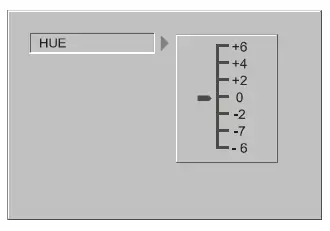
- HUE
HUE: Sets the hue value of the Video.
- SATURATION
SATURATION: Sets the saturation of the video
- SHARPNESS
SHARPNESS: Sets the sharpness of the video
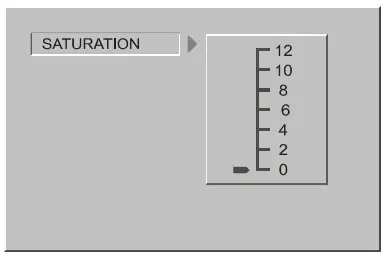
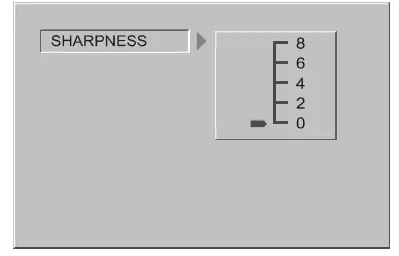
SPEAKER SETUP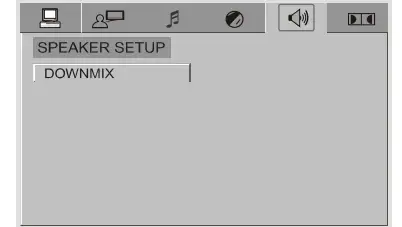
- SPEAKER SETUP PAGE
DOWNMIX MODE: Sets front speakers to LT/RT STEREO, V SURR or 5.1CH.- The first 3 settings (LT/RT. STEREO, V SURR) downmix the sound Signal for 2 speakers. This setting allows you to enjoy a surround sound effect with only two speakers. For this reason, a setup for additional speakers (described in the following sections) is disabled when DOWNMIX MODE is set to these settings.
- You have to set the DOWNMIX MODE to 5.1CH if you have selected the Dolby Digital connection and you would like to enjoy true Dolby Digital surround sound.

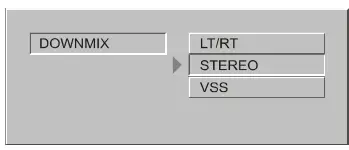
DIGITAL SETUP PAGE
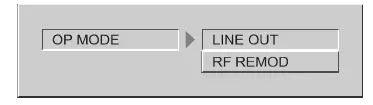
- OPMODE
OP MODE: This can set the type of output and adjust the audio frequency.
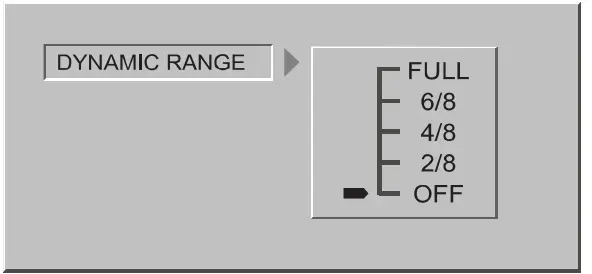
- DYNAMIC RANGE
DYNAMIC RANGE: When LINE OUT is selected, choose this setting to adjust the line out ratio and get different effects. If adjusting to FULL, the audio signal peak value will be the minimum; while adjusting to OFF, the maximum.
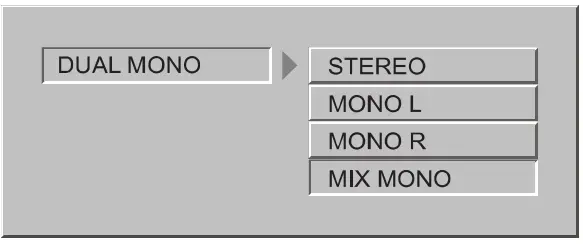
- DUAL MONO
DUAL MONO: If your amplifier/decoder has Dolby Digital output, you may select stereo, left mono, right mono, or mixed mono mode for your ampliFIer decoder.
TROUBLESHOOTING
Before calling for service, you can perform the checks described in the troubleshooting guide for immediate solutions.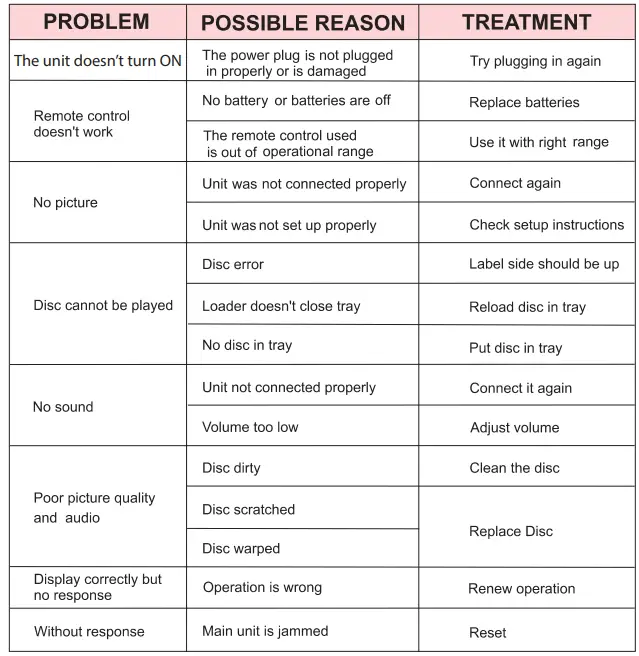
DVD SPECIAL FUNCTION
SETTING THE TV SCREEN SIZE
Multi-aspect ratio suit to diFFerent TV screen sizes.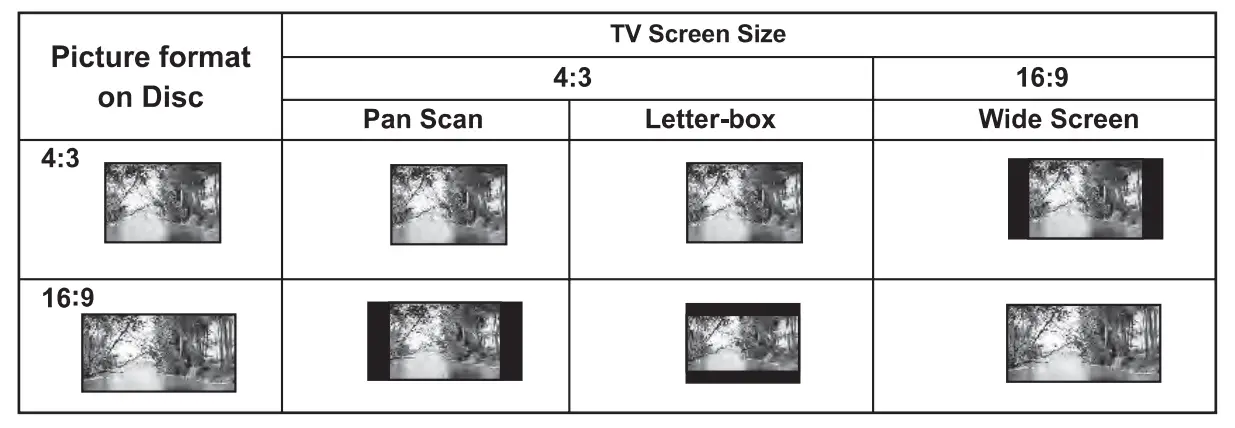
Functions Supported by DVD discs
There are many functions available on DVD discs and the functions vary per player and per manufacturer.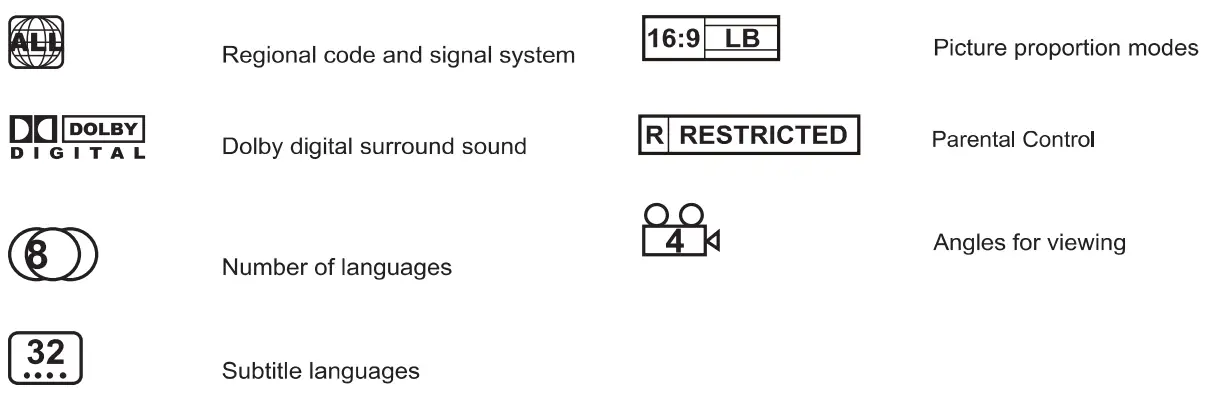
SPECIFICATION
PD1000BA – PD3000BA
Home Theater Wireless BT Streaming PreampliFIer Receiver Wireless BT Streaming Home Theater PreampliFIer Receiver Audio/Video System CD/DVD Player AM/FM Radio, MP3/USB Reader
Features
- Audio + Video Home Theater System
- Built-in Bluetooth for Wireless Audio Streaming
- MP3 Digital Audio File Playback
- SD Memory Card & USB Flash Drive Readers
- Connects to TVs Soundbars Speaker Systems
- Front Loading CD/DVD Player
- 4-Channel Receiver System
- Powers up to (4) Loud Speakers
- AM/FM Radio with 50 Station Memory Presets
- Aux (3.5mm) Input Jack
- (4) Pair Speaker Terminal Binding Posts
- (2) Pair RCA (L/R) Audio Inputs
- Subwoofer RCA (L/R) Output
- Optical (Digital) Audio Output
- (2) 1/4” Microphone Inputs
- 1/4” Headphone Jack
- Video Outputs: S-Video RCA YPbPr (Component Video)
- VFD Display
- Front Panel Control Center
- Output dB (Decibel) Level LED Display
- Mic Echo Treble Bass Volume Subwoofer Controls
- Built-in Ventilation Cooling Fan
- Rack Mountable System
- Bluetooth Connectivity:
- Built-in Bluetooth for Wireless Music Streaming
- Works with All of Your Favorite Devices (iPhone, Android, Smartphone, iPad, Tablet, Computer, etc.)
- Bluetooth Wireless Network Name: PYLE
- Bluetooth Version: 3.0
- Bluetooth Wireless Range: Up to 35’ ft.
What’s in the Box
- PreampliFIer Receiver
- Remote Control
- Detachable Rack Mount Brackets
- RCA Connection Cables
- AM + FM Antennas
- Power Cable
Technical Specs
- MAX Output Power: 1000 Watt
- Impedance: 8 Ohm
- Aspect Ratio: 4:3/16:9
- Video System: PAL/NTS
- Audio S/N Ratio: >90dB
- Frequency Range: +/-14 dB
- Integrated IC Radio Tuner
- CD/DVD Disc Compatibility: DVD/CD/VCD/CD-R/CD-RW/MP4
- Power: 120/240 Volt Switchable
- Dimensions (L x W x H): 16.9” x 14.6” x 5.7” -inches
PyleUSA.com
VISIT US ONLINE:
Have a question? Need service or repair?
Want to leave a comment?– PyleUSA.com/ContactUs
FAQS
I have 8 speakers. It is possible to connect 2 speakers in each channel? Or is better to connect 2 speakers in serie and connect only 1 cable per ch?
I would go with the latter.
Where are the hdmi portals?
it doesn’t have an HDMI port.
what is the height of the actual product, not the package?
It’s 5 1/4 “×17 “
What is the sub power output?
If you use a sub-woofer; I would have to say, that’s the power allocated to run it.
Can I hook up a turntable to this amp?
that will depend on your turntable specs. You can connect different devices to this unit using the Input port on the back. Most of the turntable needs a pre-amplifier like our PP999 model.
what is the height?
You always scroll down to the product description. in this case, it is: 20.5L x17.25W x 9.25H
Will this work on 220V?
Yes the system does have a voltage selection switch on the back side for 110V or 220V.
Does this have a positive and negative hook up
yes there’s a positive and negative speaker output port on the back of the unit. For more info, kindly visit our website pyleaudio.com. Type the model number on the search box PD1000BA.
How many watts per channel?
Says 1000 watts total.
Says 300 watts @ 2 Ohm. 150 watts @ 4 Ohm. 100 watts @ 8 Ohms. Four speakers total. Best I can tell you.
Can you connect 8 speakers to this amp?
unfortunately no. However, you can use a speaker selector like our PSS6 model to add more speakers. For more info, kindly visit our website pyleaudio.com. Type the model number on the search box PD1000BA.