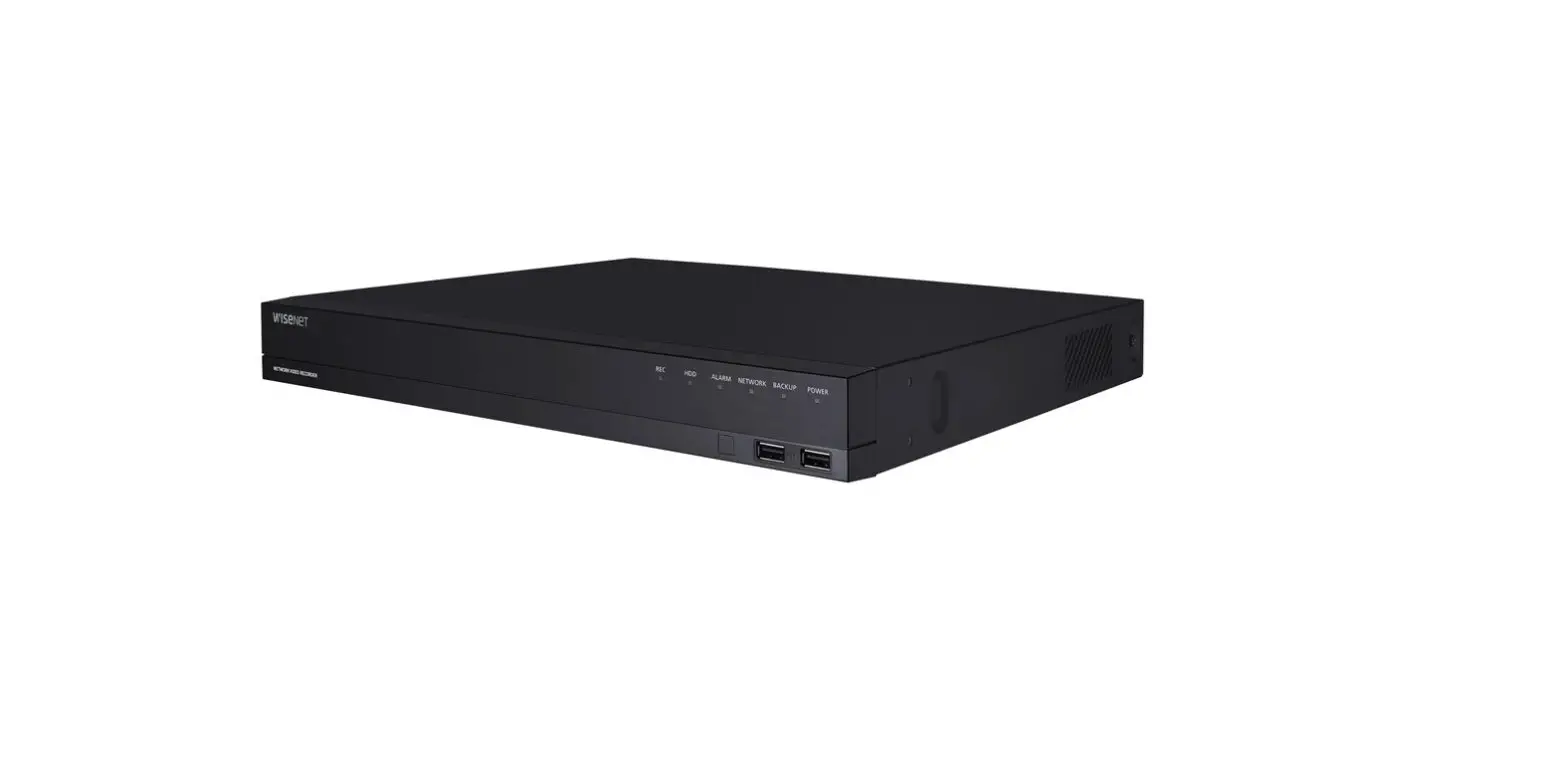

Hanwha Techwin WRT-P-3101MW-1TB WAVE Recording Server

Product Information: Wisenet WAVE Video Management System
Wise net WAVE Video Management System is a professional-grade software that enables easy and efficient management of video surveillance systems. It offers robust and customizable features such as motion detection, video analytics, and remote access to live and recorded video materials.
The system comes with a hardware quick reference guide and a license key or serial number located at the back of the product.
The Wisenet WAVE Video Management System also has a mobile application that allows users to access live or recorded video anytime, anywhere.
Product Usage Instructions: Setting up Wisenet WAVE Video Management System
- Install the Wisenet WAVE software by following the QR code or visiting the link provided in the user manual https://wavevms.com/download/
- Add devices to the Wisenet WAVE software by following the instructions provided in this link https://wavevms.com/wave_qg_2
- Configure the network settings of the Wisenet WAVE server by following the instructions provided in this link:
For Windows:- Click on the Start menu icon
- Click on Control Panel
- Click on Networking & Internet
- Click on Change Adapter Options
- Double-click on the network card used to connect to your local network
- Click on Properties
- Double-click on Internet Protocol Version 4 (TCP/IPv4)
- Set network properties according to your requirements
For Ubuntu:- Click on the System Settings window icon
- Click on the Network Settings window icon
- Select Wired and click Options…
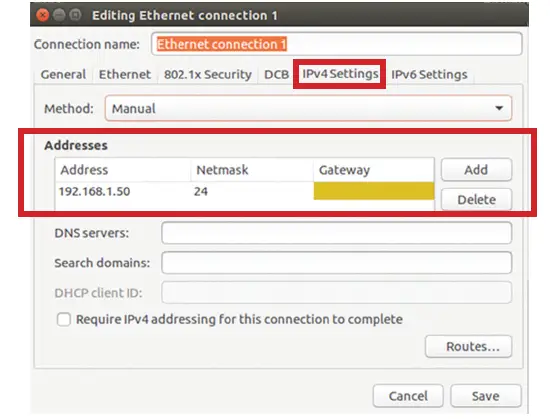
- Go to the IPv4 Settings tab and input the IP configuration required for your network
- Set camera recording profiles by following the instructions provided in this link https://wavevms.com/wave_qg_3
- Visit the Wisenet WAVE video tutorial library by scanning the QR code provided in the manual or by visiting this link https://wavevms.com/wave_qg_4
- Download the Wisenet WAVE Mobile App for Android or iOS by scanning the QR codes provided in the user manual or by visiting the app store
- For any technical support or assistance, contact Wisenet WAVE customer service at (877) 213-1222 or visit their website www.HanwhaSecurity.com
With these easy steps, users can easily set up and configure their Wisenet WAVE Video Management System for a seamless video surveillance experience.
Hardware Quick Reference Guide
Thank you for selecting Wisenet WAVE Video Management System! For assistance or questions regarding the setup of your WAVE server or client, please contact one of our technical support specialists, or visit our website.
Technical Support: 877-213-1222
Web: www.hanwhasecurity.com
WAVE VIDEO TUTORIAL LIBRARY AND MOBILE APPLICATION
Use the QR codes below to visit our extensive video tutorial library and to install your WAVE Mobile app to always stay connected.
- Setting up WAVE software
https://wavevms.com/wave_qg_1
- Adding devices to WAVE
https://wavevms.com/wave_qg_2
- Setting camera recording profi les
https://wavevms.com/wave_qg_3
- Playlist for WAVE tutorial videos
https://wavevms.com/wave_qg_4
- WAVE software may be downloaded by following this QR code or by visiting the link below:

- Download the WAVE Mobile App for Android

- Download the WAVE Mobile App for iOS








CONFIGURING SYSTEM NETWORK SETTINGS
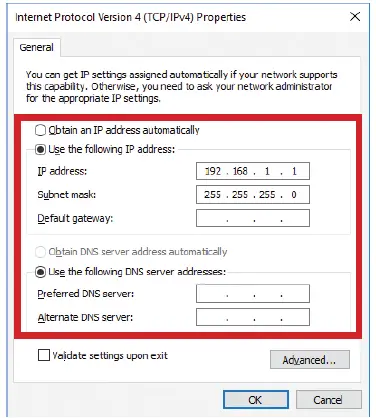
In certain cases, it may be necessary for your WAVE server to use a static IP address. Follow the steps outlined below to configure your WAVE server to use a static network IP address.
Windows
- Click the
 icon to enter the Start menu
 - Click
 to access your system Control Panel
 - Click the “Networking & Internet” icon
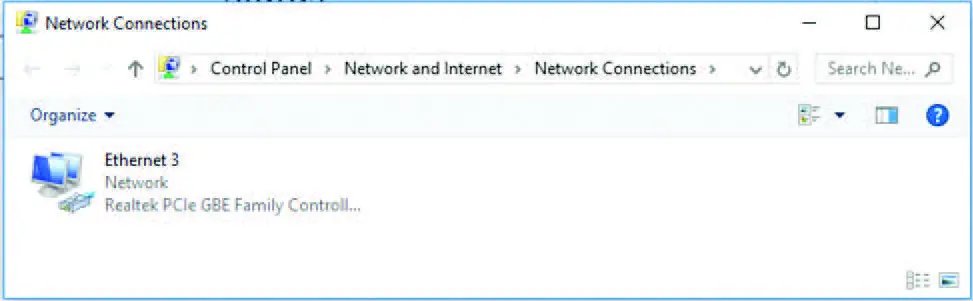
- Click “Change Adapter Options”

- Double-click the icon for the network card used to connect to your local network to view its properties window

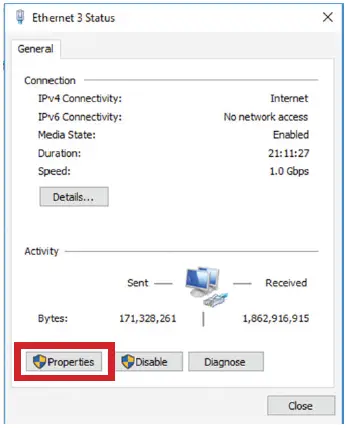
- Click on “Properties”

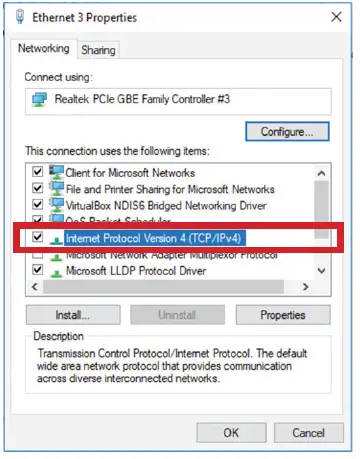
- Double-click on the Internet Protocol Version 4 (TCP/IPv4)

- Set network properties according to your requirements

 icon to enter the Start menu
 to access your system Control Panel
Ubuntu
- Click the
 icon to enter the System Settings window
 - Click the
 icon to enter the Network Settings window
 - Select “Wired” and click “Options…”

- Go to the “IPv4 Settings” tab and input the IP configuration required for your network

 icon to enter the System Settings window
 icon to enter the Network Settings window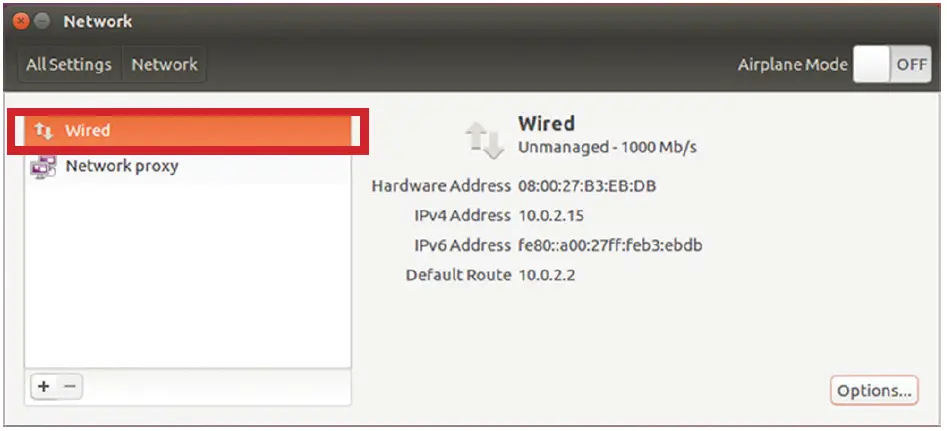
© 2019 Hanwha Techwin Co., Ltd. All rights reserved.
DESIGN AND SPECIFICATIONS ARE SUBJECT TO CHANGE WITHOUT NOTICE
Under no circumstances, this document shall be reproduced, distributed or changed, partially or wholly, without formal authorization of Hanwha Techwin Co., Ltd. REVISED 10-2019
Technical Support (877) 213-1222
LICENSE KEY / SERIAL NUMBER
 Hanwha Vision - Innovative Video Surveillance Systems
 Wisenet WAVE | Download