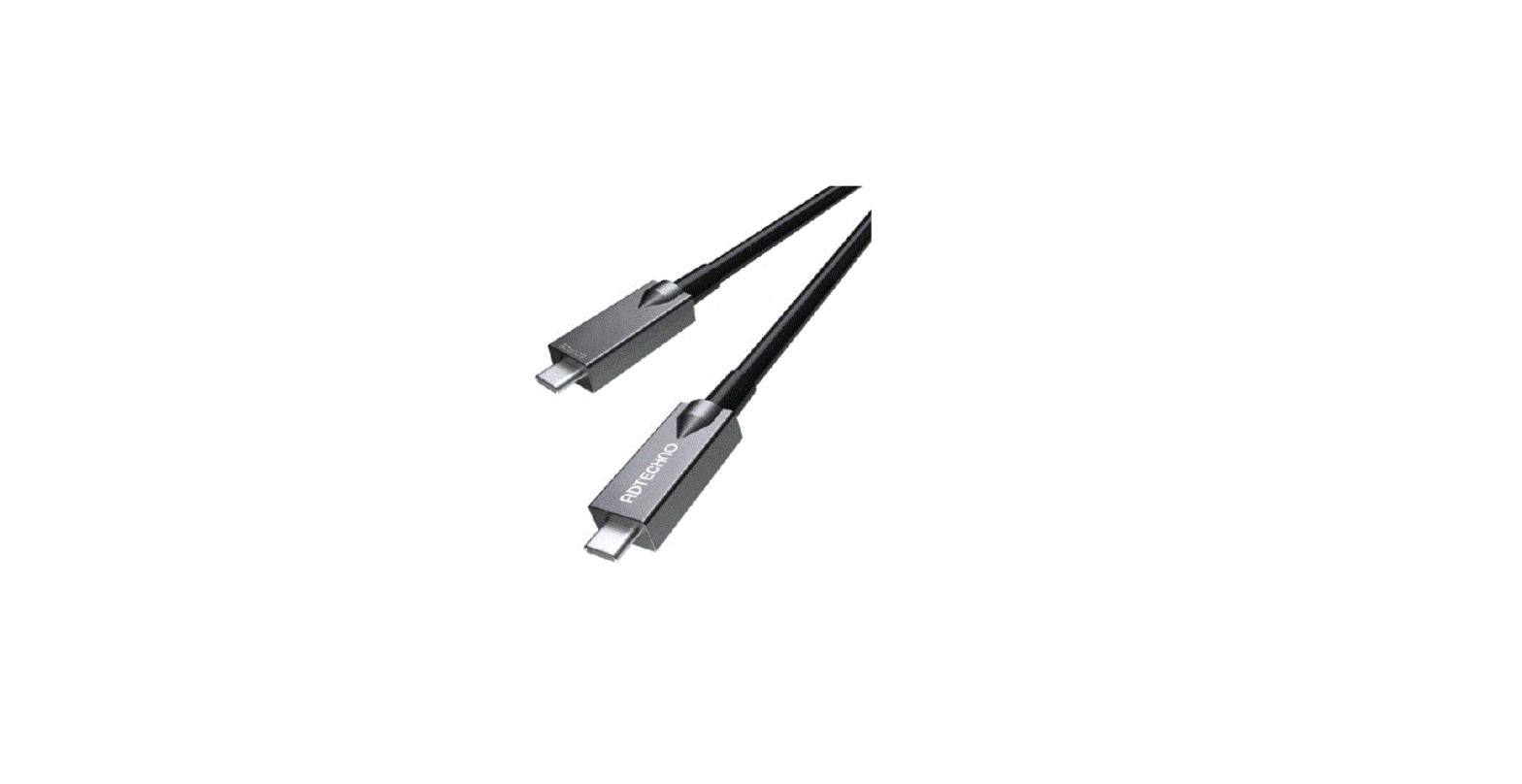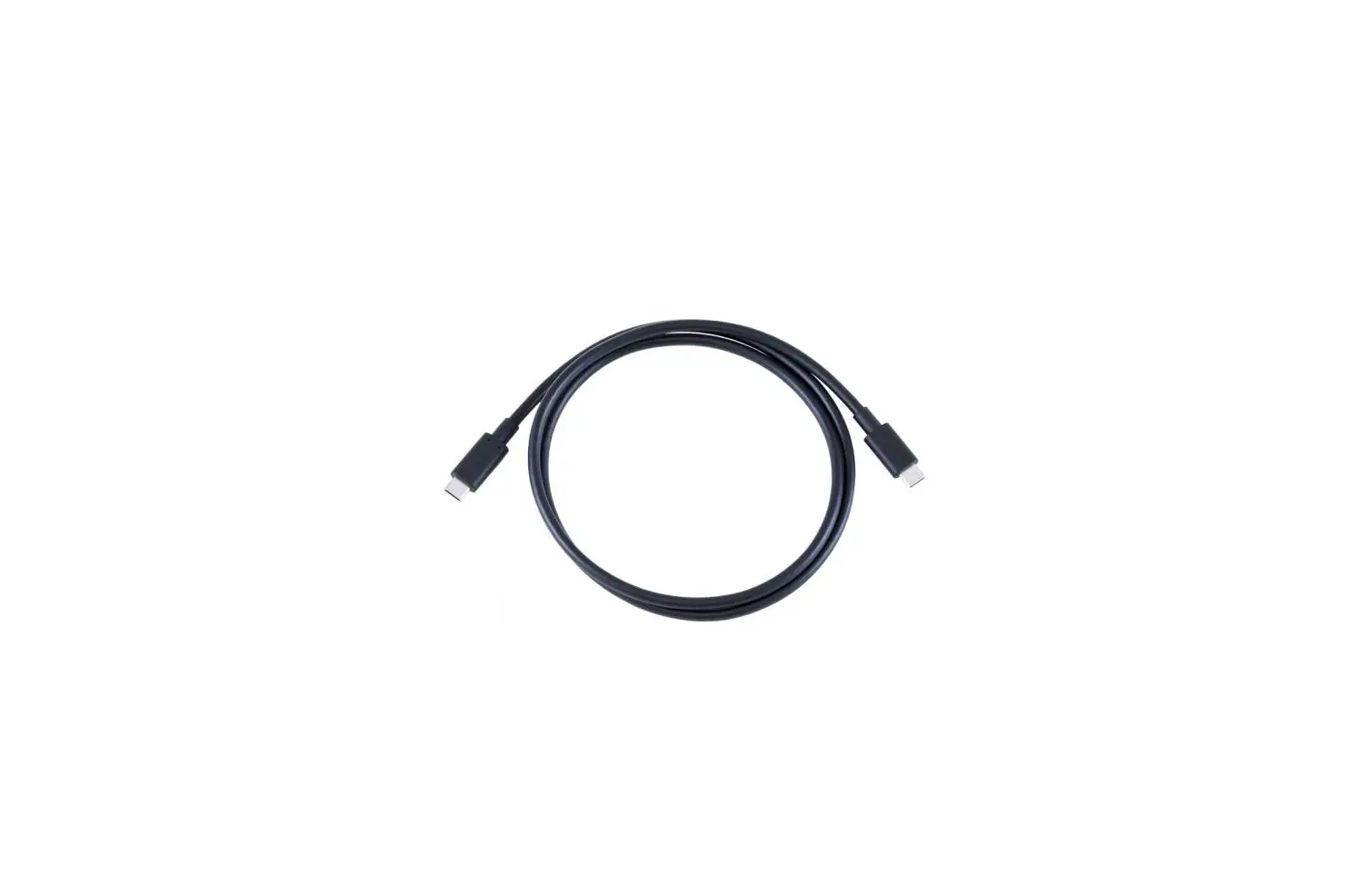

LIGHTWARE CAB-USBC-T100A Unleash the Power of Connectivity with Our 5-Star Cables
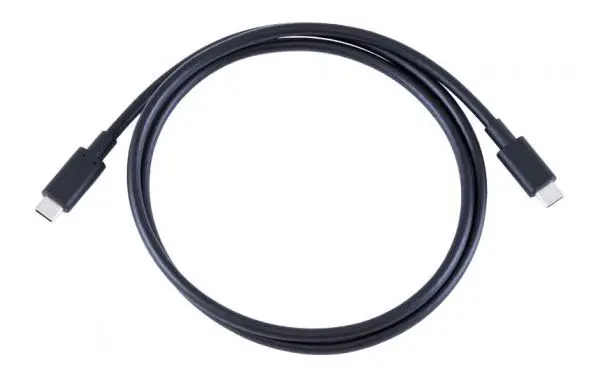
USB-C Cable Test Guide
This is a test guide for Lightware UCX and Full-Featured Type-C cables.
Test Result Summary Table
Here is a summary table of the test results:
| Cable | USB2.0 enumeration | USB3.x enumeration | Power delivery | DisplayPort Alt mode | Ethernet |
|---|---|---|---|---|---|
| CAB-USBC-T100A |  | | | | |
| CAB-USBC-T200A | | | | | |
| CAB-USBC-T300A | | | | | |
| CAB-USBC-T400B | | | | | |
| CAB-USBC-T500B | | | | | |
| Lanberg CA-CMCM-31CU-0030-BK | | | |  | |
| Apple USB-C Charge Cable | | | | | |
Please record the host computer brand, type, chipset, operational system and video card type e.g.
Result:/
Apple Macbook Air M1 16GB macOS Big Sur 11.5.2
Preparation and Wiring Diagram
Here is the preparation and wiring diagram:
- BYOD
- IN 1 Type-C cable
- Latest firmware
- Ethernet cable with Internet access
To use the product, follow these instructions:
For BYOD on Windows
- Install the USB Device Tree Viewer utility: https://www.uwe-sieber.de/files/UsbTreeView_x64.zip
- Connect the BYOD’s USB-C connector directly (no HUB or docking station) to UCX
- Connect to UCX with Lightware Device Controller. Use the latest version.
For BYOD on macOS:
- Connect the BYOD’s USB-C connector directly (no HUB or docking station) to UCX
- Connect to UCX with Lightware Device Controller. Use the latest version.
Preparation for Testing USB 2.0 and USB 3.x Enumeration
Follow these steps to prepare for testing:
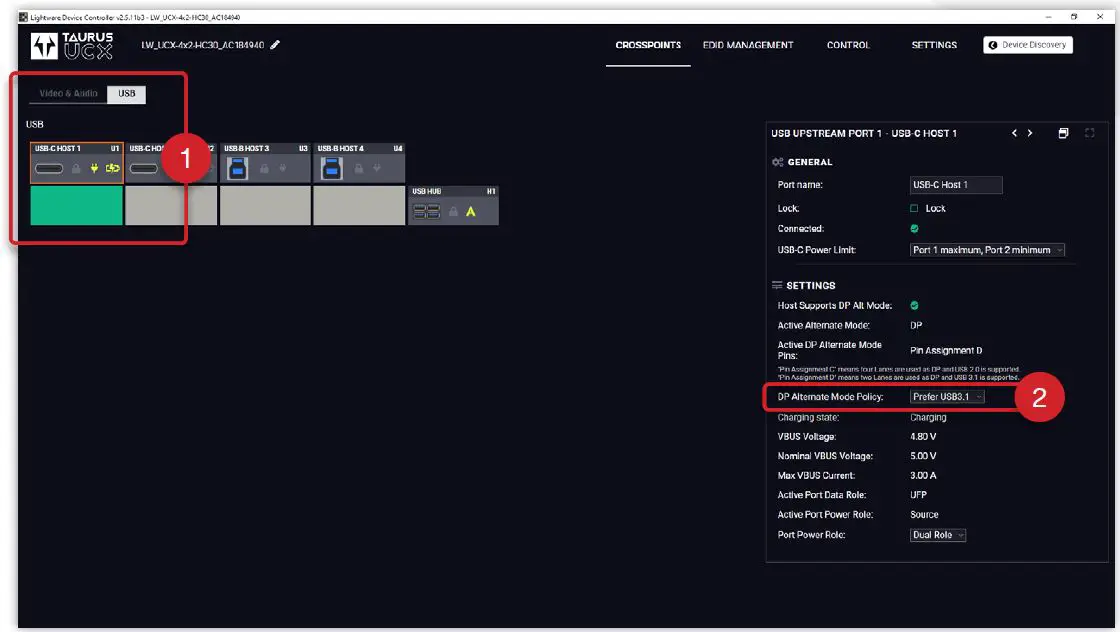
- Click on the USB-C HOST 1 icon in USB crosspoint tab. This will open the properties window.
- Set the DisplayPort Alternate Mode to Prefer USB 3.1.
Testing USB2.0 Enumeration on Windows BYOD
To test USB2.0 Enumeration on Windows BYOD, follow these steps:
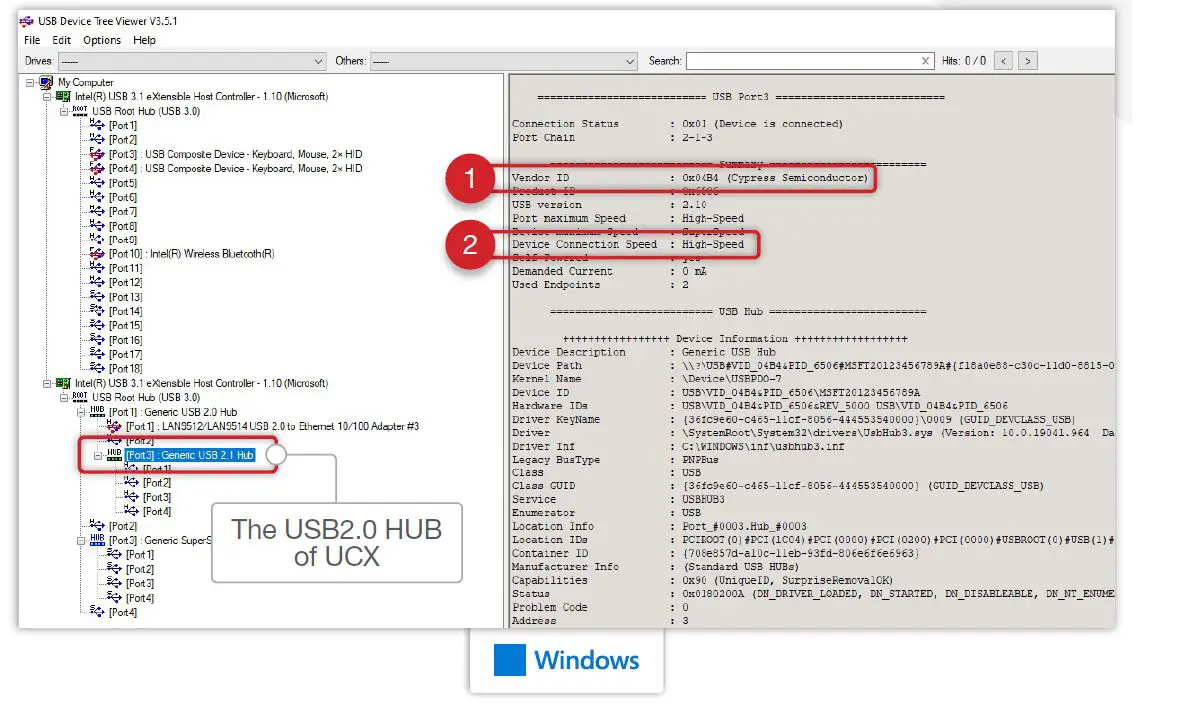
- Open on Windows BYOD the USB Device Tree Viewer utility.
- Locate the UCX USB2.0 HUB Name: Generic USB 2.1 HUB Vendor ID: 0x04B4 (Cypress Semiconductor).
- If the hub is visible and the Device Connection Speed is High-Speed, USB 2.0 enumeration works.
Testing USB3.x Enumeration on Windows BYOD
To test USB3.x Enumeration on Windows BYOD, follow these steps:
- Open on Windows BYOD the USB Device Tree Viewer utility.
- Locate the UCX USB3.x HUB Name: Generic SuperSpeed USB HUB Vendor ID: 0x04B4 (Cypress Semiconductor).
- If the hub is visible and the Device Connection Speed is SuperSpeed, USB3.x enumeration works.
Testing USB2.0 Enumeration on macOS BYOD
To test USB2.0 Enumeration on macOS BYOD, follow these steps:
- Open on macOS BYOD the USB Device Tree utility(Apple logo/ About this Mac/System Report/ Hardware/USB).
- Locate the UCX USB2.0 HUB Name: CY-HX3 HUB Vendor ID: 0x04B4 (Cypress Semiconductor).
- If the hub is visible and the Speed is Up to 480 Mb/s, USB2.0 enumeration works.
Testing USB3.x Enumeration on macOS BYOD
To test USB3.x Enumeration on macOS BYOD, follow these steps:
- Open on macOS BYOD the USB Device Tree utility(Apple logo/ About this Mac/System Report/ Hardware/USB).
- Locate the UCX USB 3.x HUB Name: CY-HX3 HUB Vendor ID: 0x04B4 (Cypress Semiconductor).
- If the hub is visible and the Speed is Up to 5 Gb/s, USB3.x enumeration works.
Peoduct Preparation and Wiring Diagram
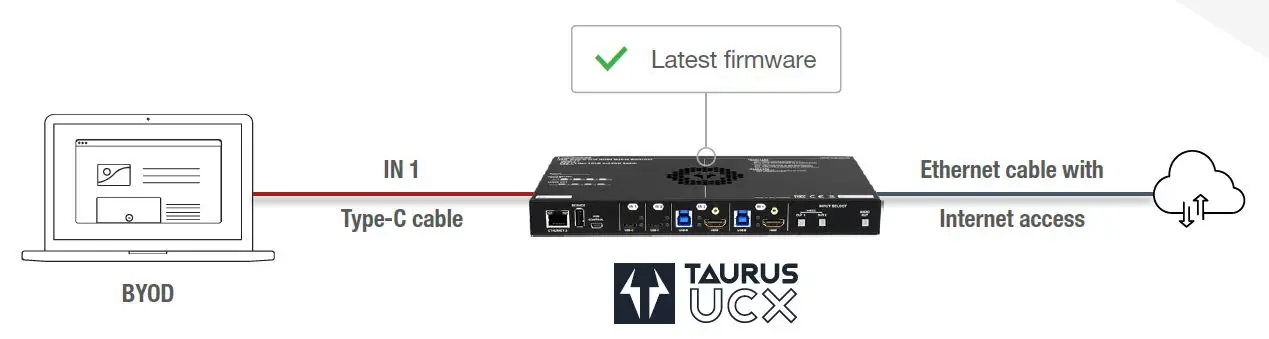
- Connect the BYOD’s USB-C connector directly (no HUB or docking station) to UCX
- For BYOD on Windows, install the USB Device Tree Viewer utility: https://www.uwe-sieber.de/files/UsbTreeView_x64.zip
- For BYOD on macOS, it is not necessary to install a utility
- Connect to UCX with Lightware Device Controller. Use the latest version.
Preparation for Testing USB 2.0 and USB 3.x Enumeration
- (1) By clicking on the USB-C HOST 1 icon in USB crosspoint tab results that USB Upstream Port 1 properties window opens
- (2) Set the DisplayPort Alternate Mode to Prefer USB 3.1
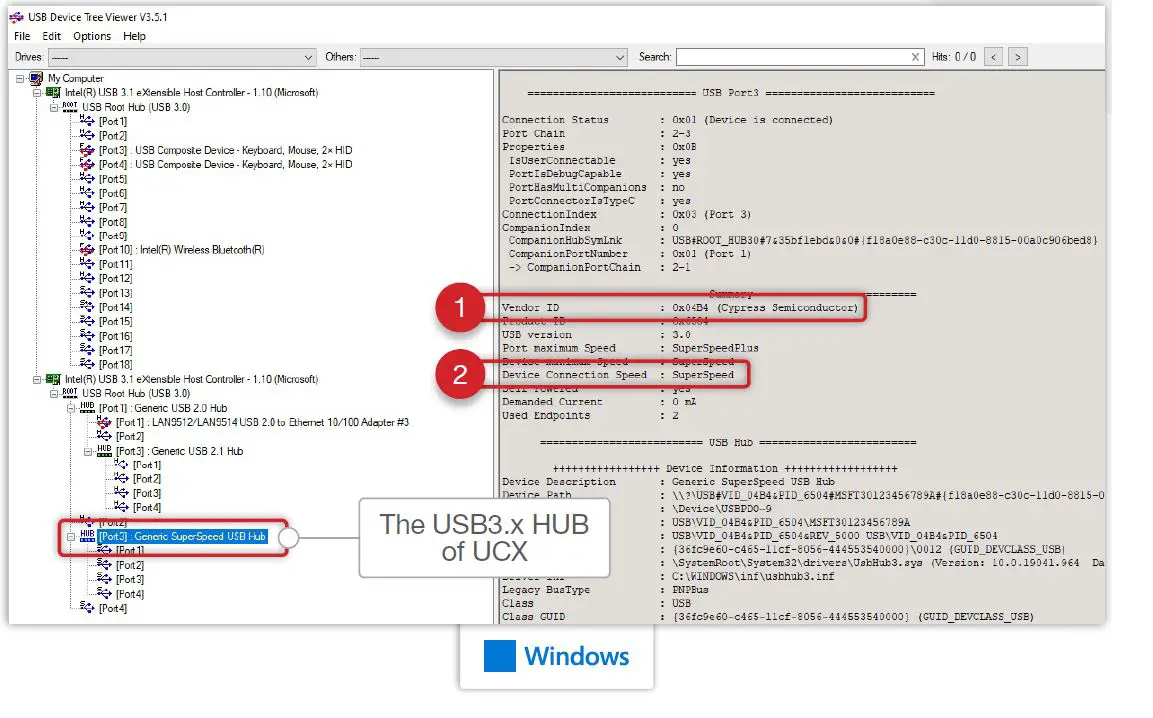
Testing USB2.0 Enumeration on Windows BYOD
- Open on Windows BYOD the USB Device Tree Viewer utility
- (1) Locate the UCX USB2.0 HUB
- Name: Generic USB 2.1 HUB
- Vendor ID: 0x04B4 (Cypress Semiconductor)
- (2) If the hub is visible and the Device Connection Speed is High-Speed,USB 2.0 enumeration works


Testing USB3.x Enumeration on Windows BYOD
- Open on Windows BYOD the USB Device Tree Viewer utility
- (1) Locate the UCX USB3.x HUB
- Name: Generic SuperSpeed USB HUB
- Vendor ID: 0x04B4 (Cypress Semiconductor)
- (2) If the hub is visible and the Device Connection Speed is SuperSpeed, USB3.x enumeration works
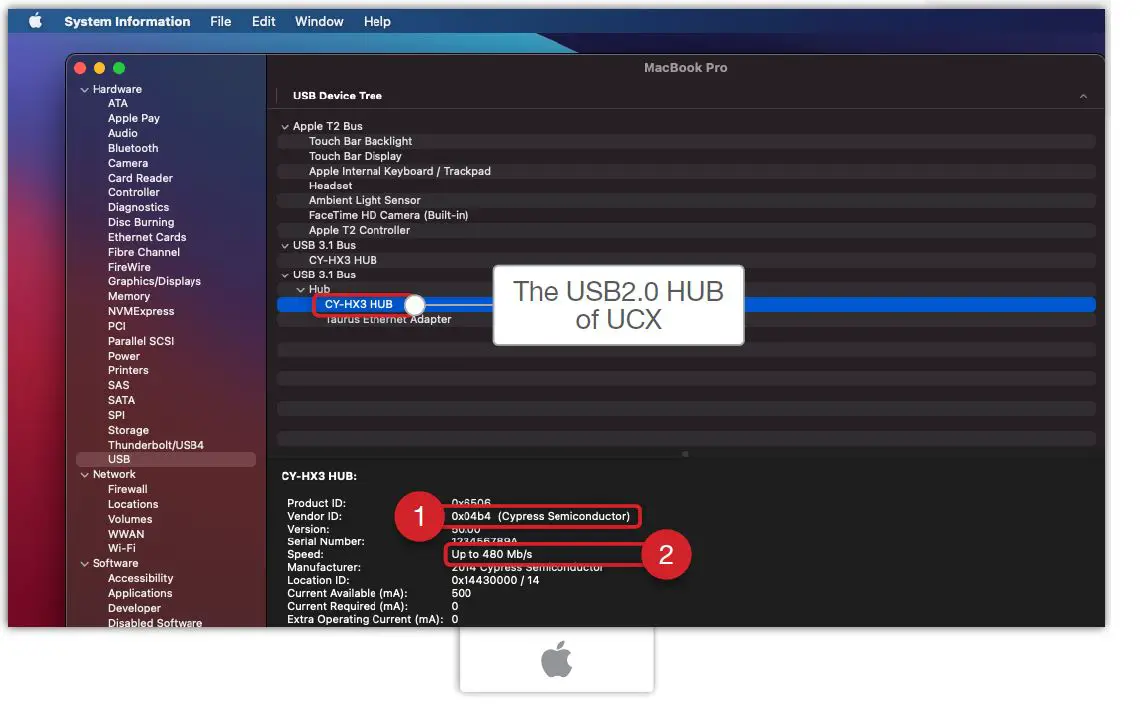
Testing USB2.0 Enumeration on macOS BYOD
- Open on macOS BYOD the USB Device Tree utility(Apple logo/ About this Mac/System Report/Hardware/USB)
- (1) Locate the UCX USB2.0 HUB
- Name: CY-HX3 HUB
- Vendor ID: 0x04B4 (Cypress Semiconductor)
- (2) If the hub is visible and the Speed is Up to 480 Mb/s,USB2.0 enumeration works
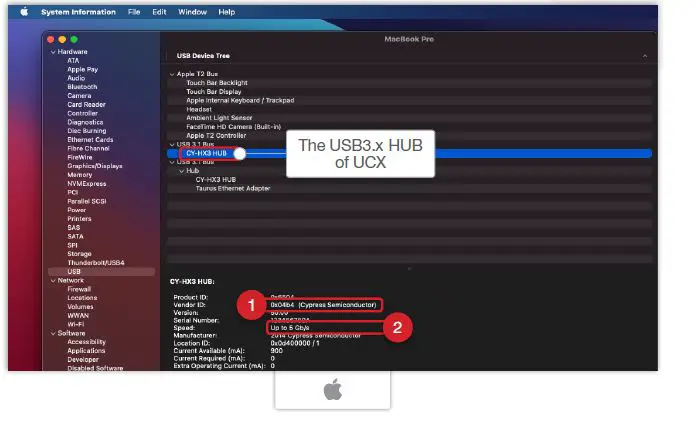
Testing USB3.x Enumeration on macOS BYOD
- Open on macOS BYOD the USB Device Tree utility(Apple logo/About this Mac/System Report/Hardware/USB)
- (1) Locate the UCX USB 3.x HUB
- Name: CY-HX3 HUB
- Vendor ID: 0x04B4 (Cypress Semiconductor)
- (2) If the hub is visible and the Speed is Up to 5 Gb/s,USB3.x enumeration works
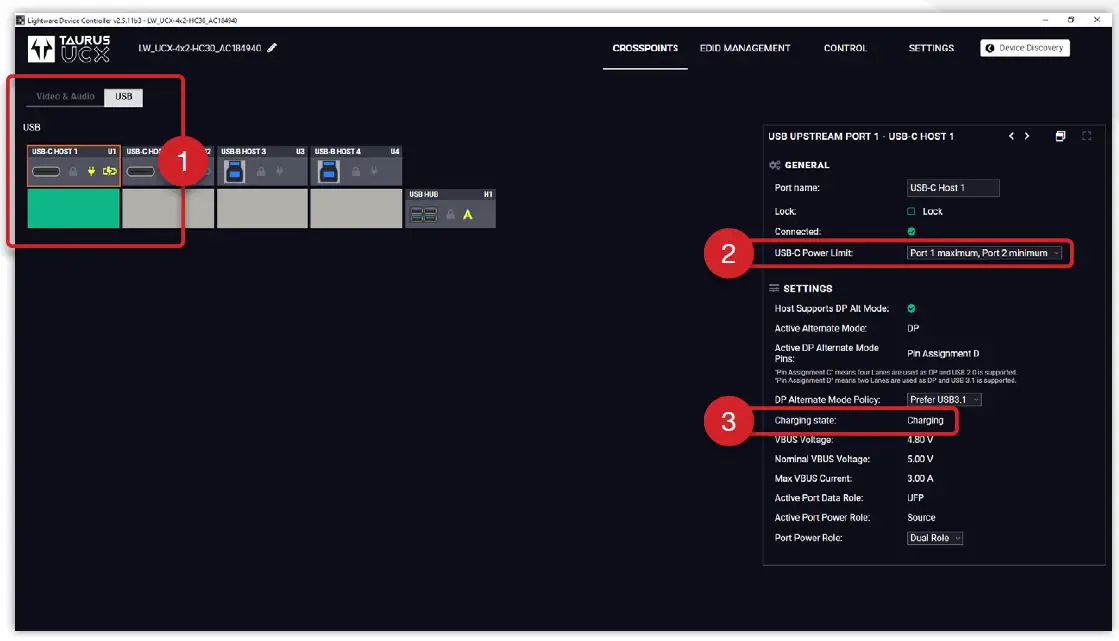
Testing Power Delivery
- (1) Clicking on the USB-C HOST 1 icon in USB crosspoint tab results that USB Upstream Port 1 properties window opens
- (2) Set the USB-C Power Limit to Port 1 maximum, Port 2 minimum
- (3) If the Charging states shows Charging, Power Delivery works
Preparation for Testing 4 Lane DisplayPort Alternate mode
- (1) Clicking on the USB-C IN 1 icon in Video crosspoint tab results that Input 1 port properties window opens
- (2) Set the DP Alternate Mode Policy to Prefer Video
- (3) Check the status of the Host Supports DP Alt Mode
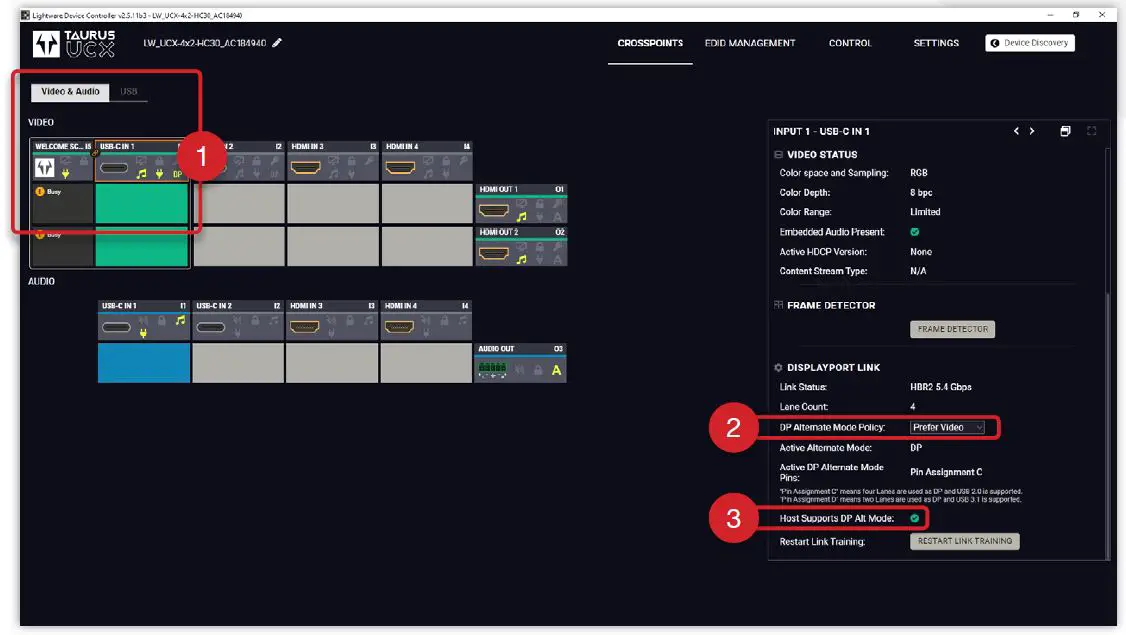
If the status is BYOD is suitable for testing DP Alt mode
If the status is BYOD is nonsuitable for testing the DP Alt mode
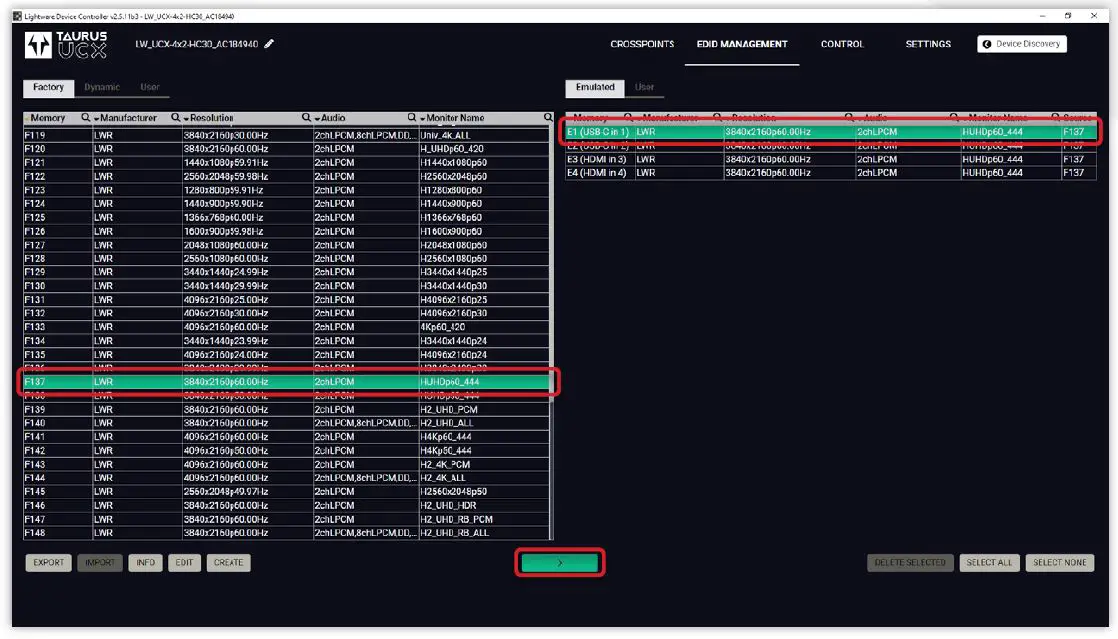
Preparation for Testing 4 Lane DisplayPort Alternate mode
Set the F137 factory EDID to E1 (USB-C in 1)in EDID management tab
In case BYOD does not support the 3840x2160p60Hz,use F119 EDID (3840x2160p30Hz) or F47 EDID (1920x1080p60Hz)
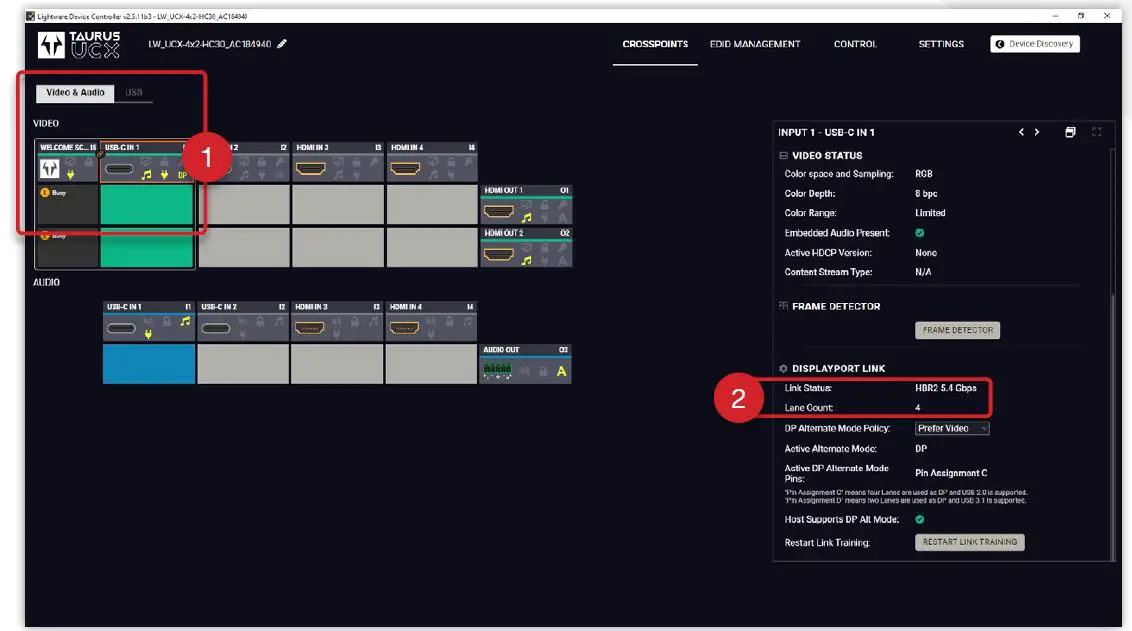
Testing 4 Lane DisplayPort Alternate mode
- (1) Clicking on the USB-C IN 1 icon in Video crosspoint tab results that Input 1 port properties window opens
- (2) Check the Link status and the Lane Count
- If the Link status is HBR2 5.4 Gbps and the Lane Count is 4,4 Lane DisplayPort Alt mode works
Testing USB – Ethernet Bridge
- In case the USB2.0 enumeration works then USB – Ethernet Bridge test is available
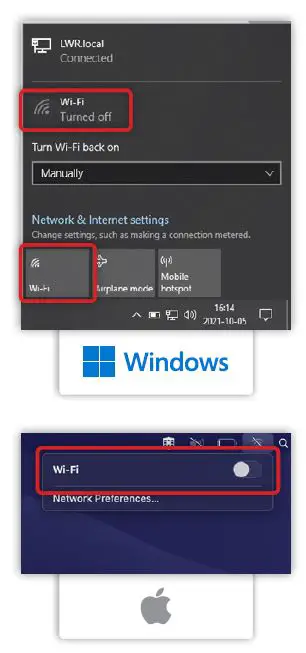
- Turn off the Wi-Fi connection on BYOD
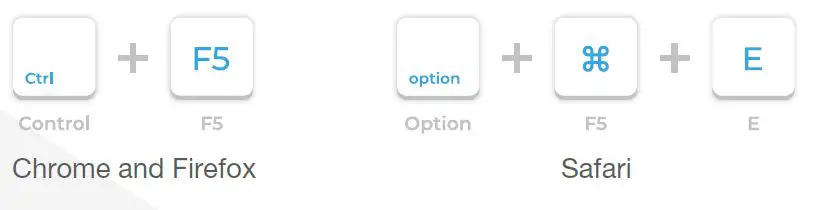
- Launch a browser, open a website (eg. lightware.com), and refresh the website by clearing the cache


- If the web page is loaded, Ethernet works
Peterdy 15, Budapest H-1071, Hungary
+36 1 255 3800
 Lightware Visual Engineering
 Lightware Visual Engineering